Corfu Navision 2016, Development Tips, Functional Tips, How To, Layouts, Office Integration, Report, Selection, Word

Modify, Assign and Process Email for Word Forms in Navision 2016

Microsoft Dynamics NAV 2016 offers new functionality with Microsoft Word forms and emailing documents for Customers and Vendors. You can now modify the customer statement report and the vendor remittance report using Microsoft Word. You can also select a specific report format by customer to ease the statement process.

To make this functionality work for you, you need to make sure you have setup the SMTP Mail Setup. You can see my earlier post OFFICE 365 INTEGRATION IN NAV 2015 – Exchange Online this is still valid for Navision 2016.

Recall from my earlier posts, how to work with Word Layouts which I have written for 2015 but those are still valid for 2016 links as below.

Word Document Reports and Custom Layouts

Using Report Selector to run Report

Managing Report Layouts

In Microsoft Dynamics NAV 2016, Microsoft have extended the functionality for Word forms and Email beyond the Sales documents. We now have default Microsoft Word forms for Customer Statements and the Vendor Remittance report.

You can now modify the Word form to meet your needs, assign a custom Word layout to a specified customer or vendor and print or email based on those customer specific selections.

In the Report Layout selection, there is a new report object for the Customer Statement with a default Word report created.

The Mini Statement report (1316) is based on the existing RDLC customer statement but includes a Word report with the same information. You can use Managing Report Layouts to know more details regarding customizing the Layouts.

In Report Selection – Sales, you can set the Customer Statement to use the new report, Mini-Statement – 1316.
Report2016-1

Now your system is setup to use the specified layout for all customers and the statement itself is going to use the new report.

Now that Microsoft Dynamics NAV is setup to use the new report, you can assign a specific report by customer. This will enable you to have multiple formats processed at the same time.

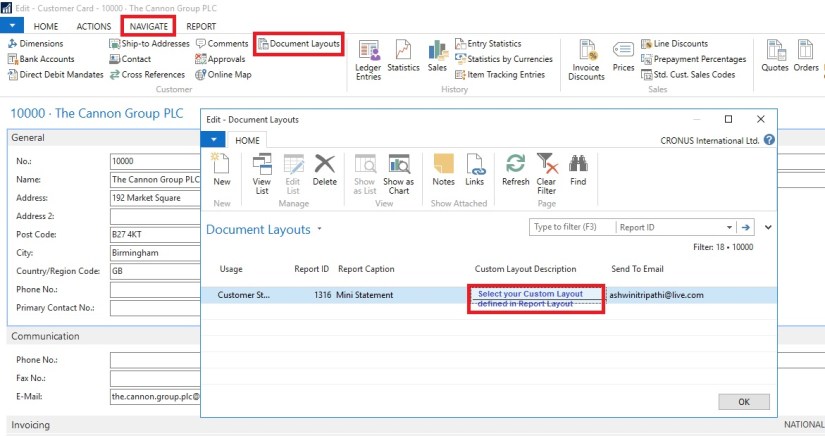
We assigned a custom layout to the customer in the customer card.

Here you set your selection by document type, for example, the sales quote or the customer statement.

You can also enter an email address for the document. So, if the statement goes to your customer’s accounts receivable clerk and the sales quote is sent to the sales manager, you define this information in the Document Layouts page.

The system uses the custom layout when you print the documents instead of emailing them.

Enter multiple email addresses with a semi-colon to separate them.
Report2016-2

You can do this for all customers.

When statements are processed, the report layout used is the one assigned to the customer. If the customer has no custom layouts assigned, the custom layout assigned in the Report Layout Selection is used.

If you go to Customer Statements, you can see that that Output Options are available. This will let you select how you wish to use the document layout settings.
Report2016-3
A checkbox will appear allowing you to print remaining statements. If you mark this checkbox, any statements with an email address in Customer Document Layouts is emailed, and any statements with a custom report layout but no email address will print with that report layout and any customers without any document layout settings will use the company default report from Report Layout Selections.

I will come up with more details in my upcoming posts.

Corfu Navision 2016, How To, Information, Permission, User Group

Record Permissions and Apply Permissions Sets to User Groups in Navision 2016

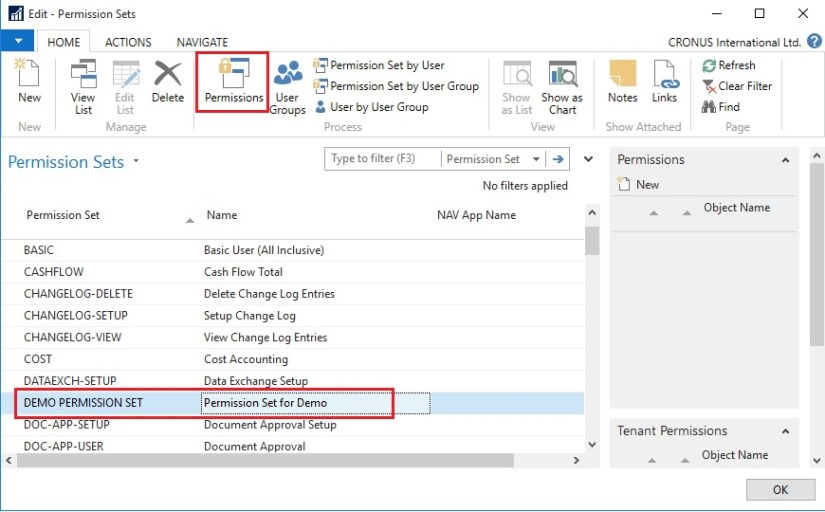
Administrators can record new permission sets in Microsoft Dynamics NAV 2016.

Recording permissions is based on the code coverage functionality.

You can access the various windows and activities in the Microsoft Dynamics NAV Windows client or the Microsoft Dynamics NAV Web client that you want users with this permission set to access.

You must carry out the tasks that you want to record permissions for. Then, you can apply the new permission set to a group of users.

A user group is a combination of roles and users. If you want to change permissions for the user group, the changes are automatically applied to the users who are members of the group.

To help you manage permissions in Microsoft Dynamics NAV for your company, you can set up one or more user groups, add permissions sets to the groups, and then add users to the groups. You can add more than one permission set to a user group.

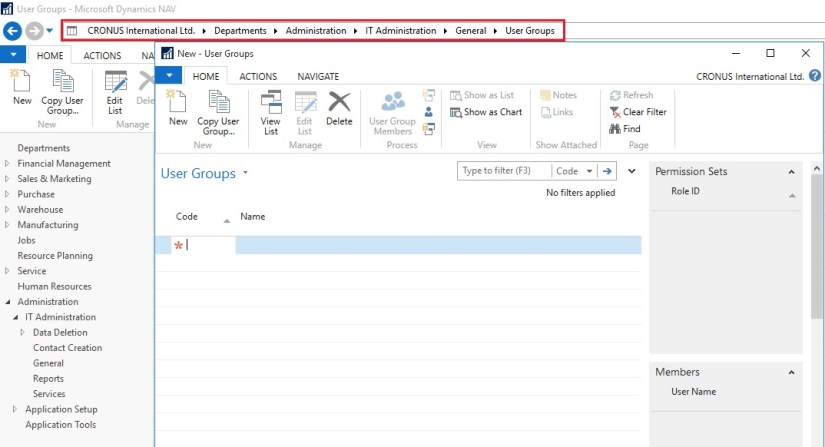
In the User Groups window, you can set up user groups, add and remove permissions, and you can apply changes to all or specific user groups.
Permission-1

Permission-2

Permission-3

Permission-4

Permission-5
If the default permission sets that are provided with Microsoft Dynamics NAV are not sufficient or not appropriate for your organization, then you can create new permission sets. If the individual object permissions that define a permission set are not adequate, then you can modify a permission set.

You can create a permission set manually, or you can record permissions by navigating in the application.
Permission-6

Permission-7

Permission-8
This starts a recording process that is based on the code coverage functionality in Microsoft Dynamics NAV. You can now access the various windows and activities in the Microsoft Dynamics NAV Windows client or the Microsoft Dynamics NAV Web client that you want users with this permission set to access. You must carry out the tasks that you want to record permissions for.

When you want to finish the recording, return to the Permissions window, and then, on the Actions tab, choose Stop.

Choose Yes to add the recorded permissions to the new permission set, or choose No to cancel.

If you choose Yes, the objects that you accessed are added to the window. In Microsoft Dynamics NAV 2016, only the objects are recorded, so you must specify if users must be able to insert, modify, or delete records in the recorded tables.

Data Model, Development Tips, Excel, PowerPivot

Import data using copy and paste from Excel sheet or other source for PowerPivot Data Model.

You can copy & Paste data from an Excel workbook, or import data from a table on a web page, or any other source from which we can copy and paste into Excel. In the following steps, you add the data from a table.

  • Insert a new Excel worksheet, and give it the name desired any meaningful name that describes the data.
  • Select and copy the data, including the table headers.
  • In Excel, place your cursor in cell A1 of the above created worksheet and paste the data.
  • Format the data as a table. You press Ctrl + T to format the data as a table, or from HOME > Format as Table. Since the data has headers, select My table has headers in the Create Table window that appears.

ExcelData-1

  • Name the table. In TABLE TOOLS > DESIGN > Properties locate the Table Name field, and type desired name.

ExcelData-2

  • Format your data using Excel std. formatting tool.
  • Save the workbook.This file have couple of sheets having data related to Olympics which I have compiled from MS Office support site.
  • You can find the link on the Menu of my blogsite too to access the shared files.
  • I have create a sample Excel File for you which you can down load from the Shared Path using link: http://1drv.ms/1GpZFd4

I will be using this file for couple of walkthrough in my upcoming posts.

Development Tips, Excel, Instalation & Configuration, Jet Reports, Report

Enable SOAP Services and identify connection parameters

Jet express calls Web Services (SOAP) when running reports or accessing information from

Microsoft Dynamics NAV 2015. Using the Microsoft Dynamics NAV Server Administration Tool select the instance that you want to use and check the box next to Enable SOAP Services.

If Jet Express will be used outside a secure network then SSL should be enabled for the SOAP Services to help provide security and data integrity for data communications.
JetExcel-5
From the Microsoft Dynamics NAV Server Administration Tool record the

  • Credential Type
  • Server Name
  • Instance (note: for performance reasons, it is strongly recommended that a separate instance be created solely for use by Jet Express)
  • SOAP Services Port
  • Whether SSL is enabled for SOAP Services

This information is required for configuring your data source connection in Jet Express on client machines.

Note – You cannot run both Jet Express and Jet Essentials on the same computer.

Checkout Upcoming posts for more information.

Development Tips, Excel, Instalation & Configuration, Jet Reports, Office Integration, Report

Installing and Publishing the Jet Business Objects on the Microsoft Dynamics Server

To install the .fob file open the Microsoft Dynamics NAV Development Environment and then connect to the database.

  • Open the Object Designer (on the Tools menu, choose Object Designer)
  • Import the .fob file (on the File menu, choose Import)
  • Locate the import file (Jet Reports Objects.fob), and then choose Open.
  • The .fob file includes modified objects. When prompted choose Yes to import all objects.
  • Verify that no objects are to be skipped. Objects are skipped if the version of the object in the database is later than the one in the .fob file.
  • Choose the OK button to import the .fob file.

The .fob file installs a set of business objects in the range of 14125500-14125504 and Table 14125600.
JetExcel-3
Jet Express users must have Read, Insert, Modify, Delete (RIMD-) permissions to Table 4125600 “Jet Cancellation”.

Checkout upcoming posts for more information.

Development Tips

Automatic Deployment of Microsoft .NET Framework Interoperability and Control Add-in Assemblies

Microsoft Dynamics NAV 2015 makes it easier for the system administrators to deploy client-side assemblies for .NET Framework interoperability and client control add-ins on computers that are running the Microsoft Dynamics NAV Windows client or Microsoft Dynamics NAV Development Environment.

You can now install the assemblies in the Add-ins folder on the computer that is running Microsoft Dynamics NAV Server. By default, this is the C:\Program Files\Microsoft Dynamics NAV\80\Service\Add-ins folder.

When an operation from the client requires an assembly, Microsoft Dynamics NAV Server automatically deploys the assembly to a temporary folder on the client computer.

For example, if Microsoft Dynamics NAV Windows client opens a page that contains a control add-in, Microsoft Dynamics NAV Server will find the control add-in assembly by name in the Add-ins folder. Then, it deploys the assembly to the client computer in the %TEMP%\Microsoft Dynamics NAV\Add-Ins folder of the user who is running the client. Subsequently, the deployed assembly will be used whenever the page is opened.

Similarly, if the development environment requires a control add-in, for example, when you compile an object, then the control add-in assembly will be deployed by the Microsoft Dynamics NAV Server to the local temporary folder for the current user on the computer that is running the development environment.

Important:

To be deployed, an assembly must comply with the following Microsoft Dynamics NAV Server configuration settings: Chunk Size, Max Upload Size, and Prohibited File Types.

If a .NET Framework interoperability or control add-in assembly is updated and its version number changes, Microsoft Dynamics NAV Server will deploy the updated assembly to the client computer the next time that the client requests the assembly. The updated assembly is put in a subfolder of the %TEMP%\Microsoft Dynamics NAV\Add-Ins folder, where the subfolder has the assembly’s version number as its name. This implementation means that you do have to remove the older versions of assemblies that are stored on the client computer.

To support compatibility with earlier version of Microsoft Dynamics NAV, before Microsoft Dynamics NAV Server deploys an assembly to a client, the client looks for the assembly in the local Add-ins folder (for example, C:\Program Files (x86)\Microsoft Dynamics NAV\80\RoleTailored Client\Add-ins). If the assembly is not found, then the client will request the assembly from Microsoft Dynamics NAV Server.

Javascript-based client add-ins have been using this deployment technique since Microsoft Dynamics NAV 2013 R2.

Development Tips, FixedLayout Control, Scope Property, Show Mandatory Property, UpdatePropagation Property

New Properties and Controls for Pages – in Navision 2015

ShowMandatory Property

With Microsoft Dynamics NAV a new property called ShowMandatory has been introduced on page fields. The ShowMandatory property is set on page fields and marks the field with a red asterisk on the UI.

You can refer this in my earlier post Show Mandatory Property

UpdatePropagation Property

In Microsoft Dynamics NAV a new property called UpdatePropagation is added to page fields. The introduction of this property makes it possible to update a parent page from a subpage automatically without using the page Refresh button.

You can refer this in my earlier post UpdatePropagation Property

Scope Property

In Microsoft Dynamics NAV a new property called Scope is added to page actions. The introduction of this property specifies the scope of an action to be either page-specific, or specific to a repeater control.

You can refer this in my earlier post Defining Action Scope for Microsoft Dynamics NAV Pages in Navision 2015

FixedLayout Control

Microsoft Dynamics NAV now supports using the FixedLayout control on the Microsoft Dynamics NAV Web client.

You can refer this in my earlier post Using a FixedLayout Control

Development Tips

Configuring Web Services to Use SSL (SOAP and OData)

Secure Sockets Layer (SSL) is a cryptographic protocol that helps provide security and data integrity for data communications over a network.

By encrypting your Microsoft Dynamics NAV web services using SSL, you make your data and the network more secure and more reliable.

Microsoft Dynamics NAV Web Services and SSL

Microsoft Dynamics NAV supports SSL authentication for SOAP and OData web services.

The server authenticates itself to the client, but the client does not authenticate itself to the server.

When the web service client connects to the Microsoft Dynamics NAV Server instance, the server replies by sending its digital certificate to the client. This certificate contains the server’s public encryption key and the name of the authority that granted the certificate. The client verifies the certificate using the authority’s public key.

We have covered above top related to Creating and Implementing Certificates for Microsoft Dynamics NAV Server. If not seen please follow below links for better understanding:

How to create a root CA and a private key file by using the makecert.exe utility

How to create certificate revocation list for the root certification authority

How to create and install a test certificate for the Microsoft Dynamics NAV Server computer

How to grant access to the certificate’s private key to the service account for the Microsoft Dynamics NAV Server

Implementing Security Certificates.

Configuring Microsoft Dynamics NAV Web Services to Use SSL

The first step is to prepare Microsoft Dynamics NAV to use SSL. This involves configuring the relevant Microsoft Dynamics NAV Server instance to specify SSL.

The following procedure uses Microsoft Dynamics NAV Server Administration tool to configure the Microsoft Dynamics NAV Server instance.

  • Choose the Start button, and in the Search programs and files box, type Microsoft Dynamics NAV Administration, and then choose the related link.
  • In Microsoft Dynamics NAV Server Administration tool, in the left pane, under Console Root, expand the node for the Microsoft Dynamics NAV Server computer. This is typically named Microsoft Dynamics NAV (Local), which is the local computer.

The Microsoft Dynamics NAV Server instances on the computer appear in the left pane and center panes.

In the left pane, choose the relevant instance to display settings for that instance in the center pane.

UseSSL-1

  • At the bottom of the center pane, choose Edit.
  • To configure SOAP web services to use SSL, expand the SOAP Web Services tab, and then select the Enable SSL

Make a note of the port that is used by SOAP web services. You will need the port number later on in this walkthrough.

UseSSL-2

  • To configure OData web services to use SSL, expand the OData Web Services tab, and then select the Enable SSL

Make a note of the port that is used by OData web services. You will need the port number later on in this walkthrough
UseSSL-3

  • Choose Save at the bottom of the center pane.
  • In the right pane, under Actions, choose Login Account.
  • Make a note of the service account information. You will need this information later on in this walkthrough.

UseSSL-4

Configuring the Access Control List and the Web Services Ports for SSL

An access control list (ACL) is part of the Windows security infrastructure and features. The ACL controls who can access resources on a computer.

Note

These procedures use the netsh tool (netsh.exe) for configuring the HTTP server. The netsh tool is supplied with Windows 7 and Windows Server 2008.

By default the netsh tool is located in the c:\Windows\System32 folder.

To configure the ACL

  1. On the computer running Microsoft Dynamics NAV Server, open a command prompt as an administrator as follows:
    1. From the Start menu, choose All Programs, and then choose Accessories.
    2. Right-click Command Prompt, and then choose Run as administrator.
  1. At the command prompt, type the following command to change to the Windows\System32 directory.

cd\Windows\System32

  1. To view the ACL for the web services ports to determine if any entries are already using the relevant host name and port, type the following command:

netsh http show urlacl

  1. Each entry is listed by the Reserved URL field, which has the format http://hostname:port. hostname is the name of the computer running the service and port is the port number the service runs on. A ‘+’ (plus sign) in the Reserved URL field represents localhost, which indicates the computer that you are working on.
  2. By default, SOAP and OData web services in Microsoft Dynamics NAV use ports 7047 and 7048, respectively, and connect to a Microsoft Dynamics NAV Server instance named DynamicsNAV80. The default reserved URL entries for these services are: http://+:7047/DynamicsNAV80/ and http://+:7048/DynamicsNAV80/.
  3. You must delete any entries that use the same port as the SOAP or OData web services.

To delete an entry, type the following command:

netsh http delete urlacl url=http://hostname:Port/NAVserver/

Substitute Port with the port number of the SOAP or OData web service and NAVserver with the name of the Microsoft Dynamics NAV Server instance.

For example, to delete the default entries for SOAP and OData, use the following two commands:

netsh http delete urlacl url=http://+:7047/DynamicsNAV80/

netsh http delete urlacl url=http://+:7048/DynamicsNAV80/

  1. To register the ports for the SOAP and OData web service with https, type the following command for each service:

netsh http add urlacl url=https://hostname:port/navserver user=DOMAIN\user

  1. Substitute the following options with the proper values:
Option Description
hostname The name of the computer running Microsoft Dynamics NAV Server. Use + for localhost.
port The port that is used by the web service.
navserver The name of the Microsoft Dynamics NAV Server instance to use with the web service. The default is DynamicsNAV80.
DOMAIN\username The domain and user name of the service account for Microsoft Dynamics NAV Server. If the service account for Microsoft Dynamics NAV Server is Network Service, then use “NT AUTHORITY\NETWORK SERVICE”.
  1. For example, if the service account for Microsoft Dynamics NAV Server has the domain ABC and the user name xyz, and then the command for the SOAP web service is as follows:

netsh http add urlacl url=https://+:7047/DynamicsNAV80 user=”NT AUTHORITY\NETWORK SERVICE”

  1. If the service account for Microsoft Dynamics NAV Server is Network Service, then the command is as follows:

netsh http add urlacl url=https://+:7047/DynamicsNAV80 user=”NT AUTHORITY\NETWORK SERVICE”

  1. To verify that your port has been registered, repeat step 3.

To configure the port to use the SSL certificate

  1. At the command prompt, type the following command to view the current port configurations:

netsh http show sslcert

  1. All port bindings to SSL certificates are listed. Each entry is indicated by the IP:port field, where IP is the IP address that uses the port (0.0.0.0 indicates all IP addresses) and port is the port number.
  2. If SSL is already configured on the address and port that you want to use for SOAP or OData web services, then use the following command to delete the entry:

netsh http delete ssl ipport=ipaddress:port

  1. Substitute ipaddress and port with the IP address and port number of the entry that you want to delete.
  2. For example, to delete the entry on the default SOAP port, use the following command:

netsh http delete ssl ipport=0.0.0.0:7047

  1. To bind an SSL certificate to the SOAP or OData web service port, use the following command:

netsh http add sslcert ipport=ipaddress:port certhash=thumbprint appid={id}

  1. Substitute the following options with the proper values:
Option Description
ipaddress The IP address that can use the web service. Use 0.0.0.0 to include all IP addresses.
port The port that is used by the web service.
thumbprint The certificate thumbprint that you obtained in previous post.
id A 32-digit hexadecimal number that identifies the Microsoft Dynamics NAV application. The id must be in the format {NNNNNNNN-NNNN-NNNN-NNNN-NNNNNNNNNNNN). If you do not know the appid, then use any value, such as {00112233-4455-6677-8899-AABBCCDDEEFF}.
  1. For example, the following command binds a certificate that has the thumbprint c0d0f27095b03d4317e219841024328cef248779 to port 7047 for all IP addresses:

netsh http add sslcert ipport=0.0.0.0:7047 certhash=c0d0f27095b03d4317e219841024328cef248779 appid={00112233-4455-6677-8899-AABBCCDDEEFF}

Imp Note: – Please replace the port and thumbprint values with your valid values.

Restart the Microsoft Dynamics NAV Server Instance

You can use the Microsoft Dynamics NAV Server Administration Tool to restart the Microsoft Dynamics NAV Server instance.

To restart Microsoft Dynamics NAV Server

  1. In Microsoft Dynamics NAV Server Administration tool, in the left pane, under Console Root, choose the Microsoft Dynamics NAV Server computer.
  2. In the center pane, choose the Microsoft Dynamics NAV Server instance that you have configured, and then in the right pane under Actions, choose Restart.
  3. After the instance restarts, close Microsoft Dynamics NAV Server Administration tool.

Verifying the Configuration

You should now be able to use web services that are encrypted with SSL. To verify this, type the following URL in the address bar for your browser.

https://localhost:7047/DynamicsNAV80/WS/services

The page lists any web services that have been published.

Functional Tips

Defining Discount & Sales Price for an Item

This set of demonstration will present the new, simplified way of setting sales prices and discounts for items in Microsoft Dynamics NAV 2015.
SPND-1

  • On the Role Center, choose Items to open the list of existing items.
  • Select item 1000, and then, on the Home tab, in the Manage group, choose Edit.
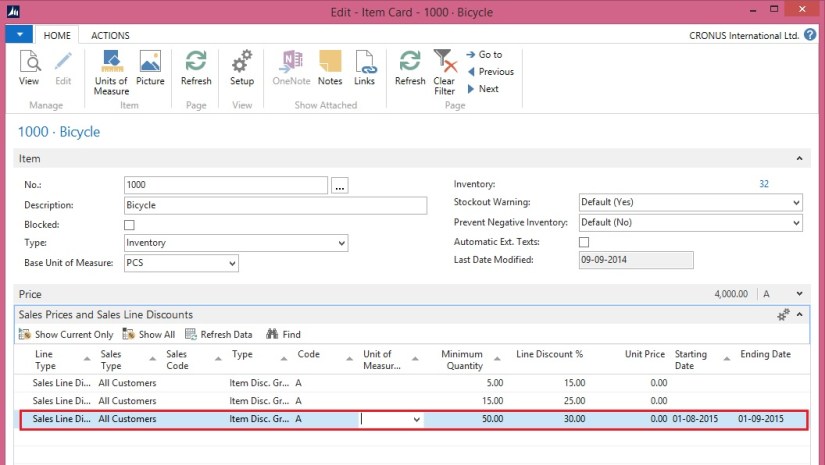
  • In the Item Card window, on the Sales Prices and Line Discounts FastTab, create a new line.

SPND-2

Set a Discount for an Item

  • On the line, set the following values:

Line Type: Sales Line Discount

Sales Type: All Customers

Type: Item Disc. Group

Minimum Quantity: 50

Line Discount %: 30.00

Starting Date: August 1 2015.

Ending Date : Sep 1 2015

  • Choose the OK button

Pick an existing item, for example, item number 1000.

Set a 30 percent line discount for the item for all customers who buy 50 or more of these items in one invoice. The discount will be valid from Aug 1, 2015 to Sep 1, 2015.
SPND-3
Set a Sales Price for an Item

  • On the line, set the following values:

Line Type: Sales Price

Sales Type: Customer

Sales Code: No. 10000

Type: Item

Minimum Quantity: 30

Unit Price: 3200.

  • Choose the OK button

Pick an existing item

Set a lower sales price for this item, for a specific customer, with the condition that the customer buys 30 or more of these items in one invoice.
SPND-4