Development Tips, Dynamics 365, How To, Information, Maderia, Office Integration, Power Bi Content Pack, PowerBI.com, Tip & Tricks, Troubleshooting Tips, Web Services

Working with Project “Madeira” Content Pack for Power BI

In today’s post we will see how to use Power BI Content Pack for Madeira.

The content pack is preconfigured to work with sales data and financial data from the demonstration company that you get when you sign up for the Project “Madeira” preview.

To see your Project “Madeira” data in Power BI, you must have the following:

  • Access to Project “Madeira”.
  • Access to Power BI.

Before we start with connecting we will collect few information that we will require while connecting the Power BI to fetch data from Madeira.

User Name

Web Service Acess Key

Note down both value, if you don’t have Web Service Access Key Generate one and set appropriate Expiration date or Set Never Expire as shown below.

PowerBi_Madeira-1

Next open the Web Service Page.

Make sure all selected Web Service is running as in below screen.

The data is extracted from your Project “Madeira” company using web services to read live data. In Project “Madeira”, the Web Services window lists the web services that have been set up for you, including the following that are consumed by the content pack in Power BI:

  • ItemSalesAndProfit
  • ItemSalesByCustomer
  • powerbifinance
  • SalesDashboard
  • SalesOpportunities
  • SalesOrdersBySalesPerson
  • TopCustomerOverview

Note: If you change the name of any of these web services, the data will not show up in Power BI.

Note your URL of OData. Edit it to follow the format one shown in below screen.

PowerBi_Madeira-2

Now we have all our required information.

Open Power BI site and Get Data from Services as shown in below screen.

PowerBi_Madeira-3

Select Project “Madeira” Content Pack and click on Get.

PowerBi_Madeira-4

Enter the URL of Web Service we get in above step.

PowerBi_Madeira-5

Select Next.

Select Authentication method as Basic.

In User Name enter your user name as obtained in above step.

For Password ented the Web Service Access Key as obtained in above step.
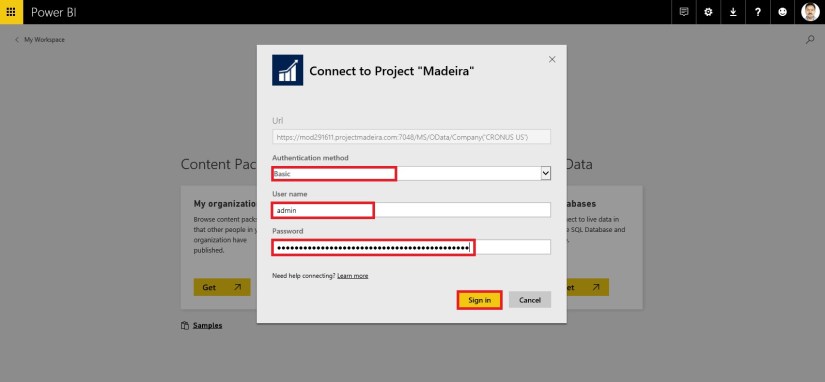
PowerBi_Madeira-6

Choose Sign In.

After few minutes/seconds churning you will be ready with your first Dashboard from Madeira.

PowerBi_Madeira-7

Troubleshooting

“Parameter validation failed, please make sure all parameters are valid”
If you see this error after you enter your Project “Madeira” URL, make sure the following requirements are satisfied:

“Login failed”
If you get a “login failed” error when you log in to the dashboard, using your Project “Madeira” credentials, then this can be caused by one of the following issues:

  • The account you are using does not have permissions to read the Project “Madeira” data from your account.

    Verify your user account in Project “Madeira”, and make sure that you have used the right web service access key as the password, and then try again.

  • The Project “Madeira” instance that you are trying to connect to does not have a valid SSL certificate. In this case you’ll see a more detailed error message (“unable to establish trusted SSL relationship”).

    Note: Self-signed certificates are not supported.

“Oops”
If you see an “Oops” error dialog after you pass the authentication dialog, this is most frequently caused by a problem connecting to the data for the content pack.

Thats all for today’s post.

I will comeup with more details in my upcomming posts.

Til then keep exploring and learning.


Dynamics 365, Information, Maderia, Office Integration

Project “Madeira” preview in Canada Released 

Project “Madeira” is a completely reinvented business management solution for small and midsize businesses. Project “Madeira” connects business processes with the productivity tools in Office 365 to help SMBs grow sales, manage finances and streamline operations. Project “Madeira” is public cloud service (Software as a Service) running on Microsoft Azure. Customers can access the service on the Web, or using apps for Windows, iOS or Android devices. 

The service is scheduled to become generallyavailable in the US and Canada in the second half of 2016, with other countries to follow. Project “Madeira” will be released as part ofMicrosoft Dynamics 365. The service is in public preview over the next several months as we collect feedback and fine-tune the user experience.

For full details see below post :-

https://madeira.microsoft.com/en-us/blog/madeira-preview-canada/

Development Tips, Email, Excel, How To, Information, Office Integration, Report, Server, Tip & Tricks

Export Data as CSV and send as Attachment to Mail

One of my Follower/Reader have requested for this post.

This post will explain the the below steps:

  • Export the data of table to csv file format. (I am using XMLPort you can use Excell Buffer or any other method to create the file)
  • Attach to Mail and Send.

Step 1.

Create a XMLPort as below.

CSVAttachment-1

Set the Property of XMLPort.

CSVAttachment-2

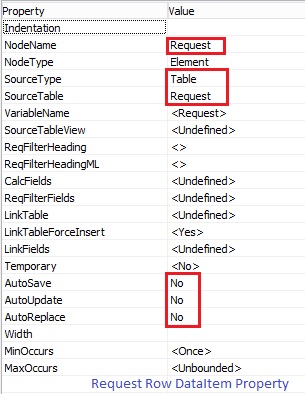
Set the Property of Integer Data Item.

CSVAttachment-3

Set the Property of Table DataItem for which data to be exported.

CSVAttachment-4

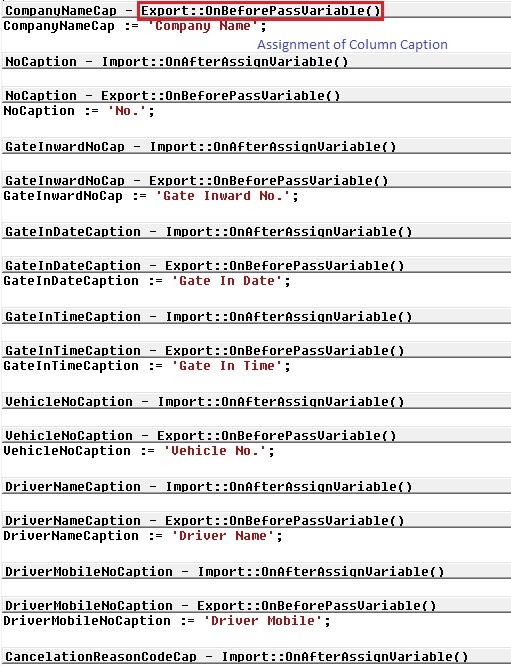
Set the Captions of the Columns in CSV file.

CSVAttachment-5

Write the code to transfer the value of Table columns.

You may find some extra code adjust accordingly as per your requirement.

CSVAttachment-6

Define a function to Setfilter for data to export.

Adjust the code as per your requirement.

CSVAttachment-7

CSVAttachment-8

Step 2.

Here is the function to Export the data to csv File using above created XMLPort.

This function Saves the file to Shared folder, if required you can use TEMPORARYPATH to save your File.

CSVAttachment-9

Step 3.

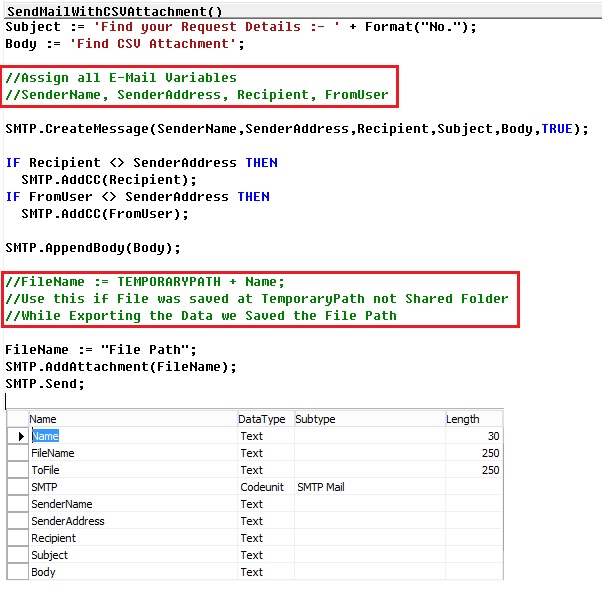
Send the File as Attachment to the Mail.

CSVAttachment-10

You make required adjustment as per your requirement.

Make sure in case you are using Shared Folder give necessary rights on folder to Service Account and operating User Accounts.

Please respond did you found useful this information.

Their are other ways to achive the same, this was readyly available with me as i have used in one of my project so shared the same.

Stay tuned for more details in my Up comming posts.

Development Tips, How To, Information, Instalation & Configuration, Maderia, Office Integration, Tip & Tricks

Assisted Setup (Office Add-Ins) in Madeira

In this post we will discuss about how to setup Office Add-Ins.

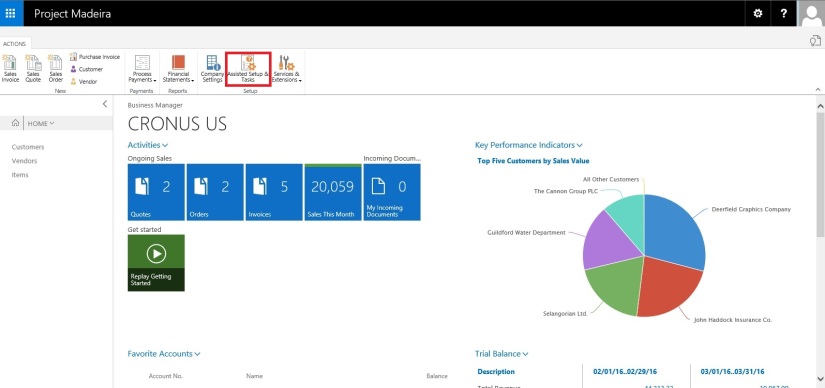
Select Assisted Setup & Tasks from the ribbon of Action Tab.

SetupOfficeAddIn-1

Select Setup Office Add-Ins from the list.

SetupOfficeAddIn-2

Click on Next Button on Welcome Screen.

SetupOfficeAddIn-3

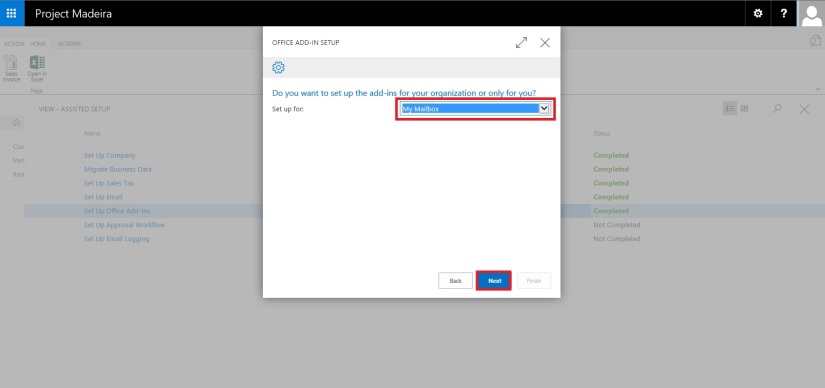
Select Setup for (Organization or you only) and click on Next Button.

SetupOfficeAddIn-4

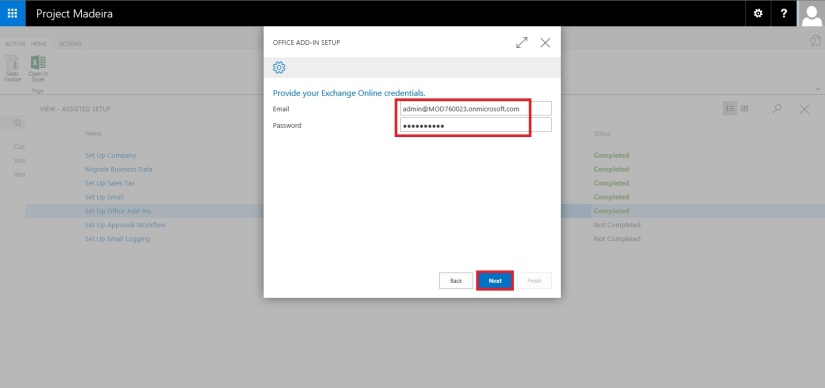
Enter your E-mail id and Password, click on Next to continue with next step.

SetupOfficeAddIn-5

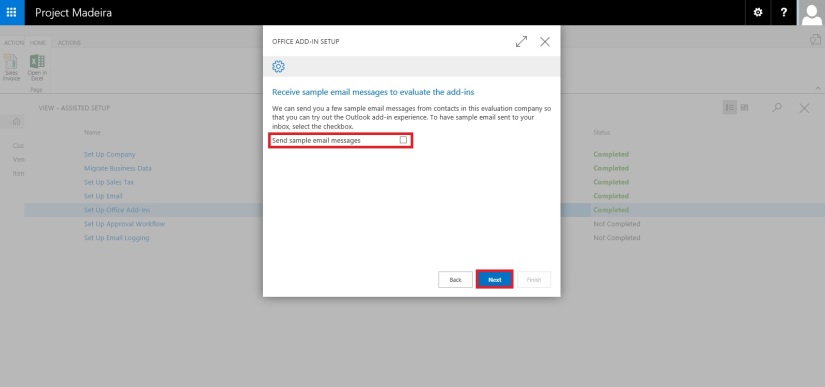
If you wish to receive few sample mails in your Mail box click on the check box or leave it blank, click on Next Button.

SetupOfficeAddIn-6

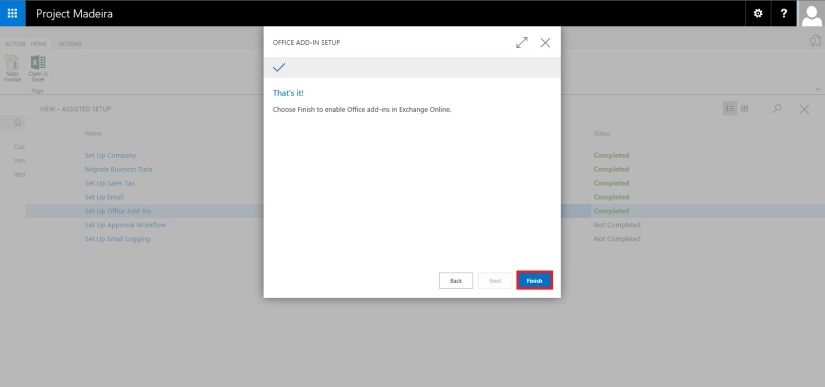
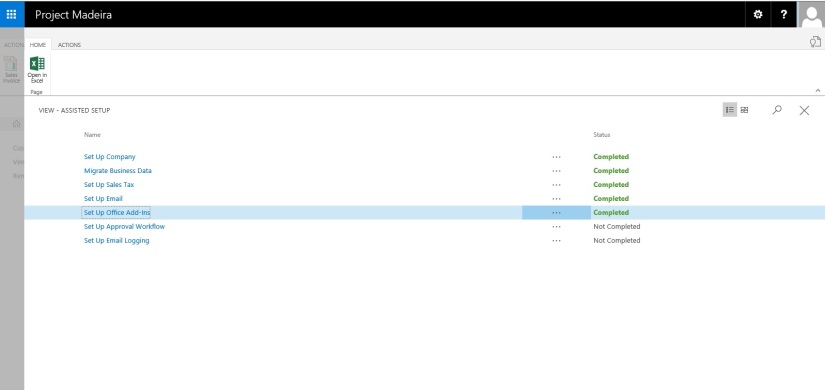
That’s it. click on Finish to complete the setup.

SetupOfficeAddIn-7

SetupOfficeAddIn-8

That’s all for this post.

Will come with more details in my upcoming posts.

Till then keep exploring & learning.


Development Tips, How To, Information, Instalation & Configuration, Maderia, Office Integration, Tip & Tricks

Assisted Setup (Email) in Madeira

In this post we will discuss how to setup Email.

Its very easy and single user intervention required.

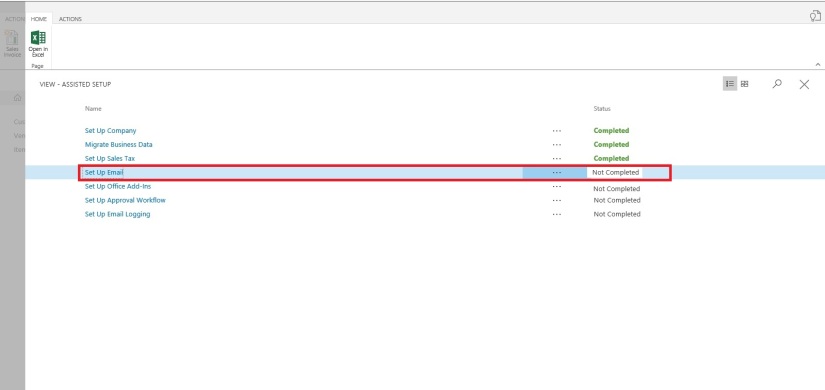
SetupEmail-1

From Action Tab click on Assisted Setup & Task from the ribbon.

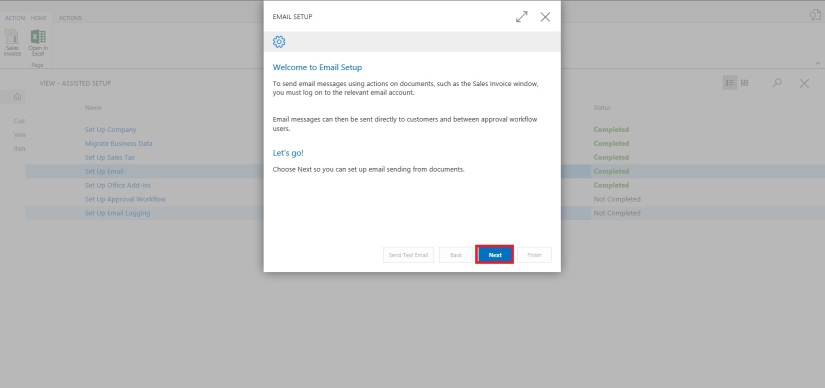
SetupEmail-2

On Welcome screen click on Next Button.

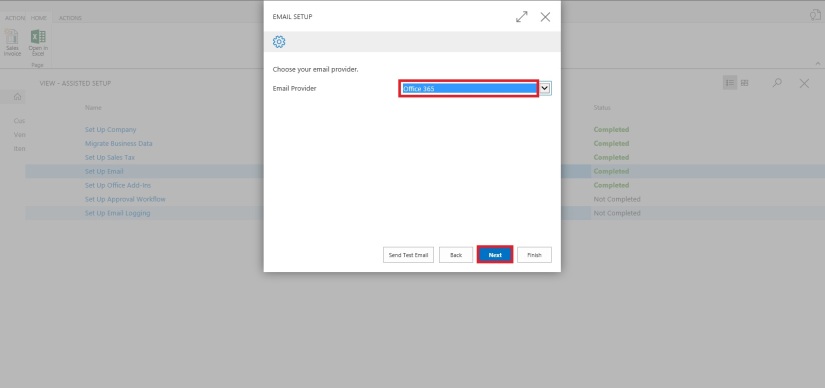
SetupEmail-3

Select the Email Provider and click on Next to continue.

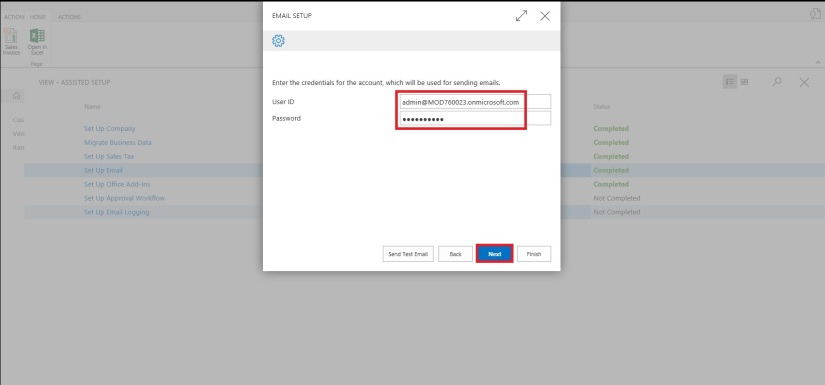
SetupEmail-4

Enter your Email id and password, click on Next Button.

SetupEmail-5

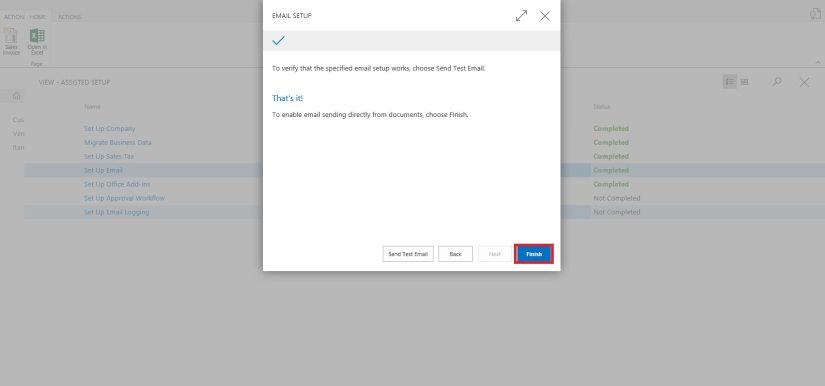
That’s it, click on Finish.

SetupEmail-6


SetupEmail-7


Just required to enter Email id and password, setup is done.

Will come with other option in my next post.

Till then keep exploring and learning.


Maderia, Office Integration, Tip & Tricks

Madeira – Look & Feel – Part-I

Hi Friends I am providing this Blog to my readers who are yet not able to give try to the Project Madeira First Preview. But wish to have the Look and feel how it looks.

Today I will be showing few Look & Feel changes. Up till Now only Preview is available we need to wait for some more time to hear more about the product and features.

How ever below I am presenting few details, Login to the Project Madeira using your credentials provided while Setup.

Preview-1

Here is the Landing Screen which you get post Logging in to Madeira.

Top right corner is the Search,  that we usually use to search pages.

Preview-2

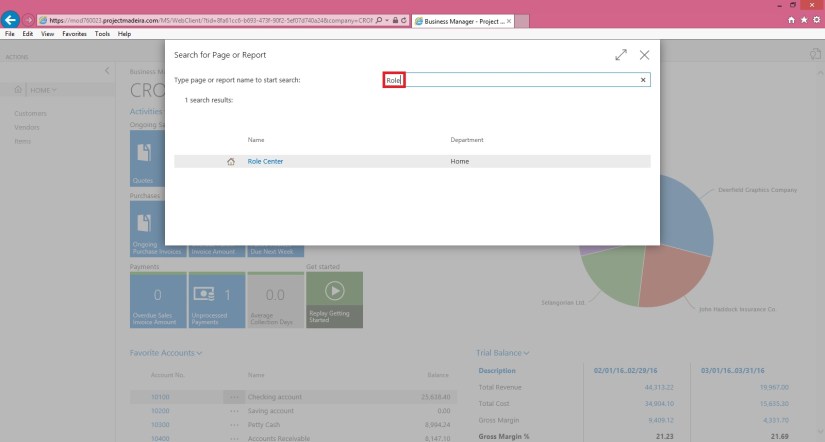
Here you type the Page you wish to switch to, in my example I am trying to search Role Center Page. It will be similar to one below screen shot.

Preview-3

If you click on action Tab it will show you the ribbon having actions available on Page. You can hide it to gain more space on screen by clicking on ^ at the bottom right corner of the Ribbon Tab.

Preview-4

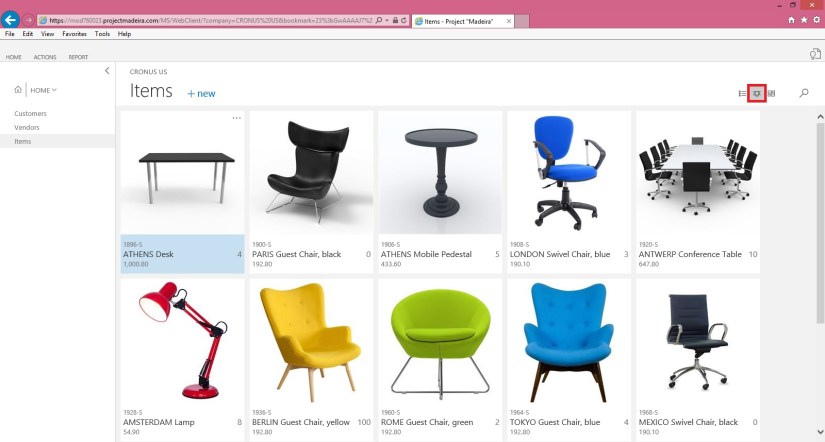
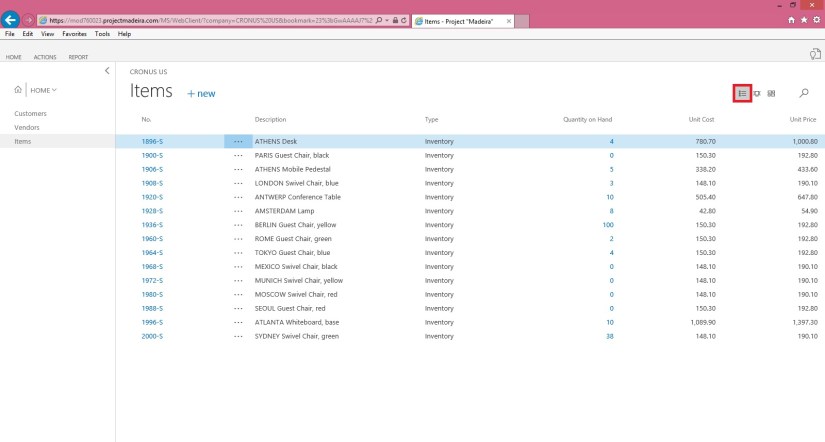
Lets have a Look on Item List, you have 3 View available as below

  1. Large Picture Card View

Preview-5

2. Small Picture Card View

Preview-6

3. Simple List view as usually we have in earlier Versions.

Preview-7

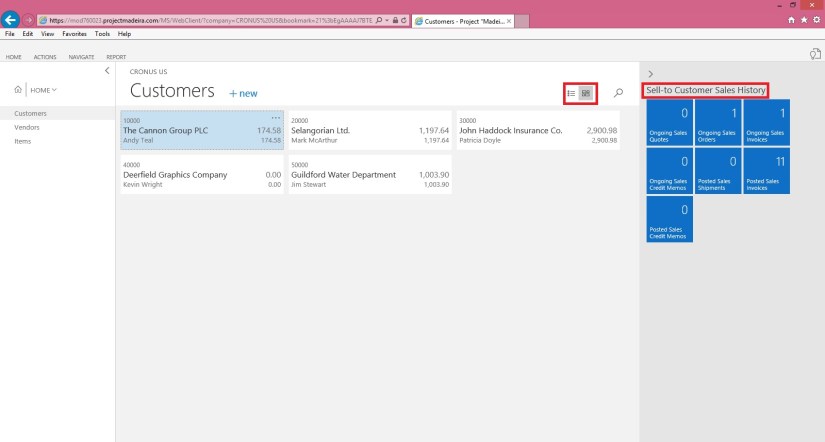
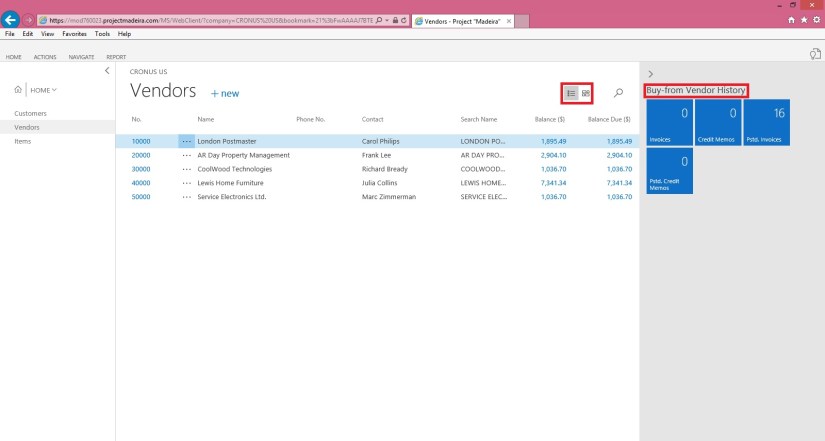
Let’s have a view of Customers List Page. On the right side you can see History Card Fact Box in form of Cues.

Preview-8

Here is the Vendor List Page. On the right side you can see History Card Fact Box in form of Cues.

Preview-8

Here is the Page search when you click on Magnifying search it will provide you the text box to enter you search, I am trying to search Items containing lo in its Name/ Description.

Preview-9

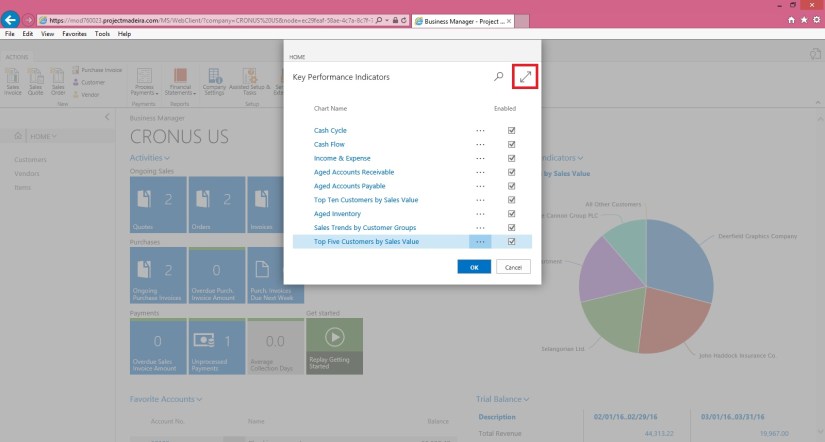
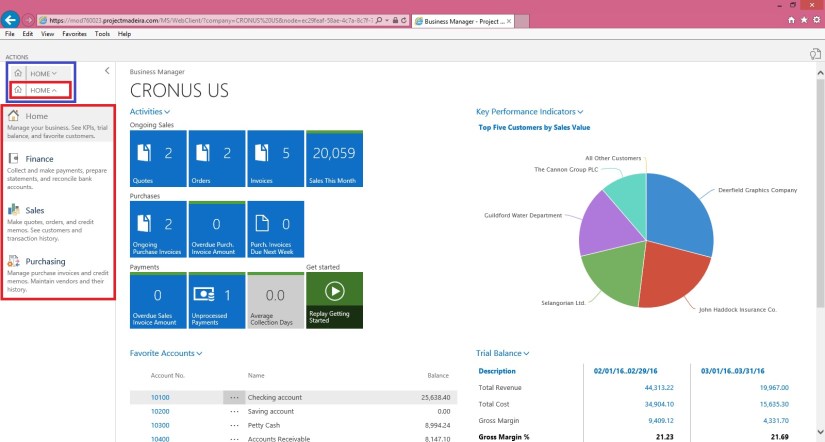
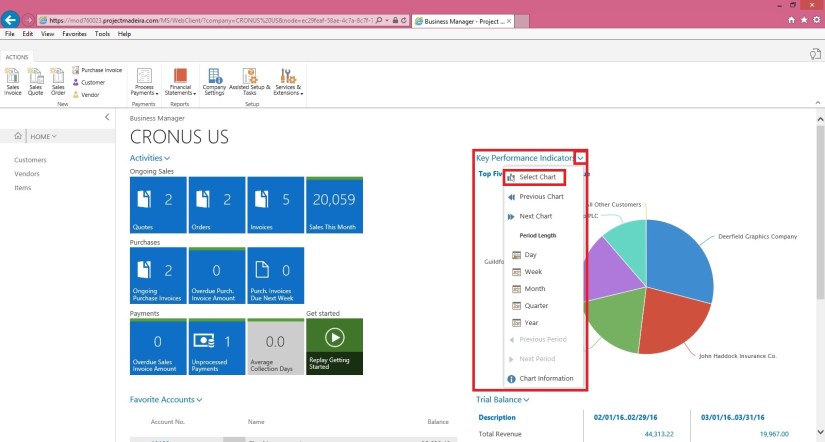
Click on Home to see Drop Menu to select sub Items defined under it. You can Minimize the same clicking on ^. This is available on almost all Pages and Ribbons to hide unwanted information to gain more space on Screen to view only required information. Some places it acts as hiding the Tab where as other places it serves as showing Sub-Menus.

Preview-10

Here is the example of Sub-Menu.

Preview-12


Preview-13


Preview-14

This is how Page appears you select from Sub-Menu.

On Page at Right Top corner arrow are used to Minimize or Maximize the page.

Preview-15

View of above Page in Maximized form.

Preview-16

You can use Menu on Page to send data to Excel.

Preview-17

Preview-18

Here is how line action menu is shown.

Preview-19

Below is the Matrix Page type View.

Preview-20

Picture Card Menu. Now on Pages Information and divided in respective small pages.

Preview-21


I will come up with more Look and Feel of New Project Madeira.

Till then keep exploring and Learning. You can find more information on other Blogs too.
However official Blog for same is : https://madeira.microsoft.com/en-us/blog/welcome-to-project-madeira/


Data Model, Development Tips, Excel, How To, Information, Instalation & Configuration, Office Integration, PivotTable, Power View, PowerBI.com, PowerPivot

PowerPivot in Excel 2013

I started the series in End of September and Starting of October on PowerPivot, Power View, PivotTable & Reports but in-between the release of Navision 2016 all the topics got scattered between other posts and I didn’t ended the topic.

Here I present all the posts link at one place which you can use as table of content for easy access and to help if any one wish to start from beginning and learn all the features & Topic on same.

PowerPivot for Excel

Start the Power Pivot in Microsoft Excel add-in

Troubleshooting: Power Pivot Ribbon Disappears

PowerPivot Creating a Data Model in Excel 2013

Adding more tables to the Data Model using Existing Connection – In PowerPivot

Add relationships to Data Model in PowerPivot

How to add Filter for data retrieval in PowerPivot Data model.

Create a calculated column in PowerPivot

Creating My First Report using PowerPivot

Basics of Power Pivot for Excel – 2013

Add Slicers to PivotTables in PowerPivot

Power View in Excel 2013

Import data using copy and paste from Excel sheet or other source for PowerPivot Data Model.

Add Excel Sheet/Table to the PowerPivot Data Model

Add a relationship using Diagram View in Power Pivot

Extend the Data Model using calculated columns

Create a hierarchy in PowerPivot Data Model

Use hierarchies in PivotTables

Create a Power View report

Create a calculated field in PowerPivot

Set field defaults in PowerPivot

Set Table Behaviour in PowerPivot

Set Data Categories for fields in PowerPivot

I will come up with more details once I get some time to explore and find anything which I feel is good to share with the community.

Till then keep Learning, Exploring and Practicing.
Corfu Navision 2016, Development Tips, Functional Tips, How To, Layouts, Office Integration, Report, Selection, Word

Modify, Assign and Process Email for Word Forms in Navision 2016

Microsoft Dynamics NAV 2016 offers new functionality with Microsoft Word forms and emailing documents for Customers and Vendors. You can now modify the customer statement report and the vendor remittance report using Microsoft Word. You can also select a specific report format by customer to ease the statement process.
To make this functionality work for you, you need to make sure you have setup the SMTP Mail Setup. You can see my earlier post OFFICE 365 INTEGRATION IN NAV 2015 – Exchange Online this is still valid for Navision 2016.

Recall from my earlier posts, how to work with Word Layouts which I have written for 2015 but those are still valid for 2016 links as below.

Word Document Reports and Custom Layouts

Using Report Selector to run Report

Managing Report Layouts

In Microsoft Dynamics NAV 2016, Microsoft have extended the functionality for Word forms and Email beyond the Sales documents. We now have default Microsoft Word forms for Customer Statements and the Vendor Remittance report.

You can now modify the Word form to meet your needs, assign a custom Word layout to a specified customer or vendor and print or email based on those customer specific selections.

In the Report Layout selection, there is a new report object for the Customer Statement with a default Word report created.

The Mini Statement report (1316) is based on the existing RDLC customer statement but includes a Word report with the same information. You can use Managing Report Layouts to know more details regarding customizing the Layouts.

In Report Selection – Sales, you can set the Customer Statement to use the new report, Mini-Statement – 1316.
Report2016-1

Now your system is setup to use the specified layout for all customers and the statement itself is going to use the new report.

Now that Microsoft Dynamics NAV is setup to use the new report, you can assign a specific report by customer. This will enable you to have multiple formats processed at the same time.

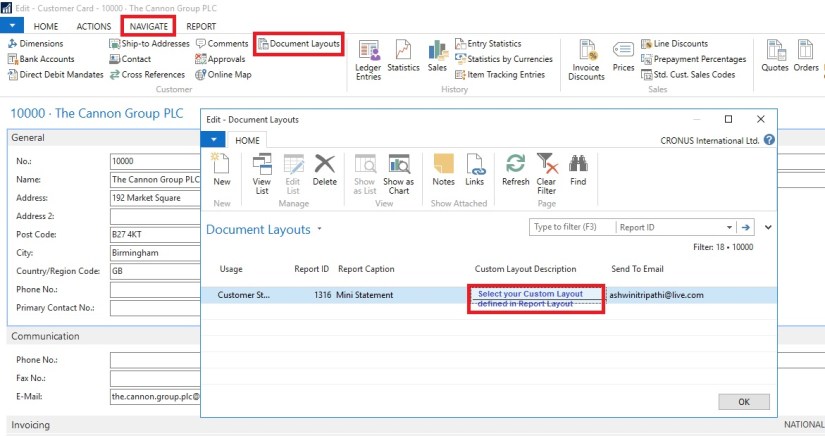
We assigned a custom layout to the customer in the customer card.

Here you set your selection by document type, for example, the sales quote or the customer statement.

You can also enter an email address for the document. So, if the statement goes to your customer’s accounts receivable clerk and the sales quote is sent to the sales manager, you define this information in the Document Layouts page.

The system uses the custom layout when you print the documents instead of emailing them.

Enter multiple email addresses with a semi-colon to separate them.
Report2016-2

You can do this for all customers.

When statements are processed, the report layout used is the one assigned to the customer. If the customer has no custom layouts assigned, the custom layout assigned in the Report Layout Selection is used.

If you go to Customer Statements, you can see that that Output Options are available. This will let you select how you wish to use the document layout settings.
Report2016-3
A checkbox will appear allowing you to print remaining statements. If you mark this checkbox, any statements with an email address in Customer Document Layouts is emailed, and any statements with a custom report layout but no email address will print with that report layout and any customers without any document layout settings will use the company default report from Report Layout Selections.

I will come up with more details in my upcoming posts.

Development Tips, Excel, How To, Office Integration, PowerPivot, Report

Creating My First Report using PowerPivot

In my earlier posts we have created the Data model for Analysis.

If you missed them you can follow below links to refresh all information.

PowerPivot for Excel

PowerPivot Creating a Data Model in Excel 2013

Adding more tables to the Data Model using Existing Connection – In PowerPivot

Add relationships to Data Model in PowerPivot

How to add Filter for data retrieval in PowerPivot Data model.

Create a calculated column in PowerPivot

We have learned basic actions, let’s create our first Report.

I will be creating Pivot Matrix Customer Vs Item Sales.

Open the Excel in which we created our Data model and imported our table data.
PowerPivot-21
Select PivotTable From Ribbon under Home Tab.
PowerPivot-22

Select New Worksheet or Existing Worksheet as per the case.
PowerPivot-23
You will see a Pivot is inserted, in right side you will find all the tables available in the Data model of this Worksheet.
PowerPivot-24

Design the Pivot as above screenshot.
The output of this report will be as below if executed without Date Filter.
PowerPivot-25
I will come up with more details and features of PowerPivot in my upcoming posts. Till then keep practicing and stay tuned for more details on this topic.

Development Tips, Excel, How To, Office Integration, PowerPivot, Report

Create a calculated column in PowerPivot

If you have missed earlier post, please walkthrough them for better understanding from below links:

PowerPivot for Excel

PowerPivot Creating a Data Model in Excel 2013

Adding more tables to the Data Model using Existing Connection – In PowerPivot

Add relationships to Data Model in PowerPivot

How to add Filter for data retrieval in PowerPivot Data model.

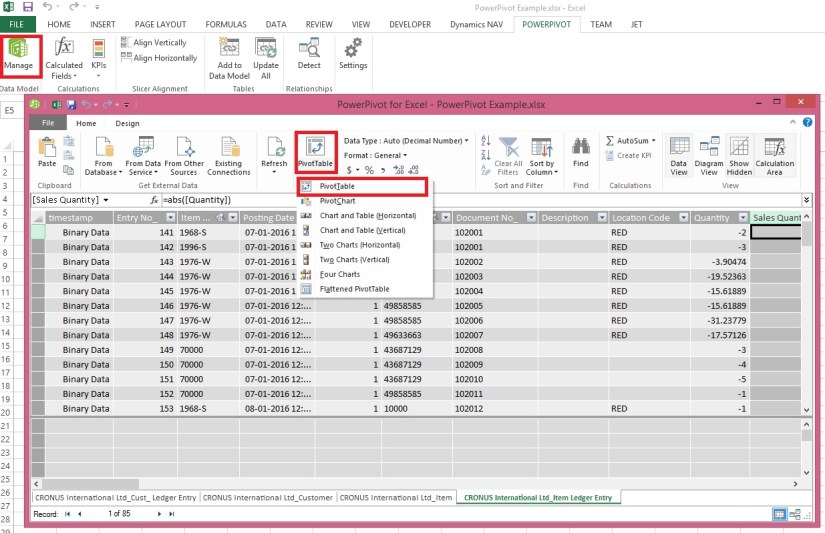
In Power Pivot, you can use Data Analysis Expressions (DAX) to add calculations. In this task, I will add simple Excel Formula =ABS (Quantity) in Item Ledger Entry Sheet. You can add formulas either simple calculation from two fields or referencing from other tables and sheet. I will come with more details on this in separate post.

  • In the Power Pivot window, switch to Data View.
  • Select the Item Ledger Entry table/ sheet.
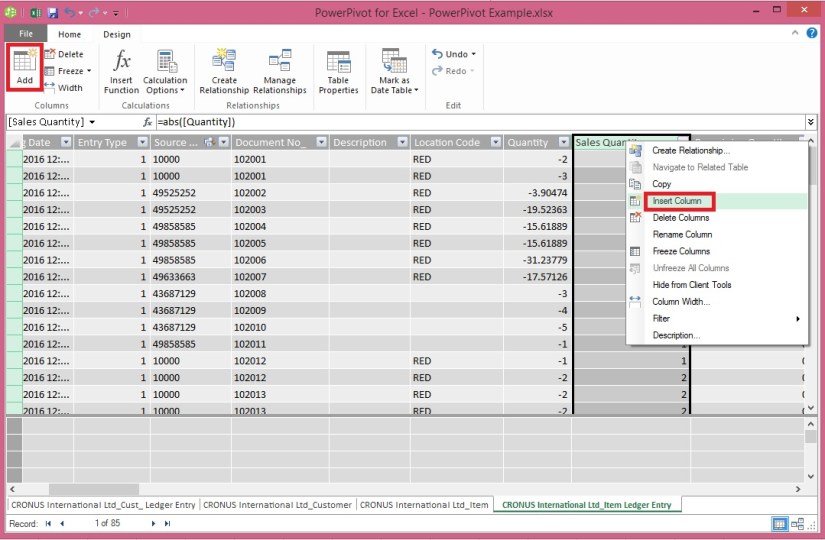
  • Click Design > Add.

PowerPivot-18

Alternatively you can Add by selecting Column, Right Click and choose Insert Column as you do in Excel.

New Column Will be Added.

  • In the formula bar above the table, type the following formula. AutoComplete helps you type the fully qualified names of columns and tables, and lists the functions that are available. You can also just click the column and Power Pivot adds the column name to the formula.

In my case it is =abs([Quantity])

  • When you have finished building the formula, press Enter to accept the formula.

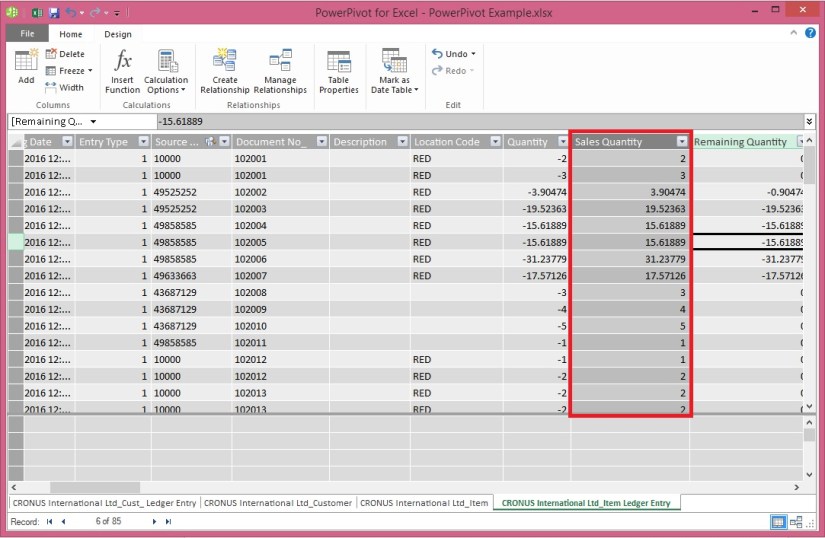
Values are populated for all the rows in the calculated column. If you scroll down through the table, you will see that rows can have different values for this column, based on the data that is in each row.

Rename the column by right-clicking and selecting Rename Column.
PowerPivot-19

  • Type Sales Quantity, and then press Enter.

Below is the Screen after populating the value post formula application to Calculated Column.
PowerPivot-20

I will come up with more details in my upcoming post, Till then keep practicing and stay tuned for more details and updates on this topic.