Development Tips, Excel, How To, Office Integration, PowerPivot, Report

Adding more tables to the Data Model using Existing Connection – In PowerPivot

For Introduction please see PowerPivot for Excel

Recall from my earlier post we have created a connection to SQL Navision Database in my previous post.

PowerPivot Creating a Data Model in Excel 2013

I will be modifying same connection to include more tables to the Data model.
PowerPivot-10

Click on PowerPivot-> Manage.

From the PowerPivot Sheet click on Existing Connections.

This will open Connection Window Listing all available connection to PowerPivot for this Sheet.

Double Click the Connection in my case Nav2015DB_SQL_Connection.
PowerPivot-6

Select first option as we used in previous post and then Next for next Step.
PowerPivot-11
Select Item & Item Ledger Entry Tables and then Finish to import Data to the Sheet.
PowerPivot-12
On Success Click Close to return to Data Model Sheets.
PowerPivot-13

You will find two new sheets have been added to PowerPivot Sheet.

I will come up with more option on this topic in my next post, till then start practicing and stay tuned for more details & Updates on this topic.

Development Tips, Excel, How To, Office Integration, PowerPivot, Report

PowerPivot Creating a Data Model in Excel 2013

Before you can create a PivotTable, you’ll need some data. Let’s get some data from the Navision database.

In Excel, open a blank workbook.

PowerPivot-1

PowerPivot-2

You have several options for getting data from no of sources.

Recall from my earlier post where we accessed data using web service in Excel.

Viewing Page Data in Excel Using PowerPivot (OData)

Let us see what other options are available to us.
PowerPivot-3

In today’s Example I will be connecting with SQL but will access Navision 2015 Database.

Follow the Steps below:
PowerPivot-4

Give meaningful name to your connection in my case I have used Nav2015DB_SQL_Connection.

Select the SQL Server to which you wish to connect in my case I have used INDEL-AXT5283N1, basically this is the SQL Server installed on my Laptop.
PowerPivot-5

Specify the Login method, I am using Windows Authentication, if required you can use SQL Server Authentication. In later case you will have to specify your User Name & Password.

Select the Database to Connect, I have selected Demo Database NAV (8-0) Std. Database for Navision 2015.

Click the Test Connection button, If everything is ok you will get Connection Succeed Message, as shown in above screen shot.

Press Next for next step.
PowerPivot-6

In this screen you have option to either import data from Tables and Views or you can Write Query to fetch data for import.

In my case for this example I am importing data from tables.

Select option – Select from a list of tables and views to choose the data to import and Press Next for next step.
PowerPivot-7

I have Selected two Tables Cust. Ledger Entry & Customer.

Select Related Tables button ensure to select if any other tables related to this Table.

In my case not applicable. Click Finish to add data to the Data Model/ Import the data of these two tables.
PowerPivot-8
Select Close to return to Data Sheet imported after this operation.
PowerPivot-9
Here you see your Data for these two tables have been imported in two sheets.

What happened?

You might not have realized it yet, but you’ve just created a data model. It’s created automatically when you import or work with multiple tables simultaneously in the same PivotTable report. The model is mostly transparent in Excel, but you can view and modify it directly using the Power Pivot add-in. In Excel, the presence of a data model is evident when you see a collection of tables in the PivotTable Fields list. There are several ways to create a model.

I will come up with more details in my next post.

Development Tips, Excel, Instalation & Configuration, Jet Reports, Office Integration, Report

Configuring a Data Source in Jet Express

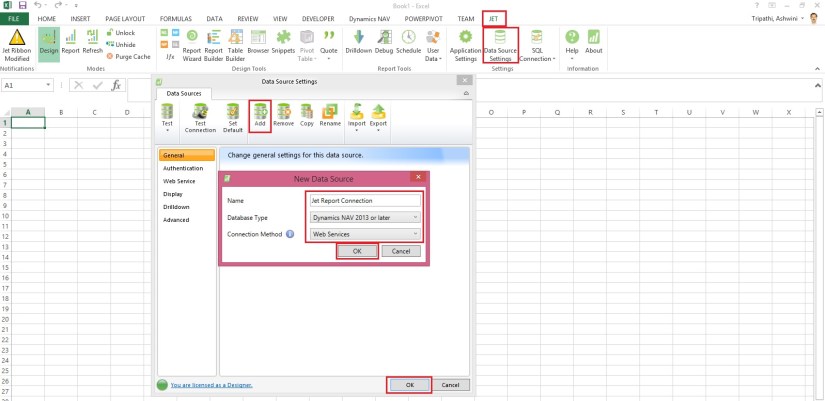
Select Data Source Settings from the Jet Ribbon

Use the Data Source Version drop down button and select “Dynamics NAV 2013 and later”.

JetExcel-6

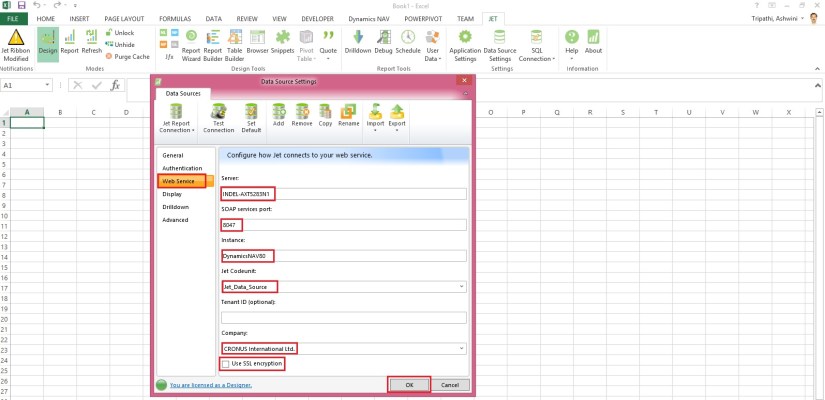
Select the Web Service Tab

  • Enter the Server, SOAP Services Port and Instance.
  • If your Web Service is configured to use SSL encryption then check the “Use SSL encryption” box.
  • Pick the Jet_Data_Source codeunit.
  • Pick your default Company.
  • Click Test Connection to ensure connectivity.
  • Click OK.

JetExcel-7
Checkout Upcoming posts for more information.

Development Tips, Excel, Instalation & Configuration, Jet Reports, Office Integration, Report

Publishing the Jet Data Source Codeunit to the Web Service

Microsoft Dynamics NAV 2015 includes a “Jet Data Source” codeunit which must be published to enable Jet Essentials or Jet Express to operate. This can be published using the Microsoft Dynamics NAV Role Tailored Client (RTC).

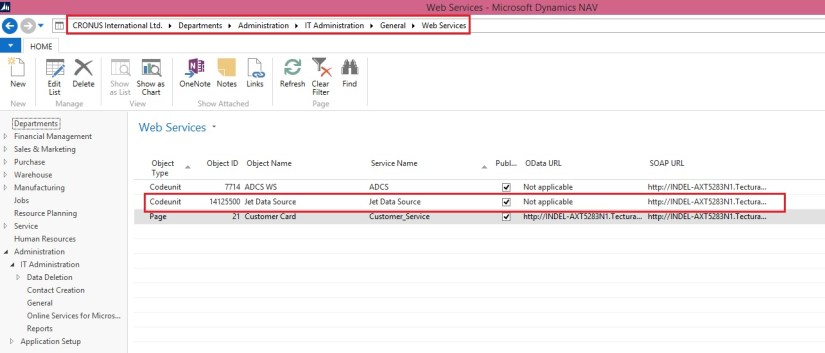
To publish this code unit, inside the RTC go to Departments > Administration > IT Administration > General and select Web Services.

JetExcel-4
Publish the Jet Data Source code unit by selecting New from the Web services ribbon

  • Object Type: Codeunit
  • Object ID: 14125500
  • Service Name: Jet Data Source
  • And check the box to publish.
  • Click OK

Checkout Upcoming posts for more information.

Uncategorized

Automated Data Capture System Requirements

The following table shows the minimum system requirements for Automated Data Capture System (ADCS) for Microsoft Dynamics NAV 2015.

Additional software MSXML version 6.0.

Telnet or Microsoft Windows HyperTerminal.

VT100 Plug-in for each computer on which you install ADCS.

Microsoft Loopback Adapter.

Additional information HyperTerminal is no longer included with Windows.

VT100 Plug-in acts as a virtual Telnet server.

The Automated Data Capture System (ADCS) is a Microsoft Dynamics NAV tool that lets you accurately capture data for inbound, outbound, and internal documents, primarily for warehouse activities. With ADCS, company employees use handheld devices and radio frequency technology to continuously validate warehouse inventories.

Development Tips

Data Upgrade – in Navision 2015

Microsoft Dynamics NAV 2015 introduces a new way of running the data upgrade logic that migrates data from the old table structure of an earlier Microsoft Dynamics NAV version to the new table structure of the current version.

The data upgrade process is now prepared and run with the help of new type of codeunit called the upgrade codeunit. The data upgrade process has been enhanced significantly to optimize the performance and provide developers with a superior tool for testing, automating, tracking progress and troubleshooting the data upgrade code. The new data upgrade approach has the following benefits and features:

  • Simplifies the upgrade environment because all steps are performed by the latest version of the Microsoft Dynamics NAV.
  • Increases the data upgrade performance because it is possible to run upgrade functions of upgrade codeunits in parallel (at the same time) and across companies.
  • Reduces the amount of code that is required to handle the data upgrade because several operations are now executed automatically by Microsoft Dynamics NAV Server.
  • Minimizes the number of manual actions that must be performed during the data upgrade, which makes the data upgrade process less error-prone.
  • Uses familiar upgrade toolkit design concepts, such as upgrade tables and upgrade functions.
  • Includes end-to-end sample Windows PowerShell scripts that perform a complete data upgrade.

Please check my earlier post on this topic for more detailed information.

Schema Synchronization in Microsoft Dynamics Navision 2015

Data Upgrade Codeunit in Navision 2015 Part-1

Data Upgrade Codeunit in Navision 2015 Part-2

Development Tips, Excel, Office Integration, Report, Server

Viewing Page Data in Excel Using PowerPivot (OData)

Here I will discuss how you can use OData to expose a Microsoft Dynamics NAV 2015 page as a web service and then analyse the page data using Microsoft PowerPivot for Excel 2013.

With OData and PowerPivot, you gain access to a powerful set of tools and technologies for data exchange and analysis.

This walkthrough illustrates the following tasks:

  • Publishing a Microsoft Dynamics NAV page as a web service.
  • Verifying web service availability from a browser.
  • Using the PowerPivot add-in for Excel to import the table data as a new worksheet.
  • This procedure also includes optional instructions about how to use a web service access key.
  • Creating a PivotTable from the worksheet, selecting relevant fields, and then organizing and formatting the data to highlight strategic data.

Optional:

If you want to use a web service access key to authenticate access to the web service, Microsoft Dynamics NAV must meet the following requirements:

The Microsoft Dynamics NAV Server is configured to authenticate users by using the NavUserPassword credential type.

There is a Microsoft Dynamics NAV user account that has a web service access key.

You can find more details in my earlier post here

Publishing a Page as a Web Service

You can publish a web service by using the Microsoft Dynamics NAV Web client or the Microsoft Dynamics NAV Windows client.

To register and publish a page as a web service

  • Open the RoleTailored client and connect to the CRONUS International Ltd. company.
  • In the Search box, enter Web Services, and then choose the related link.
  • In the Web Services page, choose New.
  • In the Object Type column, select Page. In the Object ID column, enter 21, and in the Service Name column, enter Customer.

This exposes the Customer Card page as an OData web service.

  • Select the check box in the Published column.

Choose the OK button to close the New – Web Services page.

PowerPivot-1
Verifying the Web Service’s Availability

Security Note

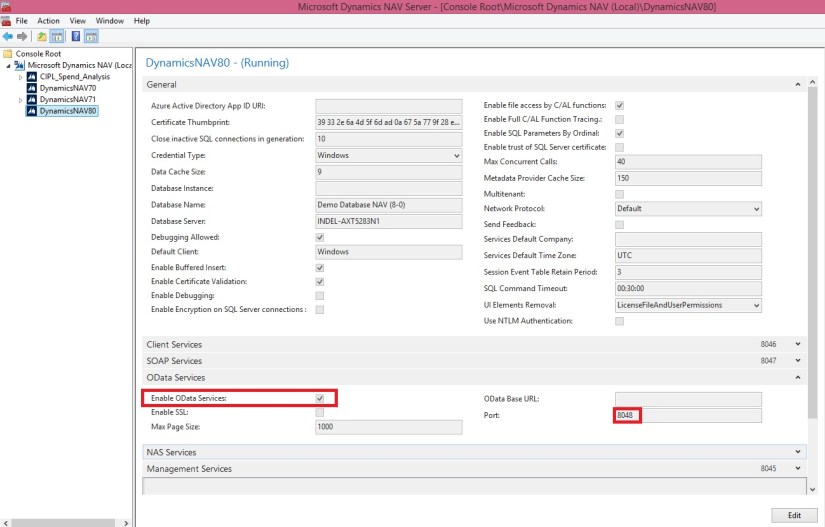
After publishing a web service, verify that the port that web service applications will use to connect to your web service is open. The default port for OData web services is 7048. You can configure this value by using the Microsoft Dynamics NAV Server Administration Tool.

To verify availability of a Microsoft Dynamics NAV web service

Start Windows Internet Explorer.

In the Address field, enter a URI using the following format: http://Server : WebServicePort/ServerInstance/OData/

Server is the name of the computer that is running Microsoft Dynamics NAV Server.

WebServicePort is the port that OData is running on. The default port is 7048.

ServiceInstance is the name of the Microsoft Dynamics NAV Server instance for your solution. The default name is DynamicsNAV80.

For example, if the Microsoft Dynamics NAV Server is running on the computer that you are working on, you can use: http://localhost:7048/DynamicsNAV80/OData/

In my case: – http://indel-axt5283n1.tecturacorp.net:8048/DynamicsNAV80/OData/

The browser should now show the web service that you have published, as shown in the following illustration.

PowerPivot-2
Note

If the browser cannot find the web service, it may indicate that the specified Microsoft Dynamics NAV Server instance is not running.

Make Sure Enable OData Services is checked.
PowerPivot-3
Importing Microsoft Dynamics NAV Data into Excel

In the following procedures, you use PowerPivot to import Microsoft Dynamics NAV data into Excel. If you will be using a web service access key for authentication, only perform the second procedure; otherwise, only perform the first procedure.

To import Microsoft Dynamics NAV data into Excel

Start Microsoft Excel.

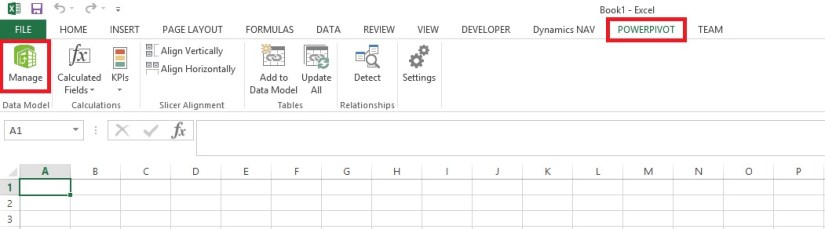
In Excel, on the PowerPivot tab, choose Manage.
PowerPivot-4
This opens the PowerPivot for Excel window.
PowerPivot-5
In PowerPivot, on the Home tab, choose Get External Data, choose From Data Service, and then choose From OData Data Feed.

The Table Import Wizard opens.

PowerPivot-6
If your Microsoft Dynamics NAV implementation requires that you use a web service access key, you must specify the NavUserPassword credentials as described in the following steps:

In the Advanced dialog box, in the Security section, set the Integrated Security field to Basic. If your OData is configured to use SSL, then set the field to SSPL.

In the Password field, type the web service access key.

In the UserID field, type the user name for the Microsoft Dynamics NAV user account. For this walkthrough, use NavTest.

In the Source section, in the Service Document URL field, type the URL for the OData web service that you verified in the previous procedure, for example, http://localhost:7048/DynamicsNAV80/OData/.

In my case: – http://indel-axt5283n1.tecturacorp.net:8048/DynamicsNAV80/OData/

Choose the OK button to return to the Table Import Wizard.

In the Connect to a Data Feed page, in the Data Feed Url field, enter the OData URI that you verified in the previous procedure.
PowerPivot-7

Choose the Next button.

Important: The URI must end with a slash (/) as shown in the example.

Verify that Customer appears in the Source Table column.

Select the check box next to the Customer web service, and then choose Finish.
PowerPivot-8
After you see the Success message, choose the Close button.
PowerPivot-9

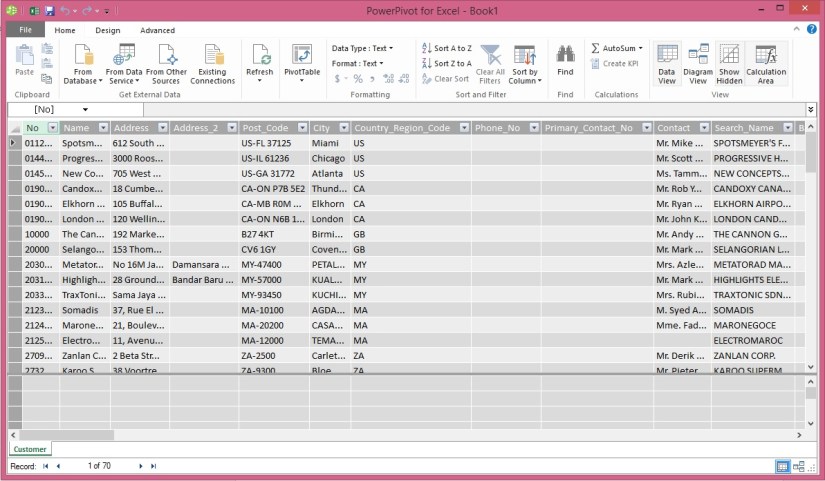
The data from the Customer OData web service displays, and you can use the data to build pivot-based views in the Excel workbook.

Creating a PivotTable Containing Key Microsoft Dynamics NAV Data

In this procedure, you use the Excel workbook with data from the Customer web service to create a PivotTable from the worksheet. You select relevant fields and then organize and format the data to highlight strategic data. Building a pivot table is a way to select and arrange data so as to highlight and focus on key elements.

To create a PivotTable

In Excel, select the cell where you want the PivotTable located.

In the ribbon, choose the Insert tab, and then in the Tables group, choose PivotTable.

In the Create PivotTable dialog box, select Use an external data source, and then choose the Choose Connection button.

In the Existing Connections dialog box, on the Connections tab, under Connections in this Workbook, choose the data feed for your OData web service, and then choose the Open button.
PowerPivot-10

Choose the OK button to add the PivotTable to the Excel worksheet.

The PowerPivot Field pane on the right side includes a list of fields from the Customer web service that where imported from PowerPivot.

In the PowerPivot Field List pane, choose Location_Code.

Tip

To quickly find a field in the field list, type part or all of the field name in the Search text box that is above the list of fields, and then press Enter to highlight the first field that contains the text. You can then choose the right arrow to proceed to the next field, and so on.

Select the Balance_LCY field.

Select the Name field.

You can now see the data in the body of the worksheet, as shown in the following illustration.

The PivotTable shows customers by location and individual customer balances, and also adds the balances by location. To make the information more readable, you can update the headings on the PivotTable.
PowerPivot-11

Select the cell that has the heading Sum of Balance_LCY, and then, in the formula field, type Balance.

Select the cell that has the heading Row Labels, and then in the formula field, type Customers by location.

Select the empty cell that is below the Customers by location cell, and then, in the formula field, type Location not specified.

The above illustration shows how the worksheet looks after you make these changes.

Next Steps

Now that you have created your PivotTable, you can continue to enhance the data to make it more useful and readable. You can:

Add a column to the data that shows average balance by region.

Enhance data presentation with a graph.

Post the data in a Microsoft SharePoint environment with live data from Microsoft Dynamics NAV 2015.

Cues, Query

Using Query Object to Calculate the Cue Data

Today we will learn to create a query to update Cue data.
SI-Cue-1

Creating a Query for Calculating the Cue Data
First, we will create a query object to calculate the number of open sales invoices from table 21 Cust. Ledger Entry.
Create a query for calculating the Cue data as below:
SI-Cue-2
Save the query.

Adding the Table Field for the Cue Data
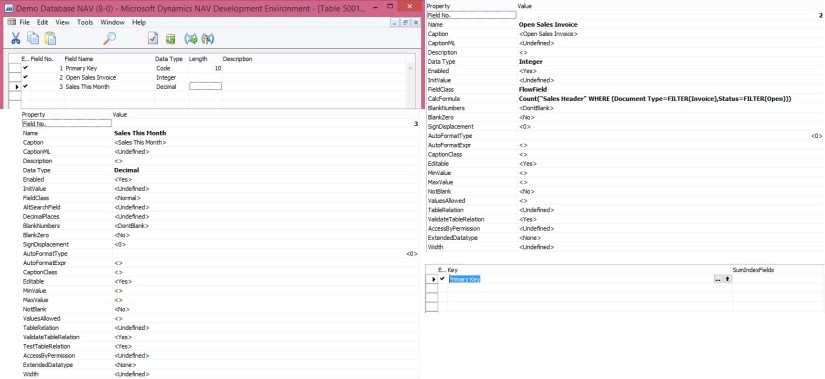
Next we will add a field to the table Sales Invoice Cue (create new table) for holding the Cue data.
SI-Cue-3

SI-Cue-4
We will add a global function that returns the total amount of sales invoices for the current month from the query object that we created above procedure.

To add C/AL code to the table calculate the Cue data
Add a global function that is called CalcSalesThisMonthAmount as follows:

On the View menu, choose C/AL Globals.

On the Functions tab, in the Name column, enter CalcSalesThisMonthAmount.

Select the new function, and then in the View menu, select Properties.

Set the Local property to No.

In the C/AL Globals window, select the new function, and then choose Locals.

On the Return Value tab, set Name field to Amount and the Return Type field to Decimal.

On the Variables tab, add two variables as shown in the following table:

Name DataType Subtype
CustLedgerEntry Record Cust. Ledger Entry
CustLedgerEntrySales Query Cust. Ledg. Entry Sales

In C/AL code, add the following code on the CalcSalesThisMonthAmount function:

CustLedgerEntrySales.SETRANGE(Document_Type,CustLedgerEntry.”Document Type”::Invoice);

CustLedgerEntrySales.SETRANGE(Posting_Date,CALCDATE(‘<-CM>’,WORKDATE),WORKDATE);

CustLedgerEntrySales.OPEN;

IF CustLedgerEntrySales.READ THEN

Amount := CustLedgerEntrySales.Sum_Sales_LCY;

SI-Cue-5
Save the table.

Adding the Cue to the Role Center Page
To display the Cue fields on the Role Center, We will create a new Page [PageType  = CardPart] name Sales Invoice Cue.
SI-Cue-6

SI-Cue-7
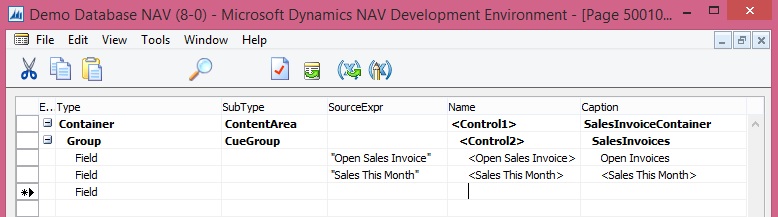
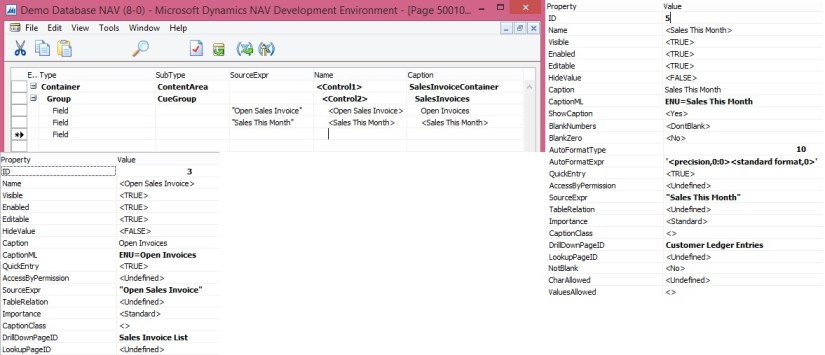
Page Designer should look similar to shown above illustration.

Open the C/AL code for the page, and then add the following code to the OnAfterGetRecord Trigger to assign the Sales This month field to the CalcSalesThisMonthAmount function of table Sales Invoice Cue:

“Sales This Month” := CalcSalesThisMonthAmount;

SI-Cue-8
Also add code to the OnOpenPage Trigger.

RESET;
IF NOT GET THEN BEGIN
INIT;
INSERT;
END;

Formatting the Cue Data
We does not want to display any decimal places. To achieve this, we set the AutoFormatType Property and AutoFormatExpr Property of the Cue field on the page. As shown above.

To change the data format

In the Properties window, set the AutoFormatType property to 10.

This enables you to create a custom data format.

Set the AutoFormatExpr property to the following text.

‘<precision,0:0><standard format,0>’

<precision,0:0> specifies not to display any decimals places.

<standard format,0> specifies to format the data according to standard format 0.

Close the Properties windows, and then save and compile the page.

Run the Page created above the output should be similar to as below:
SI-Cue-9

Now you can add this CardPart Page to any of your Role Centre Page.

Development Tips

Data Upgrade Codeunit in Navision 2015 – Part -2

We have seen how to create Upgrade code unit in our previous post.

Please go through it, if not seen earlier the Data Upgrade Codeunit in Navision 2015 – Part -1 here 

Let us continue from where we left our previous post.

We have created the Upgrade code unit to copy the data to upgrade table while performing destructive changes to My Sales Customer table.

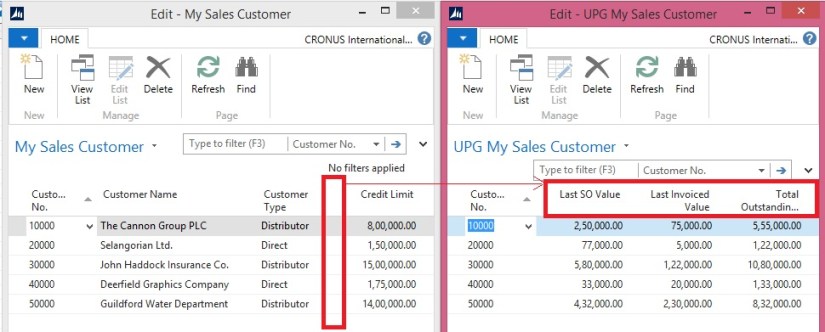
We removed certain fields from the My Sales Customer table and the related information was moved to UPG My Sales Customer table.

Now it’s time to move these information to actual table we create for this purpose My Detailed Customer Entry table.

Although in this example this table will be exact copy of UPG My Sales Customer table, so simply we need to copy records to My Detailed Customer Entry table.

But some time we may require to add certain more field’s value while moving the data Like Entry No, Posting date to maintain the data integrity. Like think of some Service type of information you are maintaining then the same set of record may repeat number of times on different dates, then in this case we will require to add certain fields like Entry No. and Posting Dates.

Let us assume we will be maintain data of My Detailed Customer Entry in incremental way as of situation on every transaction. Balances will be maintained as of when transaction was performed.

Although this example is not feasible or practice but still we are continuing to just see how to write Upgrade Function for such purpose.

Our today’s task is to design and run data upgrade function to move data from the upgrade table to its new location.

Now the fields are deleted from the My Sales Customer table and the data is saved in the UPG My Sales table. The next step is to create the new table where the data will reside (My Detailed Customer Entry) and move the data into that table.

Let’s create the table to be used for recording of all future Customer Balances and to accommodate the data we already had in the My Sales Customer table and which we moved into the UPG My Customer table.

  • In the Object Designer select the Tables button and then select New button to create a new table
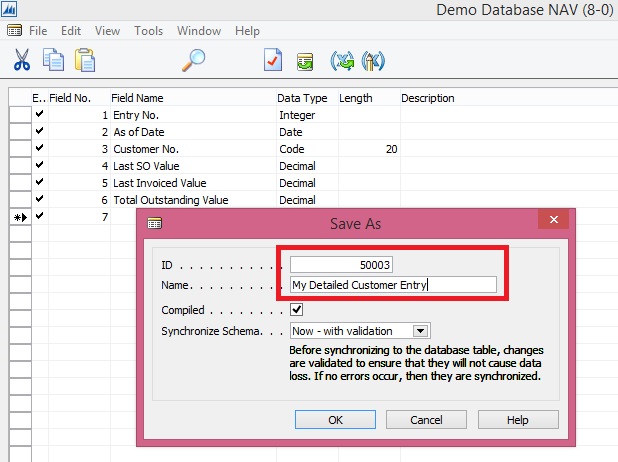
  • Define the table layout based on the layout shown in the Screenshot.

Upgrade Codeunit 2 - 1

  • In the Dev. Environment menu, select File-Save action to save the table.
  • On the Save dialogue, define ID, Name = My Detailed Customer Entry, and select OK to save the table.
  • Close the table editor.

We will now create a new function which will contain the code to migrate the data from the upgrade table to the new table.

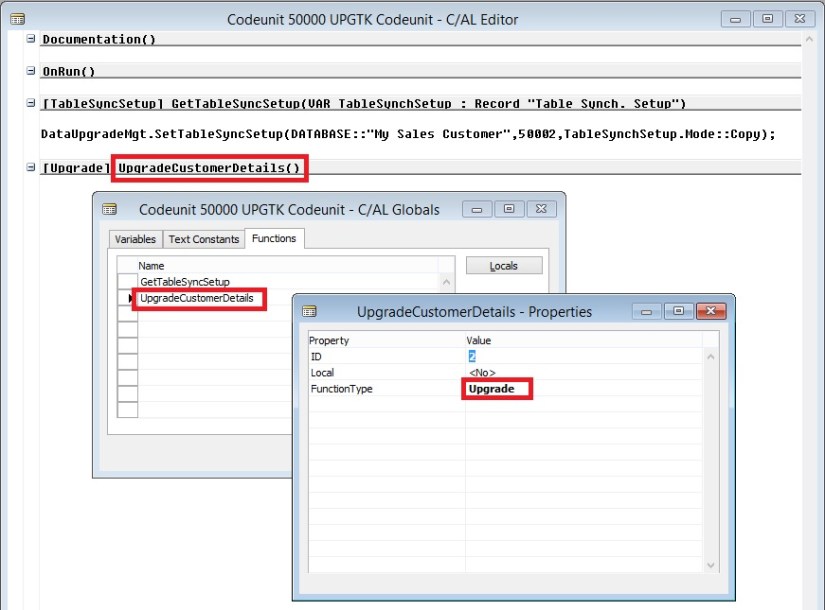
Note that the FunctionType property of the newly created function is set to “Upgrade”. This is how the NAV server can later figure out which function from the upgrade codeunit it must execute.

The function marked as “Upgrade” function can call functions marked as “Normal” if necessary.

  • In the Object Designer select the Codeunits button, select codeunit 50000 UPGTK Codeunit and then select the Design button.
  • In the Dev. Environment menu, select View-C/AL Globals action and in the form which is opened select the Functions tab.
  • Enter the name of the function, e.g. UpgradeCustomerDetails

Upgrade Codeunit 2 - 2

  • Select the UpgradeCustomerDetails function on the Functions tab and then select the Locals button to define function parameters.
  • On the C/AL Locals form, select Variables tab and add 3 local variables as shown in the Screenshot section.
  • Close the C/AL Locals and C/AL Globals forms to return to the C/AL Editor.

Upgrade Codeunit 2 - 3

The code we add to the UpgradeCustomerDetails function will copy the data from the UPG My Sales Customer table to the My Detailed Customer Entry table and then clean up the UPG Vehicle table.

  • Code like the Screenshot into the UpgradeCustomerDetails function.

//>> Upgrade Code

EntryNo := 1;

WITH UpgCustomer DO BEGIN

IF FINDSET THEN

REPEAT

DetailedCustomerEntry.INIT;

DetailedCustomerEntry.”Entry No.” := EntryNo;

DetailedCustomerEntry.”Customer No.” := “Customer No.”;

DetailedCustomerEntry.”As of Date” := today;

DetailedCustomerEntry.”Last SO Value” := “Last SO Value”;

DetailedCustomerEntry.”Last Invoiced Value” := “Last Invoiced Value”;

DetailedCustomerEntry.”Total Outstanding Value” := “Total Outstanding Value”;

DetailedCustomerEntry.INSERT;

EntryNo := EntryNo + 1;

UNTIL NEXT = 0;

DELETEALL;

END;

//<<Upgrade Code

  • In the Dev. Environment menu, select File-Save action to save the codeunit.
  • On the Save dialogue select OK button.
  • Close the codeunit editor.

Upgrade Codeunit 2 - 4

  • In the Dev. Environment menu select Tools – Data Upgrade – Start… action.
  • Agree to the confirmation dialogue.
  • In the Start Data Upgrade window select the OK button.

You can start the data upgrade process from the Dev. Environment, or from Microsoft Dynamics NAV 2015 Administration Shell, using Start-NAVDataUpgrade cmdlet.

The NAV server will locate all upgrade codeunits and will invoke all upgrade functions within these codeunits for all companies in the database.

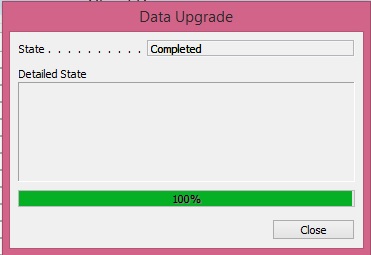
If you have multiple upgrade functions in your upgrade codeunit, you can choose to execute them in parallel or in sequence. You can also choose to stop at first error, or continue execution of other functions, see the list of all failed ones, fix them and start them again using the Data Upgrade – Resume… action.

  • In the Dev. Environment menu select Tools – Data Upgrade – Start… action.
  • Agree to the confirmation dialogue.
  • In the Start Data Upgrade window select the OK button.

Upgrade Codeunit 2 - 5

Upgrade Codeunit 2 - 6

  • In the Object Designer select the Tables button, then select table My Detailed Customer Entry and select Run button

Upgrade Codeunit 2 - 7

You can see that the data from the upgrade table was successfully transferred into the new table.

Now since our data is sitting in its right place, now we can remove objects we are using for Upgrade purpose.

Now the data upgrade is completed and we need to remove the objects used within that process.

Force-delete the upgrade table, since the data was already transferred into the new table.

Delete the upgrade codeunit to make sure the old synchronization instructions defined in it are not used by the NAV server when you decide to change the My Sales Customer table again. Alternatively (if you want to reuse the upgrade codeunit later) you can choose to change the type of the GetTableSynchSetup function to “Normal”.

Upgrade Codeunit 2 - 8

Now we are done with our Upgrade project.

Conclusion

This set of demonstrations have provide you the insight, new way of running the data upgrade in Microsoft Dynamics NAV 2015 by involving the schema synchronization and upgrade codeunits.

The new approach:

  • Simplifies the upgrade environment, since all steps are performed by the latest version of the product.
  • Increases the data upgrade performance, since it is possible to parallelize execution of the data upgrade functions within the upgrade codeunit and across companies.
  • Reduces the amount of code to be written to handle the data upgrade, since some actions are now executed automatically by the NAV Server.
  • Allows data upgrade to be invoked by the NAV server, minimizing the number of manual actions which should be performed during the data upgrade.
  • Uses familiar upgrade toolkit design concepts (e.g. upgrade tables, upgrade functions).
Development Tips

Data Upgrade Codeunit in Navision 2015 – Part -1

Let us start with background preparation.

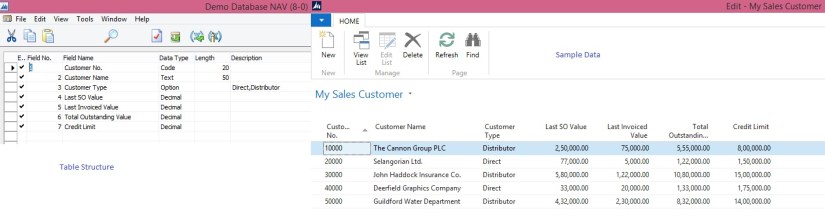
I have prepared a table with below fields and filled with some sample data.

DataUpgradeCU-1

Fill in the My Sales Customer table with demo data.

Make sure you have data in all columns, preferably create several records in this table.

Now when the fields are deleted from the My Sales Customer Table and the data is saved in the UPG My Sales Customer table, we will create the new table where the data will reside in the new version (My Detailed Customer Entry) and move that data into that table using Data Upgrade action in the Dev. Environment.

Since now my project requirement is to refactor the My Sales Customer table and delete the fields which store the information about the Sales Information (“Value” fields), we need to create an intermediate upgrade table where the data from those fields will be stored until you move it into the new My Detailed Customer Entry table.

We will perform below action:

  • Open the Object Designer and select table My Sales Customer
  • Select the Design button to open the table in the designer.
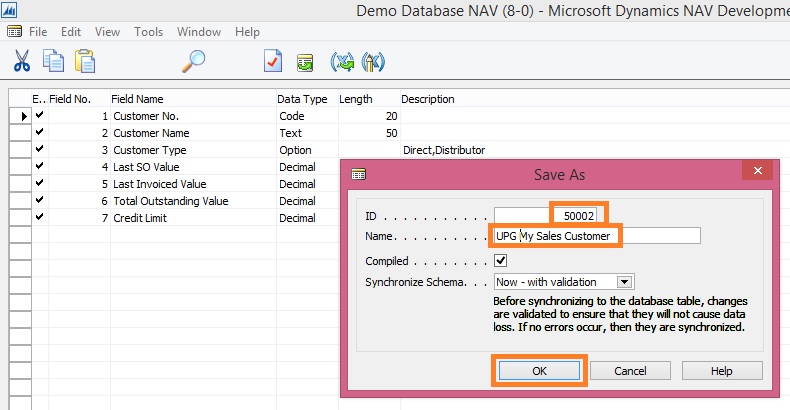
  • In the Dev. Environment menu, select File-Save As… action.
  • Change the ID value to New ID, change the Name to UPG My Sales Customer and select OK button to close the dialogue and create a copy of the table.

DataUpgradeCU-1

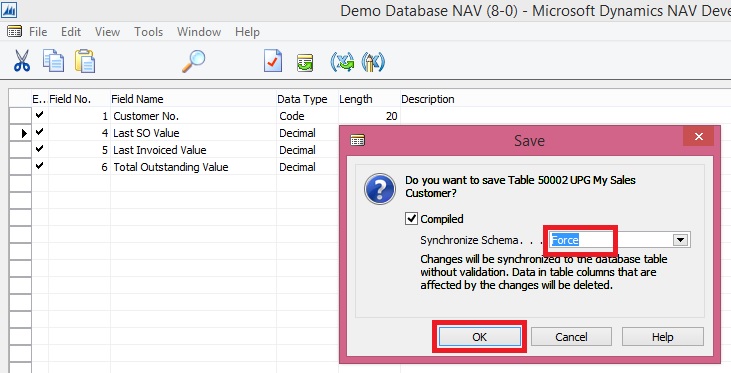
  • In table UPG My Sales Customer delete fields Customer Name, Customer Type and Credit Limit.
  • In the Dev. Environment menu, select File-Save action.
  • On the Save dialogue, set the Synchronize Schema option to “Force” and  select OK button to close the dialogue.

DataUpgradeCU-1

  • In the Object Designer select the Codeunits button and then click New to start creating a new upgrade codeunit.
  • In the Dev. Environment menu, select View-Properties action to start editing the properties of the codeunit.
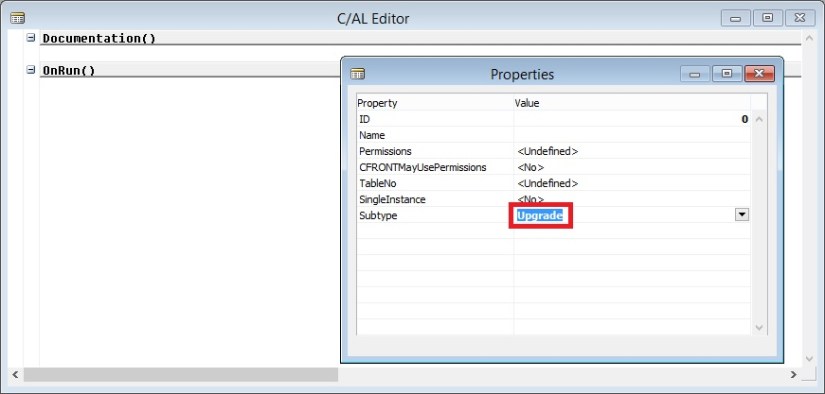
  • Change the Subtype property to Upgrade and close the Properties form.

DataUpgradeCU-1

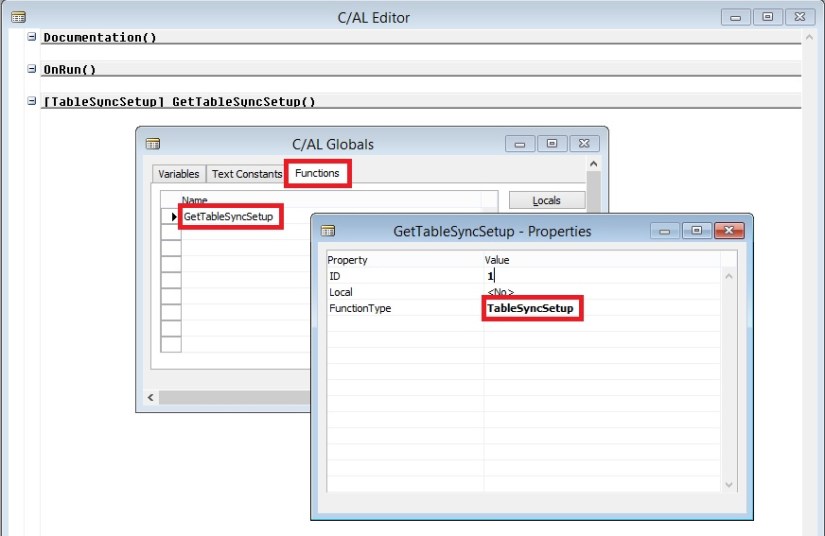
  • In the Dev. Environment menu, select View-C/AL Globals action and in the form which is opened select the Functions tab.
  • Enter the name of the function, e.g. GetTableSyncSetup
  • In the Dev. Environment menu, select View-Properties action to start editing the properties of the function.
  • Change the FunctionType property to TableSyncSetup and close the Properties form.

DataUpgradeCU-1

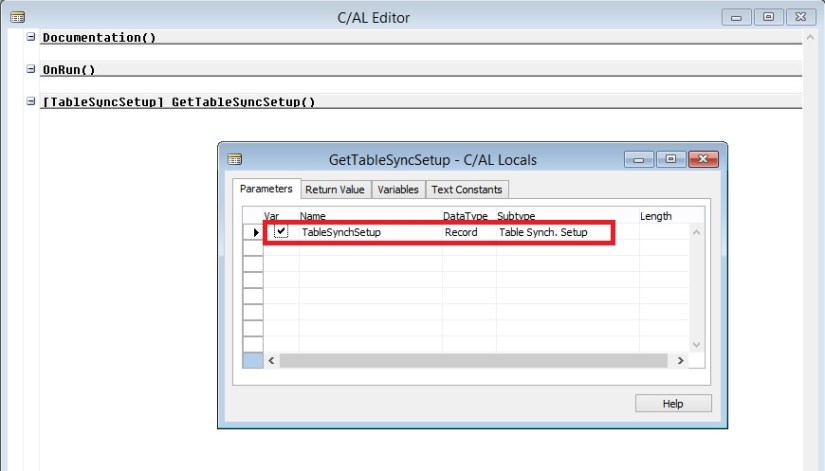
  • Select the GetTableSyncSetup function on the Functions tab and then select the Locals button to define function parameters.
  • Add a parameter of DataType = Record, Subtype = Table Synch. Setup, Name = TableSynchSetup, Var = Yes.

DataUpgradeCU-1

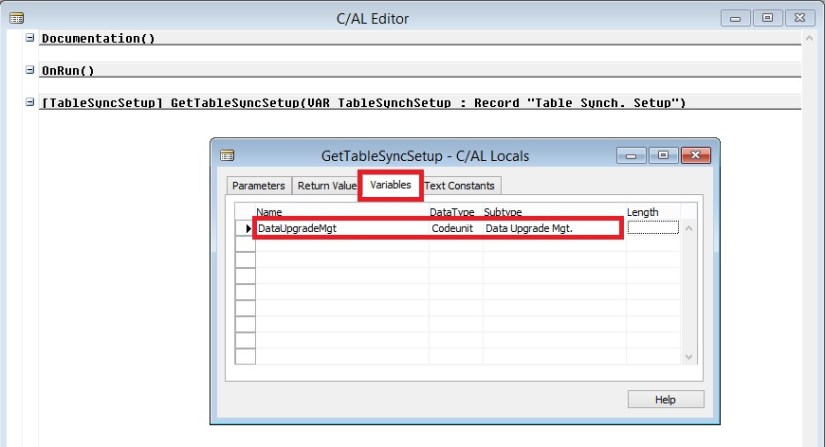
  • On the C/AL Locals form, select Variables tab and add a local variable of DataType = Codeunit, Subtype = Data Upgrade Mgt.
  • Close the C/AL Locals and C/AL Globals forms to return to the C/AL Editor.

DataUpgradeCU-1

  • In the GetTableSyncSetup function, add the C/AL statement as presented on the screenshot.
  • In the Dev. Environment menu, select File-Save action to save the codeunit.
  • On the Save dialogue, define ID , Name = UPGTK Codeunit, and select OK to save the codeunit.
  • Close the codeunit editor.

DataUpgradeCU-1

[

//>>Data Upgrade Code

// To copy data from table My Sales Customer to UPG My Sales Customer table

DataUpgradeMgt.SetTableSyncSetup

(

DATABASE::”My Sales Customer”,

50002,

TableSynchSetup.Mode::Copy

);

//<<Data Upgrade Code

]

  • In the Object Designer, select the Tables button and then select the My Sales Customer table in the list of tables.
  • Click Design to open the table in the table designer.
  • Delete the following fields:
  • Last SO Value
  • Last Invoiced Value
  • Total Outstanding Value
  • In the Dev. Environment menu, select File-Save action.
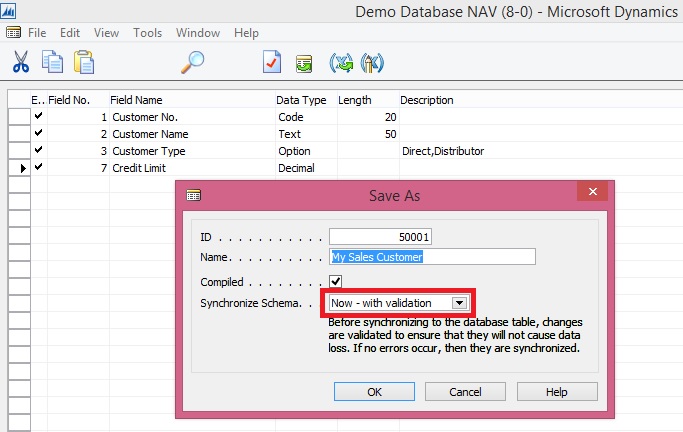
  • On the Save dialogue, notice that the Synchronize Schema option is set to “Now – with validation” and select OK button to close the dialogue.

DataUpgradeCU-1

  • In the Object designer, find table UPG My Sales Customer and click Run to check if the data was copied there by the schema synchronization.

DataUpgradeCU-1

Here we are now done with the Part -1 of our exercise. Next step is to move this temp data in respective table as part of our Upgrade. We will see upgrade part in our next post.