BC18, Business Central, Dynamics 365, Functional Tips, How To, Information, Sales Documents, Track Package, Wave 2, What's New

Track Packages from Sales Documents in Business Central

Today in this post we will see how you to track items on shipping documents in Business Central.

I am using BC18 demo database.

Before we begin, we need to ensure our Shipping Agent is configured:

Open your Shipping agent and fill the Package Tracking URL you received from your agent.

It is obvious if agent do not provide this feature to track package from website, this will be of no use for that particular agent.

Save the changes and go to Sales Order.

Scroll to Shipping and Billing Fast Tab and fill agent details, as in above screenshot.

Next you post your shipment.

Navigate to your shipment and update tracking information you obtained from your agent.

On Posted Sales Shipment Select Process-> Update Document.

Update the Package Tracking No. you received after shipment from your agent, and save the information.

Now you can track the status of the shipment and keep informed to your customer regarding delivery status.

From Posted Shipment page select Process-> Track Package.

This will land you to the agent web page and update you about the current status of delivery.

Since we are using invalid Tracking Information, you will get your actual status if you provide valid Information.

This feature is available on other Sales Documents type too.

Hope you enjoyed the information. Will come with more similar information in my next posts. Till then keep exploring, learning and sharing your knowledge with others.

Remain safe, take care of your loved ones, put your mask, maintain safe distance and don’t forget to get vaccinated.

Background, BC18, Business Central, Check Financial Journals, Cues, Dynamics 365, Functional Tips, How To, Information, Tip & Tricks, Wave 2, What's New

Check Financial Journals in Background in Business Central

Today we learn how to check financial journals in the background in #Dynamics365 #BusinessCentral in this post.

First thing first, you need to ensure the check mark for the batch in question for Background Error Check should be checked.

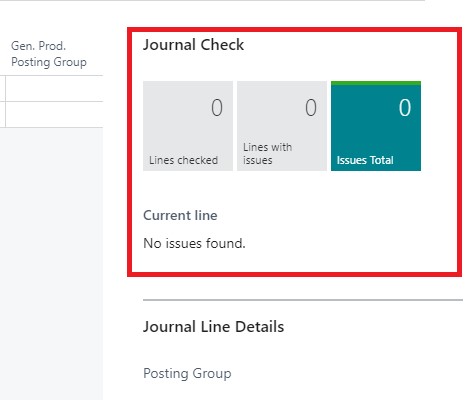
If this is enabled, when you open the batch on right side above Journal Line Details you will see Journal Check Section, which will let you know if Journal have any errors.

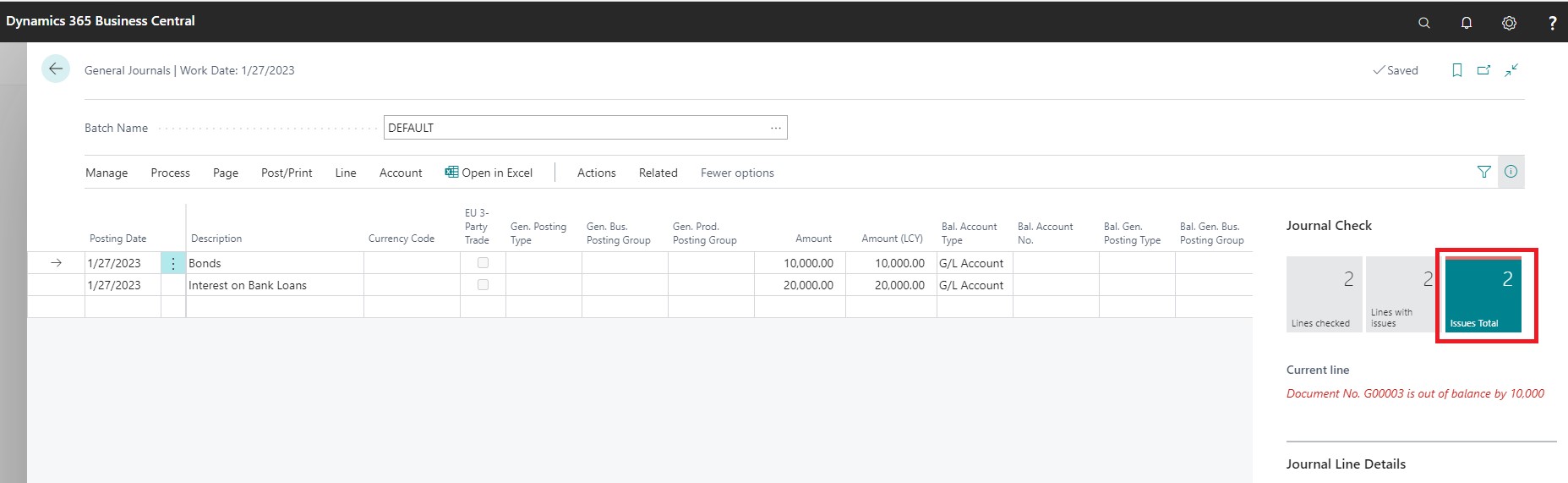
Let’s enter few Lines and see how it looks like

To see all errors, you can click on Cue Issues Total to bring summary page of all Issues.

If you have several Lines and you want to focus on lines with issues, you can do it by:

This will filter the lines on journal with issues.

Hope you enjoyed learning this feature, will come up with new post on new topic. Till then keep exploring, learning and sharing with others.

BC18, Business Central, Copy Journal, Functional Tips, How To, Information, Posted General Journals, Tip & Tricks, Wave 2, What's New

Copy Journal function on Posted General Journals in Business Central

Working with large journals can be cumbersome to correct if you make mistakes.

Earlier we used to do customizations for our customers to get this done. But now this feature is available in the product.

Now with the Wave 2 release of Dynamics Business Central you can use the copy journal function on Posted General Journals.

User have ability to reverse the entries based on posted General Journals.

I am using Accountant Profile.

Search for General Journal Template, make sure you have check mark under Copy to Posted Jnl. Lines for template which you wish to use for this purpose.

Journals-> General Journal

Similarly, the Check mark on Batch which you will use for this purpose.

Search for Posted General Journal

You will find no entries as you can see in previous screenshot for Default Batch Copy to Posted General Journal check mark is clear and any entries posted using that batch is not available.

Now put the Check mark and post the entries.

Now re-open Posted General Journal after posting few entries.

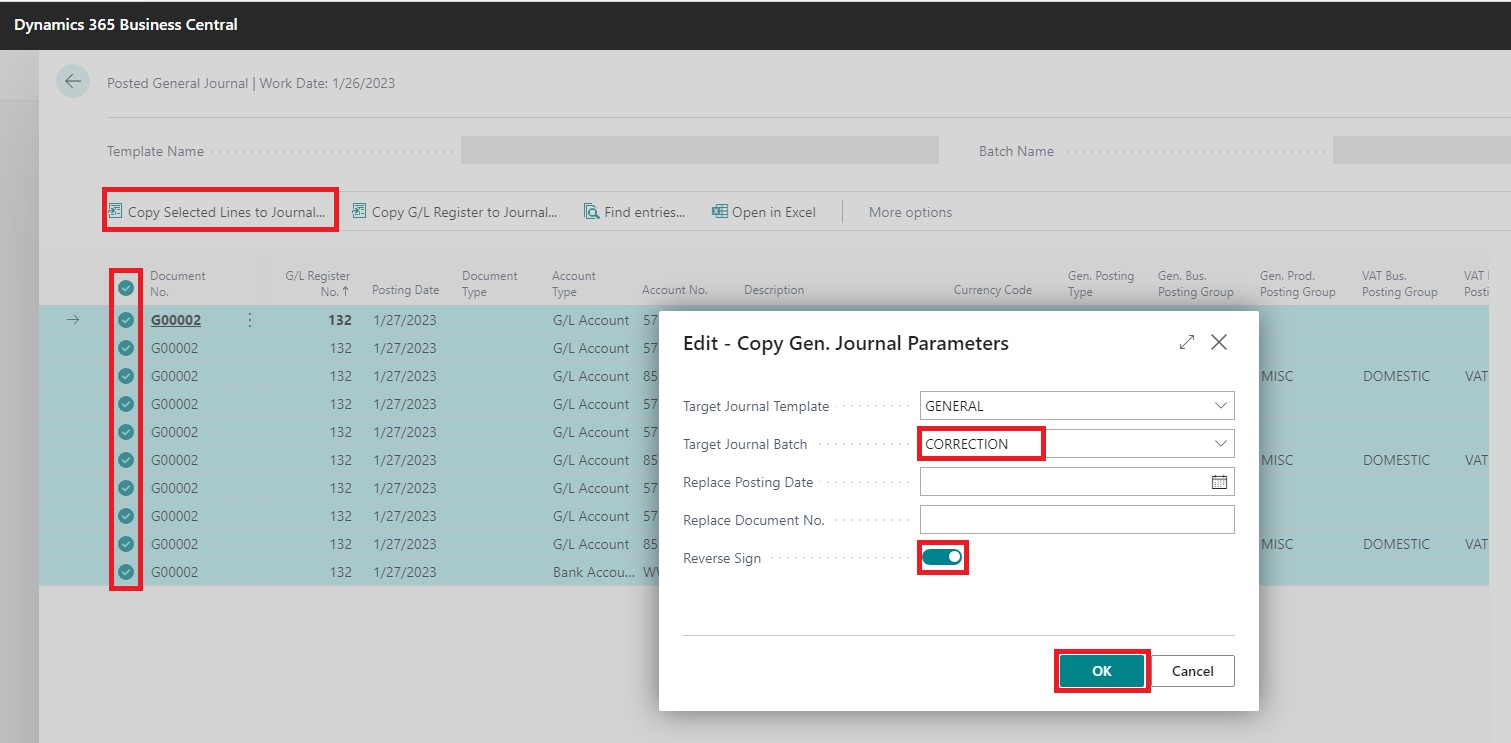
Select the Lines you wish to reverse

Select Copy Selected Line to Journal

Fill the request page, Your Template & Batch to Use, if you wish to change the Posting Date & Document No. If you wish to change the Sign and then press OK.

Your Journal Lines will be created as per the information provided on request page:

Below is the Screenshot after posting the entries:

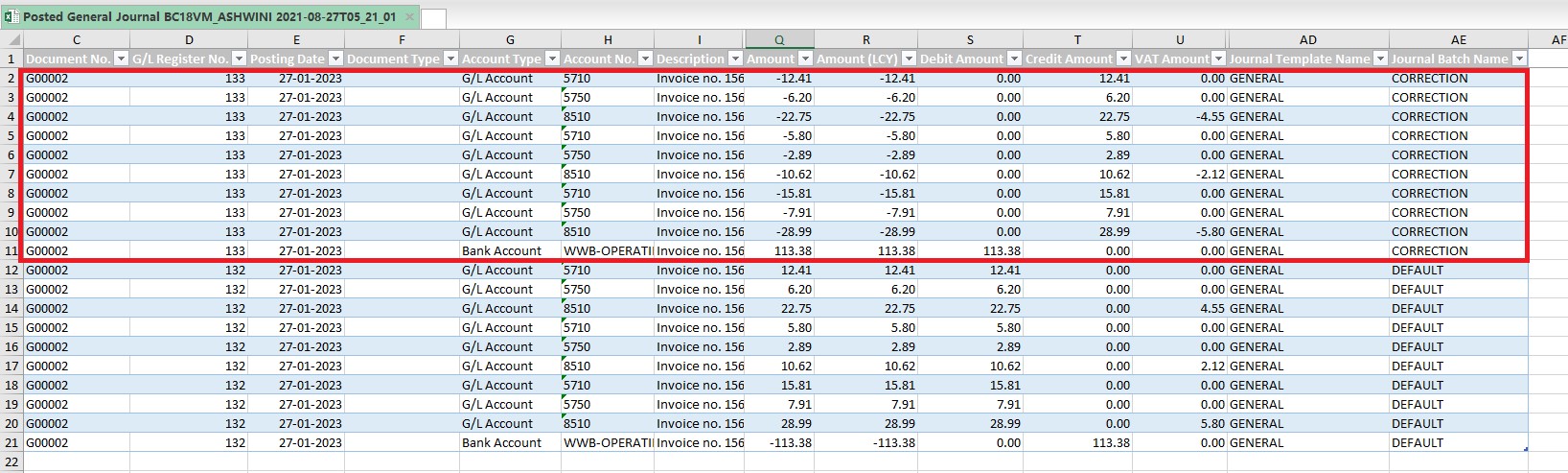
I have exported to Excel and hidden few columns to show the output.

Entries marked in red rectangle is the entries posted post above operation and options selected on request page.

So now you know how to use this feature, share with your customers and help to make their life easy. Hope you liked and enjoyed learning this feature.

See you in next post, till then keep exploring, learning and sharing with others.

Now we have YouTube channel too, you can find link on Menu, first ever Dynamics Navision & Business Central Channel in Hinglish. You will get videos of demonstration in Mixed Language English as well as in Hindi. This will help both those who are comfortable with English and also with Hindi. Don’t forget to Subscribe and post your suggestions to improve the channel.

Channel Link

https://www.youtube.com/channel/UCm1JWr26UO5GqXiOHWhVD4A

BC18, Business Central, Data Source, Dynamics 365, Information, Instalation & Configuration, Jet Analytics, Jet Data Manager, Jet Reports, SQL Connector

Jet Data Manager Connecting Data Source To Business Central – – Part-2

Jet Analytics delivers fast, flexible dashboards and reports in Excel, Power BI, and in the browser. Now you can bring all your data together in one place to enable everyone in the organization to easily perform sophisticated business analysis from anywhere, without technical expertise. Empower users to make better decisions, faster.

This blog shares information on the steps involved to connect Jet Analytics to the Business Central (On-Premise) via Direct SQL Connection 

If you have not checked previous blog in this series you can find link here to connect Jet Analytics to the Business Central (Online Tenant).

(On-Premise) via Direct SQL Connection is very straight forward to configure Data Source. Rest steps remains same as in previous post.

Step 1: Right click on the data source and choose “Add SQL Server data source”

Step 2: Key in the SQL Data Source Name, Server Name, Authentication & Database Name to connect.

Leave rest as default & Test Connection.

Here onwards rest steps will be same as in previous post.

Step 3: Right click on the data source and choose “Set up accounts”

You will get (0 selected) at first time in this case this task is already performed so showing count of selected Accounts (Companies in Business Central Database)

Select Template & all desired Companies from the List and hit OK.

Next Sync your Objects:

When first time empty Data Source no objects selected will see Read Objects, In my case the objects are already selected so it shows Synchronize Objects.

Now you can see your table objects in Data Selection Pan.

That’s it for this post rest will discuss in other upcoming posts.

One news I want to share with all readers, now we are Jet Reports Partner, if you have any requirements you can reach to me for License, Deployment, Training or Support.

API URL, BC18, Business Central, Data Source, Dynamics 365, Environment, HttpClient Request, Information, Instalation & Configuration, Jet Analytics, Jet Data Manager, Jet Reports, Nav Adapter, Tip & Tricks, Web Access Key

Jet Data Manager Connecting Data Source To Business Central – – Part-1

Jet Analytics delivers fast, flexible dashboards and reports in Excel, Power BI, and in the browser. Now you can bring all your data together in one place to enable everyone in the organization to easily perform sophisticated business analysis from anywhere, without technical expertise. Empower users to make better decisions, faster.

This blog shares information on the steps involved to connect Jet Analytics to the Business Central (Online Tenant)

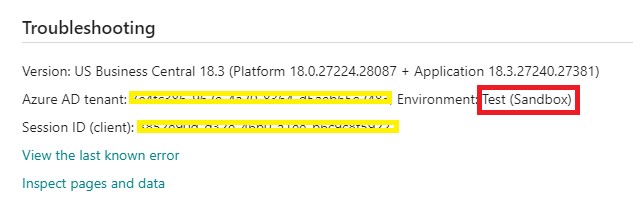
Step 1: Find tenant and environment information

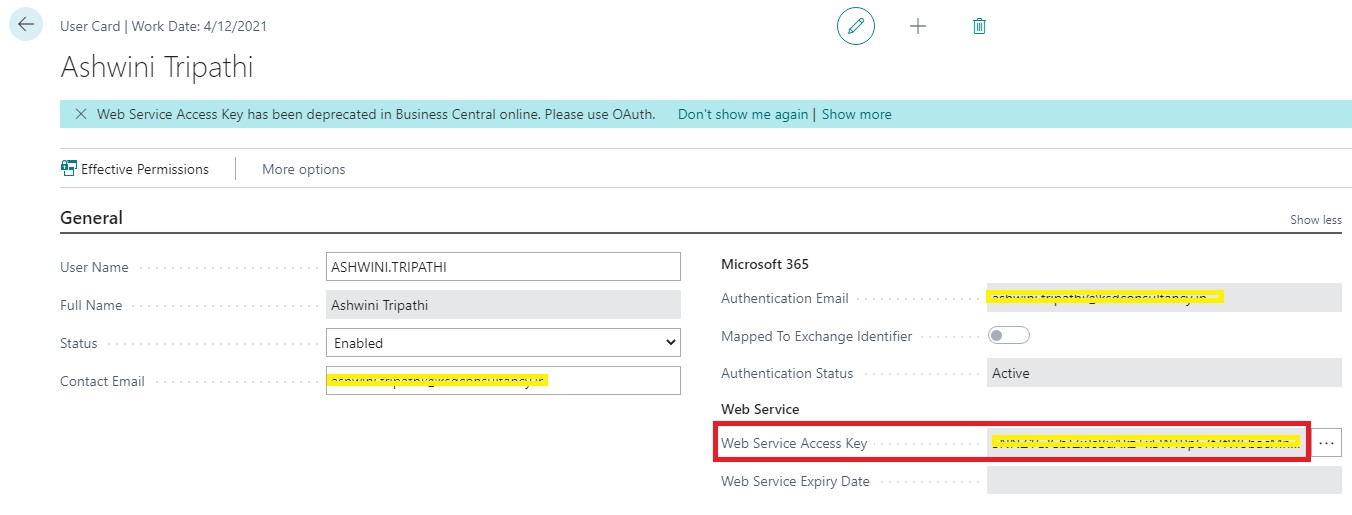
Step 2: Get web services access key

User which will be used to establish the connection to the Business Central data source ensure this user have permission set of either:

  • SUPER
  • D365 FULL ACCESS

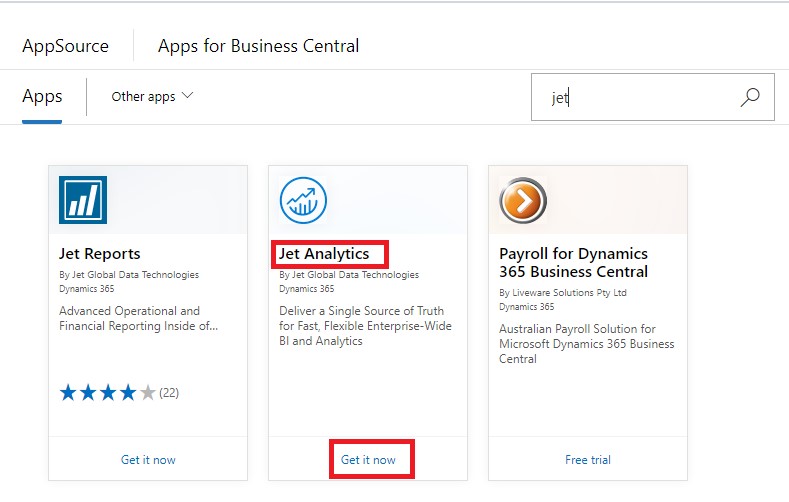
Step 3: Install Jet Analytics Extension

On Extension Management page click Manage → Extension Marketplace And search for Jet Analytics App

Click -> Get it now to deploy the App

Step 4: Verify extension installation 

Click Manage and then Deployment Status

Verify that the status is completed.

Step 5: Allow http client requests

Step 6: Configure Business Central data source in Jet Analytics project

Ensure if your Environment Name is other than Production or Sandbox, you will need to manually enter your Environment name. Like in my case it was Test

Next, we will setup Accounts

You will get (0 selected) at first time in this case this task is already performed so showing count of selected Accounts (Companies in Business Central Database)

Select Template & all desired Companies from the List and hit OK.

Now you can see your table objects in Data Selection Pan.

That’s all for this post rest will discuss in other upcoming posts.

One news I want to share with all readers, now we are Jet Reports Partner, if you have any requirements you can reach to me for License, Deployment, Training or Support.

BC14, BC15, BC16, BC17, Business Central, Cumulative Updates, How To, Information, Instalation & Configuration, Install, NAV 2016, NAV 2017, NAV 2018, on-premises, Updates, Wave 1, Wave 2, What's New

Cumulative Updates for Microsoft Dynamics NAV 2016/2017/2018 And BC Released in Mar 2021

Update 17.5 for Microsoft Dynamics 365 Business Central 2020 Release Wave 2 (Application Build 17.5.22499.22546, Platform Build 17.0.22463.22540)

This update replaces previously released updates. You should always install the latest update.

It may be necessary to update your license after you install this hotfix to gain access to new objects that are included in this or a previous update. (This only applies to customer licenses.)

For a list of updates that were released for Microsoft Dynamics 365 Business Central 2020 Release Wave 2, see released updates for Microsoft Dynamics 365 Business Central 2020 Release Wave 2. Updates are intended for new and existing customers who are running Microsoft Dynamics Released Updates for Microsoft Dynamics 365 Business Central 2020 Release Wave 2.

How to obtain the Microsoft Dynamics 365 Business Central 2020 Release Wave 2 files

This update is available for manual download and installation from the Microsoft Download Center.

Update 17.5 for Microsoft Dynamics 365 Business Central  2020 Release Wave 2

How to install a Microsoft Dynamics 365 Business Central on-premises 2020 Release Wave 2 update

See How to install a Microsoft Dynamics 365 Business Central 2020 Release Wave 2 update.

Prerequisites

You must have Microsoft Dynamics 365 Business Central 2020 Release Wave 2 installed to apply this hotfix.

Update 16.11 for Microsoft Dynamics 365 Business Central 2020 Release Wave 1 (Application Build 16.11.22526, Platform Build 16.0.22511)

This update replaces previously released updates. You should always install the latest update.

It may be necessary to update your license after you install this hotfix to gain access to new objects that are included in this or a previous update. (This only applies to customer licenses.)

For a list of updates that were released for Microsoft Dynamics 365 Business Central 2020 Release Wave 1, see released updates for Microsoft Dynamics 365 Business Central 2020 Release Wave 1. Updates are intended for new and existing customers who are running Microsoft Dynamics Released Updates for Microsoft Dynamics 365 Business Central 2020 Release Wave 1.

How to obtain the Microsoft Dynamics 365 Business Central 2020 Release Wave 1 files

This update is available for manual download and installation from the Microsoft Download Center.

Update 16.11 for Microsoft Dynamics 365 Business Central  2020 Release Wave 1

How to install a Microsoft Dynamics 365 Business Central on-premises 2020 Release Wave 1 update

See How to install a Microsoft Dynamics 365 Business Central 2020 Release Wave 1 update.

Prerequisites

You must have Microsoft Dynamics 365 Business Central 2020 Release Wave 1 installed to apply this hotfix.

Update 15.16 for Microsoft Dynamics 365 Business Central 2019 Release Wave 2 (Application Build 15.16.46612, Platform Build 15.0.46600)

This update replaces previously released updates. You should always install the latest update.

It may be necessary to update your license after you install this hotfix to gain access to new objects that are included in this or a previous update. (This only applies to customer licenses.)

For a list of updates that were released for Microsoft Dynamics 365 Business Central 2019 Release Wave 2, see released updates for Microsoft Dynamics 365 Business Central 2019 Release Wave 2. Updates are intended for new and existing customers who are running Microsoft Dynamics Released Updates for Microsoft Dynamics 365 Business Central 2019 Release Wave 2.

How to obtain the Microsoft Dynamics 365 Business Central 2019 Release Wave 2 files

This update is available for manual download and installation from the Microsoft Download Center.

Update 15.16 for Microsoft Dynamics 365 Business Central 2019 Release Wave 2

How to install a Microsoft Dynamics 365 Business Central 2019 Release Wave 2 update

See How to install a Microsoft Dynamics 365 Business Central 2019 Release Wave 2 update.

Prerequisites

You must have Microsoft Dynamics 365 Business Central 2019 Release Wave 2 installed to apply this hotfix.

Cumulative Update 22 for Microsoft Dynamics 365 Business Central April’19 on-premises (Application Build 14.23.46611, Platform Build 14.0.46607)

This cumulative update replaces previously released cumulative updates. You should always install the latest cumulative update.

It may be necessary to update your license after you install this hotfix to gain access to new objects that are included in this or a previous cumulative update. (This applies only to customer licenses.)

For a list of cumulative updates that were released for Microsoft Dynamics 365 Business Central Spring 2019, see released cumulative updates for Microsoft Dynamics 365 Business Central Spring 2019. Cumulative updates are intended for new and existing customers who are running Microsoft Dynamics Released Cumulative Updates for Microsoft Dynamics 365 Business Central Spring 2019.

How to obtain the Microsoft Dynamics 365 Business Central Spring 2019 files

This update is available for manual download and installation from the Microsoft Download Center.

Cumulative update CU 22 for Microsoft Dynamics 365 Business Central Spring 2019 Update on-premises

How to install a Microsoft Dynamics 365 Business Central Spring 2019 cumulative update

See How to install a Microsoft Dynamics 365 Business Central Spring 2019 cumulative update.

Prerequisites

You must have Microsoft Dynamics 365 Business Central Spring 2019 installed to apply this hotfix.

Cumulative Update 39 for Microsoft Dynamics NAV 2018 (Build 46609)

This cumulative update includes all hotfixes and regulatory features that have been released for Microsoft Dynamics NAV 2018, including hotfixes and regulatory features that were released in previous cumulative updates.

This cumulative update replaces previously released cumulative updates. You should always install the latest cumulative update.

It may be necessary to update your license after you install this hotfix to gain access to new objects that are included in this or a previous cumulative update. (This applies only to customer licenses.)

For a list of cumulative updates that were released for Microsoft Dynamics NAV 2018, see released cumulative updates for Microsoft Dynamics NAV 2018. Cumulative updates are intended for new and existing customers who are running Microsoft Dynamics NAV 2018.

How to obtain the Microsoft Dynamics NAV update files

This update is available for manual download and installation from the Microsoft Download Center.

Cumulative update CU 39 for Microsoft Dynamics NAV 2018

How to install a Microsoft Dynamics NAV 2018 cumulative update

See How to install a Microsoft Dynamics NAV 2018 cumulative update.

Prerequisites

You must have Microsoft Dynamics NAV 2018 installed to apply this hotfix.

Cumulative Update 52 for Microsoft Dynamics NAV 2017 (Build 30477)

This cumulative update includes all hotfixes and regulatory features that have been released for Microsoft Dynamics NAV 2017, including hotfixes and regulatory features that were released in previous cumulative updates.

This cumulative update replaces previously released cumulative updates. You should always install the latest cumulative update.

It may be necessary to update your license after implementing this hotfix to gain access to new objects included in this or a previous cumulative update (this only applies to customer licenses).

For a list of cumulative updates released for Microsoft Dynamics NAV 2017, see released cumulative updates for Microsoft Dynamics NAV 2017. Cumulative updates are intended for new and existing customers who are running Microsoft Dynamics NAV 2017.

How to install a Microsoft Dynamics NAV 2017 cumulative update

See How to install a Microsoft Dynamics NAV 2017 cumulative update.

Prerequisites

You must have Microsoft Dynamics NAV 2017 installed to apply this hotfix.

Cumulative Update 65 for Microsoft Dynamics NAV 2016 (Build 52121)

This cumulative update replaces previously released cumulative updates. You should always install the latest cumulative update.

It may be necessary to update your license after you install this hotfix to gain access to new objects that are included in this or a previous cumulative update. (This applies only to customer licenses.)

For a list of cumulative updates that were released for Microsoft Dynamics NAV 2016, see released cumulative updates for Microsoft Dynamics NAV 2016. Cumulative updates are intended for new and existing customers who are running Microsoft Dynamics NAV 2016.

How to obtain the Microsoft Dynamics NAV update files

This update is available for manual download and installation from the Microsoft Download Center.

Cumulative update CU 65 for Microsoft Dynamics NAV 2016

How to install a Microsoft Dynamics NAV 2016 cumulative update

See How to install a Microsoft Dynamics NAV 2016 cumulative update.

Prerequisites

You must have Microsoft Dynamics NAV 2016 installed to apply this hotfix.

AL, BC14, BC15, BC16, BC17, Business Central, Codeunit, Development Tips, Enum, Extension, How To, Install, JSON, SOAP, Tip & Tricks, V1, V2, Visual Studio Code, Wave 1, Wave 2, Web Client, Web Services, XML

Update Tracking Line, Post Shipment using Web Services in Business Central

Hi, today I will discuss Web Service with below requirement. You can check other earlier post on this topic using search on right side of this blog page.

I got one request on topic from one of my customer cum blog follower, case study is as follows:

a) Will update Qty to Ship on document using Web Service from other application

b) Update Tracking Line for the Shipment using Web Service from other application

c) Post the Shipment using Web Service from other application

To get this we will create an Extension using VS Code which will have:

a) Codeunit with some functions which will be called using Web Service

b) A XML file to automatically expose above codeunit upon publishing this extension

Let us start how to achieve above requirement:

I have created this in BC16, will be same for other versions too.

Creating a AL Project:

Update your app.json & launch.json as per your environment, authentication, dependencies, port etc.

Creating a Codeunit: (TrackingCodeWS.al)

This function will be used to update “Qty. to Ship” on Sales Line

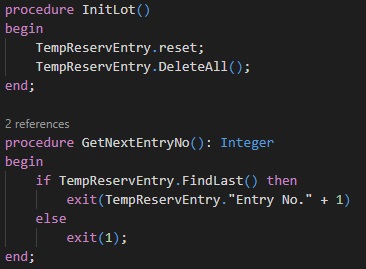
InitLot function as name suggests.

GetNextEntryNo function as name suggests.

It will depend on how you design your codeunit, you may require or not depends on logic how you use them.

AssignLotSalesLine is function which fills the lot details to temp Reservation Entry Table.

CreateReservationEntrySalesLine is the main function which actually makes your Tracking Lines and assign to Sales Line as per information filled in TempReservationEntry table in above function.

PostSalesOrder function is used for posting your Shipment.

Creating XML file to Publish Web Service

This XML file will ensure publishing of Web Service on Install of the Extension. You can directly make entry to Web Service table but benefit of using XML is when to Uninstall your extension the Web Service too will be removed, else if entry made to table you will have to take care to same yourself.

After Install of Extension, your Web Service is automatically Published.

Consume Web Service from Visual Studio

Below is the C# code to consume Web Service created above, you can modify code as per your requirement.

In above code we added Service Reference to Web Service and called functions created in Codeunit.

You can see earlier posts for step wise instruction how to add Web Reference to the Web Service in Visual Studio.

UpdateQtyToShipSalesLine:

Here “1” is used for Document Type = Order,”1008″ is my order no, 10000 is the Line No., 2 is the Quantity to Ship.

AssignLotSalesLine:

“L0001” & “L0002” is my Lot No, Serial No. is blank in this case, 1 is the Quantity, last three parameter is same as in above function call.

PostSalesOrder:

First 2 Parameter is same as above function call Document Type & Order No, third parameter is Ship = TRUE, Fourth Parameter is Invoice = FALSE.

Conclusion

This post gives you overall Idea how you can use Web Service to handle Sales Document from Web Service, you can make required modification to achieve exactly as per your requirement.

BC14, BC15, BC16, BC17, Business Central, Cumulative Updates, How To, Information, Instalation & Configuration, NAV 2016, NAV 2017, NAV 2018, Wave 1, Wave 2

Cumulative Updates for Microsoft Dynamics NAV 2016/2017/2018 And BC Released in Feb 2021

Update 17.4 for Microsoft Dynamics 365 Business Central 2020 Release Wave 2 (Application Build 17.4.21531, Platform Build 17.0.21516)

How to obtain the Microsoft Dynamics 365 Business Central 2020 Release Wave 2 files

This update is available for manual download and installation from the Microsoft Download Center.

Update 17.4 for Microsoft Dynamics 365 Business Central  2020 Release Wave 2

How to install a Microsoft Dynamics 365 Business Central on-premises 2020 Release Wave 2 update

See How to install a Microsoft Dynamics 365 Business Central 2020 Release Wave 2 update.

Prerequisites

You must have Microsoft Dynamics 365 Business Central 2020 Release Wave 2 installed to apply this hotfix.

Update 16.10 for Microsoft Dynamics 365 Business Central 2020 Release Wave 1 (Application Build 16.10.21502, Platform Build 16.0.21469)

How to obtain the Microsoft Dynamics 365 Business Central 2020 Release Wave 1 files

This update is available for manual download and installation from the Microsoft Download Center.

Update 16.10 for Microsoft Dynamics 365 Business Central  2020 Release Wave 1

How to install a Microsoft Dynamics 365 Business Central on-premises 2020 Release Wave 1 update

See How to install a Microsoft Dynamics 365 Business Central 2020 Release Wave 1 update.

Prerequisites

You must have Microsoft Dynamics 365 Business Central 2020 Release Wave 1 installed to apply this hotfix.

Update 15.15 for Microsoft Dynamics 365 Business Central 2019 Release Wave 2 (Application Build 15.15.46359, Platform Build 15.0.46345)

How to obtain the Microsoft Dynamics 365 Business Central 2019 Release Wave 2 files

This update is available for manual download and installation from the Microsoft Download Center.

Update 15.15 for Microsoft Dynamics 365 Business Central 2019 Release Wave 2

How to install a Microsoft Dynamics 365 Business Central 2019 Release Wave 2 update

See How to install a Microsoft Dynamics 365 Business Central 2019 Release Wave 2 update.

Prerequisites

You must have Microsoft Dynamics 365 Business Central 2019 Release Wave 2 installed to apply this hotfix.

Cumulative Update 21 for Microsoft Dynamics 365 Business Central April’19 on-premises (Application Build 14.22.46358, Platform Build 14.0.46351)

How to obtain the Microsoft Dynamics 365 Business Central Spring 2019 files

This update is available for manual download and installation from the Microsoft Download Center.

Cumulative update CU 21 for Microsoft Dynamics 365 Business Central Spring 2019 Update on-premises

How to install a Microsoft Dynamics 365 Business Central Spring 2019 cumulative update

See How to install a Microsoft Dynamics 365 Business Central Spring 2019 cumulative update.

Prerequisites

You must have Microsoft Dynamics 365 Business Central Spring 2019 installed to apply this hotfix.

Cumulative Update 38 for Microsoft Dynamics NAV 2018 (Build 46360)

How to obtain the Microsoft Dynamics NAV update files

This update is available for manual download and installation from the Microsoft Download Center.

Cumulative update CU 38 for Microsoft Dynamics NAV 2018

How to install a Microsoft Dynamics NAV 2018 cumulative update

See How to install a Microsoft Dynamics NAV 2018 cumulative update.

Prerequisites

Cumulative Update 51 for Microsoft Dynamics NAV 2017 (Build 30443)

How to obtain the Microsoft Dynamics NAV update files

This update is available for manual download and installation from the Microsoft Download Center.

Cumulative update CU 51 for Microsoft Dynamics NAV 2017

How to install a Microsoft Dynamics NAV 2017 cumulative update

See How to install a Microsoft Dynamics NAV 2017 cumulative update.

Prerequisites

You must have Microsoft Dynamics NAV 2017 installed to apply this hotfix.

Cumulative Update 64 for Microsoft Dynamics NAV 2016 (Build 52091)

How to obtain the Microsoft Dynamics NAV update files

This update is available for manual download and installation from the Microsoft Download Center.

Cumulative update CU 64 for Microsoft Dynamics NAV 2016

How to install a Microsoft Dynamics NAV 2016 cumulative update

See How to install a Microsoft Dynamics NAV 2016 cumulative update.

Prerequisites

You must have Microsoft Dynamics NAV 2016 installed to apply this hotfix.

BC14, BC15, BC16, BC17, Business Central, Cumulative Updates, Dynamics 365, How To, Information, Instalation & Configuration, NAV 2016, NAV 2017, NAV 2018, on-premises, Updates, Wave 1, Wave 2

Cumulative Updates for Microsoft Dynamics NAV 2016/2017/2018 And BC Released in Jan 2021

Update 17.3 for Microsoft Dynamics 365 Business Central 2020 Release Wave 2 (Application Build 17.3.20605, Platform Build 17.0.20517)

It may be necessary to update your license after you install this hotfix to gain access to new objects that are included in this or a previous update. (This only applies to customer licenses.)

For a list of updates that were released for Microsoft Dynamics 365 Business Central 2020 Release Wave 2, see released updates for Microsoft Dynamics 365 Business Central 2020 Release Wave 2. Updates are intended for new and existing customers who are running Microsoft Dynamics Released Updates for Microsoft Dynamics 365 Business Central 2020 Release Wave 2.

How to obtain the Microsoft Dynamics 365 Business Central 2020 Release Wave 2 files

This update is available for manual download and installation from the Microsoft Download Center.

Update 17.3 for Microsoft Dynamics 365 Business Central  2020 Release Wave 2

How to install a Microsoft Dynamics 365 Business Central on-premises 2020 Release Wave 2 update

See How to install a Microsoft Dynamics 365 Business Central 2020 Release Wave 2 update.

Prerequisites

You must have Microsoft Dynamics 365 Business Central 2020 Release Wave 2 installed to apply this hotfix.

Update 16.9 for Microsoft Dynamics 365 Business Central 2020 Release Wave 1 (Application Build 16.9.20537, Platform Build 16.0.20513)

How to obtain the Microsoft Dynamics 365 Business Central 2020 Release Wave 1 files

This update is available for manual download and installation from the Microsoft Download Center.

Update 16.9 for Microsoft Dynamics 365 Business Central  2020 Release Wave 1

How to install a Microsoft Dynamics 365 Business Central on-premises 2020 Release Wave 1 update

See How to install a Microsoft Dynamics 365 Business Central 2020 Release Wave 1 update.

Prerequisites

You must have Microsoft Dynamics 365 Business Central 2020 Release Wave 1 installed to apply this hotfix.

Update 15.14 for Microsoft Dynamics 365 Business Central 2019 Release Wave 2 (Application Build 15.14.46107, Platform Build 15.0.46099)

How to obtain the Microsoft Dynamics 365 Business Central 2019 Release Wave 2 files

This update is available for manual download and installation from the Microsoft Download Center.

Update 15.14 for Microsoft Dynamics 365 Business Central 2019 Release Wave 2

How to install a Microsoft Dynamics 365 Business Central 2019 Release Wave 2 update

See How to install a Microsoft Dynamics 365 Business Central 2019 Release Wave 2 update.

Prerequisites

You must have Microsoft Dynamics 365 Business Central 2019 Release Wave 2 installed to apply this hotfix.

Cumulative Update 20 for Microsoft Dynamics 365 Business Central April’19 on-premises (Application Build 14.21.46103, Platform Build 14.0.46080)

How to obtain the Microsoft Dynamics 365 Business Central Spring 2019 files

This update is available for manual download and installation from the Microsoft Download Center.

Cumulative update CU 20 for Microsoft Dynamics 365 Business Central Spring 2019 Update on-premises

How to install a Microsoft Dynamics 365 Business Central Spring 2019 cumulative update

See How to install a Microsoft Dynamics 365 Business Central Spring 2019 cumulative update.

Prerequisites

You must have Microsoft Dynamics 365 Business Central Spring 2019 installed to apply this hotfix.

Cumulative Update 37 for Microsoft Dynamics NAV 2018 (Build 46142)

How to obtain the Microsoft Dynamics NAV update files

This update is available for manual download and installation from the Microsoft Download Center.

Cumulative update CU 37 for Microsoft Dynamics NAV 2018

How to install a Microsoft Dynamics NAV 2018 cumulative update

See How to install a Microsoft Dynamics NAV 2018 cumulative update.

Prerequisites

You must have Microsoft Dynamics NAV 2018 installed to apply this hotfix.

Cumulative Update 50 for Microsoft Dynamics NAV 2017 (Build 30428)

How to obtain the Microsoft Dynamics NAV update files

This update is available for manual download and installation from the Microsoft Download Center.

Cumulative update CU 50 for Microsoft Dynamics NAV 2017

How to install a Microsoft Dynamics NAV 2017 cumulative update

See How to install a Microsoft Dynamics NAV 2017 cumulative update.

Prerequisites

You must have Microsoft Dynamics NAV 2017 installed to apply this hotfix.

Cumulative Update 63 for Microsoft Dynamics NAV 2016 (Build 52055)

How to obtain the Microsoft Dynamics NAV update files

This update is available for manual download and installation from the Microsoft Download Center.

Cumulative update CU 63 for Microsoft Dynamics NAV 2016

How to install a Microsoft Dynamics NAV 2016 cumulative update

See How to install a Microsoft Dynamics NAV 2016 cumulative update.

Prerequisites

You must have Microsoft Dynamics NAV 2016 installed to apply this hotfix.

AL, API, Application, AppVersion, BC14, BC17, Business Central, Code, Codeunit, DataVersion, Dependencies, Development Tips, Dynamics 365, Extension, GetCurrentModuleInfo, GetModuleInfo, How To, Information, Instalation & Configuration, Install, Name, on-premises, OnInstallAppPerCompany, Publisher, Tip & Tricks, Version.Create, Visual Studio Code, Wave 1, Wave 2

Extension Install Code

Extension install code is executed when:

  • An extension is installed for the first time.
  • An uninstalled version is installed again.

This gives you control to write different logics for first time installation of extension and reinstallations of uninstalled extensions.

This is achieved by defining Install Codeunit in your Extension.

First thing first:

  1. Subtype property of codeunit need to be set to Install
  2. OnInstallAppPerCompany trigger is triggered when the Extension is Installed first time or subsequent install of same version on Extension.
  3. DataVersion property one of the important properties which tells you what version of data that you’re dealing with.
  4. AppVersionDataVersionDependenciesIDName, and Publisher. These properties are encapsulated in a ModuleInfo data type. You can access these properties by using the NavApp.GetCurrentModuleInfo and NavApp.GetModuleInfo methods.
  5. If the DataVersion property equals Version.Create(0,0,0,0), then it’s the first time that the extension is installed because no data exists in the archive.

Sample codeunit can be similar to below:

codeunit <ID> “Name of Codeunit

{

    // Install Logic

    Subtype = Install;

    trigger OnInstallAppPerCompany();

    var

        myAppInfo: ModuleInfo;

    begin

        NavApp.GetCurrentModuleInfo(myAppInfo);

// Get info about the currently executing module

        if myAppInfo.DataVersion = Version.Create(0, 0, 0, 0) then

// A ‘DataVersion’ of 0.0.0.0 indicates a ‘fresh/new’ install

            HandleFreshInstall

        else

            HandleReinstall;

// If not a fresh install, then we are Reinstalling the same version of the extension

    end;

    local procedure HandleFreshInstall();

    begin

        // Logic to execute on first time this extension is ever installed for this tenant.

        // Some possible usages: – Initial data setup for use

    end;

    local procedure HandleReinstall();

    begin

        // Logic to execute on reinstalling the same version of this extension back on this tenant.

        // Some possible usages: – Data ‘patchup’ work, for example, detecting if new ‘base’

// records have been changed while you have been working ‘offline’.

    end;

}

Happy Learning.