Corfu Navision 2016, Functional Tips, How To, Information, Tip & Tricks

How do I: Set Up Rounding Rules for the LCY

To use the automatic invoice rounding function, you will be required to set up rounding rules.

To set up rounding rules for local currency

  1. Open General Ledger Setup
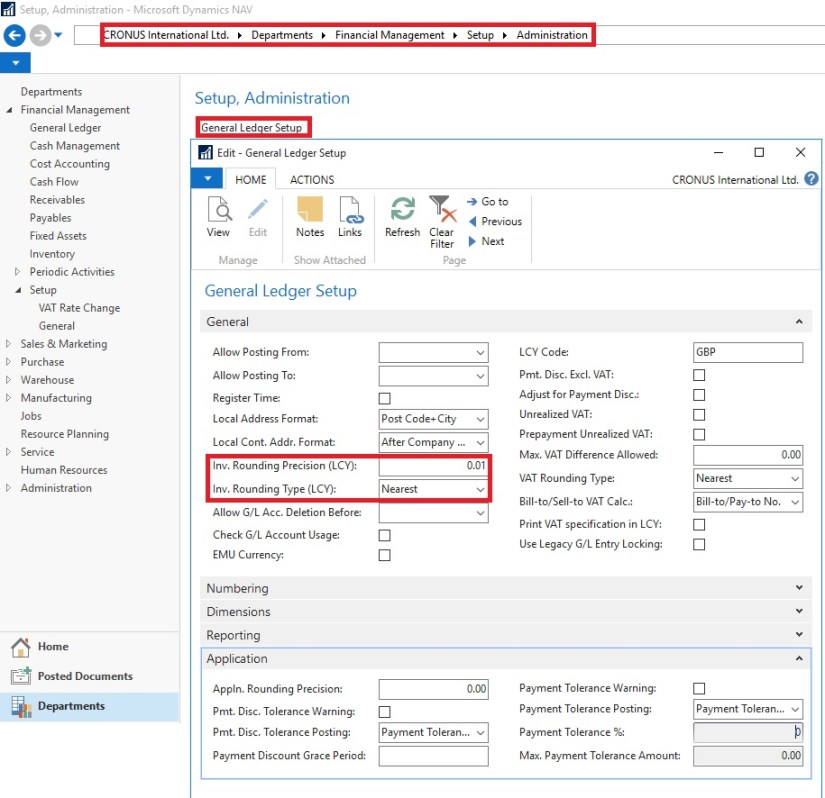
  2. In the General Ledger Setup window, on the Respective Fast Tab, fill in the Amount Rounding Precision, Unit-Amount Rounding Precision, Rounding Precision (LCY) and Invoice Rounding Type (LCY) fields.

InvoiceRounding-2

You can take help of technical team to add/display fields not visible on the page. These fields are available in Table. For more details about fields you can use F1 help.

Corfu Navision 2016, Functional Tips, How To, Information, Tip & Tricks

How do I: Set Up General Ledger Accounts for Invoice Rounding Differences

To use the automatic invoice rounding function, you will be required to set up the general ledger account or accounts in which the rounding differences will be posted. Before you can do this, you will be required to set up VAT product posting groups.

To set up general ledger accounts for invoice rounding differences

  1. Set up the account in the Chart of Accounts window and name it Invoice Rounding or as required name. (I am showing the standard Account defined in Demo Database, you can setup your own as per the requirement)
  2. In the Posting Type field, select <Blank>.
  3. Fill in the VAT Bus. Posting Group field or can leave blank.
  4. Fill in the VAT Prod. Posting Group You may want to set up a new group code that can be used for invoice rounding, if don’t have any existing to be used.

InvoiceRounding-1

Now you need to assign the invoice rounding account to posting groups in the Customer Posting Groups window and the Vendor Posting Groups window.

InvoiceRounding-6

InvoiceRounding-7

Corfu Navision 2016, Data, Development Tips, How To, Information, Instalation & Configuration, PowerShell, upgrade

Few Helpful PowerShell Commands which you can use for Upgrade Process in Navision 2016 – Part 2

You can use Windows PowerShell scripts to upgrade the latest version of Microsoft Dynamics NAV. Microsoft Dynamics NAV 2016 provides sample scripts that you can adapt for your deployment architecture.

Automating the Upgrade Process

When you upgrade to Microsoft Dynamics NAV 2016, you must first upgrade the application code, and then you upgrade the data.

In my earlier post I have explained this using PowerShell commands, you can find the link here: Helpful PowerShell Commands which you can use for Upgrade Process in Navision 2016

By using Windows PowerShell, you can automate both parts of the upgrade process. Also, you can use the same scripts to test each step in your upgrade process before you upgrade production databases.

You can combine this automated upgrade with a migration to multitenancy this makes maintenance easier for you.

The Sample Scripts for Code Upgrade

Microsoft Dynamics NAV includes sample scripts that illustrate how you can use Windows PowerShell cmdlets to upgrade your application to the latest version of Microsoft Dynamics NAV.

The sample scripts are located in the ApplicationMergeUtilities folder under the WindowsPowerShellScripts folder on the Microsoft Dynamics NAV product media.

However you can follow above post link steps explanation to get it done.

The Sample Scripts for Data Upgrade

Microsoft Dynamics NAV includes sample scripts that illustrate how you can automate the upgrade of data to the latest version of Microsoft Dynamics NAV.

The sample scripts are located in the Upgrade folder under the WindowsPowerShellScripts folder on the Microsoft Dynamics NAV product media. You can run the sample script using a partner license or a customer license.
PowerShell-3

To learn and follow MS suggested steps you can find details using this link. Automating the Upgrade Process using Windows PowerShell Scripts in Microsoft Dynamics NAV 2016

To run the sample script for the data upgrade of a Microsoft Dynamics NAV database, you must have a Microsoft Dynamics NAV 2013, Microsoft Dynamics NAV 2013 R2, or Microsoft Dynamics NAV 2015 database that is available on a SQL Server instance and is ready to be upgraded.

Here I present my version derived from above Steps:

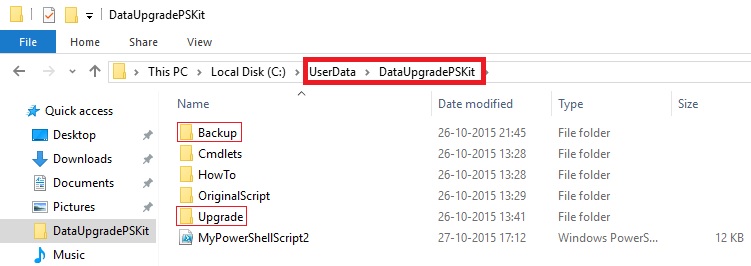
To continue we will do some setup. Copy the Upgrade folder from above path and save as DataUpgradePSKit.

PowerShell-4

Create Folder OriginalScript and move the PS1 file on root to this folder although we don’t require for this exercise but you can safe copy for your reference. (Example, Set-PartnerSettings, Set-PowerShellEnvironment)

Create Backup folder, script will use to store backup of the database previous to start Upgrade process.

Create Upgrade Folder and place these files:

  • License File
  • New Merged Objects fob
  • Upgrade Toolkit / or your own prepared Upgrade Codeunits

PowerShell-5

  • Create ProcessLogs Folder, which will be used for recording log of Shell Script.

Here is the script which we will be using to perform our Data Upgrade process:

You can find this script here http://1drv.ms/1NyolVV or you can download from Menu of my Blog using Link Shared Files.


# Added below parameter values globally for ease of maintenance

# You just do correction on values here (as per your environment) and will be in effect for rest of below script

# No need to scan and change every occurrence for same value in different steps of the script.

# Select this section and Execute first so that these Variables value are available for rest of the script.

Import-Module ‘C:\Program Files\Microsoft Dynamics NAV\90\Service\NavAdminTool.ps1’

$NAVUpgrade_NAVServerInstance = “UpgradedDBfrom2013R2”

$NAVUpgrade_NAVServerServiceAccount = “NT AUTHORITY\NETWORK SERVICE”

$NAVUpgrade_FinSqlExeFile = “C:\Program Files (x86)\Microsoft Dynamics NAV\90\RoleTailored Client\finsql.exe”

$NAVUpgrade_IDEModulePath = “”

$NAVUpgrade_DatabaseServer = “INDEL-AXT5283VM”

$NAVUpgrade_DatabaseInstance = “”

$NAVUpgrade_DatabaseName = “Demo Database NAV (7-1)”

$NAVUpgrade_DatabaseToUpgradeBakFile = “C:\UserData\DataUpgradePSKit\Backup\DynamicsNAV70_BeforeUpgrade.bak”

$NAVUpgrade_NewVersionObjectsFobFilePath = “C:\UserData\DataUpgradePSKit\Upgrade\NewObjects.fob”

$NAVUpgrade_UpgradeToolkitObjectsFobFilePath = “C:\UserData\DataUpgradePSKit\Upgrade\Upgrade710900.FOB”

$NAVUpgrade_UpgradeObjectsFilter = “Version List=UPGTK9.00.00”

$NAVUpgrade_UpgradeLogsDirectory = “C:\UserData\DataUpgradePSKit\Upgrade\ProcessLogs”

#$NAVUpgrade_RapidStartPackageFile = ‘C:\UserData\DataUpgradePSKit\Upgrade\PackageSTCODES.rapidstart’

$NAVUpgrade_CurrentVersionLicenseFile = “C:\UserData\DataUpgradePSKit\Upgrade\DevLicense.flf”

$NAVUpgrade_PreviousVersionLicenseFilePath = “C:\UserData\DataUpgradePSKit\Upgrade\DevLicense.flf”


# Upgrade Steps:

Import-Module (Join-Path (Get-Location) ‘Cmdlets\NAVUpgradeCmdlets.psm1’) -DisableNameChecking

#1. Prepares the Windows PowerShell session by importing the required modules.

        # Import the NAV IDE Module.

Import-NAVIdeModule -IDEModuleSuggestedPath $NAVUpgrade_IDEModulePath -FinSqlExeFile $NAVUpgrade_FinSqlExeFile

Import-NAVManagementModule

Import-SqlPsModule


#2. Saves the current license from the Microsoft Dynamics NAV 2013, Microsoft Dynamics NAV 2013 R2, or Microsoft Dynamics NAV 2015 database.

# Backup current license from the application part of the database (table ‘$ndo$dbproperty’) , if it exists

        Export-NAVLicenseFromApplicationDatabase `

-DatabaseName $NAVUpgrade_DatabaseName `

-DatabaseServer $NAVUpgrade_DatabaseServer `

-DatabaseInstance $NAVUpgrade_DatabaseInstance `

-LicenseFilePath $NAVUpgrade_PreviousVersionLicenseFilePath


#3. Creates a backup of the Microsoft Dynamics NAV 2013, Microsoft Dynamics NAV 2013 R2, or Microsoft Dynamics NAV 2015 database, and then converts the database to Microsoft Dynamics NAV 2016.

        Backup-NAVSqlDatabase `

-DatabaseServer $NAVUpgrade_DatabaseServer `

-DatabaseInstance $NAVUpgrade_DatabaseInstance `

-DatabaseName $NAVUpgrade_DatabaseName `

-DatabaseBackupFilePath $NAVUpgrade_DatabaseToUpgradeBakFile

$NAVUpgrade_DatabaseSQLServerInstance = Get-SqlServerInstance -DatabaseServer $NAVUpgrade_DatabaseServer -DatabaseInstance $NAVUpgrade_DatabaseInstance

$NavServerInfo = New-Object PSObject

Add-Member -InputObject $NavServerInfo -MemberType NoteProperty -Name NavServerName -Value “$NAVUpgrade_DatabaseServer”

Add-Member -InputObject $NavServerInfo -MemberType NoteProperty -Name NavServerInstance -Value (Get-NAVServerConfigurationValue  -ServerInstance $NAVUpgrade_NAVServerInstance -ConfigKeyName “ServerInstance”)

Add-Member -InputObject $NavServerInfo -MemberType NoteProperty -Name NavServerManagementPort -Value (Get-NAVServerConfigurationValue -ServerInstance $NAVUpgrade_NAVServerInstance -ConfigKeyName “ManagementServicesPort”)


# Perform technical upgrade of the NAV database

        Invoke-NAVDatabaseConversion `

-DatabaseName $NAVUpgrade_DatabaseName `

-DatabaseServer $NAVUpgrade_DatabaseSQLServerInstance `

-LogPath $NAVUpgrade_UpgradeLogsDirectory\”Database Conversion”


#4. Connects the Microsoft Dynamics NAV 2016 Server instance to the converted database, imports the Microsoft Dynamics NAV 2016 license file, and then synchronizes the table schema.


# Connect the NAV Server to the NAV database

        Connect-NAVServerToNAVDatabase  `

-NAVServerInstance $NAVUpgrade_NAVServerInstance `

-NAVServerServiceAccount $NAVUpgrade_NAVServerServiceAccount `

-DatabaseServer $NAVUpgrade_DatabaseServer `

-DatabaseInstance $NAVUpgrade_DatabaseInstance `

-DatabaseName $NAVUpgrade_DatabaseName

# Import the new version license into the application database, and restart the server in order for the license to be loaded

        Import-NAVServerLicense -ServerInstance $NAVUpgrade_NAVServerInstance -LicenseFile $NAVUpgrade_CurrentVersionLicenseFile -Database NavDatabase

Set-NAVServerInstance -ServerInstance $NAVUpgrade_NAVServerInstance -Restart

# Synchronize the NAV database

        Sync-NAVTenant -ServerInstance $NAVUpgrade_NAVServerInstance -Mode Sync -Force


#5. Imports the application objects and upgrade toolkit objects from the specified .fob file, and then synchronizes the table schema again.

#   This updates the SQL Server database based on the new table schema that is defined by the imported application objects. Data that must be mapped to another table is saved in upgrade tables.

# Delete the tables from the previous version, using SynchronizeSchemaChanges Later.

# The new  objects we import will contain the new version of the tables.

        Delete-NAVApplicationObject `

-DatabaseName $NAVUpgrade_DatabaseName `

-DatabaseServer $NAVUpgrade_DatabaseSQLServerInstance `

-LogPath $NAVUpgrade_UpgradeLogsDirectory `

-Filter “Type=Table;ID=<2000000000” `

-SynchronizeSchemaChanges “No” `

-NavServerName $NavServerInfo.NavServerName `

-NavServerInstance $NAVServerInfo.NavServerInstance `

-NavServerManagementPort $NavServerInfo.NavServerManagementPort `

-Confirm:$false

# Import all the new objects and the upgrade objects, by delaying the schema synchronization

# If an $UpgradeToolkitObjects value has not been provided, then

#  the assumption is that the upgrade toolkit is within the same .FOB as the new objects

           if(!$UpgradeToolkitObjects)

{

# Import FOB file containing the new version of the application objects, including the upgrade toolkit

Import-NAVApplicationObject `

-Path $NAVUpgrade_NewVersionObjectsFobFilePath `

-DatabaseName $NAVUpgrade_DatabaseName `

-DatabaseServer $NAVUpgrade_DatabaseSQLServerInstance `

-LogPath $NAVUpgrade_UpgradeLogsDirectory `

-ImportAction “Overwrite” `

-SynchronizeSchemaChanges “No” `

-NavServerName $NavServerInfo.NavServerName `

-NavServerInstance $NAVServerInfo.NavServerInstance `

-NavServerManagementPort $NavServerInfo.NavServerManagementPort `

-Confirm:$false

}

else

{


# Import FOB file containing the new version of the application objects

Import-NAVApplicationObject `

-Path $NAVUpgrade_NewVersionObjectsFobFilePath `

-DatabaseName $NAVUpgrade_DatabaseName `

-DatabaseServer $NAVUpgrade_DatabaseSQLServerInstance `

-LogPath $NAVUpgrade_UpgradeLogsDirectory `

-ImportAction “Overwrite” `

-SynchronizeSchemaChanges “No” `

-Confirm:$false


# Import FOB file containing the upgrade codeunit and upgrade tables

Import-NAVApplicationObject `

-Path $NAVUpgrade_UpgradeToolkitObjectsFobFilePath `

-DatabaseName $NAVUpgrade_DatabaseName `

-DatabaseServer $NAVUpgrade_DatabaseSQLServerInstance `

-LogPath $NAVUpgrade_UpgradeLogsDirectory `

-ImportAction “Overwrite” `

-SynchronizeSchemaChanges “No” `

-Confirm:$false

}

# Synchronize the metadata changes to SQL

        Sync-NAVTenant -ServerInstance $NAVUpgrade_NAVServerInstance -Mode Sync -Force

#6. Calls the Start-NAVDataUpgrade cmdlet to verify the data upgrade preconditions and transfer data from the upgrade tables to the destination tables.

# Invoke the Data Upgrade process

        Invoke-NAVDataUpgrade -ServerInstance $NAVUpgrade_NAVServerInstance


#7. Deletes all obsolete tables and the upgrade toolkit objects.

# Delete Upgrade Toolkit objects

        Delete-NAVApplicationObject `

-DatabaseName $NAVUpgrade_DatabaseName `

-DatabaseServer $NAVUpgrade_DatabaseSQLServerInstance `

-LogPath $NAVUpgrade_UpgradeLogsDirectory `

-Filter “$NAVUpgrade_UpgradeObjectsFilter;ID=<2000000000” `

-SynchronizeSchemaChanges “Force” `

-NavServerName $NavServerInfo.NavServerName `

-NavServerInstance $NAVServerInfo.NavServerInstance `

-NavServerManagementPort $NavServerInfo.NavServerManagementPort `

-Confirm:$false


#8.       Initializes all companies in the upgraded database. If you specified a RapidStart package in the Set-PartnerSettings.ps1 file, the package is applied to all companies.

# Optionally, run RapidStart package import

        if($NAVUpgrade_RapidStartPackageFile)

{

Invoke-NAVRapidStartDataImport -ServerInstance      $NAVUpgrade_NAVServerInstance -RapidStartPackageFile $NAVUpgrade_RapidStartPackageFile


}


The sample script is intended to be run in the context of a Microsoft Dynamics NAV 2016 deployment, including the Microsoft Dynamics NAV Server instance.

The Microsoft Dynamics NAV Server instance cannot be multitenant. When the sample script runs successfully, the result is a Microsoft Dynamics NAV 2016 database that is connected to a Microsoft Dynamics NAV 2016 Server instance, and which uses a Microsoft Dynamics NAV 2016 license.

You may face some permission related issues, take help of you IT person if not sure about the nature of issue or use Administrator login.

I will come with more details in my next posts.


Corfu Navision 2016, Development Tips, How To, Information, upgrade

Helpful PowerShell Commands which you can use for Upgrade Process in Navision 2016

In today’s post we will see some Power Shell Commands which will be helpful while performing Upgrades using PowerShell. For below commands to exercise you will need to create/prepare Folder Structure as below else you will have to modify the path in below script as one which you will be using.

For your ease I have uploaded the below script in form of text file named ‘MyPowerShellScript.txt’ which you can get using this link http://1drv.ms/1OOf7If alternatively from Menu of my blog side use Shared Files to access the file.
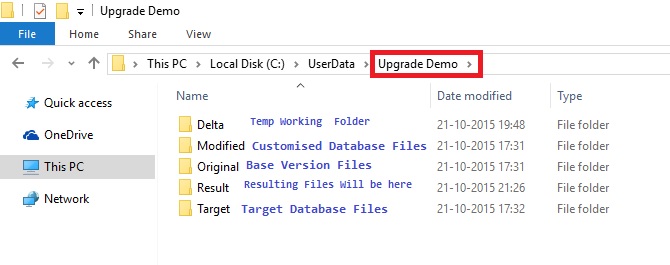
PowerShell-1

Extract you objects in Text format from Base, Customized and Target Database and place in respective folders. One text file per object will be better option for getting more clear insight on Results. You can find the command for Splitting the File per object in below Script.

After opening the PowerShell or ISE change your folder to Upgrade Demo as in my case it will be:

PS C:\userdata\upgrade demo>
PowerShell-2
Select the Script and Press Button in Toolbar Run Selection (F8) in Windows PowerShell ISE (Desktop App).

#1. Start Import NAV Module

Import-Module “${env:ProgramFiles(x86)}\Microsoft Dynamics NAV\90\RoleTailored Client\Microsoft.Dynamics.Nav.Model.Tools.psd1” -force -DisableNameChecking

Get-Help “NAV”

This is must in order to run all below commands.

#2. Merge Objects

# Compare ORIGINAL and MODIFIED and merge onto TARGET, then put the merged files in RESULT

Merge-NAVApplicationObject -OriginalPath .\ORIGINAL\*.txt -ModifiedPath .\MODIFIED\*.txt -TargetPath .\TARGET\*.txt -ResultPath .\RESULT -Force

# Standard PowerShell table formatting with sorting on Object Type, Id

Merge-NAVApplicationObject -OriginalPath .\ORIGINAL\*.txt -ModifiedPath .\MODIFIED\*.txt -TargetPath .\TARGET\*.txt -ResultPath .\RESULT -Force -PassThru |

Sort-Object ObjectType, Id |

Format-Table

# Use PowerShell VARIABLE, PIPING, FILTER, and LISTS – capture result in variable, then list file names of ORIGINAL and TARGET files in conflict 

$myVariable = Merge-NAVApplicationObject -OriginalPath .\ORIGINAL\*.txt -TargetPath .\TARGET\*.txt `

-ModifiedPath .\MODIFIED\*.txt -ResultPath .\RESULT -Force

$myVariable.Summary

$myVariable |

Where-Object MergeResult –eq ‘Conflict’ |

Select Original, Target |

Format-List

# Open NOTEPAD for each CONFLICT file 

Merge-NAVApplicationObject -OriginalPath .\ORIGINAL\*.txt -TargetPath .\TARGET\*.txt `

-ModifiedPath .\MODIFIED\*.txt -ResultPath .\RESULT -Force -PassThru |

Where-Object MergeResult -eq ‘Conflict’ |

foreach { NOTEPAD $_.Conflict }

# Handling Documentation triggers: Merged by default, but conflict can either be treated as real conflict (Strict) or both inserted (ModifiedFirst or TargetFirst)

Merge-NAVApplicationObject -OriginalPath .\ORIGINAL\pagXXXX.txt -ModifiedPath .\MODIFIED\pagXXXX.txt `

-TargetPath .\TARGET\pagXXXX.txt -ResultPath .\RESULT\pagXXXX.txt -Force -DocumentationConflict Strict

Merge-NAVApplicationObject -OriginalPath .\ORIGINAL\pagXXXX.txt -ModifiedPath .\MODIFIED\pagXXXX.txt `

-TargetPath .\TARGET\pagXXXX.txt -ResultPath .\RESULT\pagXXXX.txt -Force -DocumentationConflict ModifiedFirst

#3. Merge Format Output

# Compare ORIGINAL and MODIFIED and merge onto TARGET, then put the merged files in RESULT

Merge-NAVApplicationObject -OriginalPath .\ORIGINAL\*.txt -ModifiedPath .\MODIFIED\*.txt -TargetPath .\TARGET\*.txt -ResultPath .\RESULT -Force

# Same: Capture the rich output in a PowerShell variable for further processing

$result = Merge-NAVApplicationObject -OriginalPath .\ORIGINAL\*.txt -ModifiedPath .\MODIFIED\*.txt -TargetPath .\TARGET\*.txt -ResultPath .\RESULT -Force

# Using the variable: Use standard PowerShell outputting of variable 

$result

# Using the variable: Use the Summary property of the result 

$result.Summary

# Using the variable: Use standard PowerShell table formatting 

$result | Format-Table

# Use standard PowerShell table formatting 

Merge-NAVApplicationObject -OriginalPath .\ORIGINAL\*.txt -ModifiedPath .\MODIFIED\*.txt -TargetPath .\TARGET\*.txt -ResultPath .\RESULT -Force -PassThru |

Format-Table

# Use standard PowerShell table formatting with sorting on ObjectType, Id 

Merge-NAVApplicationObject -OriginalPath .\ORIGINAL\*.txt -ModifiedPath .\MODIFIED\*.txt -TargetPath .\TARGET\*.txt -ResultPath .\RESULT -Force -PassThru |

Sort-Object ObjectType, Id |

Format-Table

# Use standard PowerShell graphical output (GridView) 

Merge-NAVApplicationObject -OriginalPath .\ORIGINAL\*.txt -ModifiedPath .\MODIFIED\*.txt -TargetPath .\TARGET\*.txt -ResultPath .\RESULT -Force -PassThru |

Out-GridView

#4. Merge Filter Output

 # Compare ORIGINAL and MODIFIED and merge onto TARGET, then put the merged files in RESULT

Merge-NAVApplicationObject -OriginalPath .\ORIGINAL\*.txt -ModifiedPath .\MODIFIED\*.txt -TargetPath .\TARGET\*.txt -ResultPath .\RESULT -Force

# Same: Plus use PIPING, PASSTHRU and FILTER – show objects with CONFLICT only

Merge-NAVApplicationObject -OriginalPath .\ORIGINAL\*.txt -TargetPath .\TARGET\*.txt `

-ModifiedPath .\MODIFIED\*.txt -ResultPath .\RESULT -PassThru -Force |

Where-Object MergeResult –eq ‘Conflict’

# Same: Plus use PIPING, PASSTHRU, FILTER, and COUNT – count MERGED objects

Merge-NAVApplicationObject -OriginalPath .\ORIGINAL\*.txt -TargetPath .\TARGET\*.txt `

-ModifiedPath .\MODIFIED\*.txt -ResultPath .\RESULT -PassThru -Force |

Where-Object MergeResult –eq ‘Merged’ |

Measure-Object

# Same: Plus use PIPING, PASSTHRU, FILTER, and LISTING FILES – list file names of ORIGINAL and TARGET files in conflict 

Merge-NAVApplicationObject -OriginalPath .\ORIGINAL\*.txt -TargetPath .\TARGET\*.txt `

-ModifiedPath .\MODIFIED\*.txt -ResultPath .\RESULT -PassThru -Force |

Where-Object MergeResult –eq ‘Conflict’ |

Select Original, Target |

Format-List

#5. Merge and open Conflicts files using External Tools

 # Compare ORIGINAL and MODIFIED and merge onto TARGET, then put the merged files in RESULT 

$result = Merge-NAVApplicationObject -OriginalPath .\ORIGINAL\*.txt -ModifiedPath .\MODIFIED\*.txt -TargetPath .\TARGET\*.txt -ResultPath .\RESULT -Force

# Open NOTEPAD for each CONFLICT file 

$result |

Where-Object MergeResult -eq ‘Conflict’ |

foreach { NOTEPAD $_.Conflict }

#6. Merge and Documentation Triggers

 # Compare object DOCUMENTATION modifications: Body-text (can be merged) and version list additions (potential conflict). 

Merge-NAVApplicationObject -OriginalPath .\ORIGINAL\pagXXXX.txt -ModifiedPath .\MODIFIED\pagXXXX.txt `

-TargetPath .\TARGET\pagXXXX.txt -ResultPath .\RESULT\pagXXXX.txt -Force -DocumentationConflict ModifiedFirst

# Same: But STRICT on conflicts. 

Merge-NAVApplicationObject -OriginalPath .\ORIGINAL\pagXXXX.txt -ModifiedPath .\MODIFIED\pagXXXX.txt `

-TargetPath .\TARGET\pagXXXX.txt -ResultPath .\RESULT\pagXXXXa.txt -Force -DocumentationConflict Strict

#7. Merge and import in CSIDE

# Compare ORIGINAL and MODIFIED and merge onto TARGET, then put the merged files in RESULT 

Merge-NAVApplicationObject -OriginalPath .\ORIGINAL\*.txt -ModifiedPath .\MODIFIED\*.txt -TargetPath .\TARGET\*.txt -ResultPath .\RESULT -Force

# Locate subset (code units) of partionally merged object files, combine them into a single file for performance, and import them into C/SIDE (parameter -Database for you to provide). All throught piping. 

Get-ChildItem .\RESULT\COD*.txt |

Join-NAVApplicationObjectFile -Destination .\RESULT\partially-merged.txt |

Import-NAVApplicationObject

#8. Merge and Export Result to Excel Output 

# Compare ORIGINAL and MODIFIED and merge onto TARGET, then put the merged files in RESULT 

$result = Merge-NAVApplicationObject -OriginalPath .\ORIGINAL\*.txt -ModifiedPath .\MODIFIED\*.txt -TargetPath .\TARGET\*.txt -ResultPath .\RESULT -Force

$AutoMerged = ($result | Where-Object MergeResult -eq ‘Merged’).Count

$Conflict   = ($result | Where-Object MergeResult -eq ‘Conflict’).Count

$Unchanged  = ($result | Where-Object MergeResult -eq ‘Unchanged’).Count

$Inserted   = ($result | Where-Object MergeResult -eq ‘Inserted’).Count

$Unknown    = ($result | Where-Object MergeResult -eq ‘Unknown’).Count

$Deleted    = ($result | Where-Object MergeResult -eq ‘Deleted’).Count

$Title      = “MySample”  # update Excel template file to allow blanks and special characters

$excelPath = “$(Get-ItemProperty ‘HKLM:\SOFTWARE\Microsoft\Windows\CurrentVersion\App Paths\excel.exe’ | select -exp Path)\Excel.exe”

& $excelPath “.\Merge Result Sample.xlsm” “/e/$Title/$AutoMerged/$Conflict/$Unchanged/$Inserted/$Unknown/$Deleted”

# Start-Process -FilePath “.\Merge Result Sample.xlsm” -ArgumentList “/e/BAS/$AutoMerged/$Conflict/$Unchanged/$Inserted/$Unknown/$Deleted”

#9. Compare

 # Compare ORIGINAL and MODIFIED and output MULTIPLE separate DELTA files 

Compare-NAVApplicationObject -OriginalPath .\ORIGINAL\*.txt -ModifiedPath .\MODIFIED\*.txt -DeltaPath .\DELTA -Force

# Compare ORIGINAL and TARGET, pipe the result into the Update-cmdlet (in particular the DELTA parameter) 

Compare-NAVApplicationObject -OriginalPath .\ORIGINAL\*.txt -ModifiedPath .\MODIFIED\*.txt -DeltaPath .\DELTA -Force -PassThru |

Update-NAVApplicationObject -TargetPath .\TARGET\*.txt -ResultPath .\RESULT -Force

#10. Compare Piped

 # Compare ORIGINAL and TARGET and output ONE summary DELTA file 

Compare-NAVApplicationObject -OriginalPath .\ORIGINAL\*.txt -ModifiedPath .\TARGET\*.txt -DeltaPath .\RESULT\sum-of-deltas.txt -Force

#11. Update Piped

# Compare ORIGINAL and MODIFIED and output MULTIPLE separate DELTA files, capture result in variable to apply multiple times 

$myDifferences = Compare-NAVApplicationObject -OriginalPath .\ORIGINAL\*.txt -ModifiedPath .\MODIFIED\*.txt -DeltaPath .\DELTA -Force

# Apply a captured set of differences to TARGET objects using the Update-cmdlet 

$myDifferences |

Update-NAVApplicationObject -TargetPath .\TARGET\*.txt -ResultPath .\RESULT -Force

#12. Join & Split Object Files

# Join all Codeunit-TXT-files into a single TXT-file

Join-NAVApplicationObjectFile -Source .\ORIGINAL\COD*.txt -Destination .\RESULT\all-codeunits.txt -Force

# Join list of Codeunit-TXT-files into a single TXT-file 

Join-NAVApplicationObjectFile -Source .\ORIGINAL\COD1.txt, .\ORIGINAL\COD2.txt, .\ORIGINAL\COD3.txt -Destination .\RESULT\3-codeunits.txt -Force

# Split a single TXT-file with multiple application objects into separate files in the DESTINATION folder 

Split-NAVApplicationObjectFile -Source .\RESULT\all-codeunits.txt -Destination .\SEPARATE -Force

Make sure you have created Separate Folder before executing this script.

#13. Get Application Properties 

# Show values of application properties in CODXXXX.TXT 

Get-NAVApplicationObjectProperty -Source .\RESULT\CODXXXX.txt

#14. Set Application Properties

# Set all object properties on named object COD1.TXT: VersionList to DemoV1, Modified as modified, and Date and Time to current date/time (show outcome) 

Set-NAVApplicationObjectProperty -TargetPath .\RESULT\COD1.txt -VersionListProperty “DemoV1” -ModifiedProperty Yes -DateTimeProperty (Get-Date -Format g)

Get-NAVApplicationObjectProperty -Source .\RESULT\COD1.txt

# Set date/time to a fixed, machine-locale agnostic date (January 1st, 2015) on Merged objects 

Merge-NAVApplicationObject -OriginalPath .\ORIGINAL\*.txt -ModifiedPath .\MODIFIED\*.txt -TargetPath .\TARGET\*.txt -ResultPath .\RESULT -Force -PassThru |

Where-Object MergeResult –eq ‘Merged’ |

foreach { Set-NAVApplicationObjectProperty -TargetPath $_.Result -DateTimeProperty (Get-Date -Year 2015 -Month 1 -Day 1 -Hour 0 -Minute 0 -Format g) }

# Capture merge-result in variable, set VersionList property as an concatenation of Modified and Target values with trailing ‘!’ 

$result = Merge-NAVApplicationObject -OriginalPath .\ORIGINAL\*.txt -ModifiedPath .\MODIFIED\*.txt -TargetPath .\TARGET\*.txt -ResultPath .\RESULT -Force

$result |

Where-Object MergeResult –eq ‘Merged’ |

foreach { Set-NAVApplicationObjectProperty -TargetPath $_.Result -VersionListProperty “$_.Modified.VersionList,$_.Target.VersionList!”;

Get-NAVApplicationObjectProperty -Source $_.Result }

# Display property VersionList of CODXXXX.TXT in MODIFIED, TARGET, and RESULT 

Get-NAVApplicationObjectProperty -Source .\MODIFIED\CODXXXX.txt | select VersionList

Get-NAVApplicationObjectProperty -Source .\TARGET\CODXXXX.txt | select VersionList

Get-NAVApplicationObjectProperty -Source .\RESULT\CODXXXX.txt | select VersionList

#15. Set Application Properties

# Set date/time to fixed date (January 31st, 2015) on Merged objects 

Merge-NAVApplicationObject -OriginalPath .\ORIGINAL\*.txt -ModifiedPath .\MODIFIED\*.txt -TargetPath .\TARGET\*.txt -ResultPath .\RESULT -Force -PassThru |

Where-Object MergeResult –eq ‘Merged’ |

foreach { Set-NAVApplicationObjectProperty -TargetPath $_.Result -DateTimeProperty “31-1-2015” }

#16. Export Language

# Export ONE language (Spanish) from a single object file.  

Export-NAVApplicationObjectLanguage –Source .\original\TAB14.TXT -LanguageId “ESP” -Destination .\result\TAB14-ESP.TXT -Force

# Export one language (Spanish) from a single object file with non-standard code page ENCODING.  

Export-NAVApplicationObjectLanguage –Source .\original\TAB14.TXT -LanguageId “ESP” -Destination .\result\TAB14-ESP-UNICODE.TXT -Encoding Unicode -Force

# Export ONE language (Spanish) from ALL objects into a SINGLE file. 

Export-NAVApplicationObjectLanguage –Source .\original\*.TXT -LanguageId “ESP” -Destination .\result\ALL-ESP.TXT -Force

# Export MULTIPLE languages (Spanish, US English) from ALL objects

Export-NAVApplicationObjectLanguage –Source .\original -LanguageId “ESP”,”ENU” -Destination .\result -Force

# Export ALL languages (Spanish, US English, Danish) from ALL objects into result folder  

Export-NAVApplicationObjectLanguage –Source .\original -Destination .\result -Force

# Export ALL languages (Spanish, US English, Danish) from ALL objects into a SINGLE file

Export-NAVApplicationObjectLanguage –Source .\original -Destination .\result\single.txt -Force

#17. Import Language  

# Import Spanish language from FULL translation file into a single object 

Import-NAVApplicationObjectLanguage –Source .\original\TAB14.TXT -LanguageId “ESP” -LanguagePath .\result\ALL-ESP.TXT -Destination .\result -Force

#18. Remove Language

# Remove Spanish captions from a single object 

Remove-NAVApplicationObjectLanguage –Source .\target\TAB14.TXT -LanguageId “ESP” -Destination .\result\TAB14-ESP-REMOVED.TXT -Force

# Remove all captions from multiple objects, result in a single file 

Remove-NAVApplicationObjectLanguage –Source .\target\TAB14.TXT, .\target\PAGXXXX.TXT -Destination .\result -Force

#19. Test-Languages 

# Test all Spanish captions are present. PowerShell error returned, if translations are missing.

Test-NAVApplicationObjectLanguage –Source .\original\TAB14.TXT -LanguageId ESP

# Test all Danish captions are all present. Catch error situation and report nicely back to the script. 

try

{

Test-NAVApplicationObjectLanguage –Source .\original\TAB14.TXT -LanguageId DAN -ErrorAction Stop

}

catch

{

Write-Host “One or more translations are missing for the DAN language.” -ForegroundColor Yellow

}

# Test all Danish and Spanish captions are all present. With -PassThru a warning is reported and tranlation lines are returned for processing. 

Test-NAVApplicationObjectLanguage –Source .\original\TAB14.TXT -LanguageId ESP,DAN -PassThru

#20. Split or Join Language File

# Split an application translation file into per-object files

Split-NAVApplicationObjectLanguageFile -Source .\result\single.txt -Destination .\result -Force

# Join multiple application translation files into one combined file  

Join-NAVApplicationObjectLanguageFile -Source .\result\*-ESP.TXT -Destination .\result\JOINED-ESP.txt -Force

I will come with more details in my upcoming posts.

Corfu Navision 2016, Development Tips, Functional Tips, How To, Layouts, Office Integration, Report, Selection, Word

Modify, Assign and Process Email for Word Forms in Navision 2016

Microsoft Dynamics NAV 2016 offers new functionality with Microsoft Word forms and emailing documents for Customers and Vendors. You can now modify the customer statement report and the vendor remittance report using Microsoft Word. You can also select a specific report format by customer to ease the statement process.

To make this functionality work for you, you need to make sure you have setup the SMTP Mail Setup. You can see my earlier post OFFICE 365 INTEGRATION IN NAV 2015 – Exchange Online this is still valid for Navision 2016.

Recall from my earlier posts, how to work with Word Layouts which I have written for 2015 but those are still valid for 2016 links as below.

Word Document Reports and Custom Layouts

Using Report Selector to run Report

Managing Report Layouts

In Microsoft Dynamics NAV 2016, Microsoft have extended the functionality for Word forms and Email beyond the Sales documents. We now have default Microsoft Word forms for Customer Statements and the Vendor Remittance report.

You can now modify the Word form to meet your needs, assign a custom Word layout to a specified customer or vendor and print or email based on those customer specific selections.

In the Report Layout selection, there is a new report object for the Customer Statement with a default Word report created.

The Mini Statement report (1316) is based on the existing RDLC customer statement but includes a Word report with the same information. You can use Managing Report Layouts to know more details regarding customizing the Layouts.

In Report Selection – Sales, you can set the Customer Statement to use the new report, Mini-Statement – 1316.
Report2016-1

Now your system is setup to use the specified layout for all customers and the statement itself is going to use the new report.

Now that Microsoft Dynamics NAV is setup to use the new report, you can assign a specific report by customer. This will enable you to have multiple formats processed at the same time.

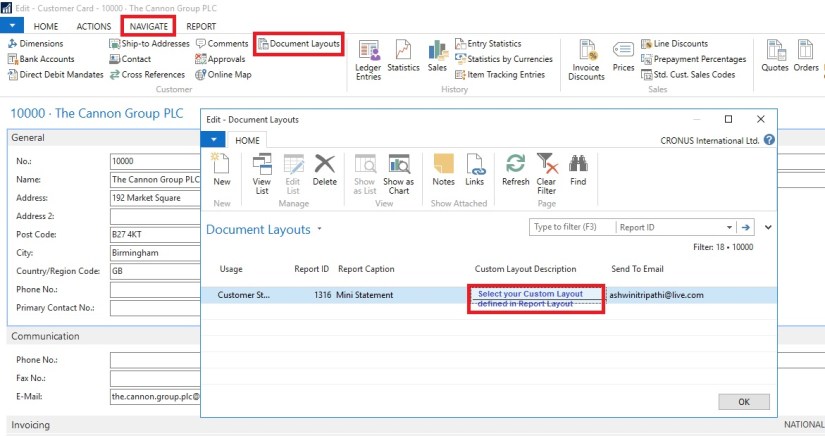
We assigned a custom layout to the customer in the customer card.

Here you set your selection by document type, for example, the sales quote or the customer statement.

You can also enter an email address for the document. So, if the statement goes to your customer’s accounts receivable clerk and the sales quote is sent to the sales manager, you define this information in the Document Layouts page.

The system uses the custom layout when you print the documents instead of emailing them.

Enter multiple email addresses with a semi-colon to separate them.
Report2016-2

You can do this for all customers.

When statements are processed, the report layout used is the one assigned to the customer. If the customer has no custom layouts assigned, the custom layout assigned in the Report Layout Selection is used.

If you go to Customer Statements, you can see that that Output Options are available. This will let you select how you wish to use the document layout settings.
Report2016-3
A checkbox will appear allowing you to print remaining statements. If you mark this checkbox, any statements with an email address in Customer Document Layouts is emailed, and any statements with a custom report layout but no email address will print with that report layout and any customers without any document layout settings will use the company default report from Report Layout Selections.

I will come up with more details in my upcoming posts.

Data Model, Development Tips, Excel, How To, PowerPivot

Set Data Categories for fields in PowerPivot

In order for Power View to dynamically create reports based on underlying data, such as location, fields that contain such data must be properly categorized.

Open the Excel Workbook we created in our earlier post. Create a Power View report

For the Olympics data, let’s specify the categories for a few fields.

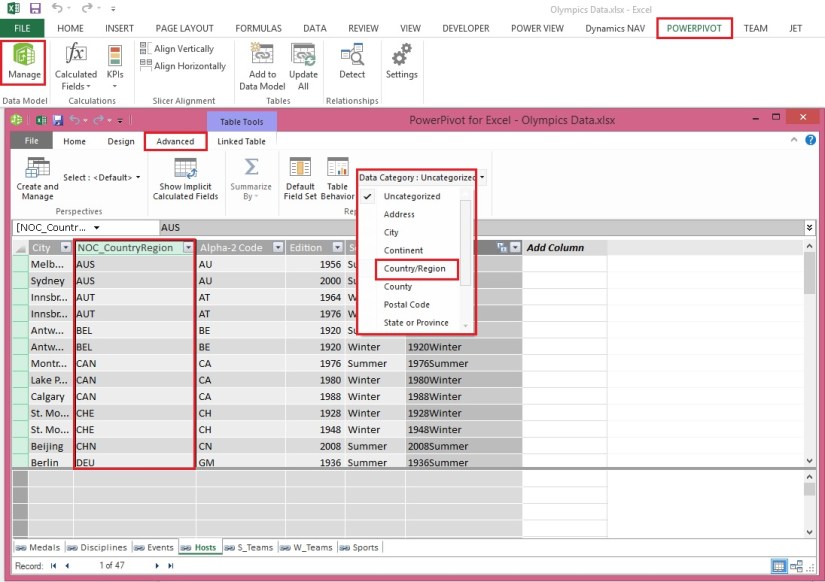
  • In Power Pivot, select Hosts. Select the NOC_CountryRegion field. From Advanced -> Reporting Properties -> Data Category: click the arrow and select Country/Region from the list of available data categories, as shown in the following screen.

ExcelData-37

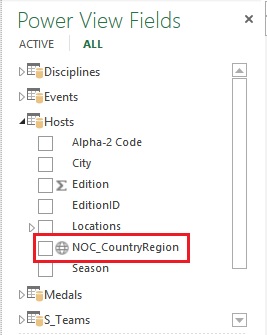
  • Return to Excel, and select the Power View sheet. Expand the Medals table in Power View Fields, and notice that the NOC_CountryRegion field now has a small globe icon beside it. The globe indicates that NOC_CountryRegion contains a geographic location, as shown in the following screen.

ExcelData-38

We’ll use that geographic location in an upcoming post. It’s time to save your work, review what you’ve learned, and then get ready to dive into the next post.

I will come up with more details in my next post. Till then Stay Tuned, Keep Learning & Practicing.

Corfu Navision 2016, Development Tips, FILTERPAGEBUILDER, How To

Filter Pages for Filtering Tables using FILTERPAGEBUILDER

In C/AL code, you can use the FILTERPAGEBUILDER data type to create a filter page that enables users to set filters on multiple tables. Filter pages contains one or more filter controls, where each filter control can be used to set filters on a specific table. In the Microsoft Dynamics NAV client, filter pages are generated at runtime and run in a modal dialog box.

For demo purpose I have created a List page on Item Table. I have added below Variables and Code on Page.
filterpagebuiler-1
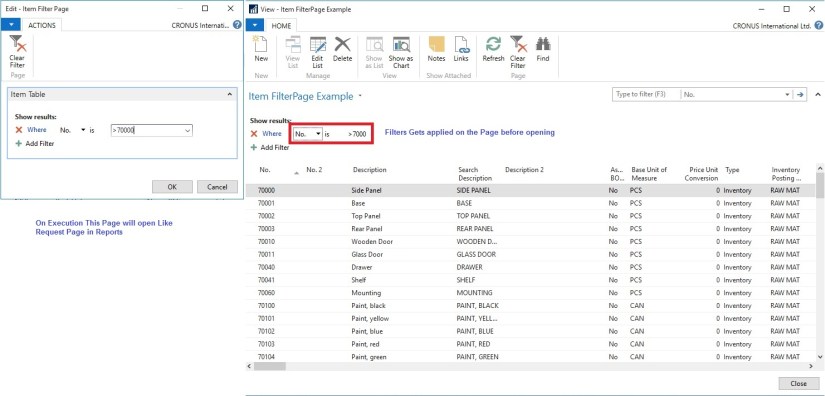
When I Run the Page, First Request page is popup to accept filters. Then my Item List Page is opened applying the filter I provided on the Request Page.
filterpagebuiler-2
FILTERPAGEBUILER Data Type Functions

ADDTABLE Function

Adds a filter control for a table to a filter page.

ADDRECORD Function

Adds a filter control for a table to a filter page as specified by a record data type variable.

ADDRECORDREF Function

Adds filter control for a table to a filter page as specified by a recordref variable.

ADDFIELD Function

Adds a table field to the filter control for a table on filter page.

ADDFIELDNO Function

Adds a table field to the filter control for a table as specified by the field number.

GETVIEW function (FilterPageBuilder)

Gets the filter view (which defines the sort order, key, and filters) for the record in the specified filter control of a filter page.

SETVIEW Function

Sets the current filter view, which defines the sort order, key, and filters, for a record in a filter control on a filter page.

RUNMODAL Function (FilterPageBuilder)

Builds and runs the filter page.

COUNT Function (FilterPageBuilder)

Gets the number of filter controls that are specified in the FilterPageBuilder object instance.

NAME Function (FilterPageBuilder)

Gets the name of a table filter control that is included on a filter page based on an index number that is assigned to the filter control.

Corfu Navision 2016, What's New

What’s New: Developer Changes for Microsoft Dynamics NAV 2016

NAV2016
Below are the details of new features and functionality that are available in Microsoft Dynamics NAV 2016 and have been added to the product since Microsoft Dynamics NAV 2015. It also describes features that have been deprecated since Microsoft Dynamics NAV 2015.

Will come up with detail later in my future posts.

Microsoft Dynamics NAV 2016 introduces changes to the upgrade, development, deployment, and administration experiences compared to Microsoft Dynamics NAV 2015.

Redesigned C/AL Editor

The C/AL Editor in the Microsoft Dynamics NAV Development Environment has been redesigned to give you more coding capabilities. Coding in the new C/AL editor is like before except you benefit from new features such as IntelliSense, name completion, change tracking, improved syntax highlighting and colorization.

Record Permissions and Apply Permissions Sets to User Groups

Administrators can record new permission sets in Microsoft Dynamics NAV 2016. Recording permissions is based on the code coverage functionality. You can access the various windows and activities in the Microsoft Dynamics NAV Windows client or the Microsoft Dynamics NAV Web client that you want users with this permission set to access. You must carry out the tasks that you want to record permissions for. Then, you can apply the new permission set to a group of users.

Events in C/AL

By implementing events in C/AL code, you can design applications to react to specific actions or behaviour that occur. Events enable you to separate customized functionality from the application business logic. By using events in the application where customizations are typically made, you can lower the cost of code modifications and upgrades to the original application.

Event Channels on Microsoft Dynamics NAV Server Events

Microsoft Dynamics NAV 2016 introduces event channels on events that occur on Microsoft Dynamics NAV Server instances.

  • In addition to the Windows Application log, Microsoft Dynamics NAV Server events are recorded in specific Microsoft Dynamics NAV Server logs in the Applications and Services Logs of Windows.
  • You can use Event Viewer to view trace events.
  • You can use FilterXpath parameter of the Get-WinEvent Windows PowerShell cmdlet to filter events for a specific Microsoft Dynamics NAV Server instance.

Multiple Namespaces on XMLports

You can define multiple namespaces on XMLports that import or export data as XML. This improves the ability to create XMLports that are compatible with the XML schemas that are used by the systems that consume or provide the Microsoft Dynamics NAV data.

Updating Custom Report Layouts by Using Upgrade Codeunits

You can update custom report layouts by creating upgrade codeunits to handle changes in report datasets that affect the report layouts. Upgrade codeunits enable you to programmatically update multiple custom report layouts in the database to changes in report datasets

Filter Pages for Filtering Tables

Microsoft Dynamics NAV 2016 includes the new C/AL data type FILTERPAGEBUILDER. You can use the FILTERPAGEBUILDER data type and its functions to create a filter page that enables users to set filters on one or more tables.

C/AL Try Functions for Handling Errors

Try functions enable you to catch and handle errors that occur when running the application. You can use try functions to catch errors and exceptions that are thrown by Microsoft Dynamics NAV or .NET Framework interoperability operations.

HyperlinkHandler Function Type in Test Codeunits

You can write HyperlinkHandler functions in test codeunits to test hyperlink URLs that are passed to the HYPERLINK function.

Object Metadata Virtual Tables

Microsoft Dynamics NAV 2016 includes the following virtual tables that contain metadata about Microsoft Dynamics NAV objects.

  • Codeunit Metadata virtual table
  • Page Metadata virtual table
  • Report Metadata virtual table
  • Table Metadata virtual table

New CLIENTTYPE Options Added

With Microsoft Dynamics NAV the CLIENTTYPE function has been expanded to support Microsoft Dynamics NAV Tablet client, Microsoft Dynamics NAV Phone client and running the app in Microsoft Dynamics NAV Web client, which is Desktop mode.

Column Layout on Role Centers

It is still possible to define groups as previously, and thereby keep the design of existing Role Centers. But when these Role Centers are displayed on larger screens, there is an automatic switch to a 4 column layout. When developing new Role Centers, it is now possible to not define any groups and let the dynamic layout handle the switch from 1 to 2 to 3 column layout, depending on the screen size.

Camera and Location

With Microsoft Dynamics NAV an API for integrating to a camera and getting GPS coordinates is available. The camera option is implemented in the application as functionality available when using Incoming Documents on, which you can see on, for example, the Accounting Manager profile.

Sizing Settings for Control Add-ins

To control that the sizing of the control add-ins is always optimal on all display targets a number of new settings are available to you when writing the manifest code.

Structure for Resource Files in Manifest

Microsoft Dynamics NAV supports resource files to be described in the manifest file with or without a relative path allowing you to organize and maintain resource files the way you prefer.

Tooltips on Microsoft Dynamics NAV Web client

The ToolTip Property and the ToolTipML Property have been added on ActivityButtons and ActionContainers of the subtype HomeItems to support displaying descriptions in the navigation pane.

Microsoft Dynamics CRM Integration

Microsoft Dynamics NAV 2016 introduces a new and improved integration with Microsoft Dynamics CRM.

Microsoft Dynamics NAV 2016 includes a default integration setup that is supported by several objects, including tables, pages, and codeunits. You can customize these objects to extend the integration to other Microsoft Dynamics CRM entities and change processes like synchronization.

Additional Numeric Data Types Supported in Aggregations by Queries, FlowFields, and SIFT

In earlier versions of Microsoft Dynamics NAV, data aggregations (such as sum and average) on tables by Query objects, FlowFields, and SumIndexField Technology could only be done on Decimal data type fields. With Microsoft Dynamics NAV 2016 you can use Decimal, Integer, BigInteger, and Duration data types in aggregations.

Timestamp Field Available in Tables

Each table in Microsoft Dynamics NAV includes a hidden timestamp field. The timestamp field contains row version numbers for records as maintained in SQL Server. In earlier versions of Microsoft Dynamics NAV, the timestamp field could not be used in tables. In Microsoft Dynamics NAV 2016, you can expose the timestamp field in tables, write code against it, add filters, and so on, similar to any other field in a table.

SQL Server Authentication

Microsoft Dynamics NAV 2016 supports SQL Server authentication between the Microsoft Dynamics NAV Server instance and the Microsoft Dynamics NAV database in SQL Server. Previously only Windows authentication was supported.

Microsoft Azure SQL Database Support

You can deploy a Microsoft Dynamics NAV database to Azure SQL Database. Azure SQL Database is a cloud service for data storage that is a part of the Azure Services Platform.

Automatic Deployment of Add-ins From the Database

Microsoft Dynamics NAV 2016 now makes it possible to automatically deploy add-in assemblies (including client control add-ins, .NET Framework interoperability, and language resources) directly from Microsoft Dynamics NAV database to the Microsoft Dynamics NAV Server instance or client as required.

Running NAS Services with Administrator Rights

In Microsoft Dynamics NAV 2016, you can set up NAS services to run with administrator rights, which grants the NAS service the same permissions as the SUPER permission set without having to add the Microsoft Dynamics NAV Server service account as a user in Microsoft Dynamics NAV.

Tenant Configurations Stored in Application Database

In a multitenant Microsoft Dynamics NAV Server deployment, the configuration information about the tenants that are mounted on a Microsoft Dynamics NAV Server instance is now stored in the application database (table dbo.$ndo$tenants) instead of a tenant.config file for the Microsoft Dynamics NAV Server instance.

When you want to mount or dismount a tenant, you only have to mount or dismount the tenant on one of the server instances for an application database because other server instances will automatically detect and apply the changes.

Loading Application Assemblies When Microsoft Dynamics NAV Server Instances Start

You can configure a Microsoft Dynamics NAV Server instance to compile all the business application assemblies and load them to cache memory when the server instance is started. The assemblies are then retrieved from memory when requested by a Microsoft Dynamics NAV client. This improves the response time after restarting a Microsoft Dynamics NAV Server instance.

Automatic Company Initialization during Data Upgrade

When upgrading data to Microsoft Dynamics NAV 2016, this task is automatically performed for you by the upgrade process.

Microsoft Dynamics NAV Windows Client Available in 64-Bit Version

On a 64-bit Windows operating system, the Microsoft Dynamics NAV Windows client is available in 64-bit version and 32-bit version. By default, when you install the Microsoft Dynamics NAV Windows client, the 64-bit version is used. The 64-bit version is better when you have to run several large reports. However, there are some components, such as COM, which are not supported on 64-bit applications. Therefore, you can also run the 32-bit version of the Microsoft Dynamics NAV Windows client if it is required.

Multilanguage Captions Compile as Unicode

When you compile application objects, Microsoft Dynamics NAV stores the objects in Unicode encoding. If the application objects contain Multilanguage captions, Microsoft Dynamics NAV uses the code pages that are relevant for the languages that you have specified.

Corfu Navision 2016, What's New

What’s New: Application Changes for Microsoft Dynamics NAV 2016

NAV2016
Below are the details new features and functionality that are available in Microsoft Dynamics NAV 2016 and have been added to the product since Microsoft Dynamics NAV 2015.

Will come up with detail later in my future posts.

The following features and functionality for application users have been introduced since Microsoft Dynamics NAV 2015.

Workflow

You can set up and use workflows that connect business-process tasks performed by different users. System tasks, such as automatic posting, can be included as steps in workflows, preceded or followed by user tasks. Requesting and granting approval to create new records are typical workflow steps.

Imp Note

The Document Approvals feature that existed in the previous version of Microsoft Dynamics NAV is removed. The standard approvals scenarios that were supported in the previous version are now supported as workflows for sales approvals and purchase approvals respectively.

The upgrade tool will recreate document approval data in previous versions as workflow data in Microsoft Dynamics NAV 2016.

Electronic Documents

As an alternative to e-mailing as file attachments, you can send and receive business documents electronically.

From PDF or image files representing incoming documents, you can have an external OCR service (Optical Character Recognition) create electronic documents that you can then convert to document records in Microsoft Dynamics NAV, like for electronic PEPPOL documents.

For example, when you receive an invoice in PDF format from your vendor, you can send it to the OCR service from the Incoming Documents window. After a few seconds, you receive the file back as an electronic invoice that can be converted to a purchase invoice for the vendor.

If you send the file to the OCR service by e-mail, then a new incoming document record is automatically created when you receive the electronic document back.

Incoming Documents

In the Incoming Documents window, you use different functions to review information, manage OCR tasks, and convert incoming documents to the relevant purchase and sales documents or journal lines in Microsoft Dynamics NAV.

The external files can be attached to their related document in Microsoft Dynamics NAV at any process stage, including to posted documents and to the resulting vendor, customer, or general ledger entries.

Document Sending Profiles

You can set each customer up with a preferred method of sending sales documents, so that you do not have to select a sending option every time that you choose the Post and Send button.

In the Document Sending Profile window for a sending profile, you can select the Default check box to specify that the document sending profile is the default profile for all customers, except for customers where the Document Sending Profile field is filled with another sending profile.

Posting Preview

On every document and journal that can be posted, you can choose the Preview Posting button to review the different types of entries that will be created when you post the document or journal.

Deferrals

Revenues for services or goods delivered over multiple accounting periods are not necessarily recognized in the accounting period in which the sales document is posted and payment is received. To distribute revenues on the involved accounting periods, you can set up a deferral template for the resource, item, or G/L account that the revenues will be posted for. When you post the related sales document, the revenues are deferred to the involved accounting periods, according to a deferral schedule that is governed by settings in the deferral template and the posting date.

Microsoft Dynamics CRM Integration

Microsoft Dynamics NAV 2016 introduces a new and improved integration with Microsoft Dynamics CRM.

Hiding/Showing Columns on Microsoft Dynamics NAV Web client and Microsoft Dynamics NAV Tablet client

With Microsoft Dynamics NAV it is possible to hide and show columns on the Microsoft Dynamics NAV Web client and Microsoft Dynamics NAV Tablet client, in the same way as on the Microsoft Dynamics NAV Windows client.

Freeze Pane

Microsoft Dynamics NAV now supports freeze panes on the Microsoft Dynamics NAV Web client and the Microsoft Dynamics NAV Tablet client.

Improvements on Lookups in the Microsoft Dynamics NAV Web client

With this release the Microsoft Dynamics NAV Web client offers an inline lookup experience on fields as well as the ability to do cross column search as you type in the lookup and selecting data in the lookup using the keyboard.

Microsoft Social Engagement

Microsoft Dynamics NAV integrates with Microsoft Social Engagement and can be made available on customers, vendors, and items.

Cross Column Search on the Microsoft Dynamics NAV Web client

In Microsoft Dynamics NAV Web client it is now possible to search across columns in a list. This search is activated by choosing the Search icon, and entering the search criteria. The search offers filter-as-you-type functionality, and will look for records that contain the search criteria. Symbols can also be used in the search criteria, and the search criteria are then interpreted exactly as you entered it.

Navigation Pane and Cues

Previously the navigation pane contained list places that were auto generated based on the available cues in the Role Center. These list places no longer get auto generated by default. Only if there is a relevant entity in the navigation pane, a list place will be created.

Entering Dates in the Microsoft Dynamics NAV Web client

In Microsoft Dynamics NAV Web client and Microsoft Dynamics NAV Tablet client you can now use the date lookup functionality on lists instead of typing dates in manually.

Control Add-ins on Microsoft Dynamics NAV Phone client

On Microsoft Dynamics NAV Phone client you tap on control add-ins to zoom

Selecting Company, Language, Region, Time Zone and Work Date in Mobile Clients

With the new My Settings page, it is now possible to dynamically switch the UI language, region, time zone, company, and work date of the Microsoft Dynamics NAV Web client, Microsoft Dynamics NAV Tablet client, and Microsoft Dynamics NAV Phone client.

Multiple Selection of Lines in Microsoft Dynamics NAV Web client

You select multiple lines in the Microsoft Dynamics NAV Web client by activating the context menu on a line, and then choosing Select More. When you choose Select More, a checkbox for selecting all rows is placed right above all the rows.

Updating and Testing Multiple Custom Report Layouts

Instead of updating custom report layouts to dataset changes one layout at a time, you can now perform an update of all custom layouts at once.

You also have the option to test updates without applying the required changes to the custom report layouts. This enables you to see what changes will be applied to the report layout and identify possible issues in the process.

Data Model, Development Tips, Excel, PowerPivot

Import data using copy and paste from Excel sheet or other source for PowerPivot Data Model.

You can copy & Paste data from an Excel workbook, or import data from a table on a web page, or any other source from which we can copy and paste into Excel. In the following steps, you add the data from a table.

  • Insert a new Excel worksheet, and give it the name desired any meaningful name that describes the data.
  • Select and copy the data, including the table headers.
  • In Excel, place your cursor in cell A1 of the above created worksheet and paste the data.
  • Format the data as a table. You press Ctrl + T to format the data as a table, or from HOME > Format as Table. Since the data has headers, select My table has headers in the Create Table window that appears.

ExcelData-1

  • Name the table. In TABLE TOOLS > DESIGN > Properties locate the Table Name field, and type desired name.

ExcelData-2

  • Format your data using Excel std. formatting tool.
  • Save the workbook.This file have couple of sheets having data related to Olympics which I have compiled from MS Office support site.
  • You can find the link on the Menu of my blogsite too to access the shared files.
  • I have create a sample Excel File for you which you can down load from the Shared Path using link: http://1drv.ms/1GpZFd4

I will be using this file for couple of walkthrough in my upcoming posts.