Cumulative Updates, Information, Instalation & Configuration, Tip & Tricks

Cumulative Update 38 for Microsoft Dynamics NAV 2013 – Released in May 2016

Cumulative Update 38 includes all application and platform hotfixes and regulatory features that have been released for Microsoft Dynamics NAV 2013.KB 3157486

The cumulative update includes hotfixes that apply to all countries and hotfixes specific to the following local versions:

  • AU – Australia
  • AT – Austria
  • BE – Belgium
  • CH – Switzerland
  • DE – Germany
  • DK – Denmark
  • ES – Spain
  • FI – Finland
  • FR – France
  • IS – Iceland
  • IT – Italy
  • NA – North America
  • NL – Netherlands
  • NO – Norway
  • NZ – New Zealand
  • SE – Sweden
  • UK – United Kingdom

Where to find Cumulative Update 38

You can download the cumulative update from KB 3157486 – Cumulative Update 38 for Microsoft Dynamics NAV 2013 (Build 45787).

Warning

Before you install a cumulative update in a production environment, take the following precautions:

  1. Test the cumulative update in a non-production environment.
  2. Make a backup of the system or computer where the cumulative update is to be installed.

Additional Information

For a list of all cumulative updates for this version, see Released Cumulative Updates for Microsoft Dynamics NAV 2013.

For a list of all hotfixes included in cumulative updates for this version, see the following CustomerSource and PartnerSource pages:

CustomerSource:

PartnerSource:

Azure, Corfu Navision 2016, Development Tips, How To, Information, Instalation & Configuration, Machine, Server, Tip & Tricks, Virtual

Creating Virtual Machine on Azure

Continuing from my previous post.

In previous post we saw how to register for Free Azure Portal Account, if you missed you can find the link here.

Today we will see how to create Virtual Machine for Dynamics Navision 2016 pre Loaded.

Lets start creating one for our future posts practice.

Open the page : https://azure.microsoft.com/en-us/free/ and follow onscreen Instruction to login to your account.

Login using the account credentials you used for registering on Azure Portal.

Azure-5

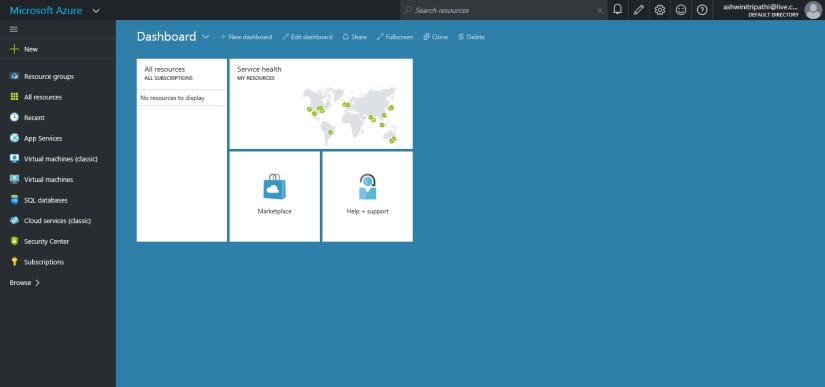
Upon signing you will be landed to your dashboard on Portal.

You can see we don’t have any resource on Portal yet.

Azure-6

Lets start creating one.

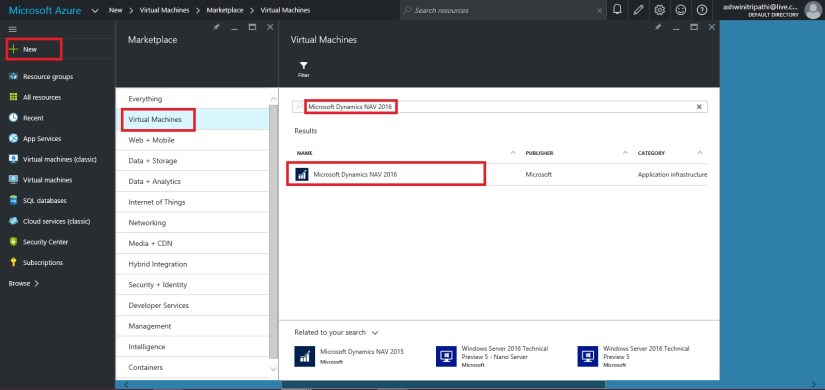
Click on New from Top right corner.

Choose Virtual Machine.

Enter “Microsoft Dynamics NAV 2016” in the search box, it will list available Virtual Machine images.

Select the one available Virtual Machine for commissioning.

I have choose this because we will get preinstalled NAV 2016 which will save our time.

Azure-7

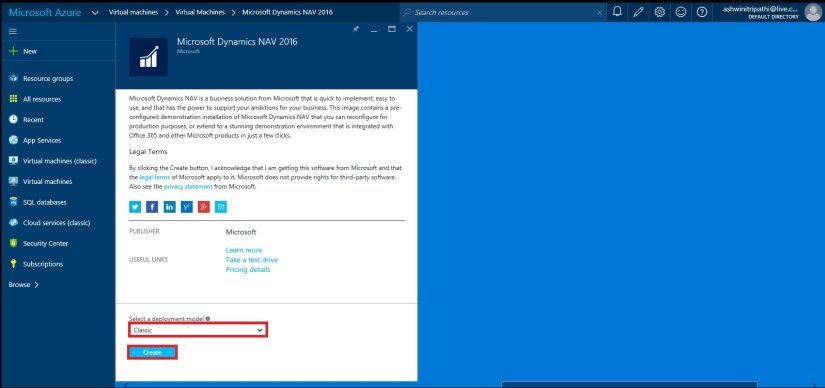
Select Deployment Model, I have choose Classic and click on Create.

Azure-8

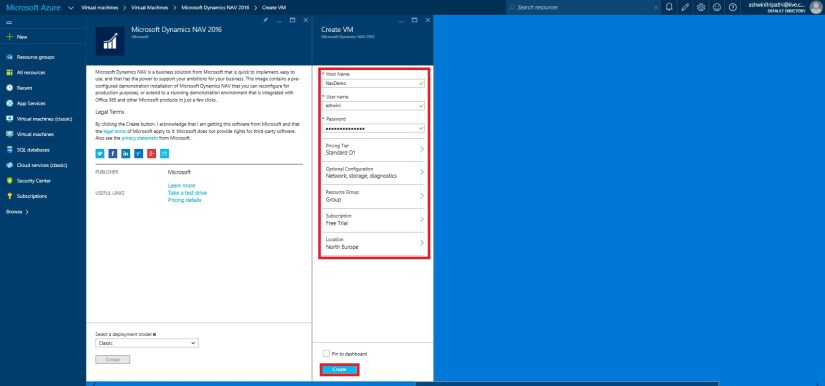
Next we will enter  Host Name, User Name, Password, other things you adjust as per your need. Click on Create.

Note your User Name & Password you will require this to login to the Server.

Azure-9

Give some time to get created and up your Server.

In the mean time you can explore other things till your Server is up and running for you.

Once it is made available, you can start login and explore your newly created Server.

Where to find my Server?

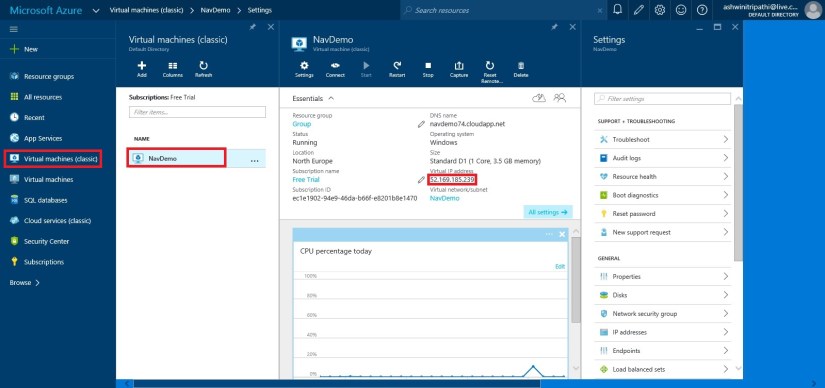
From the Navigation Bar choose Virtual Machine (classic).

It will list you all Virtual Machines created by you.

Select your Virtual Machine in my case it is NavDemo.

You can find the Server Name and IP of your Virtual Machine.

Azure-10

I am using my IP to login to my Server.

Open your Remote Desktop Connection and enter your IP.

The User Name & Password as we created in previous step.

Azure-11

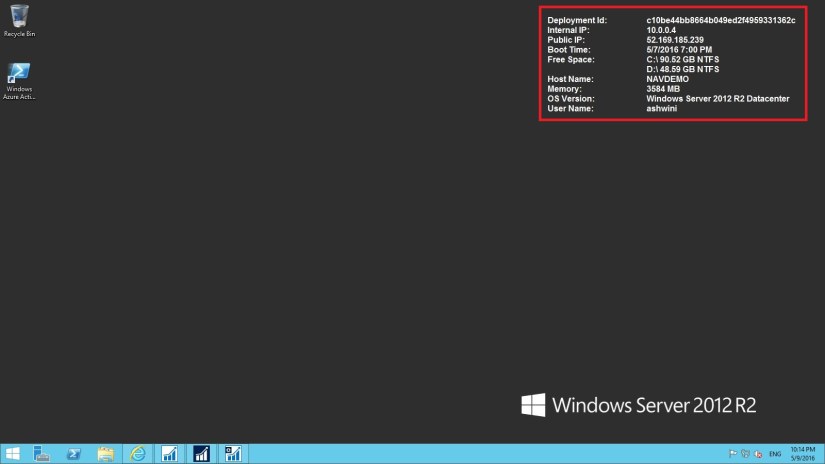
Here I am Login to my Server.

Azure-12

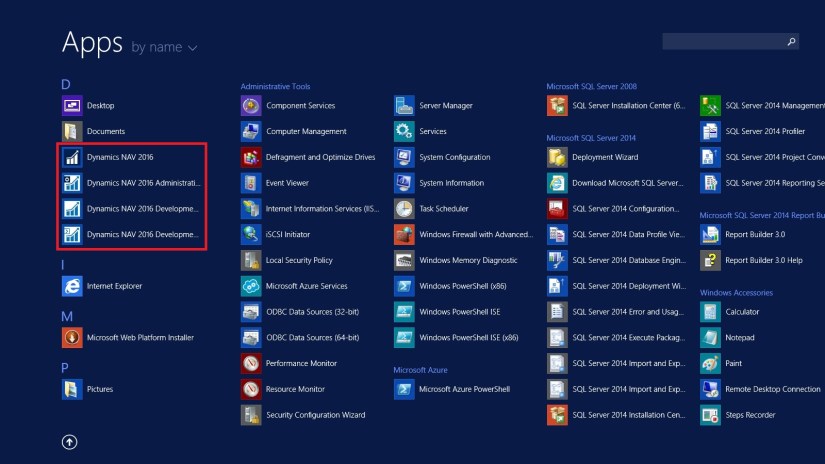
You can see that Dynamics NAV 2016 is already available with my Server.

Azure-13

That’s all for today, we will see more in my upcoming posts.

Till then keep exploring & Learning.


How To, Information, Instalation & Configuration, Maderia, Tip & Tricks

Using Payment Services – in Madeira

It’s obvious you know we can include link in PDF documents, if you don’t know no issues everything is not known to every one until he uses it or someone inform them. Today we will be learning this feature for making payments using links in your PDF invoices generated from Madeira.

If you had setup the preview this feature is already available in CRONIUS US demo company.

How do we Setup:

Login to Madeira Project using your Credentials.

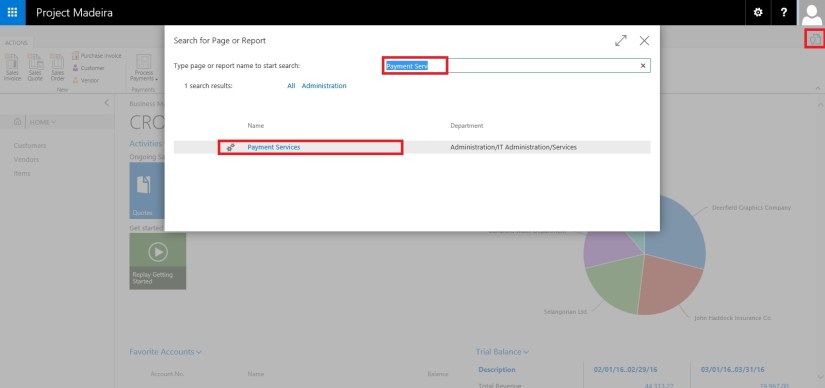
Click on Search Page from right top corner.

Search for Payment Services page.

PayPalPayment-1


PayPalPayment-2

Open the Page.

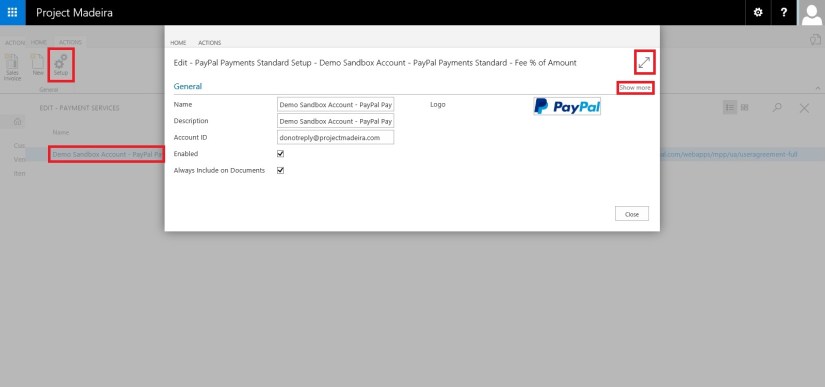
Click on Setup and enter your details as shown in above screen.

Click on Maximize button and Show more to see more details.

PayPalPayment-3

Payment Service Link:

In the CRONUS US demonstration company, the payment link inserted into invoices will link to the PayPal test site.

For your actual Company, we will set so that the payment link will point to the real PayPal site, where payments can be made.

It is advisable that not to do this up for the Actual Company until Project “Madeira” is generally available for purchase. And authorized documentation on this feature is released from Madeira.

If you have setup Always Include on Document then you need not to perform any additional step, but in case you want to add the Payments Service Link to individual invoices that too can be done.

Manually Selecting Payment Services:

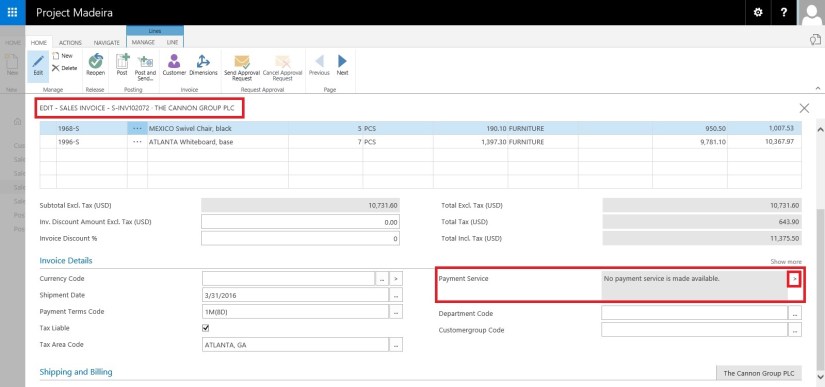
Open your Invoice on which you want to include this option.

PayPalPayment-4

As you can see in above Invoice no Payment Service is included.

Click on the Lookup on right side of the field.

PayPalPayment-5

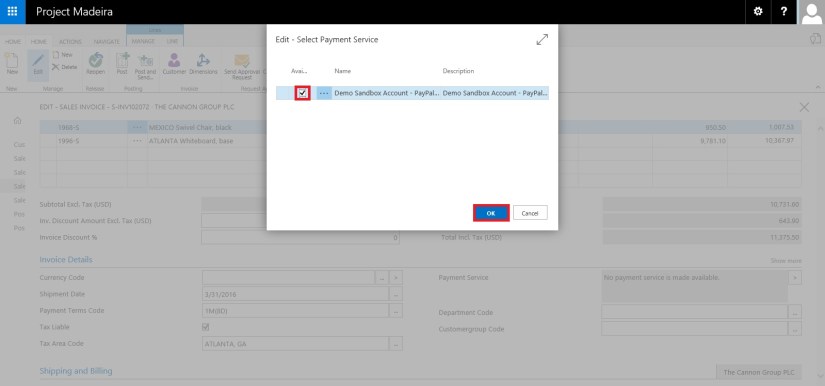
Select the Payment Service from the list of available Services, and click on OK.

PayPalPayment-6

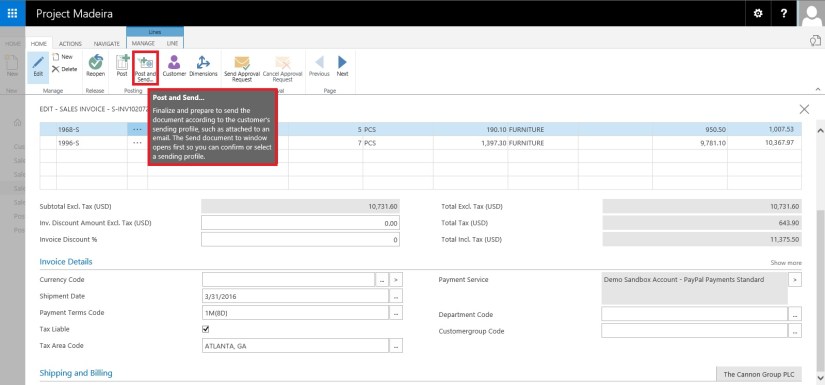
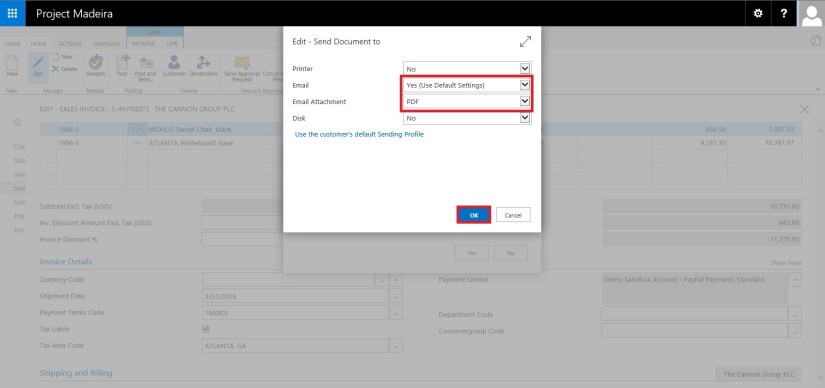
When you send the invoice to your customer the Payment Service Link will be included in the Invoice PDF.

PayPalPayment-7


PayPalPayment-8


PayPalPayment-9


PayPalPayment-10

How it will look in Invoice:

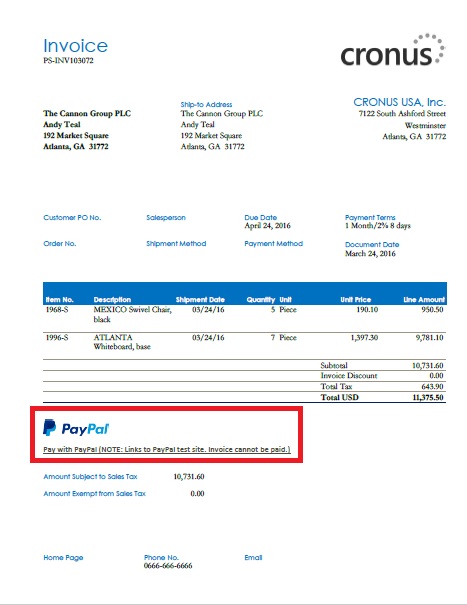
The PDF will contain the link to your selected Payment Service using which your customer can do the payment.

PayPalPayment-11

Stay tuned for more Information in upcoming posts.

Till then keep exploring and learning.


Development Tips, How To, Information, Tip & Tricks, Web Services

Exposing & Consuming the Web service from & inside Navision – Part-4

Continuing from my previous post. Find the link to access the same in case you missed it.

Exposing & Consuming the Web service from & inside Navision – Part-1

Exposing & Consuming the Web service from & inside Navision – Part-2

Exposing & Consuming the Web service from & inside Navision – Part-3


Step 5: Create a Codeunit to test Retrieve the data using above DLL and Send data in XML Format using another Web Service exposed in Dot Net.

How to create WCF Service Application using C#, Publishing it and creating DLL Class Library is out of scope of this document. You may require to take help from guy who are comfortable in .Net technology.

Let’s start with new codeunit, select the available ID in your database and suitable name to save this codeunit.

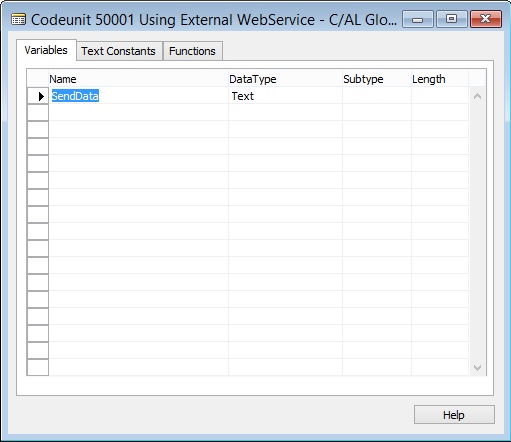
We will define a Global variable to hold the data we receive from Navision Web Service and pass to Web Service exposed outside Navision.

WebServiceUsage-16

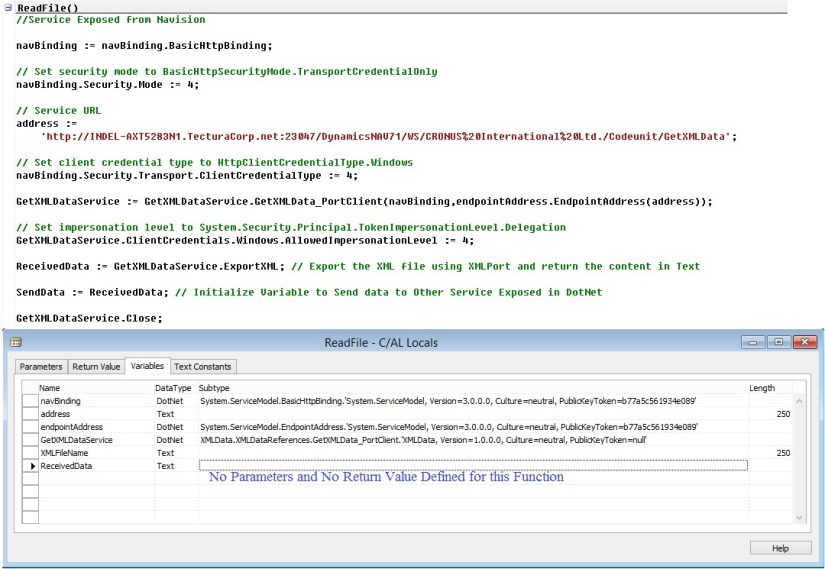
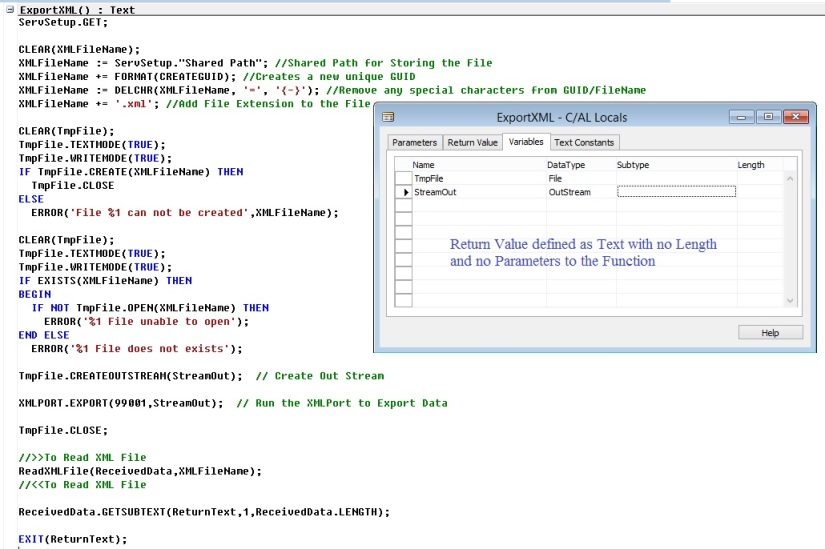
Create a Function to Read/Export the data using Navision Web Service.

Variables defined to the function is also shown in below screen.

We will add the code similar to below. Description provided along with the code in below screenshot.

WebServiceUsage-17

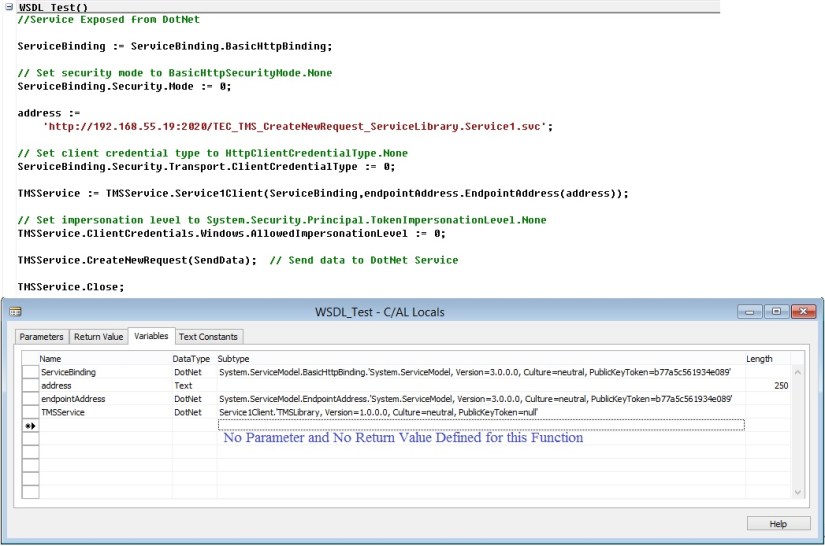
Create a Function to Send Exported data from above function to the Web Service created outside the Navision. Web Service created in DotNet.

Here too we are using DLL file of the Outside Exposed Web Service.

Variables defined to the function is also shown in below screen.

We will add the code similar to below. Description provided along with the code in below screenshot.

WebServiceUsage-18

Now we have our both function ready.

One which Export data consuming the Navision Published Web Service and then read the data in BigText Variable and finally converted to Text variable.

Second one will send data consuming the Web Service Exposed outside Navision created in DotNet. 

Let us test our process if it works as desired.

We will call above both function.

When we call First Web Service as a result we get the XML format file data in my Global defined Text Variable.

We will review the data which we are going to send to Second Web Service on Screen for which we are simply calling the Message.

Finally we will send the data to the Second Web Service, the content of XML file stored in our Global Variable.

Code we use is as below shown screenshot.

WebServiceUsage-19

Save the codeunit and execute, as we have written our test code in Run trigger so we can directly run this codeunit.

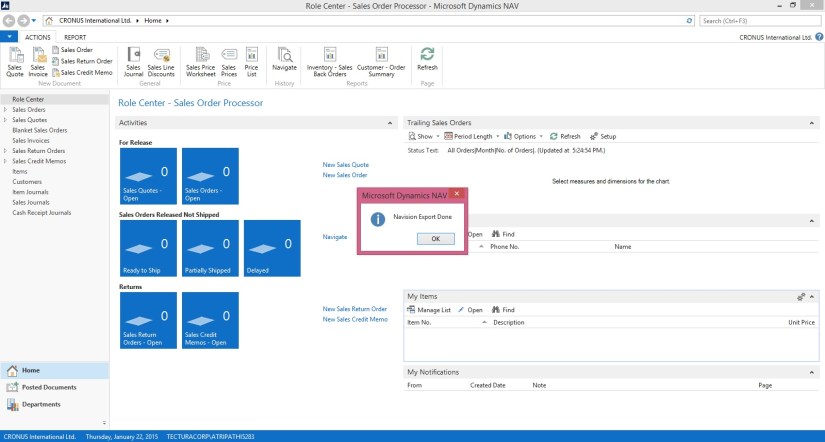
The output will be as shown in below screenshots.

Until this step our Data is Exported and data is loaded in Global defined Text variable.

WebServiceUsage-20

Here the content of Text variable is shown in Message window, which we can verify the data which we are going to send to the external Web Service.

WebServiceUsage-21

As a final step we are sending this content to the External Web Service Exposed using DotNet.

WebServiceUsage-22

Verify the data received at the DotNet side. You can program the Second Web Service as save the content on disk as file or perform any processing like inserting those data in some other table or displayed on screen. 

That’s it for this series.

I will be posting couple of more posts on Web Services soon.

Since this was in response of request from one of my reader so I stick to the requirement.

In my other post I will show some different flavour of using the same.

Till then keep exploring and learning.

Will be back with other posts soon.

Development Tips, How To, Tip & Tricks, Web Services

Exposing & Consuming the Web service from & inside Navision – Part-3


Continuing from my previous post. Find the link to access the same in case you missed it.

Exposing & Consuming the Web service from & inside Navision – Part-1

Exposing & Consuming the Web service from & inside Navision – Part-2


Step 4: Create a DLL to use as Add-in to consume the Web Service itself in Navision.

We will start with Class Library Project in Visual Studio.

It’s very simple with few steps to follow, and we will be done with our requirement.

Enter Name and select the path for your project solution folder. In my case I am saving my project to the default location of Visual Studio. And I am naming my project as XMLData.

WebServiceUsage-8

Right click on the project folder and Add Service reference to the project.

WebServiceUsage-9

Enter your Web Service URL and click on GO.

Once your Service is listed, enter the Reference Namespace. And click on OK to add the Service Reference to the project.

WebServiceUsage-10

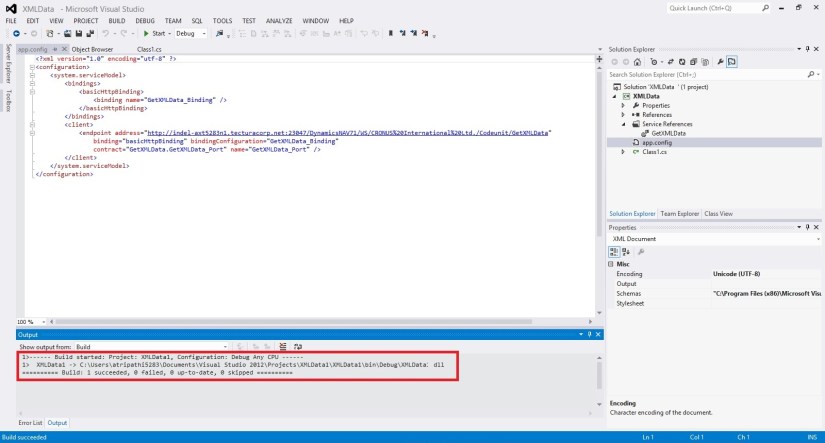
Click on app.config in Solution browser to open.

Verify your code similar to below.

WebServiceUsage-11

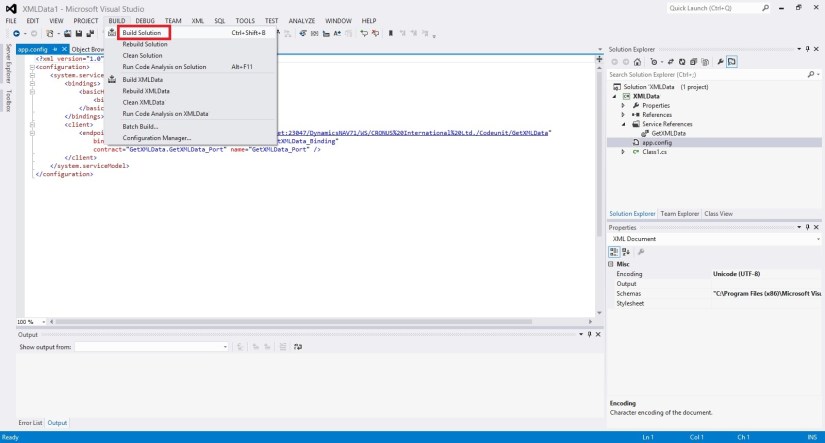
Build your Project to obtain the .dll file.

WebServiceUsage-12

Below screen shows we have no errors and the .dll file is created successfully.

WebServiceUsage-13

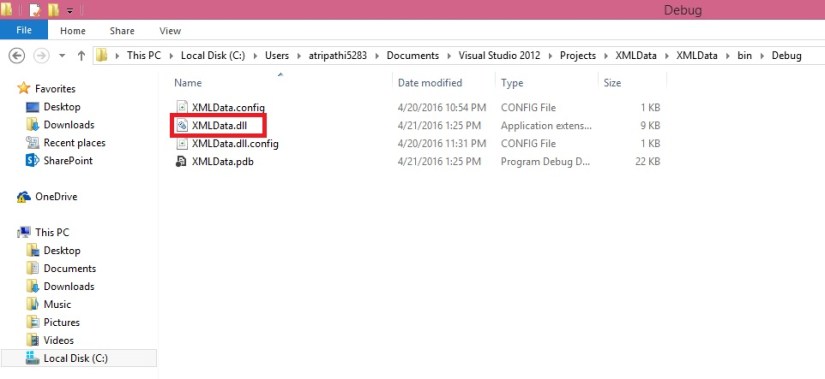
Locate the .dll file in your Project folder similar to path shown below. Copy your dll file.

WebServiceUsage-14

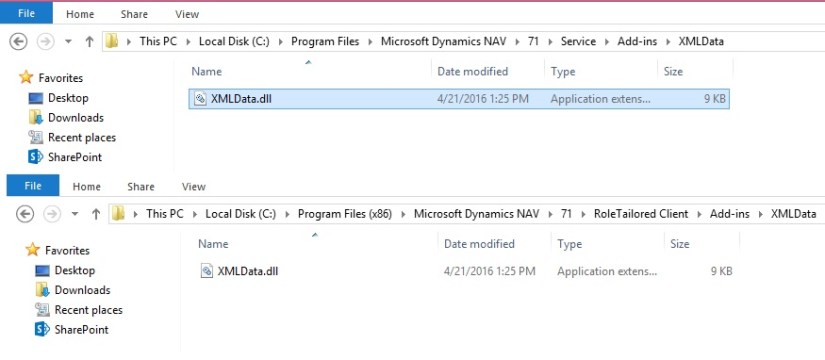
Create a folder and paste your .dll file to Service & RTC folder, as shown in below screen.

WebServiceUsage-15


We are ready with the Add-in, which we will use in our next post to consume our service with the help of this dll, and call the method to obtain our file for further processing.

That’s all for this post, I will be back with next post in series soon.

Till then keep practicing.


To be Continued….


Development Tips, How To, Information, Power Bi Content Pack, PowerBI.com, Tip & Tricks

Microsoft Power BI – My Organization Content Pack Library

Continuing from my previous post. Today we will discuss about Content Pack Library (My Organization) in Power BI.

In case you have missed my previous posts here I present the link to all previous posts below:

Microsoft Power BI – Part – I

Introduction to Power BI and Creating Report from Excel Data, Local Files.

Microsoft Power BI – Part – II

Introduction to few Features of Power BI

Microsoft Power BI – Part – III

Power BI Desktop, Creating Dataset & Reports from In Premise Database installation

Microsoft Power BI – Part – IV

Power BI Gateway usage

Microsoft Power BI – Part – V

Scheduling Refresh of Dataset & Report created using In Premise Database

Microsoft Power BI – Part – VI

Power BI Content Pack

Microsoft Power BI – Part – VII

Power BI Mobile App

Microsoft Power BI – Part – VIII

Power BI Content Pack

Microsoft Power BI – Part – IX

Power BI Publisher for Excel

Microsoft Power BI – Part – X

Analyse in Excel (preview)

PowerBI-47

Login to Power BI using your credentials.

OrgPowerContent-1

Select Get Data.

OrgPowerContent-2

From Content Pack Library section select Get Data under My Organization.

OrgPowerContent-3

Select Create content pack.

OrgPowerContent-4

This is the part where majority of work to be performed.

In First Section – Choose who will have access to this content pack

You have 2 option

  1. You can share with specific users or Groups, since your AD is in sync with your in premise AD you can select them.
  2. You can share with your entire Organization.

Select the Group or Users if you go with first option.

In Second Section – Provide Title for you Content Pack

In Third Section – Provide detailed Description for your content pack.

OrgPowerContent-5

In Fourth Section – You can select Image for your content pack.

Finally in Fifth Section you will define what all content you want to share for the user using this content pack.

Here all available contents are divided under 3 sections (Dashboards, Reports & Datasets).

When you select Dashboard all included Reports and Dataset will be shared by default.

When you select Reports all included Datasets will be shared by default.

When you select Dataset only that will be shared.

You can select combination as you desire.

I will provide write up why we will select selective contents to share with case study, in my future post some time other.

Once you are done with all above step you are good to Publish the Content Pack.

OrgPowerContent-6

If we revisit the Get Data option again for My Organization, we can view our Published Content Pack which we shared with others.

User can customize as per his need and Share with others in form of New Content Pack or as-it-is depends.

Good Example will be we have one Content Pack for My Organization which include all modules Dashboard, Reports and Datasets.

My IT will create Module wise Content Pack (Finance, Sales, Purchase, Warehouse, Manufacturing etc…) and share these content packs with concern department Heads. Further each Heads will create sub-content pack and share with their team with information which is related to them and so on.


That’s all for today, will come up with more information in my future posts.

Till then keep exploring and learning.


Data, Development Tips, How To, Information, Tip & Tricks, Web Services, XMLports

Exposing & Consuming the Web service from & inside Navision – Part-2

Continuing from my previous post. Find the link to access the same in case you missed it.

Exposing & Consuming the Web service from & inside Navision – Part-1


Step 1: Create a XML Port to Export Data in XML Format using XMLPort and save at some specified Location.

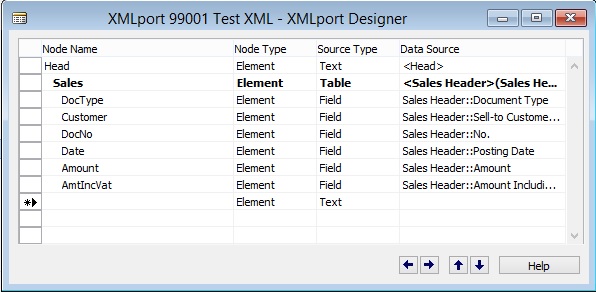
Here we will be creating just for demo purpose simple XMLPort for Exporting Data from Navision Database in XML Format.

WebServiceUsage-2

We are using very simple structure for our XMLPort.

Make sure you set the properties accordingly as we are exporting the data in XML Format.

WebServiceUsage-3

Save the XMLPort at available id and suitable name.


Step 2: Create a Codeunit to call XML Port and retrieve data in XML Format in Text Variable.

Here we will create a Codeunit with few helpful functions which will call the XMLPort to Export the data and save in temp file.

Further retrieve the data from the file in XML Format.

Return the data retrieved above to the calling program/ function.

To start with let us start with creating some Global Variables.

WebServiceUsage-4

Next we will add one Function as below.

WebServiceUsage-5

Next we will add one more Function as below.

WebServiceUsage-6

Save the Codeunit at available Id and suitable Name.


Step 3: Expose/Publish the Codeunit as web service.

Open Web Services Page and add your Codeunit created above. Use your relevant ID on which you saved your Codeunit.

WebServiceUsage-7


Tick the Published to Expose the Codeunit as Web Service.

Rest in my Next post.

To Be Continued……

Data, Development Tips, How To, Information, Tip & Tricks, Web Services, XMLports

Exposing & Consuming the Web service from & inside Navision – Part-1

Introduction

Today in reply to one of my reader I am giving here steps how we can Export data using XMLPort and transfer data outside Navision using Web Services.

Lets discuss about the technology before I jump to the solution.

Few full forms which may help understanding while reading this post.

W3C – Web Services Architecture Working Group.

SOAP – Simple Object Access Protocol.

REST – Representational State Transfer.

WSDL – Web Service Description Language.

UDDI – Universal Description, Discovery & Integration.

AWS – Arbitrary Web Services.

XML – Extensible Markup Language.

HTTP – Hypertext Transfer Protocol.


What is Web Service?

W3C defines Web Service as : A software system designed to support interoperable Machine-to-Machine interaction over a network.

Web service can be defined as service offered by an electronic devices to another electronic devices, which communicate with each other over www.

W3C defines web services has an interface described in a machine-process able format WSDL.

Other systems I with the web service in a manner prescribed by its description using SOAP messages, typically conveyed using HTTP with an XML serialization in conjunction with other web-related standards.

Later W3C extended the definition:-

REST – compliant web services, in which the primary purpose of the service is to manipulate representations of web resources using a uniform set of stateless operations.

Arbitrary Web Services –  the services may expose an arbitrary set of operations.

WebServiceUsage-1-2

UDDI  defines which software system need to be contacted for which type of data.

Once the system is discovered to be contacted, the contact is established using SOAP.

Service provider system validate the request by referring the WSDL file, process the request and send the data using SOAP protocol.


Web Service is a method of communication that allows two software system to exchange the data over the internet.

  • Two systems may use different software which could be using different programming languages.
  • Almost all type of software interpret XML tags.
  • Web Services can be used to exchange data between two systems in form XML files.

WebServiceUsage-1-3

XML is used to tag the data.

SOAP is used to transfer the data.

WSDL is used to describe the services available.

UDDI lists what service are available.

Human to machine communication is utilized for machine-to-machine communication, used for transferring machine readable files such as XML & JSON formats.

Web services use SOAP over HTTP protocol, facilitating to use your existing low-cost internet for implementing Web Service.

Rules for communication between two different systems:

All the rules are defined in WSDL file.

  • How request to be send from one system to another.
  • What all parameters need to be send while requesting data.
  • What structure to be used for generating data (Normally data is exchanged in XML format) which is validated against .xsd file.
  • What errors to be generated in case of failure of rule communication set.


Web Services that uses Markup Language:

  • JSON-RPC
  • JSON-WSP
  • Web template
  • Web Service Description Language (WSDL)
  • XML Interface for Network Services (XINS)
  • Web Services Conversation Language (WSCL)
  • Web Services Flow Language (WSFL)
  • WS-Meta data Exchange
  • Representational State Transfer (REST)
  • Remote Procedure Call (RPC)
  • XML Remote Procedure Call (XML-RPC)


No more theories lets come to our point.

There are other ways too to achieve the same, but here I am specific to the requirement to which I am answering.

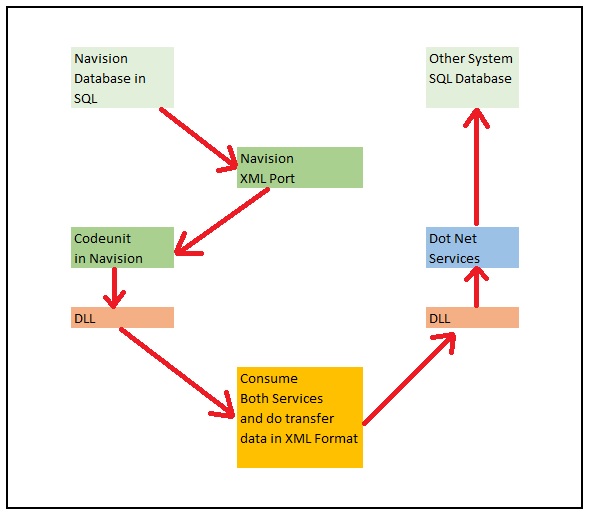
Requirement is the Data in XML format file will be transmitted using Web Service, We will be using Navision Exposed Web Service to Export data using XMLPort and then send the content by consuming another Web Service exposed in Dot Net which will retrieve the XML content and update in some other system.

Assumption is these two endpoints can be two separate databases in same domain or two different companies of same organization operating at two different location sharing information via Web Services.

For the demo purpose I will be using Navision to publish the service for exporting the data and retrieve the data using Web Service exposed in Dot Net.

Since I have not in depth knowledge of Dot Net codes, so I have asked my college to prepare the Web Service for me and I am simply using it to show how we can do it.

Here I will be getting this done through below 5 Steps.
WebServiceUsage-1

Next Post in this Series will contain:

Step 1: Create a XML Port to Export Data in XML Format using XMLPort and save at some specified Location.

Step 2: Create a Codeunit to call XML Port and retrieve data in XML Format in Text Variable.

Step 3: Expose/Publish the Codeunit as web service.


Next Post in this Series will contain:

Step 4: Create a DLL to use as Add-in to consume the Web Service itself in Navision.


And the Final Post in this Series will contain:

Step 5: Create a Codeunit to test Retrieve the data using above DLL and Send data in XML Format using another Web Service exposed in Dot Net.


Please follow my upcoming post for Walkthrough to get above 5 steps done.

To Be Continued……….


Data Migration, How To, Information, Instalation & Configuration, Maderia, Tip & Tricks

Assisted Setup (Data Migration) – Madeira

Login to Madeira using your credentials.

From Home page Action Tab Ribbon choose Assisted Setup & Tasks.

AssistSetup-1.1

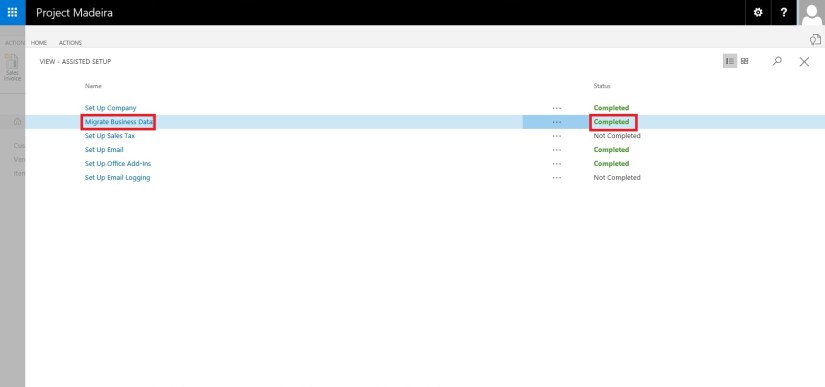
From Assisted Setup Window select Migrate Business Data Task to continue.

AssistSetup-2.1

From Welcome Screen select Next.

AssistSetup-3

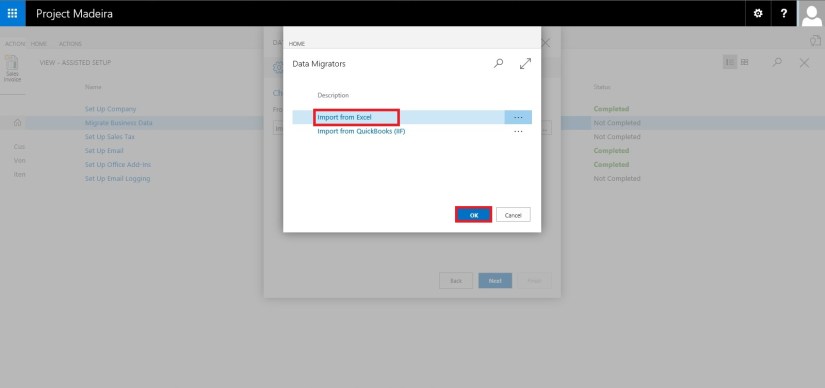
Here you can choose source using which you want to Import Data using Assist Edit Button.

AssistSetup-4

Select Import from Excel option and say OK.

AssistSetup-5

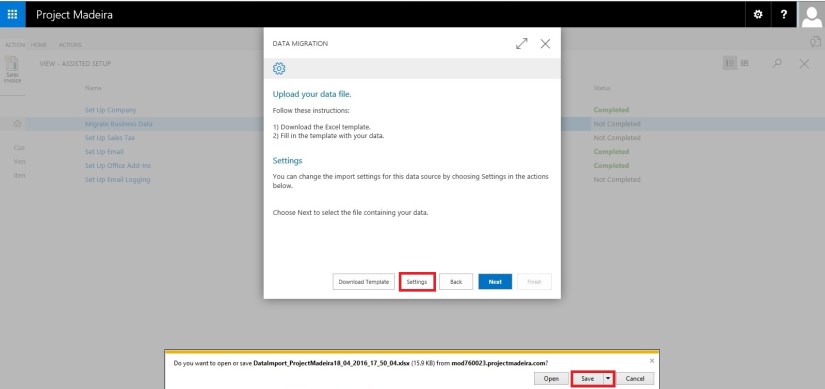
Select Download Template file.

AssistSetup-6

Save the File to desired path.

AssistSetup-7

From Settings Select the Templates you wish to Apply to your Data for Customer, Vendor & Item and choose close to proceed.

AssistSetup-8

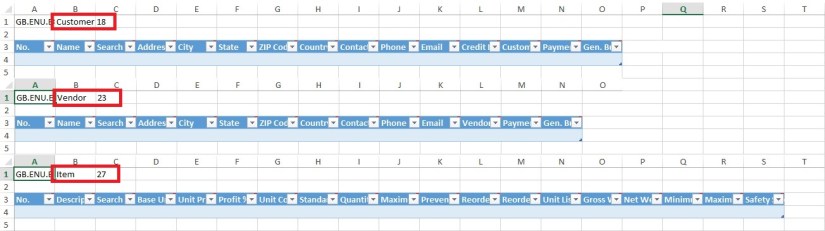
Below is the format of Template downloaded in above step. Fill in the data to Import.

AssistSetup-9

When we don’t select any template in above step for Customer, Vendor & Item will give confirmation message as below. Choose Yes to proceed.

AssistSetup-10

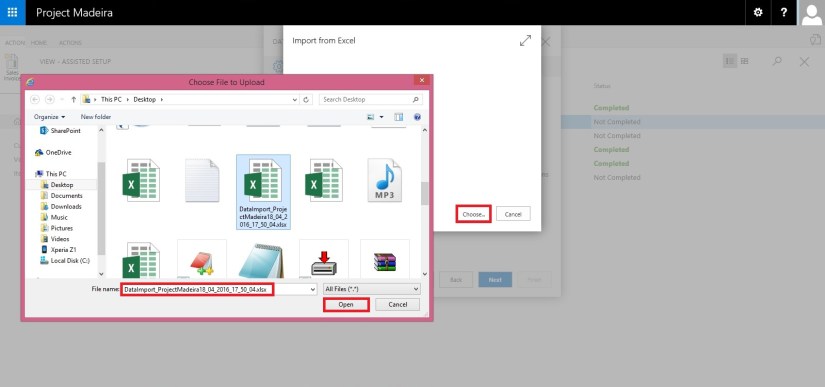
From next screen Select choose button to specify the Excel file which we prepared in above step using downloaded Template.

AssistSetup-11

This will fetch the data from the file and show you no of records in each table which is going to be imported.

AssistSetup-12

Here if you are familiar with the Rapid Start you can select Advance and perform action accordingly or can skip and proceed to Next Step by selecting Next. Here I am selecting Advance to show the screen.

AssistSetup-13

Confirm with Yes to proceed.

AssistSetup-14

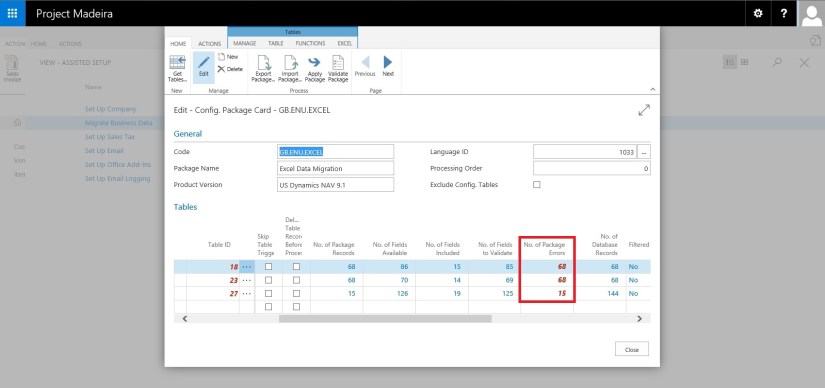
Your Package page will open as shown in above screen, choose Apply Package and handle any import issue with the data to complete the step.

AssistSetup-15

Confirm with Yes to continue.

AssistSetup-16

After processing it will show the status of data, review and fix the issues to continue.

AssistSetup-17

You can drilldown and review the issues and take required steps to proceed with issue fixing and importing of data. Here I choose close to return to previous step of simple import without using Package option.

AssistSetup-18

Select Next to continue with next step.

AssistSetup-19

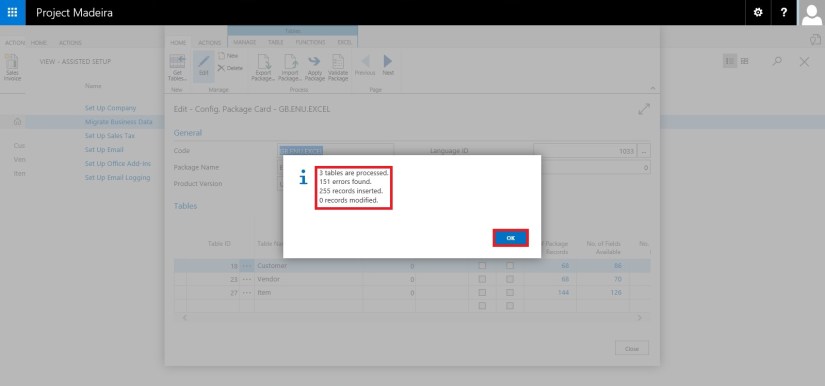
After processing it will show status of data and errors in data. Say OK to continue.

AssistSetup-20

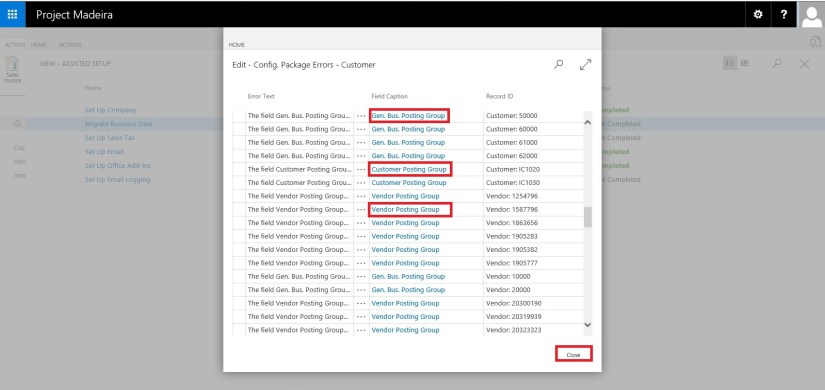
Here we can choose Show Errors to review the Errors.

AssistSetup-21

We find that in my data most of the issues is related to Gen. Bus. Posting Group, Customer Posting Group, Vendor Posting Group, etc… We can fix these issues later, so just respond Close to continue with Next step.

AssistSetup-22

Our data is now Imported with errors, we will take care of issues with data as reviewed above. Respond Finish to complete this step & Process.

AssistSetup-23

Now you can see this step is marked as completed in Status.

Our data is imported we will access the data and fix the issues accordingly.

I will come up with more details in my upcoming posts.

Till then keep exploring and Learning.


Maderia, Office Integration, Tip & Tricks

Madeira – Look & Feel – Part-I

Hi Friends I am providing this Blog to my readers who are yet not able to give try to the Project Madeira First Preview. But wish to have the Look and feel how it looks.

Today I will be showing few Look & Feel changes. Up till Now only Preview is available we need to wait for some more time to hear more about the product and features.

How ever below I am presenting few details, Login to the Project Madeira using your credentials provided while Setup.

Preview-1

Here is the Landing Screen which you get post Logging in to Madeira.

Top right corner is the Search,  that we usually use to search pages.

Preview-2

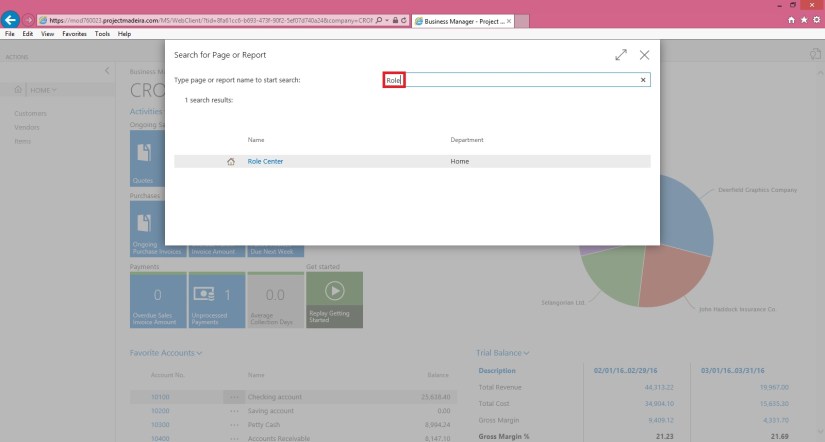
Here you type the Page you wish to switch to, in my example I am trying to search Role Center Page. It will be similar to one below screen shot.

Preview-3

If you click on action Tab it will show you the ribbon having actions available on Page. You can hide it to gain more space on screen by clicking on ^ at the bottom right corner of the Ribbon Tab.

Preview-4

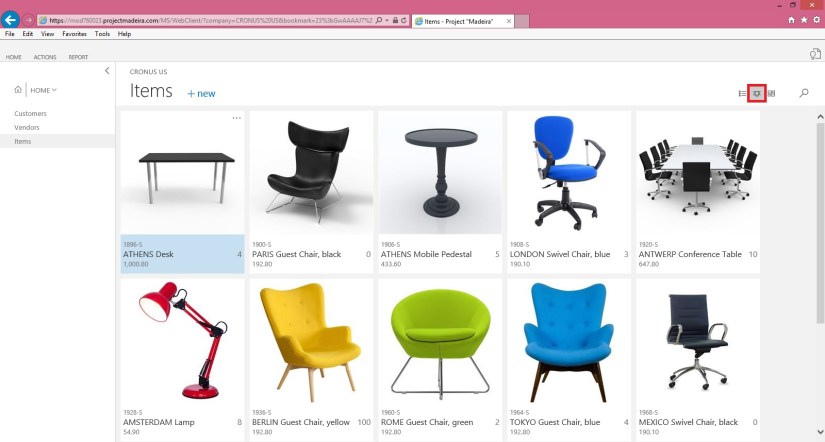
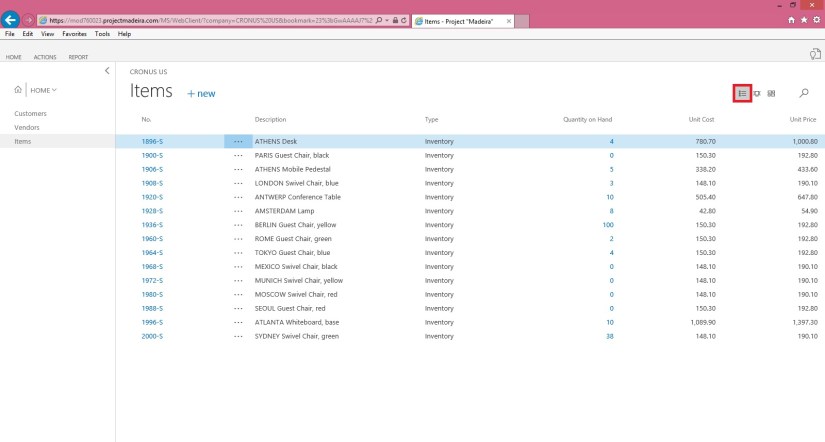
Lets have a Look on Item List, you have 3 View available as below

  1. Large Picture Card View

Preview-5

2. Small Picture Card View

Preview-6

3. Simple List view as usually we have in earlier Versions.

Preview-7

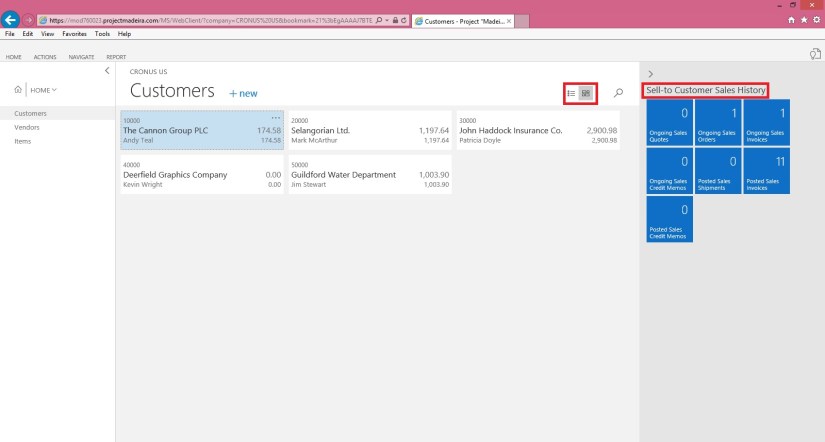
Let’s have a view of Customers List Page. On the right side you can see History Card Fact Box in form of Cues.

Preview-8

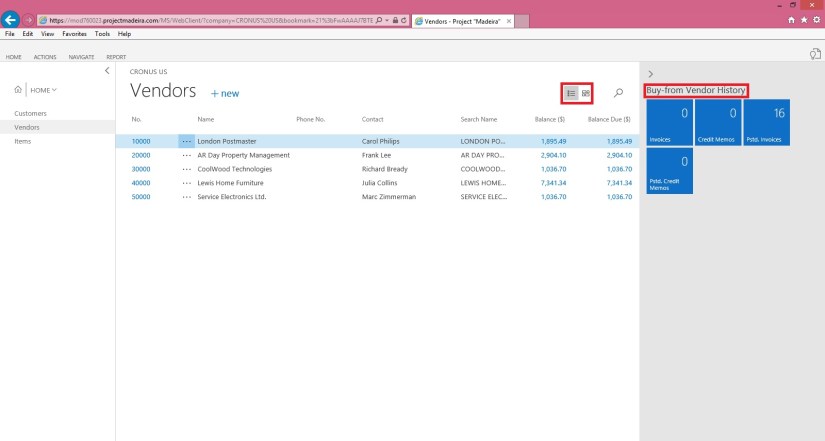
Here is the Vendor List Page. On the right side you can see History Card Fact Box in form of Cues.

Preview-8

Here is the Page search when you click on Magnifying search it will provide you the text box to enter you search, I am trying to search Items containing lo in its Name/ Description.

Preview-9

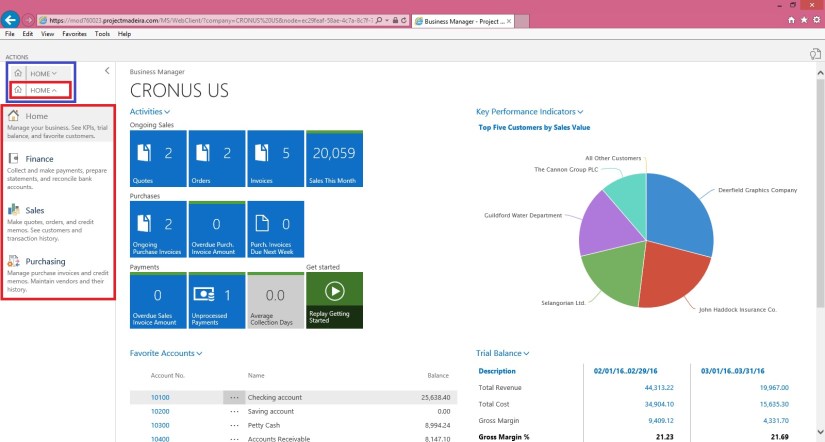
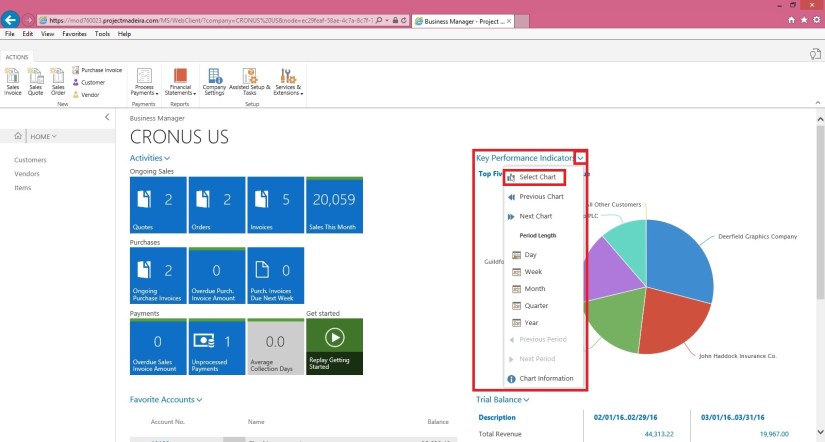
Click on Home to see Drop Menu to select sub Items defined under it. You can Minimize the same clicking on ^. This is available on almost all Pages and Ribbons to hide unwanted information to gain more space on Screen to view only required information. Some places it acts as hiding the Tab where as other places it serves as showing Sub-Menus.

Preview-10

Here is the example of Sub-Menu.

Preview-12


Preview-13


Preview-14

This is how Page appears you select from Sub-Menu.

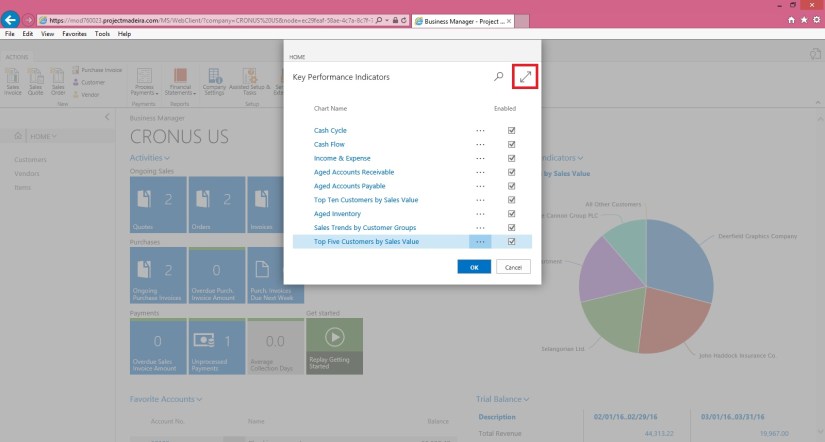
On Page at Right Top corner arrow are used to Minimize or Maximize the page.

Preview-15

View of above Page in Maximized form.

Preview-16

You can use Menu on Page to send data to Excel.

Preview-17

Preview-18

Here is how line action menu is shown.

Preview-19

Below is the Matrix Page type View.

Preview-20

Picture Card Menu. Now on Pages Information and divided in respective small pages.

Preview-21


I will come up with more Look and Feel of New Project Madeira.

Till then keep exploring and Learning. You can find more information on other Blogs too.

However official Blog for same is : https://madeira.microsoft.com/en-us/blog/welcome-to-project-madeira/