Cues, Data, Development Tips, Dynamics 365, Email, Extension Package, Functional Tips, How To, Information, Inventory, Job, Machine, Maderia, Multitenancy, NAV 2017, Office 365, Office Integration, Readiness Library, Server, Tip & Tricks

New Changes or features for Application Users in Microsoft Dynamics NAV 2017

Although it is too early to discuss on features and capabilities which we are going to get in our new release, we should wait for exact information post release of same.

Here are few extracts from available documents pre-release of the product.

You will find most of the features similar to which we have discussed in our earlier posts for Madeira Preview Project.


Incoming documents

New modification to the list of incoming documents. Now it will have filtered view, a new field Processed is added, and now by default filter is applied to show only unprocessed incoming documents in the list.

However you can choose to still view all incoming documents in the list using the show Show All action.

When documents are posted, the processed flag is set to Yes, such that incoming documents that have been processed into posted documents are filtered out.

Capability is added to manually switch the Processed flag.

Now OCR supports for document extracting line details, when we send PDF or image files on incoming documents to Lexmark ICS, the 3rd-party provider of OCR services.

You can now create purchase invoices with multi-line details.

Now you can easily correct OCR errors before receiving the document and at the same time configure the service to avoid the known errors in future.

You can use the new Lexmark ICS online experience to visually train and validate the OCR processing of PDF and image files for incoming documents, such as vendor invoices.

From each incoming document record, you can now link directly to the online extracted document to validate the OCR result and train the service with your corrections.

A new Role Center Cue will give users capability to monitor incoming documents that await your OCR validation.


Inventory Items

Item attributes similar to one we saw in Madeira.

Capability to add attributes to your inventory items will make it easy for you to find the right product that your customer wants by filtering on attributes.

You can define your own attribute types, such as Base Material, Colour, Size, or other product dimensions, and attach to your items as a supplement to the built-in item attribute types and values.

When you access your items on documents or list, you can view and filter on the attribute values to limit the list of items.

By using Categorize items you can create a hierarchy of item categories and assign item attributes to each item category.

When you add items to a category, they will inherit the default attributes on the category.

This will ensures to have a common set of attributes on related items, will speed up the assignment of attributes to similar items, and allow filtering and navigating related items easily based on the category.


Smarter sales and purchase documents

Now you can cancel posted sales and purchase credit memos in the same way like you can do for posted sales and purchase invoices.

After performing this action you will find the credit memo is unapplied from the invoice and creates a new invoice that is applied to the credit memo.

This action will bring you to the earlier position where you created the credit memo. (Like Undo)

Package Tracking No. and Shipping Agent Code on sales invoices Posted sales invoices now show the package tracking number and the shipping agent code by default.


Account Categories in the Chart of Accounts

A new capability is added as account categories and sub categories.

Now you can group G/L Accounts to adjust your need for financial reporting.

For each G/L account, now you can specify the account category so that when ledger entries are posted to these accounts they are categorized as per your category.

For each account category, you can now choose from different sub-categories, even you can also create new sub-categories as per your need.

For example, for the G/L account category Expense, you can define as many sub-categories as you need so that you can differentiate between Expenses on different sources.


Payment reconciliation

The Payment Reconciliation journal now will show you total outstanding transactions and outstanding payments.

From there itself you can now look up the list of documents that have not been applied or used in the reconciliation process.

You can now also choose to include outstanding payments and outstanding transactions information in the Payment Reconciliation report.


Jobs

Project Manager Role Center

A new project manager field is added to the Job Card in order to give users clear sense of job ownership.

A new list My Jobs list is added on the Project Manager Role Center which will display jobs with the status of Order by default based on the new project manager field as discussed above.

If a person is assigned as the project manager to 5 jobs and those jobs have the On Order status, those 5 jobs will default on the My Jobs list on the Project Manager Role Center.

A new cue is added to the Project Manager Role Center to Create Job Sales Invoice, so now users will have quick access to this functionality.

On the Project Manager Role Center a new drop down list for Job Reports has been added to the Actions ribbon.

Job cost

A new fact box will be available to the right side of the Job Card to display the job’s cost information.

Now the term Contract is renamed as Billable throughout the Jobs module.

On the Job Card the Allow Schedule/Billable lines and Apply Usage Link options are marked by default for new jobs.

A new report called Job Quote is available so user can send a quote to a customer. This report is available as Word Template so it can be modified using Word and emailed to the contact on the job.


Fixed Assets

Now setting up fixed assets is simpler. A standard setup is provided, but allows you to modify it at anytime you want.

You can register fixed asset as cards with complete information, accounting details, and reporting classification.

You can also register purchases of fixed assets through special fixed asset G/L journals where you can also dispose of fixed assets. The right accounting entries are created automatically.


Simplified Setup for using Dynamics CRM from inside Dynamics NAV

As you are familiar Dynamics NAV includes opportunity management and basic customer relationship management.

You can easily set up a connection with Dynamics CRM to have more benefit from the strong capabilities that Dynamics CRM offers, such as marketing and customer service capabilities.

A new assisted setup guide to the Business Manager home page will be available that will guide you through the setup process. Once you are through with this setup, you’ll have a seamless coupling of Dynamics CRM records with Dynamics NAV records.


Simplified opportunity management and CRM functionality

You will find Dynamics NAV CRM module has been simplified and improved in a number of ways:

  1. At place of CRM wizard pages now you will have card pages, so that they can now also run in the Web client with improved user experience.
  2. Worksheet pages also been replaced by list pages so now you can also use the pages in browsers.
  3. The Contact card has been simplified by marking a number of controls as Additional, so that the page default looks simpler.
  4. Mail merge have been replaced with Word reporting. Also, new Word reporting capabilities added to generate email body content based on the related report and the selected report layout.
  5. A new Sales & Relationship Manager Role Center has been added

New wizard has been created that helps users set up email logging (default public folders, rules, and job queue setup).


Smart notifications give you advice and recommendations

Similar to one which we discussed in our earlier post for Madeira.


Extensions

Microsoft provides the following extensions:

  1. Envestnet Yodlee Bank Feeds
  2. PayPal Payments Standard
  3. QuickBooks Data Migration
  4. Sales and Inventory Forecast

Similar to Madeira few of them we have discussed in our earlier posts, rest will discuss in our upcoming posts.


Office 365

If your organization uses Office 365, Dynamics NAV 2017 includes an add-in so you can invoice your customers based on entries in your Outlook calendar.

From the Contacts List in Dynamics NAV, you can manually synchronize your Dynamics NAV contacts to Office 365 People.

The contacts from Office 365 will sync back to Dynamics NAV as well.

There is a filter that can be applied to the synchronization process so users will only need to sync the contacts they use most often. This same filter is used during the automatic background sync as well. This synchronization process also works with Microsoft Outlook on the desktop.

We will discuss in more details in our upcoming posts. This feature is too available in Madeira.


US financial reports

In the US version of Dynamics 2017, added new four financial reports to the Business Manager and Accountant Role Centers:

  1. Balance Sheet
  2. Income Statement
  3. Cash Flow Statement, and
  4. Retained Earnings Statement

These reports use G/L account categories and sub-categories discussed above to group financial data.


Source:- https://mbs.microsoft.com/Files/partner/NAV/Readiness_Training/ReadinessTrainingNews/WhatsNewDynamicsNAV2017LimitedBeta.pdf

I will come up with more details in my upcoming posts.


Alert, Development Tips, Dynamics 365, Functional Tips, How To, Information, Maderia, Tip & Tricks

Smart notifications new feature added in August updates – Madeira

Smart Notification feature added to Project “Madeira” which will help user to work smarter.

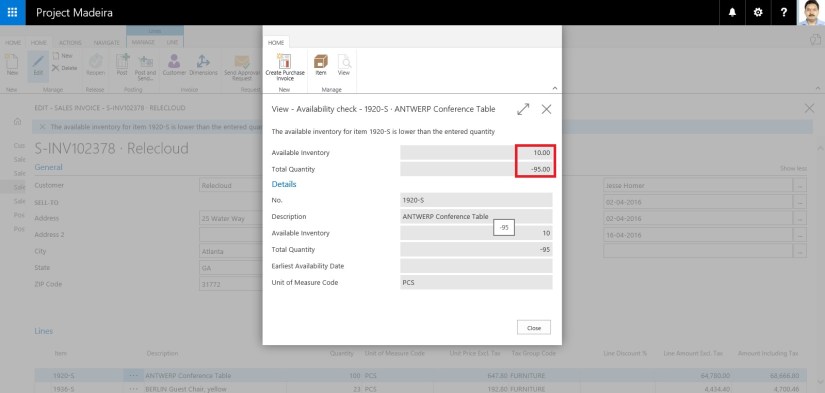
Notifications could be like for a customer who has an overdue balance, or the available inventory is lower than the quantity you are about to sell, etc.

These notifications are shown as a tips in the context of the task you are doing, and you can choose to ignore the notification or to see details about the issue.

If you choose to see details for a notification, you can take action to resolve the issue, such as contacting the customer, buying more inventory, and so on.

It depends what you wish to do, Project “Madeira” just gives you advice and recommendations.

You will see such notifications in different areas of Project “Madeira”, and it’s up to your choice you want to react on them or ignore them.

Let’s see how it works:

For example on Sales Invoice i enter Quantity greater than available quantity.

SmartNotification-1

Notification kicks in like the warning message. I can continue working or see details using link Details in the notification.

SmartNotification-2

It is kept in mind that the subtle notifications help untrained users complete unfamiliar tasks and do not reduce productivity for the more trained user.

Hope you will find this feature helpful.

I will come up with more information in my up coming posts.

Till then keep exploring and learning.


Development Tips, Dynamics 365, Functional Tips, How To, Information, Maderia, Office 365, Tip & Tricks

How to – Set Up a Colored Indicator on Cues in Madeira

You can customize to show color indicator of Cues that changes color based on the data values in the Cues.

The indicator appears as a colored bar along the top border of the Cue tile.

From the Cue Setup window, you set up indicators for all the Cues that are available.

You can specify up to two threshold values that define three ranges of data values (low, middle, and high).

To set up colored indicators on Cues

Under Activities on your Home page

CueSetup-1

Choose Set Up Cues.

CueSetup-2

The Cue Setup window appears. The window lists the indicators that are currently setup up on Cues.

CueSetup-3

To modify an indicator, edit the fields and modify, the values for the different thresholds.

The following table lists the colors that is displayed to the options of the Low Range Style, Middle Range Style, and High Range Style fields.

Option Color
None No color (same color as the Cue tile
Favorable Green
Unfavorable Red
Ambiguous Yellow
Subordinate Gray

I will come up with more informations in my up coming posts.

Till then keep exploring and learning.


Corfu Navision 2016, Data, Development Tips, Dimension, Excel, Functional Tips, How To, Information, Tip & Tricks

How to attach additional 6 Shortcut Dimensions to Dimension Set when copy data to Journal from Excel


In my previous post I explained how we can copy data to-and-fro between Excel and Navision. Also we saw the limitation of additional 6 Shortcut Dimensions neither can be exported nor imported back.

Today we will see solution to this limitation, as it is required from several customers and we keep getting request for same. The same reader for whom I have posted my previous post have requested similar need.

If you missed my previous post you can find here : Copying data to-and-fro between Excel & Navision

Let us see how we can get this part working, yes it will require a small customization to get this working. Below I explain the steps we require to achieve this.

My example refers to Table 81 & Page 39. You can do same with other Journals too.

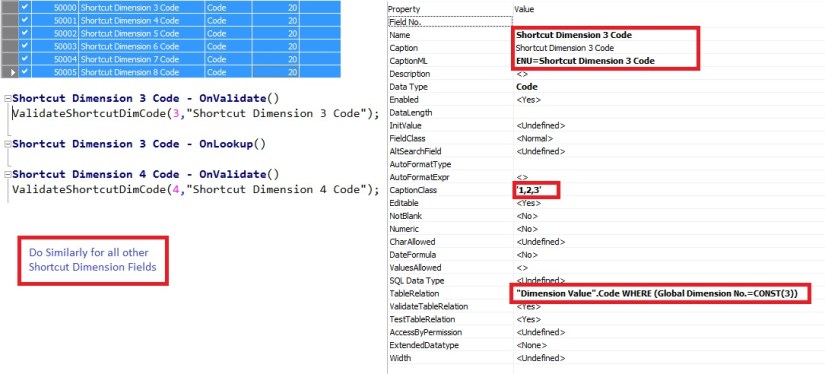
We will Add Custom Fields for these additional 6 Shortcut Dimensions.


ExcelToNavJnl-8

Add the Fields and write the above code to OnValidate trigger and set the Property accordingly for all of the 6 Shortcut Dimension Fields.

ExcelToNavJnl-9

Similarly add a piece of code to OnInsert trigger of the Table.

ExcelToNavJnl-10

Add our newly created Fields to Page too.

Now Let us check if it works as expected.

ExcelToNavJnl-11


Perform the operation as in previous post, this time add the newly created fields for Dimensions as shown in above screen.

If you missed my previous post you can find here : Copying data to-and-fro between Excel & Navision

Export and Import back by adding value to these additional Dimensions 1 &2 is Global 3-6 is my additional Shortcut Dimensions, 7-8 I have not included as not setup in my database.

After importing back check the Dimensions and you will find due to above customization my all the Shortcut Dimensions are attached to Dimension Set Entry.
ExcelToNavJnl-12

Yes we are done.

I will come up with more information in my upcoming posts. Till then keep exploring and Learning.


Corfu Navision 2016, Data, Development Tips, Dimension, Excel, Functional Tips, How To, Information, Tip & Tricks

Copying data to-and-fro between Excel & Navision

ExcelToNavJnl

One of my reader has requested to show him how to export data from Nav Journal to Excel, perform correction and import back to Navision.

So let us see how can we perform this and what are the limitations.

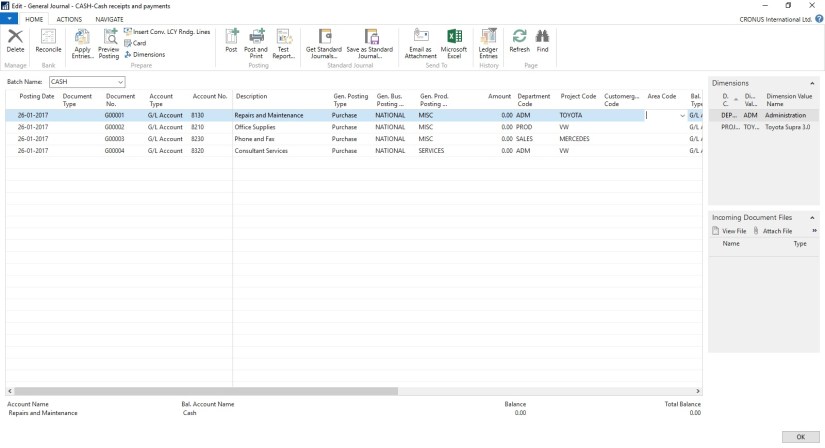
Open the Journal in Navision.

Arrange and show all the Fields that you want to export to Excel on the page.

Fill some sample data. Say single line of Journal, way usually you do.

ExcelToNavJnl-2

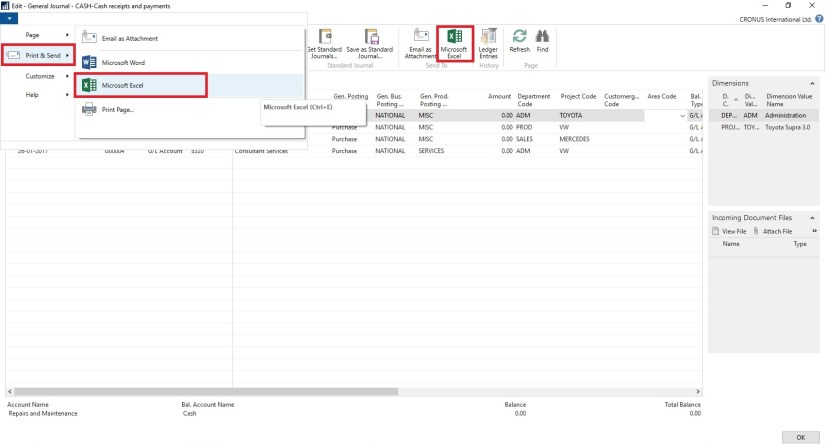
Now Send to Excel using options shown in below screen.

ExcelToNavJnl-3

Data will get Exported to Excel.

Have you noticed something, with the data that got exported yo Excel?

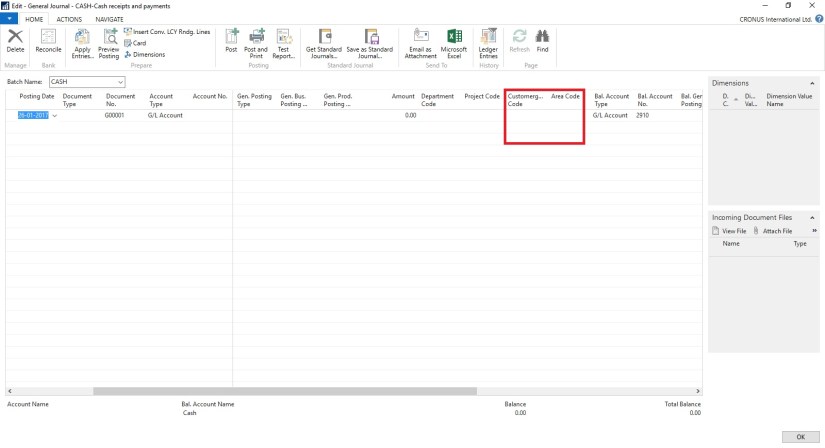
Your 2 Additional Shortcut dimension was not Exported to Excel. Customer Group Code & Area Code, why?

Since these are not the actual fields in the table and it is calculated on Page level, so you will only be able to export Dim-1 & Dim-2 your Global Dimensions which is available as Field in the Table.

Make sure you enter Dimension Values in Capitals in Excel Columns.

ExcelToNavJnl-4

Now perform required changes to the Journal data.

Insert New Lines, Delete existing Lines or Edit existing Lines.

Make sure you don’t keep more than 30000 to 40000 lines, until this it works fine if more than this either performance is too slow or Navision gets hang while you copy back your data to Navision. Upto 40000 works fine have tested several time. Depending upon your system performance you can decide how much data will be ok for you.

ExcelToNavJnl-5

As we have seen above my 2 additional Dimensions is missing from the exported data. We need to match the columns what we have in our Excel and sequence. So we will hide/remove the additional columns from the Journal to match the sequence from Excel columns before we copy back our data from Excel to Navision.

ExcelToNavJnl-6

Select the Rows in excel containing you data excluding header columns and copy.

Return to your Journal and Paste as shown in above screen.

ExcelToNavJnl-7

Your modified data is imported back to the Journal in Navision.

Now perform the Journal action way you do normally.


Dynamics 365, Functional Tips, How To, Information, Maderia, Tip & Tricks, What's New

Working with Item Attributes in Madeira

In Madeira you can assign item attribute values of different types to your items, which can then be used when searching for items.

Open your Item List/Card and in the right side of the window Factbox you see Item Attributes.

Today in this post we will see how to define, assign and use it for searching the items.

ItemAttribute-1

Either from the List Page or Card Page Select Attributes as shown in below screen shot.

From Home or Action Tab Ribbon.

ItemAttribute-2

It will show you all the Attributes and their Values assigned to the Item.

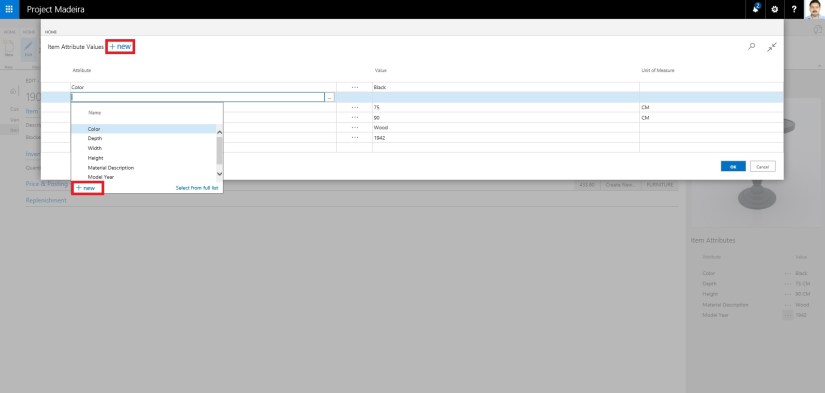
You can create New Attribute, Click on +New, a New Line will be inserted to Assign Attribute and its Value.

If you wish to create New Attribute for the Item from the Dropdown List click on +New.

ItemAttribute-3

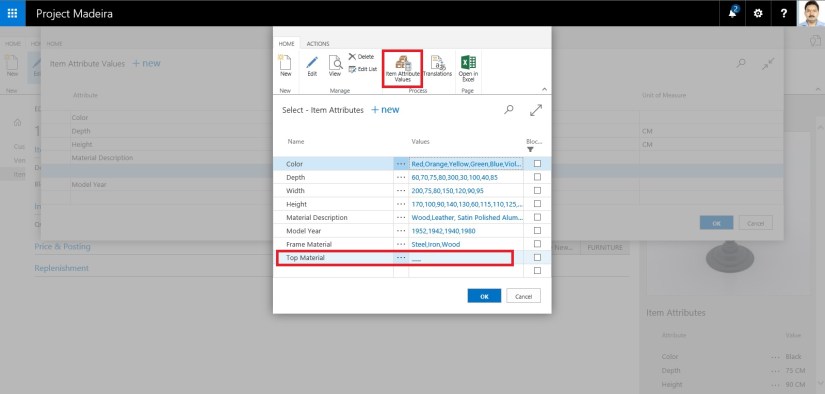
Attribute definition window opens.

Define you New Attribute. Once Attribute is created you need to define available values for the same. In below Screen i have created New Attribute “TopMaterial”.

To define applicable values for this Attribute from Ribbon click on Item Attribute Values.

ItemAttribute-4

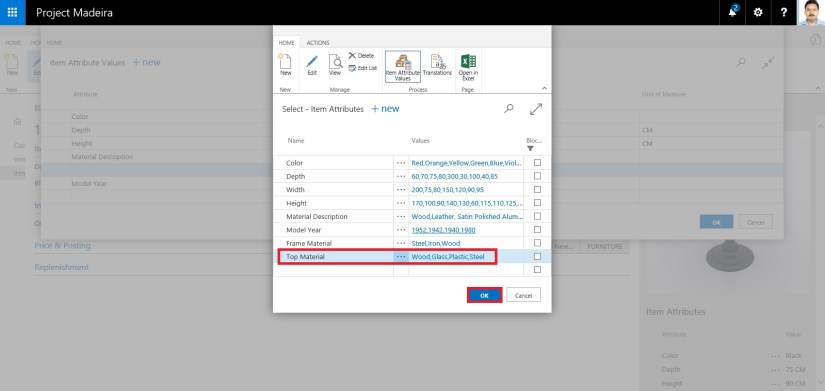
In Value window define all the applicable values and close the window.

ItemAttribute-5

You will be returned to the previous Page and you can see your Attribute and Value defined, just we created in our above steps. Click on OK to return to previous page.

ItemAttribute-6

Next we will Assign these Attribute and Values on the Item.

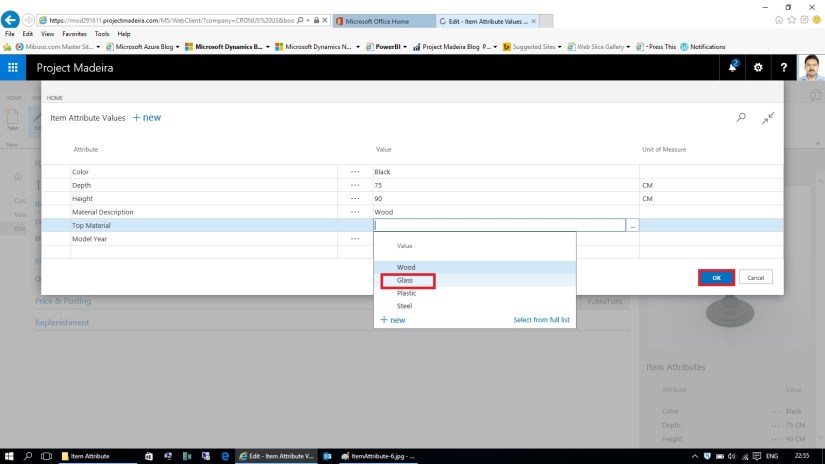
Select the Attribute and Value for the Item as shown in below screen.

After assigning click on OK to close the Page.

ItemAttribute-7

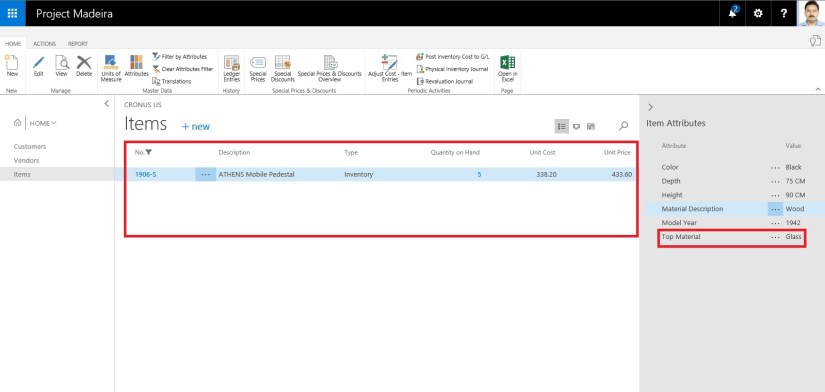
When you return to your Item Card or List Page you will see that your New assigned Attribute and its Value is displayed on Factbox.

ItemAttribute-8

Switch to your Item List Page.

From Ribbon click on Filter on Attribute a Filter window will open.

Select the Attribute and Value for filter that you want to assign.

Click on OK to apply the filter on the page.

ItemAttribute-9

Since we have asigned this Attribute and Value on one Item, It will be filtered and all Items satisfying the filter condition will be displayed.

ItemAttribute-10

The items in the Items window are filtered by the specified item attribute values.

Thats all for this post.

I will comeup with some more details in my upcoming posts.

Till then keep exploring and learning.


Functional Tips, How To, Information, Instalation & Configuration, Maderia, Tip & Tricks, What's New

How to Setup Online Bank Feeds in Madeira

You need to be sure : The default company, CRONUS, that launches when you first log in to Project “Madeira” does not have electronic bank feeds enabled. To tryout this feature you must switch to trial Company “My Company“.

In Project “Madeira” you can connect to most of the online banks and download electronic bank feeds for use in bank reconciliation, avoiding tedious, manual reconciliation, reducing errors, and ensuring that your data is refreshed on a frequent basis.
When you log into MyCompany for the first time, a Company Setup wizard will guide you through setting up the basic company information, including using a bank feed service.

Dont forget to select “Use Bank Feed Service” in Company Setup Page to enable this Service.

You can Manage Bank Accounts & Feeds from Bank Account List Page.

BankStatementService-1

If you enable “Use Bank Feed Service” in Company Setup Page, a new section displays in the ribbon as shown in above screenshot with actions so that you can create a new bank account in Project “Madeira” based on the online bank feed, link already existing bank accounts to online bank feeds, unlinking online bank account feeds, or set up automatic download of feeds on a regular schedule.

When you reconcile bank accounts, you can download bank feeds on demand, as well as process automatically downloaded feeds if you have set up already.

In the Payment Reconcilliation Journal, you can import bank statements based on your bank feeds, and Project “Maderia“ will automatically suggest how payments are applied to ledger entries. You can change the application before you post.

Alternatively, you can import bank statements to the Bank Account Reconcilliation window and reconcile the statements with your ledger entries there.

I will come up with more details in my upcoming posts, till then keep practicing and Learning.


Development Tips, Functional Tips, How To, Information, Jet Reports, Tip & Tricks

Gaining the Competitive Advantage with BI

See how a robust business intelligence solution can help you leverage technology in order to gain new visibility on your business that will enable profitable, data-driven decisions on a daily basis.

Video-1

Video-2

Development Tips, Functional Tips, How To, Information, Jet Reports, Tip & Tricks

Finding the Right Business Intelligence Solution for your Company

Get answers to the most commonly asked questions around what to look for in a business intelligence solution and provider, including implementation expectations, important features to look for (that you probably didn’t know you need), and different options for report and dashboard distribution.

Watch Video here :

Corfu Navision 2016, Functional Tips, How To, Information, Tip & Tricks

Create Production Orders for/from Sales Order

One of my reader have requested to demonstrate how he can create Sales Order which is directly associated with Sales Order.

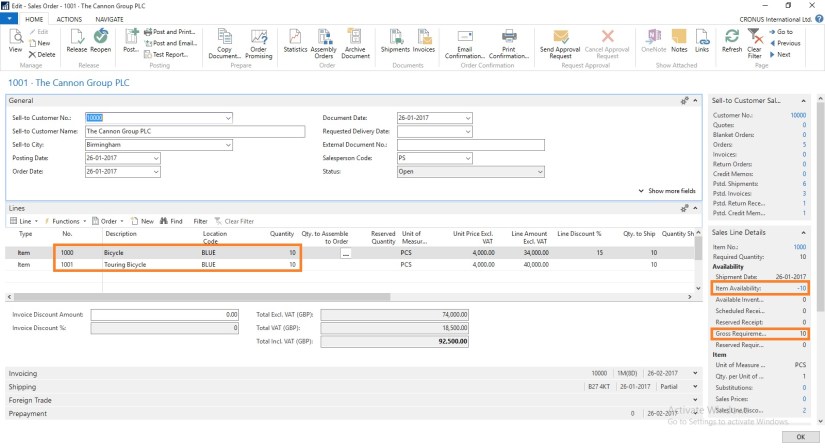
Let us start with creating a Sales Order:

ProdOrder-1

Here you can see we don’t have Available Inventory to fulfil the demand of this Order.

ProdOrder-2

To fulfil the demand we will create Production Order for this Order.

Select Planning from Action TAB on Ribbon.

Sales Order Planning Window Opens, Select Create Production Order.

ProdOrder-3

Select the Status for Production Order as desired.

For Order Type you have 2 Options

  1. Item Order – Production Order is created for each Item on Lines
  2. Project Order – Single Production order for Entire Order

Select the desired option and respond to Yes.

ProdOrder-4

I have Selected Released & Project Order in my case.

ProdOrder-5

You can check that Quantity to be produced is reserved for this Order.

There could be the situation where you may have few Inventory available, in that case you need to reserve the quantity from Function before creating Production Order else all quantity will be created. In other case only short quantity will be a quantity of Production Order.

ProdOrder-6

Select the line from available lines in Item Ledger Entries (e.g. on hand inventory) and by using the ‘Reserve from Current Line’ function you can reserve those against the sales order line.  The ‘Reserved Quantity’ then gets updated and you can see the rest in the ‘Unreserved Quantity’ field.

ProdOrder-7

Although in this case entire line is already reserved from the Production Order.

But in case you want to reserve from any available Inventory in hand from Ledger entry.

This was one of the way how you can perform Creating Production Order and Reserving for Sales Order.

We can do the same by another way as below, directly creating Production Order for this Sales Order.

ProdOrder-8

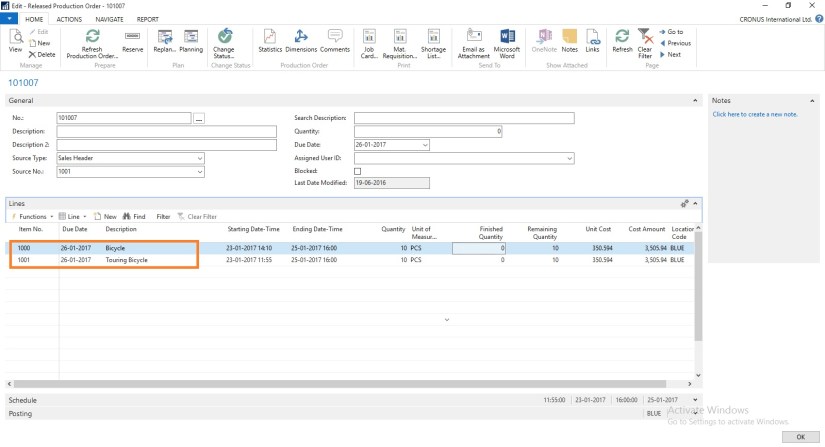
Create a Production Order Select Source Type as Sales Header and Source No as Sales Order No.

Then Refresh the Production Order.

ProdOrder-9


ProdOrder-10


This way we can create and Reserve the Item for required demand.

I will come with more details in my upcoming posts.