Corfu Navision 2016, Functional Tips, How To, Tip & Tricks

Inventory Valuation

Inventory valuation is the determination of the cost that is assigned to an inventory item, as expressed by the following equation.

Ending inventory = beginning inventory + net purchasescost of goods sold

The calculation of inventory valuation uses the Cost Amount (Actual) field of the value entries for the item.

The entries are classified according to the entry type that corresponds to the cost components, direct cost, indirect cost, variance, revaluation, and rounding.

Entries are applied against each other, either by the fixed application, or according to the general cost-flow assumption defined by the costing method.

One entry of inventory decrease can be applied to more than one increase entry with different posting dates and possibly different acquisition costs.

Therefore, calculation of the inventory value for a given date is based on summing up positive and negative value entries.

Inventory Valuation report

To calculate the inventory value in the Inventory Valuation report, the report begins by calculating the value of the item’s inventory at a given starting date.

It then adds the value of inventory increases and subtracts the value of inventory decreases up to a given ending date.

The end result is the inventory value on the ending date.

The report calculates these values by summing the values in the Cost Amount (Actual) field in the value entries, using the posting dates as filters.

The printed report always shows actual amounts, that is, the cost of entries that have been posted as invoiced.

The report will also print the expected cost of entries that have posted as received or shipped, if you select the Include Expected Cost field on the Options FastTab.

Values in the Inventory Valuation report is reconciled with the Inventory account in the general ledger, meaning the value entries in question have been posted to the general ledger.

Amounts in the Value columns of the report are based on the posting date of transactions for an item.


Inventory Valuation – WIP report

A manufacturing company needs to determine the value of three types of inventory:

  • Raw Materials inventory
  • WIP inventory
  • Finished Goods inventory

The value of WIP inventory is determined by the following equation.

Ending WIP inventory = Beginning WIP inventory + manufacturing costscost of goods manufactured

As for purchased inventory, the value entries provide the basis of the inventory valuation. The calculation is made using the values in the Cost Amount (Actual) field of the item and capacity value entries associated with a production order.

The purpose of WIP inventory valuation is to determine the value of the items whose manufacturing has not yet been completed on a given date.

Therefore the WIP inventory value is based on the value entries related to the consumption and capacity ledger entries.

Consumption ledger entries must be completely invoiced at the date of the valuation.

Therefore, the Inventory Valuation – WIP report shows the costs representing the WIP inventory value in two categories: consumption and capacity.


Corfu Navision 2016, Data, Development Tips, Functional Tips, How To, Information, Tip & Tricks

Accounts in the General Ledger

To reconcile inventory and capacity ledger entries with the general ledger, the related value entries are posted to different accounts in the general ledger.

From the Inventory Ledger

The below table shows the relationship between different types of inventory value entries and the accounts and balancing accounts in the general ledger.

Value entry General ledger accounts
Item ledger entry type Value entry type Variance type Expected cost Account Balancing account
Purchase Direct Cost Yes Inventory (Interim) Invt. Accrual Acc. (Interim)
Direct Cost No Inventory Direct Cost Applied
Indirect Cost No Inventory Overhead Applied
Variance Purchase No Inventory Purchase Variance
Revaluation No Inventory Inventory Adjmt.
Rounding No Inventory Inventory Adjmt.
Sale Direct Cost Yes Inventory (Interim) COGS (Interim)
Direct Cost No Inventory COGS
Revaluation No Inventory Inventory Adjmt.
Rounding No Inventory Inventory Adjmt.
Positive Adjmt.,Negative Adjmt., Transfer Direct Cost No Inventory Inventory Adjmt.
Revaluation No Inventory Inventory Adjmt.
Rounding No Inventory Inventory Adjmt.
(Production) Consumption Direct Cost No Inventory WIP
Revaluation No Inventory Inventory Adjmt.
Rounding No Inventory Inventory Adjmt.
Assembly Consumption Direct Cost No Inventory Inventory Adjmt.
Direct Cost No Direct Cost Applied Inventory Adjmt.
Indirect Cost No Overhead Applied Inventory Adjmt.
(Production) Output Direct Cost Yes Inventory (Interim) WIP
Direct Cost No Inventory WIP
Indirect Cost No Inventory Overhead Applied
Variance Material No Inventory Material Variance
Variance Capacity No Inventory Capacity Variance
Variance Subcontracted No Inventory Subcontracted Variance
Variance Capacity Overhead No Inventory Cap. Overhead Variance
Variance Manufacturing Overhead No Inventory Mfg. Overhead Variance
Revaluation No Inventory Inventory Adjmt.
Rounding No Inventory Inventory Adjmt.
Assembly Output Direct Cost No Inventory Inventory Adjmt.
Revaluation No Inventory Inventory Adjmt.
Indirect Cost No Inventory Overhead Applied
Variance Material No Inventory Material Variance
Variance Capacity No Inventory Capacity Variance
Variance Capacity Overhead No Inventory Cap. Overhead Variance
Variance Manufacturing Overhead No Inventory Mfg. Overhead Variance
Rounding No Inventory Inventory Adjmt.

From the Capacity Ledger

The below table shows the relationship between different types of capacity value entries and the accounts and balancing accounts in the general ledger. Capacity ledger entries represent labor time consumed in assembly or production work.

Value entry General ledger accounts
Work type Capacity ledger entry type Value entry type Account Balancing account
Assembly Resource Direct Cost Direct Cost Applied Inventory Adjmt.
Assembly Resource Indirect Cost Overhead Applied Inventory Adjmt.
Production Machine Center/Work Center Direct Cost WIP Account Direct Cost Applied
Production Machine Center/Work Center Indirect Cost WIP Account Overhead Applied

Assembly Costs are Always Actual

As shown in the table above, assembly postings are not represented in interim accounts. This is because the concept of work in process (WIP) does not apply in assembly output posting, unlike in production output posting. Assembly costs are only posted as actual cost, never as expected cost.

Calculating the Amount to Post to the General Ledger

The following fields in the Value Entry table are used to calculate the expected cost amount that is posted to the general ledger:

  • Cost Amount (Actual)
  • Cost Posted to G/L
  • Cost Amount (Expected)
  • Expected Cost Posted to G/L

The following table shows how the amounts to post to the general ledger are calculated for the two different cost types.

Cost type Calculation
Actual Cost Cost Amount (Actual) Cost Posted to G/L
Expected Cost Cost Amount (Expected) Expected Cost Posted to G/L


Corfu Navision 2016, Development Tips, How To, Tip & Tricks

Zip/Un-Zip files using 7Zip

Dear friends today I am sharing functionality created in Navision which can be used to zip or Un-Zip files. Upon request of one of follower of my blog I decided to discuss on this point.

Here below I present below how we can do the same. The variables, functions and process is self-explanatory.

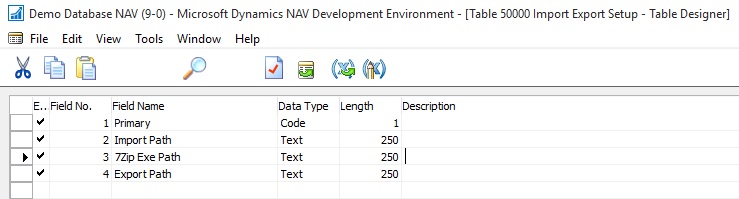
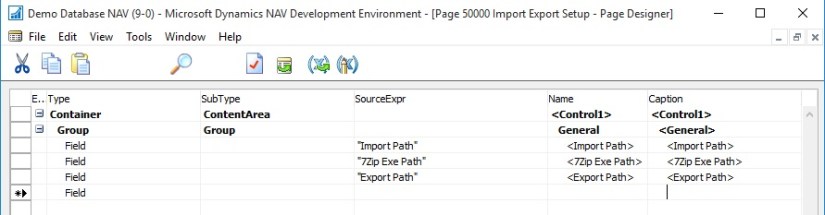
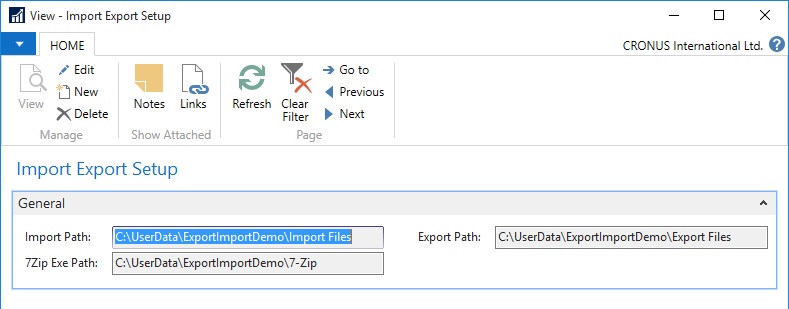
Step 1: Let us create a Setup Table and Page

Zip-UnZip-1

Zip-UnZip-2

Zip-UnZip-3

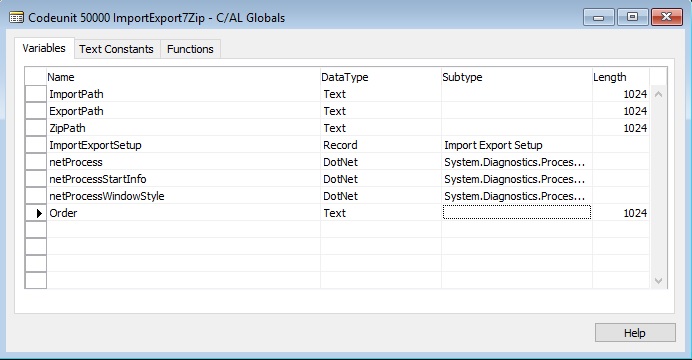
Step 2: Let us define variables

Zip-UnZip-4

Name                                                    DataType             Subtype                    Length

netProcess                                         DotNet                 System.Diagnostics.Process.’System, Version=4.0.0.0, Culture=neutral, PublicKeyToken=b77a5c561934e089′

netProcessStartInfo                       DotNet System.Diagnostics.ProcessStartInfo.’System, Version=4.0.0.0, Culture=neutral, PublicKeyToken=b77a5c561934e089′

netProcessWindowStyle              DotNet System.Diagnostics.ProcessWindowStyle.’System, Version=4.0.0.0, Culture=neutral, PublicKeyToken=b77a5c561934e089′

ImportPath                                         Text                                                        1024

ExportPath                                         Text                                                         1024

ZipPath                                                 Text                                                        1024

ImportExportSetup                         Record                  Import Export Setup

Order                                                    Text                                                          1024 

Step 3: Let us create a Function to Get Information of Path from Setup:

Zip-UnZip-5

This function is to initialize all the required variables which will be used in other functions.

It takes value from the Setup created above to store path of required folders. 

Step 4: Let us create a Function for running Shell Command for 7zip Files:

Zip-UnZip-6

This function runs the shell script in background to Zip or Un-Zip files in specified folder.

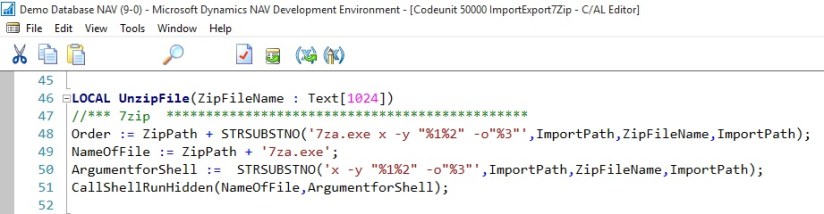
Step 5: Let us create a Function to call UnZip file after preparing the Parameters for Command

Zip-UnZip-7

This function prepares the path, Name of File and Argument for the Shell and finally calls the Shell function to run the command in background. At the end of function you will get UnZiped files from the Zip file.

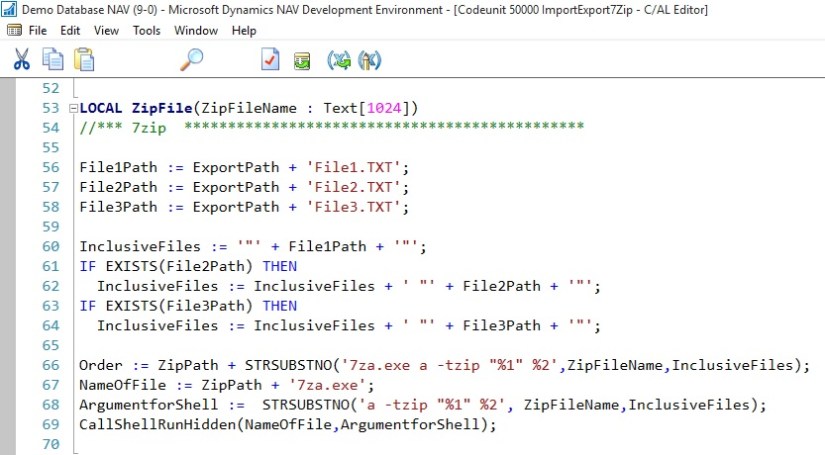
Step 6: Let us create a Function to call Zip file after preparing the Parameters for Command

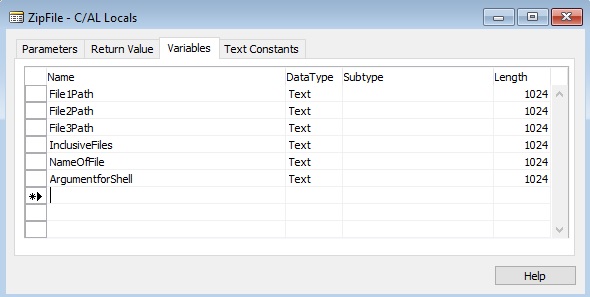
Zip-UnZip-8

Zip-UnZip-9

This function prepares the path, Name of File and Argument for the Shell and finally calls the Shell function to run the command in background. At the end of function you will get Ziped file which contains the file specified in InclusiveFiles.

This way you can use above functions to Zip / Un-Zip files using 7Zip.


Corfu Navision 2016, Functional Tips

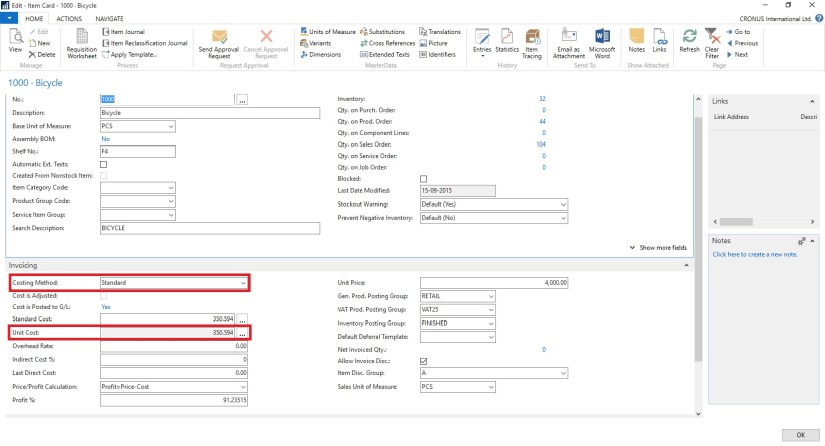
Unit Cost Field, Item Table

Contains the cost per unit of the item.

UnitCost-1

Depending on what you selected in the Costing Method field, the Unit Cost field is filled as follows:

  • If the costing method is Standard, then the field is grayed and non-editable.
  • If the costing method is FIFO, LIFO, Specific, or Average, then the unit cost is calculated as follows: Unit cost = inventory value of items on hand (expected cost + invoiced cost) / quantity on hand

If the costing method is FIFO, LIFO, Specific, or Average, then the Unit Cost field is updated in the following cases:

  • When the item is cost-adjusted, automatically or by the Adjust Cost – Item Entries batch job.
  • During the posting of purchase invoices, output, or positive adjustment if one of the following conditions is true:
    • The net invoiced quantity of the item changes from negative or zero to positive.
    • The current unit cost is zero.

If one of these conditions is true, then the Unit Cost field is updated with the value in the Last Direct Cost field on the item card.

Note The Unit Cost field is not updated if the current unit cost is higher than zero and the new unit cost is zero. A unit cost of zero is considered an exception from regular business. Therefore, the current unit cost is retained to provide the last known, relevant value. This exception applies even if the existing inventory has been revalued to zero.

If the item uses the costing method Average, then you can choose the field to open the Average Cost Calc. Overview window, which shows all the source value entries that are used to calculate the average cost, grouped and summarized by average cost period.


Error

Windows Error Reporting and Collecting Crash Dumps

For troubleshooting issues with Microsoft products in general, you can use Windows Error Reporting to report computer problems to Microsoft. Microsoft uses the problem reports to try to match descriptions of each problem to a solution. This feature is enabled by default, and generates detailed reports about the problem.

To troubleshoot application instability issues, we will often need crash dumps in addition. For Microsoft Dynamics NAV, a full crash dump might be required to provide sufficient details to isolate and fix the problem. Once crash dump is collected, contact support and provide the dump. There are number of ways and tools to collect a crash dump, but we’ll look at how to automate this action in a very simple way.

For more details see:- Here


Uncategorized

LS Retail Unveils Cloud-Based Management Solution for Fashion Retailers

LS Fashion Express is a more compact, cloud-based version of successful management software LS Nav, built on Microsoft Dynamics NAV. It includes everything fashion retailers need to run their business – from financials down to the Point of Sale.

See more at:
http://pointofsale.com/PointofSale.com-Blog/LS-Retail-Unveils-Cloud-Based-Management-Solution-for-Fashion-Retailers.html

Uncategorized

Microsoft to turn Dynamics ERP into a service, starting with Dynamics AX in 2016

Microsoft to turn Dynamics ERP into a service, starting with Dynamics AX in 2016

Microsoft is preparing to release its next version of Dynamics AX ERP as a cloud-first service that will be tightly integrated with other Microsoft business services.

For more details see below link.

http://www.zdnet.com/article/microsoft-to-turn-dynamics-erp-into-a-service-starting-with-dynamics-ax-in-2016/

Corfu Navision 2016, Development Tips, How To, IIS, Information, Instalation & Configuration

Configuring SSL to Secure the Connection to Microsoft Dynamics NAV Web Client

It is always recommend that you secure Microsoft Dynamics NAV data that is transmitted over the Internet by enabling Secure Sockets Layer (SSL) on the connection to Microsoft Dynamics NAV Web client.

Enabling SSL on a website requires that an SSL certificate is installed on the web server. An SSL certificate is a small file that the web server uses to prove its identity and establish a trusted connection with the browser that is trying to access Microsoft Dynamics NAV Web client.

When a browser connects to the Microsoft Dynamics NAV Web client, the web server replies by sending its certificate to the browser. This certificate contains the web server’s public encryption key and the name of the authority that granted the certificate. The browser verifies the certificate using the authority’s public key.

Note You can configure SSL for the Microsoft Dynamics NAV Web client when you install the Microsoft Dynamics NAV Web Server components.

Obtaining an SSL Certificate

In a production environment, you should obtain an SSL certificate from a certification authority. Some large organizations may have their own certification authorities, and other organizations can request a certificate from a third-party organization. In a test environment or development environment, you can create your own self-signed certificate.

To create a self-signed SSL certificate

Open Internet Information Services (IIS) Manager, on the Start menu, choose Administrative Tools, and then choose Internet Information Service (IIS) Manager.
IIS-1

  • In the Connections pane, choose the top-level node for the server.
  • On the Home page, under IIS, choose Server Certificates, and then in the Actions pane, choose Open Feature.

IIS-2

  • On the Server Certificates page, choose Create Self-Signed Certificate.
  • In the Specify Friendly Name dialog box, type a brief name for the certificate, and then choose the OK button.

IIS-3

The new certificate appears on the Server Certificate page.
IIS-4

Adding an HTTPS Binding That Uses the Certificate on the Microsoft Dynamics NAV Web Client Site

After you get the certificate, you add a binding to the https protocol on the website. When you add the binding, you associate it with the certificate.

To add an https binding with the certificate to the website

  • Open Internet Information Services (IIS) Manager.
  • In the Connections pane, expand the Sites node, and then choose the Microsoft Dynamics NAV Web client site to which you want to add the binding.

By default, the site has the name Microsoft Dynamics NAV 2016 Web Client.

  • In the Actions pane, choose Bindings.

IIS-5

  • In the Site Bindings dialog box, choose Add.
  • In the Add Site Binding dialog box, set the Type field to https.

IIS-6

You can use the default port 443 or change it to another port. If you change it to another port, you will have to provide the port number in the URL when you try to open the client.

  • Set the SSL certificate field to the certificate that you obtained or created for the site.

IIS-7

  • Choose the OK button, and then choose the Close button.

Redirecting HTTP to HTTPS (Optional)

To ensure that users always access the site that is secured with SSL, you can automatically redirect HTTP requests to HTTPS. This means that users do not have to explicitly include https in the URL in the browser.

For example, the nonsecure URL of the Microsoft Dynamics NAV Web client could be

http://mywebclient:8080/DynamicsNAV90/WebClient

The secure URL could be

https://MyWebclient:443/DynamicsNAV90/WebClient

If a user types

http://MyWebclient:8080/DynamicsNAV90/WebClient,

the browser automatically redirects to

https://MyWebclient:443/DynamicsNAV90/WebClient


There are different ways to redirect HTTP requests to HTTPS.

The following procedure describes how to redirect HTTP requests to HTTPS by installing the Microsoft Application Request Routing for IIS 7 and modifying the web.config file for the Microsoft Dynamics NAV Web client.

To redirect HTTP to HTTPS

The web.config file is located in the physical path of the web application on IIS. By default, the path is

%systemroot%\inetpub\wwwroot\[VirtualDirectoryName]\WebClient.

For example, the folder for the default Microsoft Dynamics NAV Web client application is

%systemroot%\inetpub\wwwroot\DynamicsNAV90\WebClient.

  • In the <system.webServer> element, add the following elements.

<rewrite>

<rules>

<rule name=”Redirect to HTTPS”>

<match url=”(.*)” />

<conditions>

<add input=”{HTTPS}” pattern=”off” ignoreCase=”true” />

</conditions>

<action type=”Redirect” url=”https://{SERVER_NAME}/{R:1}” redirectType=”SeeOther” />

</rule>

</rules>

</rewrite>


  • Save the web.config file.


Corfu Navision 2016, Cumulative Updates

Cumulative Update 1 for Microsoft Dynamics NAV 2016 (Build 43402) Released

This cumulative update includes all hotfixes and regulatory features that have been released for Microsoft Dynamics NAV 2016, including hotfixes and regulatory features that were released in previous cumulative updates.

You can find more information here.
For more information see this Link.
Additional Information

For information about how to install the cumulative update, see How to Install a Microsoft Dynamics NAV 2016 Cumulative Update

For a list of all cumulative updates for this version, see Released Cumulative Updates for Microsoft Dynamics NAV 2016