Development Tips, Jet Reports, Office Integration, Report

What’s New in Jet Reports for Word, How it is different from Navision Word Reports

Before we compare both the way of creating report in word, the features I would be suggesting you to review the posts which I have posted earlier Word Document Reports and Custom Layouts to refresh the concept of creating reports in Word.

Let’s start with comparing how it is different from Navision Word Report.

Create a custom layout for the report you wish to use

In your NAV client navigate to Report Layout Selection (Administration/IT Administration/ Reports).

Microsoft Dynamics NAV 2015 includes several sample Word reports including:

14125500             Sales Order – Jet Ex. Word

14125501             Sales Invoice – Jet Ex. Word

14125502             Sales Cr. Memo – Jet Ex. Word

14125504             Sales Quote – Jet Ex. Word

I have filtered the above Reports.

Select the report that you wish to customize. (I am Using 14125500 for this example)
CustomiseJetReport-1
Click Custom Layouts.

 To create a new Report Layout, click New.

A pop-up window will appear and allow you to choose the layout type.

Check the Insert Word Layout box and click OK.

CustomiseJetReport-2

CustomiseJetReport-3

In the Report Layouts window, you can change the Description.

Click OK

In the NAV Custom Report Layouts window, highlight the layout you wish to use and click the Import Layout button from the ribbon.

Browse to the Jet Express for Word Sample Documents, choose the template you want and click Open
CustomiseJetReport-4
Click Edit Layout to customize this layout.

CustomiseJetReport-5

Above screenshot show how to Access the XML part of the Report.

Left side shows Jet->Design

Right side shows Developer->XML Mapping Pane

If you remember In Navision word Report we use to select the Custom XML Part from the dropdown to access the available fields, Labels etc.

Whereas if we see In Jet Report this is not required.

Also you may have observed that Jet Report Pane Have search option, which makes easy to find desired fields rather than scrolling through the XML Nodes to access the desired Fields.
CustomiseJetReport-6

You may observe in above picture that I have typed the part of the Field I am looking for and Jet Report Pane suggested that Similar to what I typed there is a Field “Salesperson” and it available under 2 heads Labels & Header data items.

If I require to insert the Labels or Fields, Place the cursor at desired place where you want that Field to be inserted and Double Click to the Field from Jet Report Pane.
CustomiseJetReport-7
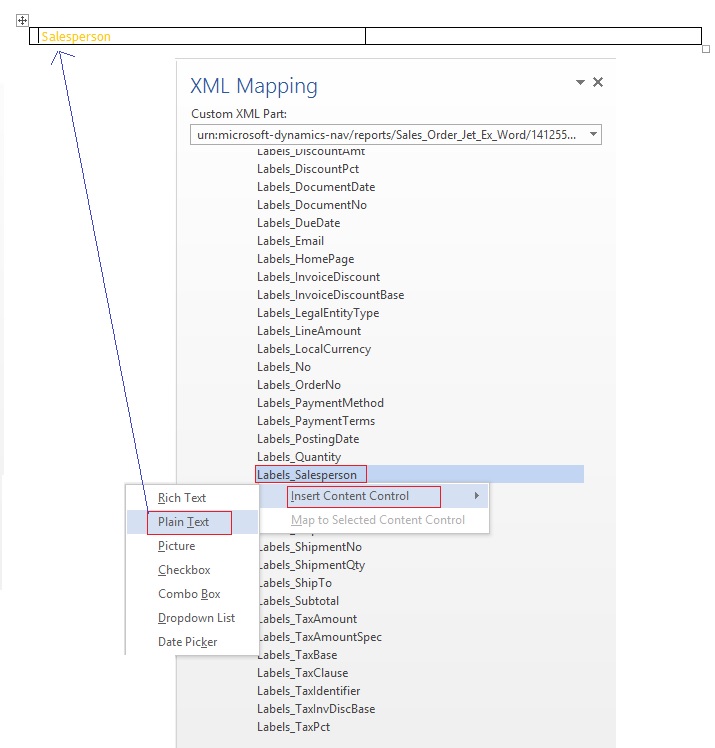
Where as to perform same action in Navision Word Place the cursor where we wish to Insert the Field then we use to Scroll to the Field we wish to insert then we perform step Right Click->Insert Content Control->Plain Text
CustomiseJetReport-8
I will come up with more details in my next post. We will see how we can design the Report Using Jet Report fast and easily.

Also some Best Practice, Tip & Tricks while using Jet Reports.

Development Tips, Instalation & Configuration, Jet Reports, Office Integration

Jet Express for Word – Objects for Navision 2015

Getting Started for Administrators

Overview

Microsoft introduced a new feature with Dynamics NAV 2015 which makes it easy and inexpensive for partners and end users to create and customize visually attractive document reports in NAV using Microsoft Word.

In collaboration with Microsoft, Jet Reports developed Jet Express for Word – an application that supports this process by providing users an easy-to-use interface inside Microsoft Word to create and modify these documents.

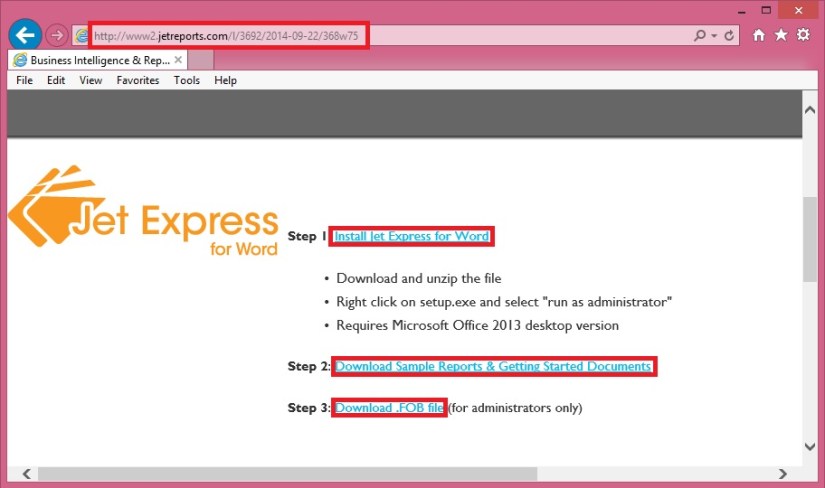
From where to download these objects

If you remember my previous post where I shared the link of download page. See here.

JetReportObjects-1
Refer to Step-3 in above screenshot.

Download the Objects from the Link.

Jet Express for Word includes four NAV reports and a set of sample sales documents.

These four NAV reports include:

 Report Number Name
14125500 Sales Order – Jet. Ex. Word
14125501 Sales Invoice – Jet. Ex. Word
14125502 Sales Cr. Memo – Jet. Ex. Word
14125503 Sales Quote – Jet. Ex. Word

Installing these reports in NAV

These four reports are included in a .FOB file which is available from the Jet Express for Word website.

To install this .FOB file you will need access and permissions to the Microsoft Dynamics NAV Development Environment.

In this application select File > Import… and browse to find the downloaded .fob file.
JetReportObjects-2

JetReportObjects-3

JetReportObjects-4

Uninstalling Jet Express for Word documents

If you need to uninstall the Jet components from the Microsoft Dynamics NAV Server-

  • Open the Microsoft Dynamics NAV Development Environment and then connect to the database
  • Open the Object Designer (on the Tools menu, choose Object Designer)
  • Select All to see all business objects.

Select the business objects which were inserted (listed above), right-click and select Delete. When asked if you want to delete the selected lines click Yes.
JetReportObjects-5

Development Tips, Instalation & Configuration, Jet Reports, Office Integration, Report

Jet Express for Word Overview & Installation – for Navision 2015

Jet Express for Word is a new feature available to Microsoft Dynamics users which makes it easy for end users to design documents in Microsoft Word. This feature is part of Jet Express for Microsoft Dynamics NAV and is available to Microsoft Dynamics NAV 2015 users.

Modify Reports in Microsoft Word

Need to change the layout of an invoice or credit memo? Just open the document in Microsoft Word to make changes in a program you already know—no programming required.

Provided you already have reports developed by the Navision professionals. You can only make Layout, Look & Feel changes. For any business logic or including/excluding fields in report will be handled from Navision only as we do.

Design with Flair

You can use document templates that provided by Jet Reports, templates from the Office Store, or create a document from scratch. Add company logos, change fonts, modify fields and customize for multiple regions easily.

Easy to Use

The simple interface allows you to customize or create document layouts using Microsoft Word. Your fields appear in clear text and the search feature makes it quick to add the fields you need.

New functionality in Microsoft Dynamics NAV 2015 allows you to import these document layouts into NAV and run them from within the NAV client.

Software Requirements

  • Microsoft Dynamics NAV 2015
  • Office 2013 Desktop Edition

Supported Languages

  • English, Danish, Dutch, French, German and Spanish
  • More languages will be added soon

Where to get Jet Report Installation Files

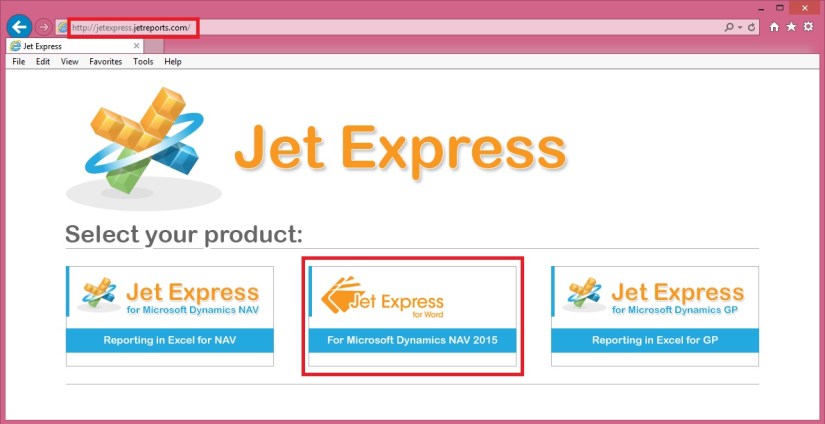
You can use this Link, Visit to Jet Reports site here.

JetReportInstallation-1

JetReportInstallation-2

– Download the Jet_Express_for_Word_Installer.zip file

– Right-click the zipped file and select “Extract All”

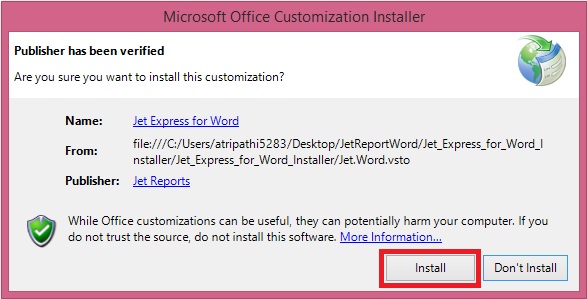
– Right-click the file “setup.exe” and choose “Run as administrator”

JetReportInstallation-3

JetReportInstallation-4

JetReportInstallation-5

Verifying the Installation

Open the Word and you will find one more TAB in Ribbon. [JET]

JetReportInstallation-6

Just in case you don’t find the Tab, Follow below set to enable the same, provided your Installation was successful in previous step without any error.

JetReportInstallation-7

Developer -> COM Add-Ins

Check if Jet Express for Word is enabled, if not select it and say OK.

If already enabled but still you don’t see, disable and enable again. Restart your word now you will be able to see the JET TAB.

I will come up with more information in my upcoming posts.

Development Tips, Excel, Office Integration, Report, Server

Viewing Page Data in Excel Using PowerPivot (OData)

Here I will discuss how you can use OData to expose a Microsoft Dynamics NAV 2015 page as a web service and then analyse the page data using Microsoft PowerPivot for Excel 2013.

With OData and PowerPivot, you gain access to a powerful set of tools and technologies for data exchange and analysis.

This walkthrough illustrates the following tasks:

  • Publishing a Microsoft Dynamics NAV page as a web service.
  • Verifying web service availability from a browser.
  • Using the PowerPivot add-in for Excel to import the table data as a new worksheet.
  • This procedure also includes optional instructions about how to use a web service access key.
  • Creating a PivotTable from the worksheet, selecting relevant fields, and then organizing and formatting the data to highlight strategic data.

Optional:

If you want to use a web service access key to authenticate access to the web service, Microsoft Dynamics NAV must meet the following requirements:

The Microsoft Dynamics NAV Server is configured to authenticate users by using the NavUserPassword credential type.

There is a Microsoft Dynamics NAV user account that has a web service access key.

You can find more details in my earlier post here

Publishing a Page as a Web Service

You can publish a web service by using the Microsoft Dynamics NAV Web client or the Microsoft Dynamics NAV Windows client.

To register and publish a page as a web service

  • Open the RoleTailored client and connect to the CRONUS International Ltd. company.
  • In the Search box, enter Web Services, and then choose the related link.
  • In the Web Services page, choose New.
  • In the Object Type column, select Page. In the Object ID column, enter 21, and in the Service Name column, enter Customer.

This exposes the Customer Card page as an OData web service.

  • Select the check box in the Published column.

Choose the OK button to close the New – Web Services page.

PowerPivot-1
Verifying the Web Service’s Availability

Security Note

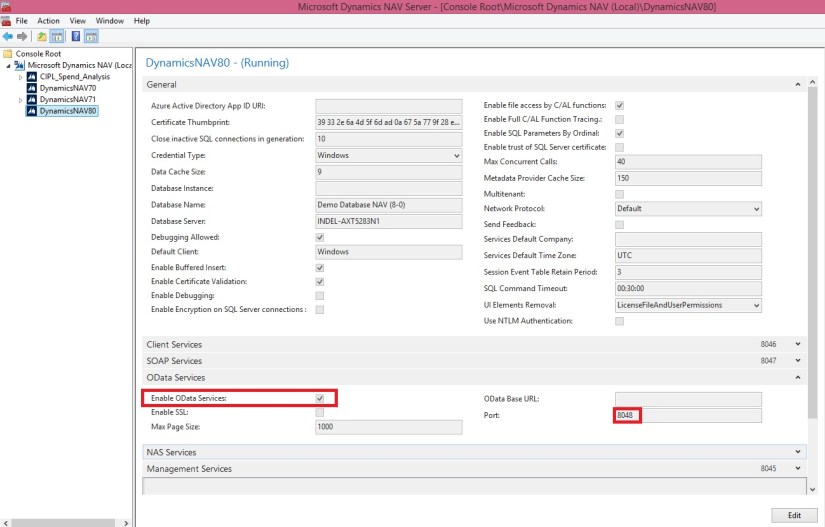
After publishing a web service, verify that the port that web service applications will use to connect to your web service is open. The default port for OData web services is 7048. You can configure this value by using the Microsoft Dynamics NAV Server Administration Tool.

To verify availability of a Microsoft Dynamics NAV web service

Start Windows Internet Explorer.

In the Address field, enter a URI using the following format: http://Server : WebServicePort/ServerInstance/OData/

Server is the name of the computer that is running Microsoft Dynamics NAV Server.

WebServicePort is the port that OData is running on. The default port is 7048.

ServiceInstance is the name of the Microsoft Dynamics NAV Server instance for your solution. The default name is DynamicsNAV80.

For example, if the Microsoft Dynamics NAV Server is running on the computer that you are working on, you can use: http://localhost:7048/DynamicsNAV80/OData/

In my case: – http://indel-axt5283n1.tecturacorp.net:8048/DynamicsNAV80/OData/

The browser should now show the web service that you have published, as shown in the following illustration.

PowerPivot-2
Note

If the browser cannot find the web service, it may indicate that the specified Microsoft Dynamics NAV Server instance is not running.

Make Sure Enable OData Services is checked.
PowerPivot-3
Importing Microsoft Dynamics NAV Data into Excel

In the following procedures, you use PowerPivot to import Microsoft Dynamics NAV data into Excel. If you will be using a web service access key for authentication, only perform the second procedure; otherwise, only perform the first procedure.

To import Microsoft Dynamics NAV data into Excel

Start Microsoft Excel.

In Excel, on the PowerPivot tab, choose Manage.
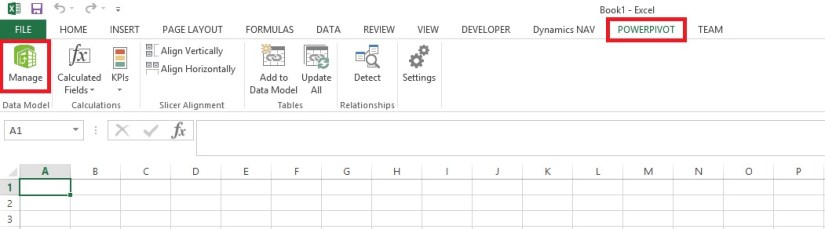
PowerPivot-4
This opens the PowerPivot for Excel window.
PowerPivot-5
In PowerPivot, on the Home tab, choose Get External Data, choose From Data Service, and then choose From OData Data Feed.

The Table Import Wizard opens.

PowerPivot-6
If your Microsoft Dynamics NAV implementation requires that you use a web service access key, you must specify the NavUserPassword credentials as described in the following steps:

In the Advanced dialog box, in the Security section, set the Integrated Security field to Basic. If your OData is configured to use SSL, then set the field to SSPL.

In the Password field, type the web service access key.

In the UserID field, type the user name for the Microsoft Dynamics NAV user account. For this walkthrough, use NavTest.

In the Source section, in the Service Document URL field, type the URL for the OData web service that you verified in the previous procedure, for example, http://localhost:7048/DynamicsNAV80/OData/.

In my case: – http://indel-axt5283n1.tecturacorp.net:8048/DynamicsNAV80/OData/

Choose the OK button to return to the Table Import Wizard.

In the Connect to a Data Feed page, in the Data Feed Url field, enter the OData URI that you verified in the previous procedure.
PowerPivot-7

Choose the Next button.

Important: The URI must end with a slash (/) as shown in the example.

Verify that Customer appears in the Source Table column.

Select the check box next to the Customer web service, and then choose Finish.
PowerPivot-8
After you see the Success message, choose the Close button.
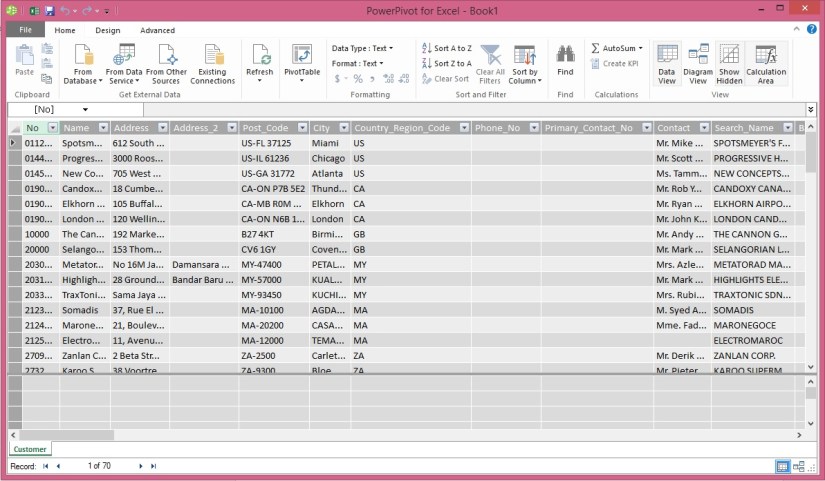
PowerPivot-9

The data from the Customer OData web service displays, and you can use the data to build pivot-based views in the Excel workbook.

Creating a PivotTable Containing Key Microsoft Dynamics NAV Data

In this procedure, you use the Excel workbook with data from the Customer web service to create a PivotTable from the worksheet. You select relevant fields and then organize and format the data to highlight strategic data. Building a pivot table is a way to select and arrange data so as to highlight and focus on key elements.

To create a PivotTable

In Excel, select the cell where you want the PivotTable located.

In the ribbon, choose the Insert tab, and then in the Tables group, choose PivotTable.

In the Create PivotTable dialog box, select Use an external data source, and then choose the Choose Connection button.

In the Existing Connections dialog box, on the Connections tab, under Connections in this Workbook, choose the data feed for your OData web service, and then choose the Open button.
PowerPivot-10

Choose the OK button to add the PivotTable to the Excel worksheet.

The PowerPivot Field pane on the right side includes a list of fields from the Customer web service that where imported from PowerPivot.

In the PowerPivot Field List pane, choose Location_Code.

Tip

To quickly find a field in the field list, type part or all of the field name in the Search text box that is above the list of fields, and then press Enter to highlight the first field that contains the text. You can then choose the right arrow to proceed to the next field, and so on.

Select the Balance_LCY field.

Select the Name field.

You can now see the data in the body of the worksheet, as shown in the following illustration.

The PivotTable shows customers by location and individual customer balances, and also adds the balances by location. To make the information more readable, you can update the headings on the PivotTable.
PowerPivot-11

Select the cell that has the heading Sum of Balance_LCY, and then, in the formula field, type Balance.

Select the cell that has the heading Row Labels, and then in the formula field, type Customers by location.

Select the empty cell that is below the Customers by location cell, and then, in the formula field, type Location not specified.

The above illustration shows how the worksheet looks after you make these changes.

Next Steps

Now that you have created your PivotTable, you can continue to enhance the data to make it more useful and readable. You can:

Add a column to the data that shows average balance by region.

Enhance data presentation with a graph.

Post the data in a Microsoft SharePoint environment with live data from Microsoft Dynamics NAV 2015.

Development Tips, Office Integration

Using Automation to Create a Graph in Microsoft Excel

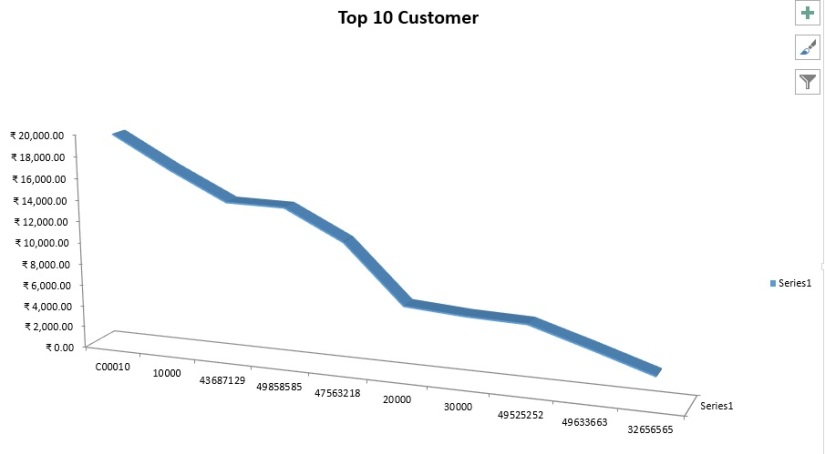
In this walkthrough, you will transfer data for top 10 Customers Sales Contribution to Microsoft Excel and create a graph.

This example shows how to handle enumerations by creating a graph in Excel that shows the distribution of Sales by Customer.

ExcelChart-1

You will run the codeunit directly from Object Designer. In a real application, you would call it from an appropriate place, such as from a menu or any other window.

About This Walkthrough

This walkthrough illustrates the following tasks:

  • Creating a codeunit that declares the Automation variables that are required for using Excel Automation.
  • Adding a function to calculate Top 10 Customers Sales Contribution.
  • Adding C/AL code to the codeunit to run the Automation object that opens Excel.
  • Adding C/AL code to the Automation codeunit to transfer data from a table record to Excel.
  • Adding C/AL code that creates a graph in Excel. 

Prerequisites 

To complete this walkthrough, you will need:

  • Microsoft Dynamics NAV 2015 with a developer license.
  • The CRONUS International Ltd. demo data company.
  • Microsoft Excel 2013 or Microsoft Excel 2010.

Creating the Codeunit and Declaring Variables

To create the codeunit and declare variables

  • To implement Automation in a codeunit, you define the Automation variables. To define an Automation variable, you specify an Automation server and the Automation object.
  • The language in the regional settings of your computer matches the language version of Microsoft Excel.
  • In Object Designer, choose Codeunit, and then choose the New button to create a new codeunit.
  • On the View menu, choose C/AL Globals.
  • On the Variables tab, add the following variables:

Note

For the Automation data type variables, the subtype Microsoft Excel 15.0/14.0 Object Library defines the Automation server, and the class specifies the Automation object of the Microsoft Excel 15.0/14.0 Object Library.

ExcelChart-2

Name DataType Subtype Length
xlApp Automation ‘Microsoft Excel 15.0 Object Library’.Application
xlBook Automation ‘Microsoft Excel 15.0 Object Library’.Workbook
xlSheet Automation ‘Microsoft Excel 15.0 Object Library’.Worksheet
xlChart Automation ‘Microsoft Excel 15.0 Object Library’.Chart
xlRange Automation ‘Microsoft Excel 15.0 Object Library’.Range
Cust Record Customer
Window Dialog
CustAmount Record Customer Amount
CustFilter Text
CustDateFilter Text 30
ShowType Option  [Sales (LCY),Balance (LCY)]
NoOfRecordsToPrint Integer
CustSalesLCY Decimal
CustBalanceLCY Decimal
MaxAmount Decimal
BarText Text 50
i Integer
TotalSales Decimal
TotalBalance Decimal
ChartType Option  [Bar chart,Pie chart]
ChartTypeNo Integer
ShowTypeNo Integer
ChartTypeVisible Boolean
Integer Record Integer
Customer Record Customer
CellNo1 Text 5
CellNo2 Text 5
  • Close the C/AL Globals window.

Adding the Code

Now you add the code for the codeunit.

To add the code

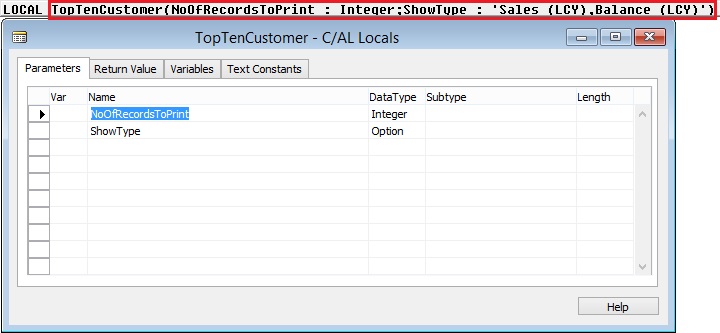
  • Add a Function to calculate Top 10 Customers Sales Contribution as:

ExcelChart-3
Add code to it as:

I have not used all the values, just shown this way also you can think of while you design any such code & functions.

Window.OPEN(Text000);

i := 0;

Cust.RESET;

IF Cust.FINDSET THEN

REPEAT

Window.UPDATE(1,Cust.”No.”);

Cust.CALCFIELDS(“Sales (LCY)”,”Balance (LCY)”);

IF (Cust.”Sales (LCY)” <> 0) OR (Cust.”Balance (LCY)” <> 0) THEN

BEGIN

CustAmount.INIT;

CustAmount.”Customer No.” := Cust.”No.”;

IF ShowType = ShowType::”Sales (LCY)” THEN BEGIN

CustAmount.”Amount (LCY)” := -Cust.”Sales (LCY)”;

CustAmount.”Amount 2 (LCY)” := -Cust.”Balance (LCY)”;

END ELSE BEGIN

CustAmount.”Amount (LCY)” := -Cust.”Balance (LCY)”;

CustAmount.”Amount 2 (LCY)” := -Cust.”Sales (LCY)”;

END;

CustAmount.INSERT;

IF (NoOfRecordsToPrint = 0) OR (i < NoOfRecordsToPrint) THEN

i := i + 1

ELSE BEGIN

CustAmount.FIND(‘+’);

CustAmount.DELETE;

END;

TotalSales += Cust.”Sales (LCY)”;

TotalBalance += Cust.”Balance (LCY)”;

ChartTypeNo := ChartType;

ShowTypeNo := ShowType;

END;

UNTIL Cust.NEXT = 0;

CustSalesLCY := Cust.”Sales (LCY)”;

CustBalanceLCY := Cust.”Balance (LCY)”;

Window.CLOSE;

IF CustAmount.FIND(‘-‘) THEN

REPEAT

CustAmount.”Amount (LCY)” := -CustAmount.”Amount (LCY)”;

Customer.GET(CustAmount.”Customer No.”);

Customer.CALCFIELDS(“Sales (LCY)”,”Balance (LCY)”);

IF MaxAmount = 0 THEN

MaxAmount := CustAmount.”Amount (LCY)”;

CustAmount.”Amount (LCY)” := -CustAmount.”Amount (LCY)”;

UNTIL CustAmount.NEXT = 0;

  • In the C/AL Editor, make call to above function by adding the following code to the OnRun trigger.

CustAmount.DELETEALL;

TopTenCustomer(10,ShowType::”Sales (LCY)”,ChartType::”Bar chart”);

  • Create an instance of Excel by adding the following code.

CREATE(xlApp, FALSE, TRUE);

  • Add a new workbook to Excel.

xlBook := xlApp.Workbooks.Add(-4167);

xlSheet:= xlApp.ActiveSheet;

xlSheet.Name := ‘Top 10 Customer’;

The following describes the code:

    • In the first line, you use the Add method of the Workbooks collection to return a new workbook. The attribute -4167 is the enumerator value of worksheets as they apply to Workbook objects.
    • In the second line, you use the ActiveSheet property of the Application class to ensure that what is done next affects the active sheet of the new workbook.
    • In the third line, you use the Name property to name the sheet.

Transferring Data

To transfer the data, you must calculate the data and transfer the results of the calculation.

To transfer data

  • In the C/AL Editor, on the codeunit, use following code to transfer data of Top 10 Customers to Excel. To transfer the data to Microsoft Excel, add the following code.

CellNo1 := ‘A1’;

CellNo2 := ‘B1’;

IF CustAmount.FINDSET THEN

REPEAT

CellNo1 := INCSTR(CellNo1);

xlSheet.Range(CellNo1).Value := CustAmount.”Customer No.”;

CellNo2 := INCSTR(CellNo2);

xlSheet.Range(CellNo2).Value := ABS(CustAmount.”Amount (LCY)”);

UNTIL CustAmount.NEXT = 0;

  • The final step is to create the graph. You will use the ChartWizard method to create chart. This is a fast and simple way to do it. You can more tightly control the design of the graph by setting it up using the methods and properties of the various Chart objects, such as ChartArea and Legend.

Creating the Graph

The final step is to create the graph. You will use the ChartWizard method to create chart. This is a fast and simple way to do it. You can more tightly control the design of the graph by setting it up using the methods and properties of the various Chart objects, such as ChartArea and Legend.

To create the graph

  •   In the C/AL Editor, on the current codeunit, define a range for the data in the graph.

xlRange := xlSheet.Range(‘A2:’+FORMAT(CellNo2));

  • Add a new chart sheet and give it a name.xlChart.Name := ‘ Top 10 Customer – Graph’;

xlChart := xlBook.Charts.Add;

xlChart.Name := ‘ Top 10 Customer – Graph’;

  • Create the graph.

xlChart.ChartWizard(xlRange,-4101,7,2,1,0,1,’Top 10 Customer’);

The following table describes the optional arguments that are used in the ChartWizard method.

Argument Description Value in method call
Source The range that contains the source data for the new chart. xlRange – The object returned by xlSheet.Range(‘A2:C3’).
Gallery The chart type. -4101 – The enumerator for the Chart Shown above.
Format The option number for the built-in auto formats. 7
PlotBy An integer specifying whether the data for each series is in rows or columns. 2 – The enumerator for the xlRows XlRowCol enumerator.
CategoryLabels An integer specifying the number of rows or columns within the source range that contains category labels. 1 – There is one row with category labels (the department names).
SeriesLabels An integer specifying the number of rows or columns within the source range that contains series labels. 0 – There are no series labels in your data.
HasLegend TRUE to include a legend. 1
Title VARIANT with the title of the chart. You pass a string such as ‘Top 10 Customer’.
  • Make Excel visible by adding the following code.

xlApp.Visible := TRUE;

Excel produces a General Protection Fault error when you close a new Excel worksheet that is created when Excel is invisible. To resolve this, you can make Excel visible immediately after you create a new worksheet. You can also make Excel visible just before you create a new Excel worksheet and then make it invisible again immediately after creating the new Excel worksheet. In this case, you would add the following code.

xlApp.Visible := TRUE;

xlBook := xlApp.Workbooks.Open(FileName);

xlApp.Visible := FALSE;

  •  Clearing the Temp Table by adding the following code.

CustAmount.DELETEALL;

  • Complete code in OnRun trigger should look like below:

ExcelChart-4
Saving and Running the Codeunit

You can test the codeunit for creating the graph by running the codeunit from Object Designer.

To save and run a codeunit

  1. On the File menu, choose Save.
  2. In the Save As window, enter an ID and name, and then choose the OK
  3. In Object Designer, select the codeunit, and then choose the Run

The Microsoft Excel graph should appear. As show above in beginning of the post.

Note

If you get an error states Old format or invalid type library, then make sure that the language in the regional settings of your computer matches the language version of Microsoft Excel.

Below detailed reference to the values used in above code:


XlChartType

Name Value Description
xl3DArea -4098 3D Area.
xl3DAreaStacked 78 3D Stacked Area.
xl3DAreaStacked100 79 100% Stacked Area.
xl3DBarClustered 60 3D Clustered Bar.
xl3DBarStacked 61 3D Stacked Bar.
xl3DBarStacked100 62 3D 100% Stacked Bar.
xl3DColumn -4100 3D Column.
xl3DColumnClustered 54 3D Clustered Column.
xl3DColumnStacked 55 3D Stacked Column.
xl3DColumnStacked100 56 3D 100% Stacked Column.
xl3DLine -4101 3D Line.
xl3DPie -4102 3D Pie.
xl3DPieExploded 70 Exploded 3D Pie.
xlArea 1 Area
xlAreaStacked 76 Stacked Area.
xlAreaStacked100 77 100% Stacked Area.
xlBarClustered 57 Clustered Bar.
xlBarOfPie 71 Bar of Pie.
xlBarStacked 58 Stacked Bar.
xlBarStacked100 59 100% Stacked Bar.
xlBubble 15 Bubble.
xlBubble3DEffect 87 Bubble with 3D effects.
xlColumnClustered 51 Clustered Column.
xlColumnStacked 52 Stacked Column.
xlColumnStacked100 53 100% Stacked Column.
xlConeBarClustered 102 Clustered Cone Bar.
xlConeBarStacked 103 Stacked Cone Bar.
xlConeBarStacked100 104 100% Stacked Cone Bar.
xlConeCol 105 3D Cone Column.
xlConeColClustered 99 Clustered Cone Column.
xlConeColStacked 100 Stacked Cone Column.
xlConeColStacked100 101 100% Stacked Cone Column.
xlCylinderBarClustered 95 Clustered Cylinder Bar.
xlCylinderBarStacked 96 Stacked Cylinder Bar.
xlCylinderBarStacked100 97 100% Stacked Cylinder Bar.
xlCylinderCol 98 3D Cylinder Column.
xlCylinderColClustered 92 Clustered Cone Column.
xlCylinderColStacked 93 Stacked Cone Column.
xlCylinderColStacked100 94 100% Stacked Cylinder Column.
xlDoughnut -4120 Doughnut.
xlDoughnutExploded 80 Exploded Doughnut.
xlLine 4 Line.
xlLineMarkers 65 Line with Markers.
xlLineMarkersStacked 66 Stacked Line with Markers.
xlLineMarkersStacked100 67 100% Stacked Line with Markers.
xlLineStacked 63 Stacked Line.
xlLineStacked100 64 100% Stacked Line.
xlPie 5 Pie.
xlPieExploded 69 Exploded Pie.
xlPieOfPie 68 Pie of Pie.
xlPyramidBarClustered 109 Clustered Pyramid Bar.
xlPyramidBarStacked 110 Stacked Pyramid Bar.
xlPyramidBarStacked100 111 100% Stacked Pyramid Bar.
xlPyramidCol 112 3D Pyramid Column.
xlPyramidColClustered 106 Clustered Pyramid Column.
xlPyramidColStacked 107 Stacked Pyramid Column.
xlPyramidColStacked100 108 100% Stacked Pyramid Column.
xlRadar -4151 Radar.
xlRadarFilled 82 Filled Radar.
xlRadarMarkers 81 Radar with Data Markers.
xlStockHLC 88 High-Low-Close.
xlStockOHLC 89 Open-High-Low-Close.
xlStockVHLC 90 Volume-High-Low-Close.
xlStockVOHLC 91 Volume-Open-High-Low-Close.
xlSurface 83 3D Surface.
xlSurfaceTopView 85 Surface (Top View).
xlSurfaceTopViewWireframe 86 Surface (Top View wireframe).
xlSurfaceWireframe 84 3D Surface (wireframe).
xlXYScatter -4169 Scatter.
xlXYScatterLines 74 Scatter with Lines.
xlXYScatterLinesNoMarkers 75 Scatter with Lines and No Data Markers.
xlXYScatterSmooth 72 Scatter with Smoothed Lines.
xlXYScatterSmoothNoMarkers 73 Scatter with Smoothed Lines and No Data Markers.

expression .ChartWizard(Source, Gallery, Format, PlotBy, CategoryLabels, SeriesLabels, HasLegend, Title, CategoryTitle, ValueTitle, ExtraTitle)

expression A variable that represents a Chart object.

Parameters

Name Required/Optional Data Type Description
Source Optional Variant The range that contains the source data for the new chart. If this argument is omitted, Microsoft Excel edits the active chart sheet or the selected chart on the active worksheet.
Gallery Optional Variant One of the constants of XlChartType specifying the chart type.
Format Optional Variant The option number for the built-in autoformats. Can be a number from 1 through 10, depending on the gallery type. If this argument is omitted, Microsoft Excel chooses a default value based on the gallery type and data source.
PlotBy Optional Variant Specifies whether the data for each series is in rows or columns. Can be one of the following XlRowCol constants: xlRows or xlColumns. Values can be [1 or 2]
CategoryLabels Optional Variant An integer specifying the number of rows or columns within the source range that contain category labels. Legal values are from 0 (zero) through one less than the maximum number of the corresponding categories or series.
SeriesLabels Optional Variant An integer specifying the number of rows or columns within the source range that contain series labels. Legal values are from 0 (zero) through one less than the maximum number of the corresponding categories or series.
HasLegend Optional Variant True to include a legend.
Title Optional Variant The chart title text.
CategoryTitle Optional Variant The category axis title text.
ValueTitle Optional Variant The value axis title text.
ExtraTitle Optional Variant The series axis title for 3-D charts or the second value axis title for 2-D charts.

Remarks

If Source is omitted and either the selection isn’t an embedded chart on the active worksheet or the active sheet isn’t an existing chart, this method fails and an error occurs.

You can use other values from above table to create graph of your choice.

Development Tips, Office Integration, Report

Using Automation to Write a Letter in Microsoft Office Word

Automation lets you use the capabilities and features of Microsoft Office products, such as Microsoft Word or Microsoft Excel, in your Microsoft Dynamics NAV application.

Today we will implement Word Automation from a customer card in the Microsoft Dynamics NAV Windows client.

Note: The Microsoft Dynamics NAV Web client does not support automation.

Most information that we need to transfer to Word for this example is in the Customer table. The Customer table contains a FlowField called Sales (LCY) that contains the aggregated sales for the customer.

In this example we are learning about Automation, so we will use the existing value. In a real customer installation, we would need to set up an appropriate date filter to get the sales for the past year only.

We also need to retrieve the information about our own company that we will use in the letterhead and in the greeting of the letter. This information is contained in the Company Information and User tables.

  • The Automation server must be installed on the computer that compiles an object that uses Automation. If you must recompile and modify an object on a computer that does not have the Automation server installed, then you must modify the code to compile it again. We recommend that you isolate code that uses Automation in separate codeunits.
  • Performance can be an issue if extra work is needed to create an Automation server with the CREATE system call. If the Automation server is to be used repeatedly, then you will gain better performance by designing your code so that the server is created only once instead of making multiple CREATE and CLEAR calls).

Performance can be improved by putting the code on the customer card because you do not have to open and close Word for each letter that is created in the session.

You can work around this problem. If Word is already open when it is called from the code, then the running instance is reused. You can manually open Word or do not close Word after creating the first letter.

We will extract and transfer data one customer at a time. We will also initiate this processing and the subsequent processing in Word from the customer card.

We will insert fields into the Word template and give these fields convenient mnemonic names that correspond to the names of the record fields that we are using.

To make this work, C/AL code must make two extra calls to Microsoft Office Word. You must call the ActiveDocument.Fields.Update method before using the fields. After you have transferred all the information, you must call the ActiveDocument.Fields.Unlink method. This ensures that you can successfully use the Word fields as placeholders.

In addition, while you can name the Customer or Address fields, you must reference them by indexing into the Fields collection of the document. This can make the C/AL code harder to understand.

Creating the Word Template for Use by Automation

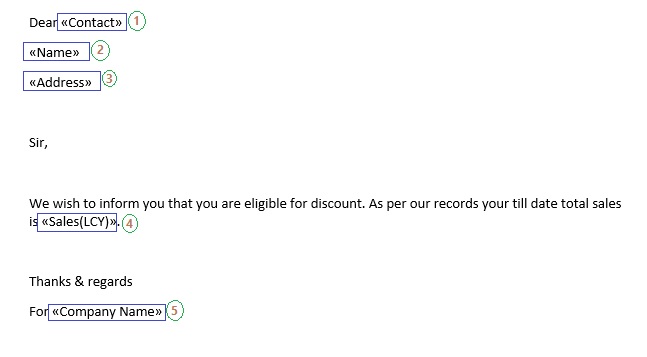
First, task is to create a Word template that we will use to create letters to customers that qualify for a discount. To create the template, we will add mail merge fields for displaying data that is extracted from Microsoft Dynamics NAV that you want included in the customer letter, such as the customer’s name, contact, and total sales.

You will create and save the template on the computer running the Microsoft Dynamics NAV Windows client, because you will configure the automation object to run on the client.

  • On the computer running Microsoft Dynamics NAV Windows client, open Word and create a new document.

WordAutomation-1

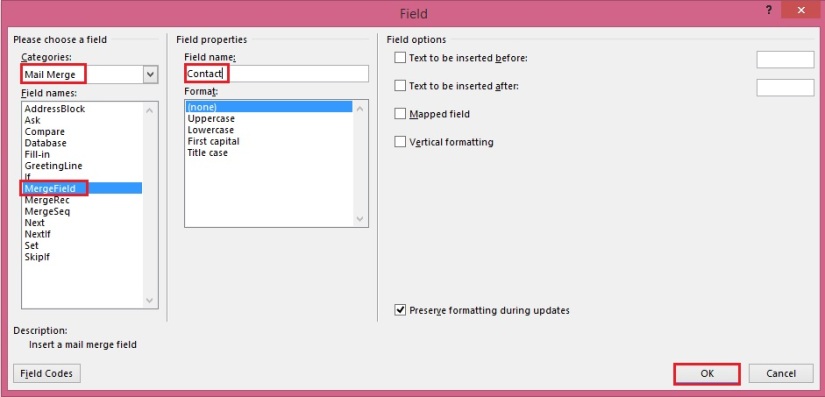
  • Choose where you want to insert the fields. Then, on the Insert tab, in the Text group, choose Quick Parts, and then choose Field.

WordAutomation-2

  • In the Categories list, select Mail Merge.
  • In the Field names list, select MergeField.
  • In the Field Name box under Field Properties, type Contact. This field will display the name of your contact person at the customer site as taken from the Customer table.
  • Choose OK to add the field.

WordAutomation-3

  • Repeat steps as above to add the remaining fields as follows:
Field name Description Underlying table
Name The name of the customer. Customer
Address The address of the customer. Customer
Sales (LCY) The total amount that the customer has purchased from you. Customer
Company Name The name of your company. Company Information
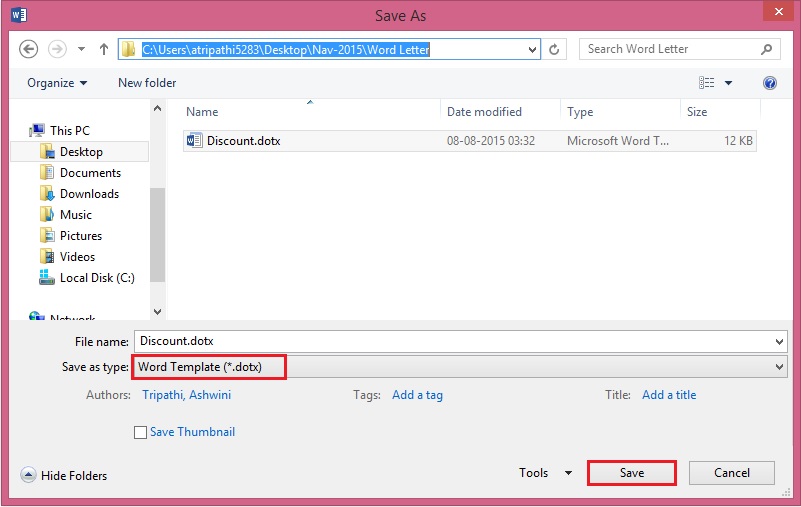
  • Save the Word document as a template with the name Discount.dotx in folder of your choice.

WordAutomation-4

Creating the Codeunit and Declaring the Variables

The next step is to create the codeunit that calls Word and creates the letter.

To create the codeunit

  • In Object Designer, choose Codeunit, and then choose the New button to create a new codeunit.
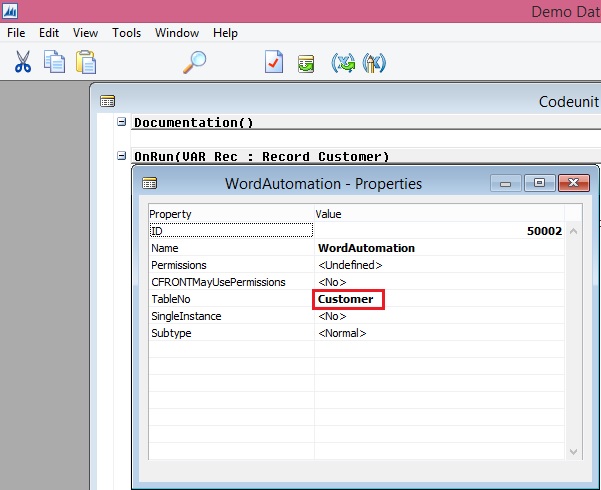
  • On the View menu, choose Properties to open the Properties window of the codeunit.
  • In the TableNo field, choose the AssistEdit button to open the Table List window.
  • In the Table List window, select the Customer table, and then choose OK.

WordAutomation-5

  • Close the Properties window.

To declare the variables

  • Choose the OnRun Trigger and on the View menu, choose C/AL Locals, and then choose the Variables tab.
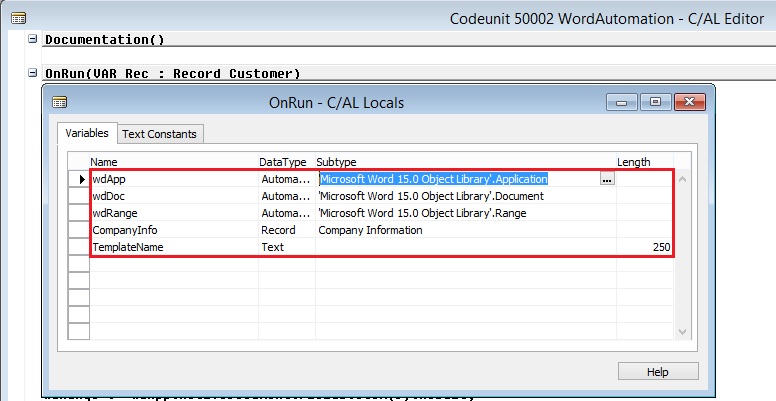
  • On a blank line, type wdApp in the Name field and set the Data Type field to Automation.

Note

When you create an Automation variable, some hidden events are also created for it. If you want to delete the variable, be aware that the events are also not deleted. This can cause issues if you then create a variable with the same name.

  • In the Subtype field, choose the AssistEdit button. The Automation Object List window is displayed.
  • In the Automation Server field, choose the AssistEdit button.
  • In the Automation Server List, select Microsoft Word 15.0 Object Library if you are running Word 2013, or select Microsoft Word 14.0 Object Library if you are running Word 2010, and then choose OK.
  • From the list of classes in the Automation Object List, select the Application class, and then choose OK.

WordAutomation-6

  • Repeat steps above to add the following two Automation variables:
Name Data type Subtype Class
wdDoc Automation Microsoft Word 14.0/15.0 Object Library Document
wdRange Automation Microsoft Word 14.0/15.0 Object Library Range
  • Add the following variables.
Name Data type Subtype Length
CompanyInfo Record Company Information
TemplateName Text 250
  • Close the C/AL Locals window.

Writing the C/AL Code

Before you start writing the C/AL code that uses Automation, you must do some initial processing. You start by calculating the Sales (LCY) FlowField. Then, you check whether the customer qualifies for a discount. Finally, you retrieve the information from the Company Information and User tables that you use to fill in some of the fields in the letter.

To write the C/AL code

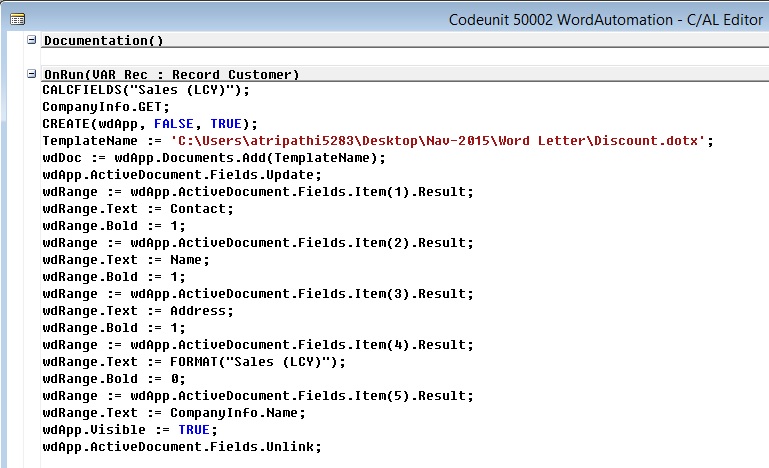
  • In the C/AL Editor, add the following lines of code to the OnRun section.
  CALCFIELDS(“Sales (LCY)”);CompanyInfo.GET;
  • To create an instance of Word before using it, enter the following line of code.
 CREATE(wdApp, FALSE, TRUE);
  • This statement creates the Automation object with the wdApp variable.
    1. The first Boolean parameter in the statement (FALSE) tells the CREATE function to try to reuse an already running instance of the Automation server that is referenced by Automation before creating a new instance. If you change this to TRUE, then the CREATE function always creates a new instance of the Automation server.
    2. The second Boolean parameter in the statement creates the Automation object on the client. This is necessary to use this codeunit on a page in the Microsoft Dynamics NAV Windows client.
  • Enter the following lines of code to add a new document to Word that uses the template that you designed earlier. If required, replace C:\Users\atripathi5283\Desktop\Nav-2015\Word Letter with the correct folder path to the template that you defined in the procedure.
 TemplateName := C:\Users\atripathi5283\Desktop\Nav-2015\Word Letter\Discount.dotx’;wdDoc := wdApp.Documents.Add(TemplateName);wdApp.ActiveDocument.Fields.Update;
  • Because the Add method of the Documents collection requires that you pass the path to the template by reference, you must set up the TemplateName variable to hold this information. You will get a compilation error if you put the path into the call as a literal string.
  • The Documents property returns a Documents collection that represents all open documents. You can also see that the Documents collection object has an Add method, and that the Add method has the following syntax.
  • expression.Add(Template, NewTemplate, Document Type, Visible)
  • expression is a required argument, and it must be an expression that returns a Documents object. All the arguments are optional. You will use Template to open a new document that is based on your template.
  • For the syntax in the C/AL Symbol Menu, note that the Documents property returns an object of type DOCUMENTS, which is a user-defined type. The property returns a Documents class or IDispatch interface. This information helps the compiler perform a better type check during compilation. The following statement can also pass both the compile-time and the run-time type checks.
  • wdDoc := wdApp.Documents.Add(TemplateName);
  • Finally, the Add method returns a Document class. While you did not need to declare a C/AL variable for the interim Documents class, you have declared a variable for the wdDoc return value,.
  • The third line contains a call that must be made to ensure that the template works as intended.
  • wdApp.ActiveDocument.Fields.Update;

Transferring Data to Word

Now you can transfer the actual data from the Customer record to the placeholder fields in the Word document.

You have set up the first three fields in the template so that they can contain the contact, name, and address of the customer and you can transfer the data.

To transfer data to Word

  • Transfer the data by adding the following lines of code.
 wdRange := wdAPP.ActiveDocument.Fields.Item(1).Result; wdRange.Text := Contact; wdRange.Bold := 1; wdRange := wdAPP.ActiveDocument.Fields.Item(2).Result; wdRange.Text := Name; wdRange.Bold := 1; wdRange := wdAPP.ActiveDocument.Fields.Item(3).Result; wdRange.Text := Address; wdRange.Bold := 1;
  • You cannot use the fields directly as variables and make an assignment such as Fields.Item(3) := Address. Instead, you use the Result property of the field. This property returns the result of the field as a range. You place this range in the wdRange Automation variable that you declared.
  • You then set the Text property of the range to the desired values, which is the name of your contact person and the name and address of the customer. Finally, you add bold formatting.
  • The data you are transferring must be in text format. If it is not in text format, then you get a compilation error. wdRange.Text expects arguments to be of type BSTR, which maps to either Text or Code. This means that any data that is not Text or Code must be converted before it is passed to Word. To convert a field to Text, you use the FORMAT function. All the fields that are transferred in this step are in text format, so no conversion is needed and the FORMAT function is not used. However, in this example, you also need to transfer the Sales (LCY) field, which is a Decimal field. To see how to convert the Sales (LCY) field, go to the next step.
  • To transfer and format the data from the Sales (LCY) field, add the following code.
 wdRange := wdAPP.ActiveDocument.Fields.Item(4).Result;wdRange.Text := FORMAT(“Sales (LCY)”);wdRange.Bold := 0;
  • To transfer the information from the Company Information table, add the following code.
 wdRange := wdApp.ActiveDocument.Fields.Item(5).Result;wdRange.Text := CompanyInfo.Name;
  • To complete the processing in Word, add the following code.
 wdApp.Visible := TRUE;wdApp.ActiveDocument.Fields.Unlink;
  • The first statement opens Word and shows you the letter that was created. The second statement makes the fields work as placeholders.

WordAutomation-7

  • Save and compile the codeunit

To-Do List

Although this code will work, you must add a few things to make it complete:

  • We recommend that you do not use a hardcoded template name. You should keep the template name in a table, and the user should select it from a page. You can then have different templates for different types of letters that you want to send to your customers.
  • You should add some error-handling code. For example, the CREATE call fails if the user does not have Word installed or if the installation has been corrupted. You should check the return value of CREATE and give an appropriate message if it fails.
  • The user should get a message if the customer does not qualify for the discount. In the example, the codeunit closes without any message.

Calling the Codeunit from the Customer Card

The final task is to ensure that you can call the codeunit from the Customer Card page in the Microsoft Dynamics NAV Windows client.

To call the codeunit from the Customer card page in the Microsoft Dynamics NAV Windows client

  • Open Object Designer, and then choose Page.
  • Select the Customer Card page and then choose Design.
  • On the View menu, choose Page Actions.
  • To add a new action, locate the action container with the subtype set to ActionItems.
  • Right-click the next line after the ActionItems container, and then choose New.
  • In the Caption field of the new line, type Word Letter.
  • Set the Type field to Action.
  • With the new action selected, on the View menu, choose Properties.
  • In the RunObject field, type codeunit Discount Letter.

Note

If you saved the codeunit that you created in the previous procedure under a different name, then substitute Discount Letter with the name that you used.

  • Use the arrow buttons to make sure that the new action is indented only once from the ActionItems container above it

WordAutomation-8

  • Save and compile the Customer Card page.

To run the Customer Card and view the Word letter

  1. In Object Designer, choose the Page
  2. Select the Customer Card page, and then choose Run.
  3. In the ribbon, on the Actions tab, choose the Word Letter

The letter document opens in Word.

WordAutomation-9

Next Steps

The letter that you have just created only contains five fields and sample body text. Before you can use this letter in an actual situation, you will need to add some more fields, such as the name and address of your own company, the date, and the currency code, and the main text of the letter. It will also need some formatting to make it look more attractive. If you alter the order in which the fields appear in the template, you must change the numbering of the fields in the codeunit to ensure that the correct data is inserted into the appropriate fields.


Office Integration

Integrating with Microsoft OneNote With Navision 2015

You can set up Microsoft Dynamics NAV to work with Microsoft OneNote.

For example, you can use OneNote integration to synchronize notes from a mobile OneNote installation with Microsoft Dynamics NAV. You can also use OneNote to share pictures, recordings, and other instructions across a company.

When you set up OneNote integration, you can enable adding notes to a particular record or to a complete page

Note: You cannot set up Microsoft Dynamics NAV to work with OneNote in multitenant deployments.

With Microsoft OneNote integration you can attach notes to customers, items, or invoices.

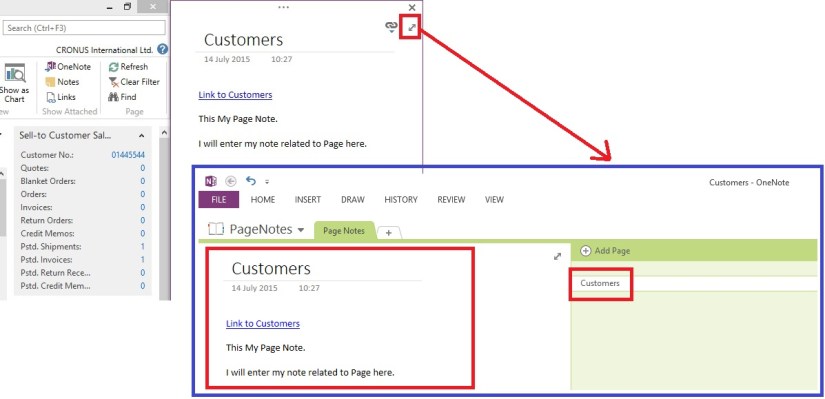
OneNote notes can be created for a specific record, but also for a whole page depending on the setup.

You can attach notes, reminders, or pictures to a specific record such as a customer. You can also create a note attached to a whole page, so there are separate instructions about how to deal with customers, items, or journals.

Pages notes can only be used on pages that are based on a source table. This means that, for example, the Role Center page cannot use page notes.

Note: OneNote integration lets users share their OneNote repository, which means that information in a shared OneNote repository can be read by all persons having access to that repository.

Let’s start with creating background which we will use in Setting up our solution, I am using   Local folders to configure my OneNote.

OneNote-1

Here I have created two Folders

  1. PageNotes
  2. RecordNotes

How to access PageNote & RecordNote.

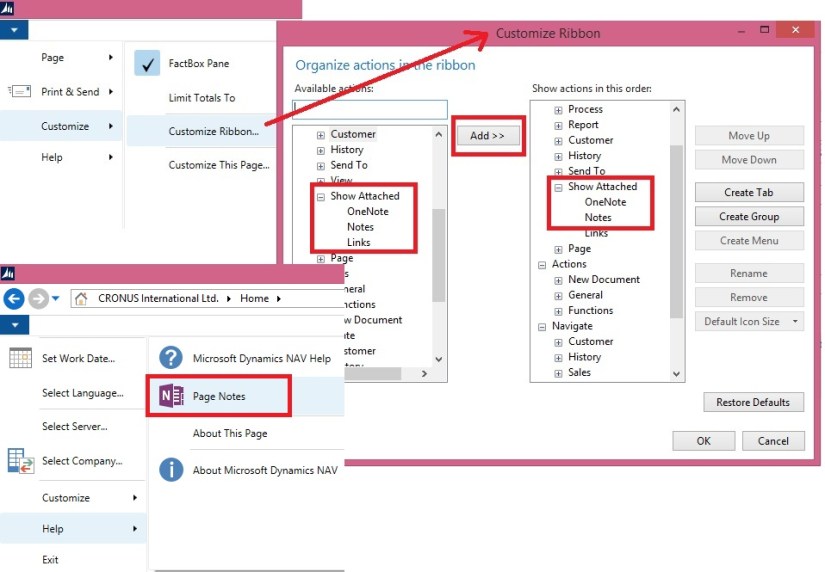
If OneNote not visible on Pages you can add the same as below:

OneNote-3

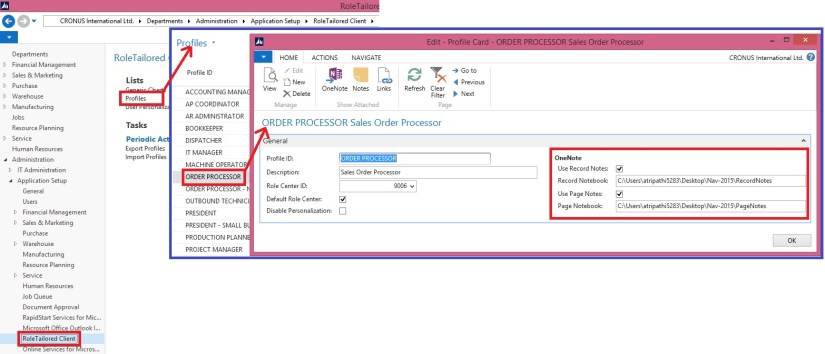
To set up OneNote integration for a group of users

  1. In the Search box, enter Profiles, and then choose the related link.
  2. Select the profile to make the OneNote adjustments for.
  3. On the Home tab, choose Edit.
  4. Select the Use Record Notes check box.
  5. In the Record Notebook field, enter the path where Microsoft Dynamics NAV should access the notebook.

OneNote-2

Note: You can find this information in Microsoft OneNote using the File tab. Select the OneNote book that you want to use, this can be shared among the books listed in Notebook Information or you can create a new one. Copy the location path for the notebook.

You may want to use customization to promote the OneNote action to the ribbon for easy accessibility.

If want to us Page Note too follow below steps:

  1. Select the Use Pages Notes check box.
  2. In the Page Notebook field, enter the path where Microsoft Dynamics NAV should access the notebook.
  3. Choose the OK

Note: The RoleTailored client must be restarted for the changes to have effect.

Using Record Notes

  1. From any Page Select OneNote, Note For selected record will be available to record.

OneNote-4

Your One Note File is created in the specified Folder:

OneNote-5

Accessing the Record Notes:

OneNote-6

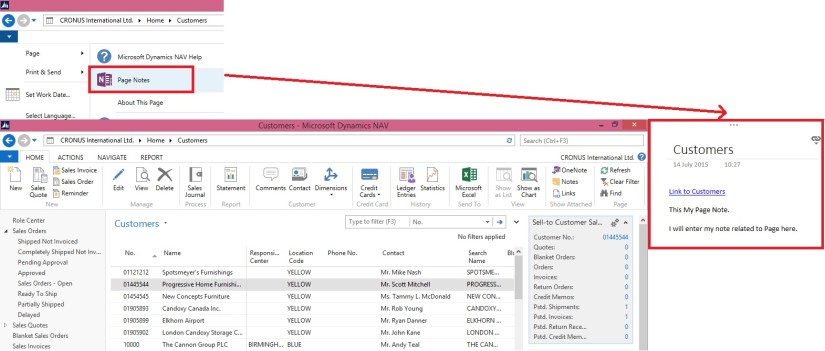
Using Page Notes

  1. From any Page Select PageNote, Note For active Page will be available to page.

OneNote-7

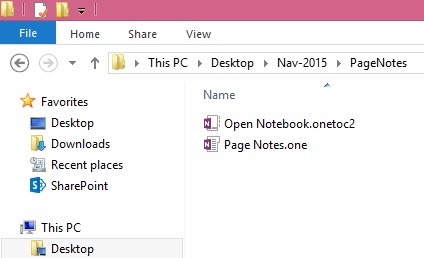
Your Page Note File is created in Specified folder

OneNote-8

Accessing the Page Note

OneNote-9

Try using it, it’s Simple and Very useful.

Office Integration

OFFICE 365 INTEGRATION IN NAV 2015 – Word/Excel/SharePoint

If you have signed up for Office 365, Microsoft Dynamics NAV can use this service to open and save documents. For example, when you export a report to Excel and save it on Office 365, Microsoft Dynamics NAV can use Excel Online that your Office 365 account uses to open the document.

Before you can use Office 365 and SharePoint Online with Microsoft Dynamics NAV, you must configure the service in Microsoft Dynamics NAV.

If you want to use the same folder to store temporary files for all users, you must specify a shared user account. Otherwise, each user’s temporary files are stored in their personal document repository on the SharePoint site.

Let us first understand the details before we start with Setup for SharePoint Shared Folder.

Your IT can help you configuring and assigning suitable rights to access. Although you can explore and help yourself. Since we are concentrating on Navision so we will not go in details for Share point.

Just to make understand I will be only covering top level information.

In this example I assume you already have up and running site for Document Sharing in SharePoint 2013 – 365 Online.

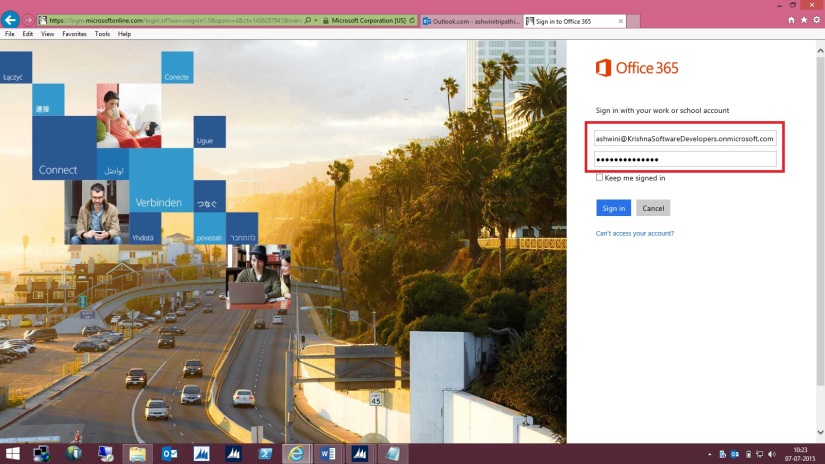
Here I am logging in to Office 365 – Online registered by me for demo purpose. You can register for free trial to explore the same in more details.

SharePoint-1

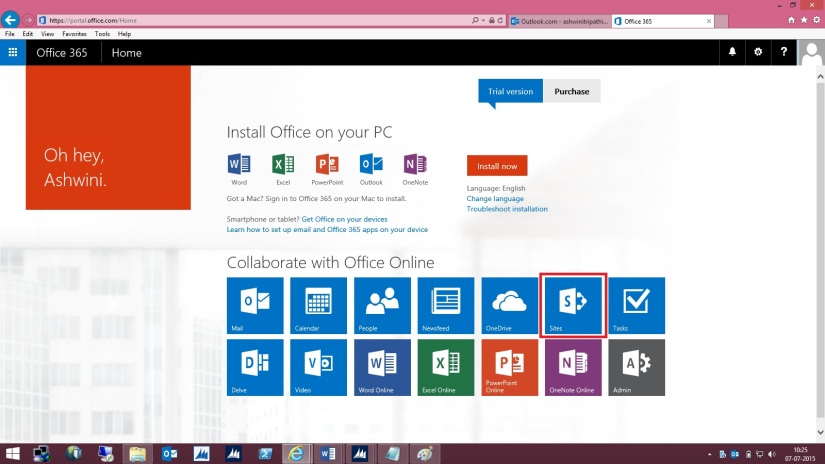
My Opening screen looks as one below.

SharePoint-2

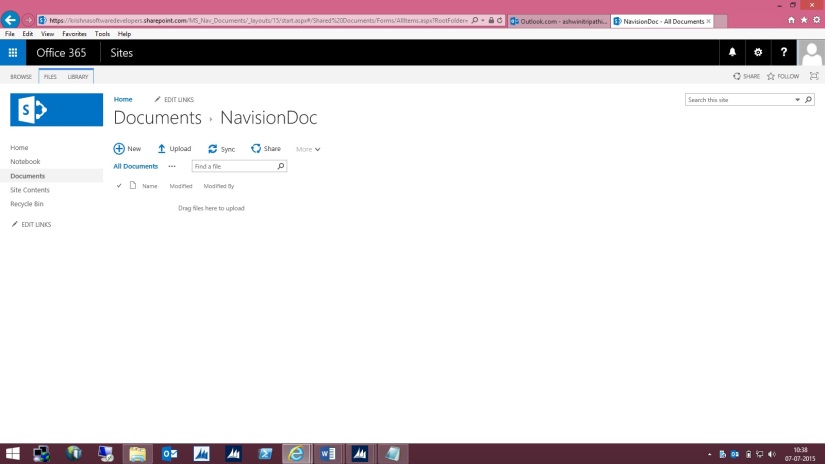
I select SharePoint Site to continue. Below is my SharePoint Opening screen. I will select my site which I have created for this demo and file sharing with other users in my organization.

SharePoint-3

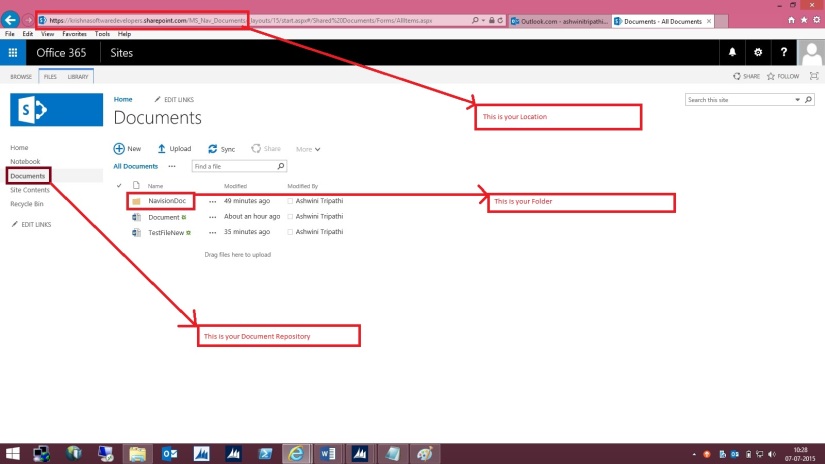
Let us understand different parts which will help configuring our Online Document Storage Configuration in Navision 2015.

SharePoint-4

Here I am in my Folder at Lower level where all my files will be stored and shared with my other colleges.

SharePoint-5

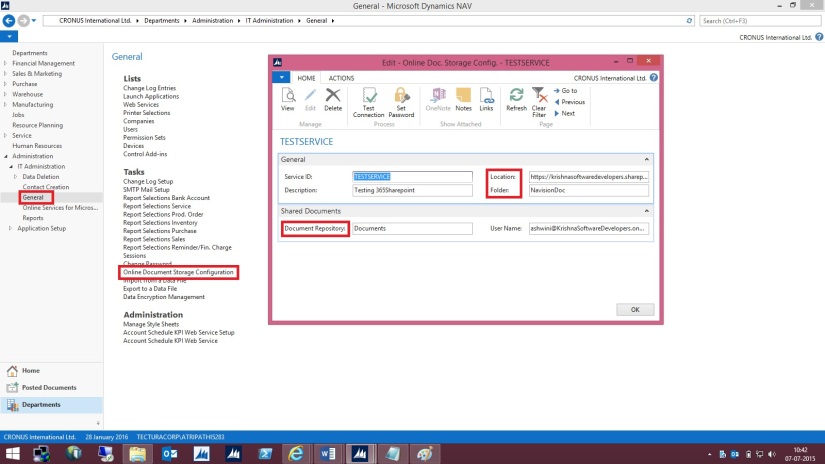
Open “Online Document Storage Configuration” from path shown in below screen.

SharePoint-6


Specify the Service Name of your choice or use Default provided by the System.


Fill the Location to your SharePoint site: Specifies the unified resource indicator (URI) for your site on SharePoint Online, such as [https://krishnasoftwaredevelopers.sharepoint.com/MS_Nav_Documents] in my case I will use this.


Fill the Folder field which specifies the folder in the document repository for this document service that you want documents to be stored in.


This field is required. If you have not already created a subfolder in your document repository, you must create one now, and then specify it in the Folder field.


The Document Repository field includes the top-level folder in the document repository that your document service provides. The Folder field specifies a subfolder so that you can keep business documents and drafts separate from pictures and other shared documents.


For example, if the Document Repository field is set to [Documents], the Folder field can be set to [NavisionDoc] as per my example discussed above.


When a user exports data to Excel, for example, Microsoft Dynamics NAV saves the temporary file at the location that is specified in the Document Repository and Folder fields, such as

[https://krishnasoftwaredevelopers.sharepoint.com/MS_Nav_Documents/Documents/NavisionDoc]


Fill Document Repository field: Specifies the name of the document library, such as [Document]


Fill User Name field: Specifies the account that Microsoft Dynamics NAV Server must use to log on to the document service.


I would recommend that you specify a different user name than the administrative account. This helps reduce the risk of users accessing administrative settings, for example. For example, if your user name as an administrator is Administrator@KrishnaSoftwareDevelopers.onmicrosoft.com,

then the user name for Microsoft Dynamics NAV Server can be Nav@KrishnaSoftwareDevelopers.onmicrosoft.com or any of the regular user names that you have created.

SharePoint-7


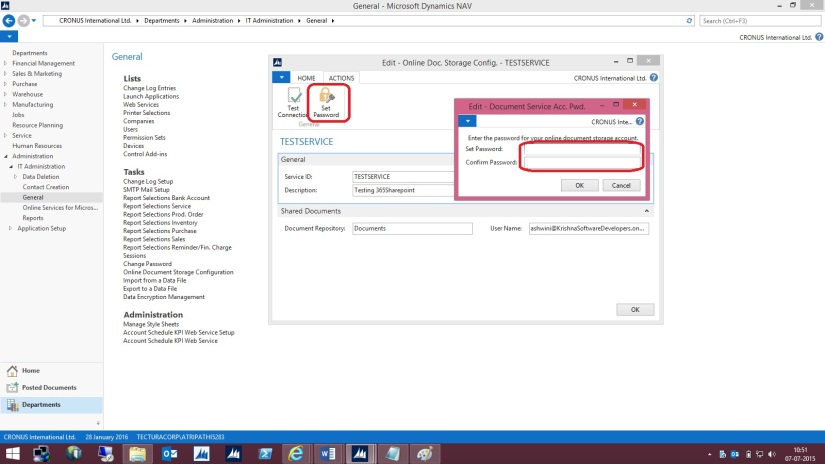
On the Actions tab, in the General group, choose Set Password.


In the window that appears, specify and confirm the password for the account    that you specified in the User Name field. Choose the OK button.


When you have set up the service, you can test whether that configuration is valid.

SharePoint-8


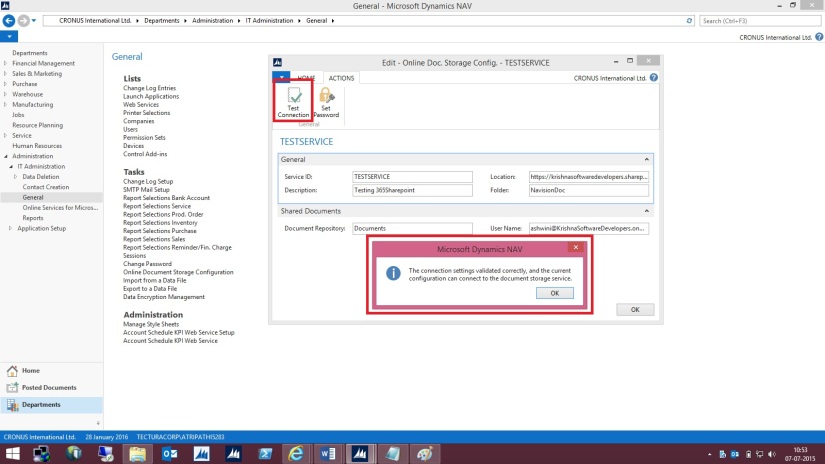
On the Actions tab, in the General group, choose Test Connection.


A message displays the result of the test.

SharePoint-9


The above message confirms we can now save documents on our SharePoint.


Let us check a sample as below:
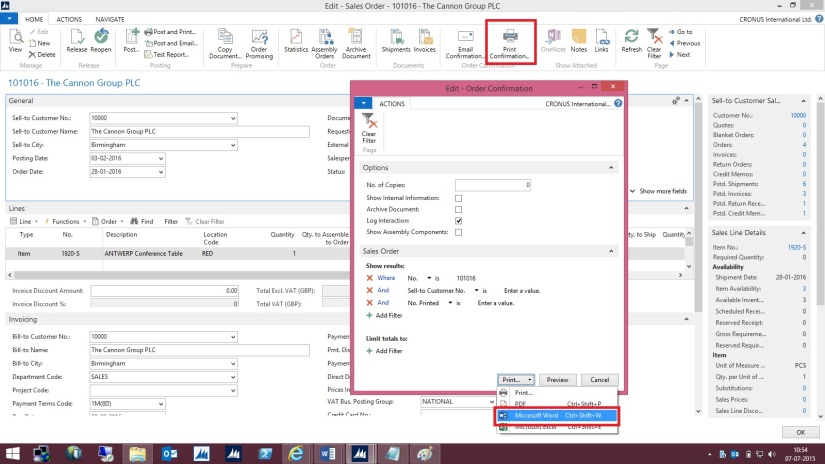
Open the Document and Execute the report available.
While Running the Report I specify I want to Print with Microsoft Word.

SharePoint-10


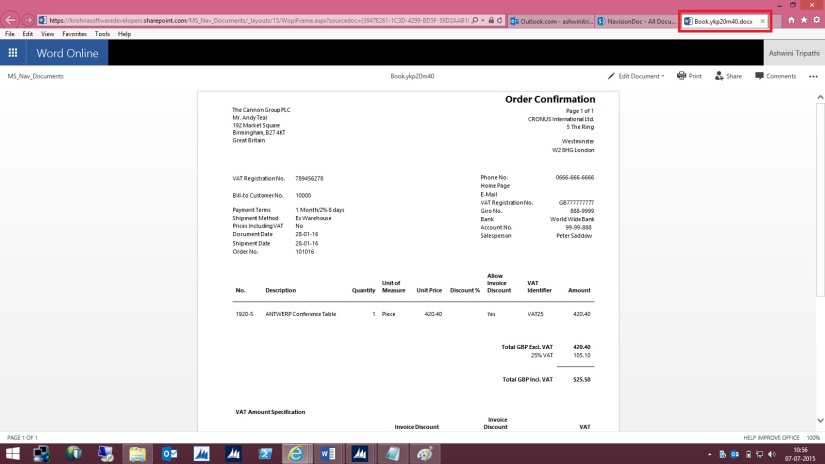
Document will be generated and opened in Word – Office – 365. Temp file name is given to the file. Close the File as it is auto Saved by Office 365 Word Application.

SharePoint-11


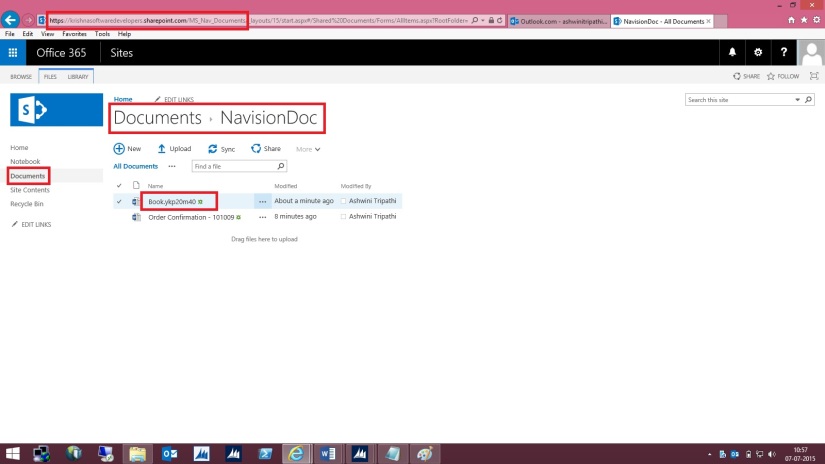
Browse to your SharePoint Folder configured above, you will see the Word file is now available in this Folder.

SharePoint-12


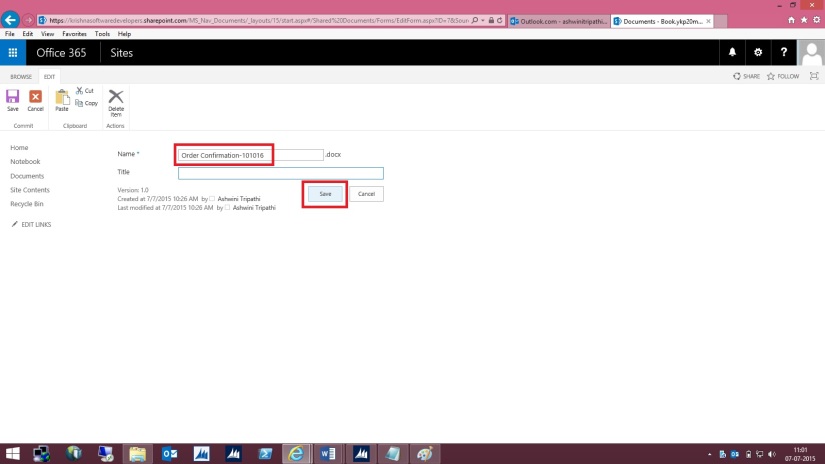
Right Click on Name of the File and Rename with some meaning full Name as shown below.

SharePoint-13


Give the Name to the File and press Save Button.

SharePoint-14


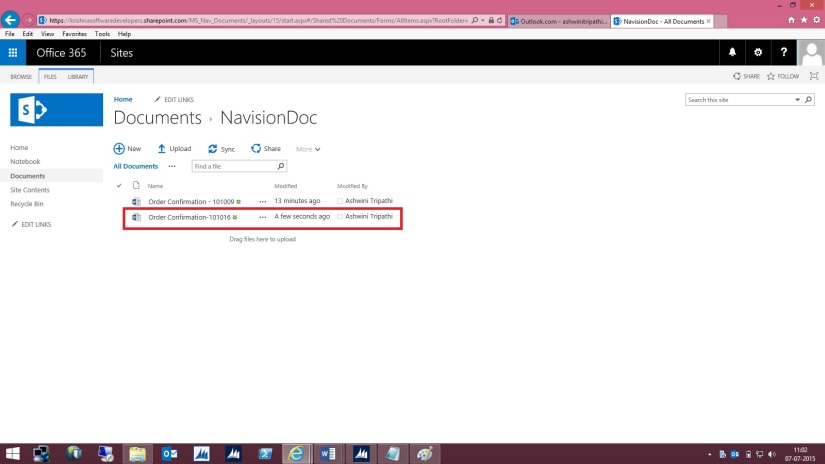
Here is the File after Rename.

SharePoint-15


This way when ever you Print your document from Navision in Word or Excel it will get saved in this Folder.

By setting appropriate access rights you can share the files between you colleges in your Organization.

 Please check SharePoint stuffs with you admin or appropriate authority in your organization.

Office Integration

SMTP Setup errors while setting Office 365

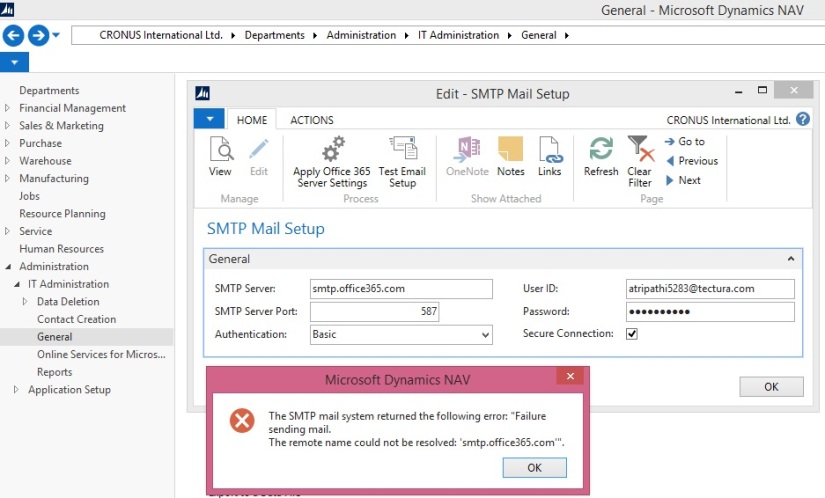
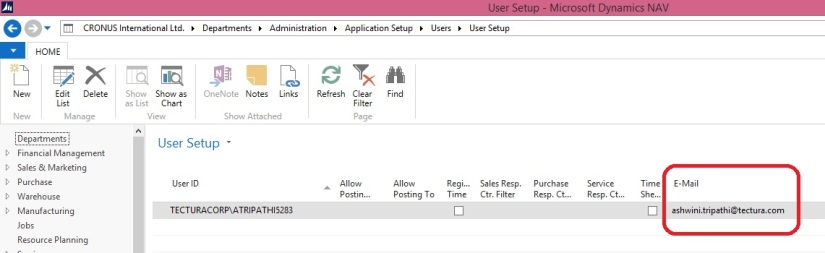
Normally we see below Errors while configuring our SMTP in Navision.

Error-1

Check that your User Setup is having valid e-mail id.

Error-2

If you are using Domain make sure you are accessible to your domain. If you are outside you office make sure you are connected using your VPN.

Error-3

Office Integration

OFFICE 365 INTEGRATION IN NAV 2015 – Exchange Online

NEW SMTP EMAIL FLOW IN NAV.

Open SMTP Mail Setup Page, Refer below screen for path.

Office Integration-1

Click on action Apply Office 365 Server Settings.

The fields SMTP Server, SMTP Server Port and Authentication fields will be filled up automatically

Fill the User ID and Password fields based on the existing account in Office 365. You can contact your Network Admin for details.

Office Integration-2

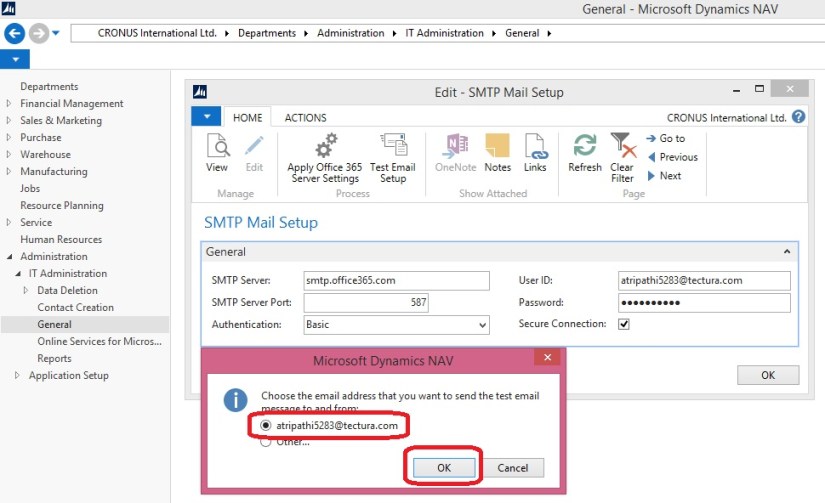
Click “Test Email Setup” action

Office Integration-3

Office Integration-4

If everything is configured properly in Office 365 and NAV 2015 then you will get below successful message.

Office Integration-5

And below mail will be sent to Office 365 account.

Office Integration-6

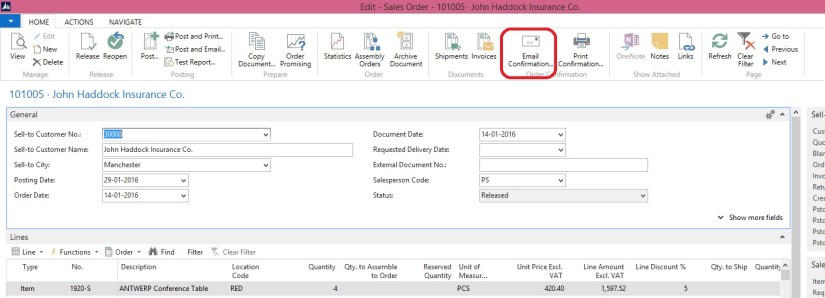
After this step if we try to run action Email Confirmation from Sales Order

Office Integration-7

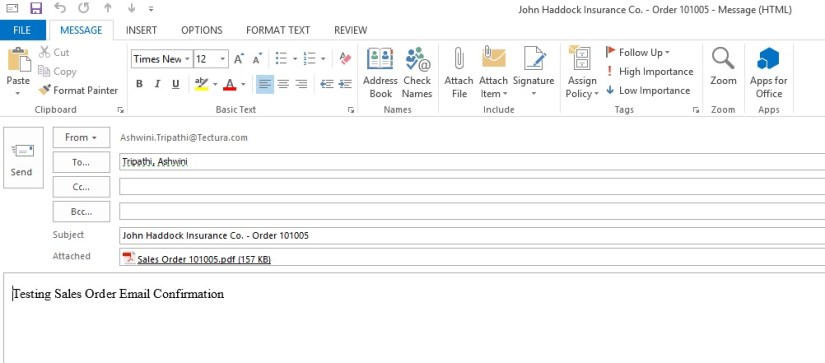
Then a dialog box will be opened showing from address as office 365 account.

Office Integration-8

Press OK button to send an email to required address. Edit required information.

If Edit in Outlook is checked it will open in Outlook App. You can change further mail content and recipient details before sending the mail.

Office Integration-9

Click Send to send mail from your Outbox.

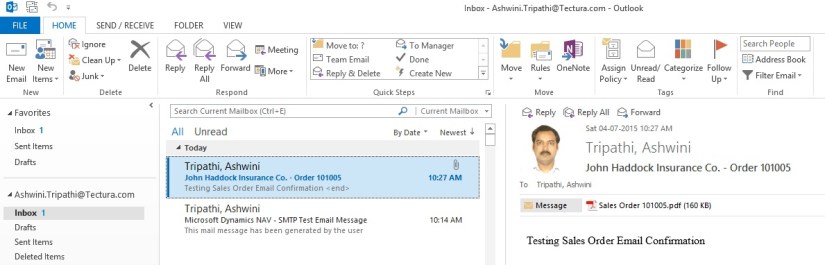
Below screen shot shows that mail is sent from Office 365 account

Office Integration-10