Corfu Navision 2016, Deferral, Functional Tips, How To

Deferral Functionality in Navision 2016

Microsoft Dynamics NAV 2016 offers the ability to automatically defer revenues and expenses over a predefined schedule, enabling companies to easily recognize revenues and expenses in periods other than the period in which the transaction is posted.

The deferral functionality provides several user benefits, including:

  1. Enabling additional financial functionality in Microsoft Dynamics NAV.
  2. Greatly reducing the time and effort required to defer revenues and expenses.
  3. Enabling reporting on deferred amounts for customer, vendor, and account ledgers.
  4. The deferral functionality is available on purchasing and sales documents, as well as general journals.

The first step in setting up deferral functionality is to create a deferral template.

Deferral templates allow us to define settings that will create a default deferral schedule for a document.

The default schedule is built for the document based on the settings defined in the template.

From the Search box find Deferral Template and use related Link to open the Template Card.
Deferral-1

Define the Template values as per the requirement for Expense/Revenue.

Period Description: uses %1..%6 to replace values as (1)Day, (2)Week, (3)Month, (4)Month Text, (5)Accounting Period Name, (6)Year

Users have the option to select a default deferral template for Resources, Items, and Accounts.

When the Resource, Item, or Account is selected on a document for which deferral functionality is available, the default deferral template will automatically be selected for the line.

Fill the Default Deferral Template on Invoicing FastTab for Item & Resource and for Accounts on Posting FastTab.
Deferral-2

Deferral-3

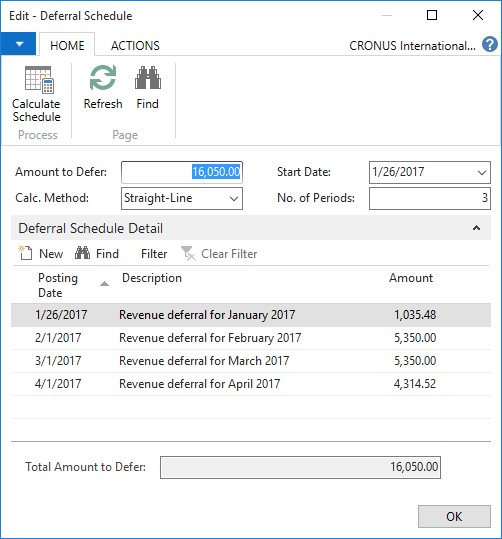
We have the option to view or modify the default deferral schedule created from the template in the Deferral Schedule page.

The user can either change the settings and re-calculate the schedule with new settings, or simply modify the lines of the schedule directly.

Schedule window will be as below:
Deferral-4

Reports:

The Sales Deferral Summary report provides a summary, for each customer, of deferred revenue. The amounts on the report are calculated as of the date entered for the report.

The Purchasing Deferral Summary report provides a summary, for each vendor, of deferred expenses. The amounts on the report are calculated as of the date entered for the report.

The G/L Deferral Summary report provides a summary, for each G/L account, of deferred expenses. The amounts on the report are calculated as of the date entered for the report.


I will come up with more details on this in my upcoming posts.

Corfu Navision 2016, Development Tips, Events, How To

Implementing Events in Navision 2016

Recall from my earlier post for description of Events – Events in C/AL Navision 2016

Here in this post we will see how to implement the same.

This could be helpful in situation where throughout the system you wish to have similar behaviour on specific condition. In general we will have to write code in every object with same set of logic, variables, and functions and so on.

Although still in this case too we will require to add code to every object, but only one time.

Think of you need to enhance or make changes in behaviour again you will have to go through each objects and do the required change. But using this feature we can keep it centralized and manage from single place, without going through each objects again.

Here below I am taking example one explained by Microsoft help basic concept, will come up with my version with some more effective usage later sometime.

When users change the address of a customer, you want to check that the address does not include invalid characters, which in this walkthrough is a plus sign (+).

To accomplish this, you will publish an event that is raised when the Address field on page 21 Customer Card is changed.

To handle the event when it is raised, you will add an event subscriber function that includes logic that checks the address value and returns a message to the user if it contains a plus sign.

Publishing the Event

To publish an event, you create a C/AL function that is set up to be an event publisher. An event publisher function can be added in any object, such as a codeunit, page, or table.

In this procedure we will add the event publisher function to a new codeunit, in which you can potentially add more event publisher functions for other events later.

Because you might want to change this event implementation in the future, you decide to create an integration event type.

The event publisher requires a single text parameter for handling the address of the customer.

Create a new codeunit

The codeunit for the event publisher I have created 50000 – Event Publisher.

Now we will add the event publisher function to publish the event.
Events-1

To create the event publisher function to publisher the event

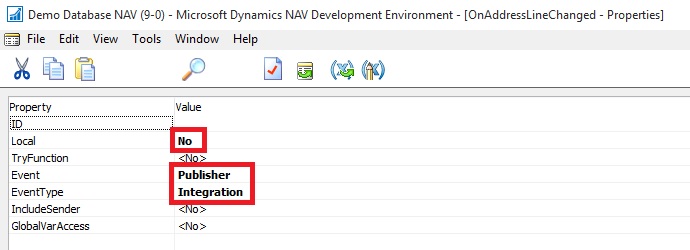
  • Define a function OnAddressLineChanged.
  • Open the properties for the OnAddressLineChanged function, select the function, and then in the View menu, choose Properties. Set the properties as follows:
  • Set the Local property to No.

Setting this property makes the function available to be called from the other objects.

  • Set the Event property to Publisher. This makes the function an event publisher.
  • Set the EventType property to Integration.
  • Close the Properties

Events-2

  • Add a local parameter to the function for the address of the customer as described in the following steps:
  • On the Functions tab, select the OnAddressLineChanged function, and then choose the Locals

The C/AL Locals window opens.

  • On the Parameters tab, in the Name field, enter line.
  • Set the DataType field to Text.
  • Set the Length field to 100.

Events-3

Important

An event publisher function cannot have a return value, variables, or text constants; otherwise you will not be able to compile the function.

The new function appears in the C/AL Editor with the following signature:

[IntegrationEvent] OnAddressLineChanged(line : Text[100])
Events-4

You can now raise the event in the application.

Raising the Event

After creating the event publisher function to publish the event, now we will add code to the application to raise the event where it is required.

In this case, the event will raise when the Address field is changed on the page 21 Customer Card.

Therefore, we will add code to the Address – OnValidate() trigger in C/AL code of the page. Raising an event basically involves calling the event publisher function that publishes the event.

To raise the event

  • In the development environment, open page 21 Customer Card as follows:
  • Add a C/AL variable that specifies the object that publishes the event. In this case, the event publisher object is codeunit 50000 Event Publisher, which contains the event publisher function OnAddressLineChanged that you created in the previous procedure.

Events-5

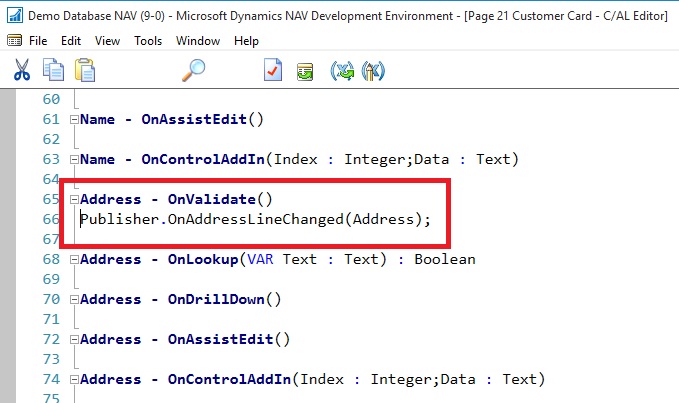
  • In C/AL code, add the following code on the Address – OnValidate() trigger to raise the event:

Publisher.OnAddressLineChanged(Address);

This calls the event publisher function to raise the event.
Events-6

  • Save and compile the changes to the page.

The event can now be subscribed to and handled.

Subscribing to and Handling an Event

Once an event has been published you can add code to the application that subscribes to and handles the event when it is raised.

For example, in this case when a user changes the address of a customer (the event), you want code that checks that the value does not contain a plus sign.

Subscribing to and handling an event is accomplished by creating a C/AL function that is set up as an event subscriber and subscribes to a specific event (defined by an event publisher function). The event subscription function contains the application logic for handling the raised event.

In this case, we will create an event subscriber function that subscribes to the OnAddressLineChanged function in codeunit 50000 Event Publisher.

Unlike an event publisher function, an event subscriber function can only reside in a codeunit object. This procedure will add the event subscriber function to a new codeunit, in which you can potentially add more event subscriber functions for other events later.

To create a new codeunit

  • In the development environment, create a new codeunit that has the ID 50001 and the name Event Subscriber.

To create the event subscriber function to subscribe to and handle the event

  • Create Function CheckAddressLine.

Events-7

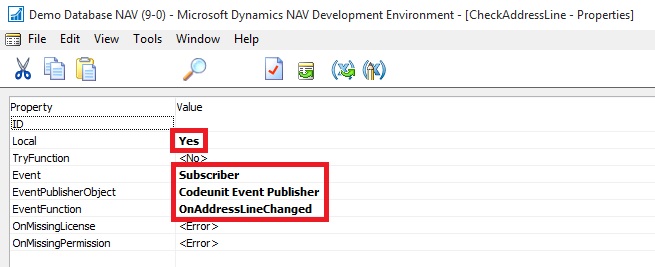
  • Choose Properties. Set the properties as follows:
  • Set the Event property to Subscriber to make the function an event subscriber.
  • Set the EventPublisherObject property to Codeunit My Publishers.

This is the codeunit that contains the event publisher function (OnAddressLineChanged) that you want to subscribe to.

  • In the EventFunction property, select the OnAddressLineChanged integration event.

This field reads all the published events in the event publisher object.
Events-8

Note

When you get a message that asks whether you want to overwrite the edited function’s signature, choose Yes to continue.

  • A local parameter that has the name line and the data type Text has been automatically added to the new CheckAddressLine
  • The new function appears in the C/AL Editor with the following signature:

LOCAL [EventSubscriber] CheckAddressLine(line : Text[100])

You can now add code to handle the event.

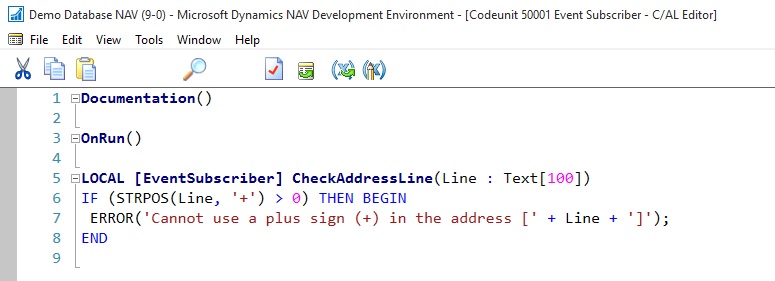
  • To handle the event, add the following code to the CheckAddressLine function in the C/AL editor:

IF (STRPOS(line, ‘+’) > 0) THEN BEGIN

ERROR(‘Cannot use a plus sign (+) in the address [‘ + line + ‘]’);

END

This code checks the value of the Address field on page 21 Customer Card when is has been changed and returns a message if the value contains a plus sign.
Events-9

Viewing the New Event Subscription

After you create an event subscriber, you can view information about it in page 9510 Event Subscriptions. This page provides information about all the current event subscriptions in the application. You can open this page directly from the development environment or from a Microsoft Dynamics NAV client.

To view the event subscription from the development environment

  • On the Tools menu, choose Debugger, and then choose Event Subscriptions.

Events-10

To view the event subscription from a Microsoft Dynamics NAV client

  • Start the Microsoft Dynamics NAV client.
  • In the Search box, enter Sessions, and then choose the related link.

Events-11

The Even Subscription Window will look like:
Events-12

Testing the Event

To test the event implementation, you can run page 21 Customer Card from the development environment.

  • In the Address field, add a plus sign, and then choose the OK

The following message appears:

Cannot use a plus sign (+) in the address [].

[] contains the value of the Address field.
Events-13

I will come up with more details on this topic later in my future posts.

Data Model, Development Tips, Excel, How To, PowerPivot

Set Data Categories for fields in PowerPivot

In order for Power View to dynamically create reports based on underlying data, such as location, fields that contain such data must be properly categorized.

Open the Excel Workbook we created in our earlier post. Create a Power View report

For the Olympics data, let’s specify the categories for a few fields.

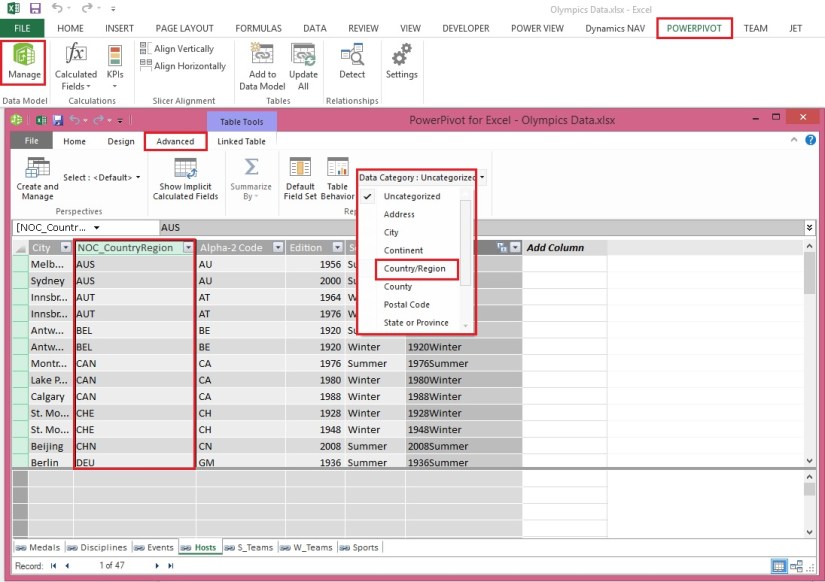
  • In Power Pivot, select Hosts. Select the NOC_CountryRegion field. From Advanced -> Reporting Properties -> Data Category: click the arrow and select Country/Region from the list of available data categories, as shown in the following screen.

ExcelData-37

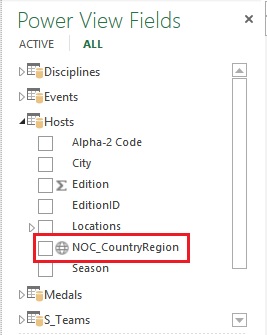
  • Return to Excel, and select the Power View sheet. Expand the Medals table in Power View Fields, and notice that the NOC_CountryRegion field now has a small globe icon beside it. The globe indicates that NOC_CountryRegion contains a geographic location, as shown in the following screen.

ExcelData-38

We’ll use that geographic location in an upcoming post. It’s time to save your work, review what you’ve learned, and then get ready to dive into the next post.

I will come up with more details in my next post. Till then Stay Tuned, Keep Learning & Practicing.

Data Model, Development Tips, Excel, How To, Power View, PowerPivot

Set Table Behaviour in PowerPivot

You can set the default table behaviour, which Power View uses to automatically create report labels for the table.

This becomes useful when you create visualizations from the same table, perhaps for many different reports.

Open the Excel Workbook we created in our earlier post. Create a Power View report

We use default table behaviour in the next few steps, so let’s set it now.

Open Medals Table in Data Model, select Advanced > Reporting Properties > Table Behaviour. A window appears where you can specify table behaviour.
ExcelData-33

  • In the Table Behavior window, the Row Identifier is the column that contains only unique keys and no blank values. This is often the table’s primary key, but not compulsory to be any other field which satisfy this property. You have to select a Row Identifier before making other selections in the window. Select MedalKey as the Row Identifier.
  • In the Keep Unique Rows section, select AthleteID.

Fields you select here have row values that should be unique, and should not be aggregated when creating Pivot Tables or Power View reports.
Note: If you have trouble with reports that don’t aggregate how you want them, make sure that the field you want to aggregate is not selected in the Keep Unique Rows fields.

  • For Default Label, select a key that should be used as a default report label. Select Sport.
  • For Default Image, leave the selection as [No Column Selected], since you haven’t added images yet. The Table Behavior window looks like the following screen.

ExcelData-34

  • On the Power View sheet in Excel, select the table you created in the previous post Set field defaults in PowerPivot
  • From the ribbon, select DESIGN -> Table -> Card.

ExcelData-35

  • The table you created changes into a collection of Cards; the data is the same, but the visualization of the data has changed. The table now looks like the following screen.

ExcelData-36

Notice that the Sport field is larger than the rest, and appears as a heading for each card. That’s because we set Sport as the Default Label in the Table Behavior window when we were in Power Pivot.

I will come up with more details in my upcoming posts. Till then Stay Tuned, Keep Learning & Practicing.

Data Model, Development Tips, Excel, How To, Power View, PowerPivot

Set field defaults in PowerPivot

When you set a default field set for a table, you can simply click that table in Power View, and the default set of fields is automatically added to a new report.

Open the Excel Workbook we created in our earlier post. Create a Power View report

In today’s post, we will learn how to set defaults for our workbook that will save our time when creating reports.

Steps to Create the Default Field Set for a table

  • Select the Medals table in Data View Mode from PowerPivot Manager.
  • From the Advanced tab, select Reporting Properties > Default Field Set. A window appears that lets you specify default fields for tables created using client tools such as Power View.
  • Select Sport, Event, EditionID, Athlete, and Medal in the left pane, and click Add -> to make them the default fields.

ExcelData-31

To see how this works, switch to the Power View sheet in Excel.

  • Click anywhere on the blank report canvas, to make sure you don’t have an existing visualization selected. Your Power View sheet currently only has one visualization, which is the map you created earlier in previous post. Create a Power View report
  • In the Power View Fields list, click the Medals table name. Power View creates a table and automatically adds the five default fields from the Medals table, in the order you specified, as shown in the following screen. Make sure you don’t click on the triangle beside Medals, if you do so the table simply expands, rather than adding a new table with default fields.

ExcelData-32

I will come up with more details on this topic in my upcoming posts. Till then Stay Tuned, Keep Learning and Practicing.

Data Model, Development Tips, Excel, How To, PowerPivot

Create a calculated field in PowerPivot

Open the Excel workbook which we used in our previous post on this topic. Olympics Excel Work book.

Select PowerPivot -> Manage

PowerPivot Window will open, If Calculation area not visible below table data as shown in below screen. Click Calculation Area button in Top Right Corner.

ExcelData-27

In the Calculation Area, select the cell directly below the Edition column. From the ribbon, select AutoSum > Distinct Count, as shown in the following screen.
ExcelData-28

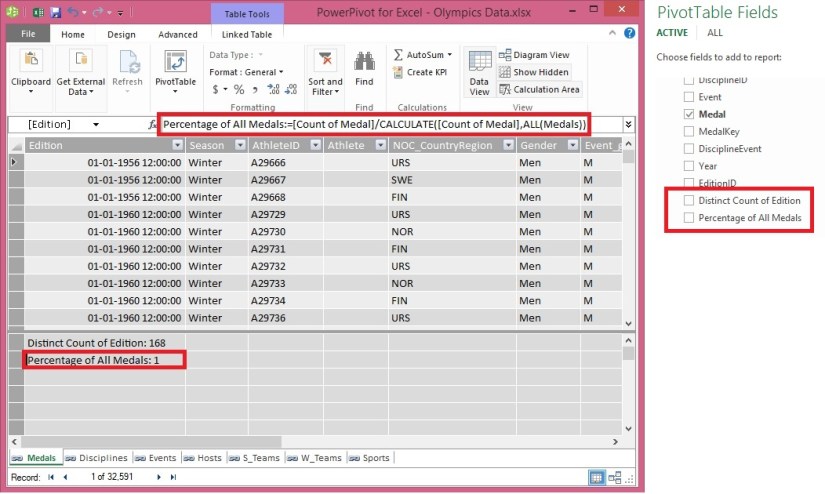
Power Pivot automatically created the following DAX formula: Distinct Count of Edition:=DISTINCTCOUNT([Edition])

Additional calculations in AutoSum are just as easy, such as Sum, Average, Min, Max, and others.

Let’s calculate the percentage of all medals. In the formula bar, type the following DAX formula. IntelliSense provides available commands based on what you type, and you can press Tab to select the highlighted IntelliSense option. Percentage of All Medals:=[Count of Medal]/CALCULATE([Count of Medal],ALL(Medals))
ExcelData-29

When we return to Excel Sheet we can find these fields available in Medal Table. Shown in the right side of the screen above.

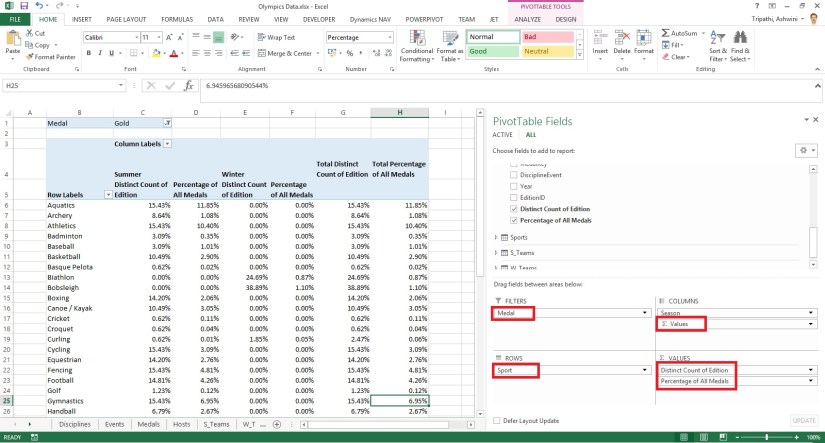
Let’s create a PivotTable from Medal Table. Our Pivot Table will be designed as below screen.
ExcelData-30

I will come up with more details inn my upcoming posts. Till then stay tuned, keep Learning and keep practicing.

Data Model, Excel, How To, PivotTable, Power View, PowerPivot

Create a Power View report

In the previous post, we created an Excel workbook with a PivotTable containing data about Olympic medals and events. If you didn’t saw the previous post you can access from here.

Use hierarchies in PivotTables

In this post, we will create a Power View report to visually represent the Olympics data.

In Excel, click INSERT > Reports > Power View Reports.
ExcelData-22

ExcelData-23

ExcelData-24
Select City from Host & Sport from Medal Table. Apply Count (Not Blank) to Sport Field using dropdown list next to Field Name.
ExcelData-25
From design switch the Visualization to Map.

On the map, blue circles of varying size indicate the number of different sport events held at each Olympic Host location.
ExcelData-26
Drag Season Field to Color area. This will add different colors for different Seasons. In our case summer/Winter Red/Blue colors.

Just in few clicks now we have a Power View report that visualizes the number of sporting events in various locations, using a map, color-coded based on season.

Will come with more details in my upcoming posts, till then stay tuned, keep learning and practicing.

Corfu Navision 2016, Development Tips, FILTERPAGEBUILDER, How To

Filter Pages for Filtering Tables using FILTERPAGEBUILDER

In C/AL code, you can use the FILTERPAGEBUILDER data type to create a filter page that enables users to set filters on multiple tables. Filter pages contains one or more filter controls, where each filter control can be used to set filters on a specific table. In the Microsoft Dynamics NAV client, filter pages are generated at runtime and run in a modal dialog box.

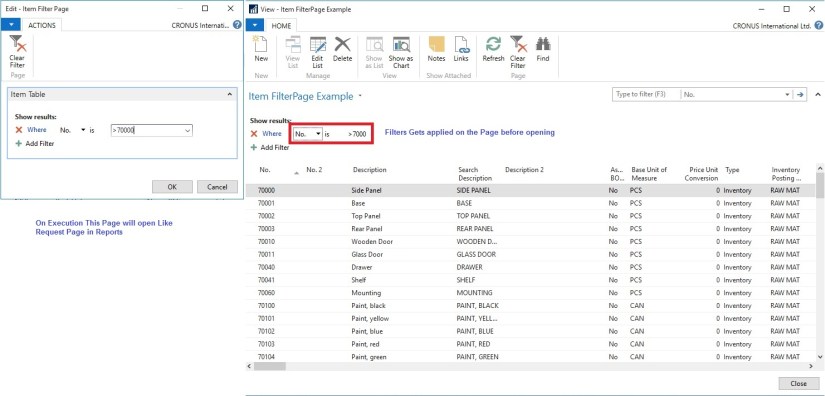
For demo purpose I have created a List page on Item Table. I have added below Variables and Code on Page.
filterpagebuiler-1
When I Run the Page, First Request page is popup to accept filters. Then my Item List Page is opened applying the filter I provided on the Request Page.
filterpagebuiler-2
FILTERPAGEBUILER Data Type Functions

ADDTABLE Function

Adds a filter control for a table to a filter page.

ADDRECORD Function

Adds a filter control for a table to a filter page as specified by a record data type variable.

ADDRECORDREF Function

Adds filter control for a table to a filter page as specified by a recordref variable.

ADDFIELD Function

Adds a table field to the filter control for a table on filter page.

ADDFIELDNO Function

Adds a table field to the filter control for a table as specified by the field number.

GETVIEW function (FilterPageBuilder)

Gets the filter view (which defines the sort order, key, and filters) for the record in the specified filter control of a filter page.

SETVIEW Function

Sets the current filter view, which defines the sort order, key, and filters, for a record in a filter control on a filter page.

RUNMODAL Function (FilterPageBuilder)

Builds and runs the filter page.

COUNT Function (FilterPageBuilder)

Gets the number of filter controls that are specified in the FilterPageBuilder object instance.

NAME Function (FilterPageBuilder)

Gets the name of a table filter control that is included on a filter page based on an index number that is assigned to the filter control.

Corfu Navision 2016, How To, Information, Posting Preview

Posting Preview in Navision 2016

On every document and journal that can be posted, you can choose the Preview Posting button to review the different types of entries that will be created when you post the document or journal.

Below I have shown Example from Sales Invoice Window, similarly you will get in other related Pages too.
PreviewPosting-1

From Actions TAB you will get this option for Preview Posting.

You will get below Navigation Window where you can Navigate Entries which will get posted upon Posting.
PreviewPosting-2
Give it a try, very useful feature introduced in Navision 2016.

Corfu Navision 2016, How To, Information, Permission, User Group

Record Permissions and Apply Permissions Sets to User Groups in Navision 2016

Administrators can record new permission sets in Microsoft Dynamics NAV 2016.

Recording permissions is based on the code coverage functionality.

You can access the various windows and activities in the Microsoft Dynamics NAV Windows client or the Microsoft Dynamics NAV Web client that you want users with this permission set to access.

You must carry out the tasks that you want to record permissions for. Then, you can apply the new permission set to a group of users.

A user group is a combination of roles and users. If you want to change permissions for the user group, the changes are automatically applied to the users who are members of the group.

To help you manage permissions in Microsoft Dynamics NAV for your company, you can set up one or more user groups, add permissions sets to the groups, and then add users to the groups. You can add more than one permission set to a user group.

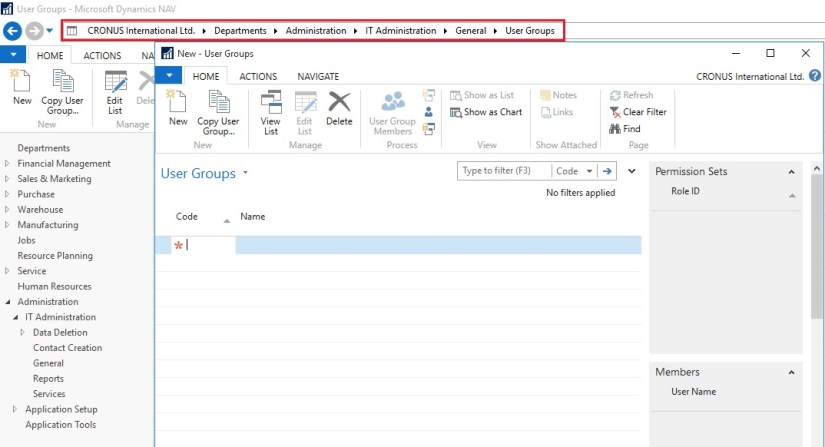
In the User Groups window, you can set up user groups, add and remove permissions, and you can apply changes to all or specific user groups.
Permission-1

Permission-2

Permission-3

Permission-4

Permission-5
If the default permission sets that are provided with Microsoft Dynamics NAV are not sufficient or not appropriate for your organization, then you can create new permission sets. If the individual object permissions that define a permission set are not adequate, then you can modify a permission set.

You can create a permission set manually, or you can record permissions by navigating in the application.
Permission-6

Permission-7

Permission-8
This starts a recording process that is based on the code coverage functionality in Microsoft Dynamics NAV. You can now access the various windows and activities in the Microsoft Dynamics NAV Windows client or the Microsoft Dynamics NAV Web client that you want users with this permission set to access. You must carry out the tasks that you want to record permissions for.

When you want to finish the recording, return to the Permissions window, and then, on the Actions tab, choose Stop.

Choose Yes to add the recorded permissions to the new permission set, or choose No to cancel.

If you choose Yes, the objects that you accessed are added to the window. In Microsoft Dynamics NAV 2016, only the objects are recorded, so you must specify if users must be able to insert, modify, or delete records in the recorded tables.