Dynamics 365, Information

Microsoft Dynamics 365 for Field Service

Areas covered and Features available in Dynamics 365 for Field Service:

  • Intelligence
    • Azure Machine Learning
    • Data Export Service
    • Relevance Search
  • Mobile
    • Mobile Management Enhancements
    • Mobile Offline Data API
  • Social
    • No features released
  • Others
    • 3rd party S2S Inbound Authentication
    • Connected Field Service
    • Customer backup and restore
    • Document suggestions
    • Dynamics 365 (online) administrator role in Office 365
    • Dynamics 365 connector for Flow, Logic Apps, and Power Apps
    • Editable grids
    • Field Service
    • Modular business apps, app designer, and site map designer
    • Office 365 Groups
    • Portal service
    • Resource scheduling optimization (Field Service)
    • Task-based experiences
    • Visual process designer
Dynamics 365, Information

Microsoft Dynamics 365 for Project Service Automation

Areas covered and Features available in Dynamics 365 for Project Service Automation:

  • Intelligence
    • Azure Machine Learning
    • Data Export Service
    • Relevance Search
  • Mobile
    • Mobile Management Enhancements
    • Mobile Offline Data API
  • Social
    • No features released
  • Others
    • 3rd party S2S Inbound Authentication
    • Customer backup and restore
    • Document suggestions
    • Dynamics 365 (online) administrator role in Office 365
    • Dynamics 365 connector for Flow, Logic Apps, and Power Apps
    • Editable grids
    • Modular business apps, app designer, and site map designer
    • Office 365 Groups
    • Portal service
    • Project Service Automation
    • Task-based experiences
    • Visual process designer


Dynamics 365, Information

Microsoft Dynamics 365 for Operations

Areas covered and Features available in Dynamics 365 for Operations:

  • Financial Management
    •             Accounts payable
    •             Accounts receivable
    •             Budgeting
    •             Cash and bank management
    •             Credit and collections
    •             Expense management
    •             Financial reporting
    •             Fixed assets
    •             General ledger
  • Globalization & Translation
    •             Country/region localizations & languages
    •             Dynamics Translation Service
    •             Localization configurations
  • Human Capital Management
    •             Enhanced analytics for Human Capital Management
    •             New termination rules
    •             New Workflows enabled in Human Resources
    •             Regulatory updates
    •             Talent management
    •             Transitioning employees and contractors
    •             US Payroll
  • Intelligence
    •             Compensation and benefits Power BI reports
    •             Competency and development reports
    •             Create Power BI reports with enumerated fields
    •             Customize application reports using extensions
    •             Human Resources Manager Power BI reports
    •             Personalized product recommendations powered by cognitive services and Microsoft Azure machine learning
    •             Project Management PowerBI reports
    •             Recruiting Power BI reports
    •             Training Power BI reports
  • Manufacturing
    •             Product variant enhancements
  • Mobile
    •             Mobile


  • Project Management Accounting
    •             Funding sources can be selected for fee journal lines
    •             Intercompany revenue and cost transactions
    •             Late selection option for invoice proposals in a batch
    •             Managing estimated costs, revenue, and item requirements
    •             Power BI content pack for Project management and accounting
    •             Project management and accounting improvements
    •             Project resourcing improvements
    •             Vendor prepayments in fixed-price project estimates
  • Retail Commerce
    •             Advanced warehousing in Retail store
    •             Analytics and intelligence
    •             e-Commerce & consumer shopping app
    •             Hybrid cloud – Retail Store
    •             Mobility and modern user experience
    •             Omni-channel
    •             Payments
    •             Retail store
  • Supply Chain Management
    •             Additional warehouse support in manufacturing
    •             Cost accounting
    •             Vendor collaboration
    •             Warehouse enhancements for high volume distribution centers
    •             Warehouse operation enhancements
  • Others
    •             Consignment Inventory
    •             Development and customization
    •             General
    •             Intercompany order processing: ATP and direct shipment
    •             Servicing environments
    •             Web client
Dynamics 365, Information

The first look at the next generation of intelligent business applications in the cloud. Dynamics – 365


Today I had a chance to attend Dynamics 365 – first look presentation from Microsoft.

Below are the few takeaways from this session, sharing with you, will come up with more details later in my upcoming posts.

Microsoft Dynamics 365

Enable your organization to grow, adapt, and evolve to meet the needs of your customers with Dynamics 365 – the next generation of intelligent business applications.


1


14


15

Use digital intelligence to reimagine what’s possible for your business.

Dynamics 365 unifies CRM and ERP capabilities into applications that work seamlessly together across sales, customer service, field service, operations, financials, marketing, and project service automation.

Start with what you need, add applications as your business grows.

Rethink what’s possible for your business when you:

  • Better engage customers
  • Empower employees
  • Optimize operations
  • Reinvent products and business models

23456789101112

Product demo was also given, will share those details also in my upcoming posts. Till then keep exploring and learning.

All screenshots are taken from Microsoft presentation.

You can find more details and explore on below link: https://www.microsoft.com/en-us/dynamics/default.aspx

13


Cues, Data, Development Tips, Dynamics 365, Email, Extension Package, Functional Tips, How To, Information, Inventory, Job, Machine, Maderia, Multitenancy, NAV 2017, Office 365, Office Integration, Readiness Library, Server, Tip & Tricks

New Changes or features for Application Users in Microsoft Dynamics NAV 2017

Although it is too early to discuss on features and capabilities which we are going to get in our new release, we should wait for exact information post release of same.

Here are few extracts from available documents pre-release of the product.

You will find most of the features similar to which we have discussed in our earlier posts for Madeira Preview Project.


Incoming documents

New modification to the list of incoming documents. Now it will have filtered view, a new field Processed is added, and now by default filter is applied to show only unprocessed incoming documents in the list.

However you can choose to still view all incoming documents in the list using the show Show All action.

When documents are posted, the processed flag is set to Yes, such that incoming documents that have been processed into posted documents are filtered out.

Capability is added to manually switch the Processed flag.

Now OCR supports for document extracting line details, when we send PDF or image files on incoming documents to Lexmark ICS, the 3rd-party provider of OCR services.

You can now create purchase invoices with multi-line details.

Now you can easily correct OCR errors before receiving the document and at the same time configure the service to avoid the known errors in future.

You can use the new Lexmark ICS online experience to visually train and validate the OCR processing of PDF and image files for incoming documents, such as vendor invoices.

From each incoming document record, you can now link directly to the online extracted document to validate the OCR result and train the service with your corrections.

A new Role Center Cue will give users capability to monitor incoming documents that await your OCR validation.


Inventory Items

Item attributes similar to one we saw in Madeira.

Capability to add attributes to your inventory items will make it easy for you to find the right product that your customer wants by filtering on attributes.

You can define your own attribute types, such as Base Material, Colour, Size, or other product dimensions, and attach to your items as a supplement to the built-in item attribute types and values.

When you access your items on documents or list, you can view and filter on the attribute values to limit the list of items.

By using Categorize items you can create a hierarchy of item categories and assign item attributes to each item category.

When you add items to a category, they will inherit the default attributes on the category.

This will ensures to have a common set of attributes on related items, will speed up the assignment of attributes to similar items, and allow filtering and navigating related items easily based on the category.


Smarter sales and purchase documents

Now you can cancel posted sales and purchase credit memos in the same way like you can do for posted sales and purchase invoices.

After performing this action you will find the credit memo is unapplied from the invoice and creates a new invoice that is applied to the credit memo.

This action will bring you to the earlier position where you created the credit memo. (Like Undo)

Package Tracking No. and Shipping Agent Code on sales invoices Posted sales invoices now show the package tracking number and the shipping agent code by default.


Account Categories in the Chart of Accounts

A new capability is added as account categories and sub categories.

Now you can group G/L Accounts to adjust your need for financial reporting.

For each G/L account, now you can specify the account category so that when ledger entries are posted to these accounts they are categorized as per your category.

For each account category, you can now choose from different sub-categories, even you can also create new sub-categories as per your need.

For example, for the G/L account category Expense, you can define as many sub-categories as you need so that you can differentiate between Expenses on different sources.


Payment reconciliation

The Payment Reconciliation journal now will show you total outstanding transactions and outstanding payments.

From there itself you can now look up the list of documents that have not been applied or used in the reconciliation process.

You can now also choose to include outstanding payments and outstanding transactions information in the Payment Reconciliation report.


Jobs

Project Manager Role Center

A new project manager field is added to the Job Card in order to give users clear sense of job ownership.

A new list My Jobs list is added on the Project Manager Role Center which will display jobs with the status of Order by default based on the new project manager field as discussed above.

If a person is assigned as the project manager to 5 jobs and those jobs have the On Order status, those 5 jobs will default on the My Jobs list on the Project Manager Role Center.

A new cue is added to the Project Manager Role Center to Create Job Sales Invoice, so now users will have quick access to this functionality.

On the Project Manager Role Center a new drop down list for Job Reports has been added to the Actions ribbon.

Job cost

A new fact box will be available to the right side of the Job Card to display the job’s cost information.

Now the term Contract is renamed as Billable throughout the Jobs module.

On the Job Card the Allow Schedule/Billable lines and Apply Usage Link options are marked by default for new jobs.

A new report called Job Quote is available so user can send a quote to a customer. This report is available as Word Template so it can be modified using Word and emailed to the contact on the job.


Fixed Assets

Now setting up fixed assets is simpler. A standard setup is provided, but allows you to modify it at anytime you want.

You can register fixed asset as cards with complete information, accounting details, and reporting classification.

You can also register purchases of fixed assets through special fixed asset G/L journals where you can also dispose of fixed assets. The right accounting entries are created automatically.


Simplified Setup for using Dynamics CRM from inside Dynamics NAV

As you are familiar Dynamics NAV includes opportunity management and basic customer relationship management.

You can easily set up a connection with Dynamics CRM to have more benefit from the strong capabilities that Dynamics CRM offers, such as marketing and customer service capabilities.

A new assisted setup guide to the Business Manager home page will be available that will guide you through the setup process. Once you are through with this setup, you’ll have a seamless coupling of Dynamics CRM records with Dynamics NAV records.


Simplified opportunity management and CRM functionality

You will find Dynamics NAV CRM module has been simplified and improved in a number of ways:

  1. At place of CRM wizard pages now you will have card pages, so that they can now also run in the Web client with improved user experience.
  2. Worksheet pages also been replaced by list pages so now you can also use the pages in browsers.
  3. The Contact card has been simplified by marking a number of controls as Additional, so that the page default looks simpler.
  4. Mail merge have been replaced with Word reporting. Also, new Word reporting capabilities added to generate email body content based on the related report and the selected report layout.
  5. A new Sales & Relationship Manager Role Center has been added

New wizard has been created that helps users set up email logging (default public folders, rules, and job queue setup).


Smart notifications give you advice and recommendations

Similar to one which we discussed in our earlier post for Madeira.


Extensions

Microsoft provides the following extensions:

  1. Envestnet Yodlee Bank Feeds
  2. PayPal Payments Standard
  3. QuickBooks Data Migration
  4. Sales and Inventory Forecast

Similar to Madeira few of them we have discussed in our earlier posts, rest will discuss in our upcoming posts.


Office 365

If your organization uses Office 365, Dynamics NAV 2017 includes an add-in so you can invoice your customers based on entries in your Outlook calendar.

From the Contacts List in Dynamics NAV, you can manually synchronize your Dynamics NAV contacts to Office 365 People.

The contacts from Office 365 will sync back to Dynamics NAV as well.

There is a filter that can be applied to the synchronization process so users will only need to sync the contacts they use most often. This same filter is used during the automatic background sync as well. This synchronization process also works with Microsoft Outlook on the desktop.

We will discuss in more details in our upcoming posts. This feature is too available in Madeira.


US financial reports

In the US version of Dynamics 2017, added new four financial reports to the Business Manager and Accountant Role Centers:

  1. Balance Sheet
  2. Income Statement
  3. Cash Flow Statement, and
  4. Retained Earnings Statement

These reports use G/L account categories and sub-categories discussed above to group financial data.


Source:- https://mbs.microsoft.com/Files/partner/NAV/Readiness_Training/ReadinessTrainingNews/WhatsNewDynamicsNAV2017LimitedBeta.pdf

I will come up with more details in my upcoming posts.


Dynamics 365, Information

Microsoft Dynamics 365

As per Dynamics 365 Team: News published Aug 22 2016

Microsoft is on a mission to help every organisation and every individual achieve more.  To that end we’re seeking to reinvent personal productivity and business processes.  Microsoft Dynamics 365 is the next step on our journey. Announced in July 2016 – Dynamics 365 will become generally available later this year. We’re keen to help existing Dynamics customers understand more about our ambition and how Dynamics 365 fits into our plans for the Dynamics products and services you are already using.

See more details on : https://mbs.microsoft.com/customersource/northamerica/news-events/news-events/news/MicrosoftDynamics365

The Dynamics portfolio

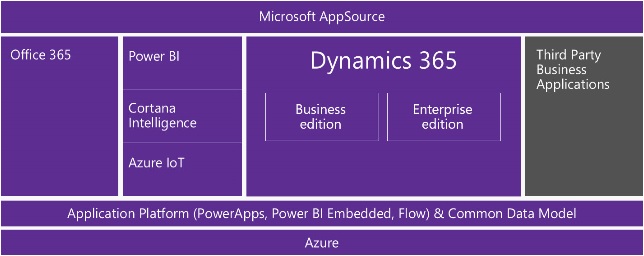
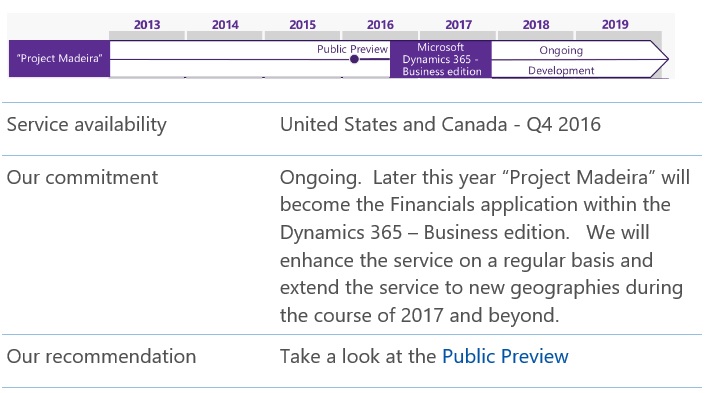
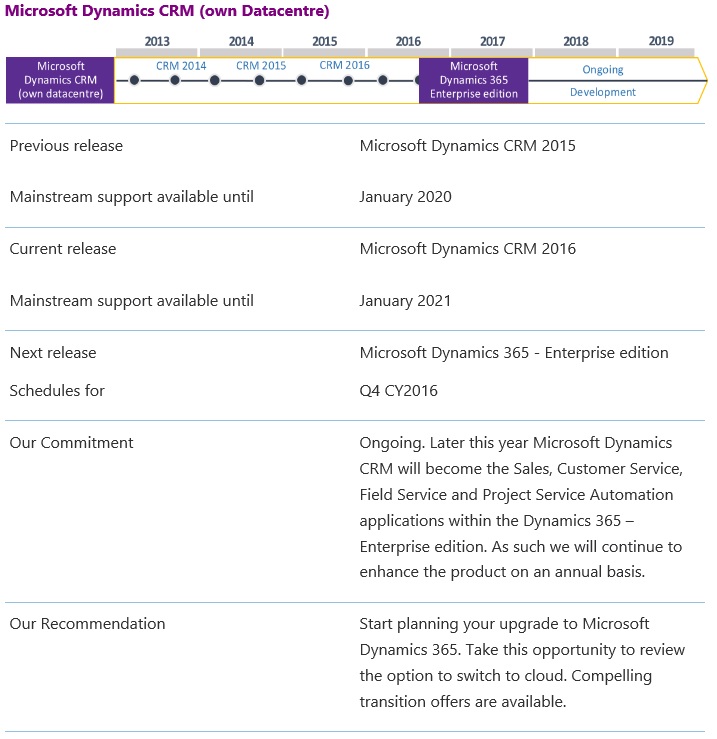
Later this year Dynamics CRM and Dynamics AX will come together to create the Microsoft Dynamics 365 Enterprise edition.  The Business edition will be founded on “Project Madeira” which is currently in public preview.

Click to find out more about plans for particular product/service:


Microsoft Dynamics 365 editions:

Microsoft Dynamics 365 Dynamics 365 comprises a range of end-to-end, cloud based, intelligent business applications.  Dynamics 365 will be available in Business and Enterprise editions.

Microsoft Dynamics 365 Business edition Microsoft Dynamics 365 Enterprise edition

Financials

Sales *

Marketing *

*Available Q2 CY 2017

Operations

Sales

Marketing

Customer Service

Field Service

Project Service Automation

Includes embedded intelligence, PowerApps and Flow

Includes embedded intelligence, PowerApps and Flow

Additionaly Dynamics 365:

  • Uses a common data model, shared with Office 365, to simplify data management and integration across apps and business processes.
  • Offers tech savvy business customers/analysts, aka “citizen developers,” (using Power Apps, Power BI Embedded and Microsoft Flow) and professional developers (using Azure platform services) a consistent way in which to compose new apps and easily extend and modify existing ones.
  • Comes with connectors that let you integrate with applications and services from Microsoft and our partners – including custom API’s and on premise systems.


Dynamics365-1


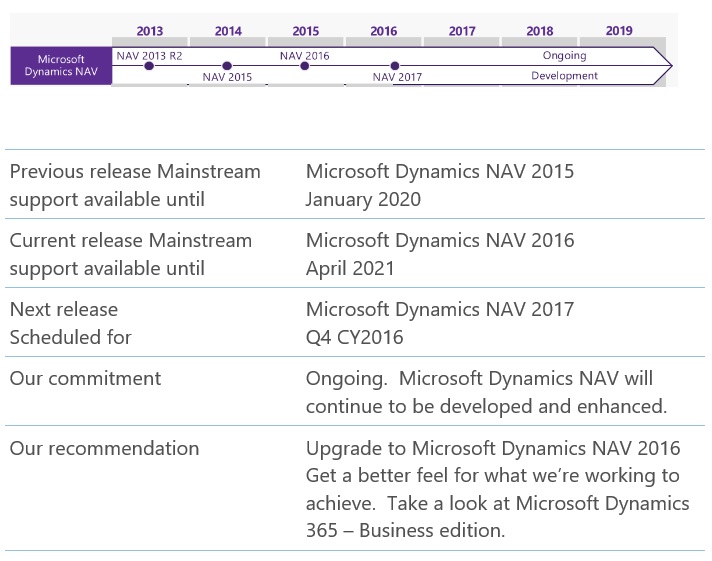
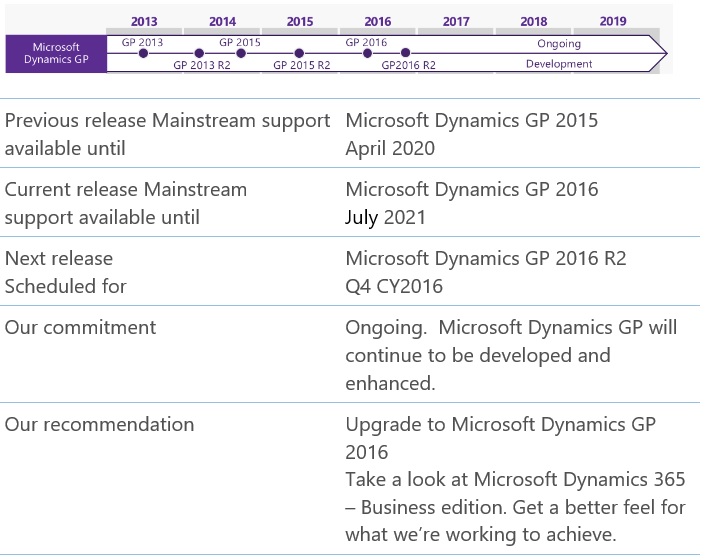
Roadmap :

Dynamics365NAV-2

Dynamics365Madeira-3

Dynamics365CRM-4

Dynamics365CRM-5

Dynamics365AX-6

Dynamics365AX-7

Dynamics365GP-8

Dynamics365SL-9

All images are taken from Microsoft Site.

Information can change over the time, correct till posting of this post.

For accurate information please check on Microsoft customer source site in News & Events section, Links available above in post body.


Alert, Development Tips, Dynamics 365, Functional Tips, How To, Information, Maderia, Tip & Tricks

Smart notifications new feature added in August updates – Madeira

Smart Notification feature added to Project “Madeira” which will help user to work smarter.

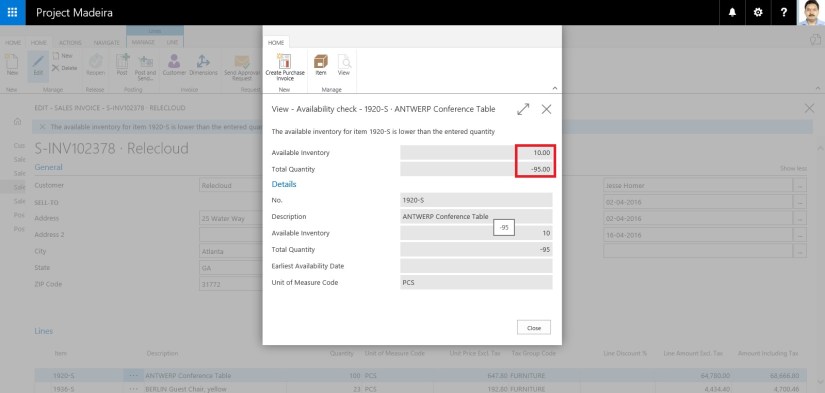
Notifications could be like for a customer who has an overdue balance, or the available inventory is lower than the quantity you are about to sell, etc.

These notifications are shown as a tips in the context of the task you are doing, and you can choose to ignore the notification or to see details about the issue.

If you choose to see details for a notification, you can take action to resolve the issue, such as contacting the customer, buying more inventory, and so on.

It depends what you wish to do, Project “Madeira” just gives you advice and recommendations.

You will see such notifications in different areas of Project “Madeira”, and it’s up to your choice you want to react on them or ignore them.

Let’s see how it works:

For example on Sales Invoice i enter Quantity greater than available quantity.

SmartNotification-1

Notification kicks in like the warning message. I can continue working or see details using link Details in the notification.

SmartNotification-2

It is kept in mind that the subtle notifications help untrained users complete unfamiliar tasks and do not reduce productivity for the more trained user.

Hope you will find this feature helpful.

I will come up with more information in my up coming posts.

Till then keep exploring and learning.


Development Tips, Dynamics 365, Functional Tips, How To, Information, Maderia, Office 365, Tip & Tricks

How to – Set Up a Colored Indicator on Cues in Madeira

You can customize to show color indicator of Cues that changes color based on the data values in the Cues.

The indicator appears as a colored bar along the top border of the Cue tile.

From the Cue Setup window, you set up indicators for all the Cues that are available.

You can specify up to two threshold values that define three ranges of data values (low, middle, and high).

To set up colored indicators on Cues

Under Activities on your Home page

CueSetup-1

Choose Set Up Cues.

CueSetup-2

The Cue Setup window appears. The window lists the indicators that are currently setup up on Cues.

CueSetup-3

To modify an indicator, edit the fields and modify, the values for the different thresholds.

The following table lists the colors that is displayed to the options of the Low Range Style, Middle Range Style, and High Range Style fields.

Option Color
None No color (same color as the Cue tile
Favorable Green
Unfavorable Red
Ambiguous Yellow
Subordinate Gray

I will come up with more informations in my up coming posts.

Till then keep exploring and learning.


Dynamics 365, Functional Tips, How To, Information, Maderia, Tip & Tricks, What's New

Working with Item Attributes in Madeira

In Madeira you can assign item attribute values of different types to your items, which can then be used when searching for items.

Open your Item List/Card and in the right side of the window Factbox you see Item Attributes.

Today in this post we will see how to define, assign and use it for searching the items.

ItemAttribute-1

Either from the List Page or Card Page Select Attributes as shown in below screen shot.

From Home or Action Tab Ribbon.

ItemAttribute-2

It will show you all the Attributes and their Values assigned to the Item.

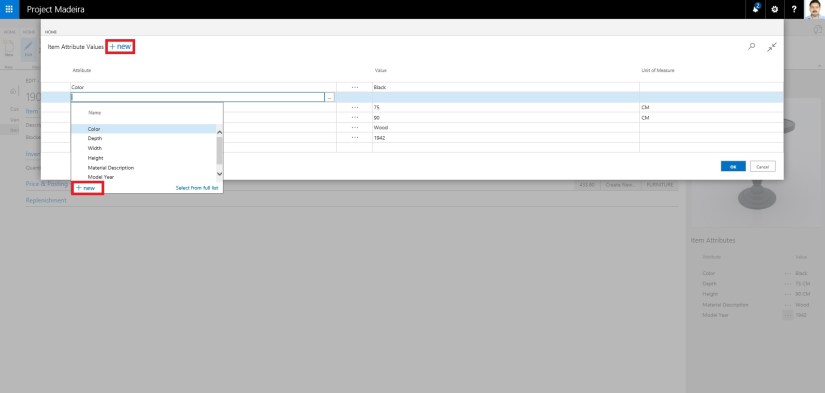
You can create New Attribute, Click on +New, a New Line will be inserted to Assign Attribute and its Value.

If you wish to create New Attribute for the Item from the Dropdown List click on +New.

ItemAttribute-3

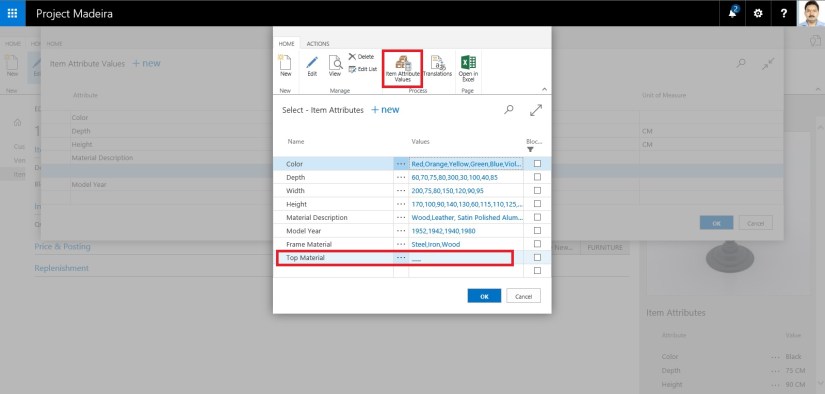
Attribute definition window opens.

Define you New Attribute. Once Attribute is created you need to define available values for the same. In below Screen i have created New Attribute “TopMaterial”.

To define applicable values for this Attribute from Ribbon click on Item Attribute Values.

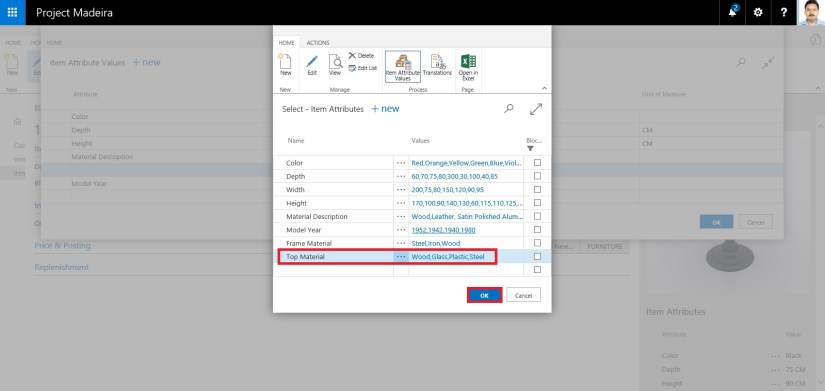
ItemAttribute-4

In Value window define all the applicable values and close the window.

ItemAttribute-5

You will be returned to the previous Page and you can see your Attribute and Value defined, just we created in our above steps. Click on OK to return to previous page.

ItemAttribute-6

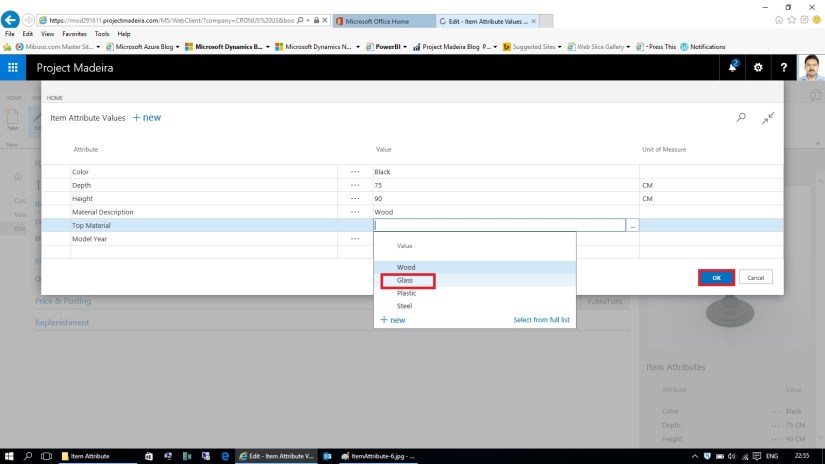
Next we will Assign these Attribute and Values on the Item.

Select the Attribute and Value for the Item as shown in below screen.

After assigning click on OK to close the Page.

ItemAttribute-7

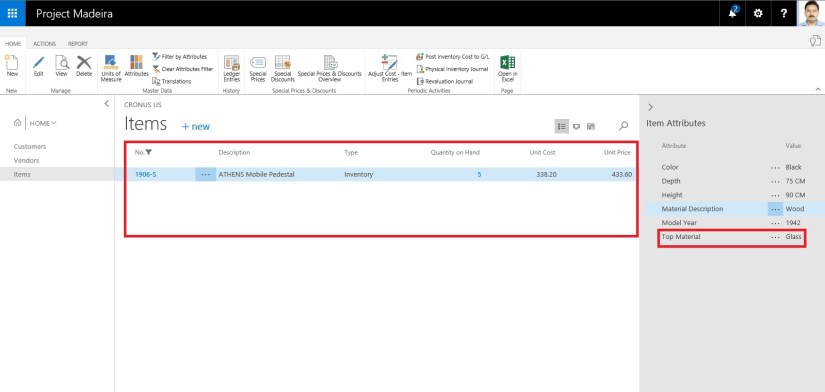
When you return to your Item Card or List Page you will see that your New assigned Attribute and its Value is displayed on Factbox.

ItemAttribute-8

Switch to your Item List Page.

From Ribbon click on Filter on Attribute a Filter window will open.

Select the Attribute and Value for filter that you want to assign.

Click on OK to apply the filter on the page.

ItemAttribute-9

Since we have asigned this Attribute and Value on one Item, It will be filtered and all Items satisfying the filter condition will be displayed.

ItemAttribute-10

The items in the Items window are filtered by the specified item attribute values.

Thats all for this post.

I will comeup with some more details in my upcoming posts.

Till then keep exploring and learning.


Development Tips, Dynamics 365, How To, Information, Maderia, Office Integration, Power Bi Content Pack, PowerBI.com, Tip & Tricks, Troubleshooting Tips, Web Services

Working with Project “Madeira” Content Pack for Power BI

In today’s post we will see how to use Power BI Content Pack for Madeira.

The content pack is preconfigured to work with sales data and financial data from the demonstration company that you get when you sign up for the Project “Madeira” preview.

To see your Project “Madeira” data in Power BI, you must have the following:

  • Access to Project “Madeira”.
  • Access to Power BI.

Before we start with connecting we will collect few information that we will require while connecting the Power BI to fetch data from Madeira.

User Name

Web Service Acess Key

Note down both value, if you don’t have Web Service Access Key Generate one and set appropriate Expiration date or Set Never Expire as shown below.

PowerBi_Madeira-1

Next open the Web Service Page.

Make sure all selected Web Service is running as in below screen.

The data is extracted from your Project “Madeira” company using web services to read live data. In Project “Madeira”, the Web Services window lists the web services that have been set up for you, including the following that are consumed by the content pack in Power BI:

  • ItemSalesAndProfit
  • ItemSalesByCustomer
  • powerbifinance
  • SalesDashboard
  • SalesOpportunities
  • SalesOrdersBySalesPerson
  • TopCustomerOverview

Note: If you change the name of any of these web services, the data will not show up in Power BI.

Note your URL of OData. Edit it to follow the format one shown in below screen.

PowerBi_Madeira-2

Now we have all our required information.

Open Power BI site and Get Data from Services as shown in below screen.

PowerBi_Madeira-3

Select Project “Madeira” Content Pack and click on Get.

PowerBi_Madeira-4

Enter the URL of Web Service we get in above step.

PowerBi_Madeira-5

Select Next.

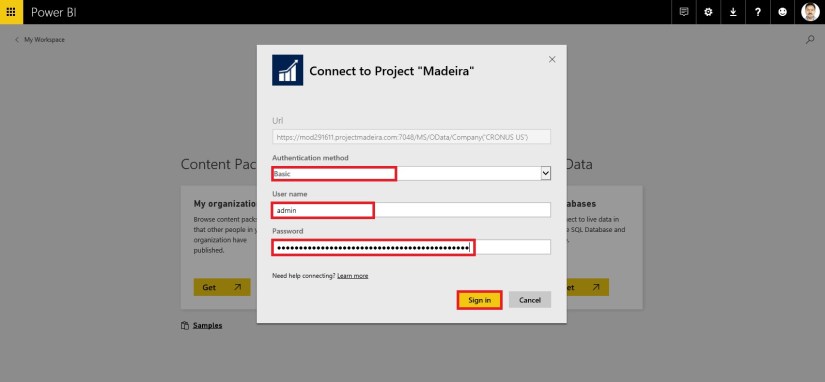
Select Authentication method as Basic.

In User Name enter your user name as obtained in above step.

For Password ented the Web Service Access Key as obtained in above step.

PowerBi_Madeira-6

Choose Sign In.

After few minutes/seconds churning you will be ready with your first Dashboard from Madeira.

PowerBi_Madeira-7

Troubleshooting

“Parameter validation failed, please make sure all parameters are valid”
If you see this error after you enter your Project “Madeira” URL, make sure the following requirements are satisfied:

“Login failed”
If you get a “login failed” error when you log in to the dashboard, using your Project “Madeira” credentials, then this can be caused by one of the following issues:

  • The account you are using does not have permissions to read the Project “Madeira” data from your account.

    Verify your user account in Project “Madeira”, and make sure that you have used the right web service access key as the password, and then try again.

  • The Project “Madeira” instance that you are trying to connect to does not have a valid SSL certificate. In this case you’ll see a more detailed error message (“unable to establish trusted SSL relationship”).

    Note: Self-signed certificates are not supported.

“Oops”
If you see an “Oops” error dialog after you pass the authentication dialog, this is most frequently caused by a problem connecting to the data for the content pack.

Thats all for today’s post.

I will comeup with more details in my upcomming posts.

Til then keep exploring and learning.