Development Tips, Multitenancy, Security, Server

Creating the Multitenant Environment

Before you start I will recommend to go through my earlier post on Multitenancy Concept & Overview here.

To start with the below steps you will require 2 Accounts preferably Domain Accounts:

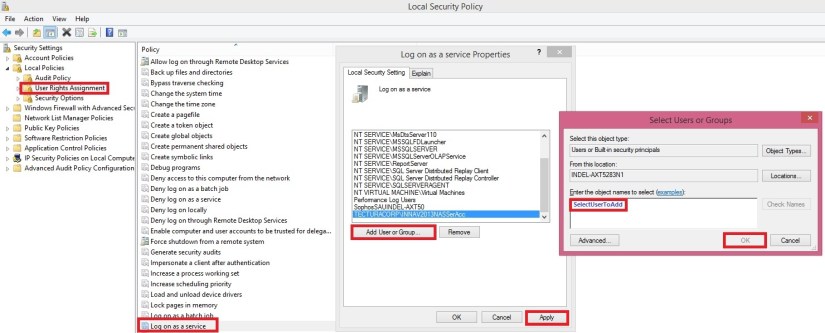
  • An Account for running MS Dynamics Navision Service
  • An Administrator account for Database & RTC

How to setup these accounts and what permissions are required for these accounts I would recommend to go through my earlier post on Provisioning the Microsoft Dynamics NAV Server Account here.

Add both the above account to Navision Database with Super permission.

In order to create a multitenant environment (here for Demo Database NAV (8-0)), the following steps need to be done:

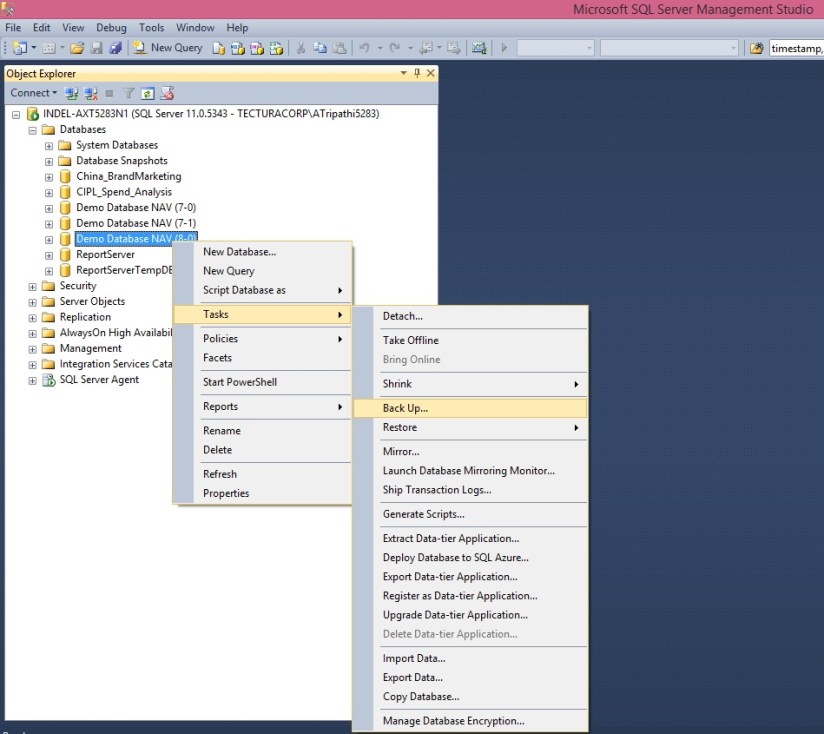
  • Take an SQL Backup of the running Demo Database NAV (8-0) database.

Multitenancy-1
Multitenancy-2
Multitenancy-3

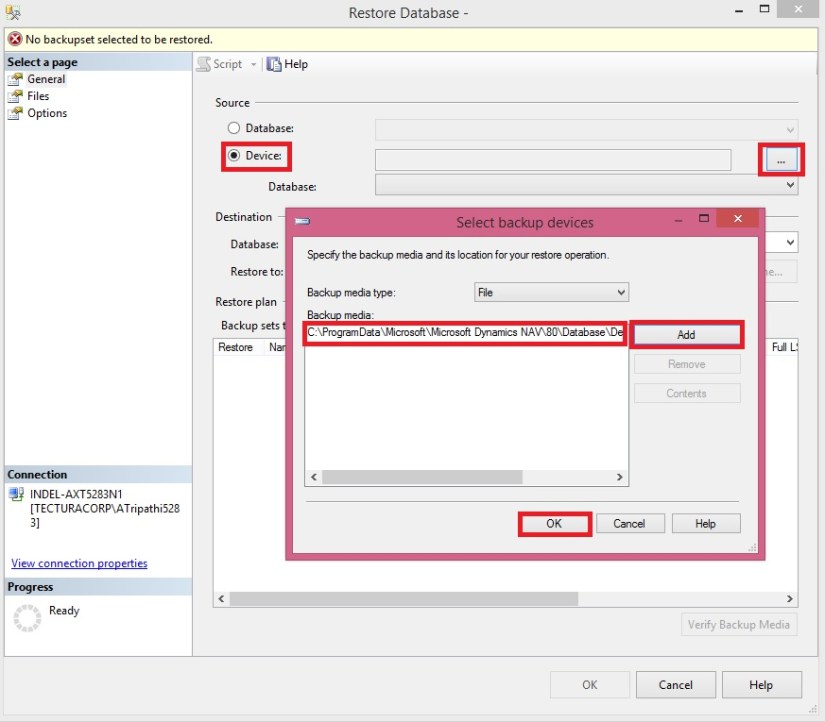
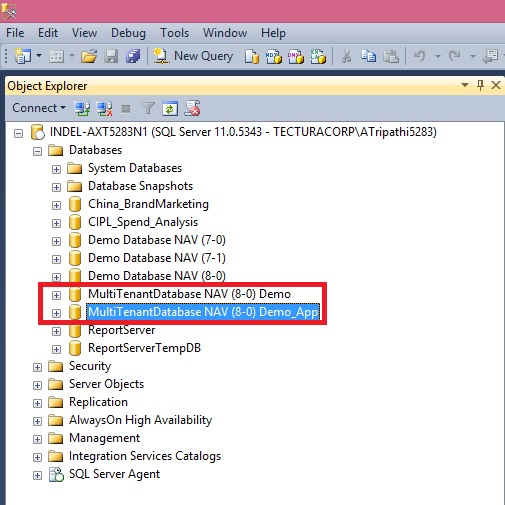
  • Restore the newly made SQL Backup to a new database (MultiTenantDatabase NAV (8-0) Demo).

Multitenancy-4
Multitenancy-5
Multitenancy-6
Multitenancy-7

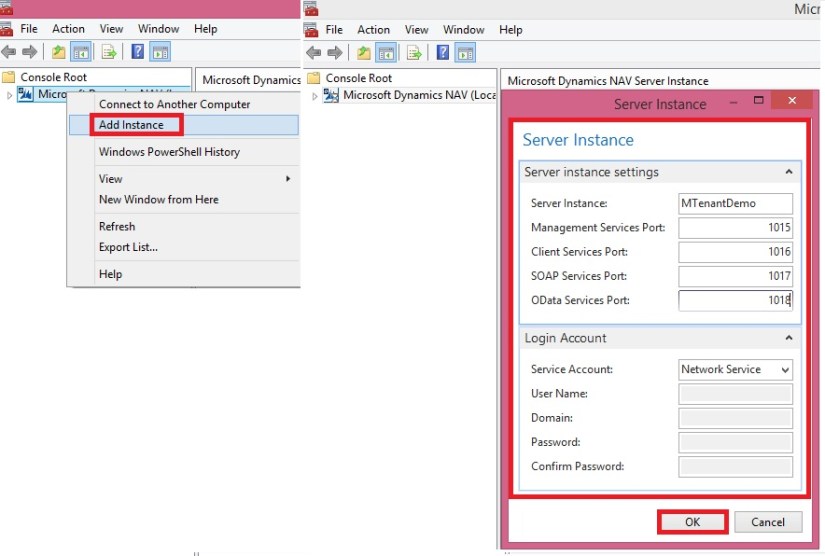
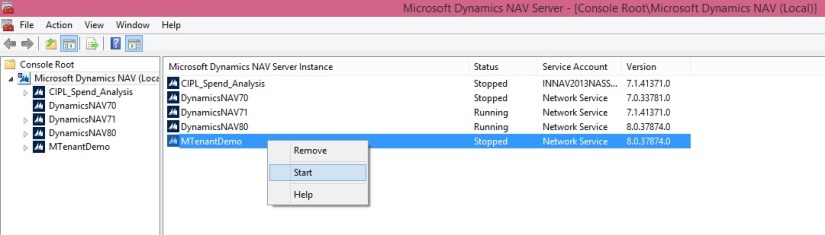
  • On the NAV Server, using the NAV 2015 Administration console, create a new NAV Server Instance named MTenantDemo

Multitenancy-8

  • Edit the instance and set the database to newly created MultiTenantDatabase NAV (8-0) Demo database, and set the instance to be started with NAV Service user.

Multitenancy-9
Multitenancy-10

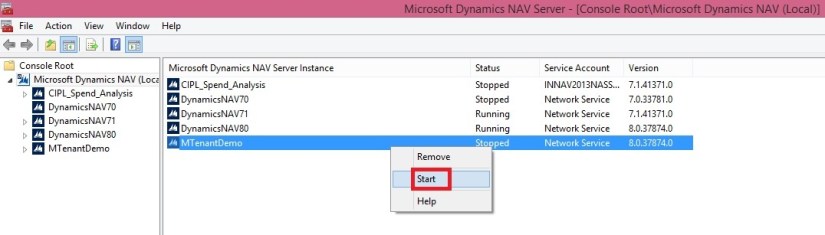
  • Start MTenantDemo – and see if you can log in
  • Once you have confirmed the MultiTenantDatabase NAV (8-0) Demo database and MTenantDemo is running, split the database in an application part and a data part:
    • Open the NAV 2015 Administration Shell (or Windows PowerShell ISE and load the NavAdminTool)
    • Export the application part from the MultiTenantDatabase NAV (8-0) Demo database to a new database (MultiTenantDatabase NAV (8-0) Demo_App):

Export-NavApplication -DatabaseServer INDEL-AXT5283N1 -DatabaseName ‘MultiTenantDatabase NAV (8-0) Demo’ -DestinationDatabaseName ‘MultiTenantDatabase NAV (8-0) Demo_App’

  • Remove the application part from the MultiTenantDatabase NAV (8-0) Demo database:

Remove-NAVApplication -DatabaseServer INDEL-AXT5283N1 -DatabaseName ‘MultiTenantDatabase NAV (8-0) Demo’

Multitenancy-11
Multitenancy-12

  • Using the NAV 2015 Administration console, edit the MTenantDemo instance and set the database to newly created MultiTenantDatabase NAV (8-0) Demo_App database
    Multitenancy-13
  • And select Multitenant (set it to True):
  • Save and restart MTenantDemo

Multitenancy-14

  • Either through a Powershell commandlet in the NAV 2015 Administration Shell or by using the NAV 2015 Administration console mount a tenant named Tenant-1 on the MTenantDemo NAV Instance:

Multitenancy-15
Multitenancy-16
Multitenancy-17

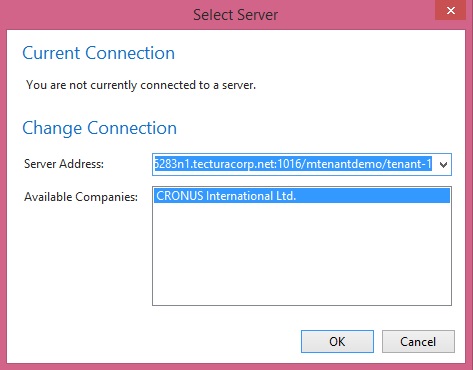
  • Start NAV using the new tenant:

Multitenancy-18

  • In Companies rename the Company Name to Tenant-1
  • Take an SQL Backup using the MultiTenantDatabase NAV (8-0) Demo_App database, and call it “App_template.bak”
  • Take an SQL Backup using the MultiTenantDatabase NAV (8-0) Demo database, and call it “Tenant_template.bak”

You now have a template you can use when you want to create a application and a tenant.

Restore the Tenant Database as Tenant-2, Tenant-3, Tenant-4, Tenant-5 etc.

Mount the Tenant Databases to NAV Service MTenantDemo as per above steps.

Now you have One Application & 5 Business Data Tenants Mounted.

You will do development in Application Database MultiTenantDatabase NAV (8-0) Demo_App and then Sync your modifications to Business Data Databases named Tenant-1/2/3/4/5 etc.

To Sync your objects to Tenants you will use below script in NAV 2015 Administration Shell:

Set-ExecutionPolicy unrestricted –Force

Import-Module ‘C:\Program Files\Microsoft Dynamics NAV\80\Service\NavAdminTool.ps1’

Sync-NAVTenant MTenantDemo -Force -Tenant ‘MultiTenantDatabase NAV (8-0) Demo’

I will explain in more detail on Creating Tenants, Synchronizing Tenants and uploading License for Tenants in more details in my next upcoming post.

Development Tips, Multitenancy, Security, Server

Multitenancy Concept & Overview

You will get step by step walkthrough on how to implement Multitenancy in my next upcoming post.

You can choose to migrate your Microsoft Dynamics NAV solution to a multitenant deployment architecture where you maintain a single application that is used by two or more companies that store their data in separate databases.

This can make maintenance of your solution easier if you support multiple customers with the same application functionality.

Tenants and Companies

When you upgrade your application and the data to Microsoft Dynamics NAV 2015, you have a database that has the same number of companies as you had before the upgrade.

This database is considered a tenant.

This does not mean that you have to turn your solution into a multitenant deployment. But it means that you can if you want to.

For example, your Microsoft Dynamics NAV deployment in the earlier version consisted of a database that has 20 companies.

In other words, you support 20 companies that all share the same application functionality.

Here we are considering, the companies are separate companies that have nothing to do with each other except that they are supported by you in one database.

In Microsoft Dynamics NAV 2015, you can choose to extract the application-wide tables into a separate database and keep the data for all 20 companies in the original database. This becomes a single-tenant business data database.

Then, you can choose to split the business data database into one for each company so that you run a truly multitenant environment.

The application is stored separately in the application database, and you maintain application functionality centrally.

Pros

When you modify the application, you make the changes available to one tenant at a time. As a result, if something goes wrong, all other tenants are not affected.

Compare this to earlier versions of Microsoft Dynamics NAV where a database could contain several companies. These companies could be related or not, but they would all use the same application and write to the same database. Also, when you modified the application, it would affect all companies immediately. So if something went wrong, all companies would be affected.

Cons

The email logging functionality in Microsoft Dynamics NAV requires the Microsoft Dynamics NAV Server service account to have access to the Exchange server. But in a multitenant deployment, this is not always possible.
Separating Application Data from Business Data
Microsoft Dynamics NAV 2015 separates tables that describe the application from the tables that contain business data. Depending on your deployment scenario, you can choose to store all Microsoft Dynamics NAV tables in one database, or you can export the application tables to a dedicated database.

In multitenant deployments, the application must be stored in a dedicated database.
Application Database versus Business Data Databases
The application database contains tables that describe your application.

This includes a description of the objects that your application consists of, and other data that is common to all tenants.

The data that users enter in your application is stored in the business data database because this data is specific to their company.

Optionally, you can create multiple business data databases, such as if you want to support your customers as tenants.

When you have exported the application tables to a separate database, you can no longer access the business database from the Microsoft Dynamics NAV Development Environment. This is because the metadata for the tables in the business database is stored in the application database and modified in that database.

For example, if you want to modify a report, you modify the report object in the application database. Then, when you deploy the updated application to your production environment, when a user accesses the report, they see the modified report.

Microsoft Dynamics NAV includes Windows PowerShell cmdlets that help you export application tables to a dedicated database, and other cmdlets to help you maintain a multitenant deployment.
Distribution of the System Tables in Each Database
The application tables are system tables that define the application. Other system tables remain in the business data database.

The following table describes which system tables are moved to the application database when you run the Export-NAVApplication cmdlet and which tables remain in the business data database.

Application database Business data database
Chart Access Control
Client Add-in Active Session
Client Add-in Resources Company
Debugger Breakpoint Device
Debugger Watch Document Service
Object Integration Page
Object Metadata Object Metadata Snapshot
Object Tracking Object Translation
Permission Page Data Personalization
Permission Set Printer Selection
Profile Record Link
Profile Metadata Report List Translation
Send-To Program Session Event
Server Instance User
Style Sheet User Default Style Sheet
Web Service User Metadata
User Personalization
User Property

Microsoft Dynamics NAV Windows PowerShell Cmdlets
Microsoft Dynamics NAV 2015 includes Windows PowerShell cmdlets for administration and for merging and modifying application object files.

The cmdlets are available in two Windows PowerShell modules: Microsoft Dynamics NAV 2015 Administration Shell and Microsoft Dynamics NAV 2015 Development Shell.

  • The Microsoft Dynamics NAV 2015 Administration Shell includes cmdlets for administering the Microsoft Dynamics NAV deployment, such as adding and configuring Microsoft Dynamics NAV server instances, databases, and users. The Microsoft Dynamics NAV 2015 Administration Shell is installed with the Microsoft Dynamics NAV Server.
  • The Microsoft Dynamics NAV 2015 Development Shell includes cmdlets for merging and modifying application object files. The Microsoft Dynamics NAV 2015 Development Shell is installed with the Microsoft Dynamics NAV Development Environment.

The cmdlets are implemented in Windows PowerShell 3.0, which is included with Windows Server 2012 and Windows 8.

Alternatively to running Microsoft Dynamics NAV 2015 Administration Shell and Microsoft Dynamics NAV 2015 Development Shell from where they are installed, you can import the relevant module into the Windows PowerShell Integrated Scripting Environment (ISE).
Starting a Microsoft Dynamics NAV 2015 Administration Shell Session
You must run the Microsoft Dynamics NAV 2015 Administration Shell as an Administrator. On the computer that is running Microsoft Dynamics NAV Server, choose Start, in the Search box, type Microsoft Dynamics NAV 2015 Administration Shell, right-click the related link, and then choose Run as Administrator.

To run the cmdlets in the Microsoft Dynamics NAV 2015 Administration Shell, you must be a member of the local Administrator group on the computer where the Microsoft Dynamics NAV 2015 Administration Shell is installed.
Starting a Microsoft Dynamics NAV 2015 Development Shell Session
On the computer that is running Microsoft Dynamics NAV Development Environment, choose Start, in the Search box, type Microsoft Dynamics NAV 2015 Development Shell, and then choose the related link.
Creating Tenants from Companies
If your Microsoft Dynamics NAV solution includes multiple companies in one database, you can choose to migrate to multitenancy where the Microsoft Dynamics NAV companies become tenants of your application database.
Companies in Multitenancy Deployments
In Microsoft Dynamics NAV 2015, you can maintain multiple companies in each business database, and you can choose to export all or some of the companies to separate tenant databases.

A tenant database can contain one or more companies. Therefore, you can deploy the number of tenants that suits your solution. This varies between solutions.

You may prefer to have a dedicated tenant database for each legal entity in your deployment. Or you may prefer to have a tenant database for each group of legal entities where each legal entity is a Microsoft Dynamics NAV company in that tenant database.

In this example, we assume that your current deployment consists of one or more databases with multiple companies in each database.

If you migrate your solution as suggested by the examples in this section, you will have a deployment where your application is stored in a dedicated application database.

Each company in the original database will be moved into a dedicated business database, which is mounted as tenants on a Microsoft Dynamics NAV Server instance.

Before you can create tenants from Microsoft Dynamics NAV companies, you must have exported the application to a dedicated application database.

Running a Windows PowerShell Script to Create Tenants from Companies

Microsoft Dynamics NAV includes a sample Windows PowerShell script and a sample SQL script, HowTo-MoveCompanyToTenant.ps1 and HowTo-MoveCompanyToTenant.sql.

These scripts illustrate how you can move company-specific data to new business databases and mount them as new tenants.

You can modify the scripts and then run them in the Microsoft Dynamics NAV 2015 Administration Shell.

Sample Windows PowerShell Scripts for Microsoft Dynamics NAV

The Microsoft Dynamics NAV product media includes a folder that has examples of how you can use the Microsoft Dynamics NAV Windows PowerShell cmdlets to upgrade, deploy, and maintain your Microsoft Dynamics NAV solution.

Microsoft Dynamics NAV Sample Scripts

The sample Windows PowerShell scripts are available in the WindowsPowerShellScripts folder on the Microsoft Dynamics NAV product media.

You can copy the folder to your computer and use the scripts as a starting point for managing your own solution.

Depending on your solution, you can then add the sample Windows PowerShell module into the Microsoft Dynamics NAV 2015 Administration Shell or Microsoft Dynamics NAV 2015 Development Shell and then run the scripts.

The current version of Microsoft Dynamics NAV includes the following sample modules.

Parent folder Module name Description
ApplicationMergeUtilities Contains sample scripts that illustrate different ways of using Windows PowerShell cmdlets to merge and modify application objects. The sample scripts use the Microsoft.Dynamics.Nav.Model.Tools.psd1 module, which you must import first.
Cloud HowTo Contains sample scripts and files for deploying a fully functional end-to-end Microsoft Dynamics NAV solution on Microsoft Azure virtual machines.
NAVAdministration Illustrates how Windows PowerShell can be used to automate the provisioning and management of Microsoft Dynamics NAV installations on a virtual machine (VM).
NAVRemoteAdministration Illustrates how Windows PowerShell can be used to automate the provisioning and management of Microsoft Dynamics NAV installations on Azure VMs.
NAVRemoteAdministrationSamples Provides examples of a fully automated deployment of Microsoft Dynamics NAV on Azure.
Multitenancy NAVMultitenancySamples Illustrates how you can automate the steps that are required to migrate to a multitenant deployment architecture..
Upgrade NAVUpgradeModule Illustrates how you can automate the upgrade of a Microsoft Dynamics NAV 2013 database to Microsoft Dynamics NAV 2015..

Running the Sample Scripts

The sample scripts are designed to be run from the context of the Windows PowerShell module that is part of each collection of sample scripts.

For example, to run the scripts for upgrading to Microsoft Dynamics NAV, import the NAVUpgradeSamples.psm1 module into the Microsoft Dynamics NAV 2015 Administration Shell.

Similarly, to run the sample scripts for merging application objects, open the HowTo-Start-Import-NAV-Module.ps1 script in the Windows PowerShell IDE, navigate the command prompt to the folder where you placed the samples, and then run the script.

The HowTo-MoveCompanyToTenant.ps1 script uses Microsoft Dynamics NAV cmdlets and SQL commands to copy data from a Microsoft Dynamics NAV company in a business database to a new tenant database.

It mounts the tenant database on a Microsoft Dynamics NAV Server instance, and then deletes the data and the company from the original database.

You can adapt the scripts to your solution and rename them so that they do not start with “HowTo-“. Then, you can run the MoveCompanyToTenant.ps1 script in Windows PowerShell with the relevant parameters as shown in the following example.

MoveCompanyToTenant -ServerInstance ‘DynamicsNAV’ -FromDatabase ‘Demo Database NAV (8-0)’ -CompanyName ‘CRONUS International Ltd.’ -OldTenantName default -NewTenantName CRONUS1 -ServiceAccount ‘NT AUTHORITY\NETWORK SERVICE’ -DatabaseServer MySQLServer

In the example, the script will move the CRONUS International Ltd. company from the Demo Database NAV (8-0) database to a new tenant database, CRONUS1.

The script also adds an account for the Microsoft Dynamics NAV Server instance in the new database and removes the company from the original database.

All information that is stored in shared tables, but which is specific to the company, is copied to the new tenant. The following table describes the parameters and the parameter values in the example.

Parameter Value Description
ServerInstance DynamicsNAV The name of the Microsoft Dynamics NAV Server instance.
FromDatabase Demo Database NAV (8-0) The name of the business database that the company must be moved from.

This database must have been upgraded to Microsoft Dynamics NAV 2015, and you must have exported the application tables to an application database..

CompanyName CRONUS International Ltd. The name of the company that you want to move to a new tenant database.
OldTenantName default The name of the tenant in the database that you are exporting from.

In many cases, you are working with a single-tenant business database that contains multiple companies. If you did not specify another ID for the tenant when you created the tenant database, specify default. If you have added more tenants to the solution, you must specify the tenant name.

NewTenantName CRONUS1 The name of the new tenant database.

In the example, this is based on the name of the original company. But because this value will identify the tenant, the value must be unique.

For example, if the name of the company is Spotsmeyer’s Furnishings, the name of the new tenant database can be SPOTSMEYERS. Alternatively, you can use a naming scheme of your choice, such as TENANT1, TENANT2, and so on.

ServiceAccount NT AUTHORITY\NETWORK SERVICE The account that Microsoft Dynamics NAV Server uses to access SQL Server. In a default deployment, this is the NT AUTHORITY\NETWORK SERVICE account.
DatabaseServer MySQLServer The name of the database tier server where the current business database is located. The new tenant database for the exported company will be created on the same server.
RemoveCompanyWhenMoved Specifies if each company must be deleted in the original tenant database when it is created in the new tenant database. The default value is true. Therefore, you must set the parameter to false if you do not want the script to delete the companies.

The script uses the sqlcmd utility to create the database, assign database permissions to the service account, and move the data. This utility is part of SQL Server. The script creates four temporary tables in the original database to handle user-specific data, company-specific data, tables that will not be moved, and user IDs. You must modify the MoveCompanyToTenant.sql script to change the default values.

After this step, you have an application database and a business data database for each company in the original database. The company-specific business data databases are tenants, and your solution is multitenant.

If you want to move back to storing application tables and business data in a single database, you can use the Microsoft Dynamics NAV Windows PowerShell cmdlets to merge the databases.

Merging an Application Database with a Tenant Database

In Microsoft Dynamics NAV 2015, you can separate the application data into a dedicated application database.

However, if you want revert the separation of application data and business data, you can merge the two databases.

Microsoft Dynamics NAV includes Windows PowerShell cmdlets that can help you merge the databases, and you can use the cmdlets in a script that runs in Windows PowerShell.

When you merge the two databases, you migrate to single-tenancy.

In a multitenant deployment, you can merge a single tenant with the application tables and leave the remaining tenants in the existing deployment.

In that case, you add the application tables to the relevant tenant database and leave the original application database unchanged. If you have separated the application data into a dedicated database but you have not used it in a multitenant deployment, you can also use the cmdlet and a sample script to merge the two databases.

Migrating to Single-Tenancy

Before you can start the merge of the two databases, you must collect the relevant information. If you write a script, you must be able to provide values for the parameters that the Windows PowerShell cmdlets require. The migration includes the following main steps:

  • Gather the prerequisite information.
  • Merge the two databases.
    • Migrate from multitenancy to single-tenancy.
    • Migrate from two databases to one database.
  • Change the client connection endpoints.
  • Post-migration clean-up.

Each step is explained in more details in the following sections.

Step 1: Gather the Prerequisite Information

The sample scripts require the following information:

  • Identify the name of the Microsoft Dynamics NAV Server server instance that the tenant database is connected to. This value is used as the input for the serverInstance variable in the sample scripts.
  • Identify the name of the application database that the tenant database is connected to. This value is used as the input for the appDatabaseName variable in the sample scripts.
  • Identify the name of the tenant database that you want to merge with the application database. This value is used as the input for the tenantDatabaseName variable in the sample scripts.
  • If you are migrating from a multitenant deployment, identify the tenant ID of the tenant database. This value is used as the input for the tenantId variable in the sample scripts.
  • Make sure that you have the server role called securityadmin in the relevant instance of SQL Server.
  • Make sure that you have the db_owner role for both the application database and the tenant database.
  • Make sure that you are a member of the Administrators security group on the server that runs the Microsoft Dynamics NAV Server instance and where the Windows PowerShell scripts run.

Step 2: Merge the Two Databases

To merge the application database and the tenant database, you must run the Microsoft Dynamics NAV 2015 Administration Shell as an administrator.

Depending on your scenario, you can copy one of the sample scripts and update the variables based on the prerequisite information that you gathered in the previous section.

This section includes two sample scripts that you can base your own script on.

The first script merges an application database and a tenant database that is currently a tenant in a multitenant deployment.

# PURPOSE: This sample script migrates a tenant in a multitenant deployment to a single-tenant deployment.

### Modify these variables with values appropriate to your environment ###

$serverInstance = “”

$appDatabaseName = “”

$tenantDatabaseName = “”

$tenantId = “”

### You should not need to modify any variables below this line ###

# Save the current multitenancy configuration.

Save-NAVTenantConfiguration -ServerInstance $serverInstance

# Create a new server instance for the requested tenant.

New-NAVServerInstance -ServerInstance $tenantId -ManagementServicesPort 7045

# Dismount the requested tenant from the multitenant server instance.

Dismount-NAVTenant -ServerInstance $serverInstance -Tenant $tenantId

# Save the updated multitenancy configuration.

Save-NAVTenantConfiguration -ServerInstance $serverInstance

# Remove any application tables from the tenant database if these were not already removed.

Remove-NAVApplication -DatabaseName $tenantDatabaseName

# Copy the application tables from the current application database to the tenant database.

Export-NAVApplication -DatabaseName $appDatabaseName -ApplicationDatabaseName $tenantDatabaseName

# Reconfigure the CustomSettings.config file for the new server instance to use the tenant database.

Set-NAVServerConfiguration -ServerInstance $tenantId -KeyName DatabaseName -KeyValue $tenantDatabaseName -WarningAction Ignore

# Reconfigure the CustomSettings.config to use single-tenant mode.

# Set-NAVServerConfiguration -ServerInstance $serverInstance -KeyName Multitenant -KeyValue false -WarningAction Ignore

# Start the new server instance if it is not running.

Set-NAVServerInstance -ServerInstance $tenantId -Start

# Dismount all tenants on the new server instance that are not using the current tenant database.

Get-NAVTenant -ServerInstance $tenantId | where {$_.Database -ne $tenantDatabaseName} | foreach { Dismount-NAVTenant -ServerInstance $tenantId -Tenant $_.Id }

# Save the new single-tenant configuration.

Save-NAVTenantConfiguration -ServerInstance $tenantId

Write-Host “Operation complete.” -foregroundcolor cyan

The second script merges an application database and a tenant database that has not been mounted on a Microsoft Dynamics NAV Server instance as a tenant.

# PURPOSE: This sample script merges an application database and a tenant database that are not part of a multitenant deployment.

### Modify these variables with values appropriate to your environment ###

$serverInstance = “”

$appDatabaseName = “”

$tenantDatabaseName = “”

### You should not need to modify any variables below this line ###

# Save the current server configuration.

Save-NAVTenantConfiguration -ServerInstance $serverInstance

# Stop the server instance if it is running.

Set-NAVServerInstance -ServerInstance $serverInstance -Stop

# Remove any application tables from the tenant database if these have not already been removed.

Remove-NAVApplication -DatabaseName $tenantDatabaseName

# Copy the application tables from the application database to the tenant database.

Export-NAVApplication -DatabaseName $appDatabaseName -ApplicationDatabaseName $tenantDatabaseName

# Reconfigure the CustomSettings.config to use the tenant database.

Set-NAVServerConfiguration -ServerInstance $serverInstance -KeyName DatabaseName -KeyValue $tenantDatabaseName -WarningAction Ignore

# Reconfigure the CustomSettings.config to use single-tenant mode

# Set-NAVServerConfiguration -ServerInstance $serverInstance -KeyName Multitenant -KeyValue false -WarningAction Ignore

# Start the server instance.

Set-NAVServerInstance -ServerInstance $serverInstance -Start

# Dismount all tenants that are not using the current tenant database.

Get-NAVTenant -ServerInstance $serverInstance | where {$_.Database -ne $tenantDatabaseName} | foreach { Dismount-NAVTenant -ServerInstance $serverInstance -Tenant $_.Id }

# Save the current single-tenant configuration.

Save-NAVTenantConfiguration -ServerInstance $serverInstance

Write-Host “Operation complete.” -foregroundcolor cyan

In both scenarios, you can create scripts that are based on these samples, provide value for the variables, run the script, and the review the output to make sure that you achieved the expected result.

Step 3: Change the Client Connection Endpoints

The first sample script creates a new Microsoft Dynamics NAV Server instance with a name that is based on the specified tenant ID.

The script only enables the management services endpoint in the Microsoft Dynamics NAV Server configuration settings.

You must also configure the server instance to enable client services, SOAP web services, and OData web services.

You must send the configuration changes to the users who access the reconfigured tenant. Otherwise, they are not able to connect to the database.

The second sample script illustrates a simpler scenario where you move the application tables to the only database that accessed the application database. As a result, all client endpoints continue as they did before, and you do not have to update any clients.

Step 4: Post-Migration Clean-Up

In the first scenario where you move a tenant from multitenancy to single-tenancy, you must update the Microsoft Dynamics NAV Server account and database permissions.

Also, any tenant-specific files that have been saved to the original server location must be moved to the relevant location on the new server.

You will get step by step walkthrough on how to implement Multitenancy in my next upcoming post.

Database Functions, Development Tips

Database Function

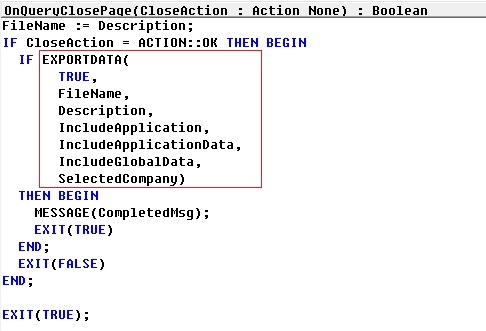
EXPORTDATA Function (Database)

Exports data from the Microsoft Dynamics NAV database to a file. The data is not deleted from the database.

Syntax

[Ok:=] EXPORTDATA(ShowDialog, FileName[, IncludeApplicationData][, IncludeGlobalData][, CompanyRecord])

Parameters

ShowDialog

Type: Boolean

Specifies if you want to display a dialog box where the user can confirm the action.

FileName

Type: Text

Specifies the name and location of the file that the data must be exported to. The file must have the .navdata extension.

IncludeApplication

Type: Variable

Specifies if you want to export the application objects.

Create a variable of type Boolean to specify this parameter.

IncludeApplicationData

Type: Variable

Specifies if you want to export the data that defines the application in the database. This includes the permissions, permission sets, profiles, and style sheets.

Create a variable of type Boolean to specify this parameter.

IncludeGlobalData

Type: Variable

Specifies if you want to export global, non-company specific data.

Create a variable of type Boolean to specify this parameter.

CompanyRecord

Type: Record

Specifies the company or companies that must be imported.

You can find the usage of this function in Std. Page Object 9901 [Export Data]
DatabaseFunction-1

IMPORTDATA Function (Database)

Imports data from a file that has been exported from a Microsoft Dynamics NAV database.

Syntax

[Ok:=] IMPORTDATA(ShowDialog, FileName[, IncludeApplicationData][, IncludeGlobalData][, CompanyRecord])

Parameters

ShowDialog

Type: Boolean

Specifies if you want to display a dialog box where the user can confirm the action.

FileName

Type: Text

Specifies the name and location of the file that must be imported. The file must have been exported from a Microsoft Dynamics NAV database.

IncludeApplicationData

Type: Variable

Specifies if you want to import the data that defines the application in the database. This includes the permissions, permission sets, profiles, and style sheets.

Create a variable of type Boolean to specify this parameter.

IncludeGlobalData

Type: Variable

Specifies if you want to import global, non-company specific data.

Create a variable of type Boolean to specify this parameter.

CompanyRecord

Type: Record

Specifies the company or companies that must be imported.

You can find the usage of this function in Std. Page Object 9900 [Import Data]
DatabaseFunction-2

DATAFILEINFORMATION Function (Database)

Specifies data from a file that has been exported from a Microsoft Dynamics NAV database.

Syntax

[Ok:=] DATAFILEINFORMATION(ShowDialog, FileName, Description, HasApplication, HasApplicationData, HasGlobalData, tenantId, exportDate, CompanyRecord)

Parameters

ShowDialog

Type: Boolean

Specifies if you want to display a dialog box where the user can confirm the action.

FileName

Type: Text

Specifies the name and location of the file that you want to read information from. The file must have been exported from a Microsoft Dynamics NAV database.

HasApplication

Type: Variable

Specifies if the file contains application objects.

Create a variable of type Boolean to specify this parameter.

HasApplicationData

Type: Variable

Specifies if the file contains the data that defines the application in the database. This includes the permissions, permission sets, profiles, and style sheets.

Create a variable of type Boolean to specify this parameter.

HasGlobalData

Type: Variable

Specifies if the file contains global, non-company specific data.

Create a variable of type Boolean to specify this parameter.

tenantId

Type: Variable

Specifies the tenant ID of the database that the data was exported from.

Create a variable of type Text to specify this parameter.

exportDate

Type: Variable

Specifies the date and time when the data was exported.

Create a variable of type DateTime to specify this parameter.

CompanyRecord

Type: Record

Specifies the company or companies in the file.

You can find the usage of this function in Std. Page Object 9900 [Import Data]
DatabaseFunction-3

Development Tips, Excel, Office Integration, Report, Server

Viewing Page Data in Excel Using PowerPivot (OData)

Here I will discuss how you can use OData to expose a Microsoft Dynamics NAV 2015 page as a web service and then analyse the page data using Microsoft PowerPivot for Excel 2013.

With OData and PowerPivot, you gain access to a powerful set of tools and technologies for data exchange and analysis.

This walkthrough illustrates the following tasks:

  • Publishing a Microsoft Dynamics NAV page as a web service.
  • Verifying web service availability from a browser.
  • Using the PowerPivot add-in for Excel to import the table data as a new worksheet.
  • This procedure also includes optional instructions about how to use a web service access key.
  • Creating a PivotTable from the worksheet, selecting relevant fields, and then organizing and formatting the data to highlight strategic data.

Optional:

If you want to use a web service access key to authenticate access to the web service, Microsoft Dynamics NAV must meet the following requirements:

The Microsoft Dynamics NAV Server is configured to authenticate users by using the NavUserPassword credential type.

There is a Microsoft Dynamics NAV user account that has a web service access key.

You can find more details in my earlier post here

Publishing a Page as a Web Service

You can publish a web service by using the Microsoft Dynamics NAV Web client or the Microsoft Dynamics NAV Windows client.

To register and publish a page as a web service

  • Open the RoleTailored client and connect to the CRONUS International Ltd. company.
  • In the Search box, enter Web Services, and then choose the related link.
  • In the Web Services page, choose New.
  • In the Object Type column, select Page. In the Object ID column, enter 21, and in the Service Name column, enter Customer.

This exposes the Customer Card page as an OData web service.

  • Select the check box in the Published column.

Choose the OK button to close the New – Web Services page.

PowerPivot-1
Verifying the Web Service’s Availability

Security Note

After publishing a web service, verify that the port that web service applications will use to connect to your web service is open. The default port for OData web services is 7048. You can configure this value by using the Microsoft Dynamics NAV Server Administration Tool.

To verify availability of a Microsoft Dynamics NAV web service

Start Windows Internet Explorer.

In the Address field, enter a URI using the following format: http://Server : WebServicePort/ServerInstance/OData/

Server is the name of the computer that is running Microsoft Dynamics NAV Server.

WebServicePort is the port that OData is running on. The default port is 7048.

ServiceInstance is the name of the Microsoft Dynamics NAV Server instance for your solution. The default name is DynamicsNAV80.

For example, if the Microsoft Dynamics NAV Server is running on the computer that you are working on, you can use: http://localhost:7048/DynamicsNAV80/OData/

In my case: – http://indel-axt5283n1.tecturacorp.net:8048/DynamicsNAV80/OData/

The browser should now show the web service that you have published, as shown in the following illustration.

PowerPivot-2
Note

If the browser cannot find the web service, it may indicate that the specified Microsoft Dynamics NAV Server instance is not running.

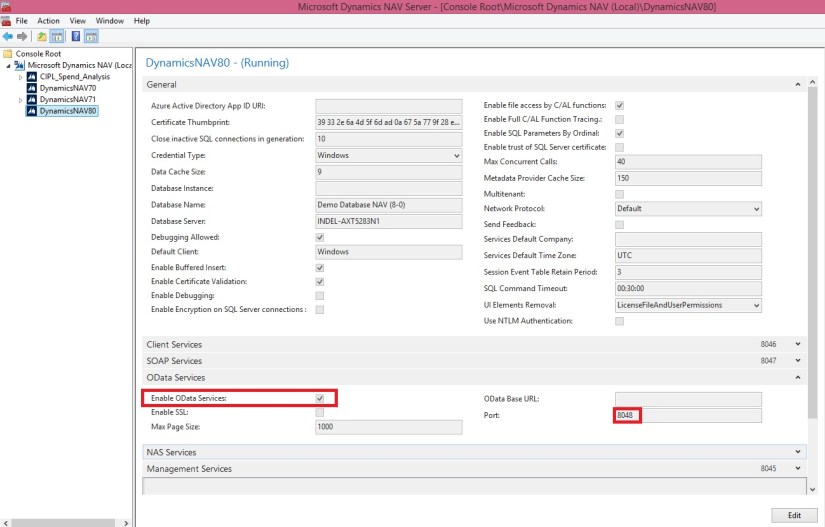
Make Sure Enable OData Services is checked.
PowerPivot-3
Importing Microsoft Dynamics NAV Data into Excel

In the following procedures, you use PowerPivot to import Microsoft Dynamics NAV data into Excel. If you will be using a web service access key for authentication, only perform the second procedure; otherwise, only perform the first procedure.

To import Microsoft Dynamics NAV data into Excel

Start Microsoft Excel.

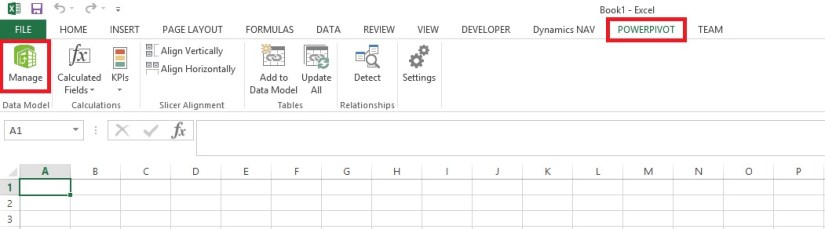
In Excel, on the PowerPivot tab, choose Manage.

PowerPivot-4
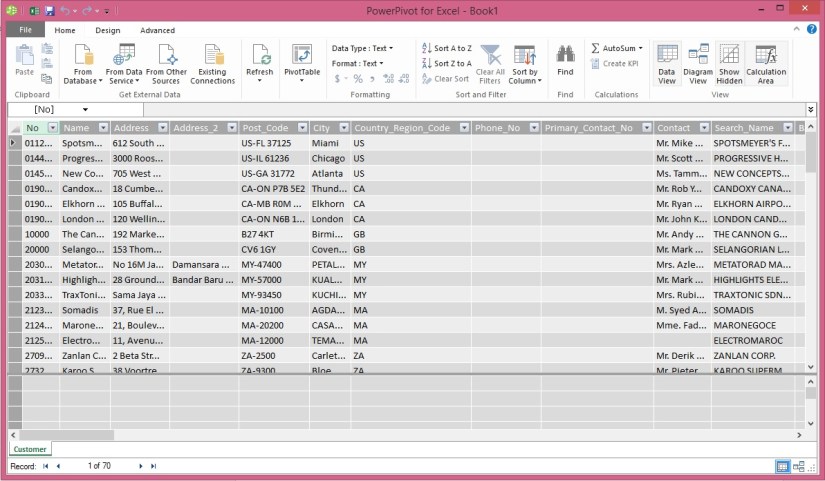
This opens the PowerPivot for Excel window.
PowerPivot-5
In PowerPivot, on the Home tab, choose Get External Data, choose From Data Service, and then choose From OData Data Feed.

The Table Import Wizard opens.

PowerPivot-6
If your Microsoft Dynamics NAV implementation requires that you use a web service access key, you must specify the NavUserPassword credentials as described in the following steps:

In the Advanced dialog box, in the Security section, set the Integrated Security field to Basic. If your OData is configured to use SSL, then set the field to SSPL.

In the Password field, type the web service access key.

In the UserID field, type the user name for the Microsoft Dynamics NAV user account. For this walkthrough, use NavTest.

In the Source section, in the Service Document URL field, type the URL for the OData web service that you verified in the previous procedure, for example, http://localhost:7048/DynamicsNAV80/OData/.

In my case: – http://indel-axt5283n1.tecturacorp.net:8048/DynamicsNAV80/OData/

Choose the OK button to return to the Table Import Wizard.

In the Connect to a Data Feed page, in the Data Feed Url field, enter the OData URI that you verified in the previous procedure.
PowerPivot-7

Choose the Next button.

Important: The URI must end with a slash (/) as shown in the example.

Verify that Customer appears in the Source Table column.

Select the check box next to the Customer web service, and then choose Finish.
PowerPivot-8
After you see the Success message, choose the Close button.
PowerPivot-9

The data from the Customer OData web service displays, and you can use the data to build pivot-based views in the Excel workbook.

Creating a PivotTable Containing Key Microsoft Dynamics NAV Data

In this procedure, you use the Excel workbook with data from the Customer web service to create a PivotTable from the worksheet. You select relevant fields and then organize and format the data to highlight strategic data. Building a pivot table is a way to select and arrange data so as to highlight and focus on key elements.

To create a PivotTable

In Excel, select the cell where you want the PivotTable located.

In the ribbon, choose the Insert tab, and then in the Tables group, choose PivotTable.

In the Create PivotTable dialog box, select Use an external data source, and then choose the Choose Connection button.

In the Existing Connections dialog box, on the Connections tab, under Connections in this Workbook, choose the data feed for your OData web service, and then choose the Open button.
PowerPivot-10

Choose the OK button to add the PivotTable to the Excel worksheet.

The PowerPivot Field pane on the right side includes a list of fields from the Customer web service that where imported from PowerPivot.

In the PowerPivot Field List pane, choose Location_Code.

Tip

To quickly find a field in the field list, type part or all of the field name in the Search text box that is above the list of fields, and then press Enter to highlight the first field that contains the text. You can then choose the right arrow to proceed to the next field, and so on.

Select the Balance_LCY field.

Select the Name field.

You can now see the data in the body of the worksheet, as shown in the following illustration.

The PivotTable shows customers by location and individual customer balances, and also adds the balances by location. To make the information more readable, you can update the headings on the PivotTable.
PowerPivot-11

Select the cell that has the heading Sum of Balance_LCY, and then, in the formula field, type Balance.

Select the cell that has the heading Row Labels, and then in the formula field, type Customers by location.

Select the empty cell that is below the Customers by location cell, and then, in the formula field, type Location not specified.

The above illustration shows how the worksheet looks after you make these changes.

Next Steps

Now that you have created your PivotTable, you can continue to enhance the data to make it more useful and readable. You can:

Add a column to the data that shows average balance by region.

Enhance data presentation with a graph.

Post the data in a Microsoft SharePoint environment with live data from Microsoft Dynamics NAV 2015.

Development Tips

TextEncoding Property (XMLports)

Specifies the text encoding format to use when you use an XMLport to export or import data as text.

Note

The TextEncoding property is only available when the Format Property (XMLports) of the XMLport is set to Fixed Text or Variable Text.

Values

  • MS-DOS (default)
  • UTF-8
  • UTF-16
  • Windows

Remarks

Text encoding is the process of transforming bytes of data into readable characters for users of a system or program. There are several industry text encoding formats and different systems support different formats. Internally, Microsoft Dynamics NAV uses Unicode encoding. For exporting and importing data with an XMLport, Microsoft Dynamics NAV supports MS-DOS, UTF-8, UTF-16, and Windows encoding formats.

You should set the TextEncoding property to the encoding format that is compatible with the system or program that you will be exporting to or importing from. The following sections describe the available text encoding formats.

Tip

You can also set the TextEncoding property in C/AL code. For example, if your XMLport can import or export different formats based on certain conditions, you can change the encoding on the fly depending on the conditions. For example, you can write code such as the following:

currXMLport.TEXTENCODING := TEXTENCODING::Windows;

Example

The following code example illustrates how you can set the encoding during run time.

TextEncoding

Above screenshot is from XMLport 1220 in the CRONUS International Ltd. demonstration database.

Sample Code:

      CASE MyDefinitionTable.”File Encoding” OF

MyDefinitionTable.”File Encoding”::”MS-DOS”:

currXMLport.TEXTENCODING(TEXTENCODING::MSDos);

MyDefinitionTable.”File Encoding”::”UTF-8″:

currXMLport.TEXTENCODING(TEXTENCODING::UTF8);

MyDefinitionTable.”File Encoding”::”UTF-16″:

currXMLport.TEXTENCODING(TEXTENCODING::UTF16);

MyDefinitionTable.”File Encoding”::WINDOWS:

currXMLport.TEXTENCODING(TEXTENCODING::Windows);

The table, MyDefinitionTable, (Imaginary Table) has a field, File Encoding, (imaginary Field) that specifies the encoding for this part of an import.

Security, Server

Enhancing Microsoft Dynamics NAV Server Security

Microsoft Dynamics NAV Server is a .NET-based Windows Service application that works exclusively with SQL Server databases.

Microsoft Dynamics NAV Server provides an additional layer of security between clients and the database. It leverages the authentication features of the Windows Communications Framework to provide another layer of user authentication and uses impersonation to ensure that business logic is executed in a process that has been instantiated by the user who submitted the request. This means that authorization and logging of user requests are performed on a per-user basis.

Login Account

After you install Microsoft Dynamics NAV Server, the default configuration is for the service to log on using the NT Authority\Network Service account. If Microsoft Dynamics NAV Server and SQL Server are on different computers, then MS recommends that you configure Microsoft Dynamics NAV Server to log on using a dedicated Windows domain user account instead. This account should not be an administrator either in the domain or on any local computer. A dedicated domain user account is considered more secure because no other services and therefore no other users have permissions for this account.

Disk Quotas

Client users can send files to be stored on Microsoft Dynamics NAV Server, so MS recommend that administrators set up disk quotas on all computers running Microsoft Dynamics NAV Server.

This can prevent users from uploading too many files, which can make the server unstable. Disk quotas track and control disk space usage for NTFS volumes, which allows administrators to control the amount of data that each user can store on a specific NTFS volume.

Limiting Port Access

The Microsoft Dynamics NAV Setup program opens a port in the firewall on the computer where you install Microsoft Dynamics NAV Server. By default, this is port 7046.

To improve security, you can consider limiting access to this port to a specific subnet. One way is to use netsh, which is a command-line tool for configuring and monitoring Windows-based computers at a command prompt.

The specific version of this command that you would use is netsh firewall set portopening. For example, the following command limits access to port 7046 to the specified addresses and subnets:

netsh firewall set portopening protocol=TCP port=7046 scope=subnet addresses=LocalSubnet

You can learn more on netsh command here.

Cues, Query

Using Query Object to Calculate the Cue Data

Today we will learn to create a query to update Cue data.
SI-Cue-1

Creating a Query for Calculating the Cue Data
First, we will create a query object to calculate the number of open sales invoices from table 21 Cust. Ledger Entry.
Create a query for calculating the Cue data as below:
SI-Cue-2
Save the query.

Adding the Table Field for the Cue Data
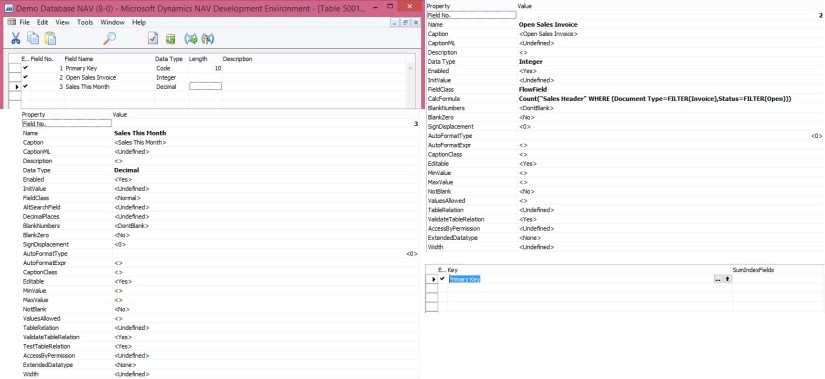
Next we will add a field to the table Sales Invoice Cue (create new table) for holding the Cue data.
SI-Cue-3

SI-Cue-4
We will add a global function that returns the total amount of sales invoices for the current month from the query object that we created above procedure.

To add C/AL code to the table calculate the Cue data
Add a global function that is called CalcSalesThisMonthAmount as follows:

On the View menu, choose C/AL Globals.

On the Functions tab, in the Name column, enter CalcSalesThisMonthAmount.

Select the new function, and then in the View menu, select Properties.

Set the Local property to No.

In the C/AL Globals window, select the new function, and then choose Locals.

On the Return Value tab, set Name field to Amount and the Return Type field to Decimal.

On the Variables tab, add two variables as shown in the following table:

Name DataType Subtype
CustLedgerEntry Record Cust. Ledger Entry
CustLedgerEntrySales Query Cust. Ledg. Entry Sales

In C/AL code, add the following code on the CalcSalesThisMonthAmount function:

CustLedgerEntrySales.SETRANGE(Document_Type,CustLedgerEntry.”Document Type”::Invoice);

CustLedgerEntrySales.SETRANGE(Posting_Date,CALCDATE(‘<-CM>’,WORKDATE),WORKDATE);

CustLedgerEntrySales.OPEN;

IF CustLedgerEntrySales.READ THEN

Amount := CustLedgerEntrySales.Sum_Sales_LCY;

SI-Cue-5
Save the table.

Adding the Cue to the Role Center Page
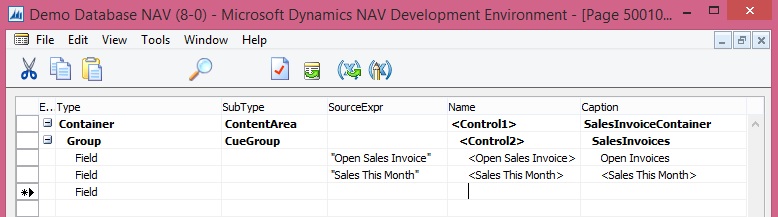
To display the Cue fields on the Role Center, We will create a new Page [PageType  = CardPart] name Sales Invoice Cue.
SI-Cue-6

SI-Cue-7
Page Designer should look similar to shown above illustration.

Open the C/AL code for the page, and then add the following code to the OnAfterGetRecord Trigger to assign the Sales This month field to the CalcSalesThisMonthAmount function of table Sales Invoice Cue:

“Sales This Month” := CalcSalesThisMonthAmount;

SI-Cue-8
Also add code to the OnOpenPage Trigger.

RESET;
IF NOT GET THEN BEGIN
INIT;
INSERT;
END;

Formatting the Cue Data
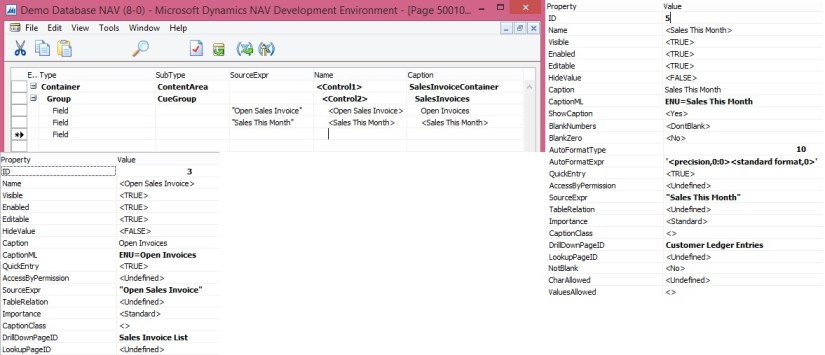
We does not want to display any decimal places. To achieve this, we set the AutoFormatType Property and AutoFormatExpr Property of the Cue field on the page. As shown above.

To change the data format

In the Properties window, set the AutoFormatType property to 10.

This enables you to create a custom data format.

Set the AutoFormatExpr property to the following text.

‘<precision,0:0><standard format,0>’

<precision,0:0> specifies not to display any decimals places.

<standard format,0> specifies to format the data according to standard format 0.

Close the Properties windows, and then save and compile the page.

Run the Page created above the output should be similar to as below:
SI-Cue-9

Now you can add this CardPart Page to any of your Role Centre Page.

Development Tips, Office Integration

Using Automation to Create a Graph in Microsoft Excel

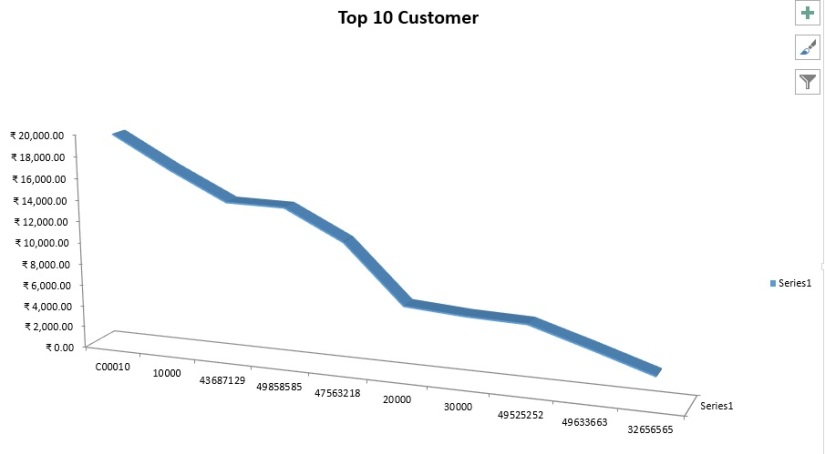
In this walkthrough, you will transfer data for top 10 Customers Sales Contribution to Microsoft Excel and create a graph.

This example shows how to handle enumerations by creating a graph in Excel that shows the distribution of Sales by Customer.

ExcelChart-1

You will run the codeunit directly from Object Designer. In a real application, you would call it from an appropriate place, such as from a menu or any other window.

About This Walkthrough

This walkthrough illustrates the following tasks:

  • Creating a codeunit that declares the Automation variables that are required for using Excel Automation.
  • Adding a function to calculate Top 10 Customers Sales Contribution.
  • Adding C/AL code to the codeunit to run the Automation object that opens Excel.
  • Adding C/AL code to the Automation codeunit to transfer data from a table record to Excel.
  • Adding C/AL code that creates a graph in Excel. 

Prerequisites 

To complete this walkthrough, you will need:

  • Microsoft Dynamics NAV 2015 with a developer license.
  • The CRONUS International Ltd. demo data company.
  • Microsoft Excel 2013 or Microsoft Excel 2010.

Creating the Codeunit and Declaring Variables

To create the codeunit and declare variables

  • To implement Automation in a codeunit, you define the Automation variables. To define an Automation variable, you specify an Automation server and the Automation object.
  • The language in the regional settings of your computer matches the language version of Microsoft Excel.
  • In Object Designer, choose Codeunit, and then choose the New button to create a new codeunit.
  • On the View menu, choose C/AL Globals.
  • On the Variables tab, add the following variables:

Note

For the Automation data type variables, the subtype Microsoft Excel 15.0/14.0 Object Library defines the Automation server, and the class specifies the Automation object of the Microsoft Excel 15.0/14.0 Object Library.

ExcelChart-2

Name DataType Subtype Length
xlApp Automation ‘Microsoft Excel 15.0 Object Library’.Application
xlBook Automation ‘Microsoft Excel 15.0 Object Library’.Workbook
xlSheet Automation ‘Microsoft Excel 15.0 Object Library’.Worksheet
xlChart Automation ‘Microsoft Excel 15.0 Object Library’.Chart
xlRange Automation ‘Microsoft Excel 15.0 Object Library’.Range
Cust Record Customer
Window Dialog
CustAmount Record Customer Amount
CustFilter Text
CustDateFilter Text 30
ShowType Option  [Sales (LCY),Balance (LCY)]
NoOfRecordsToPrint Integer
CustSalesLCY Decimal
CustBalanceLCY Decimal
MaxAmount Decimal
BarText Text 50
i Integer
TotalSales Decimal
TotalBalance Decimal
ChartType Option  [Bar chart,Pie chart]
ChartTypeNo Integer
ShowTypeNo Integer
ChartTypeVisible Boolean
Integer Record Integer
Customer Record Customer
CellNo1 Text 5
CellNo2 Text 5
  • Close the C/AL Globals window.

Adding the Code

Now you add the code for the codeunit.

To add the code

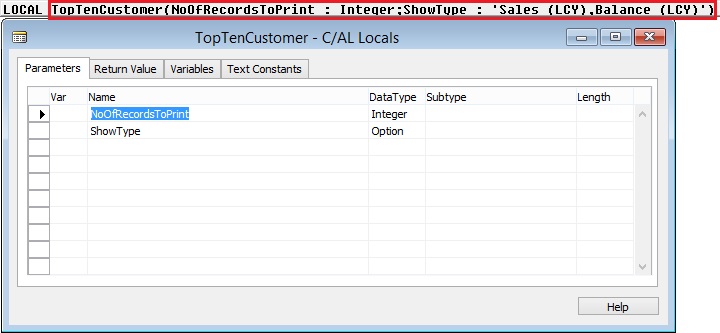
  • Add a Function to calculate Top 10 Customers Sales Contribution as:

ExcelChart-3
Add code to it as:

I have not used all the values, just shown this way also you can think of while you design any such code & functions.

Window.OPEN(Text000);

i := 0;

Cust.RESET;

IF Cust.FINDSET THEN

REPEAT

Window.UPDATE(1,Cust.”No.”);

Cust.CALCFIELDS(“Sales (LCY)”,”Balance (LCY)”);

IF (Cust.”Sales (LCY)” <> 0) OR (Cust.”Balance (LCY)” <> 0) THEN

BEGIN

CustAmount.INIT;

CustAmount.”Customer No.” := Cust.”No.”;

IF ShowType = ShowType::”Sales (LCY)” THEN BEGIN

CustAmount.”Amount (LCY)” := -Cust.”Sales (LCY)”;

CustAmount.”Amount 2 (LCY)” := -Cust.”Balance (LCY)”;

END ELSE BEGIN

CustAmount.”Amount (LCY)” := -Cust.”Balance (LCY)”;

CustAmount.”Amount 2 (LCY)” := -Cust.”Sales (LCY)”;

END;

CustAmount.INSERT;

IF (NoOfRecordsToPrint = 0) OR (i < NoOfRecordsToPrint) THEN

i := i + 1

ELSE BEGIN

CustAmount.FIND(‘+’);

CustAmount.DELETE;

END;

TotalSales += Cust.”Sales (LCY)”;

TotalBalance += Cust.”Balance (LCY)”;

ChartTypeNo := ChartType;

ShowTypeNo := ShowType;

END;

UNTIL Cust.NEXT = 0;

CustSalesLCY := Cust.”Sales (LCY)”;

CustBalanceLCY := Cust.”Balance (LCY)”;

Window.CLOSE;

IF CustAmount.FIND(‘-‘) THEN

REPEAT

CustAmount.”Amount (LCY)” := -CustAmount.”Amount (LCY)”;

Customer.GET(CustAmount.”Customer No.”);

Customer.CALCFIELDS(“Sales (LCY)”,”Balance (LCY)”);

IF MaxAmount = 0 THEN

MaxAmount := CustAmount.”Amount (LCY)”;

CustAmount.”Amount (LCY)” := -CustAmount.”Amount (LCY)”;

UNTIL CustAmount.NEXT = 0;

  • In the C/AL Editor, make call to above function by adding the following code to the OnRun trigger.

CustAmount.DELETEALL;

TopTenCustomer(10,ShowType::”Sales (LCY)”,ChartType::”Bar chart”);

  • Create an instance of Excel by adding the following code.

CREATE(xlApp, FALSE, TRUE);

  • Add a new workbook to Excel.

xlBook := xlApp.Workbooks.Add(-4167);

xlSheet:= xlApp.ActiveSheet;

xlSheet.Name := ‘Top 10 Customer’;

The following describes the code:

    • In the first line, you use the Add method of the Workbooks collection to return a new workbook. The attribute -4167 is the enumerator value of worksheets as they apply to Workbook objects.
    • In the second line, you use the ActiveSheet property of the Application class to ensure that what is done next affects the active sheet of the new workbook.
    • In the third line, you use the Name property to name the sheet.

Transferring Data

To transfer the data, you must calculate the data and transfer the results of the calculation.

To transfer data

  • In the C/AL Editor, on the codeunit, use following code to transfer data of Top 10 Customers to Excel. To transfer the data to Microsoft Excel, add the following code.

CellNo1 := ‘A1’;

CellNo2 := ‘B1’;

IF CustAmount.FINDSET THEN

REPEAT

CellNo1 := INCSTR(CellNo1);

xlSheet.Range(CellNo1).Value := CustAmount.”Customer No.”;

CellNo2 := INCSTR(CellNo2);

xlSheet.Range(CellNo2).Value := ABS(CustAmount.”Amount (LCY)”);

UNTIL CustAmount.NEXT = 0;

  • The final step is to create the graph. You will use the ChartWizard method to create chart. This is a fast and simple way to do it. You can more tightly control the design of the graph by setting it up using the methods and properties of the various Chart objects, such as ChartArea and Legend.

Creating the Graph

The final step is to create the graph. You will use the ChartWizard method to create chart. This is a fast and simple way to do it. You can more tightly control the design of the graph by setting it up using the methods and properties of the various Chart objects, such as ChartArea and Legend.

To create the graph

  •   In the C/AL Editor, on the current codeunit, define a range for the data in the graph.

xlRange := xlSheet.Range(‘A2:’+FORMAT(CellNo2));

  • Add a new chart sheet and give it a name.xlChart.Name := ‘ Top 10 Customer – Graph’;

xlChart := xlBook.Charts.Add;

xlChart.Name := ‘ Top 10 Customer – Graph’;

  • Create the graph.

xlChart.ChartWizard(xlRange,-4101,7,2,1,0,1,’Top 10 Customer’);

The following table describes the optional arguments that are used in the ChartWizard method.

Argument Description Value in method call
Source The range that contains the source data for the new chart. xlRange – The object returned by xlSheet.Range(‘A2:C3’).
Gallery The chart type. -4101 – The enumerator for the Chart Shown above.
Format The option number for the built-in auto formats. 7
PlotBy An integer specifying whether the data for each series is in rows or columns. 2 – The enumerator for the xlRows XlRowCol enumerator.
CategoryLabels An integer specifying the number of rows or columns within the source range that contains category labels. 1 – There is one row with category labels (the department names).
SeriesLabels An integer specifying the number of rows or columns within the source range that contains series labels. 0 – There are no series labels in your data.
HasLegend TRUE to include a legend. 1
Title VARIANT with the title of the chart. You pass a string such as ‘Top 10 Customer’.
  • Make Excel visible by adding the following code.

xlApp.Visible := TRUE;

Excel produces a General Protection Fault error when you close a new Excel worksheet that is created when Excel is invisible. To resolve this, you can make Excel visible immediately after you create a new worksheet. You can also make Excel visible just before you create a new Excel worksheet and then make it invisible again immediately after creating the new Excel worksheet. In this case, you would add the following code.

xlApp.Visible := TRUE;

xlBook := xlApp.Workbooks.Open(FileName);

xlApp.Visible := FALSE;

  •  Clearing the Temp Table by adding the following code.

CustAmount.DELETEALL;

  • Complete code in OnRun trigger should look like below:

ExcelChart-4
Saving and Running the Codeunit

You can test the codeunit for creating the graph by running the codeunit from Object Designer.

To save and run a codeunit

  1. On the File menu, choose Save.
  2. In the Save As window, enter an ID and name, and then choose the OK
  3. In Object Designer, select the codeunit, and then choose the Run

The Microsoft Excel graph should appear. As show above in beginning of the post.

Note

If you get an error states Old format or invalid type library, then make sure that the language in the regional settings of your computer matches the language version of Microsoft Excel.

Below detailed reference to the values used in above code:


XlChartType

Name Value Description
xl3DArea -4098 3D Area.
xl3DAreaStacked 78 3D Stacked Area.
xl3DAreaStacked100 79 100% Stacked Area.
xl3DBarClustered 60 3D Clustered Bar.
xl3DBarStacked 61 3D Stacked Bar.
xl3DBarStacked100 62 3D 100% Stacked Bar.
xl3DColumn -4100 3D Column.
xl3DColumnClustered 54 3D Clustered Column.
xl3DColumnStacked 55 3D Stacked Column.
xl3DColumnStacked100 56 3D 100% Stacked Column.
xl3DLine -4101 3D Line.
xl3DPie -4102 3D Pie.
xl3DPieExploded 70 Exploded 3D Pie.
xlArea 1 Area
xlAreaStacked 76 Stacked Area.
xlAreaStacked100 77 100% Stacked Area.
xlBarClustered 57 Clustered Bar.
xlBarOfPie 71 Bar of Pie.
xlBarStacked 58 Stacked Bar.
xlBarStacked100 59 100% Stacked Bar.
xlBubble 15 Bubble.
xlBubble3DEffect 87 Bubble with 3D effects.
xlColumnClustered 51 Clustered Column.
xlColumnStacked 52 Stacked Column.
xlColumnStacked100 53 100% Stacked Column.
xlConeBarClustered 102 Clustered Cone Bar.
xlConeBarStacked 103 Stacked Cone Bar.
xlConeBarStacked100 104 100% Stacked Cone Bar.
xlConeCol 105 3D Cone Column.
xlConeColClustered 99 Clustered Cone Column.
xlConeColStacked 100 Stacked Cone Column.
xlConeColStacked100 101 100% Stacked Cone Column.
xlCylinderBarClustered 95 Clustered Cylinder Bar.
xlCylinderBarStacked 96 Stacked Cylinder Bar.
xlCylinderBarStacked100 97 100% Stacked Cylinder Bar.
xlCylinderCol 98 3D Cylinder Column.
xlCylinderColClustered 92 Clustered Cone Column.
xlCylinderColStacked 93 Stacked Cone Column.
xlCylinderColStacked100 94 100% Stacked Cylinder Column.
xlDoughnut -4120 Doughnut.
xlDoughnutExploded 80 Exploded Doughnut.
xlLine 4 Line.
xlLineMarkers 65 Line with Markers.
xlLineMarkersStacked 66 Stacked Line with Markers.
xlLineMarkersStacked100 67 100% Stacked Line with Markers.
xlLineStacked 63 Stacked Line.
xlLineStacked100 64 100% Stacked Line.
xlPie 5 Pie.
xlPieExploded 69 Exploded Pie.
xlPieOfPie 68 Pie of Pie.
xlPyramidBarClustered 109 Clustered Pyramid Bar.
xlPyramidBarStacked 110 Stacked Pyramid Bar.
xlPyramidBarStacked100 111 100% Stacked Pyramid Bar.
xlPyramidCol 112 3D Pyramid Column.
xlPyramidColClustered 106 Clustered Pyramid Column.
xlPyramidColStacked 107 Stacked Pyramid Column.
xlPyramidColStacked100 108 100% Stacked Pyramid Column.
xlRadar -4151 Radar.
xlRadarFilled 82 Filled Radar.
xlRadarMarkers 81 Radar with Data Markers.
xlStockHLC 88 High-Low-Close.
xlStockOHLC 89 Open-High-Low-Close.
xlStockVHLC 90 Volume-High-Low-Close.
xlStockVOHLC 91 Volume-Open-High-Low-Close.
xlSurface 83 3D Surface.
xlSurfaceTopView 85 Surface (Top View).
xlSurfaceTopViewWireframe 86 Surface (Top View wireframe).
xlSurfaceWireframe 84 3D Surface (wireframe).
xlXYScatter -4169 Scatter.
xlXYScatterLines 74 Scatter with Lines.
xlXYScatterLinesNoMarkers 75 Scatter with Lines and No Data Markers.
xlXYScatterSmooth 72 Scatter with Smoothed Lines.
xlXYScatterSmoothNoMarkers 73 Scatter with Smoothed Lines and No Data Markers.

expression .ChartWizard(Source, Gallery, Format, PlotBy, CategoryLabels, SeriesLabels, HasLegend, Title, CategoryTitle, ValueTitle, ExtraTitle)

expression A variable that represents a Chart object.

Parameters

Name Required/Optional Data Type Description
Source Optional Variant The range that contains the source data for the new chart. If this argument is omitted, Microsoft Excel edits the active chart sheet or the selected chart on the active worksheet.
Gallery Optional Variant One of the constants of XlChartType specifying the chart type.
Format Optional Variant The option number for the built-in autoformats. Can be a number from 1 through 10, depending on the gallery type. If this argument is omitted, Microsoft Excel chooses a default value based on the gallery type and data source.
PlotBy Optional Variant Specifies whether the data for each series is in rows or columns. Can be one of the following XlRowCol constants: xlRows or xlColumns. Values can be [1 or 2]
CategoryLabels Optional Variant An integer specifying the number of rows or columns within the source range that contain category labels. Legal values are from 0 (zero) through one less than the maximum number of the corresponding categories or series.
SeriesLabels Optional Variant An integer specifying the number of rows or columns within the source range that contain series labels. Legal values are from 0 (zero) through one less than the maximum number of the corresponding categories or series.
HasLegend Optional Variant True to include a legend.
Title Optional Variant The chart title text.
CategoryTitle Optional Variant The category axis title text.
ValueTitle Optional Variant The value axis title text.
ExtraTitle Optional Variant The series axis title for 3-D charts or the second value axis title for 2-D charts.

Remarks

If Source is omitted and either the selection isn’t an embedded chart on the active worksheet or the active sheet isn’t an existing chart, this method fails and an error occurs.

You can use other values from above table to create graph of your choice.

Troubleshooting Tips

General Troubleshooting Tips

Record Locked by Another User

If you have ended Microsoft Dynamics NAV in busy mode, and then restarted Microsoft Dynamics NAV, you may experience the following error message: “Record locked by another user”. This is caused by a lock on data in a job that is still running on the server.

To release this lock, you must either shut down the SQL server manually, or restart the Microsoft Dynamics NAV Server session using the Microsoft Dynamics NAV Server Administration tool.

Sorting Actions in System Groups

In the Microsoft Dynamics NAV Windows client, you cannot order actions in system groups in the Home tab.

Remove all actions from the group, apply changes, and then add the actions again. This will ensure that metadata is created for all actions and that they can be sorted as you want.

Removing Promoted Actions in Home Tab

In Microsoft Dynamics NAV removing a promoted action in the Home tab, and then re-adding it in the same session will cause duplication of the action.

Remove the action, apply changes, add the action again, and then apply changes. Or, remove the action, add it again in same session, and then apply changes. Remove duplicate instances and apply changes.

Compression Option in IIS

Users may experience slow mobile client responses especially noticeable when they are running with a slow network connection. The reason for the mobile client running slowly can be that the dynamic compression is not enabled on the IIS server.

Configure HTTP compression of dynamic content to use bandwidth more efficiently. Enabling dynamic compression always gives you more efficient use of bandwidth, but if your server’s processor utilization is already very high, the CPU load imposed by dynamic compression might make your site perform more slowly.

You can perform this procedure by using the user interface (UI), by running Appcmd.exe commands in a command-line window, by editing configuration files directly, or by writing WMI scripts.

  1. Open IIS Manager and navigate to the level you want to manage.

  2. In Features View, double-click Compression.

  3. On the Compression page, select the box next to Enable dynamic content compression.

  4. Click Apply in the Actions

The File that You Are Trying to Use Is Too Large

If you are trying to upload a large image file that is larger than 4 MB in size, such as a high-resolution photo, Microsoft Dynamics NAV will give you an error message saying that the file you are trying to upload is too large. This behavior can be changed by modifying the IIS configuration to support large file uploads.

The IIS administrator should make the following changes in the Internet Information Services (IIS) Manager.

  1. Launch the IIS Manager.
  2. In the left pane of the IIS Manager, select the Microsoft Dynamics NAV web site, and choose Request Filtering.
  3. In the Actions pane of the Request Filtering window, choose Edit Feature Settings.
  4. Set the field Maximum allowed content length (Bytes) to an appropriate value, such as 100000000 and choose the OK button.
  5. In the left pane of the IIS Manager, select the Microsoft Dynamics NAV web site, and choose Configuration Editor.
  6. In the Configuration Editor, make sure that the From field is set to Microsoft Dynamics NAV 2013 R2 Web Client Web.config
  7. Set the Section field to system.web/httpRuntime and now a number of properties will appear.
  8. Set maxRequestLength to an appropriate value, such as 100000 (kilobytes) and choose the Apply action on the right.
  9. Close the IIS Manager.

The new settings should take effect immediately without refreshing the IIS or the site.