Development Tips

UI Elements Removal

Depending on the setting in the UI Elements Removal field in the Microsoft Dynamics NAV Server Administration tool, only UI elements on objects in the license or on objects that the user has permissions for will appear in the user interface.

For UI elements without a direct relation, you can use the AccessByPermission property to set a value for a table field or UI element that determines the permission mask for an object that a user must have to see and access the related page fields or UI element in the client

To make full use of the LicenseFileAndUserPermissions option in the UI Elements Removal field, it is recommended that you assign the special FOUNDATION permission set to the user along with the relevant application permission sets that define which application objects the user will access. In addition, you must make sure that the user’s application permission sets grant all the functionality access that is not granted by the FOUNDATION permission set alone

A couple of the application permission sets that are provided by Microsoft Dynamics NAV are adapted to support the FOUNDATION permission set for demonstration purposes. To experience how UI elements are removed for a user performing the task to create and edit a new customer, you can create a sample user interface based on the provided permission sets.

For more details see my earlier post AccessByPermission Property – in Navision 2015

Development Tips

Database Schema Synchronization

Microsoft Dynamics NAV 2015 introduces several improvements to the table schema synchronization process that improve performance and make it more explicit and controllable. The improvements give you with the flexibility to decide when and how the table changes are synchronized with corresponding tables in the SQL Server.

In Microsoft Dynamics NAV 2015, changes to the database schema are no longer synchronized automatically to the database when a client connects to a Microsoft Dynamics NAV Server instance. Instead, you specify when to synchronize schema changes in the development environment or the Microsoft Dynamics NAV 2015 Administration Shell.

For example, when you change a table object and compile the table, you can choose to synchronize the change to the database immediately or later. In a production environment, you apply changes to the database schema by running the Sync-NAVTenant Windows PowerShell cmdlet with the Mode parameter set to the relevant synchronization mode.

The schema synchronization design provides the following features and benefits:

  • On-demand schema synchronization and monitoring As a developer or system administrator, from the development environment or Microsoft Dynamics NAV 2015 Administration Shell, you control when to perform the schema synchronization and how to synchronize table changes.This enables you to plan and schedule the schema synchronization on a case-by-case basis. Additionally, you can monitor the progress and state of the business (tenant) database at any time.
  • Non-blocking and increased productivity Schema synchronization has become more granular. You perform schema synchronization for a single table or for all tables at the same time. When one table is being synchronized, you are no longer blocked from making changes to other tables.
  • Capability to provide additional instructions in upgrade codeunits By using upgrade codeunits, you can provide instruction for the schema synchronization to perform additional tasks, such as automatically moving or copying data into upgrade tables, validating the table changes before applying them, or forcefully applying them when it is required.

Please check my earlier post on this topic for more detailed information.

Schema Synchronization in Microsoft Dynamics Navision 2015

Data Upgrade Codeunit in Navision 2015 Part-1

Data Upgrade Codeunit in Navision 2015 Part-2

Development Tips

Data Upgrade – in Navision 2015

Microsoft Dynamics NAV 2015 introduces a new way of running the data upgrade logic that migrates data from the old table structure of an earlier Microsoft Dynamics NAV version to the new table structure of the current version.

The data upgrade process is now prepared and run with the help of new type of codeunit called the upgrade codeunit. The data upgrade process has been enhanced significantly to optimize the performance and provide developers with a superior tool for testing, automating, tracking progress and troubleshooting the data upgrade code. The new data upgrade approach has the following benefits and features:

  • Simplifies the upgrade environment because all steps are performed by the latest version of the Microsoft Dynamics NAV.
  • Increases the data upgrade performance because it is possible to run upgrade functions of upgrade codeunits in parallel (at the same time) and across companies.
  • Reduces the amount of code that is required to handle the data upgrade because several operations are now executed automatically by Microsoft Dynamics NAV Server.
  • Minimizes the number of manual actions that must be performed during the data upgrade, which makes the data upgrade process less error-prone.
  • Uses familiar upgrade toolkit design concepts, such as upgrade tables and upgrade functions.
  • Includes end-to-end sample Windows PowerShell scripts that perform a complete data upgrade.

Please check my earlier post on this topic for more detailed information.

Schema Synchronization in Microsoft Dynamics Navision 2015

Data Upgrade Codeunit in Navision 2015 Part-1

Data Upgrade Codeunit in Navision 2015 Part-2

Development Tips

Page Properties Not Supported by Microsoft Dynamics NAV Web Client

Most page properties that are supported in the Microsoft Dynamics NAV Windows client are also supported in the Microsoft Dynamics NAV Web client.

There are some properties that are not supported by Microsoft Dynamics NAV Web client and other properties that are either partially supported or behave differently in the Microsoft Dynamics NAV Windows client.

Unsupported Properties

The properties that are not supported by the Microsoft Dynamics NAV Web client. When a page that contains an unsupported property is displayed in a browser, the property is ignored. You do not receive an error but the property does not affect the page.

  • ChartPartID Property
  • ColumnSpan Property
  • ControlAddin Property
  • FreezeColumnID Property
  • RowSpan Property
  • RefreshOnActivate Property
  • ShowAsTree Property
  • Style Property
  • StyleExpr Property
  • SystemPartID Property

Partially Supported Properties

The properties that either do not have all the capabilities in the Microsoft Dynamics NAV Web client as they do in Microsoft Dynamics NAV Windows client or they behave differently than in the Microsoft Dynamics NAV Windows client.

  • AssistEdit Property
  • DrillDown Property
  • DrillDownPageID Property
  • GroupType Property
  • Importance Property
  • IndentationControls Property
  • PageType Property
  • PartType Property
Comment or Uncomment Selection, Development Tips

Development Environment Enhancements – in Navision 2015

Auto-generating of C/AL variable and parameter names for complex data types

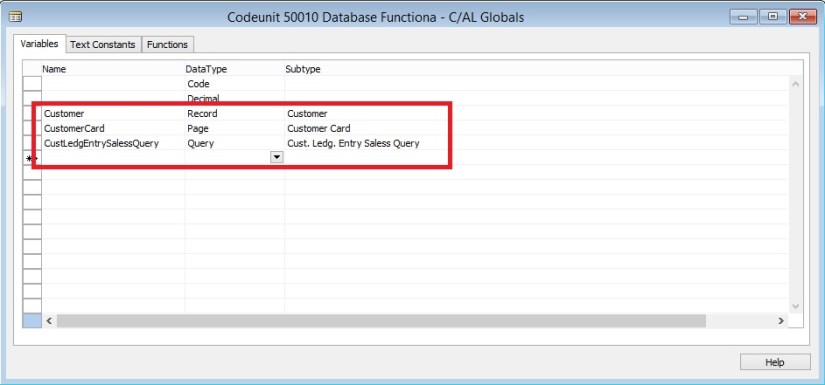
In the C/AL Globals and C/AL Locals windows, when you add a variable or parameter that has the data type Codeunit, Page, Testpage, Report, Query, or XMLport, the Name field will be automatically generated just by setting the DataType and SubType fields. The generated name is based on the name that is assigned to the associated Microsoft Dynamics NAV object. You can change the generated name as you want.
DevelopmentEnvironmentEnhancement-1

Commenting and uncommenting multiple lines of C/AL Code

The development environment includes the Comment Selection and Uncomment Selection options, which enable you to comment and uncomment multiple lines of C/AL code with the click of a button.

For more information, see my earlier post Commenting and uncommenting multiple lines of C/AL Code

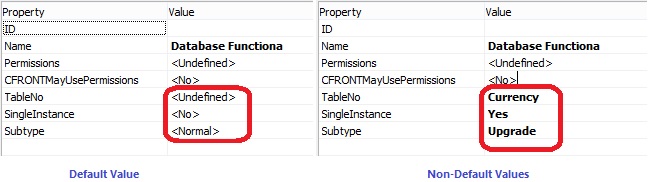
Non-default property values are bold

Microsoft Dynamics NAV objects have many properties that you can view and set from the Properties window in the development environment. Property values that are not the default value of the property appear as bold in the Properties window.
DevelopmentEnvironmentEnhancement-2

C/AL functions are local by default

Unlike in earlier Microsoft Dynamics NAV versions, now when you create a function in the C/AL code of a Microsoft Dynamics NAV object, such as a codeunit or page, the function is set as a local function by default. By default, the Local property of new functions is now set to Yes instead of to No. Being local means that the function is not accessible outside the object in which is it defined.

Development Tips, FixedLayout Control, Scope Property, Show Mandatory Property, UpdatePropagation Property

New Properties and Controls for Pages – in Navision 2015

ShowMandatory Property

With Microsoft Dynamics NAV a new property called ShowMandatory has been introduced on page fields. The ShowMandatory property is set on page fields and marks the field with a red asterisk on the UI.

You can refer this in my earlier post Show Mandatory Property

UpdatePropagation Property

In Microsoft Dynamics NAV a new property called UpdatePropagation is added to page fields. The introduction of this property makes it possible to update a parent page from a subpage automatically without using the page Refresh button.

You can refer this in my earlier post UpdatePropagation Property

Scope Property

In Microsoft Dynamics NAV a new property called Scope is added to page actions. The introduction of this property specifies the scope of an action to be either page-specific, or specific to a repeater control.

You can refer this in my earlier post Defining Action Scope for Microsoft Dynamics NAV Pages in Navision 2015

FixedLayout Control

Microsoft Dynamics NAV now supports using the FixedLayout control on the Microsoft Dynamics NAV Web client.

You can refer this in my earlier post Using a FixedLayout Control

Development Tips

Using a FixedLayout Control

Arrange Page Fields in Rows and Columns Using a FixedLayout Control

A FixedLayout group control is typically used to display statistical data.

Fields in a FixedLayout group control are displayed in a FastTab with a heading for each row and column.

Previous versions of Microsoft Dynamics NAV supported having a FixedLayout control directly under a ContentArea. In Microsoft Dynamics NAV 2013 and later versions of Microsoft Dynamics NAV, you must make sure that the FixedLayout control is nested in a Group control.

To arrange page fields in rows and columns

  1. Open the page in Page Designer.
  2. In Page Designer, insert a blank line where you want to locate the fields.
  3. Set the Type and SubType field to Group. In the Caption field, type the text that you want as the heading of the FastTab that contains the fields.
  4. On the next line, set the Type to Group and SubType field to FixedLayout.
  5. On the next line, set the Type and SubType field to Group. This defines the placeholder for the first column of fields. To add a heading to the column, type the text in the Caption field.
  6. On the next line, set the Type to Field. This defines the first field in the column. In the Caption field, type the text that you want to use as the heading for the row.
  7. Specify the data source for the field by doing one of the following:
    • If the data source is a field of the table that is associated with the page, then on the View menu, choose Field Menu, select the field, and then choose the OK button.
    • If the data source is a variable, then on the View menu, choose C/AL Globals or C/AL Locals, and then create the variable. After you create the variable, in the SourceExpr field in Page Designer, choose the AssistEdit button and select the variable.
  8. Repeat steps 6 and 7 to add the remaining fields in the first column.
  9. Repeat steps 5 through 8 to add group controls that define the remaining columns.

You do not need to specify captions for these fields. Only the captions of fields in the first column define the row headings.

To demonstrate above steps, find below screen shots which makes you understand the concept easily.

FixedLayout-1

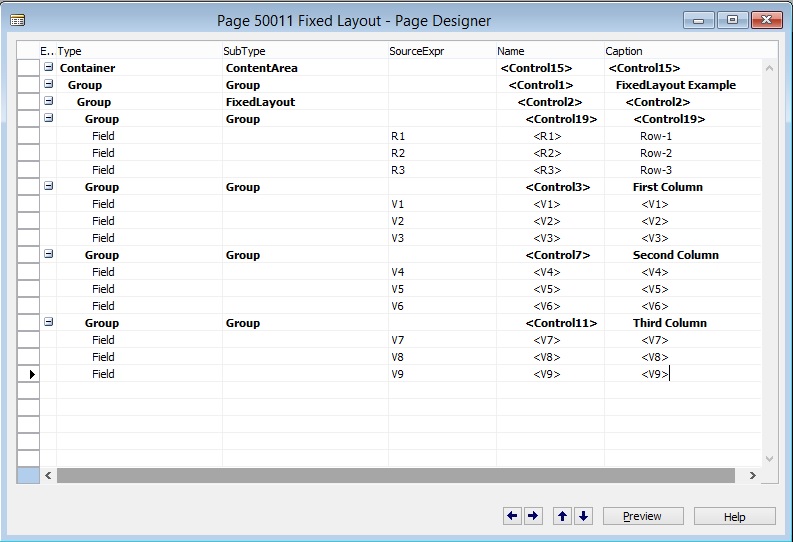
We will create V1..V9 variable as decimal.

We will create R1..R3 variables as Text.

Next we will design and group the page as below:

FixedLayout-2

When we save and run the page we will get below output.

FixedLayout-3

You can use table fields or calculated variables.

You can nest the Layout for different views.

Development Tips, Functional Tips, Tip & Tricks

Using of Posting Groups

Posting groups in Microsoft Dynamics NAV are very important part of configuration process. All G/L Entries depends of correctly configured posting groups.

We can find a lot of them: General Business and Product Posting Groups, VAT Business and Product Posting Groups, Customer and Vendor Posting Groups, Inventory Posting Groups…

Sometime, it is very confusing how it works, especially for unexperienced people.

You can find good explanation on same in this post by Totovic.

Nicely explained, you should see it here. I feel must to see this post for every Navision Consultants either fresher or experienced.

Development Tips, License, Multitenancy, Server

Uploading License to Tenant in Multitenant Environment

When we deploy solution for Multitenant Environment ever Tenant will be required a Separate License. Depending upon the License agreement with Microsoft every Tenant will either share same License or individual License.

Assume we are implementing Distributor Management System. Where every Tenant is a different Business entity linked with the Parent Group.

In this case the Server & Network is provided by the Parent Group and other Business group will share information but they will use their specific License to use the system, doesn’t matter who pays for fee.

In any case we need to upload License to each database in Multitenancy.

Import-NAVServerLicense

Imports a license file into a Microsoft Dynamics NAV database.

Syntax

Parameter Set: __AllParameterSets

Import-NAVServerLicense [-ServerInstance] <String> [-Database <LicenseDatabase> ] [-Force] [-Tenant <TenantId> ] [-Confirm] [-WhatIf] [ <CommonParameters>]

Parameter Set: LicenseDataSet

Import-NAVServerLicense [-LicenseData] <Byte[]> [-Force] [-Confirm] [-WhatIf] [ <CommonParameters>]

Parameter Set: LicenseFileSet

Import-NAVServerLicense [-LicenseFile] <String> [-Force] [-Confirm] [-WhatIf] [ <CommonParameters>]

Detailed Description

Use the Import-NAVServerLicense cmdlet to import a license file into a Microsoft Dynamics NAV database. If the Microsoft Dynamics NAV Server account specified does not have access to the location where the license file is stored, an error results. Check the Event Log on the Microsoft Dynamics NAV Server computer to see what permissions are required.

After importing a new license, restart all Microsoft Dynamics NAV Server instances to activate the license for client users.

Parameters

-Database<LicenseDatabase>

Specifies the database into which to import the license file. The possible values are described in the following list:

Default = 0

Default; overrides the license file currently in use.

Master = 1

Forces the license file to be global.

NavDatabase = 2

Forces the license file to be local and stored in the Microsoft Dynamics NAV database that is used by the specified Microsoft Dynamics NAV Server instance.

Tenant = 3

Forces the license file to be local and stored in the Microsoft Dynamics NAV database that is used by the tenant that is specified in the Tenant parameter.

Aliases none
Required? false
Position? named
Default Value none
Accept Pipeline Input? false
Accept Wildcard Characters? false

-Force

Forces the command to run without asking for user confirmation.

Aliases none
Required? false
Position? named
Default Value none
Accept Pipeline Input? false
Accept Wildcard Characters? false

-LicenseData<Byte[]>

Specifies the content retrieved from the certificate file by using the Get-Content cmdlet. For more information, see the examples.

Aliases none
Required? true
Position? 2
Default Value none
Accept Pipeline Input? false
Accept Wildcard Characters? false

-LicenseFile<String>

Aliases none
Required? true
Position? 2
Default Value none
Accept Pipeline Input? false
Accept Wildcard Characters? false

-ServerInstance<String>

Specifies the name of a Microsoft Dynamics NAV Server instance. The default instance name is DynamicsNAV80. You can specify either the full name of an instance (such as MicrosoftDynamicsNavServer$myinstance) or the short name (such as myinstance).

Aliases none
Required? true
Position? 1
Default Value none
Accept Pipeline Input? True (ByValue, ByPropertyName)
Accept Wildcard Characters? false

-Tenant<TenantId>

Specifies the ID of the tenant in which you want to import the license, such as Tenant1. This parameter is required unless the specified service instance is not configured to run multiple tenants.

Aliases Id
Required? false
Position? named
Default Value none
Accept Pipeline Input? True (ByPropertyName)
Accept Wildcard Characters? false

-Confirm

Prompts you for confirmation before running the cmdlet.

Required? false
Position? named
Default Value false
Accept Pipeline Input? false
Accept Wildcard Characters? false

-WhatIf

Shows what would happen if the cmdlet runs. The cmdlet is not run.

Required? false
Position? named
Default Value false
Accept Pipeline Input? false
Accept Wildcard Characters? false

<CommonParameters>

This cmdlet supports the common parameters: -Verbose, -Debug, -ErrorAction, -ErrorVariable, -OutBuffer, and -OutVariable.

Inputs

The input type is the type of the objects that you can pipe to the cmdlet.

  • System.String

You can pipe a string that contains a Microsoft Dynamics NAV Server instance name to the cmdlet.

Outputs

The output type is the type of the objects that the cmdlet emits.

  • None

This cmdlet does not generate any output.

Examples

This example imports a license file that is named “fin.flf” from the current directory into the default database.

C:\PS>Import-NAVServerLicense DynamicsNAV80 -LicenseData ([Byte[]]$(Get-Content -Path “fin.flf” -Encoding Byte))

This example imports a license file that is named “fin.flf” from the current directory into the local Microsoft Dynamics NAV database that is used by the MyInstance Microsoft Dynamics NAV Server instance.

C:\PS>Import-NAVServerLicense MyInstance -LicenseData ([Byte[]]$(Get-Content -Path “fin.flf” -Encoding Byte)) -Database NavDatabase

This example imports a license file that is named “fin.flf” from the current directory into the master database.

C:\PS>Import-NAVServerLicense ‘MicrosoftDynamicsNavServer$MyInstance’ -LicenseData ([Byte[]]$(Get-Content -Path “fin.flf” -Encoding Byte)) -Database Master

This example imports a license file that is named “fin.flf” from the current directory into the database that is used by the specified tenant, Tenant1.

C:\PS>Import-NAVServerLicense ‘MicrosoftDynamicsNavServer$MyInstance’ -LicenseData ([Byte[]]$(Get-Content -Path “fin.flf” -Encoding Byte)) -Database Tenant –Tenant Tenant1

Let import the license to the Tenants which we created in our earlier post.

If you missed previous post you can find it here. Adding Tenants to multitenancy Environment

I have created the Folder and placed my Tenants License in this.

License-1

Set-ExecutionPolicy unrestricted -Force

Import-Module ‘C:\Program Files\Microsoft Dynamics NAV\80\Service\NavAdminTool.ps1’

Import-NAVServerLicense MTenantDemo -Tenant ‘Tenant-1’ -LicenseData ([Byte[]]$(Get-Content -Path “C:\User Data\NAV 2015\MultiTenantDemo\Tenant License\Tenant-1.flf” -Encoding Byte))

Import-NAVServerLicense MTenantDemo -Tenant ‘Tenant-2’ -LicenseData ([Byte[]]$(Get-Content -Path “C:\User Data\NAV 2015\MultiTenantDemo\Tenant License\Tenant-2.flf” -Encoding Byte))

Import-NAVServerLicense MTenantDemo -Tenant ‘Tenant-3’ -LicenseData ([Byte[]]$(Get-Content -Path “C:\User Data\NAV 2015\MultiTenantDemo\Tenant License\Tenant-3.flf” -Encoding Byte))

Import-NAVServerLicense MTenantDemo -Tenant ‘Tenant-4’ -LicenseData ([Byte[]]$(Get-Content -Path “C:\User Data\NAV 2015\MultiTenantDemo\Tenant License\Tenant-4.flf” -Encoding Byte))

Import-NAVServerLicense MTenantDemo -Tenant ‘Tenant-5’ -LicenseData ([Byte[]]$(Get-Content -Path “C:\User Data\NAV 2015\MultiTenantDemo\Tenant License\Tenant-5.flf” -Encoding Byte))

Copy the above Script and paste into the Microsoft Dynamics NAV 2015 Administration Shell.

License-2

Our License have now successfully uploaded to respective databases. As the message suggest we need to re-start the service so that new License comes into effect.

You can use above Script to Upload License to individual Tenants, License could be different or same depends how you discussed with Microsoft and purchased.

Development Tips, Multitenancy, Server

Adding Tenants to Multitenancy Environment

In my previous post Creating the Multitenant Environment, We were done with the basic setup for MultiTenantDatabase NAV (8-0) Demo_App, the first Tenant MultiTenantDatabase NAV (8-0) Demo.

All other Tenants can now be created in similar fashion.

It is recommended to create a tenant template, and in turn use this template to make other tenants.

To create a template follow bellow steps:

  • Remove all users leaving only Administrator Account as Super Permission.
  • Remove any Transaction data specific to Company and other Setups
  • Take the backup of the database and keep it as template for other tenant’s database creation. Basically we will restore this database for each new tenant we need to add.

You can restore the database and mount it to the service one by one and rename the company name manually and do other modifications. But if you need to create 100 or 1000 tenants then this process will be quite time taking. To make this step easy we can use CSV file to store all necessary information and create a Shell Script to read information from CSV file and input as parameter to the commands to make this process fast and save with unnecessary effort.

Today I am going to discuss this, as a sample I have taken bare minimum information to get our task done. In real scenario many more things you may require but you can use this as a template and design your CSV and Script accordingly.

Let’s do the Preparation:

AddTenant-1
I have created the Folder structure as shown in above screen shot.

I will keep my CSV File in TenantInfo Folder.

AddTenant-2
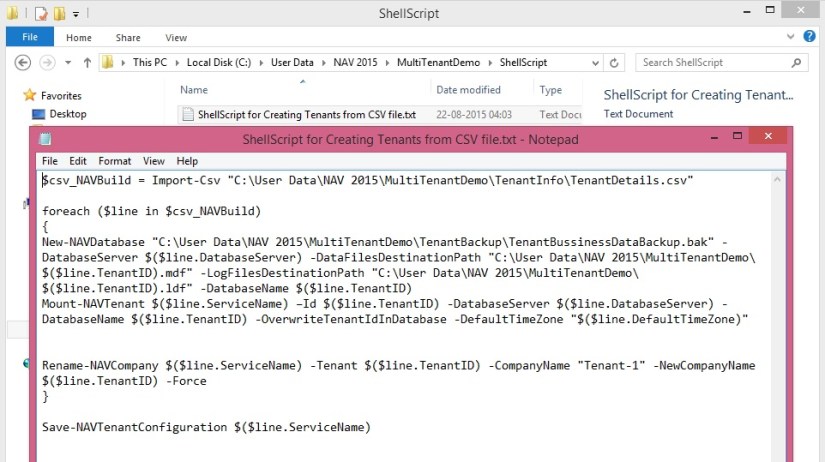
I will store my Shell Script in ShellScript Folder.

AddTenant-3

$csv_NAVBuild = Import-Csv “C:\User Data\NAV 2015\MultiTenantDemo\TenantInfo\TenantDetails.csv”

foreach ($line in $csv_NAVBuild)
{
New-NAVDatabase “C:\User Data\NAV 2015\MultiTenantDemo\TenantBackup\TenantBussinessDataBackup.bak” -DatabaseServer $($line.DatabaseServer) -DataFilesDestinationPath “C:\User Data\NAV 2015\MultiTenantDemo\$($line.TenantID).mdf” -LogFilesDestinationPath “C:\User Data\NAV 2015\MultiTenantDemo\$($line.TenantID).ldf” -DatabaseName $($line.TenantID)
Mount-NAVTenant $($line.ServiceName) –Id $($line.TenantID) -DatabaseServer $($line.DatabaseServer) -DatabaseName $($line.TenantID) -OverwriteTenantIdInDatabase -DefaultTimeZone “$($line.DefaultTimeZone)”
Rename-NAVCompany $($line.ServiceName) -Tenant $($line.TenantID) -CompanyName “Tenant-1” -NewCompanyName $($line.TenantID) -Force
}

Save-NAVTenantConfiguration $($line.ServiceName)

I will place my tenant database template file in TenantBackup Folder prepared as per above discussed step. I will take the SQL backup and place the .bak file in this folder.

AddTenant-4
Creating and Mounting Tenants

It is possible to create PowerShell scripts that aids the setup of Tenants. Basically, what the script does, is:

  1. Calls a CSV file (Comma separated file) with settings for all the Tenants
  2. Restores and creates new Tenants based on the tenant template SQL backup
  3. Mounts the new database as a tenant on NAV Server Instance
  4. Renames the default company name to the specified company name
  5. Saves NAV tenant configurations of NAV Server Instance

Open the Microsoft Dynamics NAV 2015 Administrator Shell, Make sure you run it as Administrator. Copy and Paste your above created script.
AddTenant-5
On completion of execution of script, Verify your Tenants are Mounted to the Service using Microsoft Dynamics NAV 2015 Administration.
AddTenant-6
Verify using SQL Server Management your all database is created.

AddTenant-7

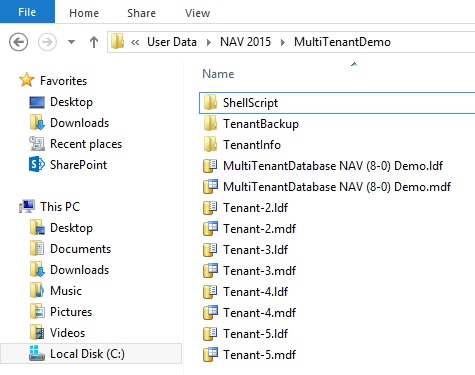
Verify that the database Files are created in Specified Folder in the Script.

AddTenant-8

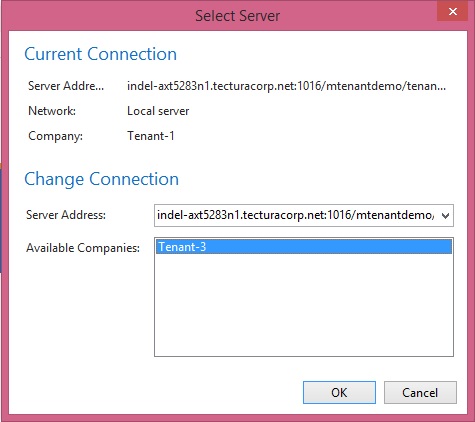
Verify that you are able to login to each Tenant database in RTC.

AddTenant-9

Now you are done with Creating the Tenants and Mounting the same to the Navision Service using CSV file and Shell Script.

Shell Script had made your life so easy, think if manually you have to do it for 5000 tenants how much time will you take to get this task done.