Cumulative Updates

Released Cumulative Update 14 for Microsoft Dynamics NAV 2015

Cumulative Update 14 includes all application and platform hotfixes and regulatory features that have been released for Microsoft Dynamics NAV 2015.

The cumulative update is intended mainly for solutions that are experiencing the problems described in the Knowledge Base article linked to below. However, you are advised to always keep your solution updated with the latest cumulative update. If you are in doubt about whether this cumulative update addresses your specific problem, or if you want to confirm whether any special compatibility, installation, or download issues are associated with this cumulative update, support professionals in Customer Support Services are ready to help you.

For more details see Link :- https://blogs.msdn.microsoft.com/nav/2015/12/07/cumulative-update-14-for-microsoft-dynamics-nav-2015-has-been-released/


Note: You must convert the database if you are upgrading to this cumulative update from a cumulative update earlier than Cumulative Update 9 (build 41779). For more information, see Converting a Database in Help for Microsoft Dynamics NAV.

Note: To enable customized translation of profiles, a number of actions are now available on the Profile List page. You can export and import resource files to enable translation for one or more profiles. The steps to install and uninstall language modules have also been modified. For more information, see How to: Install Language Modules, How to: Uninstall Language Modules, and How to: Export, Edit, and Import Translated Profile Strings in Help for Microsoft Dynamics NAV.

Where to find Cumulative Update 14

You can download the cumulative update from KB 3121037 – Cumulative Update 14 for Microsoft Dynamics NAV 2015 (Build 43887).


Additional Information

For information about how to install the cumulative update, see How to Install a Microsoft Dynamics NAV 2015 Cumulative Update.

For information about how to work around a recent process change, see How to Get Back the ‘Hotfix Directories’ from NAV 2015 Cumulative Update 1.

For a list of all cumulative updates for this version, see Released Cumulative Updates for Microsoft Dynamics NAV 2015.
Awards

Achievments in Oct 2015

Dear Friends,

Today I am not writing any blog, wanted to share status as usually I do in every month as my first post.

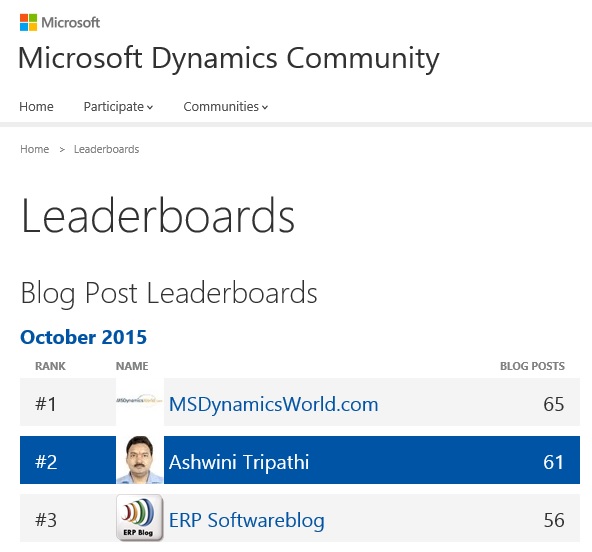
I was awarded with Top 10 Blogger in July month and my Rank was 6, in Aug moved to Rank 3, in Sep slipped to Rank 4 and in this month Oct Ranked to 2.

October was full of excitement as new Version of Navision 2016 was officially released. Lots of new posts from entire blog community was so excited that everyone flooded with new posts on this topic.

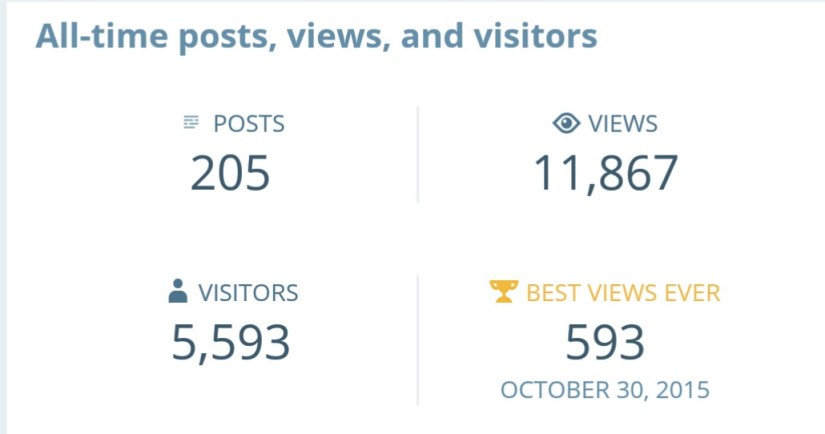
I stepped in blogging world 4 months ago, on 27 June 2015 I published my first post.

During this period I published almost 205 posts, most of them were more on technical side, Development Tips & Tricks.

Being a technical what I learned in past 10 years want to share with you all.

The best thing which happened this month was that my Blog Site crossed 11000 hits almost 12000. Prior to Oct in 3 months total hit was less than alone that it was received itself in this month, Thanks to all of the visitors from bottom of my heart, hope you will keep showering your blessings in future too.
OctAward-1
Also my Google+ Page crossed 26000 hits almost 27000.
OctAward-2

OctAward-3

OctAward-4

OctAward-5

Stay tuned Follow the blog, Register to Feeds, Like the Facebook Page, Connect with Google + Page, Connect with Dynamics NAV Community, Connect with Twitter and Join on LinkedIn to remain updated about new posts. If you are technical don’t miss to get connected by any medium. I will make sure you keep getting good and useful stuffs.

I have created one Group on LinkedIn  also this month started Hike Group , join them so that we can discuss on some good topics where you can participate & are free to express your views and review others view.

Together we can learn from each other, no one is perfect in this world, its never late for learning.

Please participate and suggest topics, which you wish to see  on this blog. During this period I received request from many of you and tried to fulfil few requests. Request which yet I have not responded doesn’t mean I am not considering, I will make sure those too get posted at earliest.

After full day hectic schedule hardly I am able to takeout 2 hrs. for this task.

I will keep serving the community on my full strength.

I am speechless how to thank you all showing so much Love and Faith on my Blog.

Seeing your Love and Recognition you all given to me in Oct 2015 month, I am feeling bit emotional today I am not able to stop myself saying below quote
OctAward-6
Seeing forward same spirit and love from you all in future too.

It is always good welcoming new ones without losing them who are with you.

See you all via my next post soon.

Data Model, Development Tips, Excel, How To, Information, Instalation & Configuration, Office Integration, PivotTable, Power View, PowerBI.com, PowerPivot

PowerPivot in Excel 2013

I started the series in End of September and Starting of October on PowerPivot, Power View, PivotTable & Reports but in-between the release of Navision 2016 all the topics got scattered between other posts and I didn’t ended the topic.

Here I present all the posts link at one place which you can use as table of content for easy access and to help if any one wish to start from beginning and learn all the features & Topic on same.

PowerPivot for Excel

Start the Power Pivot in Microsoft Excel add-in

Troubleshooting: Power Pivot Ribbon Disappears

PowerPivot Creating a Data Model in Excel 2013

Adding more tables to the Data Model using Existing Connection – In PowerPivot

Add relationships to Data Model in PowerPivot

How to add Filter for data retrieval in PowerPivot Data model.

Create a calculated column in PowerPivot

Creating My First Report using PowerPivot

Basics of Power Pivot for Excel – 2013

Add Slicers to PivotTables in PowerPivot

Power View in Excel 2013

Import data using copy and paste from Excel sheet or other source for PowerPivot Data Model.

Add Excel Sheet/Table to the PowerPivot Data Model

Add a relationship using Diagram View in Power Pivot

Extend the Data Model using calculated columns

Create a hierarchy in PowerPivot Data Model

Use hierarchies in PivotTables

Create a Power View report

Create a calculated field in PowerPivot

Set field defaults in PowerPivot

Set Table Behaviour in PowerPivot

Set Data Categories for fields in PowerPivot

I will come up with more details once I get some time to explore and find anything which I feel is good to share with the community.

Till then keep Learning, Exploring and Practicing.

Cumulative Updates, Information

Released Cumulative Updates for Microsoft Dynamics NAV 2015

For a list of all cumulative updates for this version, see Released Cumulative Updates for Microsoft Dynamics NAV 2015.

Cumulative Updates for Microsoft Dynamics NAV 2015

Knowledge

Base ID

Title Release date Build no. Local versions included
3097767 Cumulative Update 12 for Microsoft Dynamics NAV 2015 October, 2015 42951 AT, AU, BE, CH, CZ, DE, DK, ES, FI, FR, IS, IT, NA, NL, NO, NZ, RU, SE, UK
3091812 Cumulative Update 11 for Microsoft Dynamics NAV 2015 September, 2015 42603 AT, AU, BE, CH, CZ, DE, DK, ES, FI, FR, IS, IT, NA, NL, NO, NZ, RU, SE, UK
3086434    Cumulative Update 10 for Microsoft Dynamics NAV 2015 August, 2015 42222 AT, AU, BE, CH, CZ, DE, DK, ES, FI, FR, IS, IT, NA, NL, NO, NZ, RU, SE, UK
3075726 Cumulative Update 9 for Microsoft Dynamics NAV 2015 July, 2015 41779 AT, AU, BE, CH, CZ, DE, DK, ES, FI, FR, IS, IT, NA, NL, NO, NZ, RU, SE, UK
3069272    Cumulative Update 8 for Microsoft Dynamics NAV 2015 June, 2015 41370 AT, AU, BE, CH, CZ, DE, DK, ES, FI, FR, IS, IT, NA, NL, NO, NZ, RU, SE, UK
3058000    Cumulative Update 7 for Microsoft Dynamics NAV 2015 May, 2015 40938 AT, AU, BE, CH, CZ, DE, DK, ES, FI, FR, IS, IT, NA, NL, NO, NZ, RU, SE, UK
3052226    Cumulative Update 6 for Microsoft Dynamics NAV 2015 April, 2015 40459 AT, AU, BE, CH, CZ, DE, DK, ES, FI, FR, IS, IT, NA, NL, NO, NZ, RU, SE, UK
3039824    Cumulative Update 5 for Microsoft Dynamics NAV 2015 March, 2015 40262 AT, AU, BE, CH, CZ, DE, DK, ES, FI, FR, IS, IT, NA, NL, NO, NZ, RU, SE, UK
3035986 Cumulative Update 4 for Microsoft Dynamics NAV 2015 February, 2015 39663 AT, AU, BE, CH, CZ, DE, DK, ES, FI, FR, IS, IT, NA, NL, NO, NZ, RU, SE, UK
3024901 Cumulative Update 3 for Microsoft Dynamics NAV 2015 January, 2015 39368 AT, AU, BE, CH, CZ, DE, DK, ES, FI, FR, IS, IT, NA, NL, NO, NZ, RU, SE, UK
3020885 Cumulative Update 2 for Microsoft Dynamics NAV 2015 December, 2014 38798 AT, AU, BE, CH, DE, DK, ES, FI, FR, IS, IT, NA, NL, NO, NZ, RU, SE, UK
3013215    Cumulative Update 1 for Microsoft Dynamics NAV 2015 November, 2014 38457 AT, AU, BE, CH, DE, DK, ES, FI, FR, IS, IT, NA, NL, NO, NZ, RU, SE, UK
Cumulative Updates, Information

Cumulative Update 12 for Microsoft Dynamics NAV 2015 has been released

Cumulative Update 12 includes all application and platform hotfixes and regulatory features that have been released for Microsoft Dynamics NAV 2015.

For more details checkout link : Cumulative Update 12 for Microsoft Dynamics NAV 2015 has been released

Development Tips, Excel, How To, Power View, PowerPivot, Report

Power View in Excel 2013

Power View is an interactive data exploration, visualization, and presentation experience that encourages intuitive ad-hoc reporting.

Power View is a feature of Microsoft Excel 2013, and of Microsoft SharePoint Server 2010 and 2013 as part of the SQL Server 2012 Service Pack 1 Reporting Services Add-in for Microsoft SharePoint Server Enterprise Edition.

Power View has these features, as part of Power BI for Office 365:

  • Create Power View sheets in Excel and then view them in the Power BI Windows Store app.
  • View Power View in Excel sheets in your browser, without installing Silverlight.

Data sources for Power View

In Excel 2013, you can use data right in Excel as the basis for Power View in Excel and SharePoint.

When you add tables and create relationships between them, Excel is creating a Data Model behind the scenes.

A data model is a collection of tables and their relationships reflecting the real-world relationships between business functions and processes—for example, how Products relates to Inventory and Sales.

You can continue modifying and enhancing that same data model in Power Pivot in Excel, to make a more sophisticated data model for Power View reports.

With Power View you can interact with data:

  • In the same Excel workbook as the Power View sheet.
  • In data models in Excel workbooks published in a Power Pivot Gallery.
  • In tabular models deployed to SQL Server 2012 Analysis Services (SSAS) instances.
  • In multidimensional models on an SSAS server (if you’re using Power View in SharePoint Server).

Recall from my previous post Creating My First Report using PowerPivot, I will be using same Data Model to demonstrate the feature of Power View, also same report in different format.

Let’s design Customer wise Sales Report using Power View.
PowerView-1

I am using the same Workbook which we used for PowerPivot creating Matrix report for Item Vs Customer Sales.

From Insert Tab choose Power View Reports in ribbon.

Remember this workbook already having Data Model with tables Customer, Item, Cust. Ledger Entry & Item Ledger Entry. One which we created during our previous exercise during walkthrough of PowerPivot.

We already have Relationship defined between Customer & Item Ledger Entry (No. -> Source No.), also Item & Item Ledger Entry (No. -> Item No.).
PowerView-2

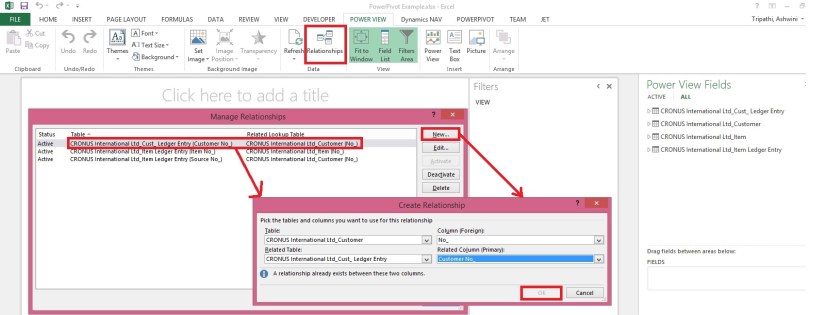
You can View the Relationship using Relationship from Ribbon Power View Tab.

Once the Power View Sheet is inserted the Power View Tab will be Visible.

This will list the two relations which we created earlier in previous exercise post.

However we will be requiring one more relationship for this report. Add using New button on Manage Relationship window.

Enter the Relation for Customer & Cust. Ledger Entry (No. -> Customer No.).

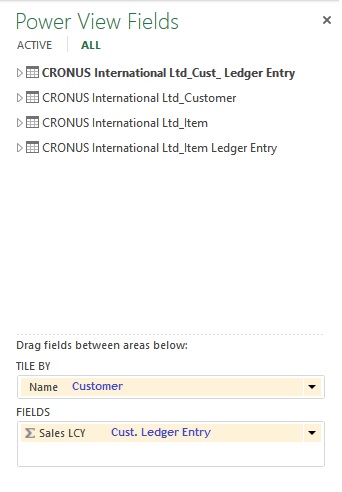
You can see all the 4 tables are listed in Field List Pane.
PowerView-3
Arrange the Fields from respective tables as shown in above screenshot.
PowerView-4
Arrange the fields as shown in above screenshot.

Design of your report should be similar to one shown in below screenshot.
PowerView-5

Resize the Table area to fit the area and the way you want to represent the data.

When a Customer is selected in Title Area, below two tables show the Item Sales Quantity & Total Value for the selected Customer.

You can add fields in the Filter Pane to slice the data accordingly.

I will come up with more details in my upcoming posts.

Till then stay tuned and keep practicing.

Development Tips, Excel, How To, PowerPivot, Report

Add Slicers to PivotTables in PowerPivot

Recall from my earlier post Creating My First Report using PowerPivot in which we created a Items Vs Customer Sales matrix report.

I am going to use same report to demonstrate how we can add slicer to this report.

Slicers are one-click filtering controls that narrow the portion of a data set shown in PivotTables and PivotCharts. Slicers can be used in both Microsoft Excel workbooks and PowerPivot workbooks, to interactively filter and analyze data.
PowerPivot-30

Open the report we created in our previous post.

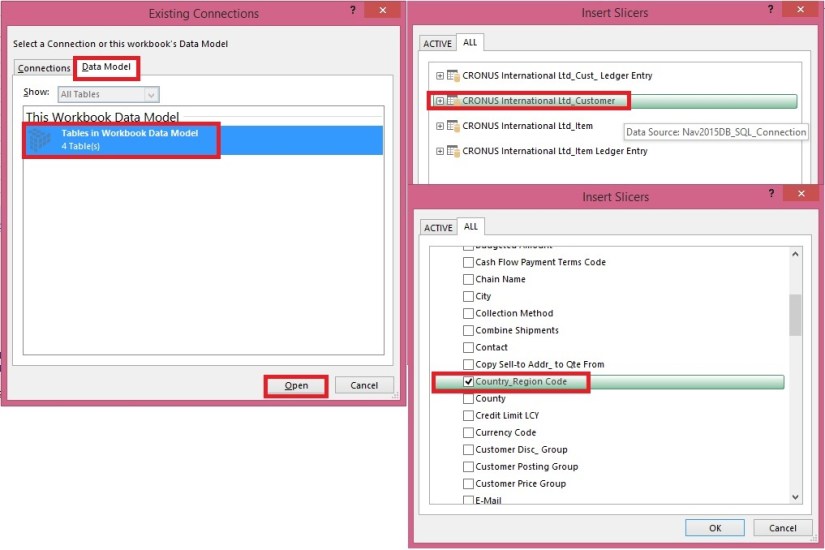
From Insert Tab select Slicer in the ribbon.
PowerPivot-31

Choose the source Connection/Data model and respond Open.

Select the Customer Table.

Select the Country/Region Code field and OK.
PowerPivot-32

A Slicer will be added to the sheet.

Re-size to fit and drag the Slicer to position at desired location on sheet.

You can give desired Caption to your Slicer by editing the Slicer Caption.

Most important is to select the pivot table on which this Slicer will operate.

Select Report Connection, and from preceding window select the PivotTable.
PowerPivot-33
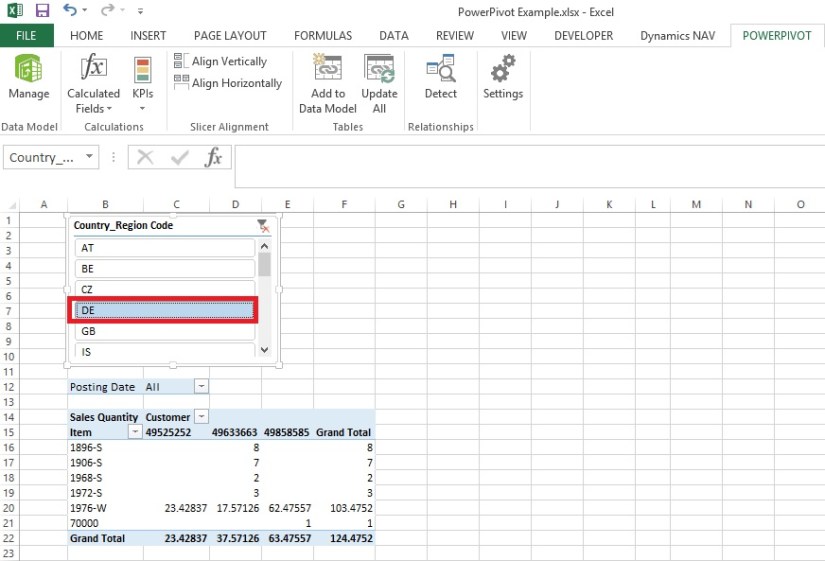
Above is the screenshot with applied filter on Country/Region Code = DE.

Stay tuned to know more options, I will come up with more details in my upcoming posts.

Till then keep practicing.

Development Tips, Excel, How To, Office Integration, PowerPivot, Report

Creating My First Report using PowerPivot

In my earlier posts we have created the Data model for Analysis.

If you missed them you can follow below links to refresh all information.

PowerPivot for Excel

PowerPivot Creating a Data Model in Excel 2013

Adding more tables to the Data Model using Existing Connection – In PowerPivot

Add relationships to Data Model in PowerPivot

How to add Filter for data retrieval in PowerPivot Data model.

Create a calculated column in PowerPivot

We have learned basic actions, let’s create our first Report.

I will be creating Pivot Matrix Customer Vs Item Sales.

Open the Excel in which we created our Data model and imported our table data.
PowerPivot-21
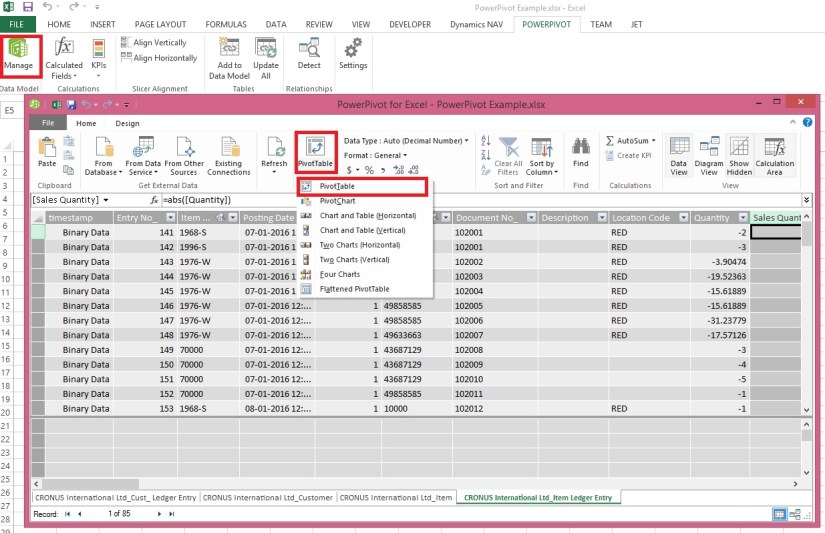
Select PivotTable From Ribbon under Home Tab.
PowerPivot-22

Select New Worksheet or Existing Worksheet as per the case.
PowerPivot-23
You will see a Pivot is inserted, in right side you will find all the tables available in the Data model of this Worksheet.
PowerPivot-24

Design the Pivot as above screenshot.
The output of this report will be as below if executed without Date Filter.
PowerPivot-25
I will come up with more details and features of PowerPivot in my upcoming posts. Till then keep practicing and stay tuned for more details on this topic.

Development Tips, Excel, How To, Office Integration, PowerPivot, Report

Create a calculated column in PowerPivot

If you have missed earlier post, please walkthrough them for better understanding from below links:

PowerPivot for Excel

PowerPivot Creating a Data Model in Excel 2013

Adding more tables to the Data Model using Existing Connection – In PowerPivot

Add relationships to Data Model in PowerPivot

How to add Filter for data retrieval in PowerPivot Data model.

In Power Pivot, you can use Data Analysis Expressions (DAX) to add calculations. In this task, I will add simple Excel Formula =ABS (Quantity) in Item Ledger Entry Sheet. You can add formulas either simple calculation from two fields or referencing from other tables and sheet. I will come with more details on this in separate post.

  • In the Power Pivot window, switch to Data View.
  • Select the Item Ledger Entry table/ sheet.
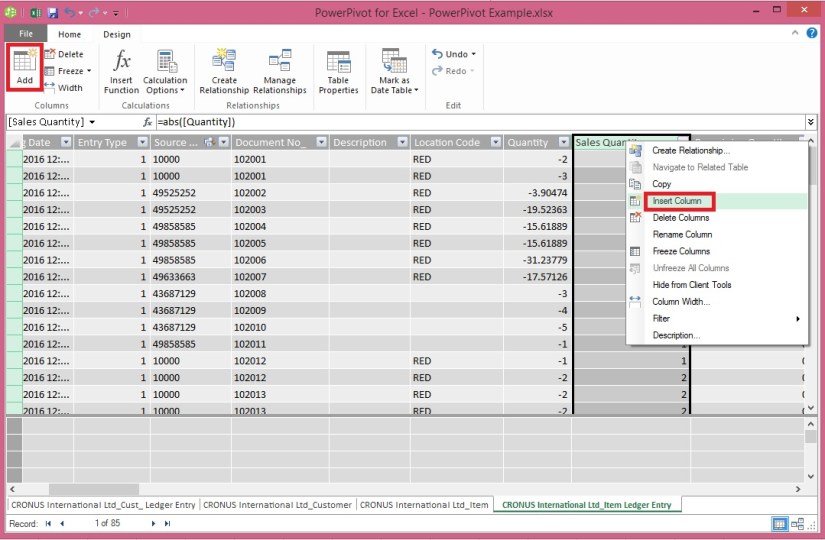
  • Click Design > Add.

PowerPivot-18

Alternatively you can Add by selecting Column, Right Click and choose Insert Column as you do in Excel.

New Column Will be Added.

  • In the formula bar above the table, type the following formula. AutoComplete helps you type the fully qualified names of columns and tables, and lists the functions that are available. You can also just click the column and Power Pivot adds the column name to the formula.

In my case it is =abs([Quantity])

  • When you have finished building the formula, press Enter to accept the formula.

Values are populated for all the rows in the calculated column. If you scroll down through the table, you will see that rows can have different values for this column, based on the data that is in each row.

Rename the column by right-clicking and selecting Rename Column.
PowerPivot-19

  • Type Sales Quantity, and then press Enter.

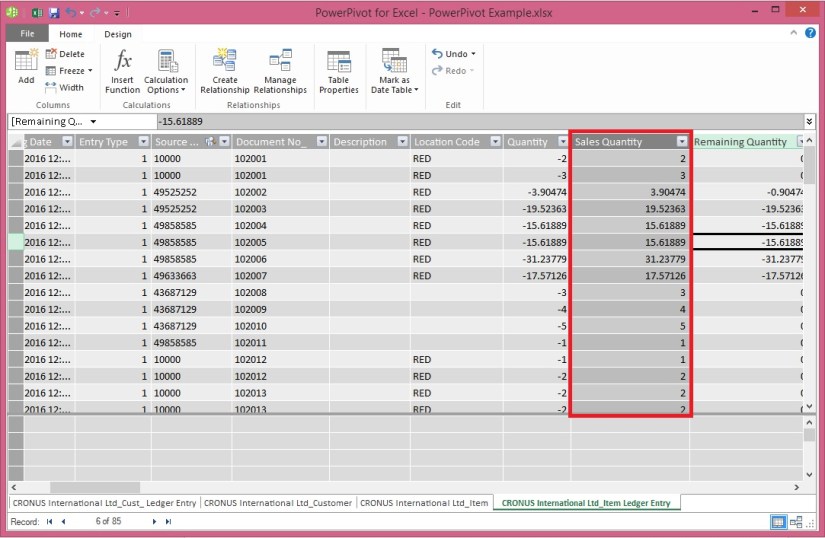
Below is the Screen after populating the value post formula application to Calculated Column.
PowerPivot-20

I will come up with more details in my upcoming post, Till then keep practicing and stay tuned for more details and updates on this topic.

Development Tips, Excel, How To, Office Integration, PowerPivot, Report

How to add Filter for data retrieval in PowerPivot Data model.

Recall from previous posts we have added Item Ledger Entry Table to our Data Model of PowerPivot.

Adding more tables to the Data Model using Existing Connection – In PowerPivot

Add relationships to Data Model in PowerPivot

My requirement is to retrieve only records related to Sales.

We will apply filter on Entry Type field to value [1]-[Sales] this way Item Leger Entry Sheet will have only Sales Data.

To do this we will add this filter to the query used for data retrieval.
PowerPivot-15

Select the Sheet for table – Item Ledger Entry from bottom.

Click on Design Tab on Top.

Now From Ribbon choose Table Properties.

PowerPivot-16

Select Query Editor from Switch to.

Add the Filter to your query.

Save your Query.

PowerPivot-17

From Home Tab, Select Refresh from Ribbon.

On Success completion Close the window.

Now your Item Ledger Entry is populated with Fresh data as per the modified Query.

I.e: All Entries which have Entry Type = 1 [Sales].

I will come up with more details in my upcoming post, till then keep practicing and stay tuned for future updates & posts on this topic.