Data, How To, Information, Tip & Tricks, What's New

Save General Journals as Standard Journal in Navision

Do you Know you can save the General Journal as Standard Journal and retrive edit and post it later.

Many of time we pass entries of same Nature, Like Rent, Salary, Bills etc.. just an example you can decide upon which entries you post frequently and club it as Standard Journal to save your time.

You can create once and retrive it every month or when ever required and Post it in future/later.This can serve you as template for future use.

Let us see how we can use this feature.

StdGen-1

Open your General Journal.

Make entries which you do oftenly. Don’t put Postng Date & Document No. Complete your all entries.

Next we will save this as Standard Journal for future use.

From Action choose Save as Standard Journal.

StdGen-2

Give Code & Name for your Journal Template.

If Amounts are fixed every time you can enter them too and while Save choose Save Amount.

No Let us review the entry that we saved.

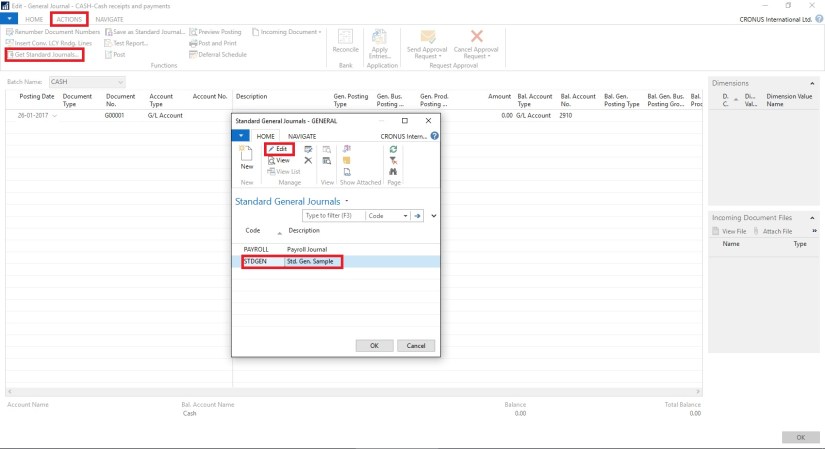
From Action Choose Get Standard Journal.

This will display you all Saved Standard General Journals.
StdGen-3

Select the required Journal Code and Click on Edit.
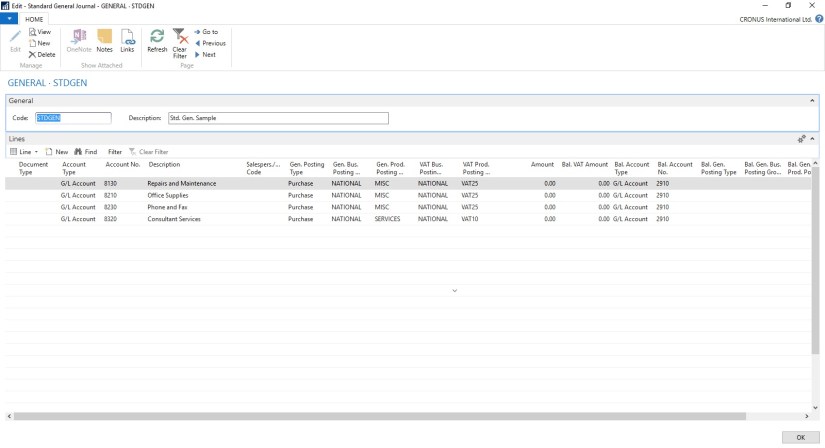
StdGen-4

This is what is Saved in your Standard Journal.

Let use return to the Standard Journal List.

Select desired/ earlier saved Std. Journal and Click on OK.
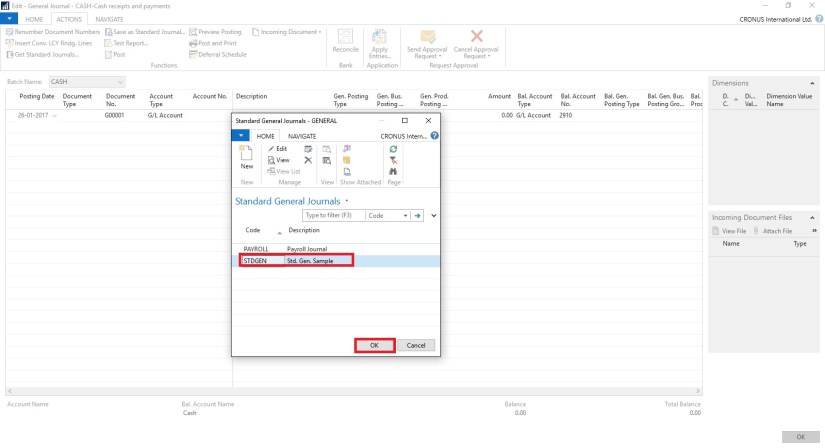
StdGen-5

Confirmation of Std. Journal retrived and Journals created in General Journal Page.

StdGen-6

Your General Journal gets populated with values you saved to Std. Journal.

Have you Noticed, Posting Date as your Work Date and Next Document No. from your assigned No. Series is populated Automatically.

StdGen-7

Fill the Amount and any other required fields and Post the Journal.

Next time when again you wish to post similar entries just retrive it and continue.

Thats all for todays Post, What you are waiting for give it a try.

I will comeup with more details in my upcoming Posts, till then keep exploring and Learning.


Data, Development Tips, How To, Information, Tip & Tricks

Creating Views – to Save Filtered Lists in NAV

Do you Know you can save the Page as View with filters.

Many of time we access to Page and apply same set of Filters to fetch our data. You can save the same for quick retrival of data applying the filters automatically in future access.

You save the Page with Filters as View.

Let us see small example how to achieve it.

First we will open the List Page in my case i am having one customized Customer List.

FilteredView-1

Suppose this is the Page which i use for Balances Retrival each month and on daily basis.

I Enter Filter as Balance > 5000 & Current Month Filter whenever i wish to check balances for my reporting or followup purpose.

For Date Filter i use (-CM..CM) sothat when i open this view next month it takes the appropriate Filter for that month.

FilteredView-2

Click on the Page Name post applying all the required Filters.

Select Save View as.

Give the Name for the View.

Select the Location to save the View.

On Confirmation respond as Yes.

FilteredView-3

Your View will be Saved, You can create as much Views as desired using different Filters.

FilteredView-4

Small and good Feature.

What you are waiting for give it a try.

I will comeup with more information in my upcoming posts, till then keep exploring and learning.


Development Tips, How To, Information, Profiles, Tip & Tricks

Setting different Column Layout for different users

On Community Forum i came across one requirement for opening Page with different column on Page for different users.

Here i have given an demo how can be done, but will require some tweaking to achieve the actual result.

I have copied the Customer List Page and removed extra fields.

Playing with columns1

I have added one Field above Repeater so that we can decide which format we want to see on screen. User can enter 1/2/or any other value.

I have created two more variables Set1 and Set2 to show/hide fields as per the value entered in SetSelect.

Assigned the Set1 & Set2 to few columns on the Page Fields to Property Visible.

Set1 to Responsibility Center, Location Code & Currency Code.

Set2 to Post Code, Country/Region Code, Phone No. & Fax No.

Added code on OnOpenPage Trigger to select Default page Format when Page is Opened. This code you will modify as per your requirement like check the User and assign the default Value.

Added Code to SetSelect-OnValidate Trigger to select the required format of Page. You need to modify the code as per your requirement.

Playing with columns2

In this demo if user enter value for SetSelect and you will get different view of same page.

Do some research and design one as per your requirement, this way we need not to create different Pages for different Users. Same Page can serve you different purpose if limited to only different views.

I will come with more information in my upcomming posts.

Till then keep browsing and learning.


Development Tips, Email, Excel, How To, Information, Office Integration, Report, Server, Tip & Tricks

Export Data as CSV and send as Attachment to Mail

One of my Follower/Reader have requested for this post.

This post will explain the the below steps:

  • Export the data of table to csv file format. (I am using XMLPort you can use Excell Buffer or any other method to create the file)
  • Attach to Mail and Send.

Step 1.

Create a XMLPort as below.

CSVAttachment-1

Set the Property of XMLPort.

CSVAttachment-2

Set the Property of Integer Data Item.

CSVAttachment-3

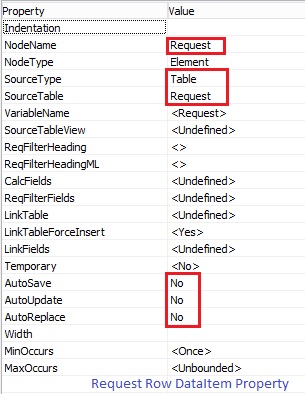
Set the Property of Table DataItem for which data to be exported.

CSVAttachment-4

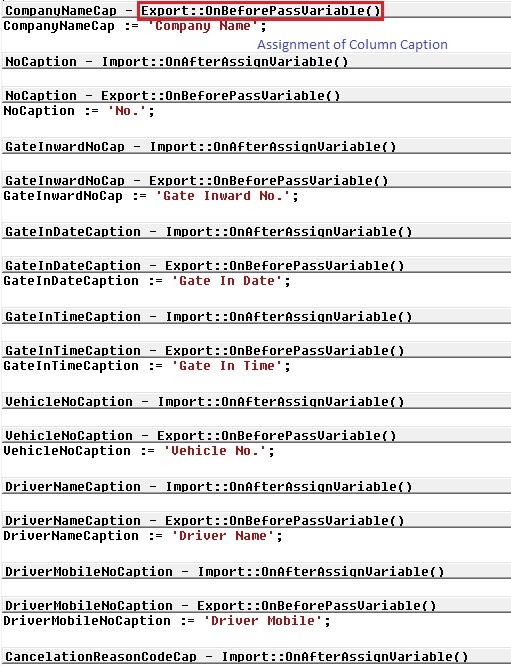
Set the Captions of the Columns in CSV file.

CSVAttachment-5

Write the code to transfer the value of Table columns.

You may find some extra code adjust accordingly as per your requirement.

CSVAttachment-6

Define a function to Setfilter for data to export.

Adjust the code as per your requirement.

CSVAttachment-7

CSVAttachment-8

Step 2.

Here is the function to Export the data to csv File using above created XMLPort.

This function Saves the file to Shared folder, if required you can use TEMPORARYPATH to save your File.

CSVAttachment-9

Step 3.

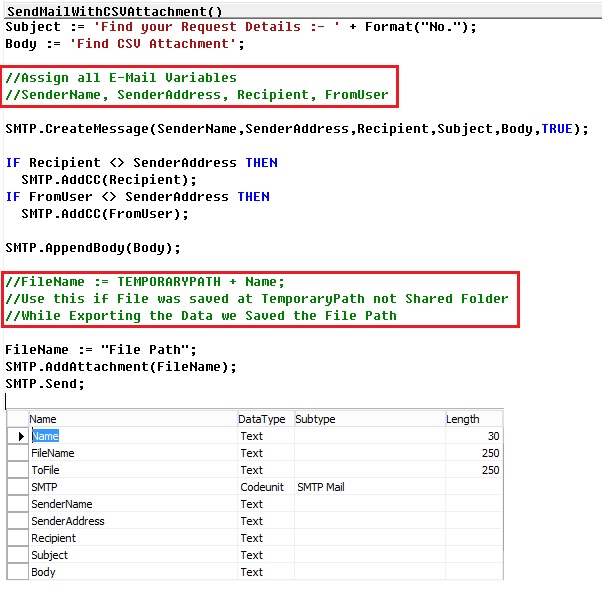
Send the File as Attachment to the Mail.

CSVAttachment-10

You make required adjustment as per your requirement.

Make sure in case you are using Shared Folder give necessary rights on folder to Service Account and operating User Accounts.

Please respond did you found useful this information.

Their are other ways to achive the same, this was readyly available with me as i have used in one of my project so shared the same.

Stay tuned for more details in my Up comming posts.

Cumulative Updates, Updates

Cumulative Update 40 for Microsoft Dynamics NAV 2013 – released in July 2016

Cumulative Update 40 includes all application and platform hotfixes and regulatory features that have been released for Microsoft Dynamics NAV 2013.

Where to find Cumulative Update 40

You can download the cumulative update from KB 3172331 – Cumulative Update 40 for Microsoft Dynamics NAV 2013 (Build 46292).

Warning

Before you install a cumulative update in a production environment, take the following precautions:

  1. Test the cumulative update in a non-production environment.
  2. Make a backup of the system or computer where the cumulative update is to be installed.

Additional Information

For a list of all cumulative updates for this version, see Released Cumulative Updates for Microsoft Dynamics NAV 2013.

For a list of all hotfixes included in cumulative updates for this version, see the following CustomerSource and PartnerSource pages:

CustomerSource:

PartnerSource:


Please See this link for more details :- https://blogs.msdn.microsoft.com/nav/2016/07/05/cumulative-update-40-for-microsoft-dynamics-nav-2013-has-been-released/


Cumulative Updates, Tip & Tricks

Cumulative Update 39 for Microsoft Dynamics NAV 2013 released in June 2016

Cumulative Update 39 includes all application and platform hotfixes and regulatory features that have been released for Microsoft Dynamics NAV 2013.

Where to find Cumulative Update 39

You can download the cumulative update from KB 3166277 – Cumulative Update 39 for Microsoft Dynamics NAV 2013 (Build 46056).

Warning

Before you install a cumulative update in a production environment, take the following precautions:

  1. Test the cumulative update in a non-production environment.
  2. Make a backup of the system or computer where the cumulative update is to be installed.

Additional Information

For a list of all cumulative updates for this version, see Released Cumulative Updates for Microsoft Dynamics NAV 2013.

For a list of all hotfixes included in cumulative updates for this version, see the following CustomerSource and PartnerSource pages:

CustomerSource:

PartnerSource:


Cumulative Updates, Information, Instalation & Configuration, Tip & Tricks

Cumulative Update 38 for Microsoft Dynamics NAV 2013 – Released in May 2016

Cumulative Update 38 includes all application and platform hotfixes and regulatory features that have been released for Microsoft Dynamics NAV 2013.KB 3157486

The cumulative update includes hotfixes that apply to all countries and hotfixes specific to the following local versions:

  • AU – Australia
  • AT – Austria
  • BE – Belgium
  • CH – Switzerland
  • DE – Germany
  • DK – Denmark
  • ES – Spain
  • FI – Finland
  • FR – France
  • IS – Iceland
  • IT – Italy
  • NA – North America
  • NL – Netherlands
  • NO – Norway
  • NZ – New Zealand
  • SE – Sweden
  • UK – United Kingdom

Where to find Cumulative Update 38

You can download the cumulative update from KB 3157486 – Cumulative Update 38 for Microsoft Dynamics NAV 2013 (Build 45787).

Warning

Before you install a cumulative update in a production environment, take the following precautions:

  1. Test the cumulative update in a non-production environment.
  2. Make a backup of the system or computer where the cumulative update is to be installed.

Additional Information

For a list of all cumulative updates for this version, see Released Cumulative Updates for Microsoft Dynamics NAV 2013.

For a list of all hotfixes included in cumulative updates for this version, see the following CustomerSource and PartnerSource pages:

CustomerSource:

PartnerSource:

Cumulative Updates, Tip & Tricks

Cumulative Update 37 for Microsoft Dynamics NAV 2013 released in April

Cumulative Update 37 includes all application and platform hotfixes and regulatory features that have been released for Microsoft Dynamics NAV 2013.

https://blogs.msdn.microsoft.com/nav/2016/04/04/cumulative-update-37-for-microsoft-dynamics-nav-2013-has-been-released/


Where to find Cumulative Update 37

You can download the cumulative update from KB 3151023 – Cumulative Update 37 for Microsoft Dynamics NAV 2013 (Build 45477).

Warning

Before you install a cumulative update in a production environment, take the following precautions:

  1. Test the cumulative update in a non-production environment.
  2. Make a backup of the system or computer where the cumulative update is to be installed.

Additional Information

For a list of all cumulative updates for this version, see Released Cumulative Updates for Microsoft Dynamics NAV 2013.

For a list of all hotfixes included in cumulative updates for this version, see the following CustomerSource and PartnerSource pages:

CustomerSource:

PartnerSource:

PowerBI.com

Microsoft Power BI for Beginners Table of Content

In March I have written few posts on Power BI keeping in mind who are beginners.

In case you have missed here I present the link to all those posts here below.


Microsoft Power BI – Part – I

Introduction to Power BI and Creating Report from Excel Data, Local Files.

Microsoft Power BI – Part – II

Introduction to few Features of Power BI

Microsoft Power BI – Part – III

Power BI Desktop, Creating Dataset & Reports from In Premise Database installation

Microsoft Power BI – Part – IV

Power BI Gateway usage

Microsoft Power BI – Part – V

Scheduling Refresh of Dataset & Report created using In Premise Database

Microsoft Power BI – Part – VI

Power BI Microsoft NAV Content Pack

Microsoft Power BI – Part – VII

Power BI Mobile App

Microsoft Power BI – Part – VIII

Power BI Content Pack

Microsoft Power BI – Part – IX

Power BI Publisher for Excel

Microsoft Power BI – Part – X

ANALYZE IN EXCEL

I will come up with more features and other important details in my future posts.

You can find lots of materials on Power BI here : https://powerbi.microsoft.com/en-us/

https://powerbi.microsoft.com/en-us/learning/

PowerBI-85


PowerBI.com

Microsoft Power BI – Part – VI

Continuing from my previous post, if you have not seen yet please check it out it will help you continuing with this post.

You can check:

Microsoft Power BI – Part – I

Microsoft Power BI – Part – II

Microsoft Power BI – Part – III

Microsoft Power BI – Part – IV

Microsoft Power BI – Part – V

Today we will discuss how to use Power BI Content Pack:

PowerBI-60

Few things to keep in mind to get report Generated Successfully.

Point-1 You have required objects for this content pack in your database.

If you are using 2016, you can skip this as these objects are available in 2016. If you are using 2015 or 2013 then export these objects from 2016 and import in your database.

PowerBI-61

Above Pages will be present in your previous version of database, you need to import the 6 Query objects. These are necessary as these are used as source to fetch data from your data base by this content pack.

Point-2 Web Services need to be published.

PowerBI-62

Make sure you use same name for Services as you may get error while connecting and refreshing/ fetching data using this content pack.

Point-3 SSL port and web address is used to access the services.

https is used as this will not work on http.

Self-signed certificate will not work which we use for test purpose for publishing services and testing. It will throw Trusted relationship connection type error. If you have one use the same instead using Self-signed certificate.

No worries, don’t be disappointed. I will give you tip to overcome this requirement just follow as below:

You may remember that in our previous post we installed and used Power BI Gateway, actually we got a Trusted Certificate which we can use for this purpose.

PowerBI-63

Open IIS Manager on your system.

PowerBI-64

Select Serve/ Machine in Left Navigation Tree and Select Server Certificates.

PowerBI-65

Locate the Data Management Gateway SSL Certificate, this got installed when you installed Gateway. Double click to open the Properties of the certificate.

PowerBI-66

Switch to Details Tab, Scroll down to find Thumbprint, and Copy the Thumbprint and paste to Notepad finally remove all space leading, trailing and any in between.

It should look like above right bottom corner notepad window no space in Thumbprint signature.

Copy this Value and use as Thumbprint in you Navision Service.

PowerBI-67

Select Your Service.

Edit.

Paste the Certificate Thumbprint.

Make Sure SSL is Enabled for your OData Services.

Save.

Restart the Service.

We are done with the basic requirements now let us connect using Power BI Miscrosoft Navision Content Pack.

Now Login with your credentials to Power BI.

PowerBI-68

From Left bottom corner Select Get Data.

PowerBI-69

Select Get Data from Services.

PowerBI-70

Scroll to find Microsoft Dynamics NAV Services and Select Connect.

PowerBI-71

Copy your OData Service URL. Make sure you remove Service name from the URL and trailing ‘/’ after company name from the URL.

Select Next.

PowerBI-72

Select the Authentication Method and then Sign In.

PowerBI-73

Wait for few minutes you dataset will be loaded.

As a result you will get: Dataset, Report & Dashboard ready for you in few minutes depending upon the data volume and connection speed.

PowerBI-74

The report and dashboard view will be as per the available data in your database.

Hurray!!!

You are done with your practice session.

This is a Holi Gift for my reader from my side.

I will come up with more features explanation and other Tips & Tricks in my upcoming posts, till then keep practicing and learning from blogs and helps available online.