Development Tips

UI Elements Removal

Depending on the setting in the UI Elements Removal field in the Microsoft Dynamics NAV Server Administration tool, only UI elements on objects in the license or on objects that the user has permissions for will appear in the user interface.

For UI elements without a direct relation, you can use the AccessByPermission property to set a value for a table field or UI element that determines the permission mask for an object that a user must have to see and access the related page fields or UI element in the client

To make full use of the LicenseFileAndUserPermissions option in the UI Elements Removal field, it is recommended that you assign the special FOUNDATION permission set to the user along with the relevant application permission sets that define which application objects the user will access. In addition, you must make sure that the user’s application permission sets grant all the functionality access that is not granted by the FOUNDATION permission set alone

A couple of the application permission sets that are provided by Microsoft Dynamics NAV are adapted to support the FOUNDATION permission set for demonstration purposes. To experience how UI elements are removed for a user performing the task to create and edit a new customer, you can create a sample user interface based on the provided permission sets.

For more details see my earlier post AccessByPermission Property – in Navision 2015

Development Tips

Database Schema Synchronization

Microsoft Dynamics NAV 2015 introduces several improvements to the table schema synchronization process that improve performance and make it more explicit and controllable. The improvements give you with the flexibility to decide when and how the table changes are synchronized with corresponding tables in the SQL Server.

In Microsoft Dynamics NAV 2015, changes to the database schema are no longer synchronized automatically to the database when a client connects to a Microsoft Dynamics NAV Server instance. Instead, you specify when to synchronize schema changes in the development environment or the Microsoft Dynamics NAV 2015 Administration Shell.

For example, when you change a table object and compile the table, you can choose to synchronize the change to the database immediately or later. In a production environment, you apply changes to the database schema by running the Sync-NAVTenant Windows PowerShell cmdlet with the Mode parameter set to the relevant synchronization mode.

The schema synchronization design provides the following features and benefits:

  • On-demand schema synchronization and monitoring As a developer or system administrator, from the development environment or Microsoft Dynamics NAV 2015 Administration Shell, you control when to perform the schema synchronization and how to synchronize table changes.This enables you to plan and schedule the schema synchronization on a case-by-case basis. Additionally, you can monitor the progress and state of the business (tenant) database at any time.
  • Non-blocking and increased productivity Schema synchronization has become more granular. You perform schema synchronization for a single table or for all tables at the same time. When one table is being synchronized, you are no longer blocked from making changes to other tables.
  • Capability to provide additional instructions in upgrade codeunits By using upgrade codeunits, you can provide instruction for the schema synchronization to perform additional tasks, such as automatically moving or copying data into upgrade tables, validating the table changes before applying them, or forcefully applying them when it is required.

Please check my earlier post on this topic for more detailed information.

Schema Synchronization in Microsoft Dynamics Navision 2015

Data Upgrade Codeunit in Navision 2015 Part-1

Data Upgrade Codeunit in Navision 2015 Part-2

Development Tips

Data Upgrade – in Navision 2015

Microsoft Dynamics NAV 2015 introduces a new way of running the data upgrade logic that migrates data from the old table structure of an earlier Microsoft Dynamics NAV version to the new table structure of the current version.

The data upgrade process is now prepared and run with the help of new type of codeunit called the upgrade codeunit. The data upgrade process has been enhanced significantly to optimize the performance and provide developers with a superior tool for testing, automating, tracking progress and troubleshooting the data upgrade code. The new data upgrade approach has the following benefits and features:

  • Simplifies the upgrade environment because all steps are performed by the latest version of the Microsoft Dynamics NAV.
  • Increases the data upgrade performance because it is possible to run upgrade functions of upgrade codeunits in parallel (at the same time) and across companies.
  • Reduces the amount of code that is required to handle the data upgrade because several operations are now executed automatically by Microsoft Dynamics NAV Server.
  • Minimizes the number of manual actions that must be performed during the data upgrade, which makes the data upgrade process less error-prone.
  • Uses familiar upgrade toolkit design concepts, such as upgrade tables and upgrade functions.
  • Includes end-to-end sample Windows PowerShell scripts that perform a complete data upgrade.

Please check my earlier post on this topic for more detailed information.

Schema Synchronization in Microsoft Dynamics Navision 2015

Data Upgrade Codeunit in Navision 2015 Part-1

Data Upgrade Codeunit in Navision 2015 Part-2

Development Tips

Page Properties Not Supported by Microsoft Dynamics NAV Web Client

Most page properties that are supported in the Microsoft Dynamics NAV Windows client are also supported in the Microsoft Dynamics NAV Web client.

There are some properties that are not supported by Microsoft Dynamics NAV Web client and other properties that are either partially supported or behave differently in the Microsoft Dynamics NAV Windows client.

Unsupported Properties

The properties that are not supported by the Microsoft Dynamics NAV Web client. When a page that contains an unsupported property is displayed in a browser, the property is ignored. You do not receive an error but the property does not affect the page.

  • ChartPartID Property
  • ColumnSpan Property
  • ControlAddin Property
  • FreezeColumnID Property
  • RowSpan Property
  • RefreshOnActivate Property
  • ShowAsTree Property
  • Style Property
  • StyleExpr Property
  • SystemPartID Property

Partially Supported Properties

The properties that either do not have all the capabilities in the Microsoft Dynamics NAV Web client as they do in Microsoft Dynamics NAV Windows client or they behave differently than in the Microsoft Dynamics NAV Windows client.

  • AssistEdit Property
  • DrillDown Property
  • DrillDownPageID Property
  • GroupType Property
  • Importance Property
  • IndentationControls Property
  • PageType Property
  • PartType Property
Development Tips

Functions Not Supported by Microsoft Dynamics NAV Web Client

Below is the lists the C/AL functions and data types that are not supported or partially supported by Microsoft Dynamics NAV Web client.

Unsupported Functions

Functions that are not supported by the Microsoft Dynamics NAV Web client. If you use a function that is not supported, an error occurs at runtime.

  • CREATE Function (Automation)
  • ISCLEAR Function (Automation)
  • ACTIVATE Function (Debugger)
  • UPDATE Function (Dialog)

Partially Supported Functions

Functions that either do not have all the capabilities in the Microsoft Dynamics NAV Web client as they do in the Microsoft Dynamics NAV Windows client or they behave differently than in the Microsoft Dynamics NAV Windows client.

  • DOWNLOAD Function (File)
  • DOWNLOADFROMSTREAM Function (File)
  • HYPERLINK Function
  • PREVIEW Function (Report)
  • PRINTONLYIFDETAIL Function (Report)
  • REPORT.RUN Function
  • REPORT.RUNMODAL Function
  • UPLOAD Function (File)
  • UPLOADINTOSTREAM Function (File)
Development Tips

Not supported in Microsoft Dynamics NAV 2015

The following table provides an overview of the removed C/AL data types, functions, properties, and triggers in Microsoft Dynamics NAV 2015 since the previous version of Microsoft Dynamics NAV.

Data type, function, property, or trigger Not supported in Microsoft Dynamics NAV 2015  
BEEP Function Not supported on Microsoft Dynamics NAV Server.
Binary Data Type The Binary data type, used in earlier versions of Microsoft Dynamics NAV to store fixed lengths of binary data in a record, is not supported in Microsoft Dynamics NAV 2015. If you previously used the BINARY data type, consider using the BLOB Data Type instead.
BottomMargin Property Not supported in Microsoft Dynamics NAV 2015 reports.
COMMANDLINE Function Not supported in Microsoft Dynamics NAV 2015.
COUNTAPPROX Function Not supported in Microsoft Dynamics NAV 2015.
CREATETOTALS Function Redundant in Microsoft Dynamics NAV 2015 reports. We recommend that you use the SUM function in Visual Studio instead.
Dataports Not supported in Microsoft Dynamics NAV 2015. Use XMLports instead.
ENVIRON Function Not supported in Microsoft Dynamics NAV 2015.
EXPORT Function (BLOB) Not supported in Microsoft Dynamics NAV 2015.
EXPORTOBJECTS Function Not supported in Microsoft Dynamics NAV 2015. Use the finsql.exe executable with the ExportObjects command instead.
Forms Not supported in Microsoft Dynamics NAV 2015.
IMPORT Function (BLOB) Not supported in Microsoft Dynamics NAV 2015.
IMPORTOBJECTS Function Not supported in Microsoft Dynamics NAV 2015. Use the finsql.exe executable with the ImportObjects command instead.
ISSERVICETIER Function Obsolete in Microsoft Dynamics NAV 2015, but still supported. This function always returns true.
KeyGroups Property Not supported in Microsoft Dynamics NAV 2015.

Optionally, you can build indexes in SQL Server management tools.

LANGUAGE function Not supported in Microsoft Dynamics NAV 2015.
NEWPAGE Function Not supported in Microsoft Dynamics NAV 2015 reports.
NEWPAGEPERRECORD Function Not supported in Microsoft Dynamics NAV 2015 reports.
OBJECTID Function Not supported in Microsoft Dynamics NAV 2015 reports.
OnCreateHyperlink Trigger Not supported in Microsoft Dynamics NAV 2015 reports.
OnHyperlink Trigger Not supported in Microsoft Dynamics NAV 2015 reports.
OnPreSection Trigger Not supported in Microsoft Dynamics NAV 2015 reports.
OnPostSection Trigger Not supported in Microsoft Dynamics NAV 2015 reports.
OSVERSION Function Not supported in Microsoft Dynamics NAV 2015.
PAGENO Function Not supported in Microsoft Dynamics NAV 2015 reports.
PAPERSOURCE Function Not supported in Microsoft Dynamics NAV 2015 reports.
PaperSourceOtherPages Property Not supported on Microsoft Dynamics NAV 2015 reports.
RECORDLEVELLOCKING Function (Record and RecordRef) Not used in Microsoft Dynamics NAV 2015. The function is still available and compiles but always returns true.
READCONSISTENCY Function (Record and RecordRef) Not used in Microsoft Dynamics NAV 2015. The function is still available and compiles but because Microsoft Dynamics NAV 2015 uses SQL Server’s locking mechanisms and does not use snapshots like earlier versions of Microsoft Dynamics NAV, the return value is always false.
RequestOptionsForm system variable Not supported in Microsoft Dynamics NAV 2015.
SAVEASHTML Function Not supported in Microsoft Dynamics NAV 2015 reports.
SAVEASXML Not supported in Microsoft Dynamics NAV 2015 reports.
SETPERMISSIONFILTER Function (Record) Not supported in Microsoft Dynamics NAV 2015. Instead, you change the SecurityFiltering Property from Validated to Filtered.
SETPERMISSIONFILTER Function (RecordRef) Not supported in Microsoft Dynamics NAV 2015. Instead, you change the SecurityFiltering Property from Validated to Filtered.
SaveTableView property Not supported in Microsoft Dynamics NAV 2015.
SHELL Function Not supported in Microsoft Dynamics NAV 2015.
SHOWOUTPUT Function Not supported in Microsoft Dynamics NAV 2015 reports.
SYNCHRONIZEALLLOGINS Function Not supported in Microsoft Dynamics NAV 2015.
SYNCHRONIZESINGLELOGIN Function Not supported in Microsoft Dynamics NAV 2015
TOTALSCAUSEDBY Function Not supported in Microsoft Dynamics NAV 2015 reports.
URL Function Not supported on Microsoft Dynamics NAV 2015 reports.
VARIABLEACTIVE Function Not supported in Microsoft Dynamics NAV 2015.
VISIBLE Function Not supported in Microsoft Dynamics NAV 2015.
YIELD Function Not supported on Microsoft Dynamics NAV Server.
Comment or Uncomment Selection, Development Tips

Development Environment Enhancements – in Navision 2015

Auto-generating of C/AL variable and parameter names for complex data types

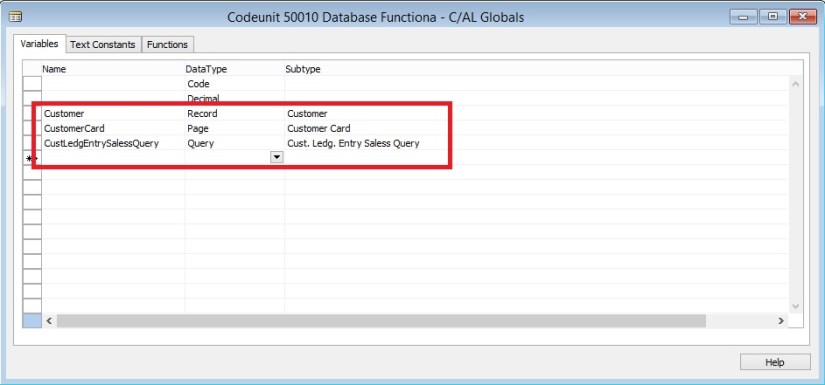
In the C/AL Globals and C/AL Locals windows, when you add a variable or parameter that has the data type Codeunit, Page, Testpage, Report, Query, or XMLport, the Name field will be automatically generated just by setting the DataType and SubType fields. The generated name is based on the name that is assigned to the associated Microsoft Dynamics NAV object. You can change the generated name as you want.
DevelopmentEnvironmentEnhancement-1

Commenting and uncommenting multiple lines of C/AL Code

The development environment includes the Comment Selection and Uncomment Selection options, which enable you to comment and uncomment multiple lines of C/AL code with the click of a button.

For more information, see my earlier post Commenting and uncommenting multiple lines of C/AL Code

Non-default property values are bold

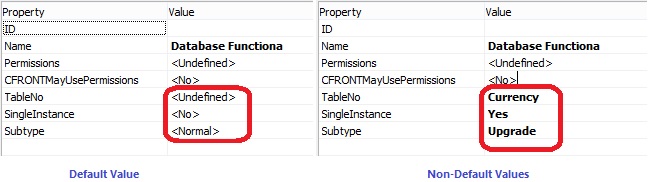
Microsoft Dynamics NAV objects have many properties that you can view and set from the Properties window in the development environment. Property values that are not the default value of the property appear as bold in the Properties window.
DevelopmentEnvironmentEnhancement-2

C/AL functions are local by default

Unlike in earlier Microsoft Dynamics NAV versions, now when you create a function in the C/AL code of a Microsoft Dynamics NAV object, such as a codeunit or page, the function is set as a local function by default. By default, the Local property of new functions is now set to Yes instead of to No. Being local means that the function is not accessible outside the object in which is it defined.

Development Tips, FixedLayout Control, Scope Property, Show Mandatory Property, UpdatePropagation Property

New Properties and Controls for Pages – in Navision 2015

ShowMandatory Property

With Microsoft Dynamics NAV a new property called ShowMandatory has been introduced on page fields. The ShowMandatory property is set on page fields and marks the field with a red asterisk on the UI.

You can refer this in my earlier post Show Mandatory Property

UpdatePropagation Property

In Microsoft Dynamics NAV a new property called UpdatePropagation is added to page fields. The introduction of this property makes it possible to update a parent page from a subpage automatically without using the page Refresh button.

You can refer this in my earlier post UpdatePropagation Property

Scope Property

In Microsoft Dynamics NAV a new property called Scope is added to page actions. The introduction of this property specifies the scope of an action to be either page-specific, or specific to a repeater control.

You can refer this in my earlier post Defining Action Scope for Microsoft Dynamics NAV Pages in Navision 2015

FixedLayout Control

Microsoft Dynamics NAV now supports using the FixedLayout control on the Microsoft Dynamics NAV Web client.

You can refer this in my earlier post Using a FixedLayout Control

Development Tips

Using a FixedLayout Control

Arrange Page Fields in Rows and Columns Using a FixedLayout Control

A FixedLayout group control is typically used to display statistical data.

Fields in a FixedLayout group control are displayed in a FastTab with a heading for each row and column.

Previous versions of Microsoft Dynamics NAV supported having a FixedLayout control directly under a ContentArea. In Microsoft Dynamics NAV 2013 and later versions of Microsoft Dynamics NAV, you must make sure that the FixedLayout control is nested in a Group control.

To arrange page fields in rows and columns

  1. Open the page in Page Designer.
  2. In Page Designer, insert a blank line where you want to locate the fields.
  3. Set the Type and SubType field to Group. In the Caption field, type the text that you want as the heading of the FastTab that contains the fields.
  4. On the next line, set the Type to Group and SubType field to FixedLayout.
  5. On the next line, set the Type and SubType field to Group. This defines the placeholder for the first column of fields. To add a heading to the column, type the text in the Caption field.
  6. On the next line, set the Type to Field. This defines the first field in the column. In the Caption field, type the text that you want to use as the heading for the row.
  7. Specify the data source for the field by doing one of the following:
    • If the data source is a field of the table that is associated with the page, then on the View menu, choose Field Menu, select the field, and then choose the OK button.
    • If the data source is a variable, then on the View menu, choose C/AL Globals or C/AL Locals, and then create the variable. After you create the variable, in the SourceExpr field in Page Designer, choose the AssistEdit button and select the variable.
  8. Repeat steps 6 and 7 to add the remaining fields in the first column.
  9. Repeat steps 5 through 8 to add group controls that define the remaining columns.

You do not need to specify captions for these fields. Only the captions of fields in the first column define the row headings.

To demonstrate above steps, find below screen shots which makes you understand the concept easily.

FixedLayout-1

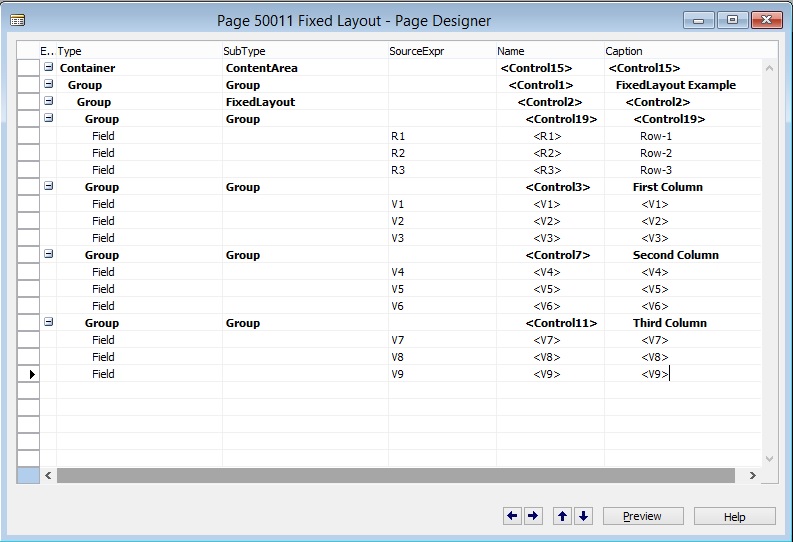
We will create V1..V9 variable as decimal.

We will create R1..R3 variables as Text.

Next we will design and group the page as below:

FixedLayout-2

When we save and run the page we will get below output.

FixedLayout-3

You can use table fields or calculated variables.

You can nest the Layout for different views.

Development Tips, Functional Tips, Tip & Tricks

Using of Posting Groups

Posting groups in Microsoft Dynamics NAV are very important part of configuration process. All G/L Entries depends of correctly configured posting groups.

We can find a lot of them: General Business and Product Posting Groups, VAT Business and Product Posting Groups, Customer and Vendor Posting Groups, Inventory Posting Groups…

Sometime, it is very confusing how it works, especially for unexperienced people.

You can find good explanation on same in this post by Totovic.

Nicely explained, you should see it here. I feel must to see this post for every Navision Consultants either fresher or experienced.