Corfu Navision 2016, Data, Development Tips, How To, Information, upgrade

Upgrading the Data in Navision 2016

Continuing from my earlier post Upgrading the Application Code in Microsoft Dynamics NAV 2016

At end of previous post we have imported the objects and compiled also resolved any conflicts and compilation error. In the same process we have got the list of objects which were having destructive table schema, means the objects which will be having the changes due to which we could lose some data. Scan the objects and if we wish to save those data then we will be requiring Data Upgrade codeunits to handle any such situation.

How to create you can refer to my earlier post Data Upgrade – in Navision 2015 this it still valid for 2016.

Now we have all the upgraded application objects and Data Upgrade codeunits if any required for the upgrade. So we are good to go with Upgrading Data for Old database.

We will follow below steps to continue, make sure you have followed the process for preparation/ converting of database as discussed in my earlier post Upgrade in Microsoft Dynamics NAV 2016

Import the application objects to the converted database

In the development environment, import all the application objects that you extracted in previous step as in my earlier post discussed above in the Microsoft Dynamics NAV 2016 database. This includes the FOB file that contains all the Microsoft Dynamics NAV 2016 objects from the application code upgrade and upgrade toolkit objects if any.

When you import the FOB file, if you experience metadata conflicts, use the Import Worksheet to handle these conflicts.

Finally, on the dialog box for selecting the schema synchronization, set the Synchronize Schema option to Later.
Upgrade2016-29

If the upgrade toolkit objects are stored in a separate FOB file, then import the upgrade toolkit FOB file after the application objects are imported.


Run the schema synchronization to synchronize the new tables

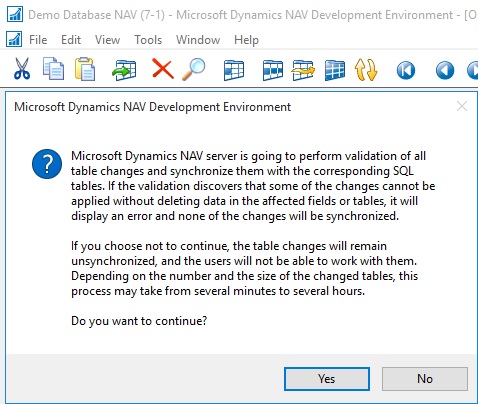
To publish the data schema changes of the newly imported tables to the SQL tables, run the Sync. Schema For All Tables – With Validation option from the development environment.
Upgrade2016-30

If you are confident that any loss of data you are ok with same you can choose Force option which will drop the data for deleted fields, else use Upgrade Codeunit prepared for same as discussed above.

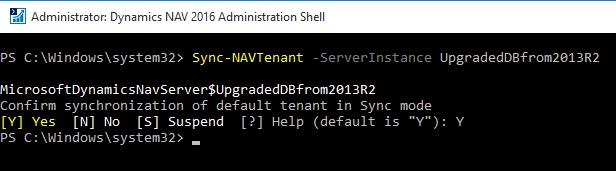
Or alternatively run the Sync-NavTenant cmdlet from the Microsoft Dynamics NAV 2016 Administration Shell.

Sync-NAVTenant –ServerInstance UpgradedDBfrom2013R2 (My Server Instance Name)
Upgrade2016-31

Note this command runs in Administration Shell not in Development Shell as we used in our previous post.

Run the data upgrade process

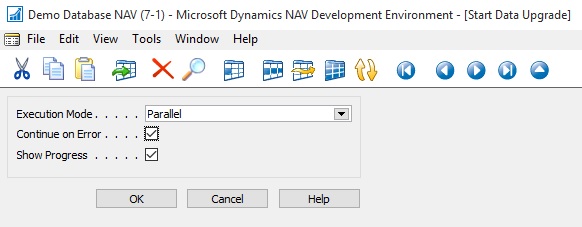
A data upgrade runs the upgrade toolkit objects, such as upgrade codeunits and upgrade tables, to migrate business data from the old table structure to the new table structure. You can start the data upgrade from the Microsoft Dynamics NAV Development Environment.
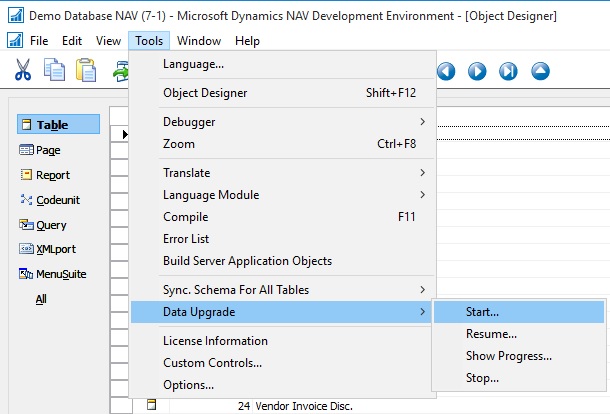
Upgrade2016-32

Upgrade2016-33

Upgrade2016-34

Upgrade2016-35

Ooops………….

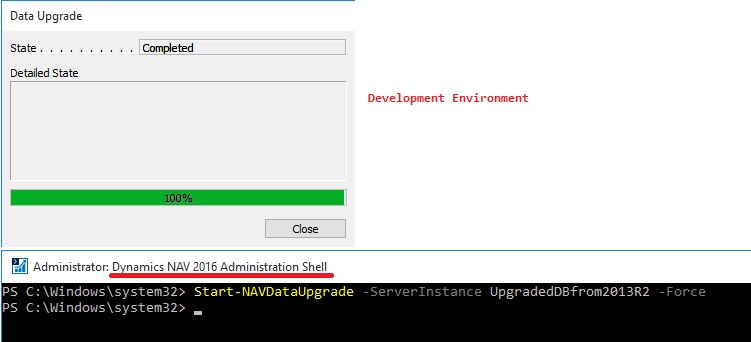
Or Alternatively Microsoft Dynamics NAV 2016 Administration Shell.

In the last phase of data upgrade, all companies will be initialized by running codeunit 2 Company Initialization. This is done automatically.

If you want to skip company initialization, then use the Start- NavDataUpgrade cmdlet and set the SkipCompanyIntitialization parameter.

Syntax:

Start-NAVDataUpgrade [-ServerInstance] <String> [[-Tenant] <TenantId> ] [[-FunctionExecutionMode] <FunctionExecutionModeValue> ] [[-ContinueOnError]] [-Force] [-Confirm] [-WhatIf] [ <CommonParameters>]

Parameters
-ContinueOnError

Specifies whether the Microsoft Dynamics NAV Server instance continues to execute other upgrade functions when an error occurs while executing an upgrade function.

If you do not set this parameter, then when an error occurs, the Microsoft Dynamics NAV Server instance will suspend the data upgrade process. It will cancel the execution of upgrade functions currently in progress and roll back any changes that were applied. Completed functions will not be rolled back.

The process remains in suspended state until you take one of the following actions:

– Fix the problems in the upgrade functions that failed, and then resume the process by using the Resume-NAVDataUpgrade cmdlet. You should not add new upgrade functions at this time because they will be ignored when you resume the process.

– Stop the data upgrade process by using the Stop-NAVDataUpgrade cmdlet. Stopping the process will not roll back changes made by upgrade functions that have already been executed.

If you set this parameter, then when an error occurs, the Microsoft Dynamics NAV Server instance will continue executing other upgrade functions. At the end of the process, you can use the Get-NAVDataUpgrade cmdlet to see the list of failed upgrade functions. Changes that were applied by completed functions will not be rolled back.

When upgrading a large database, you should increase the SQL Command Timeout setting for the Microsoft Dynamics NAV Server instance that connects to the database to avoid timeouts during schema synchronization. The default setting is 30 minutes

-ServerInstance<String>

Specifies the Microsoft Dynamics NAV Server instance that the application database and the tenant database are mounted against, such as DynamicsNAV90.

You must include the name within single quotation marks.

-Tenant<TenantId>

Specifies the ID of the tenant that you want to synchronize with the application, such as Tenant1.

This parameter is required unless the specified service instance is not configured to run multiple tenants.

-Force

Forces the command to run without asking for user confirmation.
-FunctionExecutionMode<FunctionExecutionModeValue>
Specifies whether the Microsoft Dynamics NAV Server instance executes upgrade functions in series or parallel.
-Confirm
Prompts you for confirmation before running the cmdlet.

-WhatIf

Shows what would happen if the cmdlet runs. The cmdlet is not run.

Few Examples of Usage:

[1] PS C:\> Start-NAVDataUpgrade -ServerInstance DynamicsNAV90 –Force

[2] PS C:\> Start-NAVDataUpgrade -ServerInstance DynamicsNAV90 -ContinueOnError –Force

[3] PS C:\> Start-NAVDataUpgrade -ServerInstance DynamicsNAV90 -FunctionExecutionMode Serial –Force
Upgrade2016-36

Start-NAVDataUpgrade -ServerInstance UpgradedDBfrom2013R2 –Force

Ooops………….

Now what to do?

To learn how to Create Data Upgrade Codeunits you can see my earlier posts:

Data Upgrade Codeunit in Navision 2015 – Part -1

Data Upgrade Codeunit in Navision 2015 – Part -2

These posts are still valid for 2016, you can follow to get you task done at this step resolution to above error.

To resolve above issue I have followed the instruction as suggested in error message, but in real scenario you will definitely will be having such codeunits. Since I have taken the 2013-R2 Std. Database I am having this issue. I have created on Upgrade codeunit with an empty upgrade function as below:
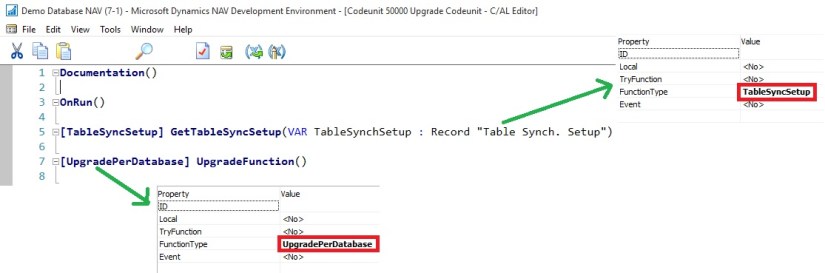
Upgrade2016-37

Let us run the above process again.
Upgrade2016-38

This time I was able to complete the process successfully.

Delete the upgrade objects

At this point, you have upgraded the database to Microsoft Dynamics NAV 2016. Now, you can delete the upgrade codeunits and upgrade table objects that you imported in above step.

When you delete tables, on the Delete dialog box, set the Synchronize Schema option to Force.

Import upgraded permission sets and permissions by using the Roles and Permissions XMLports

You import the permission sets and permissions XML files according to the following procedure.

To import the permission sets and permissions

  • Delete all permission sets in the database except the SUPER permission set.

In Object Designer, run page 9802 Permission Sets, and then delete the permission sets.

  • Run XMLport 9171 Import/Export Permission Sets to import the permission sets XML file,

In the request page for the XMLport, in the Direction field, choose Import, choose the OK button, and then specify the permission sets XML file.

  • Run XMLport 9172 Import/Export Permissions to import the permission XML file.

In the request page for the XMLport, in the Direction field, choose Import, choose the OK button, and then specify the permissions XML file.

Set the language of the customer database

In the development environment, choose Tools, choose Language, and then select the language of the original customer database.

Add new control add-ins

The database is now fully upgraded and is ready for use. However, you may want to add the new client control add-ins that are included in Microsoft Dynamics NAV 2016. These are not added by the upgrade process. The following client control add-ins are available from the Microsoft Dynamics NAV product media:

  • Microsoft.Dynamics.Nav.Client.BusinessChart
  • Microsoft.Dynamics.Nav.Client.PageReady
  • Microsoft.Dynamics.Nav.Client.PingPong
  • Microsoft.Dynamics.Nav.Client.VideoPlayer
  • Microsoft.Dynamics.Nav.Client.SocialListening

You can add control add-ins in the Control Add-ins window in the Microsoft Dynamics NAV Windows client.

I will come up with more details on this topic in my upcoming posts.

Announcement

Announcing the Microsoft Dynamics NAV Universal App (Dynamics NAV v2.0)

Maybe you’re already familiar with Dynamics NAV on your tablet. Well, things just got even more flexible. You can now experience the power and simplicity of the Microsoft Dynamics NAV Universal App on your preferred iOS, Android or Windows device – be it phone, phablet, tablet, laptop, or desktop – it’s all up to you. Switch to your favorite device on the go, during meetings, in the office, at home on the couch using the same app, accessing your Dynamics NAV business data from everywhere.

For more details see below link :-

https://blogs.msdn.microsoft.com/nav/2015/10/22/announcing-the-microsoft-dynamics-nav-universal-app-dynamics-nav-v2-0/

Data Model, Development Tips, Excel, How To, Information, Instalation & Configuration, Office Integration, PivotTable, Power View, PowerBI.com, PowerPivot

PowerPivot in Excel 2013

I started the series in End of September and Starting of October on PowerPivot, Power View, PivotTable & Reports but in-between the release of Navision 2016 all the topics got scattered between other posts and I didn’t ended the topic.

Here I present all the posts link at one place which you can use as table of content for easy access and to help if any one wish to start from beginning and learn all the features & Topic on same.

PowerPivot for Excel

Start the Power Pivot in Microsoft Excel add-in

Troubleshooting: Power Pivot Ribbon Disappears

PowerPivot Creating a Data Model in Excel 2013

Adding more tables to the Data Model using Existing Connection – In PowerPivot

Add relationships to Data Model in PowerPivot

How to add Filter for data retrieval in PowerPivot Data model.

Create a calculated column in PowerPivot

Creating My First Report using PowerPivot

Basics of Power Pivot for Excel – 2013

Add Slicers to PivotTables in PowerPivot

Power View in Excel 2013

Import data using copy and paste from Excel sheet or other source for PowerPivot Data Model.

Add Excel Sheet/Table to the PowerPivot Data Model

Add a relationship using Diagram View in Power Pivot

Extend the Data Model using calculated columns

Create a hierarchy in PowerPivot Data Model

Use hierarchies in PivotTables

Create a Power View report

Create a calculated field in PowerPivot

Set field defaults in PowerPivot

Set Table Behaviour in PowerPivot

Set Data Categories for fields in PowerPivot

I will come up with more details once I get some time to explore and find anything which I feel is good to share with the community.

Till then keep Learning, Exploring and Practicing.

Corfu Navision 2016, Development Tips, How To, Information, upgrade

Upgrading the Application Code in Microsoft Dynamics NAV 2016

Continuing from my earlier post Upgrade in Microsoft Dynamics NAV 2016

No doubt typically, customers want all the customizations that have been implemented in their existing Microsoft Dynamics NAV databases to be migrated to their new Microsoft Dynamics NAV 2016 databases.

Depending on the version of Microsoft Dynamics NAV that a database is being upgraded from, the amount of code changes between the two versions is large or small.

To upgrade the application code, you must merge code from different versions of the application. This merge process is known as a code upgrade or application upgrade.

You must upgrade the application before you upgrade the data.

Application Upgrade Overview

You must analyze and process code changes by comparing and evaluating three separate versions of the Microsoft Dynamics NAV database:

Version Description
Original version This is the baseline version of the solution that you want to upgrade, such as the original release of Microsoft Dynamics NAV 2013.
Modified version This is the version that you want to upgrade, such as a customer’s database with customizations and add-on solutions.
Target version This is the target of the merge process that you want to upgrade your application to, such as the standard version of the Microsoft Dynamics NAV 2016 database.

When you merge the application objects from these three versions, you can import the result into a new Microsoft Dynamics NAV 2016 database that then contains the upgraded application.

At the end of the process, you export the merged Microsoft Dynamics NAV 2016 objects from this database to a .fob file that you will use during the data upgrade.

The following list describes the main steps of upgrading the application code:

  • Prepare the application object text files.
  • Merge versions.
  • Resolve conflicts
  • Import and compile the merged application objects.
  • Export all objects.

To begin, create five folders on the computer and name them as follows:

In my example, the UpgradeDemo folder on the C drive contains five folders: ORIGINAL, MODIFIED, TARGET, DELTA, and RESULT. The DELTA and RESULT folders are empty. The ORIGINAL, MODIFIED, and TARGET folders contains one or more text files that contain application objects.

Preparing the Text Files

The Microsoft Dynamics NAV cmdlets take text files as input. You must prepare three sets of text files that contain application objects as describes in the list above. You can export application objects to text files from the development environment, or by running the ExportObjects command. The following list describes the main steps of preparing the text files that you must provide as input for the application merge process.
Upgrade2016-15

  • First, export all application objects from the original version, such as the original Microsoft Dynamics NAV 2013 R2 database. Do not export system tables. Name the file OldBaseVersion.txt, and then save the file in the ORIGINAL folder that you created earlier. For example, the Microsoft.Dynamics.Nav.Model.Tools.psd1 module includes a function, Export-NAVApplicationObject, that runs the ExportObjects command. This means that you can run a command such as the following:

Export-NAVApplicationObject –DatabaseServer MyServer –DatabaseName “Demo Database NAV (7-1)” –Path C:\Upgrade\ORIGINAL\OldBaseVersion.txt

  • Next, export all relevant application objects from the modified version, such as the customized Microsoft Dynamics NAV 2013 database. Do not export system tables. Name the file OldCustomVersion.txt, and then save the file in the MODIFIED folder that you created earlier.
  • Finally, export all application objects from the new base version, such as the original Microsoft Dynamics NAV 2016 database. Do not export system tables. Name the file NewBaseVersion.txt, and then save the file in the TARGET folder that you created earlier.

Optionally, you can use the Split-NAVApplicationObjectFile cmdlet to split each text file into separate text files for each application object. This can make it easier to keep track of the process. The end result at this stage is three folders with one or more text files that contain the three sets of application objects that you want to merge.

To compare two sets of application objects

  • Open the Microsoft Dynamics NAV 2016 Development Shell in administrator mode.
  • Navigate to the location of your folders by typing a command such as the following:

cd c:\UserData\UpgradeDemo  (in my case)

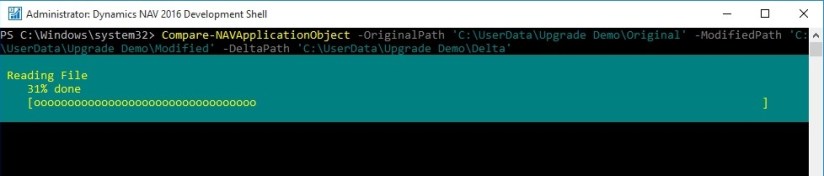
  • To run the cmdlet to compare all application objects in the ORIGINAL folder to the application objects in the MODIFIED folder, type the following command:

Compare-NAVApplicationObject -OriginalPath ‘C:\UserData\Upgrade Demo\Original’ -ModifiedPath ‘C:\UserData\Upgrade Demo\Modified’ -DeltaPath ‘C:\UserData\Upgrade Demo\Delta’

Upgrade2016-16

Upgrade2016-17
This generates a number of DELTA files that describe the difference between ORIGINAL and MODIFIED. You can open the DELTA files in text editors such as Notepad. The following example illustrates how a DELTA file identifies the difference between ORIGINAL and MODIFIED.
Upgrade2016-18
Let us understand how the changes are reported when we compare the objects.
Upgrade2016-19

Upgrade2016-20

You can apply those differences to TARGET by using the Update-NAVApplicationObject cmdlet.

To apply DELTA files to application objects

  • Open the Microsoft Dynamics NAV 2016 Development Shell in administrator mode.
  • Navigate to the location of your folders by typing a command such as the following:

cd c:\UserData\UpgradeDemo  (in my case)

In this example, the folder structure is the same as described above procedure. You can now run the cmdlet.

  • To run the cmdlet to apply the differences that are stored in the DELTA folder to the application objects in the TARGET folder, type the following command:

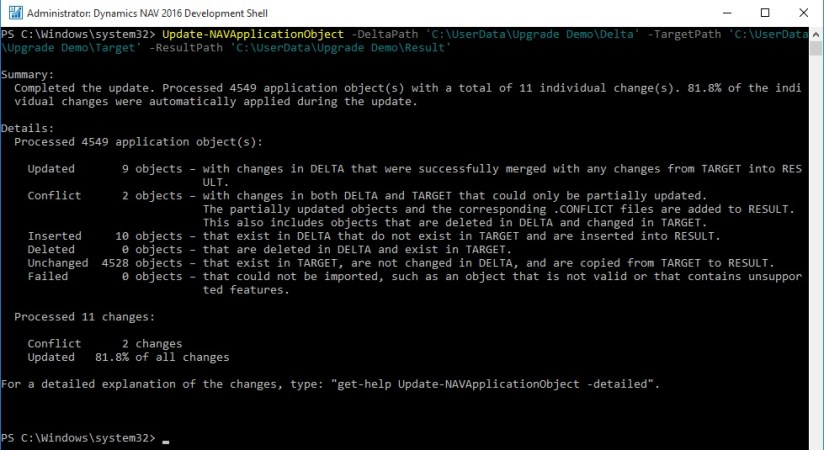
Update-NAVApplicationObject –DeltaPath ‘C:\UserData\Upgrade Demo\Delta’ -TargetPath ‘C:\UserData\Upgrade Demo\Target’ -ResultPath ‘C:\UserData\Upgrade Demo\Result’

Upgrade2016-21

Upgrade2016-22

This merges the difference between ORIGINAL and MODIFIED with the target solution and puts the resulting solution in the RESULT folder.

You can now import the merged objects into a Microsoft Dynamics NAV database.

Merging Versions

Alternatively to above process you can merge the three sets of application objects to create the application for the new database.

You can use the Merge-NAVApplicationObject cmdlet to merge the three sets of application objects.

The following example illustrates the type of command that you can run.

Merge-NAVApplicationObject -OriginalPath ‘C:\UserData\Upgrade Demo\Original’ -TargetPath ‘C:\UserData\Upgrade Demo\Target’ -ModifiedPath ‘C:\UserData\Upgrade Demo\Modified’ -ResultPath ‘C:\UserData\Upgrade Demo\Result’

Upgrade2016-23

Upgrade2016-24

Depending on the number of objects that you are merging and the number of differences found, this can take a few seconds, a few minutes, or longer.

The RESULT folder will contain a text file for each application object. The result of the merge is shown when the cmdlet completes, including a description of any application objects with conflicting code.
Upgrade2016-25

These conflicts are stored in .CONFLICT files in the RESULT folder. You can import all objects in the RESULT folder into the new Microsoft Dynamics NAV 2016 database, or you can analyze the conflicts before you import the objects.

Handling Conflicts

Depending on the application that you are upgrading, you can choose to analyze the conflicting code before you import the merged objects into the development environment.

The conflicts are shown in the merged text files but are also identified in .CONFLICT files in the RESULT folder. Subfolders then contain copies of the source files from the versions that have conflicting code.
Upgrade2016-26

You can analyze the conflicts in any tool, make the relevant changes, and then run the merge operation again. Alternatively, you can import the merged files into the development environment, and resolve the conflicts there.

Importing and Compiling Merged Objects

After you have completed the merge, import the new custom version into the new Microsoft Dynamics NAV 2016 database, and then compile all objects. You must resolve any compilation errors before you can continue.

The text files with the merged application objects include successfully merged code, and code that is partially merged. You can import the partially merged objects into the Microsoft Dynamics NAV 2016 development environment and resolve the conflicts there.

You can use Import-NAVApplicationObject, that runs the ImportObjects command.

This means that you can run a command such as the following:

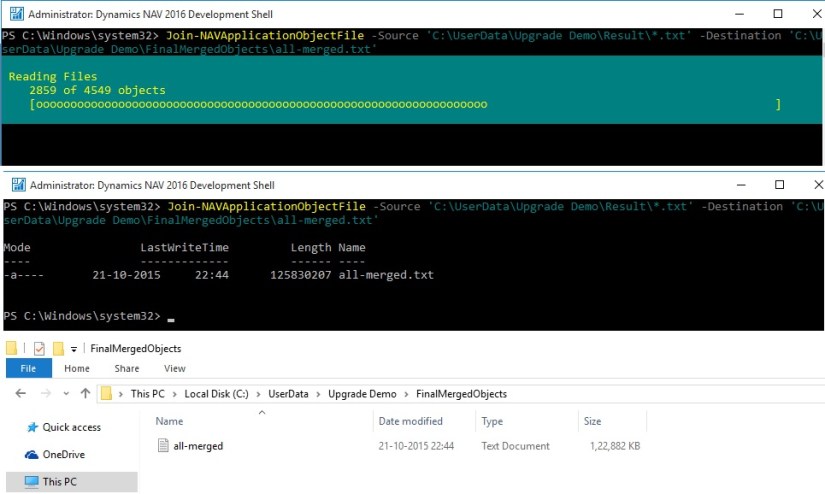
Join-NAVApplicationObjectFile -Source ‘C:\UserData\Upgrade Demo\Result\*.txt’ -Destination ‘C:\UserData\Upgrade Demo\FinalMergedObjects\all-merged.txt’

Upgrade2016-27

First we will join the many text files into a single file using above command and as a result we get all-merged.txt file which we will import in database using below command.

Import-NAVApplicationObject –DatabaseServer MyServer –DatabaseName “My Upgraded App” –Path C:\Upgrade\all-merged.txt

Now we import objects obtained from previous step into an existing, empty database.
Upgrade2016-28
When you compile the objects, an error is thrown for each code conflict, and you can use the tools that are available in the development environment to resolve the conflicts.

You now have a new database with a fully upgraded application.

Exporting All Objects

Now, you must export all objects to an objects.fob file so that you can import them when performing the data upgrade. The export must include customized objects, upgraded reports, and all other Microsoft Dynamics NAV 2016 objects.

This completes the upgrade of the application code. Next, you must upgrade the data in the database.

However you are free to do object merge and upgrade as you do earlier, here I concentrated using Dynamics Navision 2016 Development Shell. As this is the new way also much faster than what we used to do earlier.

We can use this in identifying the Objects under different categories like Modified, having conflicts and New Objects which can help in estimating also and planning the action in advance.

I will come up with further step and more details in my upcoming posts.

Corfu Navision 2016, Development Tips, How To, Information, upgrade

Upgrade in Microsoft Dynamics NAV 2016

Upgrade Considerations Preparing for Upgrade in Microsoft Dynamics NAV 2016

If your solution includes variables where the name is now used by a standard C/AL function or statement such as REGISTERTABLECONNECTION or FOREACH, you must change the variables before you upgrade to Microsoft Dynamics NAV 2016. Alternatively, you can enclose the variable names in quotation marks.

If you are upgrading a solution that depends on functionality that is deprecated or changed in the default version of Microsoft Dynamics NAV 2016, you must verify that the upgrade codeunits migrate data correctly. From 2013-R2 not yet reported any under this category.

When you introduce changes to the database schema in Microsoft Dynamics NAV 2016, Microsoft Dynamics NAV will check if these changes are destructive or not. If the database check indicates that the change may lead to data deletion, such as if you are dropping a table column so that the contents of that column will be deleted, this is considered a destructive change. You will be prompted to handle the situation using upgrade codeunits. You can check out my earlier post on this topic here. Data Upgrade – in Navision 2015 it still valid for 2016, I will come up with any specific differences in my upcoming post later.

If a company name includes a special character, an error may display during the upgrade. In this context, special characters include the: [ ~ @ # $ % & * ( ) . ! % – + / = ? ]. If you are going to upgrade a database where one or more company name includes a special character, it is recommend that you rename the company before you start the upgrade process. After the upgrade is successfully finished, you can rename the company again.

Versions later than Microsoft Dynamics NAV 2013 R2 require that all columns in all system tables are in English. As a result, if you try to open a database with non-English system tables in Microsoft Dynamics NAV 2013 R2 or later, an error displays, saying that one or more columns do not exist. Make sure that all objects where compiled in a development environment with the right .ETX and .STX files. You can verify that you are running in the correct environment with English (US) as the base language by opening the ndo$dbproperty table in SQL Server Management Studio. In the Identifiers column, the word Object must be written exactly as shown here.

Converting a Database in Microsoft Dynamics NAV 2016

Before you start, make sure that you have applied the changes that are described in KB 2804640

Code corrections for some Microsoft Dynamics NAV 2013 reports to prevent compilation errors with Report Viewer 2012 when upgrading to later versions of Microsoft Dynamics NAV. Your will require to use partner login to access the hotfix. Click here for the Link.

You can choose to convert the old database and not upgrade your application. However, it is recommend that you upgrade the application objects as well so that your solution includes important application fixes and new functionality that is introduced in Microsoft Dynamics NAV 2016.

Upgrading the application will also reduce the amount of merging required to upgrade to the next major version of Microsoft Dynamics NAV, bringing you to the latest version of the product faster.

Preparing the Old Database for Conversion

  • Make a copy of the old database or create full database backup.

I have copied the database (Navision 2013/R2) and attached to the SQL for this operation:
Upgrade2016-1

  • Clear all Microsoft Dynamics NAV Server instance records from the dbo.Server Instance table in the database on SQL Server.

Upgrade2016-2

You can do this by using SQL Server Management Studio to open and clear the table.

  • Open the development environment that matches the Microsoft Dynamics NAV version of the old database, and then connect to the old database.
  • In Object Designer, make sure that no objects are locked.

If any objects are locked, the conversion process will not update the database version number. As a result, the conversion will not complete.

  • On the Tools menu, choose Build Server Application Objects, and then choose the Yes button.
  • If any errors occur, they are shown in the Error List window. Make sure that you address all compilation errors before you continue.
  • Upload the Microsoft Dynamics NAV 2016 Partner license to the database

The license that you upload must be a developer license. During the conversion, the development environment will convert the report objects that are stored in the old database to the RDL 2012 format.

  • If you are converting a Microsoft Dynamics NAV 2013 R2 or Microsoft Dynamics NAV 2015 database, then run the Sync-NavTenant cmdlet from the Microsoft Dynamics NAV 2013 R2 or Microsoft Dynamics NAV 2015 Administration Shell to synchronize the database schema changes.

Converting the Old Database

Next, we will convert the old database so that it can be used in Microsoft Dynamics NAV 2016.

Before you start the following procedure, you can choose to uninstall Microsoft Dynamics NAV 2013, Microsoft Dynamics NAV 2013 R2, or Microsoft Dynamics NAV 2015. When you uninstall Microsoft Dynamics NAV 2013, Microsoft Dynamics NAV 2013 R2, or Microsoft Dynamics NAV 2015, the database is still attached to the instance of SQL Server, which you can verify using SQL Server Management Studio.

To convert the database

  • Install Microsoft Dynamics NAV 2016.
  • Open the Microsoft Dynamics NAV 2016 development environment, and then connect to the database that you prepared in the previous task.
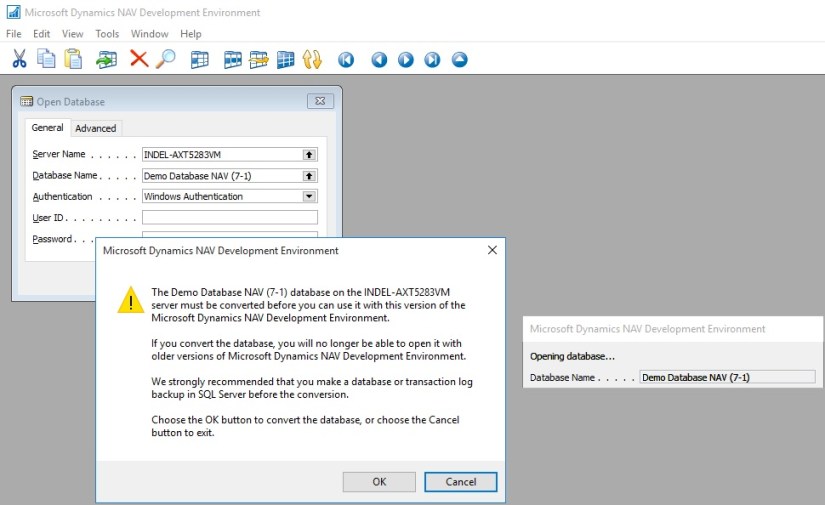
  • In the dialog box that appears, read the instructions carefully because this action cannot be reversed. When you are ready, choose the OK button, and then choose the OK button to confirm that you want to convert the database.

Upgrade2016-3

Microsoft Dynamics NAV will now convert the database. This includes an upgrade of system tables, and an upgrade of all reports to support Report Viewer 2012.

  • When you are notified that the conversion was successful, choose the OK button.

Upgrade2016-4

Upgrade2016-5

  • Connect a Microsoft Dynamics NAV 2016 Server instance to the converted database.

You use the Microsoft Dynamics NAV Server Administration tool to connect a Microsoft Dynamics NAV Server instance to the converted database.
Upgrade2016-6

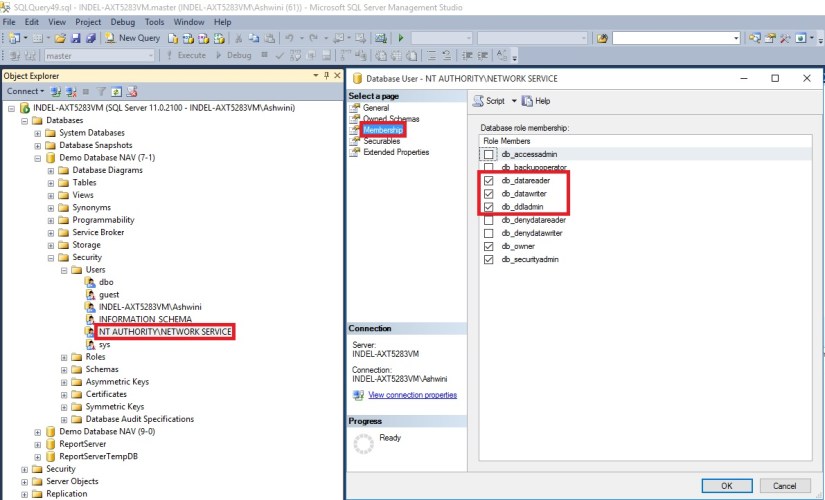
In addition, you must add the service account that is used by the Microsoft Dynamics NAV Server instance as a member of the db_owner role in the Microsoft Dynamics NAV database on SQL Server.

It is also possible to script these steps in SQL Server Management Studio:

USE [master]

GO

CREATE LOGIN [domain\accountname] FROM WINDOWS

CREATE USER [domain\accountname] FOR LOGIN [domain\accountname]

GRANT SELECT ON [master].[dbo].[$ndo$srvproperty] TO [domain\accountname]

GO

USE [Microsoft Dynamics NAV Database]

GO

CREATE USER [domain\accountname] FOR LOGIN [domain\accountname]

ALTER ROLE [db_owner] ADD MEMBER [domain\accountname]

GRANT VIEW DATABASE STATE TO [domain\accountname]

You can check more details from my earlier post Provisioning the Microsoft Dynamics NAV Server Account.

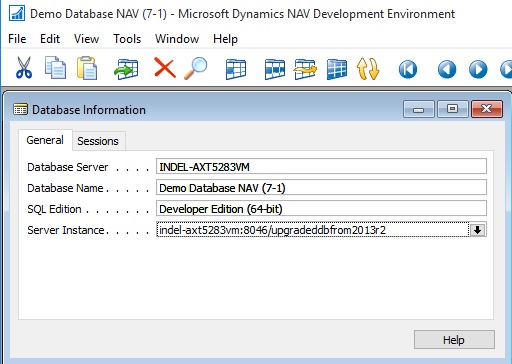
  • Run the development environment as an administrator, and then set the development environment to use the Microsoft Dynamics NAV Server instance that connects to the database.

Upgrade2016-7

  • Run the schema synchronization to complete the database conversion.

You can run the schema synchronization from the Microsoft Dynamics NAV Development Environment or Microsoft Dynamics NAV 2016 Administration Shell.
Upgrade2016-8

From the development environment:

Open development environment as an administrator. On the Tools menu, choose Sync. Schema For All Tables, and then choose With Validation and follow the schema synchronization instructions.
Upgrade2016-9

Upgrade2016-10

From the Microsoft Dynamics NAV 2016 Administration Shell:

Open the Microsoft Dynamics NAV 2016 Administration Shell as an administrator, and then run Sync-NavTenant cmdlet as follows:

Sync-NavTenant –ServerInstance <ServerInstanceName>

Replace <ServerInstanceName> with the name of the Microsoft Dynamics NAV Server instance that is connected to the database

  • If the database references any assemblies (such as client control add-ins) that are not included on the Microsoft Dynamics NAV 2016 installation media (DVD), then add the assemblies to the Add-ins folder on Microsoft Dynamics NAV Server or Microsoft Dynamics NAV Windows client computers.

For the Microsoft Dynamics NAV Windows client, the default path is C:\Program Files (x86)\Microsoft Dynamics NAV\90\RoleTailored Client\Add-ins folder.

For Microsoft Dynamics NAV Server, the default path is the C:\Program Files\Microsoft Dynamics NAV\90\Service\Add-ins folder

In the development environment, on the Tools menu, choose Build Server Application Objects, and then, in the dialog box, choose the Yes button.
Upgrade2016-14

  • Fix compilation errors.

You can find all objects which did not compile in the Object Designer window, by setting a field filter on the Compiled field.

  • Upload the customer license to the converted database.

You have now completed the conversion of the Microsoft Dynamics NAV 2013, Microsoft Dynamics NAV 2013 R2, or Microsoft Dynamics NAV 2015 database to be accessed from Microsoft Dynamics NAV 2016. To test the converted database, you can connect it to the Microsoft Dynamics NAV 2016 Server instance that by Microsoft Dynamics NAV clients, and then open a client.

You may encounter some login issues to resolve it here are the few tips:

Delete the user login details as we do in earlier versions when RTC was introduced to access any database using SQL Query as below :

USE [Demo Database NAV (7-1)]  (use your database name)
GO

delete from [dbo].[User]

delete from [dbo].[Access Control]

delete from [dbo].[User Property]

delete from [dbo].[Page Data Personalization]

delete from [dbo].[User Default Style Sheet]

delete from [dbo].[User Metadata]

delete from [dbo].[User Personalization]

After this if you get error stating you don’t have permission to codeunit ApplicationManagement give permission in SQL to the Login running the service as below:

Upgrade2016-12

Upgrade2016-13

Next, upgrade the application code to Microsoft Dynamics NAV 2016.

I will come up with more details in my upcoming posts.

Corfu Navision 2016, Development Tips, How To, TryFunction

Using Try Functions in Navision 2016

You may have seen in different programing language concept of try… catch…

The try-catch statement consists of a try block followed by one or more catch clauses, which specify handlers for different exceptions.

When an exception is thrown, the language looks for the catch statement that handles this exception. If the currently executing method does not contain such a catch block, the language looks at the method that called the current method, and so on up the call stack. If no catch block is found, then the language displays an unhandled exception message to the user and stops execution of the program.

The try block contains the guarded code that may cause the exception. The block is executed until an exception is thrown or it is completed successfully.

Although the catch clause can be used without arguments to catch any type of exception, this usage is not recommended. In general, you should only catch those exceptions that you know how to recover from.

A throw statement can be used in a catch block to re-throw the exception that is caught by the catch statement.

You can also re-throw an exception when a specified condition is true.

Now Dynamics Navision 2016 introduces this concept in C/AL in terms of function.

Try functions in C/AL enable you to handle errors that occur in the application during code execution.

For example, with try functions, you can provide more user-friendly error messages to the end user than those thrown by the system.

You can use try functions to catch errors/exceptions that are thrown by Microsoft Dynamics NAV or exceptions that are thrown during .NET Framework interoperability operations.

Try functions catch errors similar to a conditional Codeunit.Run function call, except with the following differences:

Try function calls do not require that write transactions are committed to the database.
Changes to the database that are made with a try function are not rolled back.

Creating a Try Function

To create a try function, add a function in C/AL code of an object (such as a codeunit) as usual, and then set the TryFunction Property property to Yes. A try function has the following restrictions:

In test and upgrade codeunits, you can only use a try function on a normal function type, as defined by the FunctionType Property (Test Codeunits) or FunctionType Property (Upgrade Codeunits).
The try function cannot have a user-defined return value.
Understanding Try Function Behavior and Usage

A function that is designated as a try function has a Boolean return value (true or false). A try function has the construction OK:= MyTryFunction.

If a try function call does not use the return value, the try function operates like an ordinary function and errors are exposed as usual.

If a try function call uses the return value in an OK:= statement or a conditional statement such as IF-THEN, errors are caught.

You can use the GETLASTERRORTEXT Function to obtain errors that are generated by Microsoft Dynamics NAV.

To get details of exceptions that are generated by .NET Framework objects, you can use the GETLASTERROROBJECT Function to inspect the Expection.InnerException property. You can see codeunit 1291 – DotNet Exception Handler.

If you call the GETLASTERRORTEXT function immediately after you call the CLEARLASTERROR function, then an empty string is returned.

The result of the GETLASTERRORCODE Function is not translated into the local language. The result of the GETLASTERRORTEXT function is translated into the local language.

TryFunction usage concept you can find throughout the system especially for Posting Preview, Applying Entries, and Printing Reports etc. in several codeunits.

However to give simple sight on usage of same I am using my below defined example.

I have created a codeunit with TryFunction to add an Item to Item Table.
TryFunction-1

I created another codeunit with function which calls the above codeunits AddItem function passing parameter to function. Testing it if it is successful or any error occurred while performing the action. 
TryFunction-2
When I execute the second codeunit in first run it says successful as Item dosen’t exists in the table. When I execute for second time it gives error as the item was already added to the table in its first run.
TryFunction-3

Above example also demonstrates the usage of ClearLastError, GetLastErrorCode and GetLastErrorText functions.

Spend some time in scanning other codeunits for better understanding about TryFunctions.

You can see the example provided by Microsoft MSDN also to understand usage of TryFunction.

The following example illustrates the use of a try function together with codeunit 1291 DotNet Exception Handler to handle .NET Framework Interoperability exceptions. The code is in text file format and has been simplified for illustration. The CallTryPostingDotNet function runs the try function TryPostSomething in a conditional statement to catch .NET Framework Interoperability exceptions. Errors other than IndexOutOfRangeException type are re-thrown.

[TryFunction]

PROCEDURE TryPosting@1);

BEGIN

CODEUNIT.RUN(CODEUNIT::”Purch.-Post”);

END;

PROCEDURE CallTryPostingDotNet @2();

VAR

MyPostingCodeunit@1 : Codeunit 90;

MyDotNetExceptionHandler@2 : Codeunit 1291;

IndexOutOfRangeException@3 : DotNet ‘mscorlib, Version=4.0.0.0, Culture=neutral, PublicKeyToken=b77a5c561934e089′.System.IndexOutOfRangeException’

BEGIN

IF TryPostSomething THEN

MESSAGE(‘Posting succeeded.’)

ELSE BEGIN

MyDotNetExceptionHandler.Collect;

IF MyDotNetExceptionHandler.TryCastToType(IndexOutOfRangeException) THEN

MESSAGE(‘The index used to find the value was not valid.’)

ELSE

MyDotNetExceptionHandler.Rethrow;

END;

END;

I will come up with more details in my upcoming posts.

Corfu Navision 2016, Development Tips, Dynamics Content Package, How To, PowerBI.com

PowerBI.com content package for Microsoft Dynamics NAV 2016

Microsoft Dynamics NAV 2016 includes an entirely new integration with Microsoft Power BI.

In Microsoft Dynamics NAV 2016, using the new Power BI Content Pack, Microsoft Dynamics NAV end users can connect a correctly configured Microsoft Dynamics NAV instance to PowerBI.com and immediately be able to see full business performance insights in a dashboard.

The PowerBI.com content package for Microsoft Dynamics NAV 2016 empowers you to share and present data across an organization. Data can be defined centrally but be consumed, modified and presented to the local needs of users, while everybody still sees data from the same overall picture.

Benefits:

  • Business performance dashboard  Data from Microsoft Dynamics NAV is presented in an easy-to-use dashboard, providing a complete overview and important insights
  • Finance and sales insights  Users can drill into more details in the sales and finance reports, facilitating decision making
  • Personalizing the insights  Users can create a personalized dashboard from the existing KPIs and charts in reports
  • Modify and extend With this package, users can start using and exploring their own data using Power BI in just a few minutes. The dashboard gives users KPIs and charts on their sales and finance data. The setup consists of three easy steps:

Users can create their own KPIs and charts, select data from queries, set filters, select visualizations and more to create their own dashboards

  • Sign in to PowerBI.com.
  • Select the content package for Microsoft Dynamics NAV.
  • Connect a Microsoft Dynamics NAV instance to the content package. Today I will discuss about below:

It takes less than five minutes to get going! Depends upon net speed and volume of data.

Preparation:
PowerBI-1

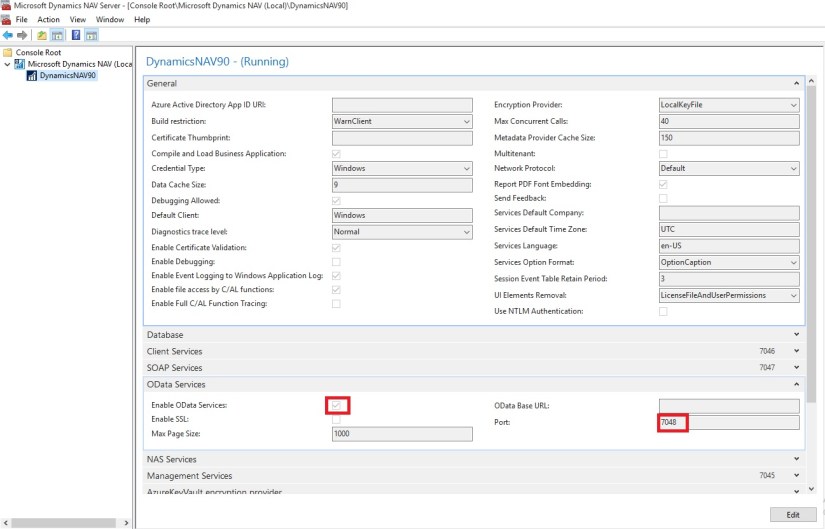
Make sure OData Service is enabled and Port for same is defined in your Server Instance of Navision. Also you use valid thumbprint and SSL is enabled.
PowerBI-2

Check that the Page 197 Service powerbifinance is published in Web Services window. Copy the OData URL we will be requiring it while connecting to content pack for Dynamics 2016 in BI.


Go to PowerBI.com and sign in or go through the easy account setup process.
PowerBI-3

Sign in to Power BI using your credentials.

You first get to a page to select your data source.

The data sources are OData feeds, such as OData web services from any Microsoft Dynamics NAV solution.

  • To import your Microsoft Dynamics NAV data into Power BI, you need to have permissions to the tables where data is retrieved from, in this case sales and finance data. You sign in your account credentials.
  • The Power BI Microsoft Dynamics NAV content pack uses Microsoft Dynamics NAV’s web services to retrieve your data. If you have a lot of data in your Microsoft Dynamics NAV instance, a suggestion to minimize the impact on your web service usage is to change the refresh frequency from the current default which is once a day to only refresh on weekdays or every other day depending on your needs. Another suggestion is to have one admin create the content pack and share it with the rest of the team instead of having every admin in your organization create their own

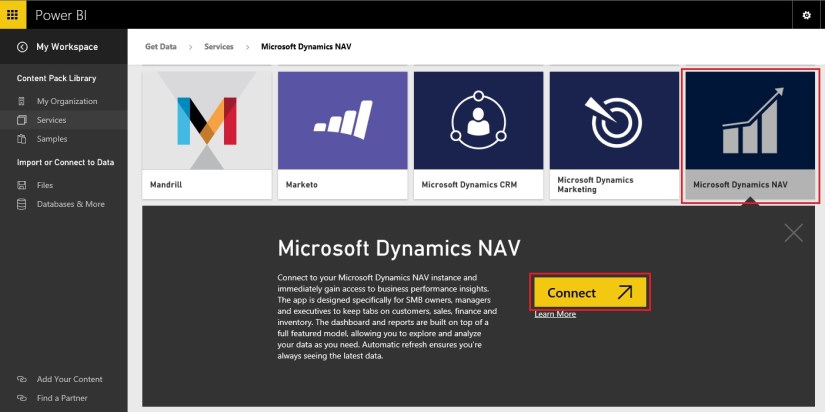
In this case select Services to get to content packages. Refer below how to connect.
PowerBI-4

Select the content package for Microsoft Dynamics NAV.
PowerBI-5

You will be prompted to add the URL to your Dynamics NAV instance. 

An easy way to obtain this URL is in Dynamics NAV to go to Web Services, find the powerbifinance web service and copy the Odata URL, but leaving out the “/powerbifinance” from the URL string. 

When you paste in the copied URL, you must remove the last part of the web service-specific URL: “/powerbifiance” – you only need the company-specific part of it

After entering the URL You will be prompted to select an authentication method. 

Select the appropriate method and provide the relevant user credentials.
PowerBI-6

Here you provide the OData URL we saved above. Enter your Authentication Mode and provide your User ID and password to get connected to the data.

When you select Log on, it will take a few minutes for the content package to connect to your Dynamics NAV instance, get the data and create the dashboard and reports.

Troubleshooting


“Parameter validation failed, please make sure all parameters are valid”

If you see this error after typing your Microsoft Dynamics NAV URL. Make sure the following requirements are satisfied:

– The URL follows exactly this pattern https//instance.navserver.com:7048/DynamicsNAV90_Instance1/OData/Company(‘CRONUS%20International%20Ltd.’) replacing ” instance.navserver.com” with your NAV Server name, “DynamicsNAV90_Instance1” with your NAV Server Instance name and “Company(‘CRONUS%20International%20Ltd.’)” with your NAV Company name.

– Make sure all the letters are lower case.

– Make sure the URL is in ‘https’.

– Make sure there are no trailing forward slash at the end of the URL.


“Login failed”

If you get a “login failed” error after using your Microsoft Dynamics NAV credentials to login, then the account you are using doesn’t have permissions to retrieve the Microsoft Dynamics NAV data from your account. Verify it is an admin account and try again.

Let’s see what data exactly this page provides:
PowerBI-7

Depending on whether you use your own database or the demo database, the charts in the dashboard might have different content or none at all.

 New Post with details available, please check out : https://msdynamicsnavashwinitripathi.wordpress.com/2016/03/23/microsoft-power-bi-part-vi/


We will see rest details in my upcoming post.

Cumulative Updates, Information

Released Cumulative Updates for Microsoft Dynamics NAV 2015

For a list of all cumulative updates for this version, see Released Cumulative Updates for Microsoft Dynamics NAV 2015.

Cumulative Updates for Microsoft Dynamics NAV 2015

Knowledge

Base ID

Title Release date Build no. Local versions included
3097767 Cumulative Update 12 for Microsoft Dynamics NAV 2015 October, 2015 42951 AT, AU, BE, CH, CZ, DE, DK, ES, FI, FR, IS, IT, NA, NL, NO, NZ, RU, SE, UK
3091812 Cumulative Update 11 for Microsoft Dynamics NAV 2015 September, 2015 42603 AT, AU, BE, CH, CZ, DE, DK, ES, FI, FR, IS, IT, NA, NL, NO, NZ, RU, SE, UK
3086434    Cumulative Update 10 for Microsoft Dynamics NAV 2015 August, 2015 42222 AT, AU, BE, CH, CZ, DE, DK, ES, FI, FR, IS, IT, NA, NL, NO, NZ, RU, SE, UK
3075726 Cumulative Update 9 for Microsoft Dynamics NAV 2015 July, 2015 41779 AT, AU, BE, CH, CZ, DE, DK, ES, FI, FR, IS, IT, NA, NL, NO, NZ, RU, SE, UK
3069272    Cumulative Update 8 for Microsoft Dynamics NAV 2015 June, 2015 41370 AT, AU, BE, CH, CZ, DE, DK, ES, FI, FR, IS, IT, NA, NL, NO, NZ, RU, SE, UK
3058000    Cumulative Update 7 for Microsoft Dynamics NAV 2015 May, 2015 40938 AT, AU, BE, CH, CZ, DE, DK, ES, FI, FR, IS, IT, NA, NL, NO, NZ, RU, SE, UK
3052226    Cumulative Update 6 for Microsoft Dynamics NAV 2015 April, 2015 40459 AT, AU, BE, CH, CZ, DE, DK, ES, FI, FR, IS, IT, NA, NL, NO, NZ, RU, SE, UK
3039824    Cumulative Update 5 for Microsoft Dynamics NAV 2015 March, 2015 40262 AT, AU, BE, CH, CZ, DE, DK, ES, FI, FR, IS, IT, NA, NL, NO, NZ, RU, SE, UK
3035986 Cumulative Update 4 for Microsoft Dynamics NAV 2015 February, 2015 39663 AT, AU, BE, CH, CZ, DE, DK, ES, FI, FR, IS, IT, NA, NL, NO, NZ, RU, SE, UK
3024901 Cumulative Update 3 for Microsoft Dynamics NAV 2015 January, 2015 39368 AT, AU, BE, CH, CZ, DE, DK, ES, FI, FR, IS, IT, NA, NL, NO, NZ, RU, SE, UK
3020885 Cumulative Update 2 for Microsoft Dynamics NAV 2015 December, 2014 38798 AT, AU, BE, CH, DE, DK, ES, FI, FR, IS, IT, NA, NL, NO, NZ, RU, SE, UK
3013215    Cumulative Update 1 for Microsoft Dynamics NAV 2015 November, 2014 38457 AT, AU, BE, CH, DE, DK, ES, FI, FR, IS, IT, NA, NL, NO, NZ, RU, SE, UK
Cumulative Updates, Information

Released Cumulative Updates for Microsoft Dynamics NAV 2013

For a list of all cumulative updates for this version, see Released Cumulative Updates for Microsoft Dynamics NAV 2013.

Cumulative Updates for Microsoft Dynamics NAV 2013

Knowledge

Base ID

Title Release date Build no. Local versions included
3097765 Cumulative Update 31 for Microsoft Dynamics NAV 2013 October, 2015 42948 AT, AU, BE, CH, DE, DK, ES, FI, FR, IS, IT, NA, NL, NO, NZ, SE, UK
3091810 Cumulative Update 30 for Microsoft Dynamics NAV 2013 September, 2015 42591 AT, AU, BE, CH, DE, DK, ES, FI, FR, IS, IT, NA, NL, NO, NZ, SE, UK
3086433 Cumulative Update 29 for Microsoft Dynamics NAV 2013 August, 2015 42219 AT, AU, BE, CH, DE, DK, ES, FI, FR, IS, IT, NA, NL, NO, NZ, SE, UK
3075723 Cumulative Update 28 for Microsoft Dynamics NAV 2013 July, 2015 41767 AT, AU, BE, CH, DE, DK, ES, FI, FR, IS, IT, NA, NL, NO, NZ, SE, UK
3069230 Cumulative Update 27 for Microsoft Dynamics NAV 2013 June, 2015 41354 AT, AU, BE, CH, DE, DK, ES, FI, FR, IS, IT, NA, NL, NO, NZ, SE, UK
3058009 Cumulative Update 26 for Microsoft Dynamics NAV 2013 May, 2015 40940 AT, AU, BE, CH, DE, DK, ES, FI, FR, IS, IT, NA, NL, NO, NZ, SE, UK
3051268 Cumulative Update 25 for Microsoft Dynamics NAV 2013 April, 2015 40468 AT, AU, BE, CH, DE, DK, ES, FI, FR, IS, IT, NA, NL, NO, NZ, SE, UK
3039828 Cumulative Update 24 for Microsoft Dynamics NAV 2013 March, 2015 40118 AT, AU, BE, CH, DE, DK, ES, FI, FR, IS, IT, NA, NL, NO, NZ, SE, UK
3035980 Cumulative Update 23 for Microsoft Dynamics NAV 2013 February, 2015 39671 AT, AU, BE, CH, DE, DK, ES, FI, FR, IS, IT, NA, NL, NO, NZ, SE, UK
3024895 Cumulative Update 22 for Microsoft Dynamics NAV 2013 January, 2015 39369 AT, AU, BE, CH, DE, DK, ES, FI, FR, IS, IT, NA, NL, NO, NZ, SE, UK
3020883 Cumulative Update 21 for Microsoft Dynamics NAV 2013 December, 2014 38800 AT, AU, BE, CH, DE, DK, ES, FI, FR, IS, IT, NA, NL, NO, NZ, SE, UK
3013213 Cumulative Update 20 for Microsoft Dynamics NAV 2013 November, 2014 38454 AT, AU, BE, CH, DE, DK, ES, FI, FR, IS, IT, NA, NL, NO, NZ, SE, UK
3000200 Cumulative Update 19 for Microsoft Dynamics NAV 2013 October, 2014 38052 AT, AU, BE, CH, DE, DK, ES, FI, FR, IS, IT, NA, NL, NO, NZ, SE, UK
2992503 Cumulative Update 18 for Microsoft Dynamics NAV 2013 September, 2014 37798 AT, AU, BE, CH, DE, DK, ES, FI, FR, IS, IT, NA, NL, NO, NZ, SE, UK
2984829 Cumulative Update 17 for Microsoft Dynamics NAV 2013 August, 2014 37532 AT, AU, BE, CH, DE, DK, ES, FI, FR, IS, IT, NA, NL, NO, NZ, SE, UK
2977472 Cumulative Update 16 for Microsoft Dynamics NAV 2013 July, 2014 37201 AT, AU, BE, CH, DE, DK, ES, FI, FR, IS, IT, NA, NL, NO, NZ, SE, UK
2971745 Cumulative Update 15 for Microsoft Dynamics NAV 2013 June, 2014 36919 AT, AU, BE, CH, DE, DK, ES, FI, FR, IS, IT, NA, NL, NO, NZ, SE, UK
2964546 Cumulative Update 14 for Microsoft Dynamics NAV 2013 May, 2014 36605 AT, AU, BE, CH, DE, DK, ES, FI, FR, IS, IT, NA, NL, NO, NZ, SE, UK
2955943 Cumulative Update 13 for Microsoft Dynamics NAV 2013 April, 2014 36347 AT, AU, BE, CH, DE, DK, ES, FI, FR, IS, IT, NA, NL, NO, NZ, SE, UK
2937998 Cumulative Update 12 for Microsoft Dynamics NAV 2013 March, 2014 36207 AT, AU, BE, CH, DE, DK, ES, FI, FR, IS, IT, NA, NL, NO, NZ, SE, UK
2930616 Cumulative Update 11 for Microsoft Dynamics NAV 2013 February, 2014 36076 AU, DE, DK, FR, IT, NA, NL, NZ, SE, UK
2918536 Cumulative Update 10 for Microsoft Dynamics NAV 2013 January, 2014 36005 AU, DE, DK, FR, IT, NA, NL, NZ, SE, UK
2913980 Cumulative Update 9 for Microsoft Dynamics NAV 2013 December, 2013 35782 AU, DE, DK, FR, IT, NA, NL, NZ, SE, UK
2901572 Cumulative Update 8 for Microsoft Dynamics NAV 2013 November, 2013 35670 AU, DE, DK, FR, IT, NA, NL, NZ, SE, UK
2892427 Cumulative Update 7 for Microsoft Dynamics NAV 2013 October, 2013 35488 AU, DE, DK, FR, IT, NA, NL, NZ, UK
2881294 Cumulative Update 6 for Microsoft Dynamics NAV 2013 September, 2013 35345 AU, DE, DK, FR, IT, NA, NL, NZ, UK
2872273 Cumulative Update 5 for Microsoft Dynamics NAV 2013 August, 2013 35201 AU, DE, DK, FR, IT, NA, NL, NZ, UK
2860301 Cumulative Update 4 for Microsoft Dynamics NAV 2013 July, 2013 35026 DE, DK, FR, IT, NA, NL, UK
2852685 Cumulative Update 3 for Microsoft Dynamics NAV 2013 June, 2013 34902 DE, DK, FR, IT, NA, NL, UK
2843305 Cumulative Update 2 for Microsoft Dynamics NAV 2013 May, 2013 34688 DE, DK, NA, NL, UK
2829782 Cumulative Update 1 for Microsoft Dynamics NAV 2013 April, 2013 34587 DE

For a list of all hotfixes included in Cumulative Updates for Microsoft Dynamics NAV 2013, view the following CustomerSource and PartnerSource pages:

CustomerSource

PartnerSource

Cumulative Updates, Information

Released Cumulative Updates for Microsoft Dynamics NAV 2013 R2

For a list of all cumulative updates for this version, see Released Cumulative Updates for Microsoft Dynamics NAV 2013 R2.

Knowledge

Base ID

Title Release date Build no. Local versions included
3097766 Cumulative Update 24 for Microsoft Dynamics NAV 2013 R2 October, 2015 42950 AT, AU, BE, CH, CZ, DE, DK, ES, FI, FR, IS, IT, NA, NL, NO, NZ, RU, SE, UK
3091811 Cumulative Update 23 for Microsoft Dynamics NAV 2013 R2 September, 2015 42610 AT, AU, BE, CH, CZ, DE, DK, ES, FI, FR, IS, IT, NA, NL, NO, NZ, RU, SE, UK
3084775 Cumulative Update 22 for Microsoft Dynamics NAV 2013 R2 August, 2015 42221 AT, AU, BE, CH, CZ, DE, DK, ES, FI, FR, IS, IT, NA, NL, NO, NZ, RU, SE, UK
3075724 Cumulative Update 21 for Microsoft Dynamics NAV 2013 R2 July, 2015 41768 AT, AU, BE, CH, CZ, DE, DK, ES, FI, FR, IS, IT, NA, NL, NO, NZ, RU, SE, UK
3069271 Cumulative Update 20 for Microsoft Dynamics NAV 2013 R2 June, 2015 41371 AT, AU, BE, CH, CZ, DE, DK, ES, FI, FR, IS, IT, NA, NL, NO, NZ, RU, SE, UK
3058010 Cumulative Update 19 for Microsoft Dynamics NAV 2013 R2 May, 2015 40941 AT, AU, BE, CH, CZ, DE, DK, ES, FI, FR, IS, IT, NA, NL, NO, NZ, RU, SE, UK
3052269 Cumulative Update 18 for Microsoft Dynamics NAV 2013 R2 April, 2015 40452 AT, AU, BE, CH, CZ, DE, DK, ES, FI, FR, IS, IT, NA, NL, NO, NZ, RU, SE, UK
3039826 Cumulative Update 17 for Microsoft Dynamics NAV 2013 R2 March, 2015 40076 AT, AU, BE, CH, CZ, DE, DK, ES, FI, FR, IS, IT, NA, NL, NO, NZ, RU, SE, UK
3035983 Cumulative Update 16 for Microsoft Dynamics NAV 2013 R2 February, 2015 39665 AT, AU, BE, CH, CZ, DE, DK, ES, FI, FR, IS, IT, NA, NL, NO, NZ, RU, SE, UK
3024898 Cumulative Update 15 for Microsoft Dynamics NAV 2013 R2 January, 2015 39354 AT, AU, BE, CH, CZ, DE, DK, ES, FI, FR, IS, IT, NA, NL, NO, NZ, RU, SE, UK
3020884 Cumulative Update 14 for Microsoft Dynamics NAV 2013 R2 December, 2014 38801 AT, AU, BE, CH, CZ, DE, DK, ES, FI, FR, IS, IT, NA, NL, NO, NZ, RU, SE, UK
3013214 Cumulative Update 13 for Microsoft Dynamics NAV 2013 R2 November, 2014 38455 AT, AU, BE, CH, CZ, DE, DK, ES, FI, FR, IS, IT, NA, NL, NO, NZ, RU, SE, UK
3000199 Cumulative Update 12 for Microsoft Dynamics NAV 2013 R2 October, 2014 38053 AT, AU, BE, CH, CZ, DE, DK, ES, FI, FR, IS, IT, NA, NL, NO, NZ, RU, SE, UK
2992495 Cumulative Update 11 for Microsoft Dynamics NAV 2013 R2 September, 2014 37799 AT, AU, BE, CH, CZ, DE, DK, ES, FI, FR, IS, IT, NA, NL, NO, NZ, RU, SE, UK
2984452 Cumulative Update 10 for Microsoft Dynamics NAV 2013 R2 August, 2014 37563 AT, AU, BE, CH, CZ, DE, DK, ES, FI, FR, IS, IT, NA, NL, NO, NZ, RU, SE, UK
2977473 Cumulative Update 9 for Microsoft Dynamics NAV 2013 R2 July, 2014 37221 AT, AU, BE, CH, CZ, DE, DK, ES, FI, FR, IS, IT, NA, NL, NO, NZ, RU, SE, UK
2971746 Cumulative Update 8 for Microsoft Dynamics NAV 2013 R2 June, 2014 36897 AT, AU, BE, CH, DE, DK, ES, FI, FR, IS, IT, NA, NL, NO, NZ, RU, SE, UK
2964528 Cumulative Update 7 for Microsoft Dynamics NAV 2013 R2 May, 2014 36703 AT, AU, BE, CH, DE, DK, ES, FI, FR, IS, IT, NA, NL, NO, NZ, RU, SE, UK
2955941  Cumulative Update 6 for Microsoft Dynamics NAV 2013 R2 March, 2014 36366 AT, AU, BE, CH, DE, DK, ES, FI, FR, IS, IT, NA, NL, NO, NZ, RU, SE, UK
2937999 Cumulative Update 5 for Microsoft Dynamics NAV 2013 R2 March, 2014 36281 AT, AU, BE, CH, DE, DK, ES, FI, FR, IS, IT, NA, NL, NO, NZ, SE, UK
2930617 Cumulative Update 4 for Microsoft Dynamics NAV 2013 R2 February, 2014 36078 AU, DE, DK, FR, IT, NA, NL, NZ, SE, UK
2918538 Cumulative Update 3 for Microsoft Dynamics NAV 2013 R2 January, 2014 36035 AU, DE, DK, FR, IT, NA, NL, NZ, SE, UK
2913982 Cumulative Update 2 for Microsoft Dynamics NAV 2013 R2 December, 2013 35800 AU, DE, DK, FR, IT, NA, NL, NZ, SE, UK
2901573 Cumulative Update 1 for Microsoft Dynamics NAV 2013 R2 November, 2013 35701 AU, DE, DK, FR, IT, NA, NL, NZ, SE, UK

For a list of all hotfixes included in Cumulative Updates for Microsoft Dynamics NAV 2013 R2, view the following CustomerSource and PartnerSource pages:

CustomerSource

PartnerSource