Cumulative Updates, How To, Information, Instalation & Configuration, Tip & Tricks

Cumulative Update 48 for Microsoft Dynamics NAV 2013 (Build 48066) – Released in March 2017

This cumulative update includes all hotfixes and regulatory features that have been released for Microsoft Dynamics NAV 2013, including hotfixes and regulatory features that were released in previous cumulative updates.

This cumulative update replaces previously released cumulative updates. You should always install the latest cumulative update.

It may be necessary to update your license after implementing this hotfix to gain access to new objects included in this or a previous cumulative update (this only applies to customer licenses).

For a list of cumulative updates released for Microsoft Dynamics NAV 2013, see released cumulative updates for Microsoft Dynamics NAV 2013 . For a complete list of all hotfixes released in cumulative updates for Microsoft Dynamics NAV 2013, view the following CustomerSource and PartnerSource pages:

CustomerSource
PartnerSource

Cumulative updates are intended for new and existing customers who are running Microsoft Dynamics NAV 2013.

How to obtain the Microsoft Dynamics NAV update files

This update is available for manual download and installation from the Microsoft Download Center.

How to install a Microsoft Dynamics NAV 2013 cumulative update

See how to install a Microsoft Dynamics NAV 2013 cumulative update .

Prerequisites

You must have Microsoft Dynamics NAV 2013 installed to apply this hotfix.


Development Tips, How To, Information, Instalation & Configuration, Language Module, NAV 2017, Tip & Tricks

How to Add my Custom Language Pack to W1 Version?

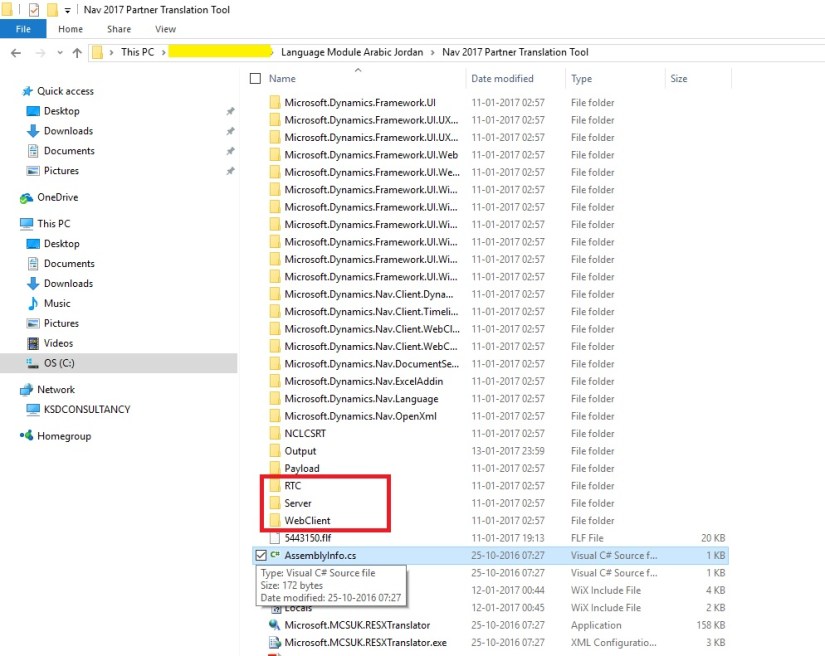
Post you build the PartnerTranslation solution from inside Visual Studio, choose Build Solution from the Build menu.

This will pick up all translated artifacts, and create three installer files (.msi):

  • Server.msi – Located in the Server\Bin\Debug folder.
  • RTC.msi – Located in the RTC\Bin\Debug folder.
  • WebClient.msi – Located in the WebClient\Bin\Debug folder.

You can check my earlier post for more details:

How do I translate my ResX Files?

Managing Multilanguage support in Navision Overview


ilm-01

Install the new language pack on the target computer with W1. To do this, select and click each of the three .msi files listed below, one after the other. The order is not significant:

  • Server\Bin\Debug\Server.msi
  • RTC\Bin\Debug\RTC.msi
  • WebClient\Bin\Debug\WebClient.msi

Each installer quickly shows a dialog, which disappears when the installer has completed.

ilm-02

The language pack is now installed, but you must make some final configuration.

Next step is to register root assemblies with strong name key token in the Add-ins table

Microsoft Dynamics NAV cannot load untrusted assemblies. To enable your custom resource assemblies as trusted, you must register the strong name key in the database:

  1. Open the Microsoft Dynamics NAV Development Environment.
  2. On the View menu, choose Object Designer, and then choose Table.
  3. Navigate to the Add-in table, table 2000000069, and then choose Run.
  4. For each assembly, enter the name and the public key token used when signing the files. The assemblies to add can be found in the Output folder of Partner Translation Tool Project.

ilm-03

To find the public key token, use the Strong Name tool (sn.exe) with the -T parameter.

At the command prompt, enter the following command: sn.exe –T

For example, enter the following command to find the public key token for the Microsoft.Dynamics.Framework.UI.dll file:

sn.exe –T Microsoft.Dynamics.Framework.UI.dll.

The sample assemblies that are included in the Partner Translation solution have the following signature: 15e5b2499d4875c1.

Optionally, you can use PowerShell to register a strong name key for the custom resource assemblies.

New-NAVAddIn -AddInName -PublicKeyToken -Category LanguageResource

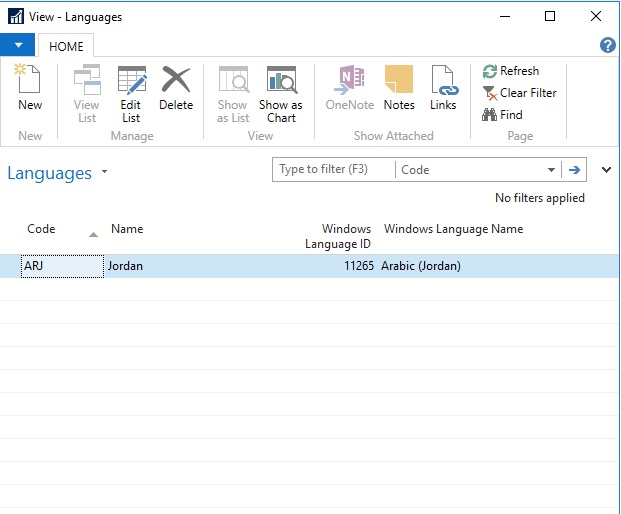
Next step is, you need to update the Languages page:

  1. In the Object Designer, choose Pages.
  2. Navigate to the Languages page, page 9, and then choose Run.
  3. Add the Arabic Jordan (ARJ) language to it.

ilm-04

Restart the Microsoft Dynamics NAV Server service

To enable the newly added language, you must restart the Microsoft Dynamics NAV Server service:

  1. Choose the Start button, point to Administrative Tools, and then choose Services.
  2. In the Services window, right-click Microsoft Dynamics NAV Server, and on the shortcut menu, choose Restart.

Connect to the Microsoft Dynamics NAV Server and select the new language

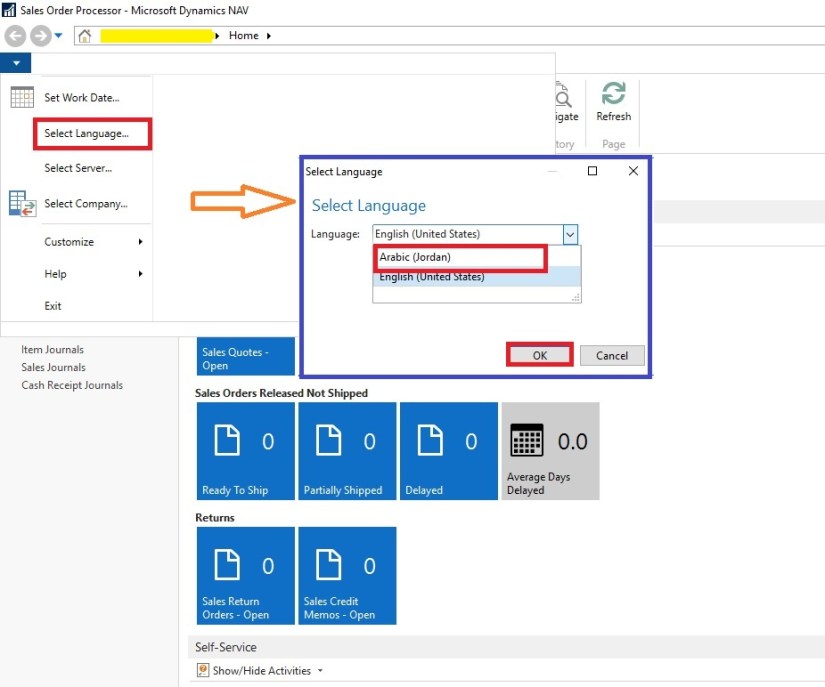
After you have restarted the Microsoft Dynamics NAV Server service, you can then open the Microsoft Dynamics NAV Client and select the new language:

  1. Choose the Start button, and then choose Microsoft Dynamics NAV.
  2. Choose Microsoft Dynamics NAV, and then choose Select Language.
  3. In the Language Selection field, select the new language, Arabic (Jordan), and then choose the OK button.

ilm-05

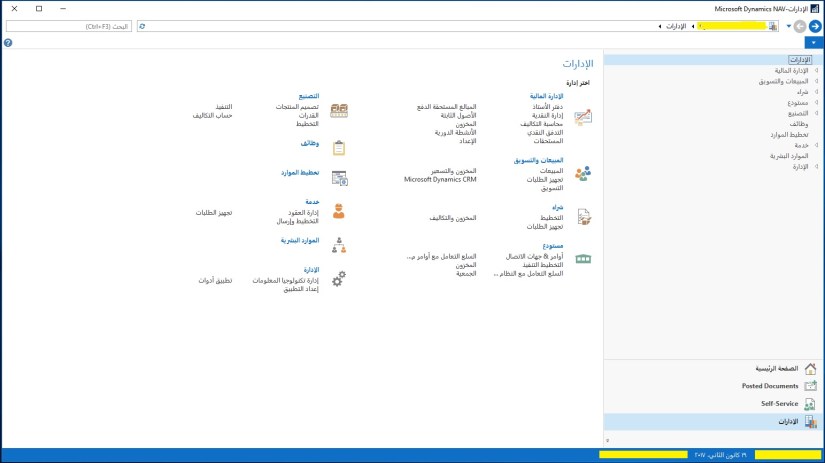
Complete Captions are not translated for this project yet at the time of writing of this post and it is in progress, but the sample screen will look like one shown below.

ilm-06

Will come up with more details in my upcoming posts, till then keep exploring and learning.

Development Tips, How To, Information, Instalation & Configuration, Language Module, NAV 2017, Tip & Tricks

Translating Multilanguage Files in Navision 2017 for Arabic Jordan

Captions and other user interface text that you define for objects in the Microsoft Dynamics NAV Development Environment can be exported to a text file. You can then add new translations to the text file and import the new translations in the development environment. You can add translations manually using Notepad, Microsoft Excel, and so on.

The exported text files contain an entry for each translatable user interface element for the objects that you selected in the development environment. However, the text file also includes entries that cannot be translated. For example, if you export the strings for table 18, the resulting text file contains hundreds of entries, of which fewer than 170 can be translated. The translatable strings include the captions of for all fields and the error messages that you have defined. The non-translatable strings include names of variables, and so on.

In CRONUS International Ltd. demonstration database, all objects are multilanguage enabled, and they include strings with captions in the 1033 locale, English (US). The locale is specified by a multilanguage property such as P8629, but the ID of the actual property is different for different types of strings. However, the locale for the multilanguage property value always starts with the character A. For example, the English (US) captions are identified by the A1033 locale value for the relevant multilanguage property. You can identify which strings can be translated by opening the file in Microsoft Excel and then filter by the English locale.

If you export strings for objects of different types, the text file lists the strings by object type and then by object ID. For example, if you export strings for table 18, page 21, and report 111, the text file lists strings in the following order:

  1. Table 18
  2. Report 111
  3. Page 21

The format of the exported text files can be difficult to read, because for each type of object, the text file contains different types of strings. Each type of string is identified by a property that starts with the character P followed by an ID.

For example, for a table object and the fields on the table, the multilanguage property has the ID 8629.

For option values for fields on tables, the multilanguage property has the ID 8632.

This means that you can identify the type of string when you translate the strings. However, you should filter out all strings that are not translatable, which makes the remaining strings easier to understand.

The following table illustrates the translatable strings for table 18 in the CRONUS International Ltd. demonstration database.

String Description
T18-P8629-A1033-L999:Customer The caption of the table object.
T18-F1-P8629-A1033-L999:No. The caption of field 1.
T18-F7601-P8629-A1033-L999:Copy Sell-to Addr. to Qte From T18-F7601-P8632-A1033-L999:Company,Person The caption of field 7601 and the captions of the option values for the field.
T18-Q1001-P26171-A1033-L999:Do you wish to create a contact for %1 %2? A text constant that defines user interface text.

For more information, see How to: Add Translated Strings By Importing and Exporting Multilanguage Files.


tmf-01

Here it is assumed that the Language Module Installer are prepared by translating resx files and Partner Translation Tool project is build and same is Installed.

You can check my earlier post for more details:

How do I translate my ResX Files?

Managing Multilanguage support in Navision Overview

tmf-02

After preparing Language Module Installer and installing the same our next step is to add the translated Captions to CaptionML.

You have other methods to do the same below is one which I have used to get my task done.

Export the objects in txt format from the database (ObjectToTranslate.txt).

tmf-03

My objects have ENU and want to add translation for ARJ.

You can use below PS Script to extract Language Layer from the objects.

Export-NavApplicationObjectLanguage -Source ObjectToTranslate.txt -LanguageId ENU, ARJ -Destination translated.txt

In our objects, we have ENU and we are supposed to add ARJ Caption translation.

Above command will extract the ENU Captions and add entries for ARJ where we can add our translated string for Arabic Jordan.

Open the translated.txt in notepad and save as translatedNew01.txt, make sure you select Encoding = UTF-8.

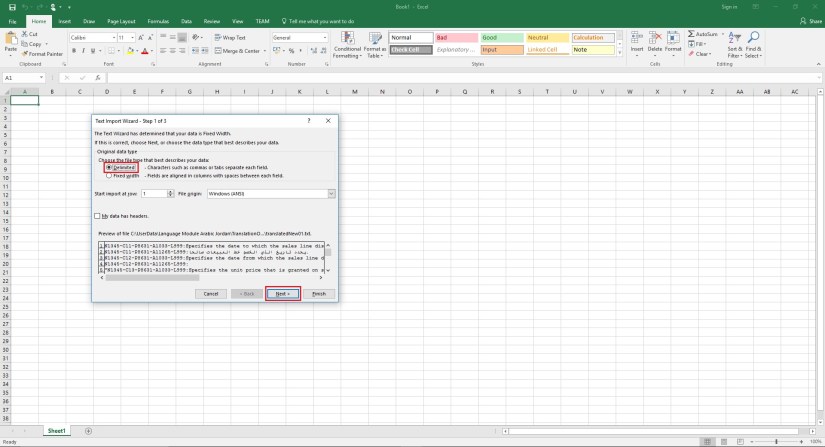
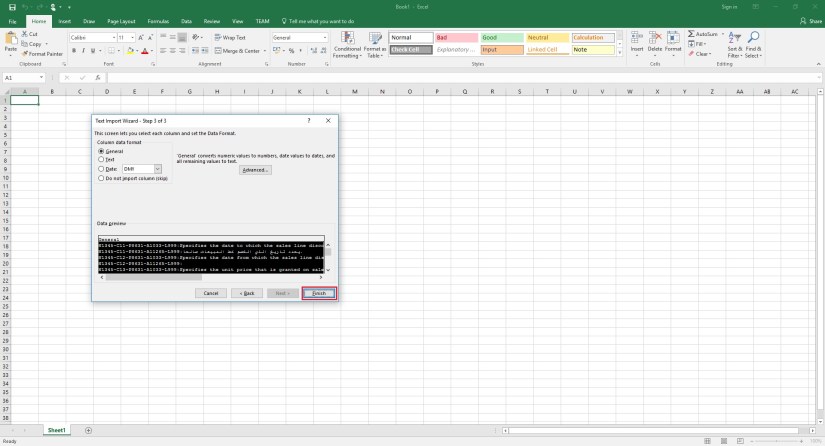
Open the File [translatedNew01.txt] in Excel as below defined step:


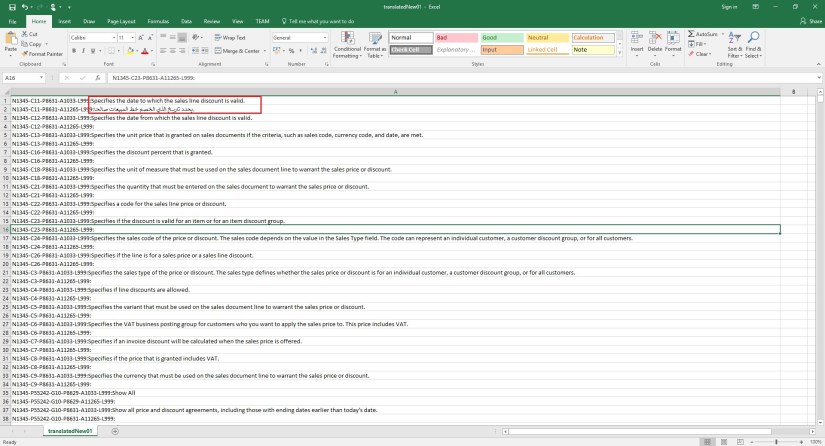
tmf-04tmf-05tmf-06tmf-07tmf-08

Translate to Arabic Jordan as one shown in above screen.

Add you translation after [ : ]

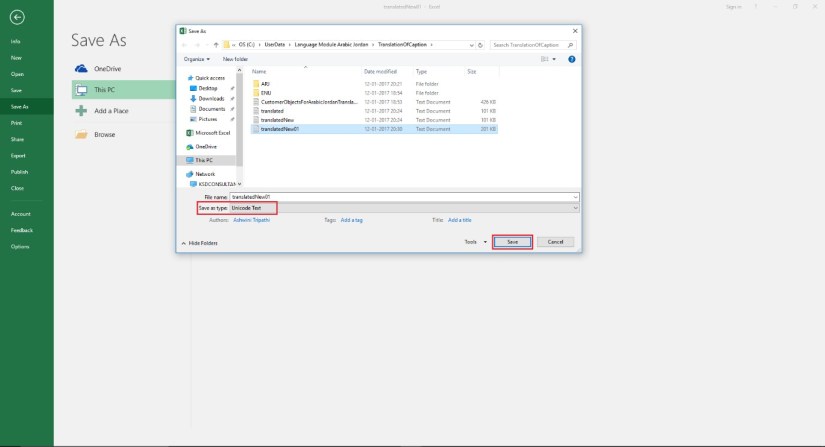
Once all done Save your file as shown below:

tmf-09

Open the file in Notepad to check format is not disturbed and output is as below:

tmf-10

Next step in upcoming post.

Till then keep exploring and learning.


Cumulative Updates, Information, Instalation & Configuration, Tip & Tricks

Cumulative Update 15 for Microsoft Dynamics NAV 2016 (Build 47671) Released in Jan 2017

This cumulative update includes all hotfixes and regulatory features that have been released for Microsoft Dynamics NAV 2016, including hotfixes and regulatory features that were released in previous cumulative updates.

This cumulative update replaces previously released cumulative updates. You should always install the latest cumulative update.

Note Implementing this cumulative update will require a database upgrade.

It may be necessary to update your license after implementing this hotfix to gain access to new objects included in this or a previous cumulative update (this only applies to customer licenses).

For a list of cumulative updates released for Microsoft Dynamics NAV 2016, see released cumulative updates for Microsoft Dynamics NAV 2016  (https://support.microsoft.com/kb/3108728/ ) . Cumulative updates are intended for new and existing customers who are running Microsoft Dynamics NAV 2016.

How to obtain the Microsoft Dynamics NAV update files

This update is available for manual download and installation from the Microsoft Download Center.

How to install a Microsoft Dynamics NAV 2016 cumulative update

See How to install a Microsoft Dynamics NAV 2016 cumulative update  (https://support.microsoft.com/kb/3109325/ ) .

Prerequisites

You must have Microsoft Dynamics NAV 2016 installed to apply this hotfix.

Cumulative Updates, Information, Instalation & Configuration, Tip & Tricks

Cumulative Update 27 for Microsoft Dynamics NAV 2015 (Build 47665) Released in Jan 2017

This cumulative update includes all hotfixes and regulatory features that have been released for Microsoft Dynamics NAV 2015, including hotfixes and regulatory features that were released in previous cumulative updates.

Note You must convert the database if you are upgrading to this cumulative update from a cumulative update earlier than cumulative update 9 (build 41779). For more information, see Converting a Database (https://msdn.microsoft.com/en-us/library/dn271650(v=nav.80).aspx) in Help for Microsoft Dynamics NAV.

This cumulative update replaces previously released cumulative updates. You should always install the latest cumulative update.

It may be necessary to update your license after implementing this hotfix to gain access to new objects included in this or a previous cumulative update (this only applies to customer licenses).

For a list of cumulative updates released for Microsoft Dynamics NAV 2015, see released cumulative updates for Microsoft Dynamics NAV 2015  (https://support.microsoft.com/kb/3014609/ ) . Cumulative updates are intended for new and existing customers who are running Microsoft Dynamics NAV 2015.

How to obtain the Microsoft Dynamics NAV update files

This update is available for manual download and installation from the Microsoft Download Center.

How to install a Microsoft Dynamics NAV 2015 cumulative update

See How to install a Microsoft Dynamics NAV 2015 Cumulative Update  (https://support.microsoft.com/kb/3021418/ ) .

Prerequisites

You must have Microsoft Dynamics NAV 2015 installed to apply this hotfix.

Cumulative Updates, Information, Instalation & Configuration, Tip & Tricks

Cumulative Update 39 for Microsoft Dynamics NAV 2013 R2 (Build 47662) Released in Jan 2017

This cumulative update includes all hotfixes and regulatory features that have been released for Microsoft Dynamics NAV 2013 R2, including hotfixes and regulatory features that were released in previous cumulative updates.

This Cumulative Update replaces previously released cumulative updates. You should always install the latest cumulative update.

Note Implementing this cumulative update will require a database upgrade.

Licenses versioning

Microsoft Dynamics NAV 2013 R2 cumulative updates and license key versioning:

  • Microsoft Dynamics NAV 2013 R2 license keys are backward compatible with Microsoft Dynamics NAV 2013 instances.
  • Microsoft Dynamics NAV 2013 license keys may not be used with Microsoft Dynamics NAV 2013 R2 instances. Microsoft Dynamics NAV 2013 license keys will not work with Microsoft Dynamics NAV 2013 R2 CU10 (or later) instances.
  • Microsoft Dynamics NAV 2013 and Microsoft Dynamics NAV 2013 R2 license keys are not forward compatible with Microsoft Dynamics NAV 2015 instances.

More details is made available in the October 2014 release of the Microsoft Dynamics Perpetual Licensing Guide.

It may be necessary to update your license after implementing this hotfix to gain access to new objects included in this or a previous cumulative update (this only applies to customer licenses).

For a list of cumulative updates released for Microsoft Dynamics NAV 2013 R2, see released cumulative updates for Microsoft Dynamics NAV 2013 R2  (https://support.microsoft.com/kb/2914930/ ) . For a complete list of all hotfixes released in cumulative updates for Microsoft Dynamics NAV 2013 R2, view the following CustomerSource and PartnerSource pages:

CustomerSource
PartnerSource

Cumulative updates are intended for new and existing customers who are running Microsoft Dynamics NAV 2013 R2.

OData Filtering

If your solution uses OData web services with a combination of filters on $orderBy desc and $top, this results in errors in Dynamics NAV 2015 Cumulative Update 13. To avoid this error, add the following entry to the CustomSettings.config file for the Dynamics NAV Server instance:

<add key=”EnableODataStrictFiltering” value=”false”/>

This disables support for complex filters.

How to obtain the Microsoft Dynamics NAV update files

This update is available for manual download and installation from the Microsoft Download Center.

How to install a Microsoft Dynamics NAV 2013 R2 cumulative update

See how to install a Microsoft Dynamics NAV 2013 cumulative update  (https://support.microsoft.com/kb/2834770/ ) .

Prerequisites

You must have Microsoft Dynamics NAV 2013 R2 installed to apply this hotfix.


Cumulative Updates, Information, Instalation & Configuration, Tip & Tricks

Cumulative Update 46 for Microsoft Dynamics NAV 2013 (Build 47667) Released in Jan 2017

This cumulative update includes all hotfixes and regulatory features that have been released for Microsoft Dynamics NAV 2013, including hotfixes and regulatory features that were released in previous cumulative updates.

This cumulative update replaces previously released cumulative updates. You should always install the latest cumulative update.

It may be necessary to update your license after implementing this hotfix to gain access to new objects included in this or a previous cumulative update (this only applies to customer licenses).

For a list of cumulative updates released for Microsoft Dynamics NAV 2013, see released cumulative updates for Microsoft Dynamics NAV 2013  (https://support.microsoft.com/kb/2842257/ ) . For a complete list of all hotfixes released in cumulative updates for Microsoft Dynamics NAV 2013, view the following CustomerSource and PartnerSource pages:

CustomerSource
PartnerSource

Cumulative updates are intended for new and existing customers who are running Microsoft Dynamics NAV 2013.

How to obtain the Microsoft Dynamics NAV update files

This update is available for manual download and installation from the Microsoft Download Center.


How to install a Microsoft Dynamics NAV 2013 cumulative update

See how to install a Microsoft Dynamics NAV 2013 cumulative update  (https://support.microsoft.com/kb/2834770/ ) .

Prerequisites

You must have Microsoft Dynamics NAV 2013 installed to apply this hotfix.

For more details check : https://mbs2.microsoft.com/knowledgebase/KBDisplay.aspx?scid=kb;EN-US;3216196


Azure, Development Tips, How To, IIS, Information, Instalation & Configuration, NAV 2017, Tenerife, Tip & Tricks, What's New

Microsoft Dynamics NAV ‘Tenerife’ Developer Preview

As everyone is aware by now that Preview of Development Tools for Dynamics NAV have been released. Going forward which can be used to build extensions and apps in and for Dynamics NAV.

This tool introduces two flavors which you can try out in preview available on cloud.

[A] Make an extension in the client itself. Business consultants and UX designers will love using this drag-and-drop interface. Rearrange fields, rename groups, and reposition elements to build a perfect extension to support an industry-specific solution or implement a business process optimization.

[B] Use the AL Extension for NAV in Visual Studio Code to build powerful extensions based on tables, pages, and codeunits using the new objects: Page Extensions and Table Extensions. Follow this route to build rich extensions that reuse and extend core business logic in your application.

For more details you can refer to the article published by Dynamics NAV Team Announcing the Preview of Development Tools for Dynamics NAV

You can get a free 30-day trial from https://azure.microsoft.com/free/ that will give you access to everything you need.

Secondly, head over to http://aka.ms/navdeveloperpreview. Login to your Azure Subscription. Select your subscription, resource group, location, name, and a VM Admin Password. Leave the remaining fields as their defaults. Accept the terms, Pin to dashboard and select Purchase. The instance takes about 5 minutes to set up, and the VM will be ready about 15 minutes after Azure says Deployment Succeeded.

You need to follow on screen instructions to get everything setup using above 2 links provided.

I am not going to repeat the steps as you can find them via other blogs or follow the steps as you proceed via using above two links.

Few of my readers were complaining about they don’t have access to Azure Subscription or they have already used up the limit now what to do?

Same situation was with me too, but however I managed to get one and done bit RND, if this can be setup on my PC so that I can give it a try or others can use same steps to get it configured, and give it a try.

However I got succeeded in doing so, now I can do the same in my environment.

The Steps I am going to explain below is not the straight forward, and require bit tricks, as required components are yet not released from Microsoft, may we can get in CU-2,  I guess or later when Microsoft is OK to release this feature for everyone.

This action will require several pre-requisite to be fulfilled:

  1. Visual Studio Code (To be Installed)
  2. Dynamics Navision Version (10.0.14540)
  3. Some Modification to web.config to enable designer in Web Client


STEP-1

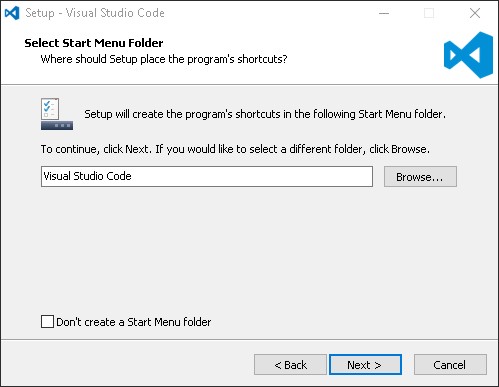
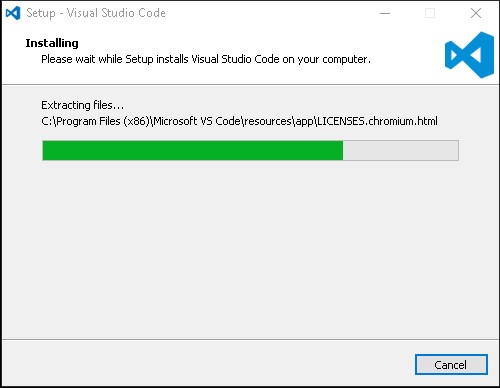
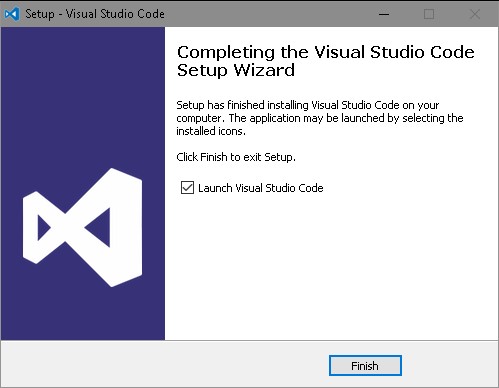
You can download the Visual Studio Code from this link: Click Here

Once file is downloaded install the Visual Studio Code by running VSCodeSetup-1.8.1.exe

And follow the on screen instructions to complete the setup.


td-01td-02td-03td-04td-05td-06td-07td-08td-09

STEP-2

Dynamics Navision Version

Make sure you have correct version of Dynamics Navision (10.0.14540)

td-10

Else you will not get this option in your Service Window

td-11

STEP-3

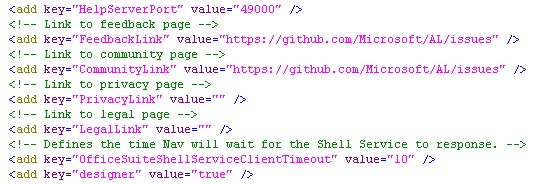
Modification to web.config

You will need to make necessary settings to web.config file to enable designer in Web Client, this file is located at C:\inetpub\wwwroot\DynamicsNAV100 location where your Web Client is installed.

td-12

td-13


Now you should be ok to use this feature in your environment.

Once things are setup correct you will be able to find the Client Designer Button on right top corner of the Client Window/Browser.

I will come up with more details in my up-coming posts till then keep exploring and learning.


Azure, Corfu Navision 2016, How To, Information, Instalation & Configuration, Office 365, Office Integration, Tip & Tricks

Configuring Single Sign-On using Office 365 on Navision 2016

Today we will see how we can enable Single Sign-On using Office 365 for Navision 2016.

Before we start we should have Virtual Machine ready on Azure with Navision 2016 installed, Certificates and Nav User is configured. Endpoints are open so that web client can be used from outside Virtual Machine on internet.

It should be hosted on Public IP, then only we will be able to configure it.

For details regarding Azure Subscription you can see my earlier post here.

For details regarding Creating Virtual Machines you can see my earlier post here.

You also need Office 365 Subscription ready for use and you can use the AD of same to configure your Single Sign-On.

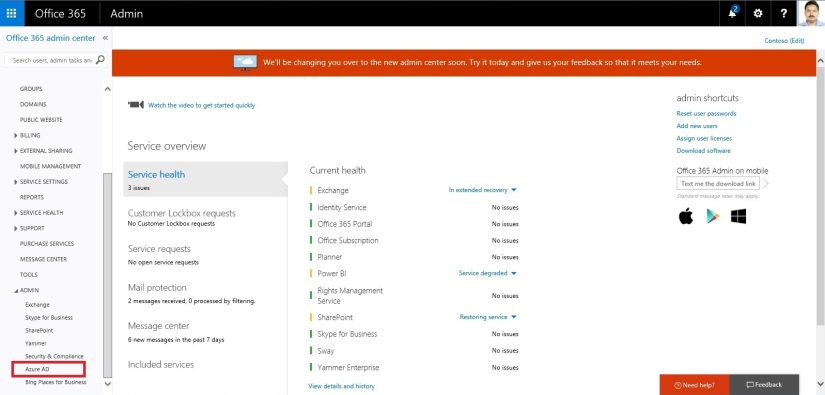
Let us start with Admin console of office 365. Click on Azure AD this will create Management Console to work with AD.

SingleSignOn-1

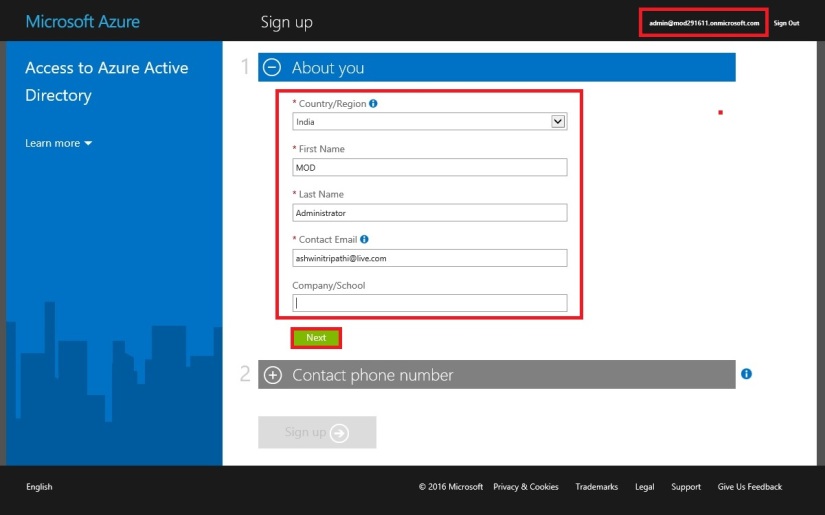
Enter your details and click on Next.

SingleSignOn-2

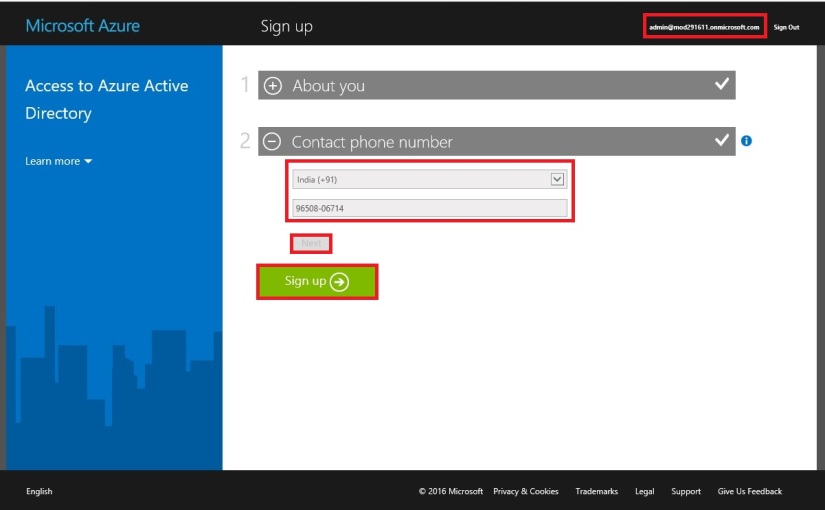
Enter your details and click on Next, Finally Sign Up.

SingleSignOn-3

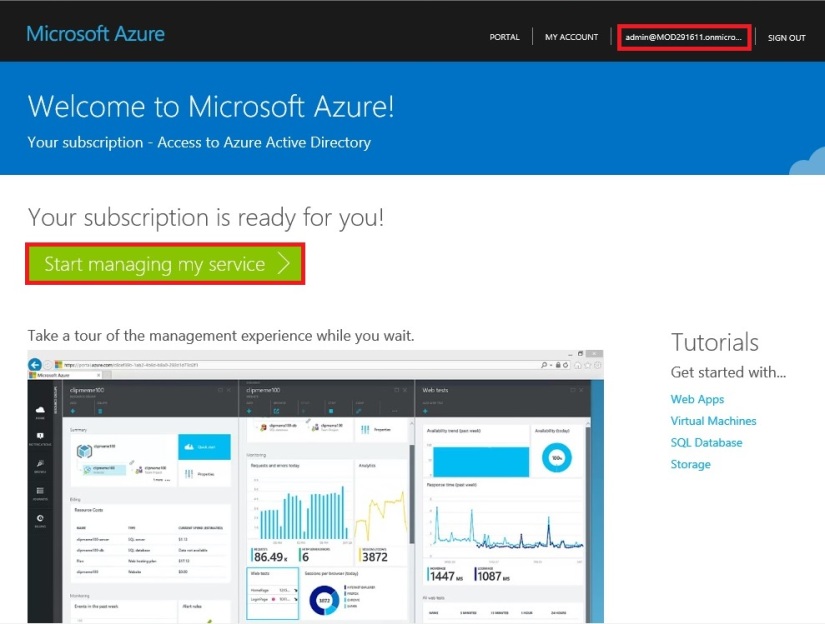
It will take few minutes to configure and make it available for you.

SingleSignOn-4

Once your Subscription is ready click on Start Managing my Service.

SingleSignOn-5

From Management Console click on Virtual Machine, if you dont have already to create one for you.

SingleSignOn-6

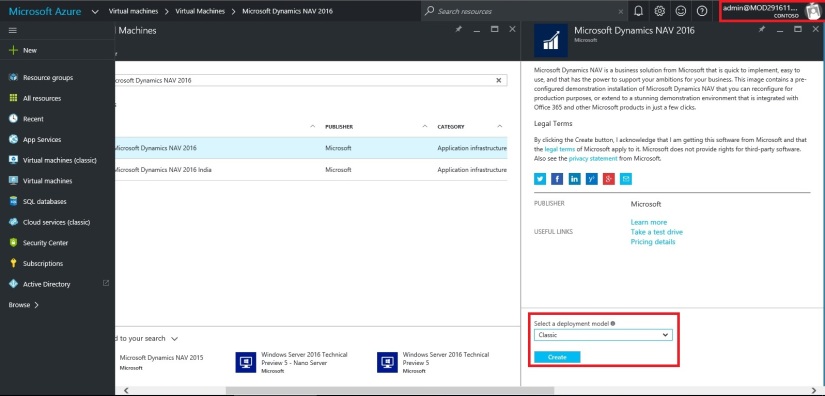
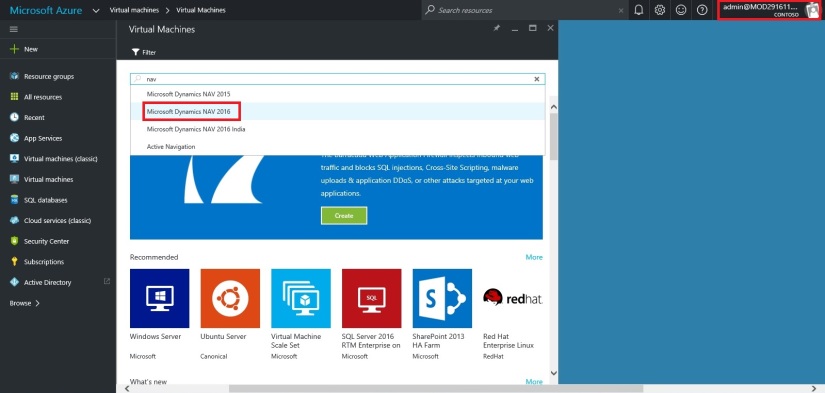
Select the Virtual Machine in Search for Microsoft Dynamics Nav 2016.

SingleSignOn-7

Select the approprite Virtual Machine from the List.

SingleSignOn-8

Enter your details and Create. For more details see the link provided on top of the post.

SingleSignOn-9

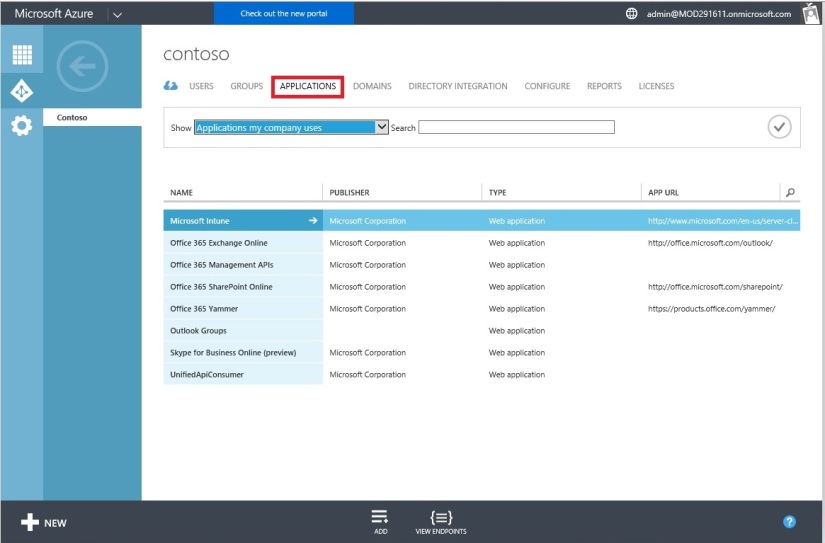
Let us return to our AD, Click on Applications. This will List all you Apps currently available with your AD or office 365.

SingleSignOn-10

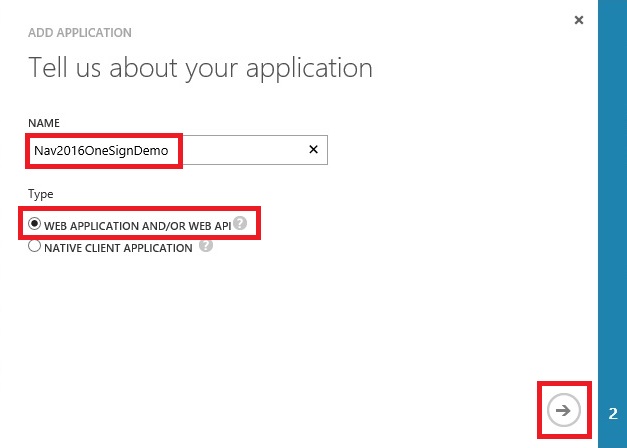
Click on Add to configure your Application.

Give a Name and Select Web Application/or Web API, as we are configuring for Web Client today. Click on Next.

SingleSignOn-11

Enter your Web Client URL and Office portal AD URL.  Click on OK.

SingleSignOn-12

Your New application gets registered with your AD.

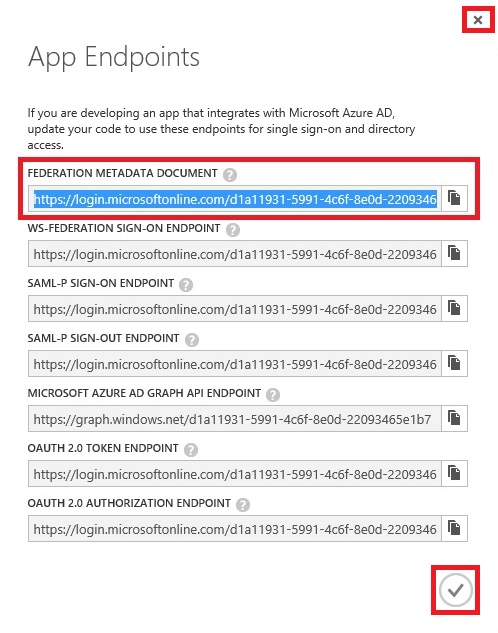
Select the created Application and Click on View Endpoints.

SingleSignOn-13

Copy the Federation MetaData URL and keep it handy at safe place we will require this in our next step. Close the window we are not performing any changes here.

SingleSignOn-14

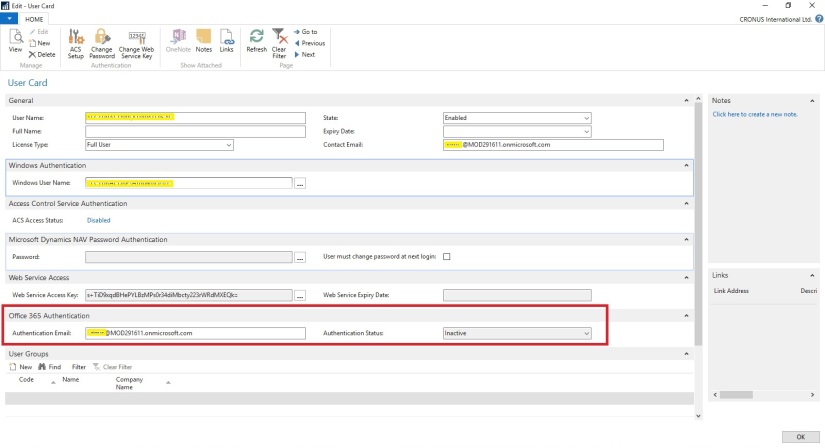
Open your Navision User Card.In Office 365 Authentication enter your Office portal user email id which you will be using for Single Sign-On.

SingleSignOn-15

Open your Navision Service Instance configuration and enter Federal MetaData URL which we copied in our previous step.

SingleSignOn-16

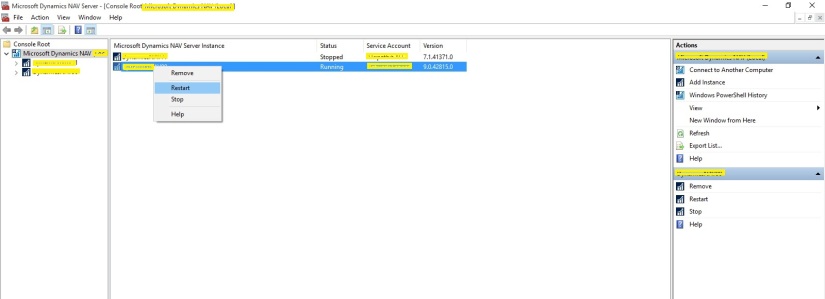
Restart you NAV Service.

SingleSignOn-17

Open the Web Client Folder under your IIS. Edit your Web.config file using prefered Editor.

SingleSignOn-18

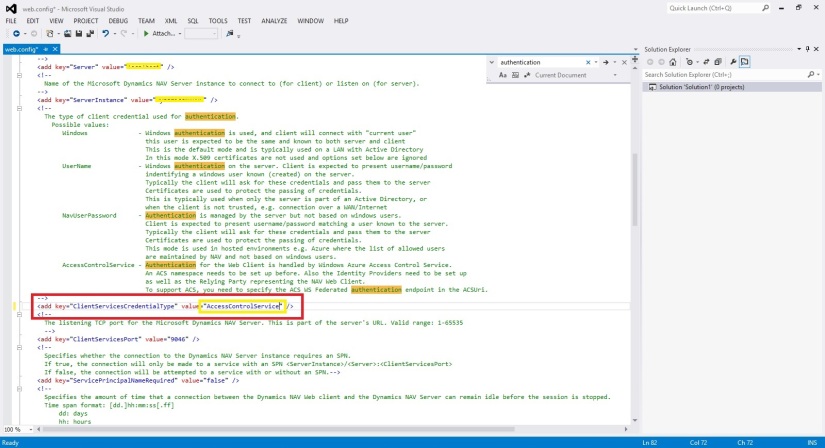
Enter you Client Service Credentials as AccessControlService.

SingleSignOn-19

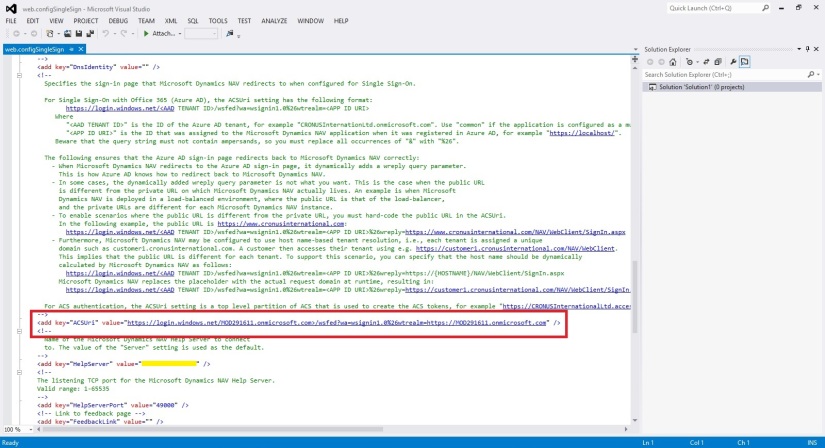
Change value of ACS URI as below. You have full explaination of same in the file itself.

SingleSignOn-20

Thats all, Now you open your web client and you will be redirected to Office 365 Login Page, enter your valid office 365 e-mail user id and password you will be authenticated and Web Client is opened.

Thats all for today, I will come up with moredetails in my upcoming posts.

Till then keep exploring and learning.


Development Tips, How To, Information, Instalation & Configuration, Jet Reports, Office Integration, Report, Tip & Tricks, What's New

Jet Professional 2017 – Introduction and Installation

Why to switch to and What’s New in Jet Professional 2017?

Its valid question same came to my mind also when i heard about new Release.

Then i tried to explore a bit about it and got an information about some exciting features introduced with it. I will discuss as i progress with my evaluation and exploration with these features.

Here i am giving bit overview about some features and limit to Installation topic in this post. If you wish to know more you will have to wait for my next few upcomming posts.

As per Jet Report Sources:

Jet Professional 2017 makes sharing your reports easier than ever before!  

Reporting with (and without) the Jet add-in for Excel

The Jet Web Portal is an online interface that provides an easy-to-manage repository for your organization’s reports.

Using the web interface and Office 365 Online, you can allow any of your network users – whether they have Excel and the Jet add-in installed or not – to view reports directly from their web browser.

Jet Mobile for Jet Enterprise

Jet Professional integrates with the Jet Mobile web client – allowing you to log into one site to see and run all your reports – and to see all of your business intelligence dashboards.

And… Jet Mobile for Jet Enterprise includes many new features – making your dashboards more powerful and even easier to use.

What’s New?

Publishing to the Jet Web Portal

The Jet ribbon within Excel includes the ability to publish your reports to the Jet Web Portal.  The Jet Web Portal provides a manageable repository for your organization’s reports. All your users – whether they have Excel and Jet Professional installed or not – can run and view reports directly from their web browser.

What is Jet Web Portal

Jet Professional 2017 represents a new way to manage, run and view your business reports. Designed for today’s always-connected, always-moving workforce, Jet Professional 2016 introduces a new Information Management System that allows business users access to their business reports using virtually any device through a simple web interface.

As a user, you don’t need to install anything to run and view reports. Within the Jet Web Portal, you can quickly find the report that you’re after, specify report parameters, run the report to get up-to-the-minute data and view it in Excel Online.

With features like sharing, search, version control and report permissions, Jet Professional 2017 is a complete report management system.

Will comeup with more detailed about new features in my upcomming posts.

Let us move to Installation part.

To get the installation file go to this link : https://www.jetreports.com/support/product-downloads/

After downloading you will get the Jet Professional Installation Files.Zip, extract it.

Install-1

Befor you start installation make sure no Excel instance is running on your system.

I am doing simple one system Instalation, will come up with more details and other options later.

Double click to Setup file to begin with installation.

Install-2

If you have Activation code enter it or you can continue and activate later.

Install-3

Select instalation type as desired, i am installing All Components.

Install-4

Select the features you want to install, since i am performing complete install, so i am accepting all as suggested by default.

Install-5

Select the Account to run the service, and don’t forget to select Add rules to Windows Firewall. Rest all as default suggested.

Install-6

Select the SQL Instance for Jet Service Database and login method.

Install-7

Select desired ports and host detail or accept as suggested as default.

Install-8

Enter Jet Service Tier details or accept suggested as default.

Now your pre-configuration part is completed. Click on Install to proceed with Jet Components Instalation.

Install-10

Click on Install to proceed.

Install-11

Click on Finish to exit Instalation wizard, your Jet is now installed with above provided configuration.

Install-12

Next Step is to Activate your Jet Professional.

From Jet Tab on Ribbon select Activate Jet Professional.

choose the desired option.

Install-13

Enter your activation code and click on Next.

Install-14

Copy the message and send to the mentioned e-mail id and click Next.

Install-15

Close to exit.

Wait for the Activation Token, it may take upto 24 hours to receive mail with this code.

Install-16

If you check your Start Menu you will find these components got installed.

Install-17

Once you receive your Tocken.

Launch Excel, From Jet Tab, Click on Help from ribbon and select Activate License.

Install-18

Select Enter provided Activation token.

Install-19

Copy the Token you received via mail here and click on Activate.

Install-20

If every thing is fine you will receive the Activation Successful message.
Now you are ready to start with using Jet Professional.

I will come up with more details on this in my upcomming posts till then keep exploring and learning.