Dynamics 365, Information

Microsoft Dynamics 365

As per Dynamics 365 Team: News published Aug 22 2016

Microsoft is on a mission to help every organisation and every individual achieve more.  To that end we’re seeking to reinvent personal productivity and business processes.  Microsoft Dynamics 365 is the next step on our journey. Announced in July 2016 – Dynamics 365 will become generally available later this year. We’re keen to help existing Dynamics customers understand more about our ambition and how Dynamics 365 fits into our plans for the Dynamics products and services you are already using.

See more details on : https://mbs.microsoft.com/customersource/northamerica/news-events/news-events/news/MicrosoftDynamics365

The Dynamics portfolio

Later this year Dynamics CRM and Dynamics AX will come together to create the Microsoft Dynamics 365 Enterprise edition.  The Business edition will be founded on “Project Madeira” which is currently in public preview.

Click to find out more about plans for particular product/service:


Microsoft Dynamics 365 editions:

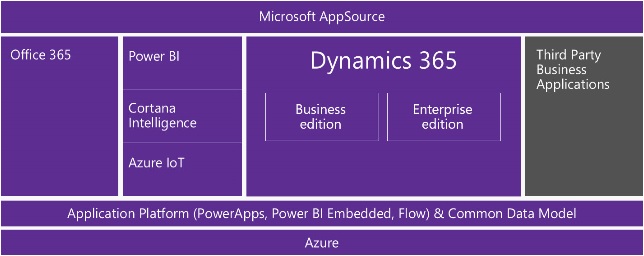
Microsoft Dynamics 365 Dynamics 365 comprises a range of end-to-end, cloud based, intelligent business applications.  Dynamics 365 will be available in Business and Enterprise editions.

Microsoft Dynamics 365 Business edition Microsoft Dynamics 365 Enterprise edition

Financials

Sales *

Marketing *

*Available Q2 CY 2017

Operations

Sales

Marketing

Customer Service

Field Service

Project Service Automation

Includes embedded intelligence, PowerApps and Flow

Includes embedded intelligence, PowerApps and Flow

Additionaly Dynamics 365:

  • Uses a common data model, shared with Office 365, to simplify data management and integration across apps and business processes.
  • Offers tech savvy business customers/analysts, aka “citizen developers,” (using Power Apps, Power BI Embedded and Microsoft Flow) and professional developers (using Azure platform services) a consistent way in which to compose new apps and easily extend and modify existing ones.
  • Comes with connectors that let you integrate with applications and services from Microsoft and our partners – including custom API’s and on premise systems.
 

Dynamics365-1


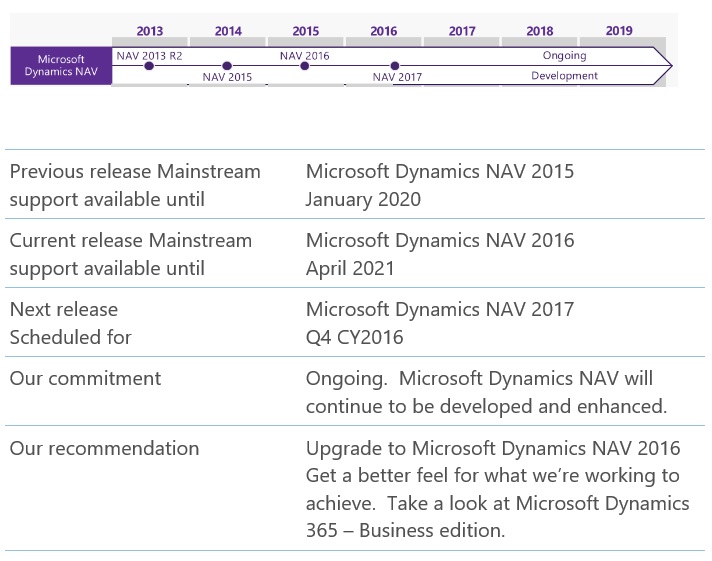
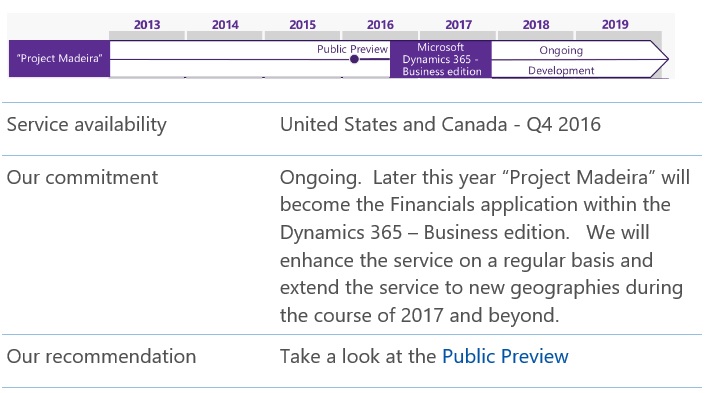
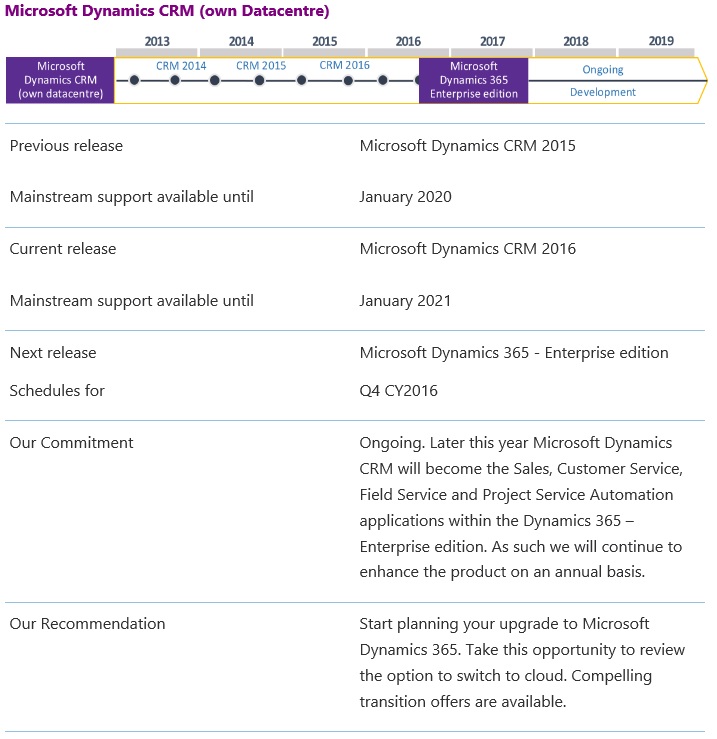
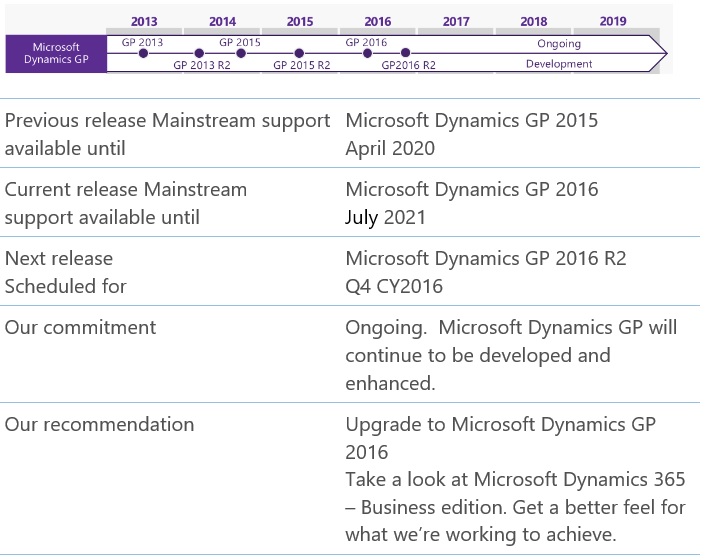
Roadmap :

Dynamics365NAV-2

Dynamics365Madeira-3

Dynamics365CRM-4

Dynamics365CRM-5

Dynamics365AX-6

Dynamics365AX-7

Dynamics365GP-8

Dynamics365SL-9

All images are taken from Microsoft Site.

Information can change over the time, correct till posting of this post.

For accurate information please check on Microsoft customer source site in News & Events section, Links available above in post body.



Alert, Development Tips, Dynamics 365, Functional Tips, How To, Information, Maderia, Tip & Tricks

Smart notifications new feature added in August updates – Madeira

Smart Notification feature added to Project “Madeira” which will help user to work smarter.

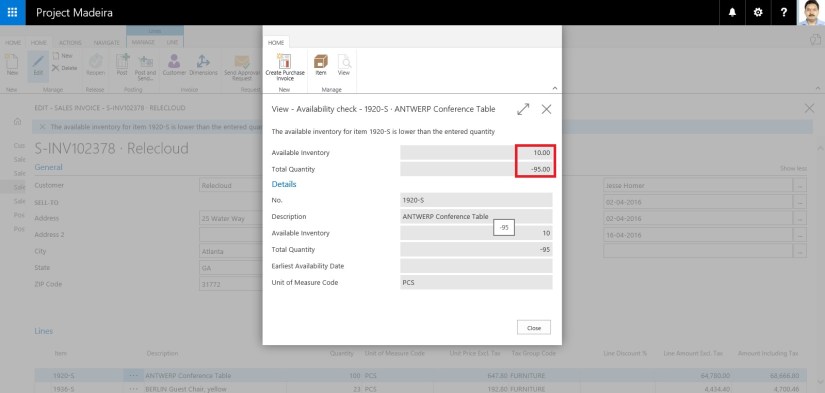
Notifications could be like for a customer who has an overdue balance, or the available inventory is lower than the quantity you are about to sell, etc.

These notifications are shown as a tips in the context of the task you are doing, and you can choose to ignore the notification or to see details about the issue.

If you choose to see details for a notification, you can take action to resolve the issue, such as contacting the customer, buying more inventory, and so on.

It depends what you wish to do, Project “Madeira” just gives you advice and recommendations.

You will see such notifications in different areas of Project “Madeira”, and it’s up to your choice you want to react on them or ignore them.

Let’s see how it works:

For example on Sales Invoice i enter Quantity greater than available quantity.

SmartNotification-1

Notification kicks in like the warning message. I can continue working or see details using link Details in the notification.

SmartNotification-2

It is kept in mind that the subtle notifications help untrained users complete unfamiliar tasks and do not reduce productivity for the more trained user.

Hope you will find this feature helpful.

I will come up with more information in my up coming posts.

Till then keep exploring and learning.


Development Tips, Dynamics 365, Functional Tips, How To, Information, Maderia, Office 365, Tip & Tricks

How to – Set Up a Colored Indicator on Cues in Madeira

You can customize to show color indicator of Cues that changes color based on the data values in the Cues.

The indicator appears as a colored bar along the top border of the Cue tile.

From the Cue Setup window, you set up indicators for all the Cues that are available.

You can specify up to two threshold values that define three ranges of data values (low, middle, and high).

To set up colored indicators on Cues

Under Activities on your Home page

CueSetup-1

Choose Set Up Cues.

CueSetup-2

The Cue Setup window appears. The window lists the indicators that are currently setup up on Cues.

CueSetup-3

To modify an indicator, edit the fields and modify, the values for the different thresholds.

The following table lists the colors that is displayed to the options of the Low Range Style, Middle Range Style, and High Range Style fields.

Option Color
None No color (same color as the Cue tile
Favorable Green
Unfavorable Red
Ambiguous Yellow
Subordinate Gray

I will come up with more informations in my up coming posts.

Till then keep exploring and learning.


Corfu Navision 2016, Data, Development Tips, Dimension, Excel, Functional Tips, How To, Information, Tip & Tricks

How to attach additional 6 Shortcut Dimensions to Dimension Set when copy data to Journal from Excel


In my previous post I explained how we can copy data to-and-fro between Excel and Navision. Also we saw the limitation of additional 6 Shortcut Dimensions neither can be exported nor imported back.

Today we will see solution to this limitation, as it is required from several customers and we keep getting request for same. The same reader for whom I have posted my previous post have requested similar need.

If you missed my previous post you can find here : Copying data to-and-fro between Excel & Navision

Let us see how we can get this part working, yes it will require a small customization to get this working. Below I explain the steps we require to achieve this.

My example refers to Table 81 & Page 39. You can do same with other Journals too.

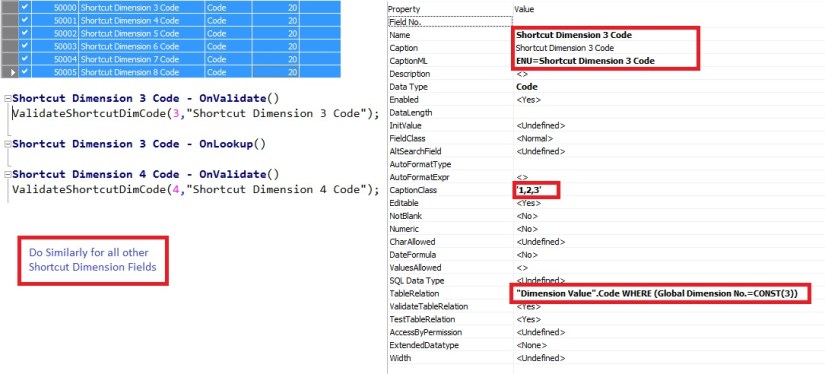
We will Add Custom Fields for these additional 6 Shortcut Dimensions.


ExcelToNavJnl-8

Add the Fields and write the above code to OnValidate trigger and set the Property accordingly for all of the 6 Shortcut Dimension Fields.

ExcelToNavJnl-9

Similarly add a piece of code to OnInsert trigger of the Table.

ExcelToNavJnl-10

Add our newly created Fields to Page too.

Now Let us check if it works as expected.

ExcelToNavJnl-11


Perform the operation as in previous post, this time add the newly created fields for Dimensions as shown in above screen.

If you missed my previous post you can find here : Copying data to-and-fro between Excel & Navision

Export and Import back by adding value to these additional Dimensions 1 &2 is Global 3-6 is my additional Shortcut Dimensions, 7-8 I have not included as not setup in my database.

After importing back check the Dimensions and you will find due to above customization my all the Shortcut Dimensions are attached to Dimension Set Entry.
ExcelToNavJnl-12

Yes we are done.

I will come up with more information in my upcoming posts. Till then keep exploring and Learning.


Corfu Navision 2016, Data, Development Tips, Dimension, Excel, Functional Tips, How To, Information, Tip & Tricks

Copying data to-and-fro between Excel & Navision

ExcelToNavJnl

One of my reader has requested to show him how to export data from Nav Journal to Excel, perform correction and import back to Navision.

So let us see how can we perform this and what are the limitations.

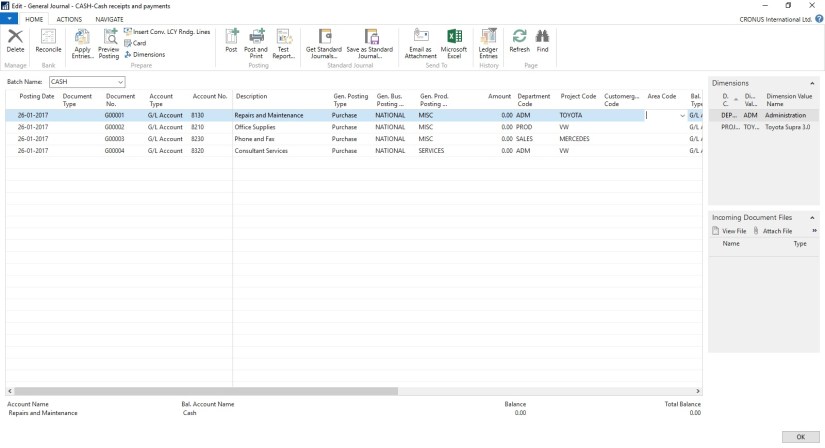
Open the Journal in Navision.

Arrange and show all the Fields that you want to export to Excel on the page.

Fill some sample data. Say single line of Journal, way usually you do.

ExcelToNavJnl-2

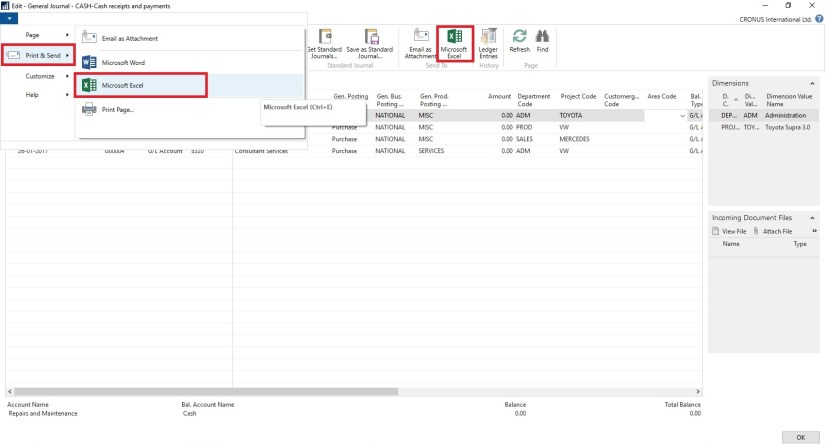
Now Send to Excel using options shown in below screen.

ExcelToNavJnl-3

Data will get Exported to Excel.

Have you noticed something, with the data that got exported yo Excel?

Your 2 Additional Shortcut dimension was not Exported to Excel. Customer Group Code & Area Code, why?

Since these are not the actual fields in the table and it is calculated on Page level, so you will only be able to export Dim-1 & Dim-2 your Global Dimensions which is available as Field in the Table.

Make sure you enter Dimension Values in Capitals in Excel Columns.

ExcelToNavJnl-4

Now perform required changes to the Journal data.

Insert New Lines, Delete existing Lines or Edit existing Lines.

Make sure you don’t keep more than 30000 to 40000 lines, until this it works fine if more than this either performance is too slow or Navision gets hang while you copy back your data to Navision. Upto 40000 works fine have tested several time. Depending upon your system performance you can decide how much data will be ok for you.

ExcelToNavJnl-5

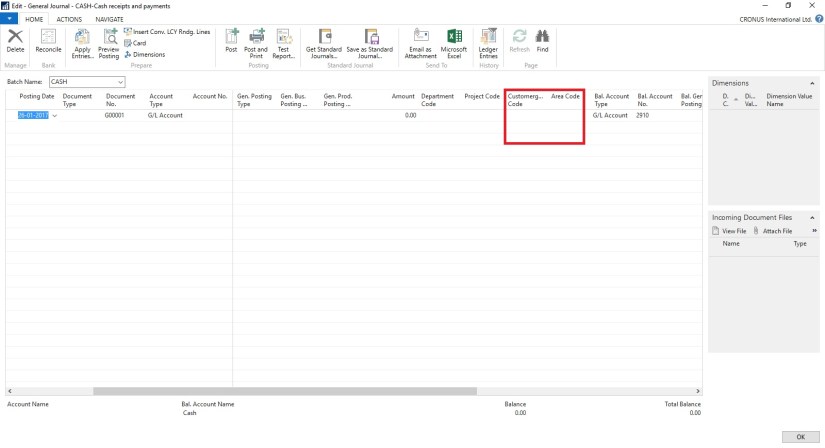
As we have seen above my 2 additional Dimensions is missing from the exported data. We need to match the columns what we have in our Excel and sequence. So we will hide/remove the additional columns from the Journal to match the sequence from Excel columns before we copy back our data from Excel to Navision.

ExcelToNavJnl-6

Select the Rows in excel containing you data excluding header columns and copy.

Return to your Journal and Paste as shown in above screen.

ExcelToNavJnl-7

Your modified data is imported back to the Journal in Navision.

Now perform the Journal action way you do normally.


Convert to PDF, Development Tips, Excel, How To, Information, Office Integration, Tip & Tricks, Word

Appending other information to Navision Reports

There is always requirement from many customers to Append information to the Navision Reports.

Recently one of my reader have requested me for any such functionality which can help him Append information from Word or Excel Files to Navision Reports.

While searching for solution for such requirement i came across this scope if we can do the same from outside Navision integrating the functionality with Navision.

Although i am not sure how much this post will answere to the requirement raised by my this reader but still this can be an work around to this requirement.

In my previous 2 posts i have answered this approach, Let us assemble all of them to provide solution to this requirement.

Please see my privious posts, i will not repeat already covered part in this post. Here is the link to those posts:

Converting Office Files into PDF from Navision

Merging PDF Files in Navision

In this post i will be using these functions discussed in above posts.

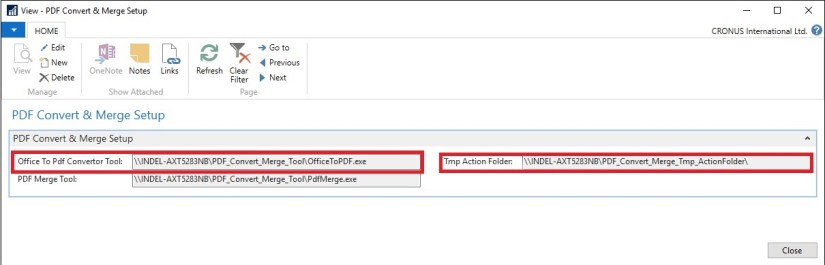
The Same Setup will be applicable to this post too.

PDFConvMerge-2-2

Since we are appending our other information to the Navision Report so we will be at First Step saving our Customer Sales Invoice to PDF.

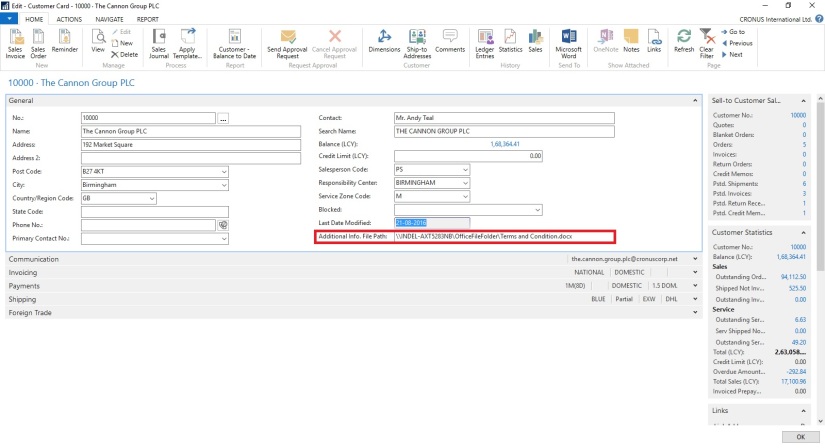
Later some information which need to be appended to this report is in Word File the path of which is stored on Customer Card.

How to work with Converting Office file to PDF is already discussed in previous post Link shared above.

So Now we have Our Report in PDF and Additional information to be appended to Report is also in PDF. Now it will be easy for us to Merge both the File to have single PDF File.

How to Merge these files is also already discussed in my previous post. Link shared above.

Let us see how we can assemble above both functionality to get our required result.

Approach is very simple, i have created a button on Sales Invoice to Print the Report which performs above discussed process.

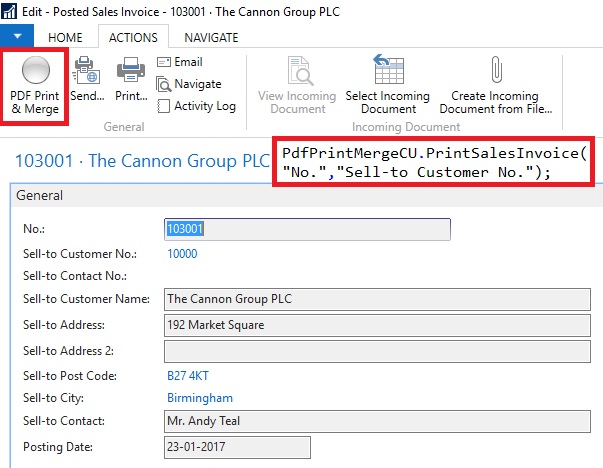
PDFConvMerge-5

On Sales Invoice Page I have added one Button which calls my Function to Print & Merge the document, it takes Invoice No & Sell-to Customer No. as a parameter.

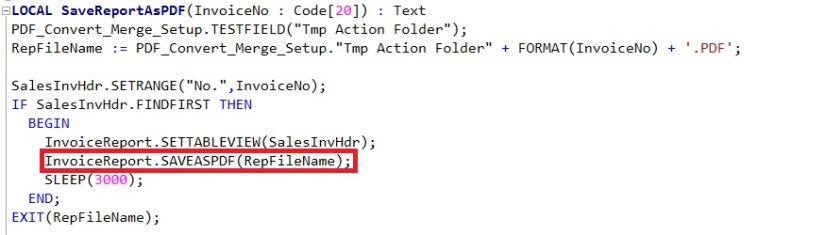
PDFConvMerge-6

I have created a function to Save the output of Report to PDF, using standard functionality available in Navision.

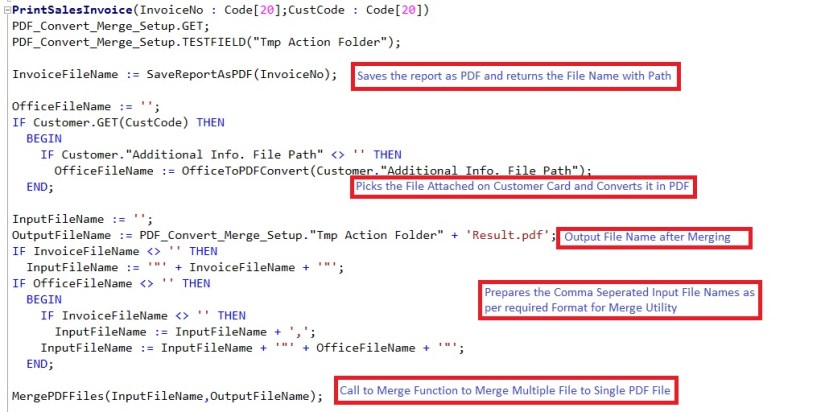
PDFConvMerge-7

The PrintSalesInvoice function called from Sales Invoice Page with Invoice No & Sell-to Customer No.

This Function calls the SaveReportAsPDF explained above.

Converts the Office file that is attached on Custommer Card, discussed in previous post Link provided above.

Calls the MergePDFFiles, discussed in previous post Link provided above.

So Now at single click of Button entire task is done for us.

To keep it simple no additional checks and other routine tasks have been included like after task is completed clean up of all temporary files and moving the Result file to desired Location etc.

Now you know the logic so you can tweak the code accordingly to get the functionality working as per your requirement.

Thats all for this post. I will come up with more information in my up coming posts.

You keep you requirements posting to me, i will try my best to answer your queries in form of my future posts, at earliest possible from my end.

Till then kee exploring & Learning.

Convert to PDF, Development Tips, How To, Information, Tip & Tricks

Merging PDF Files in Navision

Many of time we have multiple files in pdf but for some certain reasons we require to merge them to single File.

Continuing from my previous post i am extending my functionality with Merging of Mulitiple pdf files to single pdf file.

PDFConvMerge-2-2

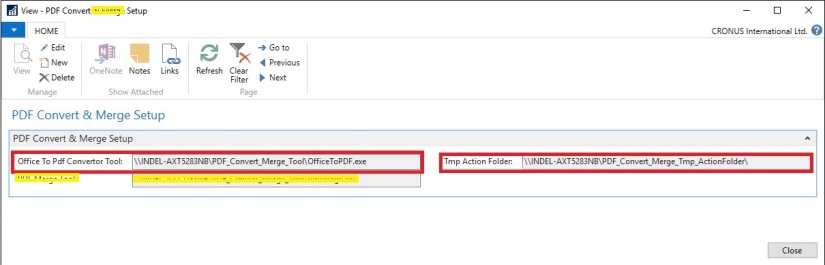
In my Setup Page created in previous post i have added one more field to store the Tool Path & File Name for Merging multiple files.

Based on the dll provided by http://www.pdfsharp.net this post is written.

Visit the Site download the utility and extract the dll file and exe file from the zip and store in same Folder.

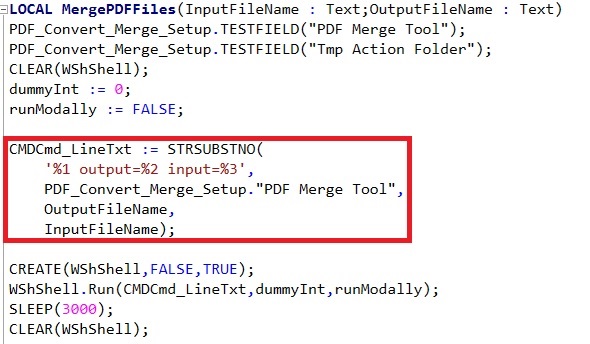
The format of command to merge the files at command prompt is similar to:

Command to merge :- pdfmerge output=.\ActionFolder\result.pdf input=.\ActionFolder\1.pdf,.\ActionFolder\2.pdf,.\ActionFolder\3.pdf

We will prepare the Function which will take as parameter the Output & Input File and run the utility to Merge these files to single file using WsShell in Navision.

PDFConvMerge-4

Function is very simple to accept the Input & Output File Names and Prepare Single PDF file from multiple pdf files provided as input (comma seperated List of Files) to the function.

To keep it simple no additional codes for test and other routine job is not added. Now you are familiar with the functionality you can tweak the code accordingly to meet all other requirements.

Thats all for this post. Will comeup with more Information in my upcoming posts.

Till then keep exploring and learning.


Convert to PDF, Development Tips, How To, Information, Office Integration, Tip & Tricks, Word

Converting Office Files into PDF from Navision

Today in this post i will walkthrough how we can convert any MS Office File into PDF.

It have been many time required to convert any attached file with the record in Navision to PDF format.

To perform this action we will require a tool which can be downloaded from:

OfficeToPDF download link :- http://officetopdf.codeplex.com/releases/view/118190

Extract and save the OfficeToPDF.exe file to some Folder.

For this Walkthrough i have created a Field in Customer Table to save the File Path of the Office File which we want to convert into PDF.

PDFConvMerge-1

You can add Dialog box to select the File from the specified Folder.

For this demo i have kept it simple Text Field where you can add your File Path and Office File Name. It is assumed that only Office File will be attached here.

For Setup purpose i have created one Setup Table & Page where we will store our other required Folder paths.

PDFConvMerge-2

Here we have given provision to save the Path of the Office to PDF Convertor Tool file Path & Temporay working Folder.

I have used the shared folder for all the paths so that it is not system specific, also make sure you give required permission on this folder for all the operating accounts.

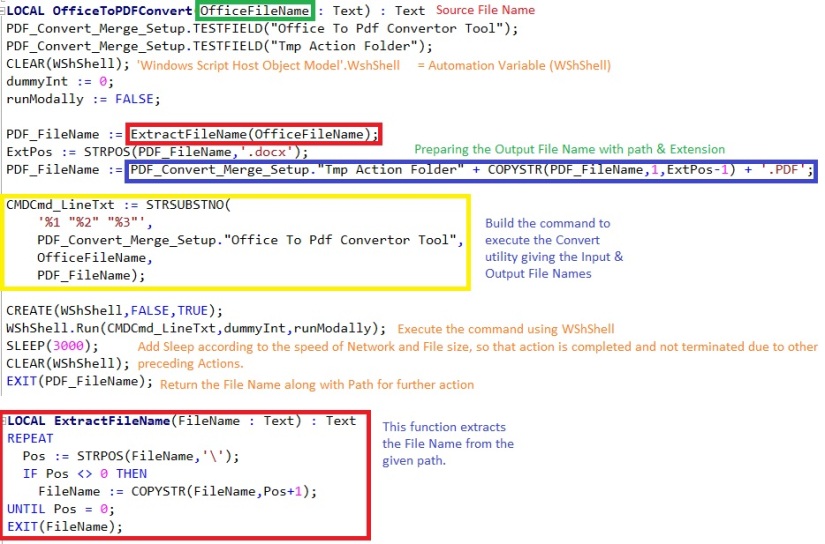
Now our Next task will be to write a function which will perform this conversion part.

PDFConvMerge-3

Above Function Takes the File Name from the Customer Card we stored above on Customer Card. Takes the Path of the Office To PDF Convertor Utility and Tmp working Folder.

Prepares the PDF file Name along with Path stored in Setup.

Prepares the command to invoke Convert Utility using WsShell and returns the PDF file File Name along with path as defined in the Setup.

Now you can use this File for futher purpose as required.

To keep it simple no additional code of test and other required routine task is not added.

Now you know the Logic you can tweak the functionality as per your requirement.

I will comeup with more information in my up comming posts, till then keep exploring and learning.


Corfu Navision 2016, Development Tips, How To, Information, Report, Tip & Tricks

Controlling User wise Report Print & Save As… Permission


It is always asked from several users to have a control on Printing of reports from Preview.

Normally you have two options to print the Report in Navision.

  • From Request Page

PrintPreview1

  • From Print Preview

PrintPreview2

If you check document Reports you will notice that you don’t have option to Print the Report from Preview, but you can print from Request Page.

Why it doesn’t allow in such Reports?

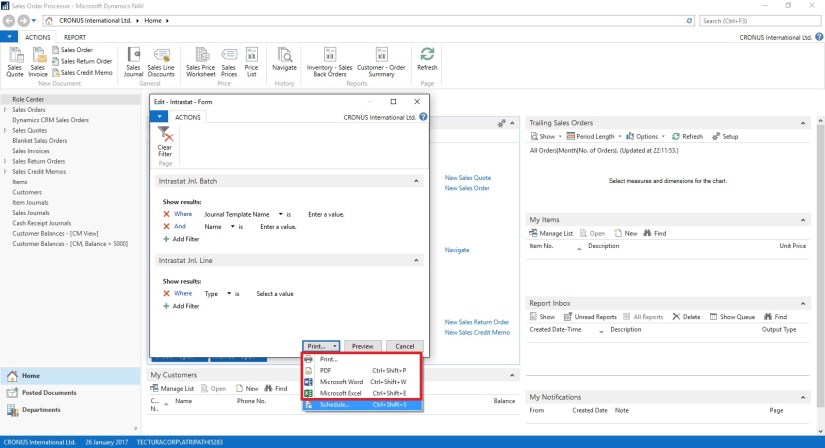
It is because these report uses statement like:

IF NOT CurrReport.PREVIEW THEN

If the C/AL code for the report uses the PREVIEW function to disable printing from the preview, then users cannot change the display mode to print layout.

Using these option I have tried to disable Printing of Report from Request Page and Print Preview.

PrintPreview3


Add a Boolean type Field in User Setup Table & Page as shown above.

Now the report which we want to restrict from printing we will add piece of code.

Although there are other ways to do this but to keep it simple I have followed this approach. Once you are ok with logic you can implement the same in your way, in fact more better way than this sample demo.

PrintPreview4

If I run the report by setting Allow Report Printing to FALSE, it will not show me the Print & Save as Option on Preview.

PrintPreview5

Also if I Try to Print or Save As… from Request Page it will Flag me an error as above.

So now you know the logic behind it, what you are waiting for. Give your user to control the Printing & Save As… option.

Now in last Cumulative Updates also Microsoft added option to control this,  but it is at Service Level, if you want to control at user Level this is one option, wait for any further Cumulative Update in which Microsoft may add this capability or explore and find any other option and share with others.

That’s all for this post. I will come up with more details in my upcoming posts.

Till then keep exploring & learning.


Data, Development Tips, How To, Information, PowerBI.com, Tip & Tricks

App for Power BI REST APIs for Streaming Data

In this post we will see how to create app to use the Power BI REST APIs for Streaming Data.

Full documentation: https://powerbi.microsoft.com/documentation/powerbi-service-real-time-streaming/

To run this app follow the steps discussed in my previous post: [Real-Time Dashboard Tile & Streaming Dataset– in Power BI]

Summary as below:

  1. Go to app.powerbi.com
  2. Go to streaming data management page by via new dashboard > Add tile > Custom Streaming Data > manage data
  3. Click “Add streaming dataset”
  4. Select API, then Next, and give your streaming dataset a name
  5. Add a field with name “Customer ID”, type Number
  6. Add a field with name “Customer Name”, type Text
  7. Add a field with name “Sales Value”, type Number
  8. Click “Create”
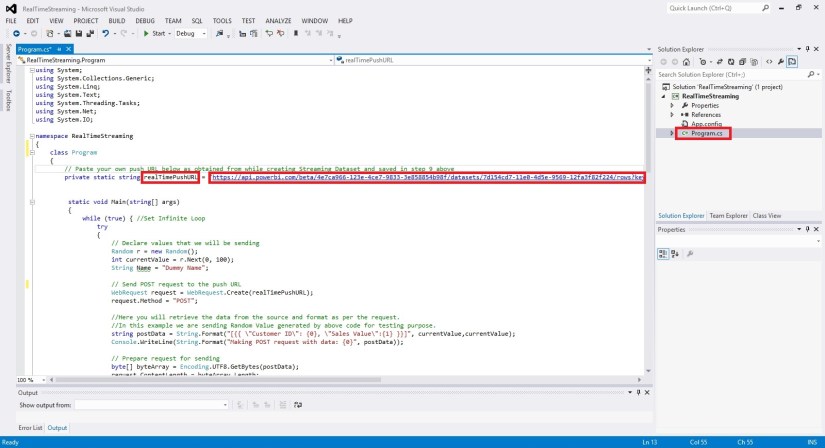
  9. Copy the “push URL” and paste it as the value of “realTimePushURL” in below app

We will start with new project in Visual Studio.

RealTimeSync-12

Create a new Visual C# Console Application.

Open the Program.cs File and write a code as shown below.

This app Uses the WebRequest sample code as documented here: https://msdn.microsoft.com/en-us/library/debx8sh9(v=vs.110).aspx

RealTimeSync-13

For your easy here is the code of Program.cs below:


using System;

using System.Collections.Generic;

using System.Linq;

using System.Text;

using System.Threading.Tasks;

using System.Net;

using System.IO;


namespace RealTimeStreaming

{

class Program

{

// Paste your own push URL below as obtained from while creating Streaming Dataset and saved in step 9 above

private static string realTimePushURL = “https://api.powerbi.com/beta/4e7ca966-123e-4ce7-9833-3e858854b98f/datasets/7d154cd7-11e0-4d5e-9569-12fa3f82f224/rows?key=mD1nkJOf426PjPPaEQsW9xEg%2FN1EENQ2hRZvXIpHr%2BTXNk3XQpKsR2Jbe5CATiMoLmxjlzSp%2FIMlbe9HL8G4xQ%3D%3D”;

static void Main(string[] args)

{

while (true) { //Set Infinite Loop

try

{

// Declare values that we will be sending

Random r = new Random();

int currentValue = r.Next(0, 100);

String Name = “Dummy Name”;

// Send POST request to the push URL

WebRequest request = WebRequest.Create(realTimePushURL);

request.Method = “POST”;


//Here you will retrieve the data from the source and format as per the request.

//In this example we are sending Random Value generated by above code for testing purpose.

string postData = String.Format(“[{{ \”Customer ID\”: {0}, \”Sales Value\”:{1} }}]”, currentValue,currentValue);

Console.WriteLine(String.Format(“Making POST request with data: {0}”, postData));


// Prepare request for sending

byte[] byteArray = Encoding.UTF8.GetBytes(postData);

request.ContentLength = byteArray.Length;

// Get the request stream.

Stream dataStream = request.GetRequestStream();

// Write the data to the request stream.

dataStream.Write(byteArray, 0, byteArray.Length);

// Close the Stream object.

dataStream.Close();

// Get the response.

WebResponse response = request.GetResponse();

// Display the status.

Console.WriteLine(String.Format(“Service response: {0}”, ((HttpWebResponse)response).StatusCode));

// Get the stream containing content returned by the server.

dataStream = response.GetResponseStream();

// Open the stream using a StreamReader for easy access.

StreamReader reader = new StreamReader(dataStream);

// Read the content.

string responseFromServer = reader.ReadToEnd();

// Display the content.

Console.WriteLine(responseFromServer);

// Clean up the streams.

reader.Close();

dataStream.Close();

response.Close();

}

catch (Exception ex)

{

Console.WriteLine(ex);

}

// Wait 5 second before sending

System.Threading.Thread.Sleep(5000);

} //Infinite Loop ends here.

}

}

}

Compile and Run the Program.

RealTimeSync-14

Leave the Program Running and switch to Power BI dashboard. You will see your newly created Tile in previous post will be displaying the Random Value generated by this program updating every 5 seconds.

That’s all with little tweaking to this program you can fetch your data and send the updated data to your Real Time Streaming Dataset.

That’s end to this post.

I will come up with more details in my upcoming posts.

Till then keep Exploring and learning.