Corfu Navision 2016, Development Tips, How To, Information, Instalation & Configuration, License, Server, Tip & Tricks, Virtual

Working with Partner Translation Toolkit

In my earlier post I have given the overview of Managing Multilanguage support in Navision continuing from same today I will discuss about how to create Language Module for the Languages not available from Microsoft.

Although still we will not be having direct support for all Languages but using this process you can create one.

To be very fair it will not be easy task for all Languages but for few it could help you much to get you work done with little ease.

See few helpful links which will help you getting done your task:-

Platform strings maintained in managed assemblies and fin.stx and fin.etx files

Configuring Microsoft Dynamics NAV Help Server

To work with Partner Translation Toolkit you will require below, make sure you have all before you start with using this Tool:

  1. Visual Studio
  2. WiX Toolset
  3. Microsoft Translator for ResX
  4. Azure Data Market account
  5. Microsoft Translator data service subscribed
  6. Your NAV License File
  7. Finally your efforts

Visual Studio:

If you don’t have make sure you install the latest version of the same.

WiX Toolset:

You will require the WiX Toolset to start with you can download from here. Install WiX Toolset version 3.8 or 3.9

PTT-1

Install the WiX Toolset according to the instructions. In my case it is already installed on my system so getting option for Uninstall.

Building the project you require that you have the WiX Toolset version 3.8 or 3.9 installed on the computer.

Microsoft Translator for ResX:

See my previous post for more details here.

Azure Data Market account / Microsoft Translator data service:

See my previous post for more details here.

Steps to get ready for Translation tool:

See my previous post for more details here. 

Let’s start with building our project:

Step -1:

Run the “Microsoft.MCSUK.RESXTranslator.exe” Tool

See my previous post for more details here.

Step -2:

Run the “Visual Studio” with opening project solution PartnerTranslations.sln

PTT-8

You will see all the projects discussed above is having their own folder in this solution.

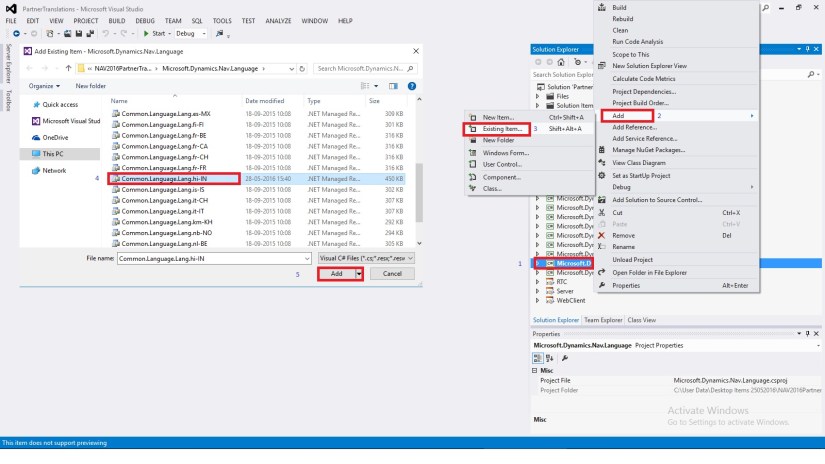
Add your all the translated resx files obtained in Step-1 post Translation to respective projects.
PTT-9

Right click on the project folder and choose Add and then Existing Item.

Select the resx file which we translated in Step-1.

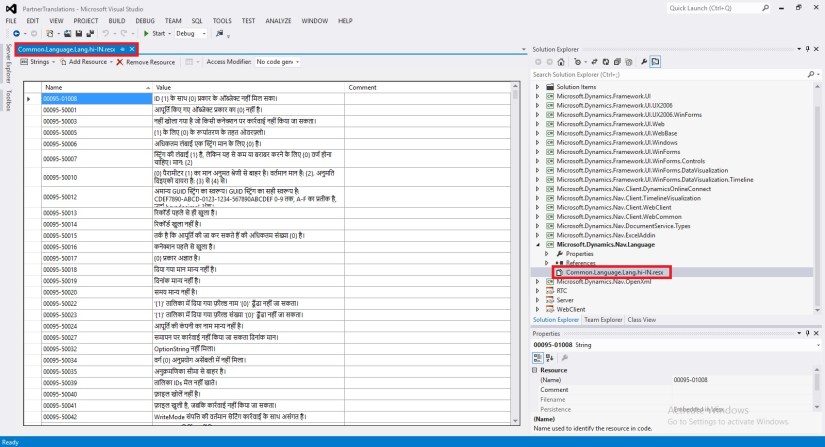
In my case I select “Common.Language.Lang.hi-IN.resx”

Similarly you will add these translated files to your all other projects. Be cautious few may have 2-3 files add them all.
PTT-10

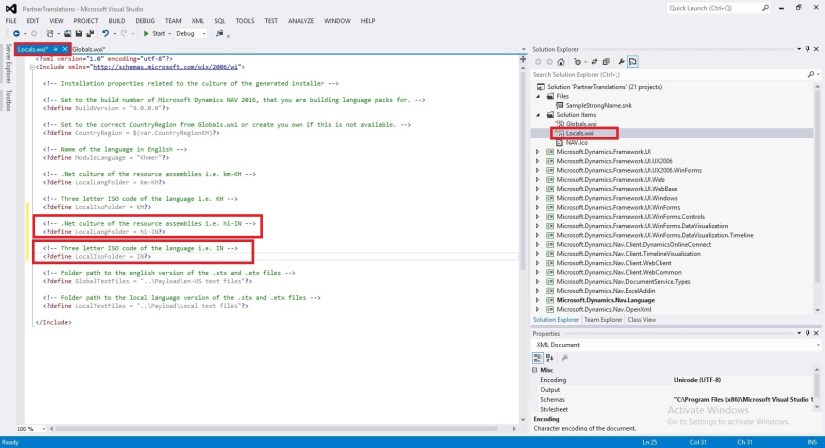
The properties of the installation determine which folders are created during the installation of the language packs and what files are placed in the folders. The properties can be found in the Locals.wxi file located in the root directory of the translation kit. Open the Locals.wxi file and change the following properties:

• CountryRegionCode, to one of the country/region codes in Globals.wxi or create a new.

• ModuleLanguage, to the language of your choice.

• LocalLangFolder, to the .Net culture of the satellite assemblies.

• LocalIsoFolder, to the three letter ISO code for your language.
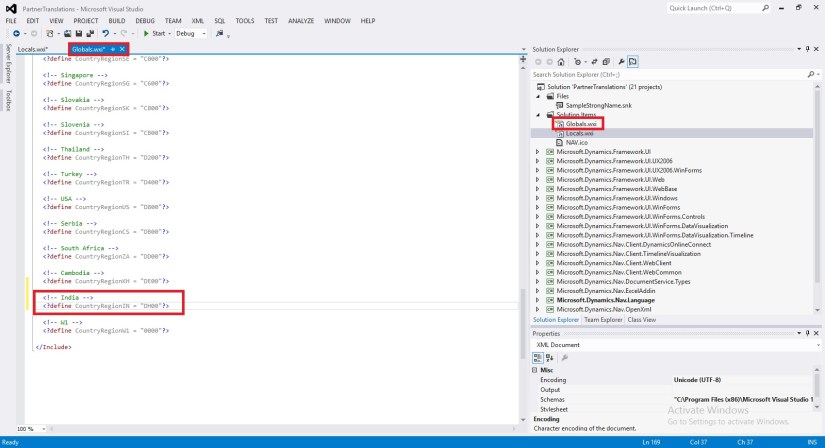
PTT-11

PTT-12

Step -3:

Build the project PartnerTranslations.sln

To build the PartnerTranslation solution from inside Visual Studio, choose Build Solution from the Build menu. This will pick up all translated artifacts, and create three installer files (.msi):

  • Server.msi – Located in the Server\Bin\Debug folder.
  • RTC.msi – Located in the RTC\Bin\Debug folder.
  • WebClient.msi – Located in the WebClient\Bin\Debug folder.

Step-4:

Copy your Language Module Files and install on desired Server & Client

PTT-13

Install – Add your language pack to the W1 version

If have not already done so, install the W1 version of Microsoft Dynamics NAV 2016 from the product media.

Install the new language Pack

Next, install the new language pack on the same computer. To do this, select and click each of the three .msi files listed below, one after the other. The order is not significant:

  • Server\Bin\Debug\Server.msi
  • RTC\Bin\Debug\RTC.msi
  • WebClient\Bin\Debug\WebClient.msi

Each installer quickly shows a dialog, which disappears when the installer has completed.

The language pack is now installed, but you must make some final configuration.

I will comeup with more details in my next posts.


Corfu Navision 2016, Development Tips, How To, Information, Instalation & Configuration, Tip & Tricks

How do I translate my ResX Files?

In my earlier post I have given the overview of Managing Multilanguage support in Navision continuing from same today I will discuss about how to translate the resx files for the Languages not available from Microsoft. 

Microsoft Translator for ResX:

To translate resx file you require to download Microsoft Translator for ResX you can use this link to download.

This will help you to translate your required .resx files

Azure Data Market account / Microsoft Translator data service:

You will need an Azure Data Market account, subscribe to Microsoft Translator data service and a register a developer application in order to use the tool.

You can start setting this up here: https://datamarket.azure.com/developer/applications/

Microsoft Translator is a service on the Windows Azure Marketplace that translates text between many languages. This is a billed service that comes with many different pricing plans. For example, one plan allows the translation of 2,000,000 characters per month for free.

PTT-2

Steps to get ready for Translation tool:

  1. Get an account on the Azure Data Market with your Microsoft Live ID.
  2. Login into the Azure Data Market (ADM).
  3. Subscribe to the Microsoft Translator Service
  4. Create an application on top of this service in order to use the service in the ResX Translator tool.
  5. Go the developer application registration
  6. Choose the Register button to create a new application.
  7. Enter your information and choose the Create button.

Make sure you note your Client ID and Client Secret, you will need this if you wish to Translate Resx files using Microsoft Translator Service.

If you remember I have shared the link from where you can download Translation Tool. You will require Customer/Partner Source.

Download the Translation Tool (NAV2016PartnerTranslationsToolkit) and extract the zip file.

Scan the extracted Folder here few important files which will help identifying purpose of these files:

  1. Microsoft.MCSUK.RESXTranslator.exe
  2. Microsoft.MCSUK.RESXTranslator.exe.xml
  3. NAV 2016 Creating Custom Platform Translations.pdf
  4. PartnerTranslations.sln

PTT-3

Each project contains the platform resource files (.resx) for all languages shipped by Microsoft.

The Visual Studio solution file, PartnerTranslations.sln, contains a project for each of the platform assemblies that contain translatable resources. In order to create a custom translation, you add the respective resource files with custom translations to the respective project.

Let us see the directory structure of “NAV2016PartnerTranslationsToolkit\Microsoft.Dynamics.Nav.Language” similar structure is for other projects too.

PTT-4

For detailed help you can refer to “NAV 2016 Creating Custom Platform Translations.pdf” file.

Let’s start with translating our resx files:

Run the “Microsoft.MCSUK.RESXTranslator.exe” Tool

PTT-5

Switch to Advanced Tab.

Enter the Client ID and Client Secret obtained in above step when we registered the Application.

Click on Save.

PTT-6

Switch to Single File Tab.

Browse the .resx file for source language in my case if have selected “Common.Language.Lang.en-US.resx

Translate To choose desired language available from the drop down. In my case I have selected “Hindi”.

Select the Language 3 char code in my case I have selected “hi-IN [HIN] Hindi (India)

Click on Translate Now.

Once resx file is translated you will get the summary of result, click ok to return.

Similarly you translate the rex files for each projects listed above.


PTT-7

Post this step you are ready with all of you resx file translated to desired language.


Corfu Navision 2016, Development Tips, How To, Information, Instalation & Configuration, Tip & Tricks

Managing Multilanguage support in Navision Overview

language

Microsoft Dynamics NAV is Multilanguage enabled, which means that you can display the user interface (UI) in different languages.

A Multilanguage version of Microsoft Dynamics NAV is not the same as a localized version.

  • A localized version is a version that is adapted to a local market. All text that is displayed to the user is translated into the local language, and all functional areas are adapted to the requirements of the local market.
  • A Multilanguage version is a localized version that you can run in different languages, but all local functionality remains the same.


Language Module:

To be able to run a localized version in multiple languages, you must install language modules.

Language Module contains translated text strings of Logs & error reporting for:

  • Translated strings for the UI in the Microsoft Dynamics NAV Windows client.
  • Translated strings for the database.
  • Translated strings for Microsoft Dynamics NAV Server, such as for logs and error reporting.
  • Translated strings for the Microsoft Office Outlook Add-in for Microsoft Dynamics NAV.
  • Translated strings for charts on Role Centers in the Microsoft Dynamics NAV Windows client.
  • Localized versions of the client Help.

Language Modules are Binary Files which can’t be changed by any external tools for this you will require Partner Translation Tool Project and Visual Studio.

You can install language modules so that you can view text in the user interface in different languages.

Once you have installed a language module, you can select that language on the Select Language page in the UI to change the language of all text that is displayed in the UI in captions for text boxes, on command buttons, in menus, and so on.

Imp: When you change the language of Microsoft Dynamics NAV, you are not changing the language of the data that is stored in Microsoft Dynamics NAV. Changing the text that is stored as application data is not part of the language modules.

When you install a language module, a subdirectory for the language is created in the Microsoft Dynamics NAV directory structure. The .stx, .etx, .chm, and .hh files for each language are automatically installed in the subdirectory. The name of the subdirectory is the three-letter language code (Abbreviated Name) that is used by Windows for the particular language.

You can use this link to access NAV 2016 downloads for Available – Product, Translation Tool & Language Modules. https://mbs.microsoft.com/customersource/Global/NAV/downloads/product-releases/msdnav2016download


There are 3 main parts for creating translations that works in Dynamics NAV.

  1. Translate the platform by translating the resource file for each DLL file.
  2. Translate all the captions by adding a new language into captionML in each object
  3. Localize development environment by translating .stx and .etx files. These 2 files have to be sent to the Microsoft regional office and sealed by Microsoft. (Only required if you want the Development Environment to be in Unsupported Language as well)


Common available resources for supported/available Language Module.

To work with Language Modules what else you required to know about: You can check below links on MSDN.

  1. Windows Language Virtual Table
  2. How to: Install Language Modules
  3. How to: Add Translated Strings By Importing and Exporting Multilanguage Files
  4. How to: Add Translated Strings By Using the Multilanguage Editor
  5. How to: Uninstall Language Modules
  6. How to: Delete Translated Strings
  7. Multilanguage Development
  8. Viewing the Application in Different Languages


Translated User Interface Strings:

In Microsoft Dynamics NAV, the user interface includes the following types of translatable user interface strings:

Captions for application objects, such as pages, tables, reports, option fields, icons, menus, and so on, that are defined in the CaptionML property for an object. Text messages that are defined in the development environment, such as text constants and error messages that are defined in the C/AL Globals window or the C/AL Locals window.

Text messages and strings that are defined in Microsoft Dynamics NAV Server and Microsoft Dynamics NAV Windows client.

To add a language to the text messages that are defined in the resource files for Microsoft Dynamics NAV Server and Microsoft Dynamics NAV Windows client, special tools are required.

You can manage translations by using text files. In the development environment, you can export all strings for the specified objects to a text file, translate the strings in a translation tool of your choice, and then import the new translations. Then, when you compile the updated objects, the new translations are available to users in the Microsoft Dynamics NAV Windows client.


Multilanguage across Conflicting Text Encoding Formats:

To support users with translated strings across conflicting text encoding formats, you must save the translations to a text file in UTF-8 text encoding format.

This converts the file to Unicode, which Microsoft Dynamics NAV Development Environment cannot import. Instead, you add the files to a dedicated Translations folder on the Microsoft Dynamics NAV Server computer.

The default location of this folder is:

C:\Program Files\Microsoft Dynamics NAV\90\Service\Translations.

When you have more than one service instance, there is a Translations folder for each service instance, such as:

C:\Program Files\Microsoft Dynamics NAV\90\Service\Instances\MyInstance\Translations.

Microsoft Dynamics NAV Server adds any strings in text files that you place in the relevant Translations folder to the metadata for Microsoft Dynamics NAV.


To add translated strings for a conflicting text encoding format:

In the development environment, export the strings for the objects that you want to translate.

Translate the strings in the resulting text file into desired Language by using your preferred translation process.

When translations are complete, save the translated strings into a text file in the UTF-8 text encoding format. The extension of the file must be .txt.

It is recommend that you remove the other Language strings from the Unicode file before you copy it to the Microsoft Dynamics NAV Server computer.

Microsoft Dynamics NAV Server queries the Translations folder for updated strings, and for performance reasons the folder should only contain strings that you cannot import into the development environment because of conflicting codepages.

Copy the UTF-8 file to the Microsoft Dynamics NAV Server computer.

C:\Program Files\Microsoft Dynamics NAV\90\Service\Translations

When you have more than one service instance, there is a Translations folder for each service instance, such as:

C:\Program Files\Microsoft Dynamics NAV\90\Service\Instances\MyInstance\Translations.

Restart the Microsoft Dynamics NAV Server instance.

Microsoft Dynamics NAV Server adds the translated strings in the file to the metadata store for the Microsoft Dynamics NAV deployment.

Now Users of this Microsoft Dynamics NAV Server session can now change the user interface language from English to required Language.

The metadata store is updated whenever you add new strings to the Translations folder and then restart the Microsoft Dynamics NAV Server service instance. Cached strings are not deleted from the metadata store when you restart the service instance.

I will comeup with more details in my upcomming post soon.

Development Tips, Functional Tips, How To, Information, Maderia, Tip & Tricks

How Do I : Setup or Adjust Item Cost in Madeira


In this post we will see how we can Setup Adjust Cost and how to Run Manually Item Cost Adjust Batch or Schedule the same.

ItemCost-1

Search the Page Inventory Setup using Search Page in Right top corner of your screen.

Search for Inventory Setup Page.

ItemCost-2

Make Sure Automatic Cost Posting is Setup as required.

Also Setup frequency of Automatic Cost Adjustment.

ItemCost-3

Option Behavior
Never Costs are not adjusted when posting
Day Costs are adjusted if posting occurs within one day from the work date
Week Costs are adjusted if posting occurs within one week from the work date
Month Costs are adjusted if posting occurs within one month from the work date
Quarter Costs are adjusted if posting occurs within one quarter from the work date
Year Costs are adjusted if posting occurs within one year from the work date
Always Costs are always adjusted when posting, irrespective of the posting date

Now we will Run the Adjust cost Item Entries Batch.
ItemCost-4

Apply the desired filter for Item or Category as desired.

Next you can run Immediately or can schedule for later execution.

If you require Immediately choose OK.

If you wish to schedule for Later Run choose Schedule.

ItemCost-5

Enter your Date & Time and click OK.

ItemCost-6

To check the status of the Scheduled Run, Search and open the Page Job Queue Log Entries.

ItemCost-7

You can find the Status of your Scheduled Job for Adjust Cost Entries.

ItemCost-8

It’s easy na.

I will come up with more details in my upcoming posts.

Till then keep Exploring & Learning.


Development Tips, Functional Tips, How To, Information, Maderia, Tip & Tricks

How do I : Adjust Inventory in Madeira

Do you know, it is very easy to Adjust Inventory in Madeira.

Let us see how this action can be done.

Start with Login to Madeira using your credentials.

InvAdj-1

From Landing page, choose Item from Navigation Bar in Left.

InvAdj-2


From the list of Item choose Edit or View to access the Card of selected Item.

InvAdj-3

Now from action choose Adjust Inventory.

InvAdj-4

Enter your New Inventory Value. Like in Below screen I want to Add 50 more Inventory.

I Enter 150 including Existing Inventory in System.

InvAdj-5

Select OK.

Inventory now increases by 50 adding 100 to existing inventory making total of 150 available inventory.

InvAdj-6

We are done with our task, Adjusting Inventory.

I will come with more details in my upcoming posts.
Till then keep exploring and learning.


Azure, Corfu Navision 2016, Development Tips, How To, Information, Instalation & Configuration, Machine, Server, Tip & Tricks, Virtual

Creating Virtual Machine on Azure

Continuing from my previous post.

In previous post we saw how to register for Free Azure Portal Account, if you missed you can find the link here.

Today we will see how to create Virtual Machine for Dynamics Navision 2016 pre Loaded.

Lets start creating one for our future posts practice.

Open the page : https://azure.microsoft.com/en-us/free/ and follow onscreen Instruction to login to your account.

Login using the account credentials you used for registering on Azure Portal.

Azure-5

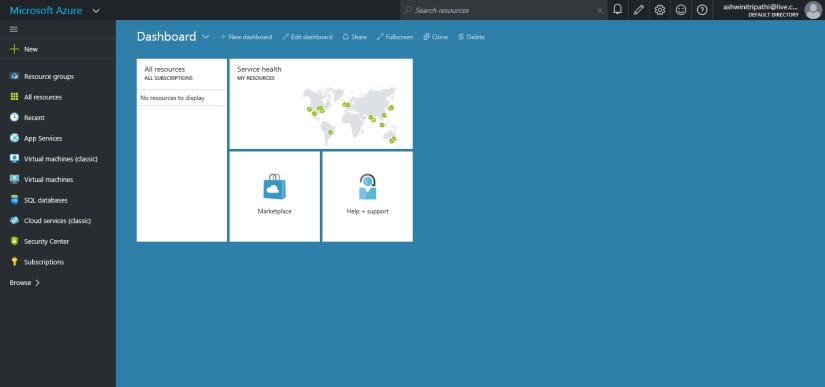
Upon signing you will be landed to your dashboard on Portal.

You can see we don’t have any resource on Portal yet.

Azure-6

Lets start creating one.

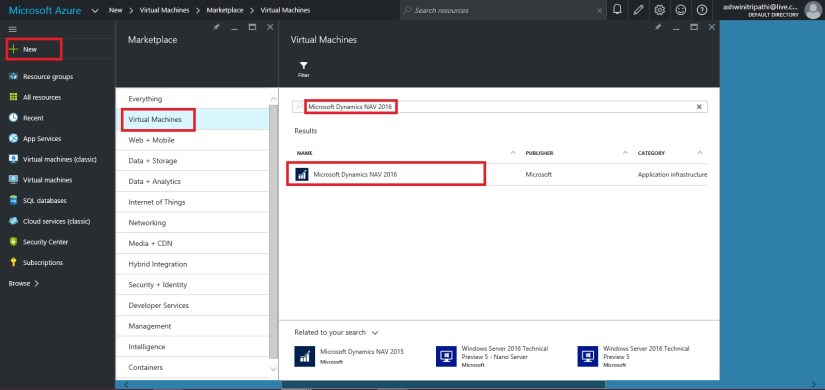
Click on New from Top right corner.

Choose Virtual Machine.

Enter “Microsoft Dynamics NAV 2016” in the search box, it will list available Virtual Machine images.

Select the one available Virtual Machine for commissioning.

I have choose this because we will get preinstalled NAV 2016 which will save our time.

Azure-7

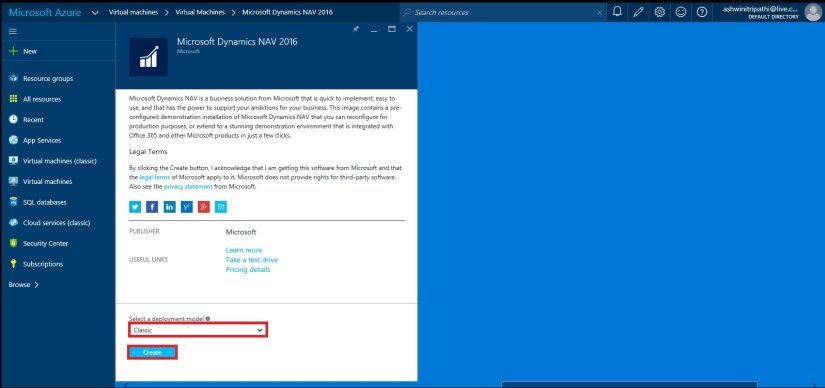
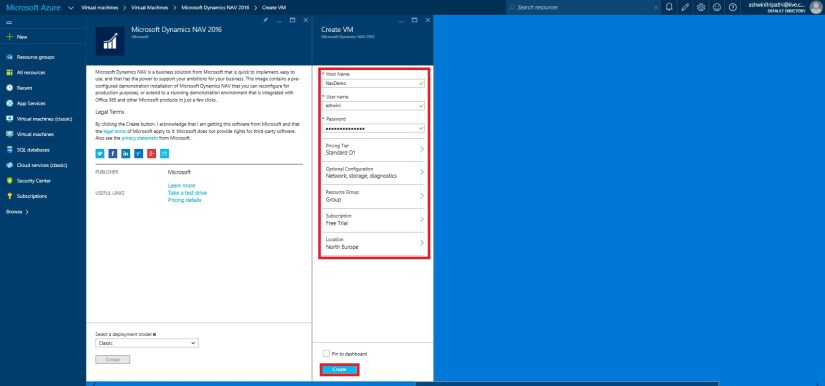
Select Deployment Model, I have choose Classic and click on Create.

Azure-8

Next we will enter  Host Name, User Name, Password, other things you adjust as per your need. Click on Create.

Note your User Name & Password you will require this to login to the Server.

Azure-9

Give some time to get created and up your Server.

In the mean time you can explore other things till your Server is up and running for you.

Once it is made available, you can start login and explore your newly created Server.

Where to find my Server?

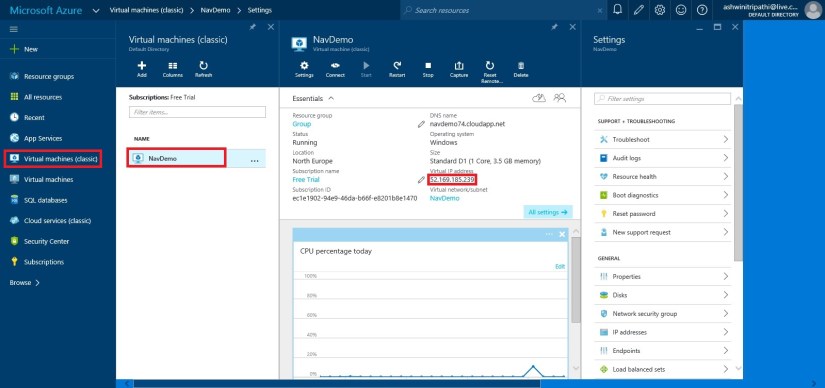
From the Navigation Bar choose Virtual Machine (classic).

It will list you all Virtual Machines created by you.

Select your Virtual Machine in my case it is NavDemo.

You can find the Server Name and IP of your Virtual Machine.

Azure-10

I am using my IP to login to my Server.

Open your Remote Desktop Connection and enter your IP.

The User Name & Password as we created in previous step.

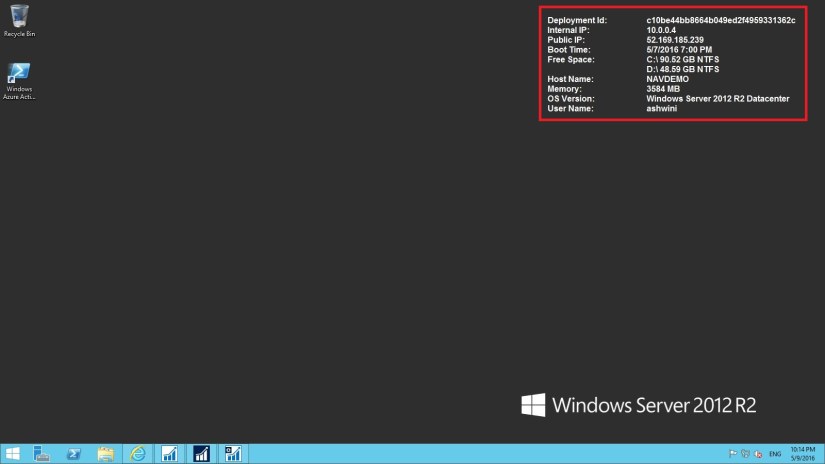
Azure-11

Here I am Login to my Server.

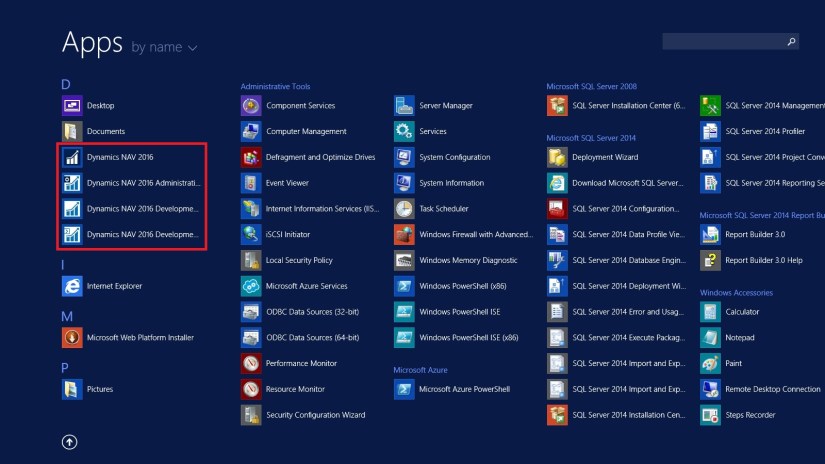
Azure-12

You can see that Dynamics NAV 2016 is already available with my Server.

Azure-13

That’s all for today, we will see more in my upcoming posts.
Till then keep exploring & Learning.


Development Tips, How To, Information, Instalation & Configuration, Maderia, Office Integration, Tip & Tricks

Assisted Setup (Office Add-Ins) in Madeira

In this post we will discuss about how to setup Office Add-Ins.

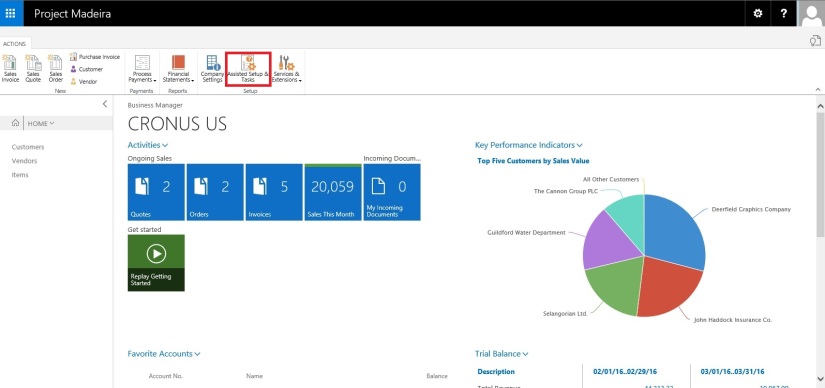
Select Assisted Setup & Tasks from the ribbon of Action Tab.

SetupOfficeAddIn-1

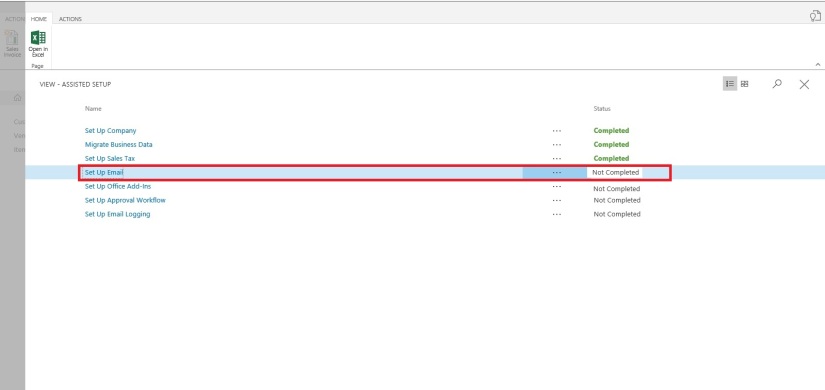
Select Setup Office Add-Ins from the list.

SetupOfficeAddIn-2

Click on Next Button on Welcome Screen.

SetupOfficeAddIn-3

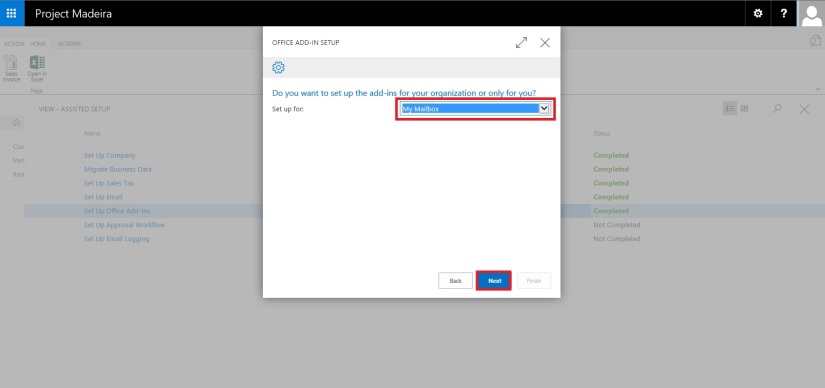
Select Setup for (Organization or you only) and click on Next Button.

SetupOfficeAddIn-4

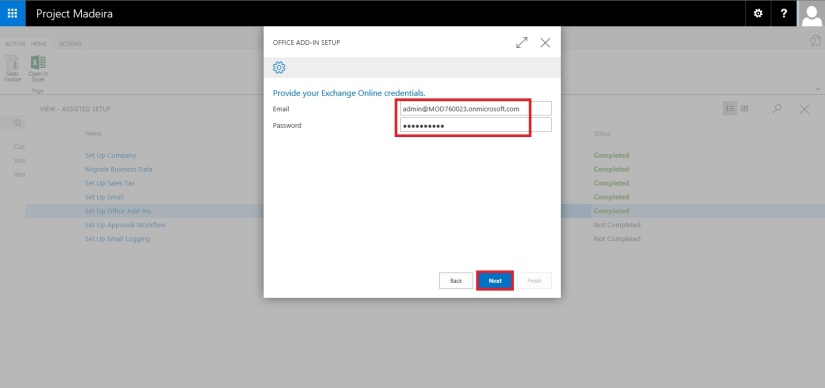
Enter your E-mail id and Password, click on Next to continue with next step.

SetupOfficeAddIn-5

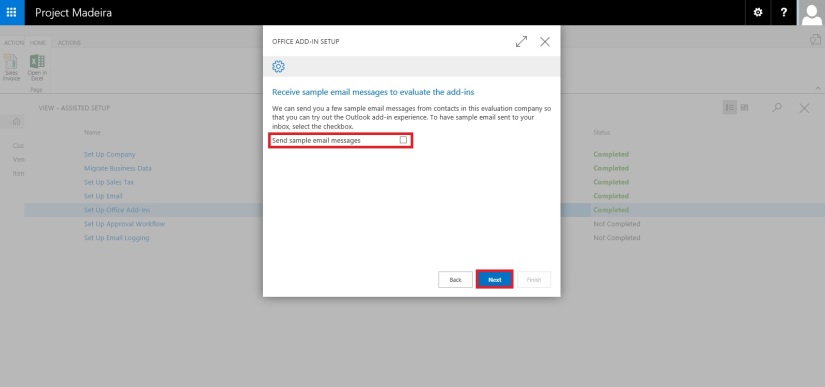
If you wish to receive few sample mails in your Mail box click on the check box or leave it blank, click on Next Button.

SetupOfficeAddIn-6

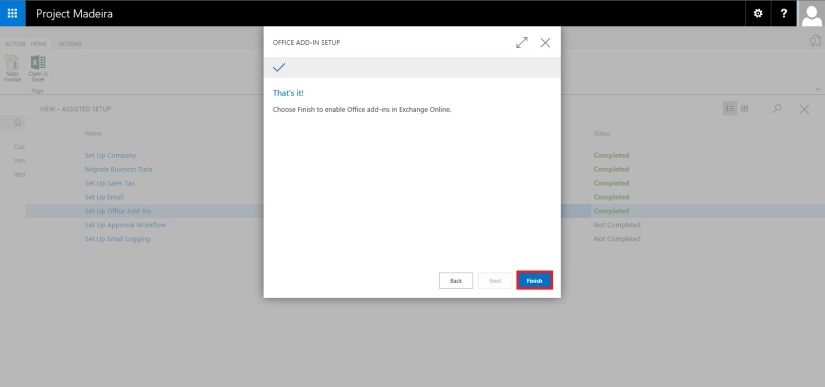
That’s it. click on Finish to complete the setup.

SetupOfficeAddIn-7

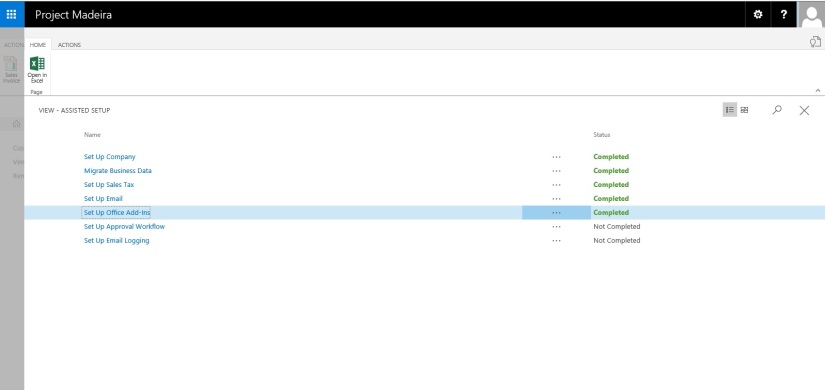
SetupOfficeAddIn-8

That’s all for this post.

Will come with more details in my upcoming posts.
Till then keep exploring & learning.


Development Tips, How To, Information, Instalation & Configuration, Maderia, Office Integration, Tip & Tricks

Assisted Setup (Email) in Madeira

In this post we will discuss how to setup Email.

Its very easy and single user intervention required.

SetupEmail-1

From Action Tab click on Assisted Setup & Task from the ribbon.

SetupEmail-2

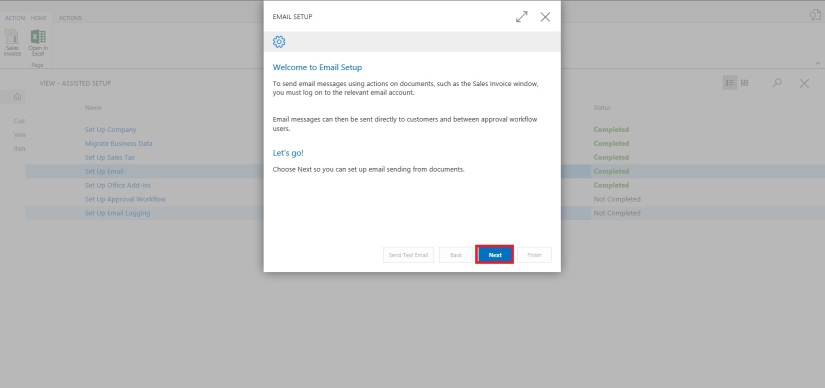
On Welcome screen click on Next Button.

SetupEmail-3

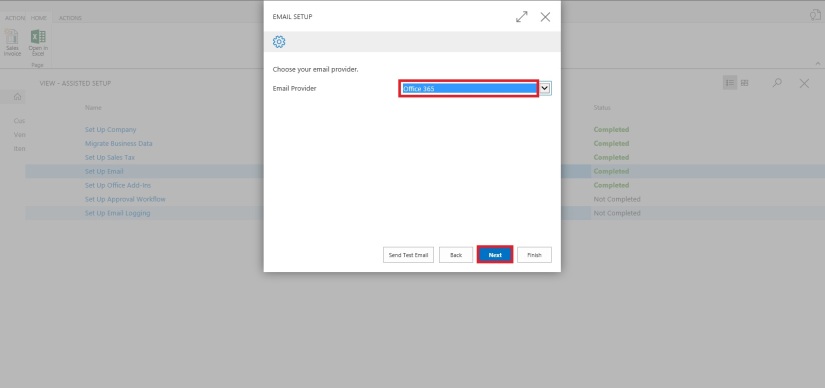
Select the Email Provider and click on Next to continue.

SetupEmail-4

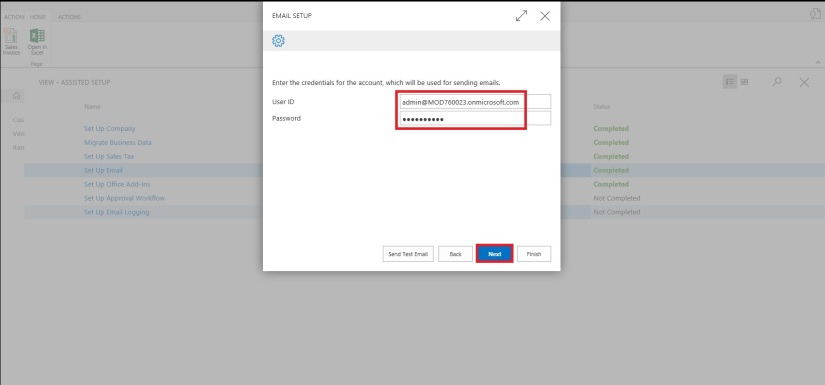
Enter your Email id and password, click on Next Button.

SetupEmail-5

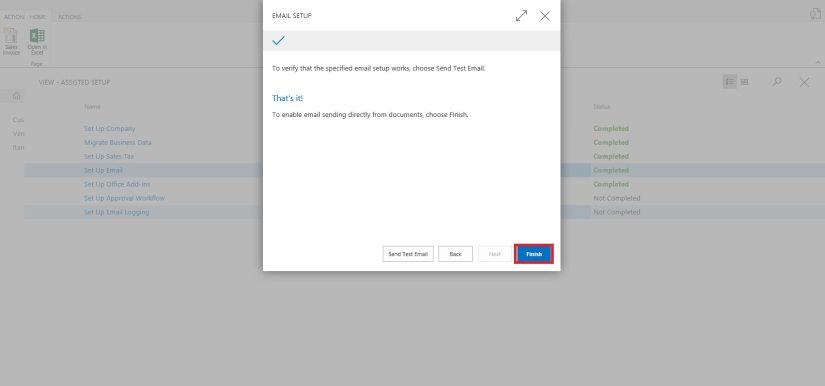
That’s it, click on Finish.

SetupEmail-6


SetupEmail-7


Just required to enter Email id and password, setup is done.

Will come with other option in my next post.

Till then keep exploring and learning.


Development Tips, How To, Information, Tip & Tricks, Web Services

Exposing & Consuming the Web service from & inside Navision – Part-4

Continuing from my previous post. Find the link to access the same in case you missed it.

Exposing & Consuming the Web service from & inside Navision – Part-1

Exposing & Consuming the Web service from & inside Navision – Part-2

Exposing & Consuming the Web service from & inside Navision – Part-3


Step 5: Create a Codeunit to test Retrieve the data using above DLL and Send data in XML Format using another Web Service exposed in Dot Net.

How to create WCF Service Application using C#, Publishing it and creating DLL Class Library is out of scope of this document. You may require to take help from guy who are comfortable in .Net technology.

Let’s start with new codeunit, select the available ID in your database and suitable name to save this codeunit.

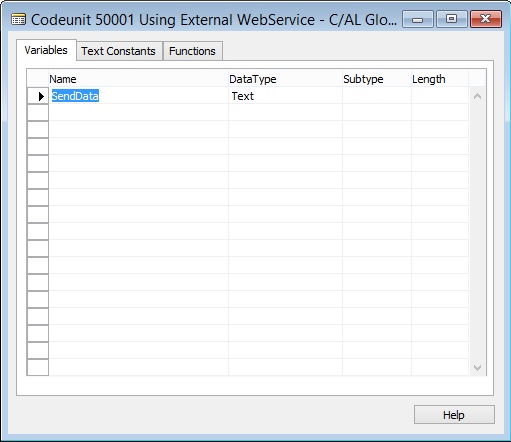
We will define a Global variable to hold the data we receive from Navision Web Service and pass to Web Service exposed outside Navision.

WebServiceUsage-16

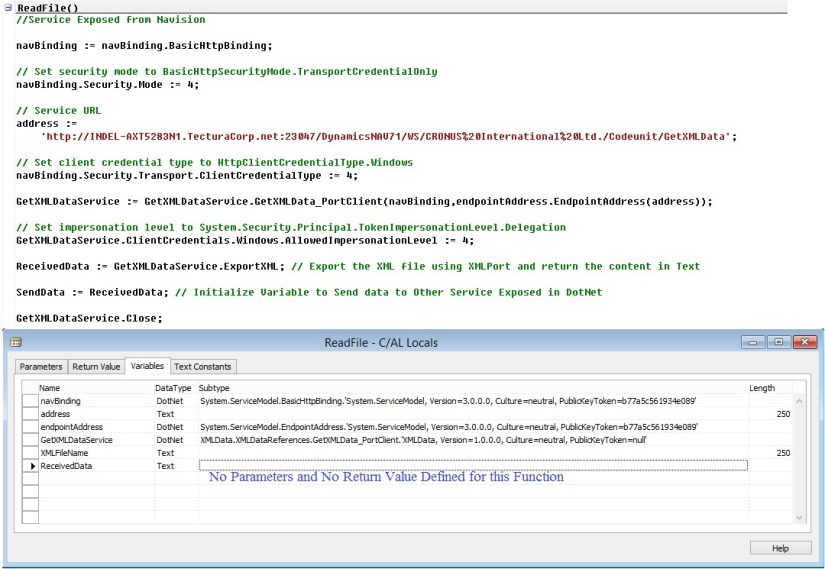
Create a Function to Read/Export the data using Navision Web Service.

Variables defined to the function is also shown in below screen.

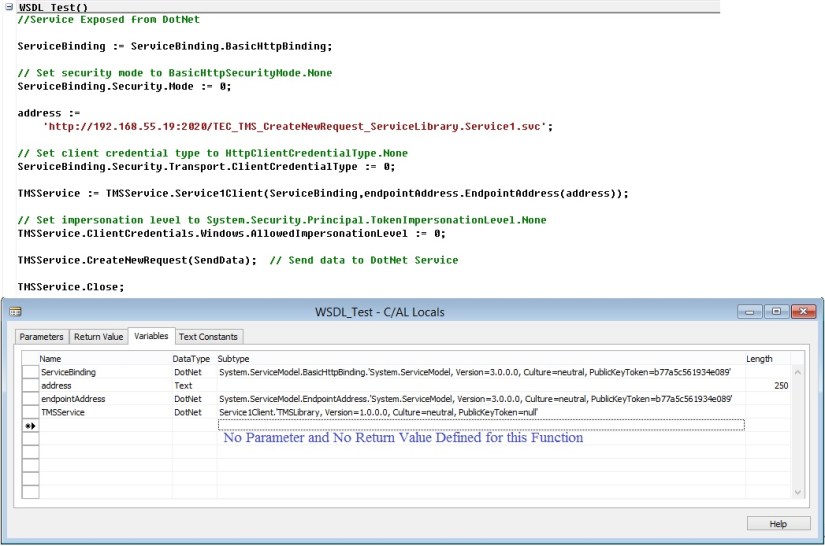
We will add the code similar to below. Description provided along with the code in below screenshot.

WebServiceUsage-17

Create a Function to Send Exported data from above function to the Web Service created outside the Navision. Web Service created in DotNet.

Here too we are using DLL file of the Outside Exposed Web Service.

Variables defined to the function is also shown in below screen.

We will add the code similar to below. Description provided along with the code in below screenshot.

WebServiceUsage-18

Now we have our both function ready.

One which Export data consuming the Navision Published Web Service and then read the data in BigText Variable and finally converted to Text variable.

Second one will send data consuming the Web Service Exposed outside Navision created in DotNet. 

Let us test our process if it works as desired.

We will call above both function.

When we call First Web Service as a result we get the XML format file data in my Global defined Text Variable.

We will review the data which we are going to send to Second Web Service on Screen for which we are simply calling the Message.

Finally we will send the data to the Second Web Service, the content of XML file stored in our Global Variable.

Code we use is as below shown screenshot.

WebServiceUsage-19

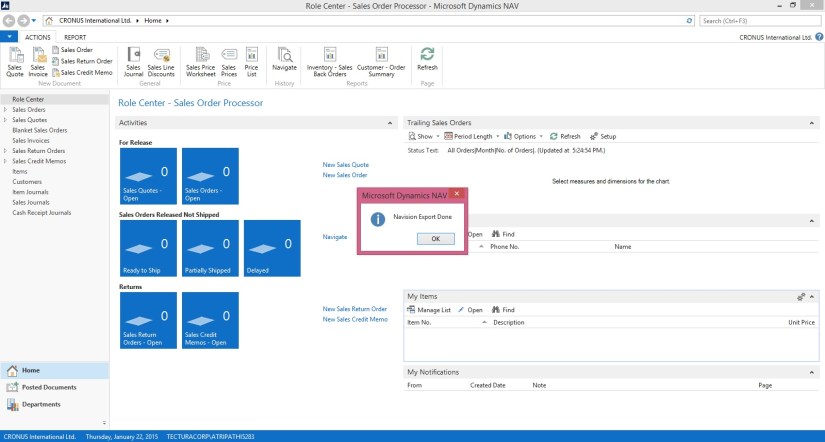
Save the codeunit and execute, as we have written our test code in Run trigger so we can directly run this codeunit.

The output will be as shown in below screenshots.
Until this step our Data is Exported and data is loaded in Global defined Text variable.

WebServiceUsage-20

Here the content of Text variable is shown in Message window, which we can verify the data which we are going to send to the external Web Service.

WebServiceUsage-21

As a final step we are sending this content to the External Web Service Exposed using DotNet.

WebServiceUsage-22

Verify the data received at the DotNet side. You can program the Second Web Service as save the content on disk as file or perform any processing like inserting those data in some other table or displayed on screen. 

That’s it for this series.
I will be posting couple of more posts on Web Services soon.

Since this was in response of request from one of my reader so I stick to the requirement.

In my other post I will show some different flavour of using the same.

Till then keep exploring and learning.

Will be back with other posts soon.

Development Tips, How To, Tip & Tricks, Web Services

Exposing & Consuming the Web service from & inside Navision – Part-3


Continuing from my previous post. Find the link to access the same in case you missed it.

Exposing & Consuming the Web service from & inside Navision – Part-1

Exposing & Consuming the Web service from & inside Navision – Part-2


Step 4: Create a DLL to use as Add-in to consume the Web Service itself in Navision.

We will start with Class Library Project in Visual Studio.

It’s very simple with few steps to follow, and we will be done with our requirement.

Enter Name and select the path for your project solution folder. In my case I am saving my project to the default location of Visual Studio. And I am naming my project as XMLData.

WebServiceUsage-8

Right click on the project folder and Add Service reference to the project.

WebServiceUsage-9

Enter your Web Service URL and click on GO.

Once your Service is listed, enter the Reference Namespace. And click on OK to add the Service Reference to the project.

WebServiceUsage-10

Click on app.config in Solution browser to open.

Verify your code similar to below.

WebServiceUsage-11

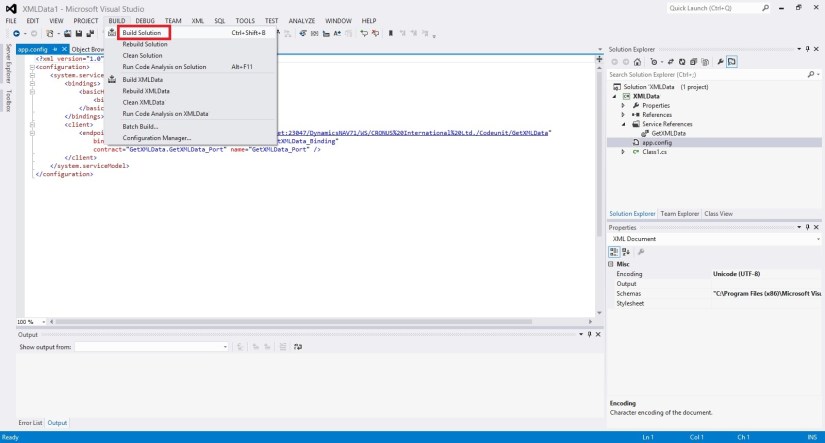
Build your Project to obtain the .dll file.

WebServiceUsage-12

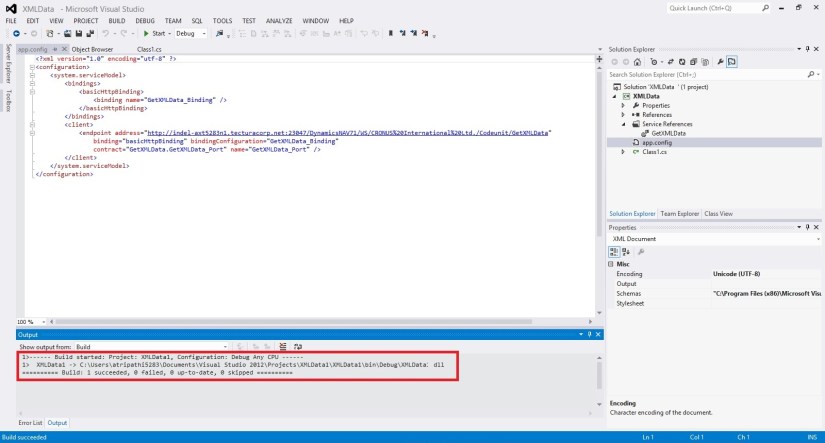
Below screen shows we have no errors and the .dll file is created successfully.

WebServiceUsage-13

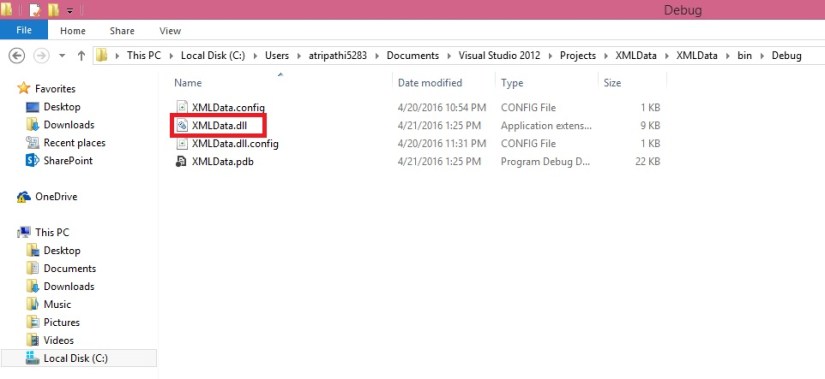
Locate the .dll file in your Project folder similar to path shown below. Copy your dll file.

WebServiceUsage-14

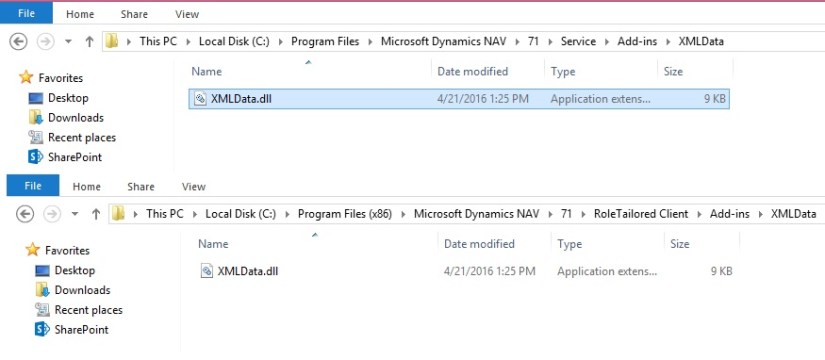
Create a folder and paste your .dll file to Service & RTC folder, as shown in below screen.

WebServiceUsage-15


We are ready with the Add-in, which we will use in our next post to consume our service with the help of this dll, and call the method to obtain our file for further processing.

That’s all for this post, I will be back with next post in series soon.

Till then keep practicing.


To be Continued….