Report

Word Document Reports and Custom Layouts

Reporting functionality has been greatly improved in Microsoft Dynamics NAV 2015 by adding support for defining report layouts in Word, and enabling end users to create custom RLDC and Word layouts for their reports. These two features make it easier to create visually pleasing document reports, as well as allow end users to modify reports to their liking with as little partner involvement as desired.

Today I am sharing again all the posts from earlier archive, if you missed you can find all of them below.

Soon I will come up with more posts on this topic. Till then go through below links and develop your skills so that we can take up few more complex ones.

  1. How many types of Layout is supported in NAV 2015?
  2. How to. Specify the Default Built-in Report Layout
  3. Import and Export a Word Report Layout
  4. Add Fields from a Report Dataset to a Word Report Layout
  5. Adding Image Fields
  6. Removing Label and Data Fields
  7. To create a Word report layout for a report
  8. Designing Report Layouts from the Microsoft Dynamics NAV Development Environment
  9. Creating my first Word List Report in Navision 2015
  10. To modify the Word report layout
  11. Creating Custom Word Layout for Document Reports in Navision 2015
  12. Creating Word Mail Merge Report in Microsoft Dynamics Navision 2015
  13. The New Report Scheduling feature for end users running reports in Microsoft Dynamics Navision 2015
Report

Creating Custom Word Layout for Document Reports in Navision 2015

Open the MS Office Word.

File -> New and type Invoice in search and press enter to list available Invoice Templates.

Document Reports -1

In my example I am using [Sales Invoice (Blue Border Design)]

Document Reports -2

Select Create to download the template and create a document for you.

Your new document created from this template will look as below:

Document Reports -3

Prepare the Layout by removing extralines as we will be using repeating lines for Lines.

Save your Template.

I have made a copy of Report 206 – Sales – Invoice on new ID say (50005 as Sales – Invoice Word).

This report dosen’t have Word Layout. We will be creating one Customize Layout form above saved Invoice above. [Sales Invoice (Blue Border Design)]

Open Report Layout as shown in below Screen:

Document Reports -4

Document Reports -5

Slect the Report and choose Custom Layout as shown in above screen.

Document Reports -6

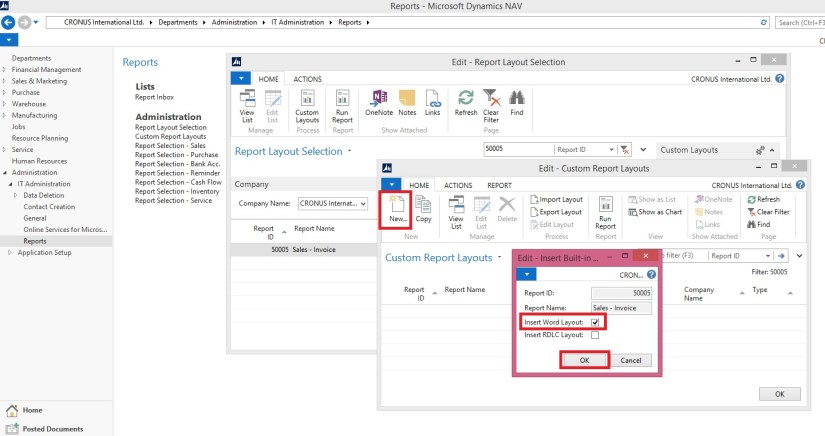
In Custom Report Layout Window Click on New.

From window Insert Build-in Layout for Report Select Insert Window Layout and click OK button.

Document Reports -7

From Custom Report Layout window Select Import Layout, Select your word file prepared above and Respond Open to Import.

Document Reports -8

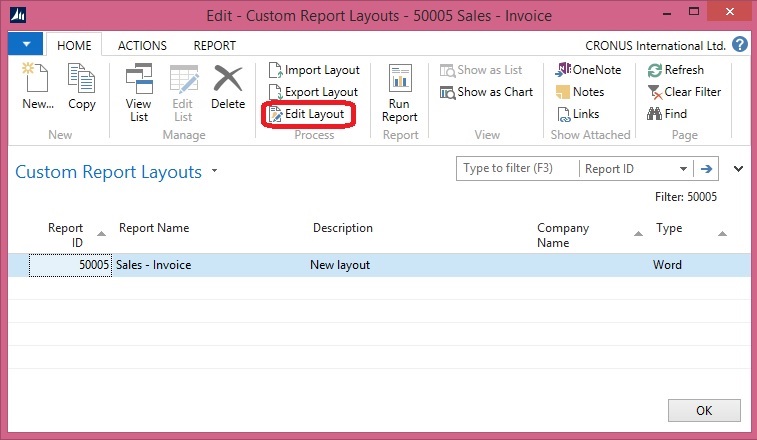
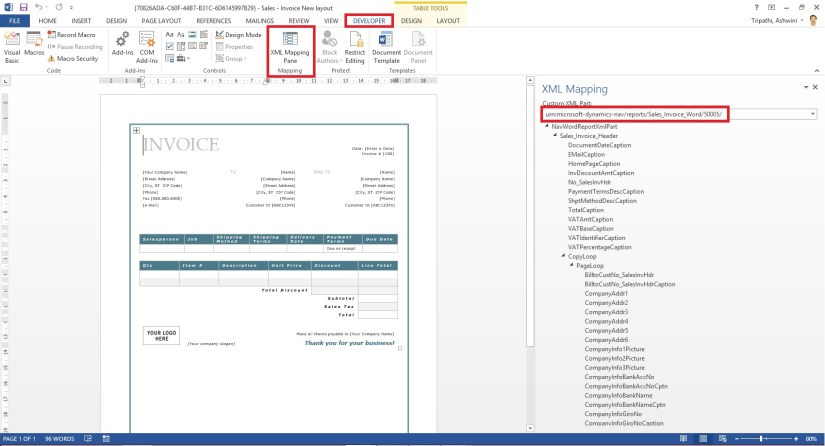
Then, press Edit Layout and prepare layout on Developer tab, find XML Mapping Pane and find your document in Custom XML Part.

Now, you can find all fields from Dataset.

Document Reports -9

Please see below links to complete your report:

Adding image fields

Add fields from a report dataset to a word report layout

Creating my first word list report in Navision 2015

How to specify the default built in report layout

Create a word report layout for a report

Once you are done with your field assignment close the word layout.

Document Reports -10

Select Yes to import changes to the report.

Document Reports -11

Select Run Report to view the output of your report.

Now you are done with your Custom Report Layout.

Please see sections which will be more helpful to complete your task:

Reports

Report

Creating Word Mail Merge Report in Microsoft Dynamics Navision 2015

Today we will see Mail Merge feature in Word Report.

I would suggest to please go through my earlier post for creating simple List Report for better understanding as some parts I will be skipping in this post assuming you have already learned from my previous post.

Here is the Quick Link : [ Creating My First List Report in Navision 2015 ]

Lets assume ever month we require to send a Reminder Letter to our Customers for Due Payments.

Now we can design such report at customer ease.

Lets Start with creating a new Report.

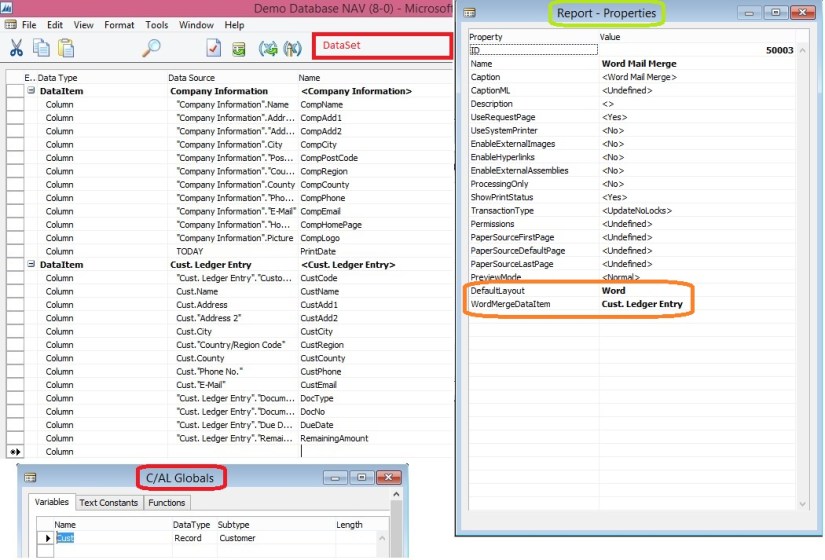
Add the Data Items and desired columns as one shown below.

Add appropriate filters on Data Items, I have added [ Open = Yes, Document Type = Invoice, Remaining Amount > 0, Due Date <> ‘ ‘] you select your own as desired.

Set the Report Properties as shown in below screen.

Define Global Variables as shown in below screen.

We have Included WordMergeDataItem as Cust. Ledger Entry. This will set the table to loop for records.

Each records will be considered as New Page for the Report.

Word Mail Merge -1

In this report we are using Include Caption which will include caption for each required columns from one defined in respective table.

Add this property for each required column.

Add the code to the Data Item Trigger to fetch Customer Information for each record.

Word Mail Merge -2

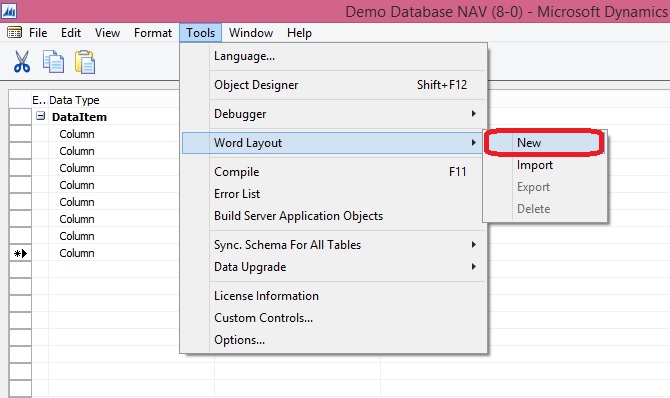
Insert New Blank Word Layout to the Report.

Word Mail Merge -3

Export the Layout Template and Save.

Word Mail Merge -4

Open saved Layout Template in Word.

In below screen each component is shown, refer to earlier post Creating List Word Report, Link provided above for better understanding.

In this report Label is included as we have set property for each column to include caption.

Word Mail Merge -5

Design the sample Letter as one shown below.

I have highlighted all the Dataset Columns/Fields in yellow.

How to add fields please refer to earlier post Creating Word List Report, Link provided above.

Word Mail Merge -6

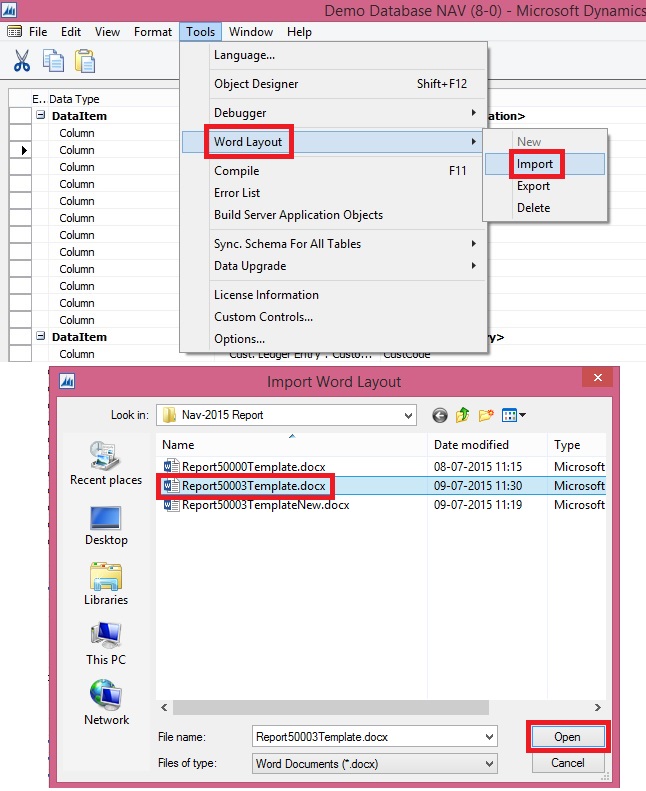
Now Save the Template and Import into the Report.

Word Mail Merge -7

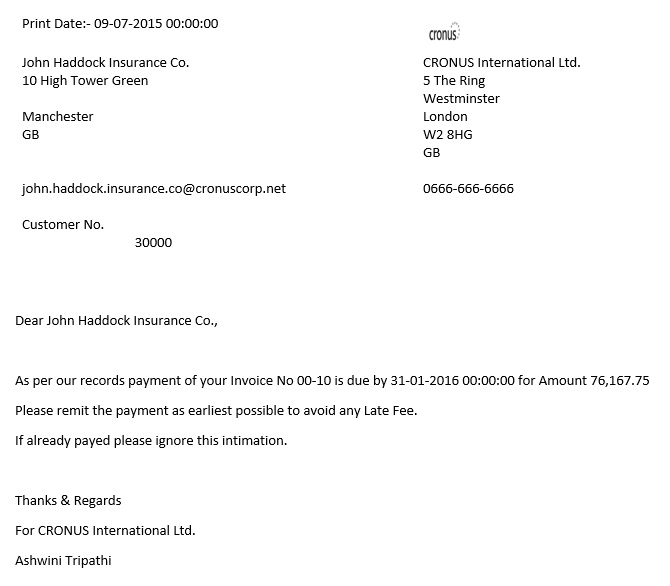
Here is the out put from the report as below.

Each page will contain data as per in Customer Ledger Entry Due Payment Records.

Word Mail Merge -8

We are done !!!

You can use formatting feature of Word to add more better look to your Report as desired.

Stay tuned for more in upcoming posts.

Don’t forget to follow the Blog Site for future posts.

Report

Creating my first Word List Report in Navision 2015

Today we will learn creating Word List Report in Navision 2015.

Prepare the Dataset for Report as below, to keep it simple I am creating List report for Item Inventory.

I am adding one additional field for Company Logo from Company information.

Make sure you add calcfields code for Picture from Company information.

—————————————————

I have added below piece of code in [ Item – OnPreDataItem() ]

CompInf.GET;
CompInf.CALCFIELDS(Picture);

—————————————————

Word Report Design 1

Place the cursor on Blank Line and open Report Properties and add DefaultLayout Property.

Word Report Design 2

Next we will Add a Blank Word Layout to the Report, Step as below.

Word Report Design 3

Confirm the action by responding OK to the Dialog Box.

Word Report Design 4

Now Export this Blank Template

Word Report Design 5

and save as docx file (MS Word File)

Word Report Design 6

Open the Exported Template in Word.

Click on DEVELOPER Menu.

From Ribbon click on XML Mapping Pane.

Word Report Design 7

You will now be able to see XML Mapping Pan which contains your Dataset for the Report.

Click to the Dropdown List and select entry containing your Report Name & ID.

Word Report Design 8

Now you will be able to access your Dataset with Table & Fields details. As shown in below screen.

Word Report Design 9

Place the cursor on top (or wherever desired) of the document to add Logo to the Report.

Select the Picture Filed from the Dataset -> Right Click -> Insert Content Control -> Picture.

See below screen for details:

Word Report Design 10

You will see the Place holder for the Picture.

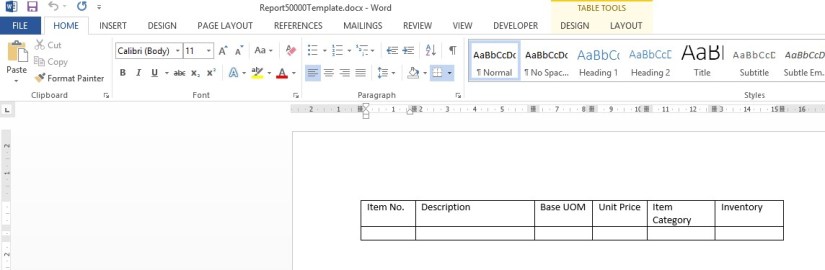
Now add Table with 2 Rows ( 1 for Header & 1 for Data) and 6 columns.

We have six columns in our dataset excluding Logo.

Word Report Design 11

Add your Header for the table, We are using fixed Text Heading as of now but you can add captions from your dataset.

In current report I have not included we can check same in some other report posts.

Word Report Design 12

Select Entire 2nd Row and Add Repeating Content Control for Item (Table).

As this will show records from the table Item we included in our Dataset.

Word Report Design 13

Now in each column add your columns from Dataset as shown below.

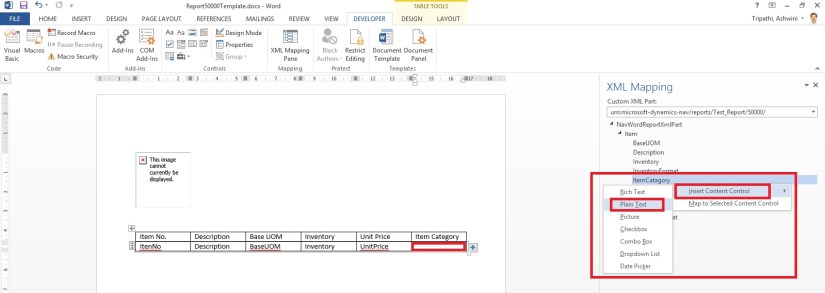
Place your cursor in each column and choose Insert Content Control -> Plain Text.

Word Report Design 14

Now our Report is almost ready.

May be the Report have data which may continue on several pages, in this case our Heading Row must Repeat on every new Page. To do this we will Select the entire 1st Row -> Right Click -> Table Properties.

Go to Row Tab of Property window and put a checkmark on option “Repeat as header row at the top of each page

Word Report Design 15

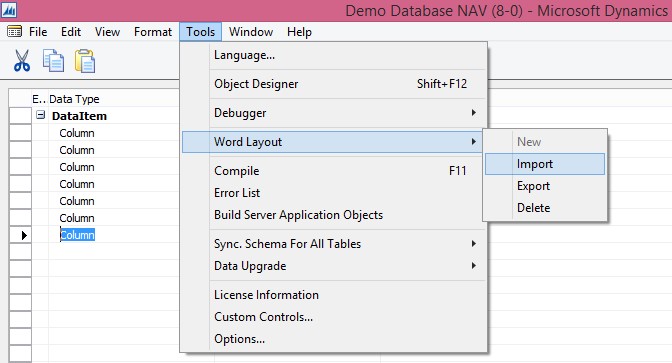
Save your Word Template an Import back in your report as shown below.

Word Report Design 17

Now Save the Report and Execute it.

Here is the Output below of the Report.

Word Report Design 16

We are done !!!

You can use formatting feature of Word to add more better look to your Report as desired.

Stay tuned for more in upcoming posts.

Don’t forget to follow the Blog Site for future posts.

Office Integration

OFFICE 365 INTEGRATION IN NAV 2015 – Word/Excel/SharePoint

If you have signed up for Office 365, Microsoft Dynamics NAV can use this service to open and save documents. For example, when you export a report to Excel and save it on Office 365, Microsoft Dynamics NAV can use Excel Online that your Office 365 account uses to open the document.

Before you can use Office 365 and SharePoint Online with Microsoft Dynamics NAV, you must configure the service in Microsoft Dynamics NAV.

If you want to use the same folder to store temporary files for all users, you must specify a shared user account. Otherwise, each user’s temporary files are stored in their personal document repository on the SharePoint site.

Let us first understand the details before we start with Setup for SharePoint Shared Folder.

Your IT can help you configuring and assigning suitable rights to access. Although you can explore and help yourself. Since we are concentrating on Navision so we will not go in details for Share point.

Just to make understand I will be only covering top level information.

In this example I assume you already have up and running site for Document Sharing in SharePoint 2013 – 365 Online.

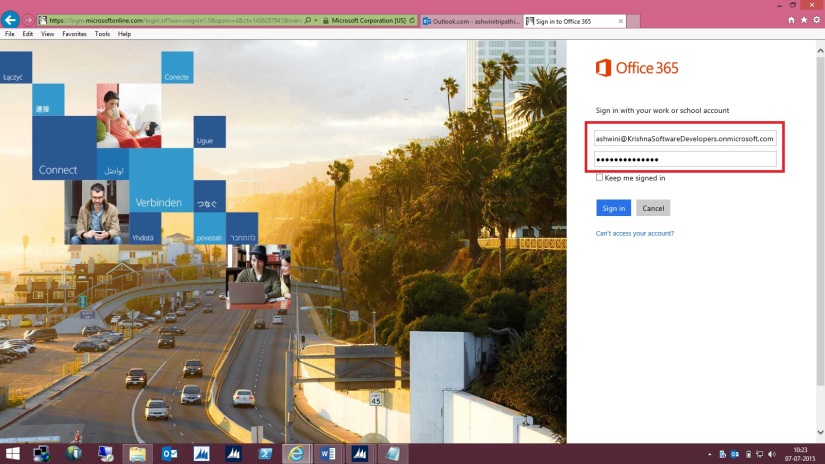
Here I am logging in to Office 365 – Online registered by me for demo purpose. You can register for free trial to explore the same in more details.
SharePoint-1

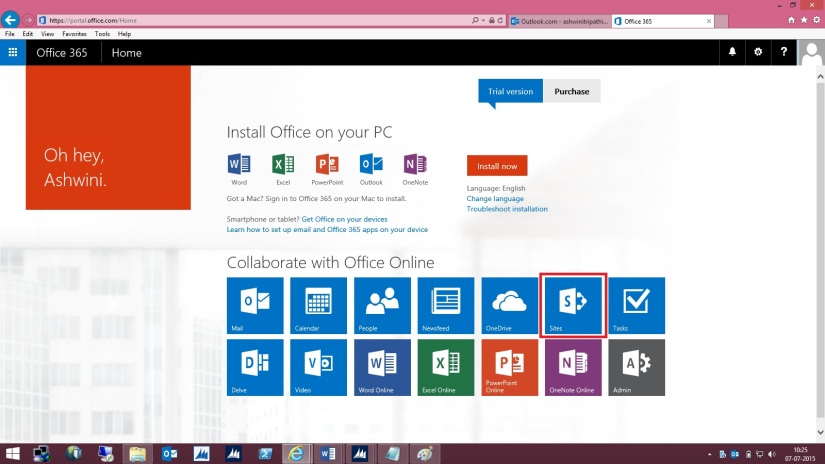
My Opening screen looks as one below.
SharePoint-2

I select SharePoint Site to continue. Below is my SharePoint Opening screen. I will select my site which I have created for this demo and file sharing with other users in my organization.

SharePoint-3

Let us understand different parts which will help configuring our Online Document Storage Configuration in Navision 2015.
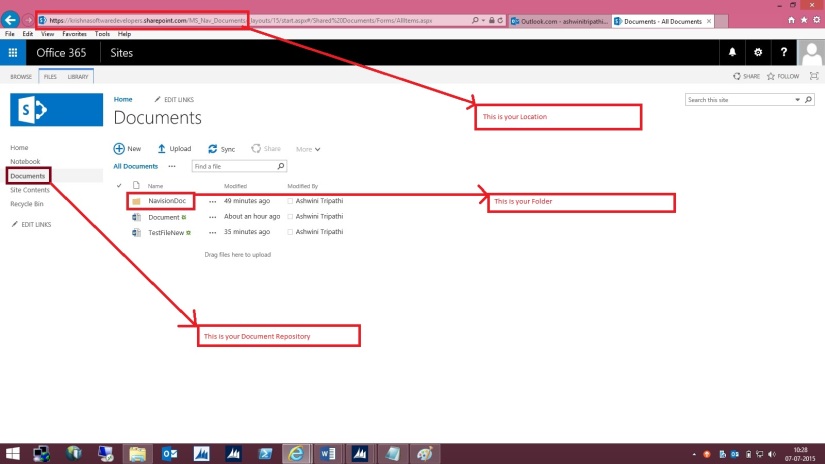
SharePoint-4

Here I am in my Folder at Lower level where all my files will be stored and shared with my other colleges.
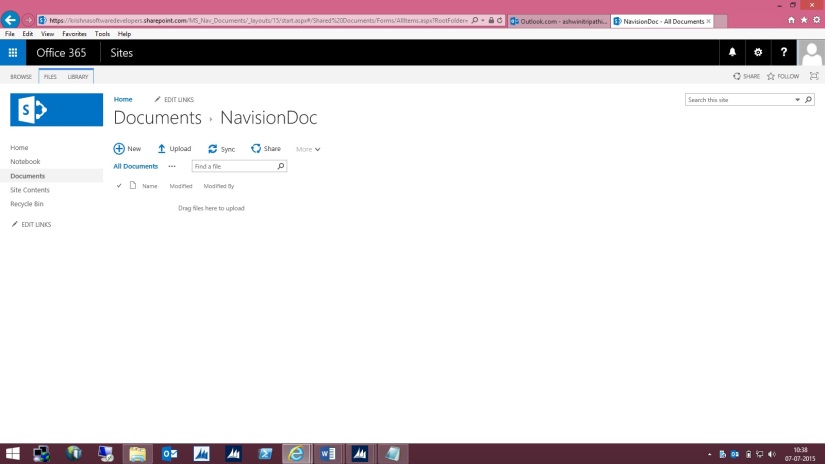
SharePoint-5

Open “Online Document Storage Configuration” from path shown in below screen.
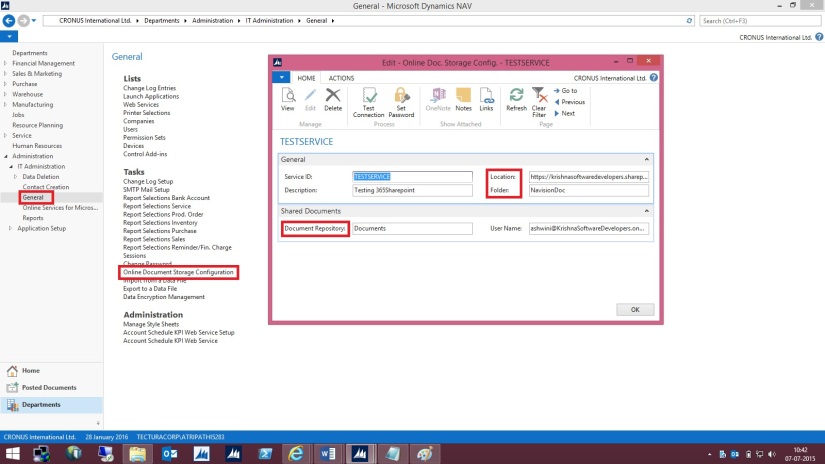
SharePoint-6


Specify the Service Name of your choice or use Default provided by the System.


Fill the Location to your SharePoint site: Specifies the unified resource indicator (URI) for your site on SharePoint Online, such as [https://krishnasoftwaredevelopers.sharepoint.com/MS_Nav_Documents] in my case I will use this.


Fill the Folder field which specifies the folder in the document repository for this document service that you want documents to be stored in.


This field is required. If you have not already created a subfolder in your document repository, you must create one now, and then specify it in the Folder field.


The Document Repository field includes the top-level folder in the document repository that your document service provides. The Folder field specifies a subfolder so that you can keep business documents and drafts separate from pictures and other shared documents.


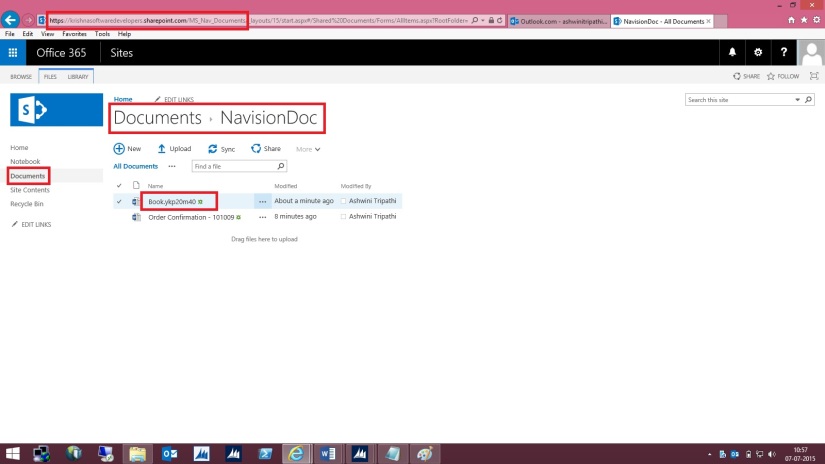
For example, if the Document Repository field is set to [Documents], the Folder field can be set to [NavisionDoc] as per my example discussed above.


When a user exports data to Excel, for example, Microsoft Dynamics NAV saves the temporary file at the location that is specified in the Document Repository and Folder fields, such as

[https://krishnasoftwaredevelopers.sharepoint.com/MS_Nav_Documents/Documents/NavisionDoc]


Fill Document Repository field: Specifies the name of the document library, such as [Document]


Fill User Name field: Specifies the account that Microsoft Dynamics NAV Server must use to log on to the document service.


I would recommend that you specify a different user name than the administrative account. This helps reduce the risk of users accessing administrative settings, for example. For example, if your user name as an administrator is Administrator@KrishnaSoftwareDevelopers.onmicrosoft.com,

then the user name for Microsoft Dynamics NAV Server can be Nav@KrishnaSoftwareDevelopers.onmicrosoft.com or any of the regular user names that you have created.

SharePoint-7


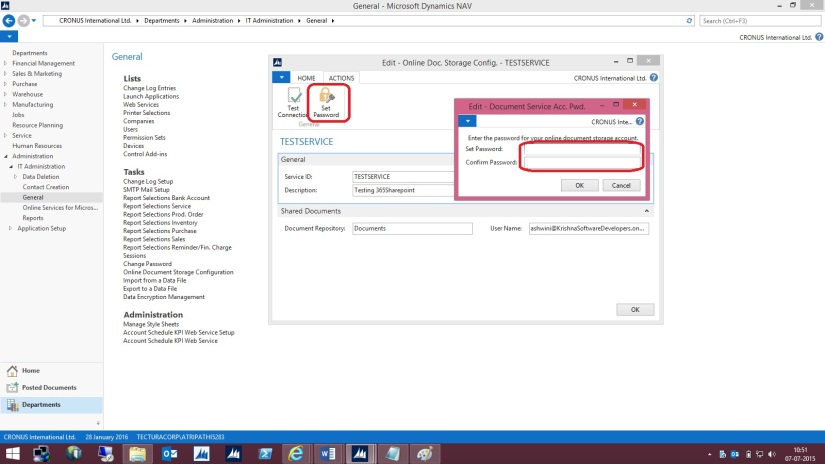
On the Actions tab, in the General group, choose Set Password.


In the window that appears, specify and confirm the password for the account    that you specified in the User Name field. Choose the OK button.


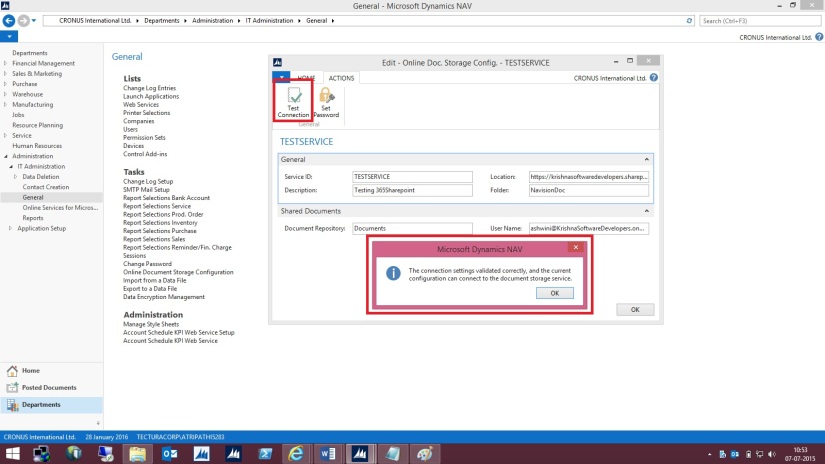
When you have set up the service, you can test whether that configuration is valid.
SharePoint-8


On the Actions tab, in the General group, choose Test Connection.


A message displays the result of the test.
SharePoint-9


The above message confirms we can now save documents on our SharePoint.


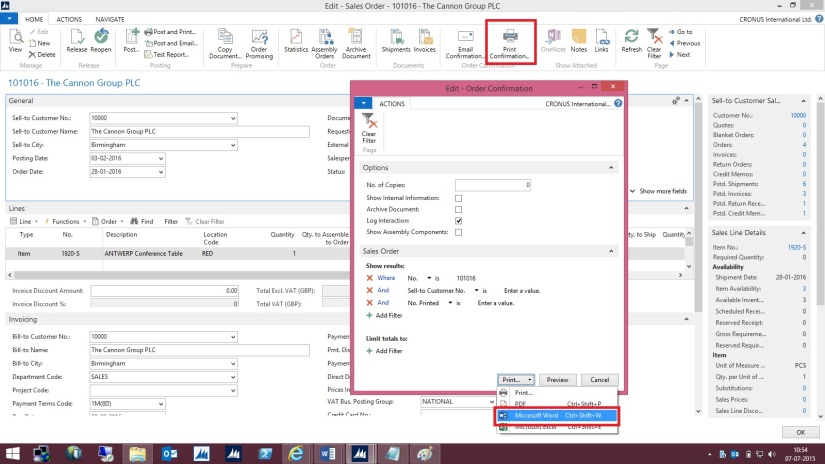
Let us check a sample as below:
Open the Document and Execute the report available.
While Running the Report I specify I want to Print with Microsoft Word.
SharePoint-10


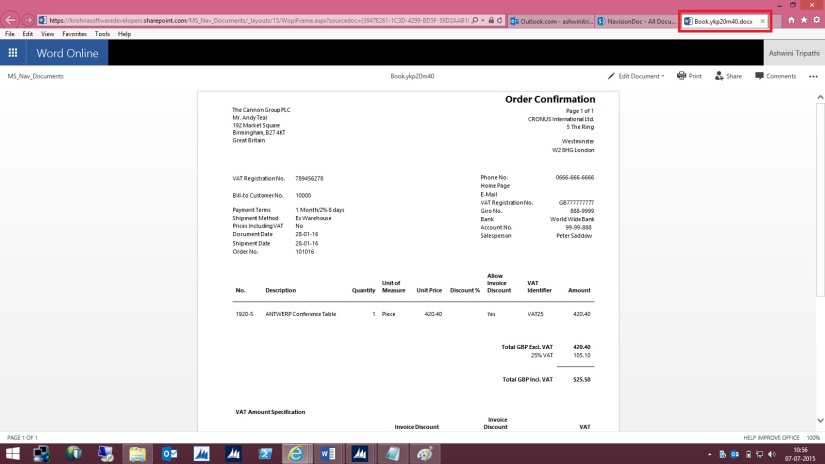
Document will be generated and opened in Word – Office – 365. Temp file name is given to the file. Close the File as it is auto Saved by Office 365 Word Application.
SharePoint-11


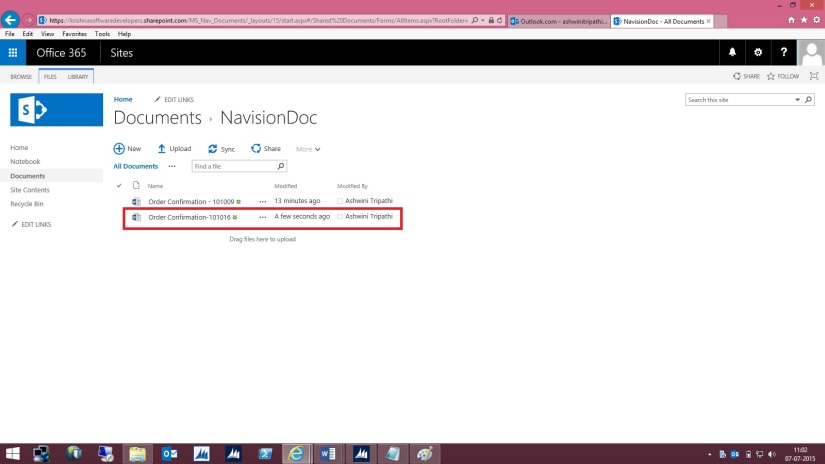
Browse to your SharePoint Folder configured above, you will see the Word file is now available in this Folder.
SharePoint-12


Right Click on Name of the File and Rename with some meaning full Name as shown below.

SharePoint-13


Give the Name to the File and press Save Button.
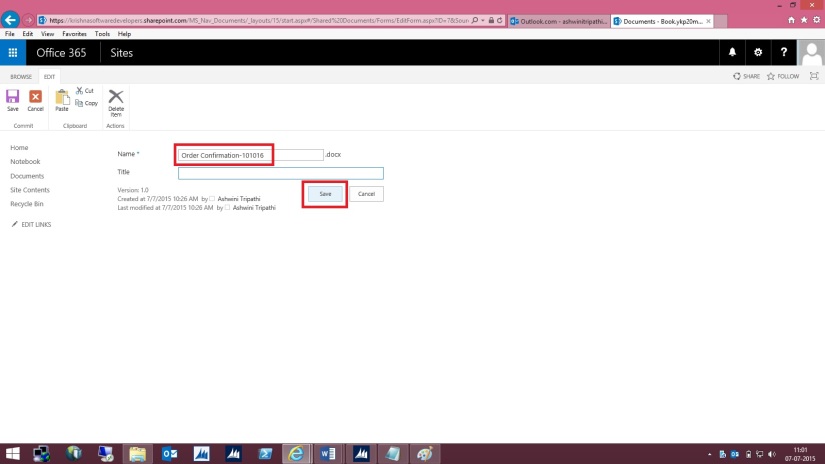
SharePoint-14


Here is the File after Rename.

SharePoint-15


This way when ever you Print your document from Navision in Word or Excel it will get saved in this Folder.

By setting appropriate access rights you can share the files between you colleges in your Organization.

 Please check SharePoint stuffs with you admin or appropriate authority in your organization.

Report

Designing Report Layouts from the Microsoft Dynamics NAV Development Environment

After you have created a dataset for a report, you design the report layout. The report layout determines how the report looks when it is viewed, printed, and saved from the Microsoft Dynamics NAV client. The report layout specifies which fields of the dataset are included in the report and how they are arranged, the format of text that appears on the report (such as font type and color), margins, background images, and more.

You generally display most data in the body of a report, and you use the header to display information before any dataset fields are displayed. For example, you can display a report title, company, and user information in the header of a report.

Report Layout Types

There are two types of report layouts: Word and Client Report Language Definition (RDLC). Word report layouts are based on a Word document (.docx file type) and are created and modified by using Word 2013. RDLC report layouts are .rdlc or .rdl file types that are created and modified by using Visual Studio 2013 or SQL Server Report Builder 3.0.

Built-in and Custom Report Layouts

In the Microsoft Dynamics NAV Development Environment, you can create both an RDLC report layout and Word report layout on a report. These layouts are referred to as built-in layouts because they are part of the report object in the database. This means, for example, if you export the report object as a .fob or .txt file, the RDLC report layout and Word report layout are included. A report can only have one built-in RDLC report layout and one built-in Word report layout. By default, the built-in RDLC report layout is used when the report is run in the Microsoft Dynamics NAV client unless there is only a built-in Word report layout, in which case, the built-in Word report layout is used.

Microsoft Dynamics NAV users can specify whether to use the built-in RDLC or Word report layout on a report from the Microsoft Dynamics NAV Windows client and Microsoft Dynamics NAV Web client. From the client, users can also create custom report layouts that are based on the built-in report layouts. This enables users to have several different layouts for the same report which they can switch among. Custom report layouts are managed from page 9650 Report Layouts in the Microsoft Dynamics NAV client. Unlike built-in report layouts, which are part of the report object, custom report layouts are stored in table 9650 Report Layouts of the database.

Report Layouts in a Multitenant Deployment

In a multitenant Microsoft Dynamics NAV deployment, the built-in report layouts are stored in the application database because they are part of the report objects. Therefore, built-in report layouts are available to all tenants. Custom report layouts are stored in the business data database; therefore they are specific to the tenant. This enables you to create separate report layouts for each tenant.

Report

Removing Label and Data Fields

Label and data fields of a report are contained in content controls in Word. The following figure illustrates a content control when it is selected in the Word document.

Label

The name of the label or data field name displays in the content control. In the example, the field name is CompanyAddr1.

To remove a label or data field

  1. Right-click the field that you want to delete, and then choose Remove Content Control.
  2. RemoveContentControl
  3. The content control is removed, but the field name remains as text.
    Delete the remaining text as needed.
Report

Import and Export a Word Report Layout

From the Microsoft Dynamics NAV Development Environment, you can import and export built-in Word report layouts of report objects as Word document files (.docx file type). This enables you to modify a built-in Word report layout on a report. For example, you can export a built-in Word report layout to a file on your computer or network. Then, you open the file in Word and modify the report layout. Finally, you import the file back to the report object. The existing built-in Word report layout on the report is overwritten by the content in the imported file.

To export a Word report layout from a report to a file

  1. In the development environment, open the report in Report Dataset Designer as follows.
    1. On the Tools menu, choose Object Designer.
    2. In Object Designer, choose Report, select the report, and then choose the Design button.
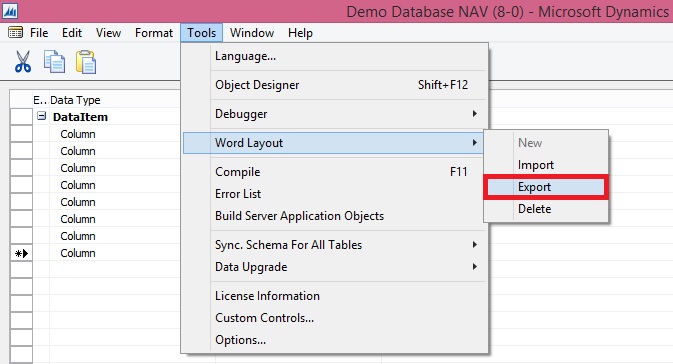
  1. On the Tools menu, choose Word Layout, and then choose Export.

Export

  1. Browse to the location where you want to save the exported file, and then choose the Save button.

To import a Word report layout from a file into report

  1. In the development environment, open the report in Report Dataset Designer as follows.
    1. On the Tools menu, choose Object Designer.
    2. In Object Designer, choose Report, select the report, and then choose the Design button.
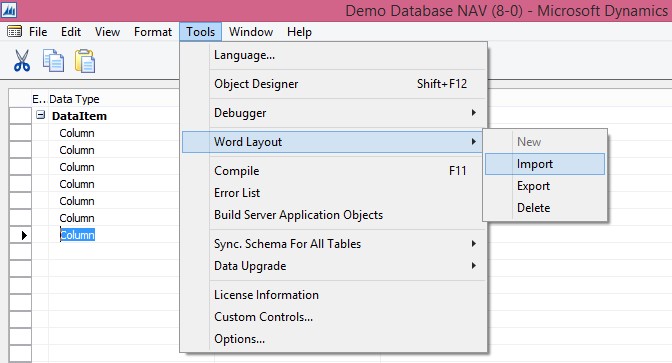
  1. On the Tools menu, choose Word Layout, and then choose Import.

Import

  1. Locate the file that you want to import, and then choose the Open
Report

Add Fields from a Report Dataset to a Word Report Layout

A report dataset can consist of fields that display labels, data, and images. This topic describes procedure for adding fields of a report dataset to an existing Word layout of a report. You add fields by using the Word custom XML part for the report and adding content controls that map to the fields of the report dataset.

To display the Custom XML part for the Report in Word

  1. Open the Word report layout document in Word for editing.
  2. Show the Developer tab in the ribbon of Word.

By default, the Developer tab is not shown in the ribbon.

  1. On the Developer tab, choose XML Mapping Pane.
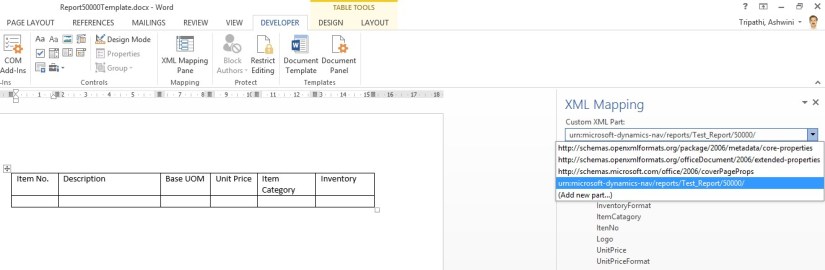
  2. In the XML Mapping pane, in the Custom XML Part list, choose the XML part for Microsoft Dynamics NAV report. The name of the XML part has the following format:

urn:microsoft-dynamics-nav/reports/report_name/ID

report_name is the name that is assigned to the report as specified by the report’s Name Property.

ID is the identification number of the report.
XMLDataSet
After you select the XML part, the XML Mapping pane displays the labels and field controls that are available for the report.

To add a label or data field

  1. Place your pointer in the document where you want to add the control.
  2. In the XML Mapping pane, right-click the control that you want to add, choose Insert Content Control, and then choose Plain Text.

AddDataField

Note

You cannot add a field by manually typing the dataset field name in the content control. You must use the XML Mapping pane to map the fields.

To add repeating rows of data fields to create a list

  1. If not already existing, add a table row that includes a column for each field that you want repeated.

This row will act as a placeholder for the repeating fields.

  1. Select the whole row.
  2. In the XML Mapping pane, right-click the control that corresponds to the report data item that contains the fields that you want repeated, choose Insert Content Control, and then choose Repeating.

AddRepeatingField

  1. Add the repeating fields to the row as follows:
    1. Place your pointer in a column.
    2. In the XML Mapping pane, right-click the control that you want to add, choose Insert Content Control, and then choose Plain Text.

InsertContentField

  1. For each field, repeat steps a and b.
Report

To modify the Word report layout

1. In the development environment, export the Word report layout as a Word document file to your computer or network.

Export Word Template

2. Open the Word document file in Word 2013 and make changes.


To make basic layout changes, such as adding or removing tables and cells, formatting text, or changing margins, use the editing features of Word.

Open Word Template


To add fields from the report dataset to the layout, use the custom XML part for the report to add content controls that map to the fields.

AddFields


3. Save your changes, and then close the Word report layout document.
4. Import the Word document into the report.


Import Word Template