Development Tips

Creating File Attachment to Mail for Report

We generally get requirements from clients to send report output as attachment to the mail.

In Microsoft Dynamics Navision 2015 this feature is available at most of the places, but we can design for other earlier versions too.

Long-time back I was having this requirement from one of my client, those days I scanned lots of website and tried lots of method. This one I found compact and easy to use. Their after whenever I get similar requirements I prefer using this.

Today I wish to share the same with others, as I have used it in my several implementations and found it working perfect and tested with several clients.

Let’s see this, it could help someone getting his work done in easy way and can save lots of time from hit and try with several methods.

First step, I will create a function which will help us generating the file on Service tier and down load to local temporary folder, so that we can easily access and attach to our mail.

Let’s give it a meaningful name like: DownloadToClientFileName

I will define two parameters for this Function as below:

Var Name DataType Subtype Length
No ServerFileName Text 250
No ToFile Text 250

I will define Return Value of Function as: Text of Length 250

I will define Local Variables for Function as below:

Name DataType Subtype Length
ClientFileName Text 250
objScript Automation ‘Microsoft Script Control 1.0’.ScriptControl
CR Text 1

Now we will write Code for the Function as below:

ClientFileName := ToFile;

IF NOT DOWNLOAD(ServerFileName, ”, ‘<TEMP>’,”, ClientFileName) THEN

EXIT(”);

IF CREATE(objScript,TRUE,TRUE) THEN

BEGIN

CR := ‘ ‘; CR[1] := 13;

objScript.Language := ‘VBScript’;

objScript.AddCode(

‘function RenameTempFile(fromFile, toFile)’+CR+

‘set fso = createobject(“Scripting.FileSystemObject”)’+CR+

‘set x = createobject(“Scriptlet.TypeLib”)’+CR+

‘path = fso.getparentfoldername(fromFile)’+CR+

‘toPath = path+”\”+left(x.GUID,38)’+CR+

‘fso.CreateFolder toPath’+CR+

‘fso.MoveFile fromFile, toPath+”\”+toFile’+CR+

‘RenameTempFile = toPath’+CR+

‘end function’);

ClientFileName := objScript.Eval(‘RenameTempFile(“‘+ClientFileName+'”,”‘+ToFile+'”)’);

ClientFileName := ClientFileName+’\’+ToFile;

END;

EXIT(ClientFileName);

Second Step, I will write code to call this function to attach the file to Mail and send using SMTP as below:

//SMTP is an Variable of Codeunit SMTP Mail

SMTP.CreateMessage(SenderName,SenderAddress,Recipient,Subject,Body,TRUE);

//SenderName,SenderAddress,Recipent is an email addresses

SMTP.AppendBody(Body);

CLEAR(MailReport);

//MailReport is Variable for Report of which output we want to use as attachment.

//Name & ToFile is Text type variable of Length 250

Name := STRSUBSTNO(‘Estimate No. %1.pdf’, SalesHeader.”No.”);

//Creating File Name

ToFile := Name;

FileName := TEMPORARYPATH + ToFile;

//We are using temporarypath OS Variable to get the path for file

MailReport.SetMailFilters(SalesHeader);

MailReport.SAVEASPDF(FileName);

ToFile := DownloadToClientFileName(FileName, ToFile);

SMTP.AddAttachment(ToFile);

FILE.ERASE(FileName);

SMTP.Send;

Now you can create a template function and use where ever require.

Functional Tips

Defining Discount & Sales Price for an Item

This set of demonstration will present the new, simplified way of setting sales prices and discounts for items in Microsoft Dynamics NAV 2015.
SPND-1

  • On the Role Center, choose Items to open the list of existing items.
  • Select item 1000, and then, on the Home tab, in the Manage group, choose Edit.
  • In the Item Card window, on the Sales Prices and Line Discounts FastTab, create a new line.

SPND-2

Set a Discount for an Item

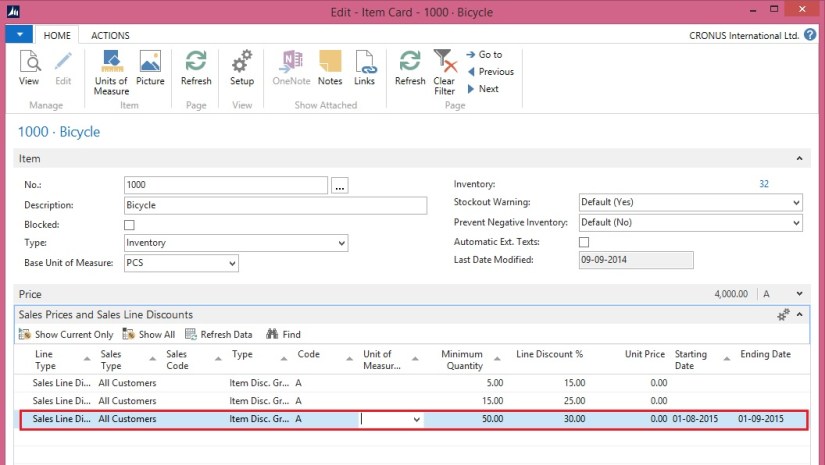
  • On the line, set the following values:

Line Type: Sales Line Discount

Sales Type: All Customers

Type: Item Disc. Group

Minimum Quantity: 50

Line Discount %: 30.00

Starting Date: August 1 2015.

Ending Date : Sep 1 2015

  • Choose the OK button

Pick an existing item, for example, item number 1000.

Set a 30 percent line discount for the item for all customers who buy 50 or more of these items in one invoice. The discount will be valid from Aug 1, 2015 to Sep 1, 2015.
SPND-3
Set a Sales Price for an Item

  • On the line, set the following values:

Line Type: Sales Price

Sales Type: Customer

Sales Code: No. 10000

Type: Item

Minimum Quantity: 30

Unit Price: 3200.

  • Choose the OK button

Pick an existing item

Set a lower sales price for this item, for a specific customer, with the condition that the customer buys 30 or more of these items in one invoice.
SPND-4

Report

Managing Report Layouts

Microsoft Dynamics NAV 2015 enables reports to have a single built-in RDLC and Word layout, shared among tenants, as well as any number of customized layouts per tenant.

To browse and manage which layout is currently used for a given report, a new Report Layout Selection list page has been introduced.

We will use the Report Layout Selection page to switch between and run the RDLC and Word layouts that are shipped as part of the new Sales Invoice report 1306.

  • Open Report Layout Selection page by doing one of the following:
  • In the Search box, enter Report Layout Selection, and then choose the related link.
  • In the navigation pane, choose Departments, Administration, IT Administration, Reports, and then Report Layout Selection.
  • In the Small Business Role Center, on the Actions tab, choose Setup, Company Information, and then choose Report Layouts.
  • Ensure that the Company Name field is set to the correct company because reports layouts are company-specific.

ReportLayout-2

ReportLayout-3

The Report Layout Selection page lists all of the reports that are available for the company that is specified in the Company field at the top of the window.

The Selected Layout field specifies the layout that is currently used for a given report.

A report can be set up with more than one report layout, which you can then switch among as needed.

Depending on the layouts that are available for a report, you can choose to use a built-in RDLC layout, a built-in Word layout, or a custom layout.

From the Report Layout Selection page, it is also possible to manage custom layouts for reports.

  • In the list, locate the document report 1306 Sales – Invoice by doing one of the following:
  • Scroll down through the list.
  • Filter on the Report ID equal to 1306.
  • Select the row for report 1306.
  • Choose the down arrow in the Selected Layout field to show the options (RDLC, Word, and Custom).

ReportLayout-4

First we will have a look at the new report 1306 Sales – Invoice, which has a built-in RDLC and Word layout. Out of the box, it does not have any custom layouts – we will add these in later posts.

As you can see, the RDLC (built-in) is typically the layout that selected by default. This can, however, be controlled by using the Default Layout property on the specific report object in Microsoft Dynamics NAV Development Environment.

Notice that the page also contains a Custom Layouts FactBox. This lists any available custom layouts for a selected report in the list. If there are no custom layouts for the report, then you will have to create one first.

  • In the row for report 1306, set the Selected Layout field to RDLC (built-in).
  • On the Home tab, in the Report group, choose Run Report.
  • In the resulting report request page, use default values, and then select the Print button and choose PDF.
  • Open and inspect the resulting PDF file for report, which is based on the RDLC layout.

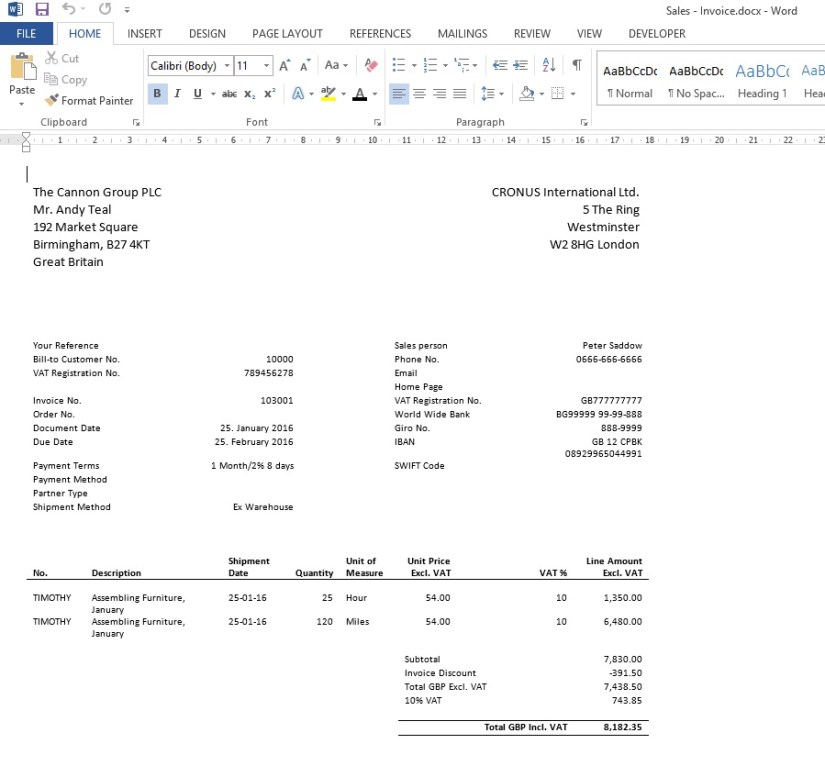
We will now select and run the built-in RDLC layout for report 1306 Sales – Invoice from the Report Layout Selection list page.

ReportLayout-5

ReportLayout-6

  • In the Report Layout Selection page, select the line for report 1306, and then set the Selected Layout field to Word (built-in).
  • On the Home tab, in the Report group, choose Run Report.
  • In the resulting report request page, use default values, and the select the Print button and choose PDF. [Note: This might not work for all client setups because it relies on server-side PDF conversion. As an alternative, use the Preview option on the request page, which will result in a Word document.)
  • Open and inspect the resulting PDF file for the report, which is based on the Word layout

Finally, we will change the layout to the built-in Word layout and then run the report.

ReportLayout-7

ReportLayout-8

Report

Using Report Selector to run Report

The required steps to use the reports are shown:

  • Open the Report Selection – for example Sales page by doing one of the following:
  • In the Search box, enter Report Selection – Sales, and then choose the related link.
  • In the navigation pane, choose Departments, Administration, IT Administration, and then Reports.

In the Report Selection – Sales window, do the following:

  • Set the Usage field to Invoice.
  • In the Report ID field, replace 206 with 1306 (an New Mini Document Report.in 2015)
  • Choose the OK button.

ReportSelector

Set up the report selection to run report 1306 instead of report 206 when printing invoices.

Report

Word Document Reports and Custom Layouts

Reporting functionality has been greatly improved in Microsoft Dynamics NAV 2015 by adding support for defining report layouts in Word, and enabling end users to create custom RLDC and Word layouts for their reports. These two features make it easier to create visually pleasing document reports, as well as allow end users to modify reports to their liking with as little partner involvement as desired.

Today I am sharing again all the posts from earlier archive, if you missed you can find all of them below.

Soon I will come up with more posts on this topic. Till then go through below links and develop your skills so that we can take up few more complex ones.

  1. How many types of Layout is supported in NAV 2015?
  2. How to. Specify the Default Built-in Report Layout
  3. Import and Export a Word Report Layout
  4. Add Fields from a Report Dataset to a Word Report Layout
  5. Adding Image Fields
  6. Removing Label and Data Fields
  7. To create a Word report layout for a report
  8. Designing Report Layouts from the Microsoft Dynamics NAV Development Environment
  9. Creating my first Word List Report in Navision 2015
  10. To modify the Word report layout
  11. Creating Custom Word Layout for Document Reports in Navision 2015
  12. Creating Word Mail Merge Report in Microsoft Dynamics Navision 2015
  13. The New Report Scheduling feature for end users running reports in Microsoft Dynamics Navision 2015
Functional Tips

Disabling the Stockout Warning Message – in Navision 2015

By default, Microsoft Dynamics NAV 2015 is set up so that you get a warning message when you enter sales invoice lines with items that are not on stock.

In this scenario, you will learn how to disable this warning in the Sales & Receivables Setup window.

    • On the Role Center, on the Home tab, in the Setup group, choose Setup.
    • On the drop-down menu, choose Sales & Receivables Setup.

StockOutWarningMessage

  • In the Sales & Receivables Setup window, deselect the Stockout Warning check box.
  • Choose the OK button

You will now no longer get warnings on sales invoice lines for items that are not on stock.

Functional Tips

Preventing Posting of Sales Invoices that Are Not on Stock – in Navision 2015

By default, Microsoft Dynamics NAV 2015 is set up so that you are allowed to post sales invoices that contain items that you currently do not have on stock.

You can change that behavior to allow posting an invoice only if all the items on the lines are on stock. In this scenario, you will learn how to do it through the Inventory Setup page.

  • On the Role Center, o the Home tab, in the Setup group, choose Setup.
  • On the drop-down menu, choose Inventory Setup. The Inventory Setup window opens.

PrevNegSIPosting-1

  • In the Inventory Setup window, select the Prevent Negative Inventory check box.
  • Choose the OK button..
Functional Tips

Correct a Posted Sales Invoice in Nav 2015

Today we will learn correct a posted sales invoice.

In previous versions of Microsoft Dynamics NAV, this required a number of steps.

This scenario demonstrates how to perform the same action in Microsoft Dynamics NAV 2015.

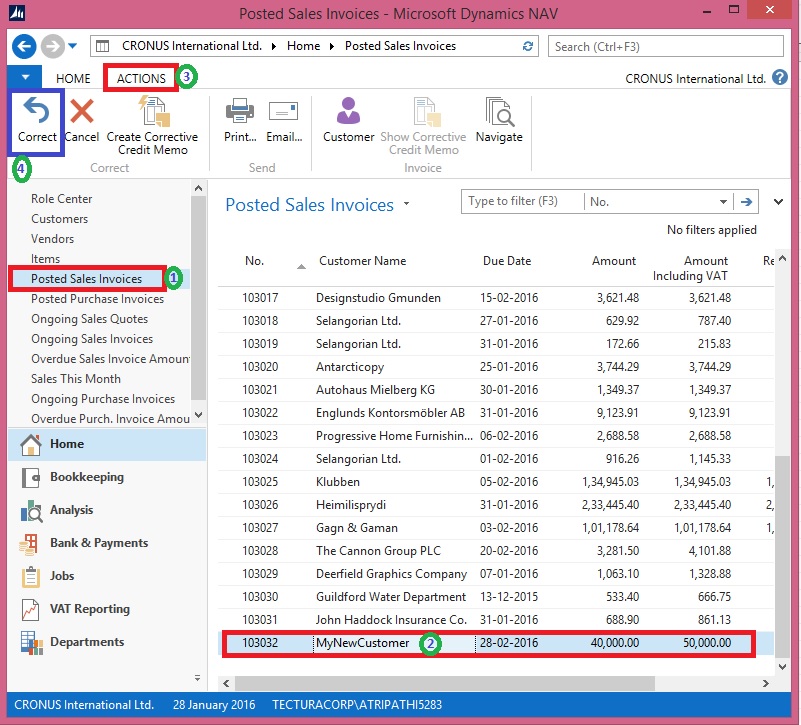
  • On the Role Centre, choose Posted Sales Invoices to open the list of posted sales invoices.
  • In the list of posted sales invoices, select the sales invoice that you posted in previous post, if not done click here to see the process we followed in earlier post.
  • On the Home tab, in the Manage group, choose View.
  • On the Home tab, in the Correct group, choose Correct, and then choose the Yes button

CorrectPSI-1

 or

CorrectPSI-2

The posted sales invoice is now cancelled with a credit memo. A new sales invoice has been created for you.

CorrectPSI-3

  • To open the automatically generated New Invoice that was created, choose Yes.
  • On the new sales invoice Perform the required changes. I am changing the Quantity in my example.

CorrectPSI-4

  • On the Home tab, in the Posting group, choose Post to post the corrected sales invoice.
  • Respond Yes to review the posted New Sales Invoice.

CorrectPSI-5

  • To review the Posted Credit Memo for the above Invoice Correction find as below:

CorrectPSI-6

We are done. It’s easy na.

Functional Tips

Create a Sales Invoice for a new Customer

In this session we will create a sales invoice for a new customer (Customer we don’t have in our Master).

To follow Step by Step you need to do a small setup:

Open the User Personalization and Set your Profile ID as below:

SINewCustomer-1

Select your Profile as “SMALL BUSINESS

Your Role Center will look like below:

SINewCustomer-2

  • On the Role Center, choose Ongoing Sales Invoices to open the list of ongoing sales Invoices.
  • On the Home tab, in the New group, choose New to create a new sales invoice.
  • In the Customer Name field, type the name of the new customer, and then press Enter or Tab to leave the field

Create the sales invoice for the new customer.

Notice that some fields are marked with red asterisks to tell which fields must be filled.

SINewCustomer-3

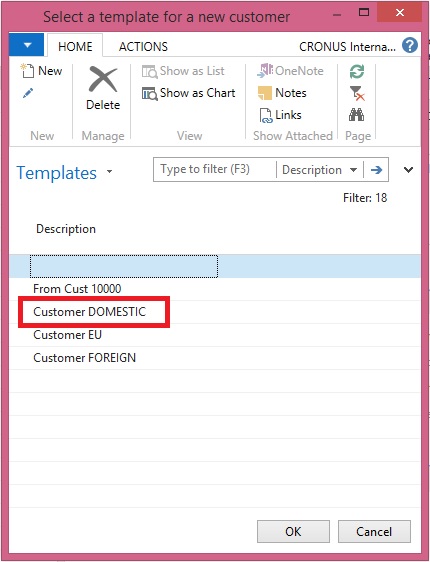
  • In the pop-up dialog, choose Yes to create the new customer
  • In the Templates window, select Customer DOMESTIC (or as desired), and then choose the OK button.

SINewCustomer-4

  • The Customer Card window opens in edit mode. Choose the OK button to close it.

SINewCustomer-5

  • The page closes and focus is back on the sales invoice that is now updated with the customer data.
  • In the Sales Invoice window, on the Lines FastTab, create a new line:

         Enter some line data for example : Item No.: 1001, Quantity: 10

  • On the Home tab, in the Posting group, choose Post.
  • Choose Yes.

SINewCustomer-6

  • Choose No to review the posted sales invoice, as of now we don’t require.

Helpful where we require instant Customer registration for recording the Orders. Later we will fill out rest of the details regarding Customer.

Development Tips

UpdatePropagation Property

Sets a value that specifies what happens when a main page with a subpage is updated.

The UpdatePropagation property is available on part controls and has two options; Subpage and Both.

If UpdatePropagation is set to Subpage, an update action will update the subpage only.

If UpdatePropagation is set to Both, an update action will update both the main page and the subpage.

This is useful if a value on the subpage changes, and you want a main page total to be refreshed automatically.

Use the UpdatePropagation property to update a main page total, when the amount on the subpage lines is updated. Add a CurrPage.UPDATE(); call, for example, in the OnValidate trigger on the subpage to have the UpdatePropagation property take effect.

Let’s do it practically how it works:

I am taking Sales Order for demo of above property.

Let’s start with adding a field in Sales Header Table
UpdatePropagation-1

I have added Total Line Amount as Flow field to Sum Line Amount from Lines.

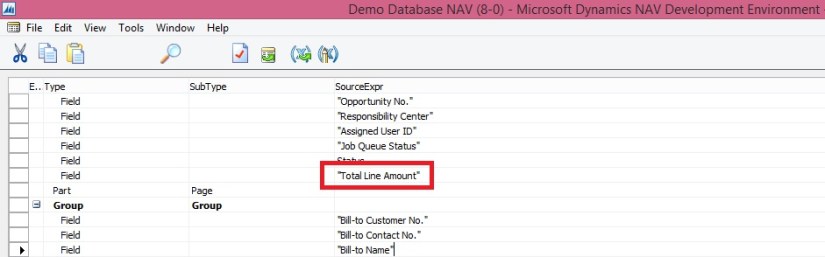
Next I will add this field to Sales Order Page.
UpdatePropagation-2

If we run now and make changes in Lines the Total Line amount will not update until we refresh the Page. To enable auto refresh we will be required to add Update Propagation Property of the Subpage to Both.
UpdatePropagation-3

After doing this if I make any changes which changes the Line Amount for the lines, The Total Line Amount in Header will get updated automatically, we will not require to refresh the page.
UpdatePropagation-4

We are done, so simple.