Corfu Navision 2016, Functional Tips, How To, Tip & Tricks

Inventory Valuation

Inventory valuation is the determination of the cost that is assigned to an inventory item, as expressed by the following equation.

Ending inventory = beginning inventory + net purchasescost of goods sold

The calculation of inventory valuation uses the Cost Amount (Actual) field of the value entries for the item.

The entries are classified according to the entry type that corresponds to the cost components, direct cost, indirect cost, variance, revaluation, and rounding.

Entries are applied against each other, either by the fixed application, or according to the general cost-flow assumption defined by the costing method.

One entry of inventory decrease can be applied to more than one increase entry with different posting dates and possibly different acquisition costs.

Therefore, calculation of the inventory value for a given date is based on summing up positive and negative value entries.

Inventory Valuation report

To calculate the inventory value in the Inventory Valuation report, the report begins by calculating the value of the item’s inventory at a given starting date.

It then adds the value of inventory increases and subtracts the value of inventory decreases up to a given ending date.

The end result is the inventory value on the ending date.

The report calculates these values by summing the values in the Cost Amount (Actual) field in the value entries, using the posting dates as filters.

The printed report always shows actual amounts, that is, the cost of entries that have been posted as invoiced.

The report will also print the expected cost of entries that have posted as received or shipped, if you select the Include Expected Cost field on the Options FastTab.

Values in the Inventory Valuation report is reconciled with the Inventory account in the general ledger, meaning the value entries in question have been posted to the general ledger.

Amounts in the Value columns of the report are based on the posting date of transactions for an item.


Inventory Valuation – WIP report

A manufacturing company needs to determine the value of three types of inventory:

  • Raw Materials inventory
  • WIP inventory
  • Finished Goods inventory

The value of WIP inventory is determined by the following equation.

Ending WIP inventory = Beginning WIP inventory + manufacturing costscost of goods manufactured

As for purchased inventory, the value entries provide the basis of the inventory valuation. The calculation is made using the values in the Cost Amount (Actual) field of the item and capacity value entries associated with a production order.

The purpose of WIP inventory valuation is to determine the value of the items whose manufacturing has not yet been completed on a given date.

Therefore the WIP inventory value is based on the value entries related to the consumption and capacity ledger entries.

Consumption ledger entries must be completely invoiced at the date of the valuation.

Therefore, the Inventory Valuation – WIP report shows the costs representing the WIP inventory value in two categories: consumption and capacity.


Corfu Navision 2016, Development Tips, How To, IIS, Information, Instalation & Configuration

Configuring SSL to Secure the Connection to Microsoft Dynamics NAV Web Client

It is always recommend that you secure Microsoft Dynamics NAV data that is transmitted over the Internet by enabling Secure Sockets Layer (SSL) on the connection to Microsoft Dynamics NAV Web client.

Enabling SSL on a website requires that an SSL certificate is installed on the web server. An SSL certificate is a small file that the web server uses to prove its identity and establish a trusted connection with the browser that is trying to access Microsoft Dynamics NAV Web client.

When a browser connects to the Microsoft Dynamics NAV Web client, the web server replies by sending its certificate to the browser. This certificate contains the web server’s public encryption key and the name of the authority that granted the certificate. The browser verifies the certificate using the authority’s public key.

Note You can configure SSL for the Microsoft Dynamics NAV Web client when you install the Microsoft Dynamics NAV Web Server components.

Obtaining an SSL Certificate

In a production environment, you should obtain an SSL certificate from a certification authority. Some large organizations may have their own certification authorities, and other organizations can request a certificate from a third-party organization. In a test environment or development environment, you can create your own self-signed certificate.

To create a self-signed SSL certificate

Open Internet Information Services (IIS) Manager, on the Start menu, choose Administrative Tools, and then choose Internet Information Service (IIS) Manager.
IIS-1

  • In the Connections pane, choose the top-level node for the server.
  • On the Home page, under IIS, choose Server Certificates, and then in the Actions pane, choose Open Feature.

IIS-2

  • On the Server Certificates page, choose Create Self-Signed Certificate.
  • In the Specify Friendly Name dialog box, type a brief name for the certificate, and then choose the OK button.

IIS-3

The new certificate appears on the Server Certificate page.
IIS-4

Adding an HTTPS Binding That Uses the Certificate on the Microsoft Dynamics NAV Web Client Site

After you get the certificate, you add a binding to the https protocol on the website. When you add the binding, you associate it with the certificate.

To add an https binding with the certificate to the website

  • Open Internet Information Services (IIS) Manager.
  • In the Connections pane, expand the Sites node, and then choose the Microsoft Dynamics NAV Web client site to which you want to add the binding.

By default, the site has the name Microsoft Dynamics NAV 2016 Web Client.

  • In the Actions pane, choose Bindings.

IIS-5

  • In the Site Bindings dialog box, choose Add.
  • In the Add Site Binding dialog box, set the Type field to https.

IIS-6

You can use the default port 443 or change it to another port. If you change it to another port, you will have to provide the port number in the URL when you try to open the client.

  • Set the SSL certificate field to the certificate that you obtained or created for the site.

IIS-7

  • Choose the OK button, and then choose the Close button.

Redirecting HTTP to HTTPS (Optional)

To ensure that users always access the site that is secured with SSL, you can automatically redirect HTTP requests to HTTPS. This means that users do not have to explicitly include https in the URL in the browser.

For example, the nonsecure URL of the Microsoft Dynamics NAV Web client could be

http://mywebclient:8080/DynamicsNAV90/WebClient

The secure URL could be

https://MyWebclient:443/DynamicsNAV90/WebClient

If a user types

http://MyWebclient:8080/DynamicsNAV90/WebClient,

the browser automatically redirects to

https://MyWebclient:443/DynamicsNAV90/WebClient


There are different ways to redirect HTTP requests to HTTPS.

The following procedure describes how to redirect HTTP requests to HTTPS by installing the Microsoft Application Request Routing for IIS 7 and modifying the web.config file for the Microsoft Dynamics NAV Web client.

To redirect HTTP to HTTPS

The web.config file is located in the physical path of the web application on IIS. By default, the path is

%systemroot%\inetpub\wwwroot\[VirtualDirectoryName]\WebClient.

For example, the folder for the default Microsoft Dynamics NAV Web client application is

%systemroot%\inetpub\wwwroot\DynamicsNAV90\WebClient.

  • In the <system.webServer> element, add the following elements.

<rewrite>

<rules>

<rule name=”Redirect to HTTPS”>

<match url=”(.*)” />

<conditions>

<add input=”{HTTPS}” pattern=”off” ignoreCase=”true” />

</conditions>

<action type=”Redirect” url=”https://{SERVER_NAME}/{R:1}” redirectType=”SeeOther” />

</rule>

</rules>

</rewrite>


  • Save the web.config file.


Corfu Navision 2016, Cumulative Updates

Cumulative Update 1 for Microsoft Dynamics NAV 2016 (Build 43402) Released

This cumulative update includes all hotfixes and regulatory features that have been released for Microsoft Dynamics NAV 2016, including hotfixes and regulatory features that were released in previous cumulative updates.

You can find more information here.
For more information see this Link.
Additional Information

For information about how to install the cumulative update, see How to Install a Microsoft Dynamics NAV 2016 Cumulative Update

For a list of all cumulative updates for this version, see Released Cumulative Updates for Microsoft Dynamics NAV 2016

Corfu Navision 2016, Data Encryption, Functional Tips, How To, Information, Instalation & Configuration

Working with Data Encryption in Navision 2016

You can encrypt data on the Microsoft Dynamics NAV Server by generating new or importing existing encryption keys.

How to: Enable Encryption Keys

You can enable data encryption on the Microsoft Dynamics NAV Server instance that connects to the database.

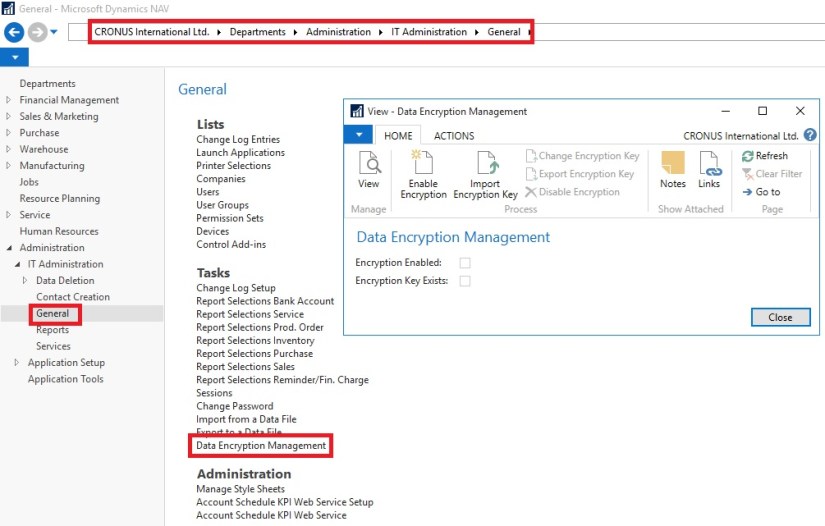
  • Open the Data Encryption Management Card, as path suggested in below Image.

DataEncryption-1

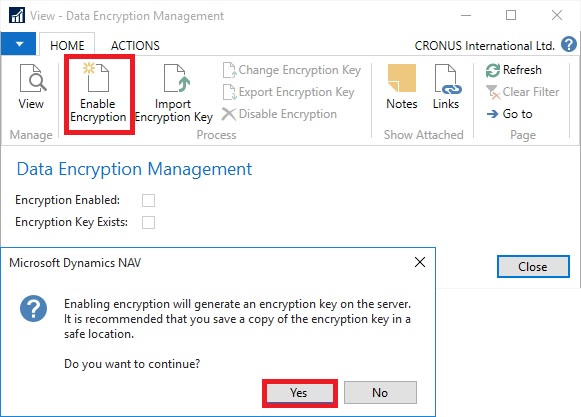
  • Click on Enable Encryption in Process of Home tab.

DataEncryption-2

  • On Confirmation Dialog box choose Yes.
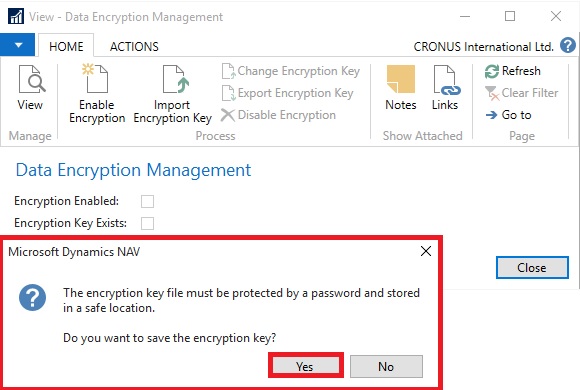
  • On further Confirmation of Password choose Yes.

DataEncryption-3

  • Enter the Password as defined in Rule as shown in below Image.

DataEncryption-4

  • Upon entering Password choose OK to continue.
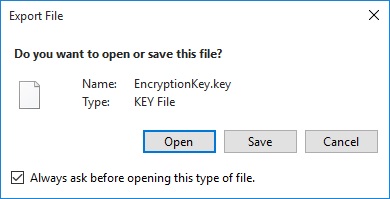
  • Key is created with password protected and offered to Export.

DataEncryption-5

  • Choose Save, and save it as Safe Location as you will require it again whenever you restore the database or Import Export the data. Please make sure you also store the password for further reference whenever required.

DataEncryption-6

  • Once Key is generated, you can see that the Encryption Enabled & Encryption Key Exists is checked TRUE.
  • Also in Ribbon you will find the Change Encryption Key, Export Encryption Key & Disable Encryption is now enabled.

DataEncryption-7

  • If Microsoft Dynamics NAV is configured with multiple service tiers (Microsoft Dynamics NAV Server instances), then you must first enable encryption on one server instance, and then export the key and import to other server instances where you enable encryption.

If you export companies and other data that is secured by data encryption, then remember to also export the encryption key so that you can access the data after you import it into another database, for example when you restore a backup. Creating a backup of encrypted data involves the following high-level steps.

  • Export the data from one database.
  • Export the data encryption key.
  • Import the data into another database.
  • Import the data encryption key.

How to: Export and Import Encryption Keys

Note: You cannot generate different keys within one multiple-server instance environment.

Exporting an Encryption Key

You export an encryption key to make a copy of the key or so that it can be imported on another server instance.

Exporting an encryption key stores the encryption key that is used by the current server instance to a file on your computer or network.

To export an encryption key
DataEncryption-8

  • On the message about saving the encryption key, choose Yes.
  • In the Set Password window, enter the password that will protect the exported key file, and then choose OK.

DataEncryption-9

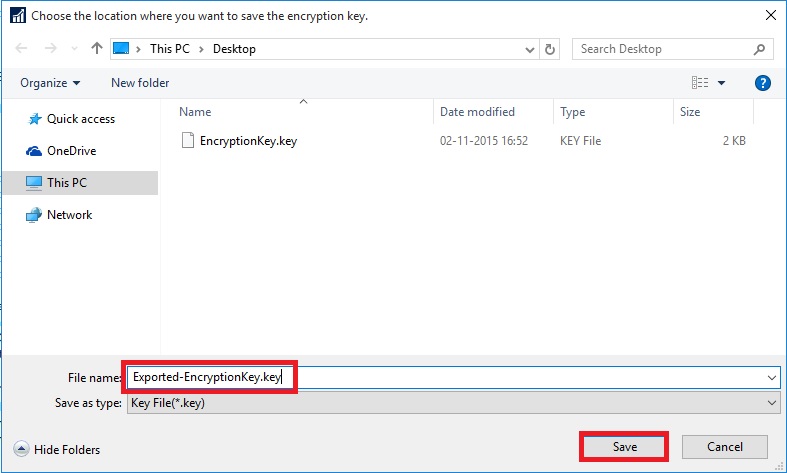
  • In the Export File window, choose Save, choose a safe location where the key file is stored, and then choose Save.

DataEncryption-10

DataEncryption-11

Importing an Encryption Key

You can import an encryption key to a server instance from an encryption key file that was exported from another server instance or saved as a copy when the encryption was enabled.

You cannot import an encryption key on a server instance that already includes an encryption key. In this case, you must change the encryption key instead.

To import an encryption key
DataEncryption-12

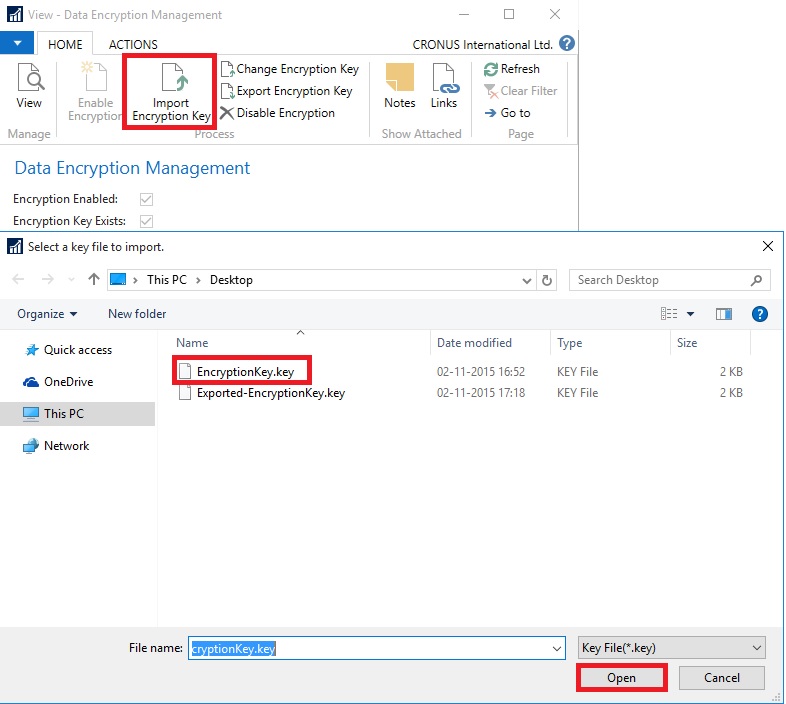
  • On the Home tab, in the Process group, choose Import Encryption Key.
  • In the Select a key file to import window, choose the encryption key file, and then choose Open.

DataEncryption-13

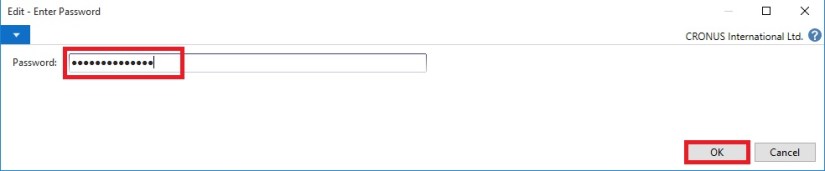
  • In the Password window, enter the password that protects the key file, and then choose OK.

Changing an Encryption Key

If a server instance already has an encryption key, then you can replace the current encryption key with an encryption key that is stored in an encryption key file that was exported from another server.

To change an encryption key

  • On the Home tab, in the Process group, choose Change Encryption Key.

DataEncryption-14

  • In the Select a key file to import window, choose the encryption key file, and then choose Open. Same as in above process.
  • In the Password window, enter the password that protects the key file, and then choose OK. Same as in above process.
Corfu Navision 2016, Functional Tips, How To, Information, Instalation & Configuration, Profiles

Working with Profiles in Navision 2016

How to: Create a Profile

You use the Profile card to create profiles for end users. Each profile is associated with a  Role Center. Profiles are typically based on job titles in a company.

To create a profile

Profiles-1

  • In the Profile ID field, enter a name that describes the intended role of the user.
  • In the Owner ID field, click the AssistEdit button to view all available logins, and then select a Windows user.
  • In the Description field, enter a description of the Profile ID, for example, Order Processor.
  • In the Role Center ID field, click the AssistEdit button to view all available Role Centers. Select a Role Center.
  • To make this Role Center the default for the profile, select Default Role Center.
  • Click OK to save your changes.

The procedure for modifying an existing profile is the same, except you select an existing profile in the Profiles page instead of clicking New.

How to: Assign a User to a Profile

You use the User Personalization page to assign a user to a profile.

To assign a user to a profile

Profiles-2

  • In the User Personalization window, fill in the fields described in the following table.
Field Description
User ID Choose the AssistEdit button to view all available user logins, select the relevant user, and then choose the OK button.
Profile ID Select a profile ID that you have already created. Choose the AssistEdit button to view all available profiles.
Language ID Select the appropriate language ID, or leave this field blank.
Company Select a company from the Companies window.
  • Choose the OK button.

Note The Language ID and Company values are overwritten by user values when the user starts a session.

How to: Open Microsoft Dynamics NAV in Configuration Mode

To configure a profile, for example to customize the profile’s user interface, you must open the Microsoft Dynamics NAV Windows client in configuration mode.

To open the Microsoft Dynamics NAV Windows client in configuration mode

  • At the command prompt, navigate to the root folder of the Microsoft Dynamics NAV Windows client. For example:

cd C:\Program Files (x86)\Microsoft Dynamics NAV\90\RoleTailored Client

  • Type the following command:

Microsoft.Dynamics.Nav.Client.exe -configure -profile:”profileid”

Replace profileid with the name of the profile that you want to configure.

Important You must be the owner of a profile to open it in configuration mode

For example, to configure the Accounting Manager profile, use this command to open the Microsoft Dynamics NAV Windows client in configuration mode:

Microsoft.Dynamics.Nav.Client.exe -configure -profile:”Accounting Manager”

Corfu Navision 2016, Development Tips, Dimension, How To, Information, Instalation & Configuration, upgrade

Design Overview of Dimension handling in Navision 2016

Hold on,

Way of handling Dimension have changed from Navision 2009 not a new concept. Till now everyone is aware of this technical change, but still to keep handy reference today I decided to share the same with community, which can help for new comers in this industry.

Detailed technical insight into the concepts and principles that are used to redesign the dimension entry storing and posting feature in Microsoft Dynamics NAV 2016. Helpful when upgrading from earlier version to 2009.

Dimension Sets

A dimension set is a unique combination of dimension values. It is stored as dimension set entries in the database. Each dimension set entry represents a single dimension value.

The dimension set is identified by a common dimension set ID that is assigned to each dimension set entry that belongs to the dimension set.

Dimension Set Entries

Dimension sets are stored in the Dimension Set Entry table as dimension set entries with the same dimension set ID.

When you add, edit and close the Edit Dimension Set Entries window, a check is performed to see whether the combination of dimension values exists as a dimension set in the table.

If the combination occurs in the table, then the corresponding dimension set ID is assigned to the journal line, document header, or document line.

Otherwise, a new dimension set is added to the table, and the new dimension set ID is assigned to the journal line, document header, or document line.
Performance Improvement
By storing dimension sets once in the database, database space is preserved, and overall performance is improved.

Searching for Dimension Combinations

Building Search Tree
Table 481 Dimension Set Tree Node is used when Microsoft Dynamics NAV evaluates whether a set of dimensions already exists in table 480 Dimension Set Entry table.

The evaluation is performed by recursively traversing the search tree starting at the top level numbered 0.

The top level 0 represents a dimension set with no dimension set entries. The children of this dimension set represent dimension sets with only one dimension set entry.

The children of these dimension sets represent dimension sets with two children, and so on.

Finding Dimension Set ID

At a conceptual level, Parent ID, Dimension, and Dimension Value, in the search tree, are combined and used as the primary key because Microsoft Dynamics NAV traverses the tree in the same order as the dimension entries.

The GET function (record) is used to search for dimension set ID.

DimSet.”Parent ID” := 0;  // ‘root’

IF UserDim.FINDSET THEN

REPEAT

DimSet.GET(DimSet.”Parent ID”,UserDim.DimCode,UserDim.DimValueCode);

UNTIL UserDim.NEXT = 0;

EXIT(DimSet.ID);

However, to preserve the ability of Microsoft Dynamics NAV to rename a dimension and dimension value, table 348 Dimension Value is extended with an integer field of Dimension Value ID.

This table converts the field pair Dimension and Dimension Value to an integer value.

When you rename the dimension and dimension value, the integer value is not changed.

DimSet.”Parent ID” := 0;  // ‘root’IF UserDim.FINDSET THEN  REPEAT      DimSet.GET(DimSet.ParentID,UserDim.”Dimension Value ID”);  UNTIL UserDim.NEXT = 0;EXIT(DimSet.ID);

Table Structure

New Tables

Three new tables have been designed to manage dimension set entries.

Table 480 Dimension Set Entry
Table 480 Dimension Set Entry is a new table. You cannot change this table. After data has been written to the table, you cannot delete or edit it.

Deleting data requires that you check against all occurrences of the dimension set ID in the entire database, including partner solutions.

Field No. Field Name Data Type Comment
1 ID Integer >0.0 is reserved for the empty dimension set. References field 3 in table 481.
2 Dimension Code Code 20 Table relation to table 348.
3 Dimension Value Code Code 20 Table relation to table 349.
4 Dimension Value ID Integer References field 12 in table 349. It is the secondary key that is used when traversing table 481.
5 Dimension Name Text 30 CalcField. Lookup to table 348.
6 Dimension Value Name Text 30 CalcField. Lookup to table 349.

Table 481 Dimension Set Tree Node

Table 481 Dimension Set Tree Node is a new table. You cannot change this table.

It is used to search for a dimension set. If the dimension set is not found, a new set is created.

Field No. Field Name Data Type Comment
1 Parent Dimension Set ID Integer 0 for top level node.
2 Dimension Value ID Integer Table relation to field 12 in table 349.
3 Dimension Set ID Integer AutoIncrement. Used in field 1 in table 480.
4 In Use Boolean False if not in use.

Table 482 Reclas. Dimension Set Buffer
Table 482 Reclas. Dimension Set Buffer is a new table.

The table is used to edit a dimension set ID.

It is required when you edit a dimension value code and a new dimension value code, for example, in the Item Reclas. Journal table.

Field No. Field Name Data Type Comment
1 Dimension Code Code 20 Table relation to table 348.
2 Dimension Value Code Code 20 Table relation to table 349.
3 Dimension Value ID Integer References field 12 in table 349.
4 New Dimension Value Code Code 20 Table relation to table 349.
5 New Dimension Value ID Integer References field 12 in table 349.
6 Dimension Name Text 30 CalcField. Lookup to table 348.
7 Dimension Value Name Text 30 CalcField. Lookup to table 349.
8 New Dimension Value Name Text 30 CalcField. Lookup to table 349.

Modified Tables
All transaction and budget tables have been modified to manage dimension set entries.

Changes to Transaction and Budget Tables
A new field has been added to all transaction and budget tables.

Field No. Field Name Data Type Comment
480 Dimension Set ID Integer References field 1 in table 480.

Changes to Table 83 Item Journal Line
Two new fields have been added to table 83 Item Journal Line.

Field No. Field Name Data Type Comment
480 Dimension Set ID Integer References field 1 in table 480.
481 New Dimension Set ID Integer References field 1 in table 480.

Changes to Table 349 Dimension Value
A new field has been added to table 349 Dimension Value.

Field No. Field Name Data Type Comment
12 Dimension Value ID Integer AutoIncrement. Used for references in table 480 and table 481.

Tables That Get New Field 480 Dimension Set ID
A new field, 480 Dimension Set ID, has been added to the following tables.

For the tables that store posted data, the field only provides a non-editable display of dimensions, which is marked as Drill-down.

For the tables that store working documents, the field is editable. The buffer tables that are used internally do not need editable or non-editable capabilities.

The 480 field is non-editable in the following tables

Table No. Table Name
17 G/L Entry
21 Cust. Ledger Entry
25 Vendor Ledger Entry
32 Item Ledger Entry
110 Sales Shipment Header
111 Sales Shipment Line
112 Sales Invoice Header
113 Sales Invoice Line
114 Sales Cr.Memo Header
115 Sales Cr.Memo Line
120 Purch. Rcpt. Header
121 Purch. Rcpt. Line
122 Purch. Inv. Header
123 Purch. Inv. Line
124 Purch. Cr. Memo Hdr.
125 Purch. Cr. Memo Line
169 Job Ledger Entry
203 Res. Ledger Entry
271 Bank Account Ledger Entry
281 Phys. Inventory Ledger Entry
297 Issued Reminder Header
304 Issued Fin. Charge Memo Header
5107 Sales Header Archive
5108 Sales Line Archive
5109 Purchase Header Archive
5110 Purchase Line Archive
5601 FA Ledger Entry
5625 Maintenance Ledger Entry
5629 Ins. Coverage Ledger Entry
5744 Transfer Shipment Header
5745 Transfer Shipment Line
5746 Transfer Receipt Header
5747 Transfer Receipt Line
5802 Value Entry
5832 Capacity Ledger Entry
5907 Service Ledger Entry
5908 Service Header
5933 Service Order Posting Buffer
5970 Filed Service Contract Header
5990 Service Shipment Header
5991 Service Shipment Line
5992 Service Invoice Header
5993 Service Invoice Line
5994 Service Cr. Memo Header
5995 Service Cr. Memo Line
6650 Return Shipment Header
6651 Return Shipment Line
6660 Return Receipt Header
6661 Return Receipt Line

The 480 field is editable in the following tables

Table No. Table Name
36 Sales Header
37 Sales Line
38 Purchase Header
39 Purchase Line
81 Gen. Journal Line
83 Item Journal Line
89 BOM Journal Line
96 G/L Budget Entry
207 Res. Journal Line
210 Job Journal Line
221 Gen. Jnl. Allocation
246 Requisition Line
295 Reminder Header
302 Finance Charge Memo Header
5405 Production Order
5406 Prod. Order Line
5407 Prod. Order Component
5615 FA Allocation
5621 FA Journal Line
5635 Insurance Journal Line
5740 Transfer Header
5741 Transfer Line
5900 Service Header
5901 Service Item Line
5902 Service Line
5965 Service Contract Header
5997 Standard Service Line
7134 Item Budget Entry
99000829 Planning Component

The 480 field has been added to the following buffer tables.

Table No. Table Name
49 Invoice Post. Buffer
212 Job Posting Buffer
372 Payment Buffer
382 CV Ledger Entry Buffer
461 Prepayment Inv. Line Buffer
5637 FA G/L Posting Buffer
7136 Item Budget Buffer

Codeunit 408 Dimension Management
Codeunit 408 Dimension Management is a function library that handles common tasks that are related to dimensions, such as copying from one table to another or from one document to another.

Many functions are deleted because there is no need for copying between dimension tables at the other hand many functions are modified.

Modified Functions

Function Name Modification Description
CheckDimSetIDComb New function that substitutes the other check functions and takes a Dimension Set ID as an argument instead of a dimension table.
CheckDimSetIDComb

CheckDocDimComb

CheckServContractDimComb

CheckDimBuffer

CheckDimComb

CheckDimValueComb

Delete. All usage should be changed to CheckDimSetIDComb.
GetDefaultDim Modify to return an integer Dimension Set ID instead of a set of records.
CopyJnlLineDimToICJnlDim

CopyICJnlDimToJnlLineDim

CopyDocDimtoICDocDim

CopyICDocDimtoICDocDim

Modify to work with DimSetID -> ICJnlLineDim

Deleted Functions

Functions that are deleted from codeunit 408 in connection with the Dimension Set Entries feature are listed below.

During the upgrade of application code from Microsoft Dynamics NAV 2009 or earlier versions to Microsoft Dynamics NAV 2016, the following functions are not available in Microsoft Dynamics NAV 2016.

If you have customizations that use one or more of the functions, you must upgrade that code accordingly.

InsertJnlLineDim

UpdateJnlLineDefaultDim

GetJnlLineDefaultDim

GetPreviousDocDefaultDim

GetPreviousProdDocDefaultDim

InsertDocDim

UpdateDocDefaultDim

ExtractDocDefaultDim

InsertProdDocDim

UpdateProdDocDefaultDim

InsertServContractDim

UpdateServcontractDim

UpdateDefaultDimNewDimValue

GetDocDim

GetProdDocDim

TypeToTableID1

TypeToTableID2

TypeToTableID3

TypeToTableID4

TypeToTableID5

DeleteJnlLineDim

DeleteDocDim

DeletePostedDocDim

DeleteProdDocDim

DeleteServContractDim

ShowJnlLineDim

SaveJnlLineDim

ShowJnlLineNewDim

SaveJnlLineNewDim

ShowDocDim

SaveDocDim

ShowProdDocDim

SaveProdDocDim

ShowTempDim

SaveTempDim

ShowTempNewDim

SaveTempNewDim

SaveServContractDim

MoveJnlLineDimToLedgEntryDim

MoveDocDimToPostedDocDim

MoveOneDocDimToPostedDocDim

MoveLedgEntryDimToJnlLineDim

MoveDimBufToJnlLineDim

MoveDimBufToLedgEntryDim

MoveDimBufToPostedDocDim

MoveDimBufToGLBudgetDim

CopyJnlLineDimToJnlLineDim

CopyLedgEntryDimToJnlLineDim

CopyDocDimToDocDim

CopyPostedDocDimToPostedDocDim

CopyDocDimToJnlLineDim

CopyDimBufToJnlLineDim

CopyDimBufToDocDim

CopySCDimToDocDim

MoveDocDimToLedgEntryDim

MoveDocDimToDocDim

MoveDocDimArchvToDocDim

MoveLedgEntryDimToDocDim

MoveProdDocDimToProdDocDim

MoveJnlLineDimToProdDocDim

MoveJnlLineDimToDocDim

MoveJnlLineDimToJnlLineDim

CopyLedgEntryDimToLedgEntryDim

MoveTempFromDimToTempToDim

TransferTempToDimToDocDim

MoveJnlLineDimToBuf

CopyICJnlDimToICJnlDim

TestDimValue

TestNewDimValue

MoveDimBufToItemBudgetDim. (Delete because the ItemBudgetDim Table is deleted.

GetServContractDim

MoveTempDimToBuf

UpdateSCInvLineDim

CopyJnlLineDimToBuffer

UpdateDocDefaultDim2

Code Examples of Changed Patterns in Modifications

Posting a Journal Line

Key changes are listed as follows:

  • Journal line dimension tables are removed.
  • A dimension set ID is created in the Dimension Set ID field.

Old Code

ResJnlLine.”Qty. per Unit of Measure” :=  SalesLine.”Qty. per Unit of Measure”;

TempJnlLineDim.DELETEALL;

TempDocDim.RESET;

TempDocDim.SETRANGE( “Table ID”,DATABASE::”Sales Line”);

TempDocDim.SETRANGE( “Line No.”,SalesLine.”Line No.”);

DimMgt.CopyDocDimToJnlLineDim( TempDocDim,TempJnlLineDim);

ResJnlPostLine.RunWithCheck( ResJnlLine,TempJnlLineDim);

New Code

ResJnlLine.”Qty. per Unit of Measure” := SalesLine.”Qty. per Unit of Measure”;

ResJnlLine.”Dimension Set ID” := SalesLine.” Dimension Set ID “;

ResJnlPostLine.Run(ResJnlLine);
Posting a Document
When you post a document in Microsoft Dynamics NAV 2016, you no longer have to copy the document dimensions.

Old Code

DimMgt.MoveOneDocDimToPostedDocDim(

TempDocDim,DATABASE::”Sales Line”,

“Document Type”,

“No.”,

SalesShptLine.”Line No.”,

DATABASE::”Sales Shipment Line”,

SalesShptHeader.”No.”);

New Code

SalesShptLine.”Dimension Set ID”  := SalesLine.”Dimension Set ID”
Editing Dimensions from a Document
You can edit dimensions from a document. For example, you can edit a sales order line.

Old Code

Table 37, function ShowDimensions:

TESTFIELD(“Document No.”);

TESTFIELD(“Line No.”);

DocDim.SETRANGE(“Table ID”,DATABASE::”Sales Line”);

DocDim.SETRANGE(“Document Type”,”Document Type”);

DocDim.SETRANGE(“Document No.”,”Document No.”);

DocDim.SETRANGE(“Line No.”,”Line No.”);

DocDimensions.SETTABLEVIEW(DocDim);

DocDimensions.RUNMODAL;

New Code

Table 37, function ShowDimensions:

“Dimension ID” := DimSetEntry.EditDimensionSet( “Dimension ID”);
Showing Dimensions from Posted Entries
You can show dimensions from posted entries, such as sales shipment lines.

Old Code

Table 111, function ShowDimensions:

TESTFIELD(“No.”);

TESTFIELD(“Line No.”);

PostedDocDim.SETRANGE(“Table ID”,DATABASE::”Sales Shipment Line”);

PostedDocDim.SETRANGE(“Document No.”,”Document No.”);

PostedDocDim.SETRANGE(“Line No.”,”Line No.”);

PostedDocDimensions.SETTABLEVIEW(PostedDocDim);

PostedDocDimensions.RUNMODAL;

New Code

Table 111, function ShowDimensions:

DimSetEntry.ShowDimensionSet(“Dimension ID”);
Getting Default Dimensions for a Document
You can get default dimensions for a document, such as a sales order line.

Old Code

Table 37, function CreateDim()

SourceCodeSetup.GET;

TableID[1] := Type1;

No[1] := No1;

TableID[2] := Type2;

No[2] := No2;

TableID[3] := Type3;

No[3] := No3;

“Shortcut Dimension 1 Code” := ”;

“Shortcut Dimension 2 Code” := ”;

DimMgt.GetPreviousDocDefaultDim( DATABASE::”Sales Header”,”Document Type”,

“Document No.”,0, DATABASE::Customer, “Shortcut Dimension 1 Code”,

“Shortcut Dimension 2 Code”);

DimMgt.GetDefaultDim(TableID,No,SourceCodeSetup.Sales,

“Shortcut Dimension 1 Code”, “Shortcut Dimension 2 Code”);

IF “Line No.” <> 0 THEN

DimMgt.UpdateDocDefaultDim( DATABASE::”Sales Line”,”Document Type”,

“Document No.”,”Line No.”, “Shortcut Dimension 1 Code”, “Shortcut Dimension 2 Code”);

New Code

Table 37, function CreateDim()

SourceCodeSetup.GET;

TableID[1] := Type1;

No[1] := No1;

TableID[2] := Type2;

No[2] := No2;

TableID[3] := Type3;

No[3] := No3;

“Shortcut Dimension 1 Code” := ”;

“Shortcut Dimension 2 Code” := ”;

GetSalesHeader;

“Dimension ID” :=  DimMgt.GetDefaultDimID(

TableID,No,SourceCodeSetup.Sales, “Shortcut Dimension 1 Code”,

“Shortcut Dimension 2 Code”, SalesHeader.”Dimension ID”, DATABASE::”Sales Header”);

Corfu Navision 2016, Development Tips, How To, Information, Instalation & Configuration

Configuring SQL Server Authentication in Microsoft Dynamics NAV 2016 – Part-3

To configure SQL Authentication on Microsoft NAV Server Instance using Microsoft Dynamics NAV 2016 Administration Shell

  • If you are modifying an existing Microsoft Dynamics NAV Server instance, run the Set-NAVServerConfiguration cmdlet.

Syntax & Parameter explaination:

Set-NAVServerConfiguration (cmdlet)

-KeyName <String>

(The configuration key name. Examine the CustomSettings.config file to determine the correct key name.)

[-Element <String> ]

(Specifies the navigation path from the root element to the appSettings section of the configuration document.)

[-ServerInstance] <String>

(Specifies the name of a Microsoft Dynamics NAV Server instance. The default instance name is DynamicsNAV90. You can specify either the full name of an instance such as MicrosoftDynamicsNavServer$myinstance or the short name such as myinstance.)

-DatabaseCredentials <PSCredential>

(The user name and password of the login account that the Microsoft Dynamics NAV Server instance will use to connect to the Microsoft Dynamics NAV database in SQL Server. This parameter configures the Microsoft Dynamics NAV Server instance to use SQL Server Authentication instead of Windows Authentication on the connection to the database. The login account must be a member of the db_owner role on the database.)

[-Force] (Forces the command to run without asking for user confirmation.)

[-KeyValue <String> ] (The configuration key value.)

[-Confirm] (Prompts you for confirmation before running the cmdlet.)

[-WhatIf] [ <CommonParameters>]

Use the DatabaseCredentials parameter to provide the login credentials of the database user that you want to use to access the application database.

Example:

C:\PS>Set-NAVServerConfiguration MyInstance -KeyName DatabaseServer -KeyValue DatabaseServer.Domain.Com

  • If you are creating a new Microsoft Dynamics NAV Server instance, run the New-NAVServerInstance cmdlet.

Syntax & Parameter explaination:

New-NAVServerInstance

[-ServerInstance] <String>

(Specifies the name of the Microsoft Dynamics NAV Server instance. The default instance name isDynamicsNAV90. You can specify either the full name of an instance, such as MicrosoftDynamicsNavServer$DynamicsNAV90, or the short name, such as DynamicsNAV90. You must use single-quotes around the instance name.)

-ManagementServicesPort <ServicePort>

(Specifies the TCP port that is used to manage the Microsoft Dynamics NAV Server instance. The Management Services port has no exceptions in the firewall, and will only be accessed from the local computer. The port is used by Windows PowerShell for access Microsoft Dynamics NAV Server management data.)

[-ClientServicesCredentialType <String> ]

(The type of client credential used for client authentication.Possible values are: Windows, Username, NavUserPassword and AccessControlService.)

[-ClientServicesPort <ServicePort> ]

(Specifies the listening TCP port for clients such as Microsoft Dynamics NAV Windows client and Microsoft Dynamics NAV Web client.)

[-DatabaseCredentials <PSCredential> ]

(The user name and password of the login account that the Microsoft Dynamics NAV Server instance will use to connect to the Microsoft Dynamics NAV database in SQL Server. This parameter configures the Microsoft Dynamics NAV Server instance to use SQL Server Authentication instead of Windows Authentication on the connection to the database. If the Microsoft Dynamics NAV Server instance is configured for multitenancy, then parameter configure SQL Authentication on the connection to the application database, not the tenant database. The login account must be a member of the db_owner role on the database.)

[-DatabaseInstance <DatabaseInstance> ]

(Specifies the SQL Server instance on which the Microsoft Dynamics NAV database is installed.)

[-DatabaseName <DatabaseName> ]

(Specifies the name of the Microsoft Dynamics NAV database.)

[-DatabaseServer <DatabaseServer> ]

(Specifies the name of the computer on which the SQL Server instance for the Microsoft Dynamics NAV database is installed.)

[-Force] (Forces the command to run without asking for user confirmation.)

[-Multitenant]

(Specifies the Microsoft Dynamics NAV Server instance to be a multitenant instance.)

[-ODataServicesPort <ServicePort> ]

(Specifies the listening HTTP port for Microsoft Dynamics NAV OData web services.)

[-ServiceAccount <ServiceAccount> ]

(Specifies the Windows-based computer account that the Microsoft Dynamics NAV Server instance must use to log on. The default value is NT AUTHORITY\NETWORK SERVICE. Only NetworkService and User values are supported. This parameter accepts values from the enum System.ServiceProcess.ServiceAccount.)

[-ServiceAccountCredential <PSCredential> ]

(Specifies a set of security credentials that you must use when configuring the service account.)

[-ServicesCertificateThumbprint <ClientServicesCertificateThumbprint> ]

(Specifies the certificate thumbprint for the x509 certificate that is going to be used for securing communication with the server. The certificate must be stored in the local machine store and in the personal sub-store in the certificate store. The private key of the certificate must be present and exchangeable. The certificate must be in .pfx format, not .cer format. The certificate can be either self-signed or issued by a trusted certification authority (CA).

When specifying a ServicesCertificateThumbprint, SOAP web services and OData web services become HTTPS.)

[-SOAPServicesPort <ServicePort> ]

(Specifies the listening HTTP port for Microsoft Dynamics NAV SOAP web services.)

[-Confirm] (Prompts you for confirmation before running the cmdlet.)

[-WhatIf] [ <CommonParameters>]

Use the DatabaseCredentials parameter to provide the login credentials of the database user that you want to use to access the application database.

Examples:

C:\PS>New-NAVServerInstance NewInstance -ManagementServicesPort 8099 -ClientServicesPort 8100 -SOAPServicesPort 8101 -ODataServicesPort 8102 –verbose

C:\PS>Get-Credential | New-NAVServerInstance NewInstance -ServiceAccount User -ManagementServicesPort 8099 -ClientServicesPort 8100 -SOAPServicesPort 8101 -ODataServicesPort 8102 –verbose


For Multitenant Environment

  1. Configure SQL Server Authentication with the application database as above.
  2. To configure SQL Authentication with the tenant database, run the Mount-NAVTenant

Syntax & Parameter explaination:

Mount-NAVTenant

[-AlternateId] <System.Collections.ObjectModel.ReadOnlyCollection[string]>

(Specifies the alternative IDs for the tenant, such as host names for the Microsoft Dynamics NAV Web client, SOAP web services, OData web services, or the Microsoft Dynamics NAV Windows client.

If you use alternative IDs for tenant resolution in the Microsoft Dynamics NAV Web client, you must also enable some of the UrlRewrite rules in the Web.Config file for the Microsoft Dynamics NAV Web Server components.)

[-AzureKeyVaultSettings] <Microsoft.Dynamics.Nav.Types.AzureKeyVaultSettings>

(Specifies the Azure key vault settings. This parameter is available only if the EncryptionProvider is set to AzureKeyVault.)

[-ServerInstance] <String>

(Specifies the Microsoft Dynamics NAV Server instance that you want to mount the tenant against, such as DynamicsNAV90. You can specify either the fully qualified name, such as ‘MyServer$DynamicsNAV90’, or the short name, such as ‘DynamicsNAV90’.)

[-DatabaseInstance] <System.String>

(Specifies the name of the SQL Server instance that hosts the database. You can also specify the instance in the DatabaseServer parameter, such as MyServer\MyInstance.)

[-DatabaseName] <System.String>

(Specifies the name of the Microsoft Dynamics NAV database that you want to mount against the Microsoft Dynamics NAV Server instance, such as ‘Demo Database NAV (9-0)’.)

[-DatabaseServer] <System.String>

(Specifies the name of the database server that hosts the Microsoft Dynamics NAV database that you want to mount against the Microsoft Dynamics NAV Server instance.)

[-DefaultCompany] <System.String>

(Specifies the name of the company that NAS services, OData web services, and SOAP web services use if no other company is specified.)

[-DefaultTimeZone] <System.TimeZoneInfo>

(Specifies the default time zone that is used by the NAS services, OData web services, and SOAP web services for this tenant.

You can set the parameter to UTC, ‘Server Time Zone’, or the ID of a Windows Time Zone.

UTC specifies that all business logic for services on the server instance runs in Coordinated Universal Time (UTC).

‘Server Time Zone’ specifies that services use the time zone of the computer that is running Microsoft Dynamics NAV Server instance.

ID of a Windows Time Zone specifies that services use a Windows time zone as defined in the system registry under HKEY_LOCAL_MACHINE\SOFTWARE\Microsoft\Windows NT\CurrentVersion\Time Zones. For example, Romance Standard Time is a valid Windows time zone value.

If this parameter is not specified, the value is taken from the ServicesDefaultTimeZone setting in the CustomSetting.config file for the Microsoft Dynamics NAV Server instance.)

[-NasServicesEnabled]

(Specifies to enable NAS services on the tenant. The default value is false.)

[-RunNasWithAdminRights]

(Specifies the NAS services to run with administrator rights. This grants the NAS service the same permissions as the SUPER permission set in Microsoft Dynamics NAV without having to add the Microsoft Dynamics NAV Server service account as a user. The default is false.)

[[-ApplicationDatabaseCredentials] <PSCredential> ]

(Specifies the user name and password of the login account that the Microsoft Dynamics NAV Server instance will use to access the application database in SQL Server. This parameter configures the Microsoft Dynamics NAV Server instance to use SQL Server Authentication instead of Windows Authentication on the connection to the application database.

The login account must be a member of the db_owner role on the database.

This parameter is only relevant when you set with the ApplicationDatabaseServer and ApplicationDatabaseName parameters )

[[-ApplicationDatabaseName] <System.String> ]

(Specifies the name of the application database to use with the tenant database.

This parameter is only relevant if the Microsoft Dynamics NAV Server instance is configured for multitenancy. This parameter, together with the ApplicationDatabaseServer parameter, enables you to mount a tenant to the same Microsoft Dynamics NAV Server instance as the application database without having to connect a running Microsoft Dynamics NAV Server instance.)

[[-ApplicationDatabaseServer] <System.String> ]

(Specifies the SQL Server name and instance, such as MyServer\MyInstance, that hosts the application database that you want to use with the tenant database,.

This parameter, together with the ApplicationDatabaseName parameter, enables you to mount a tenant to the same Microsoft Dynamics NAV Server instance as the application database without having to connect to a running Microsoft Dynamics NAV Server instance.)

[-AllowAppDatabaseWrite]

(Specifies if the tenant can write to the application database. The default value is false.)

[-DatabaseCredentials <PSCredential> ]

(Specifies the user name and password of the login account that the Microsoft Dynamics NAV Server instance will use to access the tenant database in SQL Server. This parameter configures the Microsoft Dynamics NAV Server instance to use SQL Server Authentication instead of Windows Authentication on the connection to the database.

The login account must be a member of the db_owner role on the database.)

[-EncryptionProvider <Microsoft.Dynamics.Nav.Types.EncryptionProvider> ]

(Specifies the name of the encryption provider.)

[-Force] (Forces the command to run without asking for user confirmation.)

[-OverwriteTenantIdInDatabase]

(Specifies if the Mount-NAVTenant cmdlet must overwrite the tenant ID in the database if the database has been mounted as a tenant earlier. If this is false, and the tenant database has previously been mounted with a different tenant ID, an exception is thrown.)

[-Confirm] (Prompts you for confirmation before running the cmdlet.)

[-WhatIf] [ <CommonParameters>]

Use the DatabaseCredentials parameter to provide the login credentials of the database user that you want to use to access the tenant database.

Examples:

PS C:\> Mount-NAVTenant DynamicsNAV90 -Id ‘Test’ -DatabaseName ‘Test_Database’

PS C:\> Mount-NAVTenant DynamicsNAV90 Test Test_Database

PS C:\> Mount-NAVTenant DynamicsNAV90 -Id ‘Test’ -DatabaseName ‘Test_Database’ -DatabaseCredentials (Get-Credential)

PS C:\> Get-NAVTenant Server1 | Mount-NAVTenant Server2

PS C:\> Get-NAVTenant Server1 | Dismount-NavTenant Server1 -Force | Mount-NAVTenant Server2

PS C:\> Mount-NAVTenant DynamicsNAV90 -Id ‘Test’ -DatabaseName ‘Test_Database’-AlternateId @( “test.mydomain.com”, “http://mydomain.sharepoint.com/sites/teamsite&#8221; )

PS C:\> Mount-NAVTenant -Id ‘Test’ -DatabaseName ‘Test_Database’ -DatabaseCredentials (Get-Credential) -ApplicationDatabaseServer ‘MySQLServer\NAV’ -ApplicationDatabaseName ‘MyNavAppDatabase’ -ApplicationDatabaseCredentials (Get-Credential) -KeyFilePath ‘C:\key\nav.key’ -KeyFilePassword (Get-Credential).Password

Corfu Navision 2016, Development Tips, How To, Information, Instalation & Configuration

Configuring SQL Server Authentication in Microsoft Dynamics NAV 2016 – Part-2

Recall from my previous post Configuring SQL Server Authentication in Microsoft Dynamics NAV 2016 – Part-1, action is almost similar with few small differences when dealing with Multitenant Deployment.
Configure SQL Server Authentication on Microsoft NAV Server Instance in a Multitenant Deployment
How to configure a Microsoft Dynamics NAV database to use SQL Server Authentication with a Microsoft Dynamics NAV Server instance.

To configure a SQL Server Authentication on a Microsoft Dynamics NAV Server instance, you set up the server instance with the login credentials (user name and password) for the user accounts for the application and tenant databases in SQL Server.

To configure SQL Authentication on Microsoft NAV Server Instance using Microsoft Dynamics NAV Server Administration tool

  • Open the Microsoft Dynamics NAV Server Administration tool.
  • In the console tree, which is the left pane, expand the node for the computer that contains the Microsoft Dynamics NAV Server instance, and then select the Microsoft Dynamics NAV Server instance.
  • Configure SQL Server Authentication with the application database as follows:
    • In the Actions pane, choose Database Credentials.
    • On the Database Credentials page, choose the Edit button.
    • Set the Database Authentication Mode to SQL Server Authentication.
    • In the Database User Name field, type the login name for the database user that you want to use to access the Microsoft Dynamics NAV application database in SQL Server.
    • In the Password field, type the login password for the database user that you want to use to access the Microsoft Dynamics NAV database in SQL Server.
    • Choose the Save button, and then on the Enable Encryption on SQL Server Connections dialog box, choose the OK button.

Encryption keys are used to help secure the login credentials over the connection between the Microsoft Dynamics NAV Server instance and the Microsoft Dynamics NAV database in SQL Server.

  • On the Information dialog box about encryption, choose the OK button.

This dialog box is to inform you to enable encryption on SQL Server connections, which is disabled by default.

  • If you want to enable encryption on SQL Server connections, in the Action pane, choose Configuration, and then choose the Edit button. In the Database tab, select Enable Encryption on SQL Connections, choose the Save button, and then the OK button.
  • To configure SQL Server Authentication with the tenant database, mount the tenant to the Microsoft Dynamics NAV Server instance and specify the login credentials (user name and password) for the database user that you want to use to access the Microsoft Dynamics NAV tenant database in SQL Server.

If the tenant is already mounted to the Microsoft Dynamics NAV Server instance, you must dismount the tenant, and mount it again.

Restart the server instance.

Corfu Navision 2016, Development Tips, How To, Information, Instalation & Configuration

Configuring SQL Server Authentication in Microsoft Dynamics NAV 2016 – Part-1

Microsoft Dynamics NAV 2016 supports SQL Server authentication between the Microsoft Dynamics NAV Server instance and the Microsoft Dynamics NAV database in SQL Server. Previously only Windows authentication was supported.

Set Up an Encryption Key

When using SQL Server authentication, Microsoft Dynamics NAV requires an encryption key to encrypt the credentials (user name and password) that the Microsoft Dynamics NAV Server instance uses to connect to the Microsoft Dynamics NAV database in SQL Server.

The encryption key must be installed on the computer where the Microsoft Dynamics NAV Server is installed and also in the database in SQL Server.

In a multitenant deployment, the encryption key must be installed in the application database.

To set up an encryption key, you can use one of the following methods:

  • You can create and import your own encryption key by using Microsoft Dynamics NAV 2016 Administration Shell cmdlets.
  • If you are configuring SQL Server authentication on a Microsoft Dynamics NAV Server instance for the first time, you can use the Microsoft Dynamics NAV Server Administration tool which can automatically create and install a system encryption key. If you decide to use this method, no action is required.

To create and import encryption key

  • In the Microsoft Dynamics NAV 2016 Administration Shell, run the New-NAVEncryptionkey

Create an encryption key and stores it in a file in a specified path on the computer or network.

Syntax

New-NAVEncryptionKey [-KeyPath] <String> [-Force] [-Password <SecureString> ] [-Confirm] [-WhatIf] [ <CommonParameters>]

The New-NAVEncryptionKey cmdlet enables you to specify a destination file for the key and specify a password to protect the file.

This creates a file that contains an encryption key. If you already have an encryption key file, you can skip this step.

Example: New-NAVEncryptionKey  -KeyPath “C:\UserData\SQLKey\MySQLKey” -Password (Get-Credential).Password

SQLServerAuthentication1

  • Run the Import-NAVEncryptionkey cmdlet to install the encryption key on the Microsoft Dynamics NAV Server instance and database.

Imports an encryption key from a file to a Microsoft Dynamics NAV Server instance and database in SQL Server.

Syntax

Import-NAVEncryptionKey [[-ServerInstance] <String> ] [-KeyPath] <String> -ApplicationDatabaseName <String> -ApplicationDatabaseServer <String> [-ApplicationDatabaseCredentials <PSCredential> ] [-Force] [-Password <SecureString> ] [-Confirm] [-WhatIf] [ <CommonParameters>]

Example: Import-NAVEncryptionKey -ServerInstance ‘DynamicsNAV90’ -KeyPath “C:\UserData\SQLKey\MySQLKey.key” -ApplicationDatabaseServer ‘INDEL-AXT5283VM’ -ApplicationDatabaseName ‘Demo Database NAV (9-0)’ -Password (Get-Credential).Password

SQLServerAuthentication2

You cannot import an encryption key on the Microsoft Dynamics NAV Server instance if an encryption key file already exists. You must first delete the encryption key from the computer where Microsoft Dynamics NAV Server is installed.

By default, encryption keys are stored in the C:\ProgramData\Microsoft\Microsoft Dynamics NAV\90\Server\Keys folder.

Configure SQL Authentication on the Database

This section describes how to configure a Microsoft Dynamics NAV database to use SQL Server Authentication with a Microsoft Dynamics NAV Server instance. You can complete the steps in this procedure by using SQL Server Management Studio or Transact-SQL.

Important : In a deployment where the Microsoft Dynamics NAV Server instance is configured as a multitenant server instance, you must complete the following procedure on the application database and tenant database.

To configure SQL Server Authentication on the database in SQL Server

  • Configure the SQL Server instance (Database Engine) that hosts the Microsoft Dynamics NAV database to use SQL Server Authentication.

To use SQL Server authentication, you configure the database instance to mixed authentication mode (SQL Server and Windows Authentication).

In the SQL Server instance, create a login that uses SQL Server authentication.
SQLServerAuthentication3

  • Map the login to a user in the Microsoft Dynamics NAV database, and add the user to the db_owner role of the Microsoft Dynamics NAV database.

SQLServerAuthentication4
Configure SQL Server Authentication on Microsoft NAV Server Instance (Non-Multitenant)
You configure the Microsoft Dynamics NAV Server instance with the login credentials (user name and password) of the user account in the Microsoft Dynamics NAV database in SQL Server that you want to use for authentication. You can do this using the Microsoft Dynamics NAV Server Administration tool or Microsoft Dynamics NAV 2016 Administration Shell.
To configure SQL Authentication on Microsoft NAV Server Instance using Microsoft Dynamics NAV Server Administration tool

  • Open the Microsoft Dynamics NAV Server Administration tool.
  • In the Actions pane, choose Database Credentials.
  • Set the Database Authentication Type to SQL Authentication.
  • In the Database User Name field, type the login name for the database user that you want to use to access the Microsoft Dynamics NAV database in SQL Server.

In the Password field, type the login password for the database user that you want to use to access the Microsoft Dynamics NAV database in SQL Server.
SQLServerAuthentication5

  • Choose the Save button, and then on the Enable Encryption on SQL Server Connections dialog box, choose the OK button.

SQLServerAuthentication6

Encryption keys are used to help secure the login credentials over the connection between the Microsoft Dynamics NAV Server instance and the Microsoft Dynamics NAV database in SQL Server.

  • On the Information dialog box about encryption, choose the OK button.

This dialog box is to inform you to enable encryption on SQL Server connections, which is disabled by default.
SQLServerAuthentication7

  • If you want to enable encryption on SQL Server connections, in the Action pane, choose Configuration, and then choose the Edit button. In the Database tab, select Enable Encryption on SQL Connections, choose the Save button, and then the OK button.

SQLServerAuthentication8

  • Restart the server instance.

Checkout my upcoming posts for more details on this.

Corfu Navision 2016, Information

Microsoft Dynamics Navision 2016 – ‘Corfu’ Rewind

In last 1 month we all were very much concentrated on new release of Navision 2016.

Here I am presenting link of all post posted during this period for quick reference.

Still there is lot of things to share and yet many of the topics have not been covered in details, also many yet not touched still many pages of this story remains unturned.

I will be covering them in my upcoming posts.

Navision 2016 – ‘Corfu’

Get Ready for Microsoft Dynamics NAV 2016

What’s New: Application Changes for Microsoft Dynamics NAV 2016

What’s New: Developer Changes for Microsoft Dynamics NAV 2016

Changes in C/AL Behaviour C/AL Functions in Nav 2016

Changes in C/AL Behaviour C/AL Properties in Nav 2016

Changes in C/AL Behaviour C/AL Statements in Nav 2016

Redesigned C/AL Editor in Navision 2016

Record Permissions and Apply Permissions Sets to User Groups in Navision 2016

Posting Preview in Navision 2016

Filter Pages for Filtering Tables using FILTERPAGEBUILDER

Events in C/AL Navision 2016

Using a Timestamp Field in Navision 2016

Implementing Events in Navision 2016

Deferral Functionality in Navision 2016

Workflows in Dynamics NAV 2016

Multiple namespace support in XML Ports – Microsoft Dynamics NAV 2016

Modify, Assign and Process Email for Word Forms in Navision 2016

How Do I Set Up Microsoft Dynamics NAV to work with Azure SQL Database | Dynamics NAV Team Blog

Microsoft Dynamics NAV 2016 Works Natively with Microsoft Dynamics CRM | Dynamics NAV Team Blog

Introducing Extensions in Microsoft Dynamics NAV 2016

PowerBI.com content package for Microsoft Dynamics NAV 2016

Using Try Functions in Navision 2016

Approval Types in Workflow for Microsoft Dynamics NAV 2016 | Dynamics NAV Team Blog

Upgrade Considerations for Document Approvals | Dynamics NAV Team Blog

Accounting Services Role Center for Dynamics NAV 2016 | Dynamics NAV Team Blog

Integration Events in Microsoft Dynamics NAV 2016 | Dynamics NAV Team Blog

Email Logging with Exchange Online in Microsoft Dynamics NAV 2016 | Dynamics NAV Team Blog

Test Isolation in the Application Test Automation Suite | Dynamics NAV Team Blog

Upgrade in Microsoft Dynamics NAV 2016

Upgrading the Application Code in Microsoft Dynamics NAV 2016

Announcing the Microsoft Dynamics NAV Universal App (Dynamics NAV v2.0)

Upgrading the Data in Navision 2016

Helpful PowerShell Commands which you can use for Upgrade Process in Navision 2016

Few Helpful PowerShell Commands which you can use for Upgrade Process in Navision 2016 – Part 2

NAV Design Pattern: TryFunction – .NET Exception Handling in C/AL

I will come up with more topics on this version in coming days. Stay tuned for more details.