Cumulative Updates, Tip & Tricks

Cumulative Update 18 for Microsoft Dynamics NAV 2015 released in April

Cumulative Update 18 includes all application and platform hotfixes and regulatory features that have been released for Microsoft Dynamics NAV 2015.

Where to find Cumulative Update 18

You can download the cumulative update from KB 3151020 – Cumulative Update 18 for Microsoft Dynamics NAV 2015 (Build 45483).

Warning

Before you install a cumulative update in a production environment, take the following precautions:

  1. Test the cumulative update in a non-production environment.
  2. Make a backup of the system or computer where the cumulative update is to be installed.

Additional Information

For information about how to install the cumulative update, see How to Install a Microsoft Dynamics NAV 2015 Cumulative Update.

For information about how to work around a recent process change, see How to Get Back the ‘Hotfix Directories’ from NAV 2015 Cumulative Update 1.

For a list of all cumulative updates for this version, see Released Cumulative Updates for Microsoft Dynamics NAV 2015.

Cumulative Updates, Tip & Tricks

Cumulative Update 30 for Microsoft Dynamics NAV 2013 R2 released in April

Cumulative Update 30 includes all application and platform hotfixes and regulatory features that have been released for Microsoft Dynamics NAV 2013 R2.

Where to find Cumulative Update 30

You can download the cumulative update from KB 3151021 – Cumulative Update 30 for Microsoft Dynamics NAV 2013 R2 (Build 45478).

Warning

Before you install a cumulative update in a production environment, take the following precautions:

  1. Test the cumulative update in a non-production environment.
  2. Make a backup of the system or computer where the cumulative update is to be installed.

Additional Information

For more information about cumulative updates for this version, see Announcement of update rollups for Microsoft Dynamics NAV 2013 R2.

For a list of all cumulative updates for this version, see Released Cumulative Updates for Microsoft Dynamics NAV 2013 R2.

For a list of all hotfixes included in cumulative updates for this version, see the following CustomerSource and PartnerSource pages:

CustomerSource:

PartnerSource

Cumulative Updates, Tip & Tricks

Cumulative Update 37 for Microsoft Dynamics NAV 2013 released in April

Cumulative Update 37 includes all application and platform hotfixes and regulatory features that have been released for Microsoft Dynamics NAV 2013.

https://blogs.msdn.microsoft.com/nav/2016/04/04/cumulative-update-37-for-microsoft-dynamics-nav-2013-has-been-released/


Where to find Cumulative Update 37

You can download the cumulative update from KB 3151023 – Cumulative Update 37 for Microsoft Dynamics NAV 2013 (Build 45477).

Warning

Before you install a cumulative update in a production environment, take the following precautions:

  1. Test the cumulative update in a non-production environment.
  2. Make a backup of the system or computer where the cumulative update is to be installed.

Additional Information

For a list of all cumulative updates for this version, see Released Cumulative Updates for Microsoft Dynamics NAV 2013.

For a list of all hotfixes included in cumulative updates for this version, see the following CustomerSource and PartnerSource pages:

CustomerSource:

PartnerSource:

PivotTable, PowerBI.com, PowerPivot, Tip & Tricks

Microsoft Power BI – Part X

Continuing from my previous post. Today we will downloading the dataset into Excel from Power BI Online for analysis.

In case you have missed my previous posts here I present the link to all previous posts below.


Microsoft Power BI – Part – I

Introduction to Power BI and Creating Report from Excel Data, Local Files.

Microsoft Power BI – Part – II

Introduction to few Features of Power BI

Microsoft Power BI – Part – III

Power BI Desktop, Creating Dataset & Reports from In Premise Database installation

Microsoft Power BI – Part – IV

Power BI Gateway usage

Microsoft Power BI – Part – V

Scheduling Refresh of Dataset & Report created using In Premise Database

Microsoft Power BI – Part – VI

Power BI Content Pack

Microsoft Power BI – Part – VII

Power BI Mobile App

Microsoft Power BI – Part – VIII

Power BI Content Pack

Microsoft Power BI – Part – IX

Power BI Publisher for Excel


Login to Power BI using your credentials.

PowerBI-111

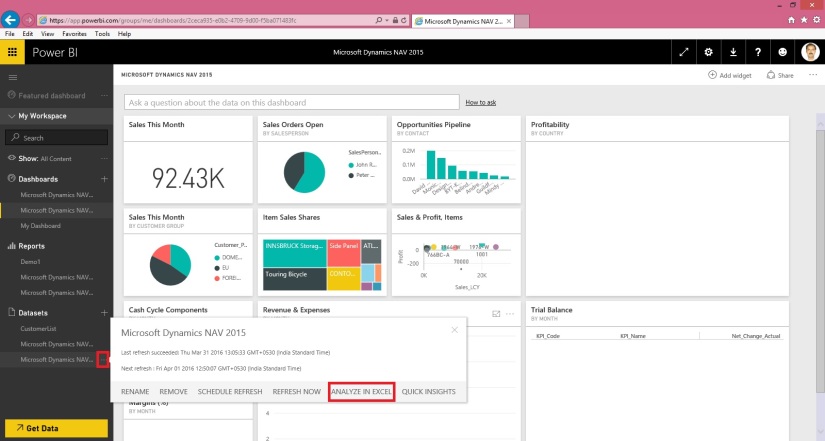
Select the Dataset which you wish to analyse, click the three dots on right and from appearing menu choose ANALYZE IN EXCEL.

PowerBI-112

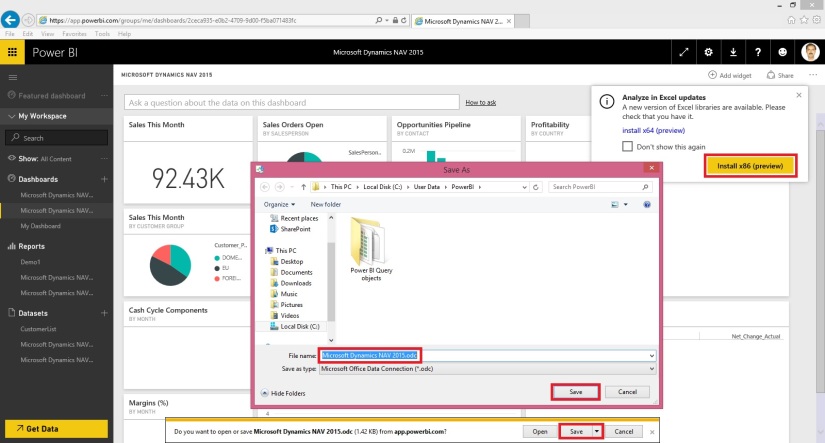
You will be prompted for Analyse in Excel (preview). If you are running first time please install it.

At the same time you will be prompted for (.odc) MS Office Data Connection file to save/open.

Save and then open the File in Excel.

PowerBI-113

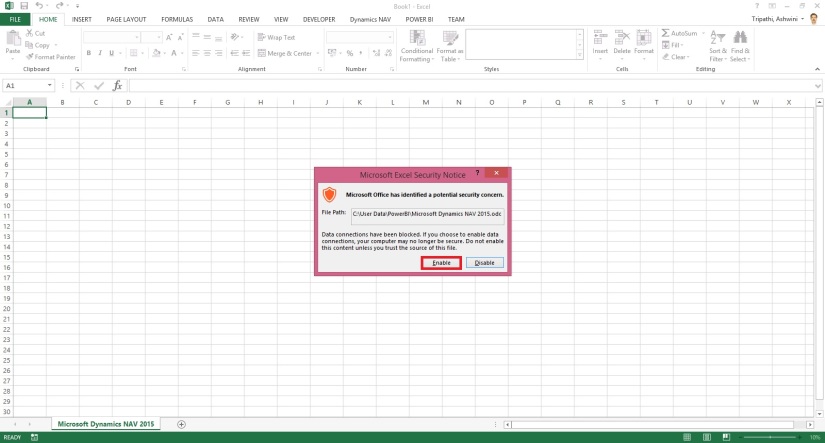
On opening the file you will be prompted for security concern Enable to allow it.

PowerBI-114

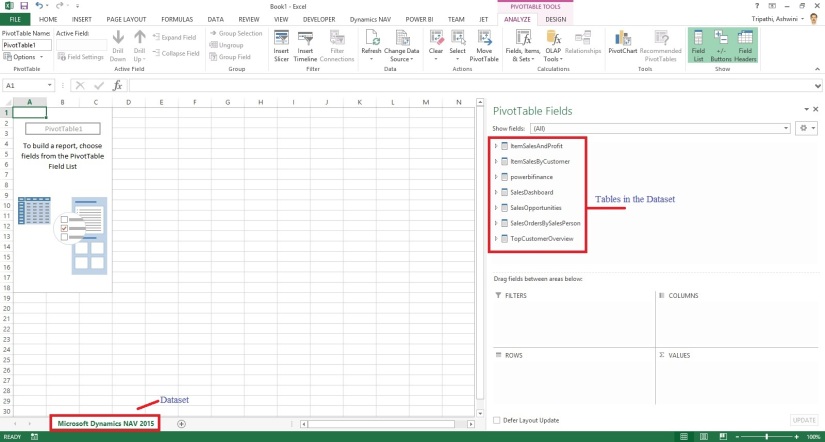
You will be able to see Pivot Table Fields, containing all of the Tables available in the Dataset.

PowerBI-115

Now you can play with your data to analyse and create Pivot, Charts and share with others or you can Pin back your result to Power BI Dashboards using concept we used in our previous post.


That’s all for today, I will come up with more features in my future posts.

Till then keep practicing & Learning.


PowerBI.com, Tip & Tricks

Microsoft Power BI – Part VIII

Continuing from my previous post. Today we will see usage of Power Content Pack to Refresh in Premise Navision Installation using Personnel Gateway.

Please see my previous post it will help you in continuing with this Walkthrough.

In case you have missed here I present the link to all previous posts here below.

Microsoft Power BI – Part – I

Introduction to Power BI and Creating Report from Excel Data, Local Files.

Microsoft Power BI – Part – II

Introduction to few Features of Power BI

Microsoft Power BI – Part – III

Power BI Desktop, Creating Dataset & Reports from In Premise Database installation

Microsoft Power BI – Part – IV

Power BI Gateway usage

Microsoft Power BI – Part – V

Scheduling Refresh of Dataset & Report created using In Premise Database

Microsoft Power BI – Part – VI

Power BI Content Pack

Microsoft Power BI – Part – VII

Power BI Mobile App

Step -1

Check your Service is up & running, here we are not going to use SLL in fact Personnel Gateway.

PowerBI-86

Step -2

Make sure you Imported your Query Objects required for Power BI Dynamics Nav Content Pack. If you are not using NAV-2016, in my case I am using NAV-2015 for this Walkthrough.

PowerBI-87

Step -3

Make sure your Web Services are published.

PowerBI-88

Step -4

You have installed the Power BI Gateway – Personal and Login to it using your Credentials.

PowerBI-89

Step – 5

Login to PowerBI using your Credentials and choose Get Data from Bottom Left Corner in your Navigation Bar.

PowerBI-90

Step – 6

Connect Your Service using MS Dynamics Content Pack.

PowerBI-91

PowerBI-92

Notice here I am not using https:// also remove any ‘/’ and Service name from the URL.

PowerBI-93

Set your Authentication Mode and Sign In.

PowerBI-94

It will take some moment and your Dataset, Report & Dashboard will be available to you.

Graphical representation and data may vary depending upon data in your database.

We are done.

For further detail on any step you can refer previous posts for any clarifications, Links provided above.

Will come up with more details in my upcoming posts.

Till then keep trying and practicing.


PowerBI.com

Microsoft Power BI for Beginners Table of Content

In March I have written few posts on Power BI keeping in mind who are beginners.

In case you have missed here I present the link to all those posts here below.


Microsoft Power BI – Part – I

Introduction to Power BI and Creating Report from Excel Data, Local Files.

Microsoft Power BI – Part – II

Introduction to few Features of Power BI

Microsoft Power BI – Part – III

Power BI Desktop, Creating Dataset & Reports from In Premise Database installation

Microsoft Power BI – Part – IV

Power BI Gateway usage

Microsoft Power BI – Part – V

Scheduling Refresh of Dataset & Report created using In Premise Database

Microsoft Power BI – Part – VI

Power BI Microsoft NAV Content Pack

Microsoft Power BI – Part – VII

Power BI Mobile App

Microsoft Power BI – Part – VIII

Power BI Content Pack

Microsoft Power BI – Part – IX

Power BI Publisher for Excel

Microsoft Power BI – Part – X

ANALYZE IN EXCEL

I will come up with more features and other important details in my future posts.

You can find lots of materials on Power BI here : https://powerbi.microsoft.com/en-us/

https://powerbi.microsoft.com/en-us/learning/

PowerBI-85


PowerBI.com

Microsoft Power BI – Part – VII

Continuing from my previous post, if you have not seen yet please check it out it will help you continuing with this post.

You can check:

Microsoft Power BI – Part – I

Microsoft Power BI – Part – II

Microsoft Power BI – Part – III

Microsoft Power BI – Part – IV

Microsoft Power BI – Part – V

Microsoft Power BI – Part – VI


PowerBI-75

Open the powerbi.com and go to download link of mobile app : https://powerbi.microsoft.com/en-us/mobile/

I have Android so I am selecting Google Play, you select appropriate link as per your mobile OS.

PowerBI-76

Login with your Google account and choose Install.

Alternatively you can install from your mobile browser.

PowerBI-77

Search for Microsoft Power BI and Install the app.

PowerBI-78

Once the App is Installed Open the App.

PowerBI-79

From Home Screen Select Get Started.

PowerBI-80

Give your Login details as registered by Power BI and Sign In.

PowerBI-81

Complete your credentials and Sign In.

Once you are Login, Choose Start Exploring.

PowerBI-83

You will get all available Dashboard on your Power BI Portal.

PowerBI-84

Now you can browse and see your Reports pinned on your Dashboard.

Application have other features need to be explored, different version and on different OS platform you may find features bit different. The app is getting updated from time to time including more features and performance issues.

I will come up with more details on this topic in my upcoming posts.

Till then keep exploring and Learning from different sources available online via blogs and online help on powerbi.com.


PowerBI.com

Microsoft Power BI – Part – VI

Continuing from my previous post, if you have not seen yet please check it out it will help you continuing with this post.

You can check:

Microsoft Power BI – Part – I

Microsoft Power BI – Part – II

Microsoft Power BI – Part – III

Microsoft Power BI – Part – IV

Microsoft Power BI – Part – V

Today we will discuss how to use Power BI Content Pack:

PowerBI-60

Few things to keep in mind to get report Generated Successfully.

Point-1 You have required objects for this content pack in your database.

If you are using 2016, you can skip this as these objects are available in 2016. If you are using 2015 or 2013 then export these objects from 2016 and import in your database.

PowerBI-61

Above Pages will be present in your previous version of database, you need to import the 6 Query objects. These are necessary as these are used as source to fetch data from your data base by this content pack.

Point-2 Web Services need to be published.

PowerBI-62

Make sure you use same name for Services as you may get error while connecting and refreshing/ fetching data using this content pack.

Point-3 SSL port and web address is used to access the services.

https is used as this will not work on http.

Self-signed certificate will not work which we use for test purpose for publishing services and testing. It will throw Trusted relationship connection type error. If you have one use the same instead using Self-signed certificate.

No worries, don’t be disappointed. I will give you tip to overcome this requirement just follow as below:

You may remember that in our previous post we installed and used Power BI Gateway, actually we got a Trusted Certificate which we can use for this purpose.

PowerBI-63

Open IIS Manager on your system.

PowerBI-64

Select Serve/ Machine in Left Navigation Tree and Select Server Certificates.

PowerBI-65

Locate the Data Management Gateway SSL Certificate, this got installed when you installed Gateway. Double click to open the Properties of the certificate.

PowerBI-66

Switch to Details Tab, Scroll down to find Thumbprint, and Copy the Thumbprint and paste to Notepad finally remove all space leading, trailing and any in between.

It should look like above right bottom corner notepad window no space in Thumbprint signature.

Copy this Value and use as Thumbprint in you Navision Service.

PowerBI-67

Select Your Service.

Edit.

Paste the Certificate Thumbprint.

Make Sure SSL is Enabled for your OData Services.

Save.

Restart the Service.

We are done with the basic requirements now let us connect using Power BI Miscrosoft Navision Content Pack.

Now Login with your credentials to Power BI.

PowerBI-68

From Left bottom corner Select Get Data.

PowerBI-69

Select Get Data from Services.

PowerBI-70

Scroll to find Microsoft Dynamics NAV Services and Select Connect.

PowerBI-71

Copy your OData Service URL. Make sure you remove Service name from the URL and trailing ‘/’ after company name from the URL.

Select Next.

PowerBI-72

Select the Authentication Method and then Sign In.

PowerBI-73

Wait for few minutes you dataset will be loaded.

As a result you will get: Dataset, Report & Dashboard ready for you in few minutes depending upon the data volume and connection speed.

PowerBI-74

The report and dashboard view will be as per the available data in your database.

Hurray!!!

You are done with your practice session.

This is a Holi Gift for my reader from my side.

I will come up with more features explanation and other Tips & Tricks in my upcoming posts, till then keep practicing and learning from blogs and helps available online.

 

PowerBI.com

Microsoft Power BI – Part – V

Continuing from my previous post, if you have not seen yet please check it out it will help you continuing with this post.

You can check:

Microsoft Power BI – Part – I

Microsoft Power BI – Part – II

Microsoft Power BI – Part – III

Microsoft Power BI – Part – IV

Today we will discuss how we can schedule refresh for Dataset for Report which we published in our previous post.

We can schedule Refresh for our database which is in our premise.

In Previous post we saw how to enable Gateway to refresh the dataset. This Gateway must be running else we won’t be able to refresh our data from our database. We can Schedule the Refresh but however we can refresh the same whenever required as we saw in our previous post.

It very easy to get it done.

Step -1 Run your Gateway on the server so that Online Power BI can communicate with your server and request for updated data. This should be kept Running All the time just live any service keep running on your Server.

Step-2 Login to Online Power BI at PowerBI.com, using your credentials.

Step-3 Configure Refresh Schedule

For Step 1 & 2 please refer to earlier posts in this series, Link on top of this post.

We will discuss Step-3 here.

Once you are Login to the system, Locate the Dataset you published in our previous post.

PowerBI-57

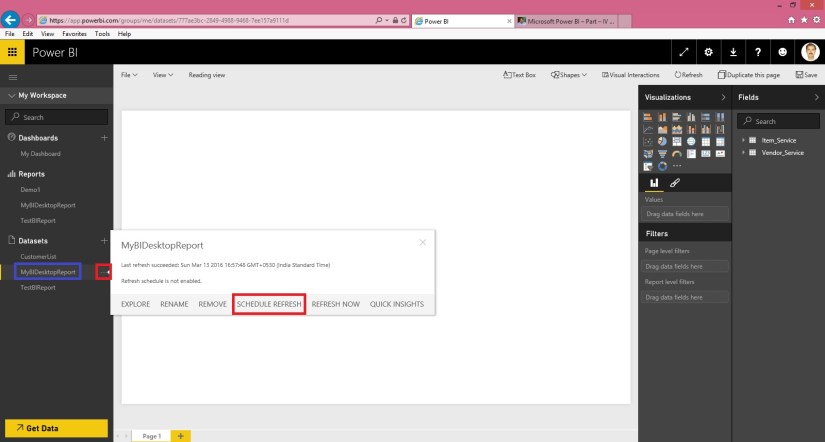
Click on the three dots next to the Dataset name & choose Schedule Refresh from the resulting Menu.

PowerBI-58

Here the required information is self-explanatory, fill in the details as per the requirement and Apply.

Make some data changes in your database and test if it reflects in your Report.

Meet you again via my next Post soon.

Till then keep practicing and learning about Power BI through available Blogs, Help available online with PowerBI.com.