Development Tips, Excel, Instalation & Configuration, Jet Reports, Office Integration, Report

Publishing the Jet Data Source Codeunit to the Web Service

Microsoft Dynamics NAV 2015 includes a “Jet Data Source” codeunit which must be published to enable Jet Essentials or Jet Express to operate. This can be published using the Microsoft Dynamics NAV Role Tailored Client (RTC).

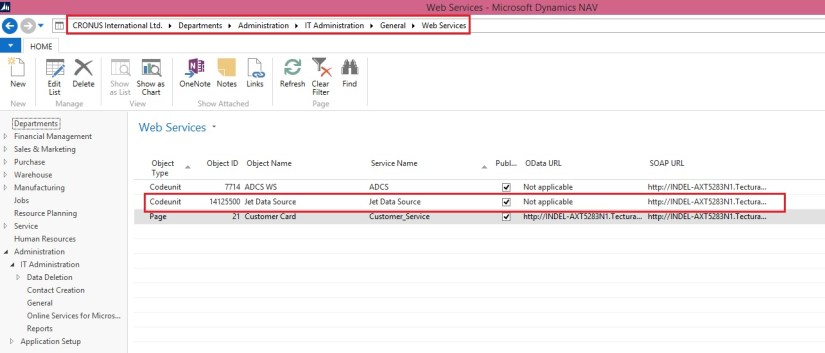
To publish this code unit, inside the RTC go to Departments > Administration > IT Administration > General and select Web Services.

JetExcel-4
Publish the Jet Data Source code unit by selecting New from the Web services ribbon

  • Object Type: Codeunit
  • Object ID: 14125500
  • Service Name: Jet Data Source
  • And check the box to publish.
  • Click OK

Checkout Upcoming posts for more information.

Development Tips, Excel, Instalation & Configuration, Jet Reports, Office Integration, Report

Installing and Publishing the Jet Business Objects on the Microsoft Dynamics Server

To install the .fob file open the Microsoft Dynamics NAV Development Environment and then connect to the database.

  • Open the Object Designer (on the Tools menu, choose Object Designer)
  • Import the .fob file (on the File menu, choose Import)
  • Locate the import file (Jet Reports Objects.fob), and then choose Open.
  • The .fob file includes modified objects. When prompted choose Yes to import all objects.
  • Verify that no objects are to be skipped. Objects are skipped if the version of the object in the database is later than the one in the .fob file.
  • Choose the OK button to import the .fob file.

The .fob file installs a set of business objects in the range of 14125500-14125504 and Table 14125600.
JetExcel-3
Jet Express users must have Read, Insert, Modify, Delete (RIMD-) permissions to Table 4125600 “Jet Cancellation”.

Checkout upcoming posts for more information.

Development Tips, Excel, Instalation & Configuration, Jet Reports, Office Integration, Report

Installing Jet Express for Excel – Navision 2015

Jet Express is an Excel add-in which must be installed each client machine. The client machines must have Excel installed.

Download the current version of Jet Express

  • Download the version of the product that matches your version of Microsoft Office (either 32-bit or 64-bit).
  • Microsoft Office 2007 is 32-bit.
  • If you are using Microsoft Office 2010 you can determine this by selecting the File On your version of Excel.
  • Button in your Excel ribbon and then selecting either Help or Account, depending
  • If you attempt to install the wrong version you will receive an error message and the application will not install.
  • Run the .exe file.
  • If you receive a message asking “Do you want to allow the following product to make
  • Changes on this computer?” select YES.

Once Jet Report is installed, when you open your Excel you will get new Tab as Jet.
JetExcel-2

Checkout upcoming posts for more Information.

Development Tips, Excel, Instalation & Configuration, Jet Reports, Office Integration, Report

Jet Report for Excel – Navision 2015

In my previous posts I introduced with Jet Report for Word.

Please see here. Links below:-

Jet Express for Word Overview & Installation – for Navision 2015

Jet Express for Word – Objects for Navision 2015

What’s New in Jet Reports for Word, How it is different from Navision Word Reports

Customize the Report layout using Jet Express for Word

You can access the resource for Jet Report Excel from this Link.

JetExcel-1

Download the Jet Express Setup & Jet Reports Objects from the site.

Run the Setup to install the Jet Express for Excel.

You may require Activation Code, which you can obtain following the instructions post setup.
Checkout upcoming posts for more details.

Development Tips, Jet Reports, Office Integration, Report

Customize the Report layout using Jet Express for Word

Click Edit Layout to customize this layout
JetReportDesign-1

The Jet Express for Word action panel may automatically open when this word file is opened.

If not, select the Jet Ribbon

Click on the Design icon

This presents a tree hierarchy of the fields from the selected report. 
JetReportDesign-2

Click on the icons on the hierarchy to expand or contract the lists.

The Search field makes it easy to find the fields you need.

Labels – NAV reports which were created by Jet Reports include a section for Labels. These fields are the descriptions of the fields themselves.

If you have multiple languages in your NAV instance, these labels can be helpful for creating multi-language documents.

Other Groupings – NAV reports which were created by Jet Reports include sections for Company, Customer, etc. These fields include the values of the fields.

The user can select from fields including Header or Lines in the hierarchy and insert an item, typically into a table in the Word document.
JetReportDesign-3

To add a field select the desired location in the Word document and double-click on the field.

Alternatively, you can select the field and click on the Insert button in the Jet Express for Word action panel.

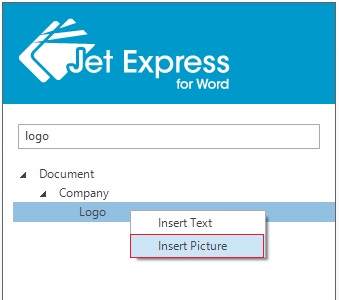
To Add a picture to a document, right-click on the item and select Insert Picture
JetReportDesign-4

The Lines fields are also inserted as text and can be replicated by a Right-click, and choosing “Insert Repeater”.

Repeating items (such as Sales lines on a Sales order) can be added to a document.
JetReportDesign-5

Best practice for this is to create a table in Word that is two rows high.

The first row contains the Labels of the fields that you wish to include.

The second row contains the values of the fields.

Select the entire second row- include the area just to the right of the last column.

Right-click on the item in the hierarchy that you want to repeat and select Insert

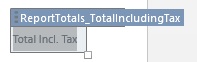
To delete an item, click on it, and then click on its Title.
JetReportDesign-6
When you click on the Title it will change color.

Then press the Delete Button on your keyboard.

Note: It’s important to select the Title when deleting to avoid any leftover data.

When you have completed your changes Save your Word document
JetReportDesign-7
This will return you to NAV and prompt you to import the report layout changes.
JetReportDesign-8
Click Yes

You can Run Report to review your changes.
JetReportDesign-9
Here is the output for the report below.
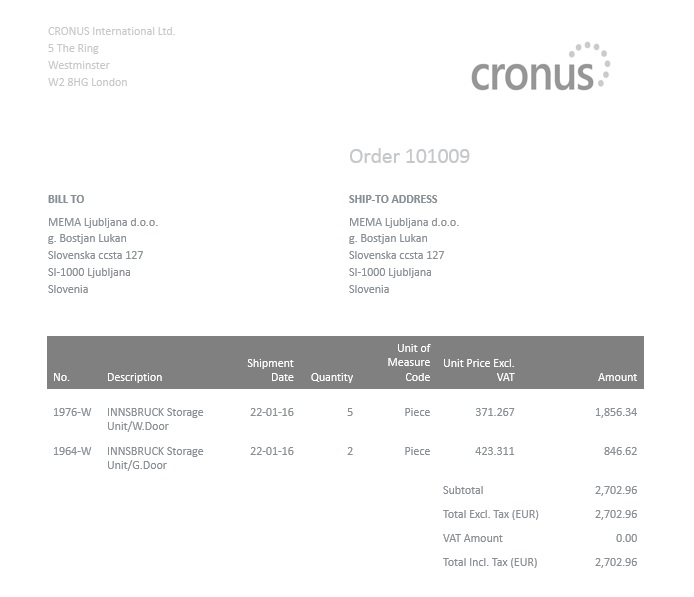
JetReportDesign-10
We are done with customization of the report using Jet Reports.

I will come up with more details in my upcoming posts.

Development Tips, Jet Reports, Office Integration, Report

What’s New in Jet Reports for Word, How it is different from Navision Word Reports

Before we compare both the way of creating report in word, the features I would be suggesting you to review the posts which I have posted earlier Word Document Reports and Custom Layouts to refresh the concept of creating reports in Word.

Let’s start with comparing how it is different from Navision Word Report.

Create a custom layout for the report you wish to use

In your NAV client navigate to Report Layout Selection (Administration/IT Administration/ Reports).

Microsoft Dynamics NAV 2015 includes several sample Word reports including:

14125500             Sales Order – Jet Ex. Word

14125501             Sales Invoice – Jet Ex. Word

14125502             Sales Cr. Memo – Jet Ex. Word

14125504             Sales Quote – Jet Ex. Word

I have filtered the above Reports.

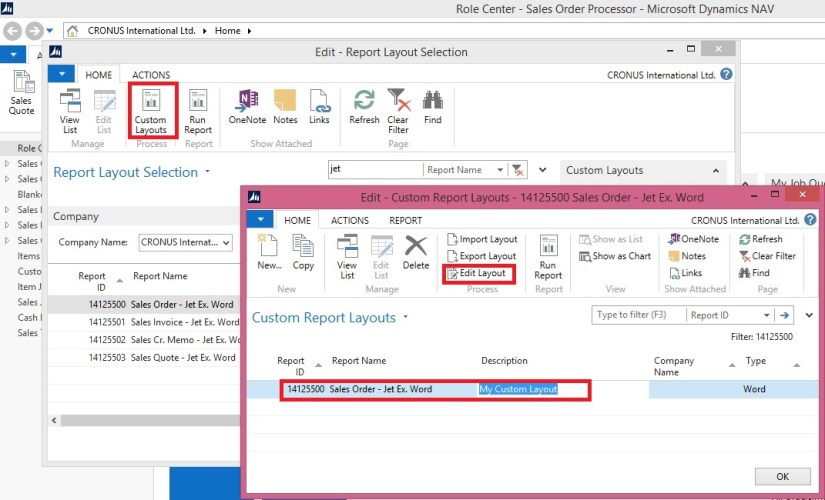
Select the report that you wish to customize. (I am Using 14125500 for this example)
CustomiseJetReport-1
Click Custom Layouts.

 To create a new Report Layout, click New.

A pop-up window will appear and allow you to choose the layout type.

Check the Insert Word Layout box and click OK.

CustomiseJetReport-2

CustomiseJetReport-3

In the Report Layouts window, you can change the Description.

Click OK

In the NAV Custom Report Layouts window, highlight the layout you wish to use and click the Import Layout button from the ribbon.

Browse to the Jet Express for Word Sample Documents, choose the template you want and click Open
CustomiseJetReport-4
Click Edit Layout to customize this layout.

CustomiseJetReport-5

Above screenshot show how to Access the XML part of the Report.

Left side shows Jet->Design

Right side shows Developer->XML Mapping Pane

If you remember In Navision word Report we use to select the Custom XML Part from the dropdown to access the available fields, Labels etc.

Whereas if we see In Jet Report this is not required.

Also you may have observed that Jet Report Pane Have search option, which makes easy to find desired fields rather than scrolling through the XML Nodes to access the desired Fields.
CustomiseJetReport-6

You may observe in above picture that I have typed the part of the Field I am looking for and Jet Report Pane suggested that Similar to what I typed there is a Field “Salesperson” and it available under 2 heads Labels & Header data items.

If I require to insert the Labels or Fields, Place the cursor at desired place where you want that Field to be inserted and Double Click to the Field from Jet Report Pane.
CustomiseJetReport-7
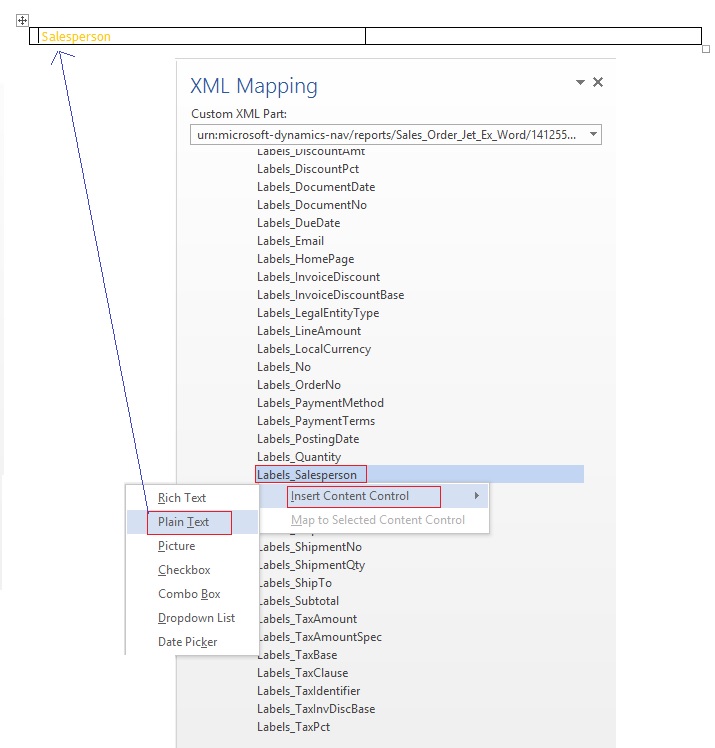
Where as to perform same action in Navision Word Place the cursor where we wish to Insert the Field then we use to Scroll to the Field we wish to insert then we perform step Right Click->Insert Content Control->Plain Text
CustomiseJetReport-8
I will come up with more details in my next post. We will see how we can design the Report Using Jet Report fast and easily.

Also some Best Practice, Tip & Tricks while using Jet Reports.

Development Tips, Instalation & Configuration, Jet Reports, Office Integration

Jet Express for Word – Objects for Navision 2015

Getting Started for Administrators

Overview

Microsoft introduced a new feature with Dynamics NAV 2015 which makes it easy and inexpensive for partners and end users to create and customize visually attractive document reports in NAV using Microsoft Word.

In collaboration with Microsoft, Jet Reports developed Jet Express for Word – an application that supports this process by providing users an easy-to-use interface inside Microsoft Word to create and modify these documents.

From where to download these objects

If you remember my previous post where I shared the link of download page. See here.

JetReportObjects-1
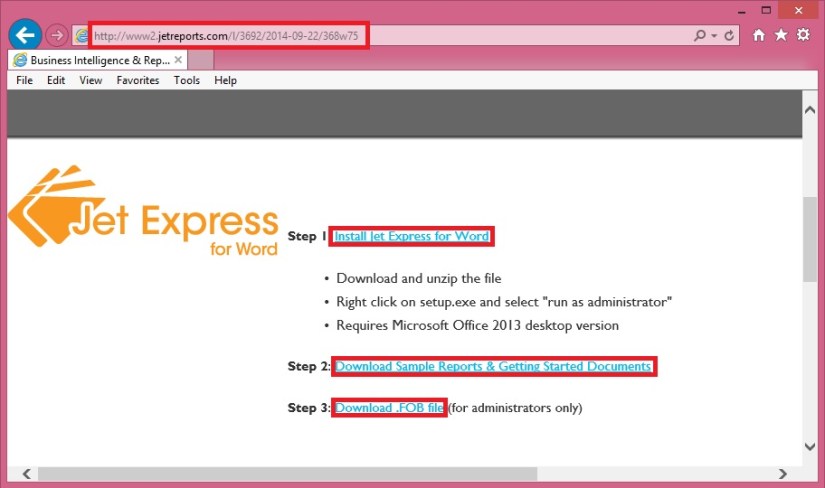
Refer to Step-3 in above screenshot.

Download the Objects from the Link.

Jet Express for Word includes four NAV reports and a set of sample sales documents.

These four NAV reports include:

 Report Number Name
14125500 Sales Order – Jet. Ex. Word
14125501 Sales Invoice – Jet. Ex. Word
14125502 Sales Cr. Memo – Jet. Ex. Word
14125503 Sales Quote – Jet. Ex. Word

Installing these reports in NAV

These four reports are included in a .FOB file which is available from the Jet Express for Word website.

To install this .FOB file you will need access and permissions to the Microsoft Dynamics NAV Development Environment.

In this application select File > Import… and browse to find the downloaded .fob file.
JetReportObjects-2

JetReportObjects-3

JetReportObjects-4

Uninstalling Jet Express for Word documents

If you need to uninstall the Jet components from the Microsoft Dynamics NAV Server-

  • Open the Microsoft Dynamics NAV Development Environment and then connect to the database
  • Open the Object Designer (on the Tools menu, choose Object Designer)
  • Select All to see all business objects.

Select the business objects which were inserted (listed above), right-click and select Delete. When asked if you want to delete the selected lines click Yes.
JetReportObjects-5

Development Tips, Instalation & Configuration, Jet Reports, Office Integration, Report

Jet Express for Word Overview & Installation – for Navision 2015

Jet Express for Word is a new feature available to Microsoft Dynamics users which makes it easy for end users to design documents in Microsoft Word. This feature is part of Jet Express for Microsoft Dynamics NAV and is available to Microsoft Dynamics NAV 2015 users.

Modify Reports in Microsoft Word

Need to change the layout of an invoice or credit memo? Just open the document in Microsoft Word to make changes in a program you already know—no programming required.

Provided you already have reports developed by the Navision professionals. You can only make Layout, Look & Feel changes. For any business logic or including/excluding fields in report will be handled from Navision only as we do.

Design with Flair

You can use document templates that provided by Jet Reports, templates from the Office Store, or create a document from scratch. Add company logos, change fonts, modify fields and customize for multiple regions easily.

Easy to Use

The simple interface allows you to customize or create document layouts using Microsoft Word. Your fields appear in clear text and the search feature makes it quick to add the fields you need.

New functionality in Microsoft Dynamics NAV 2015 allows you to import these document layouts into NAV and run them from within the NAV client.

Software Requirements

  • Microsoft Dynamics NAV 2015
  • Office 2013 Desktop Edition

Supported Languages

  • English, Danish, Dutch, French, German and Spanish
  • More languages will be added soon

Where to get Jet Report Installation Files

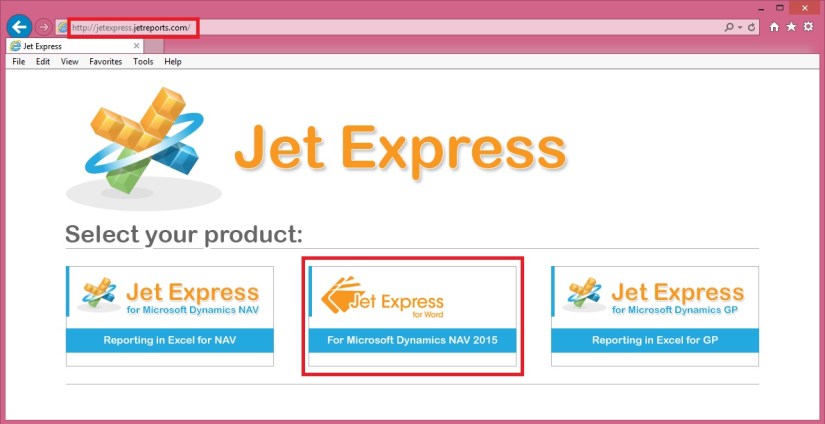
You can use this Link, Visit to Jet Reports site here.

JetReportInstallation-1

JetReportInstallation-2

– Download the Jet_Express_for_Word_Installer.zip file

– Right-click the zipped file and select “Extract All”

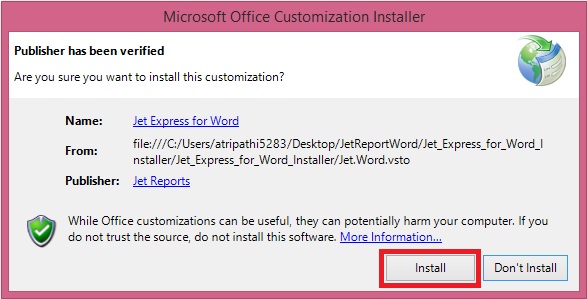
– Right-click the file “setup.exe” and choose “Run as administrator”

JetReportInstallation-3

JetReportInstallation-4

JetReportInstallation-5

Verifying the Installation

Open the Word and you will find one more TAB in Ribbon. [JET]

JetReportInstallation-6

Just in case you don’t find the Tab, Follow below set to enable the same, provided your Installation was successful in previous step without any error.

JetReportInstallation-7

Developer -> COM Add-Ins

Check if Jet Express for Word is enabled, if not select it and say OK.

If already enabled but still you don’t see, disable and enable again. Restart your word now you will be able to see the JET TAB.

I will come up with more information in my upcoming posts.