Development Tips, Excel, How To, Power View, PowerPivot, Report

Power View in Excel 2013

Power View is an interactive data exploration, visualization, and presentation experience that encourages intuitive ad-hoc reporting.

Power View is a feature of Microsoft Excel 2013, and of Microsoft SharePoint Server 2010 and 2013 as part of the SQL Server 2012 Service Pack 1 Reporting Services Add-in for Microsoft SharePoint Server Enterprise Edition.

Power View has these features, as part of Power BI for Office 365:

  • Create Power View sheets in Excel and then view them in the Power BI Windows Store app.
  • View Power View in Excel sheets in your browser, without installing Silverlight.

Data sources for Power View

In Excel 2013, you can use data right in Excel as the basis for Power View in Excel and SharePoint.

When you add tables and create relationships between them, Excel is creating a Data Model behind the scenes.

A data model is a collection of tables and their relationships reflecting the real-world relationships between business functions and processes—for example, how Products relates to Inventory and Sales.

You can continue modifying and enhancing that same data model in Power Pivot in Excel, to make a more sophisticated data model for Power View reports.

With Power View you can interact with data:

  • In the same Excel workbook as the Power View sheet.
  • In data models in Excel workbooks published in a Power Pivot Gallery.
  • In tabular models deployed to SQL Server 2012 Analysis Services (SSAS) instances.
  • In multidimensional models on an SSAS server (if you’re using Power View in SharePoint Server).

Recall from my previous post Creating My First Report using PowerPivot, I will be using same Data Model to demonstrate the feature of Power View, also same report in different format.

Let’s design Customer wise Sales Report using Power View.
PowerView-1

I am using the same Workbook which we used for PowerPivot creating Matrix report for Item Vs Customer Sales.

From Insert Tab choose Power View Reports in ribbon.

Remember this workbook already having Data Model with tables Customer, Item, Cust. Ledger Entry & Item Ledger Entry. One which we created during our previous exercise during walkthrough of PowerPivot.

We already have Relationship defined between Customer & Item Ledger Entry (No. -> Source No.), also Item & Item Ledger Entry (No. -> Item No.).
PowerView-2

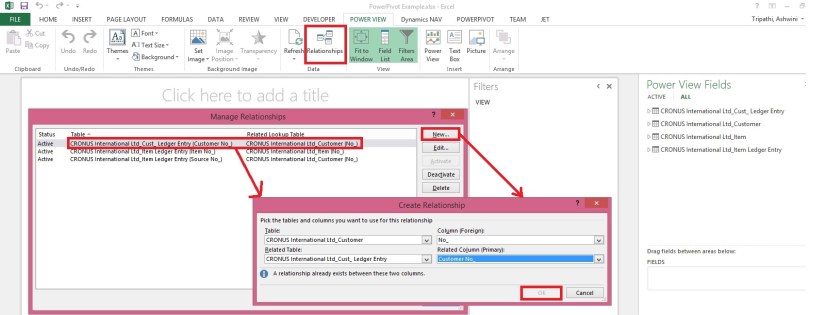
You can View the Relationship using Relationship from Ribbon Power View Tab.

Once the Power View Sheet is inserted the Power View Tab will be Visible.

This will list the two relations which we created earlier in previous exercise post.

However we will be requiring one more relationship for this report. Add using New button on Manage Relationship window.

Enter the Relation for Customer & Cust. Ledger Entry (No. -> Customer No.).

You can see all the 4 tables are listed in Field List Pane.
PowerView-3
Arrange the Fields from respective tables as shown in above screenshot.
PowerView-4
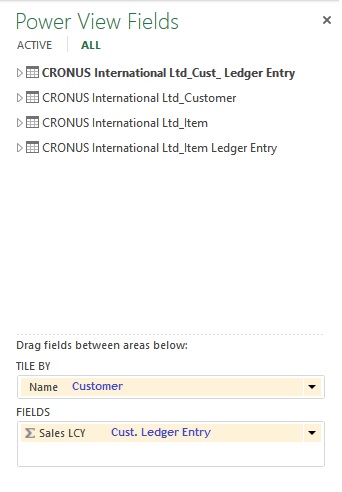
Arrange the fields as shown in above screenshot.

Design of your report should be similar to one shown in below screenshot.
PowerView-5

Resize the Table area to fit the area and the way you want to represent the data.

When a Customer is selected in Title Area, below two tables show the Item Sales Quantity & Total Value for the selected Customer.

You can add fields in the Filter Pane to slice the data accordingly.

I will come up with more details in my upcoming posts.

Till then stay tuned and keep practicing.

Development Tips, Excel, How To, PowerPivot, Report

Add Slicers to PivotTables in PowerPivot

Recall from my earlier post Creating My First Report using PowerPivot in which we created a Items Vs Customer Sales matrix report.

I am going to use same report to demonstrate how we can add slicer to this report.

Slicers are one-click filtering controls that narrow the portion of a data set shown in PivotTables and PivotCharts. Slicers can be used in both Microsoft Excel workbooks and PowerPivot workbooks, to interactively filter and analyze data.
PowerPivot-30

Open the report we created in our previous post.

From Insert Tab select Slicer in the ribbon.
PowerPivot-31

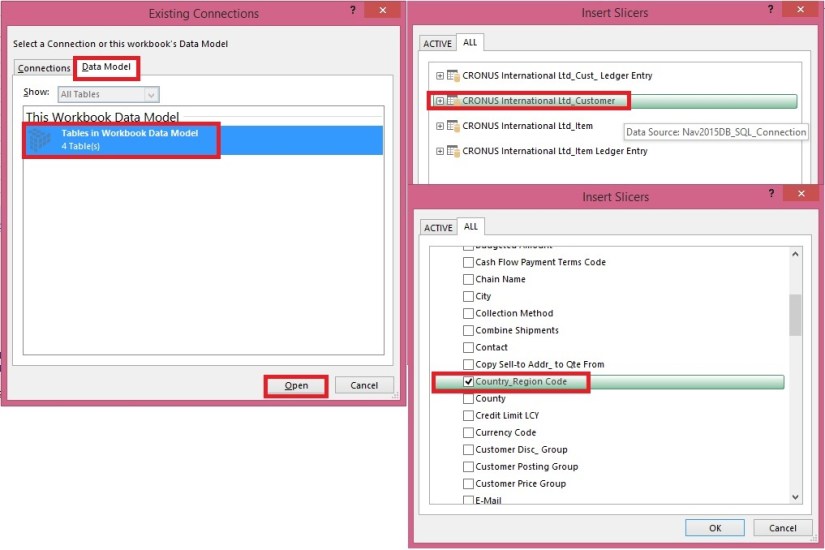
Choose the source Connection/Data model and respond Open.

Select the Customer Table.

Select the Country/Region Code field and OK.
PowerPivot-32

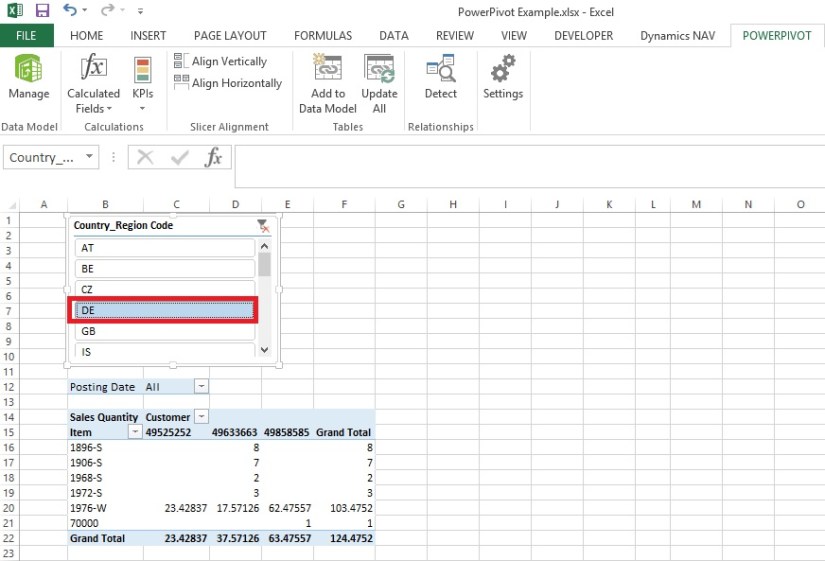
A Slicer will be added to the sheet.

Re-size to fit and drag the Slicer to position at desired location on sheet.

You can give desired Caption to your Slicer by editing the Slicer Caption.

Most important is to select the pivot table on which this Slicer will operate.

Select Report Connection, and from preceding window select the PivotTable.
PowerPivot-33
Above is the screenshot with applied filter on Country/Region Code = DE.

Stay tuned to know more options, I will come up with more details in my upcoming posts.

Till then keep practicing.

Excel, PowerPivot

Basics of Power Pivot for Excel – 2013

Dear friends, I have published couple of posts on this topic. I will be adding more advanced features and details related to this in my upcoming posts.

For your ready reference below I present Links to those posts.

PowerPivot for Excel

Start the Power Pivot in Microsoft Excel add-in

Troubleshooting: Power Pivot Ribbon Disappears

PowerPivot Creating a Data Model in Excel 2013

Adding more tables to the Data Model using Existing Connection – In PowerPivot

Add relationships to Data Model in PowerPivot

How to add Filter for data retrieval in PowerPivot Data model.

Create a calculated column in PowerPivot

Creating My First Report using PowerPivot

In Excel 2013, PowerPivot and Power View are no longer separate add-ins that need to be downloaded and installed. These add-ins are natively included.

PowerPivot in Excel 2013 is functionally very similar to the PowerPivot add-in for Excel 2010.

PowerPivot is an add-in that lets end users gather, store, model, and analyze large amounts of data in Excel. Power View provides intuitive data visualization of PowerPivot models and SQL Server Analysis Services (SSAS) tabular mode databases.

If you’re unfamiliar with either PowerPivot or Power View, I encourage you to first review my previous post links provided above to understand the basics.

Some parts of the PowerPivot architecture is embedded inside of Excel 2013.

  • The PowerPivot version in Excel 2013 no longer uses a separate PowerPivot Fields list. Instead, the built-in PivotTable Fields list is used. This means that some capabilities from the Excel 2010 add-in (e.g., searching for fields by name, creation of slicers from the field list, surfacing of column descriptions when hovering over a field) are no longer available.
  • Workbooks with PowerPivot models are no longer limited to 2GB in size in Excel 2013. However, the 2GB limit still applies to workbooks that will be published to SharePoint.
  • In Excel 2013, a refresh of a PivotTable or PivotChart will, by default, initiate a refresh of the underlying data connections in the Data Model. This is very different from Excel 2010, where a PivotTable refresh only re-queries the model. The new refresh behaviour can be changed by clicking Connections on the Data tab, selecting Properties, and clearing the Refresh this connection on Refresh All check box.
  • Stay tuned for more information on this topic. Till then keep practicing & exploring.
  • In Excel 2013, a Power View “report” is a worksheet rather than an .rdlx file. There’s no concept of multiple report views. Instead, multiple Power View worksheets can be created within a single Excel workbook.

Stay tuned for more information on this topic. Till then keep practicing & exploring.

Development Tips, Excel, How To, PowerPivot

Start the Power Pivot in Microsoft Excel add-in

Power Pivot in Microsoft Excel 2013 is an add-in you can use to perform powerful data analysis in Excel. The add-in is built into Excel, but by default, it’s not enabled. Here’s how you enable Power Pivot before using it for the first time.

  • Go to File > Options > Add-Ins.

In the Manage box, click COM Add-ins> Go
PowerPivot-26

  • Check the Microsoft Office Power Pivot in Microsoft Excel 2013 box, and then click OK. If you have other versions of the Power Pivot add-in installed, those versions are also listed in the COM Add-ins list. Be sure to select the Power Pivot add-in for Excel.

PowerPivot-27
The ribbon now has a Power Pivot tab
PowerPivot-28

Development Tips, Excel, How To, Office Integration, PowerPivot, Report

PowerPivot Creating a Data Model in Excel 2013

Before you can create a PivotTable, you’ll need some data. Let’s get some data from the Navision database.

In Excel, open a blank workbook.

PowerPivot-1

PowerPivot-2

You have several options for getting data from no of sources.

Recall from my earlier post where we accessed data using web service in Excel.

Viewing Page Data in Excel Using PowerPivot (OData)

Let us see what other options are available to us.
PowerPivot-3

In today’s Example I will be connecting with SQL but will access Navision 2015 Database.

Follow the Steps below:
PowerPivot-4

Give meaningful name to your connection in my case I have used Nav2015DB_SQL_Connection.

Select the SQL Server to which you wish to connect in my case I have used INDEL-AXT5283N1, basically this is the SQL Server installed on my Laptop.
PowerPivot-5

Specify the Login method, I am using Windows Authentication, if required you can use SQL Server Authentication. In later case you will have to specify your User Name & Password.

Select the Database to Connect, I have selected Demo Database NAV (8-0) Std. Database for Navision 2015.

Click the Test Connection button, If everything is ok you will get Connection Succeed Message, as shown in above screen shot.

Press Next for next step.
PowerPivot-6

In this screen you have option to either import data from Tables and Views or you can Write Query to fetch data for import.

In my case for this example I am importing data from tables.

Select option – Select from a list of tables and views to choose the data to import and Press Next for next step.
PowerPivot-7

I have Selected two Tables Cust. Ledger Entry & Customer.

Select Related Tables button ensure to select if any other tables related to this Table.

In my case not applicable. Click Finish to add data to the Data Model/ Import the data of these two tables.
PowerPivot-8
Select Close to return to Data Sheet imported after this operation.
PowerPivot-9
Here you see your Data for these two tables have been imported in two sheets.

What happened?

You might not have realized it yet, but you’ve just created a data model. It’s created automatically when you import or work with multiple tables simultaneously in the same PivotTable report. The model is mostly transparent in Excel, but you can view and modify it directly using the Power Pivot add-in. In Excel, the presence of a data model is evident when you see a collection of tables in the PivotTable Fields list. There are several ways to create a model.

I will come up with more details in my next post.

Development Tips, Excel, Office Integration, PowerPivot, Report

PowerPivot for Excel

Power Pivot: Powerful data analysis and data modelling in Excel

Power Pivot is an Excel add-in you can use to perform powerful data analysis and create sophisticated data models. With Power Pivot, you can mash up large volumes of data from various sources, perform information analysis rapidly, and share insights easily.

In both Excel and in Power Pivot, you can create a Data Model, a collection of tables with relationships. The data model you see in a workbook in Excel is the same data model you see in the Power Pivot window. Any data you import into Excel is available in Power Pivot, and vice versa.

How the data is stored

The data that you work on in Excel and in the Power Pivot window is stored in an analytical database inside the Excel workbook, and a powerful local engine loads, queries, and updates the data in that database. Because the data is in Excel, it is immediately available to PivotTables, Pivot Charts, Power View, and other features in Excel that you use to aggregate and interact with data. All data presentation and interactivity are provided by Excel; and the data and Excel presentation objects are contained within the same workbook file.

Power Pivot supports files up to 2GB in size and enables you to work with up to 4GB of data in memory.

Download PowerPivot for Excel

To determine whether you are using 32-bit or 64-bit software, look at the C:\Program Files folder.

Download x86\PowerPivot_for_Excel_x86.msi if you have only “C:\Program Files”. Both the operating system and Office 2010 are 32-bit.

Download x86\PowerPivot_for_Excel_x86.msi if you have both “C:\Program Files” and “C:\Program Files (x86)”, and the Excel.exe application file is found in “C:\Program Files (x86)\Microsoft Office\Office14”. The operating system is 64-bit, but the version of Office is 32-bit.

Download x64\PowerPivot_for_Excel_amd64.msi if you have both “C:\Program Files” and “C:\Program Files (x86)”, and the Excel.exe application file is found in “C:\Program Files\Microsoft Office\Office14”. Both the operating system and Office 2010 are 64-bit.

Install PowerPivot for Excel

  • Double-click the .msi file to start the Setup wizard. Click Run.
  • Click Next to get started.
  • Accept the license agreement, and then click Next.
  • Enter your name, and then click Next.
  • Click Install.

Click Finish.

Verify Installation

Start Excel. After you install the add-in, you can open the PowerPivot window by clicking the PowerPivot tab on the Excel ribbon, and then clicking PowerPivot Window.

An empty PowerPivot window opens over the Excel application window.

You can then use the Import Wizard to add tables of data, create relationships between the tables, enrich the data with calculations and expressions, and then use this data to create PivotTables and PivotCharts.

Stay tuned for more information in my upcoming posts.

Development Tips, Excel, Jet Reports, Office Integration, Report

Excel – Jet Report 2015 for Navision 2015

During the September month my most of the post was dedicated to Jet Reports.

There is many thing to share, which I will keep adding time to time.

For your reference here I present all the links related to this topic.

Jet Report for Excel – Navision 2015

Installing Jet Express for Excel – Navision 2015

Installing and Publishing the Jet Business Objects on the Microsoft Dynamics Server

Publishing the Jet Data Source Codeunit to the Web Service

Enable SOAP Services and identify connection parameters

Configuring a Data Source in Jet Express

Specify your Jet Interface Language

Uninstalling Jet Express

Using the Jet Ribbon Jet Essentials 2015 Update 1 for Navision 2015

Using Jet Report NL Function

Using Jet Report NF Function

Using Link in Jet Reports

Creating My First Report Using Jet Reports

Creating Simple List Report in Excel Using Jet Reports Part-1

Using NL( Lookup ) in Jet Reports Part-1

Creating Simple List Report in Excel Using Jet Reports Part-2

Using NL( Lookup ) in Jet Reports Part-2

Using NL( Lookup ) in Jet Reports Part-3

Using NP Function in Jet Reports

Using GL Function in Jet Reports

Creating Report in Jet Using NL, NF, NP & GL & Excel Formulas

Snippets in Jet Report

How to Use the Jet Report Scheduler

Other options for creating Report in Jet

Remain tuned I will be back with some other topics soon. I am just leaving this topic as of now but will keep adding more details on Jet reports time to time.

Development Tips, Excel, How To, Jet Reports, Office Integration, Report

Creating Report in Jet Using NL, NF, NP & GL & Excel Formulas

Dear friends today I will discuss report “General Ledger Budget to Actual by Period” and demonstrate the usage of NP & GL Functions.

This report will contain all the Functions, Commands we discussed till now and usage of NP & NL Functions.

You can refer my earlier posts for more detailed information which will help you understanding this report better, for your convenience I am providing link to previous posts which may help you understanding the terms being used in this report.

Using Jet Report NL Function

Using Jet Report NF Function

Using NL( Lookup ) in Jet Reports Part-1

Using NL( Lookup ) in Jet Reports Part-2

Using NL( Lookup ) in Jet Reports Part-3

Using NP Function in Jet Reports

Using GL Function in Jet Reports

Let’s start with creating Option Page before we start with report creation:
NPGLUsage-1

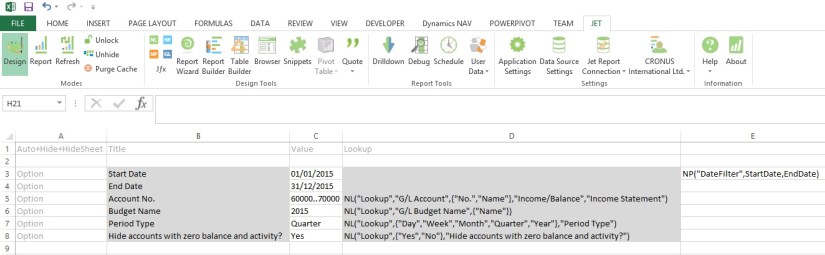
If you see in above sheet few filters are defined for the report, most of them are normal and Lookup which we have already discussed in previous report and posts.

Please be sure ‘=’ have been removed from formulas for presentation purpose, make sure you add them when use in your report.

Here new thing which we see is in E3 Cell:

=NP(“DateFilter”,StartDate,EndDate)

Here NP function creates a filter variable date filter which takes the StartDate & EndDate to create filter in Navision format like 01/01/2015..31/12/2015, which can be used in other Jet Functions as an parameter.

Option denotes these value will be asked from user when report is executed.

Lookup provides List of Values for selection to the user.

All text in A Column & Row 1 are the keywords or reserved words of the Jet Reports.

All text B3..B8 are Text or Option Heading which will be displayed in Option form when report is executed.

All text C3..C8 are the default Values for the options, remember (*) means no filters applied or include all. Don’t Forget to define Name of the cells in Name box, you will find this in the Left of the Formula Bar. The name I am using in my report defined below, this will help us using these user friendly name as filter in our Functions.

Cell Name
C3 StartDate
C4 EndDate
C5 GLAccountNo
C6 BudgetName
C7 PeriodType
C8 BlankZero
E3 DateFilter

Let’s Start our Report Design, Insert one more sheet for report format design.

Our design will be as follows, we will discuss the formula used in these columns later below in this post.

NPGLUsage-2

The Jet Formulas we are using in above sheet is as below:

Cell Formula
I3 =NL(,”Company Information”,”Name”)
J4 =PeriodType
J5 =NP(“DateFilter”,StartDate,EndDate)
J6 =NP(“Eval”,”=Today()”)
K8 =NL(“Columns=5”,NP(“Dates”,StartDate,EndDate,PeriodType))
K9 =NL(,NP(“Dates”,K8,”30/12/2050″,PeriodType,TRUE))
C12 =IF(AND(Heading=FALSE,BlankZero=”Yes”,MIN(K12:Q12)=0,MAX(K12:Q12)=0),”Hide”,”Show”)
D12 =NL(“Rows”,”G/L Account”,,”No.”,GLAccountNo,”Date Filter”,DateFilter)
E12 =NF($D12,”Account Type”)
F12 =OR(AccountType=”Heading”,AccountType=”Begin-Total”)
G12 =NF($D12,”Indentation”)
H12 =IF(E12=”Posting”,NF(D12,”No.”),IF(OR(E12=”Total”,E12=”End-Total”),NF(D12,”Totaling”),”0″))
I12 =REPT(” “,G12*5) & NF($D12,$I$11)
K12 =GL(“Budget”,$H12,ColumnStartDate,ColumnEndDate,,,,,,,BudgetName)
L12 =GL(“Balance”,$H12,ColumnStartDate,ColumnEndDate)

We can mix and match Excel formulas too to achieve data we require in our report especially any calculation of values from other cell values. You may find many of them is being used in this report too. You can apply formatting of Excel for better presentation of your reports. Sometime cell references to help in repeating the value to the cells and making available to access to upcoming cells when report is executed.

In Cell C1 [Hide+?] denotes this column will be used to get decision at run time like if we want to hide or show the respective row. As this value will not be available at design time, but when report is executed some rows we want to hide from the output of the report to user. Anything we are sure and know well in advance that this row need to be Hide we can key [Hide] in column A of that Row.

See in Cell C12 formula: [=IF(AND(Heading=FALSE,BlankZero=”Yes”,MIN(K12:Q12)=0,MAX(K12:Q12)=0),”Hide”,”Show”)]

Here decision is taken either we need to Show/Hide this row from output depending upon the test value. This value will be only available when data is retrieved and presented in Report, at design time we cannot predict what will be the value in these column and what will be the result of our test.

If we want to Hide any Row we Key [Hide] in A Column of that Row, Similarly if we want to Hide any Column we Key [Hide] in Row 1 of that Column.

Column L8 & L9 simply copy Value of K8 & K9 Respectively. K10 =K8 here too value is copied.

Rest All Values are Simple text used for Heading in Report Output.

[=REPT] this is Excel Formula Repeats text a given number of times. Use REPT to fill a cell with a number of instances of a text string.

Syntax: REPT(text, number_times)

The Cell M12 usage simple Excel Formula [=K12-L12].

The Cell N12 also usage simple Excel Formula [=IF(K12=0,””,ROUND((M12/K12),2))]

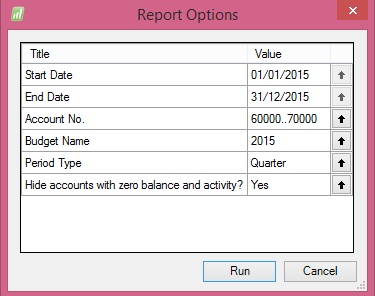
On executing the Report I fill below Filters:

NPGLUsage-3

Applying above Filters the Output of report from my Standard Navision 2015 Report I get below Output:

NPGLUsage-4

Due to size limit I have reduced the zoom of the excel so that the exact report output in full can be shown.

Remain tuned for more information.

I will come up with more details in my upcoming posts.

Development Tips, Excel, How To, Jet Reports, Office Integration, Report

Creating Simple List Report in Excel Using Jet Reports Part-2

In my previous post we saw how to create simple report in excel using Jet Report.

If not seen please refer it before you continue with this post, here is the link for same:

Creating Simple List Report in Excel Using Jet Reports Part-1

Using NL Lookup Part-1

Here we will start from where we left in previous post.

We will add one more sheet in Report we created in our previous post, and name it is as Option, where we will define all of our Filters.

Our Option sheet will look as below:
JetSimpleReport-7
Here we have created 3 Filters Customer No., Credit Limit LCY & Balance LCY.

Next Step will be to apply this Filter provided by user at runtime to the Report.

Return to your Report Sheet and edit the NL Function used to retrieve Rows from Customer as below:
JetSimpleReport-8
(*) in filter denotes all, in other words no Filter.

Now let see the Filter Sheet how it behaves when we run the report.

When we run the report first Report option is shown, where we will give our Filters:
JetSimpleReport-9

Here I am giving below filters:

Customer No. Filter                         *              Include All Customers

Credit Limit (LCY) Filter                  0              All rows with Credit Limit as Zero

Balance (LCY) Filter                      >0             All rows with Balance value greater than Zero

The output of the report should be as below:

JetSimpleReport-10

Stay tuned for more details in my future posts.

I will explain more about commands, filters, functions, lookup etc.…

Development Tips, Excel, How To, Jet Reports, Office Integration, Report

Creating Simple List Report in Excel Using Jet Reports Part-1

Dear friends I will discuss today simple report creating in Jet Reports.

I will take a simple example for creating Customer List showing the Credit Limit & Balances.

We will be using two basic Functions of Jet Reports NL & NF.

Then we will add few more features in my next post on this report.

Let’s Start Step wise Step:

Step 1: Add NL Function to retrieve Records from Customer Table.
JetSimpleReport-1
I have Add NL Function in Cell E5 as shown above, if want to add using Jfx – NL place a Cursor in E5 and press NL from Jfx Group of functions and fill as below:
JetSimpleReport-2

Step 2: Add Fields which you wish to include in your Report using NF Jfx Function.

I am adding No. field from Customer Table.

Here we have already created the connection to Customer Table in previous Step. This will retrieve all Fields and Records from the Customer Table.

Using NF function I am selecting the Fields of which we want to show/include value in our Report.

I have add the Function in Excel as shown below:
JetSimpleReport-3
I have Add NF Function in Cell F5 as shown above, if want to add using Jfx – NF place a Cursor in F5 and press NF from Jfx Group of functions and fill as below:
JetSimpleReport-4

Step 3: Following Step 2 add all other Fields.

The Excel should look as below:
JetSimpleReport-5

I have Added fields No., Name, Credit Limit (LCY), Balance (LCY).

I have also added Heading for these fields, and applied general Excel Formatting.

The Column E with NL function, I have Hide from the Report Output as the information is having no relevance showing to User.

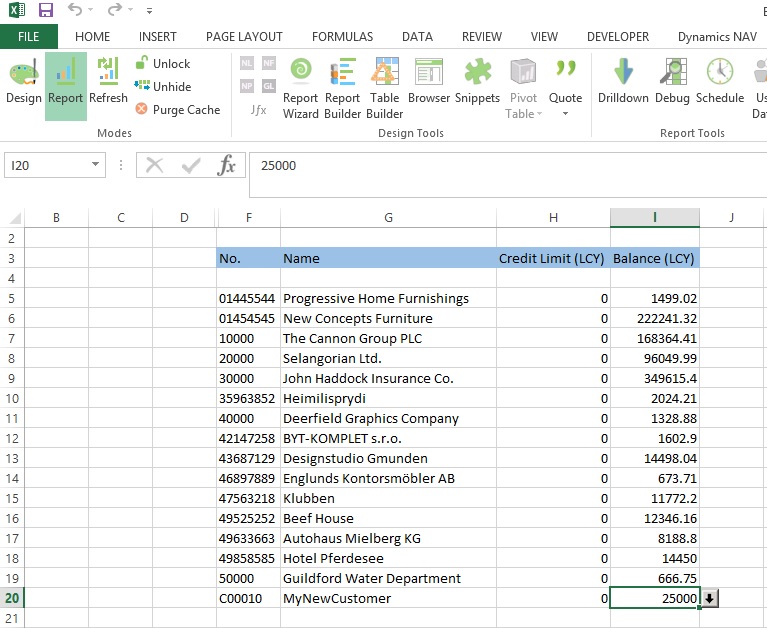
Now we are god to see the output of our Report Created above. Output format of this report will be as below:
JetSimpleReport-6

Stay tuned to have more updates in my upcoming posts.