Dynamics 365, Information

The first look at the next generation of intelligent business applications in the cloud. Dynamics – 365


Today I had a chance to attend Dynamics 365 – first look presentation from Microsoft.

Below are the few takeaways from this session, sharing with you, will come up with more details later in my upcoming posts.

Microsoft Dynamics 365

Enable your organization to grow, adapt, and evolve to meet the needs of your customers with Dynamics 365 – the next generation of intelligent business applications.


1


14


15

Use digital intelligence to reimagine what’s possible for your business.

Dynamics 365 unifies CRM and ERP capabilities into applications that work seamlessly together across sales, customer service, field service, operations, financials, marketing, and project service automation.

Start with what you need, add applications as your business grows.

Rethink what’s possible for your business when you:

  • Better engage customers
  • Empower employees
  • Optimize operations
  • Reinvent products and business models

23456789101112

Product demo was also given, will share those details also in my upcoming posts. Till then keep exploring and learning.

All screenshots are taken from Microsoft presentation.

You can find more details and explore on below link: https://www.microsoft.com/en-us/dynamics/default.aspx

13


Dynamics 365, Information

Microsoft Dynamics 365

As per Dynamics 365 Team: News published Aug 22 2016

Microsoft is on a mission to help every organisation and every individual achieve more.  To that end we’re seeking to reinvent personal productivity and business processes.  Microsoft Dynamics 365 is the next step on our journey. Announced in July 2016 – Dynamics 365 will become generally available later this year. We’re keen to help existing Dynamics customers understand more about our ambition and how Dynamics 365 fits into our plans for the Dynamics products and services you are already using.

See more details on : https://mbs.microsoft.com/customersource/northamerica/news-events/news-events/news/MicrosoftDynamics365

The Dynamics portfolio

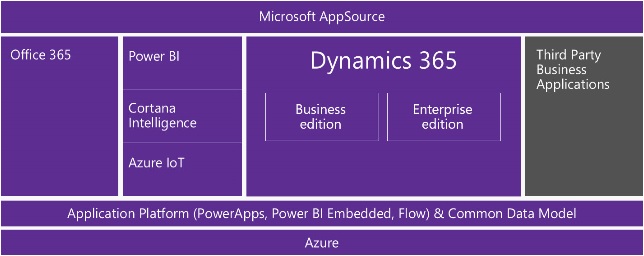
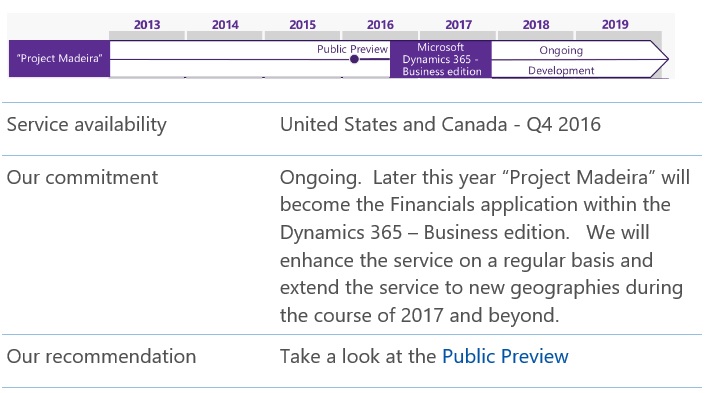
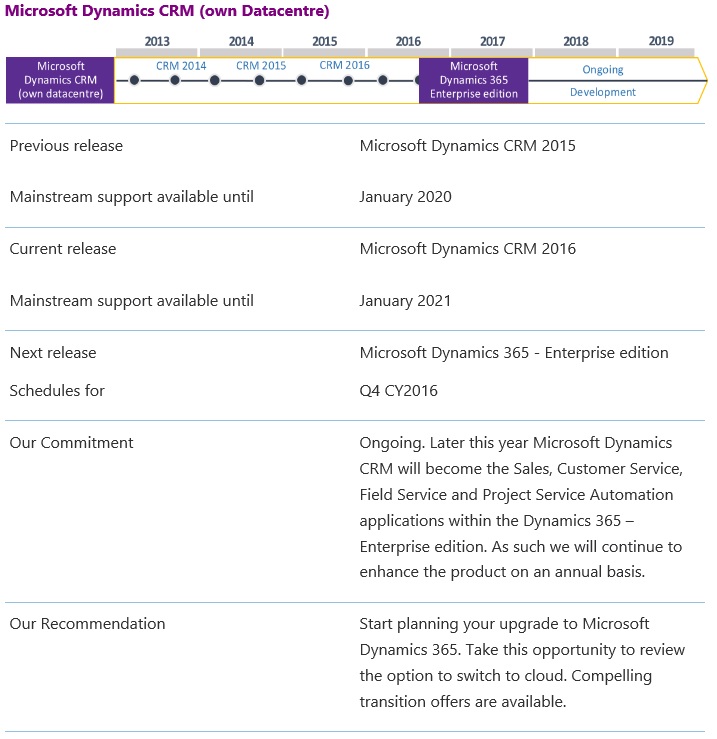
Later this year Dynamics CRM and Dynamics AX will come together to create the Microsoft Dynamics 365 Enterprise edition.  The Business edition will be founded on “Project Madeira” which is currently in public preview.

Click to find out more about plans for particular product/service:


Microsoft Dynamics 365 editions:

Microsoft Dynamics 365 Dynamics 365 comprises a range of end-to-end, cloud based, intelligent business applications.  Dynamics 365 will be available in Business and Enterprise editions.

Microsoft Dynamics 365 Business edition Microsoft Dynamics 365 Enterprise edition

Financials

Sales *

Marketing *

*Available Q2 CY 2017

Operations

Sales

Marketing

Customer Service

Field Service

Project Service Automation

Includes embedded intelligence, PowerApps and Flow

Includes embedded intelligence, PowerApps and Flow

Additionaly Dynamics 365:

  • Uses a common data model, shared with Office 365, to simplify data management and integration across apps and business processes.
  • Offers tech savvy business customers/analysts, aka “citizen developers,” (using Power Apps, Power BI Embedded and Microsoft Flow) and professional developers (using Azure platform services) a consistent way in which to compose new apps and easily extend and modify existing ones.
  • Comes with connectors that let you integrate with applications and services from Microsoft and our partners – including custom API’s and on premise systems.


Dynamics365-1


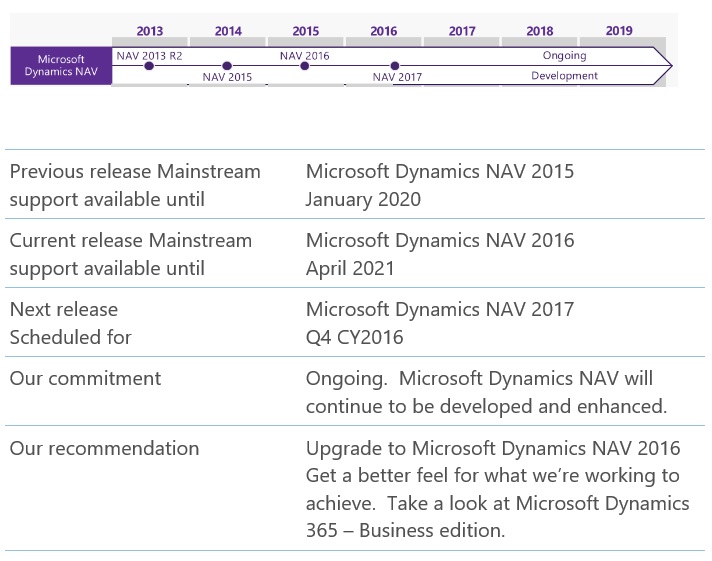
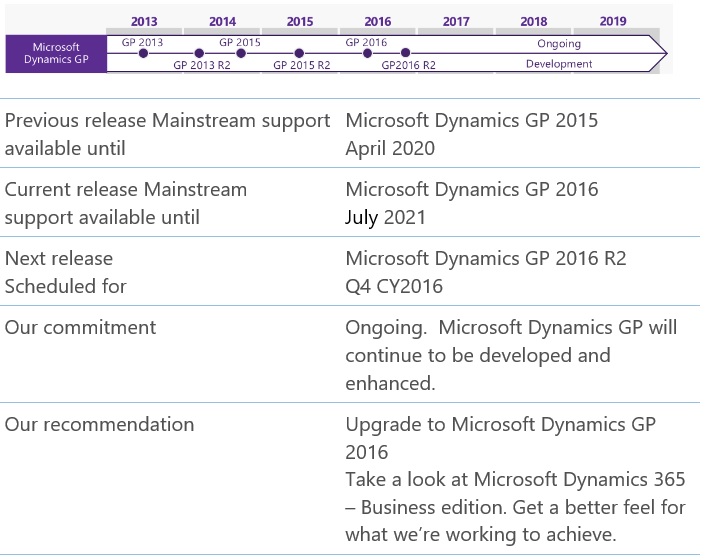
Roadmap :

Dynamics365NAV-2

Dynamics365Madeira-3

Dynamics365CRM-4

Dynamics365CRM-5

Dynamics365AX-6

Dynamics365AX-7

Dynamics365GP-8

Dynamics365SL-9

All images are taken from Microsoft Site.

Information can change over the time, correct till posting of this post.

For accurate information please check on Microsoft customer source site in News & Events section, Links available above in post body.


Azure, Corfu Navision 2016, How To, Information, Instalation & Configuration, Office 365, Office Integration, Tip & Tricks

Configuring Single Sign-On using Office 365 on Navision 2016

Today we will see how we can enable Single Sign-On using Office 365 for Navision 2016.

Before we start we should have Virtual Machine ready on Azure with Navision 2016 installed, Certificates and Nav User is configured. Endpoints are open so that web client can be used from outside Virtual Machine on internet.

It should be hosted on Public IP, then only we will be able to configure it.

For details regarding Azure Subscription you can see my earlier post here.

For details regarding Creating Virtual Machines you can see my earlier post here.

You also need Office 365 Subscription ready for use and you can use the AD of same to configure your Single Sign-On.

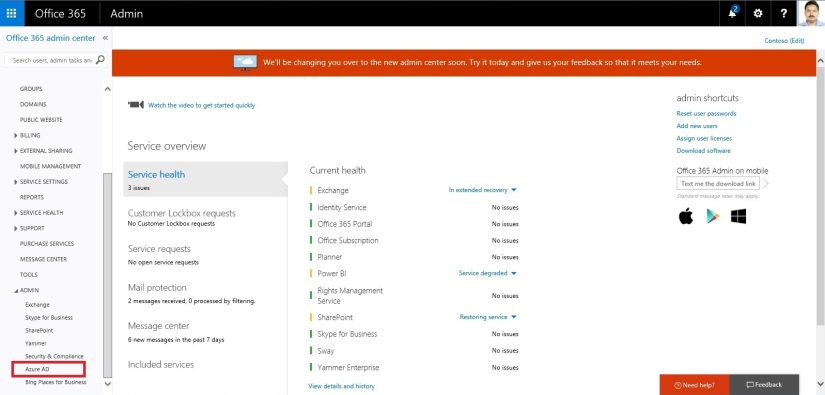
Let us start with Admin console of office 365. Click on Azure AD this will create Management Console to work with AD.

SingleSignOn-1

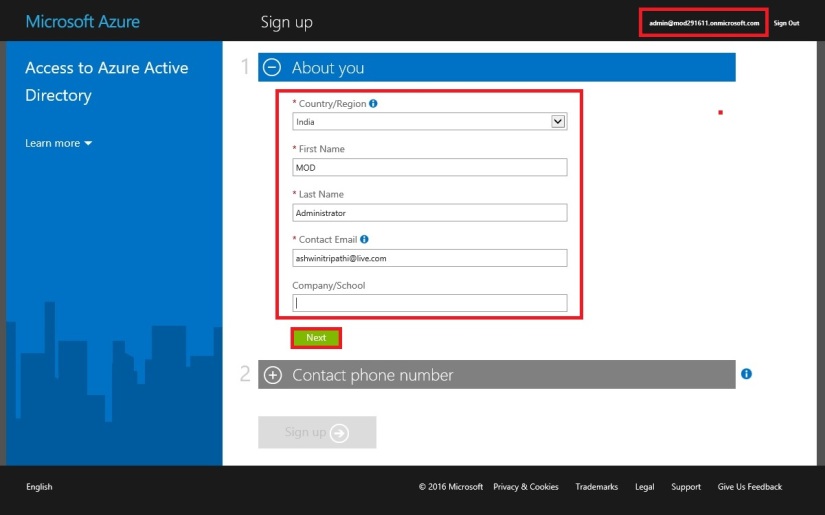
Enter your details and click on Next.

SingleSignOn-2

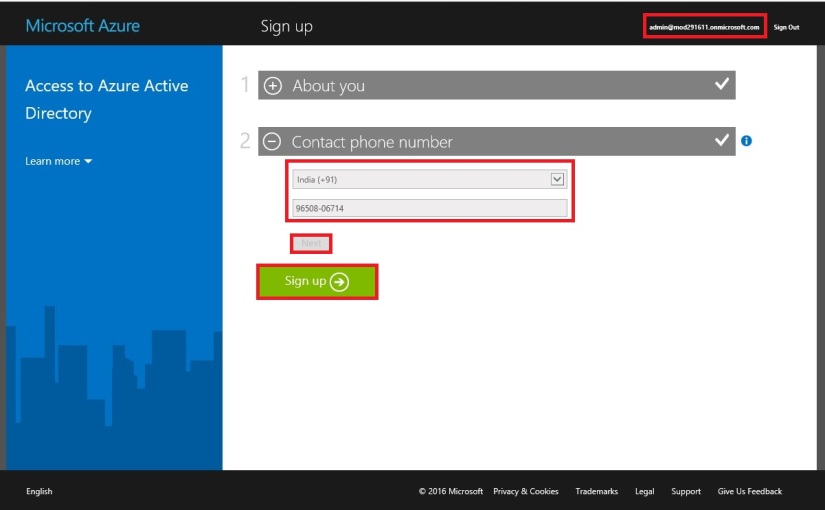
Enter your details and click on Next, Finally Sign Up.

SingleSignOn-3

It will take few minutes to configure and make it available for you.

SingleSignOn-4

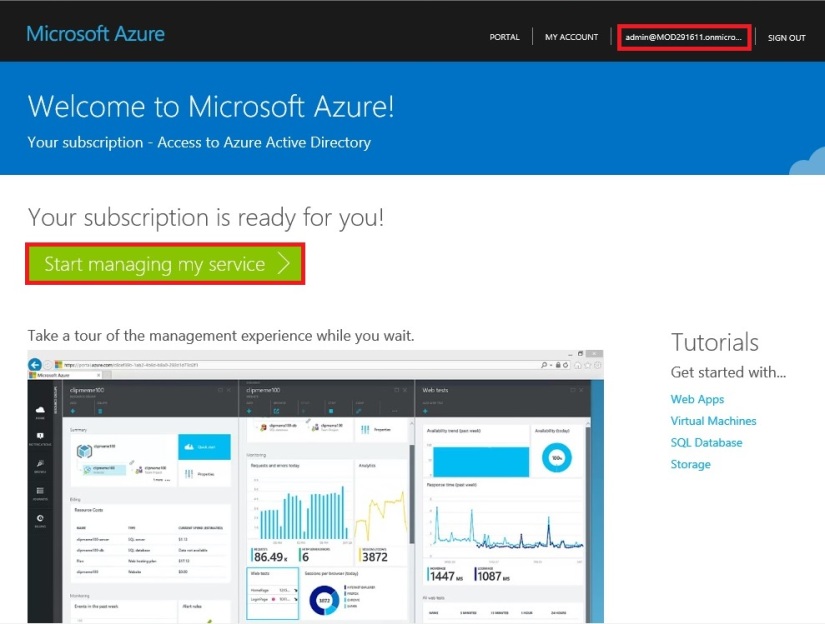
Once your Subscription is ready click on Start Managing my Service.

SingleSignOn-5

From Management Console click on Virtual Machine, if you dont have already to create one for you.

SingleSignOn-6

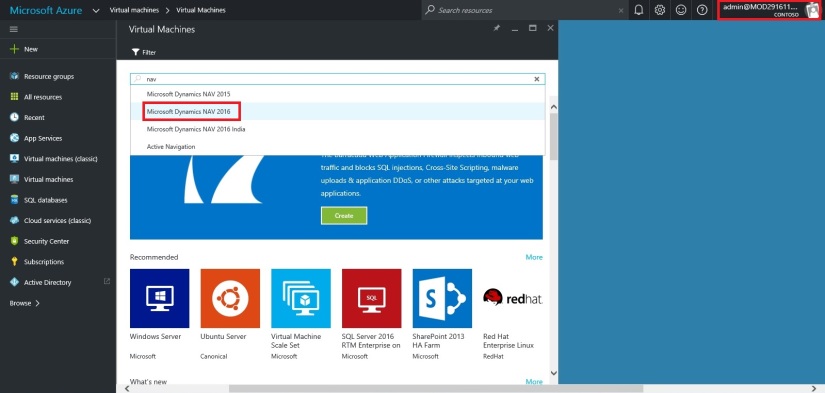
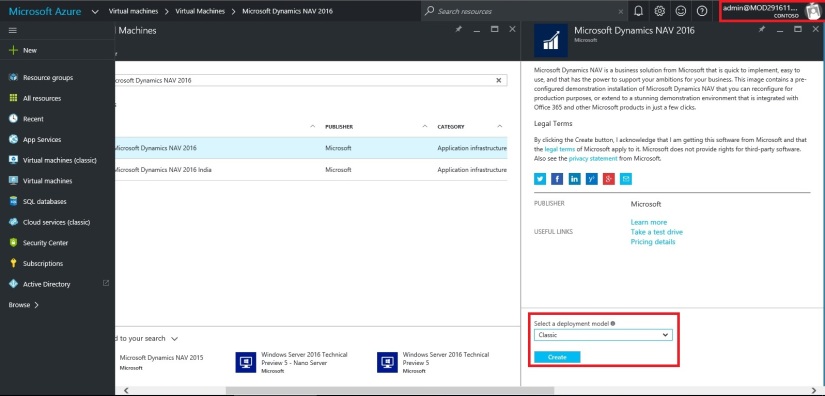
Select the Virtual Machine in Search for Microsoft Dynamics Nav 2016.

SingleSignOn-7

Select the approprite Virtual Machine from the List.

SingleSignOn-8

Enter your details and Create. For more details see the link provided on top of the post.

SingleSignOn-9

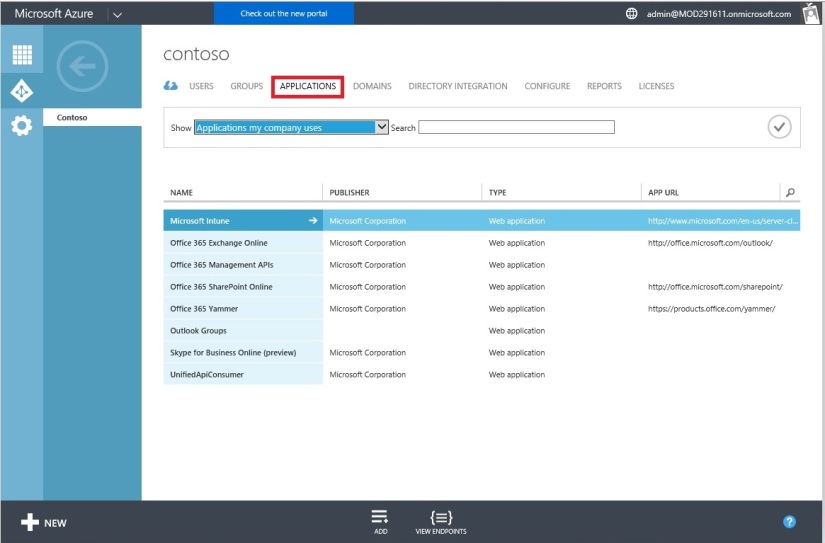
Let us return to our AD, Click on Applications. This will List all you Apps currently available with your AD or office 365.

SingleSignOn-10

Click on Add to configure your Application.

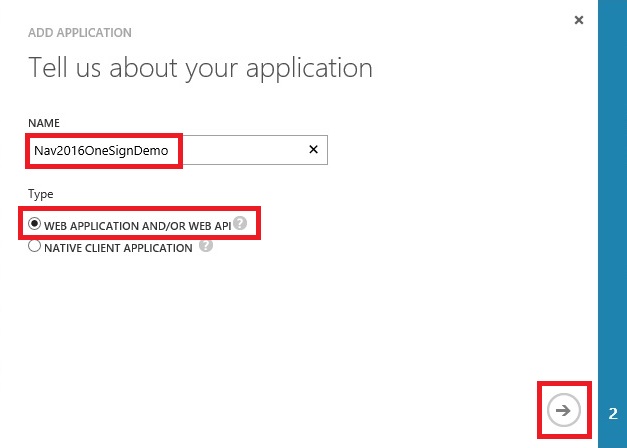
Give a Name and Select Web Application/or Web API, as we are configuring for Web Client today. Click on Next.

SingleSignOn-11

Enter your Web Client URL and Office portal AD URL.  Click on OK.

SingleSignOn-12

Your New application gets registered with your AD.

Select the created Application and Click on View Endpoints.

SingleSignOn-13

Copy the Federation MetaData URL and keep it handy at safe place we will require this in our next step. Close the window we are not performing any changes here.

SingleSignOn-14

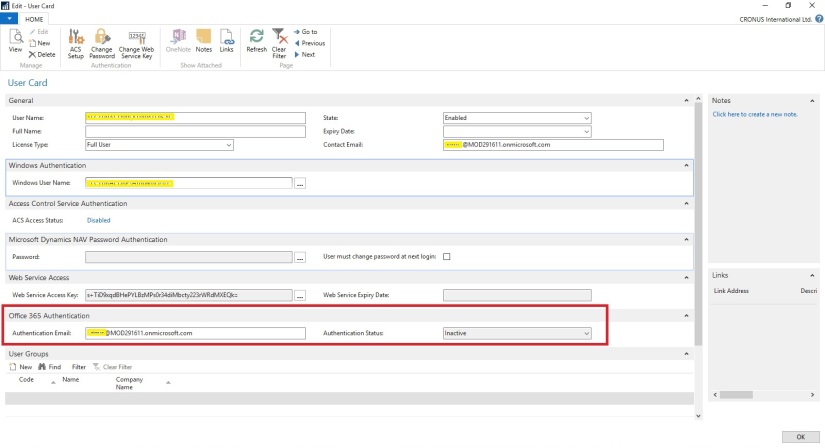
Open your Navision User Card.In Office 365 Authentication enter your Office portal user email id which you will be using for Single Sign-On.

SingleSignOn-15

Open your Navision Service Instance configuration and enter Federal MetaData URL which we copied in our previous step.

SingleSignOn-16

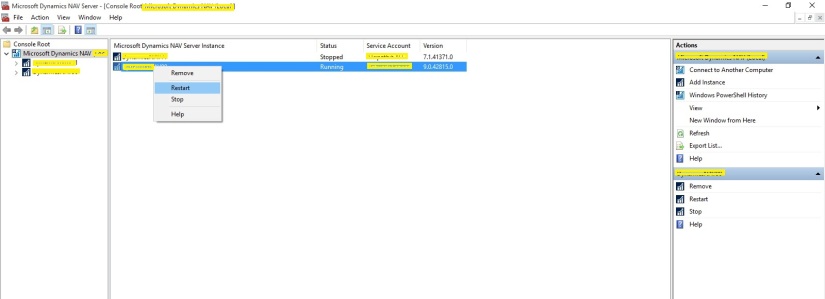
Restart you NAV Service.

SingleSignOn-17

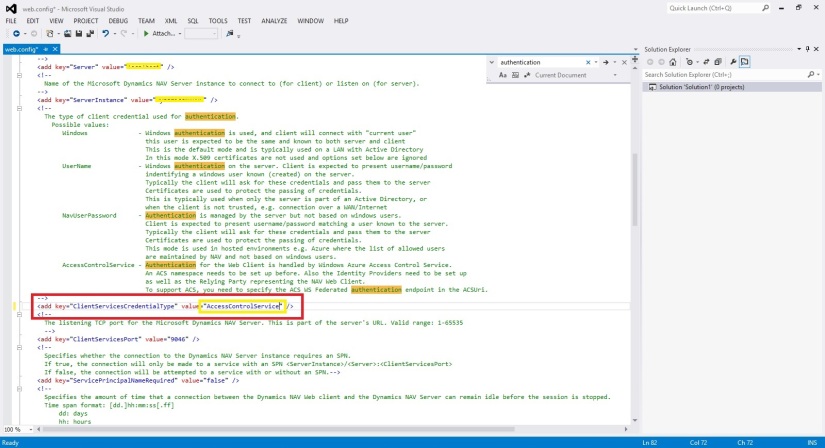
Open the Web Client Folder under your IIS. Edit your Web.config file using prefered Editor.

SingleSignOn-18

Enter you Client Service Credentials as AccessControlService.

SingleSignOn-19

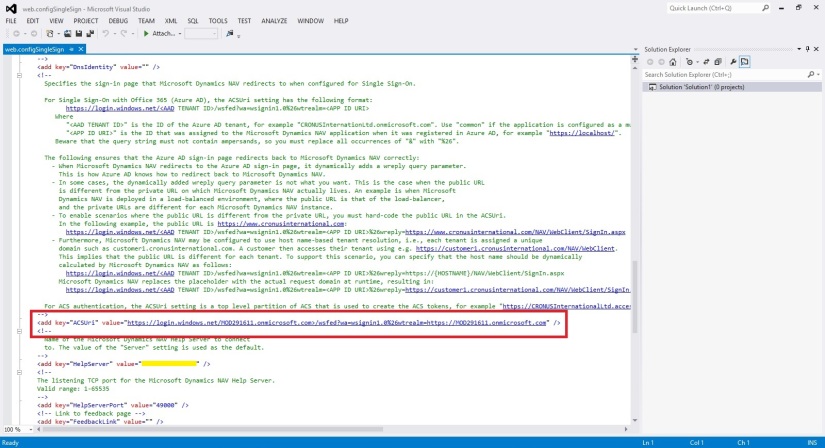
Change value of ACS URI as below. You have full explaination of same in the file itself.

SingleSignOn-20

Thats all, Now you open your web client and you will be redirected to Office 365 Login Page, enter your valid office 365 e-mail user id and password you will be authenticated and Web Client is opened.

Thats all for today, I will come up with moredetails in my upcoming posts.

Till then keep exploring and learning.


Development Tips, How To, Information, Instalation & Configuration, Maderia, Office Integration, Tip & Tricks

Assisted Setup (Office Add-Ins) in Madeira

In this post we will discuss about how to setup Office Add-Ins.

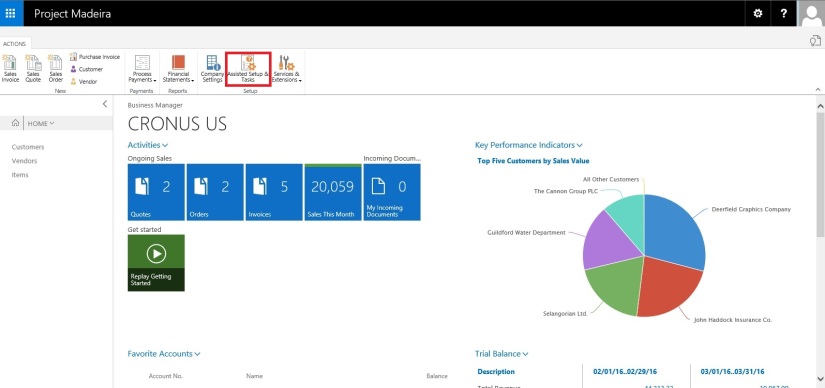
Select Assisted Setup & Tasks from the ribbon of Action Tab.

SetupOfficeAddIn-1

Select Setup Office Add-Ins from the list.

SetupOfficeAddIn-2

Click on Next Button on Welcome Screen.

SetupOfficeAddIn-3

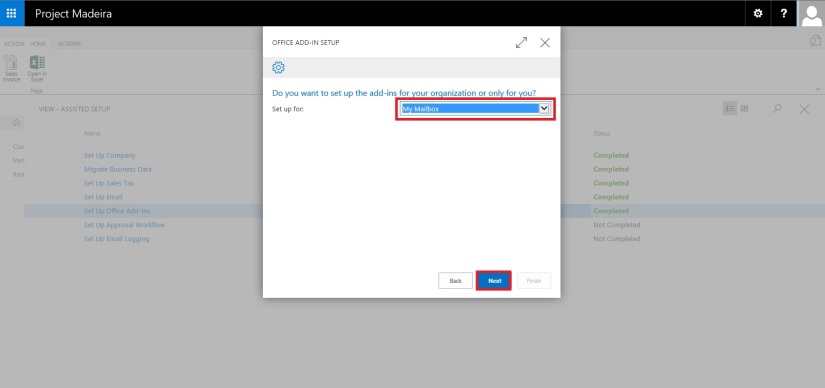
Select Setup for (Organization or you only) and click on Next Button.

SetupOfficeAddIn-4

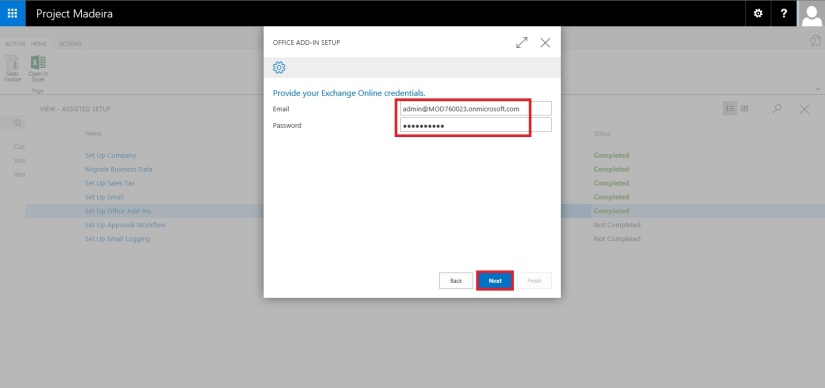
Enter your E-mail id and Password, click on Next to continue with next step.

SetupOfficeAddIn-5

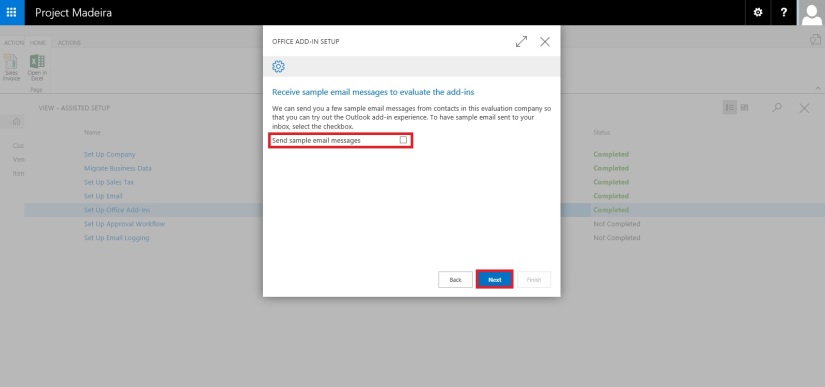
If you wish to receive few sample mails in your Mail box click on the check box or leave it blank, click on Next Button.

SetupOfficeAddIn-6

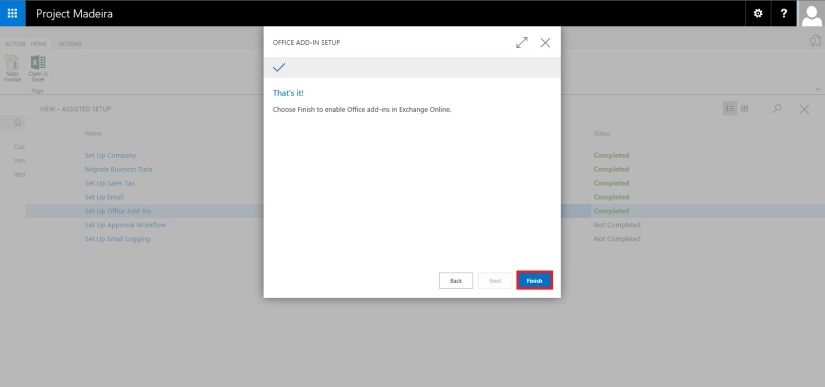
That’s it. click on Finish to complete the setup.

SetupOfficeAddIn-7

SetupOfficeAddIn-8

That’s all for this post.

Will come with more details in my upcoming posts.

Till then keep exploring & learning.


Development Tips, How To, Information, Instalation & Configuration, Maderia, Office Integration, Tip & Tricks

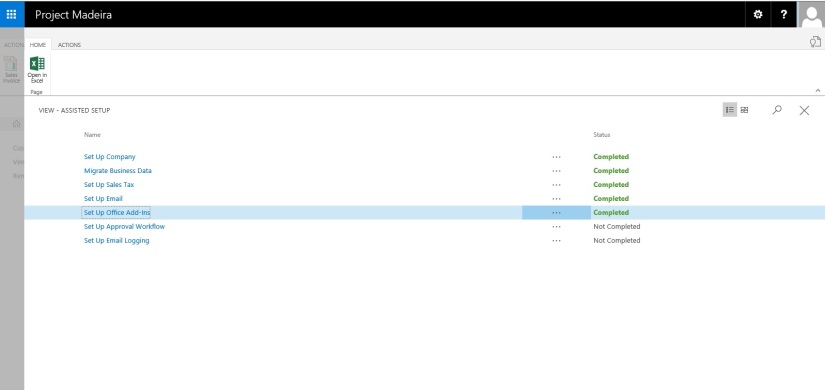
Assisted Setup (Email) in Madeira

In this post we will discuss how to setup Email.

Its very easy and single user intervention required.

SetupEmail-1

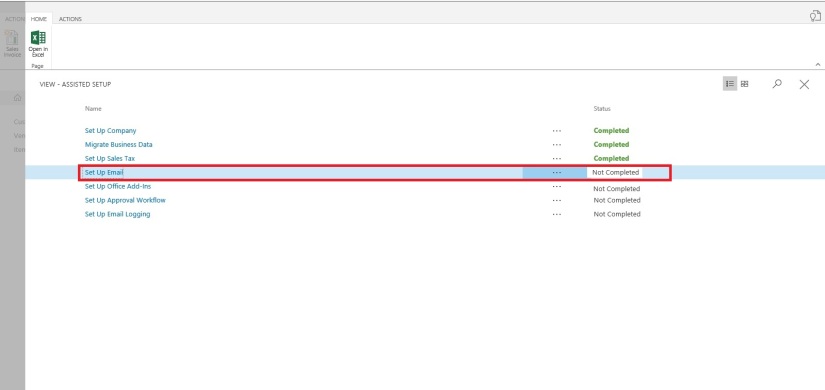
From Action Tab click on Assisted Setup & Task from the ribbon.

SetupEmail-2

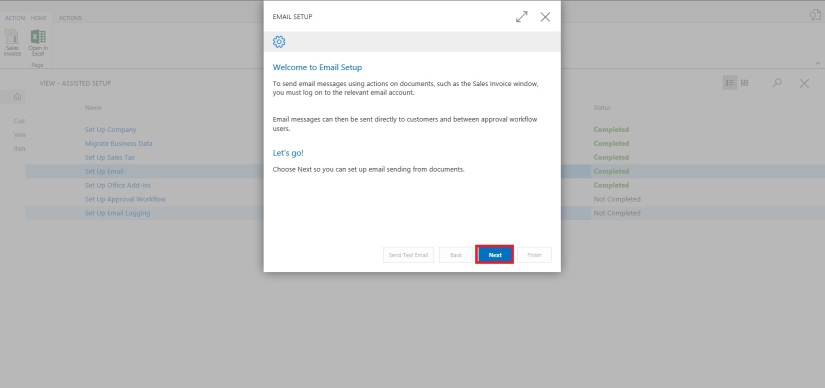
On Welcome screen click on Next Button.

SetupEmail-3

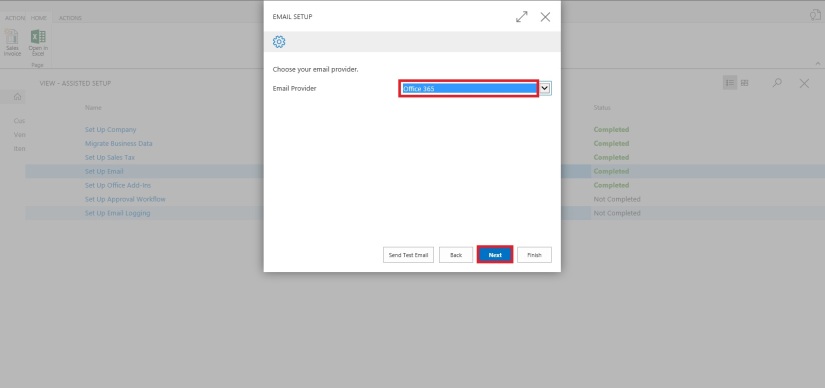
Select the Email Provider and click on Next to continue.

SetupEmail-4

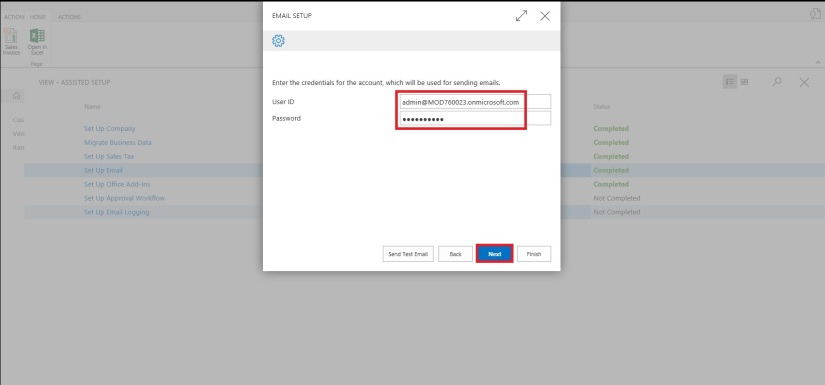
Enter your Email id and password, click on Next Button.

SetupEmail-5

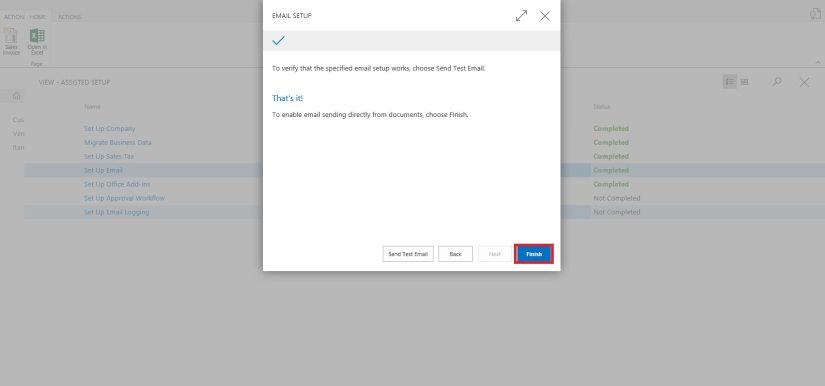
That’s it, click on Finish.

SetupEmail-6


SetupEmail-7


Just required to enter Email id and password, setup is done.

Will come with other option in my next post.

Till then keep exploring and learning.


Office Integration

OFFICE 365 INTEGRATION IN NAV 2015 – Word/Excel/SharePoint

If you have signed up for Office 365, Microsoft Dynamics NAV can use this service to open and save documents. For example, when you export a report to Excel and save it on Office 365, Microsoft Dynamics NAV can use Excel Online that your Office 365 account uses to open the document.

Before you can use Office 365 and SharePoint Online with Microsoft Dynamics NAV, you must configure the service in Microsoft Dynamics NAV.

If you want to use the same folder to store temporary files for all users, you must specify a shared user account. Otherwise, each user’s temporary files are stored in their personal document repository on the SharePoint site.

Let us first understand the details before we start with Setup for SharePoint Shared Folder.

Your IT can help you configuring and assigning suitable rights to access. Although you can explore and help yourself. Since we are concentrating on Navision so we will not go in details for Share point.

Just to make understand I will be only covering top level information.

In this example I assume you already have up and running site for Document Sharing in SharePoint 2013 – 365 Online.

Here I am logging in to Office 365 – Online registered by me for demo purpose. You can register for free trial to explore the same in more details.
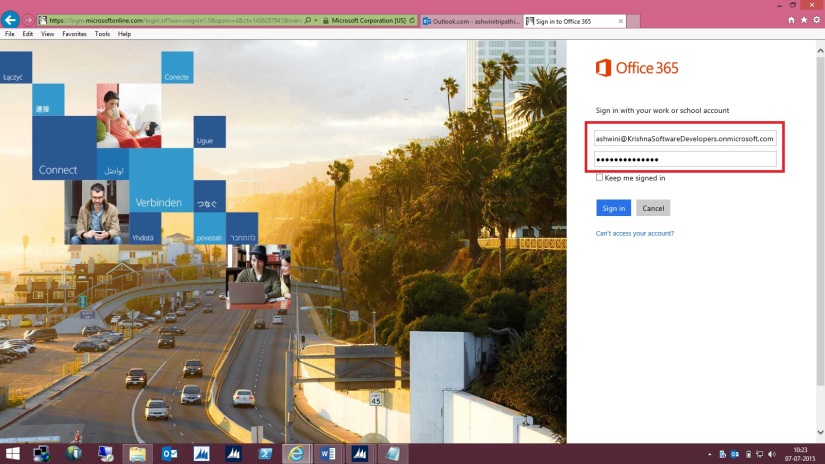
SharePoint-1

My Opening screen looks as one below.
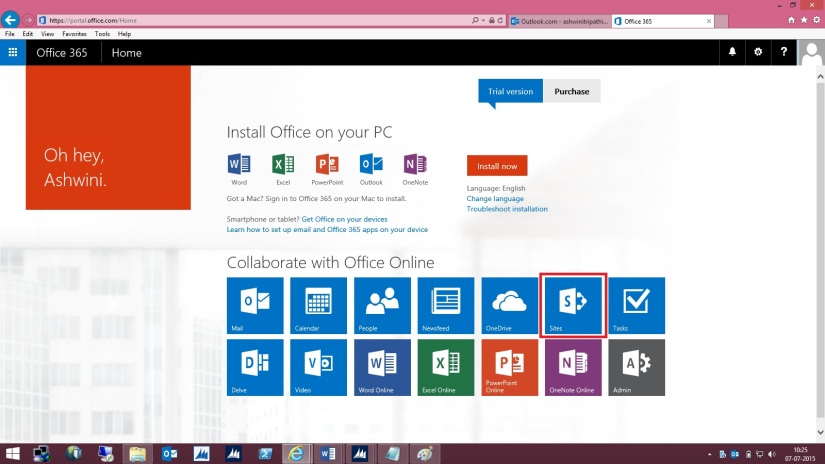
SharePoint-2

I select SharePoint Site to continue. Below is my SharePoint Opening screen. I will select my site which I have created for this demo and file sharing with other users in my organization.

SharePoint-3

Let us understand different parts which will help configuring our Online Document Storage Configuration in Navision 2015.
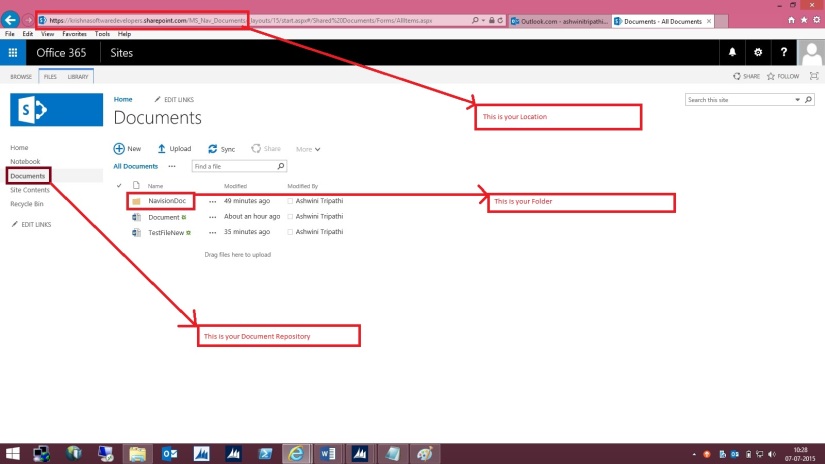
SharePoint-4

Here I am in my Folder at Lower level where all my files will be stored and shared with my other colleges.
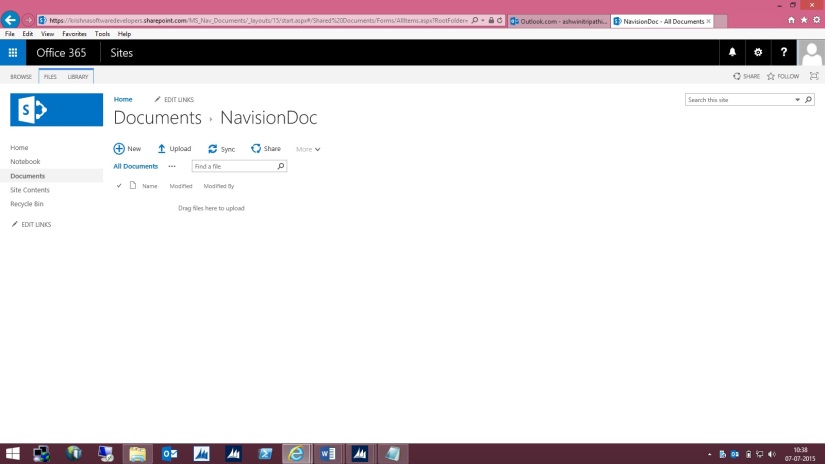
SharePoint-5

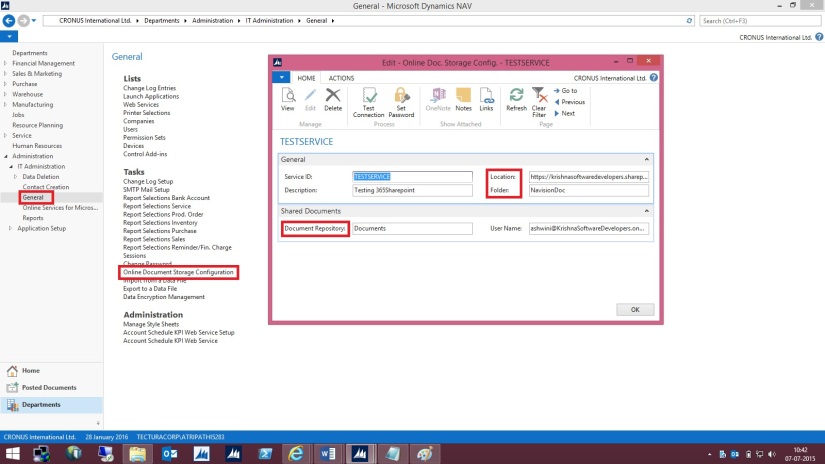
Open “Online Document Storage Configuration” from path shown in below screen.
SharePoint-6


Specify the Service Name of your choice or use Default provided by the System.


Fill the Location to your SharePoint site: Specifies the unified resource indicator (URI) for your site on SharePoint Online, such as [https://krishnasoftwaredevelopers.sharepoint.com/MS_Nav_Documents] in my case I will use this.


Fill the Folder field which specifies the folder in the document repository for this document service that you want documents to be stored in.


This field is required. If you have not already created a subfolder in your document repository, you must create one now, and then specify it in the Folder field.


The Document Repository field includes the top-level folder in the document repository that your document service provides. The Folder field specifies a subfolder so that you can keep business documents and drafts separate from pictures and other shared documents.


For example, if the Document Repository field is set to [Documents], the Folder field can be set to [NavisionDoc] as per my example discussed above.


When a user exports data to Excel, for example, Microsoft Dynamics NAV saves the temporary file at the location that is specified in the Document Repository and Folder fields, such as

[https://krishnasoftwaredevelopers.sharepoint.com/MS_Nav_Documents/Documents/NavisionDoc]


Fill Document Repository field: Specifies the name of the document library, such as [Document]


Fill User Name field: Specifies the account that Microsoft Dynamics NAV Server must use to log on to the document service.


I would recommend that you specify a different user name than the administrative account. This helps reduce the risk of users accessing administrative settings, for example. For example, if your user name as an administrator is Administrator@KrishnaSoftwareDevelopers.onmicrosoft.com,

then the user name for Microsoft Dynamics NAV Server can be Nav@KrishnaSoftwareDevelopers.onmicrosoft.com or any of the regular user names that you have created.

SharePoint-7


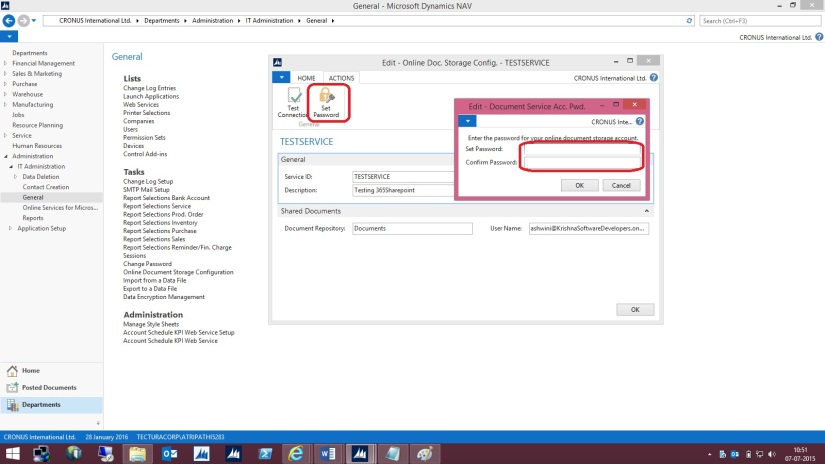
On the Actions tab, in the General group, choose Set Password.


In the window that appears, specify and confirm the password for the account    that you specified in the User Name field. Choose the OK button.


When you have set up the service, you can test whether that configuration is valid.
SharePoint-8


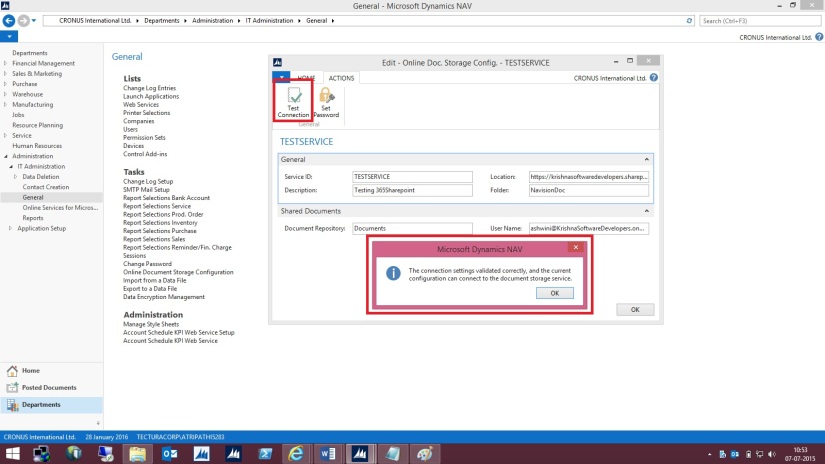
On the Actions tab, in the General group, choose Test Connection.


A message displays the result of the test.
SharePoint-9


The above message confirms we can now save documents on our SharePoint.


Let us check a sample as below:
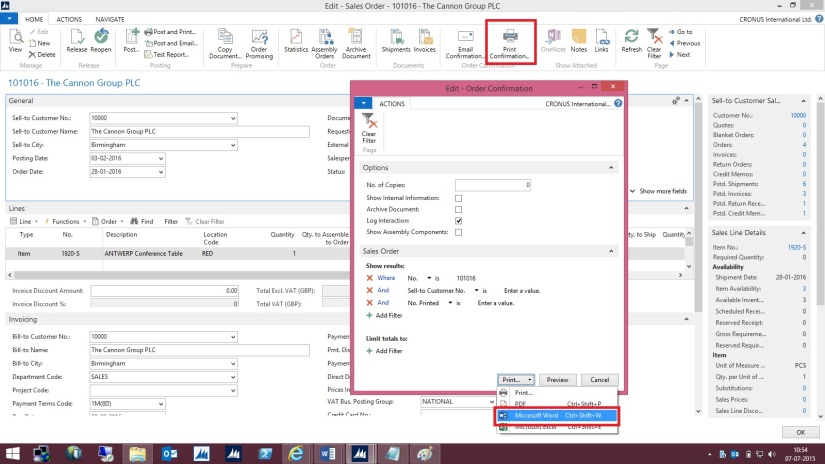
Open the Document and Execute the report available.
While Running the Report I specify I want to Print with Microsoft Word.
SharePoint-10


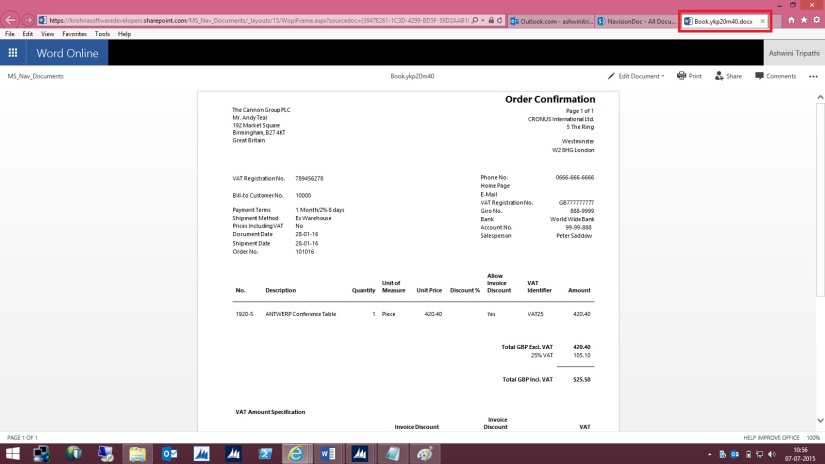
Document will be generated and opened in Word – Office – 365. Temp file name is given to the file. Close the File as it is auto Saved by Office 365 Word Application.
SharePoint-11


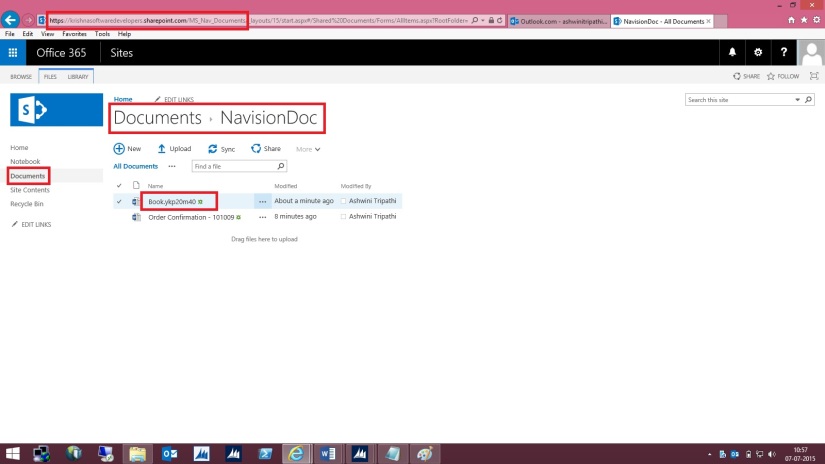
Browse to your SharePoint Folder configured above, you will see the Word file is now available in this Folder.
SharePoint-12


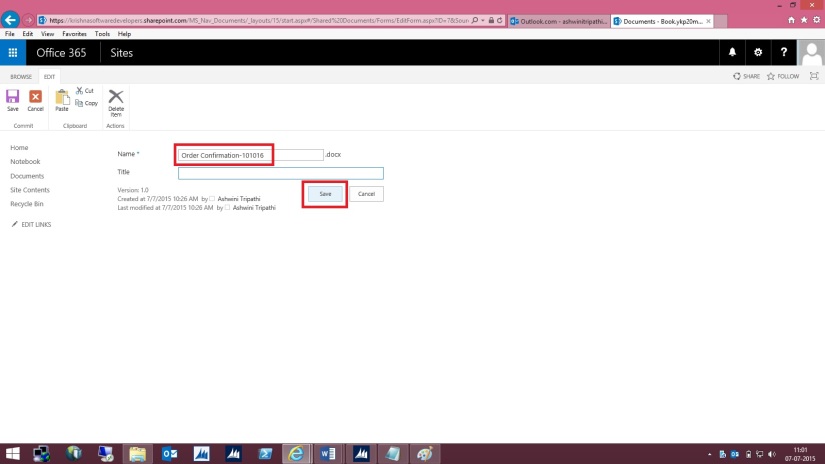
Right Click on Name of the File and Rename with some meaning full Name as shown below.

SharePoint-13


Give the Name to the File and press Save Button.
SharePoint-14


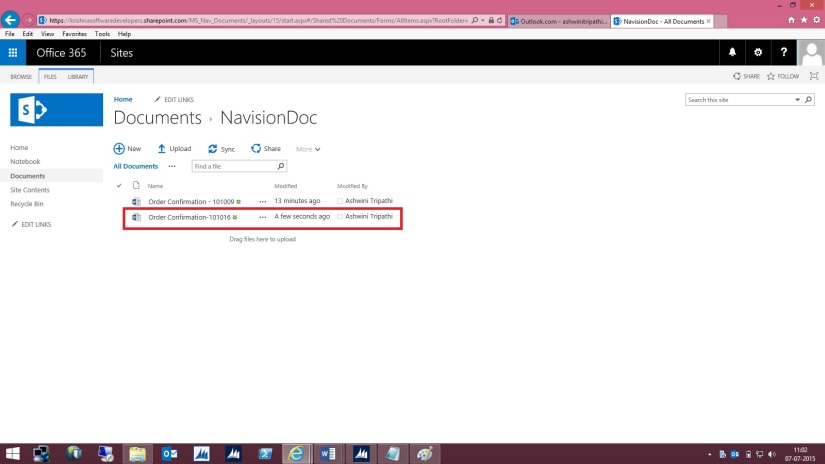
Here is the File after Rename.

SharePoint-15


This way when ever you Print your document from Navision in Word or Excel it will get saved in this Folder.

By setting appropriate access rights you can share the files between you colleges in your Organization.

 Please check SharePoint stuffs with you admin or appropriate authority in your organization.

Office Integration

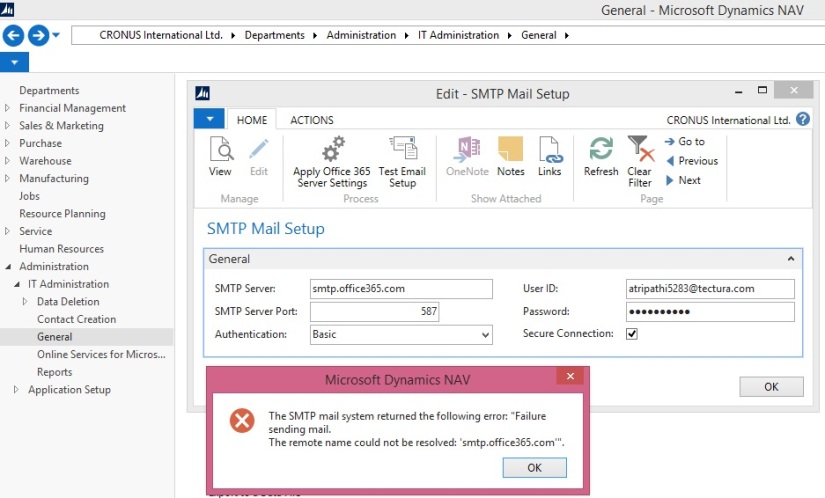
SMTP Setup errors while setting Office 365

Normally we see below Errors while configuring our SMTP in Navision.

Error-1

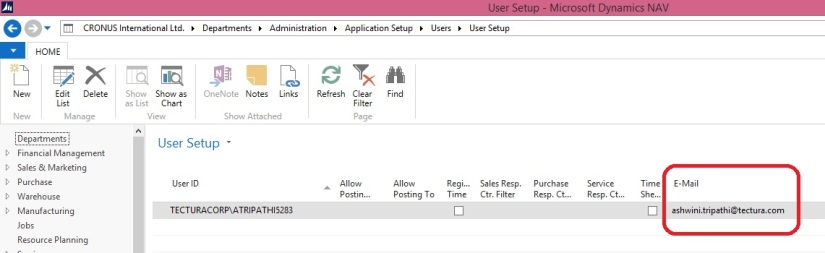
Check that your User Setup is having valid e-mail id.

Error-2

If you are using Domain make sure you are accessible to your domain. If you are outside you office make sure you are connected using your VPN.

Error-3

Office Integration

OFFICE 365 INTEGRATION IN NAV 2015 – Exchange Online

NEW SMTP EMAIL FLOW IN NAV.

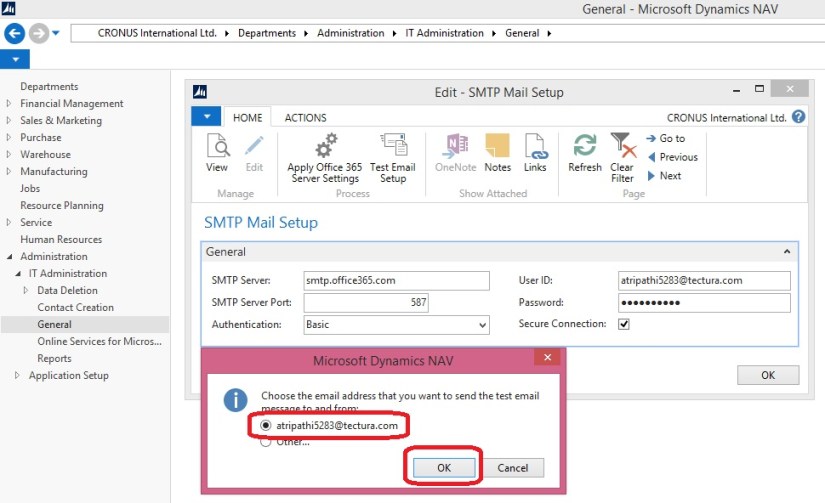
Open SMTP Mail Setup Page, Refer below screen for path.

Office Integration-1

Click on action Apply Office 365 Server Settings.

The fields SMTP Server, SMTP Server Port and Authentication fields will be filled up automatically

Fill the User ID and Password fields based on the existing account in Office 365. You can contact your Network Admin for details.

Office Integration-2

Click “Test Email Setup” action

Office Integration-3

Office Integration-4

If everything is configured properly in Office 365 and NAV 2015 then you will get below successful message.

Office Integration-5

And below mail will be sent to Office 365 account.

Office Integration-6

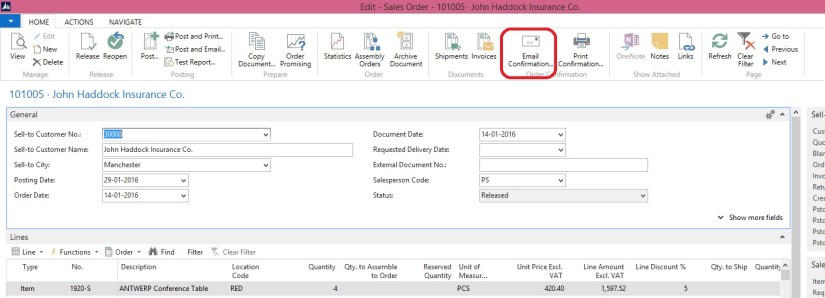
After this step if we try to run action Email Confirmation from Sales Order

Office Integration-7

Then a dialog box will be opened showing from address as office 365 account.

Office Integration-8
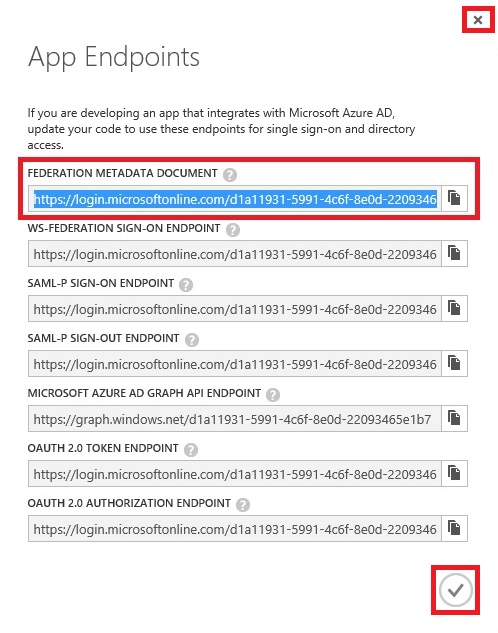
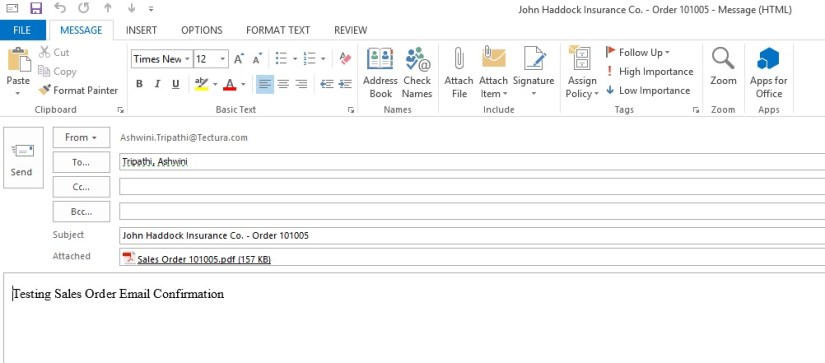
Press OK button to send an email to required address. Edit required information.

If Edit in Outlook is checked it will open in Outlook App. You can change further mail content and recipient details before sending the mail.

Office Integration-9

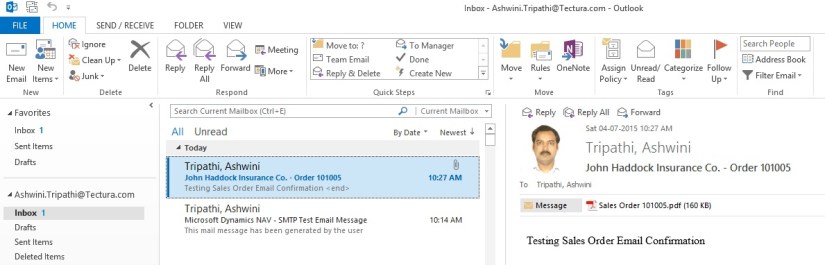
Click Send to send mail from your Outbox.

Below screen shot shows that mail is sent from Office 365 account

Office Integration-10