Cumulative Updates, Development Tips, How To, Information, Instalation & Configuration, Tip & Tricks, Updates

Cumulative Update 39 for Microsoft Dynamics NAV 2015 (Build 49736) – released in Jan 2018

This cumulative update includes all hotfixes and regulatory features that have been released for Microsoft Dynamics NAV 2015, including hotfixes and regulatory features that were released in previous cumulative updates.

Note You must convert the database if you are upgrading to this cumulative update from a cumulative update earlier than cumulative update 9 (build 41779). For more information, see Converting a Database in Help for Microsoft Dynamics NAV.

This cumulative update replaces previously released cumulative updates. You should always install the latest cumulative update.

It may be necessary to update your license after implementing this hotfix to gain access to new objects included in this or a previous cumulative update (this only applies to customer licenses).

For a list of cumulative updates released for Microsoft Dynamics NAV 2015, see released cumulative updates for Microsoft Dynamics NAV 2015. Cumulative updates are intended for new and existing customers who are running Microsoft Dynamics NAV 2015.

How to obtain the Microsoft Dynamics NAV update files

This update is available for manual download and installation from the Microsoft Download Center.

Download Cumulative update CU 39 for Microsoft Dynamics NAV 2015

How to install a Microsoft Dynamics NAV 2015 cumulative update

See How to install a Microsoft Dynamics NAV 2015 Cumulative Update .

Prerequisites

You must have Microsoft Dynamics NAV 2015 installed to apply this hotfix.

For more details see link :- https://support.microsoft.com/en-us/help/4058598/cumulative-update-39-for-microsoft-dynamics-nav-2015-build-49736
 

Cumulative Updates, Development Tips, How To, Information, Instalation & Configuration, Tip & Tricks, Updates

Cumulative Update 51 for Microsoft Dynamics NAV 2013 R2 (Build 49751) – released in Jan 2018

This cumulative update includes all hotfixes and regulatory features that have been released for Microsoft Dynamics NAV 2013 R2, including hotfixes and regulatory features that were released in previous cumulative updates.

This Cumulative Update replaces previously released cumulative updates. You should always install the latest cumulative update.

Note Implementing this cumulative update will require a database upgrade.

Licenses versioning

Microsoft Dynamics NAV 2013 R2 cumulative updates and license key versioning:

  • Microsoft Dynamics NAV 2013 R2 license keys are backward compatible with Microsoft Dynamics NAV 2013 instances.
  • Microsoft Dynamics NAV 2013 license keys may not be used with Microsoft Dynamics NAV 2013 R2 instances. Microsoft Dynamics NAV 2013 license keys will not work with Microsoft Dynamics NAV 2013 R2 CU10 (or later) instances.
  • Microsoft Dynamics NAV 2013 and Microsoft Dynamics NAV 2013 R2 license keys are not forward compatible with Microsoft Dynamics NAV 2015 instances.

More details is made available in the October 2014 release of the Microsoft Dynamics Perpetual Licensing Guide.

It may be necessary to update your license after implementing this hotfix to gain access to new objects included in this or a previous cumulative update (this only applies to customer licenses).

For a list of cumulative updates released for Microsoft Dynamics NAV 2013 R2, see released cumulative updates for Microsoft Dynamics NAV 2013 R2. For a complete list of all hotfixes released in cumulative updates for Microsoft Dynamics NAV 2013 R2, view the following CustomerSource and PartnerSource pages:

CustomerSource

Overview of Released Application Hotfixes for Microsoft Dynamics NAV 2013 R2

Overview of Released Platform Hotfixes for Microsoft Dynamics NAV 2013 R2

PartnerSource

Overview of Released Application Hotfixes for Microsoft Dynamics NAV 2013 R2

Overview of Released Platform Hotfixes for Microsoft Dynamics NAV 2013 R2

Cumulative updates are intended for new and existing customers who are running Microsoft Dynamics NAV 2013 R2.

How to obtain the Microsoft Dynamics NAV update files

This update is available for manual download and installation from the Microsoft Download Center.

Download Cumulative update CU 51 for Microsoft Dynamics NAV 2013 R2

How to install a Microsoft Dynamics NAV 2013 R2 cumulative update

See how to install a Microsoft Dynamics NAV 2013 cumulative update .

Prerequisites

You must have Microsoft Dynamics NAV 2013 R2 installed to apply this hotfix.

For more details see link :- https://support.microsoft.com/en-us/help/4058597/cumulative-update-51-for-microsoft-dynamics-nav-2013-r2-build-49751


Cumulative Updates, Development Tips, How To, Information, Instalation & Configuration, Tip & Tricks

Cumulative Update 58 for Microsoft Dynamics NAV 2013 (Build 49750) – released in Jan 2018

This cumulative update includes all hotfixes and regulatory features that have been released for Microsoft Dynamics NAV 2013, including hotfixes and regulatory features that were released in previous cumulative updates.

This cumulative update replaces previously released cumulative updates. You should always install the latest cumulative update.

It may be necessary to update your license after implementing this hotfix to gain access to new objects included in this or a previous cumulative update (this only applies to customer licenses).

For a list of cumulative updates released for Microsoft Dynamics NAV 2013, see released cumulative updates for Microsoft Dynamics NAV 2013. For a complete list of all hotfixes released in cumulative updates for Microsoft Dynamics NAV 2013, view the following CustomerSource and PartnerSource pages:

CustomerSource

Overview of Released Application Hotfixes for Microsoft Dynamics NAV 2013

Overview of Released Platform Hotfixes for Microsoft Dynamics NAV 2013

PartnerSource

Overview of Released Application Hotfixes for Microsoft Dynamics NAV 2013

Overview of Released Platform Hotfixes for Microsoft Dynamics NAV 2013

Cumulative updates are intended for new and existing customers who are running Microsoft Dynamics NAV 2013.

How to obtain the Microsoft Dynamics NAV update files

This update is available for manual download and installation from the Microsoft Download Center.

Download Cumulative update CU 58 for Microsoft Dynamics NAV 2013

Prerequisites

You must have Microsoft Dynamics NAV 2013 installed to apply this hotfix.

For more information see link :- https://support.microsoft.com/en-us/help/4058596/cumulative-update-58-for-microsoft-dynamics-nav-2013-build-49750


Azure, Development Tips, Dynamics 365, Functional Tips, How To, Image Analyzer, Information, Instalation & Configuration, NAV 2018, Tip & Tricks, What's New

Image Analysis feature in Dynamics NAV 2018

In Dynamics NAV 2018, the Image Analyzer extension uses the Computer Vision API to analyze images that are attached to contact persons and items.

For example, this is useful for items because it lets you build up a stockpile of metadata about what you sell and use it to fine-tune search results when someone is browsing your web shop.

Image Analyzer is free in Dynamics NAV, but there is a limit to the number of items that you can analyze during a certain period of time. By default, you can analyze 100 images per month.

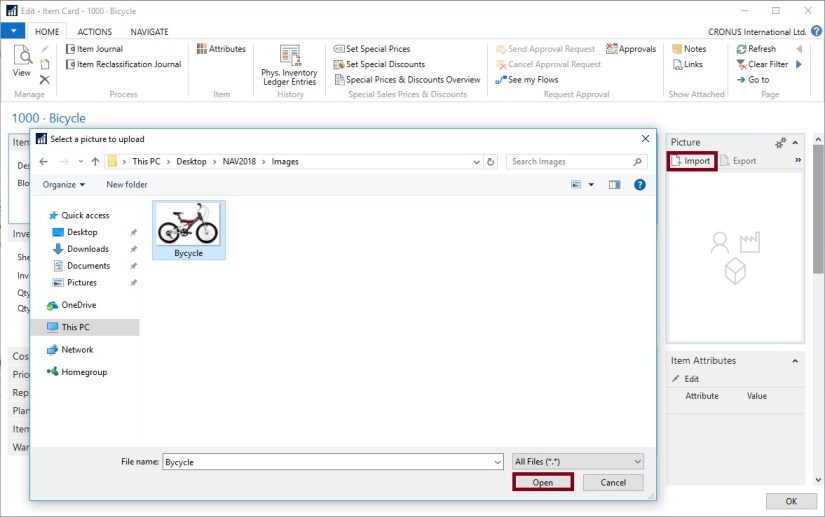
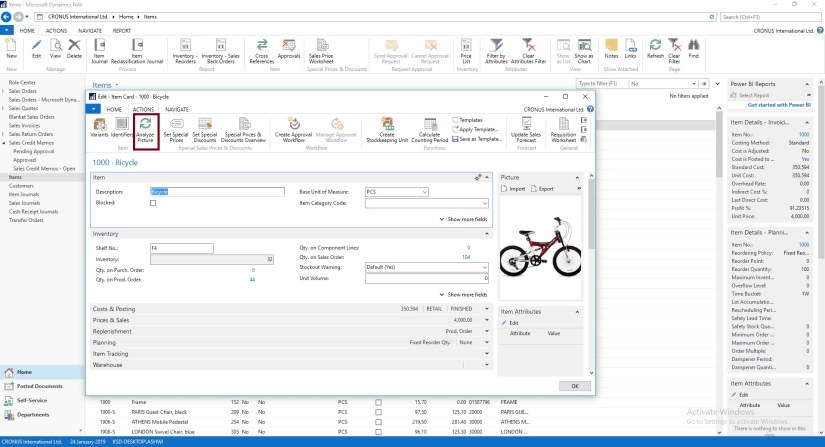
After you enable the extension, Image Analyzer runs each time you import an image to an item or contact person. You will see the attributes, confidence level, and details right away, and can decide what to do with each attribute. If you imported images before you enabled the Image Analyzer extension, you must go to the item or contact cards and choose the Analyze Picture action.

Requirements

There are a few requirements for the images:

  • Image formats: JPEG, PNG, GIF, BMP
  • Maximum file size: Less than 4 MB
  • Image dimensions: Greater than 50 x 50 pixels

How to enable Image Analyzer

To enable the Image Analyzer extension, do one of the following:

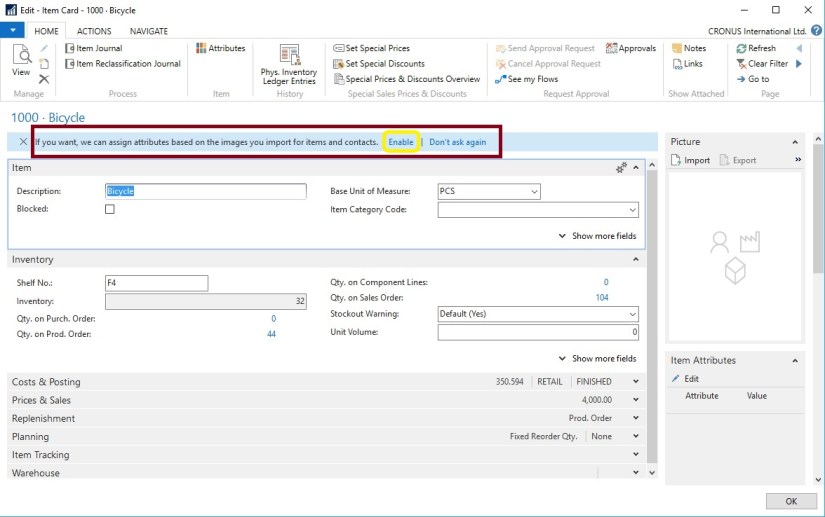
Method-1 : Open an item or contact card. In the notification bar, choose Analyze Images, and then follow the steps in the assisted setup guide.


IA-1

This will launch Image Analyser assisted setup guide, follow the step.


IA-2

IA-3

IA-4

Once you are done It will import your image for Analysing.

IA-5


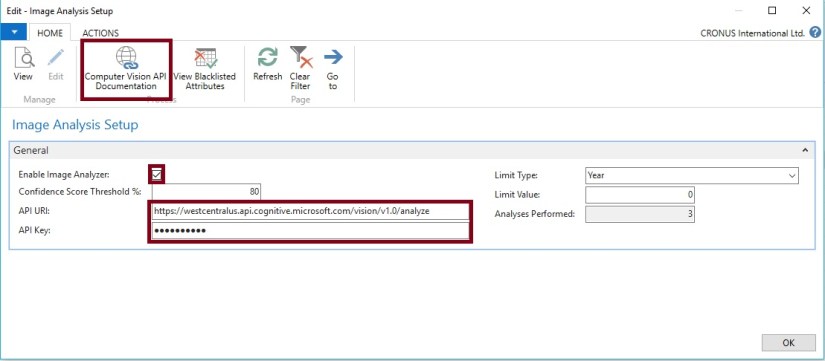
Method-2 : Access the Service Connections, and then choose Image Analysis Setup.

IA-5.1

Choose the Enable Image Analyzer check box, and then complete the steps in the assisted setup guide.

IA-5.2

For URL and Key follow these steps:

Click on Computer Vision API Documentation

IA-6

Click on Try Computer Vision API

IA-7

Select your API Computer Vision API and then Get API Key

IA-8

Agree to T & C select your Country/Region and then Next

IA-9

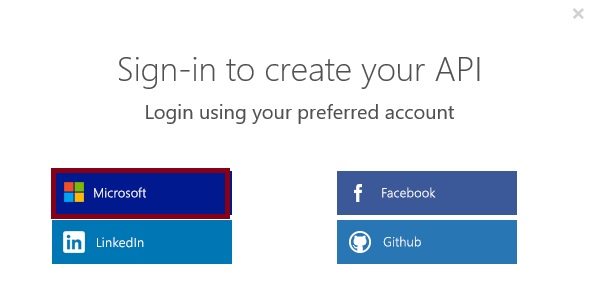
Sign-In with the preferred account sign-in method

IA-10

Once done you will land on page which will have your Endpoint URL and Key

You must add /analyze at the end of the API URI, if it isn’t already there.

IA-11

Enter your Endpoint URL and Key and close the window.

IA-12

Now you import your Image, or select Analyze Picture if already imported

IA-13

This will analyze the Image and provide you with the Attributes.

The Image Analyzer Attributes page displays the detected attributes, the confidence level, and other details about the attribute. Use the Action to perform options to specify what to do with the attribute.


This is how you enable and configure your Image Analyzer Service.


To see how many analyses you have left in the current period

You can view the number of analyses you’ve done, and how many you can still do, in the current period.

Enter Image Analyzer Setup, and then choose the related link.

The Limit type, Limit value, and Analyzes performed provide the usage information.


To stop using the Image Analyzer extension

Enter Service Connections, and then choose Image Analyzer Setup.

Clear the Enable Image Analyzer check box.


I will come with more details as I proceed.


Development Tips, Dynamics 365, Extension Package, How To, Information, Instalation & Configuration, NAV 2018, Tip & Tricks, Visual Studio Code, What's New

Configuring Visual Studio Code to Use Modern Development Environment with Dynamics NAV 2018

After installing Dynamics NAV 2018, I want to configure Visual Studio Code with Dynamics NAV to use new Development tool.

Before we start lets verify few things and update accordingly.

NDE-1

You can download VS Code from here:-Click to download Visual Studio Code

Install and Launch the Visual Studio Code.

Now Click View -> Extensions.

NDE-2

Click on … to open the extension menu.

Click on Install from VSIX

NDE-3

You can find VSIX file on the installation medium path:

“ModernDev\program files\Microsoft Dynamics NAV\110\Modern Development Environment”

or in the

“C:\Program Files (x86)\Microsoft Dynamics NAV\110\Modern Development Environment”

NDE-4

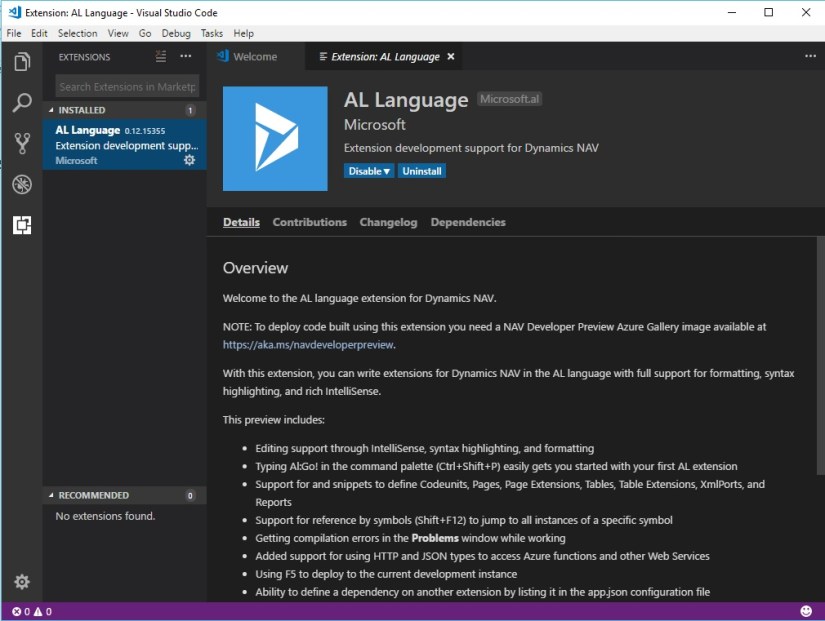
This will install AL Language Version 0.12.15355

NDE-5

Once the Extension installation is complete, follow below steps

Press Alt+A, Alt+L to trigger the Go! Command

NDE-6

Enter Project Name and Press Enter

NDE-7

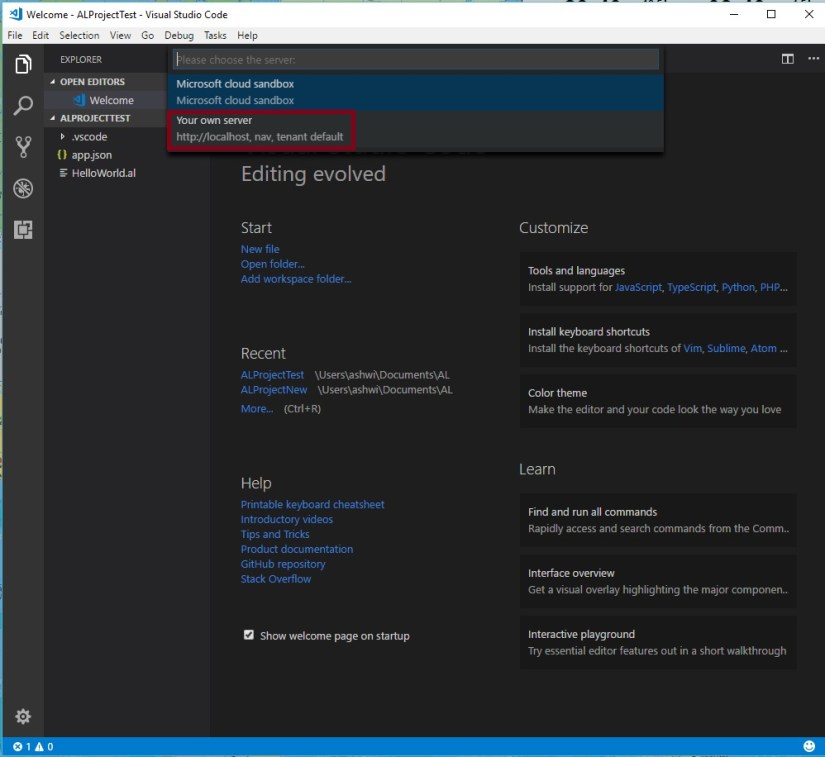
Choose “Your own server”

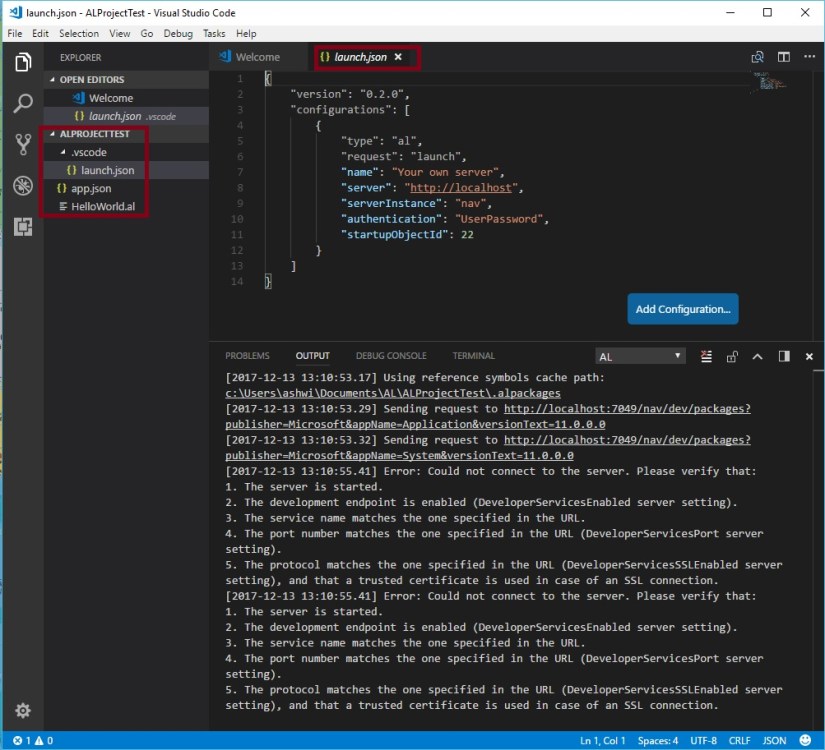
Once you select the “Your own server” you will see a code like below in the “launch.json” file.

NDE-8

Update the information to look similar to below:-

NDE-9

I have updated my ServerInstance as DynamicsNAV110 (you check your instance name if changed while installing server)

I have updated my Authentication as Windows (I am using Windows authentication update what yours use accordingly)

I have added Port as 8049 (please check and use accordingly you are using the port, if using default 7049 then this step not required)

Now save your File. And Press <CTRL + F5>.

NDE-12

Enter your Credentials.

The server url and the web client url are assumed to be the same. That is not the case. The two settings we talked about above, the server url and the developer port number, are the only settings you need in the launch.json.

When VS Code publishes the extension to the NAV server, the NAV server returns the web client url as a response. This url is then opened in the browser. No setting needed in the launch.json at all.

The NAV server reads that setting from the Web Client Base Url server setting.

NDE-13

NDE-11

Your Extension is published, you can verify as below:

NDE-10

Now you are good to go with developing your Extensions using New Modern Development Tool using AL.

I hope this may have clarified your doubt on how VS Code and the NAV server work together!

I will come with more details as I proceed.

Cumulative Updates, Development Tips, How To, Information, Instalation & Configuration, Tip & Tricks, Updates

Cumulative Update 13 for Microsoft Dynamics NAV 2017 (Build 19421) – Released in Dec 2017

This cumulative update includes all hotfixes and regulatory features that have been released for Microsoft Dynamics NAV 2017, including hotfixes and regulatory features that were released in previous cumulative updates.

This cumulative update replaces previously released cumulative updates. You should always install the latest cumulative update.

It may be necessary to update your license after implementing this hotfix to gain access to new objects included in this or a previous cumulative update (this only applies to customer licenses).

For a list of cumulative updates released for Microsoft Dynamics NAV 2017, see released cumulative updates for Microsoft Dynamics NAV 2017. Cumulative updates are intended for new and existing customers who are running Microsoft Dynamics NAV 2017.

How to obtain the Microsoft Dynamics NAV update files

This update is available for manual download and installation from the Microsoft Download Center.

Download Cumulative update CU 13 for Microsoft Dynamics NAV 2017

How to install a Microsoft Dynamics NAV 2017 cumulative update

See How to install a Microsoft Dynamics NAV 2017 cumulative update .

Prerequisites

You must have Microsoft Dynamics NAV 2017 installed to apply this hotfix.

For more details see: https://support.microsoft.com/en-us/help/4055892/cumulative-update-13-for-microsoft-dynamics-nav-2017-build-19421

Cumulative Updates, Development Tips, How To, Information, Instalation & Configuration, Tip & Tricks, Updates

Cumulative Update 26 for Microsoft Dynamics NAV 2016 (Build 49575) – Released in Dec 2017

This cumulative update includes all hotfixes and regulatory features that have been released for Microsoft Dynamics NAV 2016, including hotfixes and regulatory features that were released in previous cumulative updates.

This cumulative update replaces previously released cumulative updates. You should always install the latest cumulative update.

It may be necessary to update your license after implementing this hotfix to gain access to new objects included in this or a previous cumulative update (this only applies to customer licenses).

For a list of cumulative updates released for Microsoft Dynamics NAV 2016, see released cumulative updates for Microsoft Dynamics NAV 2016. Cumulative updates are intended for new and existing customers who are running Microsoft Dynamics NAV 2016.

How to obtain the Microsoft Dynamics NAV update files

This update is available for manual download and installation from the Microsoft Download Center.

Download Cumulative update CU 26 for Microsoft Dynamics NAV 2016

How to install a Microsoft Dynamics NAV 2016 cumulative update

See How to install a Microsoft Dynamics NAV 2016 cumulative update .

Prerequisites

You must have Microsoft Dynamics NAV 2016 installed to apply this hotfix.

For more details see:- https://support.microsoft.com/en-us/help/4055891/cumulative-update-26-for-microsoft-dynamics-nav-2016-build-49575

Cumulative Updates, Development Tips, How To, Information, Instalation & Configuration, Tip & Tricks, Updates

Cumulative Update 38 for Microsoft Dynamics NAV 2015 (Build 49576) – Released in Dec 2017

This cumulative update includes all hotfixes and regulatory features that have been released for Microsoft Dynamics NAV 2015, including hotfixes and regulatory features that were released in previous cumulative updates.

Note You must convert the database if you are upgrading to this cumulative update from a cumulative update earlier than cumulative update 9 (build 41779). For more information, see Converting a Database in Help for Microsoft Dynamics NAV.

This cumulative update replaces previously released cumulative updates. You should always install the latest cumulative update.

It may be necessary to update your license after implementing this hotfix to gain access to new objects included in this or a previous cumulative update (this only applies to customer licenses).

For a list of cumulative updates released for Microsoft Dynamics NAV 2015, see released cumulative updates for Microsoft Dynamics NAV 2015. Cumulative updates are intended for new and existing customers who are running Microsoft Dynamics NAV 2015.

How to obtain the Microsoft Dynamics NAV update files

This update is available for manual download and installation from the Microsoft Download Center.

Download Cumulative update CU 38 for Microsoft Dynamics NAV 2015

How to install a Microsoft Dynamics NAV 2015 cumulative update

See How to install a Microsoft Dynamics NAV 2015 Cumulative Update .

Prerequisites

You must have Microsoft Dynamics NAV 2015 installed to apply this hotfix.

For more details see:- https://support.microsoft.com/en-us/help/4055890/cumulative-update-38-for-microsoft-dynamics-nav-2015-build-49576

Cumulative Updates, Development Tips, How To, Information, Instalation & Configuration, Tip & Tricks, Updates

Cumulative Update 50 for Microsoft Dynamics NAV 2013 R2 (Build 49579) – Released in Dec 2017

Overview of Released Application Hotfixes for Microsoft Dynamics NAV 2013 R2This cumulative update includes all hotfixes and regulatory features that have been released for Microsoft Dynamics NAV 2013 R2, including hotfixes and regulatory features that were released in previous cumulative updates.

This Cumulative Update replaces previously released cumulative updates. You should always install the latest cumulative update.

Note Implementing this cumulative update will require a database upgrade.

Licenses versioning

Microsoft Dynamics NAV 2013 R2 cumulative updates and license key versioning:

  • Microsoft Dynamics NAV 2013 R2 license keys are backward compatible with Microsoft Dynamics NAV 2013 instances.
  • Microsoft Dynamics NAV 2013 license keys may not be used with Microsoft Dynamics NAV 2013 R2 instances. Microsoft Dynamics NAV 2013 license keys will not work with Microsoft Dynamics NAV 2013 R2 CU10 (or later) instances.
  • Microsoft Dynamics NAV 2013 and Microsoft Dynamics NAV 2013 R2 license keys are not forward compatible with Microsoft Dynamics NAV 2015 instances.

More details is made available in the October 2014 release of the Microsoft Dynamics Perpetual Licensing Guide.

It may be necessary to update your license after implementing this hotfix to gain access to new objects included in this or a previous cumulative update (this only applies to customer licenses).

For a list of cumulative updates released for Microsoft Dynamics NAV 2013 R2, see released cumulative updates for Microsoft Dynamics NAV 2013 R2. For a complete list of all hotfixes released in cumulative updates for Microsoft Dynamics NAV 2013 R2, view the following CustomerSource and PartnerSource pages:

CustomerSource

Overview of Released Application Hotfixes for Microsoft Dynamics NAV 2013 R2

Overview of Released Platform Hotfixes for Microsoft Dynamics NAV 2013 R2

PartnerSource

Overview of Released Application Hotfixes for Microsoft Dynamics NAV 2013 R2

Overview of Released Platform Hotfixes for Microsoft Dynamics NAV 2013 R2

Cumulative updates are intended for new and existing customers who are running Microsoft Dynamics NAV 2013 R2.

How to obtain the Microsoft Dynamics NAV update files

This update is available for manual download and installation from the Microsoft Download Center.

Download Cumulative update CU 50 for Microsoft Dynamics NAV 2013 R2

How to install a Microsoft Dynamics NAV 2013 R2 cumulative update

See how to install a Microsoft Dynamics NAV 2013 cumulative update .

Prerequisites

You must have Microsoft Dynamics NAV 2013 R2 installed to apply this hotfix.

For more details see:- https://support.microsoft.com/en-us/help/4055889/cumulative-update-50-for-microsoft-dynamics-nav-2013-r2-build-49579

Cumulative Updates, Development Tips, How To, Information, Instalation & Configuration, Tip & Tricks, Updates

Cumulative Update 57 for Microsoft Dynamics NAV 2013 (Build 49578) – Released in Dec 2017

This cumulative update includes all hotfixes and regulatory features that have been released for Microsoft Dynamics NAV 2013, including hotfixes and regulatory features that were released in previous cumulative updates.

This cumulative update replaces previously released cumulative updates. You should always install the latest cumulative update.

It may be necessary to update your license after implementing this hotfix to gain access to new objects included in this or a previous cumulative update (this only applies to customer licenses).

For a list of cumulative updates released for Microsoft Dynamics NAV 2013, see released cumulative updates for Microsoft Dynamics NAV 2013. For a complete list of all hotfixes released in cumulative updates for Microsoft Dynamics NAV 2013, view the following CustomerSource and PartnerSource pages:

CustomerSource

Overview of Released Application Hotfixes for Microsoft Dynamics NAV 2013

Overview of Released Platform Hotfixes for Microsoft Dynamics NAV 2013

PartnerSource

Overview of Released Application Hotfixes for Microsoft Dynamics NAV 2013

Overview of Released Platform Hotfixes for Microsoft Dynamics NAV 2013

Cumulative updates are intended for new and existing customers who are running Microsoft Dynamics NAV 2013.

How to obtain the Microsoft Dynamics NAV update files

This update is available for manual download and installation from the Microsoft Download Center.

Download Cumulative update CU 57 for Microsoft Dynamics NAV 2013

How to install a Microsoft Dynamics NAV 2013 cumulative update

See how to install a Microsoft Dynamics NAV 2013 cumulative update .

Prerequisites

You must have Microsoft Dynamics NAV 2013 installed to apply this hotfix.

For more details see:- https://support.microsoft.com/en-us/help/4055888/cumulative-update-57-for-microsoft-dynamics-nav-2013-build-49578