Corfu Navision 2016, Data, Data Model, Development Tips, Dynamics Content Package, Functional Tips, How To, Information, Jet Reports, Permission, Power Bi Content Pack, PowerBI.com, Report, Tip & Tricks

Plug & Play – Power BI and Jet Enterprise in NAV 2016

This is where Power BI and Jet Enterprise really shine – they have the ability to understand NAV because they have little bundles of interpretation packs that can interpret NAV for you!

Checkout more via below shared link :-

http://www.catapulterp.com/plug-and-play-power-bi-and-jet-enterprise-in-nav-2016/

Data, Development Tips, How To, Information, Tip & Tricks, Web Services, XMLports

Exposing & Consuming the Web service from & inside Navision – Part-2

Continuing from my previous post. Find the link to access the same in case you missed it.

Exposing & Consuming the Web service from & inside Navision – Part-1


Step 1: Create a XML Port to Export Data in XML Format using XMLPort and save at some specified Location.

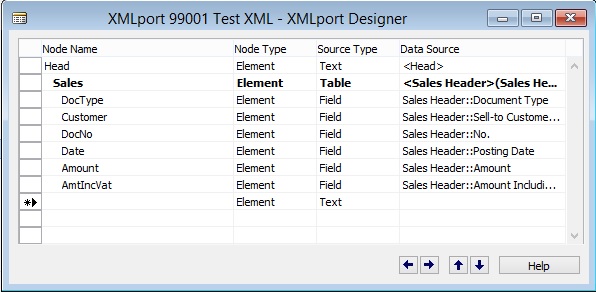
Here we will be creating just for demo purpose simple XMLPort for Exporting Data from Navision Database in XML Format.

WebServiceUsage-2

We are using very simple structure for our XMLPort.

Make sure you set the properties accordingly as we are exporting the data in XML Format.

WebServiceUsage-3

Save the XMLPort at available id and suitable name.


Step 2: Create a Codeunit to call XML Port and retrieve data in XML Format in Text Variable.

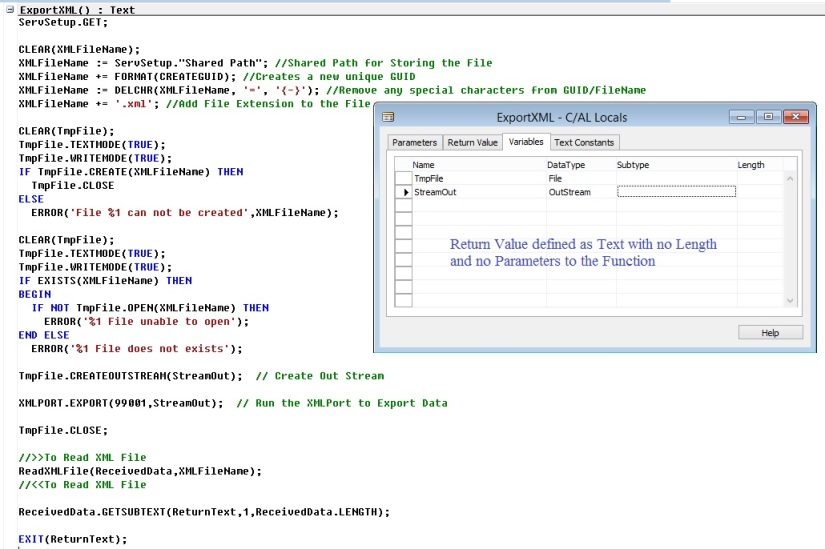
Here we will create a Codeunit with few helpful functions which will call the XMLPort to Export the data and save in temp file.

Further retrieve the data from the file in XML Format.

Return the data retrieved above to the calling program/ function.

To start with let us start with creating some Global Variables.

WebServiceUsage-4

Next we will add one Function as below.

WebServiceUsage-5

Next we will add one more Function as below.

WebServiceUsage-6

Save the Codeunit at available Id and suitable Name.


Step 3: Expose/Publish the Codeunit as web service.

Open Web Services Page and add your Codeunit created above. Use your relevant ID on which you saved your Codeunit.

WebServiceUsage-7


Tick the Published to Expose the Codeunit as Web Service.

Rest in my Next post.

To Be Continued……

Data, Development Tips, How To, Information, Tip & Tricks, Web Services, XMLports

Exposing & Consuming the Web service from & inside Navision – Part-1

Introduction

Today in reply to one of my reader I am giving here steps how we can Export data using XMLPort and transfer data outside Navision using Web Services.

Lets discuss about the technology before I jump to the solution.

Few full forms which may help understanding while reading this post.

W3C – Web Services Architecture Working Group.

SOAP – Simple Object Access Protocol.

REST – Representational State Transfer.

WSDL – Web Service Description Language.

UDDI – Universal Description, Discovery & Integration.

AWS – Arbitrary Web Services.

XML – Extensible Markup Language.

HTTP – Hypertext Transfer Protocol.


What is Web Service?

W3C defines Web Service as : A software system designed to support interoperable Machine-to-Machine interaction over a network.

Web service can be defined as service offered by an electronic devices to another electronic devices, which communicate with each other over www.

W3C defines web services has an interface described in a machine-process able format WSDL.

Other systems I with the web service in a manner prescribed by its description using SOAP messages, typically conveyed using HTTP with an XML serialization in conjunction with other web-related standards.

Later W3C extended the definition:-

REST – compliant web services, in which the primary purpose of the service is to manipulate representations of web resources using a uniform set of stateless operations.

Arbitrary Web Services –  the services may expose an arbitrary set of operations.

WebServiceUsage-1-2

UDDI  defines which software system need to be contacted for which type of data.

Once the system is discovered to be contacted, the contact is established using SOAP.

Service provider system validate the request by referring the WSDL file, process the request and send the data using SOAP protocol.


Web Service is a method of communication that allows two software system to exchange the data over the internet.

  • Two systems may use different software which could be using different programming languages.
  • Almost all type of software interpret XML tags.
  • Web Services can be used to exchange data between two systems in form XML files.

WebServiceUsage-1-3

XML is used to tag the data.

SOAP is used to transfer the data.

WSDL is used to describe the services available.

UDDI lists what service are available.

Human to machine communication is utilized for machine-to-machine communication, used for transferring machine readable files such as XML & JSON formats.

Web services use SOAP over HTTP protocol, facilitating to use your existing low-cost internet for implementing Web Service.

Rules for communication between two different systems:

All the rules are defined in WSDL file.

  • How request to be send from one system to another.
  • What all parameters need to be send while requesting data.
  • What structure to be used for generating data (Normally data is exchanged in XML format) which is validated against .xsd file.
  • What errors to be generated in case of failure of rule communication set.


Web Services that uses Markup Language:

  • JSON-RPC
  • JSON-WSP
  • Web template
  • Web Service Description Language (WSDL)
  • XML Interface for Network Services (XINS)
  • Web Services Conversation Language (WSCL)
  • Web Services Flow Language (WSFL)
  • WS-Meta data Exchange
  • Representational State Transfer (REST)
  • Remote Procedure Call (RPC)
  • XML Remote Procedure Call (XML-RPC)


No more theories lets come to our point.

There are other ways too to achieve the same, but here I am specific to the requirement to which I am answering.

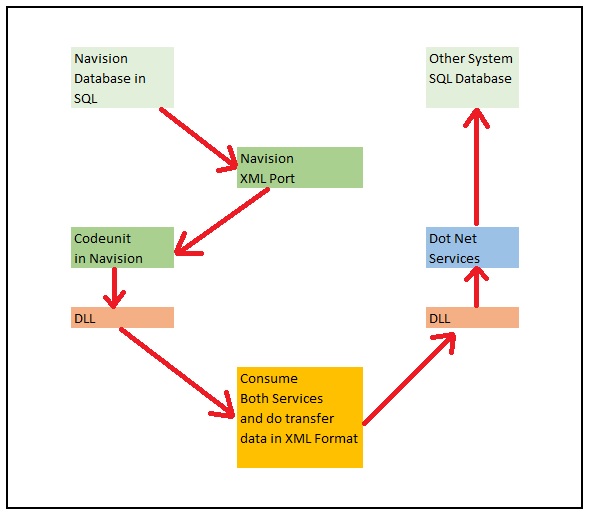
Requirement is the Data in XML format file will be transmitted using Web Service, We will be using Navision Exposed Web Service to Export data using XMLPort and then send the content by consuming another Web Service exposed in Dot Net which will retrieve the XML content and update in some other system.

Assumption is these two endpoints can be two separate databases in same domain or two different companies of same organization operating at two different location sharing information via Web Services.

For the demo purpose I will be using Navision to publish the service for exporting the data and retrieve the data using Web Service exposed in Dot Net.

Since I have not in depth knowledge of Dot Net codes, so I have asked my college to prepare the Web Service for me and I am simply using it to show how we can do it.

Here I will be getting this done through below 5 Steps.

WebServiceUsage-1

Next Post in this Series will contain:

Step 1: Create a XML Port to Export Data in XML Format using XMLPort and save at some specified Location.

Step 2: Create a Codeunit to call XML Port and retrieve data in XML Format in Text Variable.

Step 3: Expose/Publish the Codeunit as web service.


Next Post in this Series will contain:

Step 4: Create a DLL to use as Add-in to consume the Web Service itself in Navision.


And the Final Post in this Series will contain:

Step 5: Create a Codeunit to test Retrieve the data using above DLL and Send data in XML Format using another Web Service exposed in Dot Net.


Please follow my upcoming post for Walkthrough to get above 5 steps done.

To Be Continued……….


Corfu Navision 2016, Data, Development Tips, How To, Tip & Tricks

How to Detect Duplicates

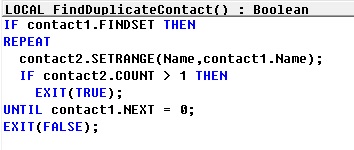
Until Dynamics NAV 2013, the only possibility was to iterate through the table in a loop and then create a sub-loop where another instance of the same table is filtered to check for duplicates.

For example, to check for duplicate names in the Contact table, the code would look like this:

Duplicate.-1

Dynamics NAV 2013 onwards, we can use queries to create a more efficient implementation of the same logic.

 The solution involves that you create a query to return duplicates, and then invoke it from a method that would test the value of the query to identify if duplicates were found.

Step 1 – Creating the Query

  • The query must be created with the table we want to search in as the dataitem.
  • The field we want to search for must be created as a grouped field.
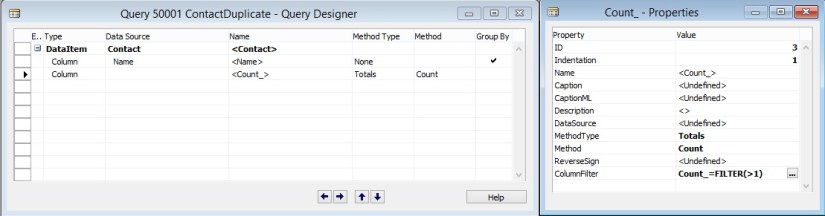
  • Create a totaling field on the count, and add a filter for Count > 1. This ensures that only records with more than one instance of the field that we selected in the previous step are included in the query result.
  • Continuing with our Contact Name example, here is how the query would look:

Duplicate.-2

Step 2 – Invoking the Query to Check for Duplicates

Now that the query is created, all we need to do is to invoke the query and check if any records are returned, which would mean that there are duplicates.

Here is an alternate implementation of the FindDuplicateContact method using the query that we created:

Duplicate.-3


Corfu Navision 2016, Data, Functional Tips, How To, Information, Tip & Tricks

Cost Components

Cost components are different types of costs that make up the value of an inventory increase or decrease.

The below table shows the different cost components and any subordinate cost components that they consist of.

Cost component Subordinate cost component Description
Direct cost Unit cost (direct purchase price) Cost that can be traced to a cost object.
Freight cost (item charge)
Insurance cost (item charge)
Indirect cost Cost that cannot be traced to a cost object.
Variance Purchase variance The difference between actual and standard costs, which is only posted for items using the Standard costing method.
Material variance
Capacity variance
Subcontracted variance
Capacity overhead variance
Manufacturing overhead variance
Revaluation A depreciation or appreciation of the current inventory value.
Rounding Residuals caused by the way in which valuation of inventory decreases are calculated.

Freight and insurance costs are item charges that can be added to an item’s cost at any time. When you run the Adjust Cost – Item Entries batch job, the value of any related inventory decreases are updated accordingly.

Corfu Navision 2016, Data, Development Tips, Functional Tips, How To, Information, Tip & Tricks

Accounts in the General Ledger

To reconcile inventory and capacity ledger entries with the general ledger, the related value entries are posted to different accounts in the general ledger.

From the Inventory Ledger

The below table shows the relationship between different types of inventory value entries and the accounts and balancing accounts in the general ledger.

Value entry General ledger accounts
Item ledger entry type Value entry type Variance type Expected cost Account Balancing account
Purchase Direct Cost Yes Inventory (Interim) Invt. Accrual Acc. (Interim)
Direct Cost No Inventory Direct Cost Applied
Indirect Cost No Inventory Overhead Applied
Variance Purchase No Inventory Purchase Variance
Revaluation No Inventory Inventory Adjmt.
Rounding No Inventory Inventory Adjmt.
Sale Direct Cost Yes Inventory (Interim) COGS (Interim)
Direct Cost No Inventory COGS
Revaluation No Inventory Inventory Adjmt.
Rounding No Inventory Inventory Adjmt.
Positive Adjmt.,Negative Adjmt., Transfer Direct Cost No Inventory Inventory Adjmt.
Revaluation No Inventory Inventory Adjmt.
Rounding No Inventory Inventory Adjmt.
(Production) Consumption Direct Cost No Inventory WIP
Revaluation No Inventory Inventory Adjmt.
Rounding No Inventory Inventory Adjmt.
Assembly Consumption Direct Cost No Inventory Inventory Adjmt.
Direct Cost No Direct Cost Applied Inventory Adjmt.
Indirect Cost No Overhead Applied Inventory Adjmt.
(Production) Output Direct Cost Yes Inventory (Interim) WIP
Direct Cost No Inventory WIP
Indirect Cost No Inventory Overhead Applied
Variance Material No Inventory Material Variance
Variance Capacity No Inventory Capacity Variance
Variance Subcontracted No Inventory Subcontracted Variance
Variance Capacity Overhead No Inventory Cap. Overhead Variance
Variance Manufacturing Overhead No Inventory Mfg. Overhead Variance
Revaluation No Inventory Inventory Adjmt.
Rounding No Inventory Inventory Adjmt.
Assembly Output Direct Cost No Inventory Inventory Adjmt.
Revaluation No Inventory Inventory Adjmt.
Indirect Cost No Inventory Overhead Applied
Variance Material No Inventory Material Variance
Variance Capacity No Inventory Capacity Variance
Variance Capacity Overhead No Inventory Cap. Overhead Variance
Variance Manufacturing Overhead No Inventory Mfg. Overhead Variance
Rounding No Inventory Inventory Adjmt.

From the Capacity Ledger

The below table shows the relationship between different types of capacity value entries and the accounts and balancing accounts in the general ledger. Capacity ledger entries represent labor time consumed in assembly or production work.

Value entry General ledger accounts
Work type Capacity ledger entry type Value entry type Account Balancing account
Assembly Resource Direct Cost Direct Cost Applied Inventory Adjmt.
Assembly Resource Indirect Cost Overhead Applied Inventory Adjmt.
Production Machine Center/Work Center Direct Cost WIP Account Direct Cost Applied
Production Machine Center/Work Center Indirect Cost WIP Account Overhead Applied

Assembly Costs are Always Actual

As shown in the table above, assembly postings are not represented in interim accounts. This is because the concept of work in process (WIP) does not apply in assembly output posting, unlike in production output posting. Assembly costs are only posted as actual cost, never as expected cost.

Calculating the Amount to Post to the General Ledger

The following fields in the Value Entry table are used to calculate the expected cost amount that is posted to the general ledger:

  • Cost Amount (Actual)
  • Cost Posted to G/L
  • Cost Amount (Expected)
  • Expected Cost Posted to G/L

The following table shows how the amounts to post to the general ledger are calculated for the two different cost types.

Cost type Calculation
Actual Cost Cost Amount (Actual) Cost Posted to G/L
Expected Cost Cost Amount (Expected) Expected Cost Posted to G/L


Corfu Navision 2016, Data, Development Tips, How To, Information, Instalation & Configuration, PowerShell, upgrade

Few Helpful PowerShell Commands which you can use for Upgrade Process in Navision 2016 – Part 2

You can use Windows PowerShell scripts to upgrade the latest version of Microsoft Dynamics NAV. Microsoft Dynamics NAV 2016 provides sample scripts that you can adapt for your deployment architecture.

Automating the Upgrade Process

When you upgrade to Microsoft Dynamics NAV 2016, you must first upgrade the application code, and then you upgrade the data.

In my earlier post I have explained this using PowerShell commands, you can find the link here: Helpful PowerShell Commands which you can use for Upgrade Process in Navision 2016

By using Windows PowerShell, you can automate both parts of the upgrade process. Also, you can use the same scripts to test each step in your upgrade process before you upgrade production databases.

You can combine this automated upgrade with a migration to multitenancy this makes maintenance easier for you.

The Sample Scripts for Code Upgrade

Microsoft Dynamics NAV includes sample scripts that illustrate how you can use Windows PowerShell cmdlets to upgrade your application to the latest version of Microsoft Dynamics NAV.

The sample scripts are located in the ApplicationMergeUtilities folder under the WindowsPowerShellScripts folder on the Microsoft Dynamics NAV product media.

However you can follow above post link steps explanation to get it done.

The Sample Scripts for Data Upgrade

Microsoft Dynamics NAV includes sample scripts that illustrate how you can automate the upgrade of data to the latest version of Microsoft Dynamics NAV.

The sample scripts are located in the Upgrade folder under the WindowsPowerShellScripts folder on the Microsoft Dynamics NAV product media. You can run the sample script using a partner license or a customer license.
PowerShell-3

To learn and follow MS suggested steps you can find details using this link. Automating the Upgrade Process using Windows PowerShell Scripts in Microsoft Dynamics NAV 2016

To run the sample script for the data upgrade of a Microsoft Dynamics NAV database, you must have a Microsoft Dynamics NAV 2013, Microsoft Dynamics NAV 2013 R2, or Microsoft Dynamics NAV 2015 database that is available on a SQL Server instance and is ready to be upgraded.

Here I present my version derived from above Steps:

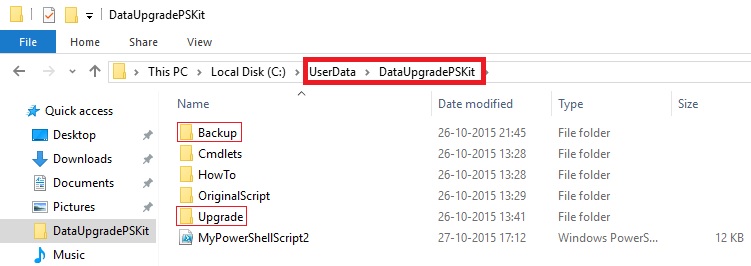
To continue we will do some setup. Copy the Upgrade folder from above path and save as DataUpgradePSKit.
PowerShell-4

Create Folder OriginalScript and move the PS1 file on root to this folder although we don’t require for this exercise but you can safe copy for your reference. (Example, Set-PartnerSettings, Set-PowerShellEnvironment)

Create Backup folder, script will use to store backup of the database previous to start Upgrade process.

Create Upgrade Folder and place these files:

  • License File
  • New Merged Objects fob
  • Upgrade Toolkit / or your own prepared Upgrade Codeunits

PowerShell-5

  • Create ProcessLogs Folder, which will be used for recording log of Shell Script.

Here is the script which we will be using to perform our Data Upgrade process:

You can find this script here http://1drv.ms/1NyolVV or you can download from Menu of my Blog using Link Shared Files.


# Added below parameter values globally for ease of maintenance

# You just do correction on values here (as per your environment) and will be in effect for rest of below script

# No need to scan and change every occurrence for same value in different steps of the script.

# Select this section and Execute first so that these Variables value are available for rest of the script.

Import-Module ‘C:\Program Files\Microsoft Dynamics NAV\90\Service\NavAdminTool.ps1’

$NAVUpgrade_NAVServerInstance = “UpgradedDBfrom2013R2”

$NAVUpgrade_NAVServerServiceAccount = “NT AUTHORITY\NETWORK SERVICE”

$NAVUpgrade_FinSqlExeFile = “C:\Program Files (x86)\Microsoft Dynamics NAV\90\RoleTailored Client\finsql.exe”

$NAVUpgrade_IDEModulePath = “”

$NAVUpgrade_DatabaseServer = “INDEL-AXT5283VM”

$NAVUpgrade_DatabaseInstance = “”

$NAVUpgrade_DatabaseName = “Demo Database NAV (7-1)”

$NAVUpgrade_DatabaseToUpgradeBakFile = “C:\UserData\DataUpgradePSKit\Backup\DynamicsNAV70_BeforeUpgrade.bak”

$NAVUpgrade_NewVersionObjectsFobFilePath = “C:\UserData\DataUpgradePSKit\Upgrade\NewObjects.fob”

$NAVUpgrade_UpgradeToolkitObjectsFobFilePath = “C:\UserData\DataUpgradePSKit\Upgrade\Upgrade710900.FOB”

$NAVUpgrade_UpgradeObjectsFilter = “Version List=UPGTK9.00.00”

$NAVUpgrade_UpgradeLogsDirectory = “C:\UserData\DataUpgradePSKit\Upgrade\ProcessLogs”

#$NAVUpgrade_RapidStartPackageFile = ‘C:\UserData\DataUpgradePSKit\Upgrade\PackageSTCODES.rapidstart’

$NAVUpgrade_CurrentVersionLicenseFile = “C:\UserData\DataUpgradePSKit\Upgrade\DevLicense.flf”

$NAVUpgrade_PreviousVersionLicenseFilePath = “C:\UserData\DataUpgradePSKit\Upgrade\DevLicense.flf”


# Upgrade Steps:

Import-Module (Join-Path (Get-Location) ‘Cmdlets\NAVUpgradeCmdlets.psm1’) -DisableNameChecking

#1. Prepares the Windows PowerShell session by importing the required modules.

        # Import the NAV IDE Module.

Import-NAVIdeModule -IDEModuleSuggestedPath $NAVUpgrade_IDEModulePath -FinSqlExeFile $NAVUpgrade_FinSqlExeFile

Import-NAVManagementModule

Import-SqlPsModule


#2. Saves the current license from the Microsoft Dynamics NAV 2013, Microsoft Dynamics NAV 2013 R2, or Microsoft Dynamics NAV 2015 database.

# Backup current license from the application part of the database (table ‘$ndo$dbproperty’) , if it exists

        Export-NAVLicenseFromApplicationDatabase `

-DatabaseName $NAVUpgrade_DatabaseName `

-DatabaseServer $NAVUpgrade_DatabaseServer `

-DatabaseInstance $NAVUpgrade_DatabaseInstance `

-LicenseFilePath $NAVUpgrade_PreviousVersionLicenseFilePath


#3. Creates a backup of the Microsoft Dynamics NAV 2013, Microsoft Dynamics NAV 2013 R2, or Microsoft Dynamics NAV 2015 database, and then converts the database to Microsoft Dynamics NAV 2016.

        Backup-NAVSqlDatabase `

-DatabaseServer $NAVUpgrade_DatabaseServer `

-DatabaseInstance $NAVUpgrade_DatabaseInstance `

-DatabaseName $NAVUpgrade_DatabaseName `

-DatabaseBackupFilePath $NAVUpgrade_DatabaseToUpgradeBakFile

$NAVUpgrade_DatabaseSQLServerInstance = Get-SqlServerInstance -DatabaseServer $NAVUpgrade_DatabaseServer -DatabaseInstance $NAVUpgrade_DatabaseInstance

$NavServerInfo = New-Object PSObject

Add-Member -InputObject $NavServerInfo -MemberType NoteProperty -Name NavServerName -Value “$NAVUpgrade_DatabaseServer”

Add-Member -InputObject $NavServerInfo -MemberType NoteProperty -Name NavServerInstance -Value (Get-NAVServerConfigurationValue  -ServerInstance $NAVUpgrade_NAVServerInstance -ConfigKeyName “ServerInstance”)

Add-Member -InputObject $NavServerInfo -MemberType NoteProperty -Name NavServerManagementPort -Value (Get-NAVServerConfigurationValue -ServerInstance $NAVUpgrade_NAVServerInstance -ConfigKeyName “ManagementServicesPort”)


# Perform technical upgrade of the NAV database

        Invoke-NAVDatabaseConversion `

-DatabaseName $NAVUpgrade_DatabaseName `

-DatabaseServer $NAVUpgrade_DatabaseSQLServerInstance `

-LogPath $NAVUpgrade_UpgradeLogsDirectory\”Database Conversion”


#4. Connects the Microsoft Dynamics NAV 2016 Server instance to the converted database, imports the Microsoft Dynamics NAV 2016 license file, and then synchronizes the table schema.


# Connect the NAV Server to the NAV database

        Connect-NAVServerToNAVDatabase  `

-NAVServerInstance $NAVUpgrade_NAVServerInstance `

-NAVServerServiceAccount $NAVUpgrade_NAVServerServiceAccount `

-DatabaseServer $NAVUpgrade_DatabaseServer `

-DatabaseInstance $NAVUpgrade_DatabaseInstance `

-DatabaseName $NAVUpgrade_DatabaseName

# Import the new version license into the application database, and restart the server in order for the license to be loaded

        Import-NAVServerLicense -ServerInstance $NAVUpgrade_NAVServerInstance -LicenseFile $NAVUpgrade_CurrentVersionLicenseFile -Database NavDatabase

Set-NAVServerInstance -ServerInstance $NAVUpgrade_NAVServerInstance -Restart

# Synchronize the NAV database

        Sync-NAVTenant -ServerInstance $NAVUpgrade_NAVServerInstance -Mode Sync -Force


#5. Imports the application objects and upgrade toolkit objects from the specified .fob file, and then synchronizes the table schema again.

#   This updates the SQL Server database based on the new table schema that is defined by the imported application objects. Data that must be mapped to another table is saved in upgrade tables.

# Delete the tables from the previous version, using SynchronizeSchemaChanges Later.

# The new  objects we import will contain the new version of the tables.

        Delete-NAVApplicationObject `

-DatabaseName $NAVUpgrade_DatabaseName `

-DatabaseServer $NAVUpgrade_DatabaseSQLServerInstance `

-LogPath $NAVUpgrade_UpgradeLogsDirectory `

-Filter “Type=Table;ID=<2000000000” `

-SynchronizeSchemaChanges “No” `

-NavServerName $NavServerInfo.NavServerName `

-NavServerInstance $NAVServerInfo.NavServerInstance `

-NavServerManagementPort $NavServerInfo.NavServerManagementPort `

-Confirm:$false

# Import all the new objects and the upgrade objects, by delaying the schema synchronization

# If an $UpgradeToolkitObjects value has not been provided, then

#  the assumption is that the upgrade toolkit is within the same .FOB as the new objects

           if(!$UpgradeToolkitObjects)

{

# Import FOB file containing the new version of the application objects, including the upgrade toolkit

Import-NAVApplicationObject `

-Path $NAVUpgrade_NewVersionObjectsFobFilePath `

-DatabaseName $NAVUpgrade_DatabaseName `

-DatabaseServer $NAVUpgrade_DatabaseSQLServerInstance `

-LogPath $NAVUpgrade_UpgradeLogsDirectory `

-ImportAction “Overwrite” `

-SynchronizeSchemaChanges “No” `

-NavServerName $NavServerInfo.NavServerName `

-NavServerInstance $NAVServerInfo.NavServerInstance `

-NavServerManagementPort $NavServerInfo.NavServerManagementPort `

-Confirm:$false

}

else

{


# Import FOB file containing the new version of the application objects

Import-NAVApplicationObject `

-Path $NAVUpgrade_NewVersionObjectsFobFilePath `

-DatabaseName $NAVUpgrade_DatabaseName `

-DatabaseServer $NAVUpgrade_DatabaseSQLServerInstance `

-LogPath $NAVUpgrade_UpgradeLogsDirectory `

-ImportAction “Overwrite” `

-SynchronizeSchemaChanges “No” `

-Confirm:$false


# Import FOB file containing the upgrade codeunit and upgrade tables

Import-NAVApplicationObject `

-Path $NAVUpgrade_UpgradeToolkitObjectsFobFilePath `

-DatabaseName $NAVUpgrade_DatabaseName `

-DatabaseServer $NAVUpgrade_DatabaseSQLServerInstance `

-LogPath $NAVUpgrade_UpgradeLogsDirectory `

-ImportAction “Overwrite” `

-SynchronizeSchemaChanges “No” `

-Confirm:$false

}

# Synchronize the metadata changes to SQL

        Sync-NAVTenant -ServerInstance $NAVUpgrade_NAVServerInstance -Mode Sync -Force

#6. Calls the Start-NAVDataUpgrade cmdlet to verify the data upgrade preconditions and transfer data from the upgrade tables to the destination tables.

# Invoke the Data Upgrade process

        Invoke-NAVDataUpgrade -ServerInstance $NAVUpgrade_NAVServerInstance


#7. Deletes all obsolete tables and the upgrade toolkit objects.

# Delete Upgrade Toolkit objects

        Delete-NAVApplicationObject `

-DatabaseName $NAVUpgrade_DatabaseName `

-DatabaseServer $NAVUpgrade_DatabaseSQLServerInstance `

-LogPath $NAVUpgrade_UpgradeLogsDirectory `

-Filter “$NAVUpgrade_UpgradeObjectsFilter;ID=<2000000000” `

-SynchronizeSchemaChanges “Force” `

-NavServerName $NavServerInfo.NavServerName `

-NavServerInstance $NAVServerInfo.NavServerInstance `

-NavServerManagementPort $NavServerInfo.NavServerManagementPort `

-Confirm:$false


#8.       Initializes all companies in the upgraded database. If you specified a RapidStart package in the Set-PartnerSettings.ps1 file, the package is applied to all companies.

# Optionally, run RapidStart package import

        if($NAVUpgrade_RapidStartPackageFile)

{

Invoke-NAVRapidStartDataImport -ServerInstance      $NAVUpgrade_NAVServerInstance -RapidStartPackageFile $NAVUpgrade_RapidStartPackageFile


}


The sample script is intended to be run in the context of a Microsoft Dynamics NAV 2016 deployment, including the Microsoft Dynamics NAV Server instance.

The Microsoft Dynamics NAV Server instance cannot be multitenant. When the sample script runs successfully, the result is a Microsoft Dynamics NAV 2016 database that is connected to a Microsoft Dynamics NAV 2016 Server instance, and which uses a Microsoft Dynamics NAV 2016 license.

You may face some permission related issues, take help of you IT person if not sure about the nature of issue or use Administrator login.

I will come with more details in my next posts.


Corfu Navision 2016, Data, Development Tips, How To, Information, upgrade

Upgrading the Data in Navision 2016

Continuing from my earlier post Upgrading the Application Code in Microsoft Dynamics NAV 2016

At end of previous post we have imported the objects and compiled also resolved any conflicts and compilation error. In the same process we have got the list of objects which were having destructive table schema, means the objects which will be having the changes due to which we could lose some data. Scan the objects and if we wish to save those data then we will be requiring Data Upgrade codeunits to handle any such situation.

How to create you can refer to my earlier post Data Upgrade – in Navision 2015 this it still valid for 2016.

Now we have all the upgraded application objects and Data Upgrade codeunits if any required for the upgrade. So we are good to go with Upgrading Data for Old database.

We will follow below steps to continue, make sure you have followed the process for preparation/ converting of database as discussed in my earlier post Upgrade in Microsoft Dynamics NAV 2016

Import the application objects to the converted database

In the development environment, import all the application objects that you extracted in previous step as in my earlier post discussed above in the Microsoft Dynamics NAV 2016 database. This includes the FOB file that contains all the Microsoft Dynamics NAV 2016 objects from the application code upgrade and upgrade toolkit objects if any.

When you import the FOB file, if you experience metadata conflicts, use the Import Worksheet to handle these conflicts.

Finally, on the dialog box for selecting the schema synchronization, set the Synchronize Schema option to Later.
Upgrade2016-29

If the upgrade toolkit objects are stored in a separate FOB file, then import the upgrade toolkit FOB file after the application objects are imported.


Run the schema synchronization to synchronize the new tables

To publish the data schema changes of the newly imported tables to the SQL tables, run the Sync. Schema For All Tables – With Validation option from the development environment.
Upgrade2016-30

If you are confident that any loss of data you are ok with same you can choose Force option which will drop the data for deleted fields, else use Upgrade Codeunit prepared for same as discussed above.

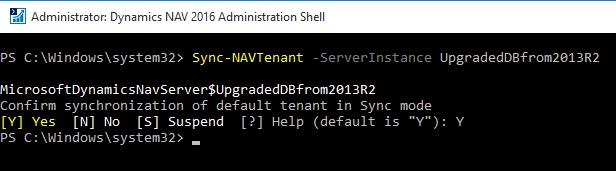
Or alternatively run the Sync-NavTenant cmdlet from the Microsoft Dynamics NAV 2016 Administration Shell.

Sync-NAVTenant –ServerInstance UpgradedDBfrom2013R2 (My Server Instance Name)

Upgrade2016-31

Note this command runs in Administration Shell not in Development Shell as we used in our previous post.

Run the data upgrade process

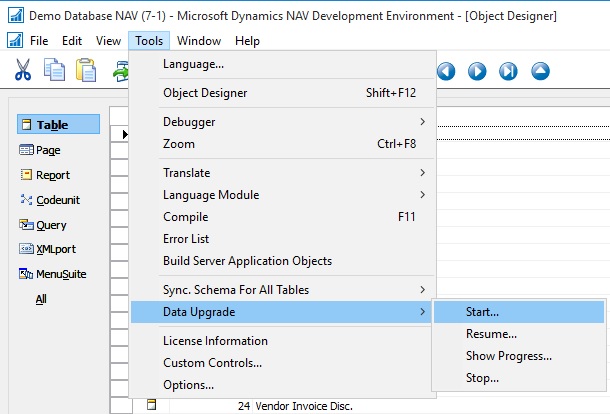
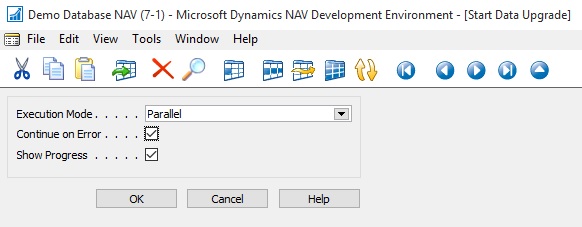
A data upgrade runs the upgrade toolkit objects, such as upgrade codeunits and upgrade tables, to migrate business data from the old table structure to the new table structure. You can start the data upgrade from the Microsoft Dynamics NAV Development Environment.
Upgrade2016-32

Upgrade2016-33

Upgrade2016-34

Upgrade2016-35

Ooops………….

Or Alternatively Microsoft Dynamics NAV 2016 Administration Shell.

In the last phase of data upgrade, all companies will be initialized by running codeunit 2 Company Initialization. This is done automatically.

If you want to skip company initialization, then use the Start- NavDataUpgrade cmdlet and set the SkipCompanyIntitialization parameter.

Syntax:

Start-NAVDataUpgrade [-ServerInstance] <String> [[-Tenant] <TenantId> ] [[-FunctionExecutionMode] <FunctionExecutionModeValue> ] [[-ContinueOnError]] [-Force] [-Confirm] [-WhatIf] [ <CommonParameters>]

Parameters
-ContinueOnError

Specifies whether the Microsoft Dynamics NAV Server instance continues to execute other upgrade functions when an error occurs while executing an upgrade function.

If you do not set this parameter, then when an error occurs, the Microsoft Dynamics NAV Server instance will suspend the data upgrade process. It will cancel the execution of upgrade functions currently in progress and roll back any changes that were applied. Completed functions will not be rolled back.

The process remains in suspended state until you take one of the following actions:

– Fix the problems in the upgrade functions that failed, and then resume the process by using the Resume-NAVDataUpgrade cmdlet. You should not add new upgrade functions at this time because they will be ignored when you resume the process.

– Stop the data upgrade process by using the Stop-NAVDataUpgrade cmdlet. Stopping the process will not roll back changes made by upgrade functions that have already been executed.

If you set this parameter, then when an error occurs, the Microsoft Dynamics NAV Server instance will continue executing other upgrade functions. At the end of the process, you can use the Get-NAVDataUpgrade cmdlet to see the list of failed upgrade functions. Changes that were applied by completed functions will not be rolled back.

When upgrading a large database, you should increase the SQL Command Timeout setting for the Microsoft Dynamics NAV Server instance that connects to the database to avoid timeouts during schema synchronization. The default setting is 30 minutes

-ServerInstance<String>

Specifies the Microsoft Dynamics NAV Server instance that the application database and the tenant database are mounted against, such as DynamicsNAV90.

You must include the name within single quotation marks.

-Tenant<TenantId>

Specifies the ID of the tenant that you want to synchronize with the application, such as Tenant1.

This parameter is required unless the specified service instance is not configured to run multiple tenants.

-Force

Forces the command to run without asking for user confirmation.
-FunctionExecutionMode<FunctionExecutionModeValue>
Specifies whether the Microsoft Dynamics NAV Server instance executes upgrade functions in series or parallel.
-Confirm
Prompts you for confirmation before running the cmdlet.

-WhatIf

Shows what would happen if the cmdlet runs. The cmdlet is not run.

Few Examples of Usage:

[1] PS C:\> Start-NAVDataUpgrade -ServerInstance DynamicsNAV90 –Force

[2] PS C:\> Start-NAVDataUpgrade -ServerInstance DynamicsNAV90 -ContinueOnError –Force

[3] PS C:\> Start-NAVDataUpgrade -ServerInstance DynamicsNAV90 -FunctionExecutionMode Serial –Force
Upgrade2016-36

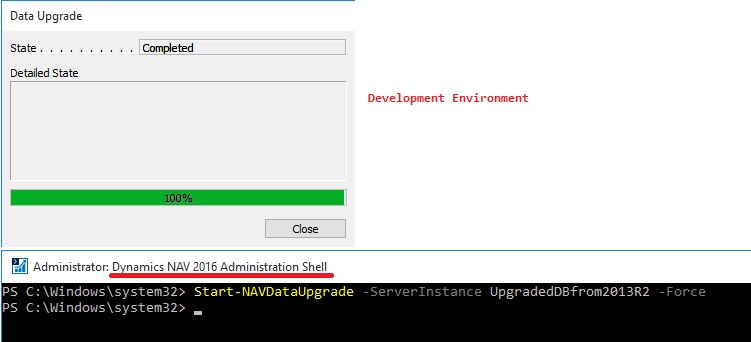
Start-NAVDataUpgrade -ServerInstance UpgradedDBfrom2013R2 –Force

Ooops………….

Now what to do?

To learn how to Create Data Upgrade Codeunits you can see my earlier posts:

Data Upgrade Codeunit in Navision 2015 – Part -1

Data Upgrade Codeunit in Navision 2015 – Part -2

These posts are still valid for 2016, you can follow to get you task done at this step resolution to above error.

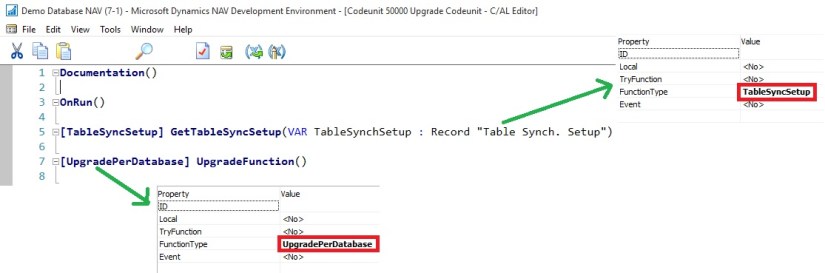
To resolve above issue I have followed the instruction as suggested in error message, but in real scenario you will definitely will be having such codeunits. Since I have taken the 2013-R2 Std. Database I am having this issue. I have created on Upgrade codeunit with an empty upgrade function as below:
Upgrade2016-37

Let us run the above process again.
Upgrade2016-38

This time I was able to complete the process successfully.

Delete the upgrade objects

At this point, you have upgraded the database to Microsoft Dynamics NAV 2016. Now, you can delete the upgrade codeunits and upgrade table objects that you imported in above step.

When you delete tables, on the Delete dialog box, set the Synchronize Schema option to Force.

Import upgraded permission sets and permissions by using the Roles and Permissions XMLports

You import the permission sets and permissions XML files according to the following procedure.

To import the permission sets and permissions

  • Delete all permission sets in the database except the SUPER permission set.

In Object Designer, run page 9802 Permission Sets, and then delete the permission sets.

  • Run XMLport 9171 Import/Export Permission Sets to import the permission sets XML file,

In the request page for the XMLport, in the Direction field, choose Import, choose the OK button, and then specify the permission sets XML file.

  • Run XMLport 9172 Import/Export Permissions to import the permission XML file.

In the request page for the XMLport, in the Direction field, choose Import, choose the OK button, and then specify the permissions XML file.

Set the language of the customer database

In the development environment, choose Tools, choose Language, and then select the language of the original customer database.

Add new control add-ins

The database is now fully upgraded and is ready for use. However, you may want to add the new client control add-ins that are included in Microsoft Dynamics NAV 2016. These are not added by the upgrade process. The following client control add-ins are available from the Microsoft Dynamics NAV product media:

  • Microsoft.Dynamics.Nav.Client.BusinessChart
  • Microsoft.Dynamics.Nav.Client.PageReady
  • Microsoft.Dynamics.Nav.Client.PingPong
  • Microsoft.Dynamics.Nav.Client.VideoPlayer
  • Microsoft.Dynamics.Nav.Client.SocialListening

You can add control add-ins in the Control Add-ins window in the Microsoft Dynamics NAV Windows client.

I will come up with more details on this topic in my upcoming posts.