Cumulative Updates, Information, Instalation & Configuration, NAV 2015, NAV 2016, NAV 2017, NAV 2018, Tip & Tricks, Updates

Cumulative Updates for Microsoft Dynamics NAV 2015/2016/ 2017/ 2018 released in Dec 2018

Cumulative Update 50 for Microsoft Dynamics NAV 2015 (Build 50787)

This cumulative update includes all hotfixes and regulatory features that have been released for Microsoft Dynamics NAV 2015, including hotfixes and regulatory features that were released in previous cumulative updates.

Note You must convert the database if you are upgrading to this cumulative update from a cumulative update earlier than cumulative update 9 (build 41779). For more information, see released cumulative updates for Microsoft Dynamics NAV 2015 in Help for Microsoft Dynamics NAV.

This cumulative update replaces previously released cumulative updates. You should always install the latest cumulative update.

It may be necessary to update your license after implementing this hotfix to gain access to new objects included in this or a previous cumulative update (this only applies to customer licenses).

For a list of cumulative updates released for Microsoft Dynamics NAV 2015, see released cumulative updates for Microsoft Dynamics NAV 2015. Cumulative updates are intended for new and existing customers who are running Microsoft Dynamics NAV 2015.

How to obtain the Microsoft Dynamics NAV update files

This update is available for manual download and installation from the Microsoft Download Center.

Cumulative update CU 50 for Microsoft Dynamics NAV 2015

How to install a Microsoft Dynamics NAV 2015 cumulative update

See How to install a Microsoft Dynamics NAV 2015 Cumulative Update.

Prerequisites

You must have Microsoft Dynamics NAV 2015 installed to apply this hotfix.

Cumulative Update 38 for Microsoft Dynamics NAV 2016 (Build 50785)

This cumulative update includes all hotfixes and regulatory features that have been released for Microsoft Dynamics NAV 2016, including hotfixes and regulatory features that were released in previous cumulative updates.

This cumulative update replaces previously released cumulative updates. You should always install the latest cumulative update.

It may be necessary to update your license after implementing this hotfix to gain access to new objects included in this or a previous cumulative update (this only applies to customer licenses).

For a list of cumulative updates released for Microsoft Dynamics NAV 2016, see released cumulative updates for Microsoft Dynamics NAV 2016. Cumulative updates are intended for new and existing customers who are running Microsoft Dynamics NAV 2016.

How to obtain the Microsoft Dynamics NAV update files

This update is available for manual download and installation from the Microsoft Download Center.

Cumulative update CU 38 for Microsoft Dynamics NAV 2016

How to install a Microsoft Dynamics NAV 2016 cumulative update

See How to install a Microsoft Dynamics NAV 2016 cumulative update.

Prerequisites

You must have Microsoft Dynamics NAV 2016 installed to apply this hotfix.

Cumulative Update 25 for Microsoft Dynamics NAV 2017 (Build 26396)

This cumulative update includes all hotfixes and regulatory features that have been released for Microsoft Dynamics NAV 2017, including hotfixes and regulatory features that were released in previous cumulative updates.

This cumulative update replaces previously released cumulative updates. You should always install the latest cumulative update.

It may be necessary to update your license after implementing this hotfix to gain access to new objects included in this or a previous cumulative update (this only applies to customer licenses).

For a list of cumulative updates released for Microsoft Dynamics NAV 2017, see released cumulative updates for Microsoft Dynamics NAV 2017. Cumulative updates are intended for new and existing customers who are running Microsoft Dynamics NAV 2017.

How to obtain the Microsoft Dynamics NAV update files

This update is available for manual download and installation from the Microsoft Download Center.

How to install a Microsoft Dynamics NAV 2017 cumulative update

How to install a Microsoft Dynamics NAV 2017 cumulative update

See How to install a Microsoft Dynamics NAV 2017 cumulative update.

Prerequisites

You must have Microsoft Dynamics NAV 2017 installed to apply this hotfix.

Cumulative Update 12 for Microsoft Dynamics NAV 2018 (Build 26401)

This cumulative update includes all hotfixes and regulatory features that have been released for Microsoft Dynamics NAV 2018, including hotfixes and regulatory features that were released in previous cumulative updates.

This cumulative update replaces previously released cumulative updates. You should always install the latest cumulative update.

It may be necessary to update your license after implementing this hotfix to gain access to new objects included in this or a previous cumulative update (this only applies to customer licenses).

For a list of cumulative updates released for Microsoft Dynamics NAV 2018, see released cumulative updates for Microsoft Dynamics NAV 2018. Cumulative updates are intended for new and existing customers who are running Microsoft Dynamics NAV 2018.

How to obtain the Microsoft Dynamics NAV update files

This update is available for manual download and installation from the Microsoft Download Center.

Cumulative update CU 12 for Microsoft Dynamics NAV 2018

How to install a Microsoft Dynamics NAV 2018 cumulative update

See How to install a Microsoft Dynamics NAV 2018 cumulative update.

Prerequisites

You must have Microsoft Dynamics NAV 2018 installed to apply this hotfix.

Business Central, Information, License, upgrade

Those planning for Upgrade – Some Important Information

As per the roadmap which Microsoft has published for Business Central, it shows that the Business Central product name will be continued for future. It means there will not be a Dynamics NAV 2019.

BC Road-map

Looking at your investment in terms of license and annual BREP, it is sense able to upgrade to Microsoft Dynamics 365 Business Central, whether your solution is deployed in Cloud or on-premises.

Don’t take me wrong I don’t mean to say that Microsoft Dynamics NAV and Dynamics 365 for finance and operations, Business edition are now obsolete.

Microsoft is not closing support to these products, it is still available to them. Only any new updates to these solutions we cannot expect any more.

One important note: New customers will still be able to purchase Microsoft Dynamics NAV 2018 till 31st March 2019. Same concept of concurrent user license with starter/extended pack.

From 1st April new customers will not be able to license NAV 2018, but existing NAV customers using the solution can still be able to purchase additional licenses as per their requirements if any.

If you missed earlier post do check this Link also.


What had changed in license model for Dynamics 365 Business Central


One change that a major one is now no more Concurrent licenses, new license purchased will be for named user.

One user one license, however named user will be able to access the application from multiple devices.

As earlier starter & extended pack was available now it will be Essentials and Premium.

Stander version of Business Central is termed as Essentials while with additional modules Service and Manufacturing is termed as Premium.

When comes to licensing you are not allowed to mix and match essentials & premium licenses, it should be from either of them.

Where is Limited user? Don’t worry it have been taken care as Team Member License. Read access throughout the application and write access to maximum of three tables excluding General Ledger entries.

License can be purchased as Perpetual or Subscription basis.

Licenses for Business Central differ from Dynamics NAV licenses in several ways:

  • Dynamics NAV licenses are calculated from concurrent users, where multiple users can share a license. Business Central licenses, on the other hand, are calculated from named users
  • With Business Central it is no longer necessary to have a Starter Pack. As a minimum, you need a Premium or Essentials user
  • It is only possible to have either Premium or Essentials users in your license. You can purchase Teams Members for both Premium and Essentials licenses.


What deployment options are available?

  1. Perpetual License – On premises
  2. Perpetual License – Cloud
  3. Subscription License – On premises
  4. Subscription License – Cloud
  5. Software As A Service (SaaS)


When you can upgrade to Microsoft Dynamics Business Central?


Microsoft Dynamics 365 Business Central is now generally available worldwide for cloud, and on-premises deployments. However you can check if it is available for your country from your local partners.

Local Functionality in Dynamics 365 Business Central

You can go-ahead with upgrade planning whenever you want too. Just get in touch with your current ERP provider.

For free lancing upgrade/development tasks you can contact us too at KSD Consultancy Private Limited. We are taking new project booking till 31st March on our old price, could be fixed or hour basis, which ever suitable to you. You can save lot from your local partners cost.


What’s on offer for existing customers?


Customers up-to-date with their BREP can upgrade to Dynamics 365 Business Central on-premises using LMT Upgrade.

Due to change in licensing model in Business Central. Below you can see exchange rate from perpetual NAV concurrent license to Business Central named user licenses.

If you have purchased your Dynamics NAV with Perpetual Licencing before October 1, 2018, your current NAV licenses will be converted from:

  • One Full User in Extended Pack to two Premium users
  • One Full user to two Essentials users
  • One Limited user to one Team Member

In addition to the converting of licenses, the licensing setup is different. As mentioned, Dynamics NAV licenses are calculated from concurrent users, where multiple users can share a number of licenses. Business Central licenses, on the other hand, are calculated from named users. The total value of your current licenses will remain the same – even after the conversion.

For more details on Licensing please refer here, make sure you always check with latest version of documents or discuss with your partner for current effective offers.

Dynamics 365 Business Central on-premises Upgrade Policy​

Dynamics 365 Business Central on-premises Licensing Guide

Similar to Dynamics NAV, the functionality of the D365 Business Central is divided into two ‘packages’, Essentials and Premium. The functionality of ‘Essentials’ corresponds to NAV’s ‘Starter Pack’ and the functionality of ‘Premium’ corresponds to NAV’s ‘Extended Pack’

Brief idea as below:

D365 Business Central Essentials /
Dynamics NAV Starter Pack
D365 Business Central Premium /
Dynamics NAV Extended

Financial Management

General Ledger
Cash Management
Fixed Assets
Currencies
Consolidation

Financial Management Extended

Inter-Company (Essentials)
Cost Accounting (Essentials)

Supply Chain Management

Sales Order processing
Purchase and procurement
Item management
Locations
Basic Warehousing

Supply Chain Management
Extended

Advanced Warehousing (Essentials)

Jobs and Resources

Job Planning, Budgets and Invoicing
Resource allocations
Timesheets


Contact

Management Contacts
Campaigns
Opportunity Management
D365 Sales Integration

Service Management

Service Contracts
Service Items
Service Order Management

Assembly

Assembly Bill of Materials

Manufacturing

Production BOMs
Works order management
Capacity and Demand planning

It will be always advised to verify before you make up your mind. However you can trust to Microsoft links provided in above post.


Cumulative Updates, Development Tips, How To, Information, Instalation & Configuration, NAV 2015, NAV 2016, NAV 2017, NAV 2018, Tip & Tricks, Updates

Cumulative Updates for Microsoft Dynamics NAV 2015/2016/2017/2018 Released in Nov 2018

Cumulative Update 49 for Microsoft Dynamics NAV 2015

Cumulative Update 49 includes all application and platform hotfixes and regulatory features that have been released for Microsoft Dynamics NAV 2015.

The cumulative update is intended mainly for solutions that are experiencing the problems described in the Knowledge Base article linked to below. However, you are advised to always keep your solution updated with the latest cumulative update. If you are in doubt about whether this cumulative update addresses your specific problem, or if you want to confirm whether any special compatibility, installation, or download issues are associated with this cumulative update, support professionals in Customer Support Services are ready to help you. For more information, see http://support.microsoft.com/contactus/.

Where to find Cumulative Update 49

You can download the cumulative update from KB 4470112  – Cumulative Update 49 for Microsoft Dynamics NAV 2015.

Or you can download the cumulative update from the Microsoft Download Center.

Warning

Before you install a cumulative update in a production environment, take the following precautions:

  1. Test the cumulative update in a non-production environment.
  2. Make a backup of the system or computer where the cumulative update is to be installed.

Additional Information

For information about how to install the cumulative update, see How to Install a Microsoft Dynamics NAV 2015 Cumulative Update.

For a list of all cumulative updates for this version, see Released Cumulative Updates for Microsoft Dynamics NAV 2015.

Cumulative Update 37 for Microsoft Dynamics NAV 2016

Cumulative Update 37 includes all application and platform hotfixes and regulatory features that have been released for Microsoft Dynamics NAV 2016. The cumulative update is intended mainly for solutions that are experiencing the problems described in the Knowledge Base article linked to below. However, you are advised to always keep your solution updated with the latest cumulative update. If you are in doubt about whether this cumulative update addresses your specific problem, or if you want to confirm whether any special compatibility, installation, or download issues are associated with this cumulative update, support professionals in Customer Support Services are ready to help you. For more information, see http://support.microsoft.com/contactus/.

Where to find Cumulative Update 37

You can see changes included in this cumulative update from KB4470113 – Cumulative Update 37 for Microsoft Dynamics NAV 2016. You can press one of the countries in list above for a direct download or you can download the cumulative update from the Microsoft Download Center. Microsoft Dynamics NAV 2016 is also available from containers. Containers are a way to wrap up an application into its own isolated box, you can pull the cumulative update containers from the Docker Hub.

To learn more about other Cumulative Updates already released for Microsoft Dynamics NAV 2016 please see KB  3108728.

Warning Before you install a cumulative update in a production environment, take the following precautions:

  1. Test the cumulative update in a non-production environment.
  2. Make a backup of the system or computer where the cumulative update is to be installed.

Additional Information For information about how to install the cumulative update, see How to Install a Microsoft Dynamics NAV 2016 Cumulative Update. Note that if you upgrade to this cumulative update from a version older than Microsoft Dynamics NAV 2016 Cumulative Update 6, you must run the development environment with elevated rights (run as administrator).

Cumulative Update 24 for Microsoft Dynamics NAV 2017

Cumulative Update 24 includes all application and platform hotfixes and regulatory features that have been released for Microsoft Dynamics NAV 2017.

The cumulative update is intended mainly for solutions that are experiencing the problems described in the Knowledge Base article linked to below. However, you are advised to always keep your solution updated with the latest cumulative update. If you are in doubt about whether this cumulative update addresses your specific problem, or if you want to confirm whether any special compatibility, installation, or download issues are associated with this cumulative update, support professionals in Customer Support Services are ready to help you. For more information, see http://support.microsoft.com/contactus/.

Where to find Cumulative Update 24

You can download the cumulative update from KB4470114  – Cumulative Update 24 for Microsoft Dynamics NAV 2017.

You can press one of the countries in list above for a direct download or you can download the cumulative update from the Microsoft Download Center.

Microsoft Dynamics NAV 2017 is also available from containers. Containers are a way to wrap up an application into its own isolated box, you can pull the cumulative update container from the Docker Hub.

To learn more about other Cumulative Updates already released for Microsoft Dynamics NAV 2017 please see KB  3210255.

Warning

Before you install a cumulative update in a production environment, take the following precautions:

  1. Test the cumulative update in a non-production environment.
  2. Make a backup of the system or computer where the cumulative update is to be installed.
  3. This Cumulative Update can require a database upgrade.

Additional Information

For information about how to install the cumulative update, see How to Install a Microsoft Dynamics NAV 2017 Cumulative Update.

Cumulative Update 11 for Microsoft Dynamics NAV 2018

Cumulative Update 11 includes all application and platform hotfixes and regulatory features that have been released for Microsoft Dynamics NAV 2018.

The cumulative update is intended mainly for solutions that are experiencing the problems described in the Knowledge Base article linked to below. However, you are advised to always keep your solution updated with the latest cumulative update. If you are in doubt about whether this cumulative update addresses your specific problem, or if you want to confirm whether any special compatibility, installation, or download issues are associated with this cumulative update, support professionals in Customer Support Services are ready to help you. For more information, see http://support.microsoft.com/contactus/.

Where to find Cumulative Update 11

You can download the cumulative update from KB4470117 – Cumulative Update 11 for Microsoft Dynamics NAV 2018.

You can press one of the countries in list above for a direct download or you can download the cumulative update from the Microsoft Download Center.

Microsoft Dynamics NAV 2018 is also available from containers. Containers are a way to wrap up an application into its own isolated box, you can pull the cumulative update container from the Docker Hub.

To learn more about other Cumulative Updates already released for Microsoft Dynamics NAV 2018 please see KB  4072483.

Warning

Before you install a cumulative update in a production environment, take the following precautions:

  1. Test the cumulative update in a non-production environment.
  2. Make a backup of the system or computer where the cumulative update is to be installed.
  3. This Cumulative Update can require a database upgrade.

Additional Information

For information about how to install the cumulative update, see How to Install a Microsoft Dynamics NAV 2018 Cumulative Update.

AL Development for Dynamics 365 Business Central

For information about how to develop extensions for Dynamics 365 Business Central see AL Development for Dynamics 365 Business Central


AL, C/AL, Development Tips, Extension Package, Information, Modern Development Tool, NAV 2016, NAV 2017, NAV 2018, PowerShell, Tip & Tricks, upgrade, V1, V2, Visual Studio Code

Future of Navision is extensions V2?

With the release of Dynamics 365 Business Central a successor of Dynamics NAV, things are going to change. If I am not wrong from year 2020 Modern Development Environment will be the only platform available to developers.

In every NAV upgrades biggest challenge was customizations, since objects are fully accessible to developers, so we customize the solution as we want as a developer spreading unstructured, difficult to maintain, customized code everywhere and in all objects.

The beauty of product is, it is totally customizable and adaptable to customer’s business. Customizing Navision is easy and quick to deploy. C/AL is easy to learn and code.

Due to these heavy customizations and unstructured codes upgrade to new version of the product required long time and efforts. Hard to merge, too much efforts leading to high cost, usually many customer prefer to stay with their current version, and miss new capabilities of product available in future versions of Navision.

With release of NAV 2016 concept of extension was introduced. This introduced the concept of writing code isolated from the core objects and use events to interact with the standard codes. Now create the extension that can be installed or uninstalled any time without affecting the original base layer of the product. We call it extension V1.

These were also developed using C/AL and deployed using PowerShell. But still it always felt like something is missing. Then last year Microsoft came up with release NAV 2018 which introduced second generation of extension, we call it extensions V2.

This introduced completely new development platform based on Visual Studio Code Modern Development Environment. It uses new AL language an evolution of C/AL. Now this will be the future.

Dynamics 365 Business Central platform (on-premise and SaaS) uses this development model. Probably this will be the only development platform available from year 2020.

In Business central base application is now an entire extension based with some system objects in CSIDE, In future release you may not have any more side by side development, you will only be having AL and extensions.


So what next?


  • We should now concentrate on learning VS Code and AL as in future this will be the only way to modify the application.
  • Now we need to make our self-familiar with the Web Client as Windows Client will be obsolete soon.
  • We should start moving our all customization to extensions.
  • Now we should start thinking in direction of AL type customization rather than old C/AL type coding practice.


What do you think?

I will come up with more details as progress in this direction. Till then keep learning and sharing with others.


Cumulative Updates, Development Tips, Functional Tips, How To, Information, Instalation & Configuration, NAV 2015, NAV 2016, NAV 2017, NAV 2018, Tip & Tricks, Updates, upgrade, What's New

Cumulative Update for Microsoft Dynamics NAV 2015/2016/2017/2018 Released in Oct 2018

Cumulative Update 48 for Microsoft Dynamics NAV 2015 (Build 50638)

This cumulative update includes all hotfixes and regulatory features that have been released for Microsoft Dynamics NAV 2015, including hotfixes and regulatory features that were released in previous cumulative updates.

Note You must convert the database if you are upgrading to this cumulative update from a cumulative update earlier than cumulative update 9 (build 41779). For more information, see Converting a Database in Help for Microsoft Dynamics NAV.

This cumulative update replaces previously released cumulative updates. You should always install the latest cumulative update.

It may be necessary to update your license after implementing this hotfix to gain access to new objects included in this or a previous cumulative update (this only applies to customer licenses).

For a list of cumulative updates released for Microsoft Dynamics NAV 2015, see released cumulative updates for Microsoft Dynamics NAV 2015. Cumulative updates are intended for new and existing customers who are running Microsoft Dynamics NAV 2015.

How to obtain the Microsoft Dynamics NAV update files

This update is available for manual download and installation from the Microsoft Download Center.

Download Cumulative update CU 48 for Microsoft Dynamics NAV 2015

How to install a Microsoft Dynamics NAV 2015 cumulative update

See How to install a Microsoft Dynamics NAV 2015 Cumulative Update.

Prerequisites

You must have Microsoft Dynamics NAV 2015 installed to apply this hotfix.

Cumulative Update 36 for Microsoft Dynamics NAV 2016 (Build 50637)

This cumulative update includes all hotfixes and regulatory features that have been released for Microsoft Dynamics NAV 2016, including hotfixes and regulatory features that were released in previous cumulative updates.

This cumulative update replaces previously released cumulative updates. You should always install the latest cumulative update.

It may be necessary to update your license after implementing this hotfix to gain access to new objects included in this or a previous cumulative update (this only applies to customer licenses).

For a list of cumulative updates released for Microsoft Dynamics NAV 2016, see released cumulative updates for Microsoft Dynamics NAV 2016. Cumulative updates are intended for new and existing customers who are running Microsoft Dynamics NAV 2016.

How to obtain the Microsoft Dynamics NAV update files

This update is available for manual download and installation from the Microsoft Download Center.

Download Cumulative update CU 36 for Microsoft Dynamics NAV 2016

How to install a Microsoft Dynamics NAV 2016 cumulative update

See How to install a Microsoft Dynamics NAV 2016 cumulative update.

Prerequisites

You must have Microsoft Dynamics NAV 2016 installed to apply this hotfix.


Cumulative Update 23 for Microsoft Dynamics NAV 2017 (Build 24745)

This cumulative update includes all hotfixes and regulatory features that have been released for Microsoft Dynamics NAV 2017, including hotfixes and regulatory features that were released in previous cumulative updates.

This cumulative update replaces previously released cumulative updates. You should always install the latest cumulative update.

It may be necessary to update your license after implementing this hotfix to gain access to new objects included in this or a previous cumulative update (this only applies to customer licenses).

For a list of cumulative updates released for Microsoft Dynamics NAV 2017, see released cumulative updates for Microsoft Dynamics NAV 2017. Cumulative updates are intended for new and existing customers who are running Microsoft Dynamics NAV 2017.

How to obtain the Microsoft Dynamics NAV update files

This update is available for manual download and installation from the Microsoft Download Center.

Download Cumulative update CU 23 for Microsoft Dynamics NAV 2017

How to install a Microsoft Dynamics NAV 2017 cumulative update

See How to install a Microsoft Dynamics NAV 2017 cumulative update.

Prerequisites

You must have Microsoft Dynamics NAV 2017 installed to apply this hotfix.


Cumulative Update 10 for Microsoft Dynamics NAV 2018 (Build 24742)

This cumulative update includes all hotfixes and regulatory features that have been released for Microsoft Dynamics NAV 2018, including hotfixes and regulatory features that were released in previous cumulative updates.

This cumulative update replaces previously released cumulative updates. You should always install the latest cumulative update.

It may be necessary to update your license after implementing this hotfix to gain access to new objects included in this or a previous cumulative update (this only applies to customer licenses).

For a list of cumulative updates released for Microsoft Dynamics NAV 2018, see released cumulative updates for Microsoft Dynamics NAV 2018. Cumulative updates are intended for new and existing customers who are running Microsoft Dynamics NAV 2018.

How to obtain the Microsoft Dynamics NAV update files

This update is available for manual download and installation from the Microsoft Download Center.

Download Cumulative update CU 10 for Microsoft Dynamics NAV 2018

How to install a Microsoft Dynamics NAV 2018 cumulative update

See How to install a Microsoft Dynamics NAV 2018 cumulative update.

Prerequisites

You must have Microsoft Dynamics NAV 2018 installed to apply this hotfix.

Cumulative Updates, Development Tips, How To, Information, Instalation & Configuration, NAV 2015, NAV 2016, NAV 2017, NAV 2018, Tip & Tricks, Updates

Cumulative Update for Microsoft Dynamics NAV 2015/2016/2017/2018 Released in Sep 2018

Cumulative updates includes all hotfixes and regulatory features that have been released for Microsoft Dynamics NAV , including hotfixes and regulatory features that were released in previous cumulative updates.

It is recommend that you contact your Microsoft Dynamics Partner before you install hotfixes or updates. It is important to verify that your environment is compatible with the hotfixes or updates being installed. A hotfix or update may cause interoperability issues with customizations and third-party products that work with your Microsoft Dynamics NAV solution.

Cumulative Update 47 for Microsoft Dynamics NAV 2015(Build 50585)

How to obtain the Microsoft Dynamics NAV update files

This update is available for manual download and installation from the Microsoft Download Center.

Download Cumulative update CU 47 for Microsoft Dynamics NAV 2015

How to install a Microsoft Dynamics NAV 2015 cumulative update

See How to install a Microsoft Dynamics NAV 2015 Cumulative Update.

Prerequisites

You must have Microsoft Dynamics NAV 2015 installed to apply this hotfix.

Cumulative Update 35 for Microsoft Dynamics NAV 2016 (Build 50583)

How to obtain the Microsoft Dynamics NAV update files

This update is available for manual download and installation from the Microsoft Download Center.

Download Cumulative update CU 35 for Microsoft Dynamics NAV 2016

How to install a Microsoft Dynamics NAV 2016 cumulative update

See How to install a Microsoft Dynamics NAV 2016 cumulative update.

Prerequisites

You must have Microsoft Dynamics NAV 2016 installed to apply this hotfix.

Cumulative Update 22 for Microsoft Dynamics NAV 2017 (Build 24238)

How to obtain the Microsoft Dynamics NAV update files

This update is available for manual download and installation from the Microsoft Download Center.

Download Cumulative update CU 22 for Microsoft Dynamics NAV 2017

How to install a Microsoft Dynamics NAV 2017 cumulative update

See How to install a Microsoft Dynamics NAV 2017 cumulative update.

Prerequisites

You must have Microsoft Dynamics NAV 2017 installed to apply this hotfix.

Cumulative Update 09 for Microsoft Dynamics NAV 2018 (Build 24232)

How to obtain the Microsoft Dynamics NAV update files

This update is available for manual download and installation from the Microsoft Download Center.

Download Cumulative update CU 09 for Microsoft Dynamics NAV 2018

How to install a Microsoft Dynamics NAV 2018 cumulative update

See How to install a Microsoft Dynamics NAV 2018 cumulative update.

Prerequisites

You must have Microsoft Dynamics NAV 2018 installed to apply this hotfix.


Cumulative Updates, Development Tips, How To, Information, Instalation & Configuration, Modern Development Tool, NAV 2015, NAV 2016, NAV 2017, NAV 2018, Tip & Tricks, Updates

Cumulative Update for Microsoft Dynamics NAV 2015/2016/2017/2018 Released in Aug 2018

Cumulative Update includes all application and platform hotfixes and regulatory features that have been released for Microsoft Dynamics NAV.

The cumulative update is intended mainly for solutions that are experiencing the problems described in the Knowledge Base articles. However, you are advised to always keep your solution updated with the latest cumulative update.

Cumulative Update 46 for Microsoft Dynamics NAV 2015

Where to find Cumulative Update 46

You can download the cumulative update from KB 4346804  – Cumulative Update 46 for Microsoft Dynamics NAV 2015.

Or you can download the cumulative update from the Microsoft Download Center.

Warning

Before you install a cumulative update in a production environment, take the following precautions:

  1. Test the cumulative update in a non-production environment.
  2. Make a backup of the system or computer where the cumulative update is to be installed.

Additional Information

For information about how to install the cumulative update, see How to Install a Microsoft Dynamics NAV 2015 Cumulative Update.

For a list of all cumulative updates for this version, see Released Cumulative Updates for Microsoft Dynamics NAV 2015.

Cumulative Update 34 for Microsoft Dynamics NAV 2016

Where to find Cumulative Update 34

You can see changes included in this cumulative update from KB4346805 – Cumulative Update 34 for Microsoft Dynamics NAV 2016.

You can press one of the countries in list above for a direct download or you can download the cumulative update from the Microsoft Download Center.

Microsoft Dynamics NAV 2016 is also available from containers. Containers are a way to wrap up an application into its own isolated box, you can pull the cumulative update containers from the Docker Hub.

To learn more about other Cumulative Updates already released for Microsoft Dynamics NAV 2016 please see KB  3108728.

Warning

Before you install a cumulative update in a production environment, take the following precautions:

  1. Test the cumulative update in a non-production environment.
  2. Make a backup of the system or computer where the cumulative update is to be installed.

Additional Information

For information about how to install the cumulative update, see How to Install a Microsoft Dynamics NAV 2016 Cumulative Update. Note that if you upgrade to this cumulative update from a version older than Microsoft Dynamics NAV 2016 Cumulative Update 6, you must run the development environment with elevated rights (run as administrator).

Cumulative Update 21 for Microsoft Dynamics NAV 2017

Where to find Cumulative Update 21

You can download the cumulative update from KB4346806  – Cumulative Update 21 for Microsoft Dynamics NAV 2017.

You can press one of the countries in list above for a direct download or you can download the cumulative update from the Microsoft Download Center.

Microsoft Dynamics NAV 2017 is also available from containers. Containers are a way to wrap up an application into its own isolated box, you can pull the cumulative update container from the Docker Hub.

To learn more about other Cumulative Updates already released for Microsoft Dynamics NAV 2017 please see KB  3210255.

Warning

Before you install a cumulative update in a production environment, take the following precautions:

  1. Test the cumulative update in a non-production environment.
  2. Make a backup of the system or computer where the cumulative update is to be installed.
  3. This Cumulative Update can require a database upgrade.

Additional Information

For information about how to install the cumulative update, see How to Install a Microsoft Dynamics NAV 2017 Cumulative Update.

Cumulative Update 08 for Microsoft Dynamics NAV 2018

Where to find Cumulative Update 08

You can download the cumulative update from KB4346807 – Cumulative Update 08 for Microsoft Dynamics NAV 2018.

You can press one of the countries in list above for a direct download or you can download the cumulative update from the Microsoft Download Center.

Microsoft Dynamics NAV 2018 is also available from containers. Containers are a way to wrap up an application into its own isolated box, you can pull the cumulative update container from the Docker Hub.

To learn more about other Cumulative Updates already released for Microsoft Dynamics NAV 2018 please see KB  4072483.

Warning

Before you install a cumulative update in a production environment, take the following precautions:

  1. Test the cumulative update in a non-production environment.
  2. Make a backup of the system or computer where the cumulative update is to be installed.
  3. This Cumulative Update can require a database upgrade.

Additional Information

For information about how to install the cumulative update, see How to Install a Microsoft Dynamics NAV 2018 Cumulative Update.

AL Development for Dynamics 365 Business Central

For information about how to develop extensions for Dynamics 365 Business Central see AL Development for Dynamics 365 Business Central


Appointment, Development Tips, Email, How To, Information, NAV 2015, NAV 2016, NAV 2017, NAV 2018, Office 365, Office Integration, Outlook, Tip & Tricks

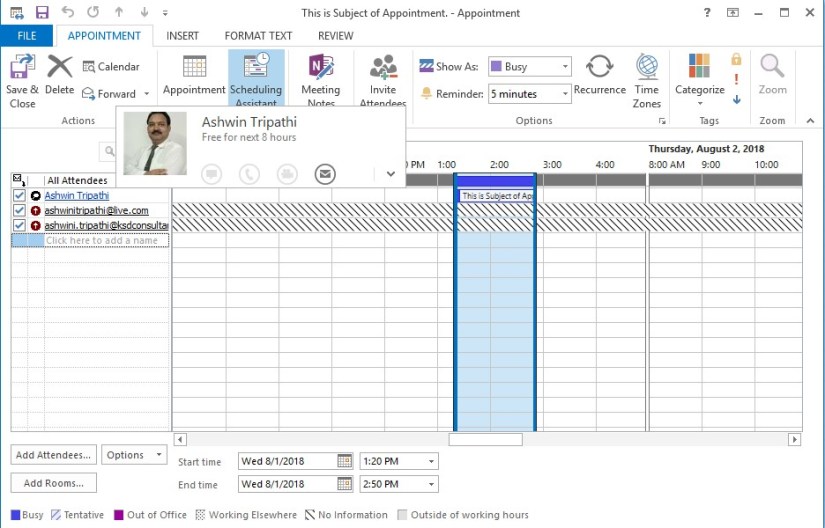
Programmatically Creating Outlook Appointment in Navision

Dear Friends in this post I will discuss about creating Outlook Appointment from Navision using DotNet Interop. Without going much in theory lets jump to practical approach.

To start with first we need to define some DotNet variables:

Name DataType Subtype
OutlookItemType DotNet Microsoft.Office.Interop.Outlook.OlItemType.
‘Microsoft.Office.Interop.Outlook, Version=15.0.0.0, Culture=neutral, PublicKeyToken=71e9bce111e9429c’
outlookApplication DotNet Microsoft.Office.Interop.Outlook.Application.
‘Microsoft.Office.Interop.Outlook, Version=15.0.0.0, Culture=neutral, PublicKeyToken=71e9bce111e9429c’
outlookApplicationClass DotNet Microsoft.Office.Interop.Outlook.ApplicationClass.
‘Microsoft.Office.Interop.Outlook, Version=15.0.0.0, Culture=neutral, PublicKeyToken=71e9bce111e9429c’
outlookAppItem DotNet Microsoft.Office.Interop.Outlook.AppointmentItem.
‘Microsoft.Office.Interop.Outlook, Version=15.0.0.0, Culture=neutral, PublicKeyToken=71e9bce111e9429c’

I have created a function CreateOutlookAppointment which takes parameters as:


OAP1

And the code as below:

OAP2

To call this function I use below code:

OAP3

The code is itself self-explanatory.

You can add other validations and parameters as per the requirement.

Imp Tip:- Make sure you set for all DotNet Variables RunOnClient = Yes.

On run the output will be as:

OAP4


OAP5


What you are waiting for, go create Appointment and have fun.

See you seen via my next post. Till then keep learning and growing in your career.


Convert to PDF, Development Tips, Email, How To, NAV 2017, Office 365, Office Integration, Report, Tip & Tricks, Word

Mail Sending Option in NAV 2017 with Cover Letter & Attachments –Part 2

Continuing from previous post, further in next step we will apply same feature discussed in earlier post to our custom documents and learn where all places we need to take care development to get it working.

If you have missed First Part you can find here. Mail Sending Option in NAV 2017 with Cover Letter & Attachments –Part 1

In my Example I am using Policy Module:

I am using my Custom Table Policy where Policy Holder is setup as Customer, also few general details related to policy is stored. In nutshell we are concentration on Sending mail to customer as we have done in previous post for sending Invoice details to customer.

Step-1:

In my Policy Table I have added 2 Function as below:

MSI-07


MSI-08

SendRecords()

IF DocumentSendingProfile.LookupProfile(“Policy Holder No.”,FALSE) THEN

SendProfile(DocumentSendingProfile);


SendProfile(VAR DocumentSendingProfile : Record “Document Sending Profile”)

DocumentSendingProfile.Send(

DummyReportSelections.Usage::”Policy Issue”,Rec,”Document No.”,”Policy Holder No.”,

DocTxt,FIELDNO(“Policy Holder No.”),FIELDNO(“Document No.”));

Step-2:

In Table 77 Report Selections add new option to usage field

MSI-09

Step-3:

In Table 60 Document Sending Profile add below customization.

Add Text Constants

MSI-10

Update below function as:

MSI-11

Step-4:

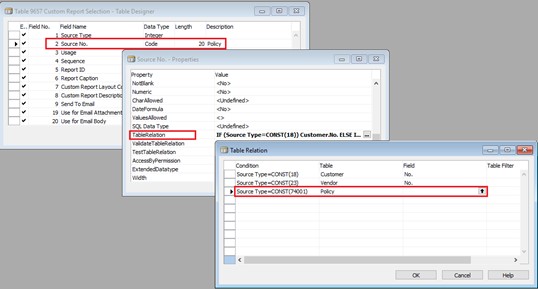
In Table 9657 Custom Report Selection add below customizations.

MSI-12


MSI-13

Step-5:

In Page 9657 Custom Report Selection add below customization.

MSI-14


MSI-15


MSI-16

Step-6:

Create 2 Reports one for Mail Body and one for Attachment. You can use same report as attachment too, it depends on your requirement.

Step-7:

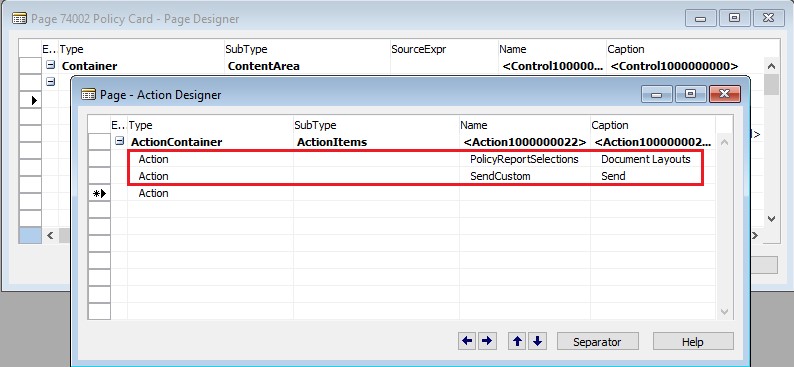
In Page Policy add below customization.

MSI-17


MSI-18

Step-8:

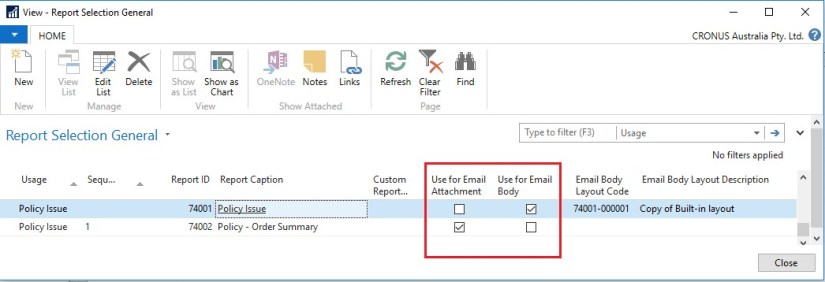
Setup your report Selection as below:

MSI-19

Now you are good to go.

Test your solution/ customization.

This is just a small idea, many lots can be done depending upon your requirements.


Convert to PDF, Development Tips, Email, Functional Tips, How To, Information, Layouts, NAV 2017, Office Integration, Tip & Tricks, What's New, Word

Mail Sending Option in NAV 2017 with Cover Letter & Attachments –Part 1

Generally we get demand for customized mail body to send from Navision. Normally we use templates or html etc. coding to achieve this. In NAV 2017 this feature is now available in product itself. Today we will explore this feature available for Std. documents and learn to setup, further in next step we will apply same to our custom documents and learn where all places we need to take care development to get it working.

The cover letters are created using RDLC or Word layout customization features providing visual consistency with any attached pdf document.

Document Layout for a Customer

MSI-01

For Example say we want to setup different e-Mail body for specific customer. To achieve this we will assign a specific report by customer which will enable us to process multiple formats at the same time. We will use the Customer Layout from the customer card by Document Type to do this.

MSI-02

In above example I am setting up a customized cover letter designed using selected report.

The Send To Email The e-Mail will be sent to the e-Mail provided in the customer card or you can provide an extra e-Mail in this field or you can specify at the time of sending mail if not setup automatic.

Email Body Layout Description = Modern – Email Body (Choose from the Custom Report Layouts)

Use for E-mail Body select this if you wish to include output of selected report as Cover Letter to Email body.

Send and Receive E-Mail

We can now use the Send Email window to have a preview of what our layout will look like and the using the options we can send the e-Mail.

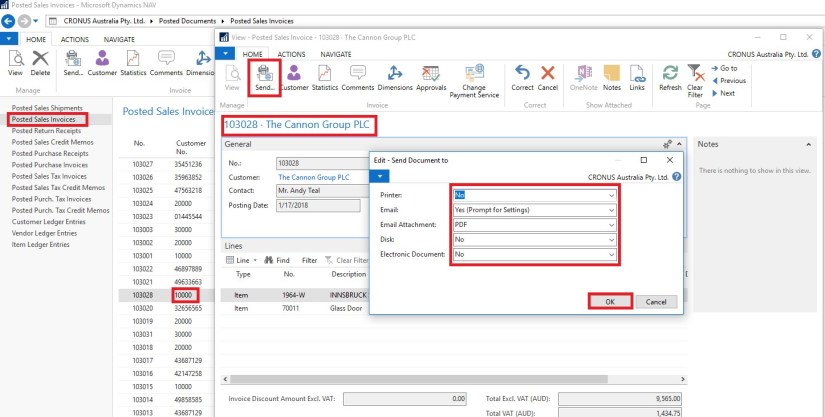
Let’s open a posted invoice for this customer.

MSI-03

On the Posted Sales Invoice click Send, which will open a window with some options, such as:

We can choose Email Prompt for Settings or use Default Settings

We can select how the attachment needs to be attached

We can also have Disk options as PDF or Electronic Documents if we use those.

Click OK. Before e-Mail is sent, we have the possibility to verify the e-Mail address, the subject line, the attachments and as per the Email Body Template, this is how the e-Mail will look like:

MSI-04

When we click OK, an e-Mail is sent to the Customer using the e-Mail Template.

By opening the e-Mail the recipient can see the contents of the invoice which has been sent using the template and the full invoice is also available as an attachment.

MSI-05

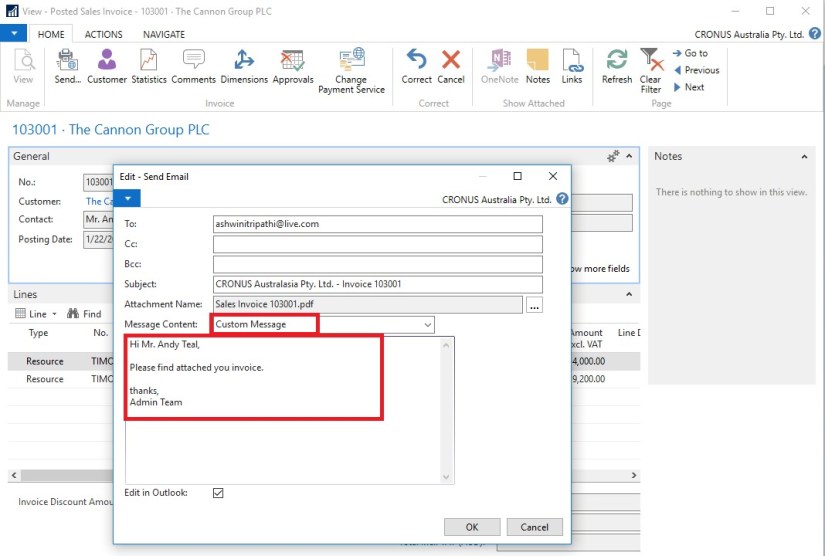
You can switch to a manual written message:

By using the Message Content field or

If you are using a client, you can open and edit the message in Outlook

MSI-06

In our next part of this post, we will see how we can enable this feature for our custom Pages & Documents.