Development Tips

How to create and install a test certificate for the Microsoft Dynamics NAV Server computer

To start with this exercise you need to first create certificate and certificate revocation list, if not yet created refer to previous post.

Previous Step Link- How to create a root CA and a private key file by using the makecert.exe utility

Previous Step Link- How to create certificate revocation list for the root certification authority

Let’s start with this exercise:

  • At the command prompt, type the following command:

makecert -sk NavServiceCert -iv RootNavServiceCA.pvk -n “CN=NavServiceCert” -ic RootNavServiceCA.cer -sr localmachine -ss my -sky exchange -pe NavServiceCert.cer

Note

This command specifies the subject’s certificate name as NavServiceCert. You need this certificate name when you configure the Microsoft Dynamics NAV Windows client or Microsoft Dynamics NAV Web Server components.

Certificate-13

  • When you are prompted, enter the password that you used to create the root CA.
  • Select the Trusted Root Certificate Authorities node, and then refresh the snap-in.

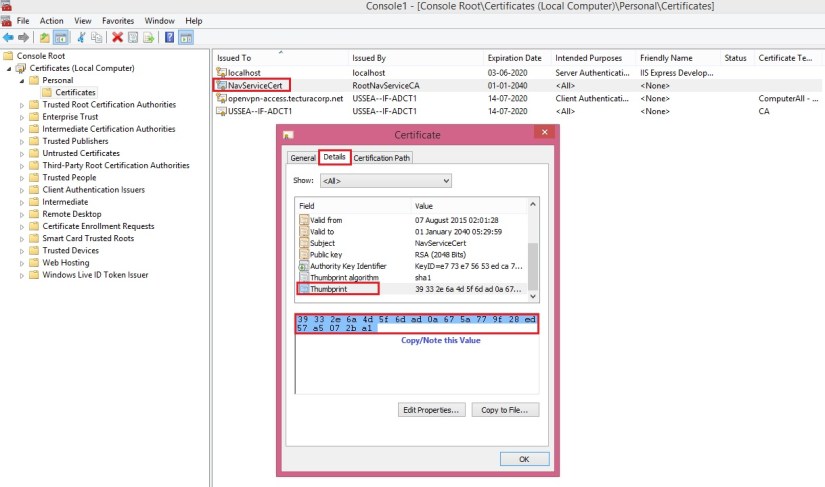
You now have the NavServiceCert.cer certificate file in your temporary folder. The certificate is installed under the Personal node in the Certificates Snap-in.

Certificate-14
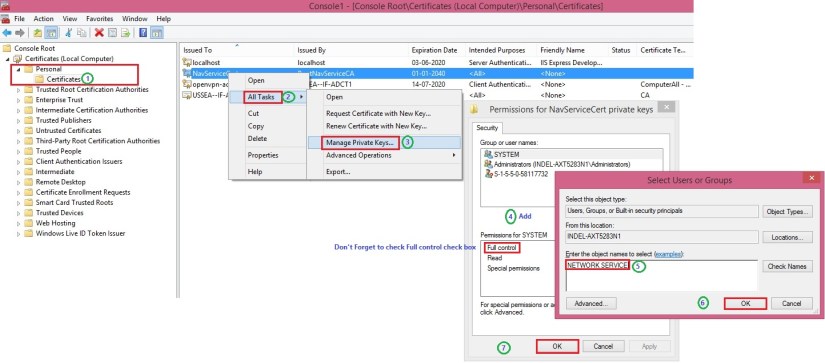
In next step we will now grant access to the certificate’s private key to the service account on computer running Microsoft Dynamics NAV Server.

Next Step Link- How to grant access to the certificate’s private key to the service account for the Microsoft Dynamics NAV Server computer

Development Tips

How to create a certificate revocation list for the root certification authority

To start with this exercise you need to first create certificate, if not yet created refer to previous post.

Previous Step Link- How to create a root CA and a private key file by using the makecert.exe utility

Let’s start with this exercise:

  • On the computer running Microsoft Dynamics NAV Server, create a temporary folder to use when you work with certificates.
  • Open the command prompt as follows:
    • If you have Visual Studio installed on your computer, choose Start, choose All Programs, choose Microsoft Visual Studio 2012, choose Visual Studio Tools, and then right-click Visual Studio Command Prompt and choose Run as Administrator.
    • If you have the Windows SDK installed on your computer, choose Start, choose All Programs, choose Microsoft Windows SDK, and then right-click Windows SDK Command Prompt (2010) (or CMD Shell) and choose Run as Administrator.
  • At the command prompt, locate the temporary directory.
  • At the command prompt, type the following command:

makecert -crl -n “CN=RootNavServiceCA” -r -sv RootNavServiceCA.pvk RootNavServiceCA.crl

  • When you are prompted, enter the password that you used to create the root CA.

Certificate-9
The RootNavServiceCA.crl certificate revocation file is saved in your temporary folder.
Certificate-10
Now we will install the certificate revocation list on the computer running Microsoft Dynamics NAV Server

  • In the Certificates snap-in, in the left pane of MMC, expand the Certificates (Local Computer) node.
  • Expand the Trusted Root Certification Authorities node, right-click the Certificates subfolder, select All Tasks, and then choose Import.
  • In the Certificate Import Wizard, on the Welcome page, choose Next.
  • On the File to Import page, choose Browse.
  • In the File Type field, select Certificate Revocation List (*.crl).
  • Browse to the location of the RootNavServiceCA.crl file, select the file, and then choose Open.
  • On the File to Import page, choose Next.
  • On the Certificate Store page, accept the default selection, and then choose Next.
  • On the Completing the Certificate Import Wizard page, choose Finish.

Certificate-11

  • Select the Trusted Root Certificate Authorities node, and then refresh the snap-in.

A Certificate Revocation List folder that contains the RootNavServiceCA.crl file has been created.
Certificate-12
In next step we will now create and install a test certificate on computer running Microsoft Dynamics NAV Server.

Next Step Link- How to create and install a test certificate for the Microsoft Dynamics NAV Server computer

Development Tips

How to create a root CA and a private key file by using the makecert.exe utility

We will follow below step to create a certificate for Microsoft Dynamics Server. Then we will implement the same for login from WAN to access Navision using Windows and Web Clients.

  • On the computer running Microsoft Dynamics NAV Server, create a temporary folder to use when you work with certificates.
  • Open the command prompt as follows:
    • If you have Visual Studio installed on your computer, choose Start, choose All Programs, choose Microsoft Visual Studio 2012, choose Visual Studio Tools, and then right-click Visual Studio Command Prompt and choose Run as Administrator.
    • If you have the Windows SDK installed on your computer, choose Start, choose All Programs, choose Microsoft Windows SDK, and then right-click Windows SDK Command Prompt (2010) (or CMD Shell) and choose Run as Administrator.
  • At the command prompt, locate the temporary directory.
  • Type the following command.

makecert -n “CN=RootNavServiceCA” -r -sv RootNavServiceCA.pvk RootNavServiceCA.cer

Certificate-4

  • When you are prompted, enter a password.
    • You need this password to create the service certificate.
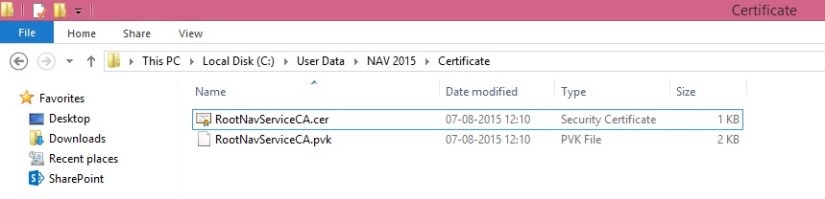
  • The RootNavServiceCA.cer certificate file and the RootNavServiceCA.pvk private key are saved in your temporary folder.

Certificate-5

Now we will use the Certificates snap-in to install the root CA on the computer running Microsoft Dynamics NAV Server

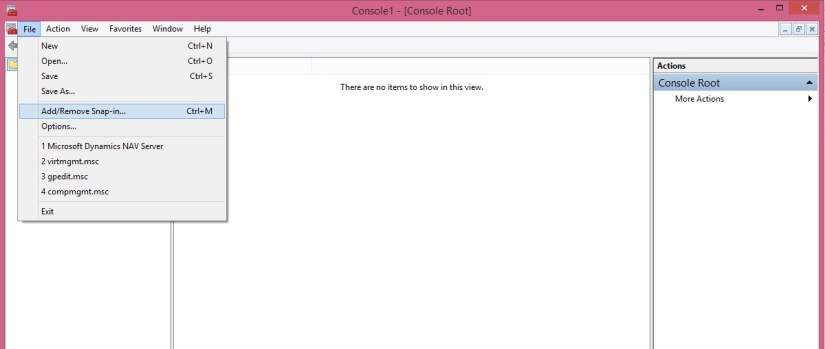
  • Start the Certificates snap-in for MMC on the computer running Microsoft Dynamics NAV Server, and then add the Certificates snap-in.
  • In the Certificates snap-in dialog box, choose Computer account, and then choose Next.
  • In the Select Computer pane, choose Local computer: (the computer this console is running on), and then choose Finish.
  • Choose OK to close the Add or Remove Snap-ins dialog box.
  • In the left pane of MMC, expand the Certificates (Local Computer) node.

Certificate-2

Certificate-3

  • Expand the Trusted Root Certification Authorities node, right-click the Certificates subfolder, select All Tasks, and then choose Import.

Certificate-6

  • In the Certificate Import Wizard, on the Welcome page, choose Next.
  • On the File to Import page, choose Browse.
  • Browse to the location of the RootNavServiceCA.cer certificate file, select the file, and then choose Open.
  • On the File to Import page, choose Next.
  • On the Certificate Store page, accept the default selection, and then choose Next.
  • On the Completing the Certificate Import Wizard page, choose Finish.

Certificate-7

The RootNavServiceCA certificate is now visible in the list of trusted root CAs.

Certificate-8

In next step we will now create a certificate revocation list for the root certification authority and then install the certificate revocation list on the computer running Microsoft Dynamics NAV Server.

A certificate revocation list is required because WCF applications check the revocation list when validating certificates.

Next Step Link- How to create a certificate revocation list for the root certification authority

Development Tips

Learning .NET Framework interoperability by Example

Today we will discuss an example which uses .NET Framework interoperability to display headlines from the RSS feed of my site https://msdynamicsnavashwinitripathi.wordpress.com/

This example accesses classes in the System.XML assembly that is found in Global Assembly Cache.

Today’s example uses .NET Framework interoperability to display headlines from an RSS feed from my blog site, which has the following URL:

https://msdynamicsnavashwinitripathi.wordpress.com/feed/

We will use members of the System.XML assembly, which is part of the Microsoft .NET Framework class library and is installed in the global assembly cache.

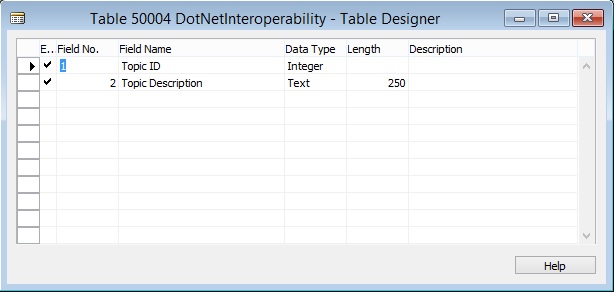
Let’s start with creating a table to store the value of feeds as below:

DotNetInteroperability-1
Save your Table.

Next we will be creating a codeunit that has the following local variables:

DotNetInteroperability-2

Variable name DataType SubType
xml DotNet ‘System.Xml, Version=2.0.0.0, Culture=neutral, PublicKeyToken=b77a5c561934e089’.System.Xml.XmlDocument
items DotNet ‘System.Xml, Version=2.0.0.0, Culture=neutral, PublicKeyToken=b77a5c561934e089’.System.Xml.XmlNodeList
I Integer
title DotNet ‘System.Xml, Version=2.0.0.0, Culture=neutral, PublicKeyToken=b77a5c561934e089’.System.Xml.XmlNode
FeedTable Record DotNetInteroperability

After you create the codeunit, add a function LoadFeed and add below code to it:

 DotNetInteroperability-3
xml := xml.XmlDocument();

xml.Load(‘https://msdynamicsnavashwinitripathi.wordpress.com/feed/?format=xml’);

items := xml.SelectNodes(‘/rss/channel/item’);

FOR i := 0 TO items.Count – 1 DOBEGIN

title := items.Item(i).SelectSingleNode(‘title/text()’);

FeedTable.INIT;    FeedTable.”Topic ID” := i + 1;

FeedTable.”Topic Description” := title.Value;

IF NOT FeedTable.INSERT THEN

FeedTable.MODIFY;

END;

MESSAGE(‘Loading of Feeds Done.’);

Save your codeunit.

To see the example in the Microsoft Dynamics NAV Windows client, you will now create an action on a page that opens the codeunit.

Create a Page as below:

DotNetInteroperability-4
Create below Variable of codeunit created above:

DotNetInteroperability-5
Create below Page Actions:

DotNetInteroperability-6
Write a code for Load Feed Action as:

DotNetInteroperability.LoadFeed;

Save your Page.

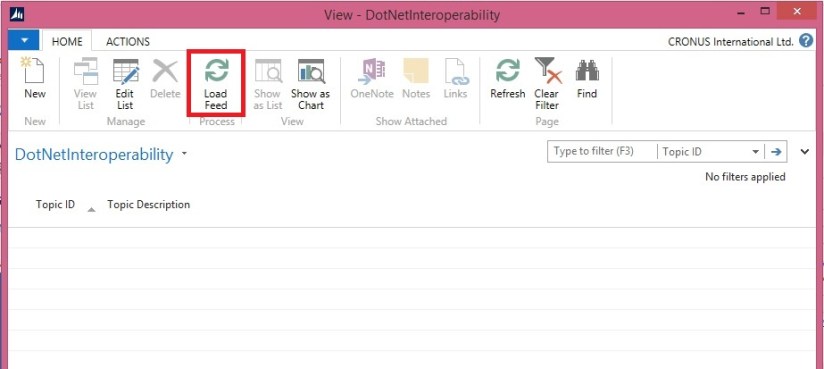
Now Run this Page:

DotNetInteroperability-7
Click the Action Load Feed created above.

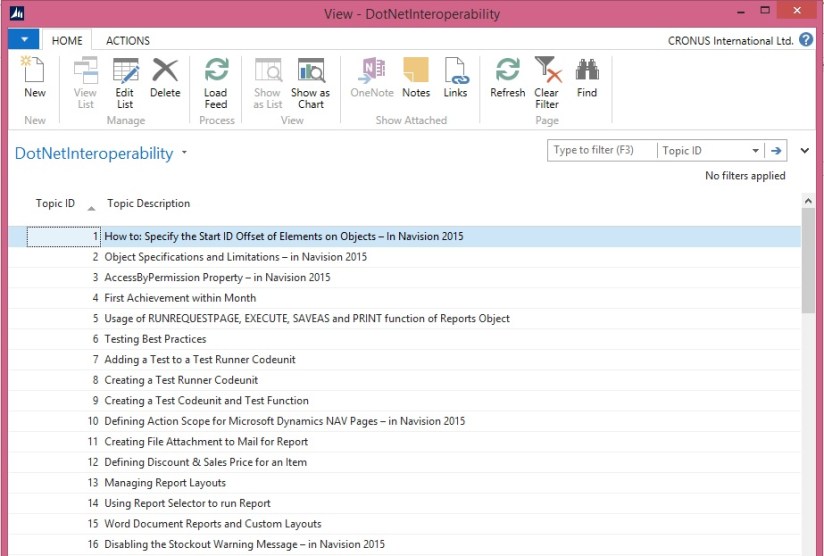
DotNetInteroperability-8
Respond OK to see the feeds loaded. Make sure your internet connection is operational as it directly fetch the Live feed from Internet.

DotNetInteroperability-9
In this case it will Load 50 Posts headings as this feed provides 50 as output, different feeds may return different numbers mostly 10-20 posts.

Using above logic you can create any such functionality and add value to your customers.

Thanks for going through this post, hopefully you may have earned some fruitful Tips.

You can follow the blog or subscribe to the RSS feed to remain updated and keep getting such posts in future.

Your response to my posts will keep motivating me for helping the community.

Development Tips

How to: Specify the Start ID Offset of Elements on Objects – In Navision 2015

You can specify a start ID for new objects so that elements on these new objects have IDs that are offset by the number that you specified.

For example

You can specify a start ID of 50000 and then create a new page. The first element that you create on the page, for example, a Container control, has ID 50000. The next element that you create on the page, for example, a Group control, has ID 50001. The ID of each element on the page is incremented by 1, starting with the offset that you specified.

If you create variables or text constants on the page, then the first variable or text constant has ID 50000. The ID of each variable or text constant that you create is incremented by 1, starting with the offset that you specified.

If you create functions on the page, then they start with ID 50000. Parameters, return value, local variables, and local text constants of a function start with ID 50000.

Note

In earlier versions of Microsoft Dynamics NAV, you specified the start ID offset by using the GetUidOffset function in codeunit 1.

You can use the start ID to identify a set of elements in your application, for example, to identify the elements in a country/region-specific version.

When you merge changes from different country/region-specific versions, having different start IDs lets you easily identify the country/region-specific version for each element.

If you do not specify a start ID, then the IDs are determined by your license.


To specify the start ID

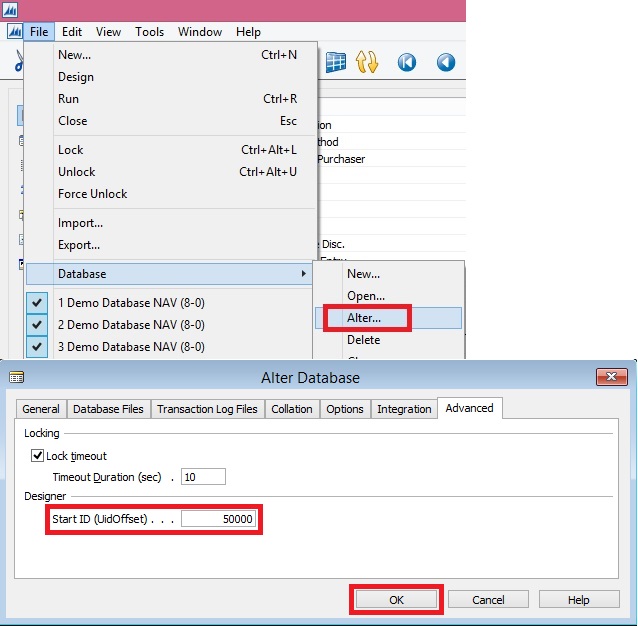
  • In the development environment, on the File menu, choose Database, and then choose Alter.
  • In the Alter Database window, select the Advanced tab.
  • On the Advanced tab, under Designer, in the Start ID (UidOffset) text box, enter an integer, and then choose the OK button.

Start-Id
Important

Microsoft recommends that you specify a start ID that is greater than or equal to 1000. If you specify a start ID that is less than 1000, then variables and text constants on the object have a starting offset of 1000, not the value that you specified. Other elements on the object have the starting offset that you specified.

  • Create a new table, page, report, codeunit, query, or XMLport. The IDs of the elements on that object are offset by the number that you specified.

Note

To view the ID of an element, select the element in the designer, and then on the View menu, choose Properties.


Development Tips

Object Specifications and Limitations – in Navision 2015

Today I would like to discuss few important information. It always good to know out limitations, so do the limitation of the tools we are using. It helps in planning the design what all are possible and where are the limitations.

This could be also helpful for person taking interviews or appearing for interviews.

Below are the specifications and limitations for the database and application objects.

Specifications for the database

Feature Characteristic
Maximum number of physical disk files 16
Database file size 256 GB
Maximum number of objects in a database 1,000,000,000
Maximum number of characters in application object names 30
Maximum number of characters in a Database Authentication password 80

Specifications for Tables

Feature Characteristic
Range for table object ID numbers 1 – 999,999,999
Maximum number of characters in a table name 30
Maximum table size Depends on available storage
Maximum number of records in a table Depends on available storage
Maximum record size 8000 bytes
Maximum number of fields in a record 500
Range for field numbers 1 – 999,999,999
Maximum number of keys for a table 40
Maximum size of a Microsoft Dynamics NAV key 900 bytes
Maximum number of distinct fields per key 16
Maximum size of an index 900 bytes
Maximum number of SumIndexFields per key 20
Maximum number of characters in a text or code field 250
Maximum size of a BLOB field 2 GB
Maximum number of characters in a field name 30

 Specifications for Pages and Reports

Feature Characteristic
Range for page or report object ID numbers 1 – 999,999,999
Maximum number of characters in a caption 1024
Maximum bitmap size in bitmap property 32500 bytes

Specifications for Codeunits

Feature Characteristic
Range for codeunit object ID numbers 1 – 999,999,999
Maximum number of characters in variable names 30
Maximum number of dimensions in array variables 10
Maximum number of elements in an array variable 1,000,000
Maximum physical size of a codeunit 2 GB
Lower bound of index in an array 1

All application objects are identified by an ID number. There are restrictions, however, on the numbers you can use when you create your own application objects. Check with your Partner License Agreement for more information.

Development Tips

AccessByPermission Property – in Navision 2015

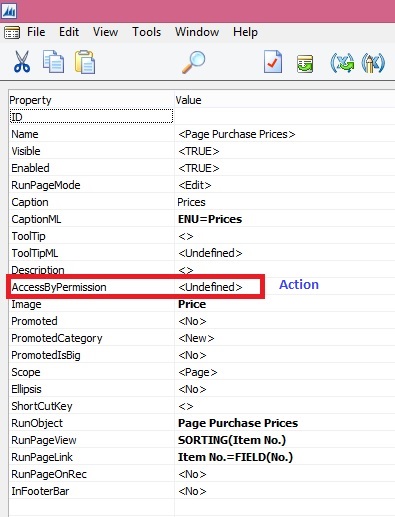
Sets a value for a table field or UI element that determines the permission mask for an object that a user must have to see and access the related page fields or UI element in the client. The UI element will be removed at runtime if the user does not have permissions to a certain object as specified in the Access by Permission window.

AccessByPermission-1
AccessByPermission-2
AccessByPermission-3

Depending on the setting in the UI Elements Removal field in the Microsoft Dynamics NAV Server Administration tool, only user interface (UI) elements on objects in the license or on objects that the user has permissions to will appear in the user interface.

AccessByPermission-4

To make full use of the LicenseFileAndUserPermissions option in the UI Elements Removal field, it is recommended that you assign the special permission set, FOUNDATION, along with the relevant permission sets that define which application objects the user will access.

AccessByPermission-5

The majority of the permission sets that are provided with the CRONUS demonstration database cannot be combined with the FOUNDATION permission set to fully use the UI Elements Removal feature. You must first create or edit the relevant permission sets to avoid that the user is blocked from performing the involved tasks. You must first create or edit the relevant permission sets to avoid that the user is blocked from performing the involved tasks.

If you only use the LicenseFile option in the UI Elements Removal field, then you do not have to edit any permission sets as they will not affect which UI elements are removed.

To specify when UI elements are removed
  1. Open the Microsoft Dynamics NAV Server Administration
  2. In the UI Elements Removal field, choose the relevant option as described in the following table.
Option Description
None All UI elements are displayed, even if the license file does not include the related object and the user does not have permissions to the related object.
LicenseFile A UI element is removed if the related object is not included in the license file.
LicenseFileAndUserPermissions A UI element is removed if the related object is not included in the license file and the user does not have permissions to the object as defined in the AccessByPermission property for the related UI element.

By default, this option is selected.

AccessByPermission-6

When you configure user interfaces in Microsoft Dynamics NAV, you should make sure that the UI Elements Removal field is set to its default, LicenseFileAndUserPermissions, so that you only see the relevant UI elements in the Customize window.

When you develop in Microsoft Dynamics NAV, you should make sure that the UI Elements Removal field is set to its default, None, to make sure that all UI elements are visible when you review your development in the UI.

All types of UI elements will be removed if they relate to objects that are not included in the license or the user does not have the required permission to the objects:

  • Fields
  • Actions
  • Page parts

UI elements that are directly related to an object through the TableRelation or the CalcFormula property can be removed automatically according to the license file and/or user permissions.

For UI elements that are not directly related to an object, you can use the AccessByPermission property to remove the element according to the user’s permission to a related object

All types of UI elements will be removed if they relate to an object to which the user does not have the required permissions:

Fields on pages, including FactBoxes

Actions on pages, including toolbars and navigation panes

Page parts, such as Lines FastTabs

Note

To use this property, the UI Elements Removal field in the Microsoft Dynamics NAV Server Administration tool must be set to LicenseFile or LicenseFileAndUserPermissions.

This Property Applies To

Fields in tables (affecting all related fields on pages)

Fields on pages

Actions on pages

MenuSuite items

Page parts, such as a Lines FastTab

Property Value

When you choose the AssistEdit button, the Access By Permission window opens. Fill the fields as described in the following table.

Field Description
Object Type Specify the type of object to which permission is required to display the UI element.
Object ID Specify the object to which permission is required to display the UI element.
Read Specify if Read permission is required to display the UI element.
or Insert Specify if Insert permission is required to display the UI element.
or Modify Specify if Modify permission is required to display the UI element.
or Delete Specify if Delete permission is required to display the UI element.
or Execute Specify if Execute permission is required to display the UI element.

AccessByPermission-7

Note

If multiple permissions are selected, then one or the other applies.

Example: Remove the Unit Price field if the user does not have permission to the Sales Price table

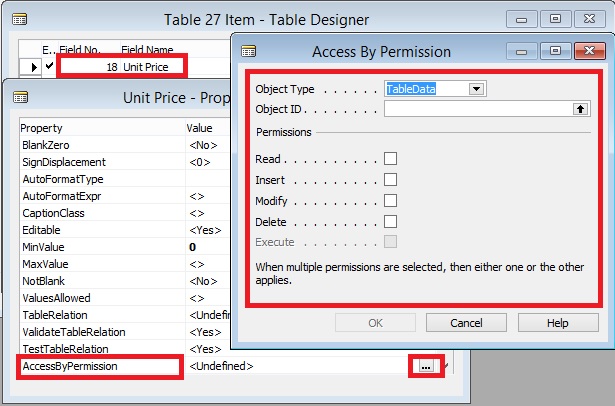
Open table 27, Item Card, with the Table Designer.

View the properties of field 18, Unit Price.

For the AccessByPermission property, choose the AssistEdit button in the Value field.

In the Access By Permission window, fill the fields as described in the following table.

Field Description
Object Type TableData
Object ID Sales Price
Read Select
Insert Select
Modify Leave blank
Delete Leave blank
Execute Leave blank

Close the Access By Permission window and save the changes on table 27.

All instances of the Unit Price field on pages are now removed if the user does have Read or Insert permission to the Sales Price table.

AccessByPermission-8

Important

If you defined the property for a table field, then all instances of the field on pages are removed. To override the property on an individual page field, delete the permission value after the = sign in the Value field. Do NOT delete the whole string as that will be replicated on the property of the table field.

Note

To use the LicenseFileAndUserPermissions option in the UI Elements Removal field, you must assign the special FOUNDATION permission set to the user along with the relevant application permission sets that define which application objects the user will access. Unlike the BASIC permission set, the FOUNDATION permission set only grants access to application setup and system tables and requires that other assigned permission sets define which specific application objects can be accessed.

Not all of the 167 default permission sets that are provided with Microsoft Dynamics NAV are ready to support the FOUNDATION permission set to remove UI elements according to user permissions. You must therefore edit the relevant permission sets as explained in the following procedures.

To experience how UI elements are removed for a user performing the task to create and edit a new customer, you can create a sample user interface based on default permission sets provided with Microsoft Dynamics NAV.

Special Permission Sets

The following permission sets have special definitions that you should be aware of as you implement permissions and security for Microsoft Dynamics NAV users.

Permission set Definition
SUPER Can read, use, update, and delete all data and all application objects in the scope of your license. Microsoft Dynamics NAV requires that at least one user be assigned this permission set in each database.

You cannot modify permissions for the SUPER permission set.

SUPER (DATA) Can read, use, update, and delete all data. You typically assign this permission set to an accounting manager who needs to work with all data but does not need to change Microsoft Dynamics NAV.

This permission set does not give access to the Object Designer.

SECURITY Can create new users and assign them the same permission sets. Must be able to access the User, User Property, Permission Set, and Access Control tables.

For example, you can create a SECURITY permission set that includes the four required tables and any additional permissions that you want to include. You can then assign this permission set to a user who is a department administrator. This user can then administer permissions for other users in their department.

Only a user who has the SUPER permission set can create and modify a SECURITY permission set. Users who have this permission set can assign the same permissions to other users, but they cannot assign themselves the SUPER permission set.

BASIC Grants Read access to almost all application tables and all system tables.

The main purpose of this permission set is to enable the client to open and show all pages.

When you create a new database, you must import the BASIC permission set from an XML file.

FOUNDATION A prerequisite for all other permission sets. The FOUNDATION permission set grants access to system tables and application setup tables that are required for most application features to work.

Note

This permission set is recommended when using the UI Elements Removal feature to automatically remove UI elements according to user permissions.

Report

Usage of RUNREQUESTPAGE, EXECUTE, SAVEAS and PRINT function of Reports Object

Today we will discuss usage of RUNREQUESTPAGE, EXECUTE, SAVEAS and PRINT function of Report Object.

You will be using RUNREQUESTPAGE function to run the request page of desired Report.

We will save the value of Parameters in Table for further use. For this we will require to create a table with below structure let name it as Report Request Parameters.

Create a table called Report Request Parameters that has the following fields.

Field Name Data Type Length
ReportId Integer
UserId Code 100
Parameters BLOB

ReportParameter-1

Then we will use these value with

EXECUTE – To preview the report.

SAVEAS – To save it as pdf file.

PRINT – To print the Report.

To continue with our demo we will require to create a codeunit, let’s name it as Using Report Functions.

We will add the following variables in the C/AL Globals window.

Variable name DataType Subtype Length
ReportParameters Record Report Request Parameters
XmlParameters Text
OStream OutStream
IStream InStream
CurrentUser Code 100
Content File
TempFileName Text

ReportParameter-2

Now we will add the following code to the OnRun trigger of the codeunit.

We will be taking Report 206 as an example for this demo.

ReportParameter-3

You can copy below code for your demo.

// Use the REPORT.RUNREQUESTPAGE function to run the request page to get report parameters

XmlParameters := REPORT.RUNREQUESTPAGE(206);

CurrentUser := USERID;

// Save the request page parameters to the database table

WITH ReportParameters DO BEGIN

// Cleanup

     IF GET(206,CurrentUser) THEN

DELETE;

SETAUTOCALCFIELDS(Parameters);

ReportId := 206;

UserId := CurrentUser;

Parameters.CREATEOUTSTREAM(OStream,TEXTENCODING::UTF8);

MESSAGE(XmlParameters);

OStream.WRITETEXT(XmlParameters);

INSERT;

END;

CLEAR(ReportParameters);

XmlParameters := ”;

// Read the request page parameters from the database table

WITH ReportParameters DO BEGIN

SETAUTOCALCFIELDS(Parameters);

GET(206,CurrentUser);

Parameters.CREATEINSTREAM(IStream,TEXTENCODING::UTF8);

IStream.READTEXT(XmlParameters);

END;

// Use the REPORT.SAVEAS function to save the report as a PDF file

Content.CREATE(‘TestFile.pdf’);

Content.CREATEOUTSTREAM(OStream);

REPORT.SAVEAS(206,XmlParameters,REPORTFORMAT::Pdf,OStream);

Content.CLOSE;

// Use the REPORT.EXECUTE function to preview the report

REPORT.EXECUTE(206,XmlParameters);

// Use the REPORT.Print function to print the report

REPORT.PRINT(206,XmlParameters);

We are done, definitely this will help you doing some useful stuffs in your projects.

Run the Codeunit and see the output. You will get three output

a) Report Output will be saved as pdf, you can specify your custom path to save the file to specified location.

b) Report Print Preview

c) Report will be send for Printing