Cumulative Updates

Cumulative Update 36 for Microsoft Dynamics NAV 2013 Released in March

Cumulative Update 36 includes all application and platform hotfixes and regulatory features that have been released for Microsoft Dynamics NAV 2013

Where to find Cumulative Update 36

You can download the cumulative update from KB 3145849 – Cumulative Update 36 for Microsoft Dynamics NAV 2013 (Build 45241).

Additional Information

For a list of all cumulative updates for this version, see Released Cumulative Updates for Microsoft Dynamics NAV 2013.

For a list of all hotfixes included in cumulative updates for this version, see the following CustomerSource and PartnerSource pages:

CustomerSource:

PartnerSource:

Cumulative Updates

Cumulative Update 35 for Microsoft Dynamics NAV 2013 has been released on 5th Feb 2016

Overview of Released Platform Hotfixes for Microsoft Dynamics NAV 2013Cumulative Update 35 includes all application and platform hotfixes and regulatory features that have been released for Microsoft Dynamics NAV 2013.

Additional Information

For a list of all cumulative updates for this version, see Released Cumulative Updates for Microsoft Dynamics NAV 2013.

For a list of all hotfixes included in cumulative updates for this version, see the following CustomerSource and PartnerSource pages:

CustomerSource:

PartnerSource:

You can check for complete details here : https://blogs.msdn.microsoft.com/nav/2016/02/05/cumulative-update-35-for-microsoft-dynamics-nav-2013-has-been-released/

Cumulative Updates

Released Cumulative Update 33 for Microsoft Dynamics NAV 2013

Cumulative Update 33 includes all application and platform hotfixes and regulatory features that have been released for Microsoft Dynamics NAV 2013.

The cumulative update is intended mainly for solutions that are experiencing the problems described in the Knowledge Base article linked to below. However, you are advised to always keep your solution updated with the latest cumulative update. If you are in doubt about whether this cumulative update addresses your specific problem, or if you want to confirm whether any special compatibility, installation, or download issues are associated with this cumulative update, support professionals in Customer Support Services are ready to help you.

For more details see Link :- https://blogs.msdn.microsoft.com/nav/2015/12/07/cumulative-update-33-for-microsoft-dynamics-nav-2013-has-been-released/


Where to find Cumulative Update 33

You can download the cumulative update from KB 3121031 – Cumulative Update 33 for Microsoft Dynamics NAV 2013 (Build 43894).


Additional Information

For a list of all cumulative updates for this version, see Released Cumulative Updates for Microsoft Dynamics NAV 2013.

For a list of all hotfixes included in cumulative updates for this version, see the following CustomerSource and PartnerSource pages:

CustomerSource:

PartnerSource:

Data Model, Development Tips, Excel, How To, Information, Instalation & Configuration, Office Integration, PivotTable, Power View, PowerBI.com, PowerPivot

PowerPivot in Excel 2013

I started the series in End of September and Starting of October on PowerPivot, Power View, PivotTable & Reports but in-between the release of Navision 2016 all the topics got scattered between other posts and I didn’t ended the topic.

Here I present all the posts link at one place which you can use as table of content for easy access and to help if any one wish to start from beginning and learn all the features & Topic on same.

PowerPivot for Excel

Start the Power Pivot in Microsoft Excel add-in

Troubleshooting: Power Pivot Ribbon Disappears

PowerPivot Creating a Data Model in Excel 2013

Adding more tables to the Data Model using Existing Connection – In PowerPivot

Add relationships to Data Model in PowerPivot

How to add Filter for data retrieval in PowerPivot Data model.

Create a calculated column in PowerPivot

Creating My First Report using PowerPivot

Basics of Power Pivot for Excel – 2013

Add Slicers to PivotTables in PowerPivot

Power View in Excel 2013

Import data using copy and paste from Excel sheet or other source for PowerPivot Data Model.

Add Excel Sheet/Table to the PowerPivot Data Model

Add a relationship using Diagram View in Power Pivot

Extend the Data Model using calculated columns

Create a hierarchy in PowerPivot Data Model

Use hierarchies in PivotTables

Create a Power View report

Create a calculated field in PowerPivot

Set field defaults in PowerPivot

Set Table Behaviour in PowerPivot

Set Data Categories for fields in PowerPivot

I will come up with more details once I get some time to explore and find anything which I feel is good to share with the community.

Till then keep Learning, Exploring and Practicing.

Cumulative Updates, Information

Released Cumulative Updates for Microsoft Dynamics NAV 2013

For a list of all cumulative updates for this version, see Released Cumulative Updates for Microsoft Dynamics NAV 2013.

Cumulative Updates for Microsoft Dynamics NAV 2013

Knowledge

Base ID

Title Release date Build no. Local versions included
3097765 Cumulative Update 31 for Microsoft Dynamics NAV 2013 October, 2015 42948 AT, AU, BE, CH, DE, DK, ES, FI, FR, IS, IT, NA, NL, NO, NZ, SE, UK
3091810 Cumulative Update 30 for Microsoft Dynamics NAV 2013 September, 2015 42591 AT, AU, BE, CH, DE, DK, ES, FI, FR, IS, IT, NA, NL, NO, NZ, SE, UK
3086433 Cumulative Update 29 for Microsoft Dynamics NAV 2013 August, 2015 42219 AT, AU, BE, CH, DE, DK, ES, FI, FR, IS, IT, NA, NL, NO, NZ, SE, UK
3075723 Cumulative Update 28 for Microsoft Dynamics NAV 2013 July, 2015 41767 AT, AU, BE, CH, DE, DK, ES, FI, FR, IS, IT, NA, NL, NO, NZ, SE, UK
3069230 Cumulative Update 27 for Microsoft Dynamics NAV 2013 June, 2015 41354 AT, AU, BE, CH, DE, DK, ES, FI, FR, IS, IT, NA, NL, NO, NZ, SE, UK
3058009 Cumulative Update 26 for Microsoft Dynamics NAV 2013 May, 2015 40940 AT, AU, BE, CH, DE, DK, ES, FI, FR, IS, IT, NA, NL, NO, NZ, SE, UK
3051268 Cumulative Update 25 for Microsoft Dynamics NAV 2013 April, 2015 40468 AT, AU, BE, CH, DE, DK, ES, FI, FR, IS, IT, NA, NL, NO, NZ, SE, UK
3039828 Cumulative Update 24 for Microsoft Dynamics NAV 2013 March, 2015 40118 AT, AU, BE, CH, DE, DK, ES, FI, FR, IS, IT, NA, NL, NO, NZ, SE, UK
3035980 Cumulative Update 23 for Microsoft Dynamics NAV 2013 February, 2015 39671 AT, AU, BE, CH, DE, DK, ES, FI, FR, IS, IT, NA, NL, NO, NZ, SE, UK
3024895 Cumulative Update 22 for Microsoft Dynamics NAV 2013 January, 2015 39369 AT, AU, BE, CH, DE, DK, ES, FI, FR, IS, IT, NA, NL, NO, NZ, SE, UK
3020883 Cumulative Update 21 for Microsoft Dynamics NAV 2013 December, 2014 38800 AT, AU, BE, CH, DE, DK, ES, FI, FR, IS, IT, NA, NL, NO, NZ, SE, UK
3013213 Cumulative Update 20 for Microsoft Dynamics NAV 2013 November, 2014 38454 AT, AU, BE, CH, DE, DK, ES, FI, FR, IS, IT, NA, NL, NO, NZ, SE, UK
3000200 Cumulative Update 19 for Microsoft Dynamics NAV 2013 October, 2014 38052 AT, AU, BE, CH, DE, DK, ES, FI, FR, IS, IT, NA, NL, NO, NZ, SE, UK
2992503 Cumulative Update 18 for Microsoft Dynamics NAV 2013 September, 2014 37798 AT, AU, BE, CH, DE, DK, ES, FI, FR, IS, IT, NA, NL, NO, NZ, SE, UK
2984829 Cumulative Update 17 for Microsoft Dynamics NAV 2013 August, 2014 37532 AT, AU, BE, CH, DE, DK, ES, FI, FR, IS, IT, NA, NL, NO, NZ, SE, UK
2977472 Cumulative Update 16 for Microsoft Dynamics NAV 2013 July, 2014 37201 AT, AU, BE, CH, DE, DK, ES, FI, FR, IS, IT, NA, NL, NO, NZ, SE, UK
2971745 Cumulative Update 15 for Microsoft Dynamics NAV 2013 June, 2014 36919 AT, AU, BE, CH, DE, DK, ES, FI, FR, IS, IT, NA, NL, NO, NZ, SE, UK
2964546 Cumulative Update 14 for Microsoft Dynamics NAV 2013 May, 2014 36605 AT, AU, BE, CH, DE, DK, ES, FI, FR, IS, IT, NA, NL, NO, NZ, SE, UK
2955943 Cumulative Update 13 for Microsoft Dynamics NAV 2013 April, 2014 36347 AT, AU, BE, CH, DE, DK, ES, FI, FR, IS, IT, NA, NL, NO, NZ, SE, UK
2937998 Cumulative Update 12 for Microsoft Dynamics NAV 2013 March, 2014 36207 AT, AU, BE, CH, DE, DK, ES, FI, FR, IS, IT, NA, NL, NO, NZ, SE, UK
2930616 Cumulative Update 11 for Microsoft Dynamics NAV 2013 February, 2014 36076 AU, DE, DK, FR, IT, NA, NL, NZ, SE, UK
2918536 Cumulative Update 10 for Microsoft Dynamics NAV 2013 January, 2014 36005 AU, DE, DK, FR, IT, NA, NL, NZ, SE, UK
2913980 Cumulative Update 9 for Microsoft Dynamics NAV 2013 December, 2013 35782 AU, DE, DK, FR, IT, NA, NL, NZ, SE, UK
2901572 Cumulative Update 8 for Microsoft Dynamics NAV 2013 November, 2013 35670 AU, DE, DK, FR, IT, NA, NL, NZ, SE, UK
2892427 Cumulative Update 7 for Microsoft Dynamics NAV 2013 October, 2013 35488 AU, DE, DK, FR, IT, NA, NL, NZ, UK
2881294 Cumulative Update 6 for Microsoft Dynamics NAV 2013 September, 2013 35345 AU, DE, DK, FR, IT, NA, NL, NZ, UK
2872273 Cumulative Update 5 for Microsoft Dynamics NAV 2013 August, 2013 35201 AU, DE, DK, FR, IT, NA, NL, NZ, UK
2860301 Cumulative Update 4 for Microsoft Dynamics NAV 2013 July, 2013 35026 DE, DK, FR, IT, NA, NL, UK
2852685 Cumulative Update 3 for Microsoft Dynamics NAV 2013 June, 2013 34902 DE, DK, FR, IT, NA, NL, UK
2843305 Cumulative Update 2 for Microsoft Dynamics NAV 2013 May, 2013 34688 DE, DK, NA, NL, UK
2829782 Cumulative Update 1 for Microsoft Dynamics NAV 2013 April, 2013 34587 DE

For a list of all hotfixes included in Cumulative Updates for Microsoft Dynamics NAV 2013, view the following CustomerSource and PartnerSource pages:

CustomerSource

PartnerSource

Cumulative Updates, Information

Released Cumulative Updates for Microsoft Dynamics NAV 2013 R2

For a list of all cumulative updates for this version, see Released Cumulative Updates for Microsoft Dynamics NAV 2013 R2.

Knowledge

Base ID

Title Release date Build no. Local versions included
3097766 Cumulative Update 24 for Microsoft Dynamics NAV 2013 R2 October, 2015 42950 AT, AU, BE, CH, CZ, DE, DK, ES, FI, FR, IS, IT, NA, NL, NO, NZ, RU, SE, UK
3091811 Cumulative Update 23 for Microsoft Dynamics NAV 2013 R2 September, 2015 42610 AT, AU, BE, CH, CZ, DE, DK, ES, FI, FR, IS, IT, NA, NL, NO, NZ, RU, SE, UK
3084775 Cumulative Update 22 for Microsoft Dynamics NAV 2013 R2 August, 2015 42221 AT, AU, BE, CH, CZ, DE, DK, ES, FI, FR, IS, IT, NA, NL, NO, NZ, RU, SE, UK
3075724 Cumulative Update 21 for Microsoft Dynamics NAV 2013 R2 July, 2015 41768 AT, AU, BE, CH, CZ, DE, DK, ES, FI, FR, IS, IT, NA, NL, NO, NZ, RU, SE, UK
3069271 Cumulative Update 20 for Microsoft Dynamics NAV 2013 R2 June, 2015 41371 AT, AU, BE, CH, CZ, DE, DK, ES, FI, FR, IS, IT, NA, NL, NO, NZ, RU, SE, UK
3058010 Cumulative Update 19 for Microsoft Dynamics NAV 2013 R2 May, 2015 40941 AT, AU, BE, CH, CZ, DE, DK, ES, FI, FR, IS, IT, NA, NL, NO, NZ, RU, SE, UK
3052269 Cumulative Update 18 for Microsoft Dynamics NAV 2013 R2 April, 2015 40452 AT, AU, BE, CH, CZ, DE, DK, ES, FI, FR, IS, IT, NA, NL, NO, NZ, RU, SE, UK
3039826 Cumulative Update 17 for Microsoft Dynamics NAV 2013 R2 March, 2015 40076 AT, AU, BE, CH, CZ, DE, DK, ES, FI, FR, IS, IT, NA, NL, NO, NZ, RU, SE, UK
3035983 Cumulative Update 16 for Microsoft Dynamics NAV 2013 R2 February, 2015 39665 AT, AU, BE, CH, CZ, DE, DK, ES, FI, FR, IS, IT, NA, NL, NO, NZ, RU, SE, UK
3024898 Cumulative Update 15 for Microsoft Dynamics NAV 2013 R2 January, 2015 39354 AT, AU, BE, CH, CZ, DE, DK, ES, FI, FR, IS, IT, NA, NL, NO, NZ, RU, SE, UK
3020884 Cumulative Update 14 for Microsoft Dynamics NAV 2013 R2 December, 2014 38801 AT, AU, BE, CH, CZ, DE, DK, ES, FI, FR, IS, IT, NA, NL, NO, NZ, RU, SE, UK
3013214 Cumulative Update 13 for Microsoft Dynamics NAV 2013 R2 November, 2014 38455 AT, AU, BE, CH, CZ, DE, DK, ES, FI, FR, IS, IT, NA, NL, NO, NZ, RU, SE, UK
3000199 Cumulative Update 12 for Microsoft Dynamics NAV 2013 R2 October, 2014 38053 AT, AU, BE, CH, CZ, DE, DK, ES, FI, FR, IS, IT, NA, NL, NO, NZ, RU, SE, UK
2992495 Cumulative Update 11 for Microsoft Dynamics NAV 2013 R2 September, 2014 37799 AT, AU, BE, CH, CZ, DE, DK, ES, FI, FR, IS, IT, NA, NL, NO, NZ, RU, SE, UK
2984452 Cumulative Update 10 for Microsoft Dynamics NAV 2013 R2 August, 2014 37563 AT, AU, BE, CH, CZ, DE, DK, ES, FI, FR, IS, IT, NA, NL, NO, NZ, RU, SE, UK
2977473 Cumulative Update 9 for Microsoft Dynamics NAV 2013 R2 July, 2014 37221 AT, AU, BE, CH, CZ, DE, DK, ES, FI, FR, IS, IT, NA, NL, NO, NZ, RU, SE, UK
2971746 Cumulative Update 8 for Microsoft Dynamics NAV 2013 R2 June, 2014 36897 AT, AU, BE, CH, DE, DK, ES, FI, FR, IS, IT, NA, NL, NO, NZ, RU, SE, UK
2964528 Cumulative Update 7 for Microsoft Dynamics NAV 2013 R2 May, 2014 36703 AT, AU, BE, CH, DE, DK, ES, FI, FR, IS, IT, NA, NL, NO, NZ, RU, SE, UK
2955941  Cumulative Update 6 for Microsoft Dynamics NAV 2013 R2 March, 2014 36366 AT, AU, BE, CH, DE, DK, ES, FI, FR, IS, IT, NA, NL, NO, NZ, RU, SE, UK
2937999 Cumulative Update 5 for Microsoft Dynamics NAV 2013 R2 March, 2014 36281 AT, AU, BE, CH, DE, DK, ES, FI, FR, IS, IT, NA, NL, NO, NZ, SE, UK
2930617 Cumulative Update 4 for Microsoft Dynamics NAV 2013 R2 February, 2014 36078 AU, DE, DK, FR, IT, NA, NL, NZ, SE, UK
2918538 Cumulative Update 3 for Microsoft Dynamics NAV 2013 R2 January, 2014 36035 AU, DE, DK, FR, IT, NA, NL, NZ, SE, UK
2913982 Cumulative Update 2 for Microsoft Dynamics NAV 2013 R2 December, 2013 35800 AU, DE, DK, FR, IT, NA, NL, NZ, SE, UK
2901573 Cumulative Update 1 for Microsoft Dynamics NAV 2013 R2 November, 2013 35701 AU, DE, DK, FR, IT, NA, NL, NZ, SE, UK

For a list of all hotfixes included in Cumulative Updates for Microsoft Dynamics NAV 2013 R2, view the following CustomerSource and PartnerSource pages:

CustomerSource

PartnerSource

Data Model, Development Tips, Excel, How To, PivotTable, PowerPivot, Report

Use hierarchies in PivotTables

Recall from my previous post Create a hierarchy in PowerPivot Data Model, We will continue from where we left our earlier post.

Now we have a Sports hierarchy and Locations hierarchy, we can add them to PivotTables or Power View, and quickly get results that include useful groupings of data.

Prior to creating hierarchies, you had to add individual fields to the PivotTable, and arrange those fields how you wanted them to be viewed.

In this post we will use the hierarchies created in the previous post to quickly refine our PivotTable.

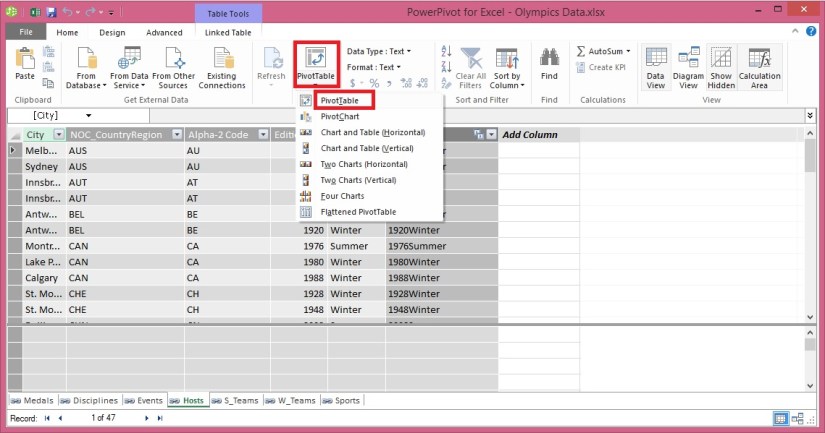
Open the Excel workbook which we used in our previous post and Insert PivotTable as shown in below screen.
ExcelData-17

  • Add field in the PivotTable Medal from Medal Table in the FILTERS area, and Count of Medal from Medal Table in the VALUES area. Your nearly empty PivotTable should look like the following screen.

ExcelData-18

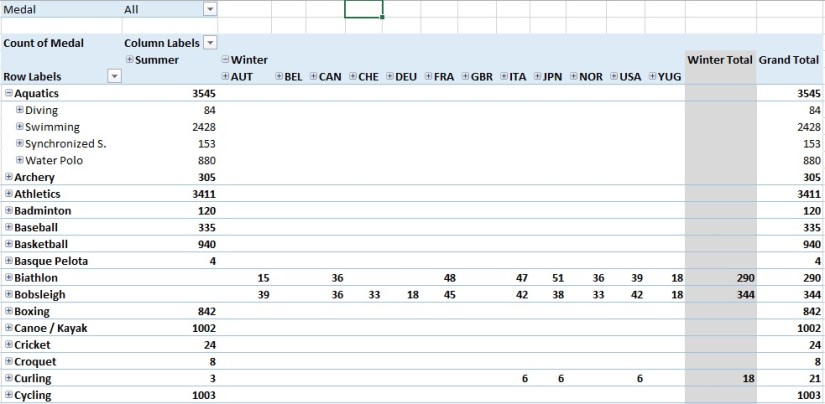
  • From the PivotTable Fields area, drag SDE from the Events table to the ROWS area. Then drag Locations from the Hosts table into the COLUMNS area. Just by dragging those two hierarchies, your PivotTable is populated with a data, all of which is arranged in the hierarchy we defined in the previous steps. Your screen should look like the following screen.

ExcelData-19

  • You can expand any of those Sports in the PivotTable, which is the top level of the SDE hierarchy, and see information in the next level down in the hierarchy (discipline). If a lower level in the hierarchy exists for that discipline, you can expand the discipline to see its events. You can do the same for the Location hierarchy, the top level of which is Season, which shows up as Summer and Winter in the PivotTable.

ExcelData-20

ExcelData-21
By dragging those two hierarchies, you quickly created a PivotTable with interesting and structured data that you can drill into, filter, and arrange.

I will come up with more details and other options on this topic in my upcoming posts. Till then keep learning and practicing.

Development Tips, Excel, How To, Power View, PowerPivot, Report

Power View in Excel 2013

Power View is an interactive data exploration, visualization, and presentation experience that encourages intuitive ad-hoc reporting.

Power View is a feature of Microsoft Excel 2013, and of Microsoft SharePoint Server 2010 and 2013 as part of the SQL Server 2012 Service Pack 1 Reporting Services Add-in for Microsoft SharePoint Server Enterprise Edition.

Power View has these features, as part of Power BI for Office 365:

  • Create Power View sheets in Excel and then view them in the Power BI Windows Store app.
  • View Power View in Excel sheets in your browser, without installing Silverlight.

Data sources for Power View

In Excel 2013, you can use data right in Excel as the basis for Power View in Excel and SharePoint.

When you add tables and create relationships between them, Excel is creating a Data Model behind the scenes.

A data model is a collection of tables and their relationships reflecting the real-world relationships between business functions and processes—for example, how Products relates to Inventory and Sales.

You can continue modifying and enhancing that same data model in Power Pivot in Excel, to make a more sophisticated data model for Power View reports.

With Power View you can interact with data:

  • In the same Excel workbook as the Power View sheet.
  • In data models in Excel workbooks published in a Power Pivot Gallery.
  • In tabular models deployed to SQL Server 2012 Analysis Services (SSAS) instances.
  • In multidimensional models on an SSAS server (if you’re using Power View in SharePoint Server).

Recall from my previous post Creating My First Report using PowerPivot, I will be using same Data Model to demonstrate the feature of Power View, also same report in different format.

Let’s design Customer wise Sales Report using Power View.
PowerView-1

I am using the same Workbook which we used for PowerPivot creating Matrix report for Item Vs Customer Sales.

From Insert Tab choose Power View Reports in ribbon.

Remember this workbook already having Data Model with tables Customer, Item, Cust. Ledger Entry & Item Ledger Entry. One which we created during our previous exercise during walkthrough of PowerPivot.

We already have Relationship defined between Customer & Item Ledger Entry (No. -> Source No.), also Item & Item Ledger Entry (No. -> Item No.).
PowerView-2

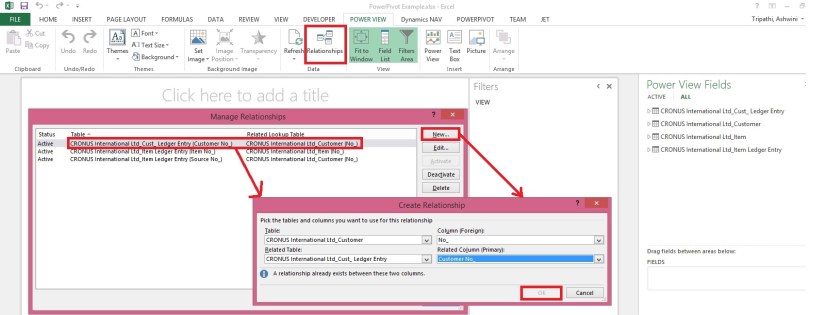
You can View the Relationship using Relationship from Ribbon Power View Tab.

Once the Power View Sheet is inserted the Power View Tab will be Visible.

This will list the two relations which we created earlier in previous exercise post.

However we will be requiring one more relationship for this report. Add using New button on Manage Relationship window.

Enter the Relation for Customer & Cust. Ledger Entry (No. -> Customer No.).

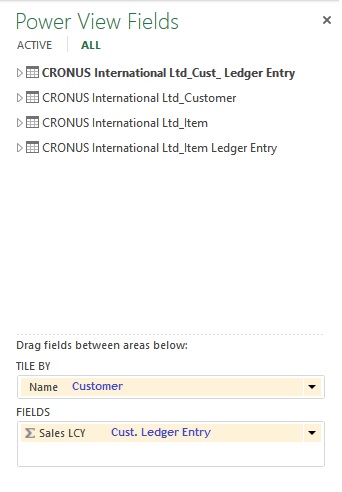
You can see all the 4 tables are listed in Field List Pane.
PowerView-3
Arrange the Fields from respective tables as shown in above screenshot.
PowerView-4
Arrange the fields as shown in above screenshot.

Design of your report should be similar to one shown in below screenshot.
PowerView-5

Resize the Table area to fit the area and the way you want to represent the data.

When a Customer is selected in Title Area, below two tables show the Item Sales Quantity & Total Value for the selected Customer.

You can add fields in the Filter Pane to slice the data accordingly.

I will come up with more details in my upcoming posts.

Till then stay tuned and keep practicing.

Development Tips, Excel, How To, PowerPivot, Report

Add Slicers to PivotTables in PowerPivot

Recall from my earlier post Creating My First Report using PowerPivot in which we created a Items Vs Customer Sales matrix report.

I am going to use same report to demonstrate how we can add slicer to this report.

Slicers are one-click filtering controls that narrow the portion of a data set shown in PivotTables and PivotCharts. Slicers can be used in both Microsoft Excel workbooks and PowerPivot workbooks, to interactively filter and analyze data.
PowerPivot-30

Open the report we created in our previous post.

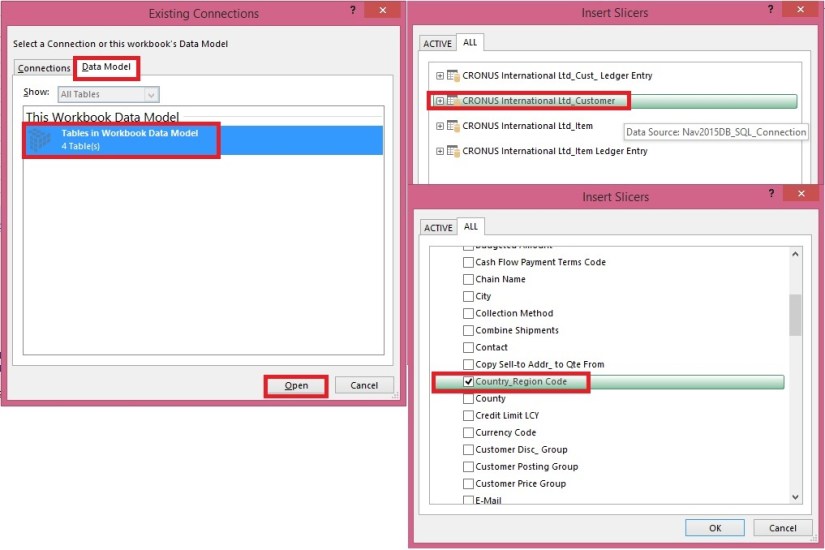
From Insert Tab select Slicer in the ribbon.
PowerPivot-31

Choose the source Connection/Data model and respond Open.

Select the Customer Table.

Select the Country/Region Code field and OK.
PowerPivot-32

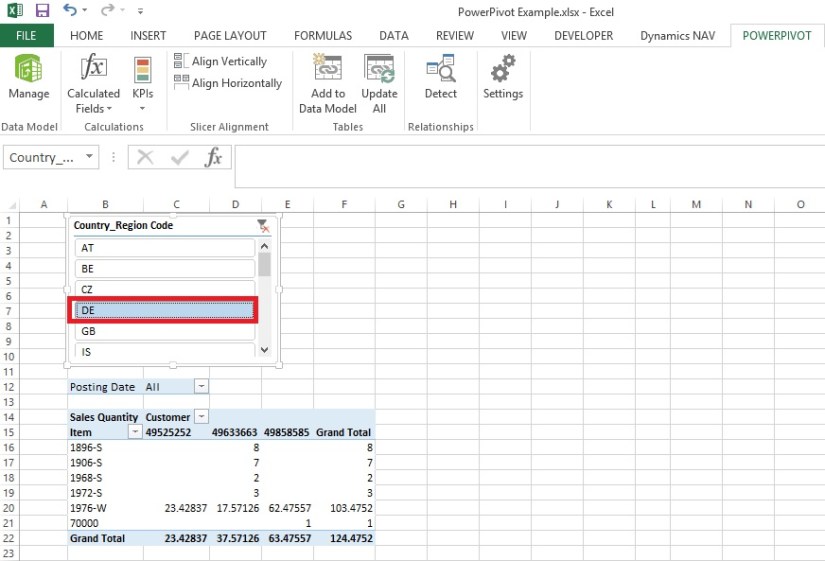
A Slicer will be added to the sheet.

Re-size to fit and drag the Slicer to position at desired location on sheet.

You can give desired Caption to your Slicer by editing the Slicer Caption.

Most important is to select the pivot table on which this Slicer will operate.

Select Report Connection, and from preceding window select the PivotTable.
PowerPivot-33
Above is the screenshot with applied filter on Country/Region Code = DE.

Stay tuned to know more options, I will come up with more details in my upcoming posts.

Till then keep practicing.

Excel, PowerPivot

Basics of Power Pivot for Excel – 2013

Dear friends, I have published couple of posts on this topic. I will be adding more advanced features and details related to this in my upcoming posts.

For your ready reference below I present Links to those posts.

PowerPivot for Excel

Start the Power Pivot in Microsoft Excel add-in

Troubleshooting: Power Pivot Ribbon Disappears

PowerPivot Creating a Data Model in Excel 2013

Adding more tables to the Data Model using Existing Connection – In PowerPivot

Add relationships to Data Model in PowerPivot

How to add Filter for data retrieval in PowerPivot Data model.

Create a calculated column in PowerPivot

Creating My First Report using PowerPivot

In Excel 2013, PowerPivot and Power View are no longer separate add-ins that need to be downloaded and installed. These add-ins are natively included.

PowerPivot in Excel 2013 is functionally very similar to the PowerPivot add-in for Excel 2010.

PowerPivot is an add-in that lets end users gather, store, model, and analyze large amounts of data in Excel. Power View provides intuitive data visualization of PowerPivot models and SQL Server Analysis Services (SSAS) tabular mode databases.

If you’re unfamiliar with either PowerPivot or Power View, I encourage you to first review my previous post links provided above to understand the basics.

Some parts of the PowerPivot architecture is embedded inside of Excel 2013.

  • The PowerPivot version in Excel 2013 no longer uses a separate PowerPivot Fields list. Instead, the built-in PivotTable Fields list is used. This means that some capabilities from the Excel 2010 add-in (e.g., searching for fields by name, creation of slicers from the field list, surfacing of column descriptions when hovering over a field) are no longer available.
  • Workbooks with PowerPivot models are no longer limited to 2GB in size in Excel 2013. However, the 2GB limit still applies to workbooks that will be published to SharePoint.
  • In Excel 2013, a refresh of a PivotTable or PivotChart will, by default, initiate a refresh of the underlying data connections in the Data Model. This is very different from Excel 2010, where a PivotTable refresh only re-queries the model. The new refresh behaviour can be changed by clicking Connections on the Data tab, selecting Properties, and clearing the Refresh this connection on Refresh All check box.
  • Stay tuned for more information on this topic. Till then keep practicing & exploring.
  • In Excel 2013, a Power View “report” is a worksheet rather than an .rdlx file. There’s no concept of multiple report views. Instead, multiple Power View worksheets can be created within a single Excel workbook.

Stay tuned for more information on this topic. Till then keep practicing & exploring.