Cumulative Updates, Information

Cumulative Update 34 for Microsoft Dynamics NAV 2013 R2 (Build 46577)- Released in Aug 2016

This cumulative update includes all hotfixes and regulatory features that have been released for Microsoft Dynamics NAV 2013 R2, including hotfixes and regulatory features that were released in previous cumulative updates.

This Cumulative Update replaces previously released cumulative updates. You should always install the latest cumulative update.

Note Implementing this cumulative update will require a database upgrade.

Licenses versioning

Microsoft Dynamics NAV 2013 R2 cumulative updates and license key versioning:

  • Microsoft Dynamics NAV 2013 R2 license keys are backward compatible with Microsoft Dynamics NAV 2013 instances.
  • Microsoft Dynamics NAV 2013 license keys may not be used with Microsoft Dynamics NAV 2013 R2 instances. Microsoft Dynamics NAV 2013 license keys will not work with Microsoft Dynamics NAV 2013 R2 CU10 (or later) instances.
  • Microsoft Dynamics NAV 2013 and Microsoft Dynamics NAV 2013 R2 license keys are not forward compatible with Microsoft Dynamics NAV 2015 instances.

More details is made available in the October 2014 release of the Microsoft Dynamics Perpetual Licensing Guide.

It may be necessary to update your license after implementing this hotfix to gain access to new objects included in this or a previous cumulative update (this only applies to customer licenses).

For a list of cumulative updates released for Microsoft Dynamics NAV 2013 R2, see released cumulative updates for Microsoft Dynamics NAV 2013 R2  (https://support.microsoft.com/kb/2914930/ ) . For a complete list of all hotfixes released in cumulative updates for Microsoft Dynamics NAV 2013 R2, view the following CustomerSource and PartnerSource pages:

CustomerSource
PartnerSource

Cumulative updates are intended for new and existing customers who are running Microsoft Dynamics NAV 2013 R2.

For more details see below link Partner/Customer Source required.

https://mbs2.microsoft.com/Knowledgebase/kbdisplay.aspx?scid=kb,en-us,3182128


Data, How To, Information, Tip & Tricks, What's New

Save General Journals as Standard Journal in Navision

Do you Know you can save the General Journal as Standard Journal and retrive edit and post it later.

Many of time we pass entries of same Nature, Like Rent, Salary, Bills etc.. just an example you can decide upon which entries you post frequently and club it as Standard Journal to save your time.

You can create once and retrive it every month or when ever required and Post it in future/later.This can serve you as template for future use.

Let us see how we can use this feature.

StdGen-1

Open your General Journal.

Make entries which you do oftenly. Don’t put Postng Date & Document No. Complete your all entries.

Next we will save this as Standard Journal for future use.

From Action choose Save as Standard Journal.

StdGen-2

Give Code & Name for your Journal Template.

If Amounts are fixed every time you can enter them too and while Save choose Save Amount.

No Let us review the entry that we saved.

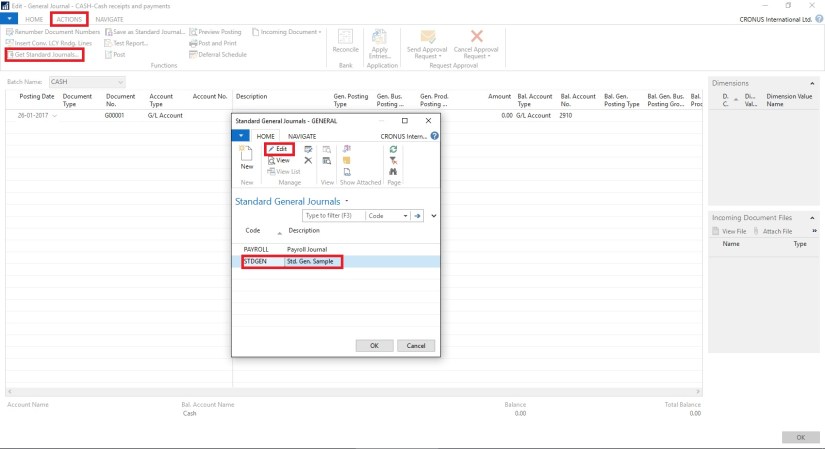
From Action Choose Get Standard Journal.

This will display you all Saved Standard General Journals.

StdGen-3

Select the required Journal Code and Click on Edit.

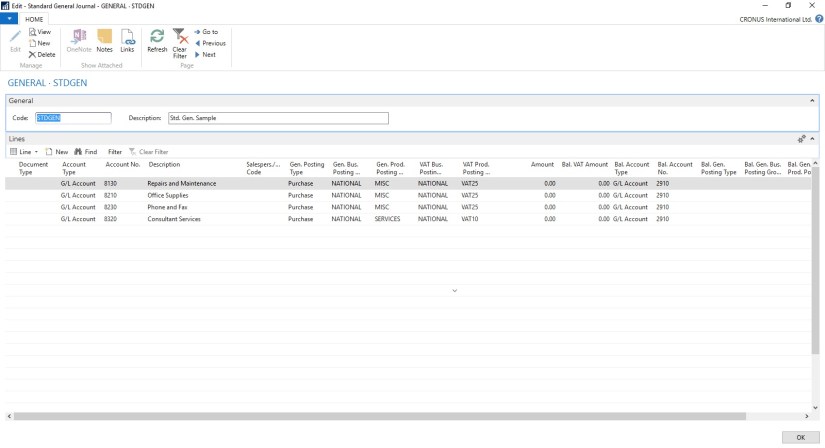
StdGen-4

This is what is Saved in your Standard Journal.

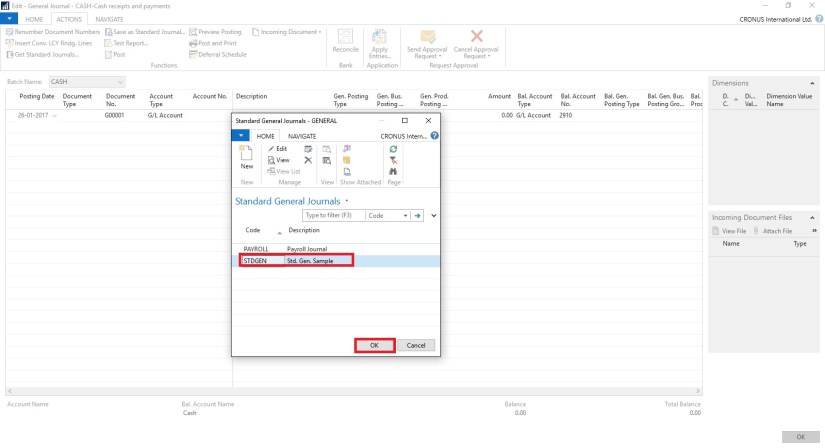
Let use return to the Standard Journal List.

Select desired/ earlier saved Std. Journal and Click on OK.

StdGen-5

Confirmation of Std. Journal retrived and Journals created in General Journal Page.

StdGen-6

Your General Journal gets populated with values you saved to Std. Journal.

Have you Noticed, Posting Date as your Work Date and Next Document No. from your assigned No. Series is populated Automatically.

StdGen-7

Fill the Amount and any other required fields and Post the Journal.

Next time when again you wish to post similar entries just retrive it and continue.

Thats all for todays Post, What you are waiting for give it a try.

I will comeup with more details in my upcoming Posts, till then keep exploring and Learning.


Data, Development Tips, How To, Information, Tip & Tricks

Creating Views – to Save Filtered Lists in NAV

Do you Know you can save the Page as View with filters.

Many of time we access to Page and apply same set of Filters to fetch our data. You can save the same for quick retrival of data applying the filters automatically in future access.

You save the Page with Filters as View.

Let us see small example how to achieve it.

First we will open the List Page in my case i am having one customized Customer List.

FilteredView-1

Suppose this is the Page which i use for Balances Retrival each month and on daily basis.

I Enter Filter as Balance > 5000 & Current Month Filter whenever i wish to check balances for my reporting or followup purpose.

For Date Filter i use (-CM..CM) sothat when i open this view next month it takes the appropriate Filter for that month.

FilteredView-2

Click on the Page Name post applying all the required Filters.

Select Save View as.

Give the Name for the View.

Select the Location to save the View.

On Confirmation respond as Yes.

FilteredView-3

Your View will be Saved, You can create as much Views as desired using different Filters.

FilteredView-4

Small and good Feature.

What you are waiting for give it a try.

I will comeup with more information in my upcoming posts, till then keep exploring and learning.


Development Tips, How To, Information, Profiles, Tip & Tricks

Setting different Column Layout for different users

On Community Forum i came across one requirement for opening Page with different column on Page for different users.

Here i have given an demo how can be done, but will require some tweaking to achieve the actual result.

I have copied the Customer List Page and removed extra fields.

Playing with columns1

I have added one Field above Repeater so that we can decide which format we want to see on screen. User can enter 1/2/or any other value.

I have created two more variables Set1 and Set2 to show/hide fields as per the value entered in SetSelect.

Assigned the Set1 & Set2 to few columns on the Page Fields to Property Visible.

Set1 to Responsibility Center, Location Code & Currency Code.

Set2 to Post Code, Country/Region Code, Phone No. & Fax No.

Added code on OnOpenPage Trigger to select Default page Format when Page is Opened. This code you will modify as per your requirement like check the User and assign the default Value.

Added Code to SetSelect-OnValidate Trigger to select the required format of Page. You need to modify the code as per your requirement.

Playing with columns2

In this demo if user enter value for SetSelect and you will get different view of same page.

Do some research and design one as per your requirement, this way we need not to create different Pages for different Users. Same Page can serve you different purpose if limited to only different views.

I will come with more information in my upcomming posts.

Till then keep browsing and learning.


Development Tips, Email, Excel, How To, Information, Office Integration, Report, Server, Tip & Tricks

Export Data as CSV and send as Attachment to Mail

One of my Follower/Reader have requested for this post.

This post will explain the the below steps:

  • Export the data of table to csv file format. (I am using XMLPort you can use Excell Buffer or any other method to create the file)
  • Attach to Mail and Send.

Step 1.

Create a XMLPort as below.

CSVAttachment-1

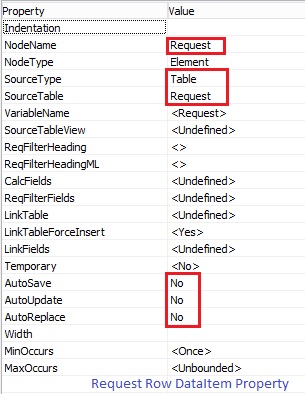
Set the Property of XMLPort.

CSVAttachment-2

Set the Property of Integer Data Item.

CSVAttachment-3

Set the Property of Table DataItem for which data to be exported.

CSVAttachment-4

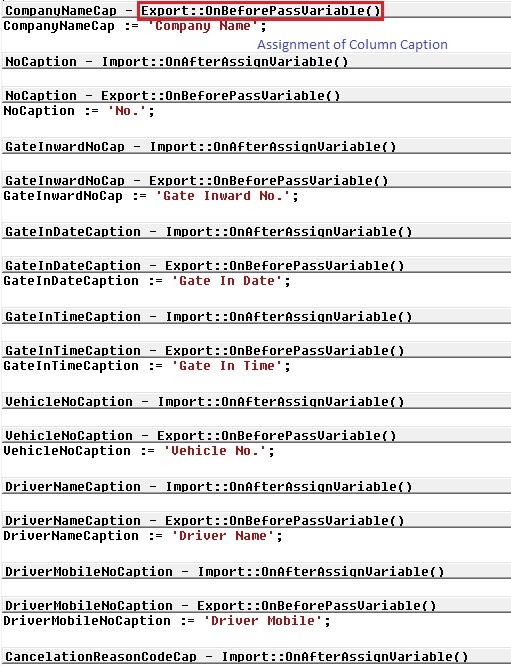
Set the Captions of the Columns in CSV file.

CSVAttachment-5

Write the code to transfer the value of Table columns.

You may find some extra code adjust accordingly as per your requirement.

CSVAttachment-6

Define a function to Setfilter for data to export.

Adjust the code as per your requirement.

CSVAttachment-7

CSVAttachment-8

Step 2.

Here is the function to Export the data to csv File using above created XMLPort.

This function Saves the file to Shared folder, if required you can use TEMPORARYPATH to save your File.

CSVAttachment-9

Step 3.

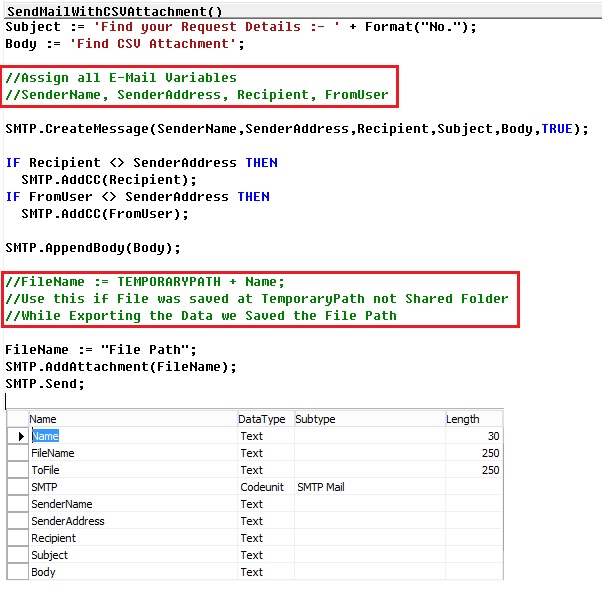
Send the File as Attachment to the Mail.

CSVAttachment-10

You make required adjustment as per your requirement.

Make sure in case you are using Shared Folder give necessary rights on folder to Service Account and operating User Accounts.

Please respond did you found useful this information.

Their are other ways to achive the same, this was readyly available with me as i have used in one of my project so shared the same.

Stay tuned for more details in my Up comming posts.

Cumulative Updates, Updates

Cumulative Update 33 for Microsoft Dynamics NAV 2013 R2 – released in July 2016

Cumulative Update 33 includes all application and platform hotfixes and regulatory features that have been released for Microsoft Dynamics NAV 2013 R2.

Note: Implementing this cumulative update will require a database upgrade.

Where to find Cumulative Update 33

You can download the cumulative update from KB 3172538 – Cumulative Update 33 for Microsoft Dynamics NAV 2013 R2 (Build 46296).

Warning

Before you install a cumulative update in a production environment, take the following precautions:

  1. Test the cumulative update in a non-production environment.
  2. Make a backup of the system or computer where the cumulative update is to be installed.

Additional Information

For more information about cumulative updates for this version, see Announcement of update rollups for Microsoft Dynamics NAV 2013 R2.

For a list of all cumulative updates for this version, see Released Cumulative Updates for Microsoft Dynamics NAV 2013 R2.

For a list of all hotfixes included in cumulative updates for this version, see the following CustomerSource and PartnerSource pages:

CustomerSource:

PartnerSource

See this Link for more details : https://blogs.msdn.microsoft.com/nav/2016/07/05/cumulative-update-33-for-microsoft-dynamics-nav-2013-r2-has-been-released/


Cumulative Updates, Tip & Tricks

Cumulative Update 32 for Microsoft Dynamics NAV 2013 R2 released in June 2016

Cumulative Update 32 includes all application and platform hotfixes and regulatory features that have been released for Microsoft Dynamics NAV 2013 R2.

Where to find Cumulative Update 32

You can download the cumulative update from KB 3166278 – Cumulative Update 32 for Microsoft Dynamics NAV 2013 R2 (Build 46057).

Warning

Before you install a cumulative update in a production environment, take the following precautions:

  1. Test the cumulative update in a non-production environment.
  2. Make a backup of the system or computer where the cumulative update is to be installed.

Additional Information

For more information about cumulative updates for this version, see Announcement of update rollups for Microsoft Dynamics NAV 2013 R2.

For a list of all cumulative updates for this version, see Released Cumulative Updates for Microsoft Dynamics NAV 2013 R2.

For a list of all hotfixes included in cumulative updates for this version, see the following CustomerSource and PartnerSource pages:

CustomerSource:

PartnerSource

Cumulative Updates, Functional Tips, How To, India Localization, Information, Tip & Tricks

Krishi Kalyan Cess Feature for Microsoft Dynamics NAV 2013 R2 for India Released

Government has introduced a new Cess called ‘Krishi Kalyan Cess (KKC)’ in Finance Act 2016 which will take effect from 01-Jun-2016. It is imposed on all taxable Services at the rate of 0.5%. KKC is not a Cess on Service Tax but it is a tax on taxable services in addition to Service tax. It would be calculated in the same way as Service Tax is being calculated.

Download

IN7.1_TFS167310 – Krishi Kalyan Cess [9.04 MB – EXE]

Installation

Before this update can be installed, the following prerequisites are required:
Microsoft Dynamics ® NAV 2013 R2 India
Pre-requisites

  • NAV 2013 R2 RTM Database (Version 7.10.35473)
  • Import below Hotfixes sequentially
No. TFSID Fixes Description
1 TFS353595 TDS Zero Percent
2 TFS354411 FVU 3.9-4.1 and TDS Zero Pct
3 HF377555 GL Inconsistency
4 TFS160375 Swachh Bharat Cess


License Requirement

No new objects have been added through this update. Licensing refresh is not required.


Setup

The following fields are added to Service Tax Setup , setup values given below

S. No Field Description Value
1. KK Cess % 0.5
2. KK Cess Payable Account Balance  Sheet Account under Liabilities and Account Type = Posting
3. KK Cess Payable Interim Balance  Sheet Account under Liabilities and Account Type = Posting
4. KK Cess Receivable Interim Account Balance  Sheet Account under Assets and Account Type = Posting
5. KK Cess Receivable Account Balance  Sheet Account under Assets and Account Type = Posting
6. KK Cess Expense Account Income Statement Account and Account Type = Posting

For detailed information you can check this Link.


Cumulative Updates, How To, Information, Instalation & Configuration, Tip & Tricks

Cumulative Update 31 for Microsoft Dynamics NAV 2013 R2 – Released in May 2016

Cumulative Update 31 includes all application and platform hotfixes and regulatory features that have been released for Microsoft Dynamics NAV 2013 R2.

The cumulative update includes hotfixes that apply to all countries and hotfixes specific to the following local versions:

  •   AU – Australia
  •   AT – Austria
  •   BE – Belgium
  •   CH – Switzerland
  •   CZ – Czech Republic
  •   DE – Germany
  •   DK – Denmark
  •   ES – Spain
  •   FI  – Finland
  •   FR – France
  •   IS – Iceland
  •   IT – Italy
  •   NA – North America
  •   NL – Netherlands
  •   NO – Norway
  •   NZ – New Zealand
  •   RU – Russia
  •   SE – Sweden
  •   UK – United Kingdom

Where to find Cumulative Update 31

You can download the cumulative update from KB 3157488 – Cumulative Update 31 for Microsoft Dynamics NAV 2013 R2 (Build 45822).

Warning

Before you install a cumulative update in a production environment, take the following precautions:

  1. Test the cumulative update in a non-production environment.
  2. Make a backup of the system or computer where the cumulative update is to be installed.

Additional Information

For more information about cumulative updates for this version, see Announcement of update rollups for Microsoft Dynamics NAV 2013 R2.

For a list of all cumulative updates for this version, see Released Cumulative Updates for Microsoft Dynamics NAV 2013 R2.

For a list of all hotfixes included in cumulative updates for this version, see the following CustomerSource and PartnerSource pages:

CustomerSource:

PartnerSource

Cumulative Updates, Tip & Tricks

Cumulative Update 30 for Microsoft Dynamics NAV 2013 R2 released in April

Cumulative Update 30 includes all application and platform hotfixes and regulatory features that have been released for Microsoft Dynamics NAV 2013 R2.

Where to find Cumulative Update 30

You can download the cumulative update from KB 3151021 – Cumulative Update 30 for Microsoft Dynamics NAV 2013 R2 (Build 45478).

Warning

Before you install a cumulative update in a production environment, take the following precautions:

  1. Test the cumulative update in a non-production environment.
  2. Make a backup of the system or computer where the cumulative update is to be installed.

Additional Information

For more information about cumulative updates for this version, see Announcement of update rollups for Microsoft Dynamics NAV 2013 R2.

For a list of all cumulative updates for this version, see Released Cumulative Updates for Microsoft Dynamics NAV 2013 R2.

For a list of all hotfixes included in cumulative updates for this version, see the following CustomerSource and PartnerSource pages:

CustomerSource:

PartnerSource