Corfu Navision 2016, How To, Information, Posting Preview

Posting Preview in Navision 2016

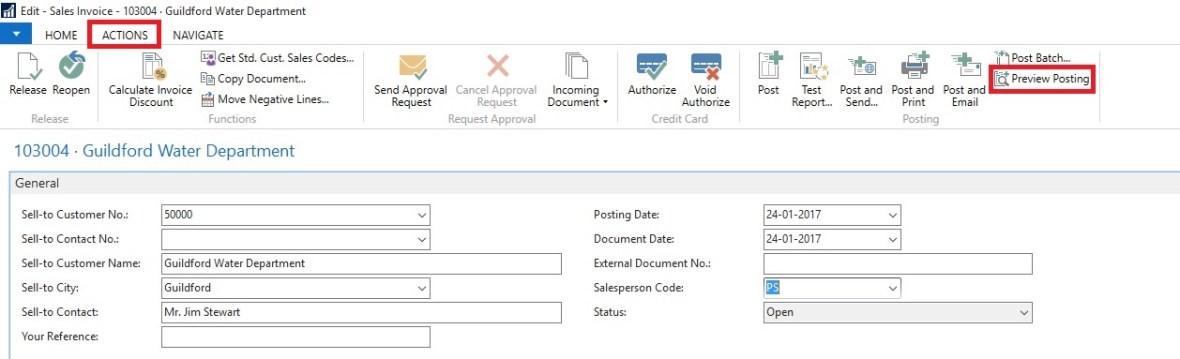
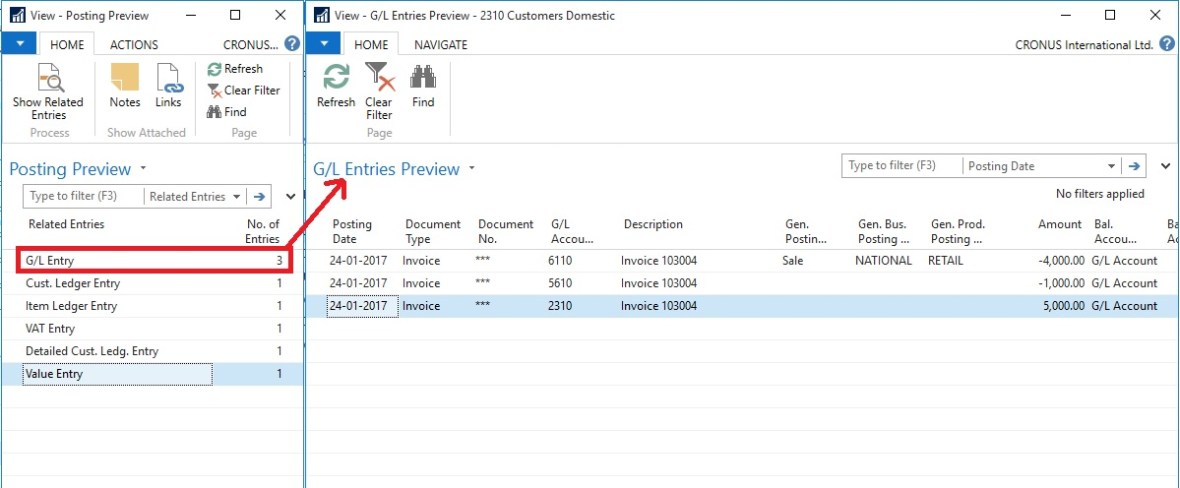
On every document and journal that can be posted, you can choose the Preview Posting button to review the different types of entries that will be created when you post the document or journal.

Below I have shown Example from Sales Invoice Window, similarly you will get in other related Pages too.
PreviewPosting-1

From Actions TAB you will get this option for Preview Posting.

You will get below Navigation Window where you can Navigate Entries which will get posted upon Posting.
PreviewPosting-2
Give it a try, very useful feature introduced in Navision 2016.

Corfu Navision 2016, Development Tips, FILTERPAGEBUILDER, How To

Filter Pages for Filtering Tables using FILTERPAGEBUILDER

In C/AL code, you can use the FILTERPAGEBUILDER data type to create a filter page that enables users to set filters on multiple tables. Filter pages contains one or more filter controls, where each filter control can be used to set filters on a specific table. In the Microsoft Dynamics NAV client, filter pages are generated at runtime and run in a modal dialog box.

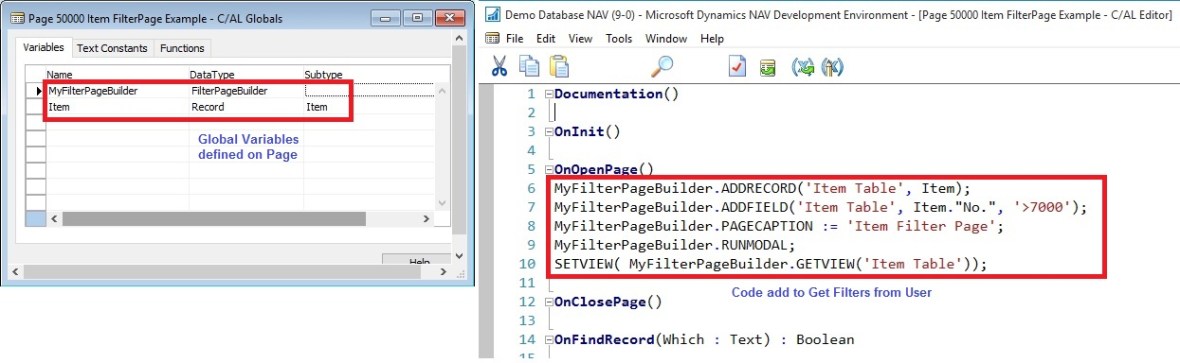
For demo purpose I have created a List page on Item Table. I have added below Variables and Code on Page.
filterpagebuiler-1
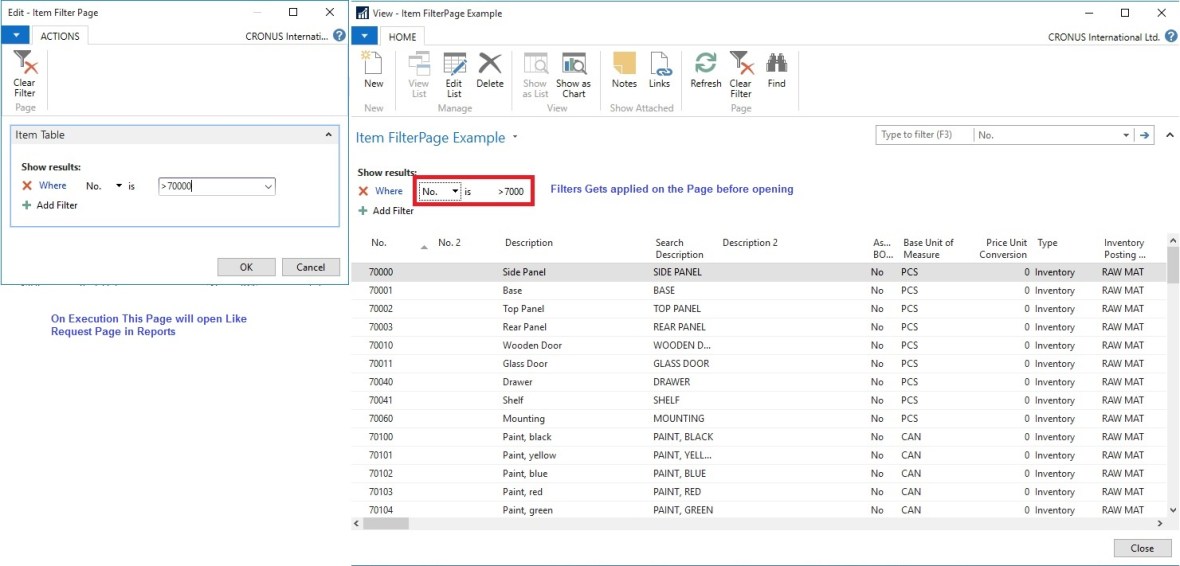
When I Run the Page, First Request page is popup to accept filters. Then my Item List Page is opened applying the filter I provided on the Request Page.
filterpagebuiler-2
FILTERPAGEBUILER Data Type Functions

ADDTABLE Function

Adds a filter control for a table to a filter page.

ADDRECORD Function

Adds a filter control for a table to a filter page as specified by a record data type variable.

ADDRECORDREF Function

Adds filter control for a table to a filter page as specified by a recordref variable.

ADDFIELD Function

Adds a table field to the filter control for a table on filter page.

ADDFIELDNO Function

Adds a table field to the filter control for a table as specified by the field number.

GETVIEW function (FilterPageBuilder)

Gets the filter view (which defines the sort order, key, and filters) for the record in the specified filter control of a filter page.

SETVIEW Function

Sets the current filter view, which defines the sort order, key, and filters, for a record in a filter control on a filter page.

RUNMODAL Function (FilterPageBuilder)

Builds and runs the filter page.

COUNT Function (FilterPageBuilder)

Gets the number of filter controls that are specified in the FilterPageBuilder object instance.

NAME Function (FilterPageBuilder)

Gets the name of a table filter control that is included on a filter page based on an index number that is assigned to the filter control.

Corfu Navision 2016, Events, Information

Events in C/AL Navision 2016

By implementing events in C/AL code, you can design applications to react to specific actions or behaviour that occur.

Events enable you to separate customized functionality from the application business logic.

By using events in the application where customizations are typically made, you can lower the cost of code modifications and upgrades to the original application.

Events can be used for different purposes, such as generating notifications when certain behaviour occurs or the state of an entity changes, distributing information, and integrating with external systems and applications.

How Events Work

There are three major participants involved in events: the event, a publisher and a subscriber.

An event is the declaration of the occurrence or change in the application. An event is declared by a C/AL function, which is referred to as an event publisher function. An event publisher function is comprised of a signature only and does not execute any code.

A publisher is the object that contains event publisher function that declares the event. The publisher exposes an event in the application to subscribers, essentially providing them with a hook-up point in the application. An event is raised by adding logic to the application that calls into the publisher to invoke the event (the event publisher function). There are three different event types: business, integration, and trigger events.

Business and integration type events must be explicitly declared and published, which means that you must create event publisher functions and add them to objects manually. On the other hand, trigger events, which occur on table and page operations, are published and raised implicitly by the Microsoft Dynamics NAV runtime. Therefore, no coding is required to publish them.

A subscriber listens for and handles a published event. A subscriber is a C/AL function that subscribes to a specific event publisher function and includes the logic for handling the event. When an event is raised, the subscriber function is a called and it code is run.

How to Implement Events

Implementing events in Microsoft Dynamics NAV consists of the following tasks:

  1. Publish the event. For business and integration events, create and configure a function in an application object to be an event publisher function.
  2. Raise the event. Add code that calls the event publisher function..
  3. Subscribe to the event. At the consumer end, add one or more subscriber functions that subscribe to published events when they are raised.

Will come up with how to practically use it in my upcoming posts.

Uncategorized

PowerBI Content Package for Microsoft Dynamics NAV 2016 | Dynamics NAV Team Blog

https://blogs.msdn.microsoft.com/nav/2015/10/07/powerbi-content-package-for-microsoft-dynamics-nav-2016/

Corfu Navision 2016, How To, Information, Permission, User Group

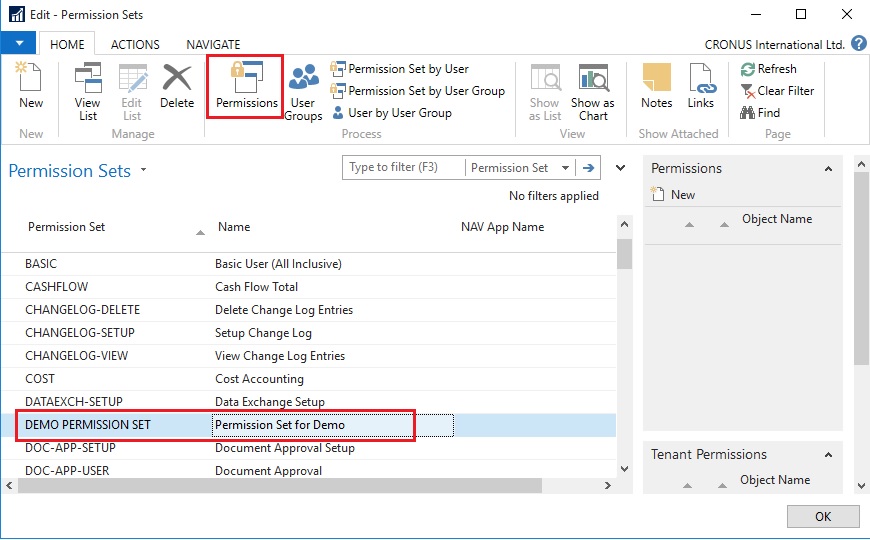
Record Permissions and Apply Permissions Sets to User Groups in Navision 2016

Administrators can record new permission sets in Microsoft Dynamics NAV 2016.

Recording permissions is based on the code coverage functionality.

You can access the various windows and activities in the Microsoft Dynamics NAV Windows client or the Microsoft Dynamics NAV Web client that you want users with this permission set to access.

You must carry out the tasks that you want to record permissions for. Then, you can apply the new permission set to a group of users.

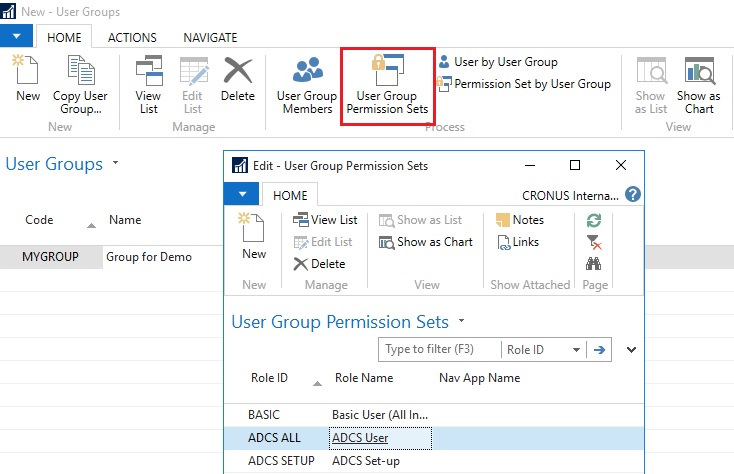
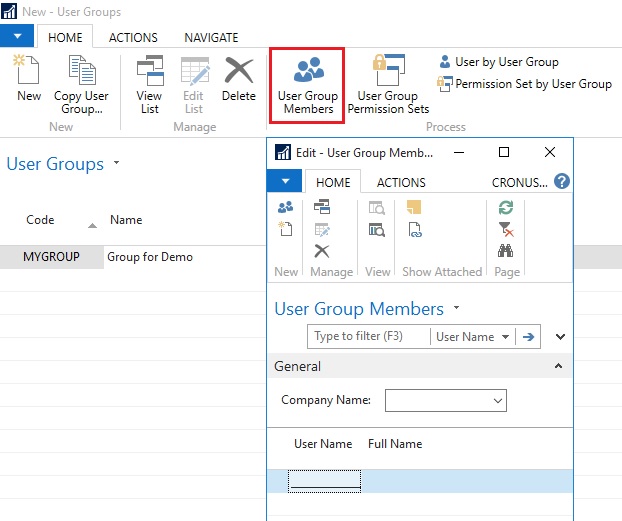
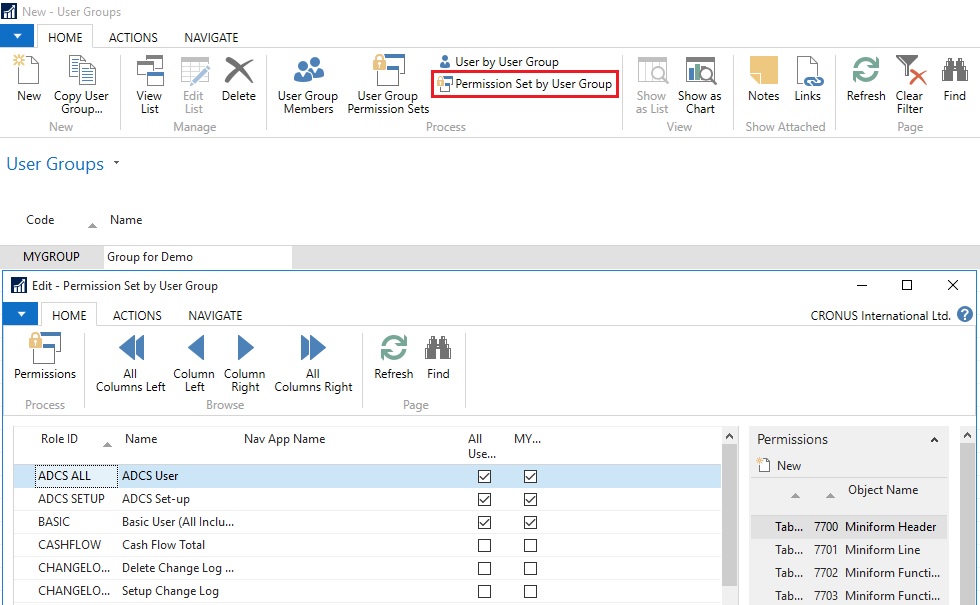
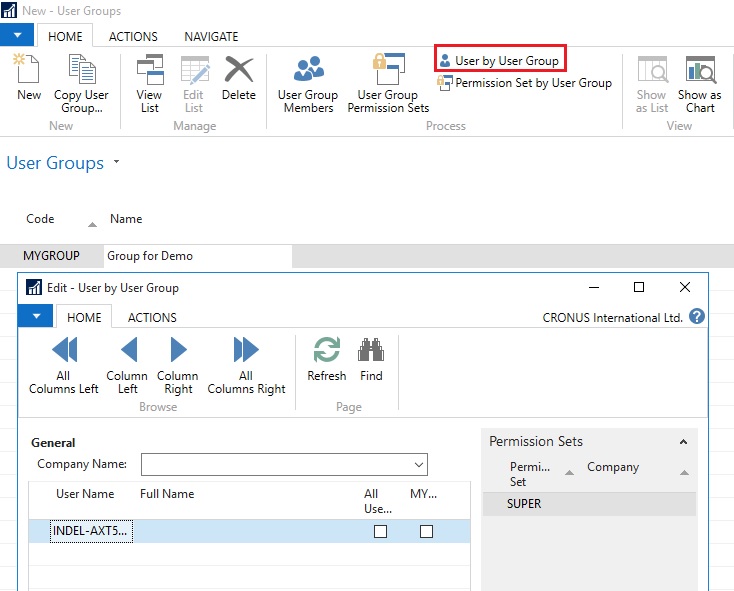
A user group is a combination of roles and users. If you want to change permissions for the user group, the changes are automatically applied to the users who are members of the group.

To help you manage permissions in Microsoft Dynamics NAV for your company, you can set up one or more user groups, add permissions sets to the groups, and then add users to the groups. You can add more than one permission set to a user group.

In the User Groups window, you can set up user groups, add and remove permissions, and you can apply changes to all or specific user groups.
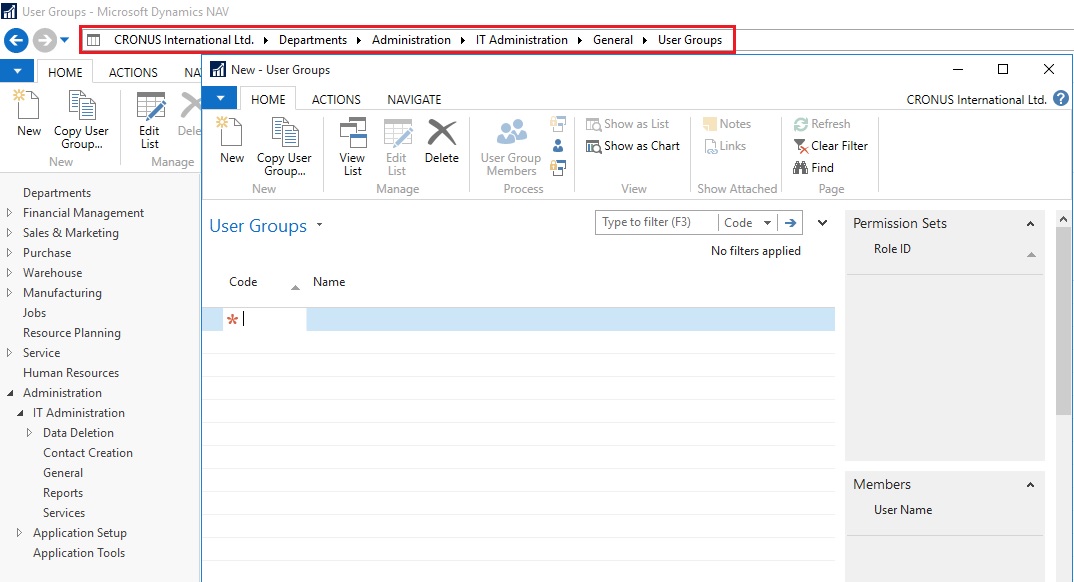
Permission-1

Permission-2

Permission-3

Permission-4

Permission-5
If the default permission sets that are provided with Microsoft Dynamics NAV are not sufficient or not appropriate for your organization, then you can create new permission sets. If the individual object permissions that define a permission set are not adequate, then you can modify a permission set.

You can create a permission set manually, or you can record permissions by navigating in the application.
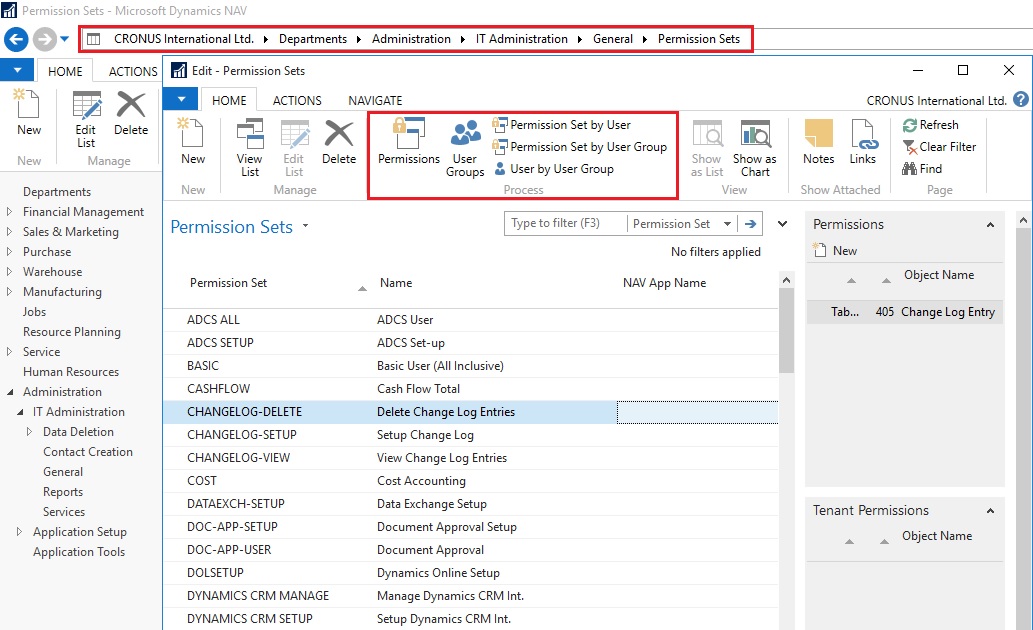
Permission-6

Permission-7

Permission-8
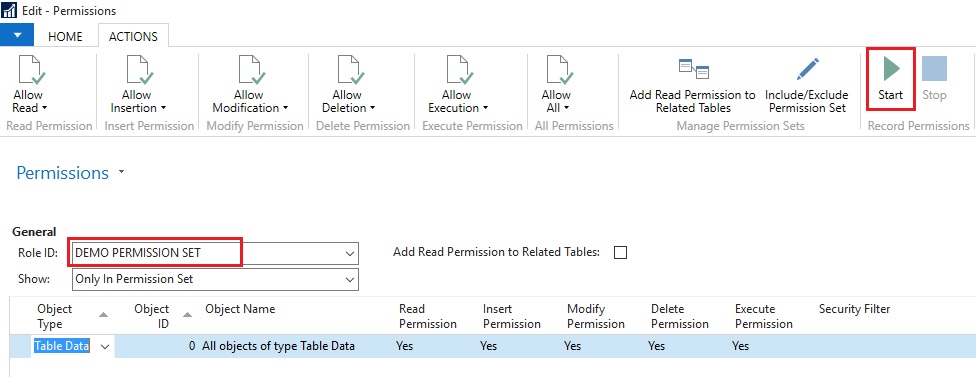
This starts a recording process that is based on the code coverage functionality in Microsoft Dynamics NAV. You can now access the various windows and activities in the Microsoft Dynamics NAV Windows client or the Microsoft Dynamics NAV Web client that you want users with this permission set to access. You must carry out the tasks that you want to record permissions for.

When you want to finish the recording, return to the Permissions window, and then, on the Actions tab, choose Stop.

Choose Yes to add the recorded permissions to the new permission set, or choose No to cancel.

If you choose Yes, the objects that you accessed are added to the window. In Microsoft Dynamics NAV 2016, only the objects are recorded, so you must specify if users must be able to insert, modify, or delete records in the recorded tables.

C/AL Editor, Corfu Navision 2016, Information

Redesigned C/AL Editor in Navision 2016

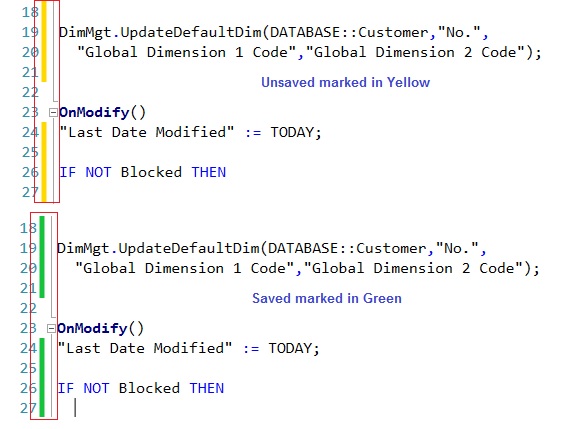
The C/AL Editor in the Microsoft Dynamics NAV Development Environment has been redesigned to give you more coding capabilities. Coding in the new C/AL editor is like before except you benefit from new features such as IntelliSense, name completion, change tracking, improved syntax highlighting and colorization. The new design has a look-and-feel that resembles the Debugger regarding breakpoints.

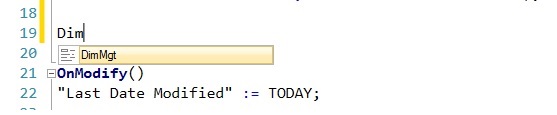
Name Completion:  Editor-1

Now Editor suggest the Variable Names which are available.

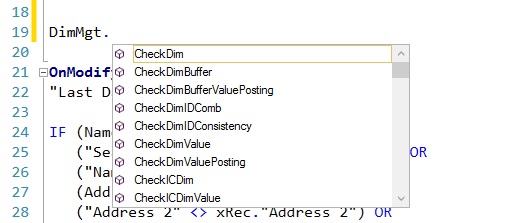
IntelliSense:  Editor-2
Now Editor Suggest available options for the variables.
Editor-3

Change Tracking:  Editor-4

Improved syntax highlighting and colorization:
Editor-5
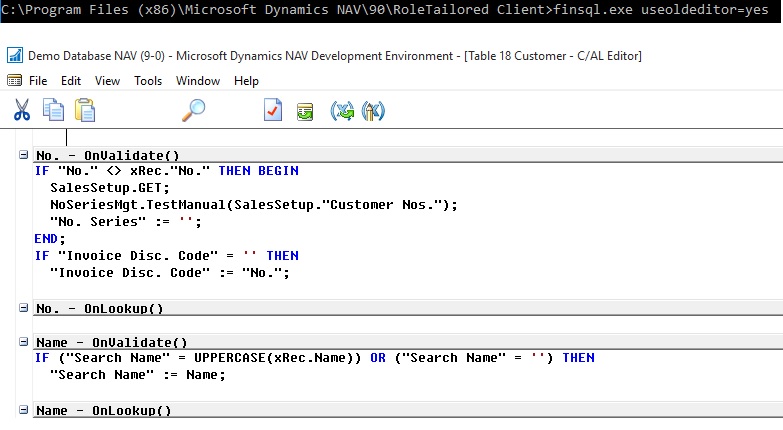
If you still want to use old version editor, you can use the old version of the C/AL Editor by running the Microsoft Dynamics NAV Development Environment from a command prompt and setting the useoldeditor parameter.
Editor-6

finsql.exe useoldeditor=yes

useoldeditor Specifies whether to use the C/AL Editor that was available in Microsoft Dynamics NAV 2015 and earlier versions. The C/AL Editor was redesigned in Microsoft Dynamics NAV 2016.

To use the old editor, specify the parameter as useoldeditor=yes or useoldeditor.

To use the new editor, omit the parameter or specify it as useoldeditor=no.

Data Model, Development Tips, Excel, How To, PivotTable, PowerPivot, Report

Use hierarchies in PivotTables

Recall from my previous post Create a hierarchy in PowerPivot Data Model, We will continue from where we left our earlier post.

Now we have a Sports hierarchy and Locations hierarchy, we can add them to PivotTables or Power View, and quickly get results that include useful groupings of data.

Prior to creating hierarchies, you had to add individual fields to the PivotTable, and arrange those fields how you wanted them to be viewed.

In this post we will use the hierarchies created in the previous post to quickly refine our PivotTable.

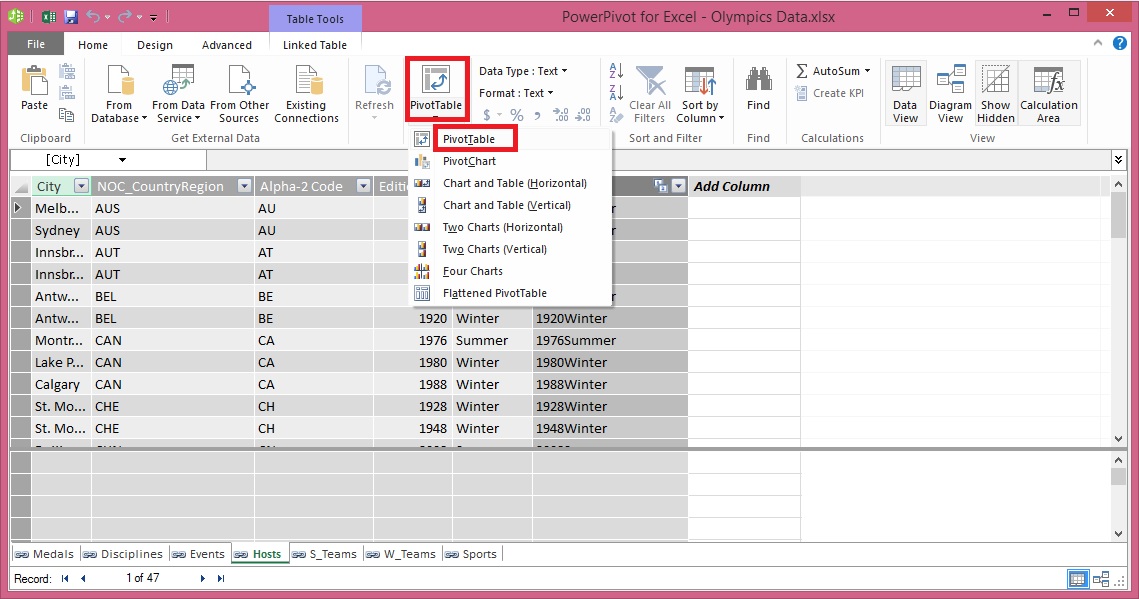
Open the Excel workbook which we used in our previous post and Insert PivotTable as shown in below screen.
ExcelData-17

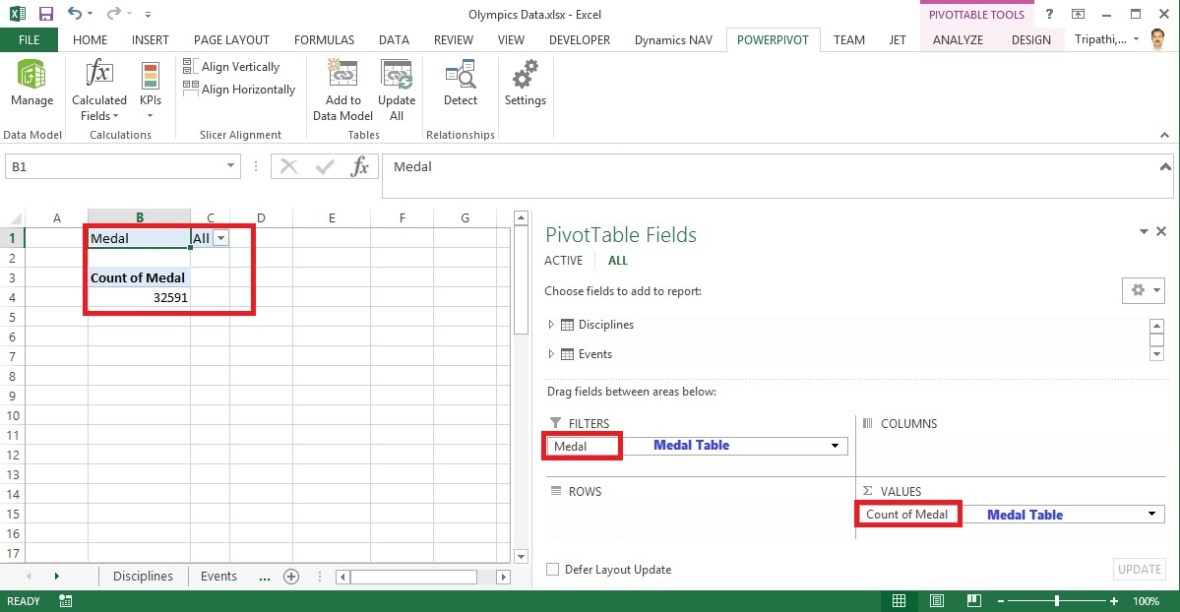
  • Add field in the PivotTable Medal from Medal Table in the FILTERS area, and Count of Medal from Medal Table in the VALUES area. Your nearly empty PivotTable should look like the following screen.

ExcelData-18

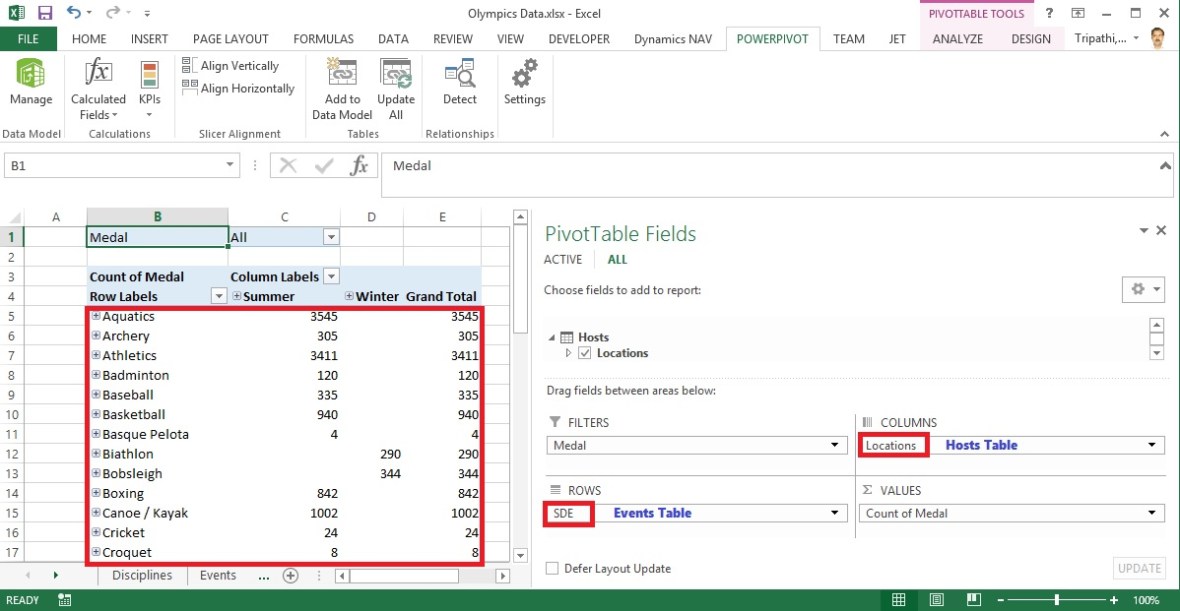
  • From the PivotTable Fields area, drag SDE from the Events table to the ROWS area. Then drag Locations from the Hosts table into the COLUMNS area. Just by dragging those two hierarchies, your PivotTable is populated with a data, all of which is arranged in the hierarchy we defined in the previous steps. Your screen should look like the following screen.

ExcelData-19

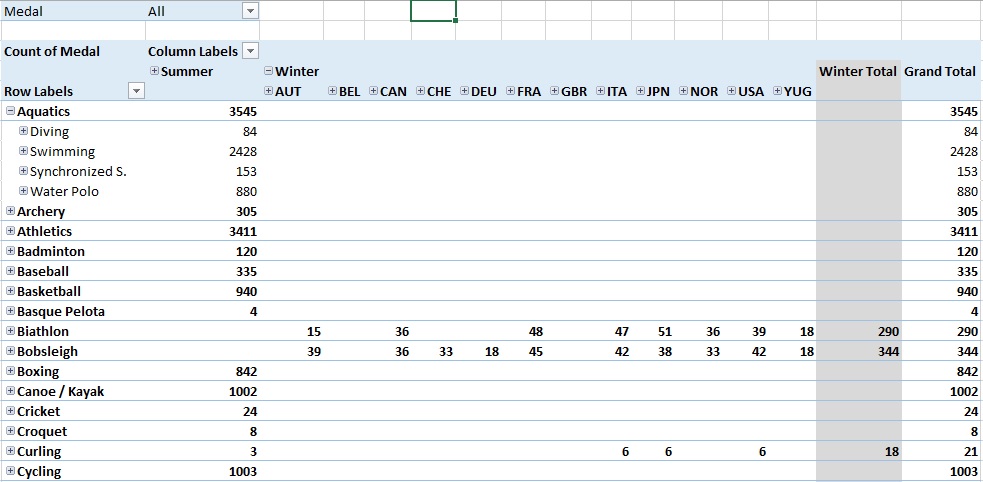
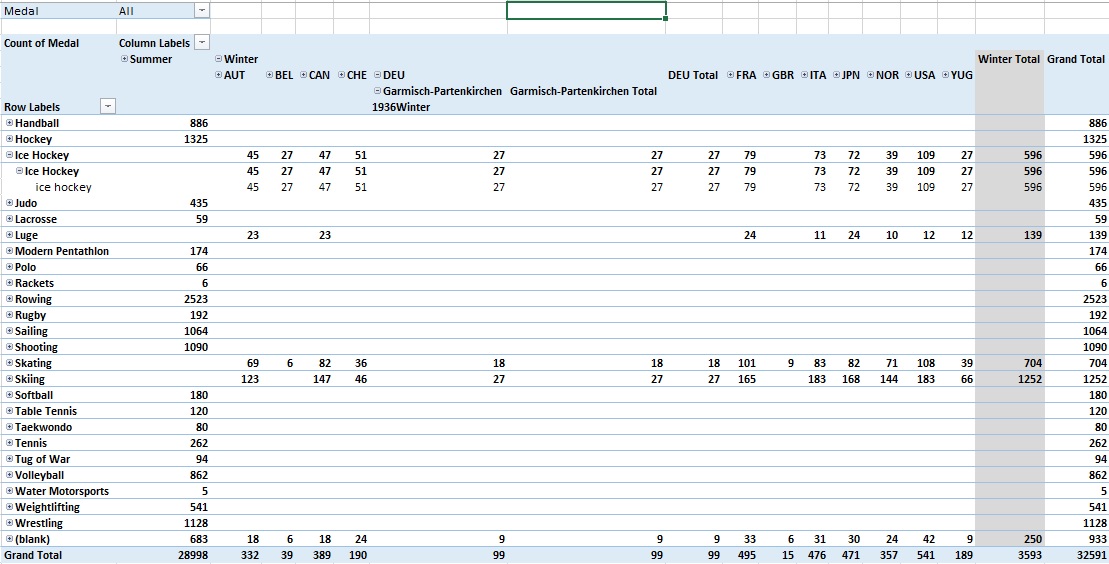
  • You can expand any of those Sports in the PivotTable, which is the top level of the SDE hierarchy, and see information in the next level down in the hierarchy (discipline). If a lower level in the hierarchy exists for that discipline, you can expand the discipline to see its events. You can do the same for the Location hierarchy, the top level of which is Season, which shows up as Summer and Winter in the PivotTable.

ExcelData-20

ExcelData-21
By dragging those two hierarchies, you quickly created a PivotTable with interesting and structured data that you can drill into, filter, and arrange.

I will come up with more details and other options on this topic in my upcoming posts. Till then keep learning and practicing.

Corfu Navision 2016, Information

Changes in C/AL Behaviour C/AL Statements in Nav 2016

The following table lists the summary of new, removed, or changed C/AL statements in Microsoft Dynamics NAV 2016.

Will come with more details in my later posts.

Statement Description
FOREACH New statement.

Iterate through a .NET Framework collection or array.

BREAK New statement.

Terminates the iteration statement in which it used.

Important

If your solution has used FOREACH or BREAK as names of variables in earlier versions of Microsoft Dynamics NAV, you must change the names before you upgrade to Microsoft Dynamics NAV 2016.

Alternatively, you can enclose the variable names in quotation marks. If you do not, and you import an object that has this code in text format, you cannot compile the object.

Corfu Navision 2016, Information

Changes in C/AL Behaviour C/AL Properties in Nav 2016

The following table lists the summary of new, removed, or changed properties in Microsoft Dynamics NAV 2016.

Will come with more details in my later posts.

Function Description
Event Property New property.

Used for events. Specifies whether a function is a publisher of or subscriber to an event.

EventFunction Property New property.

Used for events. Specifies the event publisher function that an event subscriber function subscribes to.

EventPublisherObject Property New property.

Used for events. Specifies the object that contains the event publisher function that an event subscriber function subscribes to.

EventSubscriberInstance Property New property.

Specifies how event subscriber functions in a codeunit are bound to codeunit instance and events that they subscribe to.

EventType Property New property.

Used for events. Specifies whether an event is a business or integration event.

GlobalVarAccess Property New property.

Used for events. Specifies whether global variables in an event publisher object can be accessed from event subscriber functions.

IncludeSender Property New property.

Used for events. Specifies whether global functions in an event publisher object can be called from event subscriber functions.

Namespaces Property New property.

Specifies one or more namespaces on an XMLport object.

NamespacePrefix Property New property.

Specifies a namespace prefix on an element of an XMLport object.

OnMissingLicense Property New property.

Specifies what happens to the event subscriber function call when the license of the Microsoft Dynamics NAV user account that is running the current session does not include the codeunit that contains the subscriber function.

OnMissingPermission Property New property.

Specifies what happens to the subscriber function call when the Microsoft Dynamics NAV user account that is running the current session does not have permission to the codeunit that contains the subscriber function.

EventPublisherElement Property New property.

Used for events. Specifies the table field that the trigger event pertains to.

Scope Property New property.

Specifies the scope of actions to be either Repeater or Page.

SQL Timestamp Property New property.

Specifies a field to be a timestamp field that contains row version numbers for records.

TableType Property Specifies whether the table is a normal or external (CRM or ExternalSQL) table.
TryFunction Property New property.

Specifies the function to be try function, which can be used to catch and handle errors and exceptions that occur when code is run.

FunctionType Property (Upgrade Codeunits) Changed property.

Instead of the Upgrade option, there are now two options: UpgradePerCustomer and UpgradePerDatabase. The UpgradePerCustomer option behaves like the Upgrade option in the previous Microsoft Dynamics NAV version.

FunctionType Property (Test Codeunits) Changed property.

Includes the FilterPageHandler and HyperlinkHandler options.

Corfu Navision 2016, Information

Changes in C/AL Behaviour C/AL Functions in Nav 2016

The following table lists the summary of new, removed, or changed functions in Microsoft Dynamics NAV 2016.

Will come with more details in my later posts.

Function Description
ADDFIELD Function New function.

Adds a table field to the filter control for a table on filter page.

ADDFIELDNO Function New function.

Adds a table field to the filter control for a table as specified by the field number.

ADDRECORD Function New function.

Adds a filter control for a table to a filter page as specified by a record data type variable.

ADDRECORDREF Function New function.

Adds filter control for a table to a filter page as specified by a RecordRef variable.

ADDTABLE Function New function.

Adds filter control for a table to a filter page.

BINDSUBSCRIPTION Function New function.

Binds event subscribers to the subscriber codeunit instance for handling events.

UNBINDSUBSCRIPTION New function.

Unbinds event subscribers from the subscriber codeunit instance for handling events.

COUNT Function (FilterPageBuilder) New function.

Gets the number of filter controls that are specified in the FilterPageBuilder object instance.

CREATEENCRYPTIONKEY Changed function.

Includes a Boolean return value. The value is true if an encryption key is created successfully; otherwise, it is false.

CURRENTCLIENTTYPE Function New function.

Gets the Microsoft Dynamics NAV client type that is running on the current session.

CURRENTCOMPANY Function (Record) New function.

Gets the current company of a database table record.

CURRENTCOMPANY Function (RecordRef) New function.

Gets the current company of a database table that is referred to by a RecordRef.

DEFAULTCLIENTTYPE Function New function.

Gets the default Microsoft Dynamics NAV client type that is configured for the Microsoft Dynamics NAV Server instance that is used for the current session.

GETASCENDING Function (Record) Gets the sort order for the records returned, such as in data from an ODATA web service.
GETURL Function Changed function. Includes the following changes:

  • Accepts CURRENTCLIENTTYPE and DEFAULTCLIENTTYPE as ClientType parameter.
  • Supports RecordRef variable data type as a parameter to specify the record to open.
  • Includes a Boolean parameter to include filters that are setup on the object in URL.
GETVIEW function (FilterPageBuilder) New function.

Gets the filter view (which defines the sort order, key, and filters) for the record in the specified filter control of a filter page.

IMPORTENCRYPTIONKEY Changed function.

Includes a Boolean return value. The value is true if an encryption key is imported successfully; otherwise, it is false.

ISFILTERPAGEBUILDER Function (Variant) New function.

Indicates whether a C/AL variant contains a FilterPageBuilder variable.

ISTEMPORARY Function (Record) New function.

Determines whether a record refers to a temporary table.

NAME Function (FilterPageBuilder) New function.

Gets the name of a table filter control that is included on a filter page based on an index number that is assigned to the filter control.

RECORDID (Record) New function.

Gets the RecordID of the record that is currently selected in the table.

RUNMODAL Function (FilterPageBuilder) New function.

Builds and runs the filter page.

SETASCENDING Function (Record) Sets the sort order for the records returned, such as in data from a ODATA web service.
SETVIEW Function New function.

Sets the current filter view, which defines the sort order, key, and filters, for a record in a filter control on a filter page.

GETDEFAULTTABLECONNECTION Function (Database), HASTABLECONNECTION Function (Database), REGISTERTABLECONNECTION Function (Database), SETDEFAULTTABLECONNECTION Function (Database), and UNREGISTERTABLECONNECTION Function (Database) New functions. Registers, sets, gets, and unregister table connections to external tables.