Maderia

Project Madeira Windows App

Start your preview of Project “Madeira” to see how easy it is to manage your sales, finances, billing, purchasing, and inventory — all without leaving Outlook. This Project “Madeira” for Windows app extends the experience to your mobile and touch-enabled devices for productivity on the go.

For more details please see this link :

https://www.microsoft.com/en-us/store/apps/app/9nblggh4ql79?tduid=(df96aa0d96d7435e356e38062fa93c22)(256380)(2459594)(TnL5HPStwNw-cG8ugVBRh.7yMQdCE7yE7g)()

Cumulative Updates, Tip & Tricks

Cumulative Update 6 for Microsoft Dynamics NAV 2016 released in April

Cumulative Update 6 includes all application and platform hotfixes and regulatory features that have been released for Microsoft Dynamics NAV 2016.

Where to find Cumulative Update 6

You can download the cumulative update from KB 3151017 – Cumulative Update 6 for Microsoft Dynamics NAV 2016 (Build 45480).

Warning

Before you install a cumulative update in a production environment, take the following precautions:

  1. Test the cumulative update in a non-production environment.
  2. Make a backup of the system or computer where the cumulative update is to be installed.

Additional Information

For information about how to install the cumulative update, see How to Install a Microsoft Dynamics NAV 2016 Cumulative Update.

For a list of all cumulative updates for this version, see Released Cumulative Updates for Microsoft Dynamics NAV 2016.

Cumulative Updates, Tip & Tricks

Cumulative Update 18 for Microsoft Dynamics NAV 2015 released in April

Cumulative Update 18 includes all application and platform hotfixes and regulatory features that have been released for Microsoft Dynamics NAV 2015.

Where to find Cumulative Update 18

You can download the cumulative update from KB 3151020 – Cumulative Update 18 for Microsoft Dynamics NAV 2015 (Build 45483).

Warning

Before you install a cumulative update in a production environment, take the following precautions:

  1. Test the cumulative update in a non-production environment.
  2. Make a backup of the system or computer where the cumulative update is to be installed.

Additional Information

For information about how to install the cumulative update, see How to Install a Microsoft Dynamics NAV 2015 Cumulative Update.

For information about how to work around a recent process change, see How to Get Back the ‘Hotfix Directories’ from NAV 2015 Cumulative Update 1.

For a list of all cumulative updates for this version, see Released Cumulative Updates for Microsoft Dynamics NAV 2015.

Cumulative Updates, Tip & Tricks

Cumulative Update 30 for Microsoft Dynamics NAV 2013 R2 released in April

Cumulative Update 30 includes all application and platform hotfixes and regulatory features that have been released for Microsoft Dynamics NAV 2013 R2.

Where to find Cumulative Update 30

You can download the cumulative update from KB 3151021 – Cumulative Update 30 for Microsoft Dynamics NAV 2013 R2 (Build 45478).

Warning

Before you install a cumulative update in a production environment, take the following precautions:

  1. Test the cumulative update in a non-production environment.
  2. Make a backup of the system or computer where the cumulative update is to be installed.

Additional Information

For more information about cumulative updates for this version, see Announcement of update rollups for Microsoft Dynamics NAV 2013 R2.

For a list of all cumulative updates for this version, see Released Cumulative Updates for Microsoft Dynamics NAV 2013 R2.

For a list of all hotfixes included in cumulative updates for this version, see the following CustomerSource and PartnerSource pages:

CustomerSource:

PartnerSource

Cumulative Updates, Tip & Tricks

Cumulative Update 37 for Microsoft Dynamics NAV 2013 released in April

Cumulative Update 37 includes all application and platform hotfixes and regulatory features that have been released for Microsoft Dynamics NAV 2013.

https://blogs.msdn.microsoft.com/nav/2016/04/04/cumulative-update-37-for-microsoft-dynamics-nav-2013-has-been-released/


Where to find Cumulative Update 37

You can download the cumulative update from KB 3151023 – Cumulative Update 37 for Microsoft Dynamics NAV 2013 (Build 45477).

Warning

Before you install a cumulative update in a production environment, take the following precautions:

  1. Test the cumulative update in a non-production environment.
  2. Make a backup of the system or computer where the cumulative update is to be installed.

Additional Information

For a list of all cumulative updates for this version, see Released Cumulative Updates for Microsoft Dynamics NAV 2013.

For a list of all hotfixes included in cumulative updates for this version, see the following CustomerSource and PartnerSource pages:

CustomerSource:

PartnerSource:

PowerBI.com, Tip & Tricks

Power BI – Overview and Learning

Microsoft Power BI is a collection of online services and features that enables you to find and visualize data, share discoveries, and collaborate in intuitive new ways. There are two experiences now available for Power BI: the new experience, generally referred to as Power BI, and the previous experience which is referred to as Power BI for Office 365.


Please check this link:- Overview and Learning

PowerBI-2


Tip & Tricks

Integrating Dynamics NAV 2016 with CRM Online

Helpful blog for Integrating Dynamics NAV 2016 with CRM Online

Please see this post may help you in getting your task done.

Suvidha Shashikumar's avatarCode. Prompt. Automate. — The Age of AI Agents

Hi, In this post I would like to explain the initial setup required and steps for integrating Dynamics NAV 2016 and CRM Online. This enables you to integrate and synchronize data in Microsoft Dynamics CRM entities such as accounts, contacts, and products, with equivalent record types in Microsoft Dynamics NAV such as customers, contacts, and items, respectively.

NAV 2016 and CRM integration

Dynamics NAV 2016 has a default integration setup which can be used to enable this integration. NAV 2016 includes new objects to support this integration.

View original post 849 more words

PivotTable, PowerBI.com, PowerPivot, Tip & Tricks

Microsoft Power BI – Part X

Continuing from my previous post. Today we will downloading the dataset into Excel from Power BI Online for analysis.

In case you have missed my previous posts here I present the link to all previous posts below.


Microsoft Power BI – Part – I

Introduction to Power BI and Creating Report from Excel Data, Local Files.

Microsoft Power BI – Part – II

Introduction to few Features of Power BI

Microsoft Power BI – Part – III

Power BI Desktop, Creating Dataset & Reports from In Premise Database installation

Microsoft Power BI – Part – IV

Power BI Gateway usage

Microsoft Power BI – Part – V

Scheduling Refresh of Dataset & Report created using In Premise Database

Microsoft Power BI – Part – VI

Power BI Content Pack

Microsoft Power BI – Part – VII

Power BI Mobile App

Microsoft Power BI – Part – VIII

Power BI Content Pack

Microsoft Power BI – Part – IX

Power BI Publisher for Excel


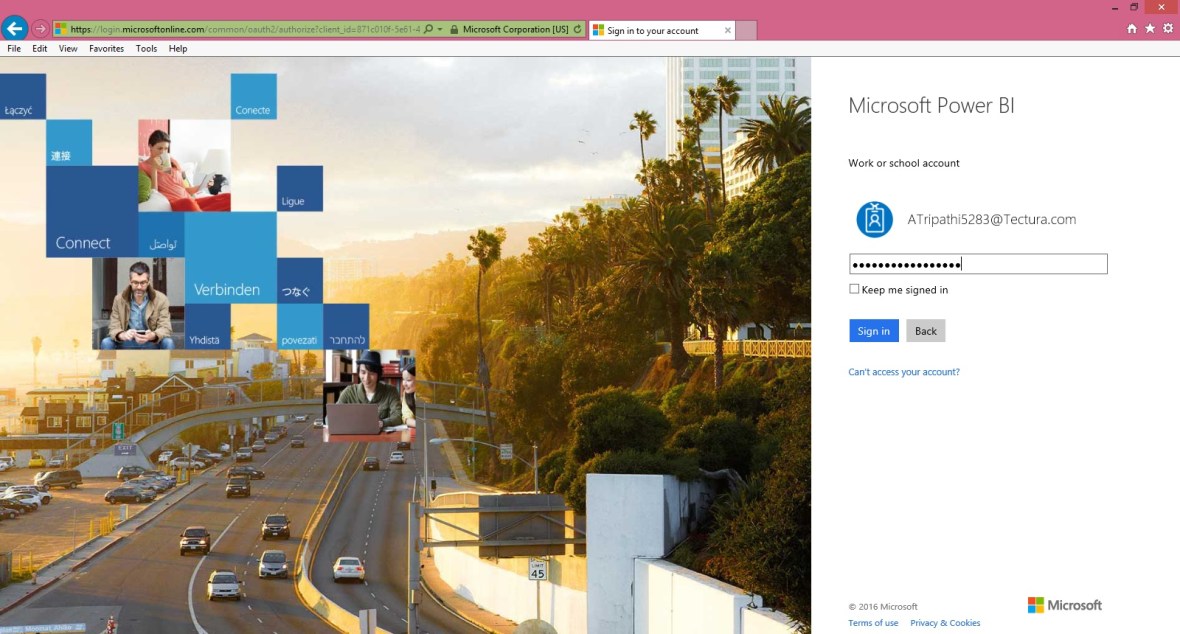
Login to Power BI using your credentials.

PowerBI-111

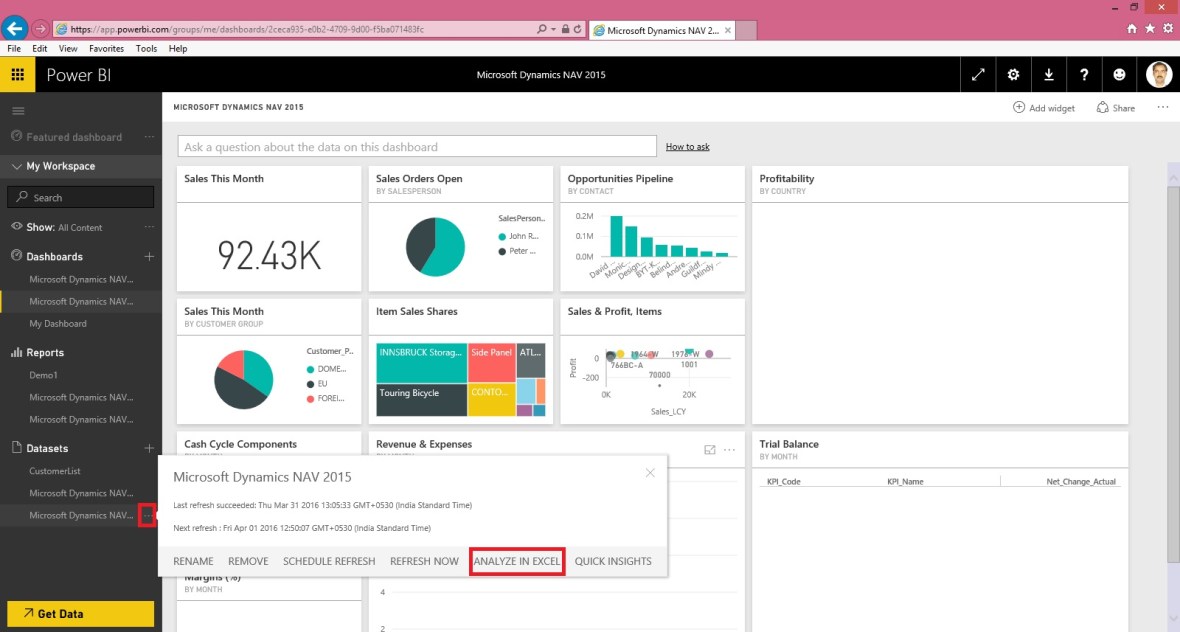
Select the Dataset which you wish to analyse, click the three dots on right and from appearing menu choose ANALYZE IN EXCEL.

PowerBI-112

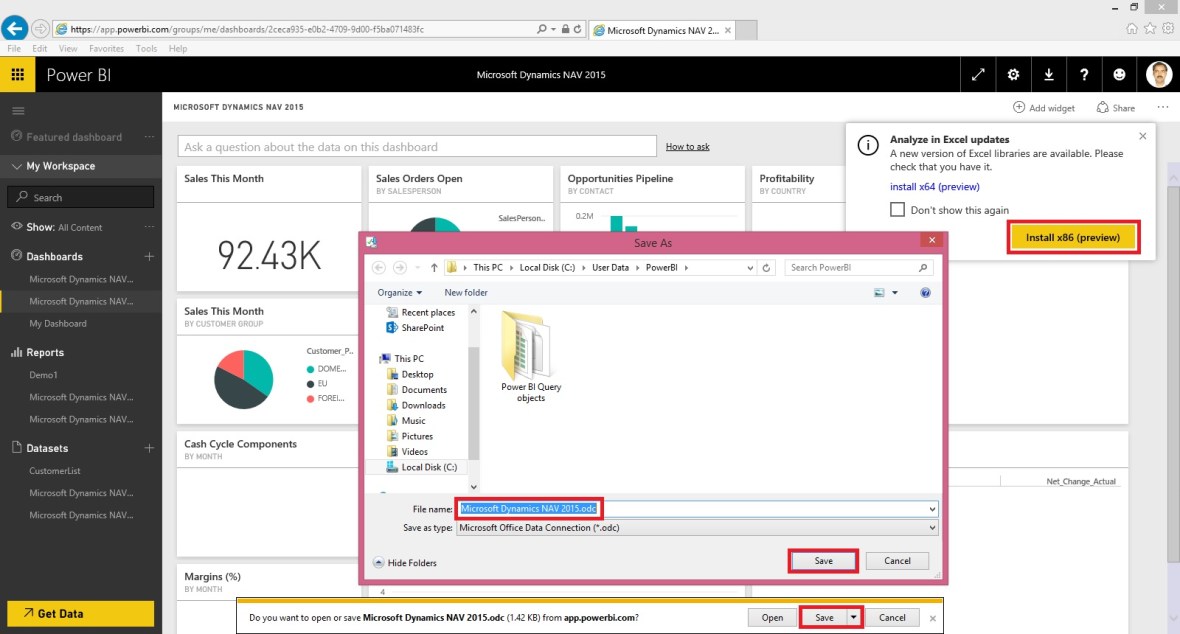
You will be prompted for Analyse in Excel (preview). If you are running first time please install it.

At the same time you will be prompted for (.odc) MS Office Data Connection file to save/open.

Save and then open the File in Excel.

PowerBI-113

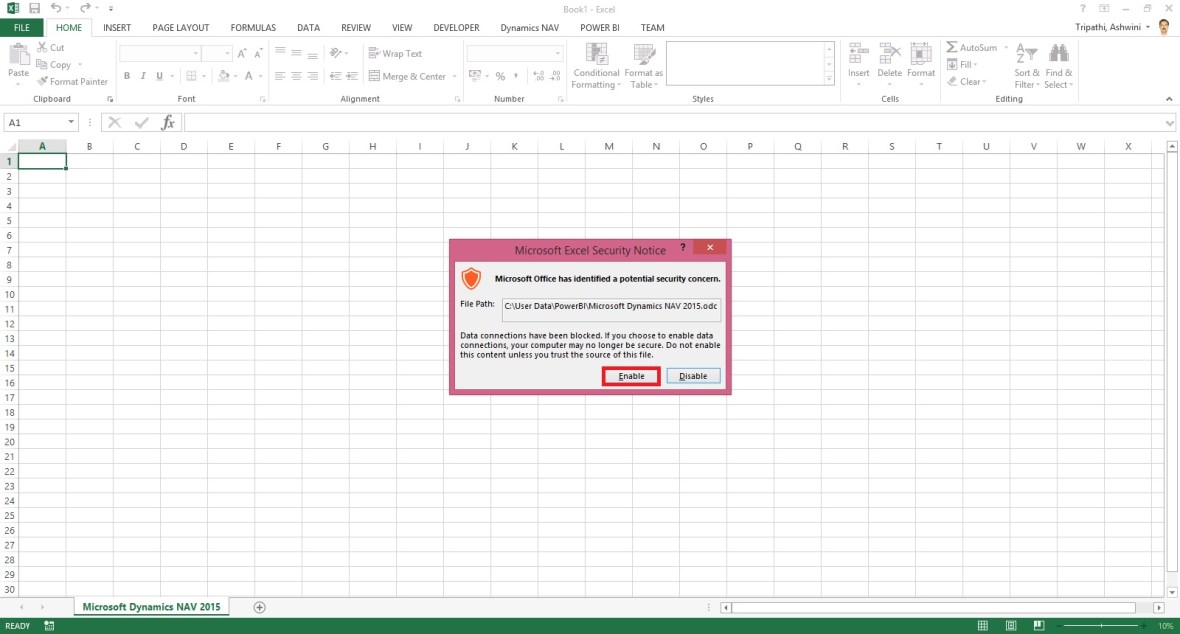
On opening the file you will be prompted for security concern Enable to allow it.

PowerBI-114

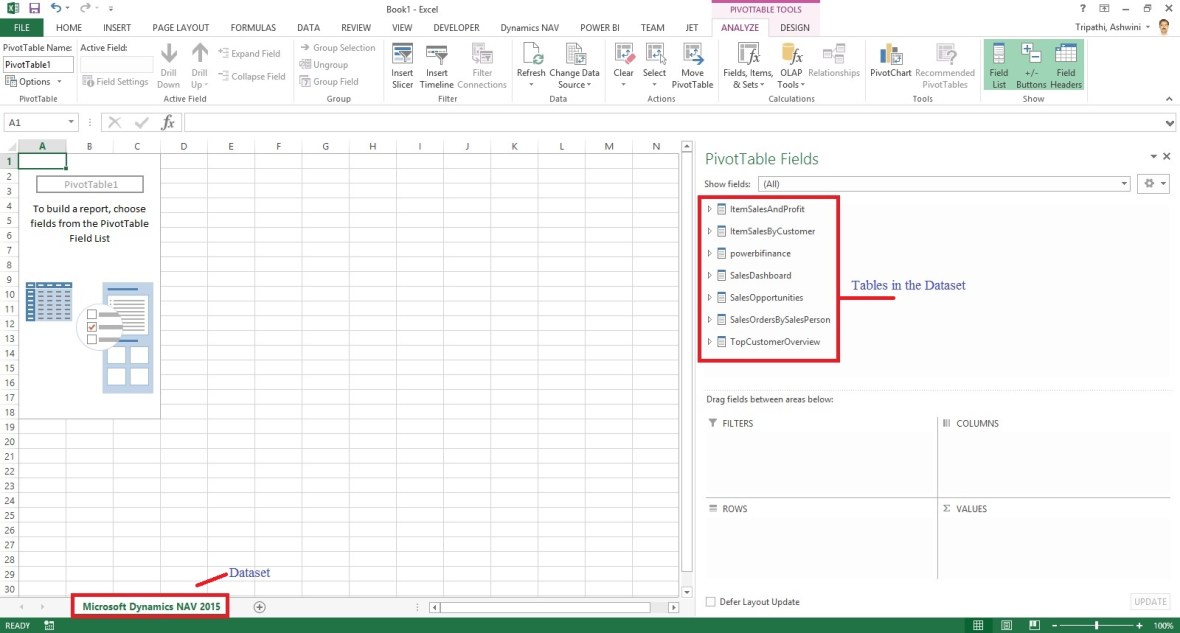
You will be able to see Pivot Table Fields, containing all of the Tables available in the Dataset.

PowerBI-115

Now you can play with your data to analyse and create Pivot, Charts and share with others or you can Pin back your result to Power BI Dashboards using concept we used in our previous post.


That’s all for today, I will come up with more features in my future posts.

Till then keep practicing & Learning.


PowerBI.com, Tip & Tricks

Microsoft Power BI – Part IX

Continuing from my previous post. Today we will see usage of Power BI Publisher for Excel.

In case you have missed my previous posts here I present the link to all previous posts below.

Microsoft Power BI – Part – I

Introduction to Power BI and Creating Report from Excel Data, Local Files.

Microsoft Power BI – Part – II

Introduction to few Features of Power BI

Microsoft Power BI – Part – III

Power BI Desktop, Creating Dataset & Reports from In Premise Database installation

Microsoft Power BI – Part – IV

Power BI Gateway usage

Microsoft Power BI – Part – V

Scheduling Refresh of Dataset & Report created using In Premise Database

Microsoft Power BI – Part – VI

Power BI Content Pack

Microsoft Power BI – Part – VII

Power BI Mobile App

Microsoft Power BI – Part – VIII

Power BI Content Pack

Sharing key Excel insights just got easier. Save snapshots of important PivotTables, Charts, cell ranges, and more from across all of your spreadsheets to a single location quickly with the Power BI publisher for Excel. Simply highlight the elements you want to save, then click the “Pin to” button: now you’ve got a powerful web dashboard that you can share with everyone in your organization.

Let us see how we can use this feature.

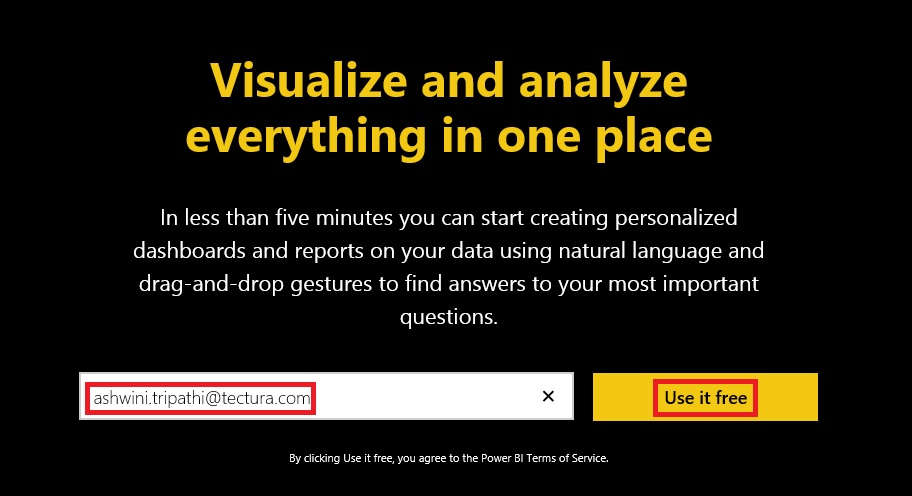
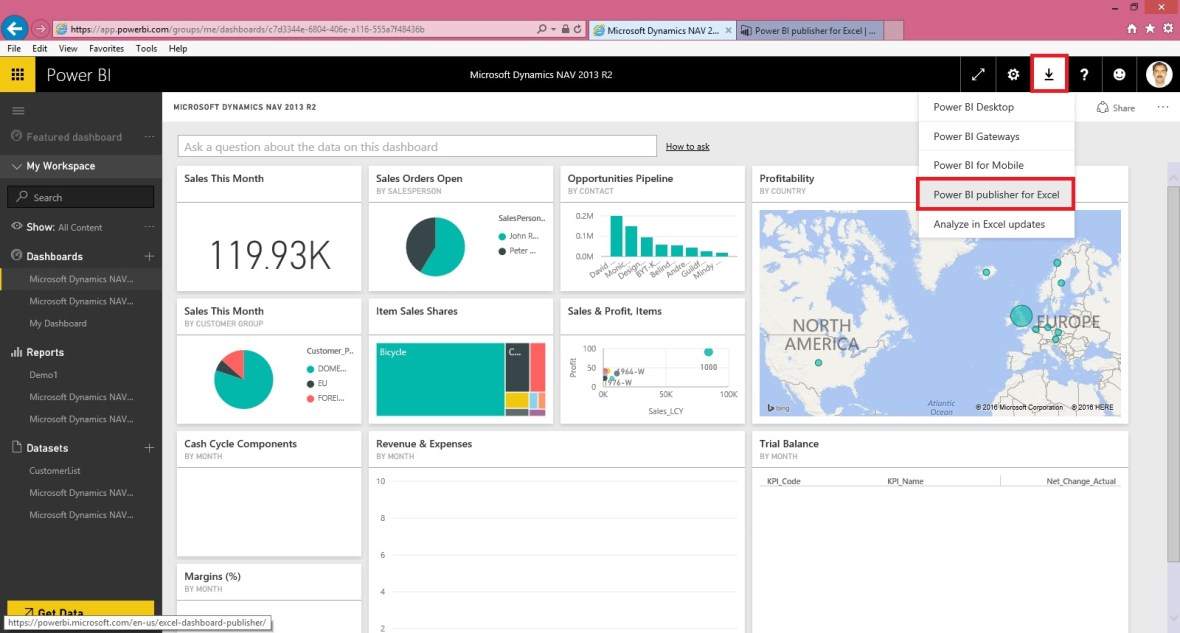
Login to Power BI with your credentials.
PowerBI-95

From Download Menu Section choose Power BI Publisher for Excel.

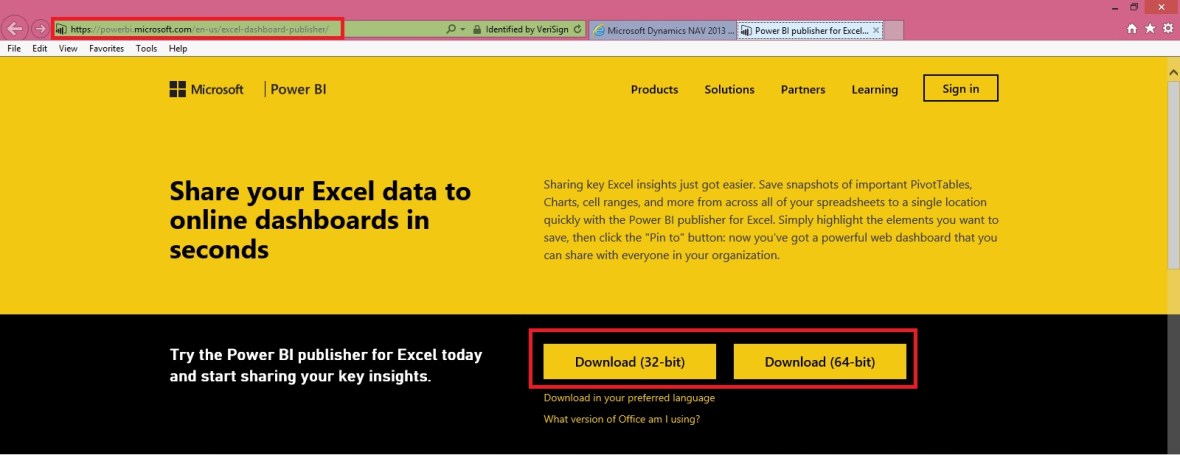
Or visit Link: https://powerbi.microsoft.com/en-us/excel-dashboard-publisher/
PowerBI-96

Select your desired Excel Version 32 or 64 bit as installed on your PC and download the Package.

Close your Excel and Install the Package and follow on screen guide.

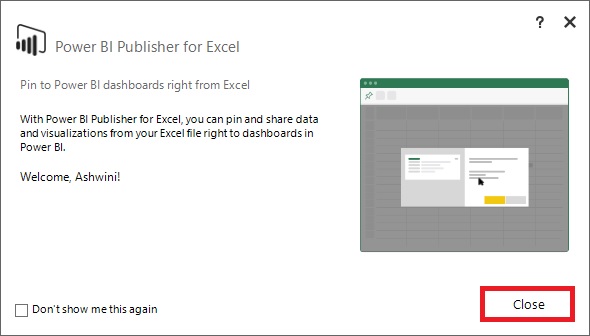
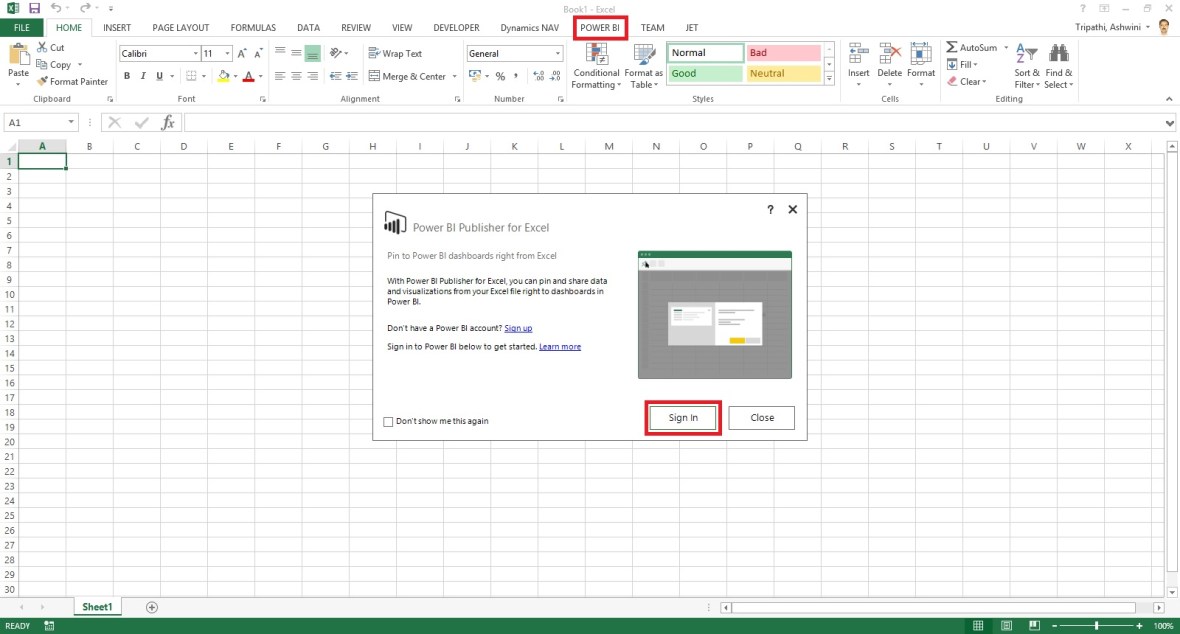
After Installation when you open your Excel First time after Installing the Package. You will get similar to below screen.
PowerBI-97

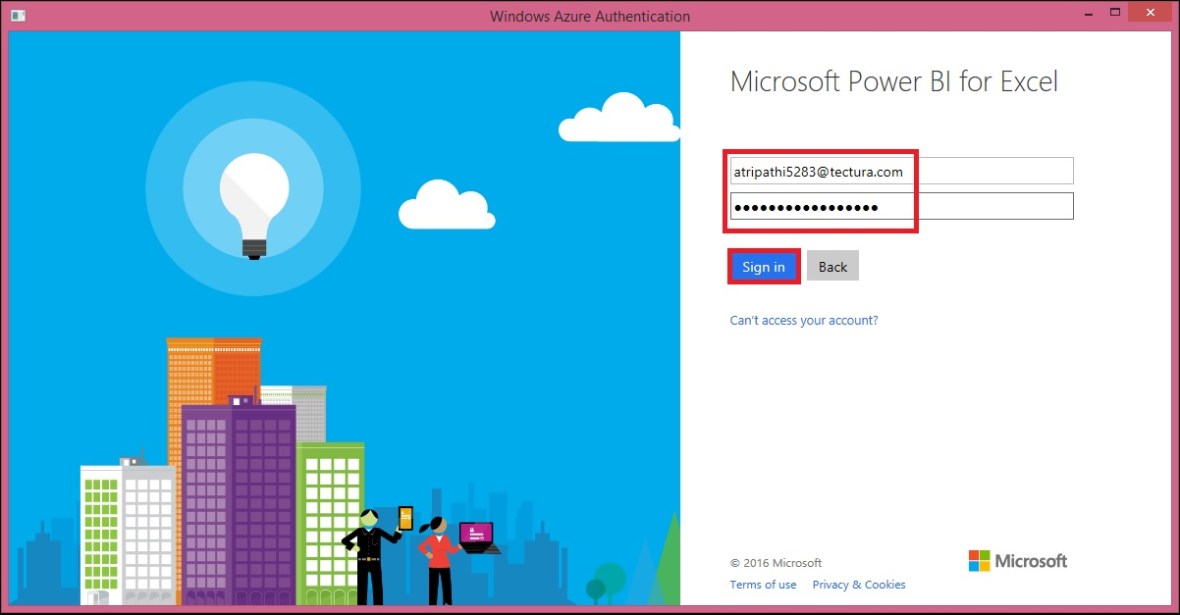
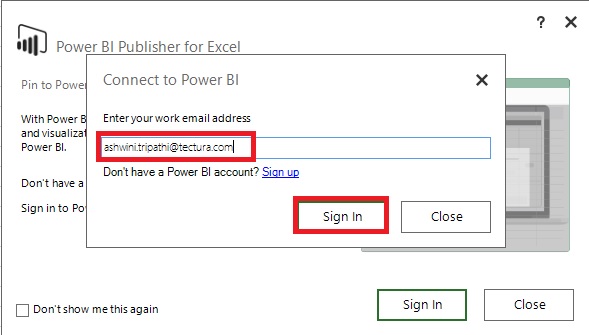
Sign in with your Power BI Credentials.
PowerBI-98


PowerBI-99


PowerBI-100

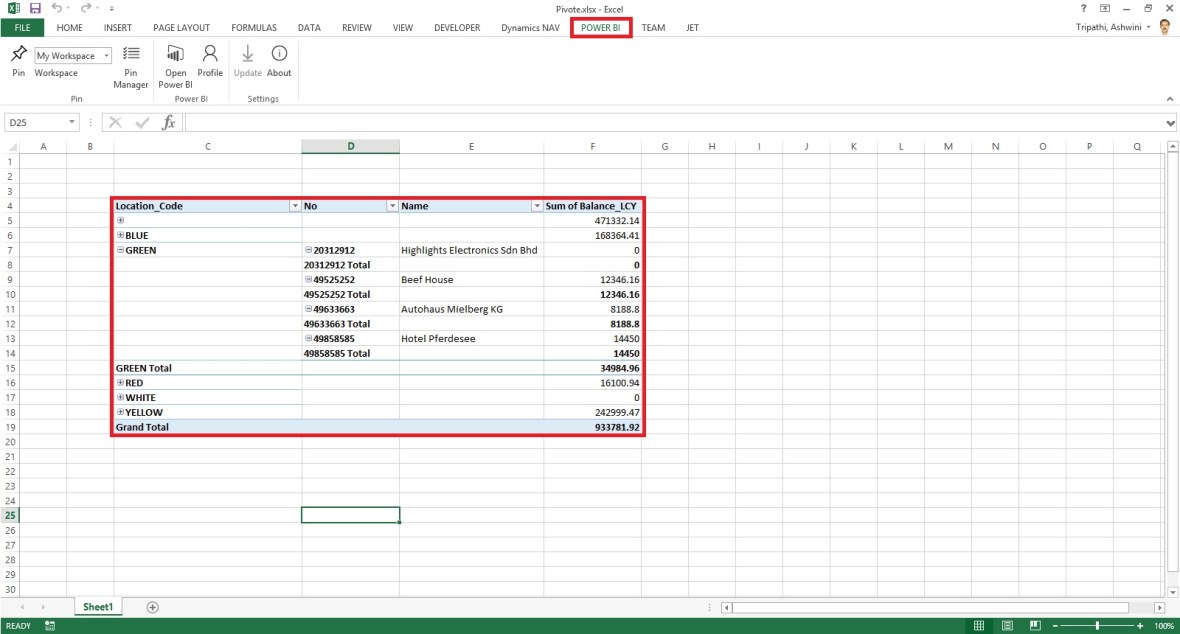
I have created a Pivot in excel as below which I want to share on my Desktop.
PowerBI-101

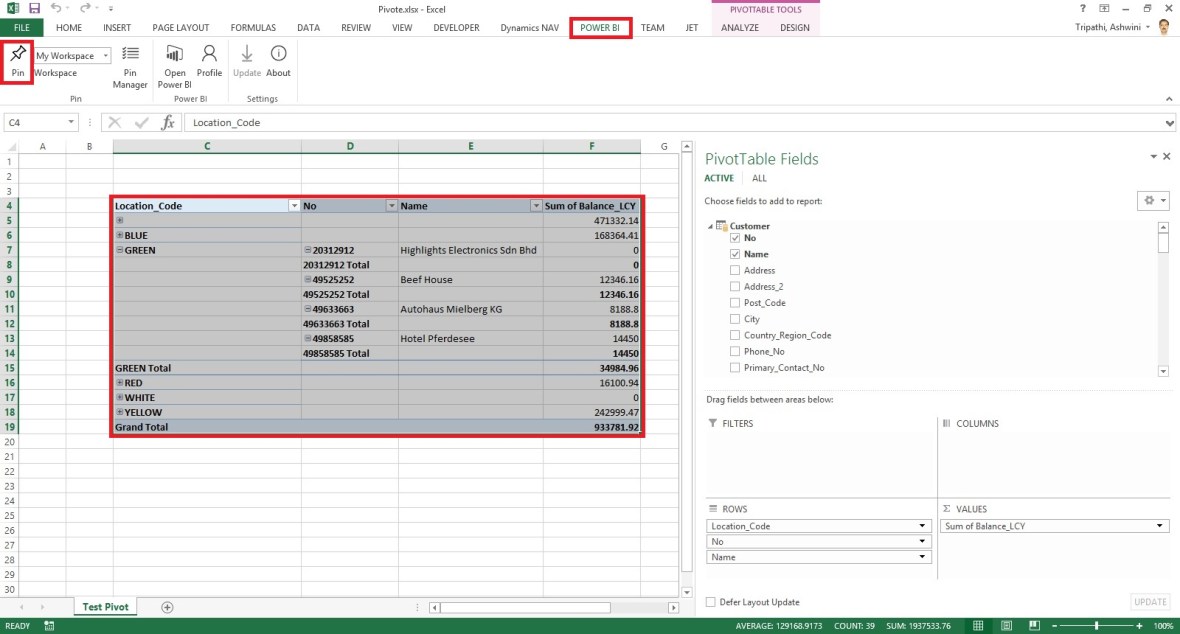
Select the Region/Range that you wish to publish from Power BI choose Pin, as shown below.
PowerBI-102

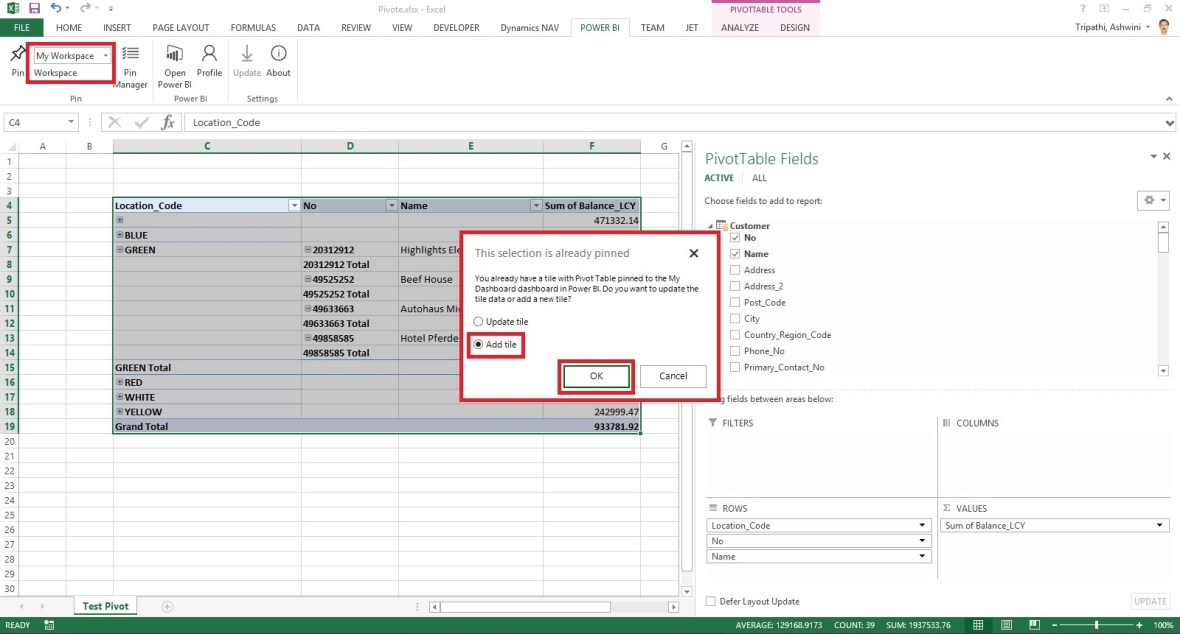
In my case I have already pined so confirmation Dialog Box is taken else it will Pin the Selected Range as a snapshot on selected Workspace.
PowerBI-103

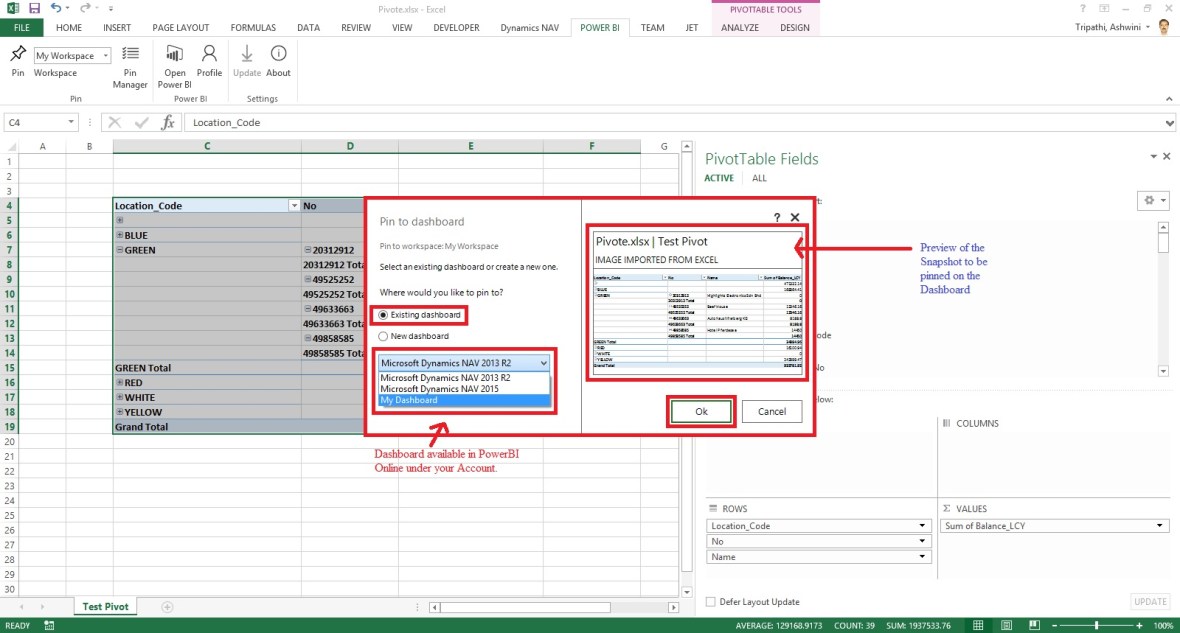
Make sure you select right Workspace before you Pin.
PowerBI-104

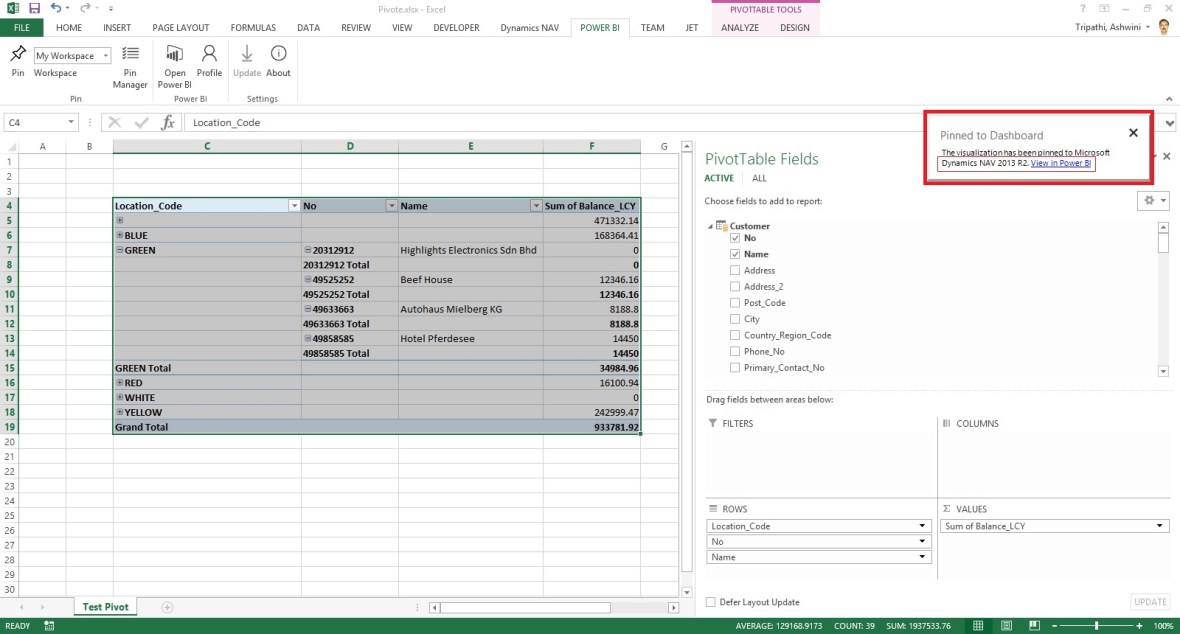
After Publishing you will get confirmation as below.
PowerBI-105

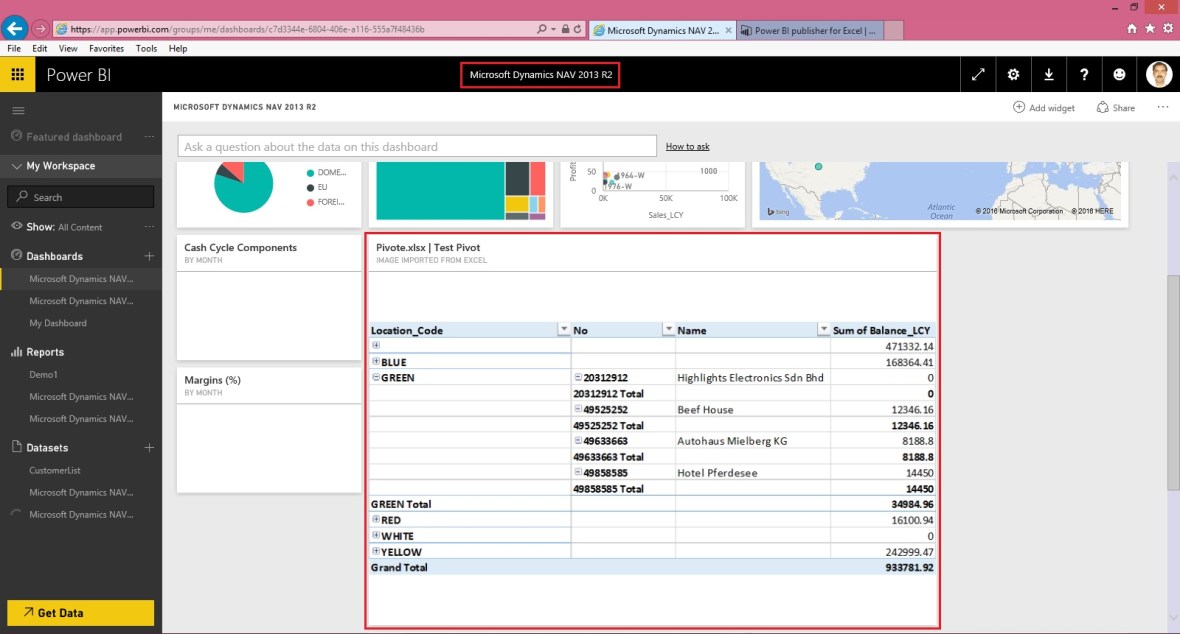
Using the Link, Login with your credentials to the Power BI and switch to the Dashboard on which you published.
PowerBI-106

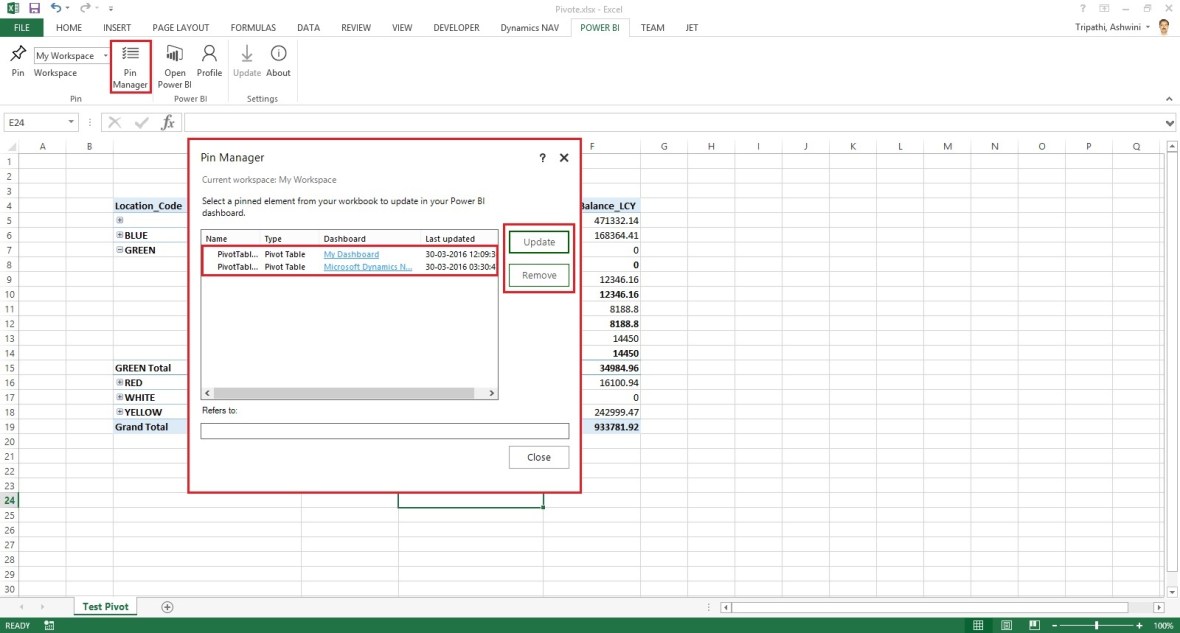
This way you can Pin Snapshot of PivotTables, Charts, cell ranges, and more. You can update existing with new one and manage all your Pins.
PowerBI-107

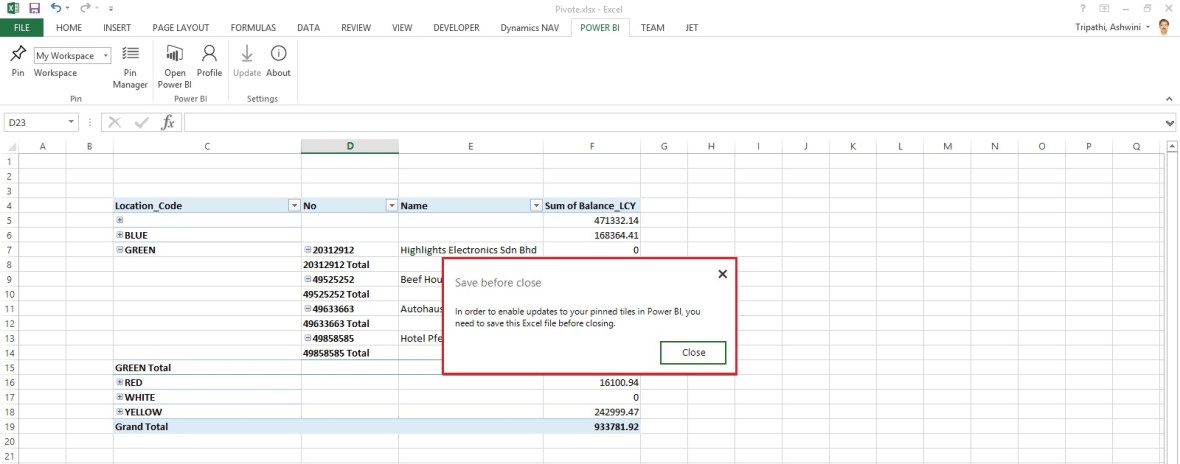
Save your Excel and Exit.

PowerBI-108

Try useful feature.

I will come up with more details in my future posts.

Till then keep practicing and learning using online Blogs, help and documents.

Jet Reports, Tip & Tricks

Leveraging Business Intelligence for Ad Hoc Analysis

Leveraging Business Intelligence for Ad Hoc Analysis

Video-1


Video-2