Appointment, Development Tips, Email, How To, Information, NAV 2015, NAV 2016, NAV 2017, NAV 2018, Office 365, Office Integration, Outlook, Tip & Tricks

Programmatically Creating Outlook Appointment in Navision

Dear Friends in this post I will discuss about creating Outlook Appointment from Navision using DotNet Interop. Without going much in theory lets jump to practical approach.

To start with first we need to define some DotNet variables:

Name DataType Subtype
OutlookItemType DotNet Microsoft.Office.Interop.Outlook.OlItemType.
‘Microsoft.Office.Interop.Outlook, Version=15.0.0.0, Culture=neutral, PublicKeyToken=71e9bce111e9429c’
outlookApplication DotNet Microsoft.Office.Interop.Outlook.Application.
‘Microsoft.Office.Interop.Outlook, Version=15.0.0.0, Culture=neutral, PublicKeyToken=71e9bce111e9429c’
outlookApplicationClass DotNet Microsoft.Office.Interop.Outlook.ApplicationClass.
‘Microsoft.Office.Interop.Outlook, Version=15.0.0.0, Culture=neutral, PublicKeyToken=71e9bce111e9429c’
outlookAppItem DotNet Microsoft.Office.Interop.Outlook.AppointmentItem.
‘Microsoft.Office.Interop.Outlook, Version=15.0.0.0, Culture=neutral, PublicKeyToken=71e9bce111e9429c’

I have created a function CreateOutlookAppointment which takes parameters as:


OAP1

And the code as below:

OAP2

To call this function I use below code:

OAP3

The code is itself self-explanatory.

You can add other validations and parameters as per the requirement.

Imp Tip:- Make sure you set for all DotNet Variables RunOnClient = Yes.

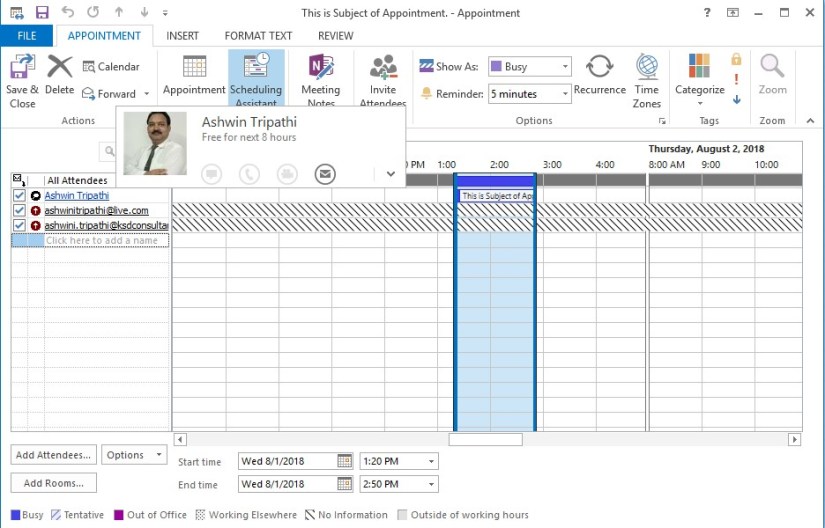
On run the output will be as:

OAP4


OAP5


What you are waiting for, go create Appointment and have fun.

See you seen via my next post. Till then keep learning and growing in your career.


Cumulative Updates, How To, Information, Instalation & Configuration, NAV 2015, NAV 2016, NAV 2017, NAV 2018, Support, Updates

Cumulative Update for Microsoft Dynamics NAV 2015/2016/2017/2018 Released in July 2018

Cumulative Update includes all application and platform hotfixes and regulatory features that have been released for Microsoft Dynamics NAV.

The cumulative update is intended mainly for solutions that are experiencing the problems described in the Knowledge Base articles. However, you are advised to always keep your solution updated with the latest cumulative update.

Microsoft Dynamics NAV 2015

Where to find Cumulative Update 45 

You can download the cumulative update from KB 4341445  – Cumulative Update 45 for Microsoft Dynamics NAV 2015.

Or you can download the cumulative update from the Microsoft Download Center.

Warning

Before you install a cumulative update in a production environment, take the following precautions:

  1. Test the cumulative update in a non-production environment.
  2. Make a backup of the system or computer where the cumulative update is to be installed.

Additional Information

For information about how to install the cumulative update, see How to Install a Microsoft Dynamics NAV 2015 Cumulative Update.

For a list of all cumulative updates for this version, see Released Cumulative Updates for Microsoft Dynamics NAV 2015.

Microsoft Dynamics NAV 2016

Where to find Cumulative Update 33

You can see changes included in this cumulative update from KB4341446 – Cumulative Update 33 for Microsoft Dynamics NAV 2016.

You can press one of the countries in list above for a direct download or you can download the cumulative update from the Microsoft Download Center.

Microsoft Dynamics NAV 2016 is also available from containers. Containers are a way to wrap up an application into its own isolated box, you can pull the cumulative update containers from the Docker Hub.

To learn more about other Cumulative Updates already released for Microsoft Dynamics NAV 2016 please see KB  3108728.

Warning

Before you install a cumulative update in a production environment, take the following precautions:

  1. Test the cumulative update in a non-production environment.
  2. Make a backup of the system or computer where the cumulative update is to be installed.

Additional Information

For information about how to install the cumulative update, see How to Install a Microsoft Dynamics NAV 2016 Cumulative Update. Note that if you upgrade to this cumulative update from a version older than Microsoft Dynamics NAV 2016 Cumulative Update 6, you must run the development environment with elevated rights (run as administrator).

Microsoft Dynamics NAV 2017

Where to find Cumulative Update 20

You can download the cumulative update from KB4341447  – Cumulative Update 20 for Microsoft Dynamics NAV 2017.

You can press one of the countries in list above for a direct download or you can download the cumulative update from the Microsoft Download Center.

Microsoft Dynamics NAV 2017 is also available from containers. Containers are a way to wrap up an application into its own isolated box, you can pull the cumulative update container from the Docker Hub.

To learn more about other Cumulative Updates already released for Microsoft Dynamics NAV 2017 please see KB  3210255.

Warning

Before you install a cumulative update in a production environment, take the following precautions:

  1. Test the cumulative update in a non-production environment.
  2. Make a backup of the system or computer where the cumulative update is to be installed.
  3. This Cumulative Update can require a database upgrade.

Additional Information

For information about how to install the cumulative update, see How to Install a Microsoft Dynamics NAV 2017 Cumulative Update.

Microsoft Dynamics NAV 2018

Where to find Cumulative Update 07

You can download the cumulative update from KB4341448 – Cumulative Update 07 for Microsoft Dynamics NAV 2018.

You can press one of the countries in list above for a direct download or you can download the cumulative update from the Microsoft Download Center.

Microsoft Dynamics NAV 2018 is also available from containers. Containers are a way to wrap up an application into its own isolated box, you can pull the cumulative update container from the Docker Hub.

To learn more about other Cumulative Updates already released for Microsoft Dynamics NAV 2018 please see KB  4072483.

Warning

Before you install a cumulative update in a production environment, take the following precautions:

  1. Test the cumulative update in a non-production environment.
  2. Make a backup of the system or computer where the cumulative update is to be installed.
  3. This Cumulative Update can require a database upgrade.

Additional Information

For information about how to install the cumulative update, see How to Install a Microsoft Dynamics NAV 2018 Cumulative Update.

AL Development for Dynamics 365 Business Central

For information about how to develop extensions for Dynamics 365 Business Central see AL Development for Dynamics 365 Business Central

Cumulative Updates, Development Tips, How To, Information, Instalation & Configuration, NAV 2018, Tip & Tricks, Updates

Cumulative Update 06 for Microsoft Dynamics NAV 2018 (Build 22292) – Released in June 2018

This cumulative update includes all hotfixes and regulatory features that have been released for Microsoft Dynamics NAV 2018, including hotfixes and regulatory features that were released in previous cumulative updates.

This cumulative update replaces previously released cumulative updates. You should always install the latest cumulative update.

It may be necessary to update your license after implementing this hotfix to gain access to new objects included in this or a previous cumulative update (this only applies to customer licenses).

For a list of cumulative updates released for Microsoft Dynamics NAV 2018, see released cumulative updates for Microsoft Dynamics NAV 2018. Cumulative updates are intended for new and existing customers who are running Microsoft Dynamics NAV 2018.

Important

We recommend that you contact your Microsoft Dynamics Partner before you install hotfixes or updates. It is important to verify that your environment is compatible with the hotfixes or updates being installed. A hotfix or update may cause interoperability issues with customizations and third-party products that work with your Microsoft Dynamics NAV solution.

How to obtain the Microsoft Dynamics NAV update files

This update is available for manual download and installation from the Microsoft Download Center.

Download Cumulative update CU 06 for Microsoft Dynamics NAV 2018

How to install a Microsoft Dynamics NAV 2018 cumulative update

See How to install a Microsoft Dynamics NAV 2018 cumulative update.

Prerequisites

You must have Microsoft Dynamics NAV 2018 installed to apply this hotfix.

For more details see: https://support.microsoft.com/en-us/help/4337675/cumulative-update-06-for-microsoft-dynamics-nav-2018-build-22292

Cumulative Updates, Development Tips, How To, Information, Instalation & Configuration, NAV 2018, Tip & Tricks, Updates

Cumulative Update 05 for Microsoft Dynamics NAV 2018 (Build 21836) – Released in May 2018

released cumulative updates for Microsoft Dynamics NAV 2018This cumulative update includes all hotfixes and regulatory features that have been released for Microsoft Dynamics NAV 2018, including hotfixes and regulatory features that were released in previous cumulative updates.

This cumulative update replaces previously released cumulative updates. You should always install the latest cumulative update.

It may be necessary to update your license after implementing this hotfix to gain access to new objects included in this or a previous cumulative update (this only applies to customer licenses).

For a list of cumulative updates released for Microsoft Dynamics NAV 2018, see released cumulative updates for Microsoft Dynamics NAV 2018. Cumulative updates are intended for new and existing customers who are running Microsoft Dynamics NAV 2018.

How to obtain the Microsoft Dynamics NAV update files

This update is available for manual download and installation from the Microsoft Download Center.

Download Cumulative update CU 05 for Microsoft Dynamics NAV 2018

How to install a Microsoft Dynamics NAV 2018 cumulative update

See How to install a Microsoft Dynamics NAV 2018 cumulative update.

Prerequisites

You must have Microsoft Dynamics NAV 2018 installed to apply this hotfix.

For more information see : https://support.microsoft.com/en-us/help/4171921/cumulative-update-05-for-microsoft-dynamics-nav-2018-build-21836

Cumulative Updates, Development Tips, How To, Information, Instalation & Configuration, NAV 2018, Tip & Tricks, Updates

Cumulative Update 04 for Microsoft Dynamics NAV 2018 (Build 21441) – Released in April 2018

This cumulative update includes all hotfixes and regulatory features that have been released for Microsoft Dynamics NAV 2018, including hotfixes and regulatory features that were released in previous cumulative updates.

This cumulative update replaces previously released cumulative updates. You should always install the latest cumulative update.

It may be necessary to update your license after implementing this hotfix to gain access to new objects included in this or a previous cumulative update (this only applies to customer licenses).

For a list of cumulative updates released for Microsoft Dynamics NAV 2018, see released cumulative updates for Microsoft Dynamics NAV 2018. Cumulative updates are intended for new and existing customers who are running Microsoft Dynamics NAV 2018.

How to obtain the Microsoft Dynamics NAV update files

This update is available for manual download and installation from the Microsoft Download Center.

Download Cumulative update CU 04 for Microsoft Dynamics NAV 2018

How to install a Microsoft Dynamics NAV 2018 cumulative update

See How to install a Microsoft Dynamics NAV 2018 cumulative update.

Prerequisites

You must have Microsoft Dynamics NAV 2018 installed to apply this hotfix.

For more details see: https://support.microsoft.com/en-us/help/4100770/cumulative-update-04-for-microsoft-dynamics-nav-2018-build-21441

Cumulative Updates, Development Tips, How To, Information, Instalation & Configuration, NAV 2018, Tip & Tricks, Updates

Cumulative Update 03 for Microsoft Dynamics NAV 2018 (Build 20783) – Released in March 2018

This cumulative update includes all hotfixes and regulatory features that have been released for Microsoft Dynamics NAV 2018, including hotfixes and regulatory features that were released in previous cumulative updates.

This cumulative update replaces previously released cumulative updates. You should always install the latest cumulative update.

It may be necessary to update your license after implementing this hotfix to gain access to new objects included in this or a previous cumulative update (this only applies to customer licenses).

For a list of cumulative updates released for Microsoft Dynamics NAV 2018, see released cumulative updates for Microsoft Dynamics NAV 2018. Cumulative updates are intended for new and existing customers who are running Microsoft Dynamics NAV 2018.

How to obtain the Microsoft Dynamics NAV update files

This update is available for manual download and installation from the Microsoft Download Center.

Download Cumulative update CU 03 for Microsoft Dynamics NAV 2018

How to install a Microsoft Dynamics NAV 2018 cumulative update

See How to install a Microsoft Dynamics NAV 2018 cumulative update .

Prerequisites

You must have Microsoft Dynamics NAV 2018 installed to apply this hotfix.

For more details see: https://support.microsoft.com/en-us/help/4091307/cumulative-update-03-for-microsoft-dynamics-nav-2018-build-20783

Cumulative Updates, Development Tips, How To, Information, Instalation & Configuration, NAV 2018, Tip & Tricks, Updates

Cumulative Update 02 for Microsoft Dynamics NAV 2018 (Build 20348) – Released in Feb 2018

This cumulative update includes all hotfixes and regulatory features that have been released for Microsoft Dynamics NAV 2018, including hotfixes and regulatory features that were released in previous cumulative updates.

This cumulative update replaces previously released cumulative updates. You should always install the latest cumulative update.

It may be necessary to update your license after implementing this hotfix to gain access to new objects included in this or a previous cumulative update (this only applies to customer licenses).

For a list of cumulative updates released for Microsoft Dynamics NAV 2018, see released cumulative updates for Microsoft Dynamics NAV 2018. Cumulative updates are intended for new and existing customers who are running Microsoft Dynamics NAV 2018.

How to obtain the Microsoft Dynamics NAV update files

This update is available for manual download and installation from the Microsoft Download Center.

Download Cumulative update CU 02 for Microsoft Dynamics NAV 2018

How to install a Microsoft Dynamics NAV 2018 cumulative update

See How to install a Microsoft Dynamics NAV 2018 cumulative update .

Prerequisites

You must have Microsoft Dynamics NAV 2018 installed to apply this hotfix.

For more details see:- https://support.microsoft.com/en-us/help/4078580/cumulative-update-02-for-microsoft-dynamics-nav-2018-build-20348

Cumulative Updates, Development Tips, How To, Information, Instalation & Configuration, NAV 2018, Tip & Tricks

Cumulative Update 01 for Microsoft Dynamics NAV 2018 (Build 19846) – Released in Jan 2018

This cumulative update includes all hotfixes and regulatory features that have been released for Microsoft Dynamics NAV 2018, including hotfixes and regulatory features that were released in previous cumulative updates.

This cumulative update replaces previously released cumulative updates. You should always install the latest cumulative update.

It may be necessary to update your license after implementing this hotfix to gain access to new objects included in this or a previous cumulative update (this only applies to customer licenses).

For a list of cumulative updates released for Microsoft Dynamics NAV 2018, see released cumulative updates for Microsoft Dynamics NAV 2018. Cumulative updates are intended for new and existing customers who are running Microsoft Dynamics NAV 2018.

How to obtain the Microsoft Dynamics NAV update files

This update is available for manual download and installation from the Microsoft Download Center.

Download Cumulative update CU 01 for Microsoft Dynamics NAV 2018

How to install a Microsoft Dynamics NAV 2018 cumulative update

See How to install a Microsoft Dynamics NAV 2018 cumulative update .

Prerequisites

You must have Microsoft Dynamics NAV 2018 installed to apply this hotfix.

For more details see :- https://support.microsoft.com/en-us/help/4058601/cumulative-update-01-for-microsoft-dynamics-nav-2018-build-19846

Azure, Development Tips, Dynamics 365, Functional Tips, How To, Image Analyzer, Information, Instalation & Configuration, NAV 2018, Tip & Tricks, What's New

Image Analysis feature in Dynamics NAV 2018

In Dynamics NAV 2018, the Image Analyzer extension uses the Computer Vision API to analyze images that are attached to contact persons and items.

For example, this is useful for items because it lets you build up a stockpile of metadata about what you sell and use it to fine-tune search results when someone is browsing your web shop.

Image Analyzer is free in Dynamics NAV, but there is a limit to the number of items that you can analyze during a certain period of time. By default, you can analyze 100 images per month.

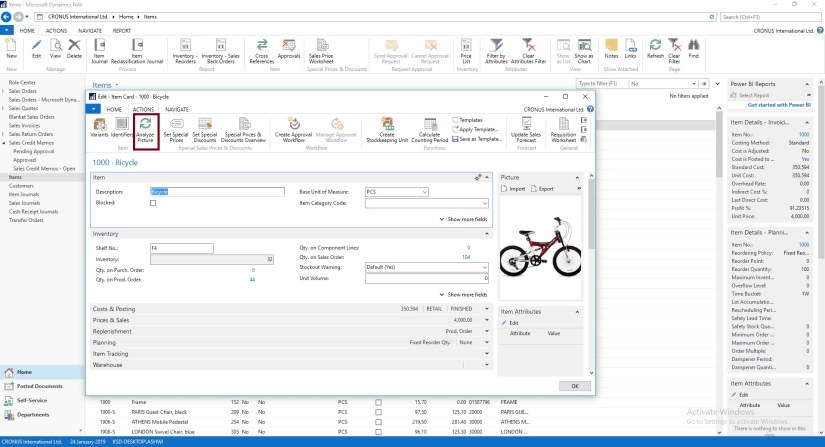
After you enable the extension, Image Analyzer runs each time you import an image to an item or contact person. You will see the attributes, confidence level, and details right away, and can decide what to do with each attribute. If you imported images before you enabled the Image Analyzer extension, you must go to the item or contact cards and choose the Analyze Picture action.

Requirements

There are a few requirements for the images:

  • Image formats: JPEG, PNG, GIF, BMP
  • Maximum file size: Less than 4 MB
  • Image dimensions: Greater than 50 x 50 pixels

How to enable Image Analyzer

To enable the Image Analyzer extension, do one of the following:

Method-1 : Open an item or contact card. In the notification bar, choose Analyze Images, and then follow the steps in the assisted setup guide.
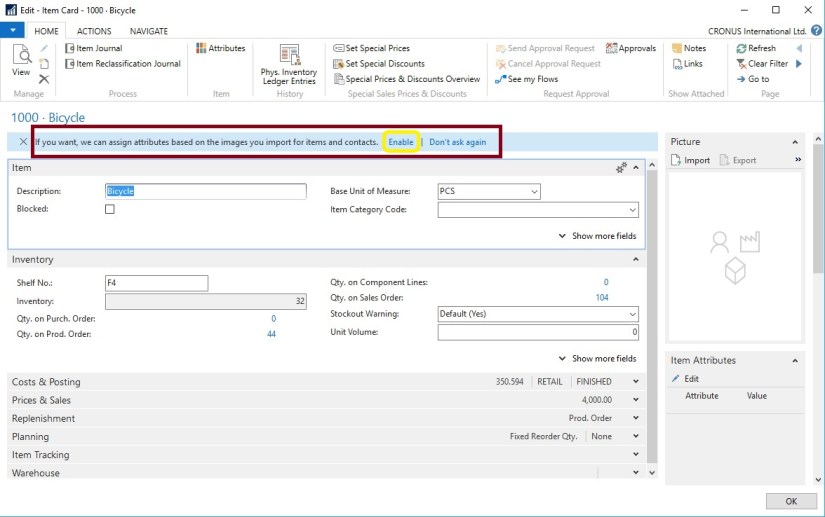
 

IA-1

This will launch Image Analyser assisted setup guide, follow the step.


IA-2

IA-3

IA-4

Once you are done It will import your image for Analysing.
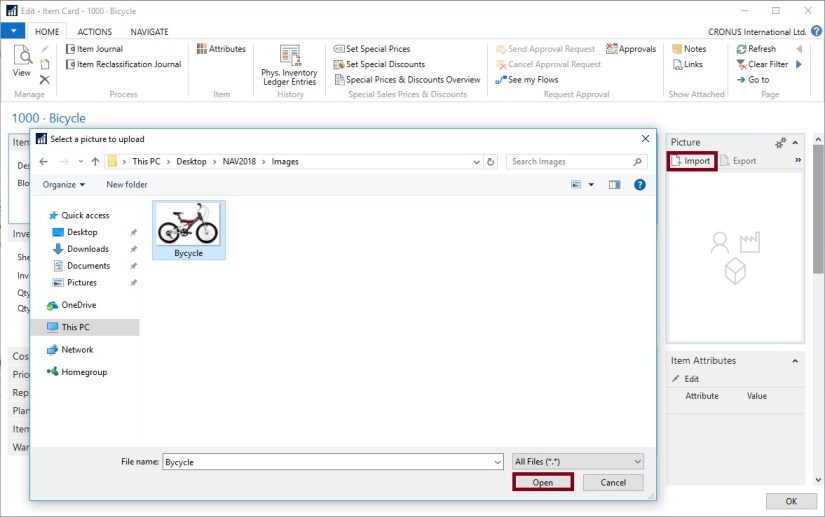
IA-5


Method-2 : Access the Service Connections, and then choose Image Analysis Setup.

IA-5.1

Choose the Enable Image Analyzer check box, and then complete the steps in the assisted setup guide.
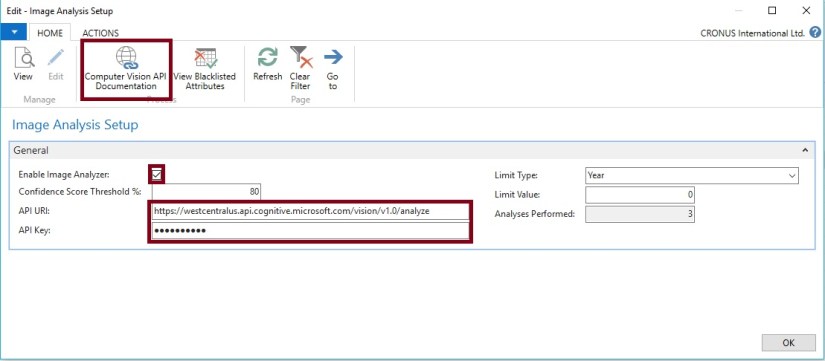
IA-5.2

For URL and Key follow these steps:

Click on Computer Vision API Documentation

IA-6

Click on Try Computer Vision API

IA-7

Select your API Computer Vision API and then Get API Key

IA-8

Agree to T & C select your Country/Region and then Next
IA-9

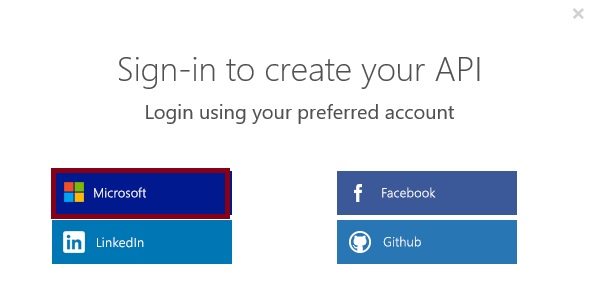
Sign-In with the preferred account sign-in method

IA-10

Once done you will land on page which will have your Endpoint URL and Key

You must add /analyze at the end of the API URI, if it isn’t already there.

IA-11

Enter your Endpoint URL and Key and close the window.
IA-12

Now you import your Image, or select Analyze Picture if already imported

IA-13

This will analyze the Image and provide you with the Attributes.

The Image Analyzer Attributes page displays the detected attributes, the confidence level, and other details about the attribute. Use the Action to perform options to specify what to do with the attribute.


This is how you enable and configure your Image Analyzer Service.


To see how many analyses you have left in the current period

You can view the number of analyses you’ve done, and how many you can still do, in the current period.

Enter Image Analyzer Setup, and then choose the related link.

The Limit type, Limit value, and Analyzes performed provide the usage information.


To stop using the Image Analyzer extension

Enter Service Connections, and then choose Image Analyzer Setup.

Clear the Enable Image Analyzer check box.


I will come with more details as I proceed.


Dynamics 365, How To, Information, Modern Development Tool, NAV 2018, Tip & Tricks, Updates, What's New

NAV Development Preview – Modern Development Tools for Dynamics NAV

Dear friends, after writing blog on Modern Development Tools for Dynamics NAV few of my readers requested to compile all information related to this in single blog.

Here are the links related to these posts, not all are my but are useful and will help keep you updated on same.

Extensions 2.0

Configuring Visual Studio Code

Below are the helpful other links from Microsoft Dynamics NAV Team

How do I learn more?

Check out these docs:

Tools overview

Getting Started guide

Object overview and AL language changes

Modern Development Tools Updates

released from launch till Dec 2017

Modern Development Tools for Dynamics NAV

NAV Development Tools Preview – January Update

NAV Development Tools Preview – February Update

NAV Development Tools Preview – March Update

NAV Development Tools Preview – April Update

NAV Development Tools Preview – June Update

NAV Development Tools Preview – July Update

NAV Development Tools Preview – August Update

NAV Development Tools Preview – September Update

NAV Development Tools Preview – October Update

NAV Development Tools Preview – November Update

NAV Development Tools Preview – December Update

Hope you find this information useful in understanding and learning the new Modern Development Tool for Dynamics NAV 2018.