Development Tips, How To, Information, Power Bi Content Pack, PowerBI.com, Tip & Tricks

Microsoft Power BI – My Organization Content Pack Library

Continuing from my previous post. Today we will discuss about Content Pack Library (My Organization) in Power BI.

In case you have missed my previous posts here I present the link to all previous posts below:

Microsoft Power BI – Part – I

Introduction to Power BI and Creating Report from Excel Data, Local Files.

Microsoft Power BI – Part – II

Introduction to few Features of Power BI

Microsoft Power BI – Part – III

Power BI Desktop, Creating Dataset & Reports from In Premise Database installation

Microsoft Power BI – Part – IV

Power BI Gateway usage

Microsoft Power BI – Part – V

Scheduling Refresh of Dataset & Report created using In Premise Database

Microsoft Power BI – Part – VI

Power BI Content Pack

Microsoft Power BI – Part – VII

Power BI Mobile App

Microsoft Power BI – Part – VIII

Power BI Content Pack

Microsoft Power BI – Part – IX

Power BI Publisher for Excel

Microsoft Power BI – Part – X

Analyse in Excel (preview)

PowerBI-47

Login to Power BI using your credentials.

OrgPowerContent-1

Select Get Data.

OrgPowerContent-2

From Content Pack Library section select Get Data under My Organization.

OrgPowerContent-3

Select Create content pack.

OrgPowerContent-4

This is the part where majority of work to be performed.

In First Section – Choose who will have access to this content pack

You have 2 option

  1. You can share with specific users or Groups, since your AD is in sync with your in premise AD you can select them.
  2. You can share with your entire Organization.

Select the Group or Users if you go with first option.

In Second Section – Provide Title for you Content Pack

In Third Section – Provide detailed Description for your content pack.

OrgPowerContent-5

In Fourth Section – You can select Image for your content pack.

Finally in Fifth Section you will define what all content you want to share for the user using this content pack.

Here all available contents are divided under 3 sections (Dashboards, Reports & Datasets).

When you select Dashboard all included Reports and Dataset will be shared by default.

When you select Reports all included Datasets will be shared by default.

When you select Dataset only that will be shared.

You can select combination as you desire.

I will provide write up why we will select selective contents to share with case study, in my future post some time other.

Once you are done with all above step you are good to Publish the Content Pack.

OrgPowerContent-6

If we revisit the Get Data option again for My Organization, we can view our Published Content Pack which we shared with others.

User can customize as per his need and Share with others in form of New Content Pack or as-it-is depends.

Good Example will be we have one Content Pack for My Organization which include all modules Dashboard, Reports and Datasets.

My IT will create Module wise Content Pack (Finance, Sales, Purchase, Warehouse, Manufacturing etc…) and share these content packs with concern department Heads. Further each Heads will create sub-content pack and share with their team with information which is related to them and so on.


That’s all for today, will come up with more information in my future posts.

Till then keep exploring and learning.


Data, Development Tips, How To, Information, Tip & Tricks, Web Services, XMLports

Exposing & Consuming the Web service from & inside Navision – Part-2

Continuing from my previous post. Find the link to access the same in case you missed it.

Exposing & Consuming the Web service from & inside Navision – Part-1


Step 1: Create a XML Port to Export Data in XML Format using XMLPort and save at some specified Location.

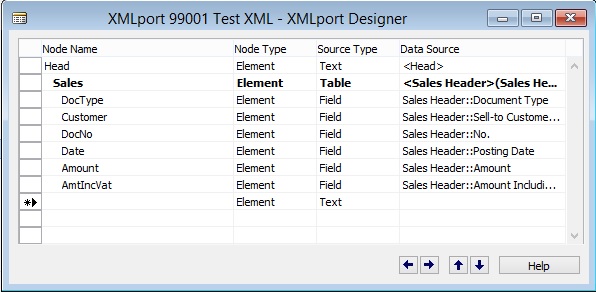
Here we will be creating just for demo purpose simple XMLPort for Exporting Data from Navision Database in XML Format.

WebServiceUsage-2

We are using very simple structure for our XMLPort.

Make sure you set the properties accordingly as we are exporting the data in XML Format.

WebServiceUsage-3

Save the XMLPort at available id and suitable name.


Step 2: Create a Codeunit to call XML Port and retrieve data in XML Format in Text Variable.

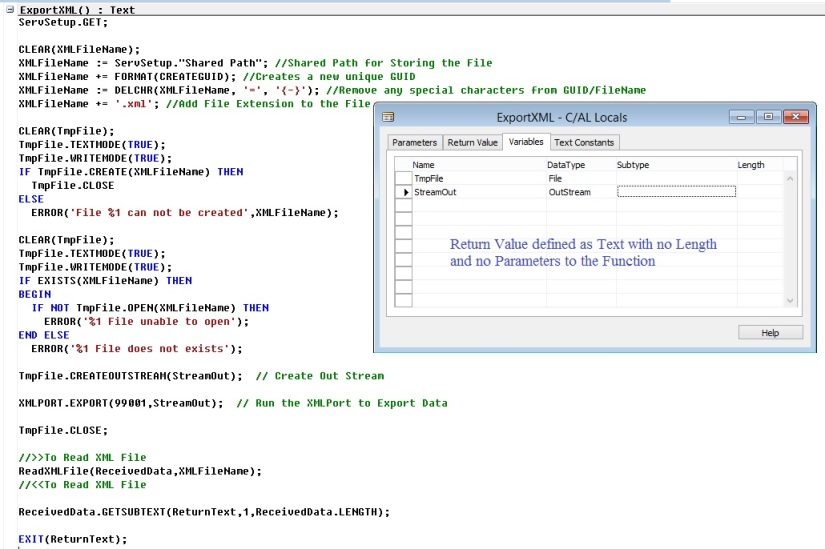
Here we will create a Codeunit with few helpful functions which will call the XMLPort to Export the data and save in temp file.

Further retrieve the data from the file in XML Format.

Return the data retrieved above to the calling program/ function.

To start with let us start with creating some Global Variables.

WebServiceUsage-4

Next we will add one Function as below.

WebServiceUsage-5

Next we will add one more Function as below.

WebServiceUsage-6

Save the Codeunit at available Id and suitable Name.


Step 3: Expose/Publish the Codeunit as web service.

Open Web Services Page and add your Codeunit created above. Use your relevant ID on which you saved your Codeunit.

WebServiceUsage-7


Tick the Published to Expose the Codeunit as Web Service.

Rest in my Next post.

To Be Continued……

Data, Development Tips, How To, Information, Tip & Tricks, Web Services, XMLports

Exposing & Consuming the Web service from & inside Navision – Part-1

Introduction

Today in reply to one of my reader I am giving here steps how we can Export data using XMLPort and transfer data outside Navision using Web Services.

Lets discuss about the technology before I jump to the solution.

Few full forms which may help understanding while reading this post.

W3C – Web Services Architecture Working Group.

SOAP – Simple Object Access Protocol.

REST – Representational State Transfer.

WSDL – Web Service Description Language.

UDDI – Universal Description, Discovery & Integration.

AWS – Arbitrary Web Services.

XML – Extensible Markup Language.

HTTP – Hypertext Transfer Protocol.


What is Web Service?

W3C defines Web Service as : A software system designed to support interoperable Machine-to-Machine interaction over a network.

Web service can be defined as service offered by an electronic devices to another electronic devices, which communicate with each other over www.

W3C defines web services has an interface described in a machine-process able format WSDL.

Other systems I with the web service in a manner prescribed by its description using SOAP messages, typically conveyed using HTTP with an XML serialization in conjunction with other web-related standards.

Later W3C extended the definition:-

REST – compliant web services, in which the primary purpose of the service is to manipulate representations of web resources using a uniform set of stateless operations.

Arbitrary Web Services –  the services may expose an arbitrary set of operations.

WebServiceUsage-1-2

UDDI  defines which software system need to be contacted for which type of data.

Once the system is discovered to be contacted, the contact is established using SOAP.

Service provider system validate the request by referring the WSDL file, process the request and send the data using SOAP protocol.


Web Service is a method of communication that allows two software system to exchange the data over the internet.

  • Two systems may use different software which could be using different programming languages.
  • Almost all type of software interpret XML tags.
  • Web Services can be used to exchange data between two systems in form XML files.

WebServiceUsage-1-3

XML is used to tag the data.

SOAP is used to transfer the data.

WSDL is used to describe the services available.

UDDI lists what service are available.

Human to machine communication is utilized for machine-to-machine communication, used for transferring machine readable files such as XML & JSON formats.

Web services use SOAP over HTTP protocol, facilitating to use your existing low-cost internet for implementing Web Service.

Rules for communication between two different systems:

All the rules are defined in WSDL file.

  • How request to be send from one system to another.
  • What all parameters need to be send while requesting data.
  • What structure to be used for generating data (Normally data is exchanged in XML format) which is validated against .xsd file.
  • What errors to be generated in case of failure of rule communication set.


Web Services that uses Markup Language:

  • JSON-RPC
  • JSON-WSP
  • Web template
  • Web Service Description Language (WSDL)
  • XML Interface for Network Services (XINS)
  • Web Services Conversation Language (WSCL)
  • Web Services Flow Language (WSFL)
  • WS-Meta data Exchange
  • Representational State Transfer (REST)
  • Remote Procedure Call (RPC)
  • XML Remote Procedure Call (XML-RPC)


No more theories lets come to our point.

There are other ways too to achieve the same, but here I am specific to the requirement to which I am answering.

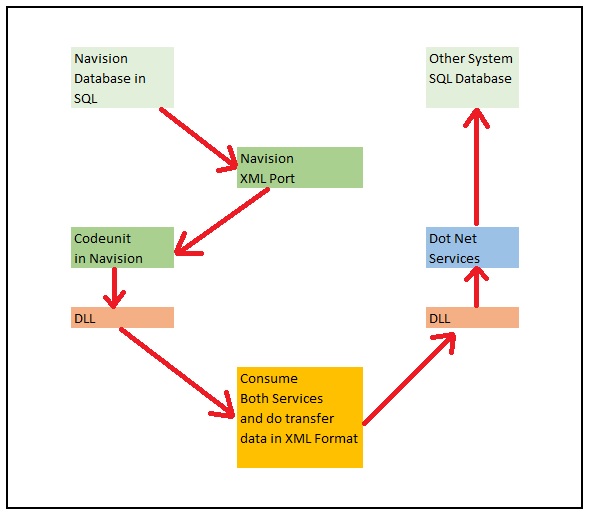
Requirement is the Data in XML format file will be transmitted using Web Service, We will be using Navision Exposed Web Service to Export data using XMLPort and then send the content by consuming another Web Service exposed in Dot Net which will retrieve the XML content and update in some other system.

Assumption is these two endpoints can be two separate databases in same domain or two different companies of same organization operating at two different location sharing information via Web Services.

For the demo purpose I will be using Navision to publish the service for exporting the data and retrieve the data using Web Service exposed in Dot Net.

Since I have not in depth knowledge of Dot Net codes, so I have asked my college to prepare the Web Service for me and I am simply using it to show how we can do it.

Here I will be getting this done through below 5 Steps.

WebServiceUsage-1

Next Post in this Series will contain:

Step 1: Create a XML Port to Export Data in XML Format using XMLPort and save at some specified Location.

Step 2: Create a Codeunit to call XML Port and retrieve data in XML Format in Text Variable.

Step 3: Expose/Publish the Codeunit as web service.


Next Post in this Series will contain:

Step 4: Create a DLL to use as Add-in to consume the Web Service itself in Navision.


And the Final Post in this Series will contain:

Step 5: Create a Codeunit to test Retrieve the data using above DLL and Send data in XML Format using another Web Service exposed in Dot Net.


Please follow my upcoming post for Walkthrough to get above 5 steps done.

To Be Continued……….


Corfu Navision 2016, Development Tips, How To, Information, Tip & Tricks

How Do I Implement the Activity Log Pattern in Microsoft Dynamic NAV

Watch this video to know about how to implement activity log pattern in Microsoft Dynamics NAV.

Development Tips, How To, Information, Instalation & Configuration

CRM Integration Requirement | By – Dynamics NAV Team

If you use our integration with Dynamics CRM, you might have noticed a Microsoft.Xrm.Sdk.dll that is installed on the server and on the client computers. This is part of the integration, both when you use the integrated connection and the Connector.

Find more on below post :-

https://blogs.msdn.microsoft.com/nav/2016/04/19/crm-integration-requires-updated-sdk/

Corfu Navision 2016, Development Tips, Extension Package, How To, Information, Tip & Tricks

How do I: Develop an Extension

You can build extension packages that add functionality to a Microsoft Dynamics NAV deployment.

For Overview, please see my earlier posts Introducing Extensions in Microsoft Dynamics NAV 2016

Like any common functionality you want to roll out to different locations of a same company maintaining Object Set Globally for their Navision deployment.

You can perform conventional Export object and send to different locations, where they import these objects in their databases. Another option is through Extensions. Specially very helpful in Tenant model deployment.

But do the limitations apply as we discussed in my earlier post:

[A] Which Object types you can Include & Restrictions applicable to C/AL code in Extension Packages

[B] Which Properties are Restricted in Extension Packages

Unlike the familiar development and deployment of Microsoft Dynamics NAV functionality, building an extension relies on the exported version of an application to .TXT files.

You can export the application from the development environment, use the development environment commands, or use the Windows PowerShell cmdlet that is available in the Microsoft Dynamics NAV 2016 Development Shell,

Export-NAVApplicationObject.

MS recommend that you create a folder structure that can be leveraged by the cmdlets that you use when you build the extension package. That structure should contain folders for the ORIGINAL object files, MODIFIED object files, and DELTA files. These names match those used as parameters in the application merge utilities.

Recall from my earlier post where we deled with Upgrading the Application Code in Microsoft Dynamics NAV 2016

We used folder structure for placing the objects before we performed action:

“In my example, the UpgradeDemo folder on the C drive contains five folders: ORIGINAL, MODIFIED, TARGET, DELTA, and RESULT. The DELTA and RESULT folders are empty. The ORIGINAL, MODIFIED, and TARGET folders contains one or more text files that contain application objects.”

Similar structure we will be using for creating package. You can follow same for easy reference or you can use your convenient naming convention and structure.

I will come back on this in my future post, what exactly structure I will be using for my walkthrough on Extension.

You can refer to cmdlets we discussed earlier for upgrade and extensions which will be used in rest of the parts of this and upcoming posts while dealing with Extensions.

[A] Helpful PowerShell Commands which you can use for Upgrade Process in Navision 2016

[B] Few Helpful PowerShell Commands which you can use for Upgrade Process in Navision 2016 – Part 2

[C] Useful Windows PowerShell cmdlets for managing Extensions in Dynamics Navision 2016


5 Steps To create an extension

  1. Establish the BASE as TXT files.
  • The foundation for your extension is the exported .txt files of the objects you are modifying.
  • You can export just the objects that you want to modify, or you can export the entire Microsoft Dynamics NAV application.
  • In the Microsoft Dynamics NAV 2016 Development Shell, the Export-NAVApplicationObject cmdlet can automate this process or you can use the export functionality in the development environment.
  • The following example uses this cmdlet to export objects to establish the base for the planned modifications.

Export-NAVApplicationObject -Path ORIGINAL -DatabaseName MyDatabase -DatabaseServer MyDatabaseServer

  • Objects must be exported as .TXT files. You cannot build an extension based on a .FOB file.
  • If you use a source control system, you may want to pull the base .TXT files from there.
  1. Create functionality in the development environment.
  • Use the development environment as usual to create new objects or modify ones to the extent your license allows you.
  • Also don’t forget to reference limitations with Extensions Property and Objects which you can include in Extensions, see above provided link for more details.
  • Keep in mind the following rules as discussed earlier:
  • DO NOT make C/AL code modifications
  • DO use subscribing to events to execute code.
  • DO NOT create new or modified XMLPorts, Queries, or Report.
  • DO NOT change restricted page and table properties.
  • In order to get an easy upgrade experience for your extensions, you cannot modify code the way you do in the traditional customization process.
  • Instead, you extend Microsoft Dynamics NAV functionality by subscribing to programming events that are raised either explicitly in code, or implicitly by the platform.
  • Test your application with the extension added.
  1. Export your changed and added application objects to .TXT files.
  • Export all objects that you added or modified to .TXT files.
  • Use the same export cmdlet from step 1 or manually export within the development environment.
  • They must also be exported as .TXT files and should be placed in a separate directory so that the packaging process can be pointed at them.

Export-NAVApplicationObject -Path MODIFIED -DatabaseName MyDatabase -DatabaseServer MyDatabaseServer

  1. Create DELTA files using the Microsoft Dynamics NAV 2016 Development Shell cmdlets.
  • Extension packages are based on application object deltas. Again, you use the application merge utilities in the Microsoft Dynamics NAV 2016 Development Shell to distil the changes in the form of application object differences that are stored in DELTA files.
  • Creating an extension uses many of the same concepts and tools as you know from application object deltas. You use the Compare-NAVApplicationObject cmdlet to create these delta files.

Compare-NAVApplicationObject -OriginalPath ORIGINAL -ModifiedPath MODIFIED -DeltaPath DELTA

Your delta files must be one-to-one with the objects you have added or modified. You cannot include a single merged delta file. If you output your export file as a single file use the Split-NAVAppplicationObjectFile cmdlet to create the individual files.

  1. Build the extension package.


I will come up with more details in my upcoming posts on this topic.

Corfu Navision 2016, Development Tips, Extension Package, How To, Information, Tip & Tricks

Useful Windows PowerShell cmdlets for managing Extensions in Dynamics Navision 2016

Today I will list few cmdlets which will help you getting your task done while working with Extensions.

For Overview of Extensions, please see my earlier posts

Introducing Extensions in Microsoft Dynamics NAV 2016

Which Object types you can Include & Restrictions applicable to C/AL code in Extension Packages

Which Properties are Restricted in Extension Packages

Just a quick reference you can study in details using links of MSDN below every cmdlet.

Get-Help

To get Help about syntax and options for a specific cmdlet, type the following cmdlet.

Syntax: Get-Help <cmd name>


Export-NAVApplicationObject

The Microsoft.Dynamics.Nav.Model.Tools.psd1 module includes a function, Export-NAVApplicationObject, which runs the ExportObjects command. This means that you can run a command such as the following:

Export-NAVApplicationObject

–DatabaseServer MyServer

–DatabaseName “Demo Database NAV (7-1)”

–Path C:\UserData\MyPackage\ORIGINAL\MyObjects.txt


Export-NAVApplicationObjectLanguage

Exports captions from the specified text files with Microsoft Dynamics NAV application objects. The captions are exported to text files.


Syntax:

Export-NAVApplicationObjectLanguage

[-Source] <String[]>

[-Destination] <String>

[[-LanguageId] <String[]> ]

[-DevelopmentLanguageId <String> ]

[-Encoding <FileEncoding> ] [-Force] [-PassThru] [-Confirm] [-WhatIf] [ <CommonParameters>]

The resulting text files are similar to the multilanguage files that you can export in the Microsoft Dynamics NAV Development Environment. If your source files contain more than one language, you can choose to export one language, multiple languages, or all languages


Example:

PS C:\> Export-NAVApplicationObjectLanguage

–Source .\ORIGINAL\ -LanguageId “DEU”,”FRA”

-Destination .\RESULT\languages.txt

Click here for more details on MSDN

Export-NAVAppPermissionSet

Exports the specified permission set from a Microsoft Dynamics NAV database to a file.


Syntax:

Export-NAVAppPermissionSet

[-ServerInstance] <String>

-Path <String> -PermissionSetId <String[]>

[-Force] [-PassThru] [ <CommonParameters>]


Example:

PS C:\> Export-NAVAppPermissionSet

-ServerInstance DynamicsNAV90 -Path ‘.\PermissionSet.xml’

-PermissionSetId SUPER


This example exports the permission set with the ID “SUPER” in the database that is used by the DynamicsNAV90 server instance to the PermissionSet.xml file.

Click here for more details on MSDN


Split-NAVApplicationObjectFile

Splits a text file that contains two or more application objects into separate text files for each application object.

Syntax:

Split-NAVApplicationObjectFile

[-Source] <String>

[[-Destination] <String> ]

[-Force] [-PassThru] [-PreserveFormatting] [-Confirm] [-WhatIf] [ <CommonParameters>]


The Split-NAVApplicationObjectFile cmdlet can copy each application object to a new file, or it can recreate the object in the new file.

The default setting is to recreate the object, but you can change this by setting the PreserveFormatting parameter.

Example:

PS C:\> Split-NAVApplicationObjectFile -Source C:\UserData\MyPackage\ORIGINAL\All.txt -Destination C:\UserData\MyPackage\ORIGINAL\TXT\ -PreserveFormatting


Click here for more details on MSDN


Compare-NAVApplicationObject

Compares text files with Microsoft Dynamics NAV application objects and then calculates the delta between the two versions. The result of the comparison is a number of text files with the calculated delta.

The Compare-NAVApplicationObject cmdlet compares the text files in the two specified folders and creates .delta files that describe the difference between the two versions

The cmdlet creates a text file for each application object that is different between the two versions.

Syntax:

Compare-NAVApplicationObject

[-OriginalPath] <String[]>

[-ModifiedPath] <String[]>

[-DeltaPath] <String>

[-Confirm] [-Force] [-Legacy] [-NoCodeCompression] [-PassThru] [-Confirm] [-WhatIf] [ <CommonParameters>]


Example:

PS C:\> Compare-NAVApplicationObject

–OriginalPath C:\UserData\MyPackage\ORIGINAL\*.txt

-ModifiedPath C:\ UserData\MyPackage \MODIFIED\*.txt

-DeltaPath C:\ UserData\MyPackage \DELTA


Below example compares the text files in the MODIFIED folder to the baseline in the ORIGINAL folder. The result of the comparison is put into the DELTA folder and also piped to the Update-NAVApplicationObject cmdlet, which applies the updates.

PS C:\> Compare-NAVApplicationObject

-OriginalPath .\ORIGINAL\*.txt

-ModifiedPath .\MODIFIED\*.txt

-DeltaPath .\DELTA -Force

-PassThru |   Update-NAVApplicationObject

-TargetPath .\TARGET\*.txt

-ResultPath .\RESULT –Force

Click here for more details on MSDN


Merge-NAVApplicationObject

Compares the changes that have been made to application objects between two versions of Microsoft Dynamics NAV, and applies the difference to a third set of application objects.


Syntax:

Merge-NAVApplicationObject

[-OriginalPath] <String[]>

[-ModifiedPath] <String[]>

[-TargetPath] <String[]>

[-ResultPath] <String>

[-DateTimeProperty <DateTimePropertyAction> ] [-DisableCommentOut] [-DocumentationConflict <DocumentationConflictAction> ] [-Force] [-Legacy] [-ModifiedProperty <ModifiedPropertyAction> ] [-PassThru] [-Strict] [-VersionListProperty <VersionListPropertyAction> ] [-Confirm] [-WhatIf] [ <CommonParameters>]


You specify an original version and compare that to a latest version.

The difference is then applied to the target version.

The result of the merge is a number of text files with the merged application objects.

Any conflicts that the cmdlet cannot merge are identified in conflict files.

Example:

PS C:\> Merge-NAVApplicationObject

-OriginalPath C:\UserData\MyPackage \ ORIGINAL\*.TXT

-TargetPath C:\ UserData\MyPackage \TARGET \*.TXT

-ModifiedPath C:\ UserData\MyPackage \MODIFIED \*.TXT

-ResultPath C:\ UserData\MyPackage \RESULT\


Click here for more details on MSDN


Import-NAVApplicationObjectLanguage

Imports strings in the specified language into text files that contain Microsoft Dynamics NAV application objects.


Syntax:

Import-NAVApplicationObjectLanguage

[-Source] <String[]>

[-LanguagePath] <String[]>

[-Destination] <String>

[[-LanguageId] <String[]> ]

[-Encoding <FileEncoding> ] [-Force] [-PassThru] [-Confirm] [-WhatIf] [ <CommonParameters>]

Example:

PS C:\> Import-NAVApplicationObjectLanguage

–Source .\TAB18.TXT

-LanguageId “CHS”

-LanguagePath .\ALL-CHS.TXT

-Destination .\RESULT\

This command will import the CHS language into the Microsoft Dynamics NAV application object that is specified in the –Source parameter, TAB18.txt. The strings are imported from the text files in the ALL-CHS.txt file, and the result of the command is a text file in the RESULT folder, TAB18.txt, that includes captions in Chinese.

Click here for more details on MSDN


Get-NAVAppInfo

Gets information about a Microsoft Dynamics NAV extension based on the specified package file or the specified Microsoft Dynamics NAV Server instance.


Syntax:

  • Get-NAVAppInfo -Path <String> [ <CommonParameters>]

  • Get-NAVAppInfo [-ServerInstance] <String> [-CompatibilityId <Version> ] [-Id <Guid> ] [-Name <String> ] [-Publisher <String> ] [-Version <Version> ] [ <CommonParameters>]

  • Get-NAVAppInfo [-ServerInstance] <String> -Tenant <String> [ <CommonParameters>]


Example:

To see Microsoft Dynamics NAV extensions that are published to the DynamicsNAV90 server instance use below command.

PS C:\>Get-NAVAppInfo -ServerInstance DynamicsNAV90

Or

This command will return information about all Microsoft Dynamics NAV extensions that are published to the DynamicsNAV90 server instance by Ashwini.

PS C:\>Get-NAVAppInfo -ServerInstance DynamicsNAV90 -Publisher ‘Ashwini’


You will see output similar to shown below

Id Name Version Publisher
9a47a833-e22f-4812-ade314219c53 EDD1.01 1.0.0.00 Ashwini
3c88160c-e0eb-4fe1-b4f6-011e45d74b10 EDD1.02 1.0.0.01 Ashwini


Below command returns information about the extension with the specified name and version on the DynamicsNAV90 server instance.

PS C:\>Get-NAVAppInfo -ServerInstance DynamicsNAV90 -Name ‘EDD1.01’ -Version 1.0.0.00

Or

This command will return information about all Microsoft Dynamics NAV extensions that are installed for the tenant with the ID Tenant1 on the DynamicsNAV90 server instance.

PS C:\>Get-NAVAppInfo -ServerInstance DynamicsNAV90 -Tenant ‘Tenant1’

Or

This command will return information about all Microsoft Dynamics NAV extensions that are installed on a non-multitenant Microsoft Dynamics NAV Server instance.

PS C:\>Get-NAVAppInfo -ServerInstance DynamicsNAV90 -Tenant default

You will see output similar to shown below

Id 3c88160c-e0eb-4fe1-b4f6-011e45d74b10
Name EDD1.02
Version 1.0.0.01
Publisher Ashwini
Description Second Extension by Ashwini
Compatibility Id 1.0.0.00
Capabilities
Prerequisites
Dependencies


Click here for more details on MSDN

Get-NAVApplicationObjectProperty

Gets Microsoft Dynamics NAV application object properties from the specified application object text files.


Syntax:

Get-NAVApplicationObjectProperty [-Source] <String[]> [ <CommonParameters>]


Example:

PS C:\> Get-NAVApplicationObjectProperty -Source .\SOURCE\COD1.txt

Click here for more details on MSDN


Set-NAVApplicationObjectProperty

Sets Microsoft Dynamics NAV application object properties in the specified application object text files.

Syntax:

Set-NAVApplicationObjectProperty

[-TargetPath] <String[]>

[-DateTimeProperty <String> ]

[-ModifiedProperty <SetModifiedPropertyAction> ]

[-VersionListProperty <String> ]

[-PassThru] [-Confirm] [-WhatIf] [ <CommonParameters>]


You can use the Get-NAVApplicationObjectProperty cmdlet to extract information about the application objects before you change them.

Example:

PS C:\> Set-NAVApplicationObjectProperty -TargetPath C:\UserData\MyPackage\RESULT\FinalObjects.txt -VersionListProperty ” EDD1.02″ – ModifiedProperty No -DateTimeProperty (Get-Date -Format g)

Click here for more details on MSDN


Update-NAVApplicationObject

Applies a set of deltas to the specified application objects. The files that describe the delta are generated by the Compare-NAVApplicationObject cmdlet.

Optionally, you can use the Set-NAVApplicationObjectProperty cmdlet to change the version or other properties. Then, you use Update-NAVApplicationObject cmdlet to apply the delta to target files.

Syntax:

Update-NAVApplicationObject

[-TargetPath] <String[]>

[-DeltaPath] <String[]>

[-ResultPath] <String>

[-DateTimeProperty <DateTimePropertyAction> ]

[-DisableCommentOut]

[-DocumentationConflict <DocumentationConflictAction> ]

[-ModifiedProperty <ModifiedPropertyAction> ]

[-VersionListProperty <VersionListPropertyAction> ]

[-Force] [-Legacy] [-PassThru] [-Strict] [-Confirm] [-WhatIf] [ <CommonParameters>]


Example:

PS C:\> Update-NAVApplicationObject -TargetPath C:\UserData\MyPackage \TARGET\*.txt -DeltaPath C:\UserData\MyPackage \DELTA\*.txt –ResultPath C:\UserData\MyPackage \RESULT\


Click here for more details on MSDN


Get-NAVAppManifest

Loads a manifest for a Microsoft Dynamics NAV extension from an external source , such as an .xml file.


Syntax:

Get-NAVAppManifest [-Path] <String> [ <CommonParameters>]


Example:

PS C:\> Get-NAVAppManifest -Path ‘.\Manifest-EDD1_02.xml’

You will see output similar to shown below

AppId 3c88160c-e0eb-4fe1-b4f6-011e45d74b10
AppName EDD1.02
AppPublisher Ashwini
AppDescription Second Extension by Ashwini
AppVersion 1.0.0.01
AppCompatibilityId 1.0.0.00
Capabilities {}
Prerequisites {}
Dependencies {}


Below command gets a manifest from an XML manifest file and then passes the manifest to the New-NAVAppPackage cmdlet to create a new extension package.

PS C:\> Get-NAVAppManifest

-Path ‘.\Manifest-Proseware SmartStuff.xml’ | New-NAVAppPackage

-Path ‘ C:\UserData\MyPackage\Manifest\EDD1.02.navx’

-SourcePath ‘C:\UserData\MyPackage \NavExtensionFiles’

Click here for more details on MSDN


Set-NAVAppManifest

Sets one or more available properties on an in-memory manifest for a Microsoft Dynamics NAV extension.

You can then write the updated manifest object to disk by using the New-NAVAppManifestFile cmdlet. The manifest is required when you create the extension package file (.navx) using the New-NAVAppPackage cmdlet.

Syntax:

Set-NAVAppManifest

[-Manifest] <NavAppManifest>

[-CompatibilityId <Version> ]

[-Dependencies <String[]> ]

[-Description <String> ]

[-Id <Guid> ]

[-Name <String> ]

[-Prerequisites <String[]> ]

[-Publisher <String> ]

[-Version <Version> ]

[ <CommonParameters>]


PS C:\> Get-NAVAppManifest -Path ‘ C:\UserData\MyPackage\MANIFEST\Manifest-EDD1_02.xml’ | Set-NavAppManifest -Version 1.0.0.01 -CompatibilityId 1.0.0.00 | New-NavAppManifestFile -Path ” C:\UserData\MyPackage\MANIFEST\Manifest-EDD1_02.xml” -Force

Gets a manifest from file, sets the version property and then saves the updated manifest back to file. By setting the Force parameter, the existing file is overwritten.

Click here for more details on MSDN


New-NAVAppManifest

Creates a new in-memory manifest object with the specified metadata for a Microsoft Dynamics NAV extension.

Syntax:

New-NAVAppManifest

[-Name] <String>

[-Publisher] <String>

[[-Id] <Guid> ]

[[-Description] <String> ]

[[-Version] <Version> ]

[[-CompatibilityId] <Version> ]

[-Dependencies <String[]> ]

[-Prerequisites <String[]> ]

[ <CommonParameters>]


The manifest is required when creating the Extension package file (.navx) using the New-NAVAppPackage cmdlet.

The manifest property values can be changed using the Set-NAVAppManifest cmdlet.


PS C:\>New-NavAppManifest

-Name ” EDD1.02″

-Publisher ” Ashwini ”

-Description ” Second Extension by Ashwini ”

-Version “1.0.0.01”

-CompatibilityId “1.0.0.00”

-Id 3c88160c-e0eb-4fe1-b4f6-011e45d74b10

-Dependencies C:\UserData\MyPackage\APPLICATION\EDD1.01.navx

-Prerequisites Table=18, CodeUnit=80


AppId 3c88160c-e0eb-4fe1-b4f6-011e45d74b10
AppName EDD1.02
AppPublisher Ashwini
AppDescription Second Extension by Ashwini
AppVersion 1.0.0.01
AppCompatibilityId 1.0.0.00
Capabilities {}
Prerequisites {Table=18, CodeUnit=80}
Dependencies {EDD1.01, Ashwini, 1.0.0.00}


Click here for more details on MSDN

New-NAVAppManifestFile

Creates a file with metadata for a Microsoft Dynamics NAV extension package.

Syntax:

New-NAVAppManifestFile

[-Path] <String>

[-Manifest] <NavAppManifest>

[-Force] [-PassThru] [-Confirm] [-WhatIf] [ <CommonParameters>]


Below command will create information in-memory manifest and then writes it to disk.

Because the example sets the Force parameter, the file will be overwritten if it already exists.

 PS C:\> New-NavAppManifest  -Name “EDD1.02”  -Publisher “Ashwini”  -Description ” Second Extension by Ashwini” | New-NavAppManifestFile -Path ” C:\UserData\MyPackage\ MANIFEST \Manifest-EDD1_02.xml” -Force

Click here for more details on MSDN


New-NAVAppPackage

Creates a Microsoft Dynamics NAV extension package file (.navx) at the specified location based on the specified manifest file and source files.

Syntax:

New-NAVAppPackage

[-Path] <String>

[-Manifest] <NavAppManifest>

[-SourcePath] <String[]>

[-Force] [-PassThru] [-Confirm] [-WhatIf] [ <CommonParameters>]


You can then use the package file to deploy the extension to a Microsoft Dynamics NAV Server instance.


Example:

PS C:\> New-NavAppManifest -Name ‘ EDD1.02’ -Publisher ‘Ashwini’ -Version 1.0.0.01 | New-NAVAppPackage -Path ‘ C:\UserData\MyPackage\APPLICATION\EDD1.02.navx’ -SourcePath ‘ C:\UserData\MyPackage\MyExtensionFiles’

Click here for more details on MSDN


Publish-NAVApp

Publishes a Microsoft Dynamics NAV extension to the app catalog of the specified Microsoft Dynamics NAV Server instance.

When the extension has been published, you can install it for individual tenants.


Syntax:

Publish-NAVApp

[-ServerInstance] <String>

[-Path] <String>

[[-PassThru]] [[-LogPath] <String> ] [-Confirm] [-WhatIf] [ <CommonParameters>]


Example:

PS C:\> Publish-NAVApp -ServerInstance DynamicsNAV90 -Path ‘ C:\UserData\MyPackage \NAVAPP\EDD1_02.navx’

Publishes the Microsoft Dynamics NAV extension from the EDD1_02.navx package to the DynamicsNAV90 server instance.

Click here for more details on MSDN


Unpublish-NAVApp

Unpublishes a Microsoft Dynamics NAV extension from the app catalog of the specified Microsoft Dynamics NAV Server instance.

The extension cannot be unpublished if it is currently installed for a tenant of the specified Microsoft Dynamics NAV Server instance.


Syntax:

Unpublish-NAVApp

[-ServerInstance] <String>

[-Path] <String>

[-Confirm] [-WhatIf] [ <CommonParameters>]


Unpublish-NAVApp

[-ServerInstance] <String>

[-Name] <String>

[[-Publisher] <String> ]

[[-Version] <Version> ]

[-Confirm] [-WhatIf] [ <CommonParameters>]

Click here for more details on MSDN


Install-NAVApp

Installs a Microsoft Dynamics NAV extension for a tenant in the specified Microsoft Dynamics NAV deployment.

Syntax:

Install-NAVApp

[-ServerInstance] <String>

-Path <String>

[-Tenant <TenantId> ]

[-DoNotLoadData]

[-Force] [-PassThru] [ <CommonParameters>]


Install-NAVApp

[-ServerInstance] <String>

-Name <String>

[-Publisher <String> ]

[-Tenant <TenantId> ]

[-Version <Version> ]

[-DoNotLoadData]

[-Force] [-PassThru] [ <CommonParameters>]


Example:

PS C:\> Install-NAVApp -ServerInstance DynamicsNAV90 -Name ‘EDD1.02’ -Version 1.0.0.01 -Tenant ‘MyTenant’


Click here for more details on MSDN


Uninstall-NAVApp

Uninstalls a Microsoft Dynamics NAV extension for the specified tenant.

If other extensions have a dependency on the specified extension, you must specify if they must also be uninstalled. Set the Force parameter to automatically remove dependent extensions.

Syntax:

Uninstall-NAVApp

[-ServerInstance] <String>

-Path <String>

[-Tenant <TenantId> ]

[-DoNotSaveData] [-Force] [-PassThru] [ <CommonParameters>]


Uninstall-NAVApp

[-ServerInstance] <String>

-Name <String>

[-Publisher <String> ]

[-Tenant <TenantId> ]

[-Version <Version> ]

[-DoNotSaveData]

[-Force] [-PassThru] [ <CommonParameters>]


Example:

PS C:\> Uninstall-NAVApp

-ServerInstance DynamicsNAV90

-Name ”EDD1.02′

-Version 1.0.0.01


Click here for more details on MSDN


Get-NAVAppTenant

Gets a list of tenants where the specified Microsoft Dynamics NAV extension is installed.

You can specify the extension by name, publisher, or version.

You can use the returned list of tenants to apply general changes, such as uninstalling the extension for all tenants that currently have it installed.


Syntax:

Get-NAVAppTenant

[-ServerInstance] <String>

-Path <String>

[ <CommonParameters>]


Get-NAVAppTenant

[-ServerInstance] <String>

[-Name <String> ]

[-Publisher <String> ]

[-Version <Version> ]

[ <CommonParameters>]


PS C:\> Get-NavAppTenant -ServerInstance DynamicsNAV90 -Name ‘EDD1.02’ -Version 1.0.0.01 | Uninstall-NAVApp -ServerInstance DynamicsNAV90 -Name ‘EDD1.02’ -Version 1.0.0.01

Click here for more details on MSDN


Repair-NAVApp

Repairs a Microsoft Dynamics NAV extension by recompiling it against the current base application.

It is recommend that you restart the Microsoft Dynamics NAV Server instance after running the repair.

Syntax:

Repair-NAVApp

[-ServerInstance] <String>

[-Name] <String>

[[-Publisher] <String> ]

[[-Version] <Version> ]

[ <CommonParameters>]


Example:

PS C:\> Get-NAVAppInfo -ServerInstance DynamicsNAV90 | Repair-NAVApp

Click here for more details on MSDN


Corfu Navision 2016, Development Tips, Extension Package, Information, Tip & Tricks

Which Properties are Restricted in Extension Packages

For Overview, please see my earlier posts

Introducing Extensions in Microsoft Dynamics NAV 2016

Which Object types you can Include & Restrictions applicable to C/AL code in Extension Packages

Restricted Properties on Existing Page Modifications

You cannot change the values for the following properties for existing Microsoft Dynamics NAV pages in an extension.

  • AccessByPermission
  • AssistEdit
  • AutoSplitKey
  • CardPageID
  • CharAllowed
  • ContainerType
  • ControlAddIn
  • Data Type
  • DataLength
  • DateFormula
  • DelayedInsert
  • DeleteAllowed
  • DrillDown
  • DrillDownPageID
  • Editable
  • ExtendedDatatype
  • FieldClass
  • GroupType
  • ID
  • InsertAllowed
  • LinkedObject
  • Lookup
  • LookupPageID
  • MaxValue
  • MinValue
  • ModifyAllowed
  • MultipleNewLines
  • Name
  • NotBlank
  • Numeric
  • PageType
  • PartType
  • PasteIsValid
  • Permissions
  • PopulateAllFields
  • RefreshOnActivate
  • SourceExpr
  • SourceTable
  • SourceTableTemporary
  • SourceTableView
  • SubType
  • SystemPartID
  • TableRelation
  • TableType
  • TestTableRelation
  • ValidateTableRelation
  • ValuesAllowed

Most of these are typically not properties changed through customization as they can have a negative effect on the Microsoft Dynamics NAV deployment.


Restricted Properties on Existing Table Modifications

You cannot change the values for the following properties for existing tables and fields in an extension.

Table Properties Field Properties
  • Name
  • DataPerCompany
  • Permissions
  • LookupPageID
  • DrillDownPageID
  • PasteIsValid
  • LinkedObject
  • TableType
  • Name
  • AccessByPermission
  • Compressed
  • Data Type
  • DataLength
  • DateFormula
  • ExtendedDataType
  • FieldClass
  • MaxValue
  • MinValue
  • NotBlank
  • Numeric
  • Owner
  • SQL Data Type
  • SubType (BLOB)
  • TableIDExpr
  • TableRelation
  • TestTableRelation
  • ValidateTableRelation
  • ValuesAllowed Width

You can add table keys, but you cannot delete or modify existing keys.

You can add fields to a table group, but you cannot remove fields or groups.

Corfu Navision 2016, Development Tips, Events, Extension Package

Which Object types you can Include & Restrictions applicable to C/AL code in Extension Packages

For Overview, please see my earlier post Introducing Extensions in Microsoft Dynamics NAV 2016

When you create extension package you can include new as well as modified objects.

In Microsoft Dynamics NAV 2016, these object types can be added and included in an extension:

  • Pages
  • Tables
  • MenuSuites
  • Codeunits

You can modify these existing object types as permitted by your license:

  • Pages
  • Tables
  • Action Items

You will not be able to add or modify any other object types in this version.

You are not allowed to delete any existing objects.

You will also need to be sure not to modify any existing C/AL code, including code in codeunits and in triggers on existing objects.

In case you want to modify existing code, use the new C/AL eventing model.

To know more about Events see by earlier posts:

  1. Events in C/AL Navision 2016
  2. Implementing Events in Navision 2016

This restriction is only on existing code and objects. However New pages, tables, and so on, can contain C/AL code as it is considered part of the new object.

Corfu Navision 2016, Data, Development Tips, How To, Tip & Tricks

How to Detect Duplicates

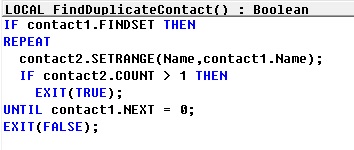
Until Dynamics NAV 2013, the only possibility was to iterate through the table in a loop and then create a sub-loop where another instance of the same table is filtered to check for duplicates.

For example, to check for duplicate names in the Contact table, the code would look like this:

Duplicate.-1

Dynamics NAV 2013 onwards, we can use queries to create a more efficient implementation of the same logic.

 The solution involves that you create a query to return duplicates, and then invoke it from a method that would test the value of the query to identify if duplicates were found.

Step 1 – Creating the Query

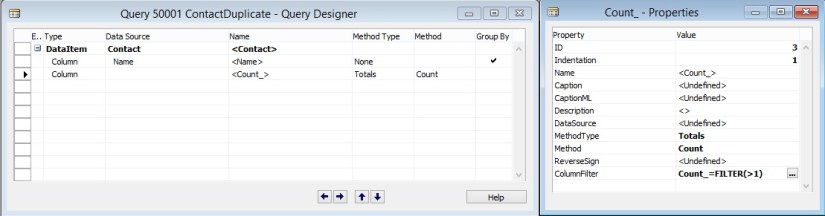
  • The query must be created with the table we want to search in as the dataitem.
  • The field we want to search for must be created as a grouped field.
  • Create a totaling field on the count, and add a filter for Count > 1. This ensures that only records with more than one instance of the field that we selected in the previous step are included in the query result.
  • Continuing with our Contact Name example, here is how the query would look:

Duplicate.-2

Step 2 – Invoking the Query to Check for Duplicates

Now that the query is created, all we need to do is to invoke the query and check if any records are returned, which would mean that there are duplicates.

Here is an alternate implementation of the FindDuplicateContact method using the query that we created:

Duplicate.-3