Corfu Navision 2016, Functional Tips, How To, Information, Tip & Tricks

How do I: Enable the Invoice Rounding Function

If you want your sales and purchase invoices are rounded automatically, you will have to activate the invoice rounding function.

To activate the invoice rounding function

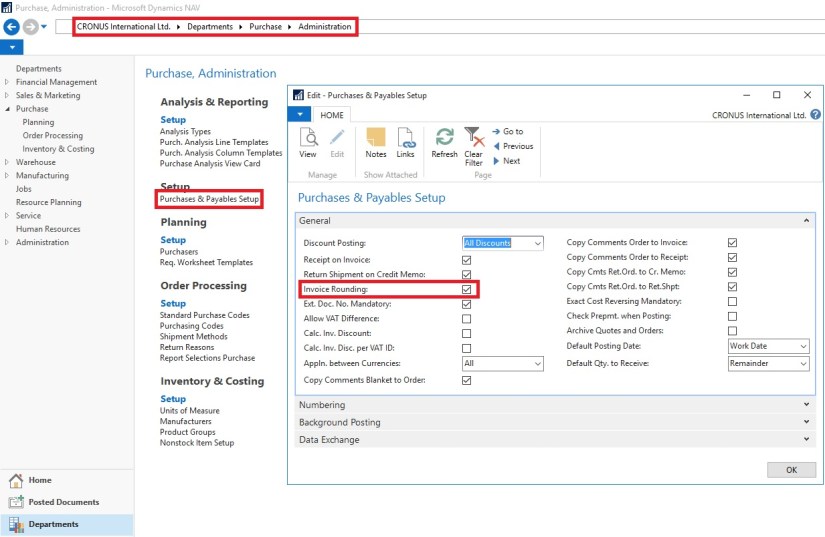
  1. In the Search box, enter Sales & Receivables Setup or Purchases & Payables Setup, and then choose the related link.
  2. On the General Fast Tab, select the Invoice Rounding check box.

InvoiceRounding-4

InvoiceRounding-5

You can activate invoice rounding separately for sales and purchase invoices.

Corfu Navision 2016, Functional Tips, How To, Information, Tip & Tricks

How do I: Set Up Rounding Rules for Foreign Currency

To use the automatic invoice rounding function, you must set up rounding rules.

To set up rounding rules for foreign currency

  1. Open the Currencies
  2. In the Currencies window, fill in the Invoice Rounding Precision and Invoice Rounding Type For more information on specific field, select the field, and then press F1.

InvoiceRounding-3

Corfu Navision 2016, Functional Tips, How To, Information, Tip & Tricks

How do I: Set Up Rounding Rules for the LCY

To use the automatic invoice rounding function, you will be required to set up rounding rules.

To set up rounding rules for local currency

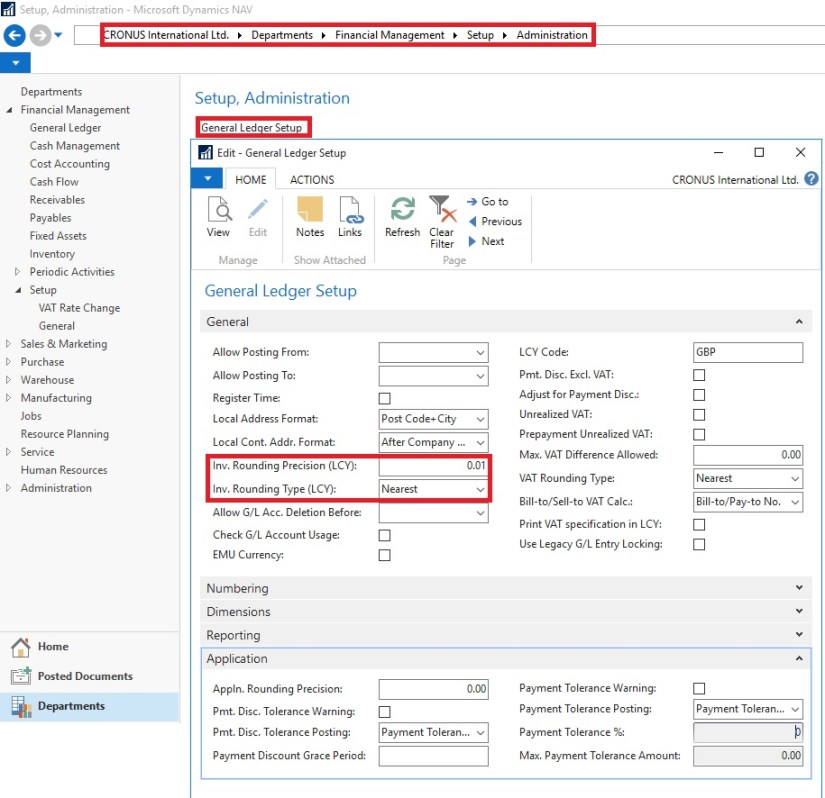
  1. Open General Ledger Setup
  2. In the General Ledger Setup window, on the Respective Fast Tab, fill in the Amount Rounding Precision, Unit-Amount Rounding Precision, Rounding Precision (LCY) and Invoice Rounding Type (LCY) fields.

InvoiceRounding-2

You can take help of technical team to add/display fields not visible on the page. These fields are available in Table. For more details about fields you can use F1 help.

Corfu Navision 2016, Functional Tips, How To, Information, Tip & Tricks

How do I: Set Up General Ledger Accounts for Invoice Rounding Differences

To use the automatic invoice rounding function, you will be required to set up the general ledger account or accounts in which the rounding differences will be posted. Before you can do this, you will be required to set up VAT product posting groups.

To set up general ledger accounts for invoice rounding differences

  1. Set up the account in the Chart of Accounts window and name it Invoice Rounding or as required name. (I am showing the standard Account defined in Demo Database, you can setup your own as per the requirement)
  2. In the Posting Type field, select <Blank>.
  3. Fill in the VAT Bus. Posting Group field or can leave blank.
  4. Fill in the VAT Prod. Posting Group You may want to set up a new group code that can be used for invoice rounding, if don’t have any existing to be used.

InvoiceRounding-1

Now you need to assign the invoice rounding account to posting groups in the Customer Posting Groups window and the Vendor Posting Groups window.

InvoiceRounding-6

InvoiceRounding-7

Corfu Navision 2016, Data, Development Tips, How To, Tip & Tricks

How to Detect Duplicates

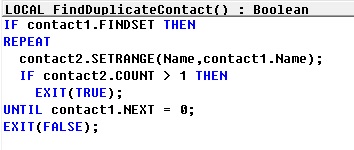
Until Dynamics NAV 2013, the only possibility was to iterate through the table in a loop and then create a sub-loop where another instance of the same table is filtered to check for duplicates.

For example, to check for duplicate names in the Contact table, the code would look like this:

Duplicate.-1

Dynamics NAV 2013 onwards, we can use queries to create a more efficient implementation of the same logic.

 The solution involves that you create a query to return duplicates, and then invoke it from a method that would test the value of the query to identify if duplicates were found.

Step 1 – Creating the Query

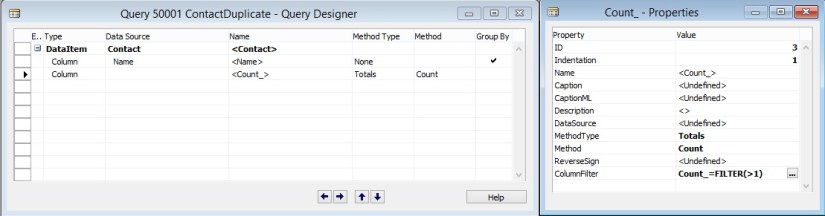
  • The query must be created with the table we want to search in as the dataitem.
  • The field we want to search for must be created as a grouped field.
  • Create a totaling field on the count, and add a filter for Count > 1. This ensures that only records with more than one instance of the field that we selected in the previous step are included in the query result.
  • Continuing with our Contact Name example, here is how the query would look:

Duplicate.-2

Step 2 – Invoking the Query to Check for Duplicates

Now that the query is created, all we need to do is to invoke the query and check if any records are returned, which would mean that there are duplicates.

Here is an alternate implementation of the FindDuplicateContact method using the query that we created:

Duplicate.-3


Corfu Navision 2016, Development Tips, How To, Information

Using Argument Tables in Navision

When creating functions we sometimes need a lot of parameters to give the information we require. Number of arguments/parameters to function have limits.

Sometimes these parameters are optional, only required in some scenarios.

This makes calling them quite hard. The code becomes hard to read & understand, and sometimes spread across multiple lines.

When changing the signature of any std. function or already implemented functionality which is highly used over the system in several objects you might end up changing an endless chain of objects.

Imaging adding a field to such function, or change a datatype. The amount of code affected is pretty big and if you need to parameter only for one specific case you end up changing a lot of code for no purpose. Does this make sense?

These challenges can be solved by grouping commonly used arguments in a single table and use that table as the parameter of a function.

So the solution is to create a single table that holds the contract for the function.

When we add new fields to the table, we effectively do not change the signature of the function hence this acts as overloading allowing optional parameters to change the behavior of the code.

You can find usage of such Argument Tables in below objects:

Type      ID            Name

1              9500       Email Item

5              260         Document-Mailing

5              9520       Mail Management

Table is created to hold Parameter Values which will be passed to the function.

ArgumentTables-1

This Function in Table Pass the record as a parameter to the function, basically this is passing 10 Parameters using single record as a Parameter to the Function.

ArgumentTables-2

In Codeunit Document-Mailing below function, This is the extra work which you will be required to perform, if you miss this part you may not get errors at compile time but all the 10 Parameters will be passed as blank. This may be counted as side-effect of using such concept.

ArgumentTables-3

In Codeunit Mail Management below function, This Pass the record as a parameter to the function, basically this is passing 10 Parameters using single record as a Parameter to the Function.

ArgumentTables-4

In Codeunit Mail Management below function, This receives the record as a parameter to the function, basically this is receiving 10 Parameters using single record as a Parameter to the Function.

ArgumentTables-5

Best part is Argument tables can be outside of a customer’s license file since we never insert data in the SQL Server database.

For more details you can see this Link. https://community.dynamics.com/nav/w/designpatterns/245.argument-table


Corfu Navision 2016, Data, Functional Tips, How To, Information, Tip & Tricks

Cost Components

Cost components are different types of costs that make up the value of an inventory increase or decrease.

The below table shows the different cost components and any subordinate cost components that they consist of.

Cost component Subordinate cost component Description
Direct cost Unit cost (direct purchase price) Cost that can be traced to a cost object.
Freight cost (item charge)
Insurance cost (item charge)
Indirect cost Cost that cannot be traced to a cost object.
Variance Purchase variance The difference between actual and standard costs, which is only posted for items using the Standard costing method.
Material variance
Capacity variance
Subcontracted variance
Capacity overhead variance
Manufacturing overhead variance
Revaluation A depreciation or appreciation of the current inventory value.
Rounding Residuals caused by the way in which valuation of inventory decreases are calculated.

Freight and insurance costs are item charges that can be added to an item’s cost at any time. When you run the Adjust Cost – Item Entries batch job, the value of any related inventory decreases are updated accordingly.

Corfu Navision 2016, Functional Tips, How To, Tip & Tricks

Inventory Valuation

Inventory valuation is the determination of the cost that is assigned to an inventory item, as expressed by the following equation.

Ending inventory = beginning inventory + net purchasescost of goods sold

The calculation of inventory valuation uses the Cost Amount (Actual) field of the value entries for the item.

The entries are classified according to the entry type that corresponds to the cost components, direct cost, indirect cost, variance, revaluation, and rounding.

Entries are applied against each other, either by the fixed application, or according to the general cost-flow assumption defined by the costing method.

One entry of inventory decrease can be applied to more than one increase entry with different posting dates and possibly different acquisition costs.

Therefore, calculation of the inventory value for a given date is based on summing up positive and negative value entries.

Inventory Valuation report

To calculate the inventory value in the Inventory Valuation report, the report begins by calculating the value of the item’s inventory at a given starting date.

It then adds the value of inventory increases and subtracts the value of inventory decreases up to a given ending date.

The end result is the inventory value on the ending date.

The report calculates these values by summing the values in the Cost Amount (Actual) field in the value entries, using the posting dates as filters.

The printed report always shows actual amounts, that is, the cost of entries that have been posted as invoiced.

The report will also print the expected cost of entries that have posted as received or shipped, if you select the Include Expected Cost field on the Options FastTab.

Values in the Inventory Valuation report is reconciled with the Inventory account in the general ledger, meaning the value entries in question have been posted to the general ledger.

Amounts in the Value columns of the report are based on the posting date of transactions for an item.


Inventory Valuation – WIP report

A manufacturing company needs to determine the value of three types of inventory:

  • Raw Materials inventory
  • WIP inventory
  • Finished Goods inventory

The value of WIP inventory is determined by the following equation.

Ending WIP inventory = Beginning WIP inventory + manufacturing costscost of goods manufactured

As for purchased inventory, the value entries provide the basis of the inventory valuation. The calculation is made using the values in the Cost Amount (Actual) field of the item and capacity value entries associated with a production order.

The purpose of WIP inventory valuation is to determine the value of the items whose manufacturing has not yet been completed on a given date.

Therefore the WIP inventory value is based on the value entries related to the consumption and capacity ledger entries.

Consumption ledger entries must be completely invoiced at the date of the valuation.

Therefore, the Inventory Valuation – WIP report shows the costs representing the WIP inventory value in two categories: consumption and capacity.


Corfu Navision 2016, Data, Development Tips, Functional Tips, How To, Information, Tip & Tricks

Accounts in the General Ledger

To reconcile inventory and capacity ledger entries with the general ledger, the related value entries are posted to different accounts in the general ledger.

From the Inventory Ledger

The below table shows the relationship between different types of inventory value entries and the accounts and balancing accounts in the general ledger.

Value entry General ledger accounts
Item ledger entry type Value entry type Variance type Expected cost Account Balancing account
Purchase Direct Cost Yes Inventory (Interim) Invt. Accrual Acc. (Interim)
Direct Cost No Inventory Direct Cost Applied
Indirect Cost No Inventory Overhead Applied
Variance Purchase No Inventory Purchase Variance
Revaluation No Inventory Inventory Adjmt.
Rounding No Inventory Inventory Adjmt.
Sale Direct Cost Yes Inventory (Interim) COGS (Interim)
Direct Cost No Inventory COGS
Revaluation No Inventory Inventory Adjmt.
Rounding No Inventory Inventory Adjmt.
Positive Adjmt.,Negative Adjmt., Transfer Direct Cost No Inventory Inventory Adjmt.
Revaluation No Inventory Inventory Adjmt.
Rounding No Inventory Inventory Adjmt.
(Production) Consumption Direct Cost No Inventory WIP
Revaluation No Inventory Inventory Adjmt.
Rounding No Inventory Inventory Adjmt.
Assembly Consumption Direct Cost No Inventory Inventory Adjmt.
Direct Cost No Direct Cost Applied Inventory Adjmt.
Indirect Cost No Overhead Applied Inventory Adjmt.
(Production) Output Direct Cost Yes Inventory (Interim) WIP
Direct Cost No Inventory WIP
Indirect Cost No Inventory Overhead Applied
Variance Material No Inventory Material Variance
Variance Capacity No Inventory Capacity Variance
Variance Subcontracted No Inventory Subcontracted Variance
Variance Capacity Overhead No Inventory Cap. Overhead Variance
Variance Manufacturing Overhead No Inventory Mfg. Overhead Variance
Revaluation No Inventory Inventory Adjmt.
Rounding No Inventory Inventory Adjmt.
Assembly Output Direct Cost No Inventory Inventory Adjmt.
Revaluation No Inventory Inventory Adjmt.
Indirect Cost No Inventory Overhead Applied
Variance Material No Inventory Material Variance
Variance Capacity No Inventory Capacity Variance
Variance Capacity Overhead No Inventory Cap. Overhead Variance
Variance Manufacturing Overhead No Inventory Mfg. Overhead Variance
Rounding No Inventory Inventory Adjmt.

From the Capacity Ledger

The below table shows the relationship between different types of capacity value entries and the accounts and balancing accounts in the general ledger. Capacity ledger entries represent labor time consumed in assembly or production work.

Value entry General ledger accounts
Work type Capacity ledger entry type Value entry type Account Balancing account
Assembly Resource Direct Cost Direct Cost Applied Inventory Adjmt.
Assembly Resource Indirect Cost Overhead Applied Inventory Adjmt.
Production Machine Center/Work Center Direct Cost WIP Account Direct Cost Applied
Production Machine Center/Work Center Indirect Cost WIP Account Overhead Applied

Assembly Costs are Always Actual

As shown in the table above, assembly postings are not represented in interim accounts. This is because the concept of work in process (WIP) does not apply in assembly output posting, unlike in production output posting. Assembly costs are only posted as actual cost, never as expected cost.

Calculating the Amount to Post to the General Ledger

The following fields in the Value Entry table are used to calculate the expected cost amount that is posted to the general ledger:

  • Cost Amount (Actual)
  • Cost Posted to G/L
  • Cost Amount (Expected)
  • Expected Cost Posted to G/L

The following table shows how the amounts to post to the general ledger are calculated for the two different cost types.

Cost type Calculation
Actual Cost Cost Amount (Actual) Cost Posted to G/L
Expected Cost Cost Amount (Expected) Expected Cost Posted to G/L