Report

Removing Label and Data Fields

Label and data fields of a report are contained in content controls in Word. The following figure illustrates a content control when it is selected in the Word document.

Label

The name of the label or data field name displays in the content control. In the example, the field name is CompanyAddr1.

To remove a label or data field

  1. Right-click the field that you want to delete, and then choose Remove Content Control.
  2. RemoveContentControl
  3. The content control is removed, but the field name remains as text.
    Delete the remaining text as needed.
Report

Import and Export a Word Report Layout

From the Microsoft Dynamics NAV Development Environment, you can import and export built-in Word report layouts of report objects as Word document files (.docx file type). This enables you to modify a built-in Word report layout on a report. For example, you can export a built-in Word report layout to a file on your computer or network. Then, you open the file in Word and modify the report layout. Finally, you import the file back to the report object. The existing built-in Word report layout on the report is overwritten by the content in the imported file.

To export a Word report layout from a report to a file

  1. In the development environment, open the report in Report Dataset Designer as follows.
    1. On the Tools menu, choose Object Designer.
    2. In Object Designer, choose Report, select the report, and then choose the Design button.
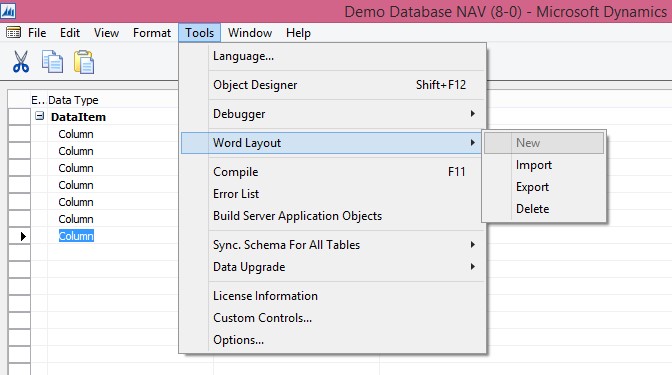
  1. On the Tools menu, choose Word Layout, and then choose Export.

Export

  1. Browse to the location where you want to save the exported file, and then choose the Save button.

To import a Word report layout from a file into report

  1. In the development environment, open the report in Report Dataset Designer as follows.
    1. On the Tools menu, choose Object Designer.
    2. In Object Designer, choose Report, select the report, and then choose the Design button.
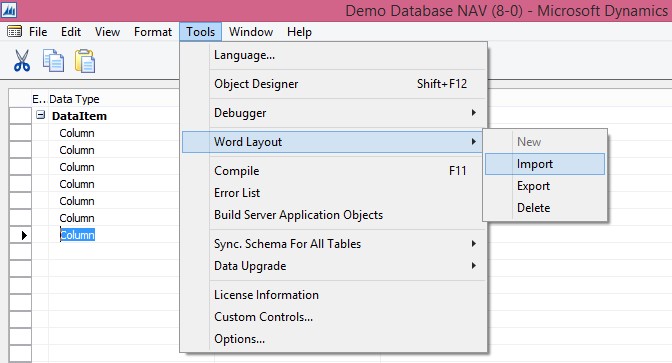
  1. On the Tools menu, choose Word Layout, and then choose Import.

Import

  1. Locate the file that you want to import, and then choose the Open
Report

Add Fields from a Report Dataset to a Word Report Layout

A report dataset can consist of fields that display labels, data, and images. This topic describes procedure for adding fields of a report dataset to an existing Word layout of a report. You add fields by using the Word custom XML part for the report and adding content controls that map to the fields of the report dataset.

To display the Custom XML part for the Report in Word

  1. Open the Word report layout document in Word for editing.
  2. Show the Developer tab in the ribbon of Word.

By default, the Developer tab is not shown in the ribbon.

  1. On the Developer tab, choose XML Mapping Pane.
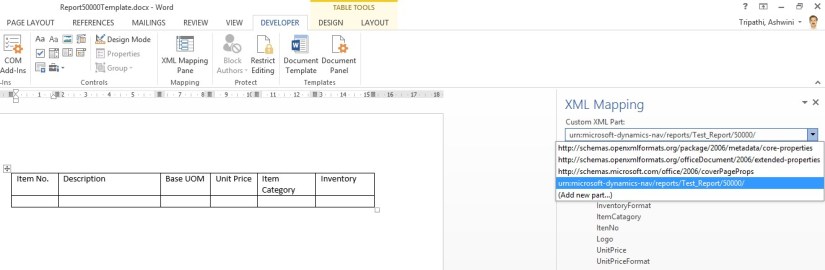
  2. In the XML Mapping pane, in the Custom XML Part list, choose the XML part for Microsoft Dynamics NAV report. The name of the XML part has the following format:

urn:microsoft-dynamics-nav/reports/report_name/ID

report_name is the name that is assigned to the report as specified by the report’s Name Property.

ID is the identification number of the report.
XMLDataSet
After you select the XML part, the XML Mapping pane displays the labels and field controls that are available for the report.

To add a label or data field

  1. Place your pointer in the document where you want to add the control.
  2. In the XML Mapping pane, right-click the control that you want to add, choose Insert Content Control, and then choose Plain Text.

AddDataField

Note

You cannot add a field by manually typing the dataset field name in the content control. You must use the XML Mapping pane to map the fields.

To add repeating rows of data fields to create a list

  1. If not already existing, add a table row that includes a column for each field that you want repeated.

This row will act as a placeholder for the repeating fields.

  1. Select the whole row.
  2. In the XML Mapping pane, right-click the control that corresponds to the report data item that contains the fields that you want repeated, choose Insert Content Control, and then choose Repeating.

AddRepeatingField

  1. Add the repeating fields to the row as follows:
    1. Place your pointer in a column.
    2. In the XML Mapping pane, right-click the control that you want to add, choose Insert Content Control, and then choose Plain Text.

InsertContentField

  1. For each field, repeat steps a and b.
Report

Adding Image Fields

A report dataset can include a field that contains an image, such as a company logo or a picture of an item. To add an image from the report dataset, you insert a Picture content control.

Images align in the top-left corner of the content control and resize automatically in proportion to fit the boundary of the content control.

Important
You can only add images that have a format (such as .bmp, .jpeg, and .png file types), which that is supported by Word. If you add an image that has a format that is not supported by Word, you will get an error when you run the report from the Microsoft Dynamics NAV client.

To add an image

  1. Place your pointer in the document where you want to add the control.
  2. In the XML Mapping pane, right-click the control that you want to add, choose Insert Content Control, and then choose Picture.
  3. To increase or decrease the image size, drag a sizing handle away from or towards the center of the content control.

AddImage

Report

To modify the Word report layout

1. In the development environment, export the Word report layout as a Word document file to your computer or network.

Export Word Template

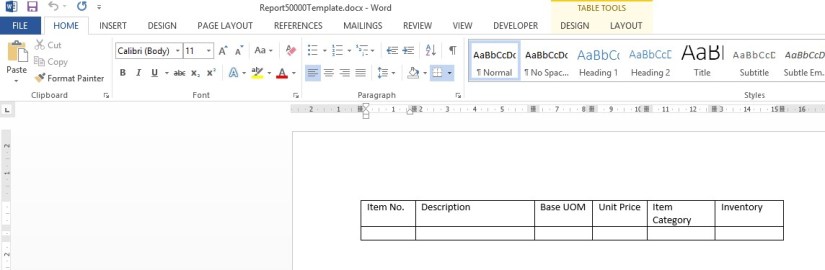
2. Open the Word document file in Word 2013 and make changes.


To make basic layout changes, such as adding or removing tables and cells, formatting text, or changing margins, use the editing features of Word.

Open Word Template


To add fields from the report dataset to the layout, use the custom XML part for the report to add content controls that map to the fields.

AddFields


3. Save your changes, and then close the Word report layout document.
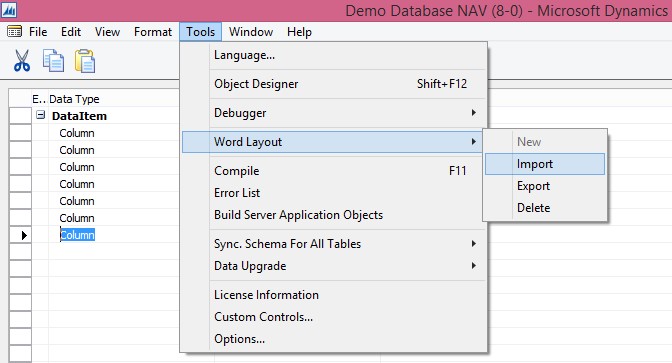
4. Import the Word document into the report.


Import Word Template

Report

To create a Word report layout for a report

In the development environment, open the report in Report Dataset Designer as follows.

  1. On the Tools menu, choose Object Designer.
  2. In Object Designer, choose Report, select the report, and then choose the Design button.
  3. On the Tools menu, choose Word Layout, and then choose New, and then choose the OK button.
  4. Save the report object.

Create Layout

A blank Word report layout is created on the report object. The report layout includes a custom XML part for the current report dataset. You can now design the layout in Word.

A Word report layout determines the content and format of a report when it is viewed and printed from the Microsoft Dynamics NAV client. When you modify a Word report layout, you specify the fields of the report dataset to include on report and how the fields are arranged. You also define the general format of the report, such as text font and size, margins, and background images. You will typically arrange the content of the report by adding tables to the layout.

You insert dataset fields in the layout by using a custom XML part that is automatically generated for the report when you create the Word report layout.

Report

How to. Specify the Default Built-in Report Layout

You can specify whether a report uses a built-in RDLC or Word report layout as the default layout.

To specify the default report layout

    1. In the development environment, on the Tools menu, choose Object Designer.
    2. In Object Designer, choose Report, select the report that you want to modify, and then choose Design.
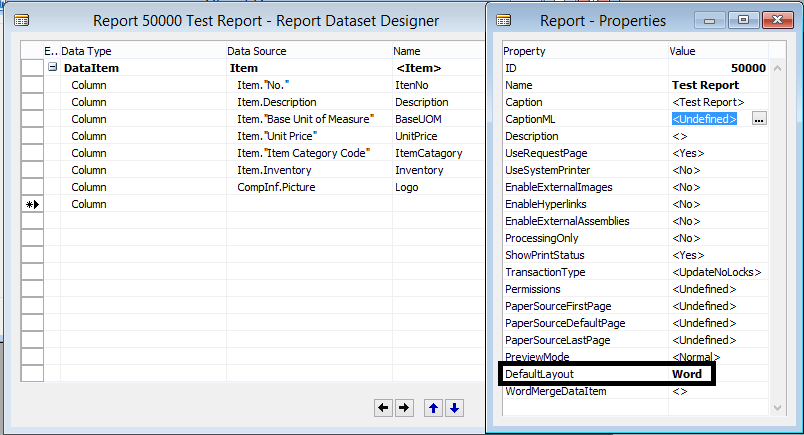
    3. In Report Dataset Designer, select a blank row, and then on the View menu, choose Properties.
    4. In the Report – Properties window, set the DefaultLayout property to RDLC or Word.
    5. DefaultLayout
    6. Save and compile the report..
Cues

Enhanced Cues

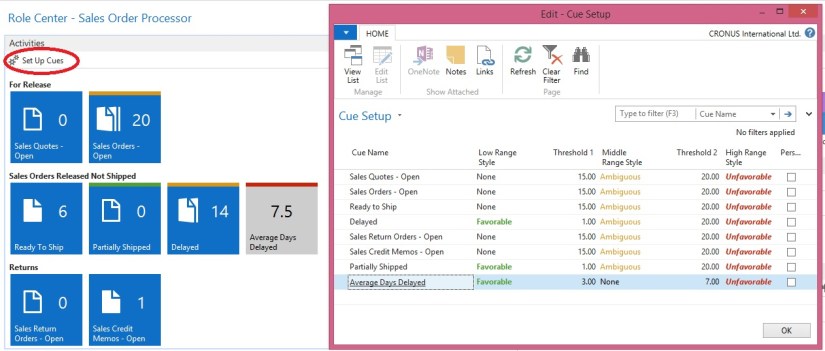
Cues appear as tiles in the Microsoft Dynamics NAV client that display business data and key performance indicators (KPIs) on RoleCenters. Microsoft Dynamics NAV 2015 includes the following new features that expand the data that can be displayed in a Cue, and enhance Cue set up and appearance.

Coloured Indicators

You can configure the Cue to display a bar along its upper border that changes colour based on the data in the cue.
New Images

You can change the image that displays on the Cue or set up the Cue without an image. There are several images to choose from.
Normal Fields

In previous Microsoft Dynamics NAV versions, you could only set up Cues based on FlowFields for data. In Microsoft Dynamics NAV 2015, you can also use normal fields, which expands your possibilities for the Cue data source, such as using Query objects or source expressions.
Decimal and Text Data Types

In previous Microsoft Dynamics NAV versions, you could only set up Cues to display on integer data types. In Microsoft Dynamics NAV 2015, you can also use decimal and text data types. This provides you with additional data aggregation possibilities instead of just COUNT, such as SUM, MAX, MIN, and AVG.
Custom Formatting of Data

By using the AutoFormat property, you customize the format of the value that appears in a Cue. For example, you can set the number of decimal places, or place a symbol such as a +, -, or %, before or after a value.
Cues

Show Mandatory Property

Show Mandatory Property

With Microsoft Dynamics NAV a new property called ShowMandatory has been introduced on page fields. The ShowMandatory property is set on page fields and marks the field with a red asterisk on the UI.

ShowMandatory Property

NOTE:The ShowMandatory property can be used to mark all page fields, but does not enforce any validation of the field. This means that the user will be able to close a page without entering data.

Comment or Uncomment Selection

Commenting and uncommenting multiple lines of C/AL Code

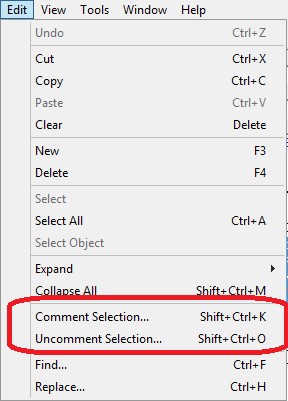
We can add and remove comment marks manually for each line till now. But from now the Comment Selection and Uncomment Selection options available in the Edit menu. The Comment Selection and Uncomment Selection options enable you to comment or uncomment multiple lines of code all at once.

  • To comment lines of code, select the lines, and then, in the Edit menu, choose Comment Selection (Shift+Ctrl+K).
  • To uncomment lines of code, select the lines, and then choose Uncomment Selection (Shift+Ctrl+O).


Comment / UnComment Selection