Development Tips, How To, Information, Tip & Tricks

How can I Drill Down to any Page dynamically using Table ID

There is a requirement from my one of my reader.

Today I will discuss on how we can dynamically open page by using table ID only.

As you are aware to open Page we require PageID and Table record.

PAGE.RUN(Number [, Record] [, Field])

For this we will use RecordRef and minimum requirement is table have Page ID for Lookup and Drilldown defined else we will get error when try to open the page.


Create a Function name it say ShowRecords.

Define 2 Variables as:

Name rRef

DataType RecordRef

Name varRecRef

DataType Variant


We require VARIANT because PAGE don’t accept RecordRef datatype.

PAGE.RUN(Number [, Record] [, Field])

Also define Parameter to the function to receive Table ID.


In function you write below code:


rRef.CLOSE;

CLEAR(rRef);

//rRef.OPEN(No [, Temp] [, CompanyName])

rRef.OPEN(TableID,FALSE,COMPANYNAME);

//You can apply filters also if required before accessing the Page

varRecRef := rRef;

//PAGE.RUN(Number [, Record] [, Field])

PAGE.RUN(0,varRecRef);


Now where you require you can call your function as ShowRecords(18)

This will Open Customer List Page to show the records from table.

I will show good use of same in my upcoming post. One use can be to design Navigate Page but few limitations will apply, wait for my next post.


That’s all for this post, I will come up with more details in my upcoming posts, till then keep exploring and learning.


Application, Area, Development Tips, Extension Package, How To, Information, Library, Machine, Multitenancy, NAV 2017, Notification, Permission, PowerShell, Readiness Library, Series, Tagging, Time, Tip & Tricks, Web Services, What's New

New Changes or features for Developer and IT Pro Changes in Microsoft Dynamics NAV 2017

Although it is too early to discuss on features and capabilities which we are going to get in our new release, we should wait for exact information post release of same.

Here are few extracts from available documents pre-release of the product.

You will find most of the features similar to which we have discussed in our earlier posts for Madeira Preview Project.

New thing is capability of extensions and Web Services are enhanced and programmatically handling Notifications.


Extensions

Dynamics NAV 2017 includes many new capabilities for Extensions:

  1. You can now include reports, XMLports, and queries in your extension along with new custom report templates.
  2. Default or initial data for new tables as part of your extension. These data will be included in the package file (.navx) and inserted into the table at the time of installation of the extension.
  3. You can include translated captions and constants for one or more languages by including object language files in the extension package.
  4. A translation only extension could be built that translates strings for base objects or objects for another extension.
  5. You can include and deploy .NET interop types executed on the server, client-side JavaScript or WinForms extensibility control add-ins.
  6. Extension can include a web service and configure it for the tenant the extension is being installed for in a multitenant deployment.
  7. Two new C/AL functions NAVAPP.RESTOREARCHIVEDATA and NAVAPP.DELETEARCHIVEDATA, you can easily restore or delete archived table data during a reinstall or upgrade of the extension.
  8. Use the NAVAPP.RESTOREARCHIVEDATA function to simply copy the data back from the archive table when special upgrade logic is not required.
  9. Use the NAVAPP.DELETEARCHIVEDATA function in situations where you do not want to restore the archived data for the table.
  10. You can publish an extension to a Dynamics NAV Server instance that is configured with an Azure SQL Database using new parameters added to the Publish-NAVApp cmdlet. The new parameters are used to provide the location and credentials for connecting to an existing Azure SQL database you created.
  11. Users with the appropriate permissions in the application can install and uninstall extensions from the Extensions Management page. The page will display all of the extensions that are currently published.


Web Services in multitenant deployments

You can publish per-tenant web services in situations where a web service has not been published for all tenants of the service.

You can also package and deploy published web services for base objects or extension objects in an extension.

The packaged web services will be published to the tenant for which the extension is being installed.


Notifications in the UI

Dynamics NAV 2017 introduces a programmatic way to send non-intrusive notifications to the UI in the Dynamics NAV Web client.

Notifications provide users with information about a current situation, but do not require any immediate action or block users from continuing with their current task.

In the UI, notifications appear in the Notification bar (similar to validation errors) at the top of the page on which a user is currently working.

Notifications that are defined on sub-pages, for example in parts and FactBoxes, appear in the same Notification bar.

Validation errors on the page will be shown first.

In the development environment, you create notifications in C/AL by using the newNotification and NotificationScope data types and the following functions.

  1. MESSAGE specifies the content of the notification that appears in the UI
  2. SCOPE specifies the scope in which the notification appears, which can be LocalScope or GlobalScope.
  3. A LocalScope notification appears in context of what the user is currently doing, while GlobalScope notifications are not directly related to the current task. Note: GlobalScope is currently not supported.
  4. SEND sends the notification to be displayed by the client.
  5. ADDACTION adds an action on the notification. Actions enable you to create interactive notifications that provide users with different actions that they can take to address the notification, like opening an associated page for modifying data. A notification action calls a function in a codeunit that you define, passing the notification object in the call. You then add business logic to the function for handling the action.
  6. SETDATA and GETDATA set and retrieve a data property value for the notification, which is typically needed when actions are invoked.

The following example illustrates the simplified code for local scope notification that has an action:

VAR

CreditBalanceNotification@1170000000 :Notification;

PROCEDURECreditBalanceCheck@1170000023(Customer@1170000000 : Record 18);

BEGIN

//Create the notification

CreditBalanceNotification.MESSAGE(‘Thecustomer”s current balance exceeds

their credit limit’);

CreditBalanceNotification.SCOPE :=NOTIFICATIONSCOPE::LocalScope;

//Add a data property for the customernumber

CreditBalanceNotification.SETDATA(‘CustNumber’,Customer.”No.”);

//Add an action that calls the ActionHandler codeunit, which you define  in the next step.

CreditBalanceNotification.ADDACTION(‘Gohandle this’,

CODEUNIT::NavExtensionInstallationMgmt, ‘OpenCustomer’);

//Send the notification to the client.

CreditBalanceNotification.SEND;

END;

In the “Action Handler” codeunit, you would add code to handle the action in a global function, called OpenCustomer, which has a Notification data type parameter. You could use the GETDATA function to get the value of the data sent with the notification:

PROCEDUREOpenCustomer@1170000024(theNotification@1170000000 :

Notification);

VAR

CustNo@1170000001 : Code[20];

BEGIN

// Do the code to handle the action.Optionally retrieve data carried by

the notification.

CustNo :=theNotification.GETDATA(‘CustNumber’);

// …

END;


Setup data in the US version

The US version of Dynamics NAV 2017 includes two RapidStart packages that will enable a fast implementation for a new company.

These data packages come with a new Windows PowerShell script to upload to server – and can be enabled for new companies.

Create a new company in the Companies page, and choose the Enable assisted setup field.

Then, use the Import-NAVConfigurationPackageFile cmdlet to import the RapidStart packages.

Then open the new company, the packages are applied, and you will be taken through an assisted setup experience.


Application area tagging

The Application Areas system offers developers, administrators, and users the ability to define differentiated user experiences according to application scope.

By selecting a set of application areas, users only see UI elements that are specific to the application features that they need to perform their tasks.

When companies want to create differentiated user experiences, the Application Areas system should be considered as an option not compulsory to adopt.


Time series library

One of the most popular topics for machine learning is forecasting based on historical data.

Many algorithms are there that can do this, but you do not have to know them, because MS have wrapped them for us.

Five of these algorithms, are wrapped in one Azure ML experiment, added logic that compares different results and returns the best one accompanied by an indicator of the prediction’s quality.

There is also a generic API on top of this that allows Dynamics NAV developers create their own functionality that helps customers find the business-critical information that may be hidden in their database.

You can perform time-series analysis in the familiar development environment.

The time series library is used by the Sales and Inventory Forecast extension.


Source:- https://mbs.microsoft.com/Files/partner/NAV/Readiness_Training/ReadinessTrainingNews/WhatsNewDynamicsNAV2017LimitedBeta.pdf

I will come up with more details in my upcoming posts.


Cues, Data, Development Tips, Dynamics 365, Email, Extension Package, Functional Tips, How To, Information, Inventory, Job, Machine, Maderia, Multitenancy, NAV 2017, Office 365, Office Integration, Readiness Library, Server, Tip & Tricks

New Changes or features for Application Users in Microsoft Dynamics NAV 2017

Although it is too early to discuss on features and capabilities which we are going to get in our new release, we should wait for exact information post release of same.

Here are few extracts from available documents pre-release of the product.

You will find most of the features similar to which we have discussed in our earlier posts for Madeira Preview Project.


Incoming documents

New modification to the list of incoming documents. Now it will have filtered view, a new field Processed is added, and now by default filter is applied to show only unprocessed incoming documents in the list.

However you can choose to still view all incoming documents in the list using the show Show All action.

When documents are posted, the processed flag is set to Yes, such that incoming documents that have been processed into posted documents are filtered out.

Capability is added to manually switch the Processed flag.

Now OCR supports for document extracting line details, when we send PDF or image files on incoming documents to Lexmark ICS, the 3rd-party provider of OCR services.

You can now create purchase invoices with multi-line details.

Now you can easily correct OCR errors before receiving the document and at the same time configure the service to avoid the known errors in future.

You can use the new Lexmark ICS online experience to visually train and validate the OCR processing of PDF and image files for incoming documents, such as vendor invoices.

From each incoming document record, you can now link directly to the online extracted document to validate the OCR result and train the service with your corrections.

A new Role Center Cue will give users capability to monitor incoming documents that await your OCR validation.


Inventory Items

Item attributes similar to one we saw in Madeira.

Capability to add attributes to your inventory items will make it easy for you to find the right product that your customer wants by filtering on attributes.

You can define your own attribute types, such as Base Material, Colour, Size, or other product dimensions, and attach to your items as a supplement to the built-in item attribute types and values.

When you access your items on documents or list, you can view and filter on the attribute values to limit the list of items.

By using Categorize items you can create a hierarchy of item categories and assign item attributes to each item category.

When you add items to a category, they will inherit the default attributes on the category.

This will ensures to have a common set of attributes on related items, will speed up the assignment of attributes to similar items, and allow filtering and navigating related items easily based on the category.


Smarter sales and purchase documents

Now you can cancel posted sales and purchase credit memos in the same way like you can do for posted sales and purchase invoices.

After performing this action you will find the credit memo is unapplied from the invoice and creates a new invoice that is applied to the credit memo.

This action will bring you to the earlier position where you created the credit memo. (Like Undo)

Package Tracking No. and Shipping Agent Code on sales invoices Posted sales invoices now show the package tracking number and the shipping agent code by default.


Account Categories in the Chart of Accounts

A new capability is added as account categories and sub categories.

Now you can group G/L Accounts to adjust your need for financial reporting.

For each G/L account, now you can specify the account category so that when ledger entries are posted to these accounts they are categorized as per your category.

For each account category, you can now choose from different sub-categories, even you can also create new sub-categories as per your need.

For example, for the G/L account category Expense, you can define as many sub-categories as you need so that you can differentiate between Expenses on different sources.


Payment reconciliation

The Payment Reconciliation journal now will show you total outstanding transactions and outstanding payments.

From there itself you can now look up the list of documents that have not been applied or used in the reconciliation process.

You can now also choose to include outstanding payments and outstanding transactions information in the Payment Reconciliation report.


Jobs

Project Manager Role Center

A new project manager field is added to the Job Card in order to give users clear sense of job ownership.

A new list My Jobs list is added on the Project Manager Role Center which will display jobs with the status of Order by default based on the new project manager field as discussed above.

If a person is assigned as the project manager to 5 jobs and those jobs have the On Order status, those 5 jobs will default on the My Jobs list on the Project Manager Role Center.

A new cue is added to the Project Manager Role Center to Create Job Sales Invoice, so now users will have quick access to this functionality.

On the Project Manager Role Center a new drop down list for Job Reports has been added to the Actions ribbon.

Job cost

A new fact box will be available to the right side of the Job Card to display the job’s cost information.

Now the term Contract is renamed as Billable throughout the Jobs module.

On the Job Card the Allow Schedule/Billable lines and Apply Usage Link options are marked by default for new jobs.

A new report called Job Quote is available so user can send a quote to a customer. This report is available as Word Template so it can be modified using Word and emailed to the contact on the job.


Fixed Assets

Now setting up fixed assets is simpler. A standard setup is provided, but allows you to modify it at anytime you want.

You can register fixed asset as cards with complete information, accounting details, and reporting classification.

You can also register purchases of fixed assets through special fixed asset G/L journals where you can also dispose of fixed assets. The right accounting entries are created automatically.


Simplified Setup for using Dynamics CRM from inside Dynamics NAV

As you are familiar Dynamics NAV includes opportunity management and basic customer relationship management.

You can easily set up a connection with Dynamics CRM to have more benefit from the strong capabilities that Dynamics CRM offers, such as marketing and customer service capabilities.

A new assisted setup guide to the Business Manager home page will be available that will guide you through the setup process. Once you are through with this setup, you’ll have a seamless coupling of Dynamics CRM records with Dynamics NAV records.


Simplified opportunity management and CRM functionality

You will find Dynamics NAV CRM module has been simplified and improved in a number of ways:

  1. At place of CRM wizard pages now you will have card pages, so that they can now also run in the Web client with improved user experience.
  2. Worksheet pages also been replaced by list pages so now you can also use the pages in browsers.
  3. The Contact card has been simplified by marking a number of controls as Additional, so that the page default looks simpler.
  4. Mail merge have been replaced with Word reporting. Also, new Word reporting capabilities added to generate email body content based on the related report and the selected report layout.
  5. A new Sales & Relationship Manager Role Center has been added

New wizard has been created that helps users set up email logging (default public folders, rules, and job queue setup).


Smart notifications give you advice and recommendations

Similar to one which we discussed in our earlier post for Madeira.


Extensions

Microsoft provides the following extensions:

  1. Envestnet Yodlee Bank Feeds
  2. PayPal Payments Standard
  3. QuickBooks Data Migration
  4. Sales and Inventory Forecast

Similar to Madeira few of them we have discussed in our earlier posts, rest will discuss in our upcoming posts.


Office 365

If your organization uses Office 365, Dynamics NAV 2017 includes an add-in so you can invoice your customers based on entries in your Outlook calendar.

From the Contacts List in Dynamics NAV, you can manually synchronize your Dynamics NAV contacts to Office 365 People.

The contacts from Office 365 will sync back to Dynamics NAV as well.

There is a filter that can be applied to the synchronization process so users will only need to sync the contacts they use most often. This same filter is used during the automatic background sync as well. This synchronization process also works with Microsoft Outlook on the desktop.

We will discuss in more details in our upcoming posts. This feature is too available in Madeira.


US financial reports

In the US version of Dynamics 2017, added new four financial reports to the Business Manager and Accountant Role Centers:

  1. Balance Sheet
  2. Income Statement
  3. Cash Flow Statement, and
  4. Retained Earnings Statement

These reports use G/L account categories and sub-categories discussed above to group financial data.


Source:- https://mbs.microsoft.com/Files/partner/NAV/Readiness_Training/ReadinessTrainingNews/WhatsNewDynamicsNAV2017LimitedBeta.pdf

I will come up with more details in my upcoming posts.


Tip & Tricks

Cumulative Update 42 for Microsoft Dynamics NAV 2013 (Build 46772) – Released in Sep 2016

This cumulative update includes all hotfixes and regulatory features that have been released for Microsoft Dynamics NAV 2013, including hotfixes and regulatory features that were released in previous cumulative updates.

This cumulative update replaces previously released cumulative updates. You should always install the latest cumulative update.

It may be necessary to update your license after implementing this hotfix to gain access to new objects included in this or a previous cumulative update (this only applies to customer licenses).

For a list of cumulative updates released for Microsoft Dynamics NAV 2013, see released cumulative updates for Microsoft Dynamics NAV 2013  (https://support.microsoft.com/kb/2842257/ ) . For a complete list of all hotfixes released in cumulative updates for Microsoft Dynamics NAV 2013, view the following CustomerSource and PartnerSource pages:

CustomerSource
PartnerSource

Cumulative updates are intended for new and existing customers who are running Microsoft Dynamics NAV 2013.

46772 :- https://mbs2.microsoft.com/Knowledgebase/kbdisplay.aspx?scid=kb,en-us,3188237

Local versions included :- AT, AU, BE, CH, DE, DK, ES, FI, FR, IS, IT, NA, NL, NO, NZ, SE, UK

Download link :- https://mbs2.microsoft.com/Knowledgebase/kbdisplay.aspx?scid=kb,en-us,2842257

You will be required customer source/ partner source access to avail these resource.

Cumulative Updates, Tip & Tricks

Cumulative Update 35 for Microsoft Dynamics NAV 2013 R2 (Build 46774) – Release in Sep 2016

This cumulative update includes all hotfixes and regulatory features that have been released for Microsoft Dynamics NAV 2013 R2, including hotfixes and regulatory features that were released in previous cumulative updates.

This Cumulative Update replaces previously released cumulative updates. You should always install the latest cumulative update.

Note Implementing this cumulative update will require a database upgrade.

Licenses versioning

Microsoft Dynamics NAV 2013 R2 cumulative updates and license key versioning:

  • Microsoft Dynamics NAV 2013 R2 license keys are backward compatible with Microsoft Dynamics NAV 2013 instances.
  • Microsoft Dynamics NAV 2013 license keys may not be used with Microsoft Dynamics NAV 2013 R2 instances. Microsoft Dynamics NAV 2013 license keys will not work with Microsoft Dynamics NAV 2013 R2 CU10 (or later) instances.
  • Microsoft Dynamics NAV 2013 and Microsoft Dynamics NAV 2013 R2 license keys are not forward compatible with Microsoft Dynamics NAV 2015 instances.

More details is made available in the October 2014 release of the Microsoft Dynamics Perpetual Licensing Guide.

It may be necessary to update your license after implementing this hotfix to gain access to new objects included in this or a previous cumulative update (this only applies to customer licenses).

For a list of cumulative updates released for Microsoft Dynamics NAV 2013 R2, see released cumulative updates for Microsoft Dynamics NAV 2013 R2  (https://support.microsoft.com/kb/2914930/ ) . For a complete list of all hotfixes released in cumulative updates for Microsoft Dynamics NAV 2013 R2, view the following CustomerSource and PartnerSource pages:

CustomerSource
PartnerSource

Cumulative updates are intended for new and existing customers who are running Microsoft Dynamics NAV 2013 R2.

46774 :- https://mbs2.microsoft.com/Knowledgebase/kbdisplay.aspx?scid=kb,en-us,3188238

Local versions included :- AT, AU, BE, CH, CZ, DE, DK, ES, FI, FR, IS, IT, NA, NL, NO, NZ, RU, SE, UK

For download links :- https://mbs2.microsoft.com/Knowledgebase/kbdisplay.aspx?scid=kb,en-us,2914930

You will be required customer source/ partner source access to avail these resources.


Cumulative Updates, Tip & Tricks

Cumulative Update 23 for Microsoft Dynamics NAV 2015 (Build 46765) – Released in Sep 2016

This cumulative update includes all hotfixes and regulatory features that have been released for Microsoft Dynamics NAV 2015, including hotfixes and regulatory features that were released in previous cumulative updates.

Note You must convert the database if you are upgrading to this cumulative update from a cumulative update earlier than cumulative update 9 (build 41779). For more information, see Converting a Database (https://msdn.microsoft.com/en-us/library/dn271650(v=nav.80).aspx) in Help for Microsoft Dynamics NAV.

This cumulative update replaces previously released cumulative updates. You should always install the latest cumulative update.

It may be necessary to update your license after implementing this hotfix to gain access to new objects included in this or a previous cumulative update (this only applies to customer licenses).

For a list of cumulative updates released for Microsoft Dynamics NAV 2015, see released cumulative updates for Microsoft Dynamics NAV 2015

(https://support.microsoft.com/kb/3014609/ ) .

Cumulative updates are intended for new and existing customers who are running Microsoft Dynamics NAV 2015.

For more details see : https://mbs2.microsoft.com/Knowledgebase/kbdisplay.aspx?scid=kb,en-us,3188239

46765 – https://mbs2.microsoft.com/Knowledgebase/kbdisplay.aspx?scid=kb,en-us,3188239

Local versions included : AT, AU, BE, CH, CZ, DE, DK, ES, FI, FR, IS, IT, NA, NL, NO, NZ, RU, SE, UK

For download links : https://mbs2.microsoft.com/Knowledgebase/kbdisplay.aspx?scid=kb,en-us,3014609

To access these resource you will be required customer source/ partner source access.


Corfu Navision 2016, Cumulative Updates, Tip & Tricks

Cumulative Update 11 for Microsoft Dynamics NAV 2016 (Build 46773) – Released in Sep 2016

This cumulative update includes all hotfixes and regulatory features that have been released for Microsoft Dynamics NAV 2016, including hotfixes and regulatory features that were released in previous cumulative updates.

This cumulative update replaces previously released cumulative updates. You should always install the latest cumulative update.

It may be necessary to update your license after implementing this hotfix to gain access to new objects included in this or a previous cumulative update (this only applies to customer licenses).

For a list of cumulative updates released for Microsoft Dynamics NAV 2016, see released cumulative updates for Microsoft Dynamics NAV 2016

(https://support.microsoft.com/kb/3108728/ ) .

Cumulative updates are intended for new and existing customers who are running Microsoft Dynamics NAV 2016.

46773 :- https://mbs2.microsoft.com/Knowledgebase/kbdisplay.aspx?scid=kb,en-us,3188240

Local Versions Included : AT, AU, BE, CH, CZ, DE, DK, ES, FI, FR, IS, IT, IN, NA, NL, NO, NZ, RU, SE, UK

Find the Download Page Link :- https://mbs2.microsoft.com/Knowledgebase/kbdisplay.aspx?scid=kb,en-us,3108728

You will require customer source/ partner source to access these informations.


Alert, Development Tips, Dynamics 365, Functional Tips, How To, Information, Maderia, Tip & Tricks

Smart notifications new feature added in August updates – Madeira

Smart Notification feature added to Project “Madeira” which will help user to work smarter.

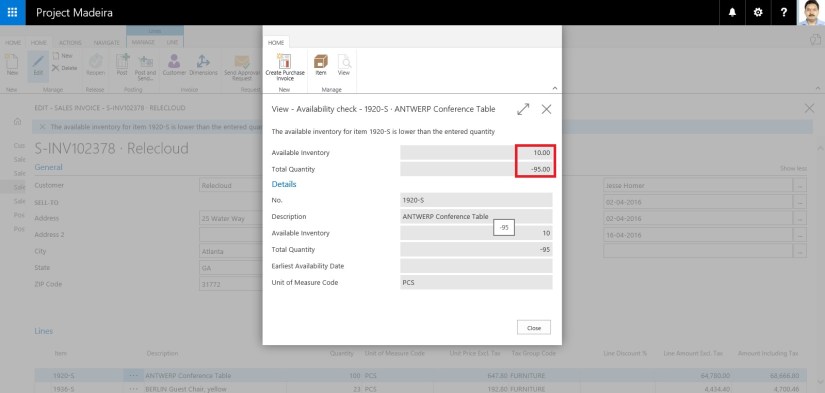
Notifications could be like for a customer who has an overdue balance, or the available inventory is lower than the quantity you are about to sell, etc.

These notifications are shown as a tips in the context of the task you are doing, and you can choose to ignore the notification or to see details about the issue.

If you choose to see details for a notification, you can take action to resolve the issue, such as contacting the customer, buying more inventory, and so on.

It depends what you wish to do, Project “Madeira” just gives you advice and recommendations.

You will see such notifications in different areas of Project “Madeira”, and it’s up to your choice you want to react on them or ignore them.

Let’s see how it works:

For example on Sales Invoice i enter Quantity greater than available quantity.

SmartNotification-1

Notification kicks in like the warning message. I can continue working or see details using link Details in the notification.

SmartNotification-2

It is kept in mind that the subtle notifications help untrained users complete unfamiliar tasks and do not reduce productivity for the more trained user.

Hope you will find this feature helpful.

I will come up with more information in my up coming posts.

Till then keep exploring and learning.


Development Tips, Dynamics 365, Functional Tips, How To, Information, Maderia, Office 365, Tip & Tricks

How to – Set Up a Colored Indicator on Cues in Madeira

You can customize to show color indicator of Cues that changes color based on the data values in the Cues.

The indicator appears as a colored bar along the top border of the Cue tile.

From the Cue Setup window, you set up indicators for all the Cues that are available.

You can specify up to two threshold values that define three ranges of data values (low, middle, and high).

To set up colored indicators on Cues

Under Activities on your Home page

CueSetup-1

Choose Set Up Cues.

CueSetup-2

The Cue Setup window appears. The window lists the indicators that are currently setup up on Cues.

CueSetup-3

To modify an indicator, edit the fields and modify, the values for the different thresholds.

The following table lists the colors that is displayed to the options of the Low Range Style, Middle Range Style, and High Range Style fields.

Option Color
None No color (same color as the Cue tile
Favorable Green
Unfavorable Red
Ambiguous Yellow
Subordinate Gray

I will come up with more informations in my up coming posts.

Till then keep exploring and learning.


Corfu Navision 2016, Data, Development Tips, Dimension, Excel, Functional Tips, How To, Information, Tip & Tricks

How to attach additional 6 Shortcut Dimensions to Dimension Set when copy data to Journal from Excel


In my previous post I explained how we can copy data to-and-fro between Excel and Navision. Also we saw the limitation of additional 6 Shortcut Dimensions neither can be exported nor imported back.

Today we will see solution to this limitation, as it is required from several customers and we keep getting request for same. The same reader for whom I have posted my previous post have requested similar need.

If you missed my previous post you can find here : Copying data to-and-fro between Excel & Navision

Let us see how we can get this part working, yes it will require a small customization to get this working. Below I explain the steps we require to achieve this.

My example refers to Table 81 & Page 39. You can do same with other Journals too.

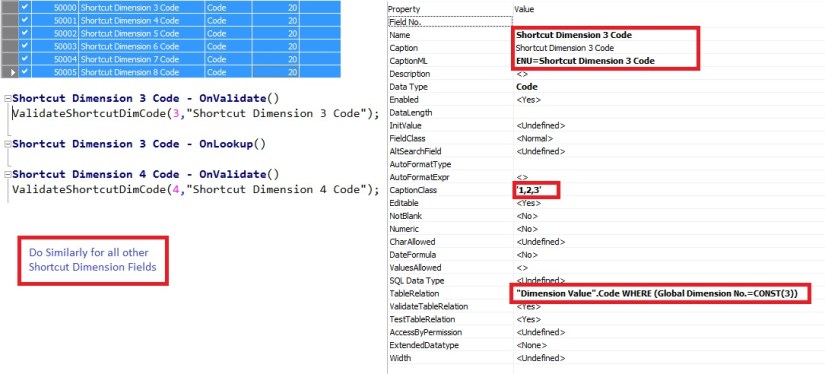
We will Add Custom Fields for these additional 6 Shortcut Dimensions.


ExcelToNavJnl-8

Add the Fields and write the above code to OnValidate trigger and set the Property accordingly for all of the 6 Shortcut Dimension Fields.

ExcelToNavJnl-9

Similarly add a piece of code to OnInsert trigger of the Table.

ExcelToNavJnl-10

Add our newly created Fields to Page too.

Now Let us check if it works as expected.

ExcelToNavJnl-11


Perform the operation as in previous post, this time add the newly created fields for Dimensions as shown in above screen.

If you missed my previous post you can find here : Copying data to-and-fro between Excel & Navision

Export and Import back by adding value to these additional Dimensions 1 &2 is Global 3-6 is my additional Shortcut Dimensions, 7-8 I have not included as not setup in my database.

After importing back check the Dimensions and you will find due to above customization my all the Shortcut Dimensions are attached to Dimension Set Entry.
ExcelToNavJnl-12

Yes we are done.

I will come up with more information in my upcoming posts. Till then keep exploring and Learning.