Corfu Navision 2016, Development Tips, Extension Package, Information, Tip & Tricks

Which Properties are Restricted in Extension Packages

For Overview, please see my earlier posts

Introducing Extensions in Microsoft Dynamics NAV 2016

Which Object types you can Include & Restrictions applicable to C/AL code in Extension Packages

Restricted Properties on Existing Page Modifications

You cannot change the values for the following properties for existing Microsoft Dynamics NAV pages in an extension.

  • AccessByPermission
  • AssistEdit
  • AutoSplitKey
  • CardPageID
  • CharAllowed
  • ContainerType
  • ControlAddIn
  • Data Type
  • DataLength
  • DateFormula
  • DelayedInsert
  • DeleteAllowed
  • DrillDown
  • DrillDownPageID
  • Editable
  • ExtendedDatatype
  • FieldClass
  • GroupType
  • ID
  • InsertAllowed
  • LinkedObject
  • Lookup
  • LookupPageID
  • MaxValue
  • MinValue
  • ModifyAllowed
  • MultipleNewLines
  • Name
  • NotBlank
  • Numeric
  • PageType
  • PartType
  • PasteIsValid
  • Permissions
  • PopulateAllFields
  • RefreshOnActivate
  • SourceExpr
  • SourceTable
  • SourceTableTemporary
  • SourceTableView
  • SubType
  • SystemPartID
  • TableRelation
  • TableType
  • TestTableRelation
  • ValidateTableRelation
  • ValuesAllowed

Most of these are typically not properties changed through customization as they can have a negative effect on the Microsoft Dynamics NAV deployment.


Restricted Properties on Existing Table Modifications

You cannot change the values for the following properties for existing tables and fields in an extension.

Table Properties Field Properties
  • Name
  • DataPerCompany
  • Permissions
  • LookupPageID
  • DrillDownPageID
  • PasteIsValid
  • LinkedObject
  • TableType
  • Name
  • AccessByPermission
  • Compressed
  • Data Type
  • DataLength
  • DateFormula
  • ExtendedDataType
  • FieldClass
  • MaxValue
  • MinValue
  • NotBlank
  • Numeric
  • Owner
  • SQL Data Type
  • SubType (BLOB)
  • TableIDExpr
  • TableRelation
  • TestTableRelation
  • ValidateTableRelation
  • ValuesAllowed Width

You can add table keys, but you cannot delete or modify existing keys.

You can add fields to a table group, but you cannot remove fields or groups.

Corfu Navision 2016, Development Tips, Events, Extension Package

Which Object types you can Include & Restrictions applicable to C/AL code in Extension Packages

For Overview, please see my earlier post Introducing Extensions in Microsoft Dynamics NAV 2016

When you create extension package you can include new as well as modified objects.

In Microsoft Dynamics NAV 2016, these object types can be added and included in an extension:

  • Pages
  • Tables
  • MenuSuites
  • Codeunits

You can modify these existing object types as permitted by your license:

  • Pages
  • Tables
  • Action Items

You will not be able to add or modify any other object types in this version.

You are not allowed to delete any existing objects.

You will also need to be sure not to modify any existing C/AL code, including code in codeunits and in triggers on existing objects.

In case you want to modify existing code, use the new C/AL eventing model.

To know more about Events see by earlier posts:

  1. Events in C/AL Navision 2016
  2. Implementing Events in Navision 2016

This restriction is only on existing code and objects. However New pages, tables, and so on, can contain C/AL code as it is considered part of the new object.

Corfu Navision 2016, Functional Tips, How To, Information, Tip & Tricks

How do I:Set Up Invoice Rounding

One of my reader requested for this topic, since I am too late to respond, don’t now if this can help him in any manner. But still may help someone in future. From past 2 months I am too busy in other activities that I am unable to check and respond to mails and also very limited posts.

I would request to keep writing to me when ever I get some spare time will definitely respond in form of posts to your queries.

Here we go…

Please find the Link below for other part of this post for complete answer to the query in sequence posted separately each part of setup: “Please let me know how to setup invoice rounding in Navision 2015, step wise.”

I have taken screen shot from Navision 2016 although every thing remains same and equally applicable to Navision 2015.

If you want to automatic invoice rounding to deal with Local regulations or local custom may require the invoice to be rounded in a specific way required.

When an invoice is rounded, an extra line is inserted with the rounding amount and this line is posted additionally with the other invoice lines.

To use automatic invoice rounding, you must follow below steps: explained separately via different posts

Corfu Navision 2016, Functional Tips, How To, Information, Tip & Tricks

How do I: Enable the Invoice Rounding Function

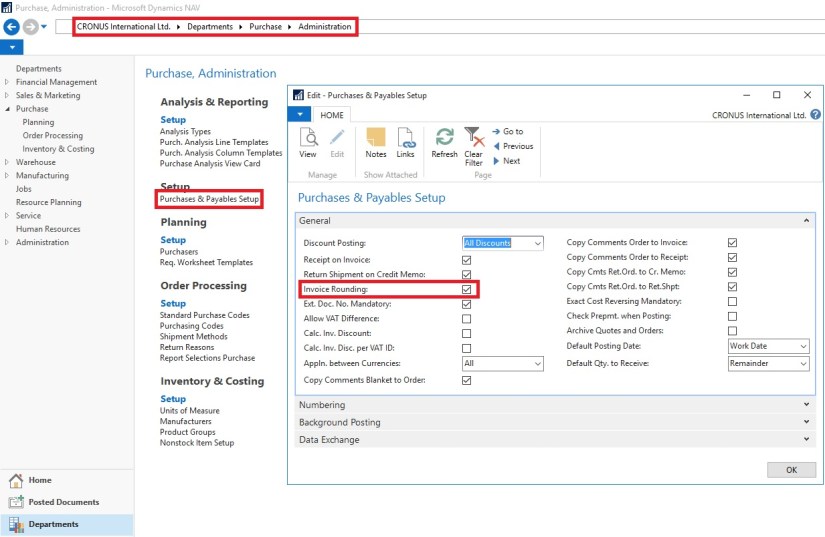
If you want your sales and purchase invoices are rounded automatically, you will have to activate the invoice rounding function.

To activate the invoice rounding function

  1. In the Search box, enter Sales & Receivables Setup or Purchases & Payables Setup, and then choose the related link.
  2. On the General Fast Tab, select the Invoice Rounding check box.

InvoiceRounding-4

InvoiceRounding-5

You can activate invoice rounding separately for sales and purchase invoices.

Corfu Navision 2016, Functional Tips, How To, Information, Tip & Tricks

How do I: Set Up Rounding Rules for Foreign Currency

To use the automatic invoice rounding function, you must set up rounding rules.

To set up rounding rules for foreign currency

  1. Open the Currencies
  2. In the Currencies window, fill in the Invoice Rounding Precision and Invoice Rounding Type For more information on specific field, select the field, and then press F1.

InvoiceRounding-3

Corfu Navision 2016, Functional Tips, How To, Information, Tip & Tricks

How do I: Set Up Rounding Rules for the LCY

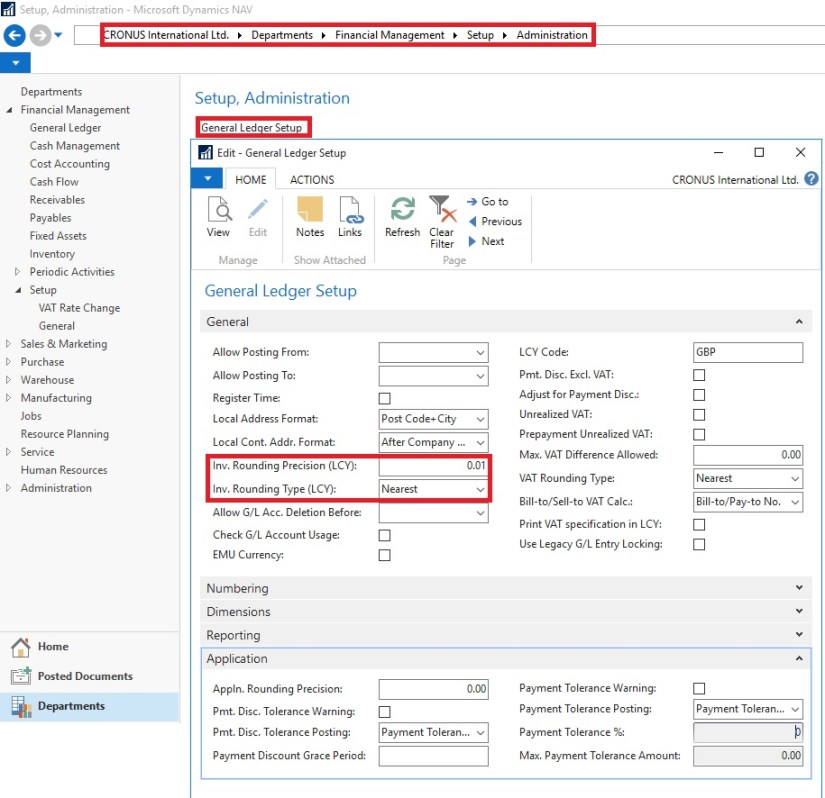
To use the automatic invoice rounding function, you will be required to set up rounding rules.

To set up rounding rules for local currency

  1. Open General Ledger Setup
  2. In the General Ledger Setup window, on the Respective Fast Tab, fill in the Amount Rounding Precision, Unit-Amount Rounding Precision, Rounding Precision (LCY) and Invoice Rounding Type (LCY) fields.

InvoiceRounding-2

You can take help of technical team to add/display fields not visible on the page. These fields are available in Table. For more details about fields you can use F1 help.

Corfu Navision 2016, Functional Tips, How To, Information, Tip & Tricks

How do I: Set Up General Ledger Accounts for Invoice Rounding Differences

To use the automatic invoice rounding function, you will be required to set up the general ledger account or accounts in which the rounding differences will be posted. Before you can do this, you will be required to set up VAT product posting groups.

To set up general ledger accounts for invoice rounding differences

  1. Set up the account in the Chart of Accounts window and name it Invoice Rounding or as required name. (I am showing the standard Account defined in Demo Database, you can setup your own as per the requirement)
  2. In the Posting Type field, select <Blank>.
  3. Fill in the VAT Bus. Posting Group field or can leave blank.
  4. Fill in the VAT Prod. Posting Group You may want to set up a new group code that can be used for invoice rounding, if don’t have any existing to be used.

InvoiceRounding-1

Now you need to assign the invoice rounding account to posting groups in the Customer Posting Groups window and the Vendor Posting Groups window.

InvoiceRounding-6

InvoiceRounding-7

Cumulative Updates

Released Cumulative Update 2 for Microsoft Dynamics NAV 2016

KB 3121038 Cumulative Update 2 includes all application and platform hotfixes and regulatory features that have been released for Microsoft Dynamics NAV 2016.

The cumulative update is intended mainly for solutions that are experiencing the problems described in the Knowledge Base article linked to below. However, you are advised to always keep your solution updated with the latest cumulative update. If you are in doubt about whether this cumulative update addresses your specific problem, or if you want to confirm whether any special compatibility, installation, or download issues are associated with this cumulative update, support professionals in Customer Support Services are ready to help you.

For more details see Link :- https://blogs.msdn.microsoft.com/nav/2015/12/07/cumulative-update-2-for-microsoft-dynamics-nav-2016-has-been-released/


Additional Information

For information about how to install the cumulative update, see How to Install a Microsoft Dynamics NAV 2016 Cumulative Update.

For a list of all cumulative updates for this version, see Released Cumulative Updates for Microsoft Dynamics NAV 2016.

Where to find Cumulative Update 2

You can download the cumulative update from KB 3121038 – Cumulative Update 2 for Microsoft Dynamics NAV 2016 (Build 43897).


https://mbs2.microsoft.com/Knowledgebase/KBDisplay.aspx?scid=kb;EN-US;3121038


Corfu Navision 2016, Data, Development Tips, How To, Tip & Tricks

How to Detect Duplicates

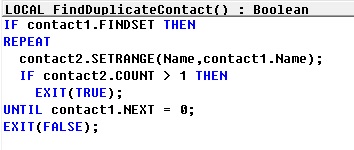
Until Dynamics NAV 2013, the only possibility was to iterate through the table in a loop and then create a sub-loop where another instance of the same table is filtered to check for duplicates.

For example, to check for duplicate names in the Contact table, the code would look like this:

Duplicate.-1

Dynamics NAV 2013 onwards, we can use queries to create a more efficient implementation of the same logic.

 The solution involves that you create a query to return duplicates, and then invoke it from a method that would test the value of the query to identify if duplicates were found.

Step 1 – Creating the Query

  • The query must be created with the table we want to search in as the dataitem.
  • The field we want to search for must be created as a grouped field.
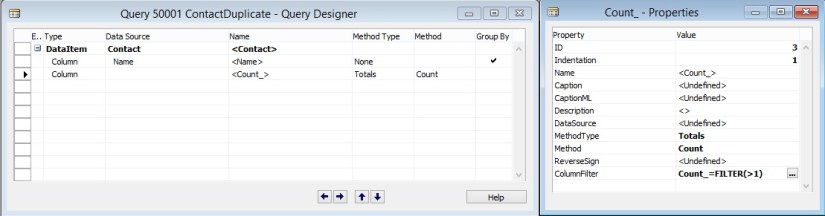
  • Create a totaling field on the count, and add a filter for Count > 1. This ensures that only records with more than one instance of the field that we selected in the previous step are included in the query result.
  • Continuing with our Contact Name example, here is how the query would look:

Duplicate.-2

Step 2 – Invoking the Query to Check for Duplicates

Now that the query is created, all we need to do is to invoke the query and check if any records are returned, which would mean that there are duplicates.

Here is an alternate implementation of the FindDuplicateContact method using the query that we created:

Duplicate.-3


Corfu Navision 2016, Development Tips, How To, Information

Using Argument Tables in Navision

When creating functions we sometimes need a lot of parameters to give the information we require. Number of arguments/parameters to function have limits.

Sometimes these parameters are optional, only required in some scenarios.

This makes calling them quite hard. The code becomes hard to read & understand, and sometimes spread across multiple lines.

When changing the signature of any std. function or already implemented functionality which is highly used over the system in several objects you might end up changing an endless chain of objects.

Imaging adding a field to such function, or change a datatype. The amount of code affected is pretty big and if you need to parameter only for one specific case you end up changing a lot of code for no purpose. Does this make sense?

These challenges can be solved by grouping commonly used arguments in a single table and use that table as the parameter of a function.

So the solution is to create a single table that holds the contract for the function.

When we add new fields to the table, we effectively do not change the signature of the function hence this acts as overloading allowing optional parameters to change the behavior of the code.

You can find usage of such Argument Tables in below objects:

Type      ID            Name

1              9500       Email Item

5              260         Document-Mailing

5              9520       Mail Management

Table is created to hold Parameter Values which will be passed to the function.

ArgumentTables-1

This Function in Table Pass the record as a parameter to the function, basically this is passing 10 Parameters using single record as a Parameter to the Function.

ArgumentTables-2

In Codeunit Document-Mailing below function, This is the extra work which you will be required to perform, if you miss this part you may not get errors at compile time but all the 10 Parameters will be passed as blank. This may be counted as side-effect of using such concept.

ArgumentTables-3

In Codeunit Mail Management below function, This Pass the record as a parameter to the function, basically this is passing 10 Parameters using single record as a Parameter to the Function.

ArgumentTables-4

In Codeunit Mail Management below function, This receives the record as a parameter to the function, basically this is receiving 10 Parameters using single record as a Parameter to the Function.

ArgumentTables-5

Best part is Argument tables can be outside of a customer’s license file since we never insert data in the SQL Server database.

For more details you can see this Link. https://community.dynamics.com/nav/w/designpatterns/245.argument-table