Development Tips, How To, Tip & Tricks, Web Services

Exposing & Consuming the Web service from & inside Navision – Part-3


Continuing from my previous post. Find the link to access the same in case you missed it.

Exposing & Consuming the Web service from & inside Navision – Part-1

Exposing & Consuming the Web service from & inside Navision – Part-2


Step 4: Create a DLL to use as Add-in to consume the Web Service itself in Navision.

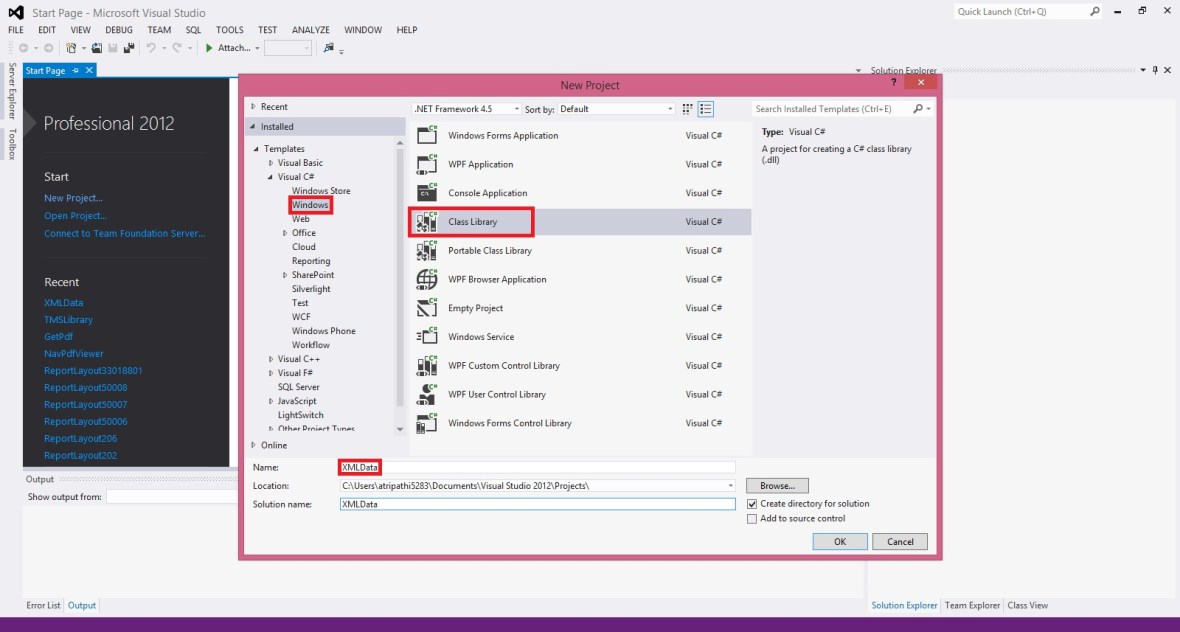
We will start with Class Library Project in Visual Studio.

It’s very simple with few steps to follow, and we will be done with our requirement.

Enter Name and select the path for your project solution folder. In my case I am saving my project to the default location of Visual Studio. And I am naming my project as XMLData.

WebServiceUsage-8

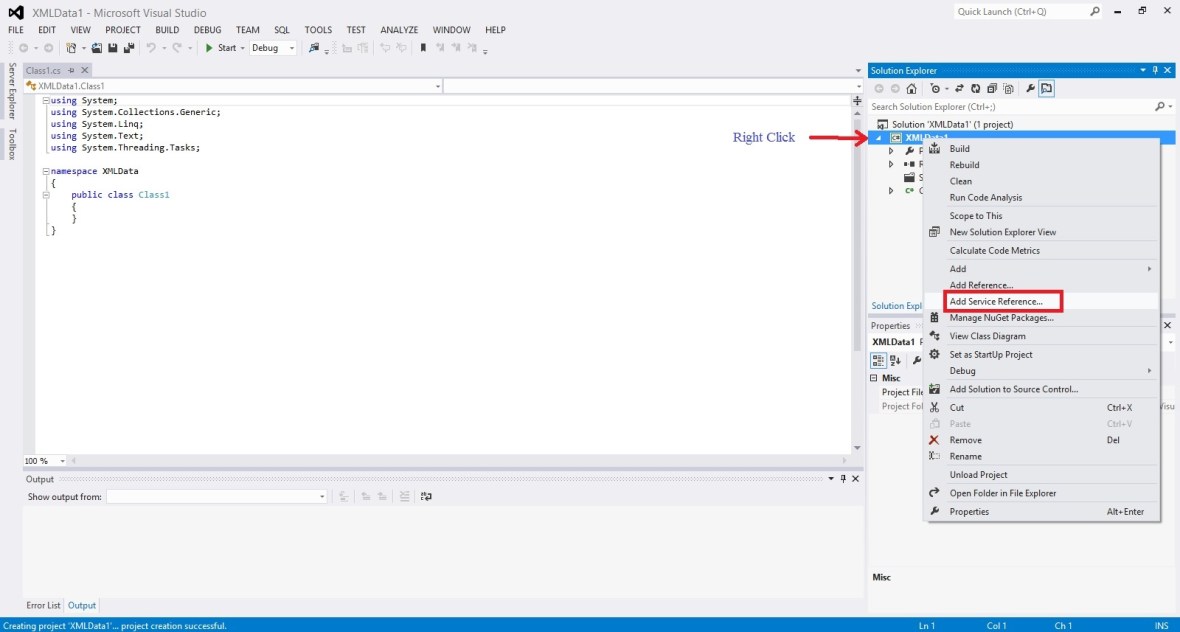
Right click on the project folder and Add Service reference to the project.

WebServiceUsage-9

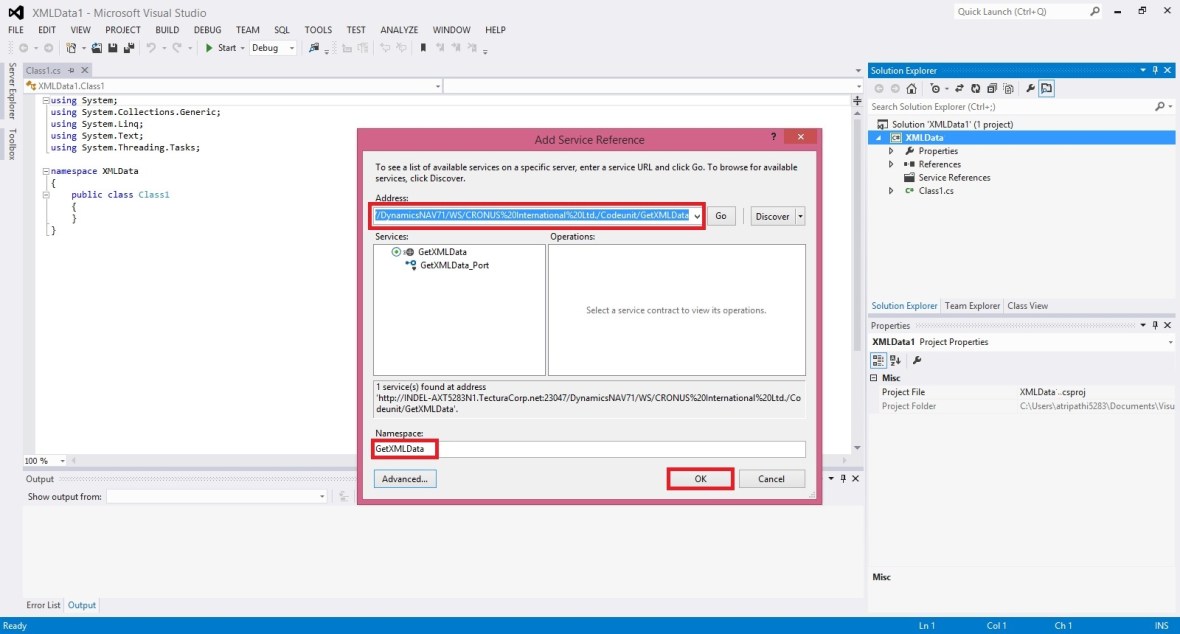
Enter your Web Service URL and click on GO.

Once your Service is listed, enter the Reference Namespace. And click on OK to add the Service Reference to the project.

WebServiceUsage-10

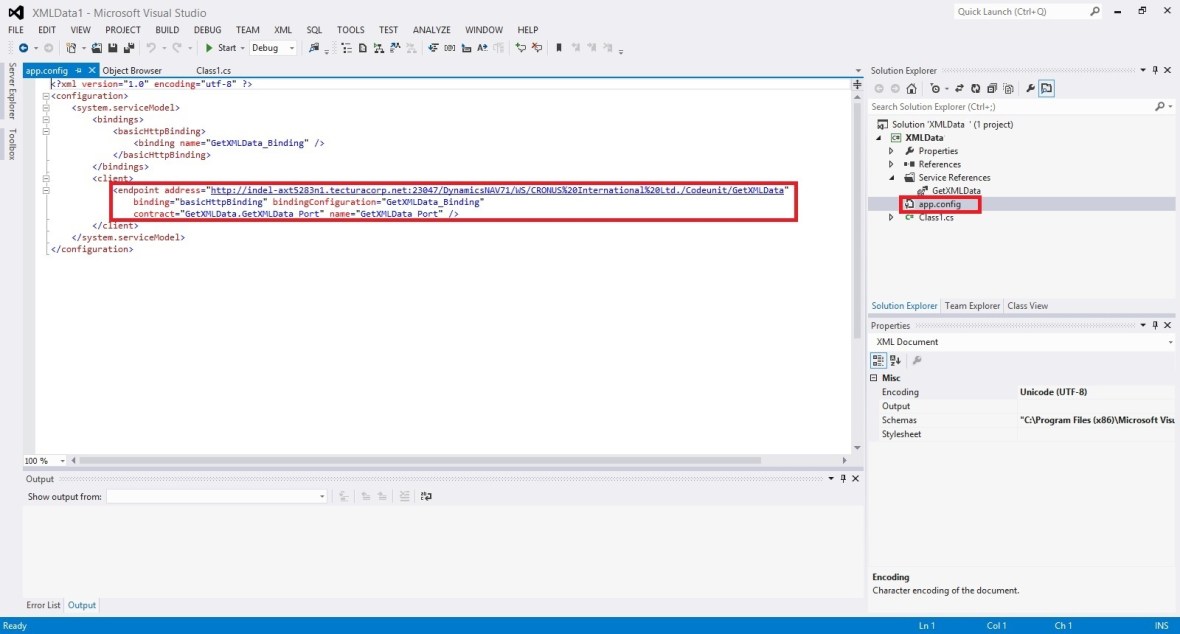
Click on app.config in Solution browser to open.

Verify your code similar to below.

WebServiceUsage-11

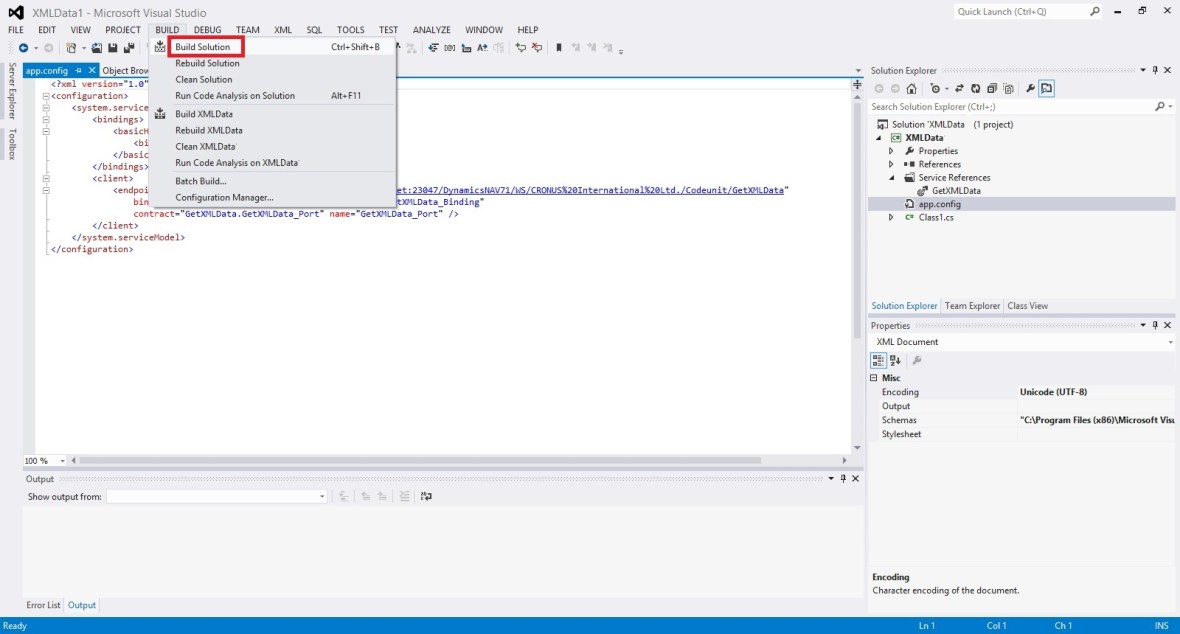
Build your Project to obtain the .dll file.

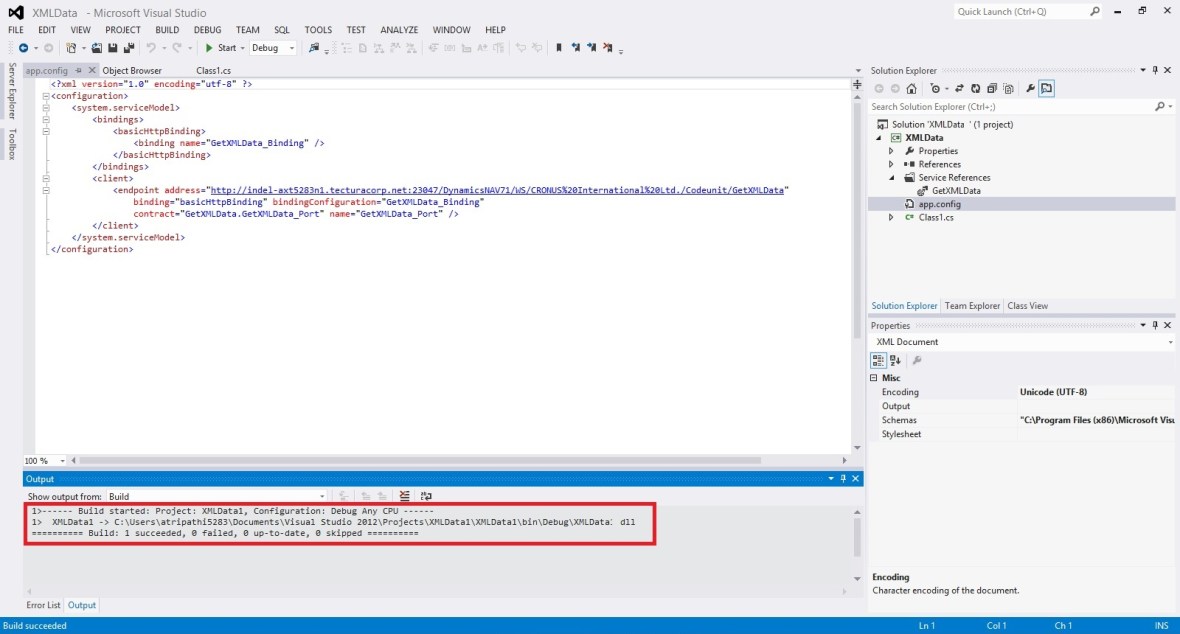
WebServiceUsage-12

Below screen shows we have no errors and the .dll file is created successfully.

WebServiceUsage-13

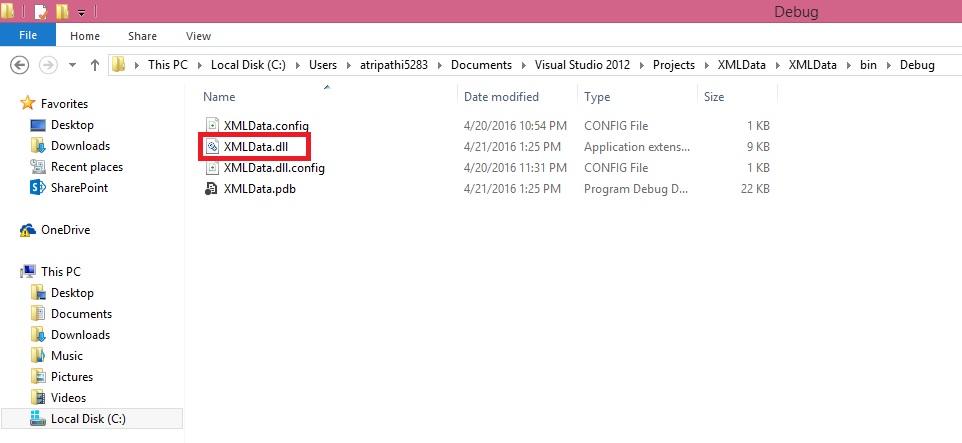
Locate the .dll file in your Project folder similar to path shown below. Copy your dll file.

WebServiceUsage-14

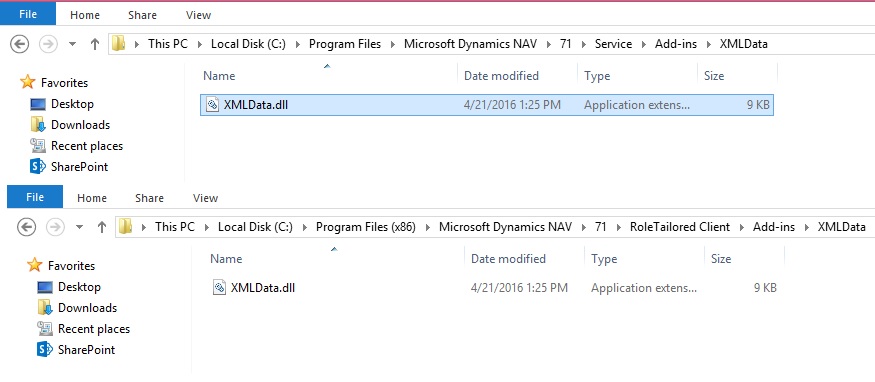
Create a folder and paste your .dll file to Service & RTC folder, as shown in below screen.

WebServiceUsage-15


We are ready with the Add-in, which we will use in our next post to consume our service with the help of this dll, and call the method to obtain our file for further processing.

That’s all for this post, I will be back with next post in series soon.

Till then keep practicing.


To be Continued….


Development Tips, How To, Information, Power Bi Content Pack, PowerBI.com, Tip & Tricks

Microsoft Power BI – My Organization Content Pack Library

Continuing from my previous post. Today we will discuss about Content Pack Library (My Organization) in Power BI.

In case you have missed my previous posts here I present the link to all previous posts below:

Microsoft Power BI – Part – I

Introduction to Power BI and Creating Report from Excel Data, Local Files.

Microsoft Power BI – Part – II

Introduction to few Features of Power BI

Microsoft Power BI – Part – III

Power BI Desktop, Creating Dataset & Reports from In Premise Database installation

Microsoft Power BI – Part – IV

Power BI Gateway usage

Microsoft Power BI – Part – V

Scheduling Refresh of Dataset & Report created using In Premise Database

Microsoft Power BI – Part – VI

Power BI Content Pack

Microsoft Power BI – Part – VII

Power BI Mobile App

Microsoft Power BI – Part – VIII

Power BI Content Pack

Microsoft Power BI – Part – IX

Power BI Publisher for Excel

Microsoft Power BI – Part – X

Analyse in Excel (preview)

PowerBI-47

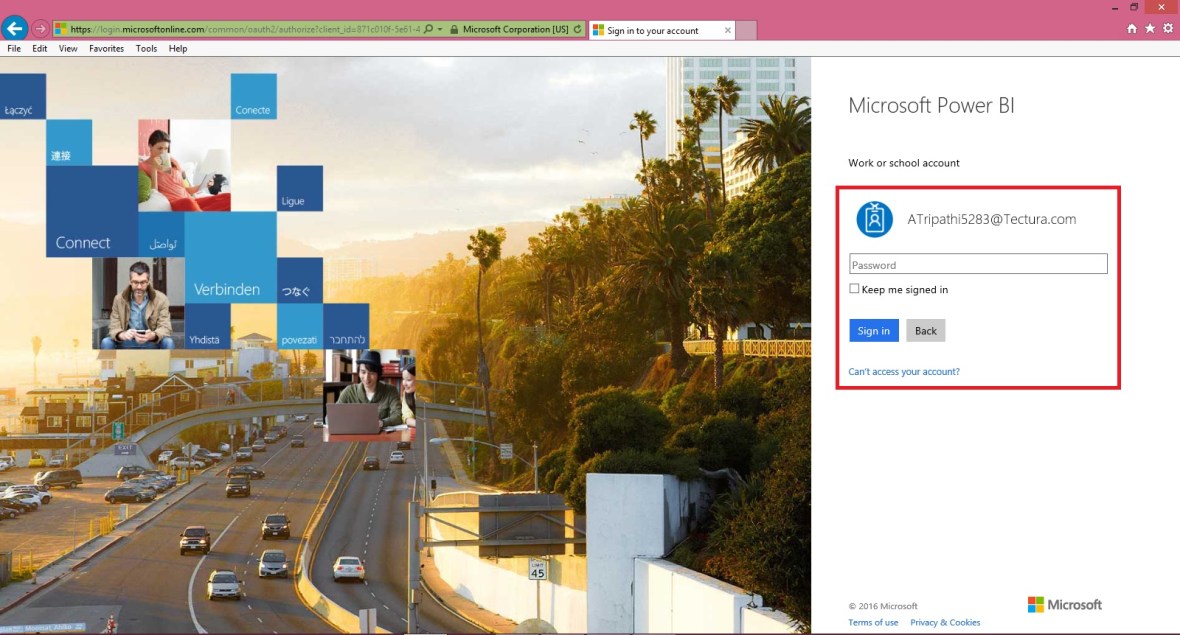
Login to Power BI using your credentials.

OrgPowerContent-1

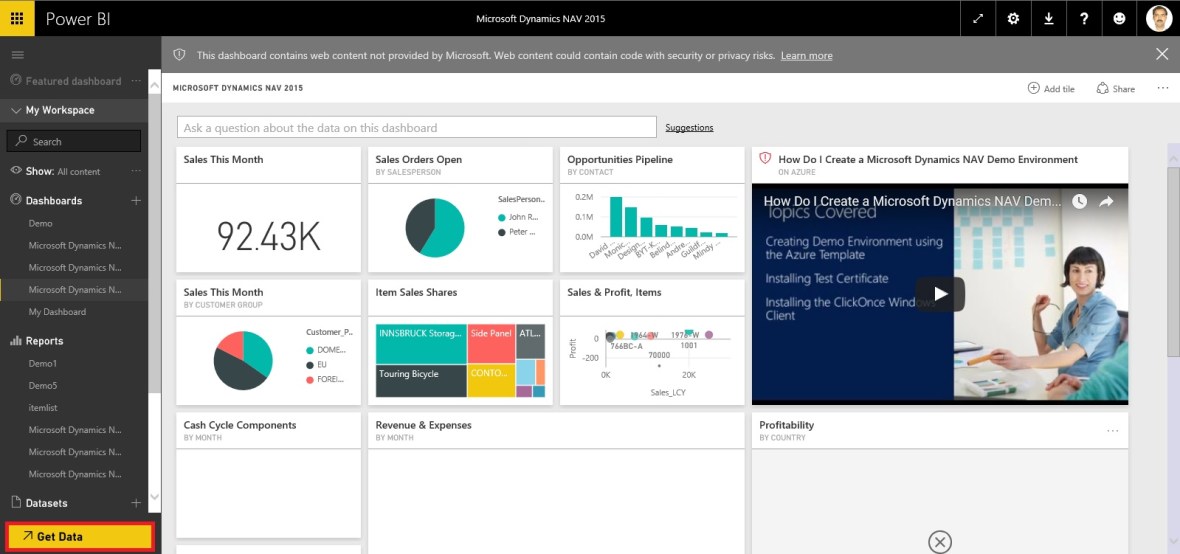
Select Get Data.

OrgPowerContent-2

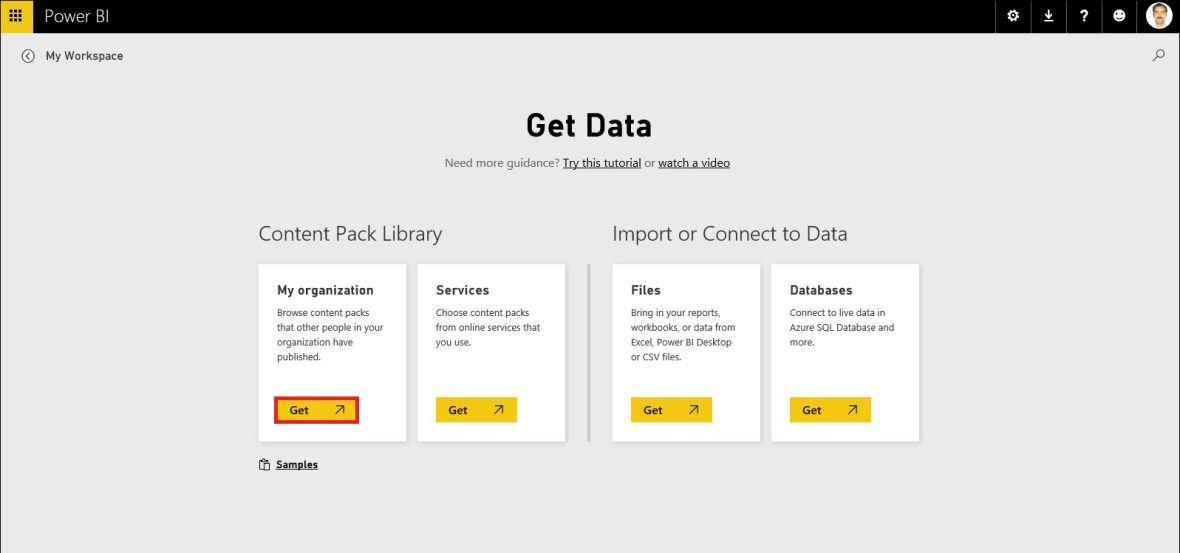
From Content Pack Library section select Get Data under My Organization.

OrgPowerContent-3

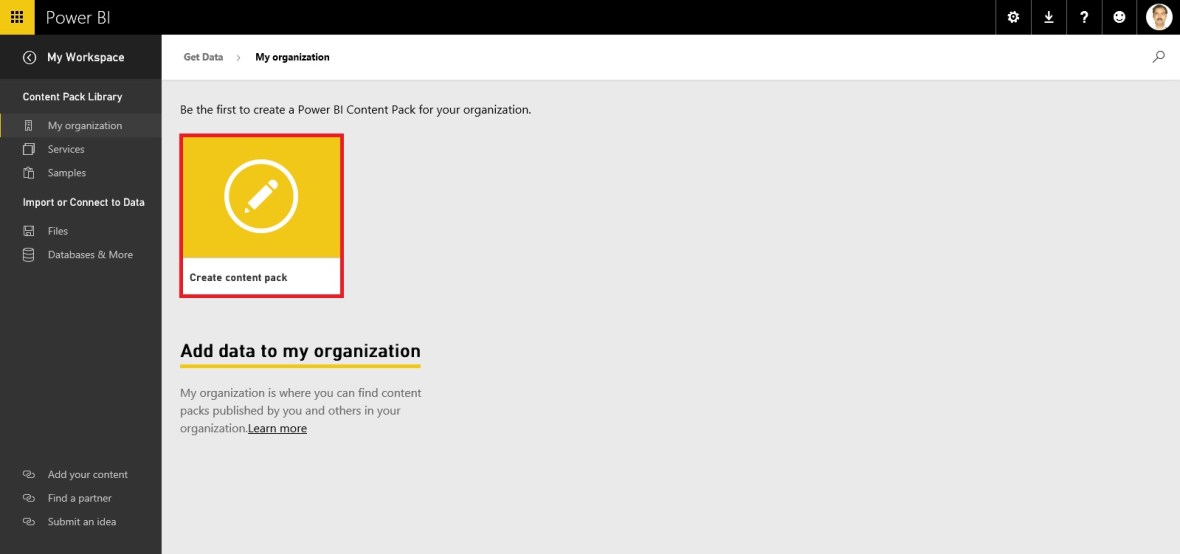
Select Create content pack.

OrgPowerContent-4

This is the part where majority of work to be performed.

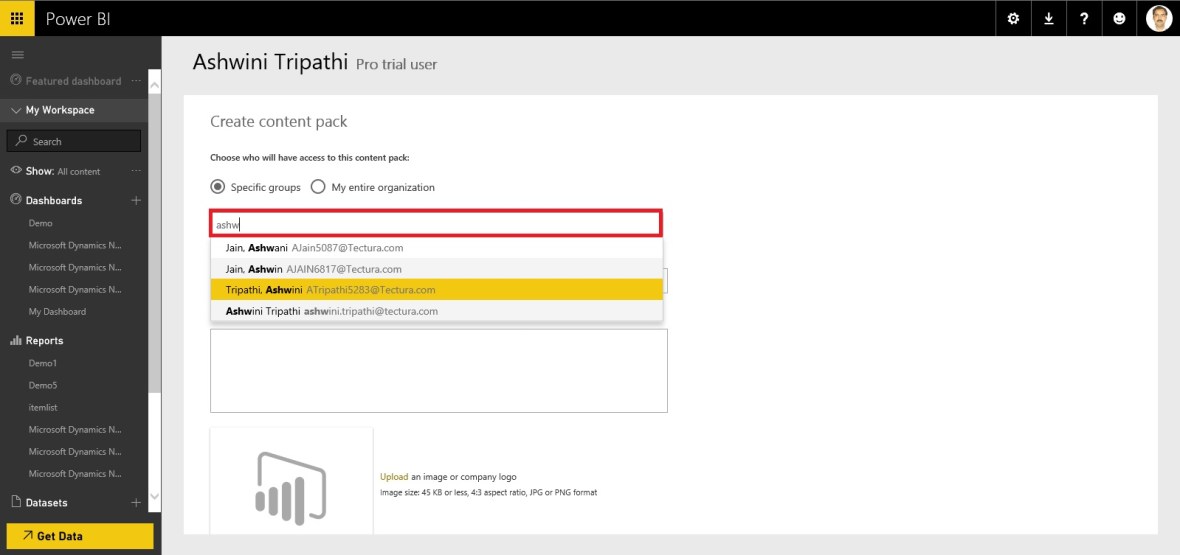
In First Section – Choose who will have access to this content pack

You have 2 option

  1. You can share with specific users or Groups, since your AD is in sync with your in premise AD you can select them.
  2. You can share with your entire Organization.

Select the Group or Users if you go with first option.

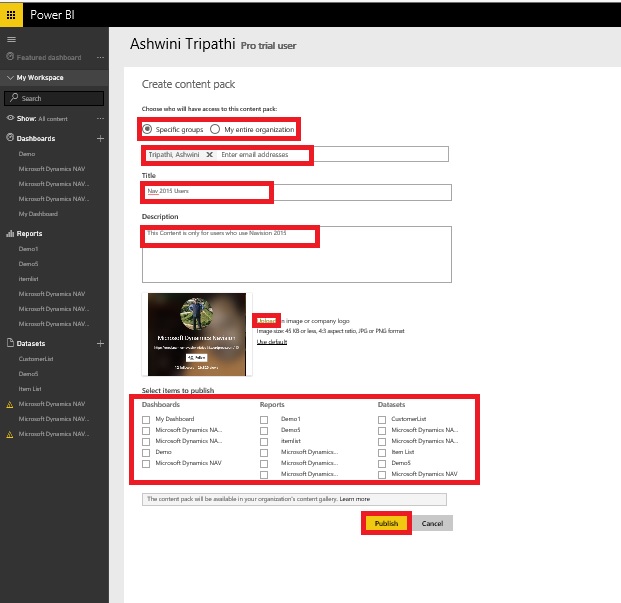
In Second Section – Provide Title for you Content Pack

In Third Section – Provide detailed Description for your content pack.

OrgPowerContent-5

In Fourth Section – You can select Image for your content pack.

Finally in Fifth Section you will define what all content you want to share for the user using this content pack.

Here all available contents are divided under 3 sections (Dashboards, Reports & Datasets).

When you select Dashboard all included Reports and Dataset will be shared by default.

When you select Reports all included Datasets will be shared by default.

When you select Dataset only that will be shared.

You can select combination as you desire.

I will provide write up why we will select selective contents to share with case study, in my future post some time other.

Once you are done with all above step you are good to Publish the Content Pack.

OrgPowerContent-6

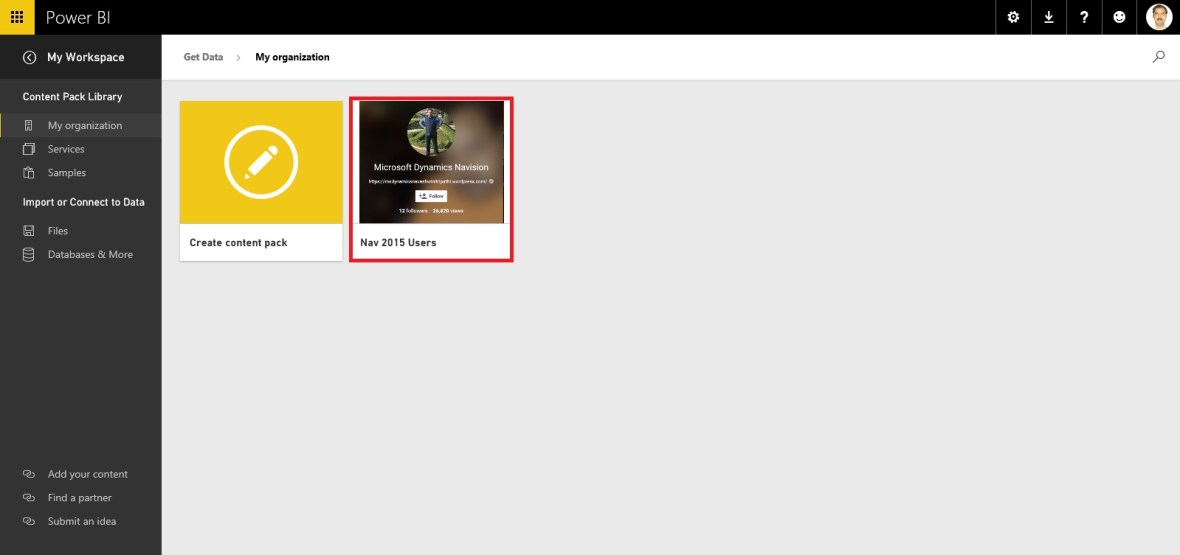
If we revisit the Get Data option again for My Organization, we can view our Published Content Pack which we shared with others.

User can customize as per his need and Share with others in form of New Content Pack or as-it-is depends.

Good Example will be we have one Content Pack for My Organization which include all modules Dashboard, Reports and Datasets.

My IT will create Module wise Content Pack (Finance, Sales, Purchase, Warehouse, Manufacturing etc…) and share these content packs with concern department Heads. Further each Heads will create sub-content pack and share with their team with information which is related to them and so on.


That’s all for today, will come up with more information in my future posts.

Till then keep exploring and learning.


Data, Development Tips, How To, Information, Tip & Tricks, Web Services, XMLports

Exposing & Consuming the Web service from & inside Navision – Part-2

Continuing from my previous post. Find the link to access the same in case you missed it.

Exposing & Consuming the Web service from & inside Navision – Part-1


Step 1: Create a XML Port to Export Data in XML Format using XMLPort and save at some specified Location.

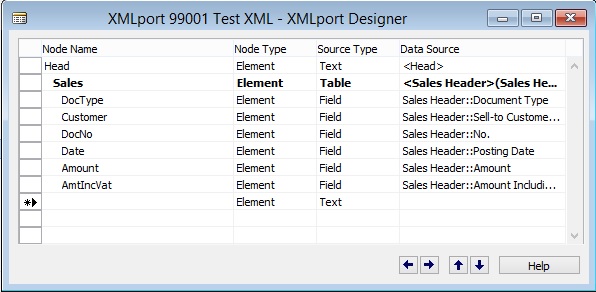
Here we will be creating just for demo purpose simple XMLPort for Exporting Data from Navision Database in XML Format.

WebServiceUsage-2

We are using very simple structure for our XMLPort.

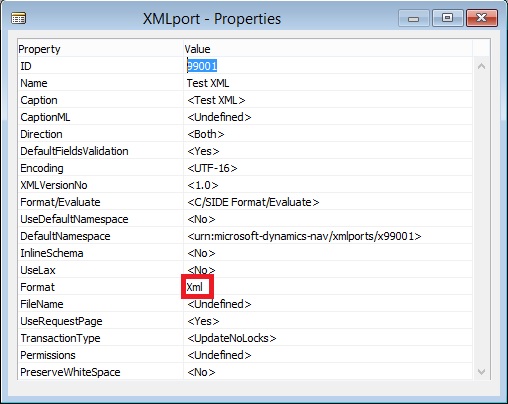
Make sure you set the properties accordingly as we are exporting the data in XML Format.

WebServiceUsage-3

Save the XMLPort at available id and suitable name.


Step 2: Create a Codeunit to call XML Port and retrieve data in XML Format in Text Variable.

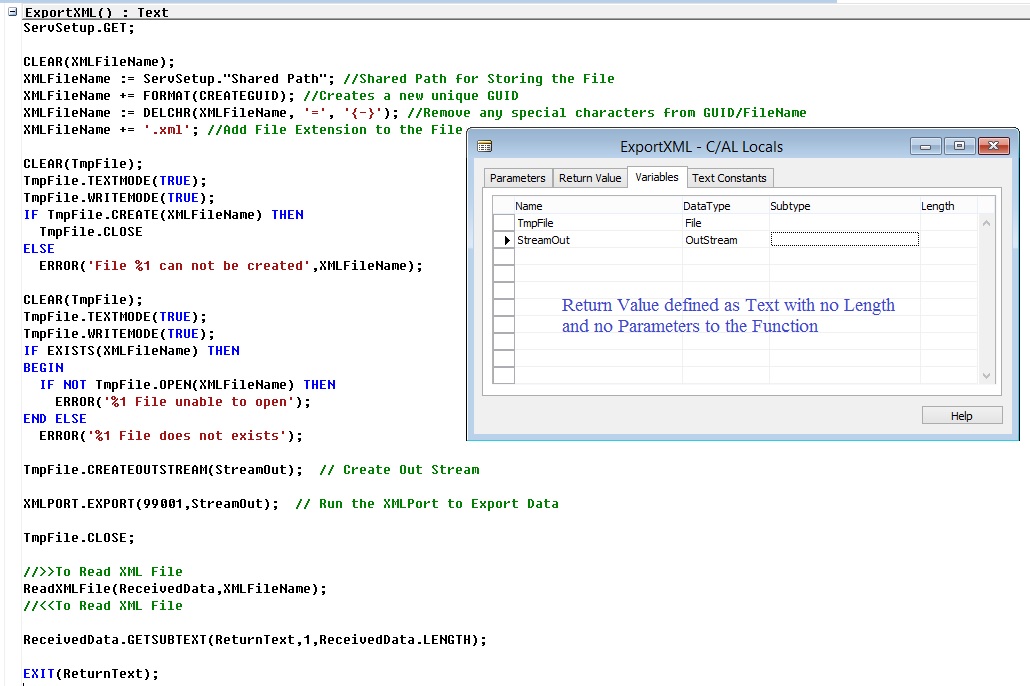
Here we will create a Codeunit with few helpful functions which will call the XMLPort to Export the data and save in temp file.

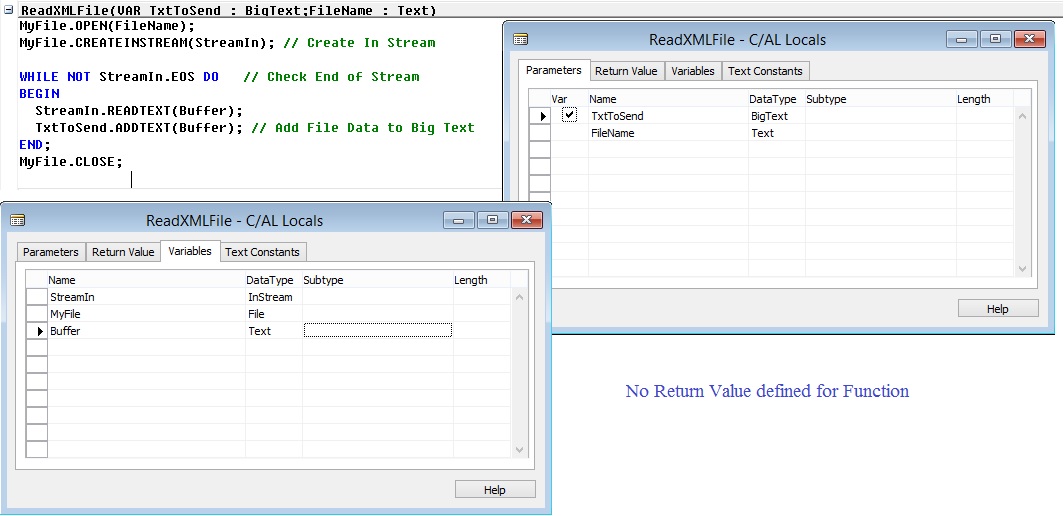
Further retrieve the data from the file in XML Format.

Return the data retrieved above to the calling program/ function.

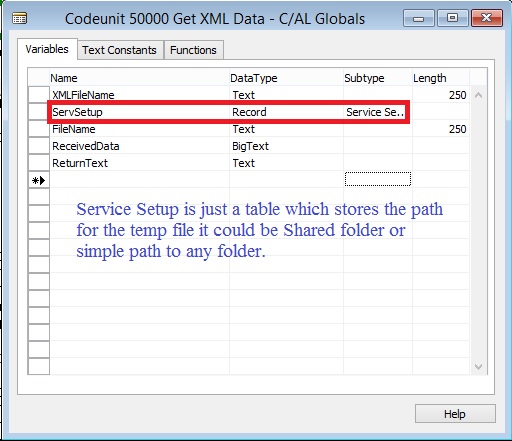
To start with let us start with creating some Global Variables.

WebServiceUsage-4

Next we will add one Function as below.

WebServiceUsage-5

Next we will add one more Function as below.

WebServiceUsage-6

Save the Codeunit at available Id and suitable Name.


Step 3: Expose/Publish the Codeunit as web service.

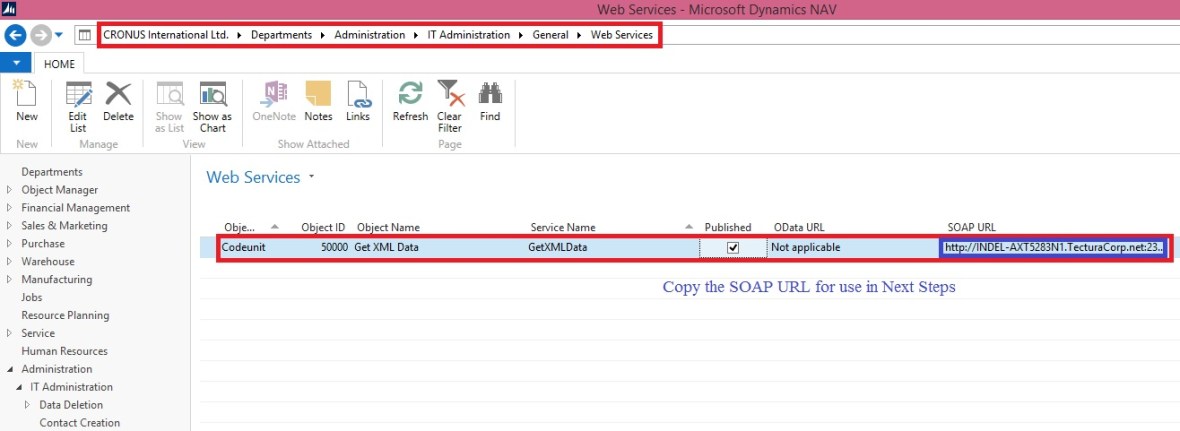
Open Web Services Page and add your Codeunit created above. Use your relevant ID on which you saved your Codeunit.

WebServiceUsage-7


Tick the Published to Expose the Codeunit as Web Service.

Rest in my Next post.

To Be Continued……

Data, Development Tips, How To, Information, Tip & Tricks, Web Services, XMLports

Exposing & Consuming the Web service from & inside Navision – Part-1

Introduction

Today in reply to one of my reader I am giving here steps how we can Export data using XMLPort and transfer data outside Navision using Web Services.

Lets discuss about the technology before I jump to the solution.

Few full forms which may help understanding while reading this post.

W3C – Web Services Architecture Working Group.

SOAP – Simple Object Access Protocol.

REST – Representational State Transfer.

WSDL – Web Service Description Language.

UDDI – Universal Description, Discovery & Integration.

AWS – Arbitrary Web Services.

XML – Extensible Markup Language.

HTTP – Hypertext Transfer Protocol.


What is Web Service?

W3C defines Web Service as : A software system designed to support interoperable Machine-to-Machine interaction over a network.

Web service can be defined as service offered by an electronic devices to another electronic devices, which communicate with each other over www.

W3C defines web services has an interface described in a machine-process able format WSDL.

Other systems I with the web service in a manner prescribed by its description using SOAP messages, typically conveyed using HTTP with an XML serialization in conjunction with other web-related standards.

Later W3C extended the definition:-

REST – compliant web services, in which the primary purpose of the service is to manipulate representations of web resources using a uniform set of stateless operations.

Arbitrary Web Services –  the services may expose an arbitrary set of operations.
WebServiceUsage-1-2

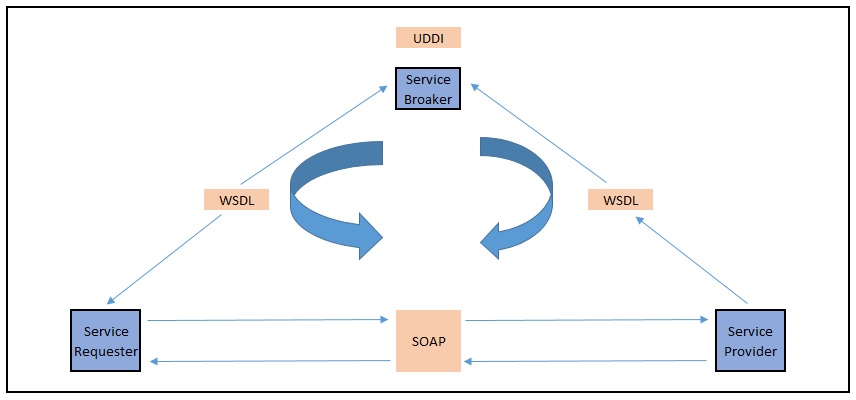
UDDI  defines which software system need to be contacted for which type of data.

Once the system is discovered to be contacted, the contact is established using SOAP.

Service provider system validate the request by referring the WSDL file, process the request and send the data using SOAP protocol.


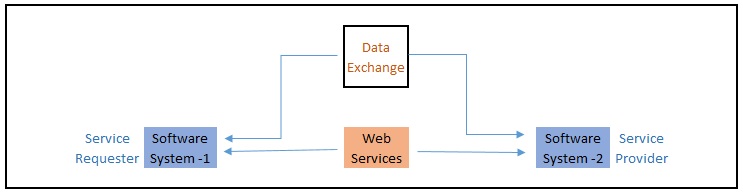
Web Service is a method of communication that allows two software system to exchange the data over the internet.

  • Two systems may use different software which could be using different programming languages.
  • Almost all type of software interpret XML tags.
  • Web Services can be used to exchange data between two systems in form XML files.
WebServiceUsage-1-3

XML is used to tag the data.

SOAP is used to transfer the data.

WSDL is used to describe the services available.

UDDI lists what service are available.

Human to machine communication is utilized for machine-to-machine communication, used for transferring machine readable files such as XML & JSON formats.

Web services use SOAP over HTTP protocol, facilitating to use your existing low-cost internet for implementing Web Service.

Rules for communication between two different systems:

All the rules are defined in WSDL file.

  • How request to be send from one system to another.
  • What all parameters need to be send while requesting data.
  • What structure to be used for generating data (Normally data is exchanged in XML format) which is validated against .xsd file.
  • What errors to be generated in case of failure of rule communication set.


Web Services that uses Markup Language:

  • JSON-RPC
  • JSON-WSP
  • Web template
  • Web Service Description Language (WSDL)
  • XML Interface for Network Services (XINS)
  • Web Services Conversation Language (WSCL)
  • Web Services Flow Language (WSFL)
  • WS-Meta data Exchange
  • Representational State Transfer (REST)
  • Remote Procedure Call (RPC)
  • XML Remote Procedure Call (XML-RPC)


No more theories lets come to our point.

There are other ways too to achieve the same, but here I am specific to the requirement to which I am answering.

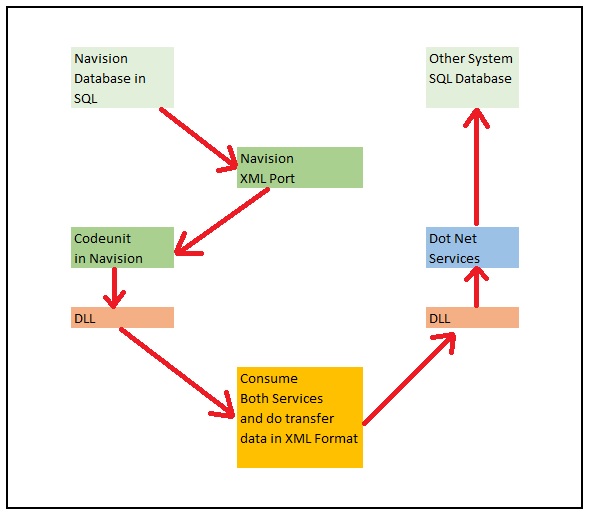
Requirement is the Data in XML format file will be transmitted using Web Service, We will be using Navision Exposed Web Service to Export data using XMLPort and then send the content by consuming another Web Service exposed in Dot Net which will retrieve the XML content and update in some other system.

Assumption is these two endpoints can be two separate databases in same domain or two different companies of same organization operating at two different location sharing information via Web Services.

For the demo purpose I will be using Navision to publish the service for exporting the data and retrieve the data using Web Service exposed in Dot Net.

Since I have not in depth knowledge of Dot Net codes, so I have asked my college to prepare the Web Service for me and I am simply using it to show how we can do it.

Here I will be getting this done through below 5 Steps.
WebServiceUsage-1

Next Post in this Series will contain:

Step 1: Create a XML Port to Export Data in XML Format using XMLPort and save at some specified Location.

Step 2: Create a Codeunit to call XML Port and retrieve data in XML Format in Text Variable.

Step 3: Expose/Publish the Codeunit as web service.


Next Post in this Series will contain:

Step 4: Create a DLL to use as Add-in to consume the Web Service itself in Navision.


And the Final Post in this Series will contain:

Step 5: Create a Codeunit to test Retrieve the data using above DLL and Send data in XML Format using another Web Service exposed in Dot Net.


Please follow my upcoming post for Walkthrough to get above 5 steps done.

To Be Continued……….


How To, Information, Maderia, Tip & Tricks

User Experience Settings – Madeira

Based on the needs of your company you can change the way all your employees experience Project “Madeira”.

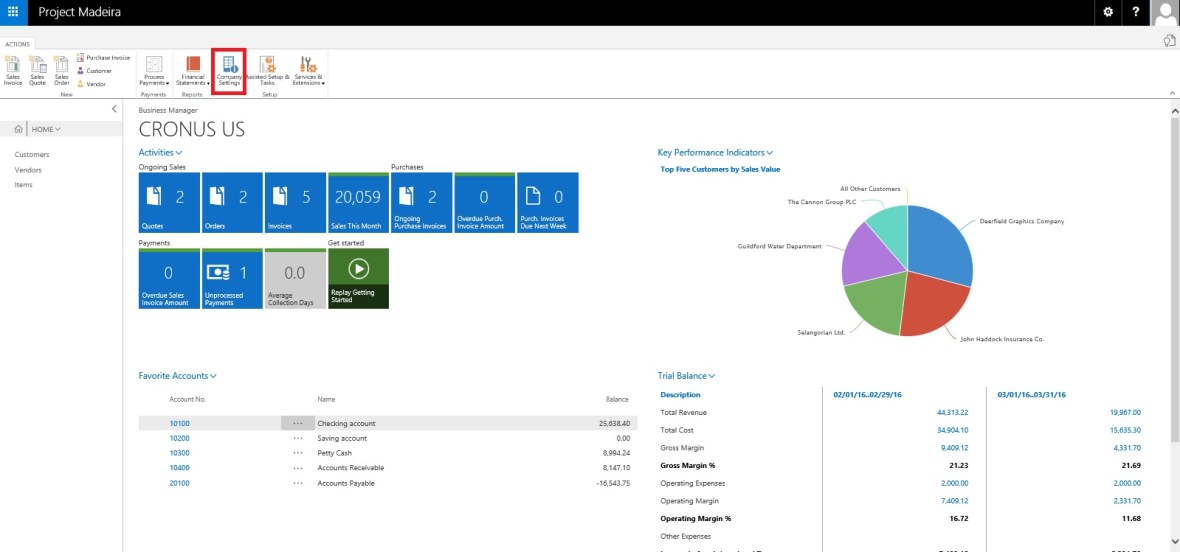
Open the Company Information Page:

Experience-1

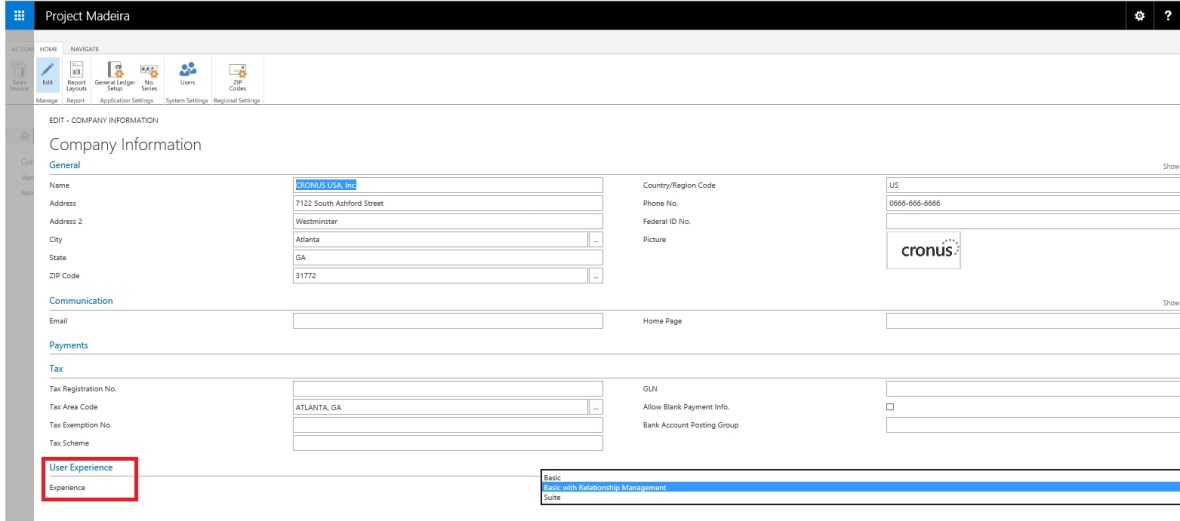
In the Company Information window, you can set the application experience that your users will have on User Experience FastTab as shown in the following screen:

Experience-2

The following table describes the impact of the experience setting:

Experience setting Description
Basic This is the setting to choose if you only want the bare essentials to do the bookkeeping for a smaller company.

You’ll have sales quotes, order, invoices and purchase invoices for your business transactions with customers and vendors, and journals to do the finance.

You’ll be able to use Project “Madeira” as your business inbox in Outlook, and you can also use services such as PayPal and Yodlee.

Basic + Relationship Management This is the default setting for the demonstration version.

It has the essential features (Basic) for you to get an idea of how Project “Madeira” works – you can do bookkeeping for a smaller company as well as doing common tasks in customer relationship management.

Suite This is Project “Madeira” in full. You’ll have all the features offered in Project “Madeira”, in addition to Basic + Relationship Management you will get the following features:

  • Multiple Currencies
  • Dimensions
  • Workflows (incl. Document Approvals)
  • Budgets
  • OCR service (Incoming Documents)
  • Deferrals
  • Recurring Journals
  • Electronic Documents
  • Analysis reports (G/L, Sales, Purchase, Items)

Will come up with more details in my upcoming posts.

Till Then keep exploring and Learning.


Corfu Navision 2016, Information, Maderia

Is the traditional Dynamics NAV on the way out due to Project “Madeira”??

I’ve got the question a few times this week, do you think that  the traditional Microsoft Dynamics NAV are on the way out??? Why is people asking this question, the reason is that Microsoft have launched their new ERP called Project “Madeira”, which I know is equal to NAV2017, but still very different from when Microsoft launched NAV2016 . I see this as an extra business solution Microsoft are offering which is based on the Dynamics NAV platform.

For more details see below link :

https://www.linkedin.com/pulse/dynamics-nav-way-out-due-project-madeira-carsten-olholm

How To, Information, Jet Reports, Report, Tip & Tricks, Warehouse

Financial Statements and Data Warehousing (Jet Reports)

Learn how a data warehouse makes creating financial statements from multiple systems fast and easy by storing all of your data in a single place that is optimized for end user reporting.

Video-1

Video-2

Information, PowerBI.com, Tip & Tricks

Now Power BI Added to Microsoft Trust Center

The Microsoft Trust Center provides a single point of reference for cloud trust resources, including documentation of our adherence to international and regional compliance certifications and attestations, privacy and data protection policies and processes, data transfer and location policies, and security features and functionality.

When you entrust your data to the Microsoft Cloud, you will have questions. Where is it? Who can access it? What is Microsoft doing to protect it? How can you verify that Microsoft is doing what it says?

For more information see this Link: https://www.microsoft.com/en-us/trustcenter

https://powerbi.microsoft.com/en-us/blog/power-bi-added-to-microsoft-trust-center/

The Power BI service is built on Azure, Microsoft’s cloud computing platform, and leverages Azure’s robust set of security technologies and practices. These help ensure that Power BI is resistant to attack, safeguards user access, and helps secure your data through encrypted communications.

As a Power BI customer, you know, through clearly stated policies and procedures, where your customer data is stored and how we help secure it, as well as who can access it and under what circumstances.

Corfu Navision 2016, Development Tips, How To, Information, Tip & Tricks

How Do I Implement the Activity Log Pattern in Microsoft Dynamic NAV

Watch this video to know about how to implement activity log pattern in Microsoft Dynamics NAV.

Corfu Navision 2016, How To, Security, Tip & Tricks

How Do I Load Certificates During Web Services Communication in Microsoft Dynamics NAV

Watch this video for more details.

This video demonstrates how to dynamically load certificates during web services communication in Microsoft Dynamics NAV.