PowerBI.com

Microsoft Power BI – Part – III

If you have not seen please check it out it will help you continuing with this post.

You can check:

Microsoft Power BI – Part – I

Microsoft Power BI – Part – II

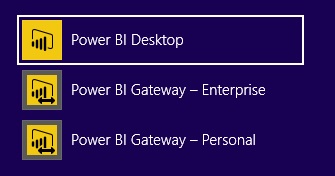
If you remember in our first post of this series we have downloaded an installed 2 Component/Tool
PowerBI-25

Today we will discuss and explore Power BI Desktop. It allows you to create the reports from in premise database and create visuals as we saw in our previous posts.

When you launch Power BI Desktop application opens as below:

PowerBI-26

Which more or less looks like one we saw online PowerBI.com.

Let’s try building one simple report using this tool.

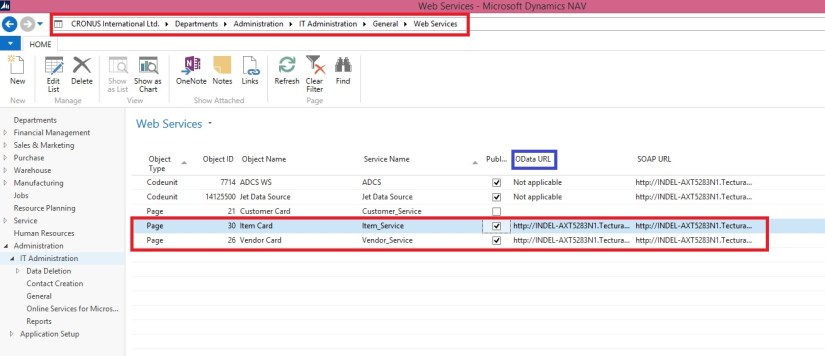
Step-1 We will require some services to be published before we can access data from our in premise database.
PowerBI-27

For my example I have published two pages Item Card & Vendor Card as a Web Service.

We will use OData URL to fetch data.

Step-2 Launch Power BI Desktop

PowerBI-28

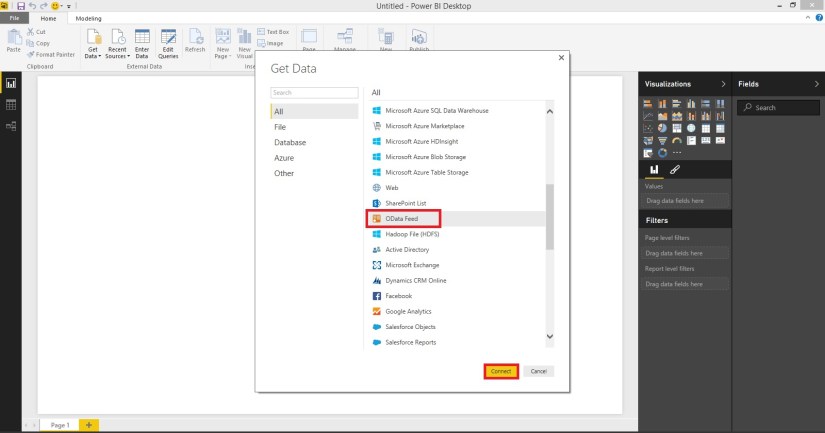
Step-3 Connect our Data source to create our reports.

Select Get Data from the Home Screen.
PowerBI-29

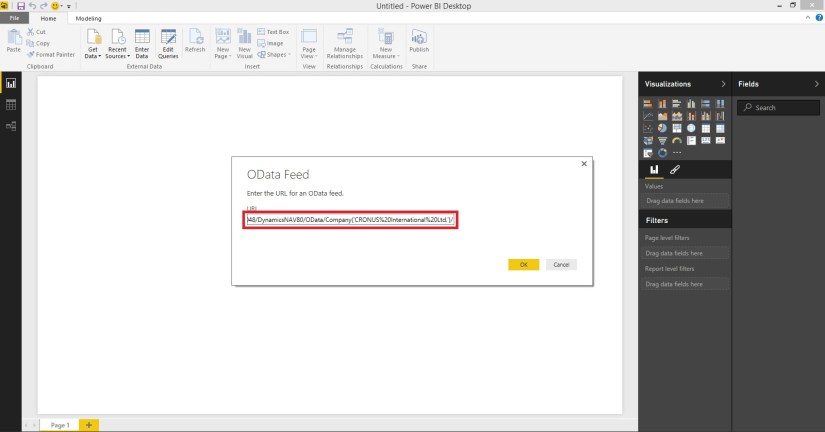
Copy the OData URL from the Web Service Page, in my case: http://INDEL-AXT5283N1.TecturaCorp.net:8048/DynamicsNAV80/OData/Company(‘CRONUS%20International%20Ltd.’)/Item_Service

Please take up to Company Name no Service Name required, it will list you all the services exposed from your database installation. In above remove the service name Item_Service from the URL.
PowerBI-30

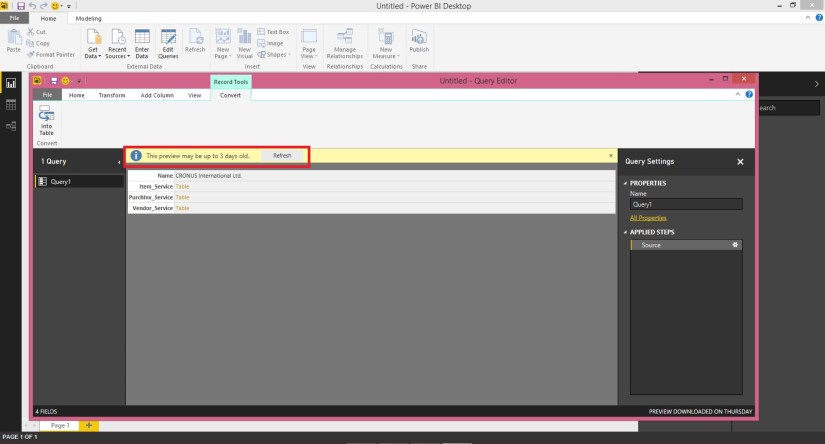
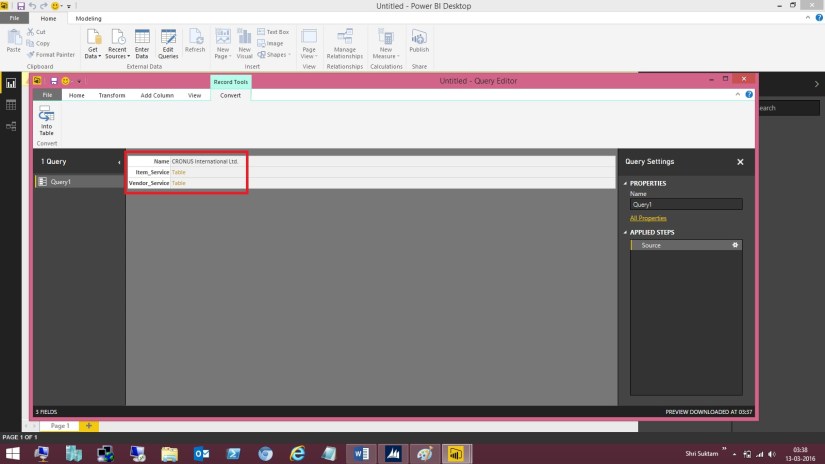
On selecting OK you will get list of all Services available in form of Single Query.
PowerBI-31

If you notice sometimes you may not get the latest list of services available, reason the connection is not refreshed. See the highlighted part in above screen.

Refresh the connection to get latest list of services available.
PowerBI-32

In above screen show us the currently available services which we can use for creating our report/ visuals.

Step-4 Add available tables to our Dataset.

PowerBI-33

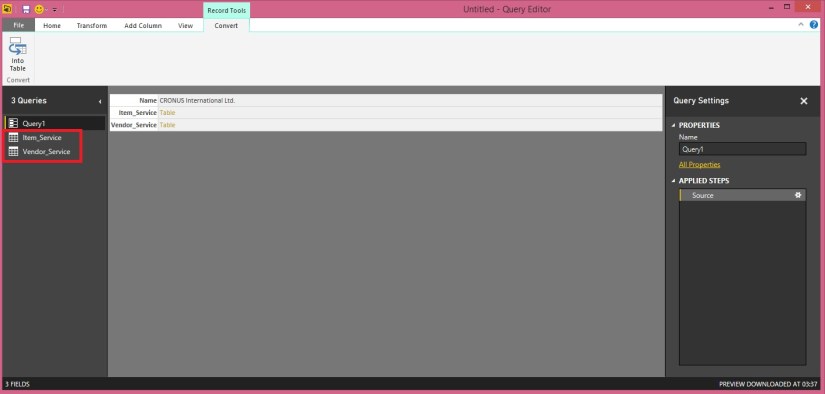
Right Click on the Table Link and choose “Add as New Query”
PowerBI-34

Once you add you can find Table Query in the Left Navigation Bar.
PowerBI-35

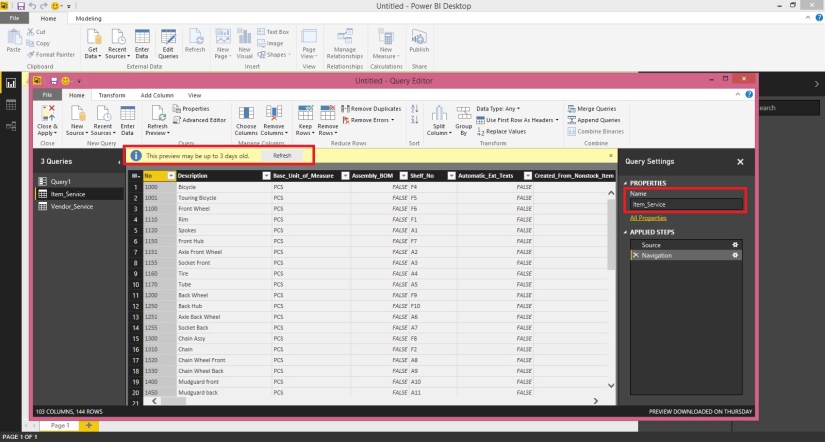
You can Browse the Table from the Left hand Navigation Bar and change its Name if required in the Right side “Query Settings”. On the Top of the Query you may find information if available data is old, you can Refresh it to get the updated one.

Here you can perform other operations too to tweak the table as per the requirement.

You can Add new columns deriving data from existing columns using formula and other available methods. You can drop unnecessary columns etc. We will look into same in future posts.

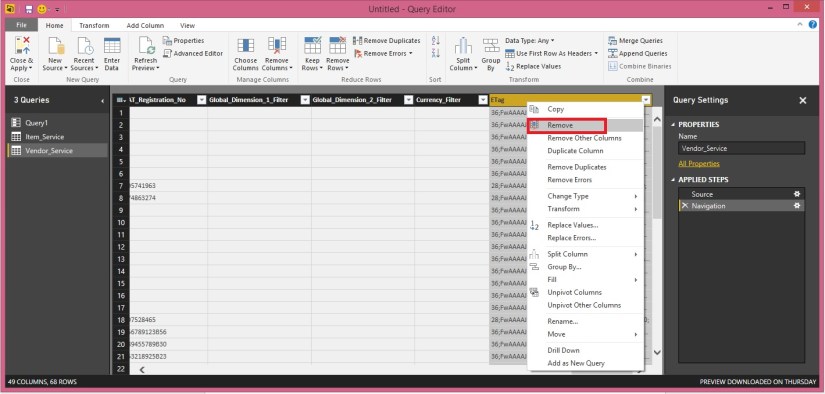
For now we will remove some additional columns which got added due to service.
PowerBI-36

Select the column Right Click and choose Remove.
PowerBI-37

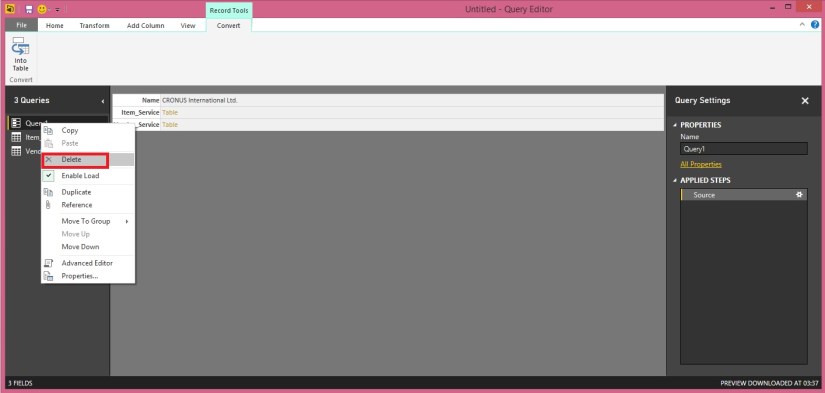
Finally we will remove the Source Query created after connecting to OData, Right Click to the Query and choose Delete.
PowerBI-38

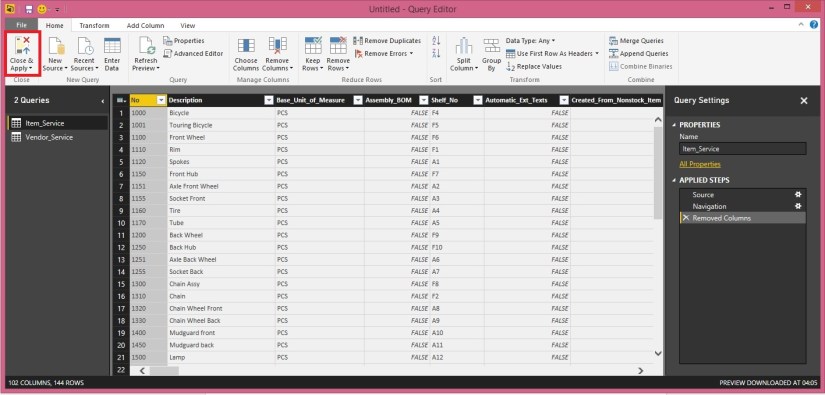
As a Final to this Step we will choose Close & Apply from the Top Left Corner Tool Bar.
PowerBI-39

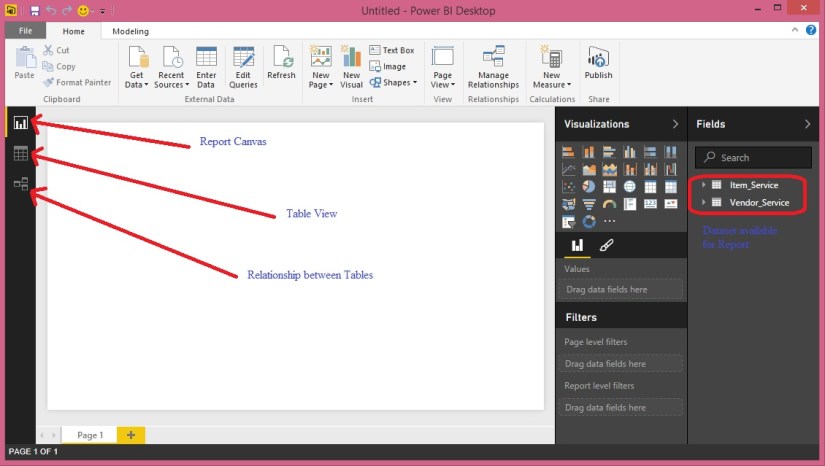
You will be returned to main Report Builder Window.

This screen is similar to one we saw while Online Power BI window.

Step-5 We will build Relation between our tables added above.

Let us build the Relation between the Tables we selected.

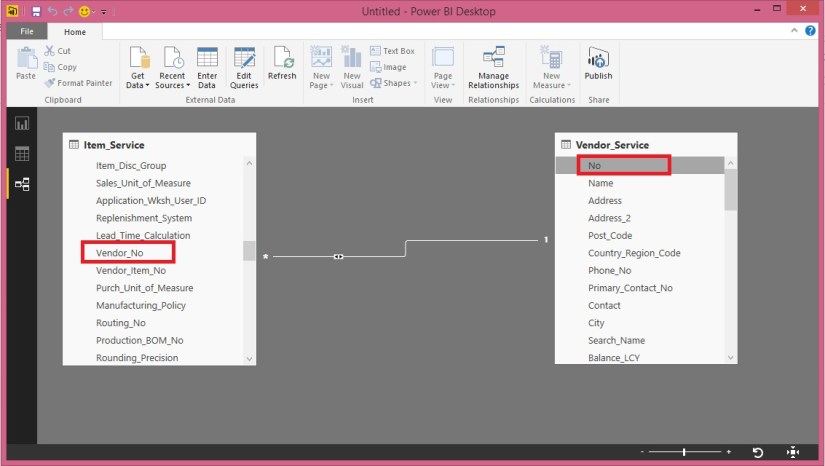
To define the Relationship Select Relationship view from the Left Navigation Bar.
PowerBI-40

You will see both the Tables in the Relation Window.

To define relation Click on Vendor No field in Item Table and Drop on No field of Vendor Table.

You will see Many to One Relationship is established between these two Tables. For now we will use this only and come in more details of Managing Relationship in future posts.

Step-6 Create our Report/ Visuals

Return to Report Canvas and add few Fields as we did while our First report using Online Power BI.
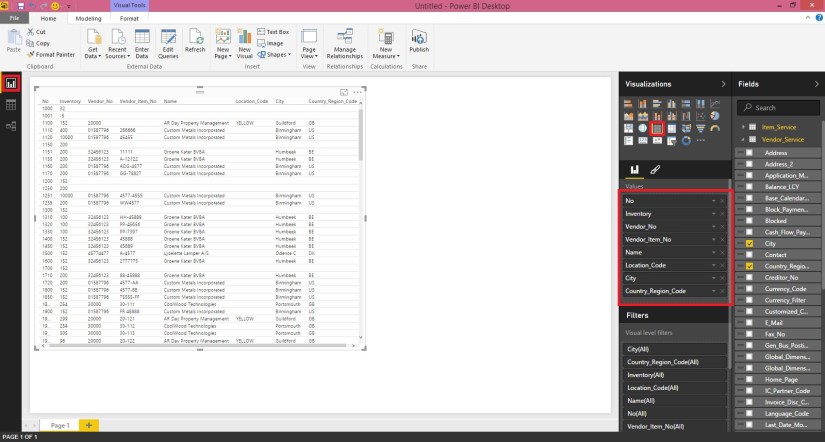
PowerBI-41

For my example I have added Item(No, Inventory, Vendor No, Vendor Item No) Vendor(Name, Location, City, Country Region Code).

Rest I leave up to you how you further categorize and Visualize the report. My objective was to demonstrate how you can create Reports in BI Desktop Tool using your in premise Navision Database installation.

Step-7 Save my Report
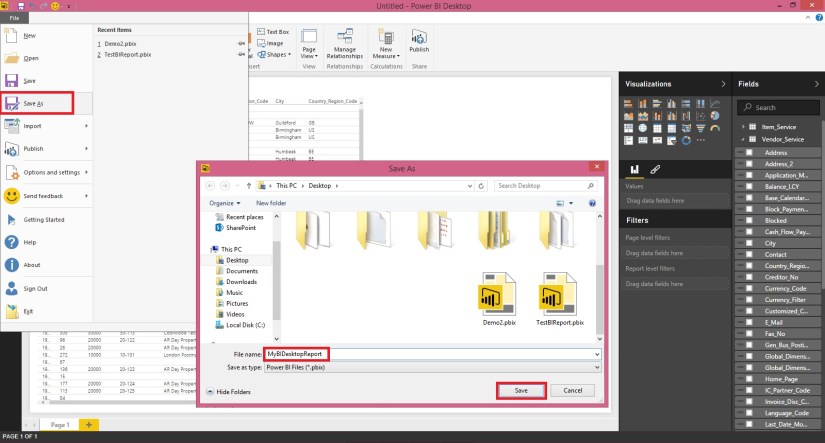
PowerBI-42

Save the Report *.pbix which we can access to modify report in future if required.

Step-8 Login to PowerBI Online
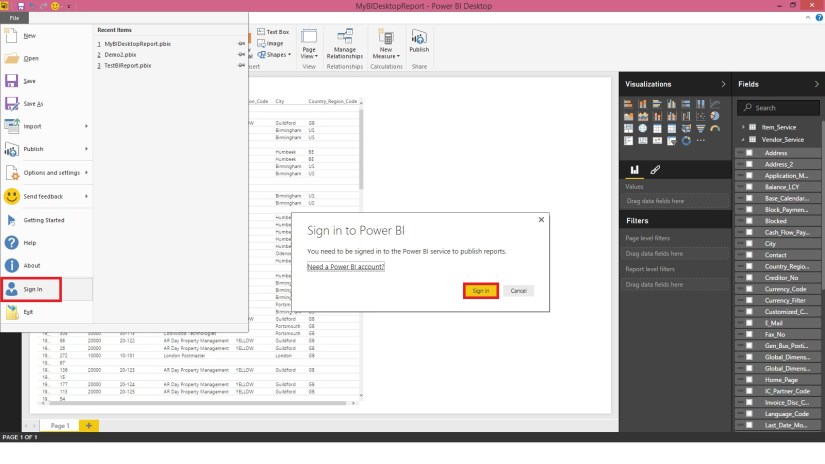
PowerBI-43

You will require credentials to your PowerBI online to connect.
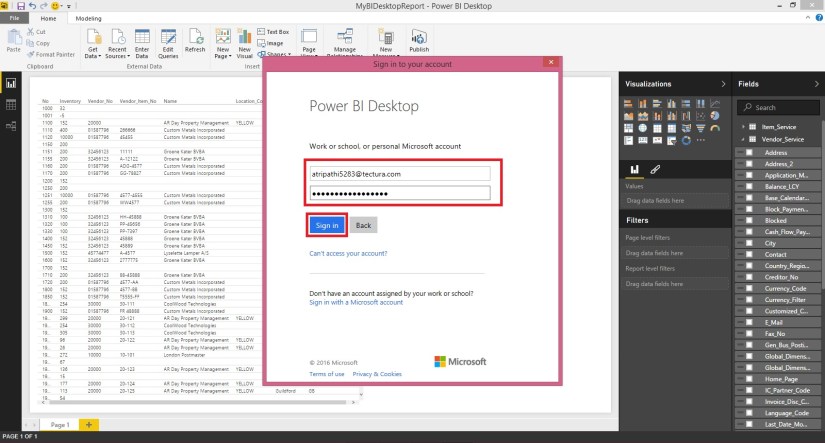
PowerBI-44

Provide your credentials and Sign in.

Once you successfully sign in to your account you can now proceed with next step.

Step-9 Publish the Report to Online Power BI

PowerBI-45

Once your Report is published successfully you will get below screen
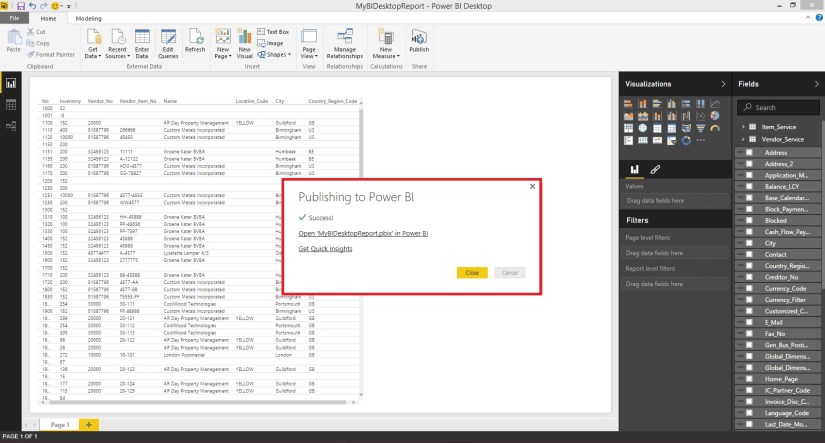
PowerBI-46

Step-10 Verifying the Report on PowerBI.com

PowerBI-47

Sign in using your credentials to PowerBI.com
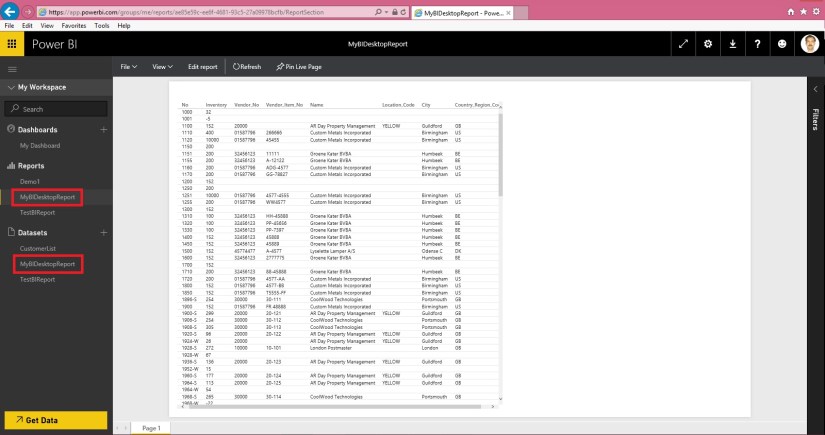
PowerBI-48

Great, the report we published from BI Desktop is now available Online.

That’s all for today.

Truth is we have created the Report using in premise database, it should be in sync with latest data from our database. But this will not at this moment.

In our next post we will work on how to keep the data of this dataset in sync with the data from our in premise database.

Till then keep exploring and learning new features available with Power BI.
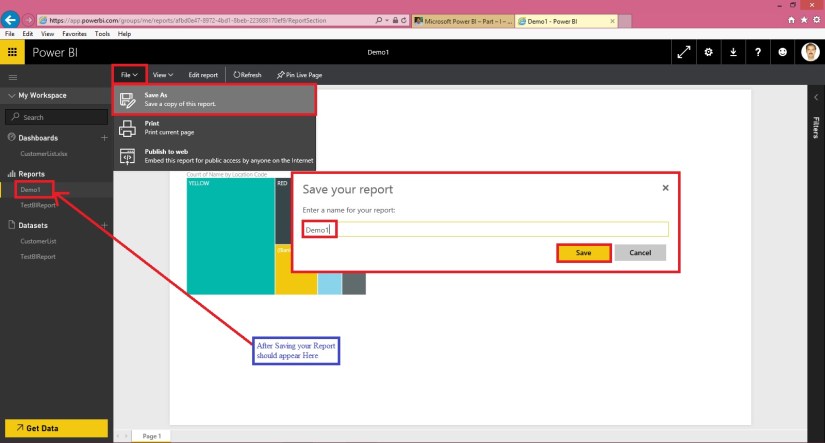
 

PowerBI.com

Microsoft Power BI – Part – II

Dear Friends I will be continue from my previous post where we left. If you have not seen please check it out it will help you continuing with this post. You can check here.

Let’s save the report we created in previous post and continue their after exploring more features.

PowerBI-15

Create a Dashboard and Pin our Visuals.

To create a Dashboard either you can use below any of the option.

PowerBI-16

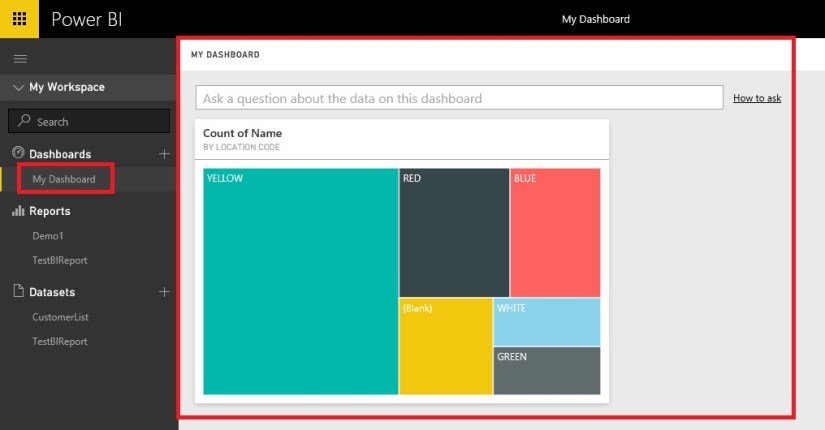
Once you Pin your Visuals to you Existing or New Dashboard, upon accessing the same it should appear as below.

PowerBI-17

Ask a question

On your dashboard you may find “Ask a question about the data on this dashboard” let us understand this feature.

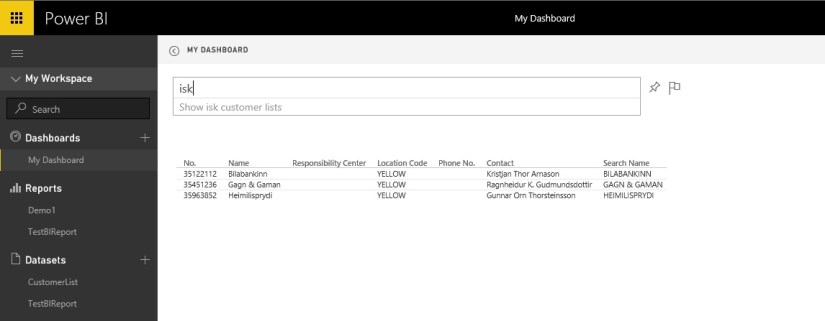
Here you can ask to analyse the data present on dashboard using simple English language include some column names or data values that are present. I will take as the filter for those value and present you the analysed data.

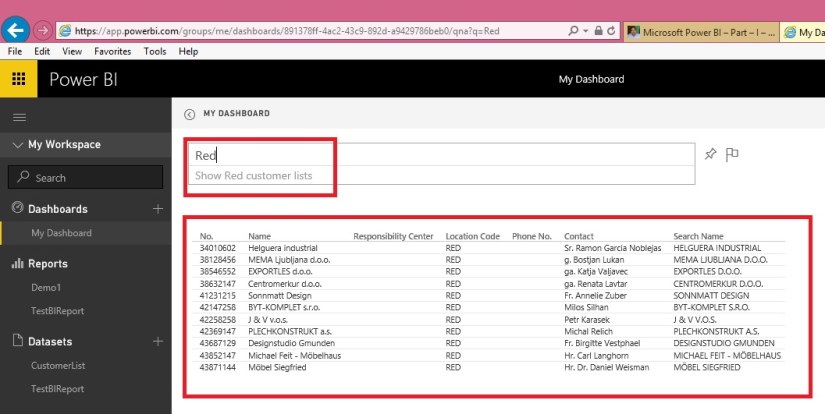
Let’s take an example I want to know all the customer who are associated with Red Location.

PowerBI-18

See I have entered Red in Question to Ask, it suggested me what valid question I can ask “Show Red customer lists” not only this it has analysed the data present on my dashboard and presented me the list of customers who are associated with RED Location.

Good feature and powerful too.

Filtering data across Visuals

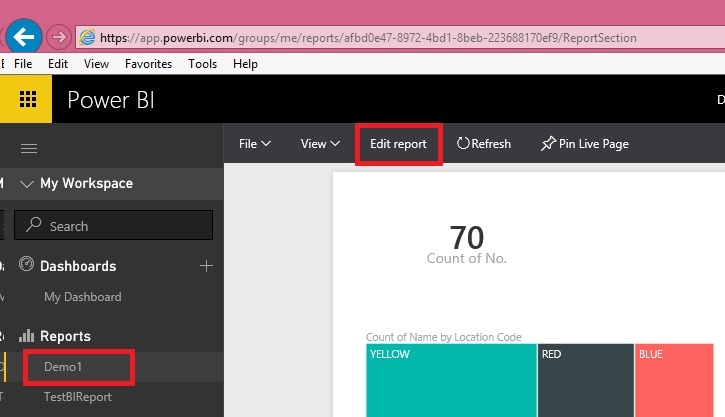
Let’s add one more Visual on our Report, for this we edit our Existing Report.

PowerBI-19

Select your report and click on Edit report

PowerBI-20

We select Credit Limit, Currency Code and No. field.

In value we will select “Count” for No. field. How to do it we have discussed in our previous post.

From Visualization we will select “Funnel”

Position the Chart at desired place available on your canvas.

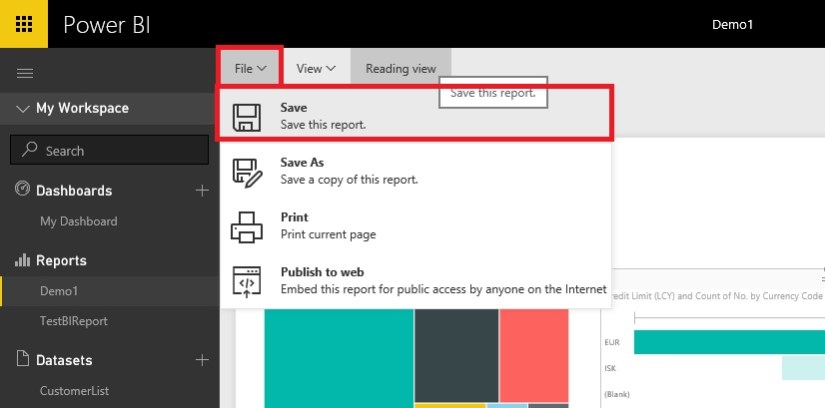
Save the Report.

PowerBI-21

Now open the Report to View.

PowerBI-22

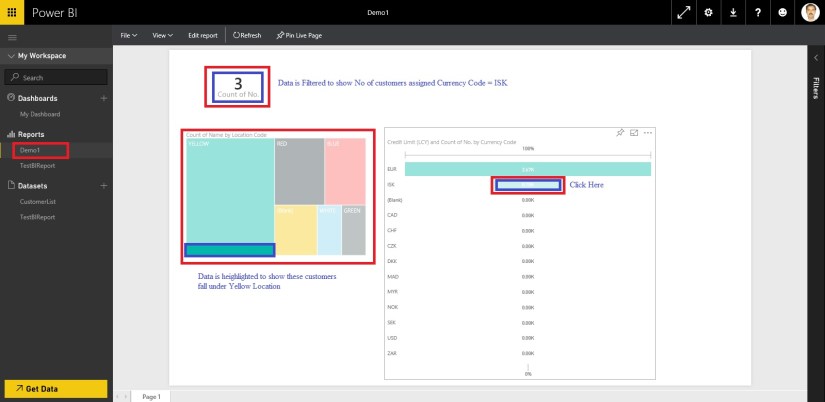
Click on the Funnel Chart on Currency Code = ISK.

Since all the tables/Visuals on this canvas share same data source/ dataset the data gets filtered.

See other Visuals are also showing the effect of same.

On Card Visual it Shows 3 Customers are which shares Currency Code = ISK.

On Treemap it shows these 3 Customer belongs to Yellow Location.

Yet another powerful feature for analysing the data.

Let’s add all of the above Visuals to our dashboard and arrange as below.

How to Pin the Visuals we have discussed above.

PowerBI-23


PowerBI-24

That’s all for today. We will learn and explore some more features in our upcoming posts.


PowerBI.com

Microsoft Power BI – Part – I

Dear Friends from quite long time I was wishing to write few blogs on this topic, but due to some limitation I was unable to do so. I will be posting few blogs in this series using which any beginners can practice and have hands on to understand this concept and start using this powerful tool for visuals and reporting.

Microsoft Power BI brings your data to life, transforming your company’s data into rich visuals for you to collect and organize so you can focus on what matters to you.

An Overview:

PowerBI-1

What all you need to get started with creating reports.

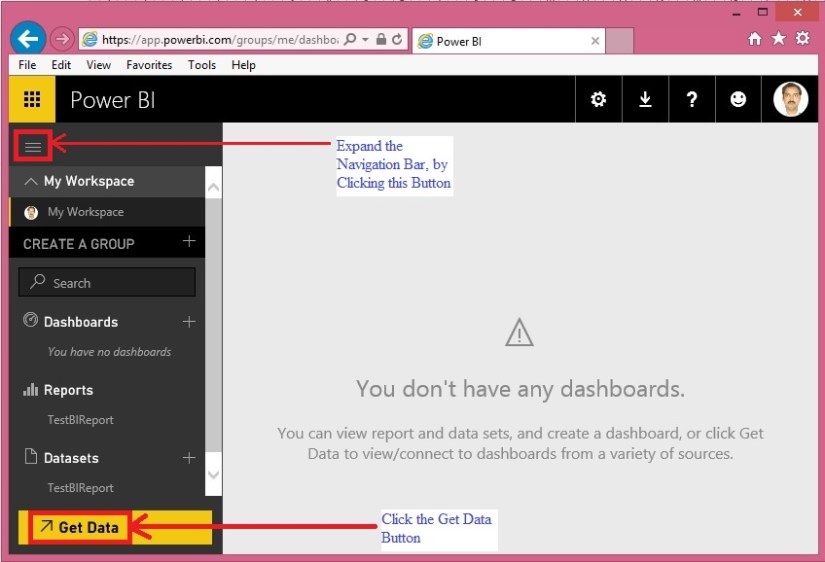
To get started first of all we will be required to register our account to PowerBI.com

Go to this Link Power BI

Scroll down on page to find below

PowerBI-2

Here you require your company registered e-mail id, any private e-mail id for example Yahoo, Google, Hotmail etc. will not be acceptable.

Follow the onscreen guide to complete your signup.

Please use this link to access available downloads.

PowerBI-3

As of now we will use highlighted two components. Download and Install them. We will use and explore them in our upcoming posts.

At this step you are ready to start with using Power BI, you can design the Reports & Datasets on your in premise database and publish to Power BI.

We will use these components in our future posts, today we will have a quick report creation using data from Excel as our first Report. Here we go…….


Step 1- Collecting the Data.

Open your Navision and Export some data which we can use to create our first Report.

In my example I am going to Export my Customer List and save the Excel file, make sure your data is saved in Table Format else Power BI will fail to import data.

Step 2- Getting Data in Power BI from Excel using Get Data.

Login to Power BI using your credentials used above to register the Power BI.

From Lading Page perform below step:

PowerBI-4

When you click to Get Data you will get options to connect with available data source options.

PowerBI-5

Click Get button as highlighted in above screen shot, as we are connecting the data from Excel file created in above Step.

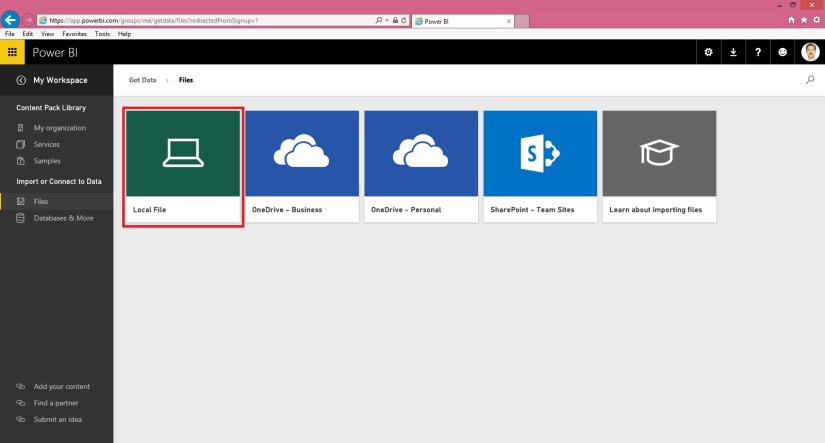
On Clicking Get Button option available to get file will be displayed, depending upon where you placed your file select the desired option. In my case I have saved the File on My Desktop, so I will be using Local File option.

PowerBI-6


PowerBI-7

Select the desired file having data. In my case Customer List as created in above step.

PowerBI-8

Once done you will see a new Dataset and a Blank Report in Dashboard is added, in my case CustomerList.

Step 3- Analysing Data in Power BI or creating a Visual Report.

Click on the CustomerList dataset

PowerBI-9

This will show you the available Fields as per Excel columns, an available Visualization options.

PowerBI-10

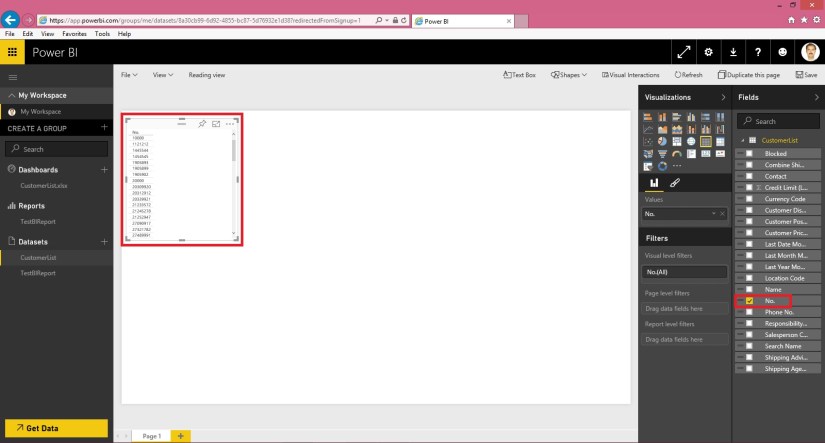
Select the No. Field from the Field List, a list table will be added on the canvas as shown in above screen.

Here say we want to count the no of Unique Customers in the data.

PowerBI-11

From the Values of the Field we will choose Count Option.

At the same time to make data more representable we will choose Card Visualization.

The data will be formatted and displayed as:

PowerBI-12

Next we will add sum summary analysis Data.

PowerBI-13

Here we added two Fields Location (Value = Don’t Summarize) and Name (Value = Count). Visualization = Table.

A new table gets added on the Report Canvas as shown above.

Let’s change the Visualization of above Table to Treemap, the Table will get formatted as:

PowerBI-14

That’s all for today, we will see more features and other available options in our next blog.


Till then practice and read available blog, documentations and help available online.


Data Model, Development Tips, Excel, How To, Information, Instalation & Configuration, Office Integration, PivotTable, Power View, PowerBI.com, PowerPivot

PowerPivot in Excel 2013

I started the series in End of September and Starting of October on PowerPivot, Power View, PivotTable & Reports but in-between the release of Navision 2016 all the topics got scattered between other posts and I didn’t ended the topic.

Here I present all the posts link at one place which you can use as table of content for easy access and to help if any one wish to start from beginning and learn all the features & Topic on same.

PowerPivot for Excel

Start the Power Pivot in Microsoft Excel add-in

Troubleshooting: Power Pivot Ribbon Disappears

PowerPivot Creating a Data Model in Excel 2013

Adding more tables to the Data Model using Existing Connection – In PowerPivot

Add relationships to Data Model in PowerPivot

How to add Filter for data retrieval in PowerPivot Data model.

Create a calculated column in PowerPivot

Creating My First Report using PowerPivot

Basics of Power Pivot for Excel – 2013

Add Slicers to PivotTables in PowerPivot

Power View in Excel 2013

Import data using copy and paste from Excel sheet or other source for PowerPivot Data Model.

Add Excel Sheet/Table to the PowerPivot Data Model

Add a relationship using Diagram View in Power Pivot

Extend the Data Model using calculated columns

Create a hierarchy in PowerPivot Data Model

Use hierarchies in PivotTables

Create a Power View report

Create a calculated field in PowerPivot

Set field defaults in PowerPivot

Set Table Behaviour in PowerPivot

Set Data Categories for fields in PowerPivot

I will come up with more details once I get some time to explore and find anything which I feel is good to share with the community.

Till then keep Learning, Exploring and Practicing.

Corfu Navision 2016, Development Tips, Dynamics Content Package, How To, PowerBI.com

PowerBI.com content package for Microsoft Dynamics NAV 2016

Microsoft Dynamics NAV 2016 includes an entirely new integration with Microsoft Power BI.

In Microsoft Dynamics NAV 2016, using the new Power BI Content Pack, Microsoft Dynamics NAV end users can connect a correctly configured Microsoft Dynamics NAV instance to PowerBI.com and immediately be able to see full business performance insights in a dashboard.

The PowerBI.com content package for Microsoft Dynamics NAV 2016 empowers you to share and present data across an organization. Data can be defined centrally but be consumed, modified and presented to the local needs of users, while everybody still sees data from the same overall picture.

Benefits:

  • Business performance dashboard  Data from Microsoft Dynamics NAV is presented in an easy-to-use dashboard, providing a complete overview and important insights
  • Finance and sales insights  Users can drill into more details in the sales and finance reports, facilitating decision making
  • Personalizing the insights  Users can create a personalized dashboard from the existing KPIs and charts in reports
  • Modify and extend With this package, users can start using and exploring their own data using Power BI in just a few minutes. The dashboard gives users KPIs and charts on their sales and finance data. The setup consists of three easy steps:

Users can create their own KPIs and charts, select data from queries, set filters, select visualizations and more to create their own dashboards

  • Sign in to PowerBI.com.
  • Select the content package for Microsoft Dynamics NAV.
  • Connect a Microsoft Dynamics NAV instance to the content package. Today I will discuss about below:

It takes less than five minutes to get going! Depends upon net speed and volume of data.

Preparation:
PowerBI-1

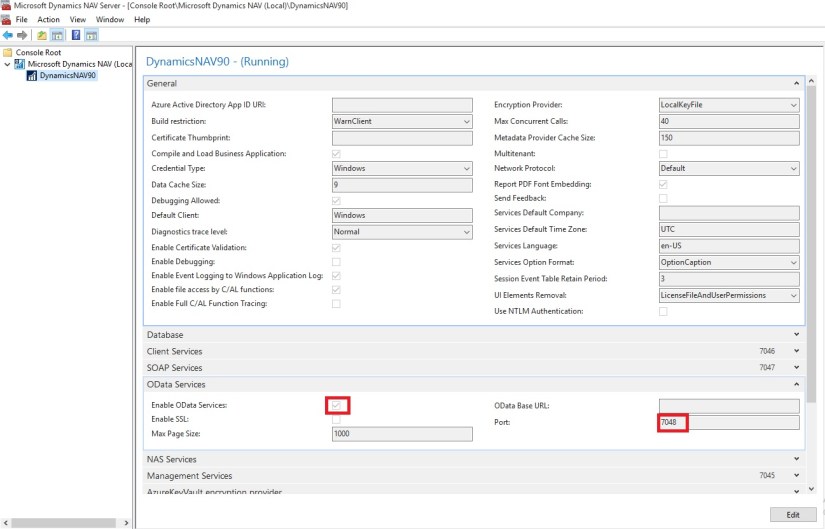
Make sure OData Service is enabled and Port for same is defined in your Server Instance of Navision. Also you use valid thumbprint and SSL is enabled.
PowerBI-2

Check that the Page 197 Service powerbifinance is published in Web Services window. Copy the OData URL we will be requiring it while connecting to content pack for Dynamics 2016 in BI.


Go to PowerBI.com and sign in or go through the easy account setup process.
PowerBI-3

Sign in to Power BI using your credentials.

You first get to a page to select your data source.

The data sources are OData feeds, such as OData web services from any Microsoft Dynamics NAV solution.

  • To import your Microsoft Dynamics NAV data into Power BI, you need to have permissions to the tables where data is retrieved from, in this case sales and finance data. You sign in your account credentials.
  • The Power BI Microsoft Dynamics NAV content pack uses Microsoft Dynamics NAV’s web services to retrieve your data. If you have a lot of data in your Microsoft Dynamics NAV instance, a suggestion to minimize the impact on your web service usage is to change the refresh frequency from the current default which is once a day to only refresh on weekdays or every other day depending on your needs. Another suggestion is to have one admin create the content pack and share it with the rest of the team instead of having every admin in your organization create their own

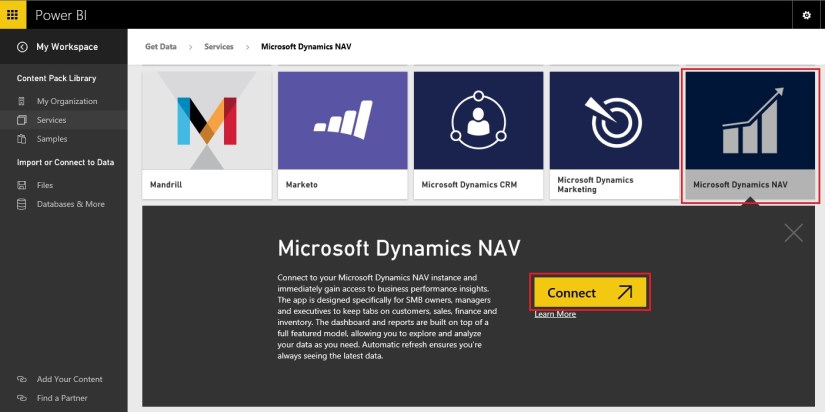
In this case select Services to get to content packages. Refer below how to connect.
PowerBI-4

Select the content package for Microsoft Dynamics NAV.
PowerBI-5

You will be prompted to add the URL to your Dynamics NAV instance. 

An easy way to obtain this URL is in Dynamics NAV to go to Web Services, find the powerbifinance web service and copy the Odata URL, but leaving out the “/powerbifinance” from the URL string. 

When you paste in the copied URL, you must remove the last part of the web service-specific URL: “/powerbifiance” – you only need the company-specific part of it

After entering the URL You will be prompted to select an authentication method. 

Select the appropriate method and provide the relevant user credentials.
PowerBI-6

Here you provide the OData URL we saved above. Enter your Authentication Mode and provide your User ID and password to get connected to the data.

When you select Log on, it will take a few minutes for the content package to connect to your Dynamics NAV instance, get the data and create the dashboard and reports.

Troubleshooting


“Parameter validation failed, please make sure all parameters are valid”

If you see this error after typing your Microsoft Dynamics NAV URL. Make sure the following requirements are satisfied:

– The URL follows exactly this pattern https//instance.navserver.com:7048/DynamicsNAV90_Instance1/OData/Company(‘CRONUS%20International%20Ltd.’) replacing ” instance.navserver.com” with your NAV Server name, “DynamicsNAV90_Instance1” with your NAV Server Instance name and “Company(‘CRONUS%20International%20Ltd.’)” with your NAV Company name.

– Make sure all the letters are lower case.

– Make sure the URL is in ‘https’.

– Make sure there are no trailing forward slash at the end of the URL.


“Login failed”

If you get a “login failed” error after using your Microsoft Dynamics NAV credentials to login, then the account you are using doesn’t have permissions to retrieve the Microsoft Dynamics NAV data from your account. Verify it is an admin account and try again.

Let’s see what data exactly this page provides:
PowerBI-7

Depending on whether you use your own database or the demo database, the charts in the dashboard might have different content or none at all.

 New Post with details available, please check out : https://msdynamicsnavashwinitripathi.wordpress.com/2016/03/23/microsoft-power-bi-part-vi/


We will see rest details in my upcoming post.