Corfu Navision 2016, Functional Tips, How To, Information, Tip & Tricks

How do I: Enable the Invoice Rounding Function

If you want your sales and purchase invoices are rounded automatically, you will have to activate the invoice rounding function.

To activate the invoice rounding function

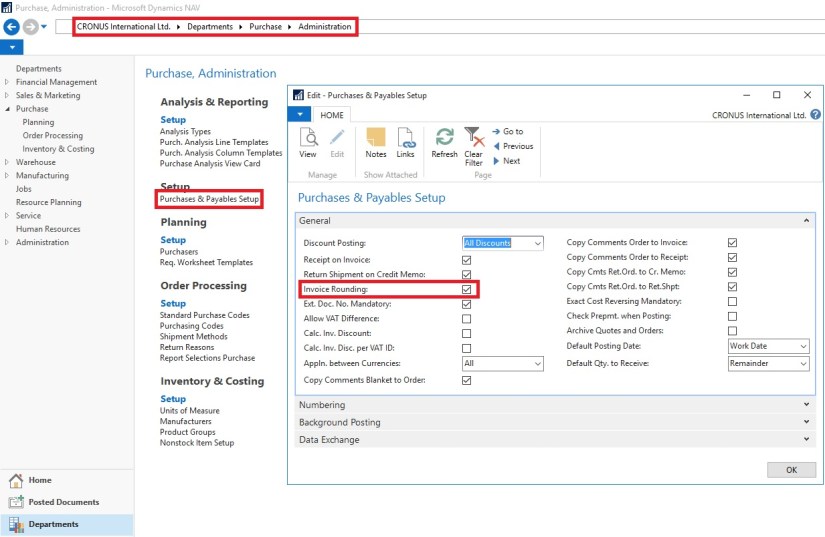
  1. In the Search box, enter Sales & Receivables Setup or Purchases & Payables Setup, and then choose the related link.
  2. On the General Fast Tab, select the Invoice Rounding check box.

InvoiceRounding-4

InvoiceRounding-5

You can activate invoice rounding separately for sales and purchase invoices.

Corfu Navision 2016, Functional Tips, How To, Information, Tip & Tricks

How do I: Set Up Rounding Rules for Foreign Currency

To use the automatic invoice rounding function, you must set up rounding rules.

To set up rounding rules for foreign currency

  1. Open the Currencies
  2. In the Currencies window, fill in the Invoice Rounding Precision and Invoice Rounding Type For more information on specific field, select the field, and then press F1.

InvoiceRounding-3

Corfu Navision 2016, Functional Tips, How To, Information, Tip & Tricks

How do I: Set Up Rounding Rules for the LCY

To use the automatic invoice rounding function, you will be required to set up rounding rules.

To set up rounding rules for local currency

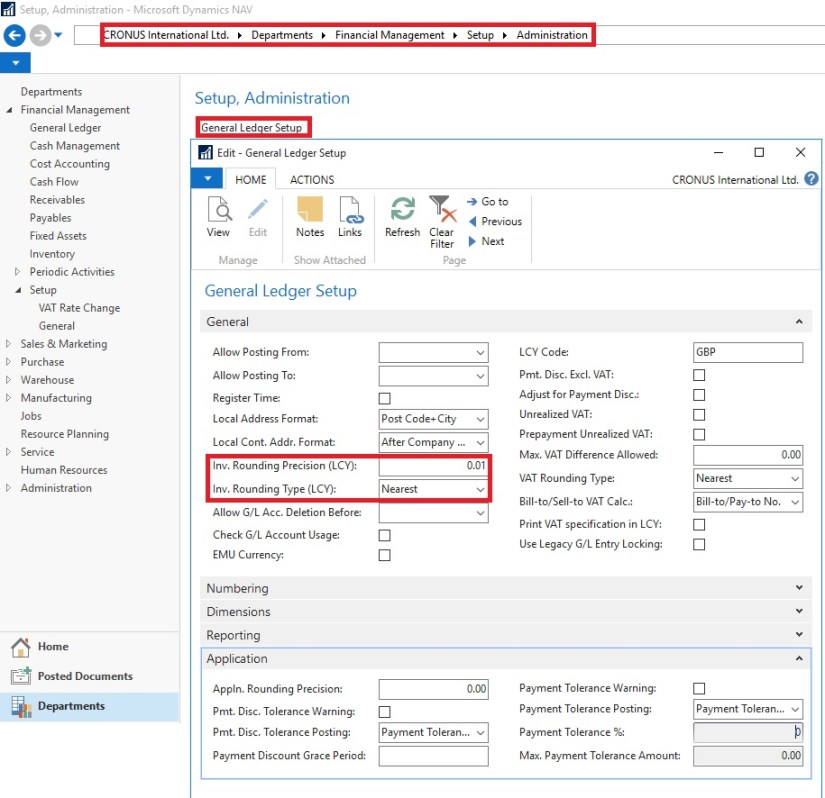
  1. Open General Ledger Setup
  2. In the General Ledger Setup window, on the Respective Fast Tab, fill in the Amount Rounding Precision, Unit-Amount Rounding Precision, Rounding Precision (LCY) and Invoice Rounding Type (LCY) fields.

InvoiceRounding-2

You can take help of technical team to add/display fields not visible on the page. These fields are available in Table. For more details about fields you can use F1 help.

Corfu Navision 2016, Functional Tips, How To, Information, Tip & Tricks

How do I: Set Up General Ledger Accounts for Invoice Rounding Differences

To use the automatic invoice rounding function, you will be required to set up the general ledger account or accounts in which the rounding differences will be posted. Before you can do this, you will be required to set up VAT product posting groups.

To set up general ledger accounts for invoice rounding differences

  1. Set up the account in the Chart of Accounts window and name it Invoice Rounding or as required name. (I am showing the standard Account defined in Demo Database, you can setup your own as per the requirement)
  2. In the Posting Type field, select <Blank>.
  3. Fill in the VAT Bus. Posting Group field or can leave blank.
  4. Fill in the VAT Prod. Posting Group You may want to set up a new group code that can be used for invoice rounding, if don’t have any existing to be used.

InvoiceRounding-1

Now you need to assign the invoice rounding account to posting groups in the Customer Posting Groups window and the Vendor Posting Groups window.

InvoiceRounding-6

InvoiceRounding-7

Corfu Navision 2016, Data, Functional Tips, How To, Information, Tip & Tricks

Cost Components

Cost components are different types of costs that make up the value of an inventory increase or decrease.

The below table shows the different cost components and any subordinate cost components that they consist of.

Cost component Subordinate cost component Description
Direct cost Unit cost (direct purchase price) Cost that can be traced to a cost object.
Freight cost (item charge)
Insurance cost (item charge)
Indirect cost Cost that cannot be traced to a cost object.
Variance Purchase variance The difference between actual and standard costs, which is only posted for items using the Standard costing method.
Material variance
Capacity variance
Subcontracted variance
Capacity overhead variance
Manufacturing overhead variance
Revaluation A depreciation or appreciation of the current inventory value.
Rounding Residuals caused by the way in which valuation of inventory decreases are calculated.

Freight and insurance costs are item charges that can be added to an item’s cost at any time. When you run the Adjust Cost – Item Entries batch job, the value of any related inventory decreases are updated accordingly.

Corfu Navision 2016, Functional Tips, How To, Tip & Tricks

Inventory Valuation

Inventory valuation is the determination of the cost that is assigned to an inventory item, as expressed by the following equation.

Ending inventory = beginning inventory + net purchasescost of goods sold

The calculation of inventory valuation uses the Cost Amount (Actual) field of the value entries for the item.

The entries are classified according to the entry type that corresponds to the cost components, direct cost, indirect cost, variance, revaluation, and rounding.

Entries are applied against each other, either by the fixed application, or according to the general cost-flow assumption defined by the costing method.

One entry of inventory decrease can be applied to more than one increase entry with different posting dates and possibly different acquisition costs.

Therefore, calculation of the inventory value for a given date is based on summing up positive and negative value entries.

Inventory Valuation report

To calculate the inventory value in the Inventory Valuation report, the report begins by calculating the value of the item’s inventory at a given starting date.

It then adds the value of inventory increases and subtracts the value of inventory decreases up to a given ending date.

The end result is the inventory value on the ending date.

The report calculates these values by summing the values in the Cost Amount (Actual) field in the value entries, using the posting dates as filters.

The printed report always shows actual amounts, that is, the cost of entries that have been posted as invoiced.

The report will also print the expected cost of entries that have posted as received or shipped, if you select the Include Expected Cost field on the Options FastTab.

Values in the Inventory Valuation report is reconciled with the Inventory account in the general ledger, meaning the value entries in question have been posted to the general ledger.

Amounts in the Value columns of the report are based on the posting date of transactions for an item.


Inventory Valuation – WIP report

A manufacturing company needs to determine the value of three types of inventory:

  • Raw Materials inventory
  • WIP inventory
  • Finished Goods inventory

The value of WIP inventory is determined by the following equation.

Ending WIP inventory = Beginning WIP inventory + manufacturing costscost of goods manufactured

As for purchased inventory, the value entries provide the basis of the inventory valuation. The calculation is made using the values in the Cost Amount (Actual) field of the item and capacity value entries associated with a production order.

The purpose of WIP inventory valuation is to determine the value of the items whose manufacturing has not yet been completed on a given date.

Therefore the WIP inventory value is based on the value entries related to the consumption and capacity ledger entries.

Consumption ledger entries must be completely invoiced at the date of the valuation.

Therefore, the Inventory Valuation – WIP report shows the costs representing the WIP inventory value in two categories: consumption and capacity.


Corfu Navision 2016, Data, Development Tips, Functional Tips, How To, Information, Tip & Tricks

Accounts in the General Ledger

To reconcile inventory and capacity ledger entries with the general ledger, the related value entries are posted to different accounts in the general ledger.

From the Inventory Ledger

The below table shows the relationship between different types of inventory value entries and the accounts and balancing accounts in the general ledger.

Value entry General ledger accounts
Item ledger entry type Value entry type Variance type Expected cost Account Balancing account
Purchase Direct Cost Yes Inventory (Interim) Invt. Accrual Acc. (Interim)
Direct Cost No Inventory Direct Cost Applied
Indirect Cost No Inventory Overhead Applied
Variance Purchase No Inventory Purchase Variance
Revaluation No Inventory Inventory Adjmt.
Rounding No Inventory Inventory Adjmt.
Sale Direct Cost Yes Inventory (Interim) COGS (Interim)
Direct Cost No Inventory COGS
Revaluation No Inventory Inventory Adjmt.
Rounding No Inventory Inventory Adjmt.
Positive Adjmt.,Negative Adjmt., Transfer Direct Cost No Inventory Inventory Adjmt.
Revaluation No Inventory Inventory Adjmt.
Rounding No Inventory Inventory Adjmt.
(Production) Consumption Direct Cost No Inventory WIP
Revaluation No Inventory Inventory Adjmt.
Rounding No Inventory Inventory Adjmt.
Assembly Consumption Direct Cost No Inventory Inventory Adjmt.
Direct Cost No Direct Cost Applied Inventory Adjmt.
Indirect Cost No Overhead Applied Inventory Adjmt.
(Production) Output Direct Cost Yes Inventory (Interim) WIP
Direct Cost No Inventory WIP
Indirect Cost No Inventory Overhead Applied
Variance Material No Inventory Material Variance
Variance Capacity No Inventory Capacity Variance
Variance Subcontracted No Inventory Subcontracted Variance
Variance Capacity Overhead No Inventory Cap. Overhead Variance
Variance Manufacturing Overhead No Inventory Mfg. Overhead Variance
Revaluation No Inventory Inventory Adjmt.
Rounding No Inventory Inventory Adjmt.
Assembly Output Direct Cost No Inventory Inventory Adjmt.
Revaluation No Inventory Inventory Adjmt.
Indirect Cost No Inventory Overhead Applied
Variance Material No Inventory Material Variance
Variance Capacity No Inventory Capacity Variance
Variance Capacity Overhead No Inventory Cap. Overhead Variance
Variance Manufacturing Overhead No Inventory Mfg. Overhead Variance
Rounding No Inventory Inventory Adjmt.

From the Capacity Ledger

The below table shows the relationship between different types of capacity value entries and the accounts and balancing accounts in the general ledger. Capacity ledger entries represent labor time consumed in assembly or production work.

Value entry General ledger accounts
Work type Capacity ledger entry type Value entry type Account Balancing account
Assembly Resource Direct Cost Direct Cost Applied Inventory Adjmt.
Assembly Resource Indirect Cost Overhead Applied Inventory Adjmt.
Production Machine Center/Work Center Direct Cost WIP Account Direct Cost Applied
Production Machine Center/Work Center Indirect Cost WIP Account Overhead Applied

Assembly Costs are Always Actual

As shown in the table above, assembly postings are not represented in interim accounts. This is because the concept of work in process (WIP) does not apply in assembly output posting, unlike in production output posting. Assembly costs are only posted as actual cost, never as expected cost.

Calculating the Amount to Post to the General Ledger

The following fields in the Value Entry table are used to calculate the expected cost amount that is posted to the general ledger:

  • Cost Amount (Actual)
  • Cost Posted to G/L
  • Cost Amount (Expected)
  • Expected Cost Posted to G/L

The following table shows how the amounts to post to the general ledger are calculated for the two different cost types.

Cost type Calculation
Actual Cost Cost Amount (Actual) Cost Posted to G/L
Expected Cost Cost Amount (Expected) Expected Cost Posted to G/L


Corfu Navision 2016, Functional Tips

Unit Cost Field, Item Table

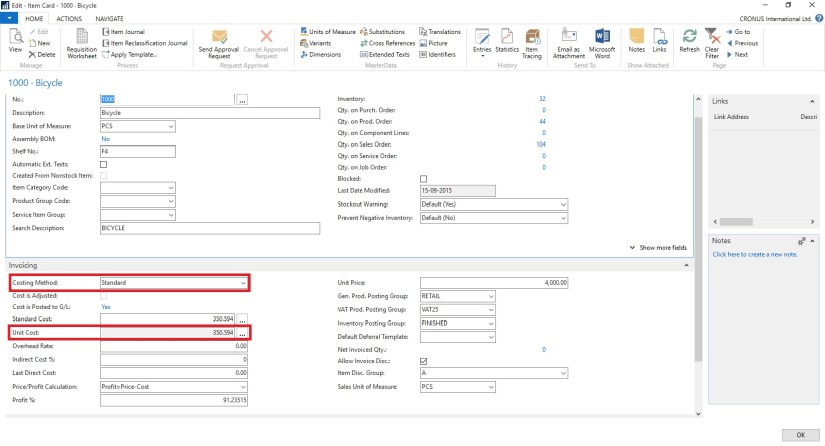
Contains the cost per unit of the item.

UnitCost-1

Depending on what you selected in the Costing Method field, the Unit Cost field is filled as follows:

  • If the costing method is Standard, then the field is grayed and non-editable.
  • If the costing method is FIFO, LIFO, Specific, or Average, then the unit cost is calculated as follows: Unit cost = inventory value of items on hand (expected cost + invoiced cost) / quantity on hand

If the costing method is FIFO, LIFO, Specific, or Average, then the Unit Cost field is updated in the following cases:

  • When the item is cost-adjusted, automatically or by the Adjust Cost – Item Entries batch job.
  • During the posting of purchase invoices, output, or positive adjustment if one of the following conditions is true:
    • The net invoiced quantity of the item changes from negative or zero to positive.
    • The current unit cost is zero.

If one of these conditions is true, then the Unit Cost field is updated with the value in the Last Direct Cost field on the item card.

Note The Unit Cost field is not updated if the current unit cost is higher than zero and the new unit cost is zero. A unit cost of zero is considered an exception from regular business. Therefore, the current unit cost is retained to provide the last known, relevant value. This exception applies even if the existing inventory has been revalued to zero.

If the item uses the costing method Average, then you can choose the field to open the Average Cost Calc. Overview window, which shows all the source value entries that are used to calculate the average cost, grouped and summarized by average cost period.


Corfu Navision 2016, Data Encryption, Functional Tips, How To, Information, Instalation & Configuration

Working with Data Encryption in Navision 2016

You can encrypt data on the Microsoft Dynamics NAV Server by generating new or importing existing encryption keys.

How to: Enable Encryption Keys

You can enable data encryption on the Microsoft Dynamics NAV Server instance that connects to the database.

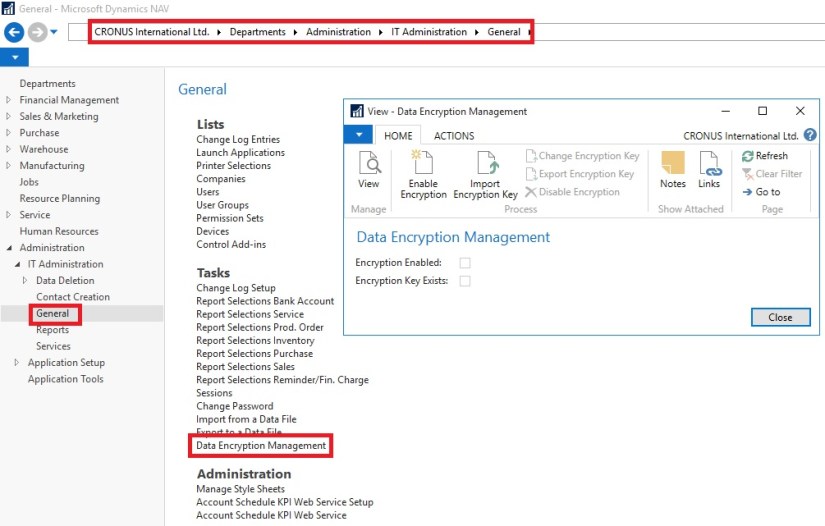
  • Open the Data Encryption Management Card, as path suggested in below Image.

DataEncryption-1

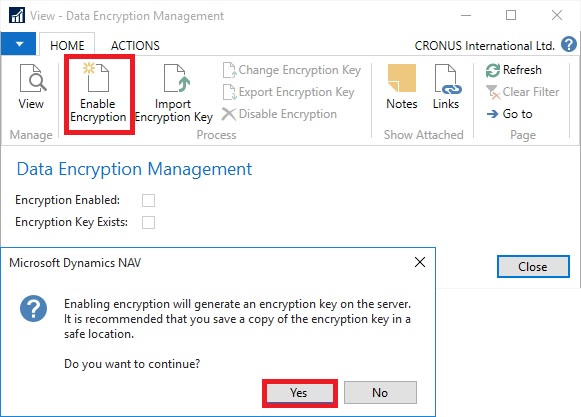
  • Click on Enable Encryption in Process of Home tab.

DataEncryption-2

  • On Confirmation Dialog box choose Yes.
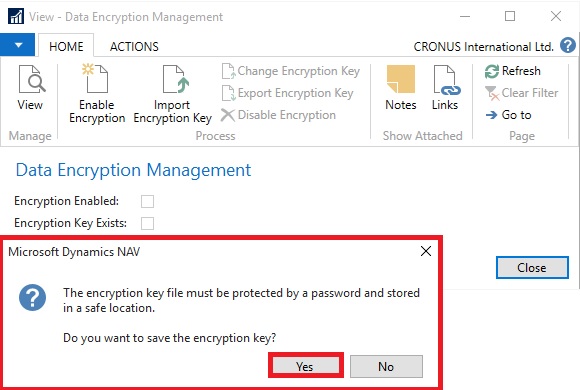
  • On further Confirmation of Password choose Yes.

DataEncryption-3

  • Enter the Password as defined in Rule as shown in below Image.

DataEncryption-4

  • Upon entering Password choose OK to continue.
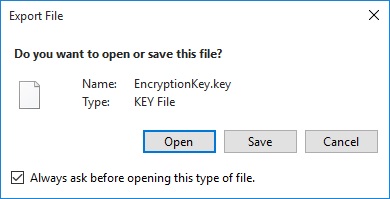
  • Key is created with password protected and offered to Export.

DataEncryption-5

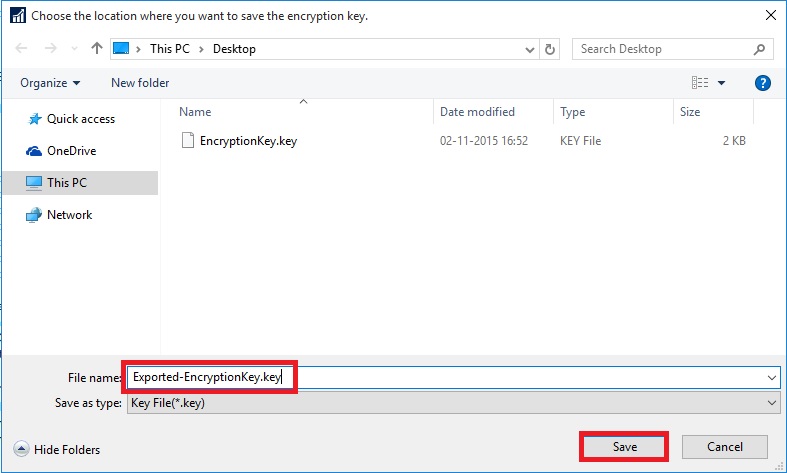
  • Choose Save, and save it as Safe Location as you will require it again whenever you restore the database or Import Export the data. Please make sure you also store the password for further reference whenever required.

DataEncryption-6

  • Once Key is generated, you can see that the Encryption Enabled & Encryption Key Exists is checked TRUE.
  • Also in Ribbon you will find the Change Encryption Key, Export Encryption Key & Disable Encryption is now enabled.

DataEncryption-7

  • If Microsoft Dynamics NAV is configured with multiple service tiers (Microsoft Dynamics NAV Server instances), then you must first enable encryption on one server instance, and then export the key and import to other server instances where you enable encryption.

If you export companies and other data that is secured by data encryption, then remember to also export the encryption key so that you can access the data after you import it into another database, for example when you restore a backup. Creating a backup of encrypted data involves the following high-level steps.

  • Export the data from one database.
  • Export the data encryption key.
  • Import the data into another database.
  • Import the data encryption key.

How to: Export and Import Encryption Keys

Note: You cannot generate different keys within one multiple-server instance environment.

Exporting an Encryption Key

You export an encryption key to make a copy of the key or so that it can be imported on another server instance.

Exporting an encryption key stores the encryption key that is used by the current server instance to a file on your computer or network.

To export an encryption key
DataEncryption-8

  • On the message about saving the encryption key, choose Yes.
  • In the Set Password window, enter the password that will protect the exported key file, and then choose OK.

DataEncryption-9

  • In the Export File window, choose Save, choose a safe location where the key file is stored, and then choose Save.

DataEncryption-10

DataEncryption-11

Importing an Encryption Key

You can import an encryption key to a server instance from an encryption key file that was exported from another server instance or saved as a copy when the encryption was enabled.

You cannot import an encryption key on a server instance that already includes an encryption key. In this case, you must change the encryption key instead.

To import an encryption key
DataEncryption-12

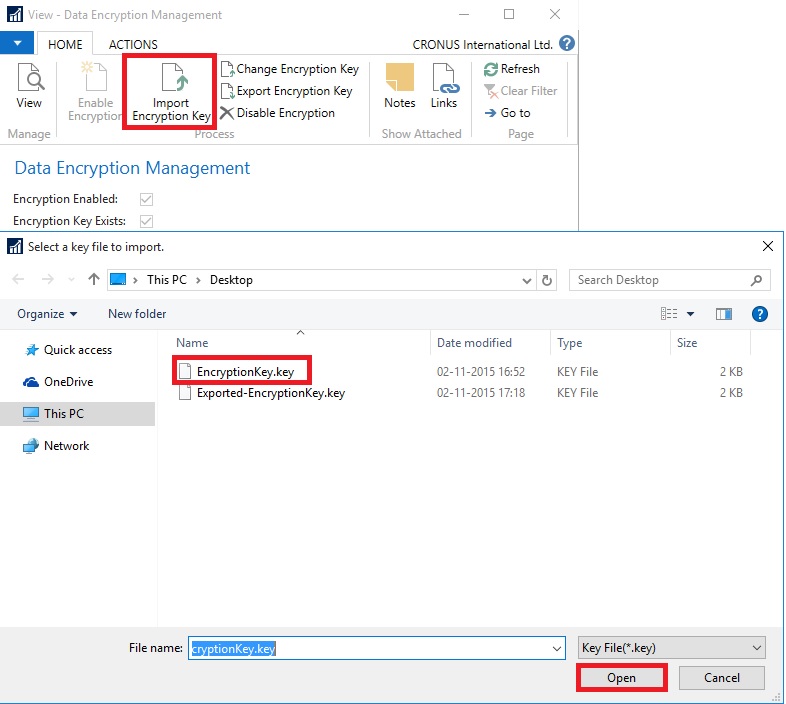
  • On the Home tab, in the Process group, choose Import Encryption Key.
  • In the Select a key file to import window, choose the encryption key file, and then choose Open.

DataEncryption-13

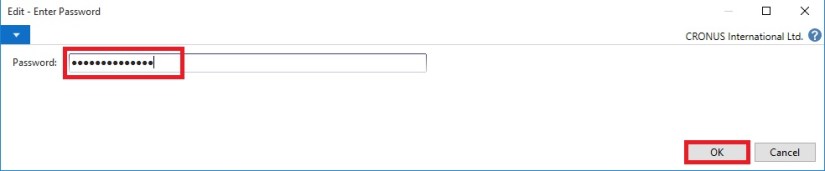
  • In the Password window, enter the password that protects the key file, and then choose OK.

Changing an Encryption Key

If a server instance already has an encryption key, then you can replace the current encryption key with an encryption key that is stored in an encryption key file that was exported from another server.

To change an encryption key

  • On the Home tab, in the Process group, choose Change Encryption Key.

DataEncryption-14

  • In the Select a key file to import window, choose the encryption key file, and then choose Open. Same as in above process.
  • In the Password window, enter the password that protects the key file, and then choose OK. Same as in above process.
Corfu Navision 2016, Functional Tips, How To, Information, Instalation & Configuration, Profiles

Working with Profiles in Navision 2016

How to: Create a Profile

You use the Profile card to create profiles for end users. Each profile is associated with a  Role Center. Profiles are typically based on job titles in a company.

To create a profile

Profiles-1

  • In the Profile ID field, enter a name that describes the intended role of the user.
  • In the Owner ID field, click the AssistEdit button to view all available logins, and then select a Windows user.
  • In the Description field, enter a description of the Profile ID, for example, Order Processor.
  • In the Role Center ID field, click the AssistEdit button to view all available Role Centers. Select a Role Center.
  • To make this Role Center the default for the profile, select Default Role Center.
  • Click OK to save your changes.

The procedure for modifying an existing profile is the same, except you select an existing profile in the Profiles page instead of clicking New.

How to: Assign a User to a Profile

You use the User Personalization page to assign a user to a profile.

To assign a user to a profile

Profiles-2

  • In the User Personalization window, fill in the fields described in the following table.
Field Description
User ID Choose the AssistEdit button to view all available user logins, select the relevant user, and then choose the OK button.
Profile ID Select a profile ID that you have already created. Choose the AssistEdit button to view all available profiles.
Language ID Select the appropriate language ID, or leave this field blank.
Company Select a company from the Companies window.
  • Choose the OK button.

Note The Language ID and Company values are overwritten by user values when the user starts a session.

How to: Open Microsoft Dynamics NAV in Configuration Mode

To configure a profile, for example to customize the profile’s user interface, you must open the Microsoft Dynamics NAV Windows client in configuration mode.

To open the Microsoft Dynamics NAV Windows client in configuration mode

  • At the command prompt, navigate to the root folder of the Microsoft Dynamics NAV Windows client. For example:

cd C:\Program Files (x86)\Microsoft Dynamics NAV\90\RoleTailored Client

  • Type the following command:

Microsoft.Dynamics.Nav.Client.exe -configure -profile:”profileid”

Replace profileid with the name of the profile that you want to configure.

Important You must be the owner of a profile to open it in configuration mode

For example, to configure the Accounting Manager profile, use this command to open the Microsoft Dynamics NAV Windows client in configuration mode:

Microsoft.Dynamics.Nav.Client.exe -configure -profile:”Accounting Manager”