Development Tips, Excel, Instalation & Configuration, Jet Reports, Office Integration, Report

Jet Report for Excel – Navision 2015

In my previous posts I introduced with Jet Report for Word.

Please see here. Links below:-

Jet Express for Word Overview & Installation – for Navision 2015

Jet Express for Word – Objects for Navision 2015

What’s New in Jet Reports for Word, How it is different from Navision Word Reports

Customize the Report layout using Jet Express for Word

You can access the resource for Jet Report Excel from this Link.

JetExcel-1

Download the Jet Express Setup & Jet Reports Objects from the site.

Run the Setup to install the Jet Express for Excel.

You may require Activation Code, which you can obtain following the instructions post setup.
Checkout upcoming posts for more details.

Development Tips, Jet Reports, Office Integration, Report

Customize the Report layout using Jet Express for Word

Click Edit Layout to customize this layout
JetReportDesign-1

The Jet Express for Word action panel may automatically open when this word file is opened.

If not, select the Jet Ribbon

Click on the Design icon

This presents a tree hierarchy of the fields from the selected report. 
JetReportDesign-2

Click on the icons on the hierarchy to expand or contract the lists.

The Search field makes it easy to find the fields you need.

Labels – NAV reports which were created by Jet Reports include a section for Labels. These fields are the descriptions of the fields themselves.

If you have multiple languages in your NAV instance, these labels can be helpful for creating multi-language documents.

Other Groupings – NAV reports which were created by Jet Reports include sections for Company, Customer, etc. These fields include the values of the fields.

The user can select from fields including Header or Lines in the hierarchy and insert an item, typically into a table in the Word document.
JetReportDesign-3

To add a field select the desired location in the Word document and double-click on the field.

Alternatively, you can select the field and click on the Insert button in the Jet Express for Word action panel.

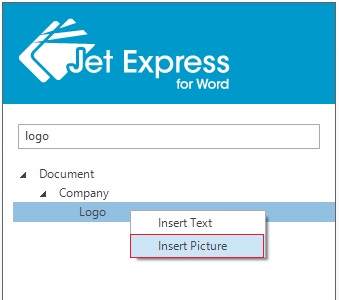
To Add a picture to a document, right-click on the item and select Insert Picture
JetReportDesign-4

The Lines fields are also inserted as text and can be replicated by a Right-click, and choosing “Insert Repeater”.

Repeating items (such as Sales lines on a Sales order) can be added to a document.
JetReportDesign-5

Best practice for this is to create a table in Word that is two rows high.

The first row contains the Labels of the fields that you wish to include.

The second row contains the values of the fields.

Select the entire second row- include the area just to the right of the last column.

Right-click on the item in the hierarchy that you want to repeat and select Insert

To delete an item, click on it, and then click on its Title.
JetReportDesign-6
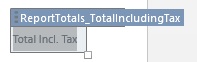
When you click on the Title it will change color.

Then press the Delete Button on your keyboard.

Note: It’s important to select the Title when deleting to avoid any leftover data.

When you have completed your changes Save your Word document
JetReportDesign-7
This will return you to NAV and prompt you to import the report layout changes.
JetReportDesign-8
Click Yes

You can Run Report to review your changes.
JetReportDesign-9
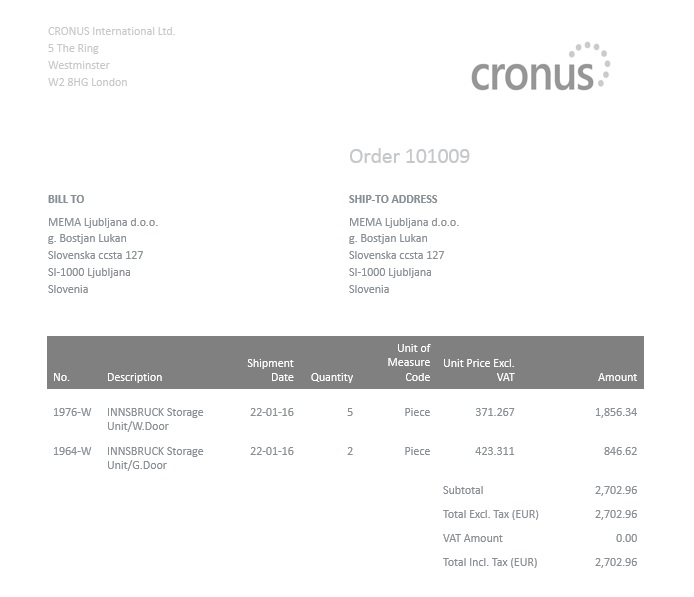
Here is the output for the report below.
JetReportDesign-10
We are done with customization of the report using Jet Reports.

I will come up with more details in my upcoming posts.

Development Tips, Jet Reports, Office Integration, Report

What’s New in Jet Reports for Word, How it is different from Navision Word Reports

Before we compare both the way of creating report in word, the features I would be suggesting you to review the posts which I have posted earlier Word Document Reports and Custom Layouts to refresh the concept of creating reports in Word.

Let’s start with comparing how it is different from Navision Word Report.

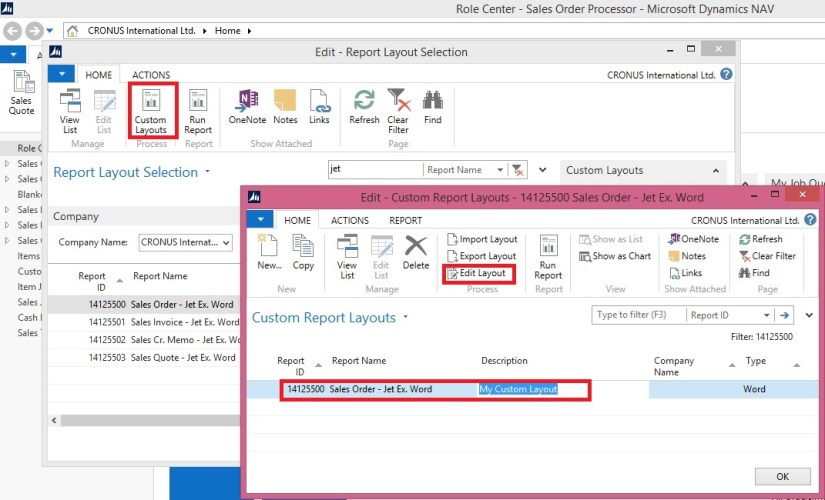
Create a custom layout for the report you wish to use

In your NAV client navigate to Report Layout Selection (Administration/IT Administration/ Reports).

Microsoft Dynamics NAV 2015 includes several sample Word reports including:

14125500             Sales Order – Jet Ex. Word

14125501             Sales Invoice – Jet Ex. Word

14125502             Sales Cr. Memo – Jet Ex. Word

14125504             Sales Quote – Jet Ex. Word

I have filtered the above Reports.

Select the report that you wish to customize. (I am Using 14125500 for this example)
CustomiseJetReport-1
Click Custom Layouts.

 To create a new Report Layout, click New.

A pop-up window will appear and allow you to choose the layout type.

Check the Insert Word Layout box and click OK.

CustomiseJetReport-2

CustomiseJetReport-3

In the Report Layouts window, you can change the Description.

Click OK

In the NAV Custom Report Layouts window, highlight the layout you wish to use and click the Import Layout button from the ribbon.

Browse to the Jet Express for Word Sample Documents, choose the template you want and click Open
CustomiseJetReport-4
Click Edit Layout to customize this layout.

CustomiseJetReport-5

Above screenshot show how to Access the XML part of the Report.

Left side shows Jet->Design

Right side shows Developer->XML Mapping Pane

If you remember In Navision word Report we use to select the Custom XML Part from the dropdown to access the available fields, Labels etc.

Whereas if we see In Jet Report this is not required.

Also you may have observed that Jet Report Pane Have search option, which makes easy to find desired fields rather than scrolling through the XML Nodes to access the desired Fields.
CustomiseJetReport-6

You may observe in above picture that I have typed the part of the Field I am looking for and Jet Report Pane suggested that Similar to what I typed there is a Field “Salesperson” and it available under 2 heads Labels & Header data items.

If I require to insert the Labels or Fields, Place the cursor at desired place where you want that Field to be inserted and Double Click to the Field from Jet Report Pane.
CustomiseJetReport-7
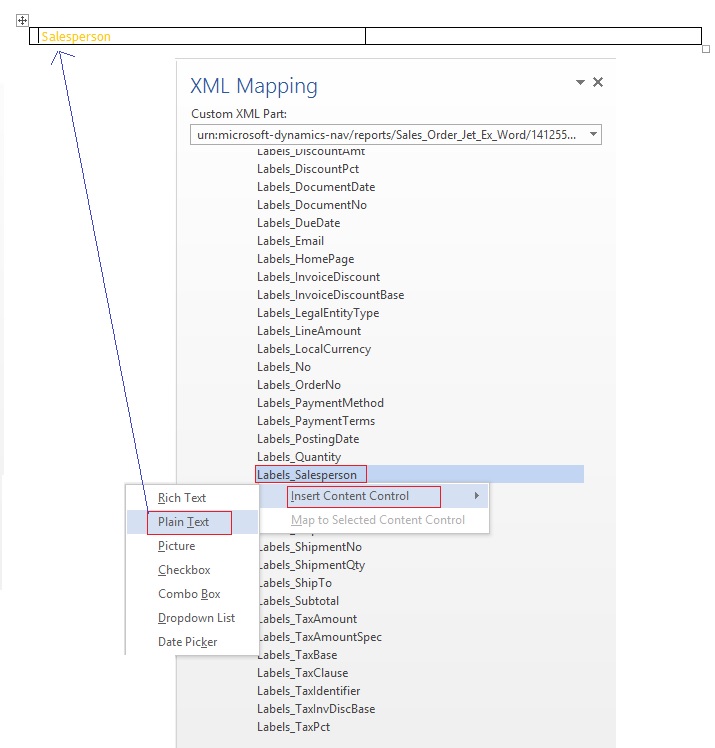
Where as to perform same action in Navision Word Place the cursor where we wish to Insert the Field then we use to Scroll to the Field we wish to insert then we perform step Right Click->Insert Content Control->Plain Text
CustomiseJetReport-8
I will come up with more details in my next post. We will see how we can design the Report Using Jet Report fast and easily.

Also some Best Practice, Tip & Tricks while using Jet Reports.

Development Tips, Instalation & Configuration, Jet Reports, Office Integration

Jet Express for Word – Objects for Navision 2015

Getting Started for Administrators

Overview

Microsoft introduced a new feature with Dynamics NAV 2015 which makes it easy and inexpensive for partners and end users to create and customize visually attractive document reports in NAV using Microsoft Word.

In collaboration with Microsoft, Jet Reports developed Jet Express for Word – an application that supports this process by providing users an easy-to-use interface inside Microsoft Word to create and modify these documents.

From where to download these objects

If you remember my previous post where I shared the link of download page. See here.

JetReportObjects-1
Refer to Step-3 in above screenshot.

Download the Objects from the Link.

Jet Express for Word includes four NAV reports and a set of sample sales documents.

These four NAV reports include:

 Report Number Name
14125500 Sales Order – Jet. Ex. Word
14125501 Sales Invoice – Jet. Ex. Word
14125502 Sales Cr. Memo – Jet. Ex. Word
14125503 Sales Quote – Jet. Ex. Word

Installing these reports in NAV

These four reports are included in a .FOB file which is available from the Jet Express for Word website.

To install this .FOB file you will need access and permissions to the Microsoft Dynamics NAV Development Environment.

In this application select File > Import… and browse to find the downloaded .fob file.
JetReportObjects-2

JetReportObjects-3

JetReportObjects-4

Uninstalling Jet Express for Word documents

If you need to uninstall the Jet components from the Microsoft Dynamics NAV Server-

  • Open the Microsoft Dynamics NAV Development Environment and then connect to the database
  • Open the Object Designer (on the Tools menu, choose Object Designer)
  • Select All to see all business objects.

Select the business objects which were inserted (listed above), right-click and select Delete. When asked if you want to delete the selected lines click Yes.
JetReportObjects-5

Development Tips, Instalation & Configuration, Jet Reports, Office Integration, Report

Jet Express for Word Overview & Installation – for Navision 2015

Jet Express for Word is a new feature available to Microsoft Dynamics users which makes it easy for end users to design documents in Microsoft Word. This feature is part of Jet Express for Microsoft Dynamics NAV and is available to Microsoft Dynamics NAV 2015 users.

Modify Reports in Microsoft Word

Need to change the layout of an invoice or credit memo? Just open the document in Microsoft Word to make changes in a program you already know—no programming required.

Provided you already have reports developed by the Navision professionals. You can only make Layout, Look & Feel changes. For any business logic or including/excluding fields in report will be handled from Navision only as we do.

Design with Flair

You can use document templates that provided by Jet Reports, templates from the Office Store, or create a document from scratch. Add company logos, change fonts, modify fields and customize for multiple regions easily.

Easy to Use

The simple interface allows you to customize or create document layouts using Microsoft Word. Your fields appear in clear text and the search feature makes it quick to add the fields you need.

New functionality in Microsoft Dynamics NAV 2015 allows you to import these document layouts into NAV and run them from within the NAV client.

Software Requirements

  • Microsoft Dynamics NAV 2015
  • Office 2013 Desktop Edition

Supported Languages

  • English, Danish, Dutch, French, German and Spanish
  • More languages will be added soon

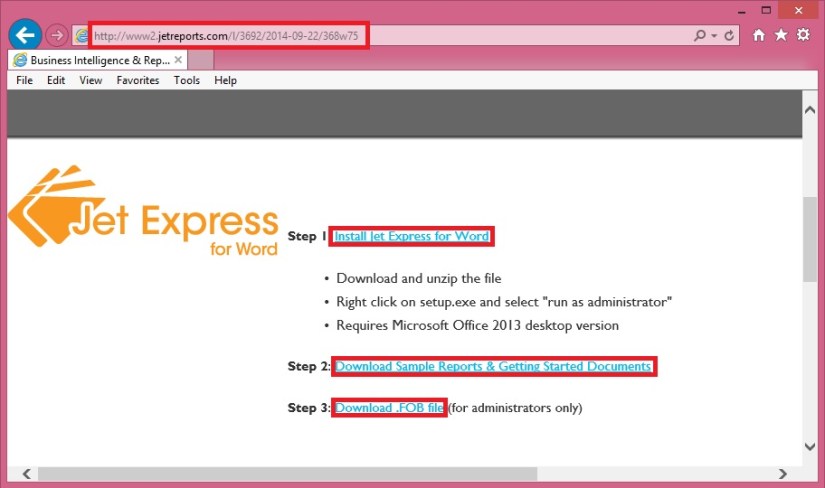
Where to get Jet Report Installation Files

You can use this Link, Visit to Jet Reports site here.

JetReportInstallation-1

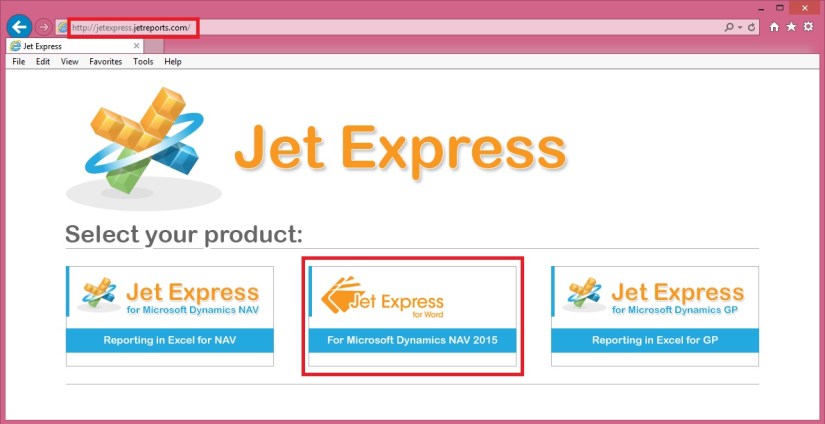
JetReportInstallation-2

– Download the Jet_Express_for_Word_Installer.zip file

– Right-click the zipped file and select “Extract All”

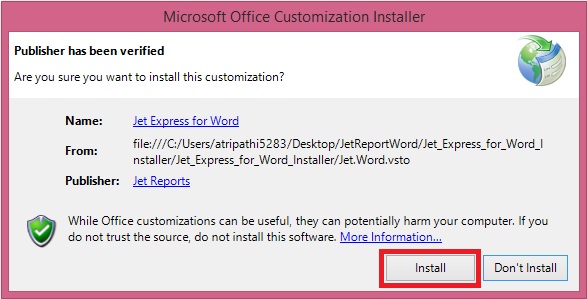
– Right-click the file “setup.exe” and choose “Run as administrator”

JetReportInstallation-3

JetReportInstallation-4

JetReportInstallation-5

Verifying the Installation

Open the Word and you will find one more TAB in Ribbon. [JET]

JetReportInstallation-6

Just in case you don’t find the Tab, Follow below set to enable the same, provided your Installation was successful in previous step without any error.

JetReportInstallation-7

Developer -> COM Add-Ins

Check if Jet Express for Word is enabled, if not select it and say OK.

If already enabled but still you don’t see, disable and enable again. Restart your word now you will be able to see the JET TAB.

I will come up with more information in my upcoming posts.

Development Tips, Functional Tips

Security filter—record-level security

Security filters—record level security/access control can be explained by for accessing G/L Accounts. Let’s take an example where we want the user to view only balance sheet G/L Accounts.

To accomplish the record-level security, we use security filters from the Permissions window. Click on the Assist Edit button in the Security Filters field in the Permissions window and select the field on which we want to apply filters.

SecurityFilter

Record-level security is available only if we are using the SQL database, need not to mention for NAV 2015.

How to: Set Security Filters

You set security filters to limit the access that a user has to data in a table. You set security filters on permission sets, which you assign to users.

To set a security filter

In the Search box, enter Permission Sets, and then choose the related link.

On the Permission Sets page, select the permission set to which you want to add a security filter, and then choose Permissions.

On the Permissions page, on the row for the table data to which you want to add a security filter, in the Security Filter column, choose the AssistEdit button.

The Table Filter page opens.

In the Table Filter page, in the Field Number column, select the field on which you want to limit a user’s access.

For example, if you want to create a security filter so that a user can view only sales with a specific salesperson code, then choose the field number for the Salesperson Code field.

The Field Caption column in the Table Filter page is filled in automatically after you select the field number.

In the Field Filter column, enter the value of field that you want to use to limit access.

For example, to limit a user’s access to only Annette Hill’s sales, enter AH, which is the salesperson code for Annette Hill, in the Field Filter column.

Note

Record level security filters do not support wildcard characters. This means that you cannot use * and ? in the filters. You can use other symbols, delimiters and, operators, such as, <, >, |, &, .., and =. If you do not enter an operator, then the default operator = is used.

Security filters support Unicode characters. The maximum length of a security filter is 200 characters, including all field names, delimiters, symbols, and operators that used in the filter.

When multiple permission sets that refer to the same table data are assigned to a user, they are combined so that the least restrictive filter is used. You should not repeat a table in multiple permission sets if you plan to combine those permissions sets for one user.

Security Filter Modes

Query objects and Record objects, including both explicit record variables and implicit records on pages, reports, or XMLports, have a property named SecurityFiltering, which describes how security filters are applied.

The possible values of the SecurityFiltering property are: Filtered, Validated, Ignored, Disallowed

Filtered

If a record is set to Filtered, then any security filters that have been set are respected for this instance of the record. To the user, it is as if records outside the security filters that do not exist.

An example scenario in which you use the Filtered value is that one salesperson is not allowed to view customers, sales quotes, or sales orders that belong to another salesperson. When the salesperson opens a list of customers or sales documents, or runs reports such as the Customer – Top 10 List report, he sees his filtered view of customers, sales quotes, and sales orders.

Validated

If a record is set to Validated, then any security filters that have been set are respected for this instance of the record, and an error occurs if the code attempts to access a record that is outside the range of the security filters.

An example scenario in which you use the Validated value is that one parts purchaser in a warehouse is responsible for only one location and can view and create purchase orders for only that location. However, some purchase orders have lines for multiple locations. Only a parts purchaser who has access to all locations should be allowed to post these purchase orders that have lines for multiple locations. All other purchasers receive an error.

If security filters have been set, then the Validated value decreases performance.

The Validated value is used mainly for compatibility with the security model in earlier versions of Microsoft Dynamics NAV. MS recommend that you use the other modes when you implement your security model.

Ignored

If a record is set to Ignored, then any security filters that have been set are ignored for this instance of the record.

An example scenario in which you use the Ignored value is that one salesperson is not allowed to view customers, sales quotes, or sales orders that belong to another salesperson. However, to post his sales orders, the salesperson must have access to all entries in the Customer Ledger Entry table so that the posting algorithm can find the last sales order entry number and generate the correct number for the next entry. In the code that posts sales orders, you set the SecurityFiltering property of the record variable to Ignored, but for record variables in other parts of the code, you set the SecurityFiltering property to either Filtered or Validated.

When you set the SecurityFiltering property on a record to Ignored, the administrator who sets a security filter is not informed that the security filter will be ignored. You must be careful when you set the SecurityFiltering property that it does not cause unintended information disclosure.

Disallowed

If a record is set to Disallowed, then setting any security filter on the record causes an error.

An example scenario in which you use the Disallowed value is that you have batch jobs that must be run only by users who have access to all records in the related tables, otherwise the batch jobs can cause incorrect and potentially harmful results. The partner developer sets record variables on these batch jobs to Disallowed so that a user who does not have access to all records in the related tables receives an error.

Important

It is not supported to change the default Filtered value of the SecurityFiltering property on implicit records on pages.

If you keep the default values after you upgrade from Microsoft Dynamics NAV 2009 to Microsoft Dynamics NAV 2015, then the behavior is the same in all cases except the following:

In earlier versions, the COUNT Function (Record) ignored security filters and always returned the total number of records unless you called the SETPERMISSIONFILTER function to get a filtered count. In Microsoft Dynamics NAV 2015, the COUNT function adheres to the SecurityFiltering property.

In earlier versions, on a page, you could modify or insert a record outside of the range of your security filters but in Microsoft Dynamics NAV 2015, you cannot.

Note

For Query variables, the Validated value of the SecurityFiltering property is not allowed.

Security Filters and FlowFields

If you set a security filter on a table that is used in a FlowField calculation, then the calculated value of the FlowField is filtered, based on the security filter and the security filter mode of the record variable for the record in the table.

For example, if you set a security filter so that a user can only view sales with a specific salesperson code, and if the security filter mode is Filtered, then when the user views a FlowField that calculates total sales, the user can see the total of only those sales that have the specific salesperson code. In earlier versions of Microsoft Dynamics NAV, the security filter mode value was Validated and in this example, the user received an error.

Programming Examples

For these examples, you have a table that has 100 records. Each record has an ID field that is the primary key of the table. The values of the ID field that are currently in the database range from 1 to 100. In this example, you set a security filter on the table data for ID=1..50. Then, in a codeunit you create a record variable for the table.

Security filter mode Example
Filtered If you set the SecurityFiltering property on the record variable to Filtered, then the code behaves as if records with ID values from 1 to 50 are the only records that exist.

If you call the FIND, FINDFIRST, FINDLAST, or FINDSET function on the record variable without any additional filters besides the security filter, then the function only finds records with ID values from 1 to 50.

If you call the DELETEALL function, then it successfully deletes records with ID values from 1 to 50. It does not delete records with ID values greater than 50, and it does not return an error.

If you modify a record, for example, by calling the MODIFY function on a record with an ID value less than 50, then the function succeeds. If you call the MODIFY function on a record with an ID value greater than 50, then it fails because you do not have access to the record.

If you insert a record with an ID less than 50 and the record does not already exist, the INSERT function succeeds. If you insert a record with an ID greater than 50 and the record does not already exist, it fails because you do not have access to the record.

If you call the GET function on a record with an ID value less than 50, then the function succeeds. If you call the GET function on a record with an ID value greater than 50, then it fails.

Validated If you set the SecurityFiltering property on the record variable to Validated, then the code behaves as if records with ID values from 1 to 100 exist, but you only have access to the records that are specified by the security filter.

If you call the FIND, FINDFIRST, FINDLAST, or FINDSET function on the record variable without additional filters, it finds all 100 records, but a NEXT function call to the record with ID value 51 fails because you do not have access to it.

If you call the DELETEALL function, it fails because it finds all 100 records but you do not have access to all of them.

If you modify a record with an ID value less than 50, it succeeds. If you modify a record with an ID value greater than 50, it fails.

If you insert a record with an ID less than 50 and the record does not already exist, it succeeds. If you insert a record with an ID greater than 50 and the record does not already exist, it fails.

Ignored If you set the SecurityFiltering property on the record variable to Ignored, then the code behaves as if all security filters that are set do not exist for that instance of the record.

Any of the FIND functions find all 100 records.

The DELETEALL function deletes all 100 records.

You can insert and modify records in any range, regardless of security filters.

Disallowed If you set the SecurityFiltering property on the record variable to Disallowed, then as long as a security filter is set on the record, any code that uses the record variable causes an error.

Performance Impact of Security Filtering Mode

If security filters are set on a table, then setting the SecurityFiltering property to Validated on a record instance of that table causes a decrease in performance.

The Microsoft Dynamics NAV Server must go through every record in the table to validate the record instead of adding the filters to the query that is sent to SQL Server.

If security filters are not set, then setting the SecurityFiltering property to Validated has no performance impact.

Note

MS recommend that you change commonly used record variables from the default value of Validated to either Filtered or Ignored to improve performance.

Development Tips

Filtering on Dimension Values

Microsoft Dynamics NAV supports unlimited dimensions and unlimited dimension values. You can create as many as you want, and you can use those all across the application.

However two of these dimensions have got special treatment by setting them up them as global dimensions.

Why special? Answer could be because the global dimensions values are stored directly on the records they belong to. All other dimension values are stored in a separate table.

This means that you can filter on these two dimensions. In many places in the standard application, these Global Dimension are used on Filter fields that can be used to filter FlowFields.

However, to get any data on any of the other dimensions, you would have to rely on Analysis Views to retrieve the information.

In Microsoft Dynamics NAV 2013 onwards version, the dimensions functionality has been heavily redesigned.

Instead of storing all individual dimension values for each record in separate tables, each unique combination of dimensions and values gets an ID, and this dimension set ID is stored directly on the record that those values belong to.

With this change, all information about dimensions and their values are directly stored on the record.

Since all the required information is stored on the record, though somewhat indirectly, it will now be possible to filter on any dimension and any dimension value. As it turns out, it is, and it’s not that hard to do.

As mentioned, the records contain dimension set IDs, which are integers that represent the combination of dimension values for a specific record. The biggest problem is to convert a typical filter on a dimension into a filter of dimension set IDs.

Fortunately, we already have a few functions in Microsoft Dynamics NAV that can provide that information. With these functions in mind, we can build a logic where you can input any combination of dimensions and dimension values in the form of filters, and you can then calculate the corresponding set of dimension set IDs. With all of these IDs, we can build one long filter string and use it to filter on the dimension set ID field. This enables, with relative ease, direct filtering on Dimension Values.

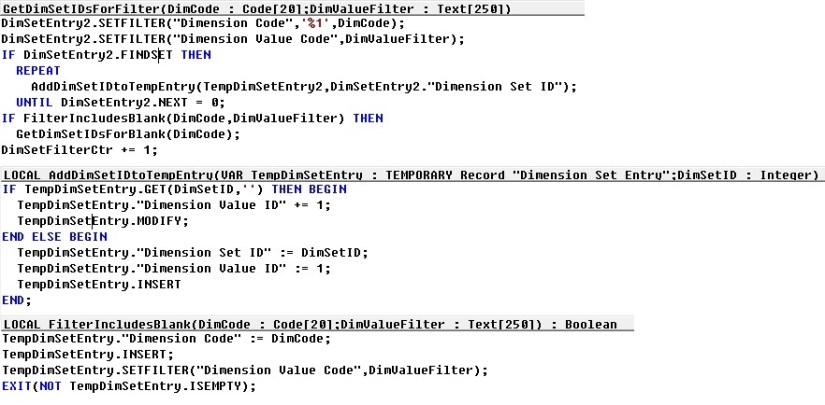
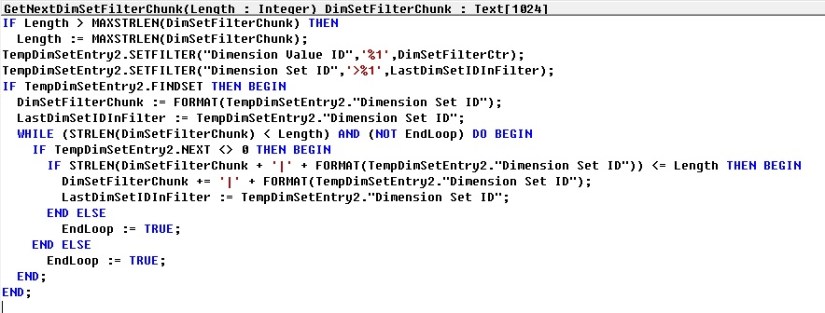
In Codeunit 408 – DimensionManagement we have functions which can help us getting our task done:

  • GetDimSetIDsForFilter

DimFilter-1

  • GetNextDimSetFilterChunk

DimFilter-2

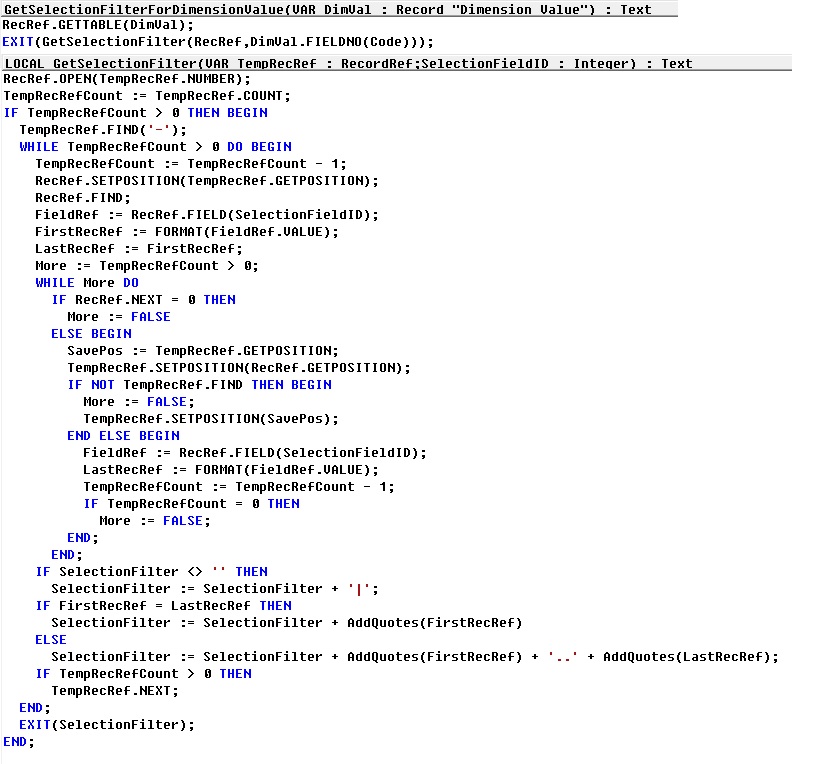
In Codeunit 46 – SelectionFilterManagement we have functions which can help us getting our task done:

  • GetSelectionFilterForDimensionValue

DimFilter-3

Using these functions we can build our logic to retrieve the required records from tables filtering on Dim Set ID field.

Let’s see the pseudocode of logic to get our work done.

This logic applies to Dimension table. With all values for which filter need to be applied.
DimFilter-4

Before executing above piece of code we have to prepare a Dimension Value record with [Dimension Code + Code (filter)] values with all the required filters we wish to apply filter for.

We can also find out which records do not have a value for one or more dimensions, for this we will add [Dimension Code] but for [Code] we will not provide the value/filter or blank.

Make sure when you define variables of Dimension & Dimension Value don’t forget to set Temporary property to Yes.

Development Tips, How To

How to: Install a Windows Client Control Add-in Assembly

Microsoft Dynamics NAV Windows client control add-ins are provided in one or more Microsoft Framework .NET-based assemblies, which are .dll files. Control add-in assemblies must be installed on the following computers:

  • Computers that are running the Microsoft Dynamics NAV Windows client. Any Microsoft Dynamics NAV Windows client instance that will use the control add-ins, must be installed with the control add-in assemblies. Control add-in assemblies are not installed with the default Microsoft Dynamics NAV Windows client installation.
  • Computer that is running the Microsoft Dynamics NAV Development Environment. After a control add-in is installed, you use the development environment to register the control add-in the Client Add-in table in the Microsoft Dynamics NAV database and set it up on pages.

Optionally, if a control add-in has the same name as the assembly, you can install the assembly on the computer that is running Microsoft Dynamics NAV Server instead of the client computer.

To install control add-in assemblies on the Microsoft Dynamics NAV Windows client

  • If needed, install the Microsoft Dynamics NAV Windows client on the computer.
  • On the computer that is running the Microsoft Dynamics NAV Windows client, copy the assemblies that contain the control add-ins to the Add-ins folder of the Microsoft Dynamics NAV Windows client installation.
    • By default, the path of this folder is C:\Program Files (x86)\Microsoft Dynamics NAV\80\RoleTailored Client\Add-ins.

You can also include assemblies in a subfolder of the Add-ins folder. This can be useful if you have multiple assemblies and dependencies.

To install control add-in assemblies on the development environment computer

  • If needed, install the development environment on the computer.
  • On the computer that is running the development environment, create a folder named Add-in in the development environment installation folder.
    • By default, the path of this folder is C:\Program Files\Microsoft Dynamics NAV\80\Classic. If the Add-in folder already exists, then ignore this step.
  • Copy the assemblies that contain the control add-ins to the Add-ins folder.

You can also include assemblies in a subfolder of the Add-ins folder. This can be useful if you have multiple assemblies and dependencies.

Installing Control Add-ins on Microsoft Dynamics Server for Automatic Deployment

If a control add-in has the same name as the assembly, then you can install the assembly on computer that is running Microsoft Dynamics NAV Server. When an operation from the client requires the control add-in, Microsoft Dynamics NAV Server automatically deploys the assembly to a temporary folder on the client computer.

For example, if Microsoft Dynamics NAV Windows client opens a page that contains a control add-in, Microsoft Dynamics NAV Server will find the control add-in assembly by name in the Add-ins folder. Then, it deploys the assembly to the client computer in the %TEMP%\Microsoft Dynamics NAV\Add-Ins folder of the user who is running the client. The deployed assembly will be then be used whenever the page is opened.

Similarly, if the development environment requires a control add-in, for example, when you compile an object, then the control add-in assembly will be deployed by the Microsoft Dynamics NAV Server to the local temporary folder for the current user on the computer that is running the development environment.

To be deployed, an assembly must comply with the following Microsoft Dynamics NAV Server configuration settings: Chunk Size, Max Upload Size, and Prohibited File Types.

If the control add-in assembly is updated and its version number changes, Microsoft Dynamics NAV Server will deploy the updated assembly to the client computer the next time that the client requests the assembly. The updated assembly is put in a subfolder of the %TEMP%\Microsoft Dynamics NAV\Add-Ins folder, where the subfolder has the assembly’s version number as its name. This implementation means that you do have to remove the older versions of assemblies that are stored on the client computer.

Before Microsoft Dynamics NAV Server deploys an assembly to a client, the client looks for the assembly in the local Add-ins folder (for example, C:\Program Files (x86)\Microsoft Dynamics NAV\80\RoleTailored Client\Add-ins). If the assembly is not found, then the client will request the assembly from Microsoft Dynamics NAV Server.

To install the control add-in on Microsoft Dynamics NAV Server

  • On the computer that is running the Microsoft Dynamics NAV Server, copy the assembly that contains the control add-in to the Add-ins folder of the Microsoft Dynamics NAV Server installation.

By default, the path is C:\Program Files\Microsoft Dynamics NAV\80\Service\Add-ins.

Development Tips, How To

How to: Set .NET Framework Types to Run on the Microsoft Dynamics NAV Windows Client or Microsoft Dynamics NAV Server Computers

Here is the brief description for how to set .NET Framework objects that are instantiated by DotNet variables to target either the Microsoft Dynamics NAV Windows client or Microsoft Dynamics NAV Server.

By default, a type is set to target Microsoft Dynamics NAV Server. However, you can set the type to target the Microsoft Dynamics NAV Windows client.

Setting the .NET Framework Type to Target the Microsoft Dynamics NAV Windows Client

To set a .NET Framework type instance to target the Microsoft Dynamics NAV Windows client, you must complete the following tasks:

  • Set the DotNet variable for the .NET Framework type to target the Microsoft Dynamics NAV Windows client.
  • Copy the .NET Framework assembly to the computer that is running the Microsoft Dynamics NAV Windows client.

You must copy the assembly to each computer that is running the Microsoft Dynamics NAV Windows client. If the assembly is included in the global assembly cache, then you do not have to do this task.

For the Microsoft Dynamics NAV Web client, you cannot implement Microsoft .NET Framework interoperability objects that target the client.

To set the .NET Framework type to target the Microsoft Dynamics NAV Windows client

  • In Object Designer, open the C/AL code of the Microsoft Dynamics NAV object that uses .NET Framework interoperability.
  • Do one of the following steps:
    • For a global variable, on the View menu, choose C/AL Globals.
    • For a local variable, select the trigger that uses the variable, and then on the View menu, choose C/AL Locals.
    • On the Variables tab, select the DotNet variable, and then on the View menu, choose Properties.
    • In the Properties window, set the RunOnClient property to Yes

To copy a .NET Framework assembly to a computer that is running the Microsoft Dynamics NAV Windows client

    • On the computer that is running the Microsoft Dynamics NAV Windows client, copy the.NET Framework assembly to the Add-ins folder of the Microsoft Dynamics NAV Windows client installation.

By default, the path of this folder is C:\Program Files\Microsoft Dynamics NAV\80\RoleTailored Client\Add-ins or C:\Program Files (x86)\Microsoft Dynamics NAV\80\RoleTailored Client\Add-ins.

You can also put assemblies in a subfolder of the Add-ins folder. This can be useful when you have multiple versions of the same assemblies and dependencies.

Setting the .NET Framework Type to Target Microsoft Dynamics NAV Server

To set a .NET Framework type instance to target Microsoft Dynamics NAV Server, you must complete the following tasks:

  • Set the variable for the NET Framework type to target Microsoft Dynamics NAV Server.
  • Copy the .NET Framework assembly to the computer that is running Microsoft Dynamics NAV Server.

If the assembly is included in the global assembly cache of the computer that is running Microsoft Dynamics NAV Server, then you do not have to do this task.

To set the .NET Framework type to target Microsoft Dynamics NAV Server

  • In the development environment, in Object Designer, open the object that uses the .NET Framework variable.
  • Do one of the following steps:
    • For a global variable, on the View menu, choose C/AL Globals.
    • For a local variable, in the C/AL Editor, select the trigger that uses the DotNet variable, and then on the View menu, choose C/AL Locals.
    • On the Variables tab, select the NET Framework variable type, and then on the View menu, choose Properties.
    • In the Properties window, set the RunOnClient property to No

To copy a .NET Framework assembly to the computer that is running Microsoft Dynamics NAV Server

    • On the computer that is running Microsoft Dynamics NAV Server, copy the.NET Framework assembly to the Add-ins folder of the Microsoft Dynamics NAV Server installation folder.

By default, the path of the Microsoft Dynamics NAV Server installation folder is C:\Program Files\Microsoft Dynamics NAV\80\Service\Add-ins.

You can also put assemblies in a subfolder of the Add-ins folder. This can be useful when you have multiple assemblies and dependencies.

If you are working in the development environment, to compile and test Microsoft Dynamics NAV objects, you must also copy the assembly to the Add-ins folder of the Microsoft Dynamics NAV Windows client installation on the computer that is running the development environment. By default, the path of this folder is C:\Program Files\Microsoft Dynamics NAV\80\RoleTailored Client\Add-ins or C:\Program Files (x86)\Microsoft Dynamics NAV\80\RoleTailored Client\Add-ins.

Development Tips

Automatic Deployment of Microsoft .NET Framework Interoperability and Control Add-in Assemblies

Microsoft Dynamics NAV 2015 makes it easier for the system administrators to deploy client-side assemblies for .NET Framework interoperability and client control add-ins on computers that are running the Microsoft Dynamics NAV Windows client or Microsoft Dynamics NAV Development Environment.

You can now install the assemblies in the Add-ins folder on the computer that is running Microsoft Dynamics NAV Server. By default, this is the C:\Program Files\Microsoft Dynamics NAV\80\Service\Add-ins folder.

When an operation from the client requires an assembly, Microsoft Dynamics NAV Server automatically deploys the assembly to a temporary folder on the client computer.

For example, if Microsoft Dynamics NAV Windows client opens a page that contains a control add-in, Microsoft Dynamics NAV Server will find the control add-in assembly by name in the Add-ins folder. Then, it deploys the assembly to the client computer in the %TEMP%\Microsoft Dynamics NAV\Add-Ins folder of the user who is running the client. Subsequently, the deployed assembly will be used whenever the page is opened.

Similarly, if the development environment requires a control add-in, for example, when you compile an object, then the control add-in assembly will be deployed by the Microsoft Dynamics NAV Server to the local temporary folder for the current user on the computer that is running the development environment.

Important:

To be deployed, an assembly must comply with the following Microsoft Dynamics NAV Server configuration settings: Chunk Size, Max Upload Size, and Prohibited File Types.

If a .NET Framework interoperability or control add-in assembly is updated and its version number changes, Microsoft Dynamics NAV Server will deploy the updated assembly to the client computer the next time that the client requests the assembly. The updated assembly is put in a subfolder of the %TEMP%\Microsoft Dynamics NAV\Add-Ins folder, where the subfolder has the assembly’s version number as its name. This implementation means that you do have to remove the older versions of assemblies that are stored on the client computer.

To support compatibility with earlier version of Microsoft Dynamics NAV, before Microsoft Dynamics NAV Server deploys an assembly to a client, the client looks for the assembly in the local Add-ins folder (for example, C:\Program Files (x86)\Microsoft Dynamics NAV\80\RoleTailored Client\Add-ins). If the assembly is not found, then the client will request the assembly from Microsoft Dynamics NAV Server.

Javascript-based client add-ins have been using this deployment technique since Microsoft Dynamics NAV 2013 R2.