Corfu Navision 2016, Development Tips, How To, Information, upgrade

Helpful PowerShell Commands which you can use for Upgrade Process in Navision 2016

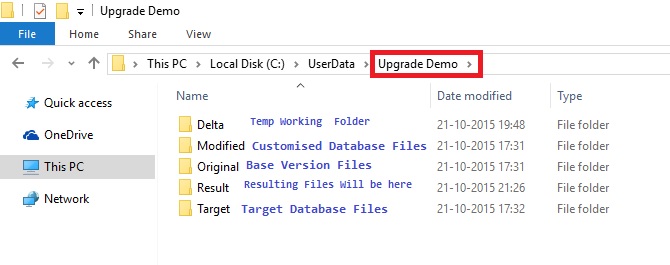
In today’s post we will see some Power Shell Commands which will be helpful while performing Upgrades using PowerShell. For below commands to exercise you will need to create/prepare Folder Structure as below else you will have to modify the path in below script as one which you will be using.

For your ease I have uploaded the below script in form of text file named ‘MyPowerShellScript.txt’ which you can get using this link http://1drv.ms/1OOf7If alternatively from Menu of my blog side use Shared Files to access the file.
PowerShell-1

Extract you objects in Text format from Base, Customized and Target Database and place in respective folders. One text file per object will be better option for getting more clear insight on Results. You can find the command for Splitting the File per object in below Script.

After opening the PowerShell or ISE change your folder to Upgrade Demo as in my case it will be:

PS C:\userdata\upgrade demo>
PowerShell-2
Select the Script and Press Button in Toolbar Run Selection (F8) in Windows PowerShell ISE (Desktop App).

#1. Start Import NAV Module

Import-Module “${env:ProgramFiles(x86)}\Microsoft Dynamics NAV\90\RoleTailored Client\Microsoft.Dynamics.Nav.Model.Tools.psd1” -force -DisableNameChecking

Get-Help “NAV”

This is must in order to run all below commands.

#2. Merge Objects

# Compare ORIGINAL and MODIFIED and merge onto TARGET, then put the merged files in RESULT

Merge-NAVApplicationObject -OriginalPath .\ORIGINAL\*.txt -ModifiedPath .\MODIFIED\*.txt -TargetPath .\TARGET\*.txt -ResultPath .\RESULT -Force

# Standard PowerShell table formatting with sorting on Object Type, Id

Merge-NAVApplicationObject -OriginalPath .\ORIGINAL\*.txt -ModifiedPath .\MODIFIED\*.txt -TargetPath .\TARGET\*.txt -ResultPath .\RESULT -Force -PassThru |

Sort-Object ObjectType, Id |

Format-Table

# Use PowerShell VARIABLE, PIPING, FILTER, and LISTS – capture result in variable, then list file names of ORIGINAL and TARGET files in conflict 

$myVariable = Merge-NAVApplicationObject -OriginalPath .\ORIGINAL\*.txt -TargetPath .\TARGET\*.txt `

-ModifiedPath .\MODIFIED\*.txt -ResultPath .\RESULT -Force

$myVariable.Summary

$myVariable |

Where-Object MergeResult –eq ‘Conflict’ |

Select Original, Target |

Format-List

# Open NOTEPAD for each CONFLICT file 

Merge-NAVApplicationObject -OriginalPath .\ORIGINAL\*.txt -TargetPath .\TARGET\*.txt `

-ModifiedPath .\MODIFIED\*.txt -ResultPath .\RESULT -Force -PassThru |

Where-Object MergeResult -eq ‘Conflict’ |

foreach { NOTEPAD $_.Conflict }

# Handling Documentation triggers: Merged by default, but conflict can either be treated as real conflict (Strict) or both inserted (ModifiedFirst or TargetFirst)

Merge-NAVApplicationObject -OriginalPath .\ORIGINAL\pagXXXX.txt -ModifiedPath .\MODIFIED\pagXXXX.txt `

-TargetPath .\TARGET\pagXXXX.txt -ResultPath .\RESULT\pagXXXX.txt -Force -DocumentationConflict Strict

Merge-NAVApplicationObject -OriginalPath .\ORIGINAL\pagXXXX.txt -ModifiedPath .\MODIFIED\pagXXXX.txt `

-TargetPath .\TARGET\pagXXXX.txt -ResultPath .\RESULT\pagXXXX.txt -Force -DocumentationConflict ModifiedFirst

#3. Merge Format Output

# Compare ORIGINAL and MODIFIED and merge onto TARGET, then put the merged files in RESULT

Merge-NAVApplicationObject -OriginalPath .\ORIGINAL\*.txt -ModifiedPath .\MODIFIED\*.txt -TargetPath .\TARGET\*.txt -ResultPath .\RESULT -Force

# Same: Capture the rich output in a PowerShell variable for further processing

$result = Merge-NAVApplicationObject -OriginalPath .\ORIGINAL\*.txt -ModifiedPath .\MODIFIED\*.txt -TargetPath .\TARGET\*.txt -ResultPath .\RESULT -Force

# Using the variable: Use standard PowerShell outputting of variable 

$result

# Using the variable: Use the Summary property of the result 

$result.Summary

# Using the variable: Use standard PowerShell table formatting 

$result | Format-Table

# Use standard PowerShell table formatting 

Merge-NAVApplicationObject -OriginalPath .\ORIGINAL\*.txt -ModifiedPath .\MODIFIED\*.txt -TargetPath .\TARGET\*.txt -ResultPath .\RESULT -Force -PassThru |

Format-Table

# Use standard PowerShell table formatting with sorting on ObjectType, Id 

Merge-NAVApplicationObject -OriginalPath .\ORIGINAL\*.txt -ModifiedPath .\MODIFIED\*.txt -TargetPath .\TARGET\*.txt -ResultPath .\RESULT -Force -PassThru |

Sort-Object ObjectType, Id |

Format-Table

# Use standard PowerShell graphical output (GridView) 

Merge-NAVApplicationObject -OriginalPath .\ORIGINAL\*.txt -ModifiedPath .\MODIFIED\*.txt -TargetPath .\TARGET\*.txt -ResultPath .\RESULT -Force -PassThru |

Out-GridView

#4. Merge Filter Output

 # Compare ORIGINAL and MODIFIED and merge onto TARGET, then put the merged files in RESULT

Merge-NAVApplicationObject -OriginalPath .\ORIGINAL\*.txt -ModifiedPath .\MODIFIED\*.txt -TargetPath .\TARGET\*.txt -ResultPath .\RESULT -Force

# Same: Plus use PIPING, PASSTHRU and FILTER – show objects with CONFLICT only

Merge-NAVApplicationObject -OriginalPath .\ORIGINAL\*.txt -TargetPath .\TARGET\*.txt `

-ModifiedPath .\MODIFIED\*.txt -ResultPath .\RESULT -PassThru -Force |

Where-Object MergeResult –eq ‘Conflict’

# Same: Plus use PIPING, PASSTHRU, FILTER, and COUNT – count MERGED objects

Merge-NAVApplicationObject -OriginalPath .\ORIGINAL\*.txt -TargetPath .\TARGET\*.txt `

-ModifiedPath .\MODIFIED\*.txt -ResultPath .\RESULT -PassThru -Force |

Where-Object MergeResult –eq ‘Merged’ |

Measure-Object

# Same: Plus use PIPING, PASSTHRU, FILTER, and LISTING FILES – list file names of ORIGINAL and TARGET files in conflict 

Merge-NAVApplicationObject -OriginalPath .\ORIGINAL\*.txt -TargetPath .\TARGET\*.txt `

-ModifiedPath .\MODIFIED\*.txt -ResultPath .\RESULT -PassThru -Force |

Where-Object MergeResult –eq ‘Conflict’ |

Select Original, Target |

Format-List

#5. Merge and open Conflicts files using External Tools

 # Compare ORIGINAL and MODIFIED and merge onto TARGET, then put the merged files in RESULT 

$result = Merge-NAVApplicationObject -OriginalPath .\ORIGINAL\*.txt -ModifiedPath .\MODIFIED\*.txt -TargetPath .\TARGET\*.txt -ResultPath .\RESULT -Force

# Open NOTEPAD for each CONFLICT file 

$result |

Where-Object MergeResult -eq ‘Conflict’ |

foreach { NOTEPAD $_.Conflict }

#6. Merge and Documentation Triggers

 # Compare object DOCUMENTATION modifications: Body-text (can be merged) and version list additions (potential conflict). 

Merge-NAVApplicationObject -OriginalPath .\ORIGINAL\pagXXXX.txt -ModifiedPath .\MODIFIED\pagXXXX.txt `

-TargetPath .\TARGET\pagXXXX.txt -ResultPath .\RESULT\pagXXXX.txt -Force -DocumentationConflict ModifiedFirst

# Same: But STRICT on conflicts. 

Merge-NAVApplicationObject -OriginalPath .\ORIGINAL\pagXXXX.txt -ModifiedPath .\MODIFIED\pagXXXX.txt `

-TargetPath .\TARGET\pagXXXX.txt -ResultPath .\RESULT\pagXXXXa.txt -Force -DocumentationConflict Strict

#7. Merge and import in CSIDE

# Compare ORIGINAL and MODIFIED and merge onto TARGET, then put the merged files in RESULT 

Merge-NAVApplicationObject -OriginalPath .\ORIGINAL\*.txt -ModifiedPath .\MODIFIED\*.txt -TargetPath .\TARGET\*.txt -ResultPath .\RESULT -Force

# Locate subset (code units) of partionally merged object files, combine them into a single file for performance, and import them into C/SIDE (parameter -Database for you to provide). All throught piping. 

Get-ChildItem .\RESULT\COD*.txt |

Join-NAVApplicationObjectFile -Destination .\RESULT\partially-merged.txt |

Import-NAVApplicationObject

#8. Merge and Export Result to Excel Output 

# Compare ORIGINAL and MODIFIED and merge onto TARGET, then put the merged files in RESULT 

$result = Merge-NAVApplicationObject -OriginalPath .\ORIGINAL\*.txt -ModifiedPath .\MODIFIED\*.txt -TargetPath .\TARGET\*.txt -ResultPath .\RESULT -Force

$AutoMerged = ($result | Where-Object MergeResult -eq ‘Merged’).Count

$Conflict   = ($result | Where-Object MergeResult -eq ‘Conflict’).Count

$Unchanged  = ($result | Where-Object MergeResult -eq ‘Unchanged’).Count

$Inserted   = ($result | Where-Object MergeResult -eq ‘Inserted’).Count

$Unknown    = ($result | Where-Object MergeResult -eq ‘Unknown’).Count

$Deleted    = ($result | Where-Object MergeResult -eq ‘Deleted’).Count

$Title      = “MySample”  # update Excel template file to allow blanks and special characters

$excelPath = “$(Get-ItemProperty ‘HKLM:\SOFTWARE\Microsoft\Windows\CurrentVersion\App Paths\excel.exe’ | select -exp Path)\Excel.exe”

& $excelPath “.\Merge Result Sample.xlsm” “/e/$Title/$AutoMerged/$Conflict/$Unchanged/$Inserted/$Unknown/$Deleted”

# Start-Process -FilePath “.\Merge Result Sample.xlsm” -ArgumentList “/e/BAS/$AutoMerged/$Conflict/$Unchanged/$Inserted/$Unknown/$Deleted”

#9. Compare

 # Compare ORIGINAL and MODIFIED and output MULTIPLE separate DELTA files 

Compare-NAVApplicationObject -OriginalPath .\ORIGINAL\*.txt -ModifiedPath .\MODIFIED\*.txt -DeltaPath .\DELTA -Force

# Compare ORIGINAL and TARGET, pipe the result into the Update-cmdlet (in particular the DELTA parameter) 

Compare-NAVApplicationObject -OriginalPath .\ORIGINAL\*.txt -ModifiedPath .\MODIFIED\*.txt -DeltaPath .\DELTA -Force -PassThru |

Update-NAVApplicationObject -TargetPath .\TARGET\*.txt -ResultPath .\RESULT -Force

#10. Compare Piped

 # Compare ORIGINAL and TARGET and output ONE summary DELTA file 

Compare-NAVApplicationObject -OriginalPath .\ORIGINAL\*.txt -ModifiedPath .\TARGET\*.txt -DeltaPath .\RESULT\sum-of-deltas.txt -Force

#11. Update Piped

# Compare ORIGINAL and MODIFIED and output MULTIPLE separate DELTA files, capture result in variable to apply multiple times 

$myDifferences = Compare-NAVApplicationObject -OriginalPath .\ORIGINAL\*.txt -ModifiedPath .\MODIFIED\*.txt -DeltaPath .\DELTA -Force

# Apply a captured set of differences to TARGET objects using the Update-cmdlet 

$myDifferences |

Update-NAVApplicationObject -TargetPath .\TARGET\*.txt -ResultPath .\RESULT -Force

#12. Join & Split Object Files

# Join all Codeunit-TXT-files into a single TXT-file

Join-NAVApplicationObjectFile -Source .\ORIGINAL\COD*.txt -Destination .\RESULT\all-codeunits.txt -Force

# Join list of Codeunit-TXT-files into a single TXT-file 

Join-NAVApplicationObjectFile -Source .\ORIGINAL\COD1.txt, .\ORIGINAL\COD2.txt, .\ORIGINAL\COD3.txt -Destination .\RESULT\3-codeunits.txt -Force

# Split a single TXT-file with multiple application objects into separate files in the DESTINATION folder 

Split-NAVApplicationObjectFile -Source .\RESULT\all-codeunits.txt -Destination .\SEPARATE -Force

Make sure you have created Separate Folder before executing this script.

#13. Get Application Properties 

# Show values of application properties in CODXXXX.TXT 

Get-NAVApplicationObjectProperty -Source .\RESULT\CODXXXX.txt

#14. Set Application Properties

# Set all object properties on named object COD1.TXT: VersionList to DemoV1, Modified as modified, and Date and Time to current date/time (show outcome) 

Set-NAVApplicationObjectProperty -TargetPath .\RESULT\COD1.txt -VersionListProperty “DemoV1” -ModifiedProperty Yes -DateTimeProperty (Get-Date -Format g)

Get-NAVApplicationObjectProperty -Source .\RESULT\COD1.txt

# Set date/time to a fixed, machine-locale agnostic date (January 1st, 2015) on Merged objects 

Merge-NAVApplicationObject -OriginalPath .\ORIGINAL\*.txt -ModifiedPath .\MODIFIED\*.txt -TargetPath .\TARGET\*.txt -ResultPath .\RESULT -Force -PassThru |

Where-Object MergeResult –eq ‘Merged’ |

foreach { Set-NAVApplicationObjectProperty -TargetPath $_.Result -DateTimeProperty (Get-Date -Year 2015 -Month 1 -Day 1 -Hour 0 -Minute 0 -Format g) }

# Capture merge-result in variable, set VersionList property as an concatenation of Modified and Target values with trailing ‘!’ 

$result = Merge-NAVApplicationObject -OriginalPath .\ORIGINAL\*.txt -ModifiedPath .\MODIFIED\*.txt -TargetPath .\TARGET\*.txt -ResultPath .\RESULT -Force

$result |

Where-Object MergeResult –eq ‘Merged’ |

foreach { Set-NAVApplicationObjectProperty -TargetPath $_.Result -VersionListProperty “$_.Modified.VersionList,$_.Target.VersionList!”;

Get-NAVApplicationObjectProperty -Source $_.Result }

# Display property VersionList of CODXXXX.TXT in MODIFIED, TARGET, and RESULT 

Get-NAVApplicationObjectProperty -Source .\MODIFIED\CODXXXX.txt | select VersionList

Get-NAVApplicationObjectProperty -Source .\TARGET\CODXXXX.txt | select VersionList

Get-NAVApplicationObjectProperty -Source .\RESULT\CODXXXX.txt | select VersionList

#15. Set Application Properties

# Set date/time to fixed date (January 31st, 2015) on Merged objects 

Merge-NAVApplicationObject -OriginalPath .\ORIGINAL\*.txt -ModifiedPath .\MODIFIED\*.txt -TargetPath .\TARGET\*.txt -ResultPath .\RESULT -Force -PassThru |

Where-Object MergeResult –eq ‘Merged’ |

foreach { Set-NAVApplicationObjectProperty -TargetPath $_.Result -DateTimeProperty “31-1-2015” }

#16. Export Language

# Export ONE language (Spanish) from a single object file.  

Export-NAVApplicationObjectLanguage –Source .\original\TAB14.TXT -LanguageId “ESP” -Destination .\result\TAB14-ESP.TXT -Force

# Export one language (Spanish) from a single object file with non-standard code page ENCODING.  

Export-NAVApplicationObjectLanguage –Source .\original\TAB14.TXT -LanguageId “ESP” -Destination .\result\TAB14-ESP-UNICODE.TXT -Encoding Unicode -Force

# Export ONE language (Spanish) from ALL objects into a SINGLE file. 

Export-NAVApplicationObjectLanguage –Source .\original\*.TXT -LanguageId “ESP” -Destination .\result\ALL-ESP.TXT -Force

# Export MULTIPLE languages (Spanish, US English) from ALL objects

Export-NAVApplicationObjectLanguage –Source .\original -LanguageId “ESP”,”ENU” -Destination .\result -Force

# Export ALL languages (Spanish, US English, Danish) from ALL objects into result folder  

Export-NAVApplicationObjectLanguage –Source .\original -Destination .\result -Force

# Export ALL languages (Spanish, US English, Danish) from ALL objects into a SINGLE file

Export-NAVApplicationObjectLanguage –Source .\original -Destination .\result\single.txt -Force

#17. Import Language  

# Import Spanish language from FULL translation file into a single object 

Import-NAVApplicationObjectLanguage –Source .\original\TAB14.TXT -LanguageId “ESP” -LanguagePath .\result\ALL-ESP.TXT -Destination .\result -Force

#18. Remove Language

# Remove Spanish captions from a single object 

Remove-NAVApplicationObjectLanguage –Source .\target\TAB14.TXT -LanguageId “ESP” -Destination .\result\TAB14-ESP-REMOVED.TXT -Force

# Remove all captions from multiple objects, result in a single file 

Remove-NAVApplicationObjectLanguage –Source .\target\TAB14.TXT, .\target\PAGXXXX.TXT -Destination .\result -Force

#19. Test-Languages 

# Test all Spanish captions are present. PowerShell error returned, if translations are missing.

Test-NAVApplicationObjectLanguage –Source .\original\TAB14.TXT -LanguageId ESP

# Test all Danish captions are all present. Catch error situation and report nicely back to the script. 

try

{

Test-NAVApplicationObjectLanguage –Source .\original\TAB14.TXT -LanguageId DAN -ErrorAction Stop

}

catch

{

Write-Host “One or more translations are missing for the DAN language.” -ForegroundColor Yellow

}

# Test all Danish and Spanish captions are all present. With -PassThru a warning is reported and tranlation lines are returned for processing. 

Test-NAVApplicationObjectLanguage –Source .\original\TAB14.TXT -LanguageId ESP,DAN -PassThru

#20. Split or Join Language File

# Split an application translation file into per-object files

Split-NAVApplicationObjectLanguageFile -Source .\result\single.txt -Destination .\result -Force

# Join multiple application translation files into one combined file  

Join-NAVApplicationObjectLanguageFile -Source .\result\*-ESP.TXT -Destination .\result\JOINED-ESP.txt -Force

I will come with more details in my upcoming posts.

Corfu Navision 2016, Data, Development Tips, How To, Information, upgrade

Upgrading the Data in Navision 2016

Continuing from my earlier post Upgrading the Application Code in Microsoft Dynamics NAV 2016

At end of previous post we have imported the objects and compiled also resolved any conflicts and compilation error. In the same process we have got the list of objects which were having destructive table schema, means the objects which will be having the changes due to which we could lose some data. Scan the objects and if we wish to save those data then we will be requiring Data Upgrade codeunits to handle any such situation.

How to create you can refer to my earlier post Data Upgrade – in Navision 2015 this it still valid for 2016.

Now we have all the upgraded application objects and Data Upgrade codeunits if any required for the upgrade. So we are good to go with Upgrading Data for Old database.

We will follow below steps to continue, make sure you have followed the process for preparation/ converting of database as discussed in my earlier post Upgrade in Microsoft Dynamics NAV 2016

Import the application objects to the converted database

In the development environment, import all the application objects that you extracted in previous step as in my earlier post discussed above in the Microsoft Dynamics NAV 2016 database. This includes the FOB file that contains all the Microsoft Dynamics NAV 2016 objects from the application code upgrade and upgrade toolkit objects if any.

When you import the FOB file, if you experience metadata conflicts, use the Import Worksheet to handle these conflicts.

Finally, on the dialog box for selecting the schema synchronization, set the Synchronize Schema option to Later.
Upgrade2016-29

If the upgrade toolkit objects are stored in a separate FOB file, then import the upgrade toolkit FOB file after the application objects are imported.


Run the schema synchronization to synchronize the new tables

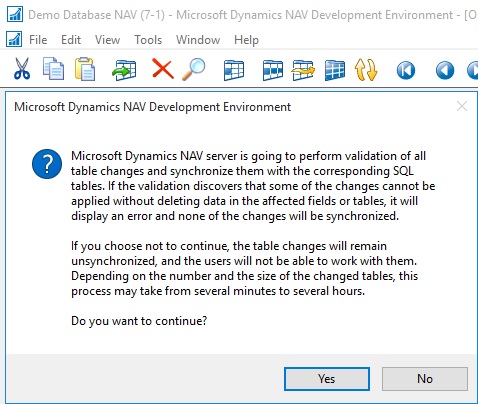
To publish the data schema changes of the newly imported tables to the SQL tables, run the Sync. Schema For All Tables – With Validation option from the development environment.
Upgrade2016-30

If you are confident that any loss of data you are ok with same you can choose Force option which will drop the data for deleted fields, else use Upgrade Codeunit prepared for same as discussed above.

Or alternatively run the Sync-NavTenant cmdlet from the Microsoft Dynamics NAV 2016 Administration Shell.

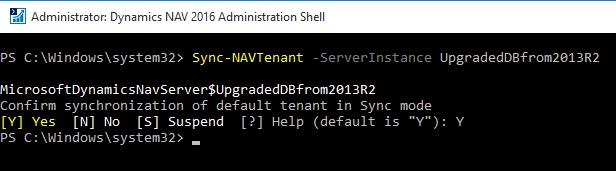
Sync-NAVTenant –ServerInstance UpgradedDBfrom2013R2 (My Server Instance Name)

Upgrade2016-31

Note this command runs in Administration Shell not in Development Shell as we used in our previous post.

Run the data upgrade process

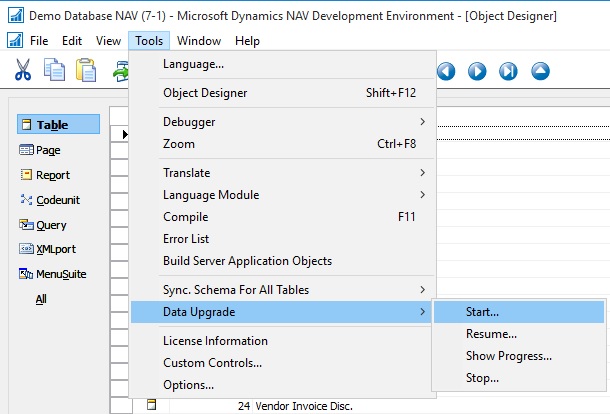
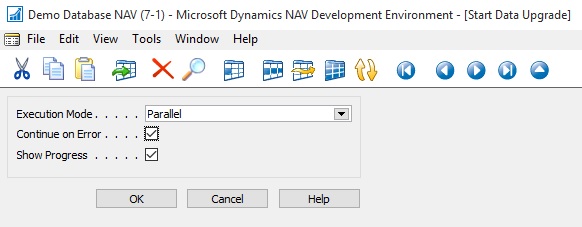
A data upgrade runs the upgrade toolkit objects, such as upgrade codeunits and upgrade tables, to migrate business data from the old table structure to the new table structure. You can start the data upgrade from the Microsoft Dynamics NAV Development Environment.
Upgrade2016-32

Upgrade2016-33

Upgrade2016-34

Upgrade2016-35

Ooops………….

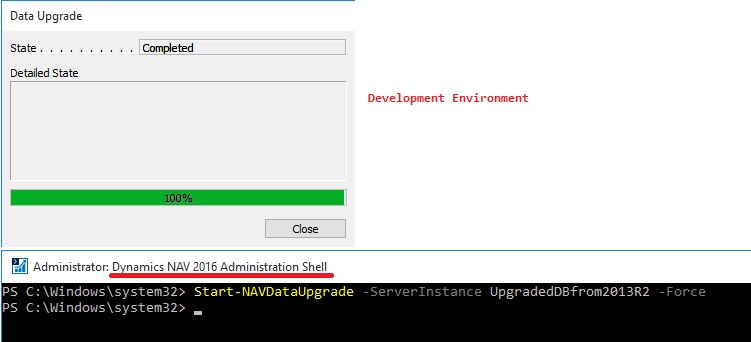
Or Alternatively Microsoft Dynamics NAV 2016 Administration Shell.

In the last phase of data upgrade, all companies will be initialized by running codeunit 2 Company Initialization. This is done automatically.

If you want to skip company initialization, then use the Start- NavDataUpgrade cmdlet and set the SkipCompanyIntitialization parameter.

Syntax:

Start-NAVDataUpgrade [-ServerInstance] <String> [[-Tenant] <TenantId> ] [[-FunctionExecutionMode] <FunctionExecutionModeValue> ] [[-ContinueOnError]] [-Force] [-Confirm] [-WhatIf] [ <CommonParameters>]

Parameters
-ContinueOnError

Specifies whether the Microsoft Dynamics NAV Server instance continues to execute other upgrade functions when an error occurs while executing an upgrade function.

If you do not set this parameter, then when an error occurs, the Microsoft Dynamics NAV Server instance will suspend the data upgrade process. It will cancel the execution of upgrade functions currently in progress and roll back any changes that were applied. Completed functions will not be rolled back.

The process remains in suspended state until you take one of the following actions:

– Fix the problems in the upgrade functions that failed, and then resume the process by using the Resume-NAVDataUpgrade cmdlet. You should not add new upgrade functions at this time because they will be ignored when you resume the process.

– Stop the data upgrade process by using the Stop-NAVDataUpgrade cmdlet. Stopping the process will not roll back changes made by upgrade functions that have already been executed.

If you set this parameter, then when an error occurs, the Microsoft Dynamics NAV Server instance will continue executing other upgrade functions. At the end of the process, you can use the Get-NAVDataUpgrade cmdlet to see the list of failed upgrade functions. Changes that were applied by completed functions will not be rolled back.

When upgrading a large database, you should increase the SQL Command Timeout setting for the Microsoft Dynamics NAV Server instance that connects to the database to avoid timeouts during schema synchronization. The default setting is 30 minutes

-ServerInstance<String>

Specifies the Microsoft Dynamics NAV Server instance that the application database and the tenant database are mounted against, such as DynamicsNAV90.

You must include the name within single quotation marks.

-Tenant<TenantId>

Specifies the ID of the tenant that you want to synchronize with the application, such as Tenant1.

This parameter is required unless the specified service instance is not configured to run multiple tenants.

-Force

Forces the command to run without asking for user confirmation.
-FunctionExecutionMode<FunctionExecutionModeValue>
Specifies whether the Microsoft Dynamics NAV Server instance executes upgrade functions in series or parallel.
-Confirm
Prompts you for confirmation before running the cmdlet.

-WhatIf

Shows what would happen if the cmdlet runs. The cmdlet is not run.

Few Examples of Usage:

[1] PS C:\> Start-NAVDataUpgrade -ServerInstance DynamicsNAV90 –Force

[2] PS C:\> Start-NAVDataUpgrade -ServerInstance DynamicsNAV90 -ContinueOnError –Force

[3] PS C:\> Start-NAVDataUpgrade -ServerInstance DynamicsNAV90 -FunctionExecutionMode Serial –Force
Upgrade2016-36

Start-NAVDataUpgrade -ServerInstance UpgradedDBfrom2013R2 –Force

Ooops………….

Now what to do?

To learn how to Create Data Upgrade Codeunits you can see my earlier posts:

Data Upgrade Codeunit in Navision 2015 – Part -1

Data Upgrade Codeunit in Navision 2015 – Part -2

These posts are still valid for 2016, you can follow to get you task done at this step resolution to above error.

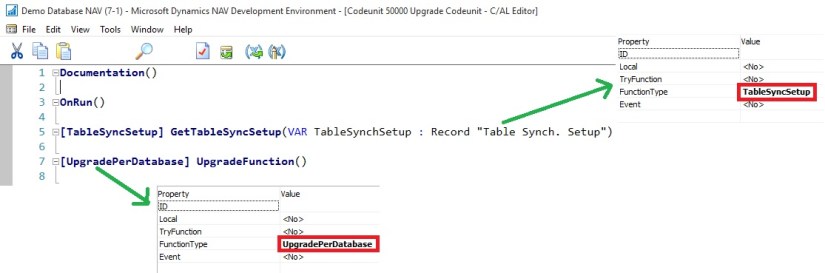
To resolve above issue I have followed the instruction as suggested in error message, but in real scenario you will definitely will be having such codeunits. Since I have taken the 2013-R2 Std. Database I am having this issue. I have created on Upgrade codeunit with an empty upgrade function as below:
Upgrade2016-37

Let us run the above process again.
Upgrade2016-38

This time I was able to complete the process successfully.

Delete the upgrade objects

At this point, you have upgraded the database to Microsoft Dynamics NAV 2016. Now, you can delete the upgrade codeunits and upgrade table objects that you imported in above step.

When you delete tables, on the Delete dialog box, set the Synchronize Schema option to Force.

Import upgraded permission sets and permissions by using the Roles and Permissions XMLports

You import the permission sets and permissions XML files according to the following procedure.

To import the permission sets and permissions

  • Delete all permission sets in the database except the SUPER permission set.

In Object Designer, run page 9802 Permission Sets, and then delete the permission sets.

  • Run XMLport 9171 Import/Export Permission Sets to import the permission sets XML file,

In the request page for the XMLport, in the Direction field, choose Import, choose the OK button, and then specify the permission sets XML file.

  • Run XMLport 9172 Import/Export Permissions to import the permission XML file.

In the request page for the XMLport, in the Direction field, choose Import, choose the OK button, and then specify the permissions XML file.

Set the language of the customer database

In the development environment, choose Tools, choose Language, and then select the language of the original customer database.

Add new control add-ins

The database is now fully upgraded and is ready for use. However, you may want to add the new client control add-ins that are included in Microsoft Dynamics NAV 2016. These are not added by the upgrade process. The following client control add-ins are available from the Microsoft Dynamics NAV product media:

  • Microsoft.Dynamics.Nav.Client.BusinessChart
  • Microsoft.Dynamics.Nav.Client.PageReady
  • Microsoft.Dynamics.Nav.Client.PingPong
  • Microsoft.Dynamics.Nav.Client.VideoPlayer
  • Microsoft.Dynamics.Nav.Client.SocialListening

You can add control add-ins in the Control Add-ins window in the Microsoft Dynamics NAV Windows client.

I will come up with more details on this topic in my upcoming posts.

Corfu Navision 2016, Development Tips, How To, Information, upgrade

Upgrading the Application Code in Microsoft Dynamics NAV 2016

Continuing from my earlier post Upgrade in Microsoft Dynamics NAV 2016

No doubt typically, customers want all the customizations that have been implemented in their existing Microsoft Dynamics NAV databases to be migrated to their new Microsoft Dynamics NAV 2016 databases.

Depending on the version of Microsoft Dynamics NAV that a database is being upgraded from, the amount of code changes between the two versions is large or small.

To upgrade the application code, you must merge code from different versions of the application. This merge process is known as a code upgrade or application upgrade.

You must upgrade the application before you upgrade the data.

Application Upgrade Overview

You must analyze and process code changes by comparing and evaluating three separate versions of the Microsoft Dynamics NAV database:

Version Description
Original version This is the baseline version of the solution that you want to upgrade, such as the original release of Microsoft Dynamics NAV 2013.
Modified version This is the version that you want to upgrade, such as a customer’s database with customizations and add-on solutions.
Target version This is the target of the merge process that you want to upgrade your application to, such as the standard version of the Microsoft Dynamics NAV 2016 database.

When you merge the application objects from these three versions, you can import the result into a new Microsoft Dynamics NAV 2016 database that then contains the upgraded application.

At the end of the process, you export the merged Microsoft Dynamics NAV 2016 objects from this database to a .fob file that you will use during the data upgrade.

The following list describes the main steps of upgrading the application code:

  • Prepare the application object text files.
  • Merge versions.
  • Resolve conflicts
  • Import and compile the merged application objects.
  • Export all objects.

To begin, create five folders on the computer and name them as follows:

In my example, the UpgradeDemo folder on the C drive contains five folders: ORIGINAL, MODIFIED, TARGET, DELTA, and RESULT. The DELTA and RESULT folders are empty. The ORIGINAL, MODIFIED, and TARGET folders contains one or more text files that contain application objects.

Preparing the Text Files

The Microsoft Dynamics NAV cmdlets take text files as input. You must prepare three sets of text files that contain application objects as describes in the list above. You can export application objects to text files from the development environment, or by running the ExportObjects command. The following list describes the main steps of preparing the text files that you must provide as input for the application merge process.
Upgrade2016-15

  • First, export all application objects from the original version, such as the original Microsoft Dynamics NAV 2013 R2 database. Do not export system tables. Name the file OldBaseVersion.txt, and then save the file in the ORIGINAL folder that you created earlier. For example, the Microsoft.Dynamics.Nav.Model.Tools.psd1 module includes a function, Export-NAVApplicationObject, that runs the ExportObjects command. This means that you can run a command such as the following:

Export-NAVApplicationObject –DatabaseServer MyServer –DatabaseName “Demo Database NAV (7-1)” –Path C:\Upgrade\ORIGINAL\OldBaseVersion.txt

  • Next, export all relevant application objects from the modified version, such as the customized Microsoft Dynamics NAV 2013 database. Do not export system tables. Name the file OldCustomVersion.txt, and then save the file in the MODIFIED folder that you created earlier.
  • Finally, export all application objects from the new base version, such as the original Microsoft Dynamics NAV 2016 database. Do not export system tables. Name the file NewBaseVersion.txt, and then save the file in the TARGET folder that you created earlier.

Optionally, you can use the Split-NAVApplicationObjectFile cmdlet to split each text file into separate text files for each application object. This can make it easier to keep track of the process. The end result at this stage is three folders with one or more text files that contain the three sets of application objects that you want to merge.

To compare two sets of application objects

  • Open the Microsoft Dynamics NAV 2016 Development Shell in administrator mode.
  • Navigate to the location of your folders by typing a command such as the following:

cd c:\UserData\UpgradeDemo  (in my case)

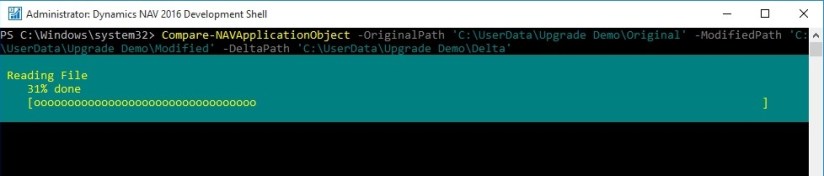
  • To run the cmdlet to compare all application objects in the ORIGINAL folder to the application objects in the MODIFIED folder, type the following command:

Compare-NAVApplicationObject -OriginalPath ‘C:\UserData\Upgrade Demo\Original’ -ModifiedPath ‘C:\UserData\Upgrade Demo\Modified’ -DeltaPath ‘C:\UserData\Upgrade Demo\Delta’

Upgrade2016-16

Upgrade2016-17
This generates a number of DELTA files that describe the difference between ORIGINAL and MODIFIED. You can open the DELTA files in text editors such as Notepad. The following example illustrates how a DELTA file identifies the difference between ORIGINAL and MODIFIED.
Upgrade2016-18
Let us understand how the changes are reported when we compare the objects.
Upgrade2016-19

Upgrade2016-20

You can apply those differences to TARGET by using the Update-NAVApplicationObject cmdlet.

To apply DELTA files to application objects

  • Open the Microsoft Dynamics NAV 2016 Development Shell in administrator mode.
  • Navigate to the location of your folders by typing a command such as the following:

cd c:\UserData\UpgradeDemo  (in my case)

In this example, the folder structure is the same as described above procedure. You can now run the cmdlet.

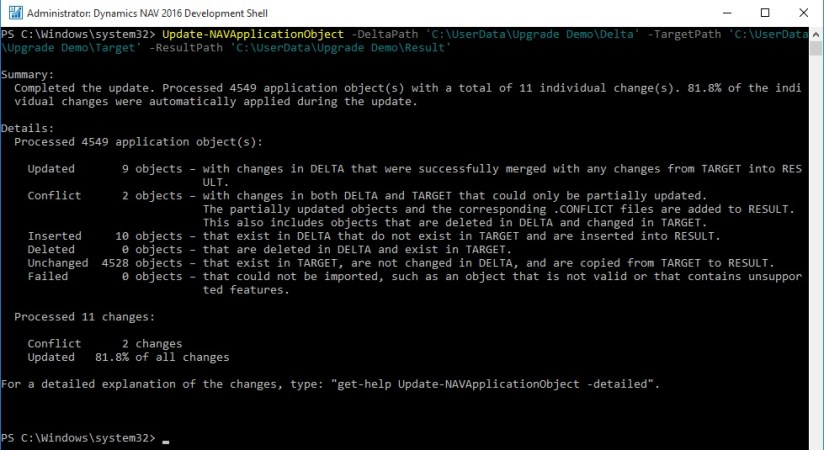
  • To run the cmdlet to apply the differences that are stored in the DELTA folder to the application objects in the TARGET folder, type the following command:

Update-NAVApplicationObject –DeltaPath ‘C:\UserData\Upgrade Demo\Delta’ -TargetPath ‘C:\UserData\Upgrade Demo\Target’ -ResultPath ‘C:\UserData\Upgrade Demo\Result’

Upgrade2016-21

Upgrade2016-22

This merges the difference between ORIGINAL and MODIFIED with the target solution and puts the resulting solution in the RESULT folder.

You can now import the merged objects into a Microsoft Dynamics NAV database.

Merging Versions

Alternatively to above process you can merge the three sets of application objects to create the application for the new database.

You can use the Merge-NAVApplicationObject cmdlet to merge the three sets of application objects.

The following example illustrates the type of command that you can run.

Merge-NAVApplicationObject -OriginalPath ‘C:\UserData\Upgrade Demo\Original’ -TargetPath ‘C:\UserData\Upgrade Demo\Target’ -ModifiedPath ‘C:\UserData\Upgrade Demo\Modified’ -ResultPath ‘C:\UserData\Upgrade Demo\Result’

Upgrade2016-23

Upgrade2016-24

Depending on the number of objects that you are merging and the number of differences found, this can take a few seconds, a few minutes, or longer.

The RESULT folder will contain a text file for each application object. The result of the merge is shown when the cmdlet completes, including a description of any application objects with conflicting code.
Upgrade2016-25

These conflicts are stored in .CONFLICT files in the RESULT folder. You can import all objects in the RESULT folder into the new Microsoft Dynamics NAV 2016 database, or you can analyze the conflicts before you import the objects.

Handling Conflicts

Depending on the application that you are upgrading, you can choose to analyze the conflicting code before you import the merged objects into the development environment.

The conflicts are shown in the merged text files but are also identified in .CONFLICT files in the RESULT folder. Subfolders then contain copies of the source files from the versions that have conflicting code.
Upgrade2016-26

You can analyze the conflicts in any tool, make the relevant changes, and then run the merge operation again. Alternatively, you can import the merged files into the development environment, and resolve the conflicts there.

Importing and Compiling Merged Objects

After you have completed the merge, import the new custom version into the new Microsoft Dynamics NAV 2016 database, and then compile all objects. You must resolve any compilation errors before you can continue.

The text files with the merged application objects include successfully merged code, and code that is partially merged. You can import the partially merged objects into the Microsoft Dynamics NAV 2016 development environment and resolve the conflicts there.

You can use Import-NAVApplicationObject, that runs the ImportObjects command.

This means that you can run a command such as the following:

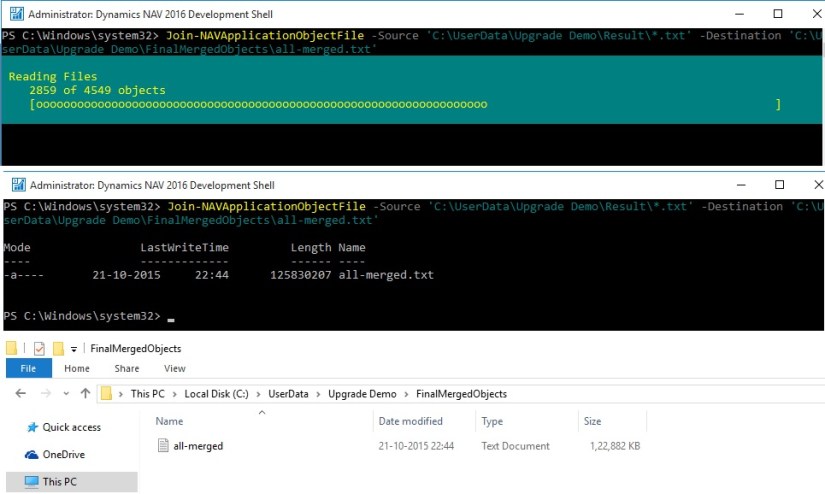
Join-NAVApplicationObjectFile -Source ‘C:\UserData\Upgrade Demo\Result\*.txt’ -Destination ‘C:\UserData\Upgrade Demo\FinalMergedObjects\all-merged.txt’

Upgrade2016-27

First we will join the many text files into a single file using above command and as a result we get all-merged.txt file which we will import in database using below command.

Import-NAVApplicationObject –DatabaseServer MyServer –DatabaseName “My Upgraded App” –Path C:\Upgrade\all-merged.txt

Now we import objects obtained from previous step into an existing, empty database.
Upgrade2016-28
When you compile the objects, an error is thrown for each code conflict, and you can use the tools that are available in the development environment to resolve the conflicts.

You now have a new database with a fully upgraded application.

Exporting All Objects

Now, you must export all objects to an objects.fob file so that you can import them when performing the data upgrade. The export must include customized objects, upgraded reports, and all other Microsoft Dynamics NAV 2016 objects.

This completes the upgrade of the application code. Next, you must upgrade the data in the database.

However you are free to do object merge and upgrade as you do earlier, here I concentrated using Dynamics Navision 2016 Development Shell. As this is the new way also much faster than what we used to do earlier.

We can use this in identifying the Objects under different categories like Modified, having conflicts and New Objects which can help in estimating also and planning the action in advance.

I will come up with further step and more details in my upcoming posts.

Corfu Navision 2016, Development Tips, How To, Information, upgrade

Upgrade in Microsoft Dynamics NAV 2016

Upgrade Considerations Preparing for Upgrade in Microsoft Dynamics NAV 2016

If your solution includes variables where the name is now used by a standard C/AL function or statement such as REGISTERTABLECONNECTION or FOREACH, you must change the variables before you upgrade to Microsoft Dynamics NAV 2016. Alternatively, you can enclose the variable names in quotation marks.

If you are upgrading a solution that depends on functionality that is deprecated or changed in the default version of Microsoft Dynamics NAV 2016, you must verify that the upgrade codeunits migrate data correctly. From 2013-R2 not yet reported any under this category.

When you introduce changes to the database schema in Microsoft Dynamics NAV 2016, Microsoft Dynamics NAV will check if these changes are destructive or not. If the database check indicates that the change may lead to data deletion, such as if you are dropping a table column so that the contents of that column will be deleted, this is considered a destructive change. You will be prompted to handle the situation using upgrade codeunits. You can check out my earlier post on this topic here. Data Upgrade – in Navision 2015 it still valid for 2016, I will come up with any specific differences in my upcoming post later.

If a company name includes a special character, an error may display during the upgrade. In this context, special characters include the: [ ~ @ # $ % & * ( ) . ! % – + / = ? ]. If you are going to upgrade a database where one or more company name includes a special character, it is recommend that you rename the company before you start the upgrade process. After the upgrade is successfully finished, you can rename the company again.

Versions later than Microsoft Dynamics NAV 2013 R2 require that all columns in all system tables are in English. As a result, if you try to open a database with non-English system tables in Microsoft Dynamics NAV 2013 R2 or later, an error displays, saying that one or more columns do not exist. Make sure that all objects where compiled in a development environment with the right .ETX and .STX files. You can verify that you are running in the correct environment with English (US) as the base language by opening the ndo$dbproperty table in SQL Server Management Studio. In the Identifiers column, the word Object must be written exactly as shown here.

Converting a Database in Microsoft Dynamics NAV 2016

Before you start, make sure that you have applied the changes that are described in KB 2804640

Code corrections for some Microsoft Dynamics NAV 2013 reports to prevent compilation errors with Report Viewer 2012 when upgrading to later versions of Microsoft Dynamics NAV. Your will require to use partner login to access the hotfix. Click here for the Link.

You can choose to convert the old database and not upgrade your application. However, it is recommend that you upgrade the application objects as well so that your solution includes important application fixes and new functionality that is introduced in Microsoft Dynamics NAV 2016.

Upgrading the application will also reduce the amount of merging required to upgrade to the next major version of Microsoft Dynamics NAV, bringing you to the latest version of the product faster.

Preparing the Old Database for Conversion

  • Make a copy of the old database or create full database backup.

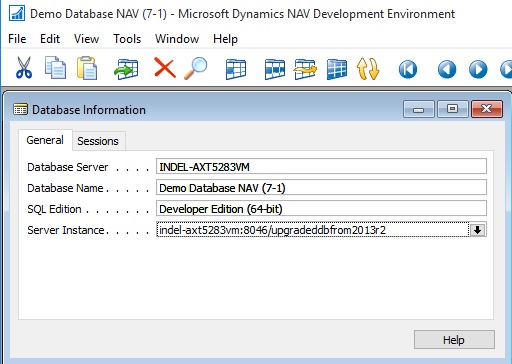
I have copied the database (Navision 2013/R2) and attached to the SQL for this operation:
Upgrade2016-1

  • Clear all Microsoft Dynamics NAV Server instance records from the dbo.Server Instance table in the database on SQL Server.

Upgrade2016-2

You can do this by using SQL Server Management Studio to open and clear the table.

  • Open the development environment that matches the Microsoft Dynamics NAV version of the old database, and then connect to the old database.
  • In Object Designer, make sure that no objects are locked.

If any objects are locked, the conversion process will not update the database version number. As a result, the conversion will not complete.

  • On the Tools menu, choose Build Server Application Objects, and then choose the Yes button.
  • If any errors occur, they are shown in the Error List window. Make sure that you address all compilation errors before you continue.
  • Upload the Microsoft Dynamics NAV 2016 Partner license to the database

The license that you upload must be a developer license. During the conversion, the development environment will convert the report objects that are stored in the old database to the RDL 2012 format.

  • If you are converting a Microsoft Dynamics NAV 2013 R2 or Microsoft Dynamics NAV 2015 database, then run the Sync-NavTenant cmdlet from the Microsoft Dynamics NAV 2013 R2 or Microsoft Dynamics NAV 2015 Administration Shell to synchronize the database schema changes.

Converting the Old Database

Next, we will convert the old database so that it can be used in Microsoft Dynamics NAV 2016.

Before you start the following procedure, you can choose to uninstall Microsoft Dynamics NAV 2013, Microsoft Dynamics NAV 2013 R2, or Microsoft Dynamics NAV 2015. When you uninstall Microsoft Dynamics NAV 2013, Microsoft Dynamics NAV 2013 R2, or Microsoft Dynamics NAV 2015, the database is still attached to the instance of SQL Server, which you can verify using SQL Server Management Studio.

To convert the database

  • Install Microsoft Dynamics NAV 2016.
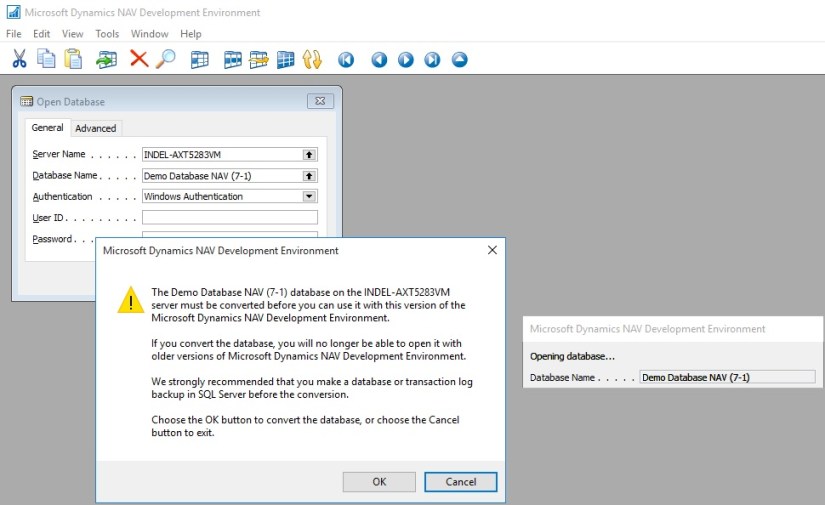
  • Open the Microsoft Dynamics NAV 2016 development environment, and then connect to the database that you prepared in the previous task.
  • In the dialog box that appears, read the instructions carefully because this action cannot be reversed. When you are ready, choose the OK button, and then choose the OK button to confirm that you want to convert the database.

Upgrade2016-3

Microsoft Dynamics NAV will now convert the database. This includes an upgrade of system tables, and an upgrade of all reports to support Report Viewer 2012.

  • When you are notified that the conversion was successful, choose the OK button.

Upgrade2016-4

Upgrade2016-5

  • Connect a Microsoft Dynamics NAV 2016 Server instance to the converted database.

You use the Microsoft Dynamics NAV Server Administration tool to connect a Microsoft Dynamics NAV Server instance to the converted database.
Upgrade2016-6

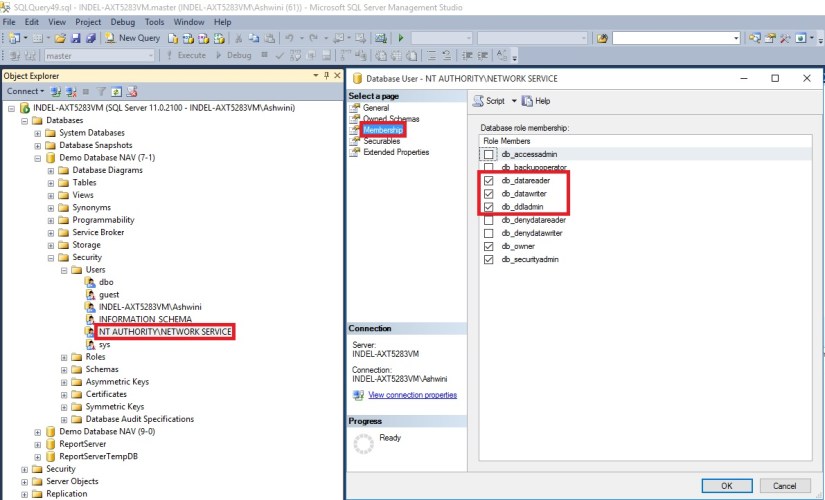
In addition, you must add the service account that is used by the Microsoft Dynamics NAV Server instance as a member of the db_owner role in the Microsoft Dynamics NAV database on SQL Server.

It is also possible to script these steps in SQL Server Management Studio:

USE [master]

GO

CREATE LOGIN [domain\accountname] FROM WINDOWS

CREATE USER [domain\accountname] FOR LOGIN [domain\accountname]

GRANT SELECT ON [master].[dbo].[$ndo$srvproperty] TO [domain\accountname]

GO

USE [Microsoft Dynamics NAV Database]

GO

CREATE USER [domain\accountname] FOR LOGIN [domain\accountname]

ALTER ROLE [db_owner] ADD MEMBER [domain\accountname]

GRANT VIEW DATABASE STATE TO [domain\accountname]

You can check more details from my earlier post Provisioning the Microsoft Dynamics NAV Server Account.

  • Run the development environment as an administrator, and then set the development environment to use the Microsoft Dynamics NAV Server instance that connects to the database.

Upgrade2016-7

  • Run the schema synchronization to complete the database conversion.

You can run the schema synchronization from the Microsoft Dynamics NAV Development Environment or Microsoft Dynamics NAV 2016 Administration Shell.
Upgrade2016-8

From the development environment:

Open development environment as an administrator. On the Tools menu, choose Sync. Schema For All Tables, and then choose With Validation and follow the schema synchronization instructions.
Upgrade2016-9

Upgrade2016-10

From the Microsoft Dynamics NAV 2016 Administration Shell:

Open the Microsoft Dynamics NAV 2016 Administration Shell as an administrator, and then run Sync-NavTenant cmdlet as follows:

Sync-NavTenant –ServerInstance <ServerInstanceName>

Replace <ServerInstanceName> with the name of the Microsoft Dynamics NAV Server instance that is connected to the database

  • If the database references any assemblies (such as client control add-ins) that are not included on the Microsoft Dynamics NAV 2016 installation media (DVD), then add the assemblies to the Add-ins folder on Microsoft Dynamics NAV Server or Microsoft Dynamics NAV Windows client computers.

For the Microsoft Dynamics NAV Windows client, the default path is C:\Program Files (x86)\Microsoft Dynamics NAV\90\RoleTailored Client\Add-ins folder.

For Microsoft Dynamics NAV Server, the default path is the C:\Program Files\Microsoft Dynamics NAV\90\Service\Add-ins folder

In the development environment, on the Tools menu, choose Build Server Application Objects, and then, in the dialog box, choose the Yes button.
Upgrade2016-14

  • Fix compilation errors.

You can find all objects which did not compile in the Object Designer window, by setting a field filter on the Compiled field.

  • Upload the customer license to the converted database.

You have now completed the conversion of the Microsoft Dynamics NAV 2013, Microsoft Dynamics NAV 2013 R2, or Microsoft Dynamics NAV 2015 database to be accessed from Microsoft Dynamics NAV 2016. To test the converted database, you can connect it to the Microsoft Dynamics NAV 2016 Server instance that by Microsoft Dynamics NAV clients, and then open a client.

You may encounter some login issues to resolve it here are the few tips:

Delete the user login details as we do in earlier versions when RTC was introduced to access any database using SQL Query as below :

USE [Demo Database NAV (7-1)]  (use your database name)
GO

delete from [dbo].[User]

delete from [dbo].[Access Control]

delete from [dbo].[User Property]

delete from [dbo].[Page Data Personalization]

delete from [dbo].[User Default Style Sheet]

delete from [dbo].[User Metadata]

delete from [dbo].[User Personalization]

After this if you get error stating you don’t have permission to codeunit ApplicationManagement give permission in SQL to the Login running the service as below:

Upgrade2016-12

Upgrade2016-13

Next, upgrade the application code to Microsoft Dynamics NAV 2016.

I will come up with more details in my upcoming posts.

Corfu Navision 2016, Development Tips, Functional Tips, How To, Layouts, Office Integration, Report, Selection, Word

Modify, Assign and Process Email for Word Forms in Navision 2016

Microsoft Dynamics NAV 2016 offers new functionality with Microsoft Word forms and emailing documents for Customers and Vendors. You can now modify the customer statement report and the vendor remittance report using Microsoft Word. You can also select a specific report format by customer to ease the statement process.

To make this functionality work for you, you need to make sure you have setup the SMTP Mail Setup. You can see my earlier post OFFICE 365 INTEGRATION IN NAV 2015 – Exchange Online this is still valid for Navision 2016.

Recall from my earlier posts, how to work with Word Layouts which I have written for 2015 but those are still valid for 2016 links as below.

Word Document Reports and Custom Layouts

Using Report Selector to run Report

Managing Report Layouts

In Microsoft Dynamics NAV 2016, Microsoft have extended the functionality for Word forms and Email beyond the Sales documents. We now have default Microsoft Word forms for Customer Statements and the Vendor Remittance report.

You can now modify the Word form to meet your needs, assign a custom Word layout to a specified customer or vendor and print or email based on those customer specific selections.

In the Report Layout selection, there is a new report object for the Customer Statement with a default Word report created.

The Mini Statement report (1316) is based on the existing RDLC customer statement but includes a Word report with the same information. You can use Managing Report Layouts to know more details regarding customizing the Layouts.

In Report Selection – Sales, you can set the Customer Statement to use the new report, Mini-Statement – 1316.
Report2016-1

Now your system is setup to use the specified layout for all customers and the statement itself is going to use the new report.

Now that Microsoft Dynamics NAV is setup to use the new report, you can assign a specific report by customer. This will enable you to have multiple formats processed at the same time.

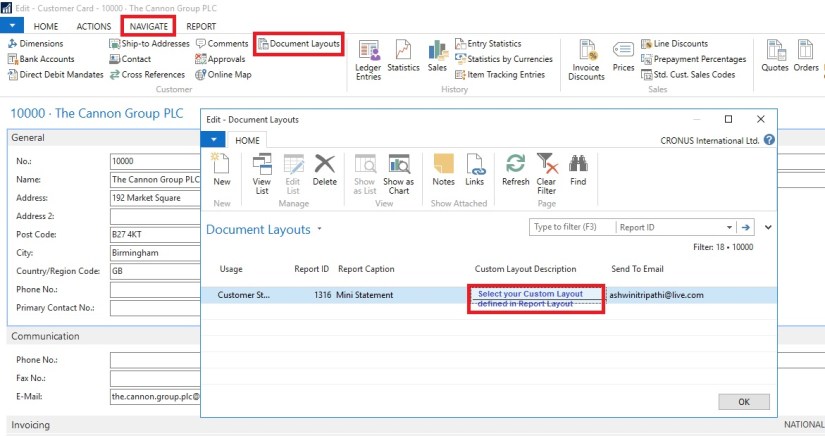
We assigned a custom layout to the customer in the customer card.

Here you set your selection by document type, for example, the sales quote or the customer statement.

You can also enter an email address for the document. So, if the statement goes to your customer’s accounts receivable clerk and the sales quote is sent to the sales manager, you define this information in the Document Layouts page.

The system uses the custom layout when you print the documents instead of emailing them.

Enter multiple email addresses with a semi-colon to separate them.
Report2016-2

You can do this for all customers.

When statements are processed, the report layout used is the one assigned to the customer. If the customer has no custom layouts assigned, the custom layout assigned in the Report Layout Selection is used.

If you go to Customer Statements, you can see that that Output Options are available. This will let you select how you wish to use the document layout settings.
Report2016-3
A checkbox will appear allowing you to print remaining statements. If you mark this checkbox, any statements with an email address in Customer Document Layouts is emailed, and any statements with a custom report layout but no email address will print with that report layout and any customers without any document layout settings will use the company default report from Report Layout Selections.

I will come up with more details in my upcoming posts.
Corfu Navision 2016, Development Tips, How To, XMLports

Multiple namespace support in XML Ports – Microsoft Dynamics NAV 2016

Microsoft Dynamics NAV 2016 now enables developers to create XMLPorts which contain more than one namespace. Namespaces are used to distinguish fields and provide uniqueness.

The inclusion of namespaces enables parties to tag elements and resolve any ambiguity.

What is default Namespace?

This property specifies the default namespace for both import and export. The default value is unique for different XMLports.

For example, the following string specifies a namespace: urn:microsoft-dynamics-nav/xmlports/x100, where 100 is the ID of the XMLport.

What is Namespace?

You can use this property to declare one or more namespaces on the XMLport.

To add a namespace, you can choose the AssistEdit button or enter the namespaces directly in the field.

A namespace declaration consists of prefix and the namespace name, which has the format prefix=namespace. Separate multiple namespaces with a comma.

In the XML documents exported or imported by the XMLport, the namespaces declarations are only supported in the <root> element.

For example, if an XMLport has the namespace mynavprefix=mynavnamepace and the default namespace urn:nav:schema:all, then the root element will be as follows:

<Root xmlns:mynavprefix=”mynavnamespace” xmlns=”urn:nav:schema:all”>

To specify a default namespace, leave the Prefix field blank.

You can also specify the default namespace by specifying the namespace in the DefaultNamespace Property and setting the UseDefaultNamespace Property to Yes.

However, there can only be one default namespace. So if you want to specify a default namespace in the Namespace property, you must set the UseDefaultNamespace Property to No.

How to Define Namespace:
Namespace-1

Using Namespace:
Namespace-2

The final XMLport will be as below:
Namespace-3

Now save your XMLport and execute it.
Namespace-4

The output will be similar to below:
Namespace-5

Conclusion:

  • Multiple namespaces are defined in the root element of the XMLport and have their own property editor for defining them.
  • Developers can easily select the namespace via lookups on the element record.
  • XMLports are accessible both for developers and super users. Including the namespace prefix in the core editor lets you see key data while developing.

I will come up with more information in my upcoming posts.

Corfu Navision 2016, Development Tips, Functional Tips, How To, Information, Workflow

Workflows in Dynamics NAV 2016

Workflows in Dynamics NAV are represented by workflow events and workflow responses.

The smallest workflow is the pairing of a single event with a single response.

“When something happens, do something” pattern. This is the Event/Response model that makes up the simple but effective design of Workflow for Microsoft Dynamics NAV.

The workflow functionality utilizes several other features as listed below of Dynamics NAV.

Few Listed here below:

Job Queues Setup

E-mail Notification Setup

Work date Setup

User Setup

Approval User Setup

SMTP Mail Setup

In particular, approvals and notifications must be set up so that workflows can send approval requests and process approvals.

Dynamics NAV 2016 introduces two new event concepts. Events and Workflow events. The two are distinct but often coupled together to build solutions.

Dynamics NAV Events allow you to write code which will be called when an event occurs – this is called subscribing to an event.

Workflow Events typically use Platform Events as their trigger, but are richer. Workflow events are registered in the workflow engine and show up in the workflow designer. Microsoft recommends that Workflow events be written at a higher level of abstraction than Platform Events.

Sales Invoice is created or Modified could be example of Event Subscriber, whereas Invoice is Release could be good example for Workflow Event.

Event

For the event we need a new codeunit.

Add helper method for binding our event with the workflow engine.

The method is a simple one which returns and identifying code.

Function Signature:

LOCAL OnMyEventCode() : Code[128]

Function Property:
Workflow-1

Sample Function Code:

EXIT(UPPERCASE(‘OnMyEvent’));


Next we add another method which will be called whenever our Event Occurs

Function Signature:

LOCAL [EventSubscriber] OnMyEvent(VAR Rec Object;VAR xRec Object;RunTrigger : Boolean)

Assuming a table is selected on which the Event is triggered.

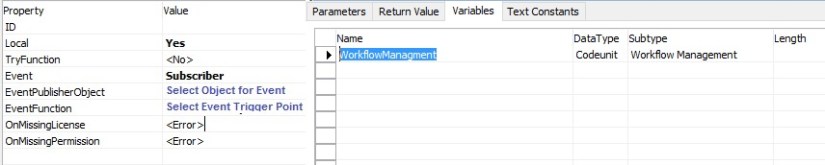
Function Property & Variables:
Workflow-2

Sample function code:

MESSAGE(‘Event Fired On MyEvent’);

WorkflowManagment.HandleEvent(OnMyEventCode,Rec);

For the code itself, we’ll do two things

  • Show a message box so we can see our event did trigger
  • Call into the workflow engine to have the NAV Workflow engine process any next steps


Then we need to add another event subscriber method which is responsible for adding our event to the workflow library. The workflow library is the collection of events which can be seen and managed from the Workflow Setup page.

Function Signature:

LOCAL [EventSubscriber] AddEventToLibrary()

Function Property & Variables:
Workflow-3

Sample function code:

WorkflowEventHandling.AddEventToLibrary(MyEventCode,DATABASE::Object,OnMyFinishTxt,0,FALSE);

Text Constant for Event Description:

OnMyFinishTxt : This will be listed in Workflow Event Window.
Workflow-4

To add a Workflow event we need to do three things:

  • Subscribe to the event.
  • Define a user readable string which describes the event.
  • Call a method in the workflow event handling codeunit, passing in the identifier and the descriptive string.

Save the Codeunit as MyWorkflowEvent with available ID in your Database.

Response

Most of the work is done in the code editor and we will use codeunits for our application objects.

First we’ll make a helper method for binding our response with the workflow engine.

The method is a simple one which returns and identifying code.

Function Signature:

LOCAL RunMyResponseCode() : Code[128]

Function Property:
Workflow-1

Sample Function Code:

EXIT(UPPERCASE(‘RunMyResponse’));


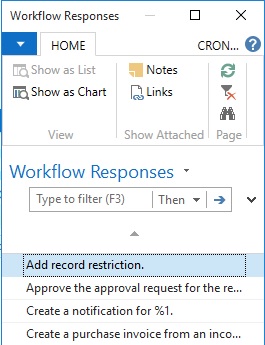
Then we need to add another event subscriber method which is responsible for adding our response to the workflow library. The workflow library includes the collection of responses which can be seen and managed from the Workflow Setup page.

Function Signature:

LOCAL [EventSubscriber] AddResponseToLibrary()

Function Property & Variables:

Workflow-5

Sample Function Code:

WorkflowResponseHandling.AddResponseToLibrary(RunMyResponseCode,0,ResponseDescription,’Group 0′);

Text Constant for Response Description:

ResponseDescription : This will be listed in Workflow Responses Window.

Workflow-6

To add a Workflow response we need to do three things:

  • Subscribe to the event which adds new responses to the workflow library
  • Define a user readable string which describes the response
  • Call a method in the workflow response handling codeunit, passing in the identifier and the descriptive string.

The earlier functions were used to add the response to the workflow library.

But we need another method that actually listens to when the response needs to be called.

Function Signature:

LOCAL [EventSubscriber] RunReportResponse(VAR ResponseExecuted : Boolean;Variant : Variant;xVariant : Variant;ResponseWorkflowStepInstance : Record “Workflow Step Instance”)

Function Property & Variables:

Workflow-7

Sample Function Code:

IF WorkflowResponse.GET(ResponseWorkflowStepInstance.”Function Name”) THEN

CASE WorkflowResponse.”Function Name” OF

RunMyResponseCode:

BEGIN

RunMyFunction;

ResponseExecuted := TRUE;

END;

END;

When this code is called it needs to do two things.

Firstly it needs to evaluate if the response should be called (and it does this by checking the code value) and secondly it should return TRUE if it handles the response.

Finally we will add our Response Handling Function RunMyFunction, which will execute actual action which we want Response of this call.

Enable Workflow in System

First we will create our Category so that our Workflow can be identified uniquely.

Workflow-8

Next we will configure our Workflow.

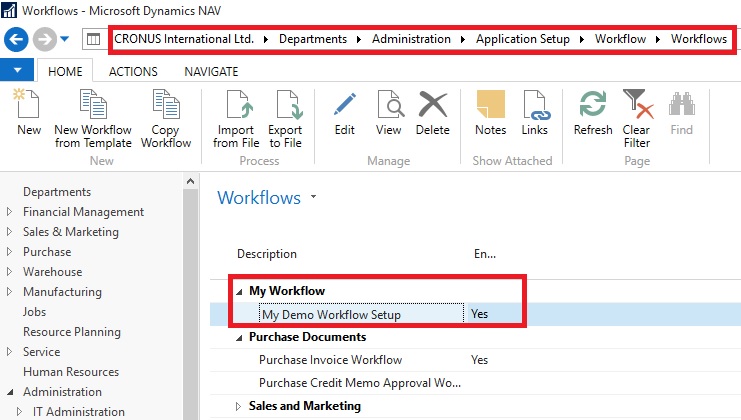
Workflow-9

Here my workflow is listed once configured and saved.

Workflow-10

Now we are good in position to go for testing of our workflow.


This was the simplest scenario with bare minimum action required of implementing workflow.

You can use existing Template and define or you can implement your own as described above.


I will come up with more details on this topic later in my upcoming posts.

Corfu Navision 2016, Deferral, Functional Tips, How To

Deferral Functionality in Navision 2016

Microsoft Dynamics NAV 2016 offers the ability to automatically defer revenues and expenses over a predefined schedule, enabling companies to easily recognize revenues and expenses in periods other than the period in which the transaction is posted.

The deferral functionality provides several user benefits, including:

  1. Enabling additional financial functionality in Microsoft Dynamics NAV.
  2. Greatly reducing the time and effort required to defer revenues and expenses.
  3. Enabling reporting on deferred amounts for customer, vendor, and account ledgers.
  4. The deferral functionality is available on purchasing and sales documents, as well as general journals.

The first step in setting up deferral functionality is to create a deferral template.

Deferral templates allow us to define settings that will create a default deferral schedule for a document.

The default schedule is built for the document based on the settings defined in the template.

From the Search box find Deferral Template and use related Link to open the Template Card.
Deferral-1

Define the Template values as per the requirement for Expense/Revenue.

Period Description: uses %1..%6 to replace values as (1)Day, (2)Week, (3)Month, (4)Month Text, (5)Accounting Period Name, (6)Year

Users have the option to select a default deferral template for Resources, Items, and Accounts.

When the Resource, Item, or Account is selected on a document for which deferral functionality is available, the default deferral template will automatically be selected for the line.

Fill the Default Deferral Template on Invoicing FastTab for Item & Resource and for Accounts on Posting FastTab.
Deferral-2

Deferral-3

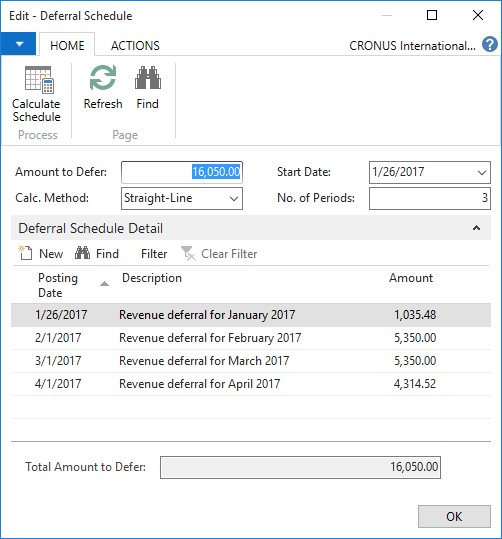
We have the option to view or modify the default deferral schedule created from the template in the Deferral Schedule page.

The user can either change the settings and re-calculate the schedule with new settings, or simply modify the lines of the schedule directly.

Schedule window will be as below:
Deferral-4

Reports:

The Sales Deferral Summary report provides a summary, for each customer, of deferred revenue. The amounts on the report are calculated as of the date entered for the report.

The Purchasing Deferral Summary report provides a summary, for each vendor, of deferred expenses. The amounts on the report are calculated as of the date entered for the report.

The G/L Deferral Summary report provides a summary, for each G/L account, of deferred expenses. The amounts on the report are calculated as of the date entered for the report.


I will come up with more details on this in my upcoming posts.

Corfu Navision 2016, Development Tips, Events, How To

Implementing Events in Navision 2016

Recall from my earlier post for description of Events – Events in C/AL Navision 2016

Here in this post we will see how to implement the same.

This could be helpful in situation where throughout the system you wish to have similar behaviour on specific condition. In general we will have to write code in every object with same set of logic, variables, and functions and so on.

Although still in this case too we will require to add code to every object, but only one time.

Think of you need to enhance or make changes in behaviour again you will have to go through each objects and do the required change. But using this feature we can keep it centralized and manage from single place, without going through each objects again.

Here below I am taking example one explained by Microsoft help basic concept, will come up with my version with some more effective usage later sometime.

When users change the address of a customer, you want to check that the address does not include invalid characters, which in this walkthrough is a plus sign (+).

To accomplish this, you will publish an event that is raised when the Address field on page 21 Customer Card is changed.

To handle the event when it is raised, you will add an event subscriber function that includes logic that checks the address value and returns a message to the user if it contains a plus sign.

Publishing the Event

To publish an event, you create a C/AL function that is set up to be an event publisher. An event publisher function can be added in any object, such as a codeunit, page, or table.

In this procedure we will add the event publisher function to a new codeunit, in which you can potentially add more event publisher functions for other events later.

Because you might want to change this event implementation in the future, you decide to create an integration event type.

The event publisher requires a single text parameter for handling the address of the customer.

Create a new codeunit

The codeunit for the event publisher I have created 50000 – Event Publisher.

Now we will add the event publisher function to publish the event.
Events-1

To create the event publisher function to publisher the event

  • Define a function OnAddressLineChanged.
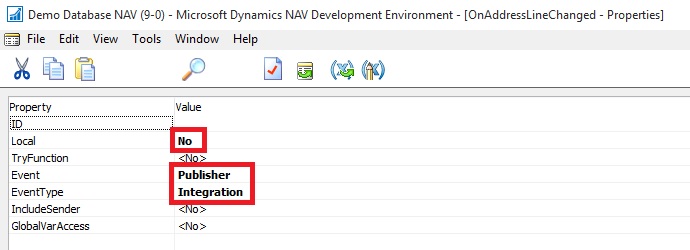
  • Open the properties for the OnAddressLineChanged function, select the function, and then in the View menu, choose Properties. Set the properties as follows:
  • Set the Local property to No.

Setting this property makes the function available to be called from the other objects.

  • Set the Event property to Publisher. This makes the function an event publisher.
  • Set the EventType property to Integration.
  • Close the Properties

Events-2

  • Add a local parameter to the function for the address of the customer as described in the following steps:
  • On the Functions tab, select the OnAddressLineChanged function, and then choose the Locals

The C/AL Locals window opens.

  • On the Parameters tab, in the Name field, enter line.
  • Set the DataType field to Text.
  • Set the Length field to 100.

Events-3

Important

An event publisher function cannot have a return value, variables, or text constants; otherwise you will not be able to compile the function.

The new function appears in the C/AL Editor with the following signature:

[IntegrationEvent] OnAddressLineChanged(line : Text[100])
Events-4

You can now raise the event in the application.

Raising the Event

After creating the event publisher function to publish the event, now we will add code to the application to raise the event where it is required.

In this case, the event will raise when the Address field is changed on the page 21 Customer Card.

Therefore, we will add code to the Address – OnValidate() trigger in C/AL code of the page. Raising an event basically involves calling the event publisher function that publishes the event.

To raise the event

  • In the development environment, open page 21 Customer Card as follows:
  • Add a C/AL variable that specifies the object that publishes the event. In this case, the event publisher object is codeunit 50000 Event Publisher, which contains the event publisher function OnAddressLineChanged that you created in the previous procedure.

Events-5

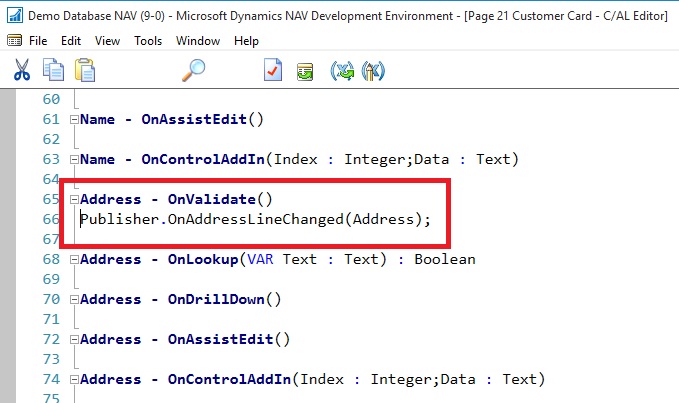
  • In C/AL code, add the following code on the Address – OnValidate() trigger to raise the event:

Publisher.OnAddressLineChanged(Address);

This calls the event publisher function to raise the event.
Events-6

  • Save and compile the changes to the page.

The event can now be subscribed to and handled.

Subscribing to and Handling an Event

Once an event has been published you can add code to the application that subscribes to and handles the event when it is raised.

For example, in this case when a user changes the address of a customer (the event), you want code that checks that the value does not contain a plus sign.

Subscribing to and handling an event is accomplished by creating a C/AL function that is set up as an event subscriber and subscribes to a specific event (defined by an event publisher function). The event subscription function contains the application logic for handling the raised event.

In this case, we will create an event subscriber function that subscribes to the OnAddressLineChanged function in codeunit 50000 Event Publisher.

Unlike an event publisher function, an event subscriber function can only reside in a codeunit object. This procedure will add the event subscriber function to a new codeunit, in which you can potentially add more event subscriber functions for other events later.

To create a new codeunit

  • In the development environment, create a new codeunit that has the ID 50001 and the name Event Subscriber.

To create the event subscriber function to subscribe to and handle the event

  • Create Function CheckAddressLine.

Events-7

  • Choose Properties. Set the properties as follows:
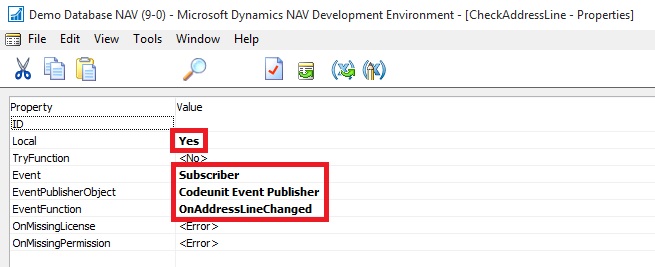
  • Set the Event property to Subscriber to make the function an event subscriber.
  • Set the EventPublisherObject property to Codeunit My Publishers.

This is the codeunit that contains the event publisher function (OnAddressLineChanged) that you want to subscribe to.

  • In the EventFunction property, select the OnAddressLineChanged integration event.

This field reads all the published events in the event publisher object.
Events-8

Note

When you get a message that asks whether you want to overwrite the edited function’s signature, choose Yes to continue.

  • A local parameter that has the name line and the data type Text has been automatically added to the new CheckAddressLine
  • The new function appears in the C/AL Editor with the following signature:

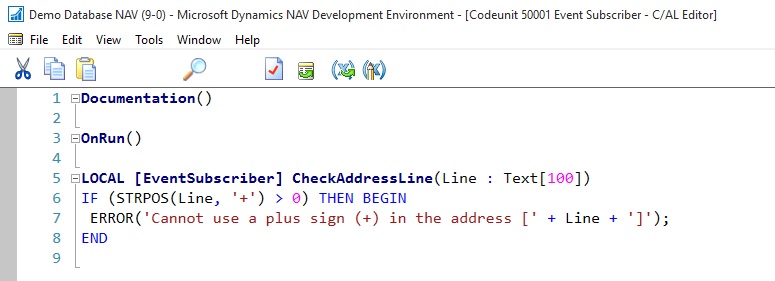
LOCAL [EventSubscriber] CheckAddressLine(line : Text[100])

You can now add code to handle the event.

  • To handle the event, add the following code to the CheckAddressLine function in the C/AL editor:

IF (STRPOS(line, ‘+’) > 0) THEN BEGIN

ERROR(‘Cannot use a plus sign (+) in the address [‘ + line + ‘]’);

END

This code checks the value of the Address field on page 21 Customer Card when is has been changed and returns a message if the value contains a plus sign.
Events-9

Viewing the New Event Subscription

After you create an event subscriber, you can view information about it in page 9510 Event Subscriptions. This page provides information about all the current event subscriptions in the application. You can open this page directly from the development environment or from a Microsoft Dynamics NAV client.

To view the event subscription from the development environment

  • On the Tools menu, choose Debugger, and then choose Event Subscriptions.

Events-10

To view the event subscription from a Microsoft Dynamics NAV client

  • Start the Microsoft Dynamics NAV client.
  • In the Search box, enter Sessions, and then choose the related link.

Events-11

The Even Subscription Window will look like:
Events-12

Testing the Event

To test the event implementation, you can run page 21 Customer Card from the development environment.

  • In the Address field, add a plus sign, and then choose the OK

The following message appears:

Cannot use a plus sign (+) in the address [].

[] contains the value of the Address field.
Events-13

I will come up with more details on this topic later in my future posts.
Corfu Navision 2016, Development Tips

Using a Timestamp Field in Navision 2016

Each table in Microsoft Dynamics NAV includes a hidden timestamp field.

The timestamp field contains row version numbers for records as maintained in SQL Server.

You can expose the timestamp field in a table, and then write code against it, add filters, and so on, similar to any other field in a table.

However, you cannot write to the timestamp field.

A typical use of the timestamp field is for synchronizing data changes in tables, when you want to identify records that have changed since the last synchronization.

For example, you can read all the records in a table, and then store the highest timestamp value. Later, you can query and retrieve records that have a higher timestamp value than the stored value.

To set up a timestamp field in a table

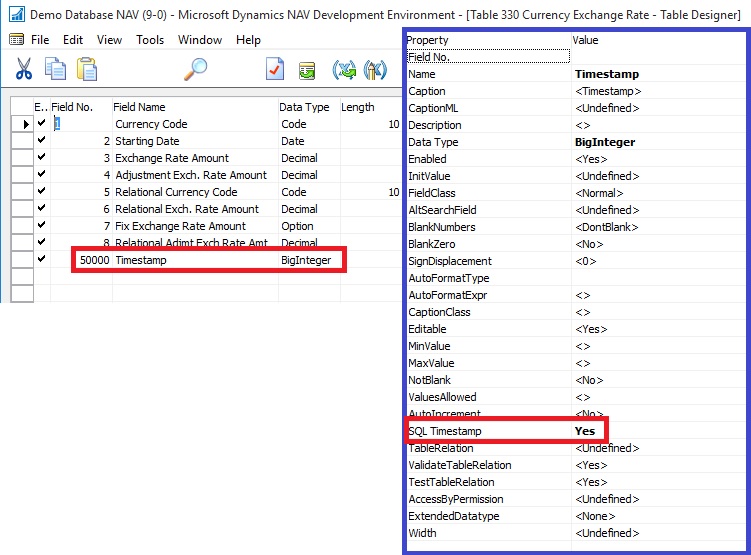
  1. In the development environment, open the table, and then add a field of the data type BigInteger.

Specify a name for the field, such as timestamp.

You can specify any valid name for field; you are not restricted to use timestamp.

  1. Open the field properties, and then set the SQL Timestamp property to Yes.

For demo purpose I am adding this field to table 330 – Currency Exchange Rate
Timestamp-1

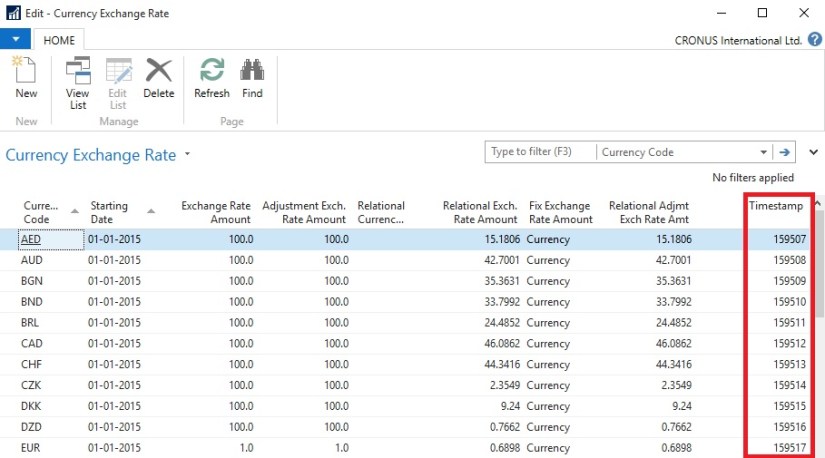
Now when I run the table in RTC I see value automatically populated in this field.
Timestamp-2

I will come up with more details in my future posts.