Corfu Navision 2016, Development Tips, How To, Information, Server, Tip & Tricks, What's New

Configuring Session Timeout – Navision 2016

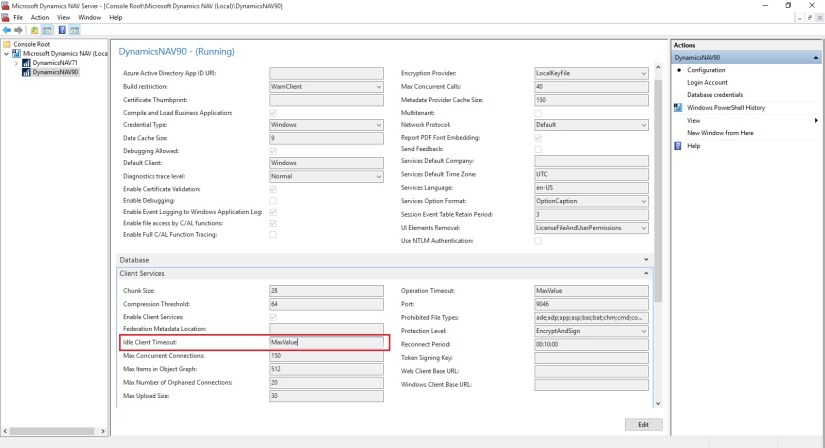
Dynamics NAV Windows client timeout configuration is managed at the service level by setting the Idle Client Timeout setting.

To configure the Dynamics NAV Windows client to time out after 10 minutes of idleness, you will require to set this to 00:10:00 and then restart the Dynamics NAV Server service so that the change comes in effect.

There are some additional settings

ClientServicesReconnectPeriod

ClientServicesMaxNumberOfOrphanedConnections,

When you start the Microsoft Dynamics NAV Windows client or Microsoft Dynamics NAV Web client, a connection is established with the Microsoft Dynamics NAV Server instance and a corresponding session is added on Microsoft Dynamics NAV Server.

Microsoft Dynamics NAV Server includes several timeout settings that determine when a session closes as a result of inactivity over the client connection, lost client connection, or closing of the client.

You can configure this in CustomSettings.config file of Microsoft Dynamics NAV Server.

ClientServicesReconnectPeriod :- This value determines the time during which a client can reconnect to an existing session on Microsoft Dynamics NAV Server before a session closes.

ClientServicesIdleClientTimeout :- This value determines the interval of time that a Microsoft Dynamics NAV client connection can remain inactive before the session is closed.

You can configure this in the ClientSettings.config file of the Microsoft Dynamics NAV Windows client.

ClientServicesKeepAliveInterval :- This value determines the interval of time (in seconds) between keep-alive messages that are sent from the Microsoft Dynamics NAV Windows client to Microsoft Dynamics NAV Server. This value is also used, in part, to define the reconnect period when a connection is lost.

You can configure this in the web.config file of Microsoft Dynamics Web Server for the client.

SessionTimeout :- This value specifies how much of time that session remains open when there is no activity over the connection from the Microsoft Dynamics NAV Web client to Microsoft Dynamics NAV Server.

SessionTimeOut-1

The SessionTimeout setting enables you to set the Microsoft Dynamics NAV Web client inactive session timeout different than for the Microsoft Dynamics NAV Windows client, which is only controlled by the ClientServicesIdleClientTimeout setting.

Typically, this is set the inactive session timeout period on Microsoft Dynamics NAV Web client connections shorter than for the Microsoft Dynamics NAV Windows client.

When the Microsoft Dynamics NAV Windows client is inactive, reliable sessions automatically sends messages from the Microsoft Dynamics NAV Windows client to Microsoft Dynamics NAV Server.

You can control the interval of the keep-alive messages by setting the ClientServicesKeepAliveInterval setting on the Microsoft Dynamics NAV Windows client.

The default value of the ClientServicesKeepAliveInterval setting is 120 seconds (2 minutes).

If there is no activity on the client connection for duration of the load balancer’s idle timeout setting, then the load balancer might redirect the client connection to another server.

To avoid this condition, it is recommend that set the ClientServicesKeepAliveInterval to half the value of the load balancer’s idle timeout setting.

The idle timeout on Windows Azure is around 4 minutes, so the default setting of ClientServicesKeepAliveInterval (2 minutes) should be sufficient.

Occasionally, a Microsoft Dynamics NAV client can lose the network connection to Microsoft Dynamics NAV Server.

You can use ClientServicesReconnectPeriod setting on Microsoft Dynamics NAV Server to control how long a session remains open after the connection is lost to allow time for the client to reconnect to the session.


SessionTimeOut-2

  • The connection is lost and the initial inactivity period starts (default is 4 minutes).
  • After the initial inactivity period, the service channel enters a faulted state. When the service channel is in the faulted state, Microsoft Dynamics NAV Server considers the session with the client as orphaned and waits for it to reconnect.
  • If the client does not reconnect within the time period that is specified by the ClientServicesReconnectPeriod setting (default is 10 minutes), then Microsoft Dynamics NAV Server closes the session.
  • The session is then removed from the Active Session table in the Microsoft Dynamics NAV.

ClientKeepAlive:- This  setting is managed at the user level and located in the ClientUserSettings.config file.

The value of this setting is given in seconds and defines the interval between ‘pulse’ signals sent by the client to prevent the client from going idle in some scenarios, or for some users.


In Dynamics NAV 2016 Cumulative Update 8:

The ClientKeepAlive setting has been moved from the user level to the service level, and is no longer defined in number of seconds but as a time interval, just like the Idle Client Timeout setting.


Before Cumulative Update 8:

  1. In the server configuration file, set Idle Client Timeout  to 00:10:00
  2. In the client configuration file, set ClientKeepAlive  to any value  larger than 600 This value is in seconds, so 600 equals 10 minutes.
 

SessionTimeOut-3

After Cumulative Update 8:

  1. In the server configuration file, set Idle Client Timeout  to 00:10:00
  2. In the server configuration file, set Keep Alive Interval  to a value larger than 00:10:00

To configure the timeout for the Dynamics NAV Web client, it is sufficient to configure the SessionTimeout setting in the web.config file to the relevant interval – in above example it’s 00:10:00.

For more information you can check out here : https://community.dynamics.com/nav/b/navteam/archive/2016/06/24/configuring-client-timeout


Corfu Navision 2016, Functional Tips, How To, Information, Tip & Tricks

Create Production Orders for/from Sales Order

One of my reader have requested to demonstrate how he can create Sales Order which is directly associated with Sales Order.

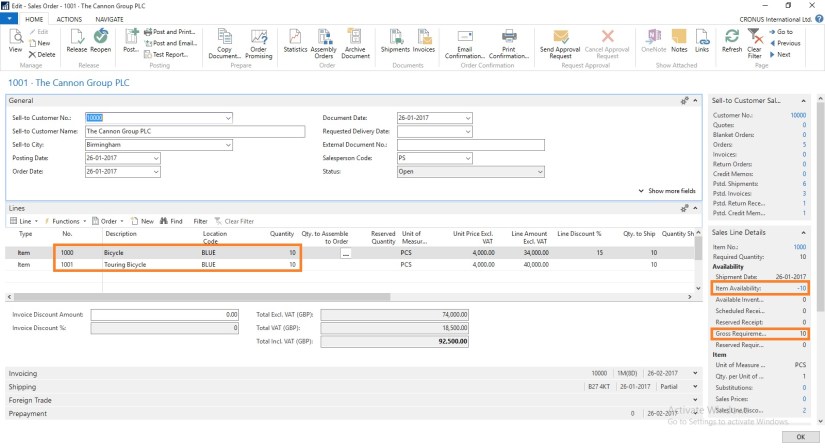
Let us start with creating a Sales Order:

ProdOrder-1

Here you can see we don’t have Available Inventory to fulfil the demand of this Order.

ProdOrder-2

To fulfil the demand we will create Production Order for this Order.

Select Planning from Action TAB on Ribbon.

Sales Order Planning Window Opens, Select Create Production Order.

ProdOrder-3

Select the Status for Production Order as desired.

For Order Type you have 2 Options

  1. Item Order – Production Order is created for each Item on Lines
  2. Project Order – Single Production order for Entire Order

Select the desired option and respond to Yes.

ProdOrder-4

I have Selected Released & Project Order in my case.

ProdOrder-5

You can check that Quantity to be produced is reserved for this Order.

There could be the situation where you may have few Inventory available, in that case you need to reserve the quantity from Function before creating Production Order else all quantity will be created. In other case only short quantity will be a quantity of Production Order.

ProdOrder-6

Select the line from available lines in Item Ledger Entries (e.g. on hand inventory) and by using the ‘Reserve from Current Line’ function you can reserve those against the sales order line.  The ‘Reserved Quantity’ then gets updated and you can see the rest in the ‘Unreserved Quantity’ field.

ProdOrder-7

Although in this case entire line is already reserved from the Production Order.

But in case you want to reserve from any available Inventory in hand from Ledger entry.

This was one of the way how you can perform Creating Production Order and Reserving for Sales Order.

We can do the same by another way as below, directly creating Production Order for this Sales Order.

ProdOrder-8

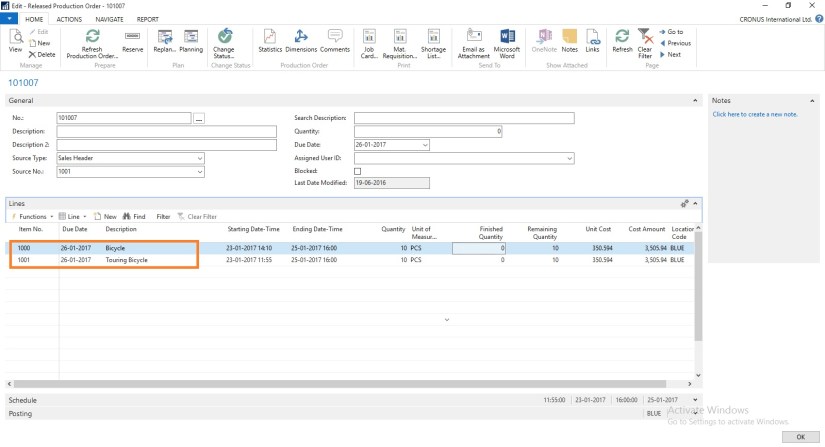
Create a Production Order Select Source Type as Sales Header and Source No as Sales Order No.

Then Refresh the Production Order.

ProdOrder-9


ProdOrder-10


This way we can create and Reserve the Item for required demand.

I will come with more details in my upcoming posts.


Corfu Navision 2016, Demand, Development Tips, Functional Tips, How To, Information, Inventory, MPS, MRP, Tip & Tricks

Basics of Demand, Forecast, MPS & MRP

What is MPS?

MPS term is used for Master Production Schedule. It is used to plan items which have direct demand. Like Sales Order, Service Orders and Forecasts. It is run Weekly based on Orders and forecasts for that period.

What is MRP?

MRP term is used for Material Requirements Planning. It is used to plan items which have dependent demand. Like sub items used to produce FG or are defined in BOM. It is run Daily to expedit parts required to produce the plan.

What is Forecast?

Forecasting allows your company to create “what if” scenarios and efficiently and cost-effectively plan for and meet demand. Accurate forecasting can make a critical difference in customer satisfaction levels with regard to order promising dates and on-time delivery.

The forecasting functionality in the program can be used to create sales or production forecasts, in combination or independently.

What is Demand?

Calculation is done order-by-order, meaning that the order that includes the demand line with the earliest due date or shipment date is considered first, and all other demand lines in that production order, irrespective of their individual due dates or shipment dates, are also calculated for that order. When the calculation is completed, all unfulfilled demand is displayed as planning lines, sorted by the earliest demand date, with the various quantity fields filled in.

Actual demand is calculated from Sales Order, Service Orders, Components Needed, Job Planning Lines.

This demand is compared with the Forcasted demands like defined in Production Forecast.

Regenerative Plan is calculated as per Period, MPS, MRP and other provided parameters.

Lets understand this via a simple Example:

Step-1

Define Forecast for Item A as requirement of 1000 Qty for Jan Month.

Step -2

Run the Regenerative Plan, you will get the Planning for Item A with due date as 1st Jan of 1000 Qty.

Let us see what happens under different demand levels.

Scenario-1

When demand is less than Forecast for the month.

Let us Make a Sales Order for 200 Qty of Item A.

Lets see the impact of this on our Plan.

Sales demand is for 200 Qty

Forecast demand will be for 800 Qty (1000 – 200)

Actual demand in this case is of 200 Qty

If we run our Plan 2 lines will be created as below

a) 200 Qty with due date equivalent to Sales Order date

b) 800 Qty with due date as 1st Jan from Forecast

If we see our Total demand is still 1000 Qty

Scenario-2

When demand is equal to Forecast for the month.

Let us Make a Sales Order for 1000 Qty of Item A.

Lets see the impact of this on our Plan.

Sales demand is for 1000 Qty

Forecast demand will be for 0 Qty (1000 – 1000)

Actual demand in this case is of 1000 Qty

If we run our Plan 1 line will be created as below

a) 1000 Qty with due date equivalent to Sales Order date

If we see our Total demand is still 1000 Qty

Scenario-3

When demand is greater than Forecast for the month.

Let us Make a Sales Order for 1500 Qty of Item A.

Lets see the impact of this on our Plan.

Sales demand is for 1500 Qty

Forecast demand will be for 0 Qty

Actual demand in this case is of 1500 Qty

If we run our Plan 1 line will be created as below

a) 1500 Qty with due date equivalent to Sales Order date

If we see our Total demand is now 1500 Qty

Will comeup with more details in my upcomming posts.

Corfu Navision 2016, Development Tips, How To, Information, Inventory, Tip & Tricks

How Inventory is Calculated in Navision 2016

Today we will see terms used for Inventory and how Inventory is calculated in Navision.

InvProj-1

You can find details of Inventory on Item Card itself. Also how much Inventory is available or required at different area in ERP.

InvProj-2

If you open Item Availability by Location you will find in more details. When you drilldown you can find in more details from where these figure comes from.

Scheduled Receipts:

Here all the entries from below area is included:

a) Purchase Orders

b) Transfer Orders

c) Firm Planned Production Order

d) Release Production Order

e) Assembly Orders

How Navision calculates?

AvailType::”Scheduled Order Receipt”:
BEGIN
InsertEntry(DATABASE::”Purchase Line“,Item.FIELDNO(“Qty. on Purch. Order”),PurchLine.TABLECAPTION,Item.”Qty. on Purch. Order“);
InsertEntry(DATABASE::”Prod. Order Line“,Item.FIELDNO(“FP Order Receipt (Qty.)”),STRSUBSTNO(Text002,ProdOrderLine.TABLECAPTION),Item.”FP Order Receipt (Qty.)“);
InsertEntry(DATABASE::”Prod. Order Line“,Item.FIELDNO(“Rel. Order Receipt (Qty.)”),STRSUBSTNO(Text003,ProdOrderLine.TABLECAPTION),Item.”Rel. Order Receipt (Qty.)“);
InsertEntry(DATABASE::”Transfer Line“,Item.FIELDNO(“Qty. in Transit”),Item.FIELDCAPTION(“Qty. in Transit”),Item.”Qty. in Transit“);
InsertEntry(DATABASE::”Transfer Line“,Item.FIELDNO(“Trans. Ord. Receipt (Qty.)”),Item.FIELDCAPTION(“Trans. Ord. Receipt (Qty.)”),Item.”Trans. Ord. Receipt (Qty.)“);
InsertEntry(DATABASE::”Sales Line“,0,SalesLine.TABLECAPTION,Item.”Qty. on Sales Return“);
InsertEntry(DATABASE::”Assembly Header“,Item.FIELDNO(“Qty. on Assembly Order”),AssemblyHeader.TABLECAPTION,Item.”Qty. on Assembly Order“);
END;

Planned Receipts:

Here all the entries from below area is included:

a) Planned Production Order

b) Planning Worksheet

c) Requisition Worksheet

How Navision calculates?

AvailType::”Planned Order Receipt”:
BEGIN
InsertEntry(DATABASE::”Requisition Line“,Item.FIELDNO(“Purch. Req. Receipt (Qty.)”),ReqLine.TABLECAPTION,Item.”Purch. Req. Receipt (Qty.)“);
InsertEntry(DATABASE::”Prod. Order Line“,Item.FIELDNO(“Planned Order Receipt (Qty.)”),STRSUBSTNO(Text000,ProdOrderLine.TABLECAPTION),Item.”Planned Order Receipt (Qty.)“);
END;

Gross Requirement:

Here all the entries from below area is included:

a) Sales Order

b) Transfer Order

c) Firm Planned Production Order Components

d) Released Production Order Components

e) Job Planning Lines

f) Service Orders

g) Assembly Orders Components

How Navision calculates?

AvailType::”Gross Requirement”:
BEGIN
InsertEntry(DATABASE::”Sales Line“,Item.FIELDNO(“Qty. on Sales Order”),SalesLine.TABLECAPTION,Item.”Qty. on Sales Order“);
InsertEntry(DATABASE::”Service Line“,Item.FIELDNO(“Qty. on Service Order”),ServLine.TABLECAPTION,Item.”Qty. on Service Order“);
InsertEntry(DATABASE::”Job Planning Line“,Item.FIELDNO(“Qty. on Job Order”),JobPlanningLine.TABLECAPTION,Item.”Qty. on Job Order“);
InsertEntry(DATABASE::”Prod. Order Component“,Item.FIELDNO(“Scheduled Need (Qty.)”),ProdOrderComp.TABLECAPTION,Item.”Scheduled Need (Qty.)“);
InsertEntry(DATABASE::”Planning Component“,Item.FIELDNO(“Planning Issues (Qty.)”),PlanningComponent.TABLECAPTION,Item.”Planning Issues (Qty.)“);
InsertEntry(DATABASE::”Transfer Line“,Item.FIELDNO(“Trans. Ord. Shipment (Qty.)”),Item.FIELDCAPTION(“Trans. Ord. Shipment (Qty.)”),Item.”Trans. Ord. Shipment (Qty.)“);
InsertEntry(DATABASE::”Purchase Line“,0,PurchLine.TABLECAPTION,Item.”Qty. on Purch. Return“);
InsertEntry(DATABASE::”Assembly Line“,Item.FIELDNO(“Qty. on Asm. Component”),AssemblyLine.TABLECAPTION,Item.”Qty. on Asm. Component“);
END;

Planned Order Releases:

How Navision calculates?

AvailType::”Planned Order Release”:
BEGIN
InsertEntry(DATABASE::”Requisition Line“,Item.FIELDNO(“Purch. Req. Release (Qty.)”),ReqLine.TABLECAPTION,Item.”Purch. Req. Release (Qty.)“);
InsertEntry(DATABASE::”Prod. Order Line“,Item.FIELDNO(“Planned Order Release (Qty.)”),STRSUBSTNO(Text001,ProdOrderLine.TABLECAPTION),Item.”Planned Order Release (Qty.)“);
InsertEntry(DATABASE::”Requisition Line“,Item.FIELDNO(“Planning Release (Qty.)”),ReqLine.TABLECAPTION,Item.”Planning Release (Qty.)“);
END;

Finally we can calculate Projected Available Inventory as below formula:

Inventory + Scheduled Receipts + Planned Receipts – Gross Requirement

thats all for today, will come with more information in my upcomming posts.


Extension Package, Functional Tips, How To, Information, Instalation & Configuration, Maderia, Tip & Tricks, Updates

First update of Project “Madeira” is released – June 2016

What does this update includes?


Filter on unprocessed incoming documents


The list of incoming documents is now filtered to show only entries that have not been used to create posted documents with.

When documents are posted, the processed flag is set to Yes, such that incoming documents that have been processed into posted documents are filtered out.

You can choose to view all incoming documents in the list if desired, using the show Show All action.

You can also manually switch the processing flag.


Office Suite notifications are now enabled in Project “Madeira”


In the top right corner, next to the Settings menu, you will notice the bell symbol that you probably already know well from other Office products: That’s the Notifications menu.

Here you will receive notifications such as new mail and calendar reminders directly while working in Project “Madeira”.


New extensions, such as Sana Commerce for Project “Madeira” and ChargeLogic Payments that provides payment and credit card processing capabilities.


In Project “Madeira”, the Extension Management window lists all available extensions. Some extensions are provided by Microsoft, and other extensions are provided by other companies.

With the first update of Project “Madeira”, extensions have been added by other providers, and Madeira refer to the websites that these companies provide for more information.

Sana Commerce is the integrated B2B e-commerce platform for Project “Madeira” that helps wholesale, distribution and manufacturing companies efficiently run their business, improve their customer service and ultimately generate more revenue through easy online order processing and a 24/7 online access of product information. See the Sana Commerce website.

With ChargeLogic Notify, you can automatically deliver customized, targeted emails directly from Project “Madeira” for invoices, orders, shipments, returns, and sales quotes. Clearly provide the exact information you want with the exact look you want to increase customer satisfaction, promote your brand, and drive business. Using a powerful template system and business rules, you’ll be able to create personalized content and custom designs in an email format and send them to all parties associated with a communication. See the ChargeLogic website. .


For further details checkout Link and this Link.


Cumulative Updates, Tip & Tricks

Cumulative Update 8 for Microsoft Dynamics NAV 2016 released in June 2016

Cumulative Update 8 includes all application and platform hotfixes and regulatory features that have been released for Microsoft Dynamics NAV 2016.

Where to find Cumulative Update 8

You can download the cumulative update from KB 3166287 – Cumulative Update 8 for Microsoft Dynamics NAV 2016 (Build 46045).

Warning

Before you install a cumulative update in a production environment, take the following precautions:

  1. Test the cumulative update in a non-production environment.
  2. Make a backup of the system or computer where the cumulative update is to be installed.

Additional Information

For information about how to install the cumulative update, see How to Install a Microsoft Dynamics NAV 2016 Cumulative Update.

For a list of all cumulative updates for this version, see Released Cumulative Updates for Microsoft Dynamics NAV 2016.

Cumulative Updates, Tip & Tricks

Cumulative Update 20 for Microsoft Dynamics NAV 2015 released in June 2016

Cumulative Update 20 includes all application and platform hotfixes and regulatory features that have been released for Microsoft Dynamics NAV 2015.

Where to find Cumulative Update 20

You can download the cumulative update from KB 3166286 – Cumulative Update 20 for Microsoft Dynamics NAV 2015 (Build 46054).

Warning

Before you install a cumulative update in a production environment, take the following precautions:

  1. Test the cumulative update in a non-production environment.
  2. Make a backup of the system or computer where the cumulative update is to be installed.

Additional Information

For information about how to install the cumulative update, see How to Install a Microsoft Dynamics NAV 2015 Cumulative Update.

For information about how to work around a recent process change, see How to Get Back the ‘Hotfix Directories’ from NAV 2015 Cumulative Update 1.

For a list of all cumulative updates for this version, see Released Cumulative Updates for Microsoft Dynamics NAV 2015.

Cumulative Updates, Tip & Tricks

Cumulative Update 32 for Microsoft Dynamics NAV 2013 R2 released in June 2016

Cumulative Update 32 includes all application and platform hotfixes and regulatory features that have been released for Microsoft Dynamics NAV 2013 R2.

Where to find Cumulative Update 32

You can download the cumulative update from KB 3166278 – Cumulative Update 32 for Microsoft Dynamics NAV 2013 R2 (Build 46057).

Warning

Before you install a cumulative update in a production environment, take the following precautions:

  1. Test the cumulative update in a non-production environment.
  2. Make a backup of the system or computer where the cumulative update is to be installed.

Additional Information

For more information about cumulative updates for this version, see Announcement of update rollups for Microsoft Dynamics NAV 2013 R2.

For a list of all cumulative updates for this version, see Released Cumulative Updates for Microsoft Dynamics NAV 2013 R2.

For a list of all hotfixes included in cumulative updates for this version, see the following CustomerSource and PartnerSource pages:

CustomerSource:

PartnerSource

Cumulative Updates, Tip & Tricks

Cumulative Update 39 for Microsoft Dynamics NAV 2013 released in June 2016

Cumulative Update 39 includes all application and platform hotfixes and regulatory features that have been released for Microsoft Dynamics NAV 2013.

Where to find Cumulative Update 39

You can download the cumulative update from KB 3166277 – Cumulative Update 39 for Microsoft Dynamics NAV 2013 (Build 46056).

Warning

Before you install a cumulative update in a production environment, take the following precautions:

  1. Test the cumulative update in a non-production environment.
  2. Make a backup of the system or computer where the cumulative update is to be installed.

Additional Information

For a list of all cumulative updates for this version, see Released Cumulative Updates for Microsoft Dynamics NAV 2013.

For a list of all hotfixes included in cumulative updates for this version, see the following CustomerSource and PartnerSource pages:

CustomerSource:

PartnerSource:


Corfu Navision 2016, Data, Data Model, Development Tips, Dynamics Content Package, Functional Tips, How To, Information, Jet Reports, Permission, Power Bi Content Pack, PowerBI.com, Report, Tip & Tricks

Plug & Play – Power BI and Jet Enterprise in NAV 2016

This is where Power BI and Jet Enterprise really shine – they have the ability to understand NAV because they have little bundles of interpretation packs that can interpret NAV for you!

Checkout more via below shared link :-

http://www.catapulterp.com/plug-and-play-power-bi-and-jet-enterprise-in-nav-2016/