Corfu Navision 2016, Development Tips, Functional Tips, How To, Layouts, Office Integration, Report, Selection, Word

Modify, Assign and Process Email for Word Forms in Navision 2016

Microsoft Dynamics NAV 2016 offers new functionality with Microsoft Word forms and emailing documents for Customers and Vendors. You can now modify the customer statement report and the vendor remittance report using Microsoft Word. You can also select a specific report format by customer to ease the statement process.

To make this functionality work for you, you need to make sure you have setup the SMTP Mail Setup. You can see my earlier post OFFICE 365 INTEGRATION IN NAV 2015 – Exchange Online this is still valid for Navision 2016.

Recall from my earlier posts, how to work with Word Layouts which I have written for 2015 but those are still valid for 2016 links as below.

Word Document Reports and Custom Layouts

Using Report Selector to run Report

Managing Report Layouts

In Microsoft Dynamics NAV 2016, Microsoft have extended the functionality for Word forms and Email beyond the Sales documents. We now have default Microsoft Word forms for Customer Statements and the Vendor Remittance report.

You can now modify the Word form to meet your needs, assign a custom Word layout to a specified customer or vendor and print or email based on those customer specific selections.

In the Report Layout selection, there is a new report object for the Customer Statement with a default Word report created.

The Mini Statement report (1316) is based on the existing RDLC customer statement but includes a Word report with the same information. You can use Managing Report Layouts to know more details regarding customizing the Layouts.

In Report Selection – Sales, you can set the Customer Statement to use the new report, Mini-Statement – 1316.
Report2016-1

Now your system is setup to use the specified layout for all customers and the statement itself is going to use the new report.

Now that Microsoft Dynamics NAV is setup to use the new report, you can assign a specific report by customer. This will enable you to have multiple formats processed at the same time.

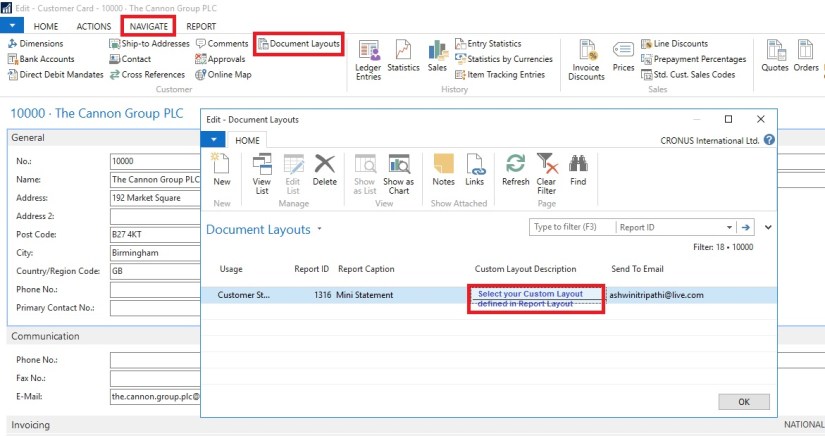
We assigned a custom layout to the customer in the customer card.

Here you set your selection by document type, for example, the sales quote or the customer statement.

You can also enter an email address for the document. So, if the statement goes to your customer’s accounts receivable clerk and the sales quote is sent to the sales manager, you define this information in the Document Layouts page.

The system uses the custom layout when you print the documents instead of emailing them.

Enter multiple email addresses with a semi-colon to separate them.
Report2016-2

You can do this for all customers.

When statements are processed, the report layout used is the one assigned to the customer. If the customer has no custom layouts assigned, the custom layout assigned in the Report Layout Selection is used.

If you go to Customer Statements, you can see that that Output Options are available. This will let you select how you wish to use the document layout settings.
Report2016-3
A checkbox will appear allowing you to print remaining statements. If you mark this checkbox, any statements with an email address in Customer Document Layouts is emailed, and any statements with a custom report layout but no email address will print with that report layout and any customers without any document layout settings will use the company default report from Report Layout Selections.

I will come up with more details in my upcoming posts.

Corfu Navision 2016, Development Tips, Functional Tips, How To, Information, Workflow

Workflows in Dynamics NAV 2016

Workflows in Dynamics NAV are represented by workflow events and workflow responses.

The smallest workflow is the pairing of a single event with a single response.

“When something happens, do something” pattern. This is the Event/Response model that makes up the simple but effective design of Workflow for Microsoft Dynamics NAV.

The workflow functionality utilizes several other features as listed below of Dynamics NAV.

Few Listed here below:

Job Queues Setup

E-mail Notification Setup

Work date Setup

User Setup

Approval User Setup

SMTP Mail Setup

In particular, approvals and notifications must be set up so that workflows can send approval requests and process approvals.

Dynamics NAV 2016 introduces two new event concepts. Events and Workflow events. The two are distinct but often coupled together to build solutions.

Dynamics NAV Events allow you to write code which will be called when an event occurs – this is called subscribing to an event.

Workflow Events typically use Platform Events as their trigger, but are richer. Workflow events are registered in the workflow engine and show up in the workflow designer. Microsoft recommends that Workflow events be written at a higher level of abstraction than Platform Events.

Sales Invoice is created or Modified could be example of Event Subscriber, whereas Invoice is Release could be good example for Workflow Event.

Event

For the event we need a new codeunit.

Add helper method for binding our event with the workflow engine.

The method is a simple one which returns and identifying code.

Function Signature:

LOCAL OnMyEventCode() : Code[128]

Function Property:
Workflow-1

Sample Function Code:

EXIT(UPPERCASE(‘OnMyEvent’));


Next we add another method which will be called whenever our Event Occurs

Function Signature:

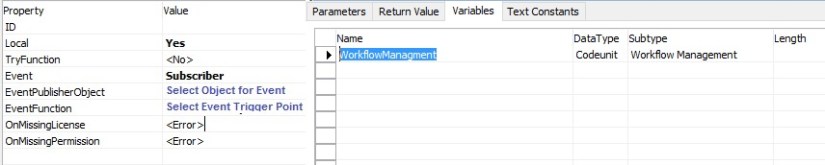
LOCAL [EventSubscriber] OnMyEvent(VAR Rec Object;VAR xRec Object;RunTrigger : Boolean)

Assuming a table is selected on which the Event is triggered.

Function Property & Variables:
Workflow-2

Sample function code:

MESSAGE(‘Event Fired On MyEvent’);

WorkflowManagment.HandleEvent(OnMyEventCode,Rec);

For the code itself, we’ll do two things

  • Show a message box so we can see our event did trigger
  • Call into the workflow engine to have the NAV Workflow engine process any next steps


Then we need to add another event subscriber method which is responsible for adding our event to the workflow library. The workflow library is the collection of events which can be seen and managed from the Workflow Setup page.

Function Signature:

LOCAL [EventSubscriber] AddEventToLibrary()

Function Property & Variables:
Workflow-3

Sample function code:

WorkflowEventHandling.AddEventToLibrary(MyEventCode,DATABASE::Object,OnMyFinishTxt,0,FALSE);

Text Constant for Event Description:

OnMyFinishTxt : This will be listed in Workflow Event Window.
Workflow-4

To add a Workflow event we need to do three things:

  • Subscribe to the event.
  • Define a user readable string which describes the event.
  • Call a method in the workflow event handling codeunit, passing in the identifier and the descriptive string.

Save the Codeunit as MyWorkflowEvent with available ID in your Database.

Response

Most of the work is done in the code editor and we will use codeunits for our application objects.

First we’ll make a helper method for binding our response with the workflow engine.

The method is a simple one which returns and identifying code.

Function Signature:

LOCAL RunMyResponseCode() : Code[128]

Function Property:
Workflow-1

Sample Function Code:

EXIT(UPPERCASE(‘RunMyResponse’));


Then we need to add another event subscriber method which is responsible for adding our response to the workflow library. The workflow library includes the collection of responses which can be seen and managed from the Workflow Setup page.

Function Signature:

LOCAL [EventSubscriber] AddResponseToLibrary()

Function Property & Variables:

Workflow-5

Sample Function Code:

WorkflowResponseHandling.AddResponseToLibrary(RunMyResponseCode,0,ResponseDescription,’Group 0′);

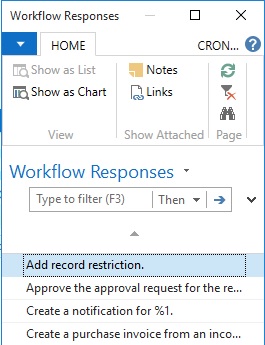
Text Constant for Response Description:

ResponseDescription : This will be listed in Workflow Responses Window.

Workflow-6

To add a Workflow response we need to do three things:

  • Subscribe to the event which adds new responses to the workflow library
  • Define a user readable string which describes the response
  • Call a method in the workflow response handling codeunit, passing in the identifier and the descriptive string.

The earlier functions were used to add the response to the workflow library.

But we need another method that actually listens to when the response needs to be called.

Function Signature:

LOCAL [EventSubscriber] RunReportResponse(VAR ResponseExecuted : Boolean;Variant : Variant;xVariant : Variant;ResponseWorkflowStepInstance : Record “Workflow Step Instance”)

Function Property & Variables:

Workflow-7

Sample Function Code:

IF WorkflowResponse.GET(ResponseWorkflowStepInstance.”Function Name”) THEN

CASE WorkflowResponse.”Function Name” OF

RunMyResponseCode:

BEGIN

RunMyFunction;

ResponseExecuted := TRUE;

END;

END;

When this code is called it needs to do two things.

Firstly it needs to evaluate if the response should be called (and it does this by checking the code value) and secondly it should return TRUE if it handles the response.

Finally we will add our Response Handling Function RunMyFunction, which will execute actual action which we want Response of this call.

Enable Workflow in System

First we will create our Category so that our Workflow can be identified uniquely.

Workflow-8

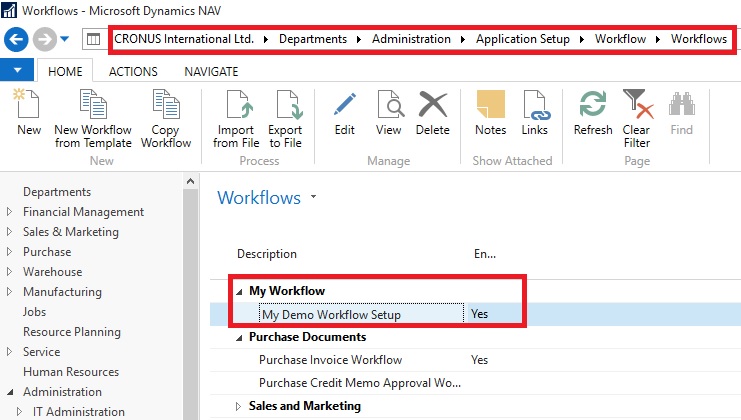
Next we will configure our Workflow.

Workflow-9

Here my workflow is listed once configured and saved.

Workflow-10

Now we are good in position to go for testing of our workflow.


This was the simplest scenario with bare minimum action required of implementing workflow.

You can use existing Template and define or you can implement your own as described above.


I will come up with more details on this topic later in my upcoming posts.

Corfu Navision 2016, Deferral, Functional Tips, How To

Deferral Functionality in Navision 2016

Microsoft Dynamics NAV 2016 offers the ability to automatically defer revenues and expenses over a predefined schedule, enabling companies to easily recognize revenues and expenses in periods other than the period in which the transaction is posted.

The deferral functionality provides several user benefits, including:

  1. Enabling additional financial functionality in Microsoft Dynamics NAV.
  2. Greatly reducing the time and effort required to defer revenues and expenses.
  3. Enabling reporting on deferred amounts for customer, vendor, and account ledgers.
  4. The deferral functionality is available on purchasing and sales documents, as well as general journals.

The first step in setting up deferral functionality is to create a deferral template.

Deferral templates allow us to define settings that will create a default deferral schedule for a document.

The default schedule is built for the document based on the settings defined in the template.

From the Search box find Deferral Template and use related Link to open the Template Card.
Deferral-1

Define the Template values as per the requirement for Expense/Revenue.

Period Description: uses %1..%6 to replace values as (1)Day, (2)Week, (3)Month, (4)Month Text, (5)Accounting Period Name, (6)Year

Users have the option to select a default deferral template for Resources, Items, and Accounts.

When the Resource, Item, or Account is selected on a document for which deferral functionality is available, the default deferral template will automatically be selected for the line.

Fill the Default Deferral Template on Invoicing FastTab for Item & Resource and for Accounts on Posting FastTab.
Deferral-2

Deferral-3

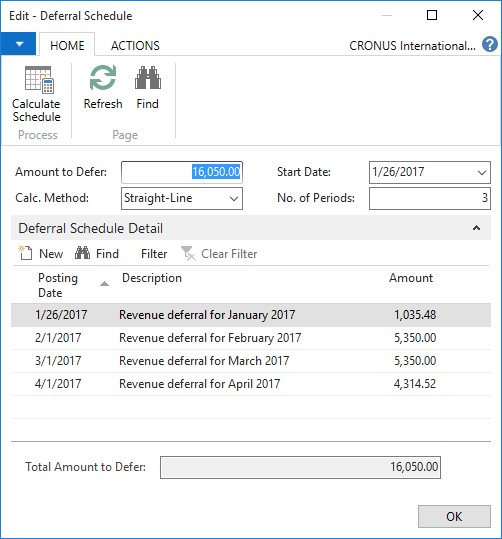
We have the option to view or modify the default deferral schedule created from the template in the Deferral Schedule page.

The user can either change the settings and re-calculate the schedule with new settings, or simply modify the lines of the schedule directly.

Schedule window will be as below:
Deferral-4

Reports:

The Sales Deferral Summary report provides a summary, for each customer, of deferred revenue. The amounts on the report are calculated as of the date entered for the report.

The Purchasing Deferral Summary report provides a summary, for each vendor, of deferred expenses. The amounts on the report are calculated as of the date entered for the report.

The G/L Deferral Summary report provides a summary, for each G/L account, of deferred expenses. The amounts on the report are calculated as of the date entered for the report.


I will come up with more details on this in my upcoming posts.

Development Tips, Functional Tips

Security filter—record-level security

Security filters—record level security/access control can be explained by for accessing G/L Accounts. Let’s take an example where we want the user to view only balance sheet G/L Accounts.

To accomplish the record-level security, we use security filters from the Permissions window. Click on the Assist Edit button in the Security Filters field in the Permissions window and select the field on which we want to apply filters.

SecurityFilter

Record-level security is available only if we are using the SQL database, need not to mention for NAV 2015.

How to: Set Security Filters

You set security filters to limit the access that a user has to data in a table. You set security filters on permission sets, which you assign to users.

To set a security filter

In the Search box, enter Permission Sets, and then choose the related link.

On the Permission Sets page, select the permission set to which you want to add a security filter, and then choose Permissions.

On the Permissions page, on the row for the table data to which you want to add a security filter, in the Security Filter column, choose the AssistEdit button.

The Table Filter page opens.

In the Table Filter page, in the Field Number column, select the field on which you want to limit a user’s access.

For example, if you want to create a security filter so that a user can view only sales with a specific salesperson code, then choose the field number for the Salesperson Code field.

The Field Caption column in the Table Filter page is filled in automatically after you select the field number.

In the Field Filter column, enter the value of field that you want to use to limit access.

For example, to limit a user’s access to only Annette Hill’s sales, enter AH, which is the salesperson code for Annette Hill, in the Field Filter column.

Note

Record level security filters do not support wildcard characters. This means that you cannot use * and ? in the filters. You can use other symbols, delimiters and, operators, such as, <, >, |, &, .., and =. If you do not enter an operator, then the default operator = is used.

Security filters support Unicode characters. The maximum length of a security filter is 200 characters, including all field names, delimiters, symbols, and operators that used in the filter.

When multiple permission sets that refer to the same table data are assigned to a user, they are combined so that the least restrictive filter is used. You should not repeat a table in multiple permission sets if you plan to combine those permissions sets for one user.

Security Filter Modes

Query objects and Record objects, including both explicit record variables and implicit records on pages, reports, or XMLports, have a property named SecurityFiltering, which describes how security filters are applied.

The possible values of the SecurityFiltering property are: Filtered, Validated, Ignored, Disallowed

Filtered

If a record is set to Filtered, then any security filters that have been set are respected for this instance of the record. To the user, it is as if records outside the security filters that do not exist.

An example scenario in which you use the Filtered value is that one salesperson is not allowed to view customers, sales quotes, or sales orders that belong to another salesperson. When the salesperson opens a list of customers or sales documents, or runs reports such as the Customer – Top 10 List report, he sees his filtered view of customers, sales quotes, and sales orders.

Validated

If a record is set to Validated, then any security filters that have been set are respected for this instance of the record, and an error occurs if the code attempts to access a record that is outside the range of the security filters.

An example scenario in which you use the Validated value is that one parts purchaser in a warehouse is responsible for only one location and can view and create purchase orders for only that location. However, some purchase orders have lines for multiple locations. Only a parts purchaser who has access to all locations should be allowed to post these purchase orders that have lines for multiple locations. All other purchasers receive an error.

If security filters have been set, then the Validated value decreases performance.

The Validated value is used mainly for compatibility with the security model in earlier versions of Microsoft Dynamics NAV. MS recommend that you use the other modes when you implement your security model.

Ignored

If a record is set to Ignored, then any security filters that have been set are ignored for this instance of the record.

An example scenario in which you use the Ignored value is that one salesperson is not allowed to view customers, sales quotes, or sales orders that belong to another salesperson. However, to post his sales orders, the salesperson must have access to all entries in the Customer Ledger Entry table so that the posting algorithm can find the last sales order entry number and generate the correct number for the next entry. In the code that posts sales orders, you set the SecurityFiltering property of the record variable to Ignored, but for record variables in other parts of the code, you set the SecurityFiltering property to either Filtered or Validated.

When you set the SecurityFiltering property on a record to Ignored, the administrator who sets a security filter is not informed that the security filter will be ignored. You must be careful when you set the SecurityFiltering property that it does not cause unintended information disclosure.

Disallowed

If a record is set to Disallowed, then setting any security filter on the record causes an error.

An example scenario in which you use the Disallowed value is that you have batch jobs that must be run only by users who have access to all records in the related tables, otherwise the batch jobs can cause incorrect and potentially harmful results. The partner developer sets record variables on these batch jobs to Disallowed so that a user who does not have access to all records in the related tables receives an error.

Important

It is not supported to change the default Filtered value of the SecurityFiltering property on implicit records on pages.

If you keep the default values after you upgrade from Microsoft Dynamics NAV 2009 to Microsoft Dynamics NAV 2015, then the behavior is the same in all cases except the following:

In earlier versions, the COUNT Function (Record) ignored security filters and always returned the total number of records unless you called the SETPERMISSIONFILTER function to get a filtered count. In Microsoft Dynamics NAV 2015, the COUNT function adheres to the SecurityFiltering property.

In earlier versions, on a page, you could modify or insert a record outside of the range of your security filters but in Microsoft Dynamics NAV 2015, you cannot.

Note

For Query variables, the Validated value of the SecurityFiltering property is not allowed.

Security Filters and FlowFields

If you set a security filter on a table that is used in a FlowField calculation, then the calculated value of the FlowField is filtered, based on the security filter and the security filter mode of the record variable for the record in the table.

For example, if you set a security filter so that a user can only view sales with a specific salesperson code, and if the security filter mode is Filtered, then when the user views a FlowField that calculates total sales, the user can see the total of only those sales that have the specific salesperson code. In earlier versions of Microsoft Dynamics NAV, the security filter mode value was Validated and in this example, the user received an error.

Programming Examples

For these examples, you have a table that has 100 records. Each record has an ID field that is the primary key of the table. The values of the ID field that are currently in the database range from 1 to 100. In this example, you set a security filter on the table data for ID=1..50. Then, in a codeunit you create a record variable for the table.

Security filter mode Example
Filtered If you set the SecurityFiltering property on the record variable to Filtered, then the code behaves as if records with ID values from 1 to 50 are the only records that exist.

If you call the FIND, FINDFIRST, FINDLAST, or FINDSET function on the record variable without any additional filters besides the security filter, then the function only finds records with ID values from 1 to 50.

If you call the DELETEALL function, then it successfully deletes records with ID values from 1 to 50. It does not delete records with ID values greater than 50, and it does not return an error.

If you modify a record, for example, by calling the MODIFY function on a record with an ID value less than 50, then the function succeeds. If you call the MODIFY function on a record with an ID value greater than 50, then it fails because you do not have access to the record.

If you insert a record with an ID less than 50 and the record does not already exist, the INSERT function succeeds. If you insert a record with an ID greater than 50 and the record does not already exist, it fails because you do not have access to the record.

If you call the GET function on a record with an ID value less than 50, then the function succeeds. If you call the GET function on a record with an ID value greater than 50, then it fails.

Validated If you set the SecurityFiltering property on the record variable to Validated, then the code behaves as if records with ID values from 1 to 100 exist, but you only have access to the records that are specified by the security filter.

If you call the FIND, FINDFIRST, FINDLAST, or FINDSET function on the record variable without additional filters, it finds all 100 records, but a NEXT function call to the record with ID value 51 fails because you do not have access to it.

If you call the DELETEALL function, it fails because it finds all 100 records but you do not have access to all of them.

If you modify a record with an ID value less than 50, it succeeds. If you modify a record with an ID value greater than 50, it fails.

If you insert a record with an ID less than 50 and the record does not already exist, it succeeds. If you insert a record with an ID greater than 50 and the record does not already exist, it fails.

Ignored If you set the SecurityFiltering property on the record variable to Ignored, then the code behaves as if all security filters that are set do not exist for that instance of the record.

Any of the FIND functions find all 100 records.

The DELETEALL function deletes all 100 records.

You can insert and modify records in any range, regardless of security filters.

Disallowed If you set the SecurityFiltering property on the record variable to Disallowed, then as long as a security filter is set on the record, any code that uses the record variable causes an error.

Performance Impact of Security Filtering Mode

If security filters are set on a table, then setting the SecurityFiltering property to Validated on a record instance of that table causes a decrease in performance.

The Microsoft Dynamics NAV Server must go through every record in the table to validate the record instead of adding the filters to the query that is sent to SQL Server.

If security filters are not set, then setting the SecurityFiltering property to Validated has no performance impact.

Note

MS recommend that you change commonly used record variables from the default value of Validated to either Filtered or Ignored to improve performance.

Batch Job, Development Tips, Functional Tips

Adjust Item Costs/Prices… batch job

Just purchase one material on different rates with different vendors and consume it in manufacturing or do the negative adjustment and then run the batch job to see the effect.

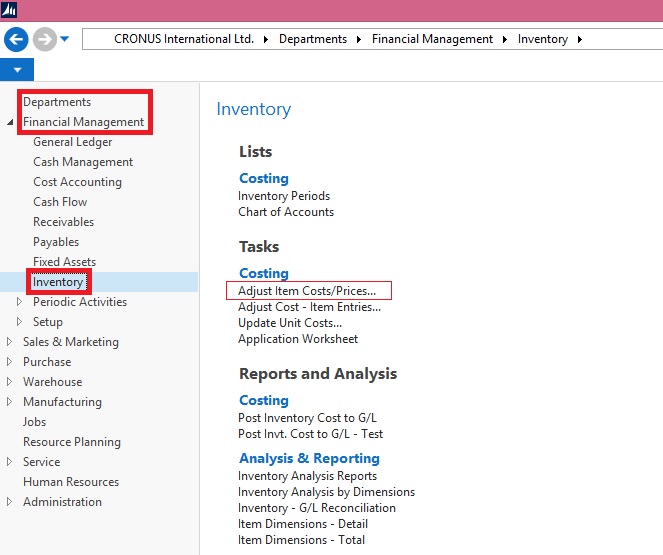
The batch job is in the inventory section of Finance Module.

BatchJob-1
All this Batch does is updating the CARD Costs and Prices for an Item; it really has no connection to the costs posted to inventory, and in terms of Sales only affects the default sales price of an item. A better name might be “Item Card Cost/Price Update”
BatchJob-2
To test an example, run the batch on a test database, leave the defaults, but change the Adjustment factor to 1.1.
BatchJob-3
When you run this, all the Item Card Prices will be increased by 10%
BatchJob-4

Most of the processes relating to costing, discuss posted documents and entries. Like Posted Sales Invoice and Posted Purchase receipt and Item ledger entry and Value Entry and General Ledger and GL entries. All these tables (and others) are used to calculate the actual costs and prices in Navision, and are what is used for Accounting reporting such as financial Statements. This is all covered under Inventory Costing. The batch processes (periodic Activities) “Post Inventory Cost to G/L” and “Adjust Cost – Item Entries” all belongs in this category. But on the other side BEFORE you post anything you need to do setup, and amongst all the setup, are the fields on the Item card which ARE NOT POSTED to the GL, but are used as the default values before posting. For example Unit Price from the Item card is copied into the Line of a Sales Order as a SUGGESTED sales price. But you can change it here and post a different price. Most of the numbers that you see on the Item card are just defaults or suggestions; they are not the final number that is posted to the GL. All of this is covered by Inventory Setup, and includes the Batch Process “Adjust Item Costs/Prices”.

If you check the code you will find that:
BatchJob-5
In summary

Inventory Setup is what you do to setup Item Costs and Prices BEFORE they hit the GL. (including “Adjust Item Costs/Prices”). Inventory Costing is what you do with entries AFTER they are posted to correct any changes due to the difference between Expected costs and actual costs.
Just go through these steps and you will know what this batch job does-

1. Create a new Item. Complete all the fields with Unit cost and Unit price. Take a note of all the values you write.

2. Create a purchase order for any quantity with Unit cost other than what is on item card and post the order as received & invoiced.

3. Create a sales order with any quantity other than that of Item card and post as shipped and invoiced.

4. Check the invoicing tab on item card and make a note of all values.

5. Repeat steps 2 and 3 for two-three times by changing the cost and prices every time (also note the values)

6. Now run Adjust cost-item entries and check the Invoicing tab on card. The Cost fields must have updated, but not the prices.

7. Now run Adjust item-cost prices with adjustment factor 1.5 and check the values. The Unit price over the card must have been updated with 50%.

You can see that the batch job is used to change the prices (Sales prices) of items. After running this batch job, every time when you make a Sales order, the updated Price will be copied to Sales Order field “Unit price Excluding VAT”.
BatchJob-6

Above listed all fields can be adjusted accordingly, specifying Adjustment Factor and Rounding Method.

Similarly it works for SKU also.

Give it a try to understand it more precisely. Follow above steps defined above.

Development Tips, Functional Tips, Tip & Tricks

Using of Posting Groups

Posting groups in Microsoft Dynamics NAV are very important part of configuration process. All G/L Entries depends of correctly configured posting groups.

We can find a lot of them: General Business and Product Posting Groups, VAT Business and Product Posting Groups, Customer and Vendor Posting Groups, Inventory Posting Groups…

Sometime, it is very confusing how it works, especially for unexperienced people.

You can find good explanation on same in this post by Totovic.

Nicely explained, you should see it here. I feel must to see this post for every Navision Consultants either fresher or experienced.

Functional Tips

Defining Discount & Sales Price for an Item

This set of demonstration will present the new, simplified way of setting sales prices and discounts for items in Microsoft Dynamics NAV 2015.
SPND-1

  • On the Role Center, choose Items to open the list of existing items.
  • Select item 1000, and then, on the Home tab, in the Manage group, choose Edit.
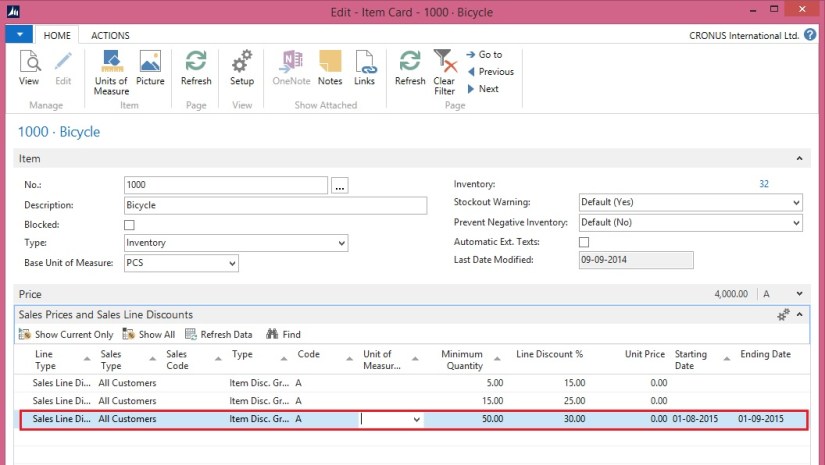
  • In the Item Card window, on the Sales Prices and Line Discounts FastTab, create a new line.

SPND-2

Set a Discount for an Item

  • On the line, set the following values:

Line Type: Sales Line Discount

Sales Type: All Customers

Type: Item Disc. Group

Minimum Quantity: 50

Line Discount %: 30.00

Starting Date: August 1 2015.

Ending Date : Sep 1 2015

  • Choose the OK button

Pick an existing item, for example, item number 1000.

Set a 30 percent line discount for the item for all customers who buy 50 or more of these items in one invoice. The discount will be valid from Aug 1, 2015 to Sep 1, 2015.
SPND-3
Set a Sales Price for an Item

  • On the line, set the following values:

Line Type: Sales Price

Sales Type: Customer

Sales Code: No. 10000

Type: Item

Minimum Quantity: 30

Unit Price: 3200.

  • Choose the OK button

Pick an existing item

Set a lower sales price for this item, for a specific customer, with the condition that the customer buys 30 or more of these items in one invoice.
SPND-4

Functional Tips

Disabling the Stockout Warning Message – in Navision 2015

By default, Microsoft Dynamics NAV 2015 is set up so that you get a warning message when you enter sales invoice lines with items that are not on stock.

In this scenario, you will learn how to disable this warning in the Sales & Receivables Setup window.

    • On the Role Center, on the Home tab, in the Setup group, choose Setup.
    • On the drop-down menu, choose Sales & Receivables Setup.

StockOutWarningMessage

  • In the Sales & Receivables Setup window, deselect the Stockout Warning check box.
  • Choose the OK button

You will now no longer get warnings on sales invoice lines for items that are not on stock.

Functional Tips

Preventing Posting of Sales Invoices that Are Not on Stock – in Navision 2015

By default, Microsoft Dynamics NAV 2015 is set up so that you are allowed to post sales invoices that contain items that you currently do not have on stock.

You can change that behavior to allow posting an invoice only if all the items on the lines are on stock. In this scenario, you will learn how to do it through the Inventory Setup page.

  • On the Role Center, o the Home tab, in the Setup group, choose Setup.
  • On the drop-down menu, choose Inventory Setup. The Inventory Setup window opens.

PrevNegSIPosting-1

  • In the Inventory Setup window, select the Prevent Negative Inventory check box.
  • Choose the OK button..
Functional Tips

Correct a Posted Sales Invoice in Nav 2015

Today we will learn correct a posted sales invoice.

In previous versions of Microsoft Dynamics NAV, this required a number of steps.

This scenario demonstrates how to perform the same action in Microsoft Dynamics NAV 2015.

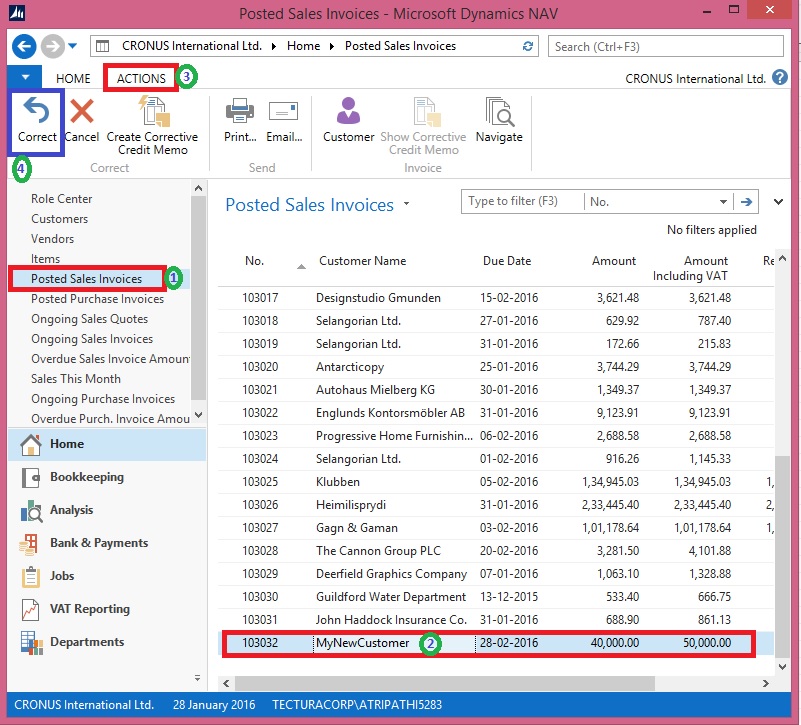
  • On the Role Centre, choose Posted Sales Invoices to open the list of posted sales invoices.
  • In the list of posted sales invoices, select the sales invoice that you posted in previous post, if not done click here to see the process we followed in earlier post.
  • On the Home tab, in the Manage group, choose View.
  • On the Home tab, in the Correct group, choose Correct, and then choose the Yes button

CorrectPSI-1

 or

CorrectPSI-2

The posted sales invoice is now cancelled with a credit memo. A new sales invoice has been created for you.

CorrectPSI-3

  • To open the automatically generated New Invoice that was created, choose Yes.
  • On the new sales invoice Perform the required changes. I am changing the Quantity in my example.

CorrectPSI-4

  • On the Home tab, in the Posting group, choose Post to post the corrected sales invoice.
  • Respond Yes to review the posted New Sales Invoice.

CorrectPSI-5

  • To review the Posted Credit Memo for the above Invoice Correction find as below:

CorrectPSI-6

We are done. It’s easy na.