How To, Instalation & Configuration

How to: Add Users for ADCS

You can add any user as a user of an Automated Data Capture System (ADCS). When you do this, the user must also provide a password. Optionally, you can also provide a connection that identifies the ADCS user as a warehouse employee. The ADCS user password can be different from the Windows logon password of the user.

To add an ADCS user

In the Search box, enter ADCS Users, and then choose the related link.

On the Home tab, choose New to add a new user.

In the Name field, enter a name for the user. The name cannot contain more than 20 characters, including spaces.

In the Password field, enter a password. The password is masked.
ADCS-5
To indicate that a warehouse employee is an ADCS user

In the Search box, enter Warehouse Employees, and then choose the related link.

If needed, add a new warehouse employee

On the Home tab, in the Manage group, choose Edit List.

Select a warehouse employee from the list. In the ADCS User field, choose the drop-down arrow, and then select the name of an ADCS user from the list.

Note : The default warehouse for the employee should be one that uses ADCS
ADCS-6

Development Tips, FixedLayout Control, Scope Property, Show Mandatory Property, UpdatePropagation Property

New Properties and Controls for Pages – in Navision 2015

ShowMandatory Property

With Microsoft Dynamics NAV a new property called ShowMandatory has been introduced on page fields. The ShowMandatory property is set on page fields and marks the field with a red asterisk on the UI.

You can refer this in my earlier post Show Mandatory Property

UpdatePropagation Property

In Microsoft Dynamics NAV a new property called UpdatePropagation is added to page fields. The introduction of this property makes it possible to update a parent page from a subpage automatically without using the page Refresh button.

You can refer this in my earlier post UpdatePropagation Property

Scope Property

In Microsoft Dynamics NAV a new property called Scope is added to page actions. The introduction of this property specifies the scope of an action to be either page-specific, or specific to a repeater control.

You can refer this in my earlier post Defining Action Scope for Microsoft Dynamics NAV Pages in Navision 2015

FixedLayout Control

Microsoft Dynamics NAV now supports using the FixedLayout control on the Microsoft Dynamics NAV Web client.

You can refer this in my earlier post Using a FixedLayout Control

Functional Tips

Defining Discount & Sales Price for an Item

This set of demonstration will present the new, simplified way of setting sales prices and discounts for items in Microsoft Dynamics NAV 2015.
SPND-1

  • On the Role Center, choose Items to open the list of existing items.
  • Select item 1000, and then, on the Home tab, in the Manage group, choose Edit.
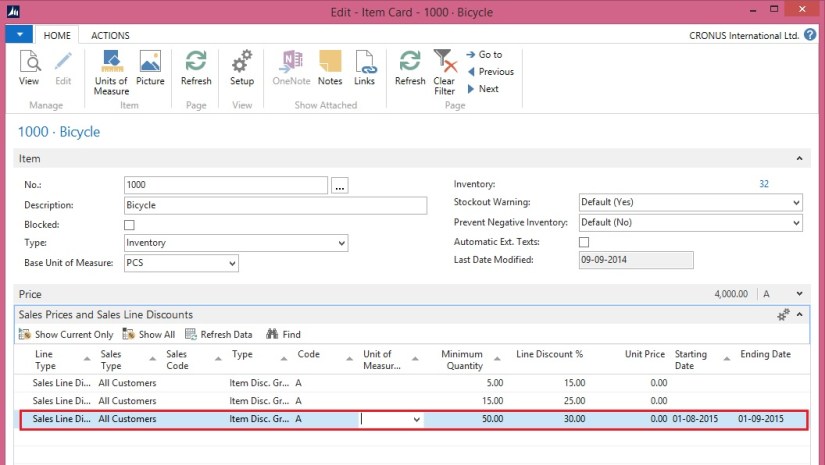
  • In the Item Card window, on the Sales Prices and Line Discounts FastTab, create a new line.

SPND-2

Set a Discount for an Item

  • On the line, set the following values:

Line Type: Sales Line Discount

Sales Type: All Customers

Type: Item Disc. Group

Minimum Quantity: 50

Line Discount %: 30.00

Starting Date: August 1 2015.

Ending Date : Sep 1 2015

  • Choose the OK button

Pick an existing item, for example, item number 1000.

Set a 30 percent line discount for the item for all customers who buy 50 or more of these items in one invoice. The discount will be valid from Aug 1, 2015 to Sep 1, 2015.
SPND-3
Set a Sales Price for an Item

  • On the line, set the following values:

Line Type: Sales Price

Sales Type: Customer

Sales Code: No. 10000

Type: Item

Minimum Quantity: 30

Unit Price: 3200.

  • Choose the OK button

Pick an existing item

Set a lower sales price for this item, for a specific customer, with the condition that the customer buys 30 or more of these items in one invoice.
SPND-4

Functional Tips

Create a Sales Invoice for a new Customer

In this session we will create a sales invoice for a new customer (Customer we don’t have in our Master).

To follow Step by Step you need to do a small setup:

Open the User Personalization and Set your Profile ID as below:

SINewCustomer-1

Select your Profile as “SMALL BUSINESS

Your Role Center will look like below:

SINewCustomer-2

  • On the Role Center, choose Ongoing Sales Invoices to open the list of ongoing sales Invoices.
  • On the Home tab, in the New group, choose New to create a new sales invoice.
  • In the Customer Name field, type the name of the new customer, and then press Enter or Tab to leave the field

Create the sales invoice for the new customer.

Notice that some fields are marked with red asterisks to tell which fields must be filled.

SINewCustomer-3

  • In the pop-up dialog, choose Yes to create the new customer
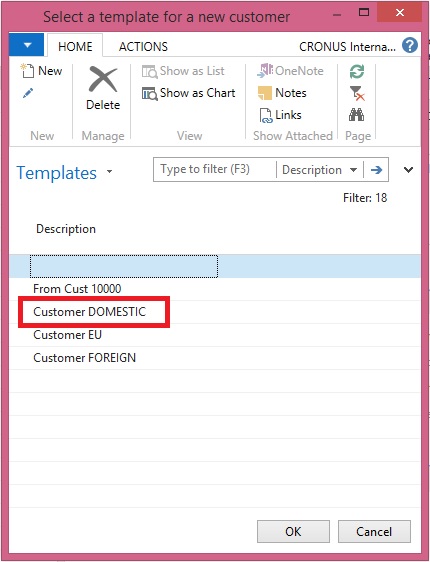
  • In the Templates window, select Customer DOMESTIC (or as desired), and then choose the OK button.

SINewCustomer-4

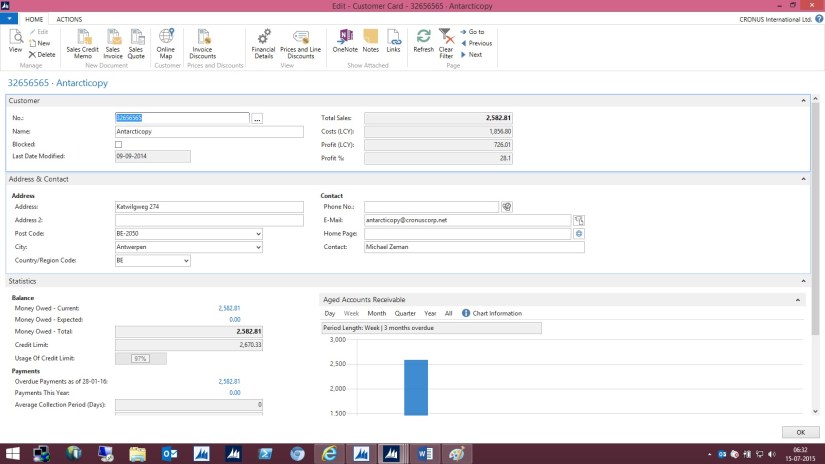
  • The Customer Card window opens in edit mode. Choose the OK button to close it.

SINewCustomer-5

  • The page closes and focus is back on the sales invoice that is now updated with the customer data.
  • In the Sales Invoice window, on the Lines FastTab, create a new line:

         Enter some line data for example : Item No.: 1001, Quantity: 10

  • On the Home tab, in the Posting group, choose Post.
  • Choose Yes.

SINewCustomer-6

  • Choose No to review the posted sales invoice, as of now we don’t require.

Helpful where we require instant Customer registration for recording the Orders. Later we will fill out rest of the details regarding Customer.

Uncategorized

Useful Tips for Technical as well as Functional (Saving Customer/Vendor/Item as Template)

Normally we see Template is created at on Interface and the Customer/Vendor/Item are created via other interface.

We can make it more user friendly, in below article I will show some readymade tips available in Navision It is available in 2013 and 2015, for lover version please verify accordingly.

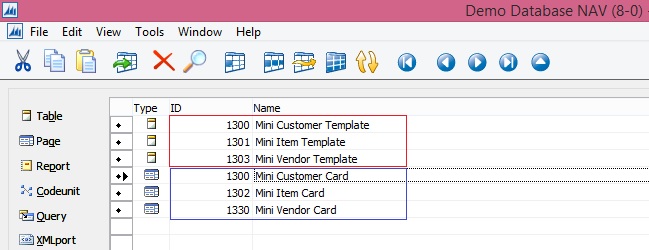
First Lets have a look at what all is available to us then we will see how we can make the more meaningful to our customers. Obviously if any out of box customization is required that we have to carry out.

Template-CVI-1

Others too available check it out, I will show one of them rest you apply same skill to accomplish others.

Let’s Start with Page 1300 Mini Customer Card what it looks like.

Template-CVI-2

In this Page on Action Tab we have Save as Template the functionality which we are going to use in our Article for today.

Template-CVI-3

Let’s First Link this Page (1300) with our Std. Customer Card Page (21).

I will Add New Action on my Page and set following Properties.

Open the Page 21 in Design Mode & Access View -> Page Actions.

Template-CVI-4

We have added this Link Just for information you can Skip this step, it is not compulsory for what we are going to perform below in next step.

Here other tabs of Mini Customer Card is only visible following certain Conditions. So nothing wrong with code or design. Technical can review the code and find out the reason for same.

Like :

Template-CVI-5

Template-CVI-6

Next we will copy one Functionality from Page 1300 to our Page 21. Save as Template.

Open the Page 1300 in Designer and access to View -> Page Actions.

Template-CVI-7

Save the object no further any coding or Variable definition will be required. As this Functionality is properly designed as plug and Play. Required Variables are defined local and it takes the Current Record as Parameter.

TempMiniCustomerTemplate.SaveAsTemplate(Rec);

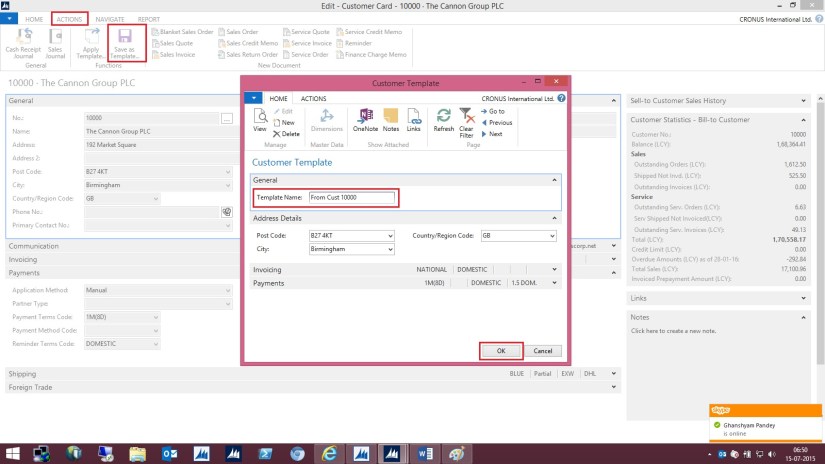
Now Open your customer card, scroll to record which you want to save as Template and Select Save as Template from Action Tab. Give the Template name to save and click OK.

Template-CVI-8

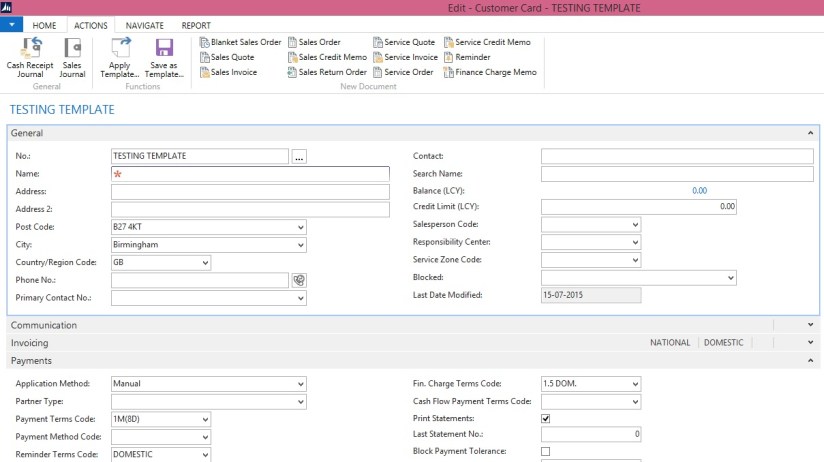
Your Template is saved. Now you can use the same to apply to your New Customer.

Now Create New Customer and Select Template to Apply.

Template-CVI-9

Template-CVI-10

You are done.

This way you are able to give something new to your Customer without any major customization.

Similarly you can do for Item & Customer too.

Explore there are few more which will be helpful in certain conditions.

Report

The New Report Scheduling feature for end users running reports in Microsoft Dynamics Navision 2015


The new Report Scheduling feature for end users running reports:

  • End user can schedule reports for later execution.
  • User can get to his next task quicker.
  • User has an inbox part for viewing the scheduled reports.

 A. Setting up the job queue to run a report

My Customer needs to run a number of long running reports and does not want to wait for them to complete.

The scenario is simplified because a typical customer setup would involve setting up a NAS instance to process the reports.

* Open the Job Queues page.

ReportSchedule-1

* On the Home tab, in the New group, choose New to set up a new job queue

ReportSchedule-2

* In the Code field, type Reports.

* Fill in the Description field My Report Schedule.

* Leave the Job Queue Category Filter field blank.

* On the Home tab, in the Process group, choose Start Job Queue.

* Close the Job Queue Card

ReportSchedule-3

A job queue with no filter runs the reports.

In many customer installations, the reports will be picked up by the DEFAULT job queue


B. Adding the Report Inbox to the Role Center

My Customer wants easy access to the reports that he has scheduled, so he adds the Report Inbox part to the Role Center page.

* To open the Role Center page that you want to customize, in the navigation pane, choose the Home button, then choose the Role Center menu item.

* On the Application menu , choose Customize, and then Customize This Page.

* In the Available Parts pane, select Report Inbox, and then choose the Add button.

* To move the Report Inbox part to top of the second column in the Role Center layout pane, select it and then use the Move buttons.

* (Optional) To add the My Job Queue to the Role Center, in the Available Parts pane, select My Job Queue, and then choose the Add button.

* (Optional) To move the My Job Queue part below the Report Inbox in the Role Center layout pane, select it and then use the Move buttons.

ReportSchedule-4

ReportSchedule-5

* Verify that the Report Inbox appears in the Role Center.

ReportSchedule-6


C.Scheduling a report and viewing the result

* On the Role Center, on the Report tab, choose Customer Order – Summary.

* On the report request window, choose the Print button, and then choose Schedule

ReportSchedule-7

* In the Schedule a Report window that appears, in the Description field type a different text.

* In the Report Output Type field, select the down arrow, and choose PDF.

* Choose the OK button.

ReportSchedule-8

* Go to the Report Inbox on the Role Center and show that the report appears when it is finished running.

* To view the report, select it in the Report Inbox, and then choose Show.

ReportSchedule-9


D. When a scheduled report fails

* Open the Role Center.

* On the Application menu , choose Customize, and then Customize This Page.

* In the Available Parts pane, select My Job Queue, and then choose the Add button.

* To move the My Job Queue part below the Report Inbox in the Role Center layout pane, select it and then use the Move buttons

* In the Role Center, go to the My Job Queue part.

We have already done above step in above steps. Let’s continue with next step. If not already done follow the steps as defined above.

* On the Role Center, on the Reports tab, choose Price List.

* In the Sales Type field select Customer.

* To schedule the report to run later, choose the Print button, then select Schedule.

* In the Schedule a Report window, leave the default values in fields and choose the OK button.

ReportSchedule-10

* When the error shows up in the My Job Queue part, select the error, and then choose Show Error.

* Read the error message, and then choose the OK button to close it.

ReportSchedule-11

* Open the Job Queue Log Entries page.

* Filter the list to display entries whose Status is Error.

* To view the error message, point to the Error message field for the entry, or, select the entry, and then on the Home tab, choose Show Error Message.

* Return to the Role Center, and then run the Price List report again.

* On the report request window, set the Sales Type field to All Customers, choose Print, and then choose Schedule.

* In the Schedule a Report window, leave the default values in fields and choose the OK button.

* In the Report Inbox on the Role Center, view the completed report.

ReportSchedule-12


Cumulative Updates

List of Cumulative Updates for Microsoft Dynamics NAV 2015 as of July 2015

Knowledge Base ID Title Release date Build no. Local versions included
3075726  (https://support.microsoft.com/kb/3075726/ ) Cumulative Update 9 for Microsoft Dynamics NAV 2015 July, 2015 41779 AT, AU, BE, CH, CZ, DE, DK, ES, FI, FR, IS, IT, NA, NL, NO, NZ, RU, SE, UK
3069272  (https://support.microsoft.com/kb/3069272/ ) Cumulative Update 8 for Microsoft Dynamics NAV 2015 June, 2015 41370 AT, AU, BE, CH, CZ, DE, DK, ES, FI, FR, IS, IT, NA, NL, NO, NZ, RU, SE, UK
3058000  (https://support.microsoft.com/kb/3058000/ ) Cumulative Update 7 for Microsoft Dynamics NAV 2015 May, 2015 40938 AT, AU, BE, CH, CZ, DE, DK, ES, FI, FR, IS, IT, NA, NL, NO, NZ, RU, SE, UK
3052226  (https://support.microsoft.com/kb/3052226/ ) Cumulative Update 6 for Microsoft Dynamics NAV 2015 April, 2015 40459 AT, AU, BE, CH, CZ, DE, DK, ES, FI, FR, IS, IT, NA, NL, NO, NZ, RU, SE, UK
3039824  (https://support.microsoft.com/kb/3039824/ ) Cumulative Update 5 for Microsoft Dynamics NAV 2015 March, 2015 40262 AT, AU, BE, CH, CZ, DE, DK, ES, FI, FR, IS, IT, NA, NL, NO, NZ, RU, SE, UK
3035986  (https://support.microsoft.com/kb/3035986/ ) Cumulative Update 4 for Microsoft Dynamics NAV 2015 February, 2015 39663 AT, AU, BE, CH, CZ, DE, DK, ES, FI, FR, IS, IT, NA, NL, NO, NZ, RU, SE, UK
3024901  (https://support.microsoft.com/kb/3024901/ ) Cumulative Update 3 for Microsoft Dynamics NAV 2015 January, 2015 39368 AT, AU, BE, CH, CZ, DE, DK, ES, FI, FR, IS, IT, NA, NL, NO, NZ, RU, SE, UK
3020885  (https://support.microsoft.com/kb/3020885/ ) Cumulative Update 2 for Microsoft Dynamics NAV 2015 December, 2014 38798 AT, AU, BE, CH, DE, DK, ES, FI, FR, IS, IT, NA, NL, NO, NZ, RU, SE, UK
3013215  (https://support.microsoft.com/kb/3013215/ ) Cumulative Update 1 for Microsoft Dynamics NAV 2015 November, 2014 38457 AT, AU, BE, CH, DE, DK, ES, FI, FR, IS, IT, NA, NL, NO, NZ, RU, SE, UK