Cumulative Updates, Information

Released Cumulative Updates for Microsoft Dynamics NAV 2013 R2

For a list of all cumulative updates for this version, see Released Cumulative Updates for Microsoft Dynamics NAV 2013 R2.

Knowledge

Base ID

Title Release date Build no. Local versions included
3097766 Cumulative Update 24 for Microsoft Dynamics NAV 2013 R2 October, 2015 42950 AT, AU, BE, CH, CZ, DE, DK, ES, FI, FR, IS, IT, NA, NL, NO, NZ, RU, SE, UK
3091811 Cumulative Update 23 for Microsoft Dynamics NAV 2013 R2 September, 2015 42610 AT, AU, BE, CH, CZ, DE, DK, ES, FI, FR, IS, IT, NA, NL, NO, NZ, RU, SE, UK
3084775 Cumulative Update 22 for Microsoft Dynamics NAV 2013 R2 August, 2015 42221 AT, AU, BE, CH, CZ, DE, DK, ES, FI, FR, IS, IT, NA, NL, NO, NZ, RU, SE, UK
3075724 Cumulative Update 21 for Microsoft Dynamics NAV 2013 R2 July, 2015 41768 AT, AU, BE, CH, CZ, DE, DK, ES, FI, FR, IS, IT, NA, NL, NO, NZ, RU, SE, UK
3069271 Cumulative Update 20 for Microsoft Dynamics NAV 2013 R2 June, 2015 41371 AT, AU, BE, CH, CZ, DE, DK, ES, FI, FR, IS, IT, NA, NL, NO, NZ, RU, SE, UK
3058010 Cumulative Update 19 for Microsoft Dynamics NAV 2013 R2 May, 2015 40941 AT, AU, BE, CH, CZ, DE, DK, ES, FI, FR, IS, IT, NA, NL, NO, NZ, RU, SE, UK
3052269 Cumulative Update 18 for Microsoft Dynamics NAV 2013 R2 April, 2015 40452 AT, AU, BE, CH, CZ, DE, DK, ES, FI, FR, IS, IT, NA, NL, NO, NZ, RU, SE, UK
3039826 Cumulative Update 17 for Microsoft Dynamics NAV 2013 R2 March, 2015 40076 AT, AU, BE, CH, CZ, DE, DK, ES, FI, FR, IS, IT, NA, NL, NO, NZ, RU, SE, UK
3035983 Cumulative Update 16 for Microsoft Dynamics NAV 2013 R2 February, 2015 39665 AT, AU, BE, CH, CZ, DE, DK, ES, FI, FR, IS, IT, NA, NL, NO, NZ, RU, SE, UK
3024898 Cumulative Update 15 for Microsoft Dynamics NAV 2013 R2 January, 2015 39354 AT, AU, BE, CH, CZ, DE, DK, ES, FI, FR, IS, IT, NA, NL, NO, NZ, RU, SE, UK
3020884 Cumulative Update 14 for Microsoft Dynamics NAV 2013 R2 December, 2014 38801 AT, AU, BE, CH, CZ, DE, DK, ES, FI, FR, IS, IT, NA, NL, NO, NZ, RU, SE, UK
3013214 Cumulative Update 13 for Microsoft Dynamics NAV 2013 R2 November, 2014 38455 AT, AU, BE, CH, CZ, DE, DK, ES, FI, FR, IS, IT, NA, NL, NO, NZ, RU, SE, UK
3000199 Cumulative Update 12 for Microsoft Dynamics NAV 2013 R2 October, 2014 38053 AT, AU, BE, CH, CZ, DE, DK, ES, FI, FR, IS, IT, NA, NL, NO, NZ, RU, SE, UK
2992495 Cumulative Update 11 for Microsoft Dynamics NAV 2013 R2 September, 2014 37799 AT, AU, BE, CH, CZ, DE, DK, ES, FI, FR, IS, IT, NA, NL, NO, NZ, RU, SE, UK
2984452 Cumulative Update 10 for Microsoft Dynamics NAV 2013 R2 August, 2014 37563 AT, AU, BE, CH, CZ, DE, DK, ES, FI, FR, IS, IT, NA, NL, NO, NZ, RU, SE, UK
2977473 Cumulative Update 9 for Microsoft Dynamics NAV 2013 R2 July, 2014 37221 AT, AU, BE, CH, CZ, DE, DK, ES, FI, FR, IS, IT, NA, NL, NO, NZ, RU, SE, UK
2971746 Cumulative Update 8 for Microsoft Dynamics NAV 2013 R2 June, 2014 36897 AT, AU, BE, CH, DE, DK, ES, FI, FR, IS, IT, NA, NL, NO, NZ, RU, SE, UK
2964528 Cumulative Update 7 for Microsoft Dynamics NAV 2013 R2 May, 2014 36703 AT, AU, BE, CH, DE, DK, ES, FI, FR, IS, IT, NA, NL, NO, NZ, RU, SE, UK
2955941  Cumulative Update 6 for Microsoft Dynamics NAV 2013 R2 March, 2014 36366 AT, AU, BE, CH, DE, DK, ES, FI, FR, IS, IT, NA, NL, NO, NZ, RU, SE, UK
2937999 Cumulative Update 5 for Microsoft Dynamics NAV 2013 R2 March, 2014 36281 AT, AU, BE, CH, DE, DK, ES, FI, FR, IS, IT, NA, NL, NO, NZ, SE, UK
2930617 Cumulative Update 4 for Microsoft Dynamics NAV 2013 R2 February, 2014 36078 AU, DE, DK, FR, IT, NA, NL, NZ, SE, UK
2918538 Cumulative Update 3 for Microsoft Dynamics NAV 2013 R2 January, 2014 36035 AU, DE, DK, FR, IT, NA, NL, NZ, SE, UK
2913982 Cumulative Update 2 for Microsoft Dynamics NAV 2013 R2 December, 2013 35800 AU, DE, DK, FR, IT, NA, NL, NZ, SE, UK
2901573 Cumulative Update 1 for Microsoft Dynamics NAV 2013 R2 November, 2013 35701 AU, DE, DK, FR, IT, NA, NL, NZ, SE, UK

For a list of all hotfixes included in Cumulative Updates for Microsoft Dynamics NAV 2013 R2, view the following CustomerSource and PartnerSource pages:

CustomerSource

PartnerSource

Cumulative Updates, Information

Cumulative Update 12 for Microsoft Dynamics NAV 2015 has been released

Cumulative Update 12 includes all application and platform hotfixes and regulatory features that have been released for Microsoft Dynamics NAV 2015.

For more details checkout link : Cumulative Update 12 for Microsoft Dynamics NAV 2015 has been released

Corfu Navision 2016, Development Tips, Information

Introducing Extensions in Microsoft Dynamics NAV 2016

Extensions enable you to modify your Microsoft Dynamics NAV system without directly altering the source resources, making it easier to deploy, manage, and upgrade customizations or extensions.

While you will still use the existing Microsoft Dynamics NAV Development system to customize or extend Microsoft Dynamics NAV, a new set of Windows PowerShell cmdlets have been introduced that mean you can add your changes into a proprietary package format, called a .navx package file.

These packages can be installed, and more importantly uninstalled, from a Microsoft Dynamics NAV system with ease.

Packages can be automatically upgraded through the installation process, so up taking newer versions is made easier.

For the time being for more details see : Introducing Extensions in Microsoft Dynamics NAV 2016

Will come up with more details in my upcoming posts.

Corfu Navision 2016, Development Tips, Functional Tips, How To, Layouts, Office Integration, Report, Selection, Word

Modify, Assign and Process Email for Word Forms in Navision 2016

Microsoft Dynamics NAV 2016 offers new functionality with Microsoft Word forms and emailing documents for Customers and Vendors. You can now modify the customer statement report and the vendor remittance report using Microsoft Word. You can also select a specific report format by customer to ease the statement process.

To make this functionality work for you, you need to make sure you have setup the SMTP Mail Setup. You can see my earlier post OFFICE 365 INTEGRATION IN NAV 2015 – Exchange Online this is still valid for Navision 2016.

Recall from my earlier posts, how to work with Word Layouts which I have written for 2015 but those are still valid for 2016 links as below.

Word Document Reports and Custom Layouts

Using Report Selector to run Report

Managing Report Layouts

In Microsoft Dynamics NAV 2016, Microsoft have extended the functionality for Word forms and Email beyond the Sales documents. We now have default Microsoft Word forms for Customer Statements and the Vendor Remittance report.

You can now modify the Word form to meet your needs, assign a custom Word layout to a specified customer or vendor and print or email based on those customer specific selections.

In the Report Layout selection, there is a new report object for the Customer Statement with a default Word report created.

The Mini Statement report (1316) is based on the existing RDLC customer statement but includes a Word report with the same information. You can use Managing Report Layouts to know more details regarding customizing the Layouts.

In Report Selection – Sales, you can set the Customer Statement to use the new report, Mini-Statement – 1316.
Report2016-1

Now your system is setup to use the specified layout for all customers and the statement itself is going to use the new report.

Now that Microsoft Dynamics NAV is setup to use the new report, you can assign a specific report by customer. This will enable you to have multiple formats processed at the same time.

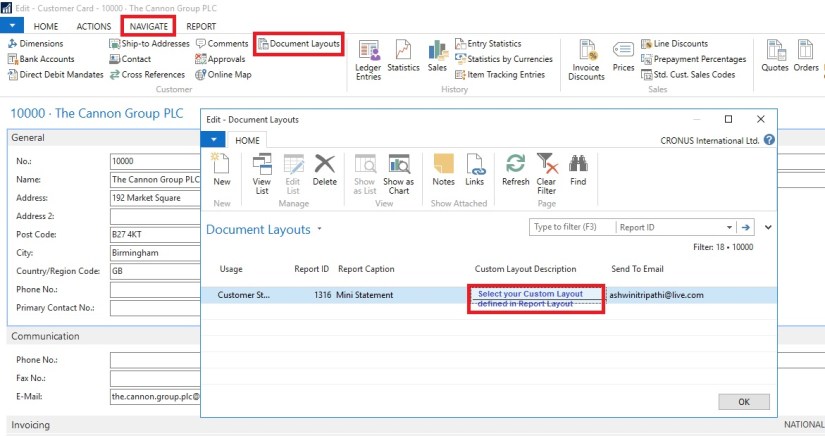
We assigned a custom layout to the customer in the customer card.

Here you set your selection by document type, for example, the sales quote or the customer statement.

You can also enter an email address for the document. So, if the statement goes to your customer’s accounts receivable clerk and the sales quote is sent to the sales manager, you define this information in the Document Layouts page.

The system uses the custom layout when you print the documents instead of emailing them.

Enter multiple email addresses with a semi-colon to separate them.
Report2016-2

You can do this for all customers.

When statements are processed, the report layout used is the one assigned to the customer. If the customer has no custom layouts assigned, the custom layout assigned in the Report Layout Selection is used.

If you go to Customer Statements, you can see that that Output Options are available. This will let you select how you wish to use the document layout settings.
Report2016-3
A checkbox will appear allowing you to print remaining statements. If you mark this checkbox, any statements with an email address in Customer Document Layouts is emailed, and any statements with a custom report layout but no email address will print with that report layout and any customers without any document layout settings will use the company default report from Report Layout Selections.

I will come up with more details in my upcoming posts.

Corfu Navision 2016, Development Tips, How To, XMLports

Multiple namespace support in XML Ports – Microsoft Dynamics NAV 2016

Microsoft Dynamics NAV 2016 now enables developers to create XMLPorts which contain more than one namespace. Namespaces are used to distinguish fields and provide uniqueness.

The inclusion of namespaces enables parties to tag elements and resolve any ambiguity.

What is default Namespace?

This property specifies the default namespace for both import and export. The default value is unique for different XMLports.

For example, the following string specifies a namespace: urn:microsoft-dynamics-nav/xmlports/x100, where 100 is the ID of the XMLport.

What is Namespace?

You can use this property to declare one or more namespaces on the XMLport.

To add a namespace, you can choose the AssistEdit button or enter the namespaces directly in the field.

A namespace declaration consists of prefix and the namespace name, which has the format prefix=namespace. Separate multiple namespaces with a comma.

In the XML documents exported or imported by the XMLport, the namespaces declarations are only supported in the <root> element.

For example, if an XMLport has the namespace mynavprefix=mynavnamepace and the default namespace urn:nav:schema:all, then the root element will be as follows:

<Root xmlns:mynavprefix=”mynavnamespace” xmlns=”urn:nav:schema:all”>

To specify a default namespace, leave the Prefix field blank.

You can also specify the default namespace by specifying the namespace in the DefaultNamespace Property and setting the UseDefaultNamespace Property to Yes.

However, there can only be one default namespace. So if you want to specify a default namespace in the Namespace property, you must set the UseDefaultNamespace Property to No.

How to Define Namespace:
Namespace-1

Using Namespace:
Namespace-2

The final XMLport will be as below:
Namespace-3

Now save your XMLport and execute it.
Namespace-4

The output will be similar to below:
Namespace-5

Conclusion:

  • Multiple namespaces are defined in the root element of the XMLport and have their own property editor for defining them.
  • Developers can easily select the namespace via lookups on the element record.
  • XMLports are accessible both for developers and super users. Including the namespace prefix in the core editor lets you see key data while developing.

I will come up with more information in my upcoming posts.

Corfu Navision 2016, Development Tips, Functional Tips, How To, Information, Workflow

Workflows in Dynamics NAV 2016

Workflows in Dynamics NAV are represented by workflow events and workflow responses.

The smallest workflow is the pairing of a single event with a single response.

“When something happens, do something” pattern. This is the Event/Response model that makes up the simple but effective design of Workflow for Microsoft Dynamics NAV.

The workflow functionality utilizes several other features as listed below of Dynamics NAV.

Few Listed here below:

Job Queues Setup

E-mail Notification Setup

Work date Setup

User Setup

Approval User Setup

SMTP Mail Setup

In particular, approvals and notifications must be set up so that workflows can send approval requests and process approvals.

Dynamics NAV 2016 introduces two new event concepts. Events and Workflow events. The two are distinct but often coupled together to build solutions.

Dynamics NAV Events allow you to write code which will be called when an event occurs – this is called subscribing to an event.

Workflow Events typically use Platform Events as their trigger, but are richer. Workflow events are registered in the workflow engine and show up in the workflow designer. Microsoft recommends that Workflow events be written at a higher level of abstraction than Platform Events.

Sales Invoice is created or Modified could be example of Event Subscriber, whereas Invoice is Release could be good example for Workflow Event.

Event

For the event we need a new codeunit.

Add helper method for binding our event with the workflow engine.

The method is a simple one which returns and identifying code.

Function Signature:

LOCAL OnMyEventCode() : Code[128]

Function Property:
Workflow-1

Sample Function Code:

EXIT(UPPERCASE(‘OnMyEvent’));


Next we add another method which will be called whenever our Event Occurs

Function Signature:

LOCAL [EventSubscriber] OnMyEvent(VAR Rec Object;VAR xRec Object;RunTrigger : Boolean)

Assuming a table is selected on which the Event is triggered.

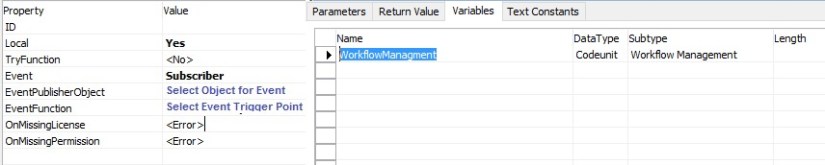
Function Property & Variables:
Workflow-2

Sample function code:

MESSAGE(‘Event Fired On MyEvent’);

WorkflowManagment.HandleEvent(OnMyEventCode,Rec);

For the code itself, we’ll do two things

  • Show a message box so we can see our event did trigger
  • Call into the workflow engine to have the NAV Workflow engine process any next steps


Then we need to add another event subscriber method which is responsible for adding our event to the workflow library. The workflow library is the collection of events which can be seen and managed from the Workflow Setup page.

Function Signature:

LOCAL [EventSubscriber] AddEventToLibrary()

Function Property & Variables:
Workflow-3

Sample function code:

WorkflowEventHandling.AddEventToLibrary(MyEventCode,DATABASE::Object,OnMyFinishTxt,0,FALSE);

Text Constant for Event Description:

OnMyFinishTxt : This will be listed in Workflow Event Window.
Workflow-4

To add a Workflow event we need to do three things:

  • Subscribe to the event.
  • Define a user readable string which describes the event.
  • Call a method in the workflow event handling codeunit, passing in the identifier and the descriptive string.

Save the Codeunit as MyWorkflowEvent with available ID in your Database.

Response

Most of the work is done in the code editor and we will use codeunits for our application objects.

First we’ll make a helper method for binding our response with the workflow engine.

The method is a simple one which returns and identifying code.

Function Signature:

LOCAL RunMyResponseCode() : Code[128]

Function Property:
Workflow-1

Sample Function Code:

EXIT(UPPERCASE(‘RunMyResponse’));


Then we need to add another event subscriber method which is responsible for adding our response to the workflow library. The workflow library includes the collection of responses which can be seen and managed from the Workflow Setup page.

Function Signature:

LOCAL [EventSubscriber] AddResponseToLibrary()

Function Property & Variables:

Workflow-5

Sample Function Code:

WorkflowResponseHandling.AddResponseToLibrary(RunMyResponseCode,0,ResponseDescription,’Group 0′);

Text Constant for Response Description:

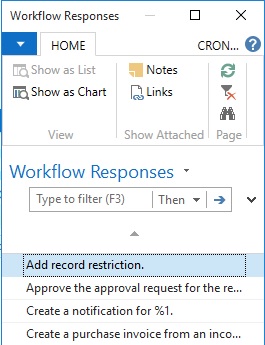
ResponseDescription : This will be listed in Workflow Responses Window.

Workflow-6

To add a Workflow response we need to do three things:

  • Subscribe to the event which adds new responses to the workflow library
  • Define a user readable string which describes the response
  • Call a method in the workflow response handling codeunit, passing in the identifier and the descriptive string.

The earlier functions were used to add the response to the workflow library.

But we need another method that actually listens to when the response needs to be called.

Function Signature:

LOCAL [EventSubscriber] RunReportResponse(VAR ResponseExecuted : Boolean;Variant : Variant;xVariant : Variant;ResponseWorkflowStepInstance : Record “Workflow Step Instance”)

Function Property & Variables:

Workflow-7

Sample Function Code:

IF WorkflowResponse.GET(ResponseWorkflowStepInstance.”Function Name”) THEN

CASE WorkflowResponse.”Function Name” OF

RunMyResponseCode:

BEGIN

RunMyFunction;

ResponseExecuted := TRUE;

END;

END;

When this code is called it needs to do two things.

Firstly it needs to evaluate if the response should be called (and it does this by checking the code value) and secondly it should return TRUE if it handles the response.

Finally we will add our Response Handling Function RunMyFunction, which will execute actual action which we want Response of this call.

Enable Workflow in System

First we will create our Category so that our Workflow can be identified uniquely.

Workflow-8

Next we will configure our Workflow.

Workflow-9

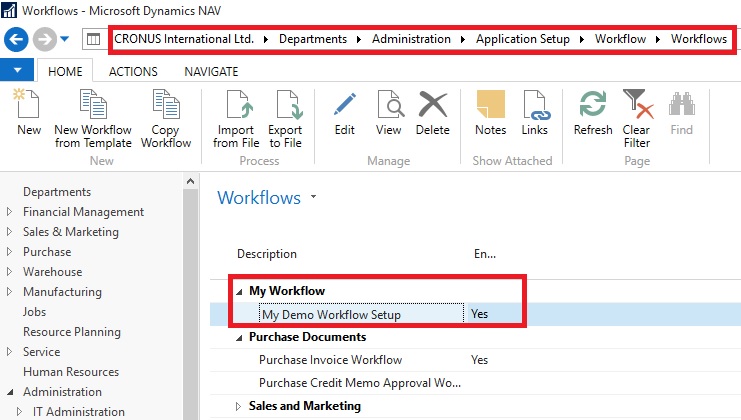
Here my workflow is listed once configured and saved.

Workflow-10

Now we are good in position to go for testing of our workflow.


This was the simplest scenario with bare minimum action required of implementing workflow.

You can use existing Template and define or you can implement your own as described above.


I will come up with more details on this topic later in my upcoming posts.

Corfu Navision 2016, Deferral, Functional Tips, How To

Deferral Functionality in Navision 2016

Microsoft Dynamics NAV 2016 offers the ability to automatically defer revenues and expenses over a predefined schedule, enabling companies to easily recognize revenues and expenses in periods other than the period in which the transaction is posted.

The deferral functionality provides several user benefits, including:

  1. Enabling additional financial functionality in Microsoft Dynamics NAV.
  2. Greatly reducing the time and effort required to defer revenues and expenses.
  3. Enabling reporting on deferred amounts for customer, vendor, and account ledgers.
  4. The deferral functionality is available on purchasing and sales documents, as well as general journals.

The first step in setting up deferral functionality is to create a deferral template.

Deferral templates allow us to define settings that will create a default deferral schedule for a document.

The default schedule is built for the document based on the settings defined in the template.

From the Search box find Deferral Template and use related Link to open the Template Card.
Deferral-1

Define the Template values as per the requirement for Expense/Revenue.

Period Description: uses %1..%6 to replace values as (1)Day, (2)Week, (3)Month, (4)Month Text, (5)Accounting Period Name, (6)Year

Users have the option to select a default deferral template for Resources, Items, and Accounts.

When the Resource, Item, or Account is selected on a document for which deferral functionality is available, the default deferral template will automatically be selected for the line.

Fill the Default Deferral Template on Invoicing FastTab for Item & Resource and for Accounts on Posting FastTab.
Deferral-2

Deferral-3

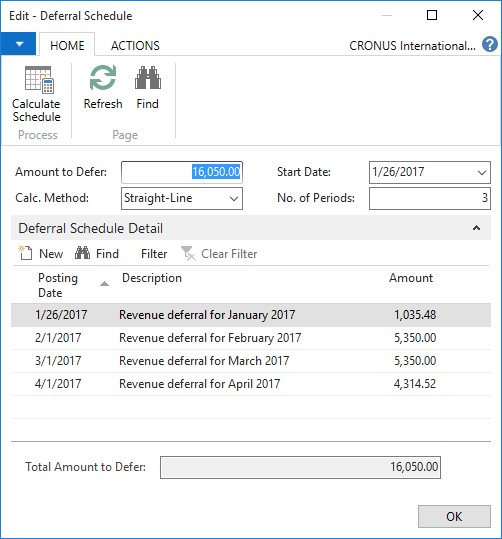
We have the option to view or modify the default deferral schedule created from the template in the Deferral Schedule page.

The user can either change the settings and re-calculate the schedule with new settings, or simply modify the lines of the schedule directly.

Schedule window will be as below:
Deferral-4

Reports:

The Sales Deferral Summary report provides a summary, for each customer, of deferred revenue. The amounts on the report are calculated as of the date entered for the report.

The Purchasing Deferral Summary report provides a summary, for each vendor, of deferred expenses. The amounts on the report are calculated as of the date entered for the report.

The G/L Deferral Summary report provides a summary, for each G/L account, of deferred expenses. The amounts on the report are calculated as of the date entered for the report.


I will come up with more details on this in my upcoming posts.

Corfu Navision 2016, Development Tips, Events, How To

Implementing Events in Navision 2016

Recall from my earlier post for description of Events – Events in C/AL Navision 2016

Here in this post we will see how to implement the same.

This could be helpful in situation where throughout the system you wish to have similar behaviour on specific condition. In general we will have to write code in every object with same set of logic, variables, and functions and so on.

Although still in this case too we will require to add code to every object, but only one time.

Think of you need to enhance or make changes in behaviour again you will have to go through each objects and do the required change. But using this feature we can keep it centralized and manage from single place, without going through each objects again.

Here below I am taking example one explained by Microsoft help basic concept, will come up with my version with some more effective usage later sometime.

When users change the address of a customer, you want to check that the address does not include invalid characters, which in this walkthrough is a plus sign (+).

To accomplish this, you will publish an event that is raised when the Address field on page 21 Customer Card is changed.

To handle the event when it is raised, you will add an event subscriber function that includes logic that checks the address value and returns a message to the user if it contains a plus sign.

Publishing the Event

To publish an event, you create a C/AL function that is set up to be an event publisher. An event publisher function can be added in any object, such as a codeunit, page, or table.

In this procedure we will add the event publisher function to a new codeunit, in which you can potentially add more event publisher functions for other events later.

Because you might want to change this event implementation in the future, you decide to create an integration event type.

The event publisher requires a single text parameter for handling the address of the customer.

Create a new codeunit

The codeunit for the event publisher I have created 50000 – Event Publisher.

Now we will add the event publisher function to publish the event.
Events-1

To create the event publisher function to publisher the event

  • Define a function OnAddressLineChanged.
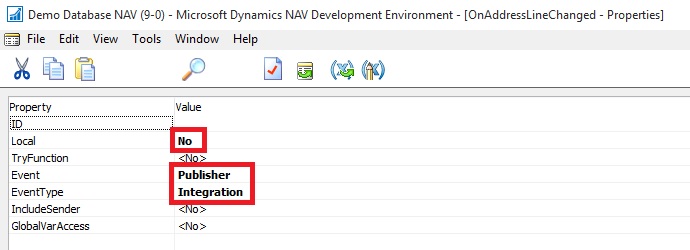
  • Open the properties for the OnAddressLineChanged function, select the function, and then in the View menu, choose Properties. Set the properties as follows:
  • Set the Local property to No.

Setting this property makes the function available to be called from the other objects.

  • Set the Event property to Publisher. This makes the function an event publisher.
  • Set the EventType property to Integration.
  • Close the Properties

Events-2

  • Add a local parameter to the function for the address of the customer as described in the following steps:
  • On the Functions tab, select the OnAddressLineChanged function, and then choose the Locals

The C/AL Locals window opens.

  • On the Parameters tab, in the Name field, enter line.
  • Set the DataType field to Text.
  • Set the Length field to 100.

Events-3

Important

An event publisher function cannot have a return value, variables, or text constants; otherwise you will not be able to compile the function.

The new function appears in the C/AL Editor with the following signature:

[IntegrationEvent] OnAddressLineChanged(line : Text[100])
Events-4

You can now raise the event in the application.

Raising the Event

After creating the event publisher function to publish the event, now we will add code to the application to raise the event where it is required.

In this case, the event will raise when the Address field is changed on the page 21 Customer Card.

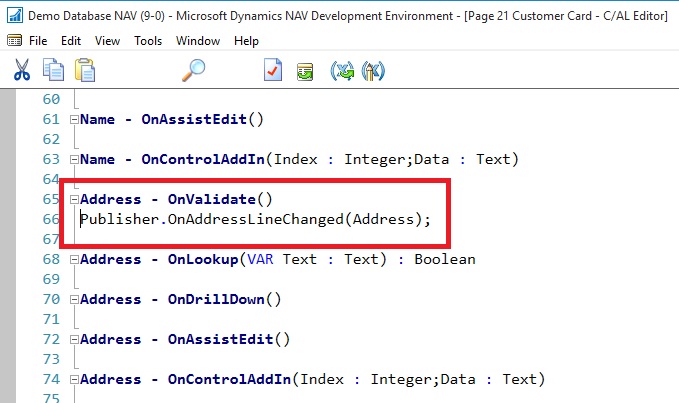
Therefore, we will add code to the Address – OnValidate() trigger in C/AL code of the page. Raising an event basically involves calling the event publisher function that publishes the event.

To raise the event

  • In the development environment, open page 21 Customer Card as follows:
  • Add a C/AL variable that specifies the object that publishes the event. In this case, the event publisher object is codeunit 50000 Event Publisher, which contains the event publisher function OnAddressLineChanged that you created in the previous procedure.

Events-5

  • In C/AL code, add the following code on the Address – OnValidate() trigger to raise the event:

Publisher.OnAddressLineChanged(Address);

This calls the event publisher function to raise the event.
Events-6

  • Save and compile the changes to the page.

The event can now be subscribed to and handled.

Subscribing to and Handling an Event

Once an event has been published you can add code to the application that subscribes to and handles the event when it is raised.

For example, in this case when a user changes the address of a customer (the event), you want code that checks that the value does not contain a plus sign.

Subscribing to and handling an event is accomplished by creating a C/AL function that is set up as an event subscriber and subscribes to a specific event (defined by an event publisher function). The event subscription function contains the application logic for handling the raised event.

In this case, we will create an event subscriber function that subscribes to the OnAddressLineChanged function in codeunit 50000 Event Publisher.

Unlike an event publisher function, an event subscriber function can only reside in a codeunit object. This procedure will add the event subscriber function to a new codeunit, in which you can potentially add more event subscriber functions for other events later.

To create a new codeunit

  • In the development environment, create a new codeunit that has the ID 50001 and the name Event Subscriber.

To create the event subscriber function to subscribe to and handle the event

  • Create Function CheckAddressLine.

Events-7

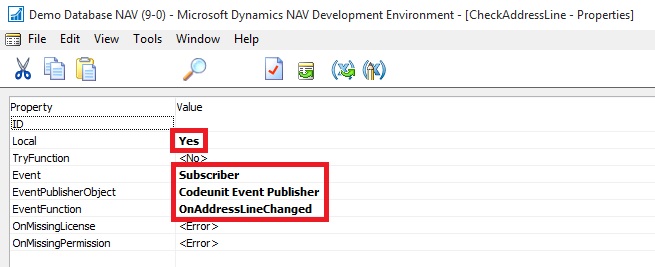
  • Choose Properties. Set the properties as follows:
  • Set the Event property to Subscriber to make the function an event subscriber.
  • Set the EventPublisherObject property to Codeunit My Publishers.

This is the codeunit that contains the event publisher function (OnAddressLineChanged) that you want to subscribe to.

  • In the EventFunction property, select the OnAddressLineChanged integration event.

This field reads all the published events in the event publisher object.
Events-8

Note

When you get a message that asks whether you want to overwrite the edited function’s signature, choose Yes to continue.

  • A local parameter that has the name line and the data type Text has been automatically added to the new CheckAddressLine
  • The new function appears in the C/AL Editor with the following signature:

LOCAL [EventSubscriber] CheckAddressLine(line : Text[100])

You can now add code to handle the event.

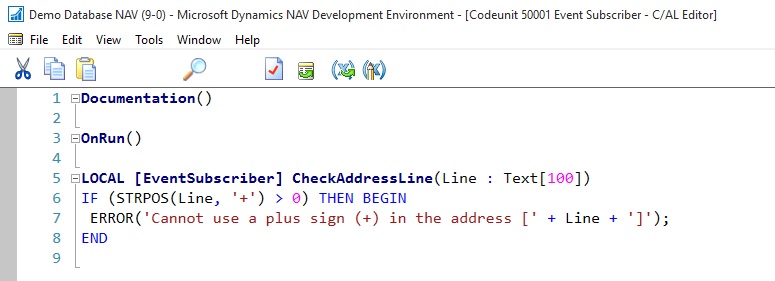
  • To handle the event, add the following code to the CheckAddressLine function in the C/AL editor:

IF (STRPOS(line, ‘+’) > 0) THEN BEGIN

ERROR(‘Cannot use a plus sign (+) in the address [‘ + line + ‘]’);

END

This code checks the value of the Address field on page 21 Customer Card when is has been changed and returns a message if the value contains a plus sign.
Events-9

Viewing the New Event Subscription

After you create an event subscriber, you can view information about it in page 9510 Event Subscriptions. This page provides information about all the current event subscriptions in the application. You can open this page directly from the development environment or from a Microsoft Dynamics NAV client.

To view the event subscription from the development environment

  • On the Tools menu, choose Debugger, and then choose Event Subscriptions.

Events-10

To view the event subscription from a Microsoft Dynamics NAV client

  • Start the Microsoft Dynamics NAV client.
  • In the Search box, enter Sessions, and then choose the related link.

Events-11

The Even Subscription Window will look like:
Events-12

Testing the Event

To test the event implementation, you can run page 21 Customer Card from the development environment.

  • In the Address field, add a plus sign, and then choose the OK

The following message appears:

Cannot use a plus sign (+) in the address [].

[] contains the value of the Address field.
Events-13

I will come up with more details on this topic later in my future posts.

Corfu Navision 2016, Development Tips

Using a Timestamp Field in Navision 2016

Each table in Microsoft Dynamics NAV includes a hidden timestamp field.

The timestamp field contains row version numbers for records as maintained in SQL Server.

You can expose the timestamp field in a table, and then write code against it, add filters, and so on, similar to any other field in a table.

However, you cannot write to the timestamp field.

A typical use of the timestamp field is for synchronizing data changes in tables, when you want to identify records that have changed since the last synchronization.

For example, you can read all the records in a table, and then store the highest timestamp value. Later, you can query and retrieve records that have a higher timestamp value than the stored value.

To set up a timestamp field in a table

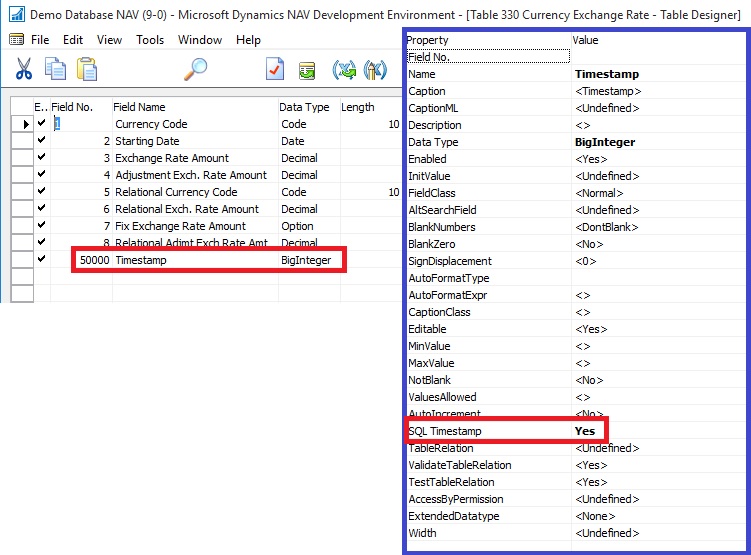
  1. In the development environment, open the table, and then add a field of the data type BigInteger.

Specify a name for the field, such as timestamp.

You can specify any valid name for field; you are not restricted to use timestamp.

  1. Open the field properties, and then set the SQL Timestamp property to Yes.

For demo purpose I am adding this field to table 330 – Currency Exchange Rate
Timestamp-1

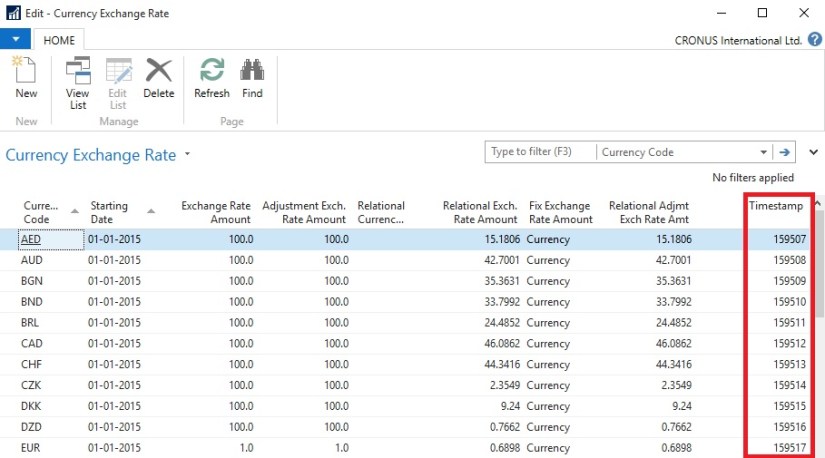
Now when I run the table in RTC I see value automatically populated in this field.
Timestamp-2

I will come up with more details in my future posts.

Corfu Navision 2016, Events, Information

Events in C/AL Navision 2016

By implementing events in C/AL code, you can design applications to react to specific actions or behaviour that occur.

Events enable you to separate customized functionality from the application business logic.

By using events in the application where customizations are typically made, you can lower the cost of code modifications and upgrades to the original application.

Events can be used for different purposes, such as generating notifications when certain behaviour occurs or the state of an entity changes, distributing information, and integrating with external systems and applications.

How Events Work

There are three major participants involved in events: the event, a publisher and a subscriber.

An event is the declaration of the occurrence or change in the application. An event is declared by a C/AL function, which is referred to as an event publisher function. An event publisher function is comprised of a signature only and does not execute any code.

A publisher is the object that contains event publisher function that declares the event. The publisher exposes an event in the application to subscribers, essentially providing them with a hook-up point in the application. An event is raised by adding logic to the application that calls into the publisher to invoke the event (the event publisher function). There are three different event types: business, integration, and trigger events.

Business and integration type events must be explicitly declared and published, which means that you must create event publisher functions and add them to objects manually. On the other hand, trigger events, which occur on table and page operations, are published and raised implicitly by the Microsoft Dynamics NAV runtime. Therefore, no coding is required to publish them.

A subscriber listens for and handles a published event. A subscriber is a C/AL function that subscribes to a specific event publisher function and includes the logic for handling the event. When an event is raised, the subscriber function is a called and it code is run.

How to Implement Events

Implementing events in Microsoft Dynamics NAV consists of the following tasks:

  1. Publish the event. For business and integration events, create and configure a function in an application object to be an event publisher function.
  2. Raise the event. Add code that calls the event publisher function..
  3. Subscribe to the event. At the consumer end, add one or more subscriber functions that subscribe to published events when they are raised.

Will come up with how to practically use it in my upcoming posts.